Here’s a user guide prepared for you by the Sydney CBD Repair Team for you to know your OnePlus One more. Use, customize and get the most out of your device.
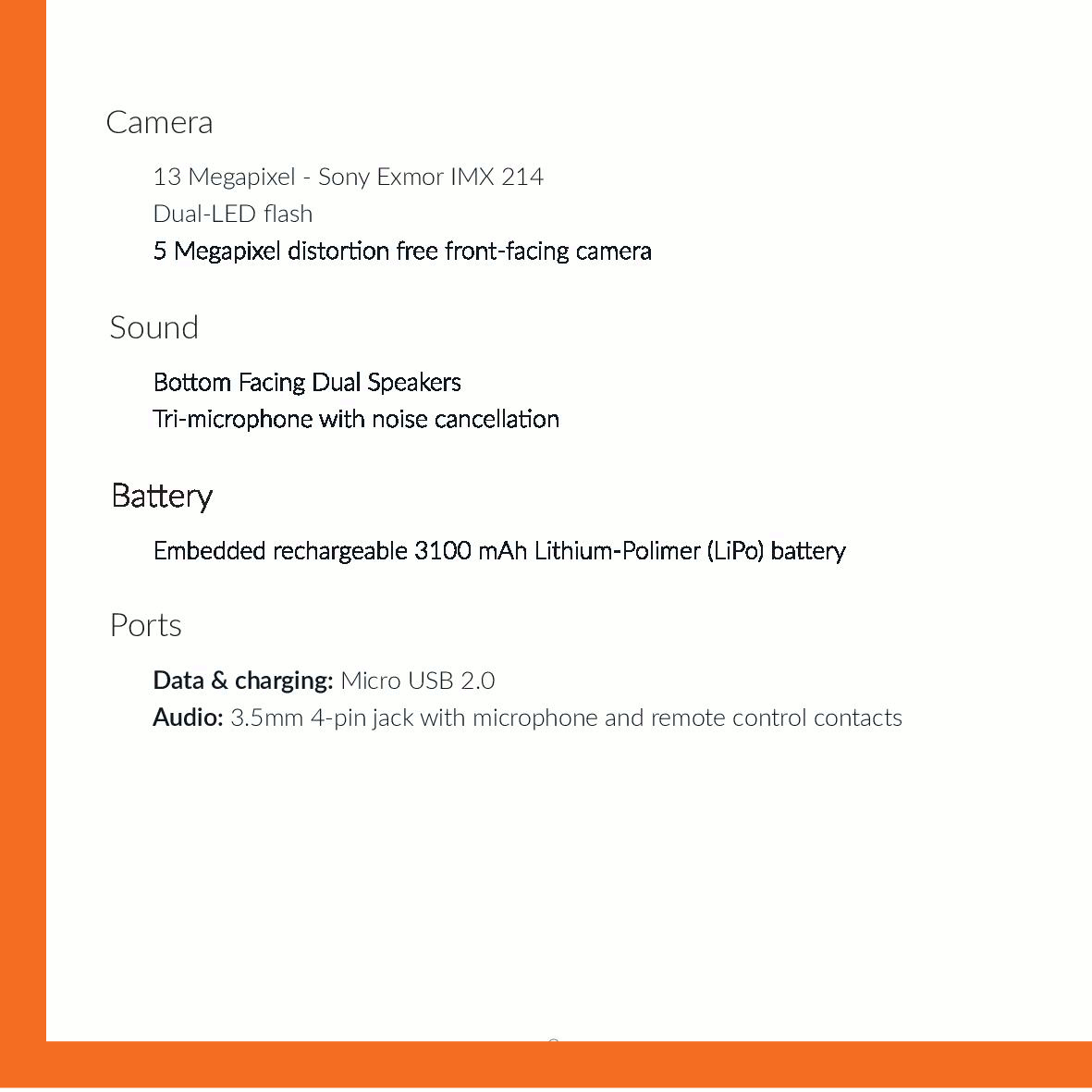
OnePlus One Full Specs
The sensational first generation of OnePlus smartphone came into the tech world in the form of the OnePlus One.
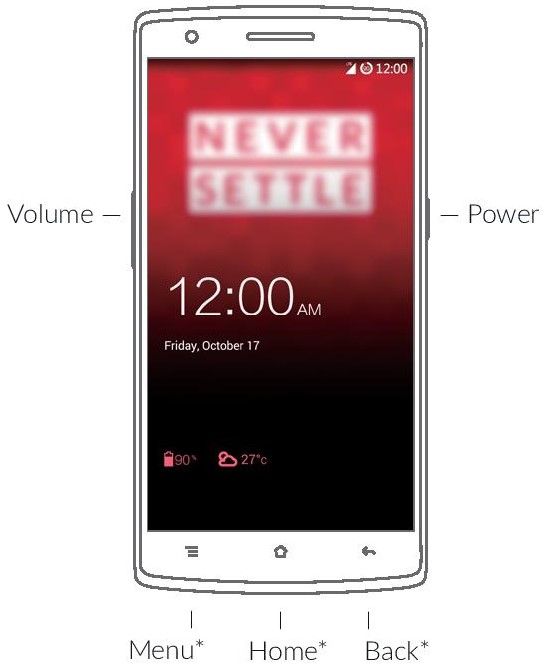
Turn on your OnePlus One by pressing and holding the button on the right for a few seconds. Then follow the on-screen instructions to personalize your One.
Refuel the built-in battery from a power outlet with your OnePlus One charger. Note that if your battery is completely drained, it may require a few minutes of charging before your device can power on.
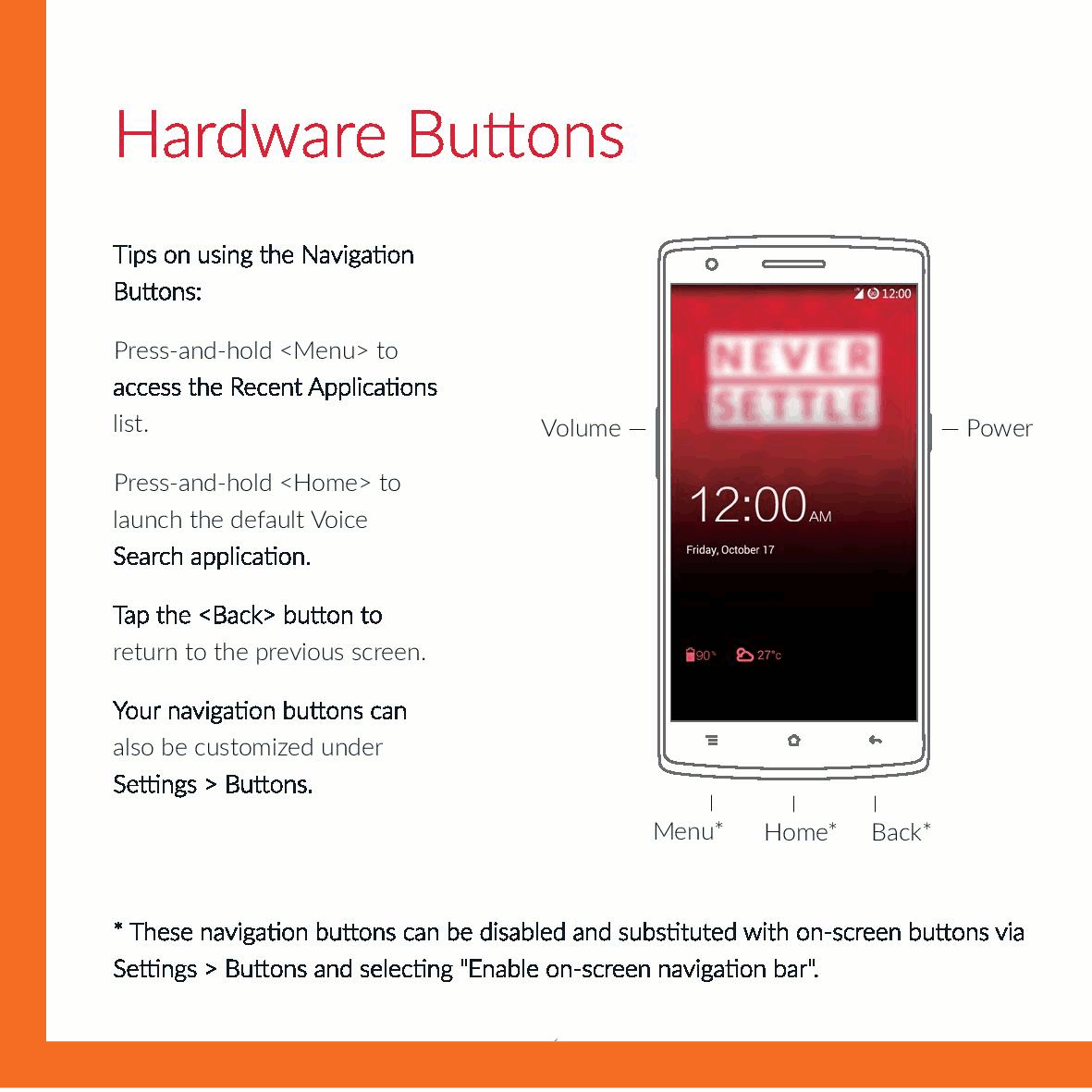
Press-and-hold to access the Recent Applications list.
Press-and-hold to launch the default Voice Search application
Tap the button to return to the previous screen.
Your navigation buttons can also be customized under Settings > Buttons.
These navigation buttons can be disabled and substituted with on-screen buttons via Settings > Buttons and selecting “Enable on-screen navigation bar”.
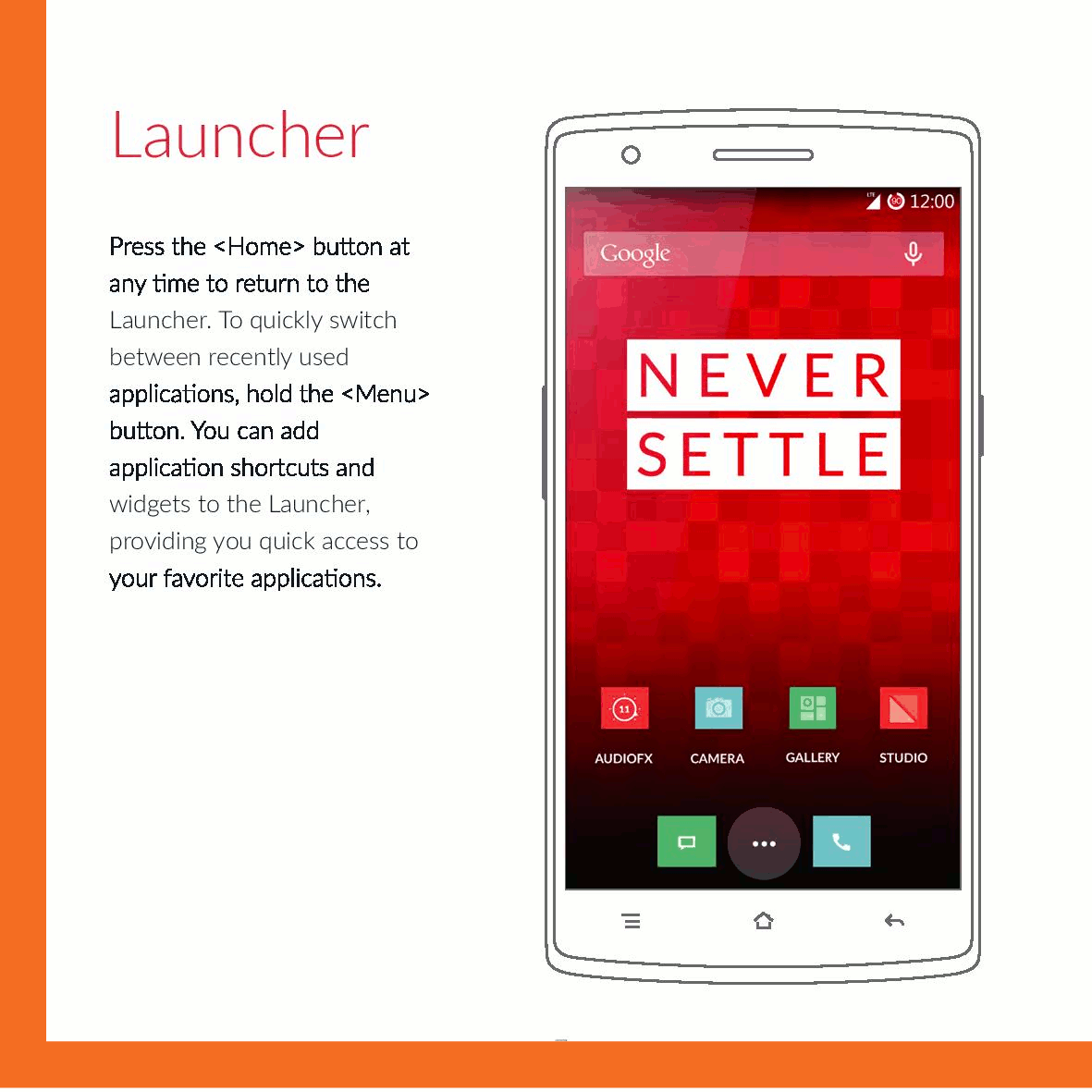
Press the button at any time to return to the Launcher. To quickly switch between recently used applications, hold the button. You can add application shortcuts and widgets to the Launcher, providing you quick access to your favorite applications.
The OnePlus One comes unlocked so you have the freedom to select your preferred mobile service provider.
The OnePlus One supports micro SIM cards and nano Sim cards. Use the SIM ejector pin provided to open the SIM card tray. Insert the SIM card with the SIM contacts facing the back of the phone.
If you have any issues connecting the phone to your mobile network, please contact your wireless service provider directly.
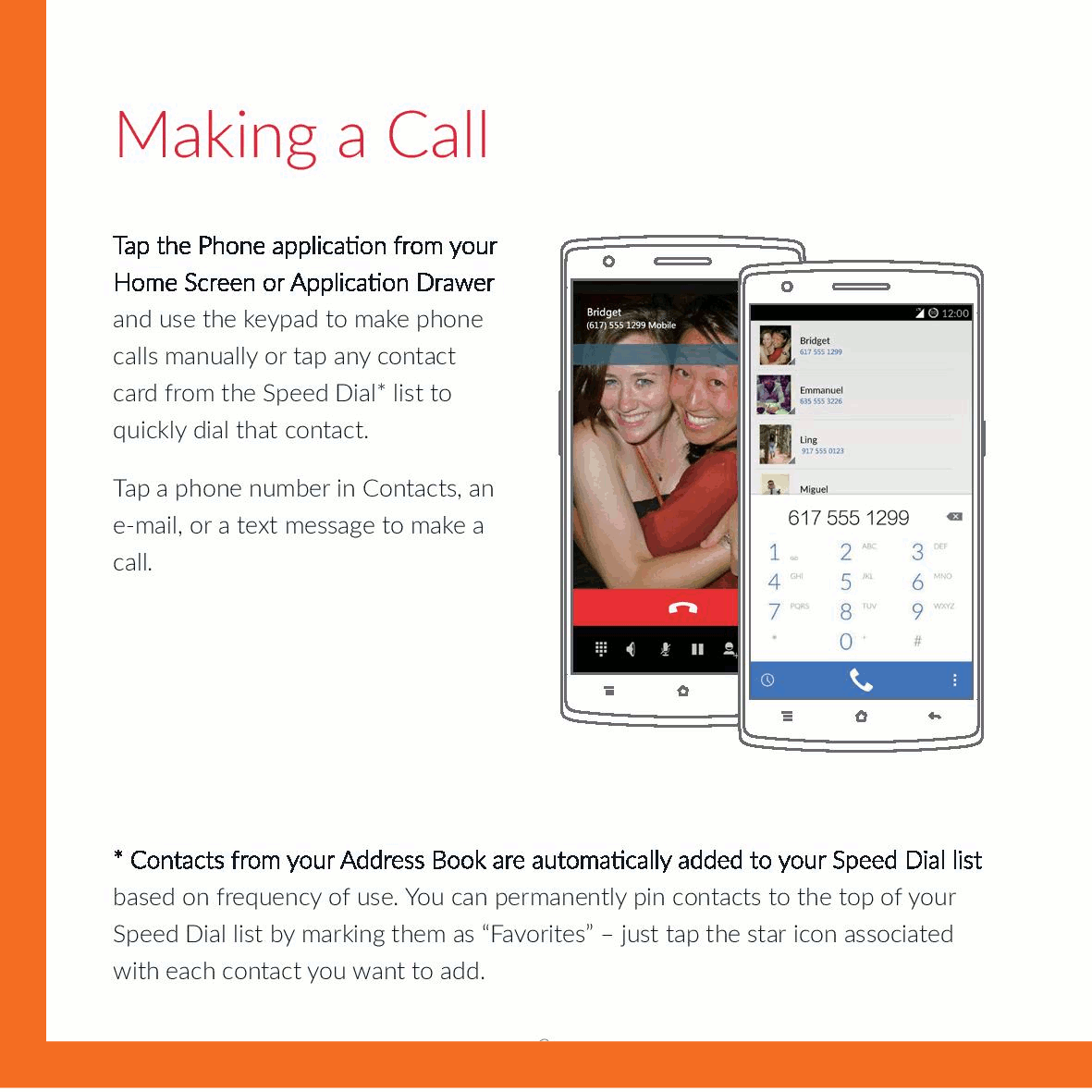
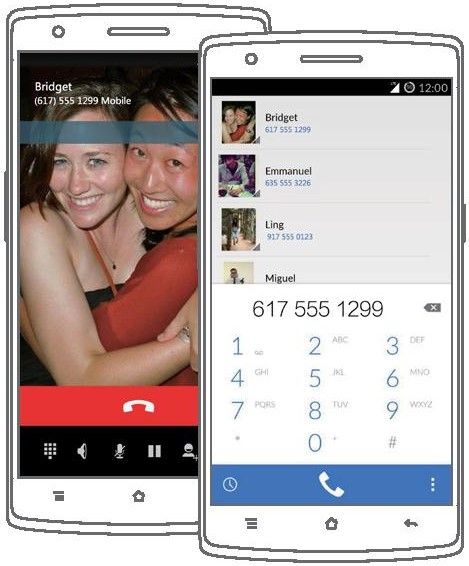
Tap the Phone application from your Home Screen or Application Drawer and use the keypad to make phone calls manually or tap any contact card from the Speed Dial list to quickly dial that contact.
Tap a phone number in Contacts, an e-mail, or a text message to make a call.
Contacts from your Address Book are automatically added to your Speed Dial list based on frequency of use. You can permanently pin contacts to the top of your Speed Dial list by marking them as “Favorites” – just tap the star icon associated with each contact you want to add.
The Camera application is optimized to capture the best images.
Taking photos and recording videos
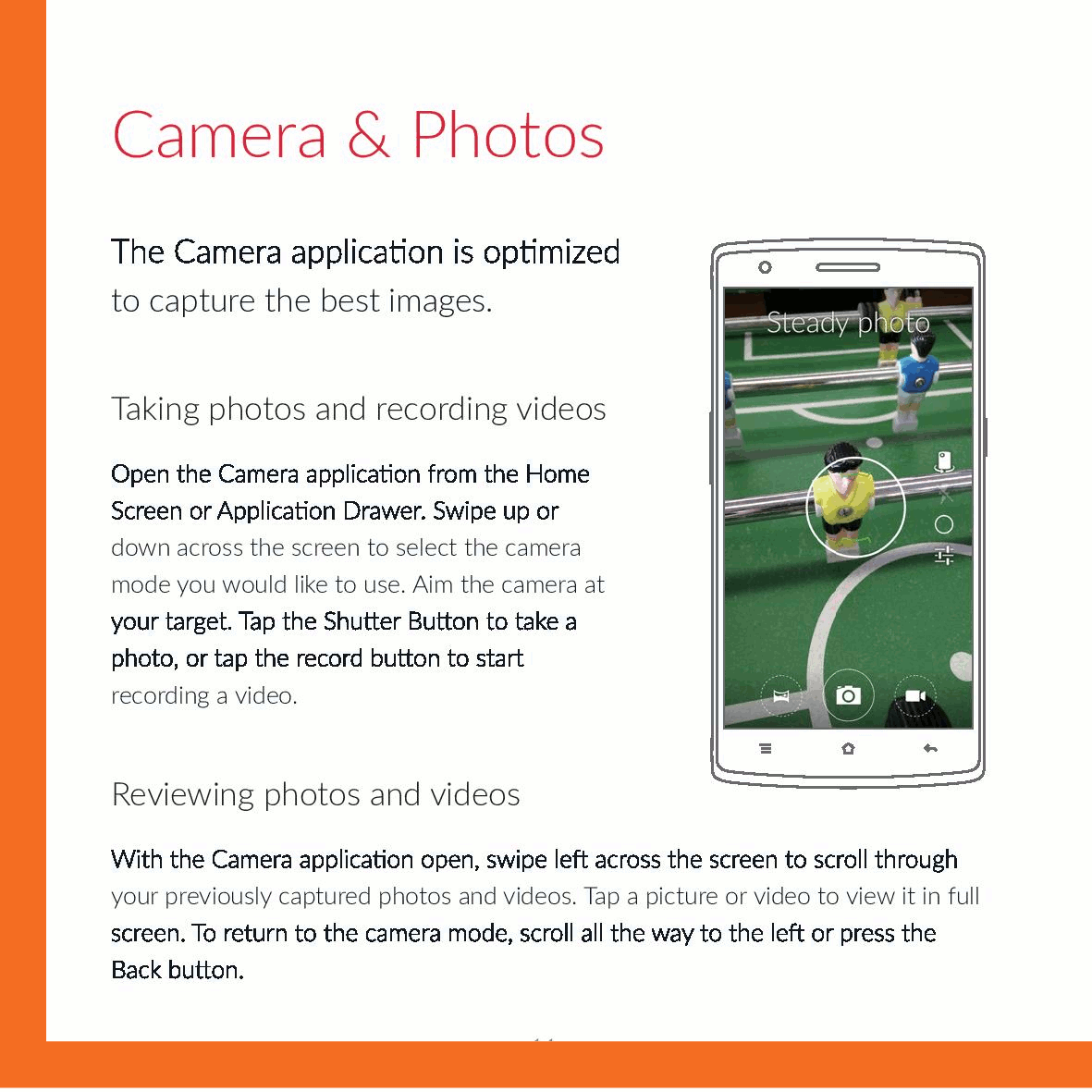
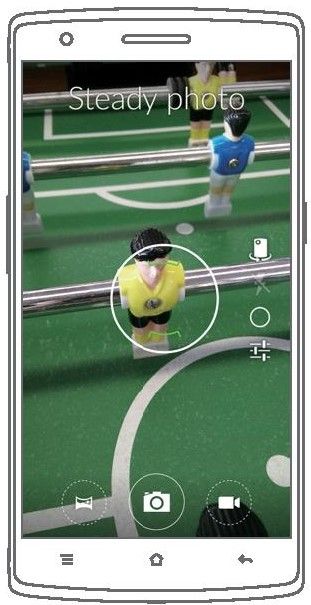
Open the Camera application from the Home Screen or Application Drawer. Swipe up or down across the screen to select the camera mode you would like to use. Aim the camera at your target. Tap the Shutter Button to take a photo, or tap the record button to start recording a video.
Reviewing photos and videos
With the Camera application open, swipe left across the screen to scroll through your previously captured photos and videos. Tap a picture or video to view it in full screen. To return to the camera mode, scroll all the way to the left or press the Back button.
Gallery
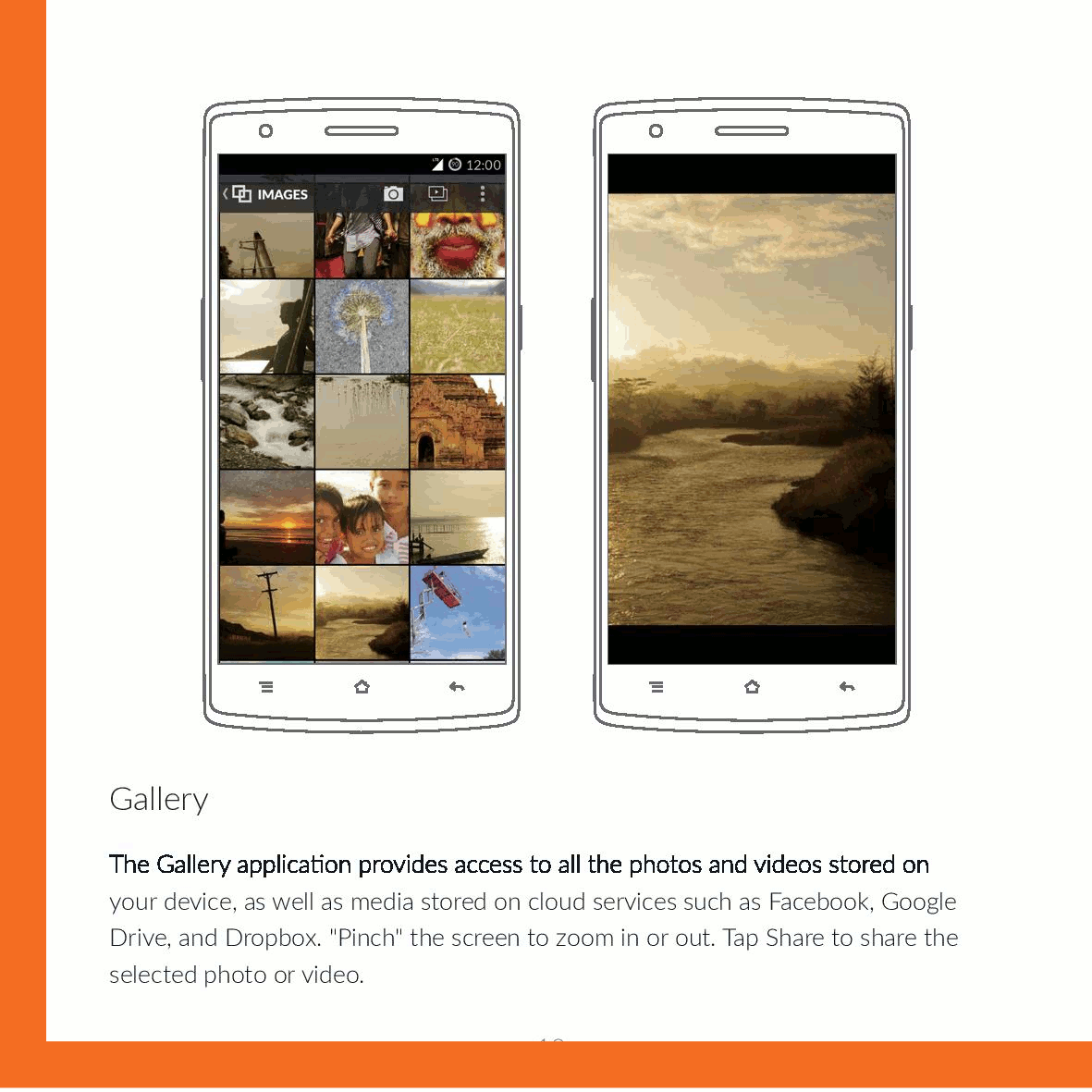
The Gallery application provides access to all the photos and videos stored on your device, as well as media stored on cloud services such as Facebook, Google Drive, and Dropbox. “Pinch” the screen to zoom in or out. Tap Share to share the selected photo or video.
Your OnePlus One includes Google application with Gmail as the default e-mail client. Simply launch the Gmail application from the Launcher or Application Drawer to get started. Follow the on-screen instructions to set up or sign in to a Gmail account.
Note: If you added a Google Account during Device Setup, your e-mail will automatically be synced and made available when the Gmail application is launched.
Other e-mail (IMAP/Exchange)
For other e-mail accounts, you can use the Email application.
The first time you launch the Email application you will be prompted to add an account. Follow the on-screen instructions to add an account.
Adding additional e-mail accounts
Launch the Settings application from the Launcher, Application Drawer, or the Quick Settings panel via the Notification bar. In the “Settings” application, scroll down to “Accounts” and tap “Add Account”.
Tap either “Corporate” to add an Exchange Server account or “IMAP” to add an IMAP account. Follow the on-screen instructions to add additional accounts.
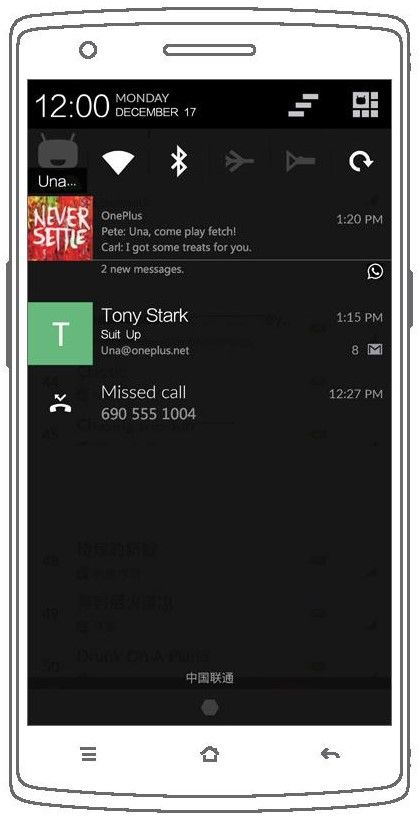
When you receive a notification, it appears briefly at the top of the screen without interrupting what you are doing. You can ignore the notification or swipe down the Notification Bar to address it right away. To see all your recent notifications, swipe down from the top of any screen. To dismiss a notification, swipe to the left or right across the notification you want removed.
Note: Some notifications cannot be dismissed while the related applications are running.
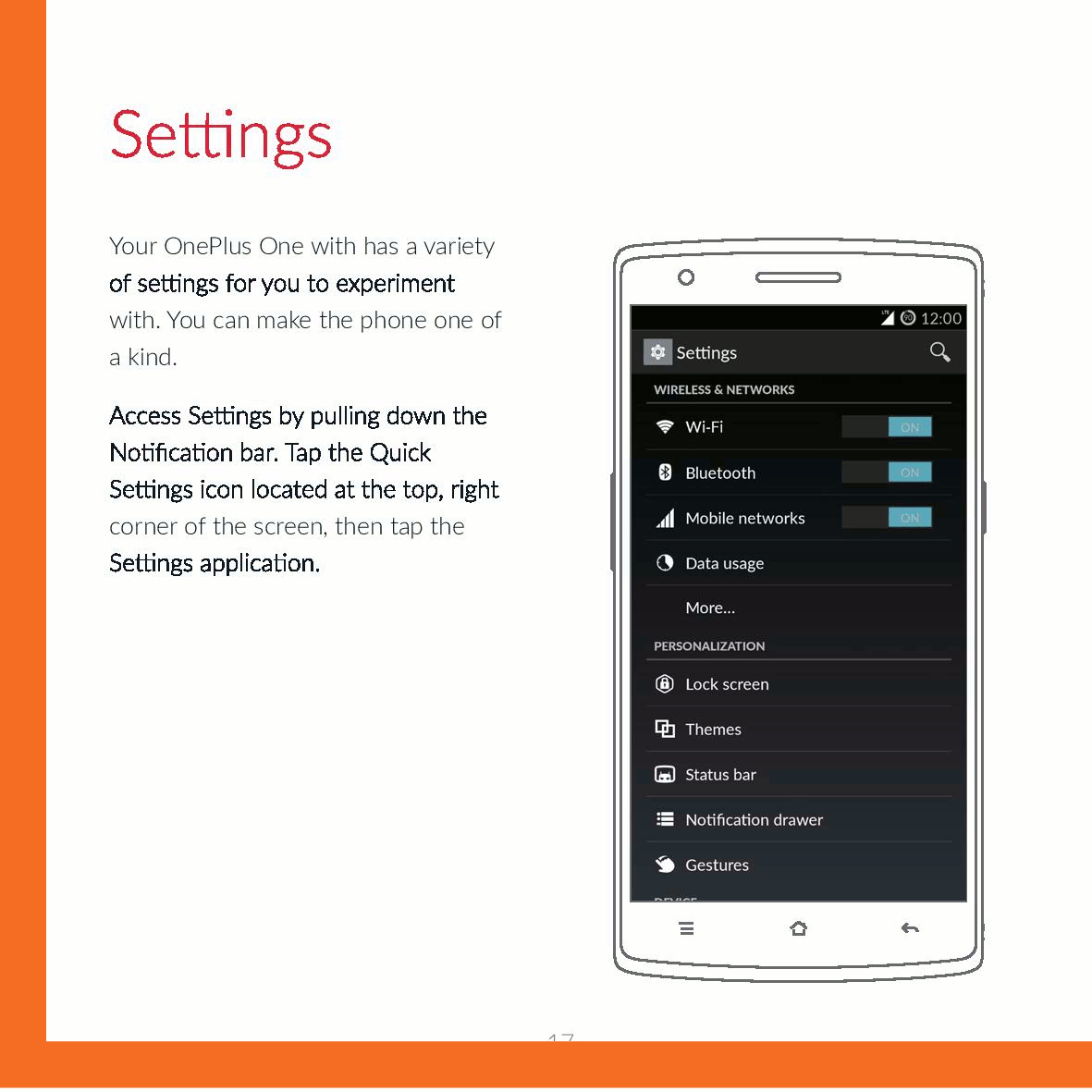
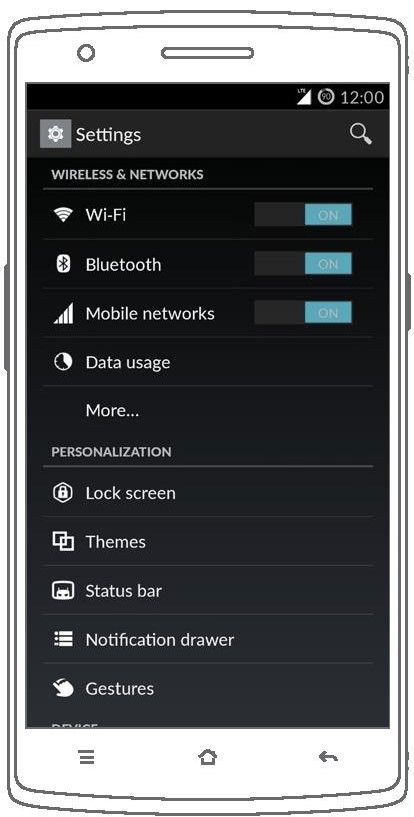
Your OnePlus One with has a variety of settings for you to experiment with. You can make the phone one of a kind.
Access Settings by pulling down the Notification bar. Tap the Quick Settings icon located at the top, right corner of the screen, then tap the Settings application.