




Top 5 Effective Fixes for a Blurry Screen on Google Pixel 8

5 Ways to Fix a Blurred Screen on Google Pixel 8
Experiencing a blurred screen on your Google Pixel 8 can be frustrating, especially when you’re relying on your device for daily communication, entertainment, and work. As the proud owners of a Google Pixel 8, we expect crystal-clear displays powered by OLED brilliance and cutting-edge software. But when that screen starts showing fuzzy visuals, it’s time to take action. Below, we outline five detailed, effective methods to troubleshoot and fix a blurry screen issue on the Pixel 8.
1. Check Display Settings for Resolution and Scaling Issues
Sometimes, the problem lies not with hardware but with misconfigured display settings.
Steps to Optimize Display Settings:
- Navigate to Settings > Display.
- Tap on Display size and text.
- Adjust the Display Size slider to make sure it’s set to default or your preferred clarity.
- Then go back and check Font size and ensure it’s not enlarged too much, which can distort rendering.
- Also, verify that Screen resolution under Advanced settings is set to high resolution (FHD+ or QHD) for the sharpest visual output.
Why This Helps:
Improper scaling can cause app icons and text to render poorly, creating a blurred effect. Resetting to default often corrects the visual fidelity instantly.
2. Restart Your Google Pixel 8 to Eliminate Temporary Glitches
A simple reboot can work wonders. Temporary software glitches and rendering bugs may cause display issues. Restarting clears the cache, resets the GPU, and allows the system to reload components properly.
How to Restart Safely:
- Press and hold the Power button.
- Tap Restart from the power menu.
- Allow the phone to reboot fully and observe the screen clarity afterward.
If the blur disappears post-restart, it was likely a transient software hiccup. If not, proceed to more in-depth fixes.
3. Boot in Safe Mode to Identify Third-Party App Conflicts
Some third-party apps can interfere with the Pixel’s display rendering pipeline, especially apps that alter visuals like screen filters, custom launchers, or battery savers.
Steps to Enter Safe Mode:
- Press and hold the Power button.
- Touch and hold the Power off icon until the Reboot to Safe Mode prompt appears.
- Tap OK to reboot into Safe Mode.
Once the phone restarts:
- Observe if the screen is still blurry.
- If the blur is gone, the issue likely lies in a third-party app.
Exit Safe Mode by restarting the phone normally, then uninstall recently downloaded apps one by one to identify the culprit.
4. Check for Software Updates or Roll Back Problematic Updates
Pixel phones receive regular system and security updates from Google. At times, new updates may introduce bugs that affect display rendering.
How to Update or Roll Back:
- Go to Settings > System > System Update.
- Tap Check for update and install if available.
If the blurring began right after a recent update:
- Report the bug to Google via Settings > Tips & support > Send feedback.
- Consider performing a factory reset (only after backing up your data) to return to default software conditions.
Alternatively, you may roll back a specific app update via:
- Settings > Apps > See all apps > [App name] > Uninstall updates (if applicable).
5. Hardware Inspection and Professional Repair Options
If all software fixes fail, the issue could be hardware-related—possibly due to:
- Physical damage (from drops or pressure).
- Manufacturing defects in the OLED panel.
- Connection issues with the screen’s internal flex cables.
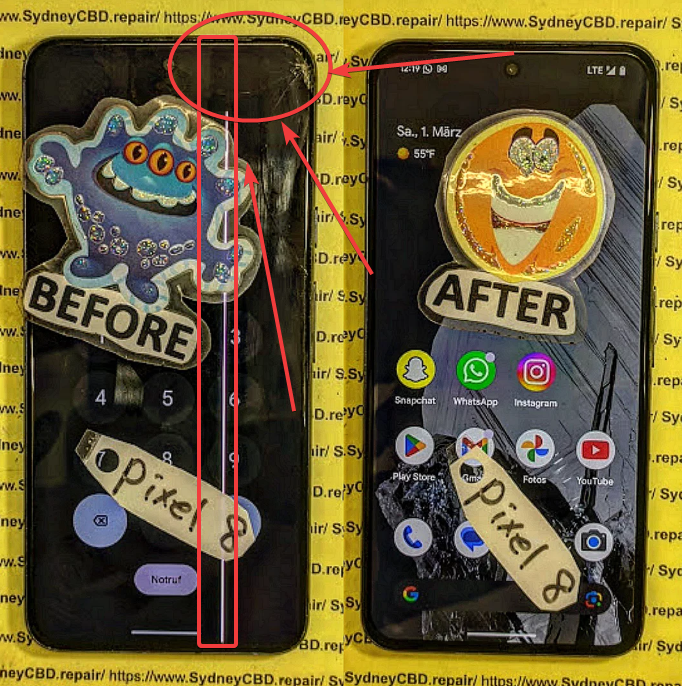
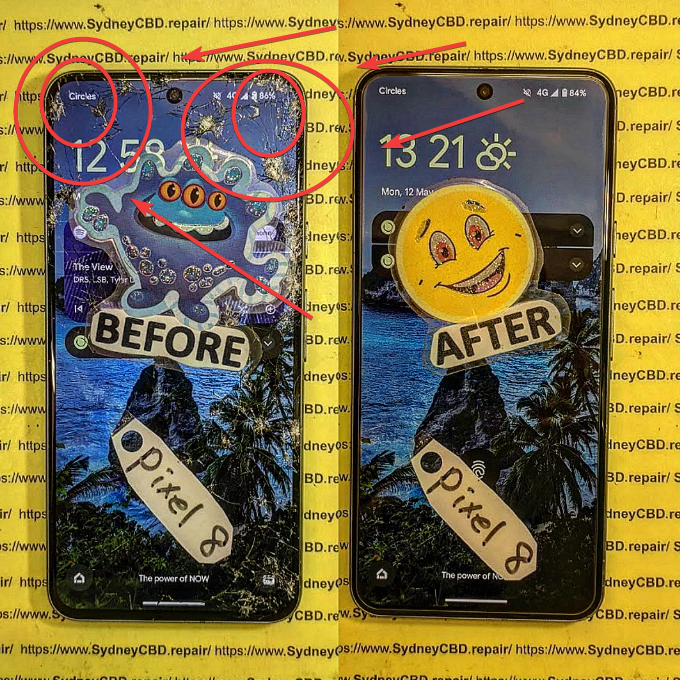
In such cases, it’s vital to consult certified repair professionals. Continuing to use a damaged screen can exacerbate the problem and lead to complete screen failure.
Why Choose Sydney CBD Repair Centre for Pixel 8 Repairs
David from Sydney CBD Repair Centre has built a stellar reputation over 6 consecutive years of award-winning service. With over 1900 positive Google reviews, our team delivers unmatched screen repair and display diagnostics using genuine Google parts.
We Offer:
- ✅ Same Day Express Repairs
- ✅ Genuine Parts with 90-Day Warranty
- ✅ Expert Technicians Specializing in Google Devices
- ✅ Competitive Pricing
- ✅ Walk-In Convenience in the Heart of Sydney
Don’t compromise your Pixel 8’s performance with blurry visuals—get it fixed right the first time.
📍 Visit Us Today at Sydney CBD Repair Centre
📞 Call Us: +61280114119
Bonus Tip: Use Display Calibration Apps with Caution
While there are several Play Store apps that claim to calibrate your display or fix dead pixels, use these with caution. Some may offer only placebo results or even worsen the issue.
Recommended Use:
Only try apps from verified developers with high ratings, and always read reviews. Never allow unnecessary permissions or overlays unless essential.
When to Replace Your Pixel 8 Display
If you’ve tried all troubleshooting steps and the screen is still blurry or discolored, it may be time for a screen replacement. Indicators of this include:
- Persistent ghosting or pixelation.
- Visible screen burn-in.
- Random flashing or flickering.
A replacement at a trusted repair center is your best bet. Avoid cheap parts and untrained hands that may compromise your device’s longevity.
Conclusion
A blurred screen on the Google Pixel 8 doesn’t have to spell doom for your device. Whether it’s a simple settings tweak or a full screen replacement, you now have the knowledge to act quickly and decisively.
David and the team at Sydney CBD Repair Centre are ready to help you get your Pixel 8 back in flawless working condition—fast, professionally, and affordably.
Need help today? Don’t wait—drop by our Sydney CBD location and see why we’re Sydney’s #1 Mobile Phone Repair Choice.

