


Fingerprint Fixes: Solving post-repair scanner issues on popular models

Fingerprint Fixes: Solving Post-Repair Scanner Issues on Popular Models – 10 Proven Methods
Introduction
In today’s world, smartphones are more than just communication devices—they’re essential tools for work, entertainment, and personal security. One of the most critical features for modern devices is the fingerprint scanner, offering both convenience and protection. However, after repairs such as screen replacements or button fixes, it’s not uncommon for fingerprint scanners to malfunction. Whether you own an iPhone, Samsung, Google Pixel, or another Android device, post-repair fingerprint issues can be frustrating and disruptive.
This comprehensive guide, “Fingerprint Fixes: Solving Post-Repair Scanner Issues on Popular Models – 10 Proven Methods”, is designed to help you understand why these problems occur, how to troubleshoot them, and the steps needed to restore full functionality. From cleaning and software updates to professional recalibration techniques, we’ll explore everything you need to know to get your fingerprint scanner working perfectly again.
By the end of this article, you’ll be equipped with practical solutions, preventive tips, and expert advice to ensure your device remains secure and fully operational—so you can unlock your phone with confidence, every single time.
Understanding Fingerprint Scanner Problems After Repair
Smartphones have evolved tremendously over the past decade, incorporating advanced biometric authentication such as fingerprint scanners. While these sensors make unlocking devices faster and more secure, they can be sensitive to post-repair problems. Repairing a phone—especially screen replacements or home button replacements—can disrupt the fingerprint sensor’s functionality. Understanding why these problems occur is the first step to effective troubleshooting.
Common Causes of Post-Repair Fingerprint Malfunctions
There are several reasons a fingerprint scanner may fail after a repair:
- Non-Genuine Replacement Parts: Many third-party screens and sensors are not fully compatible.
- Improper Installation: Misalignment during repair can prevent the sensor from reading fingerprints accurately.
- Software Glitches: Updates or restoration processes can disrupt sensor calibration.
- Physical Damage: Dropping or mishandling the device before or after repair can impair sensor function.
Each of these issues affects different brands differently, which is why understanding your model-specific challenges is crucial.
Signs Your Fingerprint Scanner Needs Attention
Some common indicators of post-repair scanner problems include:
- Fingerprints are not recognized consistently.
- The device fails to unlock via the sensor.
- In-display sensors respond slowly or intermittently.
- Error messages such as “Touch ID not available” appear.
Recognizing these signs early can save time and prevent further damage.
Model-Specific Fingerprint Issues
Different smartphone models have varying fingerprint technologies, meaning solutions must be tailored.
Apple iPhone Post-Repair Scanner Problems
Apple devices are particularly sensitive to post-repair fingerprint issues, especially with Touch ID.
iPhone Home Button & Touch ID Issues
iPhones with physical home buttons, such as iPhone 6, 7, and 8, may experience Touch ID malfunctions after repair. This often happens if the original sensor is not reused, as Apple ties each Touch ID sensor to the device’s secure enclave. Replacing the home button with a third-party part will render the fingerprint sensor inoperative.
iPhone Face ID vs Touch ID Post-Repair
On newer iPhones (iPhone X and later), Face ID replaces Touch ID. Repairs affecting the front sensor array, TrueDepth camera, or associated flex cables can interfere with Face ID, but the device’s software usually allows a reset to reconfigure the biometric system.
Samsung Fingerprint Scanner Troubles After Repair
Samsung offers both in-display and physical fingerprint scanners.
In-Display Sensor Calibration Challenges
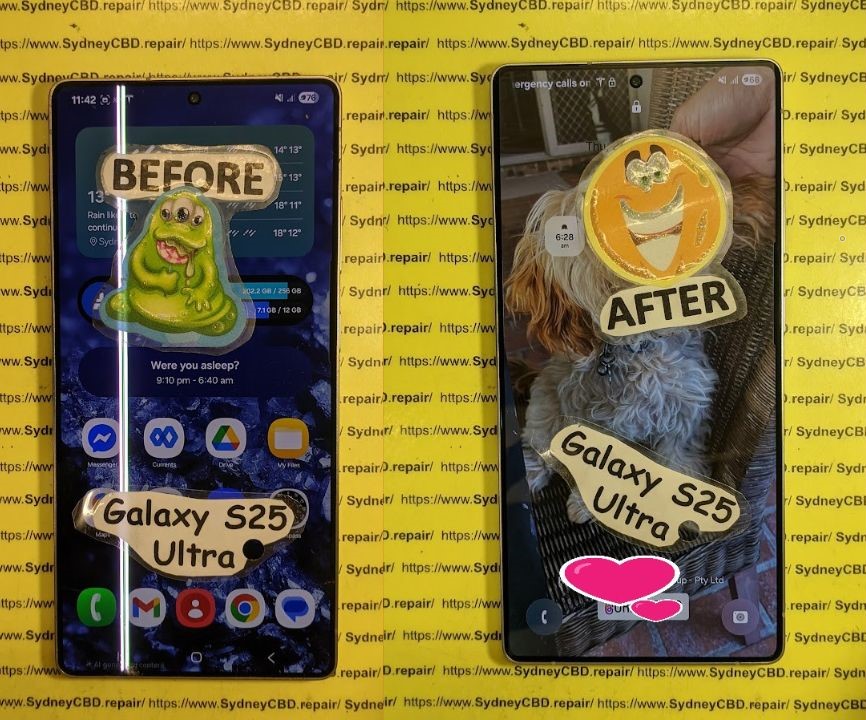
Samsung devices with in-display sensors, such as the Galaxy S series, may stop recognizing fingerprints after a screen replacement. This is often due to poor sensor alignment, improper adhesive application, or non-genuine screen assemblies. Even if the replacement screen appears identical, sensor sensitivity may be compromised.
Physical Button vs In-Screen Sensors
Older Samsung models with physical fingerprint buttons are less prone to issues, provided the original button is reused. In-screen sensors, however, require precise calibration to the device firmware to function optimally.
Google Pixel and Other Android Devices
Pixel phones and other Android devices like OnePlus, Oppo, and Xiaomi use varied sensor technologies.
Pixel Sensor Issues After Screen Replacement
Google Pixel phones with rear or in-display sensors often face recognition errors after display repairs. Reflashing firmware or re-registering fingerprints usually resolves the issue, but hardware misalignment can make the sensor permanently unresponsive.
Other Android Brands: Oppo, Xiaomi, OnePlus
Brands like Xiaomi, OnePlus, and Oppo generally allow easier sensor replacement, but they still require correct firmware calibration. In many cases, non-genuine parts reduce sensitivity, causing intermittent recognition.
Step-by-Step Troubleshooting Methods
Addressing fingerprint issues post-repair involves both software and hardware solutions.
Cleaning and Resetting the Sensor
- Step 1: Clean the sensor area using a microfiber cloth and isopropyl alcohol.
- Step 2: Remove existing fingerprints from device settings.
- Step 3: Re-register fingerprints in a clean, dry environment.
This basic step often restores sensor accuracy.
Software Updates & Sensor Reconfiguration
Many fingerprint errors occur due to outdated firmware. Performing a system update ensures the sensor operates with the latest patches.
- For iPhone: Settings → General → Software Update
- For Samsung/Android: Settings → Software Update → Download and Install
After updating, re-register your fingerprints for optimal results.
Factory Reset Considerations
If cleaning and updates fail, a factory reset can eliminate software conflicts. Note: Backup your data before proceeding.
- iPhone: Settings → General → Reset → Erase All Content and Settings
- Android: Settings → System → Reset Options → Erase All Data
This method often resolves deep-rooted sensor malfunctions.
Professional Calibration Techniques
Some devices require professional recalibration of the fingerprint sensor using specialized tools:
- Hardware-level recalibration for in-display sensors.
- Sensor firmware re-flash for Samsung and Pixel devices.
- Certified Apple repair tools for Touch ID sensors.
Professional assistance ensures the sensor is restored without risking permanent damage.
Preventive Measures Before and After Repairs
Preventing post-repair fingerprint issues is always better than troubleshooting.
Using Genuine Parts and Authorized Services
- Always insist on OEM (Original Equipment Manufacturer) parts.
- Certified repair services, like Sydney CBD Repair Centre, ensure sensor integrity.
Avoiding DIY Mistakes That Affect Sensors
- Avoid excessive force during screen removal.
- Do not reuse damaged cables or buttons.
- Ensure static-free environments to prevent circuit damage.
Post-Repair Care Tips
- Allow adhesives to set for the recommended time.
- Re-register fingerprints only after the device is fully operational.
- Keep the sensor area clean and dry.
When to Seek Professional Repair Assistance
If basic troubleshooting fails, professional repair is the safest route. Experienced technicians can:
- Replace or recalibrate sensors without voiding warranties.
- Use genuine parts for high compatibility.
- Diagnose underlying hardware or software issues quickly.
External Resources and Official Guides
- Apple Support: Touch ID and Face ID
- Samsung and Google official manuals offer detailed steps for sensor setup and calibration. Using official guidance reduces risk and ensures compliance with warranty policies.
Frequently Asked Questions (FAQs)
Can a software update fix a broken fingerprint sensor?
Yes, if the issue is caused by outdated firmware or corrupted settings. Hardware damage cannot be fixed by software.
Is it safe to replace the sensor at home?
Replacing sensors at home is risky, especially on iPhones or in-display Samsung devices. Professional service is recommended.
How long does it take to recalibrate a fingerprint scanner?
Calibration typically takes 5–15 minutes in professional settings, but home attempts may take longer with trial and error.
Why does the sensor stop working after a screen replacement?
Misalignment, damaged connectors, or non-genuine parts are common culprits.
Are there differences between in-display and button sensors?
Yes. In-display sensors require precise software calibration and clean installation, while button sensors rely more on hardware continuity.
What’s the warranty coverage for fingerprint issues post-repair?
Authorized repair services often provide 90-day warranties on parts and workmanship, covering sensor malfunctions if genuine parts are used.
Conclusion

Fingerprint scanners are sophisticated components that require careful handling during and after repairs. From cleaning and software updates to professional recalibration, multiple methods exist to restore sensor functionality. Prioritizing genuine parts, certified repair services, and proper post-repair care ensures long-term performance. Whether you own an Apple, Samsung, Pixel, or other Android device, following these comprehensive strategies will help you avoid post-repair fingerprint issues, keeping your phone secure and fully functional.
David from Sydney CBD Repair Centre – The Best place to fix mobile phones as 6 Years In A Row! Top Mobile Phone Repair In Sydney. More than 2000 Positive Reviews on Google and Same Day Repairs.
We take pride in delivering exceptional repair services for all major phone brands including Apple, Samsung, Google, and more. Our expert technicians use only genuine parts and offer 90 days warranty on repairs. Located in the heart of Sydney CBD, we’re your one-stop solution for all mobile device repairs.
Visit us for:
✓ Same Day Express Repairs
✓ Genuine Parts Guarantee
✓ Professional Technicians
✓ Competitive Pricing
✓ 2000+ 5-Star Google Reviews
✓ 6-Time Award Winner for Best Phone Repairs
Sydney CBD Repair Centre – Where Quality Meets Reliability.
Call: +61280114119
Website: https://SydneyCBD.repair/locate-us

