




From Dead to Done: Factory Resetting a Non-Responsive Phone, Step-by-Step

From Dead to Done: 7 Proven Steps to Factory Resetting a Non-Responsive Phone
Understanding Why Phones Become Non-Responsive
In today’s digital age, our smartphones are lifelines. When they freeze or become non-responsive, it’s not just frustrating—it can halt our entire day. A non-responsive phone can happen to anyone, regardless of brand or model. Common causes include:
- Software glitches: Temporary bugs or conflicts can freeze the system.
- App overload: Too many apps running simultaneously can crash the device.
- Battery issues: Low or faulty batteries may prevent proper startup.
- OS updates gone wrong: Failed updates can leave your phone stuck on a black or frozen screen.
- Hardware damage: Physical damage, such as a water leak or internal component failure, can mimic software freezes.
Recognizing these causes helps determine if a factory reset is necessary. Often, non-responsive phones need a hard reset to restore functionality.
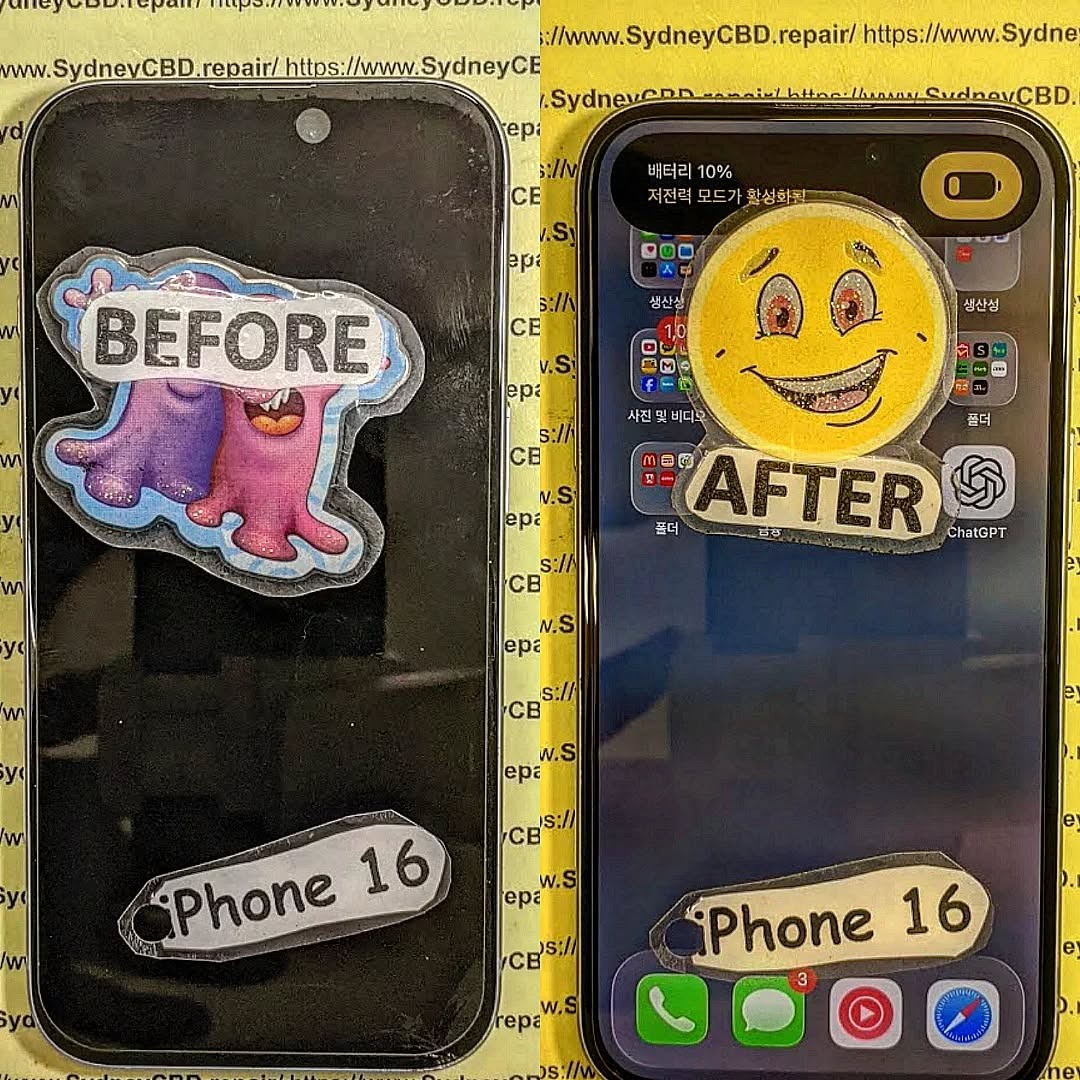
Common Signs Your Phone Needs a Factory Reset
Before rushing into a reset, identify the warning signs:
- Black screen or unresponsive touchscreen
- Repeated crashes or freezing apps
- Boot loops (phone restarting repeatedly)
- Slow performance even after closing apps
- Error messages indicating software corruption
If multiple signs are present, a factory reset might be your best bet. It wipes the device clean and restores it to its original state.
Safety Precautions Before Attempting a Reset
Resetting a phone can save it from permanent software damage, but it comes with risks:
- Data loss: A factory reset erases all personal data.
- Battery check: Ensure your device has at least 50% battery to avoid interruption.
- Secure backup: Use iCloud, Google Drive, or local storage to save contacts, photos, and documents.
- Stable environment: Perform the reset in a safe area with no power interruptions.
Following these precautions ensures the process is smooth and reduces the chance of turning a temporary issue into a permanent loss.
Preparing for a Factory Reset
Preparation is key. You’ll need:
- A charged phone or connected power source
- Stable Wi-Fi for cloud backup and software updates
- Knowledge of your device model and OS version
- Optional tools: PC/laptop with iTunes or ADB installed
Backup Your Data
Even if your phone is non-responsive, sometimes partial backups are possible:
- iOS: Use iCloud or connect to iTunes for a backup.
- Android: Google Drive backups, Samsung Smart Switch, or local SD card storage.
- Manual transfer: For accessible phones, connect via USB to copy essential files.
Charge Your Phone and Check Connectivity
Ensure your phone has adequate power. Factory resets on low batteries risk boot failure. Connect to Wi-Fi for device verification and restore processes after the reset.
Step-by-Step Guide for Factory Resetting
Android Devices: Hard Reset via Recovery Mode
- Power off the device.
- Press and hold Volume Up + Power buttons (model-specific).
- Navigate using volume keys to “Wipe Data/Factory Reset”.
- Confirm with the power button.
- Reboot system after completion.
Android Devices: Using ADB Commands
- Enable USB Debugging (if accessible).
- Connect the device to PC.
- Open terminal/command prompt.
- Enter:
adb reboot recoverythenadb shell recovery --wipe_data. - Wait for process completion.
iOS Devices: Recovery Mode Reset
- Connect iPhone to PC/Mac.
- Open iTunes/Finder.
- Force restart (volume up + volume down + power button depending on model).
- Select Restore when prompted.
- Wait for software installation and device restart.
Using Manufacturer’s Software Tools
- Samsung Smart Switch: Provides official reset and firmware recovery.
- Huawei HiSuite: Similar for Huawei devices.
- Google Factory Reset Tool: For Pixel devices.
Official tools reduce the risk of bricking your device and ensure compatibility.
Troubleshooting When Reset Fails
Sometimes, resets don’t work due to:
- Bootloader issues
- Corrupted system partitions
- Hardware failures
Solutions:
- Attempt soft reset (reboot without data wipe)
- Retry factory reset in recovery mode
- Contact authorized service centers for advanced recovery
Soft Reset vs Hard Reset
- Soft reset: Simple restart, no data loss.
- Hard reset (factory reset): Wipes all data, restores system.
Soft resets are first-line solutions; hard resets are last-resort but effective.
Post-Reset Setup and Optimization
Once reset:
- Reinstall apps from official stores.
- Restore backup from iCloud or Google Drive.
- Update system firmware to latest version.
- Optimize storage, remove unnecessary apps.
Preventive Measures to Avoid Future Freezes
- Keep your OS updated.
- Avoid installing unverified apps.
- Clear cache and unnecessary files regularly.
- Maintain battery health and avoid sudden power losses.
FAQs
Q1: Will a factory reset fix a physically damaged phone?
A: No. Hardware damage requires professional repair, though a reset can solve software glitches.
Q2: How long does a factory reset take?
A: Typically 10–30 minutes depending on device and data size.
Q3: Can I recover data after a factory reset?
A: Only if a backup exists. Otherwise, data recovery is unlikely.
Q4: Is it safe to reset my phone at home?
A: Yes, if you follow instructions carefully and ensure sufficient battery power.
Q5: Will my warranty be affected?
A: Factory resets do not void warranties, but rooting/jailbreaking does.
Q6: How often should I perform a factory reset?
A: Only when necessary, such as severe freezes or before selling your device.
External Resources
For official guides: Apple Support – Restore iPhone
Samsung users: Samsung Official Reset Guide
Conclusion

A non-responsive phone doesn’t mean the end. With careful preparation and following step-by-step procedures, you can bring your device from dead to done efficiently. Always back up data, use official tools when possible, and consider preventive measures to maintain device health.
Your phone can feel like new again—and with these tips, you’ll avoid future freezes.
David from Sydney CBD Repair Centre – The Best place to fix mobile phones as 7 Years In A Row! Top Mobile Phone Repair In Sydney. More than 2000 Positive Reviews on Google and Same Day Repairs.
We take pride in delivering exceptional repair services for all major phone brands including Apple, Samsung, Google, and more. Our expert technicians use only genuine parts and offer 90days warranty on repairs. Located in the heart of Sydney CBD, we’re your one-stop solution for all mobile device repairs.
Visit us for:
✓ Same Day Express Repairs
✓ Genuine Parts Guarantee
✓ Professional Technicians
✓ Competitive Pricing
✓ 2000+ 5-Star Google Reviews
✓ 7-Time Award Winner for Best Phone Repairs
Sydney CBD Repair Centre – Where Quality Meets Reliability.
Call : +61280114119
Website: https://SydneyCBD.repair/locate-us

