


How to optimize your Google Pixel battery life using advanced technician diagnostic menus

How to Optimize Your Google Pixel Battery Life Using Advanced Technician Diagnostic Menus: 10 Proven Strategies
Introduction
In today’s fast-paced digital world, the performance and reliability of your smartphone are more critical than ever. For Google Pixel users, battery life remains one of the most common concerns, affecting everything from daily productivity to long-term device longevity. While most users rely on basic charging habits and app management, few realize the power of advanced technician diagnostic menus hidden within their devices.
These diagnostic menus offer an unprecedented level of insight into your phone’s battery health, usage patterns, and potential issues. By understanding and utilizing these advanced tools, you can not only extend your Google Pixel battery life but also prevent unexpected shutdowns, overheating, and accelerated wear. This guide provides step-by-step strategies, combining practical daily habits with professional-level diagnostics, to help you maximize your device’s performance.
Whether you’re a casual user aiming to get more hours out of a single charge, or a tech-savvy individual interested in leveraging hidden menus for precise battery management, this article will equip you with actionable tips and expert insights to keep your Google Pixel running at peak efficiency.
Understanding Google Pixel Battery Drain
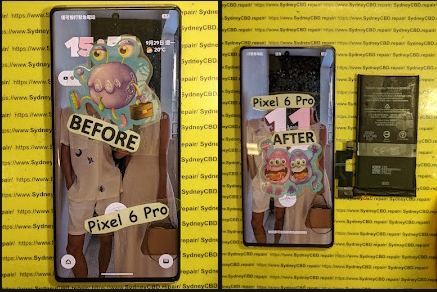
Battery drain is one of the most common issues Pixel users face. Understanding why it happens is key to optimizing performance. Most Google Pixel devices are powered by lithium-ion batteries, which naturally degrade over time. Other common causes of battery drain include:
- App overuse: Some apps continue running in the background, consuming more power than necessary.
- Outdated software: Old firmware or app versions may not be optimized for efficiency.
- Connectivity features: Constant Wi-Fi, Bluetooth, or GPS usage significantly impacts battery life.
Common Symptoms of Battery Issues
Signs that your battery might need attention include:
- Rapid discharge even when idle
- Slow or erratic charging
- Unexpected shutdowns
- Overheating while performing simple tasks
How Software Impacts Battery Life
Google Pixel devices rely heavily on software for battery management. Updates can improve battery efficiency but may sometimes introduce bugs. Certain apps with poorly optimized code can drain the battery faster, which is why monitoring app behavior is critical.
Introduction to Technician Diagnostic Menus
Technician diagnostic menus are hidden features in Pixel devices designed for in-depth system analysis. These menus provide advanced options to:
- Monitor battery health
- View voltage, charge cycles, and temperature
- Perform calibration and troubleshooting
Accessing the Diagnostic Menu Safely
Steps to access Pixel diagnostic menu:
- Open the phone dialer
- Dial
*#*#4636#*#* - Navigate to Battery Information
- Use options like Battery Health, Charging History, and Battery Stats
⚠️ Note: Only use these menus for observation and calibration. Avoid changing unrelated settings to prevent system issues.
Key Functions Relevant to Battery
- Battery Health: Percentage of original capacity
- Battery Voltage: Indicates stress on the battery
- Battery Temperature: Helps prevent overheating damage
Calibrating Your Battery for Optimal Performance
Calibration ensures that the battery reports accurate charge levels. Without calibration, the device may misrepresent the remaining battery percentage.
Why Calibration Matters
Proper calibration prevents unexpected shutdowns and maximizes efficiency. Miscalibrated batteries may charge fully but display lower percentages, causing usability problems.
Tools Required
- Built-in diagnostic menu
- Optional third-party apps (Google-approved only)
Calibration Steps:
- Charge your phone to 100% while powered off
- Unplug and power on the device
- Drain battery to near 0%
- Fully recharge without interruptions
Managing Power-Hungry Apps
Some apps consume significant power without obvious signs. Using Pixel’s built-in battery usage stats helps identify offenders.
Using Battery Usage Stats
- Go to Settings → Battery → Battery Usage
- Review app consumption
- Limit or uninstall apps with excessive usage
Restricting Background Activities
- Use Background Restriction for specific apps
- Disable auto-sync where unnecessary
- Enable Adaptive Battery to manage unused apps
Adjusting Screen and Display Settings
The display often accounts for the largest power draw. Optimizing screen settings significantly extends battery life.
Adaptive Battery and Dark Mode
- Adaptive Battery prioritizes power for frequently used apps
- Dark Mode reduces energy consumption, especially on OLED screens
Screen Timeout and Resolution
- Set a shorter screen timeout
- Reduce screen resolution if high resolution is unnecessary
- Adjust refresh rate to 60Hz when high refresh isn’t needed
Software Updates and System Optimization
Keeping your Pixel updated ensures access to the latest battery optimizations and bug fixes.
Clearing Cache and Temporary Files
- Navigate to Settings → Storage → Cached Data
- Clear cache to improve efficiency
- Avoid overloading storage, which impacts battery performance
Factory Reset Considerations
A factory reset may be necessary if the system is severely misbehaving. Backup data before performing this step.
Advanced Battery Diagnostics
Using the diagnostic menu, you can detect subtle issues before they become major problems.
Reading Battery Health Metrics
- Voltage fluctuations indicate stress
- Temperature spikes can cause long-term degradation
- Charge cycles reveal overall battery lifespan
Detecting Faulty Hardware
- Swollen battery or irregular charging patterns may indicate hardware failure
- Seek professional service if any abnormal readings persist
External Accessories Impacting Battery Life
Chargers and cables can influence charging efficiency.
Choosing the Right Charger
- Use original or certified chargers
- Fast charging is convenient but may slightly reduce battery longevity if overused
Wireless Charging Effects
- Generates heat, which affects battery efficiency
- Use occasionally rather than constantly for best results
Preventive Maintenance Tips
Temperature Management
- Avoid exposure to extreme heat or cold
- Remove cases while charging if the device heats up
Charging Habits
- Partial charging is often better than full 0-100 cycles
- Avoid overnight charging unless using smart charging features
FAQs
1. Can I improve battery life without using the diagnostic menu?
Yes, optimizing apps, screen settings, and charging habits can improve battery life.
2. How often should I calibrate my Pixel battery?
Every 2–3 months is generally sufficient.
3. Does fast charging damage the battery?
Occasional use is fine, but constant fast charging may reduce battery lifespan slightly.
4. What does battery health percentage mean?
It shows the remaining capacity compared to the original design capacity.
5. Can software updates improve battery life?
Absolutely. Google frequently releases firmware updates that optimize power management.
6. Should I use third-party battery apps?
Only use trusted apps from Google Play with positive reviews and permissions transparency.
Conclusion

Optimizing your Google Pixel battery life requires a combination of smart usage, software updates, proper charging habits, and occasional use of advanced diagnostic menus. By monitoring battery health, calibrating correctly, managing apps, and applying preventive maintenance, you can significantly extend your device’s longevity and enjoy more reliable performance.
Reference: Google Pixel Official Support
David from Sydney CBD Repair Centre – The Best place to fix mobile phones as 7 Years In A Row! Top Mobile Phone Repair In Sydney. More than 2000 Positive Reviews on Google and Same Day Repairs.
We take pride in delivering exceptional repair services for all major phone brands including Apple, Samsung, Google, and more. Our expert technicians use only genuine parts and offer 90 days warranty on repairs. Located in the heart of Sydney CBD, we’re your one-stop solution for all mobile device repairs.
Our commitment to excellence has earned us the trust of thousands of satisfied customers. Whether it’s a cracked screen, battery replacement, or water damage repair, we handle it all with professional care and expertise. Walk in today and experience why we’re Sydney’s #1 choice for mobile phone repairs.
Visit us for:
✓ Same Day Express Repairs
✓ Genuine Parts Guarantee
✓ Professional Technicians
✓ Competitive Pricing
✓ 2000+ 5-Star Google Reviews
✓ 7-Time Award Winner for Best Phone Repairs
Sydney CBD Repair Centre – Where Quality Meets Reliability.
Call : +61280114119
Website: https://SydneyCBD.repair/locate-us

