


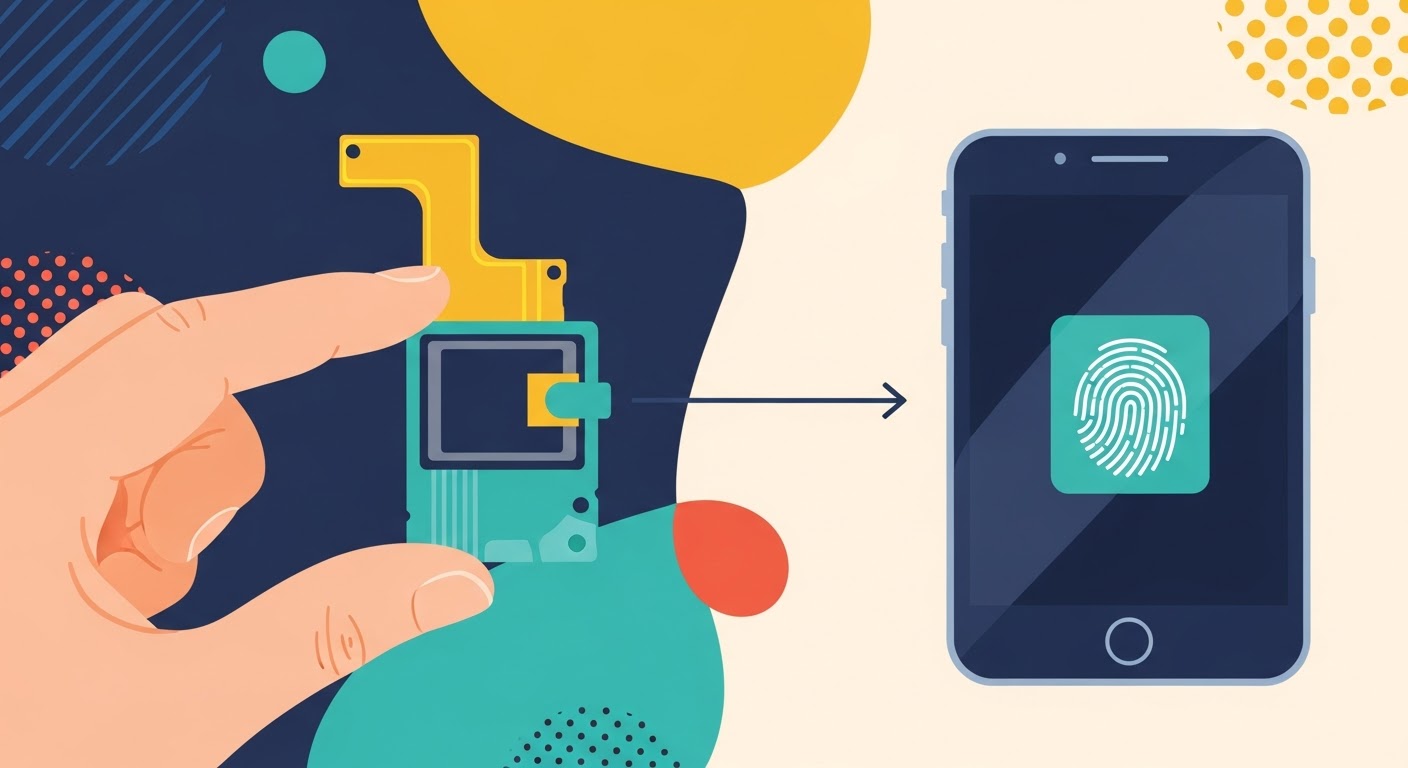
Fingerprint Sensor Fix After Screen Replacement

Fingerprint Sensor Fix After Screen Replacement: The Ultimate 2025 Repair Guide (Power Tips + 15 Must-Know Steps)
Introduction
Replacing a smartphone screen might seem straightforward, but one of the most common issues that follows is a malfunctioning fingerprint sensor. Because modern devices rely heavily on biometric authentication for security, payments, and app access, a fingerprint sensor failure becomes more than a minor inconvenience — it disrupts your entire workflow. That’s why this 2025 ultimate guide explains everything you need to know about achieving a successful fingerprint sensor fix after screen replacement, whether you’re a technician, DIY repair enthusiast, or a phone owner curious about the process.
This article aims to simplify the complex world of biometric calibration, hardware testing, cable inspections, and system-level fixes. You’ll also learn why certain devices — especially iPhones, Samsung Galaxy, and Google Pixel — require special handling when repairing display assemblies intertwined with biometric systems. With the tech landscape evolving faster than ever, being aware of how fingerprint sensors interact with new display technologies is essential.
Let’s get right into it.
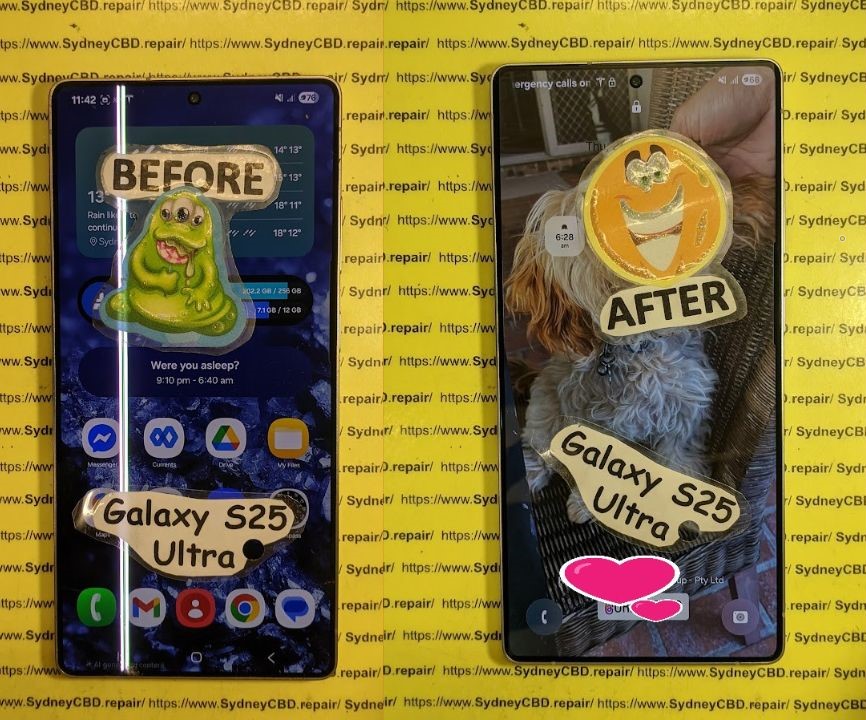
Understanding Why the Fingerprint Sensor Fails After Screen Replacement
When your fingerprint sensor stops working after a screen replacement, it’s usually due to one of three reasons: hardware damage, calibration loss, or compatibility issues.
The Role of OEM vs Aftermarket Screens in Sensor Failures
Smartphone manufacturers such as Apple, Samsung, and Google design their fingerprint sensors to synchronize with very specific display parameters. This means:
- Thickness of the display cover glass
- Light reflectivity
- Sensor alignment tolerance
- Micro-layer sensitivity
OEM screens match these parameters exactly. However, aftermarket screens — even high-quality refurbished ones — can differ slightly. These inconsistencies can cause:
- Slow fingerprint registration
- Authentication failure
- Permanent calibration error
Using aftermarket displays is common, but it’s important to understand their limitations in supporting fingerprint sensor accuracy.
Typical Symptoms of a Faulty Fingerprint Sensor
When attempting a fingerprint sensor fix after screen replacement, look out for:
- Fingerprint option missing from settings
- “Fingerprint sensor unavailable” error
- Slow fingerprint setup
- Failure to detect any finger
- In-display sensor lighting but not responding
- Home button touch not recognized (older iPhones)
- Overheating in the lower screen area
Some devices even display a warning message stating the biometric hardware can’t be verified.
Essential Preparations Before Attempting a Fingerprint Sensor Fix
Before diving into repairs, you need proper tools and safe working conditions. Fingerprint sensors are extremely sensitive, and one wrong move can cause permanent damage.
Important Tools and Software You’ll Need
- Precision screwdrivers
- Plastic pry tools
- Isopropyl alcohol (99%)
- ESD-safe gloves
- Thermal pressure mat
- Microscope (recommended)
- Brand-specific software (Samsung Odin, Apple Configurator, Google Repair Tool)
- OEM-grade display replacements
- UV light for under-display calibration (for optical sensors)
Safety Precautions You Shouldn’t Skip
- Disconnect the battery before touching sensor flex cables.
- Avoid applying pressure directly on under-display fingerprint areas.
- Do not mix different adhesives — it disrupts light transmission.
- Keep the workspace dust-free.
- Always remove tempered glass before testing biometric systems.
15-Step Guide to Fingerprint Sensor Fix After Screen Replacement
Below are the most complete steps to restore full functionality. These methods apply to iPhone Touch ID, Samsung ultrasonic sensors, and Pixel under-display sensors.
Step 1: Inspect Flex Cables for Pressure Damage
Fingerprint sensors depend on delicate flex cables. Even a slight bend or crease can break microscopic circuits. Use a magnifier to inspect for:
- Cracks
- Tears
- Burn marks
If damaged — replace.
Step 2: Examine the Home Button or Under-Display Sensor Hardware
For iPhones, the home button must match the logic board or Touch ID is permanently disabled.
For newer Android phones, ensure:
- Sensor bracket alignment
- Proper adhesive layer thickness
- No trapped air bubbles
Step 3: Verify Proper Seating of Display Connectors
Loose connectors are the top cause of failed fingerprint sensors. Re-seat gently and secure the latch.
Step 4: Clean the Sensor Contact Area
Even microscopic dust or oil can prevent accurate readings. Clean with IPA and a microfiber cloth.
Step 5: Update or Reinstall Device Firmware
Firmware mismatches occur when replacing screens. Brands often patch biometric software in updates.
Step 6: Calibrate the Fingerprint Sensor
Some devices require post-repair calibration using:
- Samsung’s ADB calibration suite
- Pixel’s repair mode
- Apple’s proprietary calibration (only at authorized centers)
Step 7: Run Diagnostics Mode
Most modern smartphones have built-in tests:
- Samsung:
*#0*# - Pixel: Settings > Support > Tests
- iPhone: Apple internal diagnostics only
Step 8: Check for Glue Obstruction
If LOCA glue or adhesive blocks the sensor’s optical path, remove and re-apply properly.
Step 9: Replace the Fingerprint Sensor Module (If Allowed)
Some devices allow replacement; iPhones do not (due to Touch ID pairing restrictions).
Step 10: Re-seat Relevant Connectors
Recheck every connector related to:
- Display
- Battery
- Sensor
- Motherboard ports
Step 11: Measure Power Flow to the Sensor
Use a multimeter to check:
- Voltage output
- Continuity
- Ground stability
Step 12: Restore Factory Settings (Last Resort)
Backup first. This resets all biometric trust settings.
Step 13: Use Authorized Brand-Specific Software Tools
This ensures the screen and fingerprint sensor are correctly validated.
Step 14: Test Without Tempered Glass
Some ultrasonic sensors fail with low-quality screen protectors.
Step 15: Seek Professional Repair Centre Assistance
When DIY methods fail, consult expert technicians like Sydney CBD Repair Centre for professional diagnostics and OEM-grade repairs.
Avoiding Fingerprint Sensor Issues in Future Repairs
Why Skilled Technicians Matter
Biometric systems require precision and brand-approved repair workflows. Attempting a DIY repair increases risks such as:
- Sensor misalignment
- Damage to flex cables
- Permanent loss of biometrics
Best Practices When Repairing Modern Biometric Devices
- Always use OEM screens.
- Calibrate before reassembling.
- Keep sensor area free of dust.
- Avoid bending display panels.
- Use professional-grade adhesive.
FAQs
1. Why does my fingerprint sensor stop working after a screen replacement?
Because the sensor is tightly integrated with the screen assembly, even minor changes in thickness, alignment, or flex cable tension can disrupt functionality.
2. Is it possible to fix a fingerprint sensor without replacing the screen again?
Yes, many issues can be fixed through calibration, cleaning, or cable re-seating.
3. Will Apple Touch ID work after a home button replacement?
No. Touch ID is digitally paired to the motherboard. Only Apple-authorized repair centers can restore functionality.
4. Why does my Samsung ultrasonic fingerprint sensor fail after repair?
It’s often caused by adhesive thickness, aftermarket screens, or misalignment in the sensor cavity.
5. Can I fix fingerprint issues using software only?
Software can fix calibration or firmware issues, but cannot resolve hardware faults such as damaged flex cables.
6. Does tempered glass affect fingerprint performance?
Yes. Low-quality or thick protectors can block under-display sensors entirely.
Conclusion

Fixing a fingerprint sensor after a screen replacement requires a careful balance of hardware assessment, calibration accuracy, and understanding how biometric technologies interact with modern display systems. While many issues can be corrected using the 15-step process above, some devices may require expert intervention, especially models with strict security pairing like Apple’s Touch ID.
If you want guaranteed results, it’s best to rely on a trusted and award-winning repair provider such as Sydney CBD Repair Centre, where professional technicians use genuine parts and advanced calibration tools.
David from Sydney CBD Repair Centre – The Best place to fix mobile phones as 6 Years In A Row! Top Mobile Phone Repair In Sydney. More than 2000 Positive Reviews on Google and Same Day Repairs.
📍 Visit us today for:
✓ Same Day Express Repairs
✓ Genuine Parts Guarantee
✓ Professional Technicians
✓ Competitive Pricing
✓ 2000+ 5-Star Google Reviews
✓ 6-Time Award Winner for Best Phone Repairs
Sydney CBD Repair Centre – Where Quality Meets Reliability.
📞 Call : +61280114119
🌐 Website: https://SydneyCBD.repair/locate-us

