


Replacing the Screen on the OnePlus 12 Pro

Replacing the Screen on the OnePlus 12 Pro – Complete Guide + 10 Must-Know Tips
Introduction: Why Screen Replacement is Tricky
The OnePlus 12 Pro is packed with premium hardware, including a stunning 120Hz LTPO AMOLED display with curved edges and high touch sensitivity. But its design — including a sealed glass back, in-display fingerprint sensor, and delicate flex cables — makes screen replacement complicated.
If your phone’s screen is cracked, unresponsive, or bleeding pixels, follow this guide for the safest repair process.
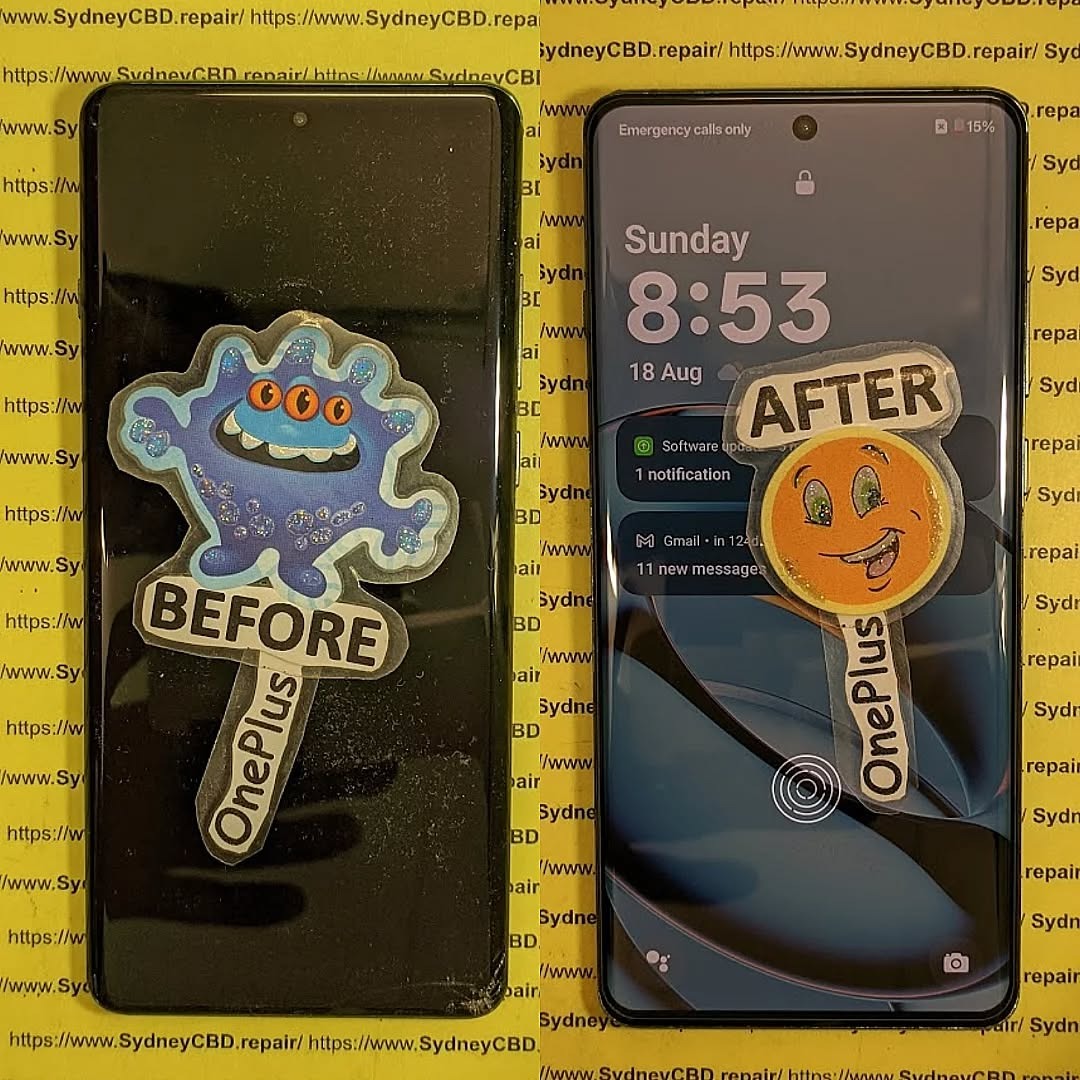
When Should You Replace Your OnePlus 12 Pro Screen?
Consider a replacement if:
- Your screen has deep cracks affecting touch
- The display shows black spots or ghost touches
- The screen is unresponsive or flickers
- There’s no display even though the phone powers on
- Your fingerprint scanner stops working due to damage
Delaying replacement may lead to further internal damage or battery drain from display malfunction.
Tools and Parts You’ll Need for a Safe Replacement
| Tool / Material | Purpose |
|---|---|
| Heat gun or hot plate | Softens adhesive on back panel |
| Suction cup & plastic picks | Opens the device without damaging the frame |
| Precision screwdriver set | Removes internal screws (Torx, Phillips) |
| Plastic spudger & tweezers | Safely disconnects cables |
| Isopropyl alcohol (≥90%) | Cleans adhesive and residue |
| Replacement AMOLED screen | OEM preferred for best results |
| Adhesive strips / glue | Resealing the phone |
OEM vs Aftermarket Screens: What You Should Know
| Feature | OEM Screen | Aftermarket Screen |
|---|---|---|
| Display quality | True-to-original color and brightness | May be dimmer or inaccurate |
| Touch sensitivity | Fully compatible with in-display sensor | May affect fingerprint accuracy |
| Refresh rate | Supports full 120Hz | Often limited to 60Hz or has ghosting |
| Durability | Tested to factory standards | Often uses cheaper materials |
For the OnePlus 12 Pro, an OEM screen is highly recommended to preserve the display experience and device integrity.
OnePlus 12 Pro Screen Features and Design
- 6.82” LTPO AMOLED, 120Hz refresh rate
- HDR10+ and Dolby Vision support
- Curved edge glass
- Gorilla Glass Victus 2
- In-screen fingerprint sensor
The curved edges make adhesive removal and reinstallation more delicate than flat screens.
Step-by-Step OnePlus 12 Pro Screen Replacement Guide
Step 1: Power Off and Eject SIM Tray
Turn off the phone completely and remove the SIM tray to prevent electrical damage.
Step 2: Heat the Back Glass and Open the Device
Use a heat gun or hot plate around the edges. Carefully insert a plastic pick or card to loosen adhesive. Take extra care near the camera bump.
Step 3: Disconnect the Battery and Remove Internal Shields
Unscrew the midframe and shields. Disconnect the battery connector first, then display cables and any antenna modules.
Step 4: Detach Display Connectors
Locate the display flex cable connected to the motherboard. Use tweezers or a spudger to lift it carefully without bending it.
Step 5: Remove the Damaged Screen
Heat the front edges, especially the corners. Gently pry the screen from the frame. Clean leftover adhesive and inspect for bent frame areas.
Step 6: Install the New Screen and Reassemble
Place new adhesive. Align and connect the screen. Test it before sealing the back. Reconnect all cables and battery, then reattach the back glass.
10 Pro Tips to Avoid Costly Screen Replacement Mistakes
- Always disconnect the battery first — avoid short circuits.
- Use non-metal tools to avoid damaging boards.
- Don’t rush heating — soft adhesive = safer removal.
- Use OEM screens to avoid calibration issues.
- Avoid touching the inside of the new display.
- Label your screws — different lengths go in different places.
- Don’t over-tighten screws — can crack the board.
- Test the screen before sealing the phone.
- Replace adhesive completely, not just patching old strips.
- Recalibrate the fingerprint sensor if needed after replacement.
Testing the New Display Before Sealing
Before resealing the phone:
- Check touch responsiveness
- Confirm screen brightness and 120Hz refresh rate
- Test the in-display fingerprint sensor
- Inspect for any dead pixels or color streaks
This ensures you don’t have to reopen the phone if something’s wrong.
Common Issues After DIY Screen Replacement
| Problem | Likely Cause |
|---|---|
| No display or black screen | Loose display cable or connector not seated |
| Touch not working | Faulty screen or torn flex cable |
| Fingerprint sensor fails | Incompatible screen or misaligned sensor |
| Back cover won’t sit flush | Misplaced screws or adhesive too thick |
| Display flickers | Incompatible screen or loose connector |
When You Should Let a Pro Handle It
You should avoid DIY if:
- You’ve never opened a smartphone before
- You don’t have the tools
- Your phone is still under warranty
- You value display quality and longevity
- You’re unsure about adhesive or cable handling
OnePlus screens are expensive — even a minor mistake can make your phone unusable.
Why Choose Sydney CBD Repair Centre for OnePlus Repairs

At Sydney CBD Repair Centre, we’re experts in OnePlus repairs, including the latest OnePlus 12 Pro.
Here’s why Sydney trusts us:
- Genuine OnePlus screens only
- Same-day turnaround available
- 90-day repair warranty
- 2000+ 5-star Google reviews
- Precision repairs by expert technicians
- Located in the heart of Sydney CBD
📞 Call: +61280114119
🔗 Visit us today
FAQs
1. How long does a OnePlus 12 Pro screen replacement take?
At Sydney CBD Repair Centre, we can usually complete it within 2–3 hours with same-day service.
2. Will the fingerprint sensor still work after a screen change?
Yes, if an OEM screen is used and calibrated correctly. Aftermarket screens often cause issues.
3. Can I replace just the glass and not the display?
No — the OnePlus 12 Pro uses a fused display unit. Glass-only replacements are risky and not recommended.
4. Is it cheaper to do it yourself?
DIY might save labor costs, but with risks. A professional job includes warranty, correct calibration, and no damage to other parts.
5. Do you provide original OnePlus parts?
Absolutely. We only use genuine OEM parts for every repair to maintain the phone’s performance and appearance.
6. Will I lose my data during screen replacement?
No. Screen replacement doesn’t affect internal storage. However, it’s always smart to back up your data beforehand.
Conclusion
Replacing the screen on your OnePlus 12 Pro isn’t impossible, but it’s not for the faint of heart. The curved AMOLED display, fused layers, and delicate internals demand skill, precision, and the right parts.
Whether you’re an experienced repair enthusiast or a cautious smartphone user, Sydney CBD Repair Centre is your best bet for safe, fast, and guaranteed repairs. Trust our expert team to bring your device back to life with genuine parts and a 90-day warranty.

