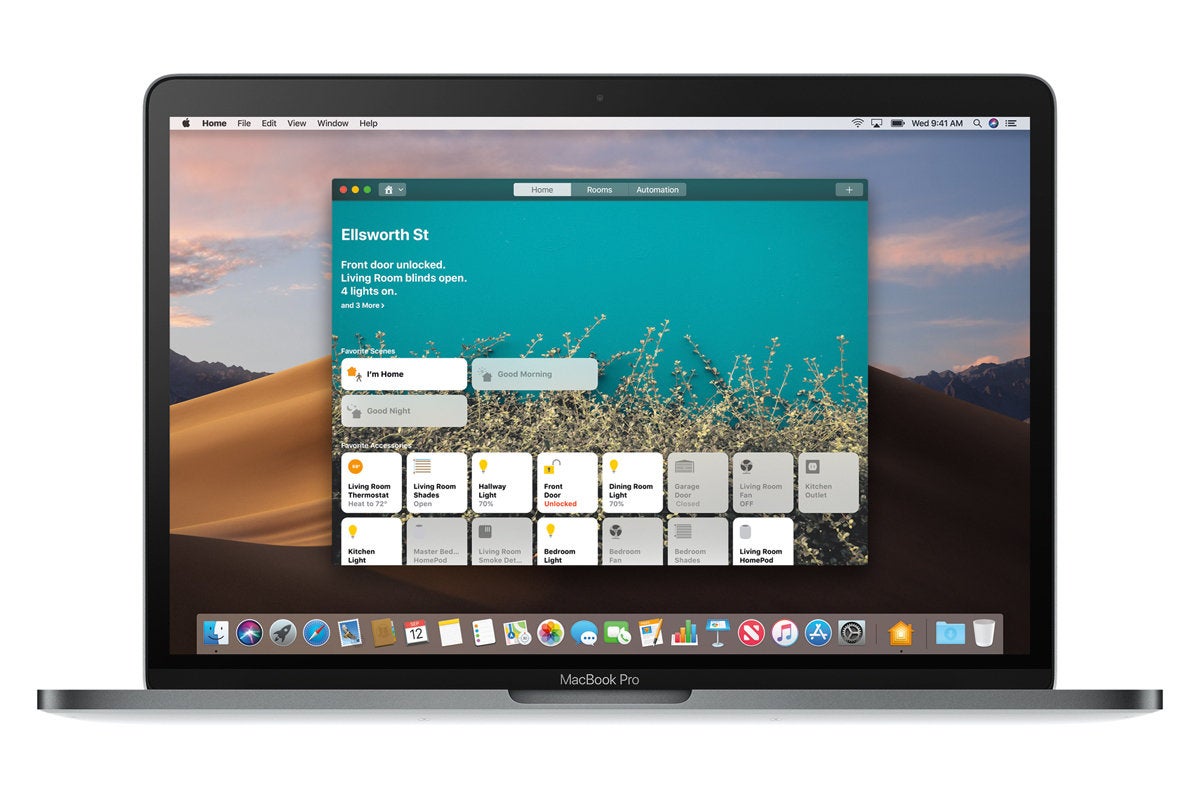
The Dock in MacOS Mojave includes a new feature that displays a trio of recently used applications alongside your regular Dock app icons. The Recent Applications section of the Dock adjusts and updates automatically as you launch and quit apps, and while it offers a convenient way to reopen apps you were using not long ago, some users may prefer to not have the feature enabled for whatever reason.
If you want to disable the Recent Applications section of the Dock in MacOS, perhaps to reduce clutter or to make the Dock footprint smaller, then read on to learn how to make the change in MacOS 10.14 or later.
How to Disable Recent Applications in Dock for MacOS
Go to the Apple menu and choose “System Preferences”
Choose the “Dock” preference panel
Uncheck the box next to “Show recent applications in Dock” to hide the recent apps from the Dock in Mac OS
Once you toggle off the “Show recent applications in Dock” switch, the app icons shown in the Recent Apps section will immediately disappear from the Mac Dock, shrinking the Dock down a bit.
Here’s an example of what the Dock looks like with the Recent Applications feature disabled:
And here’s an example of the same Dock and what it looks like with Recent Applications feature enabled, which is the default in MacOS:
As you can see you’ll find up to three app icons in the Dock that compose the “Recent Apps” section, and by toggling the setting off or on that’s where the recent app icons will be visible or hidden.
Of course you can always re-enable this feature by returning to the System Preferences of Mac OS and toggling the Dock setting for “Show recent applications in Dock” back to the ON position.
If you’re currently running macOS Mojave, you can re-download a macOS High Sierra installer for whatever reason to macOS Mojave. Re-downloading older versions of macOS system software can be desirable for a variety of reasons, and in this case getting the older High Sierra release is most often to create a macOS High Sierra USB installer or for running an older macOS release in a virtual machine or something of that nature.
If you’ve searched the Mac App Store from Mojave, you’ve probably noticed the High Sierra installer is nowhere to be found. But not to worry, we’ll show you how you can download macOS High Sierra 10.13.6 from macOS Mojave 10.14.
How to Download macOS High Sierra from Mojave
Need the macOS High Sierra installer again but you’re running macOS Mojave? Here’s how to get it:
Note that this is not a downgrade process nor is it intended to be, it’s merely downloading the macOS High Sierra installer onto a Mac running the newer macOS Mojave release. You can not install an older macOS release over a newer release. Instead, if you want to downgrade for whatever reason, your best bet would be to downgrade from macOS Mojave to High Sierra (or earlier) by using Time Machine backups made prior to the initial Mojave update. Another option would be to perform a macOS High Sierra clean install, though a clean install completely erases a Mac and removes all data from the computer, making it less practical for most users given that most users want to maintain their personal data.
Interestingly enough, if you try and search the Mac App Store for “macOS High Sierra” from within macOS Mojave, you will not find the installer in the Mac App Store listings. For whatever reason, Apple has hidden the installer, and thus you must click on a direct download link that opens directly to the MacOS High Sierra download page within the App Store.
Users who had previously downloaded other versions of macOS (including High Sierra) using the same Apple ID can also find the prior macOS releases available from the “Purchases” section of the Mac App Store.
If you’re a Mac command line user you may have noticed that many frequently used commands entered into the Terminal (or iTerm) result in an “Operation not permitted” error message since updating to MacOS Mojave 10.14 or later. The “Operation not permitted” error in the Terminal can be seen after issuing even simple commands like using ‘ls’ ‘mv’ and ‘cp’ within the users own directory, but also in many other directory locations on the Mac, and when trying to use many defaults commands. Obviously this type of error message makes navigating and using the command line in MacOS Mojave to be quite difficult if not impossible for many purposes. Don’t worry, the Terminal is not broken in new MacOS versions.
This walkthrough will show you how to fix “Operation not permitted” error messages seen at the command line in Terminal for Mac OS in Mojave 10.14 or later.
How to Fix “Operation not permitted” Error in Terminal for Mac OS
Pull down the Apple menu and choose ‘System Preferences’
Choose “Security & Privacy” control panel
Now select the “Privacy” tab, then from the left-side menu select “Full Disk Access”
Click the lock icon in the lower left corner of the preference panel and authenticate with an admin level login
Now click the [+] plus button to add an application with full disk access
Navigate to the /Applications/Utilities/ folder and choose “Terminal” to grant Terminal with Full Disk Access privileges
Relaunch Terminal, the “Operation not permitted” error messages will be gone
If you have not encountered the “Operation not permitted” error message in the Terminal of MacOS (Mojave 10.14 or later) yet, then it’s likely because you haven’t wandered into a directory or file path that has the additional access restrictions (or that you don’t use Terminal, in which case this entire article is not for you).
While many of the various core System and root directories will throw error messages in macOS Terminal too, you can also find the error message even when trying to work in the users own Home directory, including in many of the user ~/Library/ folders, like ~/Library/Messages (where iMessage attachments and chat logs are stored in Mac OS) and ~/Library/Mail/ (where user-level mail plugins, mailbox data, and other Mail app data is stored), and many others.
You can test this yourself, before and after making the settings adjustment outlined above with a simple command like using ls on one of the protected folders:
ls ~/Library/Messages
If Terminal does not have Full Disk Access granted, you will see the “Operation not permitted” error message.
If Terminal does have Full Disk Access granted, or if SIP is disabled, you will not see that error message in the MacOS Terminal.
In case you were wondering, yes that does mean there are actually two ways to fix the “Operation not permitted” errors you may encounter in MacOS Terminal; the first which we detail here is rather simple that grants additional access privileges to Terminal app, and the other is a bit more dramatic which involves disabling System Integrity Protection on the Mac which is generally not recommended and we won’t specifically cover here, though simply disabling SIP and rebooting is typically enough to make the error go away if you’d rather go that route.
The “Operation not permitted” message is one of a variety of command line errors you may encounter in Mac OS Terminal. Another frequently seen command line error is the the “command not found” error message which can also be encountered in the Terminal for MacOS for a variety of different reasons as well.
Today’s the day, Mac users: the latest version of macOS, called Mojave (and officially it’s version 10.14), is now available. It’s not a major revamp of the operating system (it’s been a while since the Mac has had one of those), but it does add new features that can help you be more productive with your Mac.
That being said, you may be hesitant to upgrade. After all, what you’re using now works fine, and why risk the potential for problems? We hear you, and if you don’t want to upgrade right away, you’ll be fine. But in case you’re on the fence, here are a few reasons why you should upgrade to macOS Mojave now.
MacOS Mojave Dark Mode is easier on the eyes
The first new feature Apple discussed at the 2018 Worldwide Developers Conference unveiling of Mojave, the first feature that the Mojave website highlights, and the first feature I’m covering here is Dark Mode, which uses darker colors for user interface elements like the toolbar and menus. Being first implies a sense of importance, but to some, Dark Mode may seem like an odd feature to highlight first. “Yeah, so the Mac uses dark stuff. So what?”
Think about how you use your Mac (or computers in general). When you’re looking at a computer screen, you’re basically staring at a light source. And if you’re like me, you do almost all of your work all day long while staring at this light source. With a traditional Mac UI, you’re usually using windows that are predominating bright white, and staring at the light for a while can cause eye fatigue.
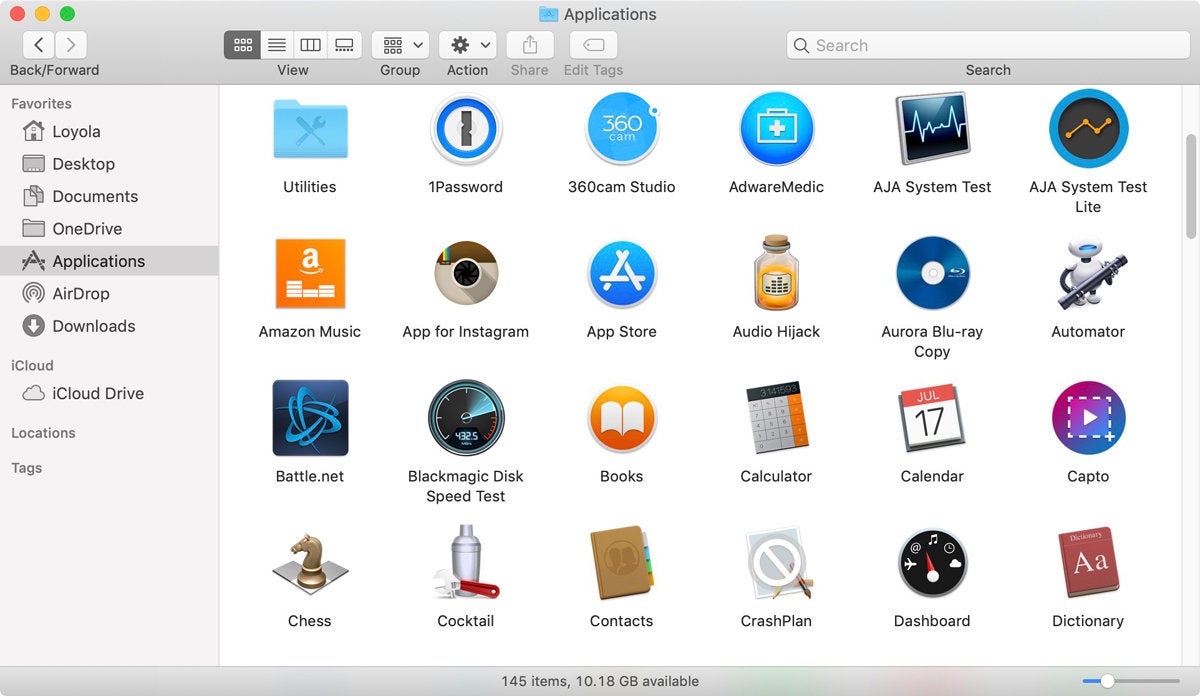
A familiar Light Mode window in. macOS Mojave…
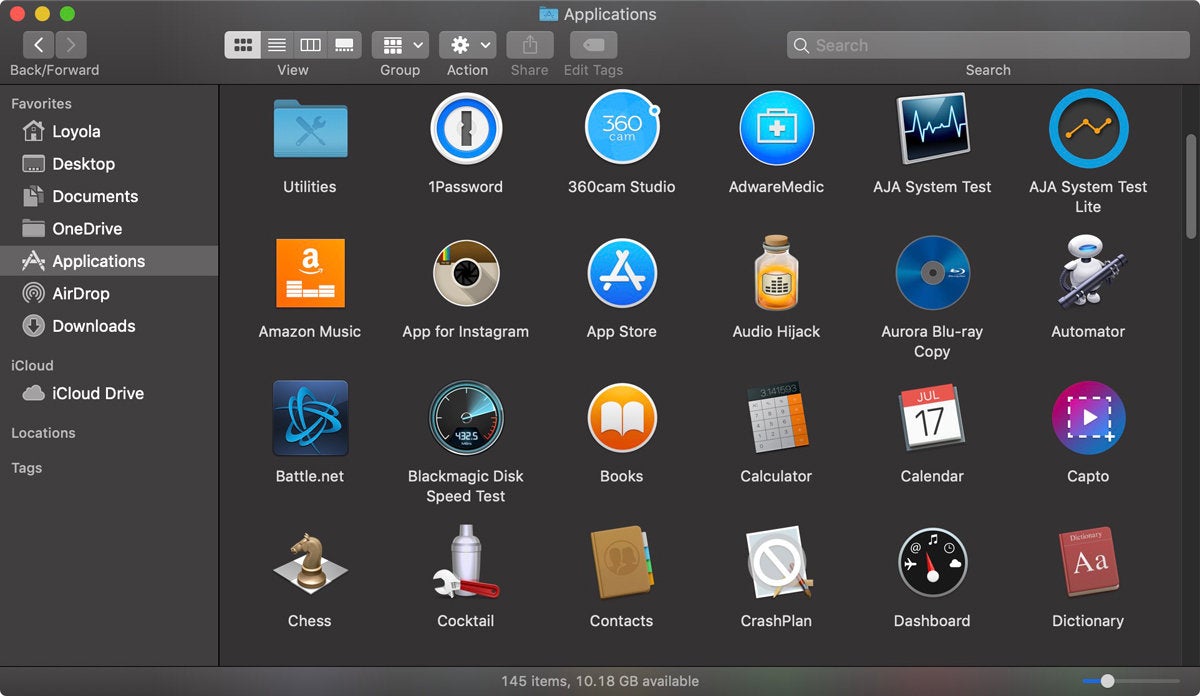
…and a new Dark Mode window.
Dark Mode feels a lot more comfortable to me, though I don’t feel more or less fatigued at the end of the day. (That’s probably due to the fact that I make it a point to take quick “vision” breaks every 30 minutes or so.) Some people think Dark Mode helps you focus on what you’re working on; I can’t say I agree or disagree, I don’t notice a difference in where my attention is at. But while I’m working, being in Dark Mode feels more pleasing, and I now have a preference for it. I’m also looking forward to more apps offering Dark Mode interfaces.
MacOS Mojave Continuity Camera
Before Continuity Camera, it took a bit of effort to get a photo or scan on to your Mac. With Continuity Camera, the process is a lot more efficient.
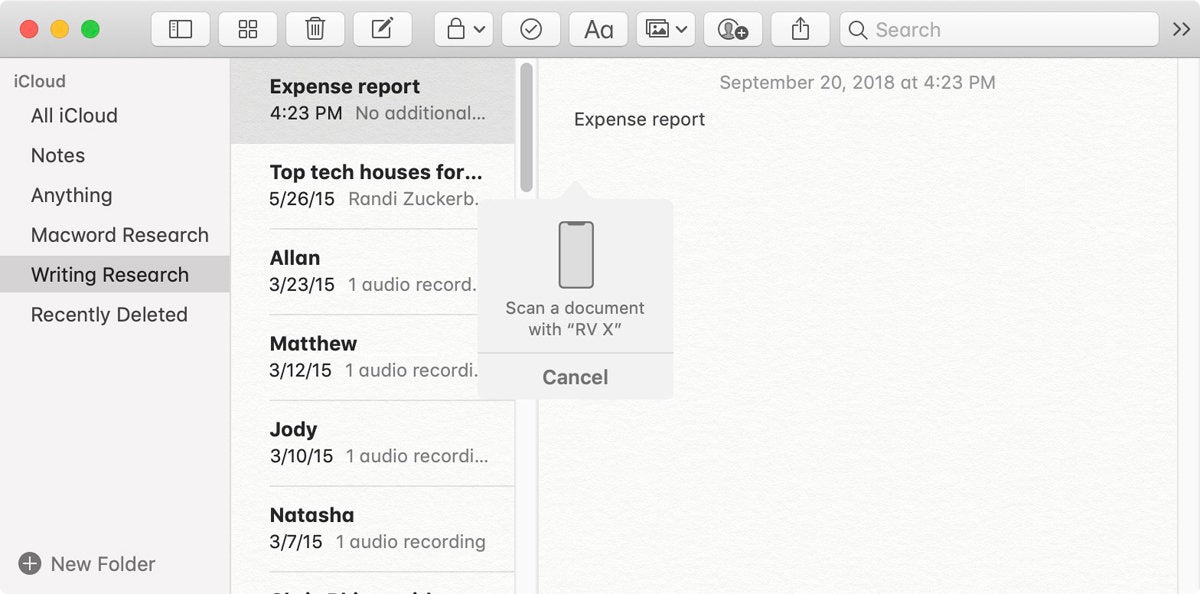
You can scan images directly into Notes.
In apps that support the feature, all you need to do is click in the area where you want your image to appear, and then go to the File menu and look for an option to import a scan or photo from your iPhone or iPad. Select it, and an indicator appear in your Mac app and your iOS device’s camera automatically launches. You can then snap a pic or “scan” your document, and the result is automatically inserted in your document. So easy. Unfortunately, this feature doesn’t allow you to select a pic that’s already on your iOS device for placement in your document, but maybe that’s for a future update.
Continuity Camera works right now with Mojave’s bundled apps, like Notes, Mail, Messages, and in the Finder. It also works with Apple’s Numbers, Pages, and Keynote. Look for third-parties to add this functionality soon.
Using an iPhone X to scan a receipt in Notes for Mac.
MacOS Mojave improved security features
Security isn’t a glamorous topic, but there are a few now security features that make Mojave an attractive upgrade.
Because of what I do for a living, I’m often downloading and trying new software, sometimes from developers with whom I’m not familiar. So I run a few utilities to keep an eye on what’s going on with my Mac. One of the utilities I use is OverSight, which flashes an alert any time an app wants to access the Mac’s FaceTime camera and microphone.
macOS Mojave now lets you know if apps are trying to access your Mac’s microphone, camera, and other items.
An OverSight-like feature is now built into Mojave that can alert you when an app wants to accessalong the camera and mic, as well as iTunes device backups, Time Machine backups, your Mail database, your Message history, your Safari data, and other data.
Even better is that Safari in Mojave has improved Intelligent Tracking Prevention. What this does is that it blocks attempts to track the websites that you visit. If you trigger one of these tracks (often by clicking on a comment button, or when you Like something on Facebook), Safari posts an alert to let you know that you need to allow tracking to continue on.
Mojave also has more features for managing password, such as the ability to create strong passwords, the ability to automatically enter in a security code that you get vis SMS, and password auditing. These are great features, but as a longtime 1Password user, I don’t think I’ll be giving it up for Mojave’s built-in features. I prefer 1Password’s management tools, even though it means I’m not being efficient about my password usage.
MacOS Mojave Quick Look for quick image edits
As the family documentarian, it’s my job to take pictures and videos of family events. But I don’t just shoot and then file away the results; I look at the pics and videos and edit them. Usually, they’re easy edits, but it feels like a hassle to preview a file to see if it needs to be edited, and then open those files that do in an app.
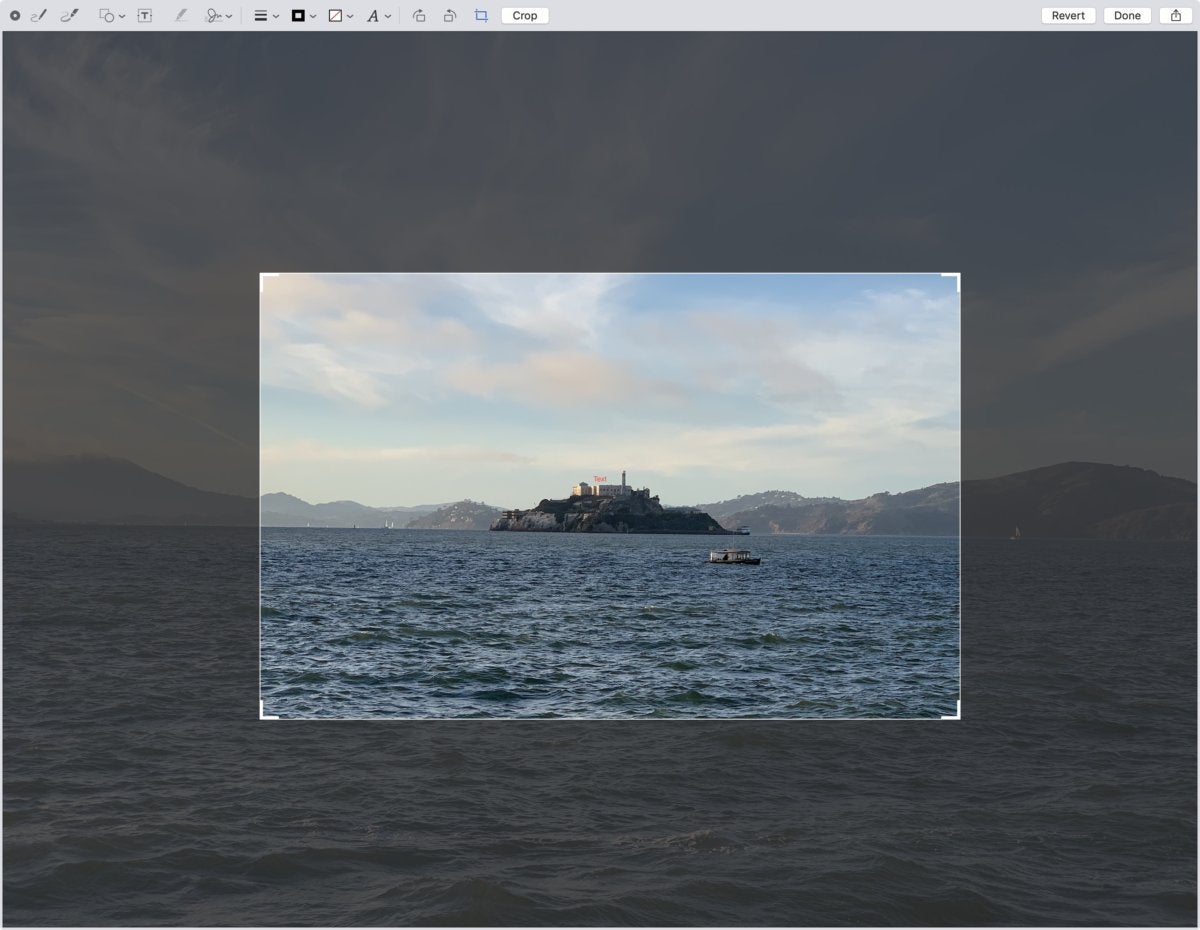
Crop a photo directly in Quick Look. No need to open an app.
Mojave makes Quick Look most robust, providing simple editing tools so you don’t even need to open an app. Now when you preview an image (select it and then press the space bar), you can click on the Quick Actions icon between the Rotate icon and the Open in Preview button, and a set of editing tools appears. You can rotate in 90-degree increments and crop images, and there’s even a set of markup tools you can use to write notations. For audio and video, you can trim clips.
If you are perusing through dozens and dozens of photos and videos, the new Quick Look Quick Actions helps a ton with simple crops and trims. It can be a real time saver.
MacOS Mojave News, Stocks, Voice Memos, and App Store
If you frequently use the News, Stocks, and Voice Memos apps on your iPhone or iPad, then you’ll probably find good use for them on your Mojave Mac. With the News and Stocks apps, your preferences can be saved to iCloud, so your topics, channels, watch list, and more are syncs between all your devices. Voice Memos can save your recording to iCloud so you can access them on any device.
The new News app in macOS Mojave.
Of these apps, I’ll get the most use out of the News app. It seems that people tend to rely on social networks to get their news, but with social networks, the people you follow are the arbiter of what shows up on your feed—and for a lot of people, that’s preferable. I like to have more control over the articles that are fed to me, and that includes topics that may not necessarily jibe with that of the people I follow. The News app allows you to set your sources and subjects, so you can get a feed that’s customized to your interests.
Apple has also redesigned the App Store, so it’s easier to find apps. The company is also putting a more effort into your ability to learn about new software, by featuring App Store editors’ picks and curated app lists.
Group FaceTime: Coming soon to macOS Mojave
If these reasons aren’t compelling enough for you to upgrade to Mojave now, there’s a feature coming soon that will make you want to upgrade: Group FaceTime. When it becomes available—Apple says it’ll be here later this fall—you’ll be able to do a group chat with up to 32 people using a Mac, iPhone, or iPad. If this feature was available now (and it worked well), it’d be the number one reason why you should upgrade to Mojave.
Let’s hope Group FaceTime comes to the Mac sooner than later.