


S22 Plus: Diagnosing Touchscreen Issues (No Drop)

S22 Plus: Diagnosing Touchscreen Issues (No Drop) + 12 Proven Fixes
Introduction to Touchscreen Issues
Samsung Galaxy S22 Plus is one of the most advanced smartphones on the market today. Yet, despite its cutting-edge technology, users sometimes experience touchscreen issues even when the device hasn’t been dropped. These problems can be frustrating, disrupting everyday tasks such as typing, browsing, and gaming.
Understanding the cause of these issues is crucial. While physical damage is an obvious cause, software glitches, hardware malfunctions, or even external factors can lead to unresponsive or erratic touch behavior. In this guide, we’ll explore practical solutions for diagnosing and resolving touchscreen issues on the S22 Plus.
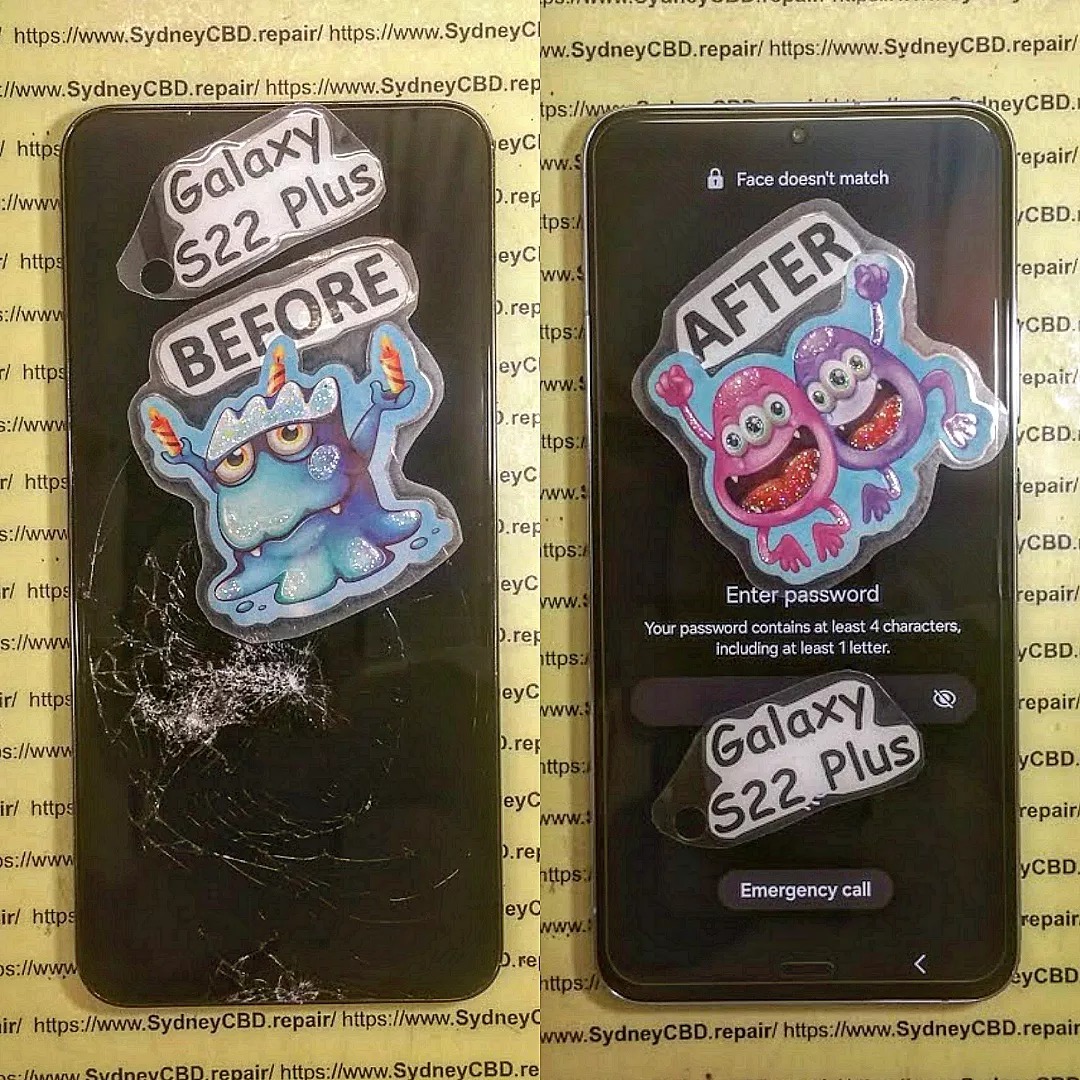
Common Signs of Touchscreen Problems
Before diving into fixes, it’s important to identify the symptoms. Touchscreen problems can manifest in several ways:
- Unresponsiveness: Taps or swipes don’t register at all.
- Ghost Touches: The screen responds even when you aren’t touching it.
- Delayed Response: A lag between your action and the screen’s response.
- Dead Zones: Certain areas of the screen do not respond to touch.
- Erratic Gestures: Scrolls, swipes, or taps behave unpredictably.
Recognizing these symptoms helps determine whether the problem is software- or hardware-related.
Why Issues Occur Without Physical Damage
Touchscreen issues without visible damage usually stem from:
- Software bugs: Apps or OS glitches can interfere with touch recognition.
- Firmware conflicts: Updates may sometimes cause temporary touch errors.
- Hardware wear: Even without drops, internal components like the digitizer can fail over time.
- Environmental interference: Moisture, dust, or magnetic fields can temporarily affect touch response.
Initial Diagnostic Steps
Before assuming the worst, perform basic diagnostic steps to rule out minor issues.
Restart and Safe Mode Testing
Restarting your device can often resolve temporary glitches. Additionally, booting the S22 Plus in Safe Mode disables third-party apps, helping you identify if an app is causing the issue:
- Press and hold the Power Button.
- Tap Power Off and hold until Safe Mode appears.
- Tap Safe Mode to restart.
If touchscreen works normally in Safe Mode, a third-party app is likely the culprit.
Screen Calibration Check
Some touchscreen problems stem from software calibration errors. Use built-in Samsung diagnostic tools or apps to check for touch accuracy. Minor recalibrations can improve responsiveness.
Software-Related Touchscreen Problems
Many touchscreen issues are related to software rather than hardware.
Update Your Device Software
Samsung regularly releases firmware updates to improve device stability. Outdated software can cause unresponsive screens. Go to Settings > Software Update > Download and Install to ensure you’re running the latest version.
Remove Problematic Apps
Apps can sometimes conflict with system processes. Identify recently installed apps that may coincide with touchscreen issues and uninstall them one by one to see if the problem resolves.
Factory Reset as a Last Resort
If issues persist, a factory reset may be necessary. Back up all your data first. Navigate to Settings > General Management > Reset > Factory Data Reset. This step restores the device to original settings, eliminating software glitches.
Hardware-Related Touchscreen Problems
Hardware problems are less common but often require professional repair.
Digitizer Malfunction
The digitizer is the component that detects touch. Over time, it can degrade, causing unresponsive or ghost touches. Professional replacement may be required.
Display Connector Issues
Sometimes the screen connector becomes loose inside the phone, particularly after minor impacts. Skilled technicians can safely inspect and reconnect the display without replacing it entirely.
External Factors Affecting Touchscreen
Sometimes the issue isn’t the phone itself.
Remove Accessories and Clean Screen
Cases, screen protectors, or dirt can block touch sensitivity. Remove all accessories and clean the screen with a microfiber cloth.
Environmental Factors
Touchscreens can misbehave in extreme temperatures or high humidity. Avoid using your S22 Plus in very cold or hot conditions, and keep it away from static-prone surfaces.
Advanced Diagnostic Tools
Several tools can help identify touchscreen problems more precisely.
Touchscreen Test Applications
Apps like TouchScreen Test or MultiTouch Tester can check responsiveness, dead zones, and ghost touches.
Using Samsung Diagnostics Mode
Samsung devices include a hidden diagnostic menu. Dial *#0*# to access it, then select Touch to test every area of the screen. This can help pinpoint problematic zones.
Professional Repair Options
If DIY fixes don’t work, seek professional assistance.
Certified Samsung Service Centers
Authorized centers provide genuine parts and warranty-backed repairs. This ensures your S22 Plus retains full functionality.
Third-Party Expert Repairs
Reputable third-party technicians can offer cost-effective solutions. Ensure they use high-quality parts and provide warranty support. Sydney CBD Repair Centre is an example of a trusted provider in Sydney with certified technicians and over 2000 positive reviews.
Preventative Measures for Touchscreen Health
Taking proactive steps can prevent future issues.
Best Practices for Device Handling
- Avoid dropping or placing heavy objects on your phone.
- Keep the screen dry and clean.
- Use high-quality screen protectors that don’t affect touch sensitivity.
Regular Software Maintenance
- Keep apps and OS updated.
- Clear cache periodically.
- Avoid installing apps from untrusted sources.
FAQs
1. Why is my S22 Plus touchscreen unresponsive even without drops?
It’s often caused by software bugs, app conflicts, or internal component wear.
2. Can a factory reset fix touchscreen issues?
Yes, a factory reset can resolve software-related problems, but back up data first.
3. Is it safe to replace the digitizer myself?
DIY replacement is risky. Professional repair is recommended to avoid further damage.
4. Can environmental factors affect touchscreens?
Yes, extreme temperatures, humidity, and static electricity can cause temporary touch issues.
5. Do screen protectors interfere with touch sensitivity?
Some low-quality protectors may reduce responsiveness. Always use high-quality, device-specific protectors.
6. How can I test my touchscreen for dead zones?
Use apps like TouchScreen Test or Samsung Diagnostics Mode (*#0*#) to check responsiveness.
Conclusion

Samsung S22 Plus touchscreen issues without drops are usually solvable through a combination of software troubleshooting, minor hardware checks, and professional repair when necessary. Start with simple diagnostics, such as restarting your phone and booting in Safe Mode, then move to software updates, app management, and, if needed, professional assistance. Preventative care and regular maintenance can minimize future problems and keep your S22 Plus responsive for years.
For professional touchscreen repair services in Sydney, visit Sydney CBD Repair Centre to ensure reliable, same-day repairs with genuine parts.
David from Sydney CBD Repair Centre – The Best place to fix mobile phones as 6 Years In A Row! Top Mobile Phone Repair In Sydney. More than 2000 Positive Reviews on Google and Same Day Repairs.
We take pride in delivering exceptional repair services for all major phone brands including Apple, Samsung, Google, and more. Our expert technicians use only genuine parts and offer 90 days warranty on repairs. Located in the heart of Sydney CBD, we’re your one-stop solution for all mobile device repairs.
Visit us for:
✓ Same Day Express Repairs
✓ Genuine Parts Guarantee
✓ Professional Technicians
✓ Competitive Pricing
✓ 2000+ 5-Star Google Reviews
✓ 6-Time Award Winner for Best Phone Repairs
Sydney CBD Repair Centre – Where Quality Meets Reliability.
Call : +61280114119
Website: https://SydneyCBD.repair/locate-us

