


PRECISION SOLDERING: Fixing A Broken USB-C Port On The New ASUS ROG Phone

PRECISION SOLDERING: Fixing A Broken USB-C Port On The New ASUS ROG Phone – 10 Expert Tips
Introduction to ASUS ROG Phone USB-C Port Issues
The ASUS ROG Phone series is known for its robust gaming performance and advanced hardware. But even the best devices can suffer from wear and tear, and one of the most common problems is a broken USB-C port. This issue can manifest as intermittent charging, slow data transfer, or a complete inability to connect to a charger. Understanding why this happens is the first step toward a successful repair.
The USB-C port on gaming smartphones like the ASUS ROG Phone is under constant stress. Heavy usage, frequent plugging and unplugging, and physical impacts can bend pins, loosen solder joints, or damage the port housing. While many users might panic, precision soldering offers a reliable solution to restore your phone without replacing the entire motherboard.
Repairing a USB-C port is delicate work. Incorrect handling can damage surrounding components, leading to more costly repairs. In this guide, we’ll walk you through the tools, techniques, and best practices to safely repair your ASUS ROG Phone’s USB-C port.
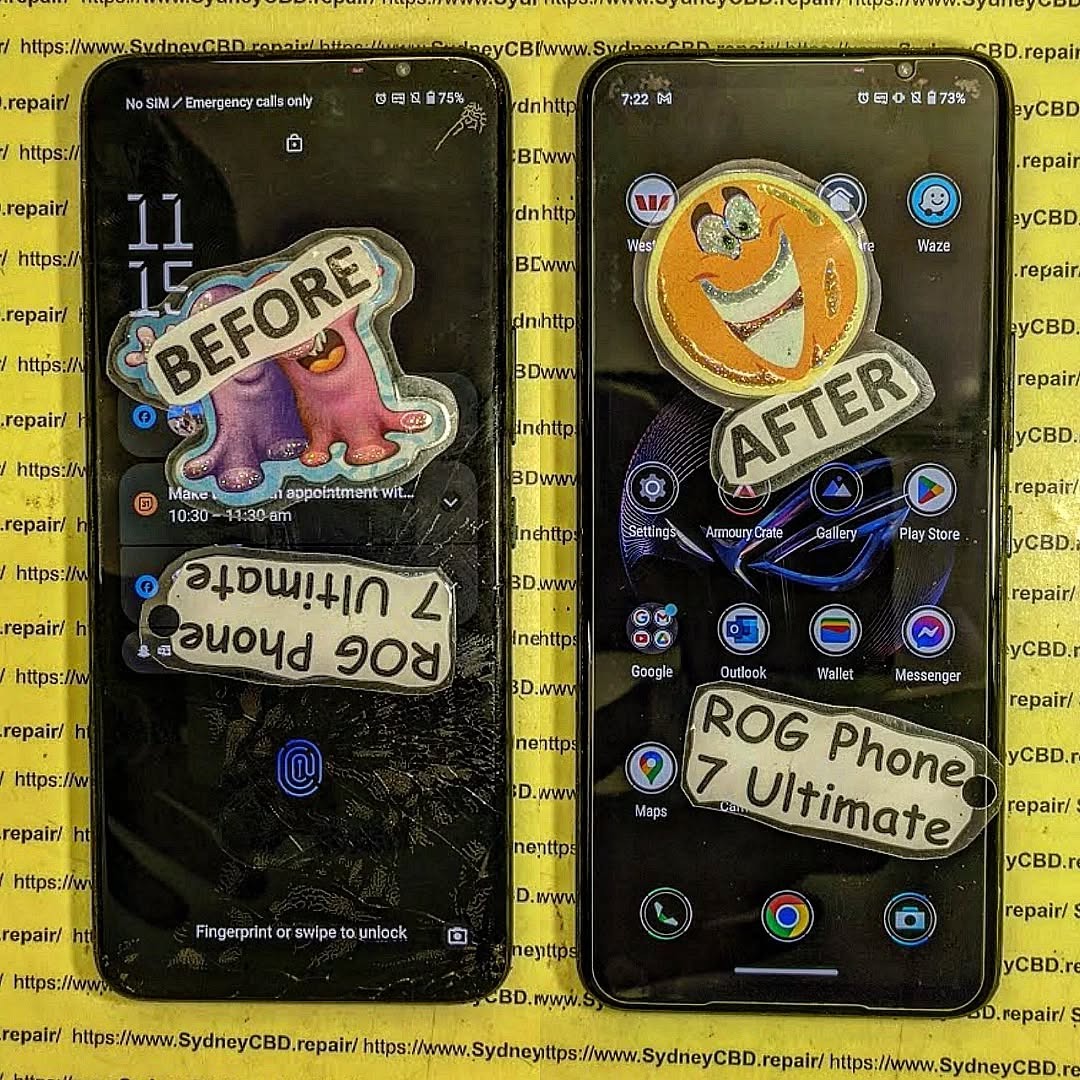
Tools and Equipment Required for USB-C Port Repair
Successful precision soldering starts with having the right tools. Here’s a detailed list of equipment you’ll need:
- Soldering station with temperature control (recommended: 300–350°C)
- Fine-tip soldering iron for precision work
- Solder wire (lead-free, 0.3–0.5mm diameter)
- Flux pen for clean soldering and strong joints
- Tweezers (anti-static)
- Magnifying glass or microscope for small component inspection
- ESD mat and wrist strap to prevent static discharge
- Heat gun or rework station (for loosening stubborn ports)
- Isopropyl alcohol and microfiber cloth (for cleaning the PCB)
- Multimeter for testing continuity and voltage
- Spudger and opening tools for safe disassembly
Using substandard tools can compromise the repair. Investing in a proper soldering station and anti-static equipment ensures reliable and repeatable results.
Understanding the USB-C Port Design on ASUS ROG Phone
Before touching the soldering iron, it’s crucial to understand the internal layout of the USB-C port on your ASUS ROG Phone. A USB-C port typically contains 24 pins, each responsible for power, data, or accessory functions.
Pin Layout and Functionality
| Pin Number | Function |
|---|---|
| A1, A12 | GND (Ground) |
| B1, B12 | VBUS (Power Supply) |
| A2, B2 | TX/RX Differential Pairs (Data) |
| A3, B3 | Sideband Use / Configuration |
| Remaining | CC pins, D+, D-, SBU for accessory support |
Damage often occurs at VBUS and ground pins, which handle high currents and are physically stressed by heavy cables.
Common Weak Points in USB-C Ports
- Bent or broken pins
- Cracked solder joints
- Loose port housing
- Oxidation or debris inside the connector
Recognizing these weak points allows you to diagnose and target repairs effectively.
Safety Precautions Before Attempting Repairs
Handling sensitive electronics requires strict safety measures:
- Power Down: Disconnect the battery before starting.
- Anti-Static Measures: Wear an ESD wrist strap and work on a grounded mat.
- Ventilation: Soldering produces fumes; ensure a well-ventilated area.
- Correct Temperature: Avoid overheating pins to prevent PCB delamination.
- Protect Nearby Components: Mask adjacent chips with Kapton tape if necessary.
Neglecting these precautions increases the risk of irreparable damage.
Step-by-Step Guide to Removing the Broken USB-C Port
Disassembly is the most critical stage. Here’s a simplified guide:
- Remove Back Cover: Use a heat gun to soften adhesive if necessary.
- Disconnect Battery: Prevent accidental short circuits.
- Unscrew Mainboard: Carefully store screws in labeled containers.
- Locate USB-C Port: Examine for obvious damage.
- Apply Flux: Lightly coat solder points to assist removal.
- Heat and Remove Port: Use a hot air station to lift the port without stressing the PCB.
- Clean Pads: Use isopropyl alcohol and a microfiber cloth.
At this stage, patience is key. Rushing can lift PCB pads, making repair harder or impossible.
Precision Soldering Techniques for USB-C Ports
Choosing the Right Soldering Iron
For USB-C repairs, use a fine-point soldering iron with precise temperature control. Adjustable tips reduce the risk of overheating nearby components.
Flux and Solder Selection
A high-quality flux pen improves solder flow and ensures strong adhesion. Thin lead-free solder wires (0.3–0.5mm) are ideal for small pins. Apply solder sparingly to avoid bridging adjacent pins.
Soldering Steps:
- Tin the pads lightly with flux and solder.
- Position the new USB-C port carefully.
- Hold in place with tweezers and tack one corner pin.
- Sequentially solder remaining pins, checking alignment under a magnifying lens.
- Clean residual flux with isopropyl alcohol.
Proper technique ensures a durable, electrically sound connection.
Testing the USB-C Port After Repair
After soldering, thorough testing is essential:
- Continuity Test: Use a multimeter to check each pin.
- Power Test: Connect a charger to confirm charging functionality.
- Data Test: Transfer files to ensure proper data lines.
- Stress Test: Use the phone under normal load for a few hours to confirm stability.
Failing any test indicates a need for rework before closing the device.
Troubleshooting Common Post-Repair Issues
Even after careful soldering, some problems may appear:
- No Power: Check VBUS and GND connections.
- Intermittent Charging: Inspect for loose solder joints.
- Data Issues: Verify TX/RX differential pairs are correctly connected.
- Physical Misalignment: Ensure port is seated flush with the PCB.
Documenting each step helps in identifying root causes quickly.
Preventative Tips to Avoid Future Damage
Maintaining your USB-C port prolongs its life:
- Use high-quality, short cables.
- Avoid excessive force when plugging/unplugging.
- Keep the port clean; use compressed air occasionally.
- Consider magnetic adapters to reduce physical stress.
Small habits prevent repeated repairs and preserve device longevity.
When to Consider Professional Repair Services
DIY repairs are rewarding but carry risks. Consider professional help if:
- The motherboard pads are damaged.
- You lack soldering experience or equipment.
- The device is under warranty (to avoid voiding it).
Professional centers like Sydney CBD Repair Centre offer genuine parts, precision tools, and warranty-backed repairs.
Learn more about professional mobile repairs.
Frequently Asked Questions (FAQs)
- Can I fix a USB-C port at home?
Yes, but it requires precision soldering tools, experience, and patience. Mishandling can cause permanent damage. - How long does a USB-C repair take?
Typically 1–2 hours for skilled technicians; DIY may take longer depending on experience. - Will DIY soldering void my warranty?
Yes. Professional repair centers maintain warranty and quality assurance. - What causes USB-C port damage?
Frequent plugging, heavy cables, debris, or physical impact. - Can a broken port affect data transfer?
Absolutely. Misaligned or damaged pins may prevent proper data communication. - Is precision soldering safer than port replacement?
Yes, when done correctly, it preserves the motherboard and reduces cost.
Conclusion

Repairing a broken USB-C port on the ASUS ROG Phone requires patience, the right tools, and precision soldering skills. Following this guide ensures your device regains full charging and data capabilities while minimizing the risk of further damage. For users without soldering experience, professional services provide fast, reliable, and warranty-backed repairs.
Investing in proper techniques and preventative care extends the life of your phone, keeping your gaming experience uninterrupted. Precision soldering is not just a repair—it’s restoring your device to peak performance.
David from Sydney CBD Repair Centre – The Best place to fix mobile phones as 7 Years In A Row! Top Mobile Phone Repair In Sydney. More than 2000 Positive Reviews on Google and Same Day Repairs.
We take pride in delivering exceptional repair services for all major phone brands including Apple, Samsung, Google, and more. Our expert technicians use only genuine parts and offer 90days warranty on repairs. Located in the heart of Sydney CBD, we’re your one-stop solution for all mobile device repairs.
Our commitment to excellence has earned us the trust of thousands of satisfied customers. Whether it’s a cracked screen, battery replacement, or water damage repair, we handle it all with professional care and expertise. Walk in today and experience why we’re Sydney’s #1 choice for mobile phone repairs.
Visit us for:
✓ Same Day Express Repairs
✓ Genuine Parts Guarantee
✓ Professional Technicians
✓ Competitive Pricing
✓ 2000+ 5-Star Google Reviews
✓ 7-Time Award Winner for Best Phone Repairs
Sydney CBD Repair Centre – Where Quality Meets Reliability.
Call : +61280114119
Website: https://SydneyCBD.repair/locate-us



