If you want a lot of protection and a lot of style for your Pixel 2 XL, check out this case from Spigen.
Spigen has made its name on phone cases and other accessories, offering plenty of different styles and color options to make your phone look its best.
Spigen’s cases are among the best you can get for the Pixel 2 XL, and one of the classiest is Spigen’s Neo Hybrid Herringbone case.
DISTINCTIVE AND PROTECTIVE
Spigen Neo Hybrid Herringbone for Pixel 2 XL What I like
I don’t know why Google doesn’t offer the Pixel 2 XL in Kinda Blue, but this case lets me have both the larger screen size and the awesome blue color. It also protects my phone, which is pretty important when phones are so expensive these days. I usually don’t like using cases full time, only putting them on when I go to the gym or head out for a job. But something about the color and the design of this case makes me want to have it on all the time — which is, admittedly, a double-edged sword.
The design stands out from a crowd, especially in the blue color. The gunmetal color option is a bit more subdued, but either two-tone option should make it easy to spot your phone from across a room. I can’t recall seeing anyone else with this case since I’ve owned it, which would be handy if you left your phone somewhere by mistake. The Herringbone pattern also makes it easy to grip the back side of the phone.
The fingerprint sensor is just as easy to use with this case as it is with the phone naked, even without recapturing my prints. I also had no issues with photos or videos I took with the case on, or the microphone being muffled with the case around it. The USB-C port is just as accessible, and all of my charging cables fit without issue.
Needs some breathing room
Spigen Neo Hybrid Herringbone for Pixel 2 XL What I Don’t Like
I don’t typically use cases 24/7. Even though I like this color and the Herringbone pattern, I still like to take my phone out and have less bulk in my pocket. But getting the phone in and out of the case takes more effort than I would think necessary, and I can’t help but think I’m going to harm the phone or the case. The tradeoff to this is the phone is protected that much better — and it won’t pop out of the case by accident — so whether this is truly a downside depends on how often you swap cases.
Unique style, great protection
Spigen Neo Hybrid Herringbone for Pixel 2 XL
Despite my complaint about getting the phone in and out of the case, this is a really great case for not a lot of money. You get a unique color and style that will stand out from the crowd and keep you from losing your phone, while there’s plenty of protection in case you accidentally drop your device.
Google Pixel 2: How to troubleshoot connectivity problems
Whether if it’s Wi-Fi, bluetooth or LTE, the Pixel 2 can experience some malfunctions that can be easily fixed with these steps.
Dealing with wireless radios is so often referred to as a sort of dark art — something that’s difficult to understand but so often extremely frustrating to deal with. But on phones, we rely on mobile networks, Wi-FI, Bluetooth and GPS on a daily basis. If you’re having troubles with any of the set, here are a few tips to consider trying:
Turn the radio off and back on again. Yes, really — just toggle on airplane (flight) mode, and turn it back off about 15 seconds later. Give your various radios a few minutes to reconnect to everything, and see if that fixes your issues.
At the same time, power cycle the device on the other end. There’s a good chance the cheap pair of Bluetooth headphones, or the wireless router at home, is what’s having an issue. Turn it off and start over.
Forget the network or device you’re having trouble with. Whether it’s a Bluetooth speaker or a Wi-Fi network, go into the network/device list and forget it — start back from scratch and see if it fixes it.
Reset network settings by going into Settings, Reset options and “Reset WI-Fi, mobile & Bluetooth.” Confirm you want to reset, and it will return all of these areas back to their defaults. Now you can start fresh and reconnect to each device one at a time to determine where the issue may be.
There are so many potential issues here that it’s tough to get into the details. But start here — and hopefully you get on the right path to troubleshooting where the issues are and how to fix them.
Are you getting a less than average battery life from your Google Pixel 2? Here’s some things to consider for you to bump up that battery life from mediocre to amazing.
Here are some good basic principles to follow when trying to improve battery life:
Check for power-hungry apps: One badly coded app can be a nuisance; a handful of badly coded apps can destroy your battery. At the end of the day, go into your battery settings, scroll down and see what percentage of your day’s battery life was consumed by which apps. If a single app is using more than 5%, think about if it really needs to be using that much — investigate to see if you can get it to calm down.
Uninstall unused apps: A bad app can’t drain your battery if it isn’t installed. If you started up your new Pixel 2 and just installed all 100 apps from your last phone, chances are there are dozens on there you don’t actually need. Uninstall the useless ones — you can always install them later if you decide you need them.
Turn off always-on display: It doesn’t have a huge effect, but any time the screen is even partially illuminated it’s using battery. Go into the Display settings and turn off “Always-on” — a nice compromise is keeping “Lift to check phone” turned on to have it illuminate when you grab your phone.
Reduce display sleep time: In the same vein, you can set your display to go to sleep quickly when it isn’t being interacted with. By default the phone is at 1 minute, but you can set it as low as 15 seconds if you’d prefer to save the battery instead of the convenience of having the screen stay awake.
Use a static wallpaper: Out of the box the phones use a great “living wallpaper” that subtly animates. It looks cool, but also uses up battery. Switch to a static wallpaper, and you’ll save some precious juice.
One thing to consider at some point, particularly on the Pixel 2 with its 2700mAh battery capacity, is that you just won’t be able to get more battery life out of your phone no matter what you do. Even if you follow all of the above steps, you have to use your phone at some point — and if you use it hard, it’s going to drain the battery quickly.
Let’s face it, screen burn-in for the Google Pixel 2 is real as can be. Here’s how you can deal with it – or live with it in your smartphone.
Perhaps the biggest hullabaloo surrounding the Pixel 2 XL has been early reports of image retention and full-on burn-in on the screen. The former isn’t much more than an annoyance — sometimes things that have been shown on the screen for a long time stay there faintly for a bit after switching away. The latter is more of an issue — burn-in seems the same as image retention at first, but the effects are permanent and typically seen for core interface elements like the navigation and status bars.
Don’t go hunting for screen burn-in, but if you see it early you should get a replacement.
The most important thing to say here is that you probably shouldn’t go hunting for signs of screen burn-in on your phone. If you don’t notice it in the regular use of the phone, you shouldn’t have any issue with it — and at the same time, every phone today with an OLED-based screen will have some level of burn-in over time. It’s just a characteristic of the display technology at this point.
But if you’re noticing screen burn-in on your Pixel 2 or 2 XL early on, such as within the first few weeks, you shouldn’t hesitate to contact Google support and get a replacement device. While burn-in is relatively common, it doesn’t typically set in on phones so rapidly — and seeing a considerable amount right from the start isn’t a great sign for how that display will look a year on. Google will offer you at least a two week return period, and you should take advantage of it. For serious cases, Google has also extended its manufacturer defect warranty to a full two years.
Is your Pixel 3 not charging up to 100%? Maybe, all it needs is some battery calibration. It’s not as hard as it sounds. Here’s how you do it.
Calibrate the battery on your Google Pixel 2 XL
Again this is only applicable if you still have a little power left on your device. Calibrating the battery is essential to keep battery performance optimized and that the your phone only shows the correct battery level at all times. The calibration process involves draining the battery completely and therefore it should only be done occasionally. Calibrating the battery more often can depreciate the battery’s lifespan from constant draining or fully discharging. If you haven’t done it yet and you would want to give it a shot, then follow these steps:
Use your device until it powers off or when the battery is completely drained.
Turn it back on and then let it turn off on its own.
When your device is powered off completely, connect it to a charger and then allow it to charge until the charging indicator or battery icon says it has reached a 100 percent.
Disconnect your phone from the charger then turn it on.
If the battery life does not reach 100 percent, plug it back into the charger and allow it to charge longer until it is completely charged at 100 percent.
Unplug the charger when the battery is full.
Restart your phone.
Then start using your phone again as you normally do until it runs out of power and turns off on its on.
Charge it again until the battery gets fully charged.
Google’s latest smartphone, the Google Pixel 2 has surpassed Apple’s iPhone in many ways. However, in case you want to reset its data if in case you want to resell your Pixel 2, here’s how.
A factory data reset may help with a blank or frozen screen, apps crashing or freezing, keypad/touchscreen problems, can’t hear, device making noises, can’t make or receive calls, and device won’t sync.
Caution:
If the device is responsive and can be powered on, the preferred reset method should be performed.
For devices with Android Device Protection turned on, it’s imperative Google™ sign-in credentials are known prior to completing a factory reset with the device powered off. If credentials are unknown, do one of the following:
Attempt to sign in with any Google account previously used on the device.
Reset the password.
Perform a factory data reset only if absolutely necessary as it removes all data including:
Contacts
Email accounts
System and app data
App settings
Downloaded apps
Media (Music, pictures and videos, etc.)
Notes:
If a pattern, PIN, etc. is or has ever been set up on the device, Google account sign in is required during initial setup.
Wi-Fi Calling settings don’t transfer after switching devices and/or performing a factory data reset. You need to enable W-Fi Calling manually if you want to use it.
How to do Factory Reset on Google Pixel 2
Ensure the device is powered off.
Press and hold the Power+Volume Down buttons until bootloader mode (image of an Android with Start above it) appears, then release.
Select Recovery mode.
Utilize the Volume buttons to cycle through the available options and the Power button to select.
The device will flash the Google start screen momentarily and then restarts in Recovery mode.
If presented with an image of a broken Android with “No Command” printed on the screen, press and hold the Power button. Press the Volume Up button once. Then release the Power button.
From the Android Recovery screen, select Wipe data/factory reset.
Select Yes.
Allow several minutes for the factory data reset process to complete.
Select Reboot system now.
Allow several minutes for the factory data reset and reboot processes to complete.
To set up the device after the reset has completed, refer to Initial Activation and Setup.
The Samsung Galaxy Note 8 is the most complete smartphone ever made. It offers a nice, big, beautiful AMOLED display, a formidable camera system, unique S-Pen features, and sheer, raw power. You will pay a really high price tag for it all, but this is the one phone that may be worth every penny.
For $399, the ZTE Axon 7 is one of the only Daydream VR certified phones on the market., which means it can take advantage of Google’s latest vision for VR. That’s not just marketing speak, either, as Daydream phones have some serious requirements to be called such, the most consistent of which are the inclusion of a Snapdragon 820 chipset, 4GB of RAM, and a 5.5-inch 2560 x 1440 display.
At $99, the ZMax Pro brings an immense amount of value with features like a massive 6-inch Full HD display and even a fingerprint sensor. For horsepower, the phone relies on an octa-core Snapdragon 617 chipset and 2GB of RAM, and a 13MP camera on the rear should do well enough for some casual memory capturing.
The Pixel 2 and Pixel 2 XL are the first smartphones to achieve a score of 98 from DxOMark’s mobile testing labs, beating out the likes of the Galaxy S8 and HTC U11. HTC’s camera takes well-balanced photos with a pleasing color balance, great sharpness and detail, and remarkable low-light performance. Add in Google’s AI-infused enhancements and there’s little that can match it.
The Zenfone 4 Max has one of the biggest batteries available in a smartphone. All that battery makes for a hefty device, but it’s surprisingly thin. Just think of it like a permanent battery case.
The Moto G5 is a great option for kids. The smartphone comes in starting as low as $199, and it has a wide range of features to ensure your child can do whatever you need with it. Specs include a 5-inch 1080p display, a 13-megapixel rear camera and 5-megapixel front camera, and a 3,000mAh battery with Turbo Charging.
The Samsung Galaxy S8 Active may not be the most durable phone on this list, but it certainly is the most well-rounded of the lot. This phone’s tough exterior can withstand more than a punch or 2. At the same time, you don’t have to sacrifice powerful specs, a beautiful display, and a great camera.
Since Google launched its Pixel 2 handsets on October 5th, there have been numerous complaints about the larger Pixel 2 XL‘s display, from issues with image retention and image burning on the phone’s OLED screen to users not being happy with the panels muted colors. Google posted some UI changes in the November Security patch to mitigate the first two issues, but what about the display and its dull representation of colors? Well, Google has also addressed this as well, and now there is an option in Settings to make the colors pop a little more. Join us after the break to find out how you can get additional color saturation on your Pixel 2 XL.
Before the November Security patch, users simply had the options Balanced and Vibrant in the display settings to change the color profile ever so slightly. Since the patch and the roll-out of Android 8.1 Developer Preview 2 OTA, we can now choose from Natural, Boosted, and Saturated. To change the color profile of your Pixel 2 or Pixel 2 XL, you’ll need to do the following:
Navigate to Settings on your phone and tap on Display.
Tap on Advanced to make the full menu available and tap on Colors.
Now you have the choice to choose between Natural, Boosted or Saturated. Natural is the display’s default setting, Boosted increases saturation by around 10%, the difference is barely noticeable. If you choose the Saturated mode, colors definitely have added pop, which is great if you are used to Samsung’s over-saturated AMOLED displays.
Let us know in the comments below which color profile you ended up choosing and the reasoning behind your choice. Don’t forget to check out other tips and tricks for your brand new Pixel 2 and Pixel 2 XL handsets.
Google’s new Pixel 2 and Pixel 2 XL launched on October 5th featuring some great new abilities such as Google Lens, as well as a load of other ways that let you personalize and customize the handset to your own taste. Join us after the break to find out how to turn on the Pixel 2’s Ambient Display (Always on Display), enable Double Tap, Now Playing, schedule the Night Light, and adjust the size of the content shown on the display.
Ambient Display
Turning on the Ambient Display on your Pixel 2 will result in the time and date, charging state as well as notifications showing on the handsets’ lock screen.You’ll be able to see the time, date, notifications and which song is playing without having to touch the phone.Just navigate your way to Settings/Display/Advanced and tap on Ambient Display. You can now toggle between the Ambient Display turning on when the display is double-tapped or lifted, and you can choose to keep it Always On. Switching Ambient Display on will impact on the battery life of your handset to a marginal degree.
Double Tap
If Ambient Display isn’t to your liking, you can always choose to use Double-tap instead which will display the lock screen with all its information after you’ve firmly tapped the display twice. Get to Settings/Display/Advanced to enable Double-tap on your Pixel 2 or Pixel 2 XL. Once you’ve used it, you’ll wonder how you ever lived without it.
Now Playing
One of the nifty tricks of Android 8 Oreo is the ability to detect which song is playing in the background and to display the name of the song and band on the lock screen. Simply open Settings, Security & Location, Lock Screen Preferences and then tap on Now Playing. You can now choose to enable the service on your lock screen as well as allowing notifications.
Enable Night Light
Recent studies say that the blue light emitted from our smartphone displays actually inhibits our ability to get a good nights sleep, so it’s probably to avoid it as much as we can. This brings us to the Pixel 2’s Night Light which places an amber tint on the display, making it easier to look at. This option can be enabled via Settings, Display, and then selecting the Night Light tab. You’ll then be able to choose to have the Night Light turn on and off automatically at a time suitable to your needs, to turn it on or off manually, and also to adjust the tint to your personal preferences.
Adjust icon and screen size
Some of us have better eyesight than others, which makes the trick of adjusting the size of icons and the display extremely handy. Open up Settings, Display, and then choose Display Size where you can adjust the slider along to make everything on the screen larger or smaller. Icons and widgets may change position in relation to how your layout changes in size.
That’s all for now, but keep your eyes peeled for more tips and tricks for the Pixel 2 and Pixel 2 XL.
The Galaxy Note 8 is an incredible phone. Back when I reviewed it for PCWorld I gave it the highest possible score and raved about its display, still the greatest I’ve seen in Android phone. The dual camera delivered impressive portraits and lush landscapes, and the battery powered through the busiest of days. In short, it was the best phone I had ever used and I thought it would be a long while before anything topped it.
I was wrong. Apple’s iPhone X not only beats the Note 8, it practically makes it seem obsolete. I’ve tested a wide array of Android handsets over the past 12 months, and I can confidently say that none are in the same league as Apple’s newest handset. And only a couple come close.
The Galaxy Note 8 is an extraordinary phone, but iPhone X beats it in every category.
Quite frankly, it’s hard to even describe how much better iPhone X is without using it for a stretch of time, and most Android fans will never get that chance. That’s a shame. It wasn’t until I spent a day or two with iPhone X, going back and forth with the Note 8, Google Pixel 2 XL, and LG V30 that I could see just how much of a triumph it is.
Samsung might need its own Note X just to catch up.
iPhone X vs. Android: Display
Before we debate the benefits of the notch, let’s talk about the display. Yes, Apple is playing catch-up here. Android phones have been using OLED displays for years, and while Apple might have made the best smartphone LCDs in the business, they were still a notch below the superior color-handling and power efficiency of the best OLED phones from Samsung and Google.
So, I didn’t expect to be blown away by Apple’s first OLED. As I said, iPhone displays have always been superior, and I assumed iPhone X would be more of the same, a marginal improvement over iPhone 8’s already great True Tone screen and on par with what I saw with the Note 8.
That’s not the case. Apple has worked wonders with its Samsung-sourced OLED display for iPhone X. It’s accurate without being dull, bright without bring harsh. And while the Note 8’s screen is technically brighter based on my light meter tests, iPhone X is just as readable in direct sunlight. And with True Tone turned on, I don’t even have to manually increase the brightness.
Keep in mind this is out-of-the-box calibration. With Android phones, I generally spend a few minutes cycling through the various screen modes to find the most pleasing one. With iPhone X there aren’t any settings or switches to play with. While the Note 8’s quad HD 1440p display is again, technically superior to the iPhone X’s 1125p one, that advantage is neutralized by Apple’s tremendous calibration. Even if I could adjust the colors, I wouldn’t.
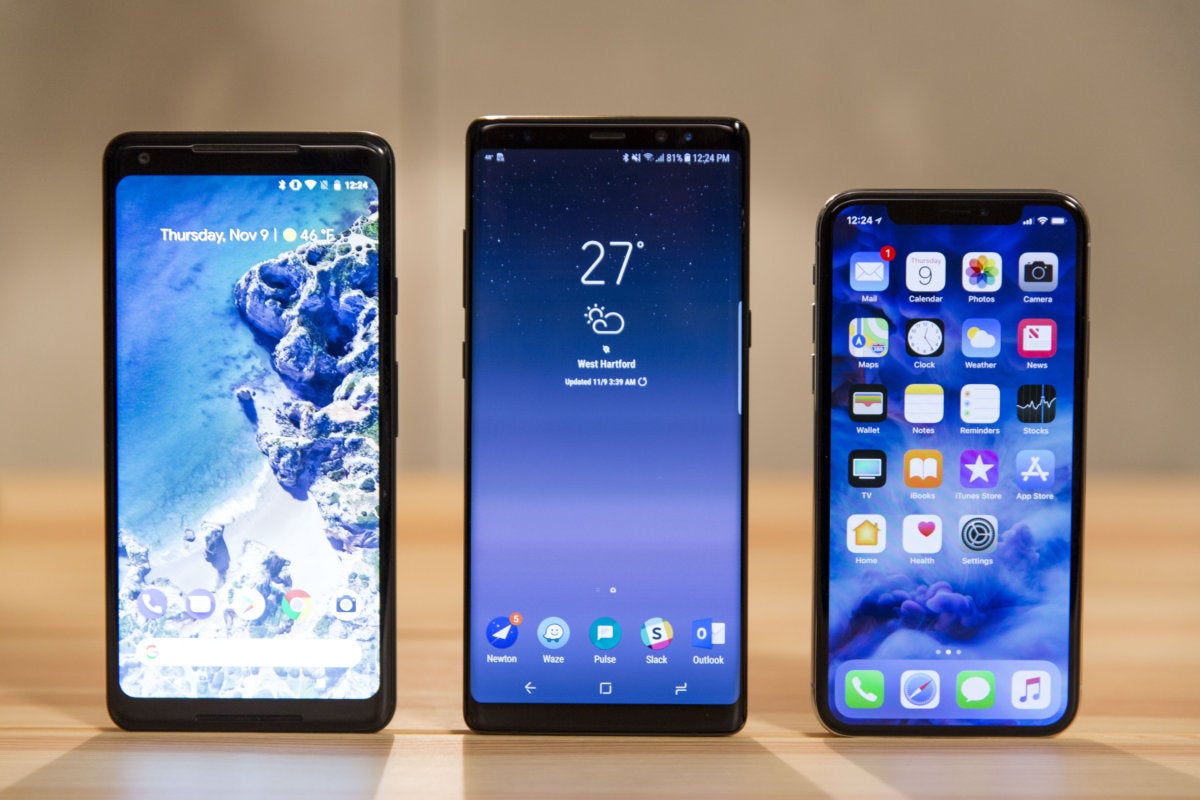
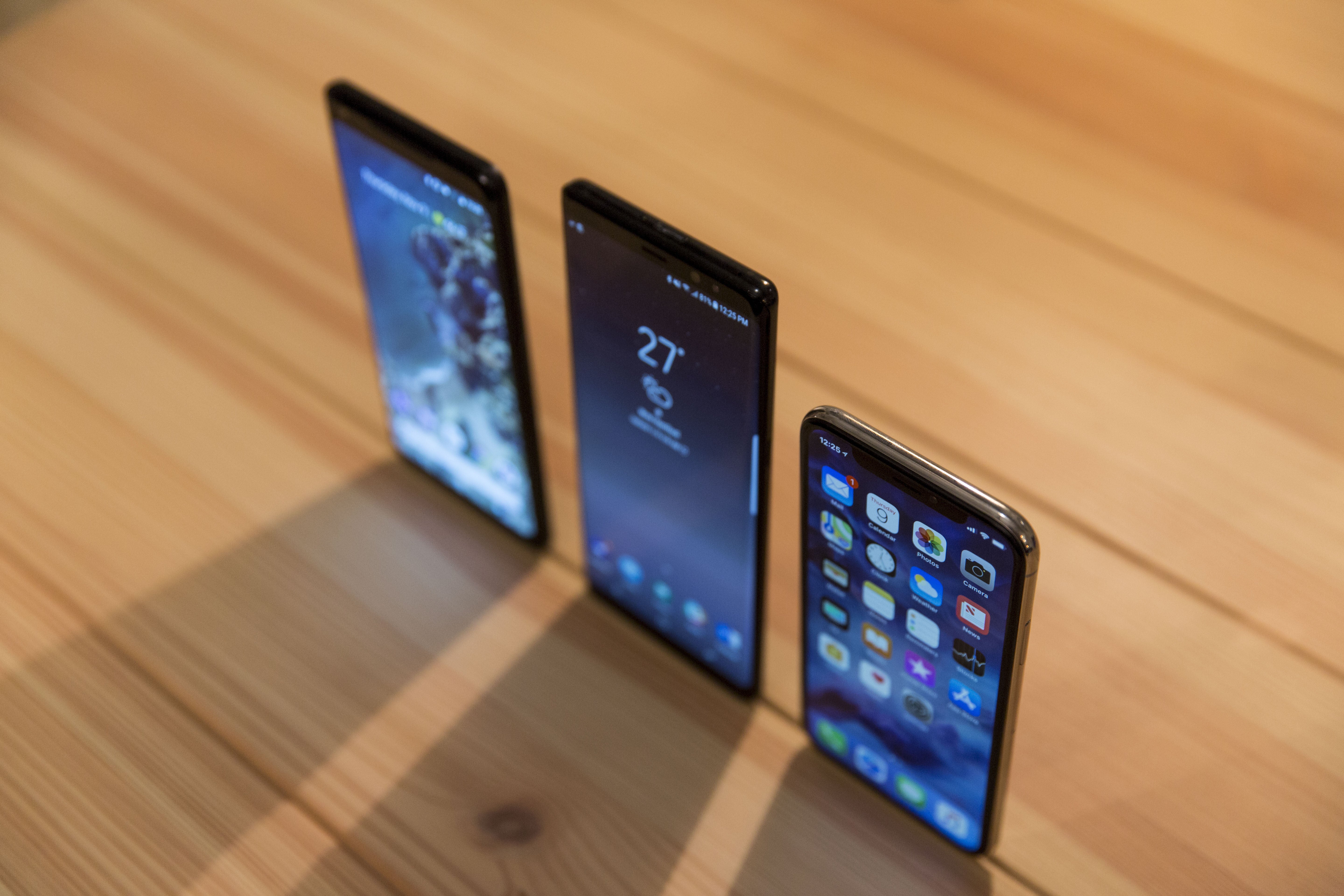
The Pixel 2 XL’s blueish screen (left) is much more obvious when compared to the Note 8 (center) and iPhone X (right).
And it puts the Pixel 2 XL and LG V30 to shame, both of which have LG-made displays. The V30‘s screen has similar issues as the Pixel 2 XL, which have been well documented, but they are amplified next to iPhone X. While my Pixel 2 XL test unit hasn’t exhibited any image retention, it does have a noticeable blue hue that overtakes every color, even at slight angles. But aside from that, there’s no denying the overall dullness of it. Even with the new boosted and saturated settings switched on, there’s still a general flatness to the display that’s hard to miss when compared to iPhone X. And little things I overlooked about the Note 8—particularly the smooth feel of gesture animations thanks to iPhone X’s 120Hz touch sample rate—became glaringly and distractingly obvious.
I do prefer the size of the other phones (particularly the 6.3-inch Note 8), and I’m hoping the rumors of a Plus size next year are true. Also, I very much miss the always-on display when using iPhone X, something that’s a staple on Android flagships. But to say that iPhone X has the best display I’ve ever used might actually be selling it short. It’s likely to be better than the ones in next year’s crop of Android phones too.
My pick: iPhone X
iPhone X vs. Android: Design
2017 has been something of a watershed year for smartphone design. While it was starting to seem as though we were approaching the limits of what could be done with glass rectangles (iPhone included), Samsung, LG, Essential and others pushed the envelope by dramatically trimming the bezels and tweaking the standard 16:9 screen ratio to make their phones easier to hold and use.
Apple follows that path with iPhone X but also manages to break new ground. Lying on a table, iPhone X looks a lot like LG’s V30, with a wraparound chrome edge sandwiched by two pieces of curved glass. But while the V30 and most other 18:9 Android flagships have slivers of glass above and below the screen, iPhone X is the first to truly go “all screen.” Now, you can quibble over that characterization since there is a healthy bezel going around the entire edge of the display, but the symmetry of the design does make it seem like you’re truly holding nothing more than a screen.
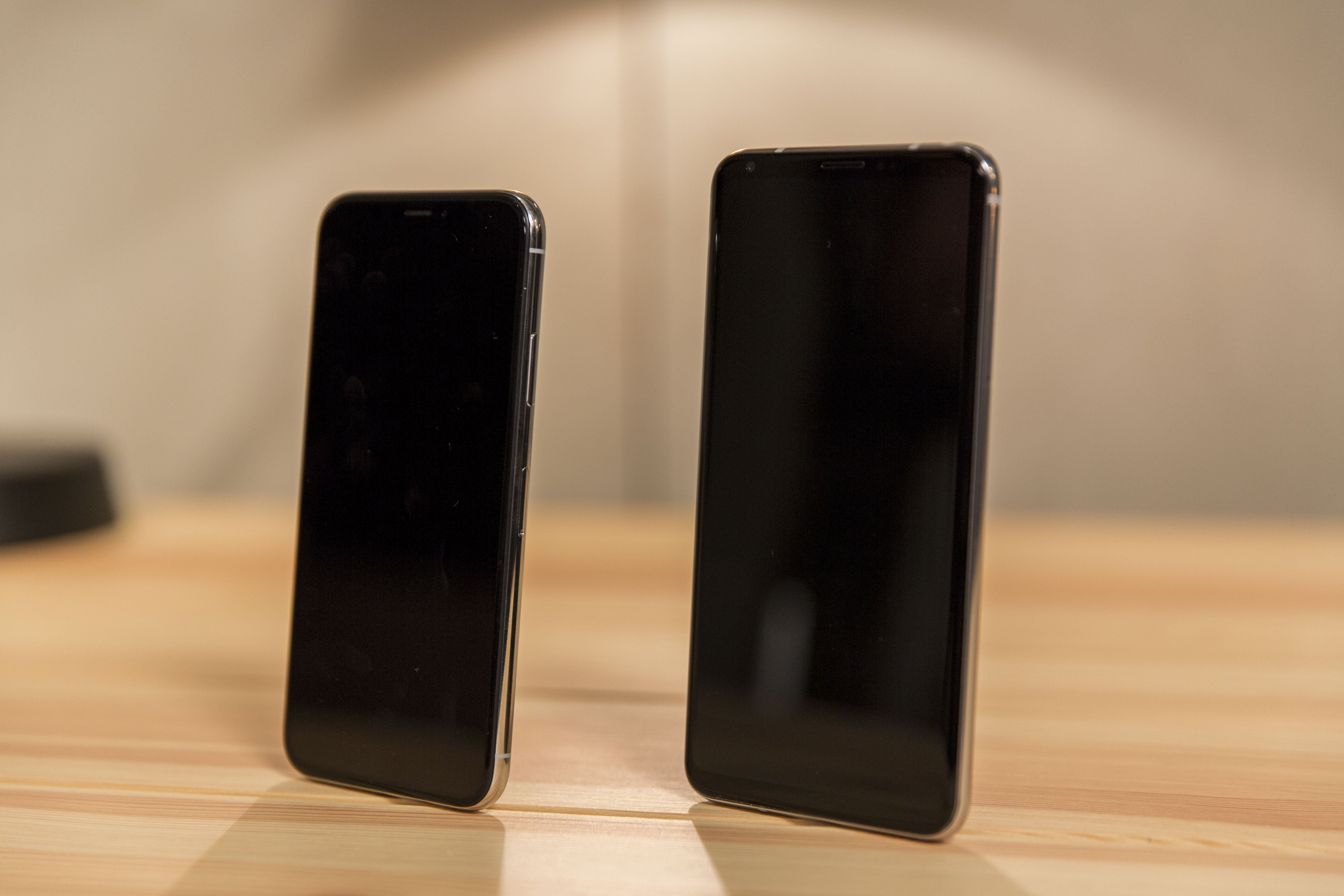
That’s not an iPhone X Plus. That’s just an LG V30 next to iPhone X.
Of all the Android phones, I prefer the Note 8’s boxy shape and overall aesthetic, but Apple’s design still wins out. I particularly appreciate the corners of the screen, which are perfectly rounded, unlike the V30’s rough edges and the Note 8’s somewhat beveled ones. The sloped edges of the Note 8’s Infinity Display might feel a touch more luxurious, but iPhone X is nothing less than a dramatic leap ahead in smartphone design and will no doubt spawn a slew of imitators.
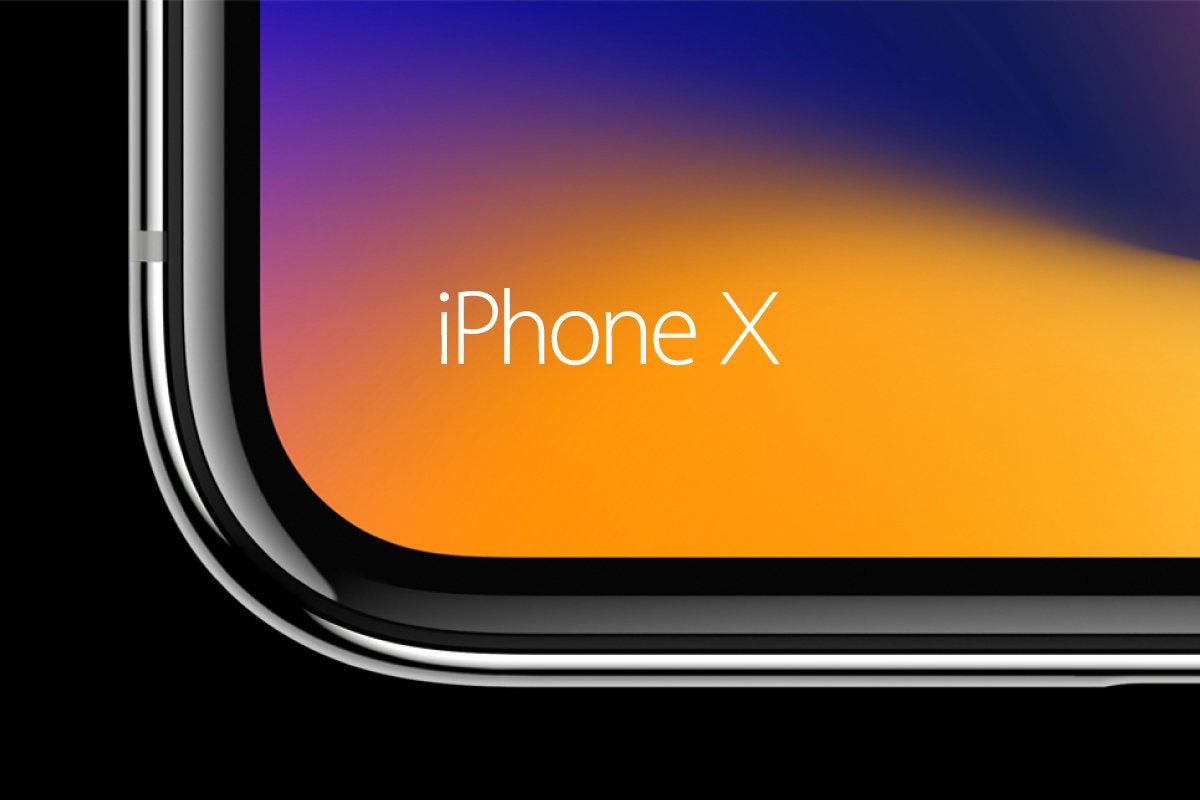
The corners of iPhone X’s display are perfectly round, unlike the V30 and Note 8.
Which brings us to the notch. I’ll admit to being extremely skeptical of it based on photos I saw, but in reality it makes a lot of sense, if for no other reason than the aforementioned symmetry. The notch doesn’t upset the visual balance of the phone like a full strip of glass does, and it does a nice job of tucking the status bar out of the way without sacrificing precious pixels. When the status bar disappears, pictures elegantly fill every corner of the display, and developers are already experimenting with cool ways to use the “horns” to their advantage. The only time it’s distracting is in landscape mode, but even there, it’s worse in pictures than in practice.
The next race will be the one to deliver the first edge-to-edge phone without a notch, and I suspect Samsung or LG will beat Apple to the finish in that one. It might not be as functional as the home button, but the notch is going to be Apple’s new defining characteristic for the iPhone. And in an era where it’s getting harder and harder to tell flagship phones apart, the notch gives iPhone X an unmistakable identity.
My pick: iPhone X
iPhone X vs. Android: Battery
iPhone X’s battery is a smidgen bigger than the 2,691mAh cell that’s in the iPhone 8 Plus, but it’s still way smaller than the ones in its Android peers. To compare the specs, you’d think iPhone X is at a serious disadvantage here:
But numbers don’t tell the whole story. Case in point: The iPhone 8 Plus has a smaller battery than the iPhone 7 Plus (2,691mAh versus 2,900mAh), but there’s no noticeable dip in longevity. Granted, you’ll still need to charge it overnight, but it should be able to power though as long of a day as the 7 Plus. In short, Apple’s iOS efficiency and battery optimization lets it do a whole lot more with less.
And the same is true of iPhone X. Power users might want to keep a battery charger around, but the vast majority of people will be able to easily make it through a day of heavy use. iPhone X was mostly on par with the Note 8, but the Pixel 2 XL fared a bit better in all of my tests, as I assumed it would. For example, streaming a 1:40 HDR/Dolby Vision movie over Wi-Fi with the brightness cranked up to max yielded these results:
It’s true that iPhone X experienced the biggest draw, but considering the size of its battery compared to the Pixel 2 XL and Note 8, I expected the gap to be much bigger. The same was true with other tasks I tested. iPhone X was consistently a couple of percentage points below its Android counterparts, but nothing that would suggest it had such a smaller battery. As such, by the end of the day I was usually in the red with iPhone X and the V30, near the red with the Note 8, and around 25% with the Pixel 2 XL. I can live with that.
That being said, it’s irritating that Apple refuses to put bigger batteries in its flagship phones. Next year’s Android phones will likely all have 4,000mAh batteries and we’ll be lucky if the next-generation iPhone X has topped 3,000mAh. That shouldn’t be the case for a $1,000-plus phone, even if Apple has optimized the heck out of it. If the iPhone X had a 3,500mAh battery like the Pixel 2 XL, it would likely last well into a second day and possibly a third.
My pick: Android (Pixel 2 XL)\
iPhone X vs. Android: Charging
Charging is another point of contention. While iPhone X finally supports wireless charging and fast charging, Apple still ships a tiny 5W charger in the box, which only charges slightly faster than a slow-as-molasses wireless charger. Android phones, meanwhile, all ship with a chargers capable of actual fast charging. To replicate the experience with iPhone X, you’ll need to purchase a $19 12W USB power adapter.
Using out-of-the-box chargers, the Android phones I tested were pretty much in line with the charging times I got with the 12W iPhone Xplug. Here’s how fast iPhone X fills up in an hour when it hits 20 percent:
Wireless: 26%
5W plug: 35%
12W plug: 48%
When it comes to wireless charging, the Note 8 faired best when connected to the Samsung Fast Charge Wireless Charging Stand (which also charges the iPhone X, albeit slower), filling up about 10 percent more than the other phones per hour. The LG V30 was roughly in line with iPhone X, and the Pixel 2 XL doesn’t support wireless charging.
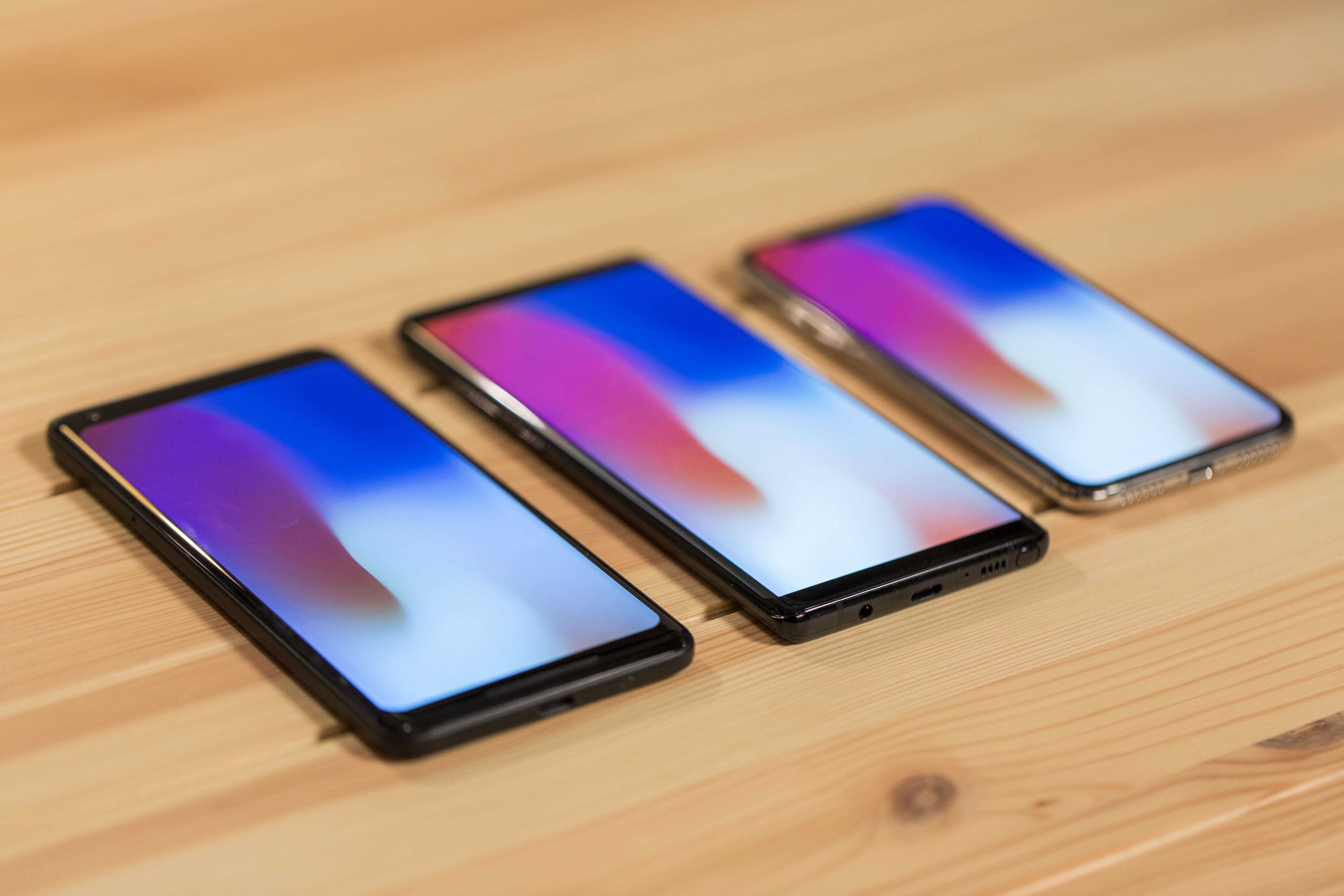
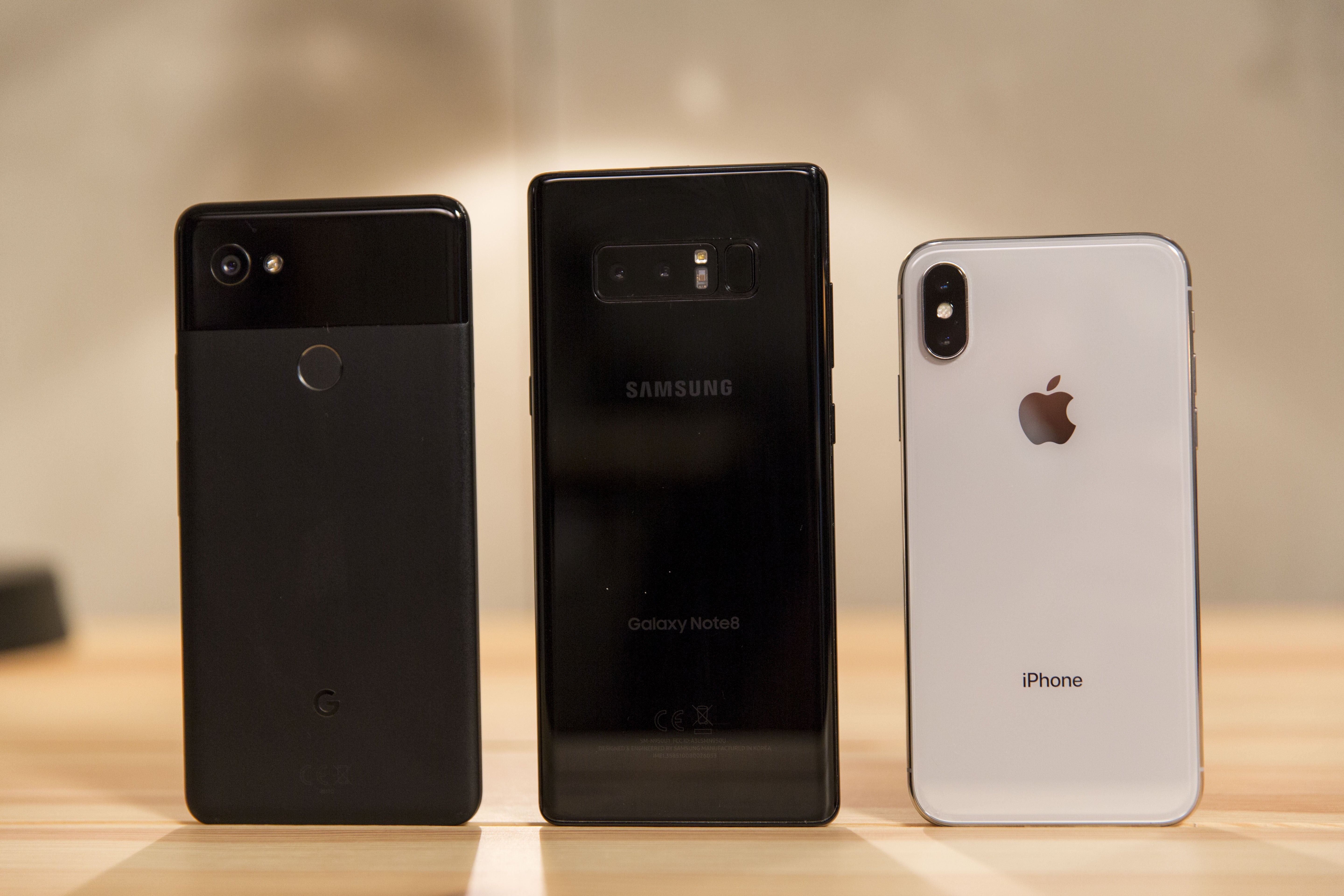
iPhone X and the Note 8 (center) both offer wireless charging, but the Pixel 2 XL doesn’t.
It’ll be interesting to see how Apple’s AirPower handles charging speeds. Apple hasn’t offered much in the way of tech specs for its new charging mat other than that it will charge three devices simultaneously, though the upcoming iOS 11.2 update will increase wireless charging speeds from 5W to 7.5W.
My pick: Android (Galaxy Note 8)
iPhone X vs. Android: Sound
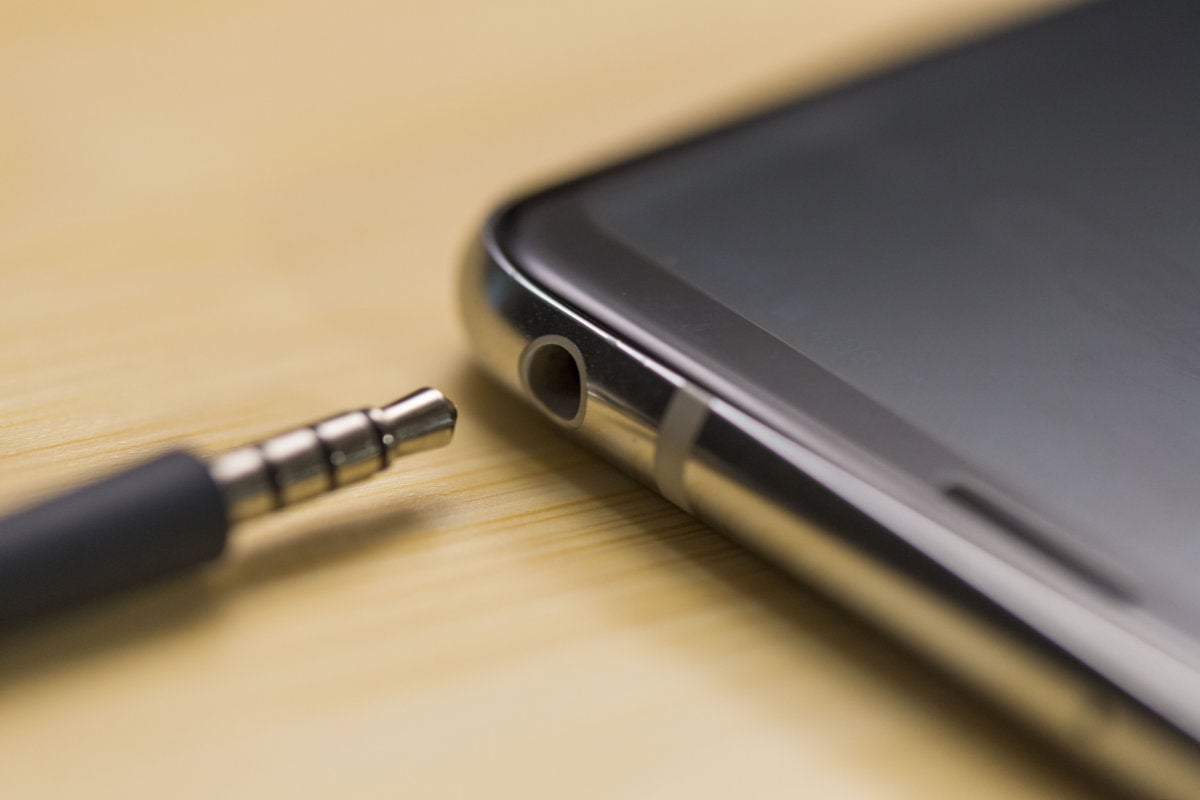
iPhone X doesn’t have a headphone jack, but this year it’s not alone. The Pixel 2 XL doesn’t have one either. Both phones comes with the appropriate 3.5mm adapter in the box, but while Apple also includes Lightning EarPods in the iPhone X box, the Pixel 2 XL doesn’t bundle a pair of USB-C headphones.
The LG V30 doesn’t just have a headphone jack, it has a Quad DAC built in.
The Note 8 and V30 both have headphone jacks, with the V30 upping the game with a Quad DAC and Samsung supplying a set of premium AKG earbuds. The V30 leads the pack when it comes to wired sound (though you’ll need to bring your own pair of headphones), but the bundled buds on the Note 8 are no slouch. Both options are substantially better than Apple’s wired earbuds.
iPhone X doesn’t have a pair of front-facing stereo speakers like the Pixel 2 XL, but it sounds like it does. It’s still a phone, so we’re not talking high-fidelity sound here, but to my ears, it sounded just as good as the Pixel 2. The Note 8 and V30 were decent as well, but the Pixel and iPhone were consistently clearer and louder.
My pick: Android (LG V30)
iPhone X vs. Android: Speed, biometrics, and OS
iPhone X features Apple newest processor, the A11 Bionic chip, and it’s every bit as fast as it sounds. Apps launched and loaded incredibly quickly, and the speed boost is noticeable over iPhone 7 Plus or even last year’s iPad. But the Snapdragon 835 processor that powers the Note 8, Pixel 2 XL, and V30 is no slouch either, and in real world use and tests, they all stacked up well against each other. But Apple’s iOS optimizations make the real difference.
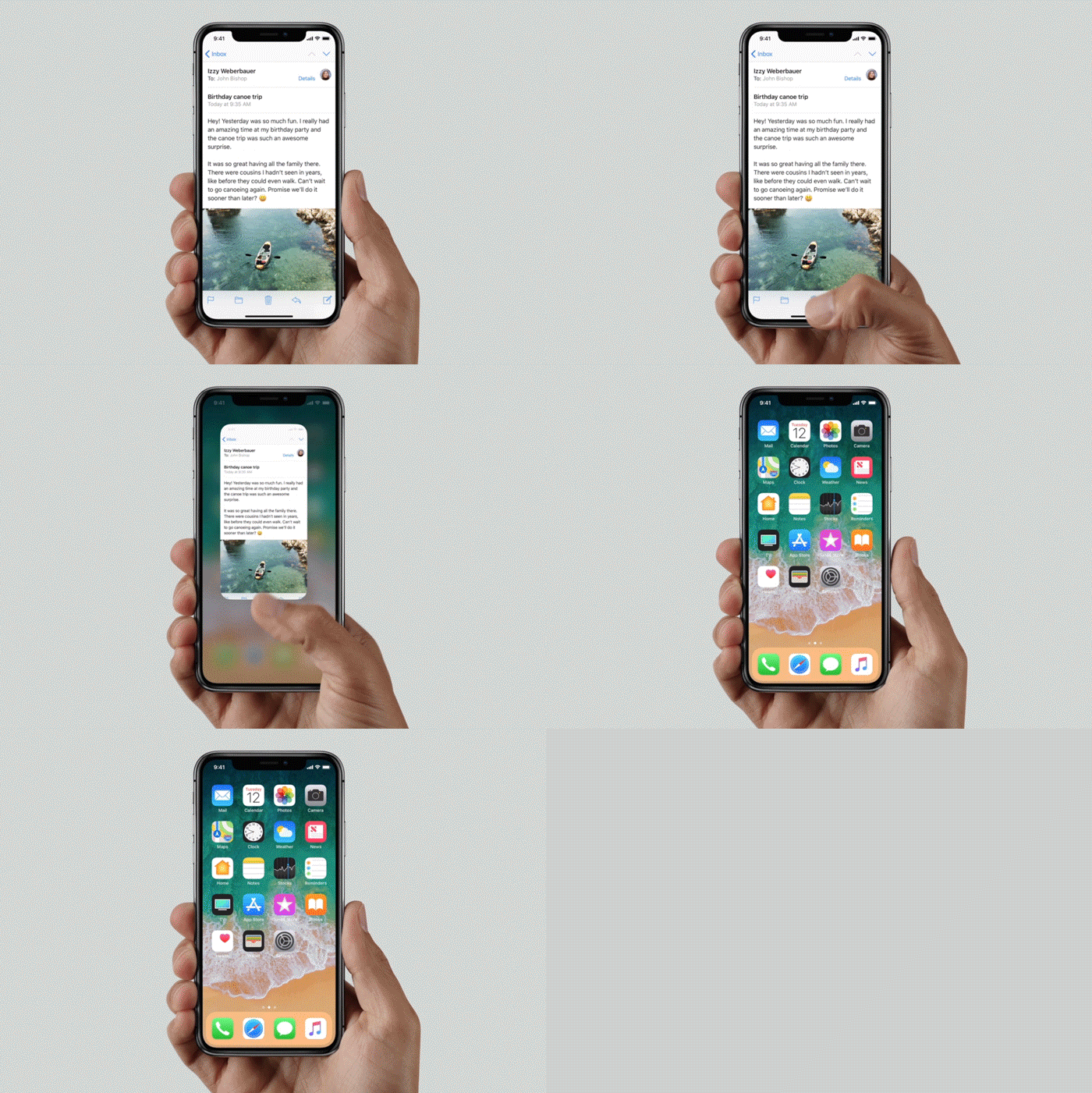
Navigation on iPhone X is completely new.
Without a home button, iPhone X offers a dramatically different iOS experience than any other iPhone. All navigation is done using gestures on the home screen, but rather than use a virtual home button, Apple introduces the home indicator, a thin strip at the bottom of the screen. Instead of tapping a button below the screen, your fingers never need to leave the display, swiping and sliding as your apps literally fly across the screen. Apple hasn’t just replaced the physical with the virtual here, and simple tasks like switching between apps feels more natural and intuitive as a result.
Navigation remains pretty consistent across the Android flagships, but there’s an undeniable learning curve when it comes to iPhone X. Apple’s newest phone is different than any one that came before (iPhone or otherwise), and like any new navigation, there will be stumbles along the way. It’ll be several iterations before Apple gets the home indicator just right, but I wouldn’t be surprised to see Android P or Q adopt something similar. After using it for just a week, the physical and virtual home buttons felt stale.
Samsung's Galaxy phones feature iris scanners, but they're not as fluid or reliable as Face ID.
Apple has also introduced Face ID with iPhone X, a new biometric to replace Touch ID. The Note 8 and V30 also offer facial recognition, but Samsung and LG actually warn you against using their phones’ facial recognition as the primary unlocking biometric. Not only is Face ID way more secure than Touch ID, it’s faster and more accurate too. In most cases, my phone unlocked before I even realized it, and as Apple improves the speed and camera angle, we eventually won’t need to think of it at all. I’ve never had a problem with fingerprint sensors (the placement on the Note 8 notwithstanding), but Face ID makes it seem like a chore.
Granted, Face ID was hardly perfect in my tests, but it worked in all sorts of lighting, only struggling when my face was lit with bright, direct sunlight. The Note 8’s iris scanner, my biometric of choice on Samsung devices, had the same difficulties, and I need to position my eyes just so to trigger it. Facial authentication will be a feature in 2018 Android phones for sure, but Apple has run out to a huge lead here with its TrueDepth camera. Even if Samsung or Google can get authentication right, thoughtful little touches like notifications expanded for my eyes only and of course, animoji, are unlikely to be replicated any time soon.
Android Oreo on the Pixel 2 XL is head and shoulders above any other Android phone.
When it comes to Android, the Pixel 2 XL handily bests the Note 8 and V30 here. Google’s newest handset may have its deficiencies, but its OS isn’t one of them. In fact, it may be reason enough to overlook the Pixel 2 XL’s less points. It’s not just that it’s one of the only phones to run Android Oreo, it’s that it runs it so well, other Android skins are exposed for how bloated and over-designed they are.
However, the choice between the Pixel 2 and iPhone X is no contest. Using iPhone X feels like Apple is finally embracing the future while its Android peers remain grounded in the present. There might be some things that the Pixel 2 XL does better with Oreo and the Note 8 has some cool S-Pen and edge screen tricks, but iOS 11 on iPhone X is the first phone in years that feels like it’s on the verge of something entirely new.
My pick: iPhone X
iPhone X vs. Android: Camera
The camera is one of the main reason why we choose the phones we do, and each of these phones offer top-notch picture-taking experiences (no pun intended). And despite extremely similar specs, they all bring something unique to the table:
iPhone X: 12MP, ƒ/1.8 wide-angle and 12MP, ƒ/2.4 telephoto
Note 8: 12MP, ƒ/1.7 wide-angle and 12MP, ƒ/2.4 telephoto
In the battle of the portraits, the single-camera Pixel 2 XL (center) does a tremendous job of keeping up with iPhone X (left) with just one camera. Meanwhile, the Note 8 (right) made my son look way paler than he should.
The Pixel 2 XL’s lack of a dual camera stands out here, but Google has more than made up for it with its image processing. Not only does it manage to mimic iPhone X’s and the Note 8’s portrait modes with just a single lens, it’s virtually indistinguishable from the dual-camera results (and oftentimes better). So it basically comes down to a matter of which features you prefer. The Note 8 has the ability to adjust the intensity of the background blur before and after the shot, and Apple has added studio lighting effects to iPhone X.
The V30 (right) captured more of the scene, but iPhone X got the lighting right.
Without a telephoto lens, the V30 doesn’t have a portrait mode at all, but its wide-angle lens captures more of the scene than any of the others. But despite some cool app features and the largest aperture of the bunch at f/1.6, the overall quality of its photos often trailed the field, particularly in low-light conditions. It’s not it’s a bad camera, just not as good as the best.
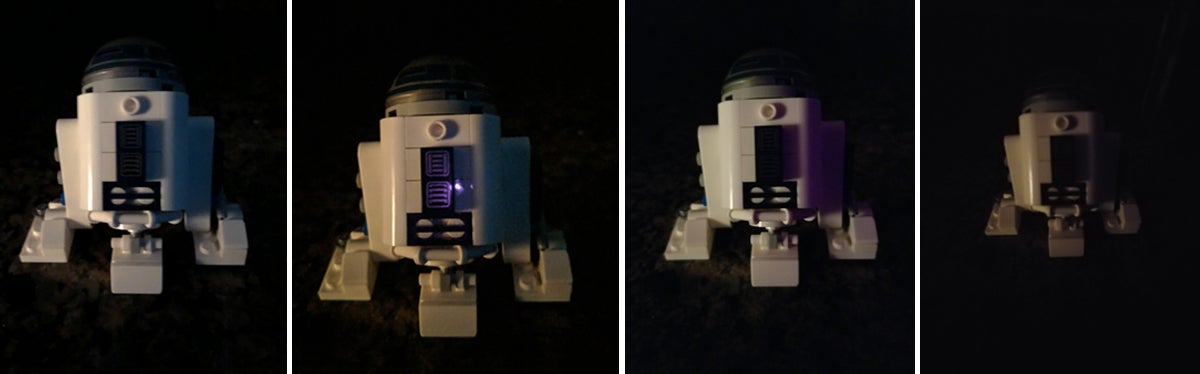
iPhone X (left) nailed Lego R2-D2's white body and picked up some good detail in harsh low-light conditions, but there's more detail in the Pixel 2 XL's shot (second from left). The Note 8 (second from right) and V30 (right) both paled in comparison.
Speaking of low light, the Pixel 2 and iPhone X are pretty neck and neck here. Google’s incredible image processing was consistently able to draw out details that iPhone X and the Note 8 missed, though iPhone X handles white balance better.
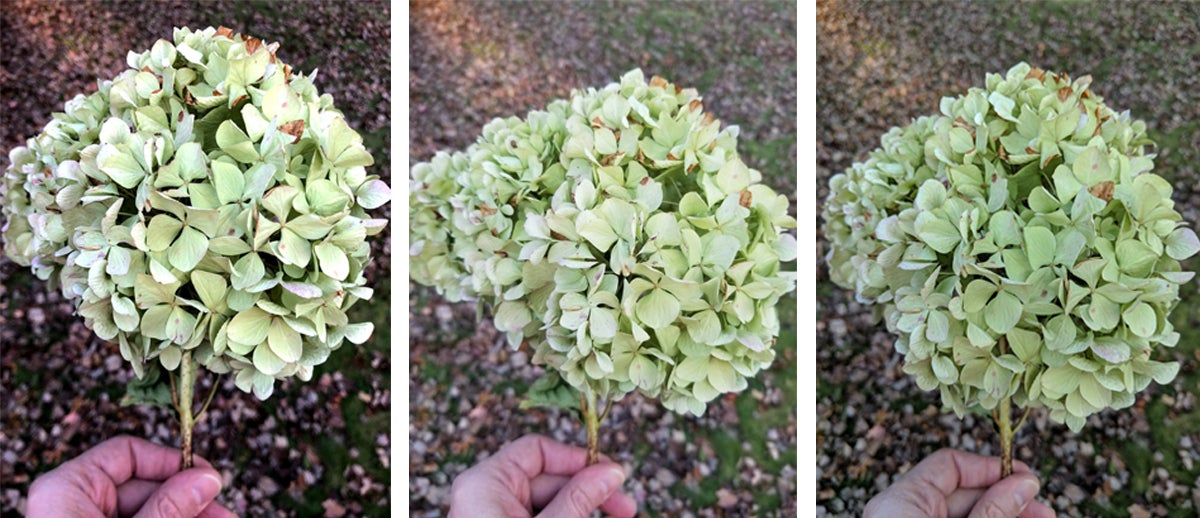
All three phones performed well in sunlight, but the flowers in the iPhone X's shot (left) pop with color and detail more than the Pixel 2 XL (center) and Note 8 (right).
Around the front, the picture-taking abilities of the cameras are all basically the same, though the V30 brings up the rear with its 5MP lens. Apple and Google have both added portrait effects for selfies, but while the Pixel 2 is a little more successful, neither is as good as the rear camera. Better is the Note 8’s Snapchat-style stickers for jazzing up your selfies, but I’d still rather have the best rear camera than a fun front one.
My pick: Tie (iPhone X and Pixel 2 XL)
Overall winner: iPhone X
Even in the categories where iPhone X lost out to another phone, it was never by much, and none of the other handsets here offer anything as complete of a package. Yes, it’s expensive, but it’s not like the other phones are cheap:
I expected Apple’s first OLED iPhone to be a clear improvement over the iPhone 7 Plus’s LCD, but I didn’t expect it to handle the top 2017 Android phones so handily. The sharpness, color accuracy, and clarity make all other phones look inferior, and Apple is just getting started. Android’s flagships, particularly the V30 and Pixel 2 XL, have a lot of work to do, and I suspect next year’s flagships will feature 120Hz touch sampling if not full 120Hz refresh rates and a sharp shift toward facial authentication.
iPhone X will cast a large shadow over next year's crop of Android phones.
Even if you could somehow combine the Note 8, Pixel 2 XL, and V30 into a superphone mashup, iPhone X would still come out ahead. From the screen to the design to the camera and chip, iPhone X doesn’t just hold its own against Android’s cream of the crop, it raises the bar considerably for the 2018 models to come.
The bottom line is we’re going to see a lot of iPhone X influence on next year’s crop of Android flagships. So much so that I wouldn’t be surprised to see a couple of them adopt camera notches too.