



Helping to Safeguard Your Online Privacy with Galaxy Security

Key Takeaways
From the meeting notes, it is clear that Samsung Galaxy Security is dedicated to providing comprehensive online privacy protection for its users. The focus is on two main features: Secure Wi-Fi and Samsung Internet.
Secure Wi-Fi ensures secure internet browsing, especially on unsecured public Wi-Fi networks, by encrypting internet traffic and enabling the user to route their internet traffic through two separate relays. Additionally, it offers free protection of up to 1024MB per month for Android OS 12 or later, and 250MB per month for Android OS 11 or earlier versions, with upgrade options available.
Samsung Internet offers multiple privacy and security features, including a Privacy Dashboard for monitoring activities and adjusting settings, Secret Mode for private browsing, Smart Anti-tracking to block third-party attempts at tracking personal information, and Ad Blocker to remove ads for a seamless browsing experience.
These features demonstrate Samsung’s commitment to safeguarding the online privacy of its users and ensuring a secure and seamless internet experience.
Summary of Helping to Safeguard Your Online Privacy with Galaxy Security
Whether for work or play, most of us use the internet for hours every day. And when we do, we want the peace of mind that comes with knowing everything we’re doing online – whether we’re browsing for our next shopping spree or working on an important document – stays safe and secure. With Samsung Galaxy, we’re helping to keep you protected so you can use the internet securely wherever you go.
Secure Wi-Fi:
With Samsung’s Secure Wi-Fi, you can work from wherever you’re most comfortable. This feature lets you browse the internet safely, even when using unsecured, public Wi-Fi networks, offering secure protection by encrypting internet traffic. For enhanced privacy protection, you can even route your internet traffic through two separate relays to make it difficult to access your IP address. This is especially effective when you’re working remotely in public spaces.
To use Secure Wi-Fi, go to Settings, Security and Privacy, and select More Security Settings. From there, tap into Secure Wi-Fi, and you’re on your way. You can also add the Secure Wi-Fi icon directly to your home screen for easy access to the app.
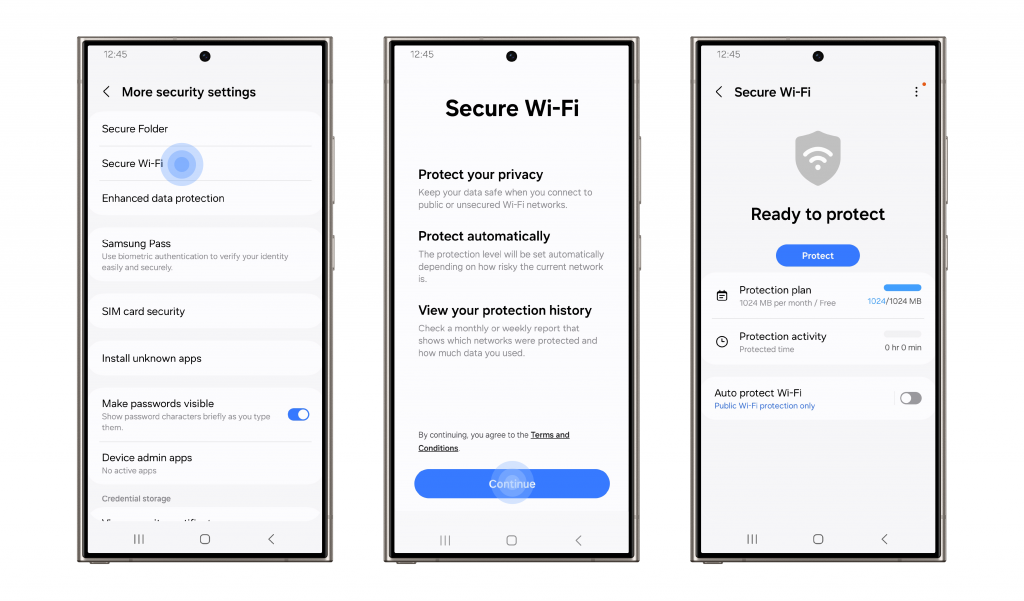
Settings > Security and privacy > More security settings > Secure Wi-Fi
With Galaxy, you can work remotely with peace of mind, knowing that your data and information is protected from the potential threats of public networks. Secure Wi-Fi even offers free protection of up to 1024 MB per month, automatically enabled upon connection[1], with additional plans available at any time for those who wish to upgrade.
Samsung Internet:
Samsung Internet brings user-centric security and privacy features to web browsing, enabling you to freely browse your favorite websites while helping to safeguard your privacy. Under Samsung Internet, we’ve created a myriad of features all geared towards helping to keep you and your online experience safe.
First, the browser offers a comprehensive overview of how it helps to protect your web experience, detailed in your Privacy Dashboard, available via the Quick Access page. This offers a detailed record of weekly activities and settings that can be adjusted to suit your privacy preferences, whenever you choose. To find this, go to the browser, tap the three lines icon, and select Privacy.
For extra security, Samsung Internet also enables private environments with Secret Mode. This could come in handy while shopping for a gift you want to keep a surprise from anyone who might have access to your device. With this option, you’ll get the same browsing experience as you would normally experience on Samsung Internet, but with extra privacy and protection. Cookies and browsing history for any websites you visit in Secret Mode will be deleted from your phone as soon as all your Secret Mode tabs are closed. You can even save pages and bookmarks, but anything you save will only be visible in Secret Mode. To use this feature, go to Samsung Internet, and from the main screen, tap on the Tab Manager icon on the bottom where you can manage your open pages. Activate Secret Mode by tapping “Turn on Secret mode”.
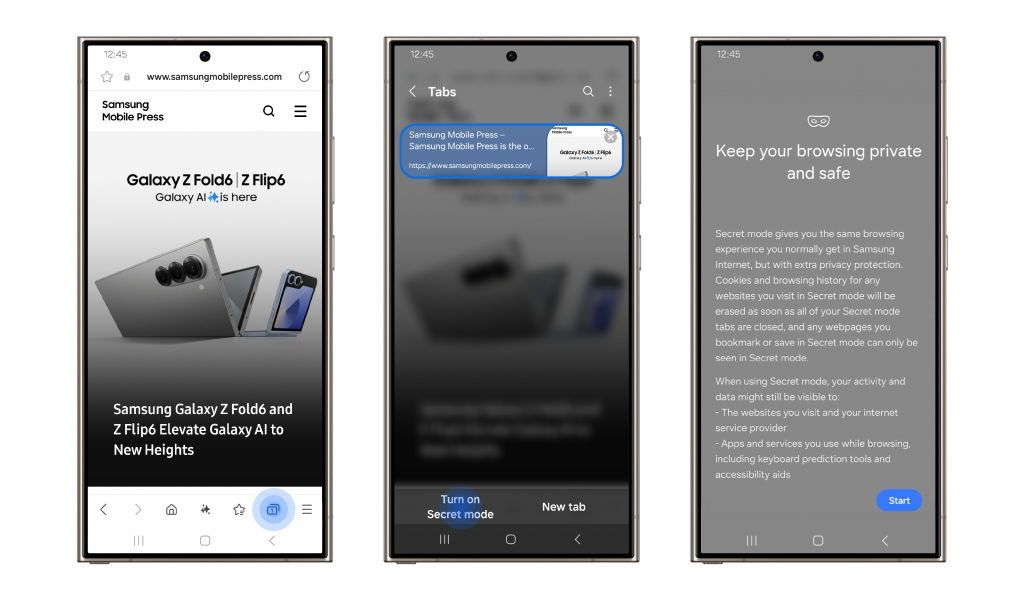
Samsung Internet > Tab Manager icon > Turn on Secret mode
Samsung Internet also provides the AI-powered Smart Anti-tracking function, which is turned on by default. This feature helps to block cookies and third-party attempting to track your personal information, as well as helping to prevent cross-site trackers from using techniques for getting around tracker blocking. Smart Anti-tracking also lets you default to a safe HTTPS setting when typing a URL and can detect and apply protection against domains that collude with classified trackers. To use Smart Anti-tracking, go into the Privacy Dashboard within Samsung Internet, and tap Smart Anti-tracking.
Samsung Internet > Privacy dashboard > Smart anti-tracking
Finally, Samsung Internet enables Ad Blocker. We know that when you’re browsing you might encounter ads that you want to get rid of for a seamless experience. That’s why we’ve enabled you to download third-party ad blockers. To block ads via Samsung Internet, launch the Samsung Internet app and tap the three lines icon (menu), before selecting Ad blockers. Here, we’ll recommend a selection of blockers for you to choose from and download.
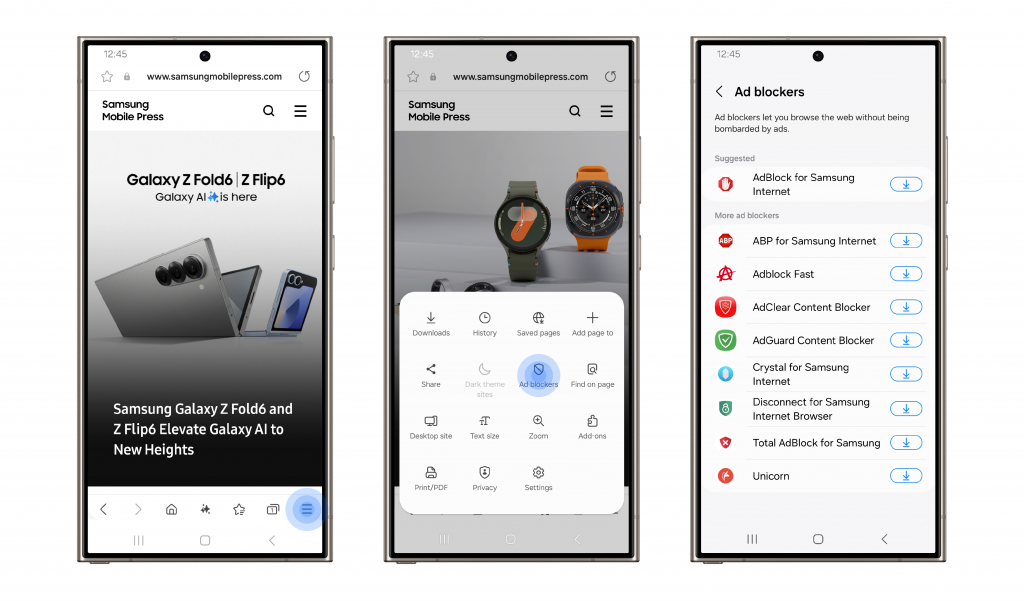
Samsung Internet > menu > Ad blockers
With your Samsung Galaxy device, there’s no need to worry about when and where you can surf the web. We’ve thought of it all and we’ve put measures in place to help keep you protected during your online experience – no matter where you are.
[1] Secure Wi-Fi offers free protection of up to 1024MB per month for Android OS 12 or later, and 250MB per month for Android OS 11 or earlier versions. Availability details may vary by market or network provider and connectivity is subject to applicable network environments.
from Samsung Newsroom Australia https://ift.tt/QbgYM2V
via IFTTT

