Have you ever wished your Mac would update MacOS system software on its own? If you’d like to take a hands-off approach to updating your system, you can enable automatic MacOS system software updates. With this feature enabled, not only will your Mac automatically check for new system software updates, but it will download and then automatically install the macOS updates too.
Enabling automatic MacOS software updates is great for convenience, but it’s really only recommended if you also have setup Time Machine for regular Mac backups, which are also automated once that setup has been complete. Without regular backups, there is a chance that an automatic update could go awry and lead to hassle or data loss, thus if you are considering using automatic macOS updates then it is important to use Time Machine for backups too.
How to Enable Automatic MacOS System Software Updating
Want a Mac to automatically update system software itself? Here is how you can enable that:
Go to the Apple menu and choose “System Preferences”
Select the “Software Update” preference panel, then choose either of the following options:
To automatically update both MacOS system software and Mac App Store apps, check the box for “Automatically keep my Mac up to date”
To only auto-update MacOS updates to system software and security updates, click the “Advanced” button then check the boxes for: “Check for updates”, “Download new updates when available”, “Install macOS updates” and “Install system data files and security updates” *
Exit out of System Preferences when finished
Once you have automatic MacOS updates available, the Mac will periodically check for any available system software update, and if one is found it will download and install it automatically. This process tends to happen in the middle of the night if the Mac is left on, otherwise it aims to happen when the computer is not in use.
You can still manually check for MacOS software updates with this setting enabled if desired, though the necessity for doing so is diminished since this sets the process to be automated.
* The option for “Install app updates from the App Store” can be enabled here as well if you want Mac OS to automatically update your Mac App Store applications as well. That setting can also be enabled or adjusted through the Mac App Store settings directly. We’re focusing on enabling automatic system software updates to MacOS here, however.
To be clear, auto system updates is not a new feature, though it is different now in MacOS 10.14 onward compared to prior releases. Much like the process of updating MacOS system software manually is different in macOS Mojave 10.14 onward compared to prior versions of Mac OS X, the setup for enabling automatic MacOS software updates is different now too compared to auto-update in prior Mac OS X versions too. This is largely because system software updates no longer come through the Mac App Store, but instead through the System Preferences again. So if you’re reading this article and wishing you had the feature on your Mac with an earlier MacOS release, you probably do, it’s just in a different settings location.
Obviously a feature like this requires internet access, so if the Mac is not on the internet then automatic updates will not work.
Whether or not you want to use this feature likely depends on how you use a Mac, how often you backup, if you prefer a hands-on approach to maintenance, whether you install updates through System Preferences or by using Combo Updates, and other personal preferences. Like other settings, you can always disable this feature later if you decide to.
Have an older Mac but want Hey Siri voice commands? With a little effort, you can get ‘Hey Siri’ on unsupported Macs by using a creative workaround. While new Mac models can enable Hey Siri on the Mac as easily as checking a setting in system preferences, older Macs do not support the same Hey Siri feature. This tutorial will show you how you can replicate the exact same “Hey Siri” capability on any Mac that does not support Hey Siri by default, as long as it has regular Siri functionality.
This has been tested and confirmed to work on Macs that have Siri and without official Hey Siri support. This includes Macs running macOS Mojave, High Sierra, and Sierra, as long as Siri is enabled on the Mac you will be able to use this workaround approach to mimic Hey Siri functionality. You will need a microphone, and the Mac must have Siri support. The rest is just a matter of configuring the Mac to listen for a special command and then tie that command to Siri to replicate Hey Siri hands-free voice commands on a Mac.
How to Enable “Hey Siri” on Unsupported Macs
This is a multiple-step process to setup Hey Siri on an unsupported Mac, follow the steps carefully:
Go to Apple menu and choose “System Preferences”
Choose “Siri” preference panel and make sure Siri is enabled
Now go to the “Keyboard” preference panel and to the “Dictation” tab and check the box for “Dictation” to ON and then check “Use Enhanced Dictation” as well
Next go to the “Accessibility” system preference panel and choose ‘Dictation’ from the sidebar, and check the box for “Enable dictation keyword phrase” and type in ‘Hey’ * and then click the “Dictation Commands” button
Check the box for “Use advanced commands” then click the + plus button
Configure the advanced Dictation command as follows:
When I say: “Siri”
While using: “Any Application”
Perform: Run Workflow -> Other -> Navigate to /Applications folder and select “Siri.app”
The configuration should look like the following, with the Perform action being “Open Siri.app”, if everything matches choose “Done”
Confirm that the “Hey Siri” trick is working by saying “Hey Siri what’s the weather” or some other Siri command
Assuming you configured things as described above, you will now have a fully functioning “Hey Siri” hands-free voice commanded assistant on a Mac, even if that Mac does not officially support Hey Siri.
Try it out yourself, it works! The response time and accuracy seems about the same as official Hey Siri on the Mac.
Basically anything from the Mac Siri commands list will work when activated through voice this way.
* You can use any other dictation keyword phrase, we’re using “Hey” so that we can mimic the “Hey Siri” feature. But you can use “Open the pod bay doors Hal” or something else if you feel like it.
How to Turn Off the Hey Siri Workaround on Older Macs
If you want to turn this off, you can return to the Accessibility Dictation section and uncheck the various boxes. If you want to disable Enhanced Dictation and disable Siri in general you can do that too. You may have noticed that Enhanced Dictation downloads a 1.2gb package for it to work, but you can remove Enhanced Dictation to reclaim that disk space on the Macif desired.
While this is obviously for the Mac, enabling Hey Siri on iPhone or iPad is easy and supports many devices, and you can enable Hey Siri on Apple Watch too. Whichever device you use Siri on you can use many Siri commands from the list and yes even the funny Siri commands that are just plain goofy.
Intel Power Gadget for Mac is a processor monitoring tool that allows computer users to monitor the performance of an Intel processor in real-time. Intel Power Gadget will show you power and energy information in watts, the clock speed frequency of the CPU in GHz, the temperature of the CPU, and CPU utilization. It’s a handy utility for many reasons, and some Mac users may even use it as an alternative system monitor sort of like Activity Monitor.
Newer versions of MacOS can sometimes have trouble installing Intel Power Gadget, and many MacOS Mojave users have discovered the installation fails or the app doesn’t work. This installation failure is usually due to a default security setting in MacOS, and is easy to resolve.
How to Install Intel Power Gadget on MacOS
Installing Intel Power Gadget on the Mac is easy, though you may run into a Gatekeeper security block that can cause installation trouble. Here’s how to successfully install the tool in modern macOS releases:
Launch the “Install Intel Power Gadget.pkg” from the mounted disk image as usual and start the installation process
If you see a ‘System Extension Blocked’ message, click on “Open Security Preferences”, otherwise go to the Apple menu and choose ‘System Preferences’ followed by ‘Security’
Under the ‘General’ section of the Security preference panel, click the button to “Allow” the ‘system software from developer Intel corporation apps’ which was blocked by Gatekeeper *
The Intel Power Gadget installer should proceed as usual and successfully install, if it fails then just run the “Install Intel Power Gadget.pkg” package installer again
When finished, launch Intel Power Gadget from the /Applications folder as usual
If you run Intel Power Gadget while you’re using the Mac, you may notice that processor performance can change around quite a bit depending on what you’re doing and what sort of apps you’re using.
It is completely normal for the processor charts to be changing constantly, and you’ll find that the processor clock speed may go up or down, as will both CPU temperature and power, typically correlated with processor utilization – this makes sense as more processing utilization requires more power to have a higher clock speed, which raises the temperature of the CPU, and of course the opposite can happen as well with CPU speed lowering along with lower power and lower temperature and utilization when the Mac is less busy. If you’re interested in doing so, you can see this directly and test it yourself by running any CPU intensive task, like the Terminal command ‘yes’, which is often used for stress testing a Mac (or any Linux PC):
As you can see the graphs for power, frequency, temperature, and utilization suddenly shoot way up as the ‘yes’ command runs in the adjacent Terminal window as a stress test, which is normal and expected behavior for the processor.
Uninstalling Intel Power Gadget on Mac
Decide you don’t need Intel Power Gadget? Uninstalling Intel Power Gadget is quite simple. Simply navigate to the /Applications folder and open the Intel Power Gadget directory, then run the included ‘Uninstaller.pkg’ package file. This will remove the Intel Power Gadget application and the associated kernel extension from the Mac.
* If you’re a truly advanced Mac user and you’re bothered by these type of security measures causing installation issues, you can choose to allow apps from anywhere in macOS by disabling Gatekeeper, though that is strongly not recommended for the vast majority of Mac users. There are quite a few apps that can fail to install because of the stricter security standards that are in place in modern macOS releases, and if you’re the type of person running Intel Power Gadget then you may encounter also a similar issue with installing VirtualBox in MacOS where the kernel driver fails to install, thereby preventing that app to work as well. Typically you can bypass Gatekeeper on a one-off basis as discussed here, which is arguably the best approach, but you can also just turn it off completely if needed.
Tags allow you to organize, prioritize, arrange, and label any files or folders on the Mac.
After a file is tagged in the Mac Finder, that file will be marked by the color-coded tag and its associated label, and you can then reference and access those tagged files by whatever assigned tag. You can even tag the same file or folder with multiple different tags, if you want to apply multiple colors or labels to them.
This article will show you how to tag files or folders in the Mac Finder.
How to Tag a File / Folder on Mac
One of the simplest ways to tag a file or folder on the Mac is through the Finder File menu, like so:
Open the Finder file system browser on Mac if you have not done so already
Select a file (or multiple files / folders) in the Mac Finder
Pull down the “File” menu and choose the tag you wish to apply to the selected file(s) or folder(s)
You’ll notice the tagged file now has the chosen tag color associated with it, alongside its name in modern versions of MacOS whereas earlier versions will place the color behind the text or even tint the color the icon.
You can apply additional tags to the same files and folders if desired by repeating the steps above.
How to Tag Filers or Folders from a Mac Finder Window via Gear Menu
You can also tag a file from a Finder window by selecting the file(s) and then clicking the gear icon, then choosing the desired tag(s) from that gear drop-down menu, as shown in this picture:
Here’s a screenshot example of what a few tagged files looks like in a Finder window:
Tags are also visible in List view and the other Finder views:
Much like you can add tags to files and folders, you can remove tags from files and folders on the Mac as well. One of the simplest ways to do that is to simply return to the File > Tags section and choose the same tag that the file / folder is currently tagged with to un-tag that item. Note that removing a tag from a file does not remove the file itself, it only removes the chosen tag and label that was assigned to it.
Tags are not just for the Mac, and you can tag files on iPhone or iPad too. Additionally, if those tagged files are stored in iCloud then they will carry over from iOS to the Mac through iCloud Drive as well, and vice versa, as well as any other Macs using the same Apple ID with access to the same iCloud Drive data.
If you want to edit tags or rename them, that can easily be done through the Finder menu by choosing “Preferences” and going to the “Tags” tab.
Tagging files and folders is pretty straight forward, and they offer an excellent way to organize and arrange files, or even just to set file priority for various types of work.
Accessing files by tag is perhaps easiest through the Finder sidebar, but you can also search by tag through Spotlight.
Today’s the day, Mac users: the latest version of macOS, called Mojave (and officially it’s version 10.14), is now available. It’s not a major revamp of the operating system (it’s been a while since the Mac has had one of those), but it does add new features that can help you be more productive with your Mac.
That being said, you may be hesitant to upgrade. After all, what you’re using now works fine, and why risk the potential for problems? We hear you, and if you don’t want to upgrade right away, you’ll be fine. But in case you’re on the fence, here are a few reasons why you should upgrade to macOS Mojave now.
MacOS Mojave Dark Mode is easier on the eyes
The first new feature Apple discussed at the 2018 Worldwide Developers Conference unveiling of Mojave, the first feature that the Mojave website highlights, and the first feature I’m covering here is Dark Mode, which uses darker colors for user interface elements like the toolbar and menus. Being first implies a sense of importance, but to some, Dark Mode may seem like an odd feature to highlight first. “Yeah, so the Mac uses dark stuff. So what?”
Think about how you use your Mac (or computers in general). When you’re looking at a computer screen, you’re basically staring at a light source. And if you’re like me, you do almost all of your work all day long while staring at this light source. With a traditional Mac UI, you’re usually using windows that are predominating bright white, and staring at the light for a while can cause eye fatigue.
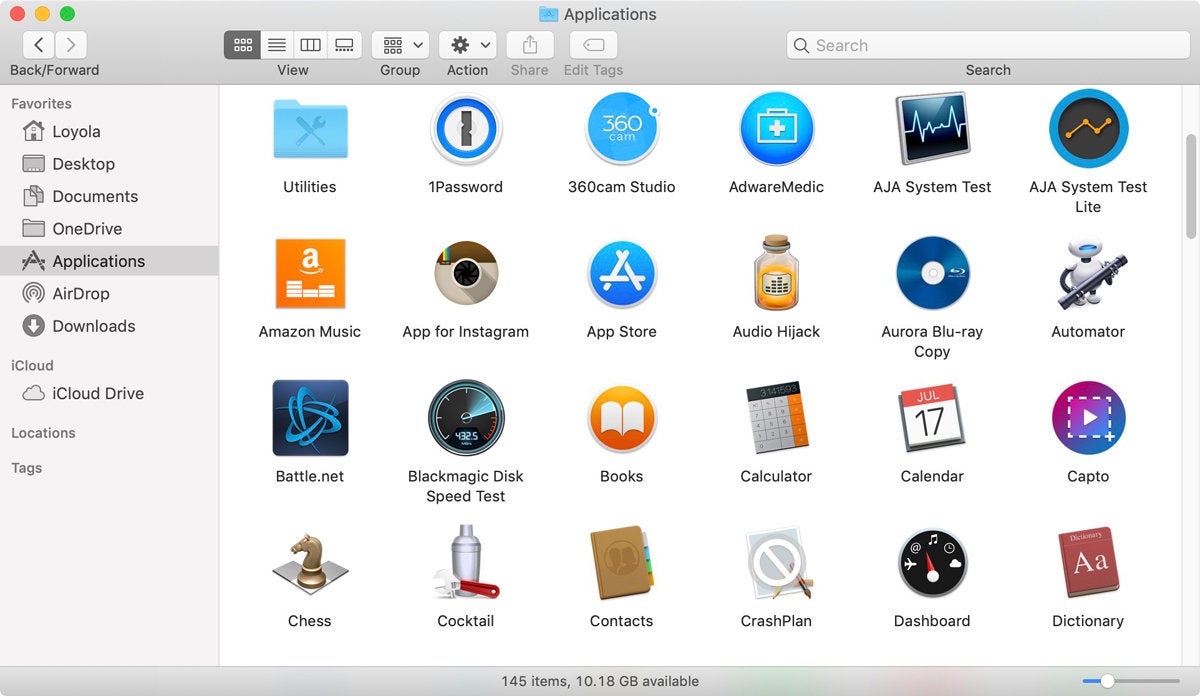
A familiar Light Mode window in. macOS Mojave…
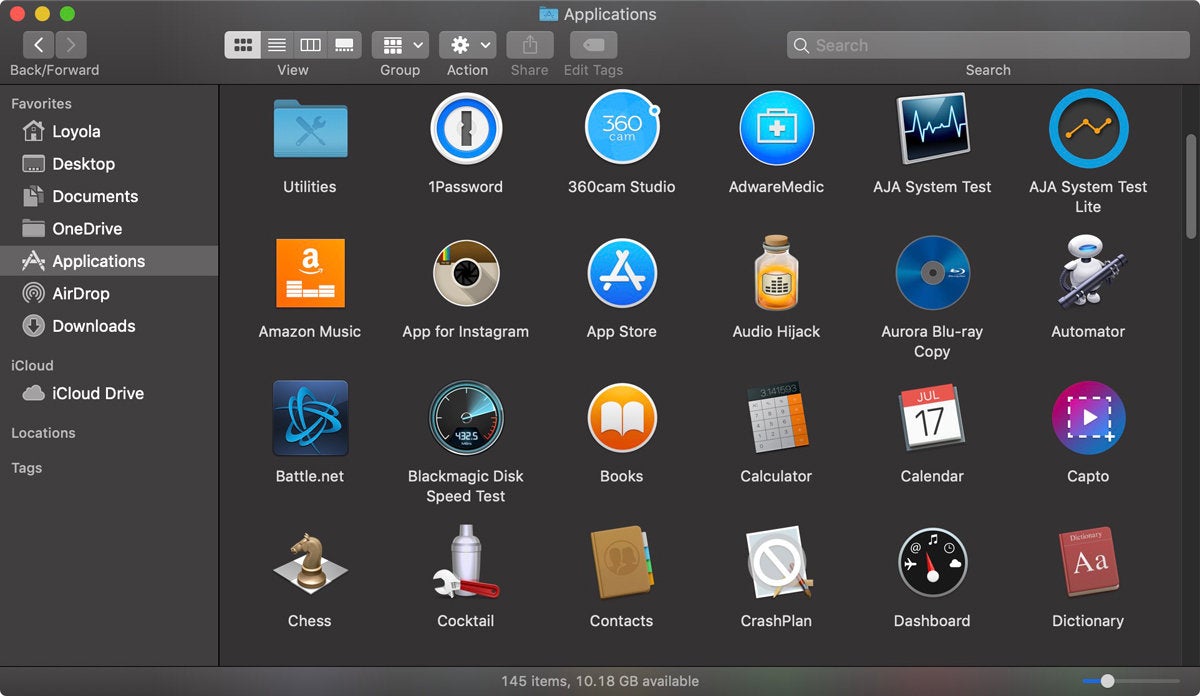
…and a new Dark Mode window.
Dark Mode feels a lot more comfortable to me, though I don’t feel more or less fatigued at the end of the day. (That’s probably due to the fact that I make it a point to take quick “vision” breaks every 30 minutes or so.) Some people think Dark Mode helps you focus on what you’re working on; I can’t say I agree or disagree, I don’t notice a difference in where my attention is at. But while I’m working, being in Dark Mode feels more pleasing, and I now have a preference for it. I’m also looking forward to more apps offering Dark Mode interfaces.
MacOS Mojave Continuity Camera
Before Continuity Camera, it took a bit of effort to get a photo or scan on to your Mac. With Continuity Camera, the process is a lot more efficient.
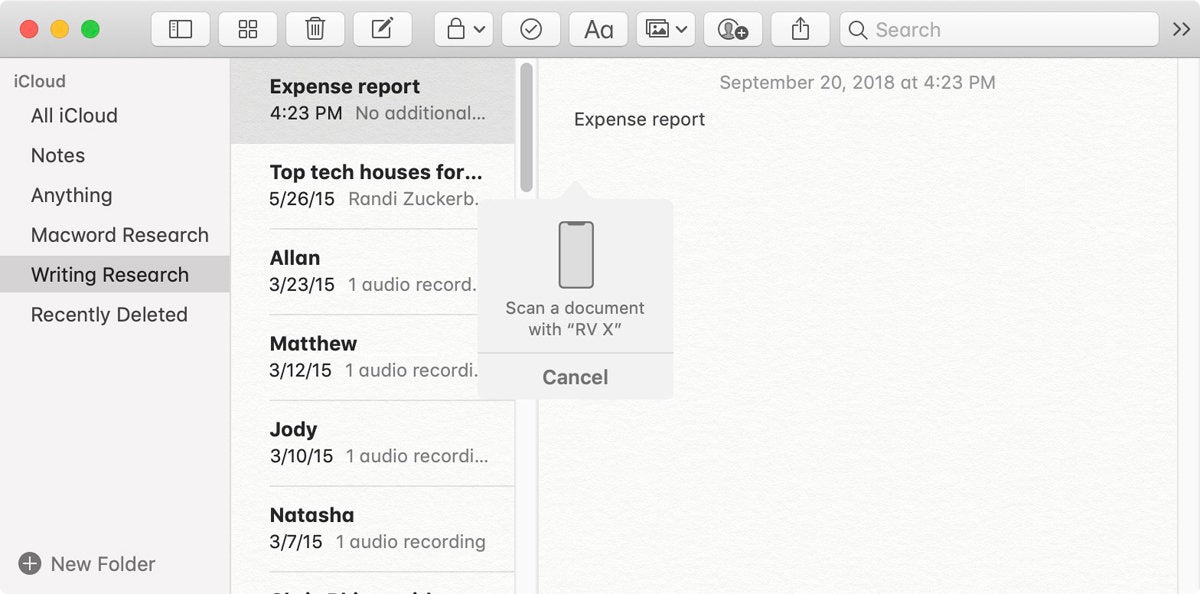
You can scan images directly into Notes.
In apps that support the feature, all you need to do is click in the area where you want your image to appear, and then go to the File menu and look for an option to import a scan or photo from your iPhone or iPad. Select it, and an indicator appear in your Mac app and your iOS device’s camera automatically launches. You can then snap a pic or “scan” your document, and the result is automatically inserted in your document. So easy. Unfortunately, this feature doesn’t allow you to select a pic that’s already on your iOS device for placement in your document, but maybe that’s for a future update.
Continuity Camera works right now with Mojave’s bundled apps, like Notes, Mail, Messages, and in the Finder. It also works with Apple’s Numbers, Pages, and Keynote. Look for third-parties to add this functionality soon.
Using an iPhone X to scan a receipt in Notes for Mac.
MacOS Mojave improved security features
Security isn’t a glamorous topic, but there are a few now security features that make Mojave an attractive upgrade.
Because of what I do for a living, I’m often downloading and trying new software, sometimes from developers with whom I’m not familiar. So I run a few utilities to keep an eye on what’s going on with my Mac. One of the utilities I use is OverSight, which flashes an alert any time an app wants to access the Mac’s FaceTime camera and microphone.
macOS Mojave now lets you know if apps are trying to access your Mac’s microphone, camera, and other items.
An OverSight-like feature is now built into Mojave that can alert you when an app wants to accessalong the camera and mic, as well as iTunes device backups, Time Machine backups, your Mail database, your Message history, your Safari data, and other data.
Even better is that Safari in Mojave has improved Intelligent Tracking Prevention. What this does is that it blocks attempts to track the websites that you visit. If you trigger one of these tracks (often by clicking on a comment button, or when you Like something on Facebook), Safari posts an alert to let you know that you need to allow tracking to continue on.
Mojave also has more features for managing password, such as the ability to create strong passwords, the ability to automatically enter in a security code that you get vis SMS, and password auditing. These are great features, but as a longtime 1Password user, I don’t think I’ll be giving it up for Mojave’s built-in features. I prefer 1Password’s management tools, even though it means I’m not being efficient about my password usage.
MacOS Mojave Quick Look for quick image edits
As the family documentarian, it’s my job to take pictures and videos of family events. But I don’t just shoot and then file away the results; I look at the pics and videos and edit them. Usually, they’re easy edits, but it feels like a hassle to preview a file to see if it needs to be edited, and then open those files that do in an app.
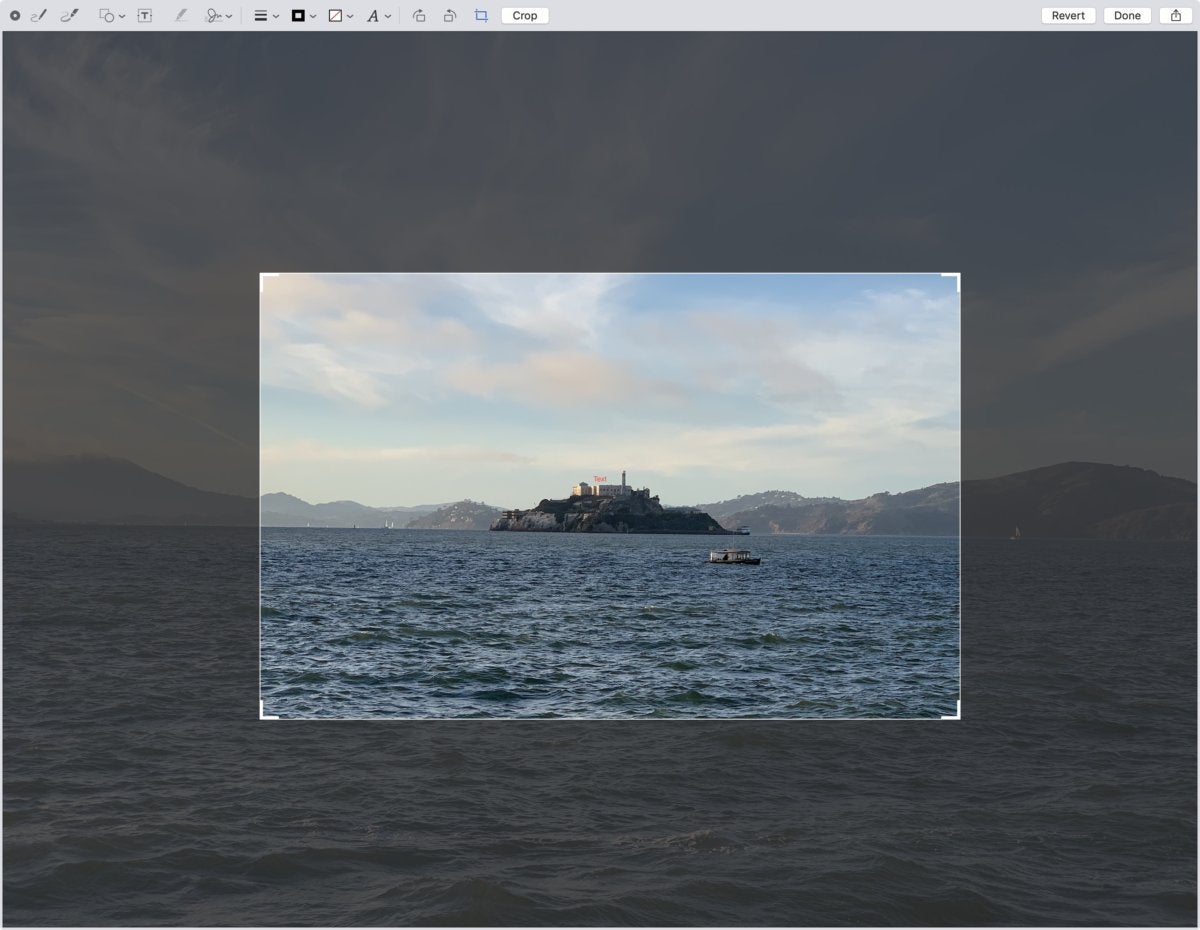
Crop a photo directly in Quick Look. No need to open an app.
Mojave makes Quick Look most robust, providing simple editing tools so you don’t even need to open an app. Now when you preview an image (select it and then press the space bar), you can click on the Quick Actions icon between the Rotate icon and the Open in Preview button, and a set of editing tools appears. You can rotate in 90-degree increments and crop images, and there’s even a set of markup tools you can use to write notations. For audio and video, you can trim clips.
If you are perusing through dozens and dozens of photos and videos, the new Quick Look Quick Actions helps a ton with simple crops and trims. It can be a real time saver.
MacOS Mojave News, Stocks, Voice Memos, and App Store
If you frequently use the News, Stocks, and Voice Memos apps on your iPhone or iPad, then you’ll probably find good use for them on your Mojave Mac. With the News and Stocks apps, your preferences can be saved to iCloud, so your topics, channels, watch list, and more are syncs between all your devices. Voice Memos can save your recording to iCloud so you can access them on any device.
The new News app in macOS Mojave.
Of these apps, I’ll get the most use out of the News app. It seems that people tend to rely on social networks to get their news, but with social networks, the people you follow are the arbiter of what shows up on your feed—and for a lot of people, that’s preferable. I like to have more control over the articles that are fed to me, and that includes topics that may not necessarily jibe with that of the people I follow. The News app allows you to set your sources and subjects, so you can get a feed that’s customized to your interests.
Apple has also redesigned the App Store, so it’s easier to find apps. The company is also putting a more effort into your ability to learn about new software, by featuring App Store editors’ picks and curated app lists.
Group FaceTime: Coming soon to macOS Mojave
If these reasons aren’t compelling enough for you to upgrade to Mojave now, there’s a feature coming soon that will make you want to upgrade: Group FaceTime. When it becomes available—Apple says it’ll be here later this fall—you’ll be able to do a group chat with up to 32 people using a Mac, iPhone, or iPad. If this feature was available now (and it worked well), it’d be the number one reason why you should upgrade to Mojave.
Let’s hope Group FaceTime comes to the Mac sooner than later.
The Messages app in newer releases of iOS and MacOS will attempt to render a small preview of any webpage URL or link that is shared within the Messages app. Usually the link preview will pull the title of the article or webpage, an image, and the domain of the URL being shared, all in a little compact thumbnail preview seen in the Messages thread on an iPhone, iPad, or Mac. The Message link previews are useful to many people, but some users may not like the URL previews, and some more cautious users may prefer to see the full URL of a link at all times, especially before clicking on it.
We’ll show you a few tricks to disable the link previews of URLs sent and received in the Messages app of iOS and MacOS.
First, if you’re looking for a switch or setting for this, you won’t find one because it does not exist. So be aware that the approaches covered here are effectively workarounds, as there is no method of disabling the URL link previews in Messages app completely, either on the Mac, iPhone, or iPad. But with that said, you can effectively disable URL link previews in Messages on a per-message basis by using a few text tricks.
How to Prevent URL Link Previews in Messages for iOS and Mac OS
This comes down to a simple text trick. Essentially, you need to wrap the URL in text. You can do that in several different ways:
Option 1: Put the link in a sentence, or between words
Put a URL in the middle of a sentence like this http://osxdaily.com and then share it as usual
Simply placing the link being sent through Messages in between words or in a sentence will remove the message preview on an iPhone, iPad, or Mac.
Just note that the words or text must appear on both sides of the URL to work as intended. Basically anything like “words URL words” will do the job and disable the Message URL preview, and instead show the full URL.
Option 2: Place periods on both sides of the link being shared
Place periods on the beginning and end of a URL being shared, like this: “.http://osxdaily.com/.”
Just wrap the URL in periods and send the link as usual. This is just a variation of the above trick but rather than placing the URL in a sentence or between words, you’re placing the URL between periods.
Interestingly, if you use periods on both sides of the URL, then Messages in both iOS and MacOS will strip the periods out, as long as they surround a complete URL like so:
.http://osxdaily.com/.
This means that, once the message with the URL is sent, it will appear as so:
http://osxdaily.com/
And yes, without the iMessage preview.
While the above screenshots focus on the iPhone and iPad by demonstrating the iOS Messages app, the tricks work identically on the Messages app for Mac, where the same techniques will disable the URL preview on the Mac side of things too (for both sending and receiving). The screenshot below demonstrates this with a link preview, as well as a link without the URL preview on the Mac:
Have you ever wished you could have an animated GIF as the screen saver on a Mac? Well there’s no reason to wish, because an animated GIF screen saver can be a Mac reality, with no rubbing of genie bottles needed.
Using an animated GIF as a screen saver is a bit goofy and probably not appropriate for most people, but if you have a favorite animated GIF and want some low-resolution eye candy for fun or enjoyment, then this screen saver option may be right for you.
How to Use an Animated Gif as Screen Saver in Mac OS
This guide will be using a free third party screensaver to enable the usage of animated GIFs as the Macs screen saver, here are the steps:
After you download the AnimatedGIF screen saver file, you can install the screen saver manually or double-click it and install it on the Mac that way
Now go to the Apple menu and choose “System Preferences” and go to “Desktop & Screen Saver”
Under the ‘Screen Saver’ tab, select “AnimatedGIF” from the left side menu, then click on “Screen Saver Options” to configure your animated gif screen saver
Now you just need an animated GIF to use as your screen saver.
There are a variety of settings to configure, including whether you want to center or stretch the gif on screen, adjust frame rate, load the animation, change the surrounding background color if the gif is centered, amongst other options, but all you really need to do is set the animated GIF path to the animated GIF of your choice.
It’s up to you how you want to arrive at an animated GIF to use as your screen saver (more on that in a moment). In the examples above I used a simple animated GIF created for this article about posting Live Photos to Instagram and Facebook. If you just want a quick animated GIF to test this out with yourself, you can try this fireplace GIF I created some time ago for a different post:
Don’t forget that you can also set a screen saver as Mac desktop wallpaper too, which works great with this – just in case you want an animated GIF as your desktop background – or you can use a free tool called GIFpaper to achieve a similar effect.











 It’s up to you how you want to arrive at an animated GIF to use as your screen saver (more on that in a moment). In the examples above I used a simple animated GIF created for this article about posting Live Photos to Instagram and Facebook. If you just want a quick animated GIF to test this out with yourself, you can try this fireplace GIF I created some time ago for a different post:

