




Fixing a Dead Galaxy Z Flip 6 Display After an Aggressive Corner Drop

Fixing a Dead Galaxy Z Flip 6 Display After an Aggressive Corner Drop: Ultimate Recovery Guide with 4 Expert Checks
Introduction
A serious corner drop doesn’t always mean your Samsung Galaxy Z Flip 6 is beyond repair. Even when the main screen goes completely black, the phone may still be working internally. The key is to identify the likely damage, avoid actions that make it worse, and choose the right repair approach. This guide explains the warning signs, safe troubleshooting steps, and professional solutions that can help restore your device.
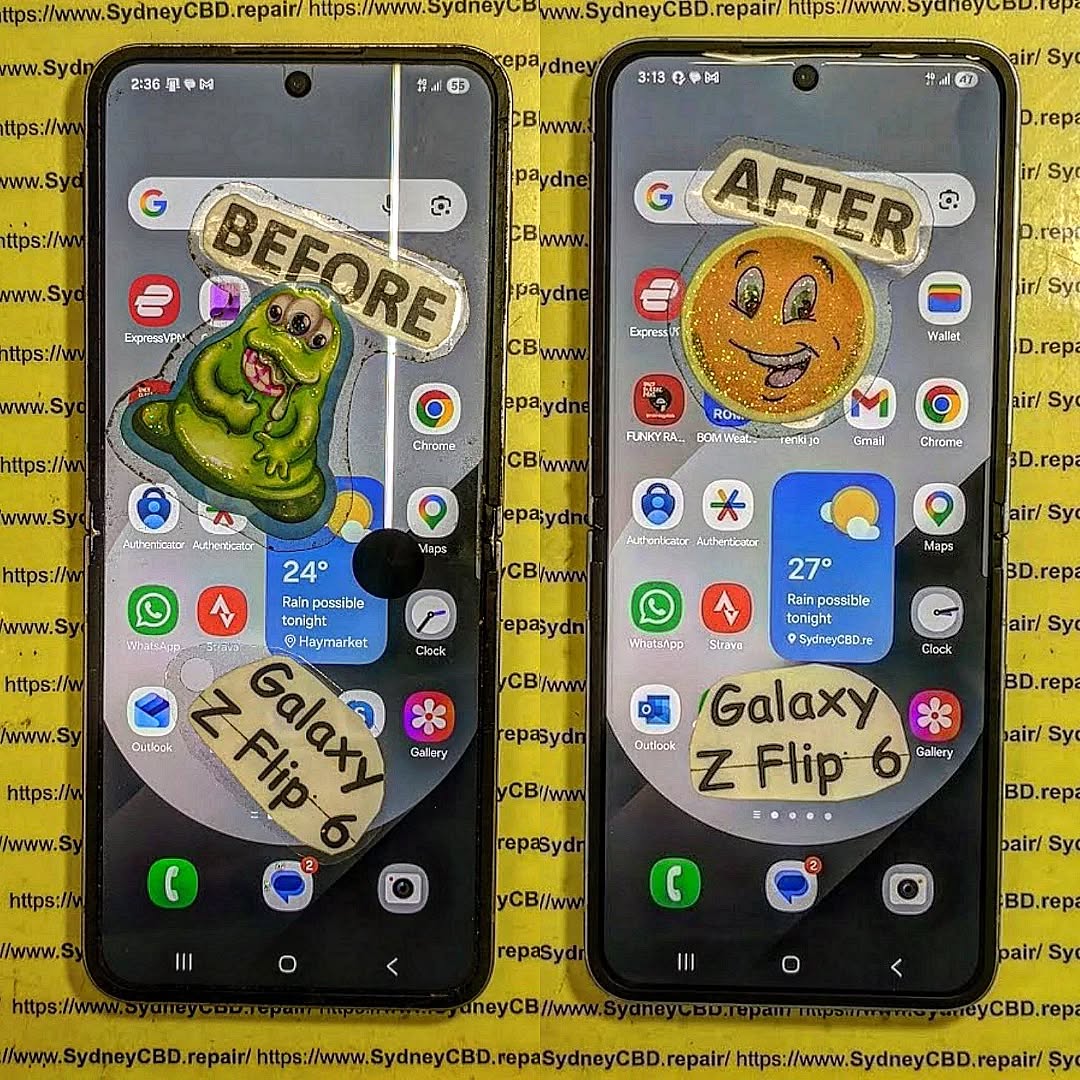
1. Why an Aggressive Corner Drop Can Kill the Galaxy Z Flip 6 Display
The Samsung Galaxy Z Flip 6 combines a foldable main screen with a separate cover display. Its design makes it compact and convenient, but a heavy impact can damage components that aren’t immediately visible.
When the phone strikes a hard surface on one corner, the force isn’t always limited to the outer frame. Depending on the landing angle, impact energy can travel through the housing and place stress on the display assembly, internal connectors, and supporting structures.
Samsung identifies physical impacts as possible causes of cracked glass, black spots, abnormal lines, and other display problems. The appearance of the damage can vary depending on the type and intensity of the impact.
1.1 How a Corner Impact Affects a Foldable Phone
A corner drop creates a concentrated impact point. Unlike a fall onto a broad, flat surface, a corner-first landing may direct more force into a smaller area.
Several outcomes are possible:
- Frame deformation: The corner may become dented, chipped, or pushed out of alignment.
- Display damage: The internal screen layers can fail even when the visible surface has few cracks.
- Connection problems: An impact may affect an internal connector or flex cable.
- Cover-screen damage: The smaller exterior display can also be affected if the impact reaches its side of the housing.
- Additional internal faults: Depending on the severity, other components may require inspection.
These are possible failure paths, not a diagnosis. A technician needs to inspect the actual phone before determining which component has failed. A dead screen can result from more than one problem, so replacing a display without checking the device may not always solve the issue.
1.2 Understanding the Galaxy Z Flip 6 Display System
The Galaxy Z Flip 6 features a 6.7-inch Dynamic AMOLED 2X main display with a refresh rate of up to 120Hz. Its exterior cover screen is a separate 3.4-inch Super AMOLED display.
Each screen serves a different purpose.
| Component | Main Function | Possible Symptoms After a Drop |
|---|---|---|
| Main foldable display | Provides the full-size viewing and touch experience | Black screen, flickering, lines, or no touch response |
| Cover display | Shows notifications, widgets, and other supported functions when folded | Black exterior screen, unusual colours, or failed touch |
| Display connections | Carry signals and power between relevant components | Intermittent picture or no picture |
| Frame and housing | Support and protect the internal assembly | Dents, gaps, misalignment, or pressure on components |
| Mainboard and associated circuits | Manage the phone’s electronic functions | Broader operating problems if damaged |
The main and cover screens are separate display systems. Therefore, one may continue working while the other fails. However, a functioning cover display doesn’t prove that every internal component is healthy.
1.3 Why the Screen Can Go Black Without Shattering
One of the most confusing situations occurs when the phone looks almost normal but the main screen has stopped displaying an image.
The outer surface may remain intact while internal display layers sustain impact damage. In other cases, a damaged connection or another hardware fault may stop the panel from working correctly.
Watch for these warning signs:
- The display stays black after the phone is opened.
- A flash of light appears before the screen goes dark.
- Green, white, pink, or other abnormal lines appear.
- Black, ink-like patches spread across the screen.
- The screen works briefly and then turns off.
- Touch input stops responding even when an image remains visible.
Samsung notes that black spots and coloured or black lines can follow physical damage and may require professional screen repair. Don’t press on the display to see whether the image returns; pressure can worsen an already damaged panel.
1.4 Main Display Failure Versus a Phone That Won’t Turn On
A black screen doesn’t automatically mean the whole phone is dead.
For example, the device may still vibrate, produce notification sounds, receive calls, or respond to its power button. These signs suggest that some functions remain active, although they don’t establish that the motherboard is undamaged.
By contrast, a phone that shows no picture, makes no sounds, doesn’t respond to buttons, and fails to show charging activity may have a battery, power-management, charging, board-level, or display problem.
The important takeaway: a dead Galaxy Z Flip 6 display after an aggressive corner drop deserves a hardware assessment rather than repeated attempts to force the phone to work.
1.5 What to Do Immediately After the Drop
Before troubleshooting, inspect the phone without applying pressure.
Look for a dented corner, a gap in the housing, loose external pieces, damaged glass, or an unusual change in the hinge’s movement. Don’t attempt to straighten the frame or force the phone open and closed.
If the device becomes unusually hot, smells strange, appears swollen, or makes a hissing sound, stop using it. Don’t charge it or attempt to open it. Arrange professional assistance immediately.
If there’s no sign of a battery safety problem, continue with the gentle checks below.
2. Safe Troubleshooting and Data Protection: 9 Essential Checks
Before assuming the screen needs replacement, perform a few controlled checks. These steps can help distinguish a possible display fault from a frozen phone or a power issue. They cannot confirm which internal part has failed, and none should involve bending, squeezing, or opening the device.
Check 1: Inspect the Impact Corner
Start with the area that hit the ground. Look closely at the frame, glass edges, rear panel, and hinge area using ordinary room lighting.
- A dent or deep scratch near the impact point.
- Cracks extending from the corner.
- Separation between the frame and the exterior panels.
- A hinge that appears bent or no longer sits correctly.
- New gaps, loose parts, or exposed internal material.
Record what you notice. Photos of the damage can help when requesting a repair estimate. If the frame is visibly bent or the hinge has shifted, do not try to realign it yourself.
Check 2: Find Out Whether the Cover Screen Still Works
If the phone is folded and the housing looks safe, check the exterior cover screen. Does it display the clock? Can you see notifications? Does it respond when you press the side button?
A working cover screen with a black main display suggests the main display path has been affected rather than every phone function failing. Avoid repeatedly opening and closing the phone just to compare the screens; one careful check is enough.
Check 3: Listen for Signs That the Phone Is Running
Without repeatedly pressing buttons, listen for notification tones or incoming-call sounds. You can also ask someone to call your number.
If the device rings or vibrates while the screen stays black, it provides useful information for a technician, showing that the system is running. If you hear unusual electrical noises or notice heat, disconnect and stop testing.
Check 4: Attempt One Controlled Forced Restart
A software freeze can resemble a dead display, so a single forced restart is reasonable if the phone has no signs of physical instability, swelling, or overheating.
Holding the Side button and Volume Down button together for approximately 7–10 seconds initiates a forced restart. Do this only once. A restart will not repair broken display layers, damaged flex cables, or a bent housing.
Check 5: Look for Evidence of Charging
If there is no visible safety concern, connect the phone to a known-good, compatible charger and cable. Observe the phone briefly for normal signs of activity.
Don’t insert anything into the USB-C port if it looks bent, crushed, or obstructed. If the phone becomes unusually hot, disconnect power immediately.
Check 6: Test Touch Only If an Image Is Visible
If part of the display still works, check whether you can use it normally without pressing hard. Watch for touch dead-zones, flickering, coloured lines, or intermittent blackouts.
If the entire main display is black, do not try repeated blind swipes or random unlock attempts, as this can trigger lockout timers or security wipes.
Check 7: Observe Hinge Movement Without Forcing It
If the phone is open and appears stable, check for obvious misalignment. Do not force the hinge through its full range of motion or attempt to straighten it if movement feels unusually stiff, uneven, or obstructed.
A technician should assess suspected hinge or frame damage before removing or replacing a display assembly.
Check 8: Protect Your Data Before Repair
If the cover screen works and you can safely unlock the phone, back up important information using an existing cloud service or Samsung Smart Switch.
If you cannot see the screen or safely unlock the device, inform your repair provider that data preservation is a priority before authorising any work.
Check 9: Stop Testing and Document the Symptoms
Once you’ve made these basic observations, stop experimenting and document:
- Where the phone landed and which corner struck first.
- Whether it was open or folded during impact.
- Whether the main and cover screens work.
- Whether the device rings, vibrates, or responds to restart.
- Any visible frame, glass, or hinge damage.
- Any heating or unusual behaviour.
| Observation | What It May Indicate | Recommended Next Step |
|---|---|---|
| Cover screen works, main screen is black | Main display failure or a related connection fault | Arrange display diagnosis |
| Both screens are black, but the phone rings | Display-related or broader hardware fault | Request a full assessment |
| Coloured lines or black patches appear | Possible internal panel damage | Stop pressing the display and arrange repair |
| Phone won’t charge or respond | Power, charging, battery, or board-level issue | Request electrical diagnostics |
| Frame or hinge is visibly bent | Structural impact damage | Avoid folding or straightening the phone |
3. Professional Repair, Replacement Options, and Post-Repair Testing

When basic checks don’t restore the screen, the next step is a professional inspection. A foldable phone’s display assembly is complex, and a hard corner impact can cause damage that isn’t visible from the outside.
3.1 Step One: Record the Symptoms and Inspect the Housing
A proper assessment begins with the phone’s impact history and external inspection. The technician examines the damaged corner, display surfaces, hinge alignment, and chassis gaps to determine whether the issue is isolated to the screen or involves structural deformation.
3.2 Step Two: Diagnose the Display and Internal Connections
Technicians carry out hardware diagnostics to differentiate between a severed flex connection, a cracked OLED substrate, and board-level issues. Disassembly requires specialized heating jigs and suction tools designed for foldable devices.
3.3 Step Three: Determine Whether Display Replacement Is Necessary
Samsung’s service guidelines distinguish between screen repair (reseating/film servicing on eligible models) and full screen replacement (replacing the OLED, frame, and hinge mechanism as an integrated unit).
Before agreeing to work, request a written estimate that details:
- The diagnosed fault and proposed repair process.
- Whether the quote covers the screen panel alone or the entire display + frame assembly.
- Any hinge or chassis realignment costs.
- Turnaround time, labour rates, and applicable taxes.
- Written warranty terms and coverage exclusions.
3.4 Step Four: Choose Parts Carefully
Ask whether the replacement is an original service part, a refurbished assembly, or an aftermarket equivalent. For foldable devices, genuine service packs ensure that high-refresh-rate calibration and ultra-thin glass durability meet manufacturer specifications.
3.5 Step Five: Test the Phone Before Collecting It
A complete repair includes multi-point quality control testing before you leave the shop:
| Test | What Should Be Checked |
|---|---|
| Main display | Image clarity, brightness levels, colour accuracy, and pixel defects |
| Touch response | Digitizer response across the entire panel, especially along the crease |
| Cover display | Touch and widget operation on the outer glass |
| Folding action | Smooth open-and-close action without resistance, clicking, or misalignment |
| Cameras and audio | Operation of selfie camera, rear cameras, speakers, and microphones |
| Charging | Standard wired fast charging and wireless charging functionality |
| Connectivity | Wi-Fi, Bluetooth, GPS, and cellular signal stability |
| Frame and finish | Tight adhesive seams, flush glass panels, and dust-resistant seals |
3.6 How Long Will the Repair Take?
Turnaround depends on parts stock and structural complexity. Standard screen-and-frame module replacements can often be completed same-day, whereas frame realignment or ordering specialised colours may take several days.
3.7 What About Repair Costs and Warranty Coverage?
Impact damage from drops is considered accidental and is handled under out-of-warranty repair pricing unless covered by Samsung Care+ or third-party insurance. Compare the repair estimate with the market value of the phone to make an economical decision.
For more technical documentation, you can refer to the Samsung Australia screen repair and replacement guidance or iFixit’s Galaxy Z Flip 6 repair information.
4. Eight Frequently Asked Questions About Galaxy Z Flip 6 Display Repair
1. Can a Galaxy Z Flip 6 display be repaired after a hard corner drop?
Yes. In most cases, replacing the inner display assembly resolves the issue. If the impact also damaged the motherboard or housing, those parts will need concurrent repair or realignment.
2. Why is my Galaxy Z Flip 6 screen black when the phone still rings?
This indicates that the phone’s motherboard, battery, and operating system are still functioning, but the internal OLED layer or its display connection cable was destroyed on impact.
3. Will restarting my phone fix the black screen?
A forced restart can only resolve a software crash. If the screen went black due to physical corner impact, restarting will not fix cracked OLED layers or damaged ribbon cables.
4. Can I replace the Galaxy Z Flip 6 screen at home?
DIY repair is not recommended for foldable models. They utilize ultra-thin glass, tight adhesive seals, and dual-battery configurations that can be easily punctured or permanently ruined without specialized workshop jigs.
5. Will replacing the display erase my photos and files?
A screen replacement alone does not erase user data. However, if the motherboard sustained impact damage or a service centre policy requires a factory wipe, data could be lost. Always notify your repairer if data recovery is your top priority.
6. How much does it cost to fix a dead Galaxy Z Flip 6 display?
Costs depend on whether the repair requires a simple display panel swap or a full display-and-chassis assembly, as well as whether genuine service packs are chosen. Always get an itemized quote before approving repairs.
7. Can the cover screen still work if the main display is broken?
Yes. The Galaxy Z Flip 6 uses independent display controllers and flex assemblies for the exterior cover screen and the main folding screen, allowing one to work while the other is completely off.
8. How can I prevent another display failure after repair?
Equip the phone with a protective two-piece case that incorporates hinge protection and raised corner bumpers. Avoid opening the phone with one hand or applying concentrated pressure along the crease.
Conclusion: Get Your Galaxy Z Flip 6 Display Properly Diagnosed

A severe corner drop can leave the Samsung Galaxy Z Flip 6 with a completely black main screen, even when the phone still produces sounds or vibrations. The cause may be display-panel damage, a connection fault, structural damage, or a more extensive hardware problem.
Start with a careful visual inspection and a few safe checks. Avoid pressing the screen, forcing the hinge, or opening the phone without the right equipment. If the display remains black, professional diagnosis is the most reliable next step.
Choose a repair provider that explains the fault, identifies the replacement parts, provides a clear quote, and tests the phone before returning it.

