Take control of notifications with Android Marshmallow’s Do Not Disturb feature

Marshmallow further bolsters Android’s existing notification muting features thanks to an enhanced Do Not Disturb feature.
n Android 5.0 Lollipop, Google added some new features that made it easier to silence unwanted notifications while you’re asleep or at work, for example. Android 6.0 Marshmallow builds on Lollipop’s Priority Notifications and Downtime features, and gives these notification management tools a new umbrella name: Do Not Disturb. Let’s take a look at what these expanded notification-silencing features can do.
Turn on Do Not Disturb at any time
Android Marshmallow lets you mute notifications at any time with just a tap. Pull down the Notifications drawer, then swipe down again to get to the Quick Settings tray (or swipe down with two fingers at once). Tap Do not disturb, then choose the sorts of alerts you want to receive while do not disturb is active. You can choose to continue receiving notifications for alarms or priority notifications, or you can opt for total silence. (We’ll discuss priority notifications in-depth here in a moment.)

Finally, choose whether you want to have Do Not Disturb stay on until you say otherwise (“Until you turn this off”) or for a set period of time (“For one hour,” by default). If you choose the latter option, use the “+” and “-“ buttons to set how long you want Do Not Disturb to be active.
Priority interruptions
Android Lollipop introduced the concept of “priority notifications”: These notifications rise to the top of the notifications screen, and you can choose to continue receiving auditory or vibration alerts for these notifications even when you have all other notifications muted.
To choose which notifications you’d like to treat as priority notifications, head on over to your phone’s Settings app, then tap Sound & notification—a one-stop shop of sorts for all things related to notifications and alert sounds. Next, tap Do not disturb, then tap Priority only allows. From this screen, you can choose to limit the sorts of notifications you’ll be alerted to.
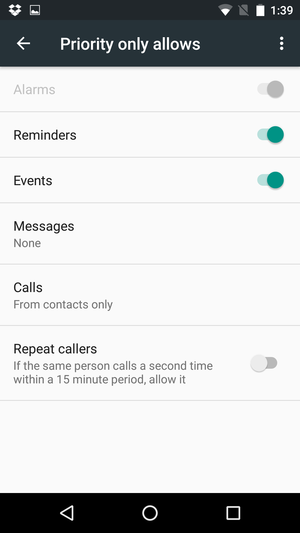
First, choose whether you want to give priority to notifications for reminders and calendar events. (The option to silence alarms is grayed out for whatever reason.)
Next, review the priority notifications options for Messages and Phone calls. set your priority preferences by tapping either “Messages” or “Calls.” when you do, a menu pops open with four options:
- From anyone: This option allows all notifications through, regardless of who is trying to reach you.
- From contacts only: Notifications alerting you to calls or messages from people listed in your Contacts app will get priority status.
- From starred contacts only: This setting gives priority to notifications that pertain only to those marked as favorites in the Contacts app. To mark someone as a favorite, go to the Contacts app, tap that person’s name, then tap the star icon in the upper right corner.
- None : No call or message notifications will receive priority status.

Once you choose your desired settings for calls and messages, choose whether you want notifications from repeat callers to gain priority by toggling the “Repeat callers” slider to the On position. When this setting is switched on, you’ll receive a notification if someone calls you a second time within a 15-minute period, regardless of whether notifications from that person receive priority status.
Downtime
If you want to allow all notification alerts through most of the time, but want to limit alerts during certain hours (like when you’re sleeping or at the office), Downtime is for you. During Downtime hours, you’ll only be alerted to priority interruptions; your phone will receive all other notifications silently. They’ll be there, waiting for you when you wake up, but your phone will not light up the screen, make a noise, or vibrate.
If you want to use Downtime, you first need to choose the days of the week and times you want to set as notification quiet hours. Go to Settings > Sound & notification > Do not disturb > Automatic rules. Android Marshmallow provides presets you can use for weekends and weeknights, and a preset option for managing notifications during calendar events.
Start by tapping any of these three options—for the sake of this tutorial, I’ll tap Weekend. Next, toggle the on/off switch to the “on” position. Select theDays you want the preset to apply to, then set a Start time and End time.

Finally, select the kinds of alerts you’d like to allow through. You can choose between Alarms only (allows alarms to sound but silences all other notifications), Priority only (allows only priority notifications), or Total silence(which mutes all notifications).
Take a peek at the Event preset as well, and choose whether you want to silence notifications from going off during events listed on your calendar—useful for preventing your phone from going off in the middle of a staff meetings. Switch the rule on, select the calendar and reply status you want it to use, then choose what kind of notifications—if any—you want to receive during calendar events.

You can create additional rules for notifications as well: For example, you can set one to allow only priority notifications while you’re at the office. TapAdd rule, enter a name, choose whether you want a Time rule (you enter specific times and dates) or an Event rule (one based on calendar events), then tap OK. At this point, you can set up your new rule: Doing so is pretty straightforward—it works just like the presets mentioned above.
You can delete a rule at any time by tapping its name, then tapping the trash can icon in the upper right corner. You can also choose to temporarily stop observing a rule by toggling the on/off switch to the “off” position.
App notifications
Android Marshmallow, like Lollipop before it, also lets you choose to block apps from sending notifications entirely, or to mark notifications from certain apps as priority notifications.
First, head back to Settings > Sound & notification. Next, scroll to the bottom and tap App notifications, then tap on the app for which you want to adjust notification settings. Toggle the Block all slider to the “on” position to stop receiving notifications from that app. Toggle the Treat as Priority slider to “on” if you want notifications from that app to be considered Priority notifications.

While you’re here, you can toggle whether you want to view the larger “heads-up” notifications for the app in question using the Allow peeking setting.
You can also get to this screen any time an app’s notification appears by pressing and holding on the notification until you see the little info button (it looks like a lowercase “i” in a circle) appear. Tap on that, and you’ll go straight to the notification settings for that app.
Once you’re done, exit the Settings app and enjoy your newfound mastery of Android Marshmallow’s notification system.