



❤ Apple advances user security with powerful new data protections


Security Keys for Apple ID provides users the choice to require a physical security key to sign in to their Apple ID account.
iMessage Contact Key Verification, Security Keys for Apple ID, and Advanced Data Protection for iCloud provide users with important new tools to protect their most sensitive data and communications
Apple introduced three advanced security features focused on protecting against threats to user data in the cloud, representing the next step in its ongoing effort to provide users with even stronger ways to protect their data. With iMessage Contact Key Verification, users can verify they are communicating only with whom they intend. With Security Keys for Apple ID, users have the choice to require a physical security key to sign in to their Apple ID account. And with Advanced Data Protection for iCloud, which uses end-to-end encryption to provide Apple’s highest level of cloud data security, users have the choice to further protect important iCloud data, including iCloud Backup, Photos, Notes, and more.
As threats to user data become increasingly sophisticated and complex, these new features join a suite of other protections that make Apple products the most secure on the market: from the security built directly into our custom chips with best-in-class device encryption and data protections, to features like Lockdown Mode, which offers an extreme, optional level of security for users such as journalists, human rights activists, and diplomats. Apple is committed to strengthening both device and cloud security, and to adding new protections over time.
“At Apple, we are unwavering in our commitment to provide our users with the best data security in the world. We constantly identify and mitigate emerging threats to their personal data on device and in the cloud,” said Craig Federighi, Apple’s senior vice president of Software Engineering. “Our security teams work tirelessly to keep users’ data safe, and with iMessage Contact Key Verification, Security Keys, and Advanced Data Protection for iCloud, users will have three powerful new tools to further protect their most sensitive data and communications.”
iMessage Contact Key Verification
Apple pioneered the use of end-to-end encryption in consumer communication services with the launch of iMessage, so that messages could only be read by the sender and recipients. FaceTime has also used encryption since launch to keep conversations private and secure. Now with iMessage Contact Key Verification, users who face extraordinary digital threats — such as journalists, human rights activists, and members of government — can choose to further verify that they are messaging only with the people they intend. The vast majority of users will never be targeted by highly sophisticated cyberattacks, but the feature provides an important additional layer of security for those who might be. Conversations between users who have enabled iMessage Contact Key Verification receive automatic alerts if an exceptionally advanced adversary, such as a state-sponsored attacker, were ever to succeed breaching cloud servers and inserting their own device to eavesdrop on these encrypted communications. And for even higher security, iMessage Contact Key Verification users can compare a Contact Verification Code in person, on FaceTime, or through another secure call.
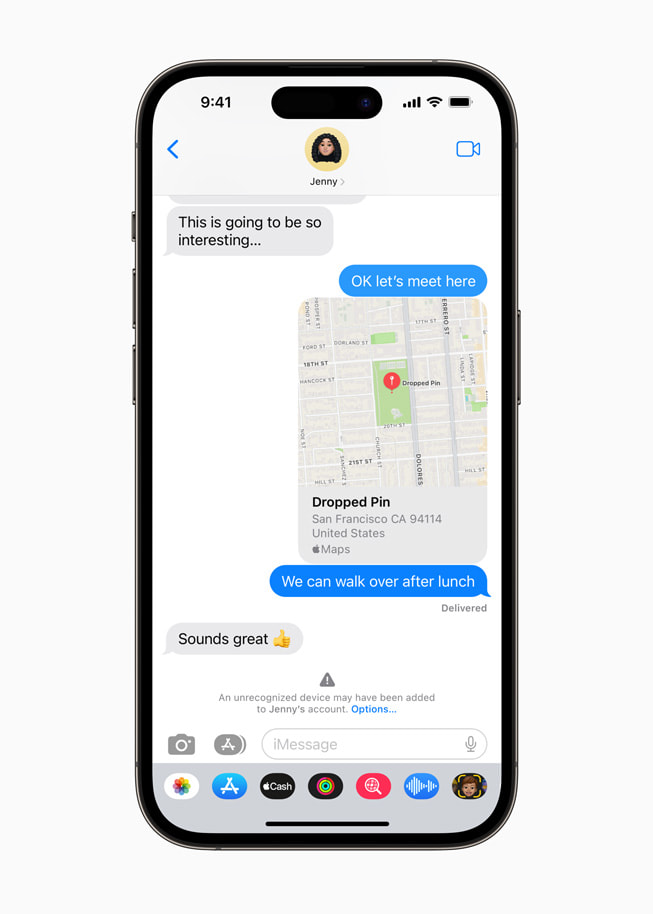
iMessage Contact Key Verification lets users verify they are communicating only with whom they intend.
Security Keys
Apple introduced two-factor authentication for Apple ID in 2015. Today, with more than 95 percent of active iCloud accounts using this protection, it is the most widely used two-factor account security system in the world that we’re aware of. Now with Security Keys, users will have the choice to make use of third-party hardware security keys to enhance this protection. This feature is designed for users who, often due to their public profile, face concerted threats to their online accounts, such as celebrities, journalists, and members of government. For users who opt in, Security Keys strengthens Apple’s two-factor authentication by requiring a hardware security key as one of the two factors. This takes our two-factor authentication even further, preventing even an advanced attacker from obtaining a user’s second factor in a phishing scam.
Advanced Data Protection for iCloud
For years, Apple has offered industry-leading data security on its devices with Data Protection, the sophisticated file encryption system built into iPhone, iPad, and Mac. “Apple makes the most secure mobile devices on the market. And now, we are building on that powerful foundation,” said Ivan Krstić, Apple’s head of Security Engineering and Architecture. “Advanced Data Protection is Apple’s highest level of cloud data security, giving users the choice to protect the vast majority of their most sensitive iCloud data with end-to-end encryption so that it can only be decrypted on their trusted devices.” For users who opt in, Advanced Data Protection keeps most iCloud data protected even in the case of a data breach in the cloud.
iCloud already protects 14 sensitive data categories using end-to-end encryption by default, including passwords in iCloud Keychain and Health data. For users who enable Advanced Data Protection, the total number of data categories protected using end-to-end encryption rises to 23, including iCloud Backup, Notes, and Photos. The only major iCloud data categories that are not covered are iCloud Mail, Contacts, and Calendar because of the need to interoperate with the global email, contacts, and calendar systems.
Enhanced security for users’ data in the cloud is more urgently needed than ever before, as demonstrated in a new summary of data breach research, “The Rising Threat to Consumer Data in the Cloud,” published today. Experts say the total number of data breaches more than tripled between 2013 and 2021, exposing 1.1 billion personal records across the globe in 2021 alone. Increasingly, companies across the technology industry are addressing this growing threat by implementing end-to-end encryption in their offerings.

Advanced Data Protection for iCloud uses end-to-end encryption to provide Apple’s highest level of cloud data security.
Availability
- iMessage Contact Key Verification will be available globally in 2023.
- Security Keys for Apple ID will be available globally in early 2023.
- Advanced Data Protection for iCloud is available in the US today for members of the Apple Beta Software Program, and will be available to US users by the end of the year. The feature will start rolling out to the rest of the world in early 2023.
- A complete technical overview of the optional security enhancements offered by Advanced Data Protection can be found in our Platform Security Guide, along with the data breach research “The Rising Threat to Consumer Data in the Cloud” by Dr. Stuart Madnick, professor emeritus at MIT Sloan School of Management.



