Apple and Google have teamed up to introduce a new data portability tool that lets users transfer their Google Photos collections straight to iCloud Photos. This follows the launch of a tool that lets you transfer iCloud Photos to Google Photos back in 2021.
Apple and Google’s work is part of the Data Transfer Project, which is an open-source initiative focused on data portability between different online platforms. In a blog post announcing today’s news, the Data Transfer Initiative explained that support for transferring photos and videos from Google Photos to iCloud Photos will roll out over the next week:
Beginning today, Apple and Google are expanding on their direct data transfer offerings to allow users of Google Photos to transfer their collections directly to iCloud Photos. This complements and completes the existing transfers that were first made possible from iCloud Photos to Google Photos and fulfills a core Data Transfer Initiative (DTI) principle of reciprocity. The offering from Apple and Google will be rolling out over the next week and is the newest tool powered by the open source Data Transfer Project (DTP) technology stack, joining existing direct portability tools available to billions of people today offered by DTI and its founding partners Apple, Google, and Meta.
Apple and Google have both published support articles that detail the process of transferring collections from Google Photos to iCloud Photos. Apple says that the service will be available in over 240 countries and regions around the world. The service isn’t available for child accounts or Managed Apple ID accounts. You also can’t import photo and video data to iCloud while Advanced Data Protection is enabled.
Apple says:
When you transfer photos and videos to iCloud Photos, they aren’t deleted from Google Photos.
You don’t need to download your photos or videos to transfer them. The transfer happens directly from Google to iCloud.
The transfer process might take between several hours and a few days, depending on the size of the photos and videos being transferred.
To transfer your photos and videos from Google Photos to iCloud Photos:
Follow the instructions to start an export from Google Photos.
Choose “Apple – iCloud Photos” as the destination to transfer and sign in with your Apple ID.
Tap Allow to share permission with Google to add photos and videos to iCloud.
You can learn more on Apple’s website and Google’s website, both of which have more details on how the process works and what happens when your transfer is complete.
With Android 14, developers can build share sheets with app-specific actions, and Google Photos is now replacing its custom implementation with a native one.
When sharing an image in Google Photos, a “Sharing image” sheet slides up the screen. “Modify” in the top-right corner lets you select more images to share using a grid.
The first section shows a preview of the selected picture(s) with the pencil icon in the corner launching the Markup tool to quickly crop, add text, draw, and highlight. The carousel below it links to various Google Photos actions, which is what Android 14 makes possible: Create Link, Send in Photos, Add to album, and Create album.
Direct Share targets — which use more signals from apps to improve relevance — appear next, along with frequently used apps. Nearby Share might appear in the first position. Scrolling up takes you to the full grid.
We’re seeing this new share sheet rolled out with version 5.65 of Google Photos today on Android 14 Pixel phones. It’s not yet appearing on large-screen (Pixel Tablet) devices that we checked this afternoon. The share sheet will presumably remain unchanged on Android 13 and earlier.
This follows Chrome, which was a big holdout, also dropping its custom implementation for Android 14 in August.
Google Photos redesign with new Memories feed rolls out
Last August 2023, Google announced a redesign to Photos that revamps the Memories feature, tweaks the bottom bar, and makes other changes. It’s now seeing wider availability in the US.
This redesign starts by moving the “Google Photos” wordmark to the left, while the Print store, Sharing, and your account avatar are at the right.
Sharing in the bottom bar makes way for “Memories,” with Library next and Search being the final tab. (This will certainly disrupt muscle memory.) A similar reorganization is live on tablets, while the “Utilities” tab has been removed from the navigation rail.
The most significant change is the Memories feed with its scrapbook-like timeline — which is not particularly well-optimized for tablets, as padding is just applied to the left and right — that uses AI for automatic curation and organization. Google aims to let you “easily relive, customize and share your most memorable trips, celebrations and daily moments with your loved ones.”
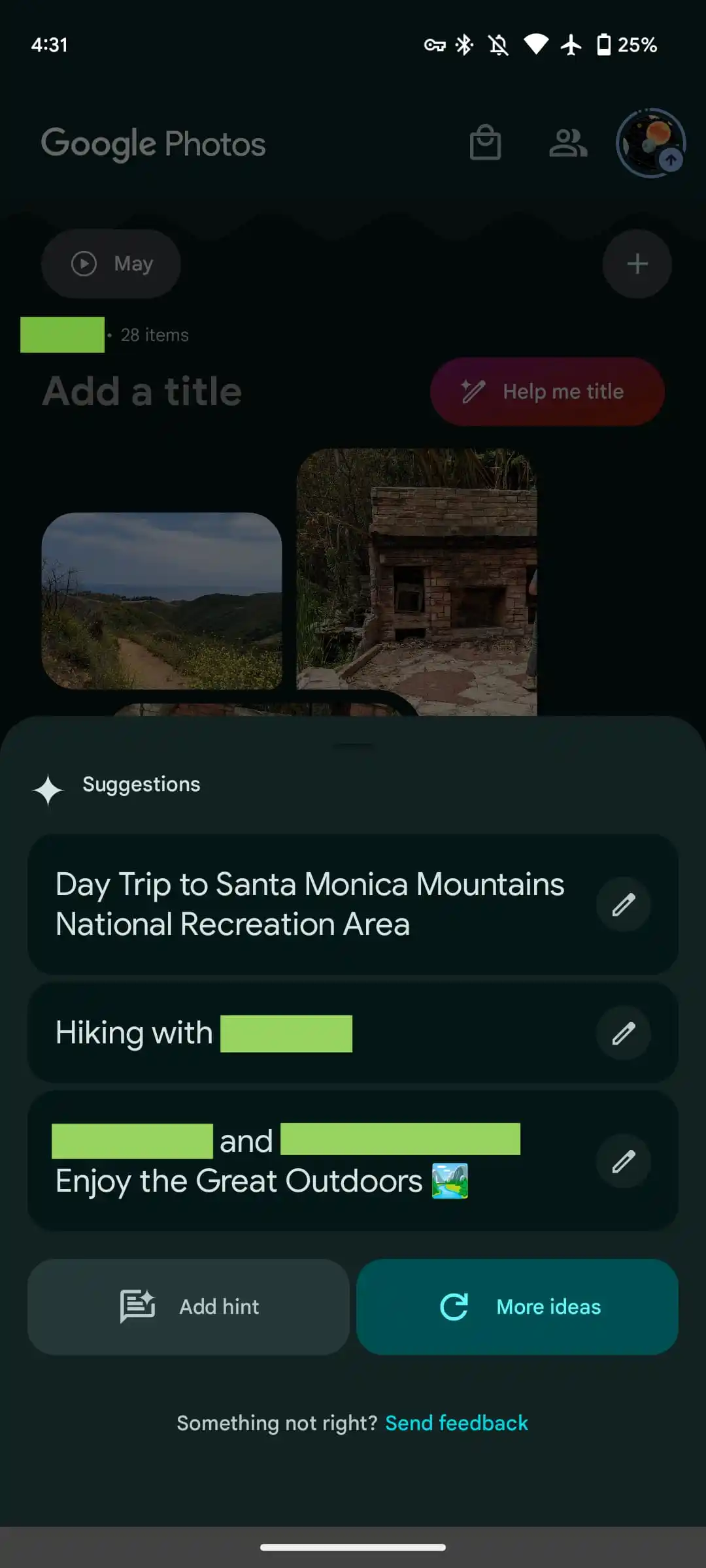
Users can create memories, which are pseudo albums from an editing and sharing perspective, from a rather tiny FAB (floating action button) that only appears when you scroll down. Meanwhile, generative AI is used to offer “customized title suggestions.” “Help me title” slides up a sheet that lets you add a “hint” to guide the generation.
Google started rolling this out in mid-August, but the revamp is only now seeing wide availability with version 6.54. If it’s not yet live on your device, try using the “Force stop” option on Google Photos from App info. It does not appear to be live on iOS yet.
This Google Photos redesign and Memories feed is coming first to the US and is set for global availability in the “coming months.”
Google Photos gets updated upload UI on the web
A small tweak to the Google Photos website in recent days modernizes the interface for uploading images and videos.
Like before, you can start uploading by dragging files into the window, or by tapping “Upload” in the top-right corner and selecting “Computer” to get a system file picker. Google Drive (pre-Workspace logo) is also still listed, but that’s now joined by “Add from other places,” which can also be found in the mobile app:
Transfer from photo collections: Facebook, iCloud
Transfer from photography services: Pixieset, Pic-Time, image.canon
Digitize physical photos: Photomyne, Capture, CVS
Back up from your computer: Google Drive for desktop
Scan photos with your phone: PhotoScan
The more notable change today is to the bottom-left corner progress UI. When uploading, you’ll get an estimate of how much longer it will take with a blue “Stop” button to end the process. “Show more” will expand this UI to provide a list of what’s in the queue.
Once complete, you just get “Add to album” as the available action, with “Saved album” removed. Overall, the UI is smaller than before.
Meanwhile, the redesigned Google Photos app on Android and iOS has yet to widely launch.
Google Photos Locked Folder sync starts rolling out
Announced at the end of August 2023, the ability to sync the Google Photos Locked Folder across devices signed in to your Google Account is rolling out more widely.
As of this morning, we’re seeing a prompt to “Back up Locked Folder” at the top of Google Photos. (Try Force stop from App info if it doesn’t appear, but this is not fully launched yet.) That takes you to a screen that explains how “Backing up Locked Folder keeps your hidden photos & videos safe when you change devices or delete the app.”
You have the option to “Turn on backup” or “Do not back up,” which keeps the feature unchanged from today. The Locked Folder grid will show a cloud icon in the top-right corner. That menu will let you disable sync at any time.
After turning it on, everything will start uploading to the cloud. Locked Folder can be enabled on a per-device basis. In this case, it appears that previously synced photos will appear on a disabled device, but any additions won’t. A cloud icon appears in the bottom-right corner of image previews in those cases.
Meanwhile, “Locked Folder” appears in the photos.google.com sidebar just above “Trash.” To access, you will have to sign in to your account, including 2-Step Verification (2FA).
This is getting a wider rollout today — photos.google.com/lockedfolder — but it’s not yet fully available. We’re also now seeing Locked Folder with sync in Google Photos for iOS today. Meanwhile, the broader bottom bar redesign and AI-powered Memories is not yet seeing broad availability.
Google Photos adds 12 new video effects for Pixel, Google One
While we wait for Magic Editor, Google Photos is adding new effects to make videos “pop” with one of 12 different styles that just requires a tap.
Add a touch of creativity to your videos with new effects that make them pop. Effects start rolling out now for Pixel owners and #GoogleOne members. pic.twitter.com/9t57YS8CAd
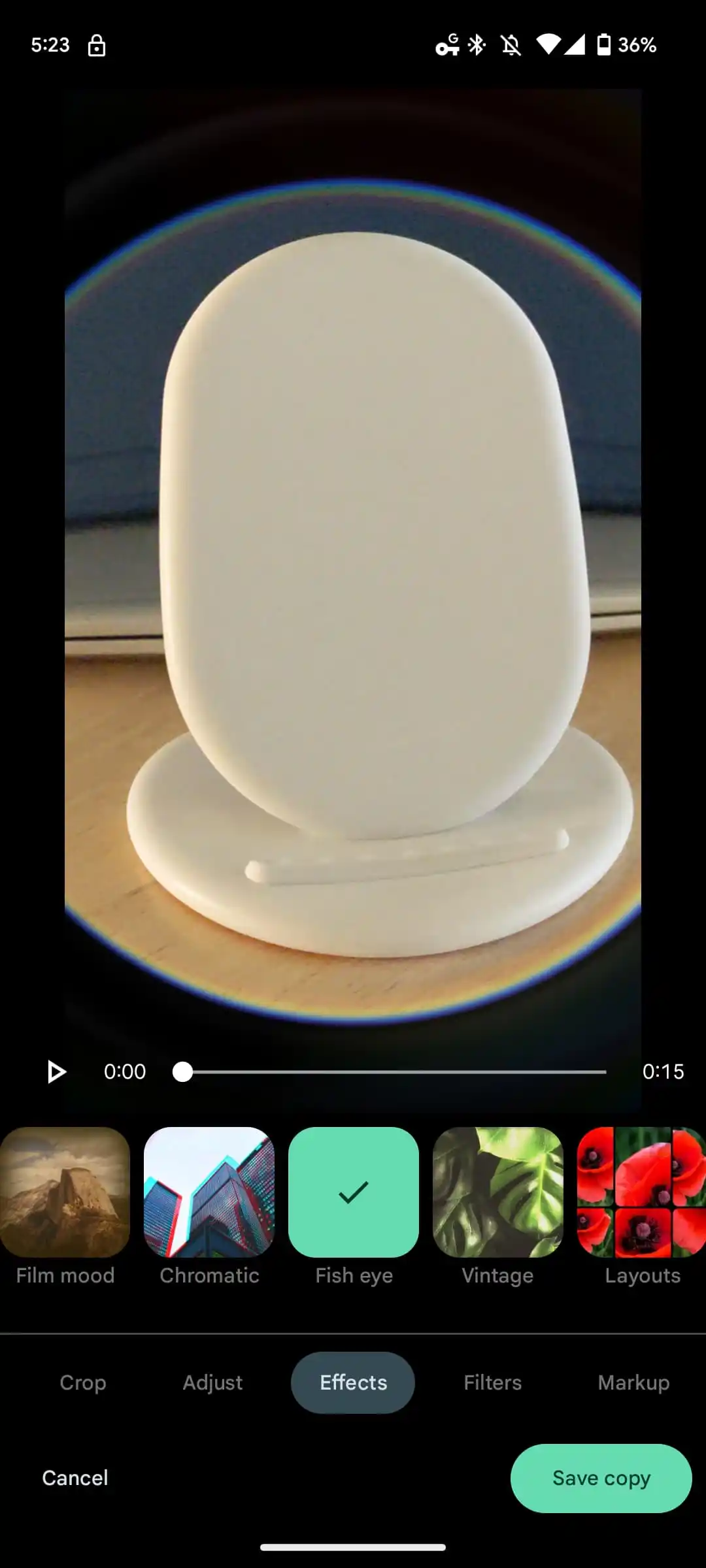
The current Google Photos video editor on phones, which dates back to 2021, lets you trim/stabilize, crop/rotate, adjust (brightness, contrast, etc.), apply filters (Eiffel, Playa, etc.), and mark up (pen/highlighter). There’s now a new “Effects” tab with 12 options:
Dust mix
Paper tear
B&W film
Lomo
Light leak
Film mood
Chromatic
Fish eye
Vintage
Layouts
Retro film
Poster
Each comes with a style preview in the thumbnail, but you can very quickly just apply them to your clip and see it in action.
Meanwhile, the video editor in the Google Photos app on Chromebooks was recently also overhauled, while the general UI has been optimized for tablets with a side pane layout.
Google announced on July 06, 2023 that these new video effects are rolling out in the Photos app for Pixel owners and Google One subscribers.
Add a touch of creativity to your videos with new effects that make them pop. Effects start rolling out now for Pixel owners and #GoogleOne members. pic.twitter.com/9t57YS8CAd
Google Photos website adding advanced editing tools from Google One
Google usually prioritizes its Android and iOS apps when adding new features, but Google Photos on the web is now adding advanced editing Google One tools.
Longtime staples of the mobile apps, Portrait Light, Portrait Blur, Dynamic, Color Pop, HDR, and Sky are now coming to photos.google.com. The UI is mostly the same with a new Tools top tab.
Portrait Light: Change the position and brightness of lighting in photos with people
Portrait Blur: Blur the background on certain photos of people not captured in portrait mode
Color Pop: Desaturate the background, while keeping the foreground color for photos of people
HDR: Enhance brightness and contrast across the image
Sky: Select from several palettes and adjust the color and contrast in the sky
This addition is for Google One subscribers with even the $1.99 per month 100 GB tier unlocking the extra Google Photos editing features; “4 GB RAM and an updated browser” are required to get these tools.
We’re not seeing this rolled out just yet on accounts we checked; there is no Magic Eraser in the example Google shared.
Just dropped! Portrait Light, Portrait Blur, Dynamic, Color Pop, HDR, and Sky suggestions are now available for #GoogleOne members on web so you can easily edit your photos, right from your computer.
Google Photos can recognize people from the back in some cases
Google Photos is a very impressive app and useful service for a number of reasons, not least of which is its excellent facial recognition for grouping photos. Suddenly, though, Google Photos is somehow able to recognize people from the back, which is super useful, but also super confusing.
As spotted by the folks over at Android Authority, Google Photos has recently picked up the ability to recognize people from the back, without their face being clearly visible.
The outlet’s Rita El Khoury found that her husband was recognized by Photos where he was facing completely away from the camera, with his face not visible at all. Google Photos was, somehow, recognizing him and automatically tagging him as the subject of these photos, and with a level of accuracy too. It was also being applied to photos that had been uploaded both recently and years prior.
It doesn’t seem to work 100% of the time, though, with manual tagging still available. It’s also brought out that in many cases Photos will show the recognized face as “available to add” rather than just adding it fully. And, in a lot of cases, it still just fails entirely.
I was able to replicate this with at least two photos of my wife, which also helped reveal how the app might be doing this.
From what I can tell, and Rita brings out the same idea, this seems to be based on context. Photos will tag the “face” appropriately based on the context of other photos in the same setting or clothing where the face is visible. In the case with my wife, the photos that worked were taken around the same time as photos were I could also see her face.
While this doesn’t seem to be working across the board, it’s certainly a helpful little tweak.
Google Photos for Android getting settings redesign
The settings page for Google Photos on Android has always been particularly overwhelming, and it’s now seeing a much-needed redesign.
Instead of a list that did not fit into one screen, Google Photos now groups various settings into six high-level menus with (reused) outline-style icons.
Backup: Unchanged
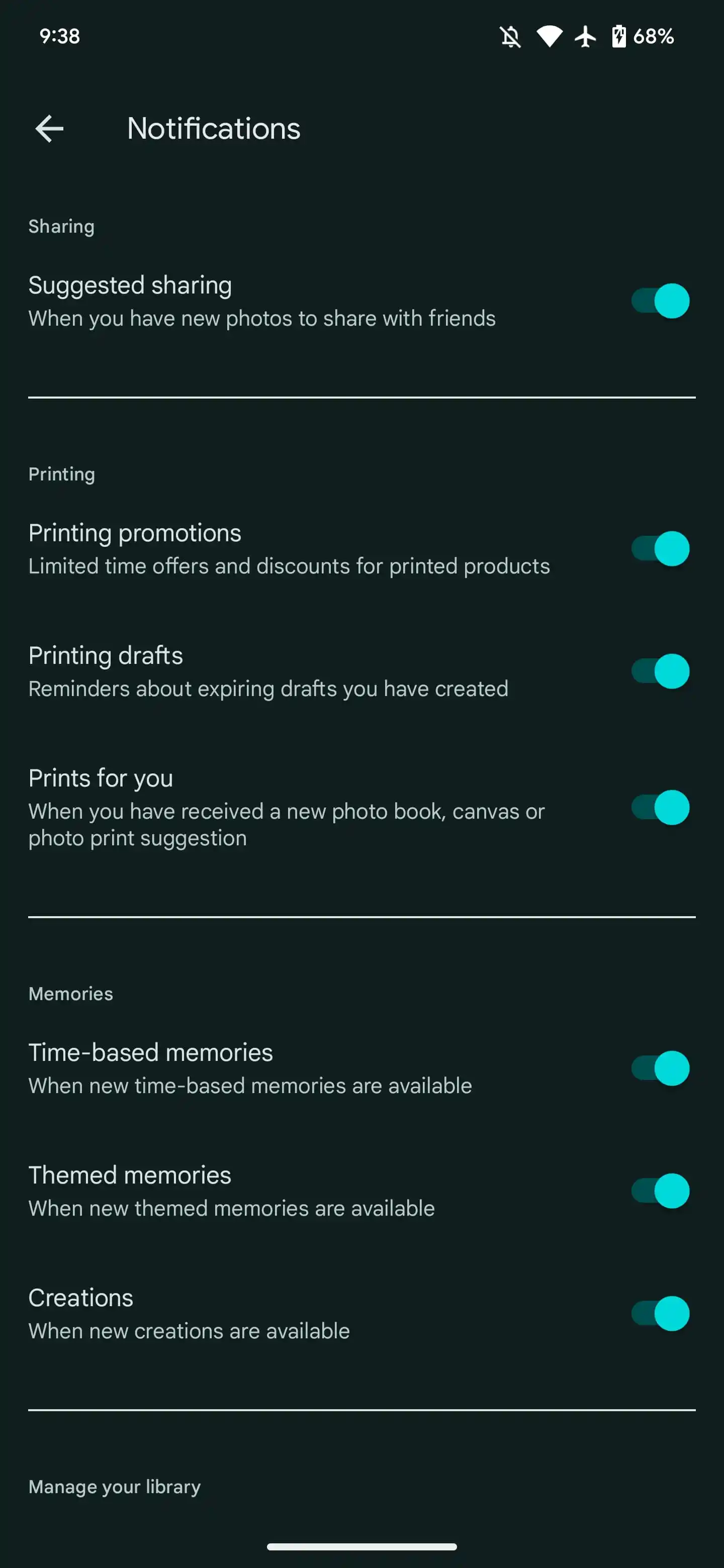
Notifications: Unchanged
Preferences: Group similar faces, Memories, Photo grid playback
Sharing: Partner sharing, Hide video from motion photos, Skipped suggestions, Notifications
Apps & devices: This device (with Free up device storage), Photo frames, SD card access
Privacy: Location options, Google Lens, Sharing options, Group similar faces, Photo frames (repeat)
At the bottom, you conveniently get the version and “About.” In lists, Google has removed the line separators between each item. They are now reserved for groupings, while the toggles aren’t M3 components.
We’re seeing the settings redesign with version 6.39 of Google Photos for Android, but it’s not yet rolled out to all devices. It will be interesting to see whether this approach is adopted by all first-party apps going forward as part of Material You, which would be nice for consistency. The spareness of the layout feels inline with the design language.
New animated Material 3 carousel coming to Google Photos
As work on Material 3 continues, Google now offers a delightful new carousel component. It might look like the wallpaper shortcut when you long press on the Pixel Launcher, but only the shape is similar there. The full carousel is quite animated.
Rather than having all the images in the carousel be of equal size, “items expand and shrink as they’re scrolled,” with their shapes changing from something close to a rounded square (large) to receptacles (medium) and vertical pills (small). Google emphasizes how developers should “avoid setting carousel items so small that the image isn’t recognizable,” with slivers discouraged.
After being scrolled, carousel items snap into place to maintain the same layout.
On mobile, you might see (from left to right) a large, medium, and small carousel item. On a tablet, it might be large, large, medium, and small.
Google notes how “carousel items move at a different speed than their content, creating a parallax effect,” and it supports an optional text label that’s just a few characters.
This new carousel leans into the most expressive parts — “Spirited” in the Making Material You series — of Material 3, including “drawing from the rounded corners of the Material shape system, and the smooth, responsive flow from the Material motion system.”
It uses adaptive shape morphing and dynamic scrolling to create a parallax effect to give users a unique and fresh experience for a familiar pattern.
Image carousels are the most obvious example, but Google mocked it up for news headlines and even music apps on now playing screens.
With Material Design Components for Android going stable this week, developers can more comfortably adopt it. In terms of first-party apps, the first implementation will be in Google Photos, presumably for the Memories carousel at the top of the app today.
Thank you for using
Themify Popup
This is a sample pop up. Themify Builder or Builder Lite (free) plugin is recommended to design the pop up layouts.