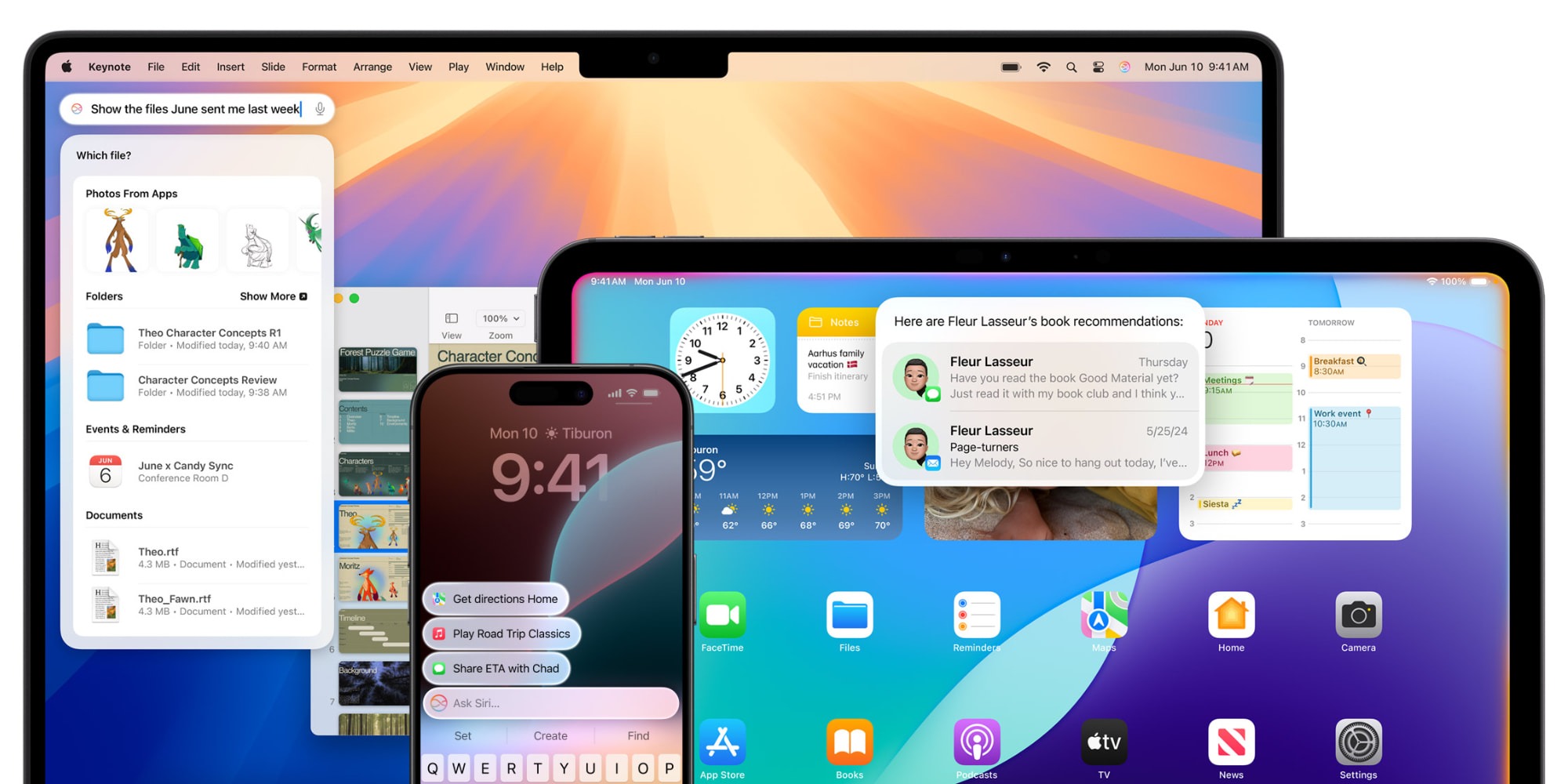
The start of ‘a new era for Siri’ has arrived in iOS 18.1 beta 1. The new beta provides the first hands-on experience with an Apple Intelligence-infused Siri.
Here’s what the new Siri can do and what it’s like to use it.
New design
Siri in iOS 18.1 is visualized with a beautiful new design.
Gone is the floating orb at the bottom of the screen. Now, Siri appears as a glowing light around the entire display.
When you use the iPhone’s side button to invoke Siri, there’s a powerful kick of haptic feedback and the Siri light emanates from the part of the screen where that button is located. It’s a lovely effect.
Siri’s glowing design is available on the iPhone and iPad, while on the Mac Siri takes on a more constrained look in the top-right corner.
Carrying context between queries
When using the new Siri, you’ll notice that it’s a lot better at maintaining context between requests.
For example, We asked what time the Cubs are playing. After Siri answered, as a follow up we said, “Who’s their pitcher?” With no additional context needed, Siri understood I was still speaking about the Cubs.
Similarly, We set a five-minute timer using Siri, then in a follow up said, “Actually, change it to three minutes.” The change happened immediately.
We still experienced context hiccups with some of my requests, but that’s to be expected in this early beta version of Apple Intelligence.
More forgiving when you misspeak
We’re all only human, and sometimes misspeak, or change our minds about something mid-request. Past versions of Siri were far less understanding of those foibles, and would quickly get confused.
Thanks to Apple Intelligence, the new Siri is better able to parse requests even when you stumble over your words.
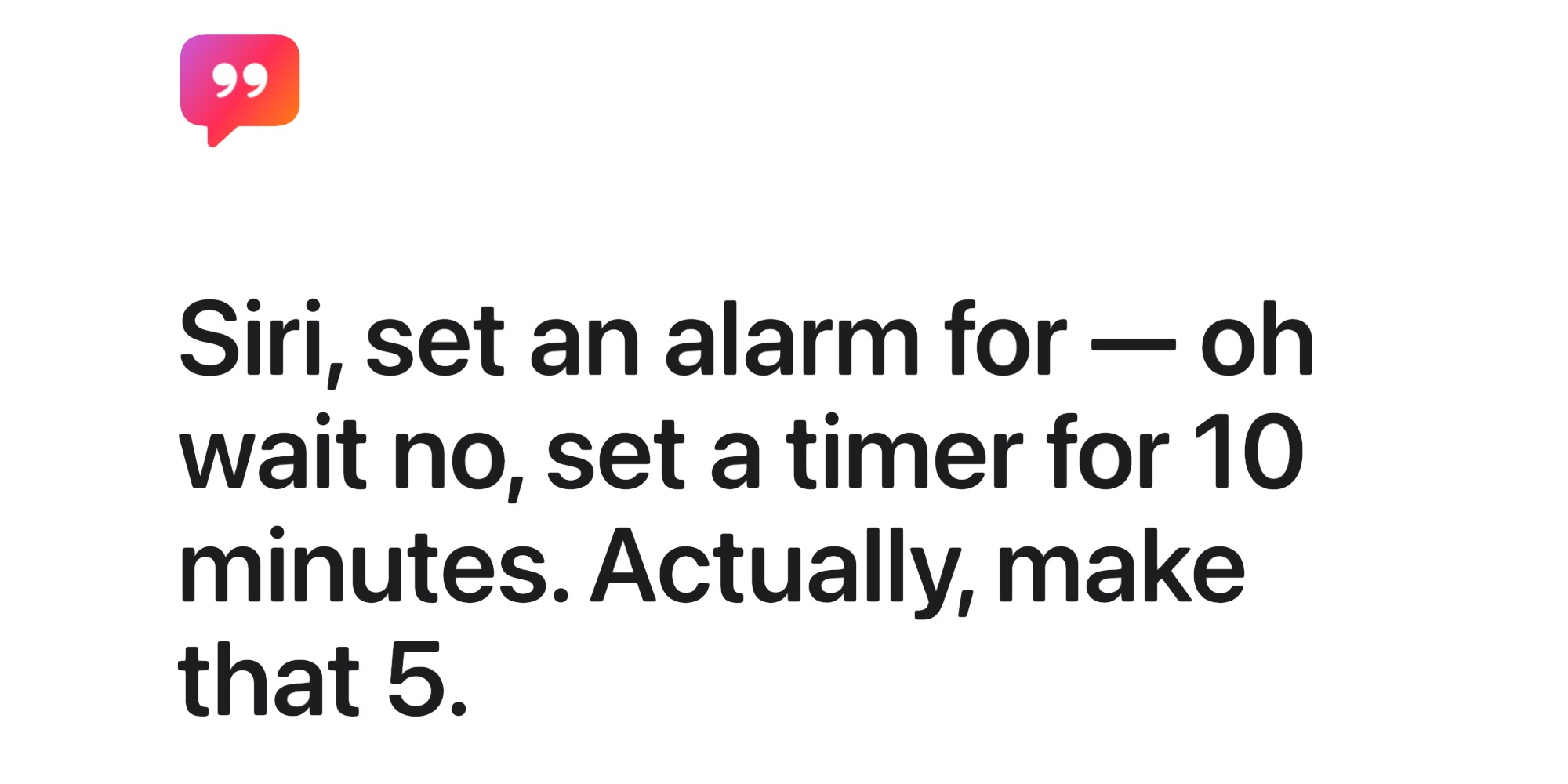
Earlier today we said, “Siri, set a timer for five…ah, hmmm, actually, make that two minutes.” Siri didn’t skip a beat and instantly set the correct timer.
Type requests from within any app
Most Siri interactions happen by voice, but a new iOS 18.1 feature is bound to encourage more typed requests too.
On the iPhone and iPad, a double-tap on the Home bar now invokes Siri in typing mode.
The Home bar is that horizontal line at the bottom of the screen.
Since the Home bar is present system-wide, no matter which app you’re using, you can quickly invoke Siri in any situation and quickly type your request.
On the Mac, you can switch between voice and typed requests manually.
Go-to source for Apple product knowledge
Lots of Siri’s new knowledge of apps and in-app actions won’t arrive until later. However, there is one specific area where Siri showcases a lot of new knowledge in iOS 18.1 beta 1.
Siri is now an expert on Apple products and software features.
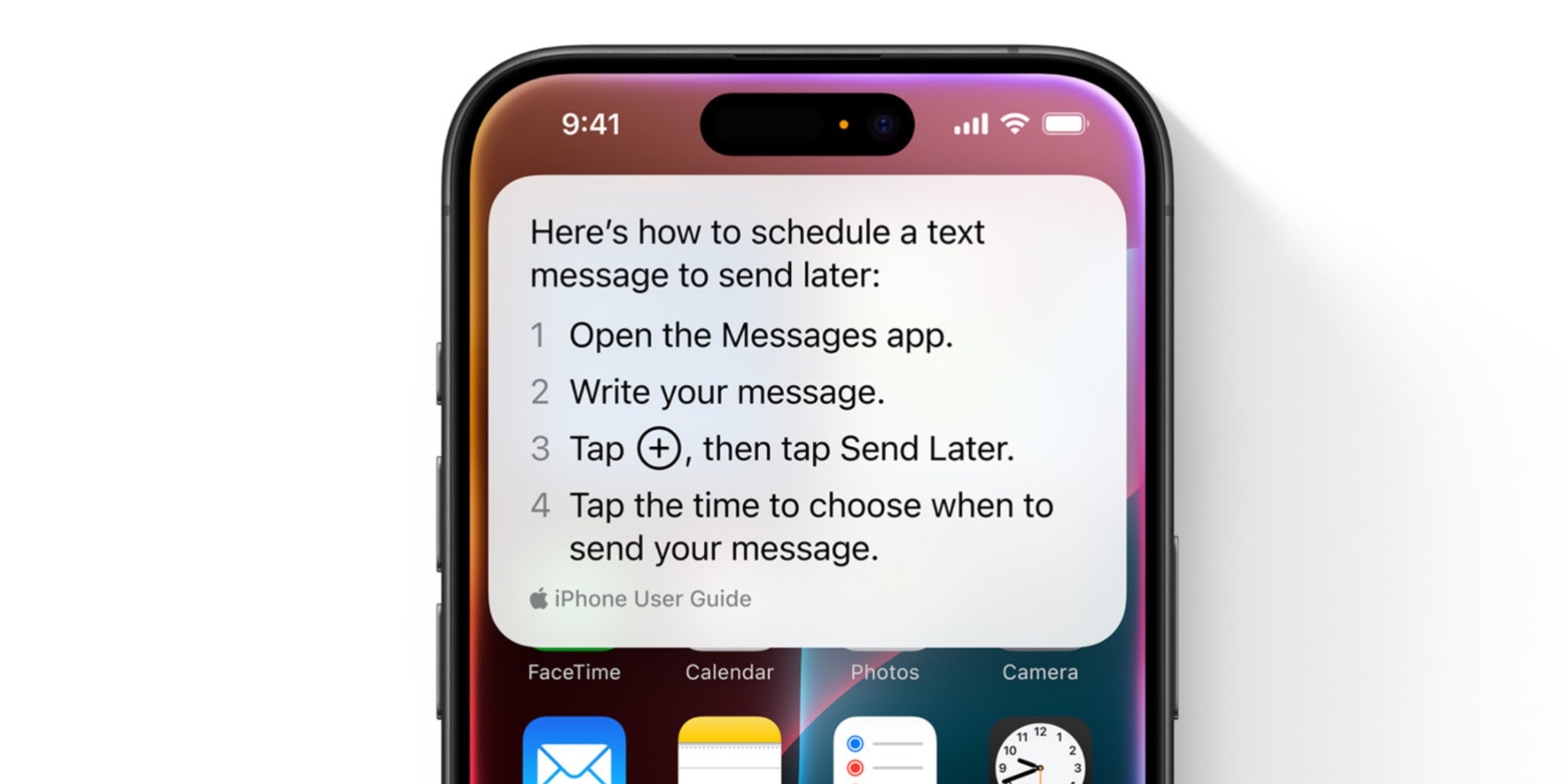
Apple trained Siri on a model that included a host of Apple support documentation. As a result, the assistant can now advise you on all kinds of how-tos.
Wondering how to use a feature like Home Screen customization? Or steps for pairing an Apple Watch? Just ask Siri.
Thousands of questions are supported, and when it doesn’t know an answer, you’ll still get—you guessed it—web results.
What’s missing in iOS 18.1 beta 1
There’s plenty still to come in future iterations of Siri with Apple Intelligence. Later this year, and in updates that span into 2025, Siri will gain:
ChatGPT integration
Understanding of personal context to provide more capable assistance
Numerous new in-app actions across Apple and third-party apps
Awareness of content on your screen
Entering a new era for Siri
Apple says this is just the beginning for Siri, and from the product roadmap that it’s shared, that’s clearly true.
The new changes in iOS 18.1 beta 1 offer great improvement over some of Siri’s previous shortcomings. But there’s a lot more still to come.
After teasing Apple Intelligence features at WWDC 2024 in June, Apple is finally releasing a developer preview with the first betas of iOS 18.1 and macOS Sequoia 15.1. However, today’s betas won’t be available for devices other than those compatible with Apple Intelligence.
iOS 18.1 and macOS 15.1 betas
As we previously reported, Apple Intelligence won’t be available with the first release of iOS 18.0 and macOS Sequoia 15.0 this fall. Because of this, Apple is now rolling out betas of iOS 18.1 and macOS 15.1, so that developers can try out Apple Intelligence in advance.
But some users may be confused when it comes to updating to today’s betas. That’s because not everyone will have this option.
iOS 18.1 beta and macOS 15.1 beta will only be available for iPhones, iPads, and Macs compatible with Apple Intelligence. This includes:
Macs with M1 chip or later
iPads with M1 chip or later
iPhone 15 Pro and iPhone 15 Pro Max
If you have an older device (or a non-Pro iPhone 15), you won’t get the latest betas for now. Instead, your device will remain on iOS 18.0 beta or macOS 15.0 beta. For supported devices, developers will have the option of staying in the current beta or upgrading to betas with AI.
If you have a compatible iPhone, iPad or Mac running iOS 18 beta or macOS 15 beta, you can install the latest update by going to Settings > General > Software Update.
More about Apple Intelligence
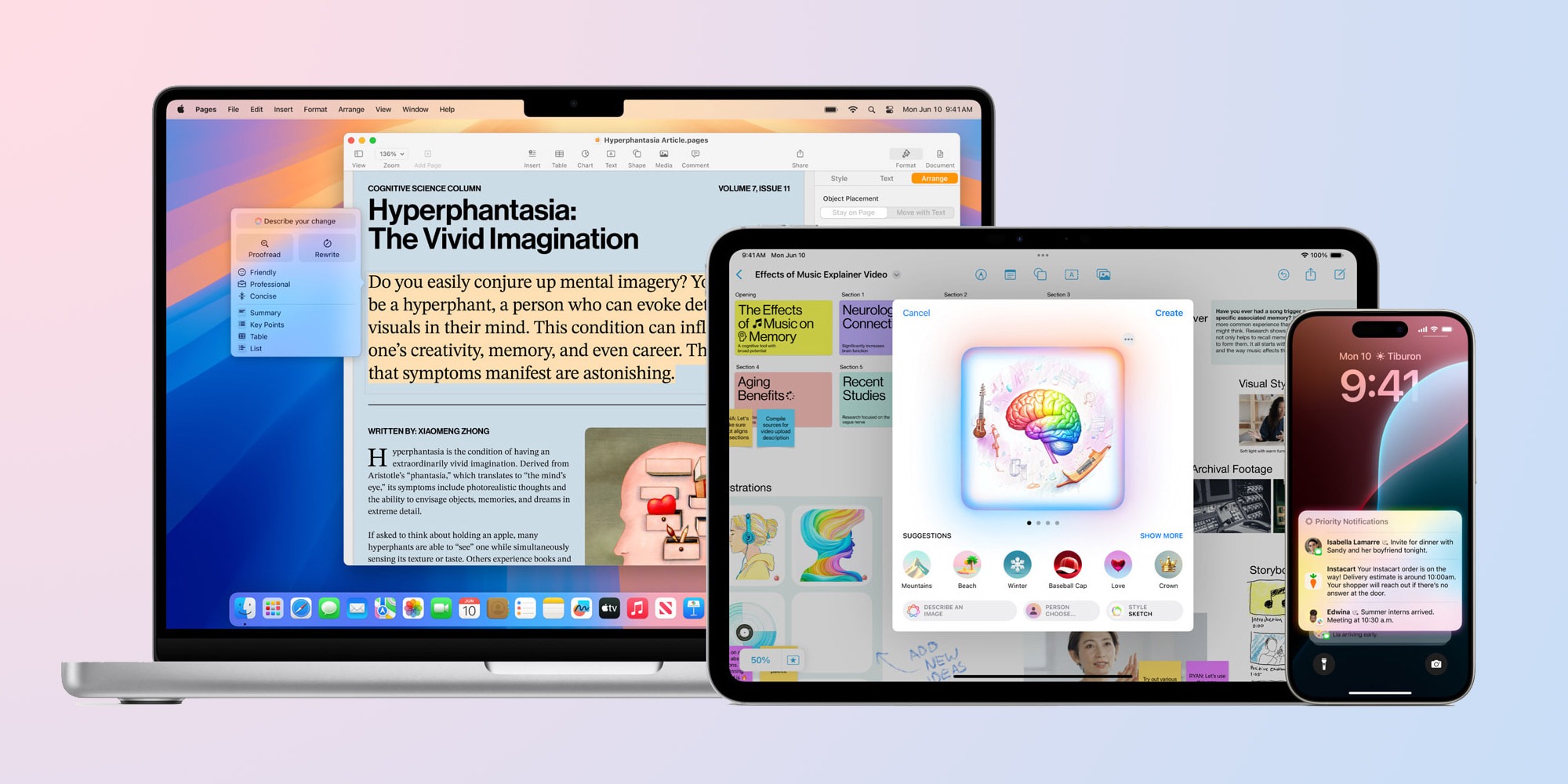
Apple Intelligence is what the company is calling its new AI-based features. For example, users can now ask the system to rephrase a text, summarize messages or emails, generate images and even emoji. Siri has also been updated with AI, so that it now understands the context of what’s on the screen and lets users control more aspects of the device.
It’s worth noting that although today’s betas include Apple Intelligence, some features such as the more advanced Siri won’t be available for now.
After being announced at WWDC 2024 Yesterday, Apple has released the first beta of iOS 18 and iPadOS 18 to developers. The update includes new home screen features, upgrades to the Messages app, and much more.
Apple will release a public beta of iOS 18 and iPadOS 18 in July. For now, the update is only available to developers for beta testing. iOS 18 is supported on all the same iPhone models as iOS 17.
New home screen features and more
Apple’s new software version won’t be complete until the fall, at which point it will be released to the general public. Testers should still expect performance and stability issues when running the iOS 18 public beta on primary devices for the time being.
Some of the biggest changes in iOS 18 are for the home screen, which is now more customizable than ever. You can place app icons freely on the grid, tint app icons, customize Control Center, and much more. Keep in mind, many of the new Apple Intelligence features – including ChatGPT integration – won’t be available until later this year.
iOS 18: Here’s the list of iPhone models compatible with the update
After many rumors, Apple finally announced iOS 18 at WWDC 2024 on Monday. The new version of the iPhone operating system comes with a new Home Screen that lets users customize the icons, as well as a redesigned Photos app, Apple Intelligence, and much more. And if you’re wondering whether your iPhone is compatible with iOS 18, we have the answer.
“Apple today previewed iOS 18, a major release that features more customization options, the biggest redesign ever of the Photos app, new ways for users to manage their inbox in Mail, Messages over satellite, and so much more,” the company said in a press release.
iOS 18 compatibility
iOS 18 is compatible with the following iPhone models:
iPhone XR
iPhone XS and XS Max
iPhone 11
iPhone 11 Pro and 11 Pro Max
iPhone 12 and 12 mini
iPhone 12 Pro and 12 Pro Max
iPhone 13 and 13 mini
iPhone 13 Pro and 13 Pro Max
iPhone 14 and 14 Plus
iPhone 14 Pro and 14 Pro Max
iPhone 15 and 15 Plus
iPhone 15 Pro and 15 Pro Max
iPhone SE (2nd gen)
iPhone SE (3rd gen)
As you can see, all the same iPhones running iOS 17 can be updated to iOS 18. However, there’s a catch. According to Apple, only the iPhone 15 Pro and iPhone 15 Pro Max are compatible with the new AI, or Apple Intelligence, features. This is because these features require the A17 Pro or M1 chip or later.
The first beta of iOS 18 will be released to developers later today. A public beta is coming next month, while the official launch is set for this fall.
Apple will support RCS with iOS 18, improving messaging experience between iPhone and Android
Apple confirmed today that it will support RCS messaging with iOS 18, releasing this fall. RCS will enable a richer experience when communicating with Android users.
RCS will give your green bubble chats many of the best of features of iMessage, like high-resolution image and video attachments, typing indicators, read receipts and more.
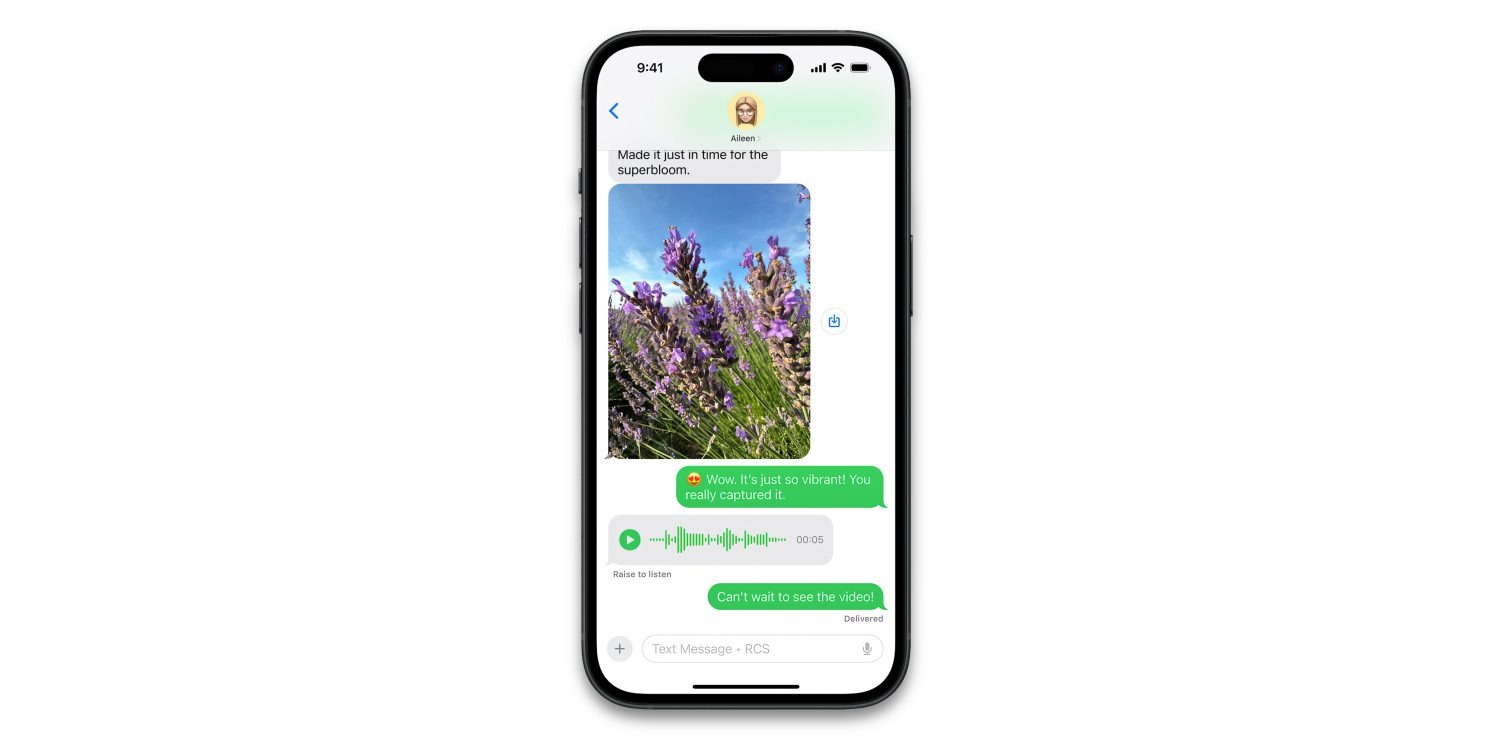
As shown today in the first ever screenshot of the feature in action, the iOS 18 Messages app will still distinguish RCS conversations with green bubbles.
However, the text field will include the label “Text Message • RCS” so users know they will get an upgraded texting experience, compared to traditional SMS.
The most significant difference will be the increase in file size for media. SMS enforces very small file sizes when sending photos or videos, so traditionally texting a picture to an Android user would not be a great experience as the image would be severely compressed. However, over RCS, images and video messages can transfer in much higher quality.
iPhone to iPhone communication will still offer the best experience, through iMessage. iMessage has richer integration with the Apple ecosystem, and offers the highest standards of privacy with end-to-encryption for all communication. iMessage will also continue to offer exclusive communication features like the new text effects.
However, the biggest pain points of SMS are resolved by RCS. As long as both members of the conversation are using devices that support RCS, conversations will take place over the newer standard automatically.
iOS 18 will be available as a free update to all iPhone users in the fall.
There’s an emoji for that: meet Genmoji, Apple’s AI-powered emoji generation feature in iOS 18
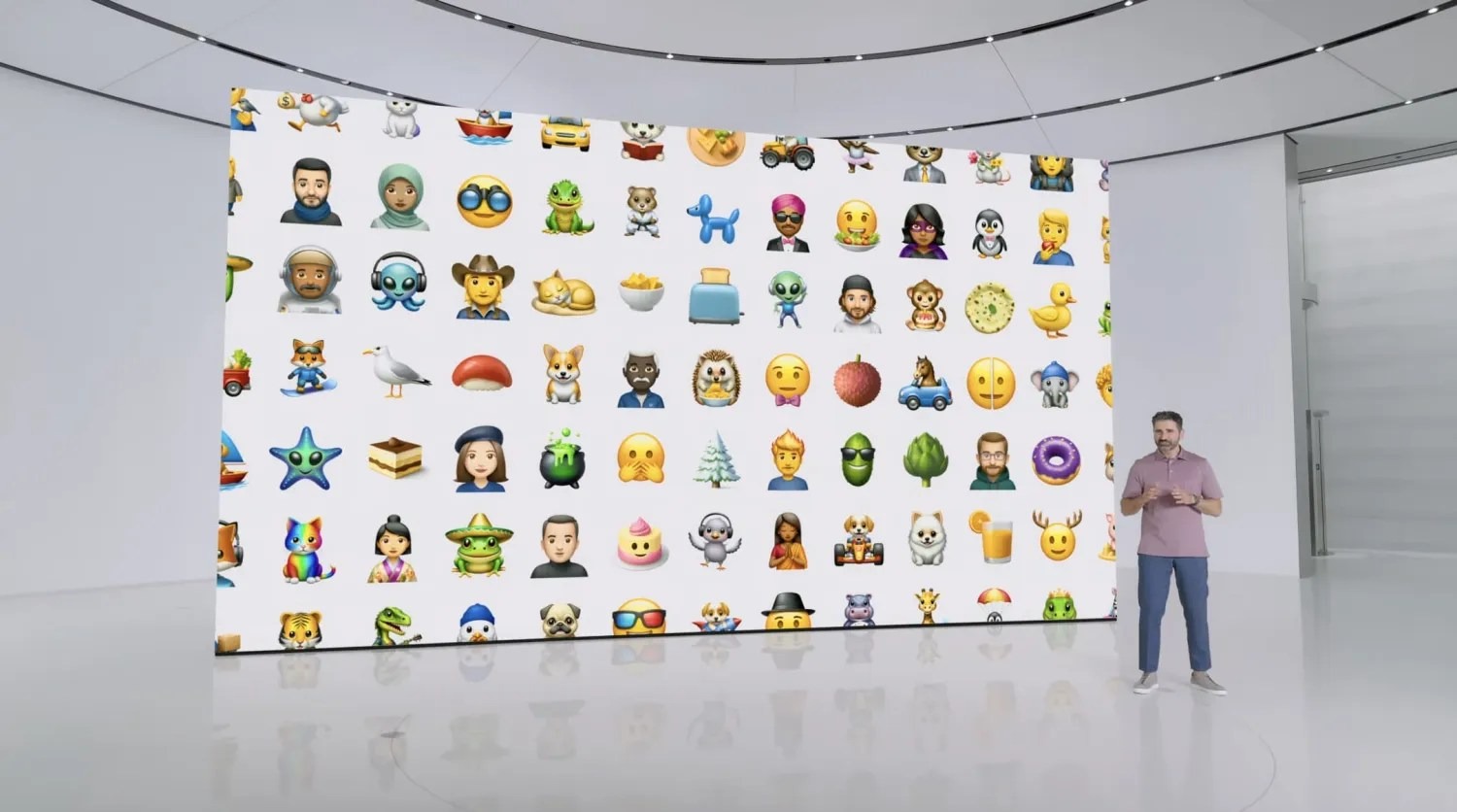
Today amidst a host of Apple Intelligence features debuted at WWDC, Apple shared a new feature that will enable you to create an emoji for any occasion. Apple calls this AI-powered feature Genmoji.
Despite the growing array of emoji included in iOS each year, we’ve all surely run into that occasion when we wanted an emoji for something, only to find it didn’t exist.
Apple has made that a problem of the past thanks to iOS 18.
Genmoji is an Apple Intelligence-powered feature that enables you to have new emoji created for your use. All you have to do is type in what you’re looking for, and iOS 18 will present you with a newly-created emoji for your use.
Since emojis are actually unicode characters that work cross-platform, Apple’s Genmoji won’t technically work the same way as other emoji, since if they were, they wouldn’t display properly on non-Apple devices. Instead, Apple creates Genmoji as images. This won’t make much difference to users, but it’s a technical detail worth noting.
Genmoji will be great for expressing a variety of emotions that emoji don’t quite cover right now. Personally though, I’ll be making an iPad emoji first.
Apple integrates ChatGPT deeply into iOS 18
Apple Intelligence is the core of generative AI features in iOS 18, but Apple will also let users sign in with their OpenAI account and use ChatGPT models as well.
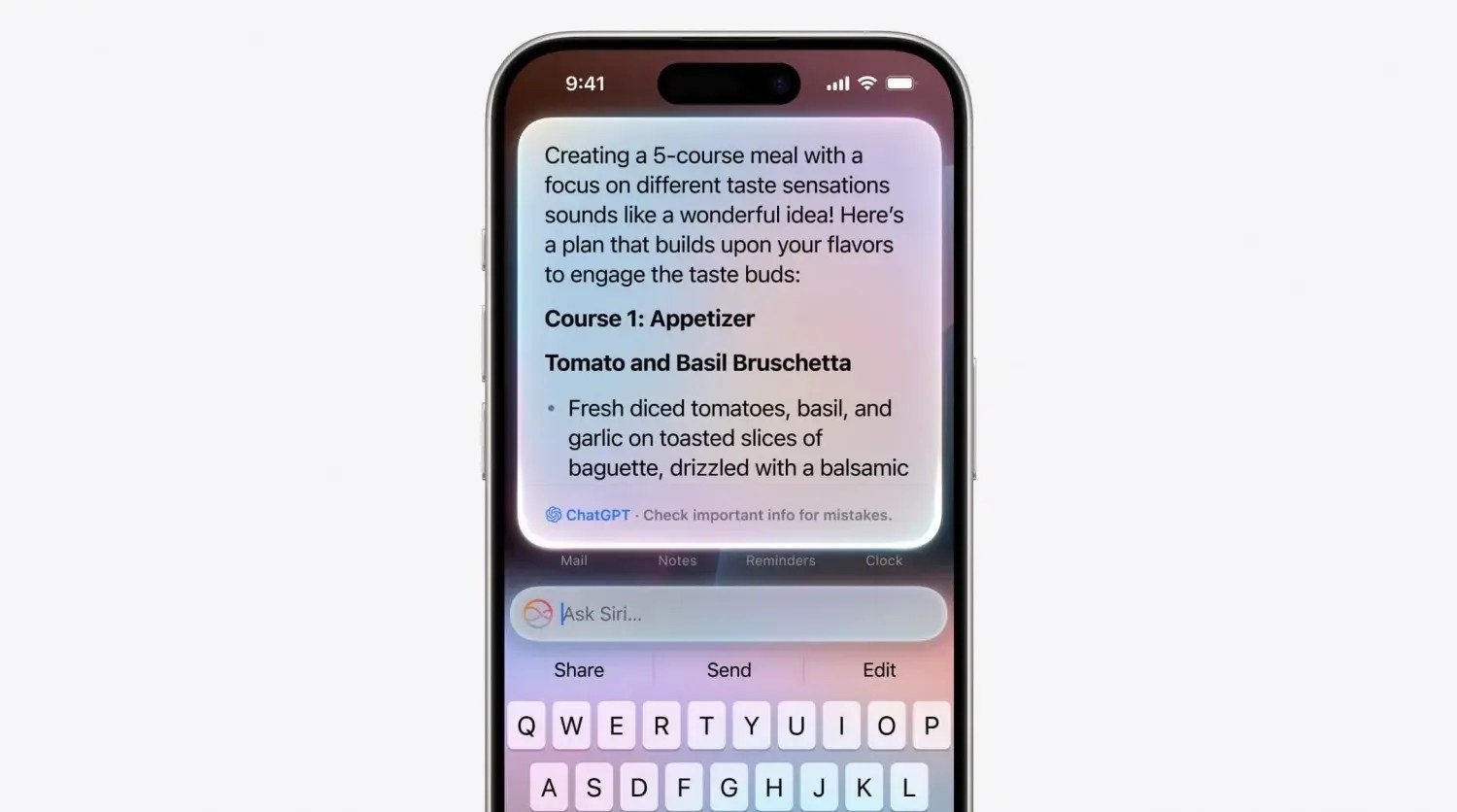
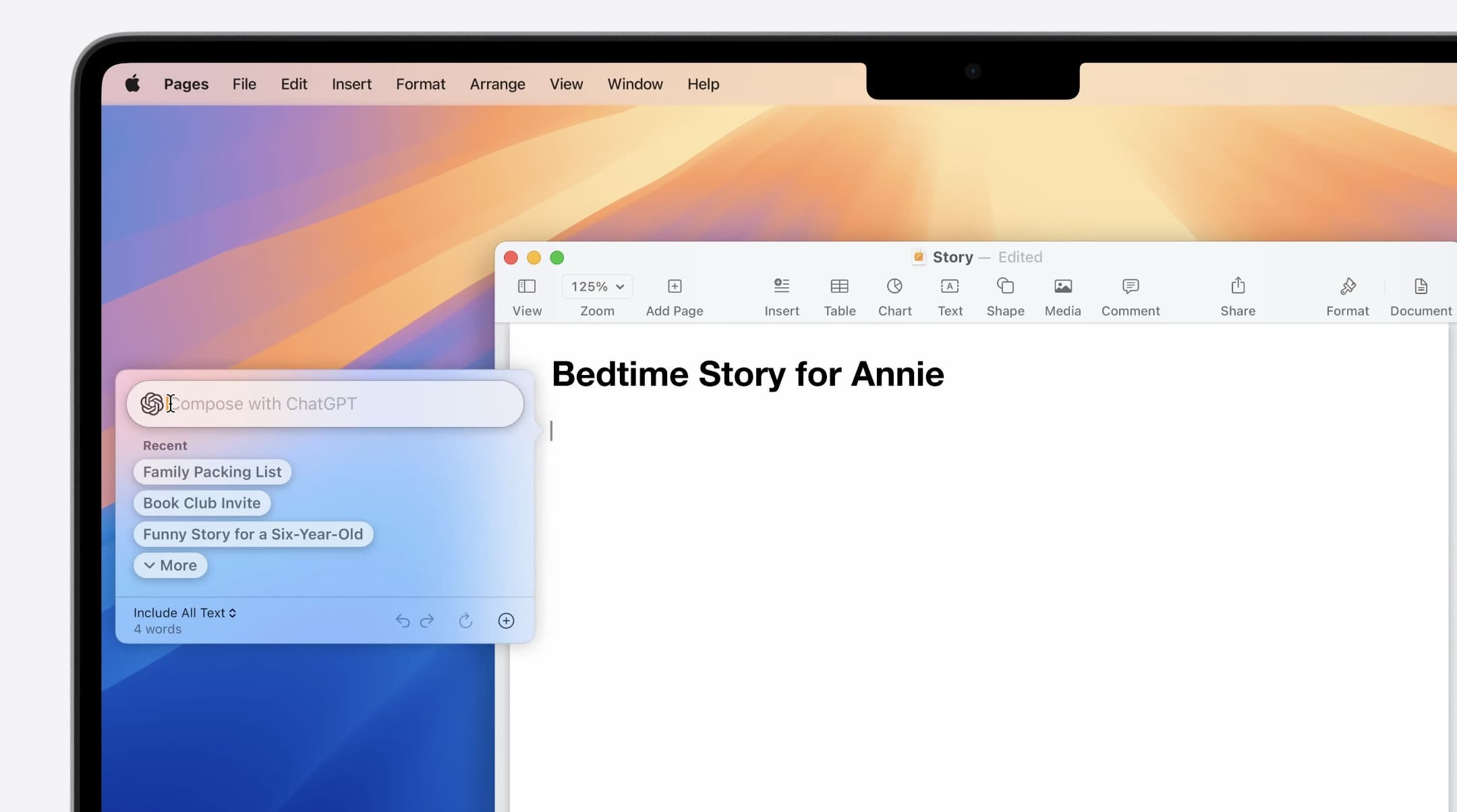
Once connected, users can select ChatGPT as their model to use inside Siri and as part of the new intelligent writing tools and other features across iOS 18, iPadOS 18 and macOS Sequoia.
The ChatGPT integration extends the free Apple Intelligence functionality built into the OS. For example, if you ask Siri a question that it can’t answer, it could hand off to ChatGPT instead to respond to the query.
Users can take advantage of the usual free quotas for ChatGPT usage, or connect their paid subscriptions to use their ChatGPT Plus benefits instead.
Apple indicated that it is working on partnerships with other AI model makers to give users more options in the future. So, although OpenAI’s ChatGPT will be the only option to start, you can expect Google Gemini and other models to be offered in the future.
iOS 18 lets you replace the Lock screen’s flashlight and camera buttons with controls of your choosing
Today as part of its iOS 18 unveiling during the WWDC keynote, Apple shared that the upcoming software release provides a feature users have long asked for: the ability to replace the flashlight and camera buttons on the iPhone’s Lock screen with controls of your own choosing.
Here’s how that works.
Customizing your Lock screen
In iOS 18, Apple is making Control Center more customizable than ever. As part of that change, it’s taking many of those same controls and making them available on your iPhone’s Lock screen in place of the existing flashlight and camera buttons.
The nice thing about the feature is that it takes advantage of the existing Lock screen customization features, and enables you to set different Lock screen buttons with different wallpaper/widget combos.
To set your own custom Lock screen controls in iOS 18:
Long-press on your Lock screen to pull up edit mode
Swipe to the wallpaper that you want to edit and hit ‘Customize’
Tap in the lower-left or lower-right corner on the existing buttons
Choose which controls you want to replace the flashlight and/or camera
The full list of available controls
When iOS 18 launches this fall, third-party apps will be able to offer their own controls for use on the Lock screen. For now though, only Apple options are available.
Currently in iOS 18 developer beta 1, you have the following control options for your Lock screen across a variety of categories:
Accessibility
Assistive Access
Live Speech
Capture
Camera
Scan Code
Magnifier
Clock
Alarm
Timer
Stopwatch
Connectivity
Airplane Mode
Cellular Data
Personal Hotspot
Display & Brightness
Dark Mode
Hearing Accessibility
Music Haptics
Left-Right Stereo Balance
Live Captions
Home
Home
Monitor Accessibility
Switch Control
Voice Control
Full Keyboard Access
AssistiveTouch
Apple Watch Mirroring
Control Nearby Devices
Remote
Remote
Shortcuts
Shortcuts
Open App
Sounds
Silent Mode
Recognize Music
Translate
Translate
Utilities
Flashlight
Calculator
Vision Accessibility
Classic Invert
Color Filters
Live Recognition
Increase Contrast
Reduce Motion
Reduce Transparency
Reduce White Point
Smart Invert
VoiceOver
Zoom
Speak Screen
Dim Flashing Lights
Hover Text
Hover Typing
Voice Memos
Voice Memo
Wallet
Wallet
Tap to Cash
Watch
Ping My Watch
iOS 18 lets you change widget sizes right from your home screen
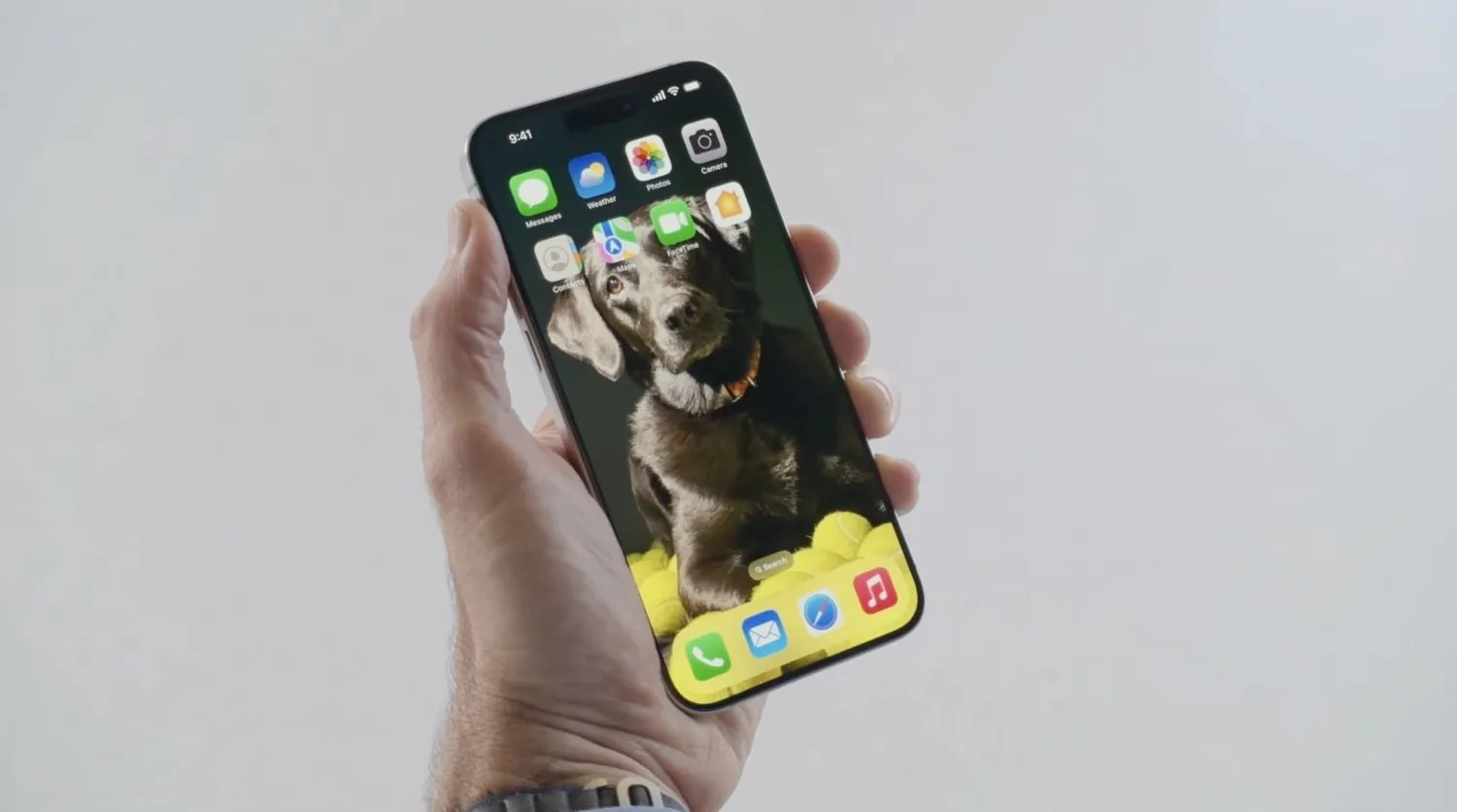
In addition to major new home screen customization options in iOS 18, Apple has also made it easier to rearrange your home screen. Most notably, you can now adjust widget sizes right from your iPhone’s home screen.
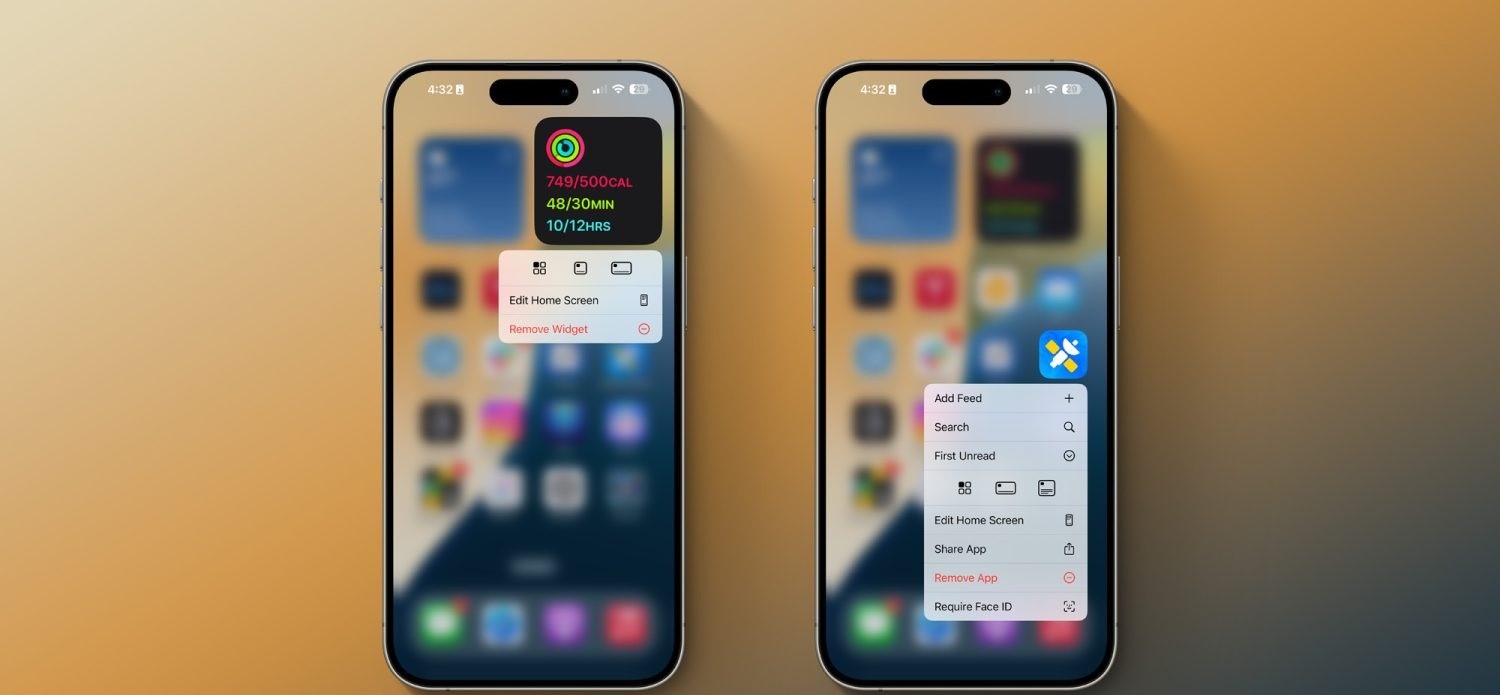
The ability to adjust widget sizes directly from the home screen was previously available only on iPadOS. With iOS 18, however, it has expanded to the iPhone as well. When you put the home screen into “jiggle mode,” you’ll see a new handle in the lower-right corner. You can then drag that handle and your widget will get bigger or smaller.
Alternatively, you can long-press on a widget, and you’ll see multiple different widget sizes you can choose from with a single tap. In this same menu, you can choose to convert a widget to an app icon as well. Finally, you can also long-press on an app icon, and (as long as that app offers home screen widgets), instantly convert the icon into a widget.
Everything new coming to Messages in iOS 18
Apple has some major feature upgrades coming to the Messages app in iOS 18.
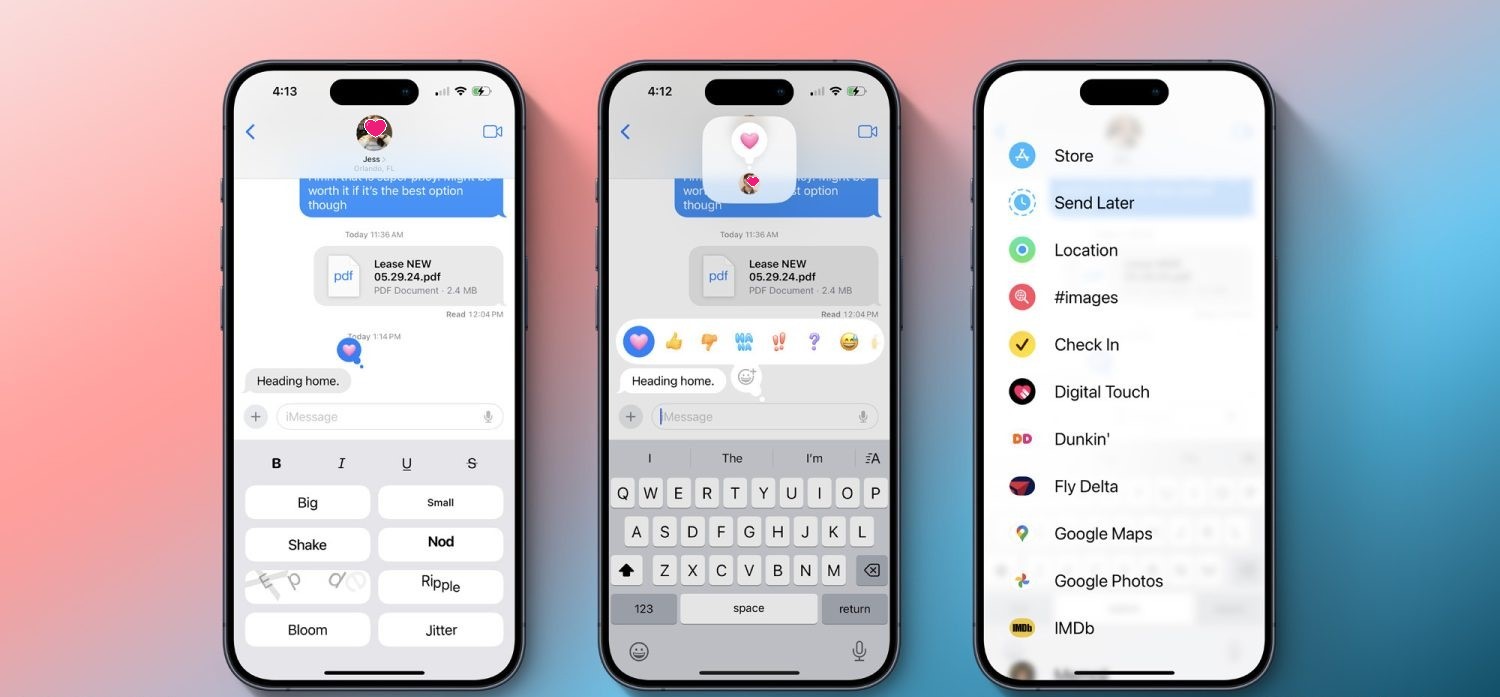
As announced earlier today during the WWDC keynote, Messages is receiving big enhancements to tapbacks, a new scheduled send feature, the ability to format text with bold and italics, new effects, RCS support, and more.
Here’s everything coming to Messages in iOS 18.
Emoji tapbacks and new tapback designs
Tapbacks have gone unchanged on the iPhone for years, but in iOS 18 they’re finally getting some big improvements.
For starters, you’ll be able to send any emoji as a message tapback. Gone are the days of being limited to a handful of tapback reactions. Now you can send a tapback with the eyes-looking emoji, or barf emoji, or anything else that fits the occasion. If emoji options aren’t enough, you can also use stickers as tapbacks.
Your most commonly used emoji and stickers will be accessible with a swipe left on the initial set of tapback options that appear, sliding those default options out of the way to present your most used emoji and stickers.
Speaking of those default options, they’re getting a facelift in iOS 18. The classic thumbs up, heart, and more are being splashed with full color and new designs that will make them fit in better among the wider array of new tapback options.
Schedule messages for later
We’ve all had an occasion where we wanted to send a message later. In iOS 18, that will finally be possible. No more need to ask Siri to remind you to send something later, you can simply schedule it yourself.
Prep a message in iOS or iPadOS 18 and, if you don’t want to send it right away, you can choose a later day and time for it to automatically go out. The option is available by pressing the + button on the left side of the screen and selecting the new Send Later option.
Text formatting and special effects
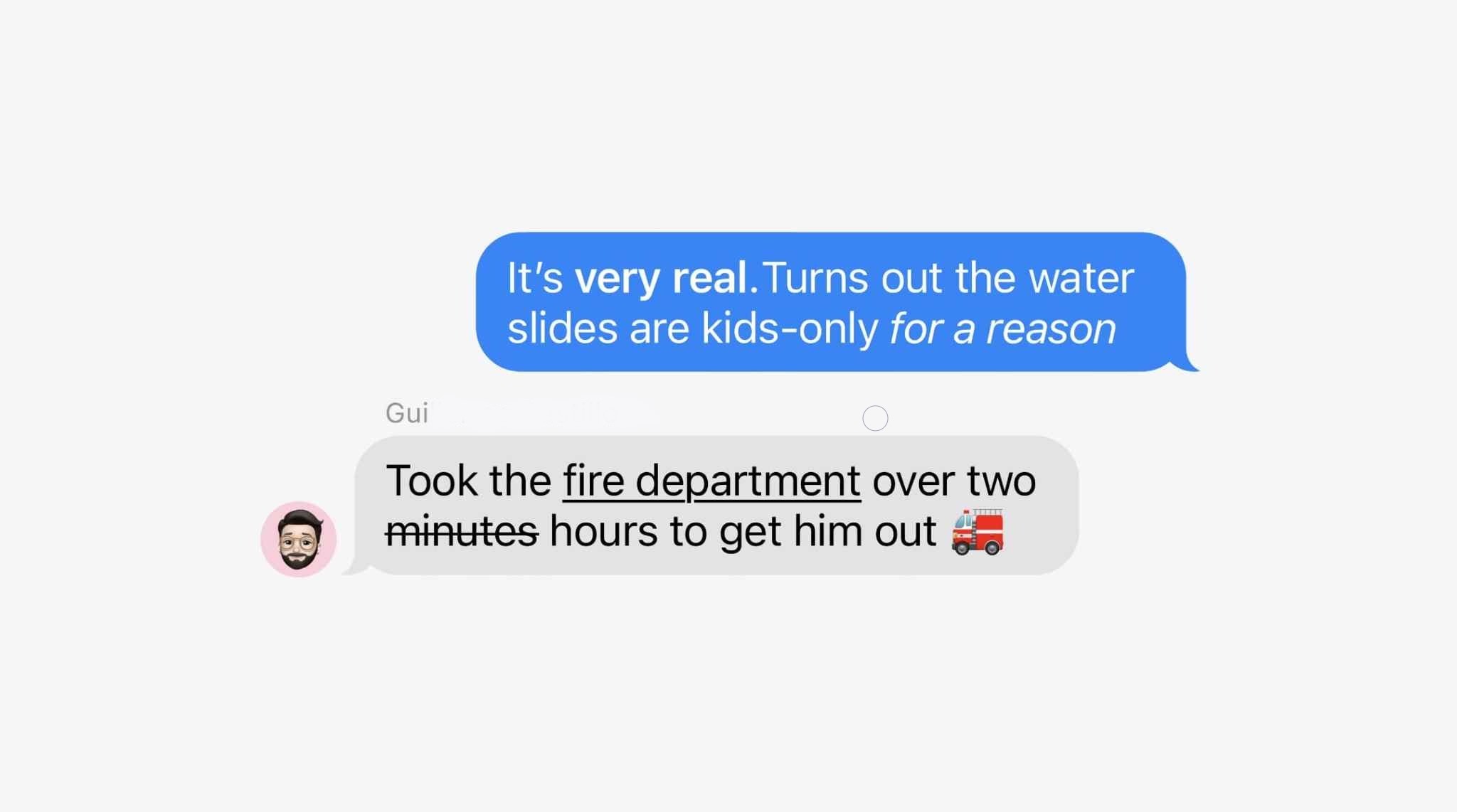
Messages was the last major Apple app that supports text input but never supported rich text formatting options like bold and italics. That changes in iOS 18, where you can customize the formatting of words in your message to implement the standard four formatting styles:
Bold
Italics
Underline
Strikethrough
Joining these options are eight neat special effects that can also be applied on a per-character basis:
Big
Small
Shake
Nod
Explode
Ripple
Bloom
Jitter
I’m not exactly sure which messaging occasions will call for some of these effects, but they’re nice options to have nonetheless.
RCS support
Apple had previously announced that it would support RCS in 2024, but it was great to see confirmation of that today.
RCS is a newer, more capable text message protocol that serves as a successor to SMS and MMS. Essentially, by adding RCS support in iOS 18, Apple will make your conversations with Android users more reliable than before.
When communicating over iMessage, everything will stay as-is. Your blue bubble conversations don’t change. But in those situations when, say, you’re in a group chat that includes a green bubble friend, RCS should make the experience better for everyone.
Everything else
Genmoji: Though not exclusive to Messages, the place you’re bound to use Genmoji most is in your conversations with friends and family. These AI-generated emoji will provide endless potential for future emoji communications.
Image Playground: Similarly, the new Image Playground tools for creating AI images in a variety of styles will be a useful option to have baked into the Messages app when it launches later this year alongside other Apple Intelligence features.
Messages via Satellite: Messages in iOS 18 also includes support for a new Messages via Satellite feature that’s designed to help you out in situations where you don’t have access to a Wi-Fi or cellular connection.
Wrap-up
Messages in iOS 18 provides a variety of new tools and features that are bound to get a lot of use. Though the core of the app is remaining the same, Apple has provided enhancements that I personally expect to benefit from a lot.
Thank you for using
Themify Popup
This is a sample pop up. Themify Builder or Builder Lite (free) plugin is recommended to design the pop up layouts.