Have you ever been using Google Maps on iPhone or iPad and noticed a little pop-up alert message stating “Shake to send feedback – You shook your device! Your feedback suggestions help us improve Google Maps.” with options to report data problems, send feedback, or to dismiss the alert. Sometimes Google Maps users on iPhone or iPad can accidentally trigger the ‘Shake to send feedback’ feature, or they may unintentionally trigger that alert rather than the typical ‘Shake to Undo’ feature on iPhone and iPad.
If you don’t want to see the ‘Shake to send feedback’ alert come up in Google Maps for iOS, this article will show you how to turn that off.
How to Disable ‘Shake to Send Feedback’ in Google Maps for iOS
Open the Google Maps app, then tap on the three lines button in the upper left corner
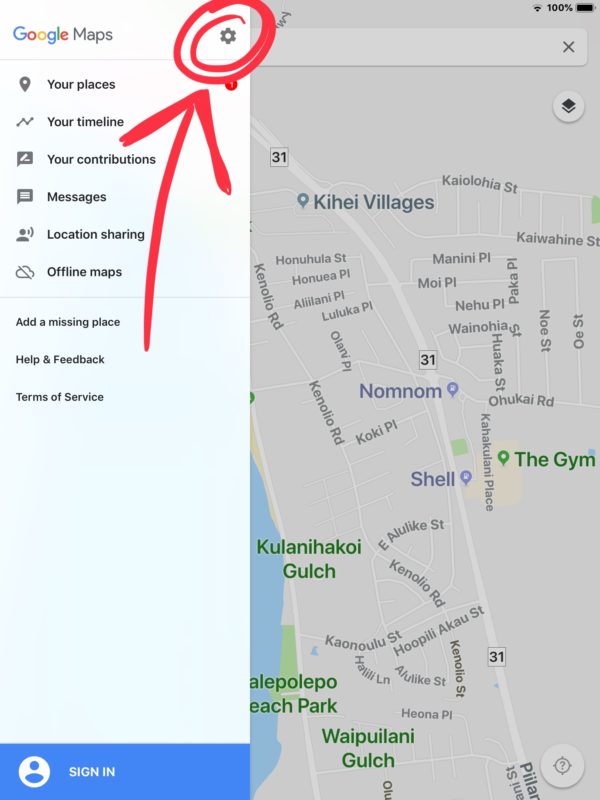
Now tap on the Gear icon to access Settings in Google Maps
Locate the switch for “Shake to send feedback” and turn that to the OFF position to disable this feature in Google Maps for iOS
Once the feature is off, shaking the iPhone, iPad, or iPod touch will no longer trigger the ‘Shake to Send Feedback’ alert message on the screen.
If you disable the “Shake to send feedback” option in Google Maps instead shaking the device will result in triggering the Shake to Undo and Redo in iOS feature, unless of course you or someone else have disabled Shake to Undo in iOS on the iPhone or iPad.
Whether or not you want to turn this off or leave it on likely depends on how you use Google Maps, and how often you intentionally or unintentionally bring up the feedback dialog message. For the most part it should not trigger accidentally, though if you are using an iPhone or iPad on an extraordinarily bumpy road or terrain (like heavy unplowed snow, a poorly maintained winter road with bumpy ice ruts, an unpaved forest road, or some 4×4 trail), then you may see the alert message coming up on the Google Maps app in iOS when it’s unexpected to – those situations in particularly will likely benefit from turning off the feature if they find it to be frustrating.
But if you’re driving around and you see this on Google Maps for iOS:
And you don’t want to see that again, now you know how to turn it off!
Rarely you may need to enter into Recovery Mode on an iPad Pro in order to restore iOS or update iOS software. The latest iPad Pro models without a Home button make the typical process of getting into Recovery Mode impossible however, so if you have a new iPad Pro 11 inch or 12.9 inch model without a Home button you might be wondering how to enter into Recovery Mode on the 2018 iPad Pro and beyond.
We’ll show you how to enter into Recovery Mode on the 2018 model year iPad Pro 11 inch and 12.9 inch devices, and also how to exit out of Recovery Mode on the same iPad Pro models.
How to Enter Recovery Mode on iPad Pro 11-inch or 12.9-inch (2018 models)
You will need a USB cable and a computer with iTunes. Be sure you update to the latest version of iTunes on the Mac or Windows PC before beginning this process. You will want a backup of the iPad Pro handy before starting this process, as restoring may result in data loss otherwise.
Connect the iPad Pro to a computer with a USB cable
Open iTunes on the computer (Mac or Windows)
Press and release Volume Up
Press and release Volume Down
Press and hold the Power button until the iPad Pro is in recovery mode
iTunes will alert that a device has been found in Recovery Mode
Once in Recovery Mode within iTunes, you can update the iPad Pro or restore with iTunes as usual. You can also use IPSW if necessary, though the IPSW file must be signed and matching the iPad Pro model as usual. You can find find IPSW files here if needed.
Remember that restoring any iOS device may result in data loss, you will want to be sure you have a backup available to restore your data from, otherwise you may have data loss.
How to Exit Recovery Mode on iPad Pro
If you want to exit out of Recovery Mode on iPad Pro without restoring or doing anything to it from iTunes, simply force restart the iPad Pro:
Disconnect iPad Pro from the computer
Press and release the Volume Up button
Press and release the Volume Down button
Press and hold the Power button, hold until you see the Apple logo appear on screen
Remember that Recovery Mode is not as low-level as DFU Mode, but for most troubleshooting issues requiring a device restore, Recovery Mode on iPad Pro will do the job. DFU Mode is really only necessary when a device is completely stuck in an unusable or bricked state like during a failed iOS update or something similar.
Note this only applies to the iPad Pro models without any button on the front of the device (the home button), meaning the 2018 model year onward, but only for the iPad Pro. The normal iPad continues to have a Home button, and the 2018 base iPad with a Home button can enter into Recovery Mode and DFU Mode the same as all prior iPad models with a Home button did.
Recovery Mode and DFU Mode can be helpful for troubleshooting iOS devices that are not functioning as intended. These other articles on the topic but for other iPad and iPhone models may be helpful in that regard:
While this process may seem new and different from prior iPad models, it’s standard on all the new iOS devices that have no Home button. Other changes have come to the latest iPad Pro models as a result of removing the Home button too, including taking screen shots on iPad Pro as well as forced rebooting and entering DFU Mode on the device too.
Sometimes you may need to forcibly restart an iPad Pro, usually because of some freezing software or buggy behavior, but sometimes just as a general troubleshooting step. Initiating a forced reboot on iPad Pro models with Face ID and without a Home button is different from the process was on earlier iPad devices. This article aims to show you how to force restart a new model iPad Pro.
This method of force restarting iPad Pro applies to both newer iPad Pro models with Face ID, including the 11″ screen size and 12.9″ screen size, where there is no Home button. So instead of pressing the Home and Power button to force a restart, you press down the other device buttons in a particular sequence. Here’s how it works:
How to Force Restart iPad Pro
Press and release the Volume Up button
Press and release the Volume Down button
Press and hold the Power button, hold until you see the Apple logo appear on screen
If you aren’t sure which buttons are which, this graphic should help.
You will know the iPad Pro forcibly restarted when the Apple logo appears on screen, at that point the device will boot up as usual to the lock screen and home screen.
If the force restart fails, initiate the above process again. It may feel like you’re holding the Power button for a while before the iPad Pro restarts.
This may feel new for iPad users, but it’s actually moving towards unifying the force restart process other across iOS devices. Thus, force restarting iPad Pro is now the same as force restarting iPhone models without the Home button, including the force reboot process for iPhone XS, XR, XS Max, iPhone X, iPhone 8 Plus and 8, and iPhone 7 and 7 Plus, and presumably this method will be what carries forward on all future iPad and iPhone devices without a Home button, much like forced rebooting on pressable Home button iOS devices is the same.
Another change worth mentioning is adjusting to how to take screenshots on newer iPad Pro models, which is also different since there’s no Home button on the devices.
Force restarting is sometimes called hard restarting, and it’s different from a simple restart which involves turning the device off and back on again. You can initiate a regular restart in iOS by using the iOS Settings Shut Down feature, or by holding the Power button and choosing to turn off the device, then holding the Power button again until the device turns back on again.
Want to take a screen shot on the new iPad Pro? Given that the latest iPad Pro models no longer have a Home button, the old method of taking screenshots for iPad no longer works, as there is simply no Home button to press for snapping the screenshot on iPad Pro. Thus if you’re wondering how to take a screenshot on iPad Pro without a Home button, you’ll need to learn the new method for doing so. Fortunately this is not difficult at all, but it will require a minor adjustment to your iPad Pro workflow and screenshot habits.
How to Take Screenshots on iPad Pro Without Home Button
Taking a screenshot on the new iPad Pro models without Home button is easy:
Press the Volume Up button and Power / Lock button at the same time to take a screenshot on iPad Pro
Pressing the Volume Up button and Power button concurrently will take the screenshot, you’ll know it worked as signified by the camera shutter sound, a quick flash of the screen, and then a screenshot preview will appear in the corner of the iPad screen, where you can quickly share, save, or markup the iPad Pro screenshot has desired. If none of that happens, you likely didn’t press the buttons concurrently, so try again to take the screenshot.
If you’re having any difficulty taking screenshots on iPad Pro without any front buttons, then try briefly holding the Volume Up button first and then tapping the Power / Lock button to snap the screenshot on iPad Pro 2018 3rd generation and later.
All iPad Pro screenshots are stored in the Photos app in Camera Roll and they’re also automatically placed into their own unique Screenshots album in iOS Photos app.
This applies to all new iPad Pro models without the Home button, which is the generation rolled out in late 2018 and newer, and whether it is the 11″ screen iPad Pro or the 12.9″ iPad Pro. Earlier iPad Pro models (and not-pro iPad models) continue to use the old method of Home + Power button to snap a screenshot.
While this screenshot method is new to iPad Pro, it’s actually the exact same for taking screenshots on new iPhone models without the Home button too, like the iPhone X, iPhone XS Max, iPhone XS, and iPhone XR.
The change may take a little bit to get used to, but it’s important to do so because presumably Apple will continue to remove the Home button from future iOS devices, meaning this Volume Up + Power button pressing screenshot method is likely to become the new default for nearly every iPad, iPad Pro, and iPhone going forward, assuming they don’t have a Home button to press anyway.
One thing to note is that this applies to just the iPad Pro models without a Home button. All earlier model iPad Pro that do have a Home button, and any other iPad or iPad mini model ever made that has the Home button continues to use the Power + Home button screenshot method for those iPad models (which is also the same Home + Power press for older iPhone models with Home buttons too), including the 2018 standard iPad and earlier.
The Smart Keyboard Folio turns the 2018 iPad Pro into a notebook.
Anyone planning use a 2018 iPad Pro for business probably needs an add-on keyboard. Apple’s own offering in this category is the Smart Keyboard Folio, which wraps tightly around this new tablet, both protecting it and providing the text input method so many of us depend on.
Because it’s made by Apple, nearly everyone who buys an iPad Pro considers getting this accessory, but the price will give you reason to pause.
We put one through extensive testing to help you decide if it’s right for you.
Apple Smart Keyboard Folio Review
As its name indicates, this is a folio cover that wraps around the front, left side and back of the iPad Pro. This allows it to prevent scratches to the all-important screen, and the whole iPad gets a modicum of protection. But this isn’t a rugged case by any stretch of the imagination. It’s going to do almost nothing to prevent damage if you drop your tablet.
But extremely protective cases are thick and heavy, and those are two words that could never be used to describe the Smart Keyboard Folio.The tablet by itself is 0.23 inches thick, and is still just 0.5 inches with the case added. The version for the 12.9-inch iPad Pro weighs in at 0.87 pounds, so case and tablet together only come to 2.3 pounds. As one would expect, a MacBook Air, Apple’s thinnest and lightest 13-inch notebook, is thicker and heavier than a 12.9-inch iPad Pro in the Smart Folio Keyboard.
The Smart Keyboard Folio and the iPad Pro together are just 0.5 inches thich.
The case is held to the computer with magnets. Lots of magnets. The connection is surprisingly strong, to the point where they don’t come apart without some effort.
Because three of the edges are always uncovered, you can use the iPad Pro’s USB-C port while the case is closed, or listen to music through the speakers. Unlike some cases, there’s nothing to interfere with clipping the new Apple Pencil to the side of the tablet so it can charge.
You can get the Apple Smart Keyboard Folio is any color you want… as long as it’s black. There are no other color options available. And the material is plastic. It’s relatively professional looking but not fashionable or luxurious, which is a bit disappointing from a product this expensive.
A keyboard for your iPad Pro
This folio case easily opens then folds into a keyboard and stand for the iPad Pro.
The keyboard area is 10.6 inches wide, while a typical desktop keyboard area is 11 in. wide. Each key is 0.6 by 0.6 in. with 0.15 in. of key separation. That’s the same size as desktop keys. In short, there’s nothing cramped about this keyboard.
The Smart Keyboard Folio has a standard key laypout.
However, it does have a significant issue: key travel is almost nonexistent. Pressing on any key causes it to depress just slightly.There isn’t any room for more in a keyboard this slim, but the result is not a great experience for hours of typing.
At least you never have to fear something getting caught under a key. The keyboard is a continuous sheet of fabric that’s laser ablated to form the shape of each key. There are no openings.
Unfortunately, there are also no backlights. They just aren’t possible with the way this case is made.
Apple filled all the available space for keys with a standard QWERTY layout, which means there’s no room for the extra row of function keys included in virtually every rival iPad keyboard case. Instead, you’re limited to the key-combinations that come with iOS. e.g. COMMAND-H to open the Home screen and COMMAND-TAB to switch between applications.
Making a stand
The Apple Smart Keyboard Folio does a fine job of acting as a stand for the iPad Pro. More magnets hold the tablet in place so its very secure. Tapping on the display doesn’t make the tablet shake or move.
The limitation of this design is that it only offers two typing angles. The tablet can be set leaning back at 130 degrees or standing nearly straight up at 110 degrees. The first is nearly ideal for typing, and the second is the best option available for watching video.
The Apple Smart Keyboard Folio arranged as a notebook computer.
Unlike the Smart Keyboard for previous iPads Pro models, it’s not possible to fold this case into a stand with the keyboard hidden. It’s always there, being mildly irritating when you’re watching video.
But it does offer excellent “lapablility” — the ease of using a notebook like device in the lap. Tablet and case are small enough to fit easily on any reasonable-size lap.
Apple Smart Keyboard Folio: Final thoughts
The Apple Smart Keyboard Folio is just about the thinnest and lightest case possible with a keyboard in it. That’s great in many ways, but it affects the typing experience. The keyboard is large enough to be easy to type on, but the near lack of key travel becomes an issue during long typing sessions.
This keyboard case is so portable you shouldn’t have an issue carrying it everywhere, which isn’t always true of mobile keyboards. So just remember, the keyboard you have with you is the best one.
If only the exterior of the Smart Keyboard Folio was nicer to look at. Apple is asking $199 for the version specifically for the newest 12.9-inch iPad Pro, and $179 for the 11-inch version. For that kind of money we expect something besides black plastic.
While these are certainly expensive, there are very few alternatives. The 2018 iPad Pro just debuted a few days ago, after all. Some companies make universal mobile keyboards, but at the time of this writing there’s no rival keyboard case designed specifically for the latest iOS computer.
Don’t try this at home. Or at the office. Or anywhere, really.
The new 2018 iPad Pro has a lot of magnets inside. There are around 90 of them on the back of it alone, just to stick it to the Smart Keyboard Folio or the ridiculously priced new Smart Folio cover, according to tests done by Pocket Lint. But those magnets are also great for sticking the iPad Pro to a refrigerator door like a giant fridge magnet.
Don’t try this at home
Still, I wouldn’t do this regularly. It’s far too scary, and the consequences too dire, especially as a kitchen often has the hardest of all floor coverings — tiles — ready to smash the screen of your beautiful new 2018 iPad Pro.
Music stand
What I’m happier about is that the new iPad Pro will stick to a steel music stand. That’s a lot safer, because the stand already has a lip to support books and manuscripts. That lip also supports the iPad very well, but now it has a little magnetic helper.
Maybe this isn’t an intentional feature, but it’s a nice one to have.
A leaked product image goes a long way toward confirming that the 2018 iPad Pro is getting a significant redesign. Apple’s next tablet is shown in a folding case, but it’s clear that the bezels have shrunk and the Home button has disappeared, just as previous rumors indicated.
The image also clearly shows the front-facing sensors needed for Face ID.
The case image, which was leaked to mysmartprice, shows the 2018 iPad Pro being used in landscape mode. This adds weight to the unconfirmed reports that Face ID will work with the tablet held this way. There have been some questions aboutthis, as Apple’s facial recognition system works only in portrait mode on iPhones.
More 2018 iPad Pro design changes
The tablet in the leaked image is supposedly the 12.9-inch iPad Pro. However, the length of the Apple Pencil indicates this is likely the 10.5-inch version instead. In the 2018 models, Apple is expected to keep the same 12.9- and 10.5-inch screen sizes, but reduce the overall dimensions of the tablets by shrinking the bezels.
Still, no screen cutout (or notch) is necessary for the TrueDepth camera, as the iPad Pro won’t have bezels as thin as the iPhone XS.
The angle of this picture neither confirms or refutes the reports that the 2018 iPad Pro models will the the first iOS devices ever with a USB-C port.
The case in the product picture has a slot for an Apple Pencil. It’s not clear if the one shown is the rumored updated version of this active pen.
This redesigned iPad is expected to be unveiled before the end of this month. This will supposedly happen at a second fall press event, along with the unveiling of a new MacBook Air and Mac Mini.
New sign indicates iPad Pro update is imminent
The new iPads can’t come soon enough.
The long wait for new iPad Pros may be nearly over if a recent filing by Apple in Asia is any indication that Apple has finalized its product lineup.
This week it was discovered that Apple just registered three new iPad models with China’s Ministry of Industry and Information Technology (MIIT). Apple also registered a new Bluetooth device with MIIT, which could be a new Apple Pencil for the iPads.
According to MySmartPrice’s findings, Apple registered iPad model numbers A1876, A1980, and A1993 with MIIT at the end of September. Those first model numbers were also in a Eurasian Economic Commission filing from July, the A1993 model number hasn’t been seen before.
Now that Apple has filed the same iPad Pro models in different countries, it should be a good sign that a launch could be happening soon.
Apple is expected by some fans to host a keynote sometime in October. The keynote could cover new Macs and iPads for the holiday season. It’s getting later into the month though and there’s still no sign of the event, so Apple could just choose to reveal the new products online only.
New iPad Pro features are expected to include a bezel-free display, A12X processor, Face ID, more RAM and other internal improvements. Apple also supposedly plans to ditch Lightning on the new iPads in favor of USB-C.