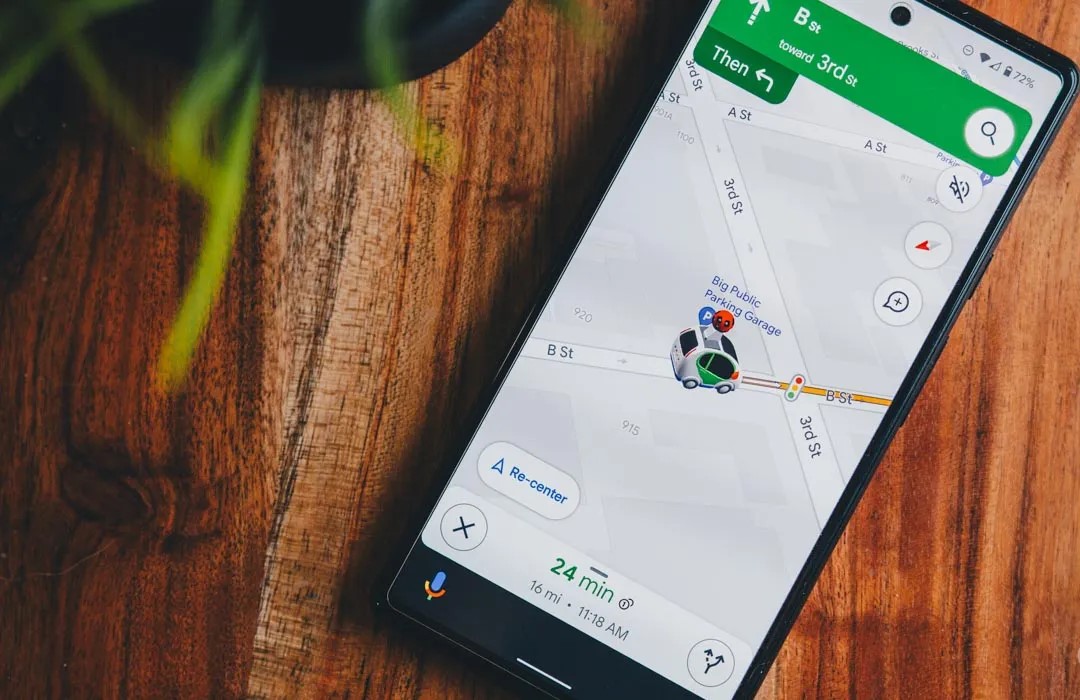
The work to make Gemini a better phone assistant continues, with Google recently updating it to automatically start Maps navigation “when you ask for directions.”
“Navigate to [place]” or “take me to [x]” commands first show a brief summary with the route, how long it will take, and how many miles, as well as a map and link to “directions.” This is one capability that Gemini can handle natively with the Google Maps Extension instead of having to punt to the legacy Assistant.
After a few seconds, Gemini now opens Google Maps with the route underway to save you a step and improve the hands-free experience. This is according to the latest Play Store release notes for the Gemini app/icon, which also include:
“You can now use your voice to set reminders and calendar entries with the Gemini app if your Workspace extension is turned on in your Gemini app settings. Workspace extension availability varies by country. See more details here: https://support.google.com/gemini/answer/14579631#workspace_extension“
“We updated voice commands to include auto submit. No need to hit the ‘send’ button anymore.”
Meanwhile, we’re still waiting for the ability to issue “play music” commands. Google implies that this is coming: “Media service providers: Podcasts, news and radio stations, and third-party music providers aren’t currently supported in Gemini.”
Google Maps is testing an updated color palette for the background map layer that will undoubtedly draw some comparisons to Apple Maps.
The blue for water is much lighter than before (with some hints of green) and draws immediate comparison to Apple Maps. If you live near the ocean, lakes, or rivers, this will be quite noticeable and more vibrant.
Current | New | Apple Maps
In the opposite direction, Google is using a darker green (with some blue) for nature areas, like parks, forests, etc. Roads are now gray instead of white and stand out much more as a result. For thematic unity, freeways are a dark gray instead of yellow in another similarity to Apple’s approach.
Yellow/beige is still in use; dedicating that color to busy areas is a good idea. Meanwhile, the dark theme appears unchanged and continues to be darker than Apple Maps.
Elsewhere in the UI, directions use a much darker shade of green for the most important information. (It stands out less, in my opinion.)
In isolation, most of the color tweaks aren’t drastic. Combined, however, Google Maps looks quite different from before. The update to water and roads will draw the most comparisons to Apple Maps, with the latter change being pretty impactful in terms of visibility.
Meanwhile, Google Maps has a short Material 3 bottom bar but no dynamic color. We’re seeing a handful of reports of this rolling out today on Android, but it’s not widely available on any device we checked. Google might still be in the testing phase and change things before a wider launch.
Google Maps no longer lets you tap to hide the search bar and other UI
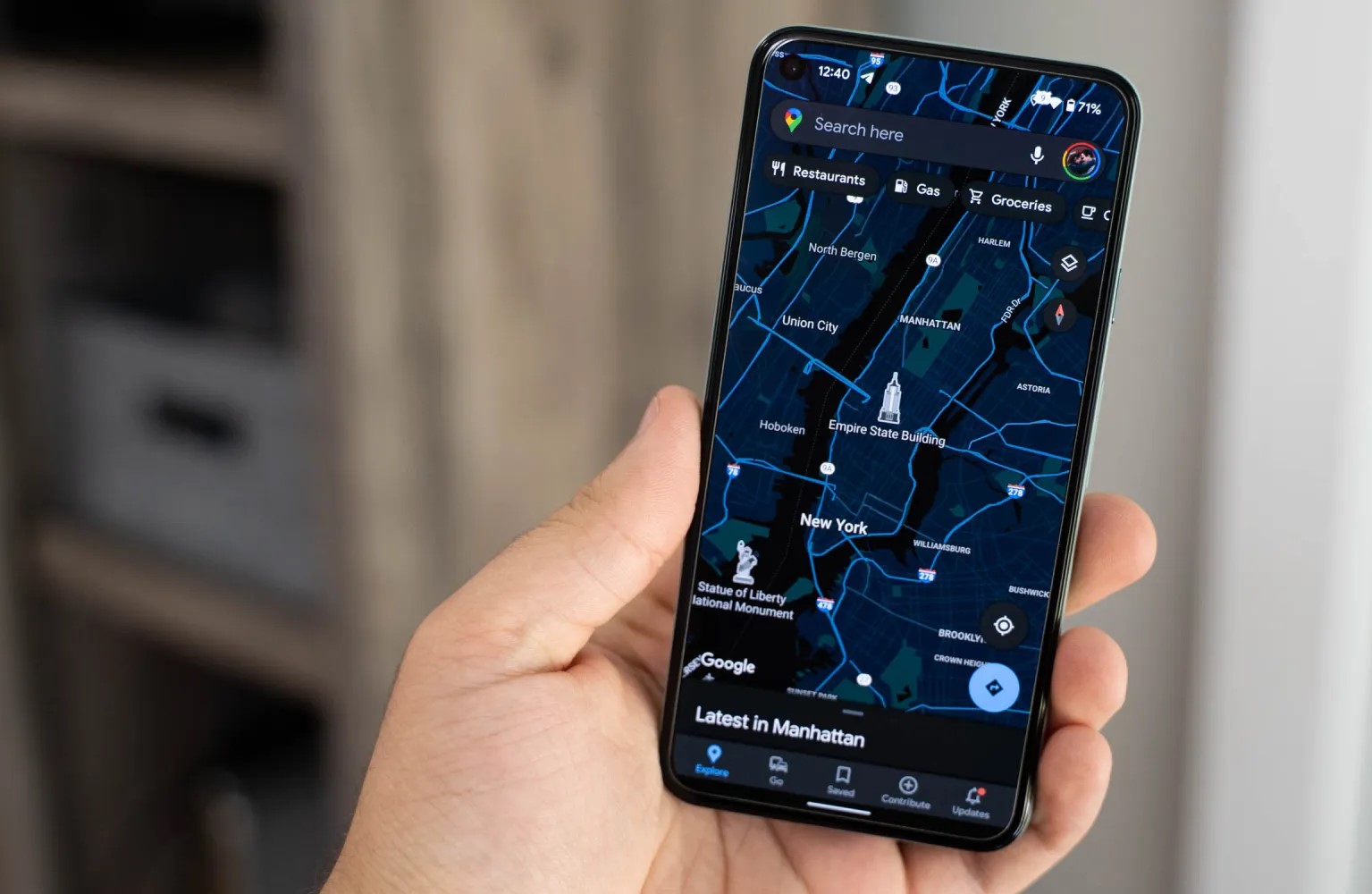
A curious change to Google Maps on Android and iOS means you can no longer tap to hide the search and bottom bar, as well as other UI elements, to focus entirely on the map.
Rather, that action is now accomplished by swiping up on the search bar, which Google explains with a prompt: “To see the full map, swipe up on the search bar.”
It’s not as intuitive as tapping anywhere on the map to hide. That gesture made sense as you were physically interacting with the layer that you wanted to focus on.
The argument for the new gesture is that you’re acting upon what you want to get rid of. That said, you still tap to bring back the UI.
Meanwhile, there are times where you effectively need to swipe up twice to hide it. If Explore’s “Latest in [area]” sheet is peaking up from the bottom bar, a swipe will first remove that UI, with another one required for all other UI. However, when location listings are up, you only have to swipe up once.
Related to this change is how tapping anywhere drops a pin immediately now, which might be an intended result and aim.
The tap to hide gesture was ingrained for years in Google Maps and an obvious one. The same cannot be said of the new action, especially given how uncommon a swipe up is (compared to down when removing sheets).
Reports of the tap gesture being removed first emerged in the Google Maps Help forum in February. It might have been in limited testing then and seen a wider launch afterwards. As of today, it’s rolled out on all Android and iOS devices we checked.
Google Maps for Android rolling out much faster voice input powered by Assistant
The new Google Maps voice input is powered by Google Assistant. When you first trigger it, a new interface pops up saying that there are “faster ways to search on Maps.”
The new interface pops up in a card that takes up most of the display. There are shortcuts to search for restaurants, gas stations, and similar categories, which does seem a little redundant. But the big perk here is that voice search is much faster and there’s now visual feedback. You’ll see a live display of what you say and recognition is much faster. Commands such as “navigate to” also feel drastically quicker overall in our brief testing.
This change appears to be server-side, and is showing up for us on the latest Google Maps for Android version 11.90. It seems to have started rolling out last July 26,2023, as was spotted on Telegram.
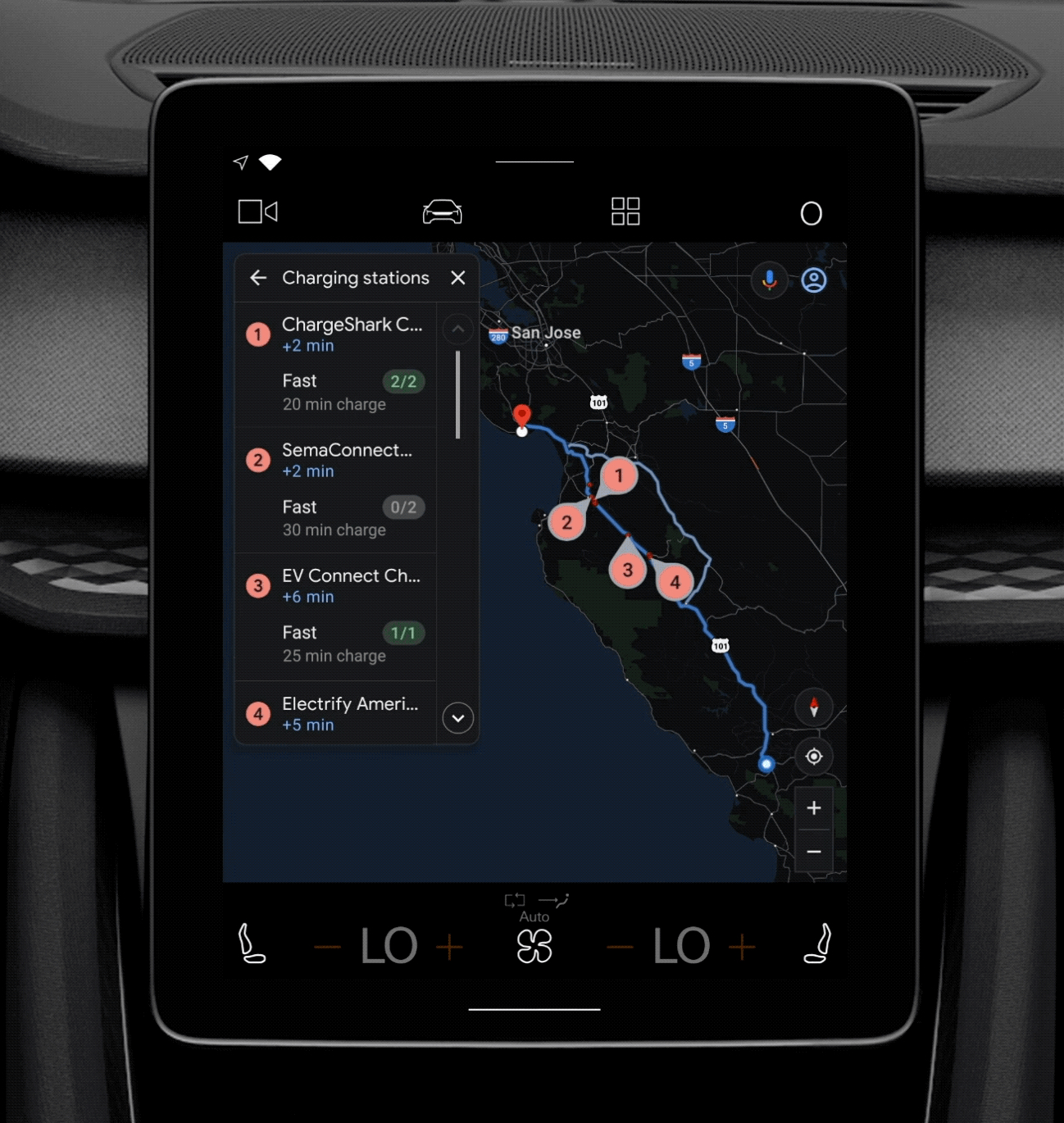
Google Maps for Android will soon make it easier to plan longer road trips in your electric vehicle, offering planned charging stops along your route.
About APK Insight: In this “APK Insight” post, we’ve decompiled the latest version of an application that Google uploaded to the Play Store. When we decompile these files (called APKs, in the case of Android apps), we’re able to see various lines of code within that hint at possible future features. Keep in mind that Google may or may not ever ship these features, and our interpretation of what they are may be imperfect. We’ll try to enable those that are closer to being finished, however, to show you how they’ll look in the case that they do ship. With that in mind, read on.
Back in 2021, when Android Automotive was just getting underway, the Google Maps app for that in-car experience picked up the ability to plan ahead on where to stop and recharge during a longer trip. This made perfect sense for Android Automotive, which was initially (if coincidentally) only available in EVs.
Of course, not all EVs run Android Automotive, leaving vehicle owners to use alternative (often built-in) navigation apps to find conveniently placed charging stations. Meanwhile, the Google Maps app on Android phones doesn’t currently offer a way to plan a route complete with charging stations, though last year Maps did add a way to specify your car’s engine type to help pick the most eco-friendly route.
With Google Maps version 11.65, we find new signs of the automatic route planning based on EV charging stations coming to the Android mobile app, removing the need to use Android Automotive.
By the time you get there, your battery will be low
Charging stop needed to reach destination
Trip too long to auto-add charging stops. Add stops after you start.
No internet. Can’t load charging stops.
There aren’t enough compatible charging stations to get to your destination
Presumably, the UI will look similar to what’s available in EVs with Android Automotive today, just downsized for use on phones.
It’s not yet clear how the mobile version of Google Maps will be able to calculate your estimated battery life, whether you’ll need to enter your car’s maximum capacity into the app or tell it what vehicle you’re driving. In the app today, you can already specify that you’re driving an electric vehicle and even select which plug style(s) your car supports.
Google is preparing to shut down the dedicated Street View app on Android, keeping the feature in Google Maps.
About APK Insight: In this “APK Insight” post, we’ve decompiled the latest version of an application that Google uploaded to the Play Store. When we decompile these files (called APKs, in the case of Android apps), we’re able to see various lines of code within that hint at possible future features. Keep in mind that Google may or may not ever ship these features, and our interpretation of what they are may be imperfect. We’ll try to enable those that are closer to being finished, however, to show you how they’ll look in case that they do ship. With that in mind, read on.
Google’s Street View is an easy way to get a 360° look at almost any given street on the planet, perfect for getting a sense of your next travel destination or simply exploring the world from the comfort of home. While the Google Maps app has long offered an easy way to hop into Street View, there has also been a dedicated Street View app on Android and iOS.
This standalone app served two distinct groups of people – those who wanted to deeply browse Street View and those who wanted to contribute their own 360° imagery. Considering the more popular Google Maps app has Street View support and Google offers a “Street View Studio” web app for contributors, it should be no surprise to learn that the company is now preparing to shut down the Street View app.
In the latest update, version 2.0.0.484371618, Google has prepared a handful of deprecation/shutdown notices for the Street View app. These notices are not yet visible in the app today, but our team managed to enable them.
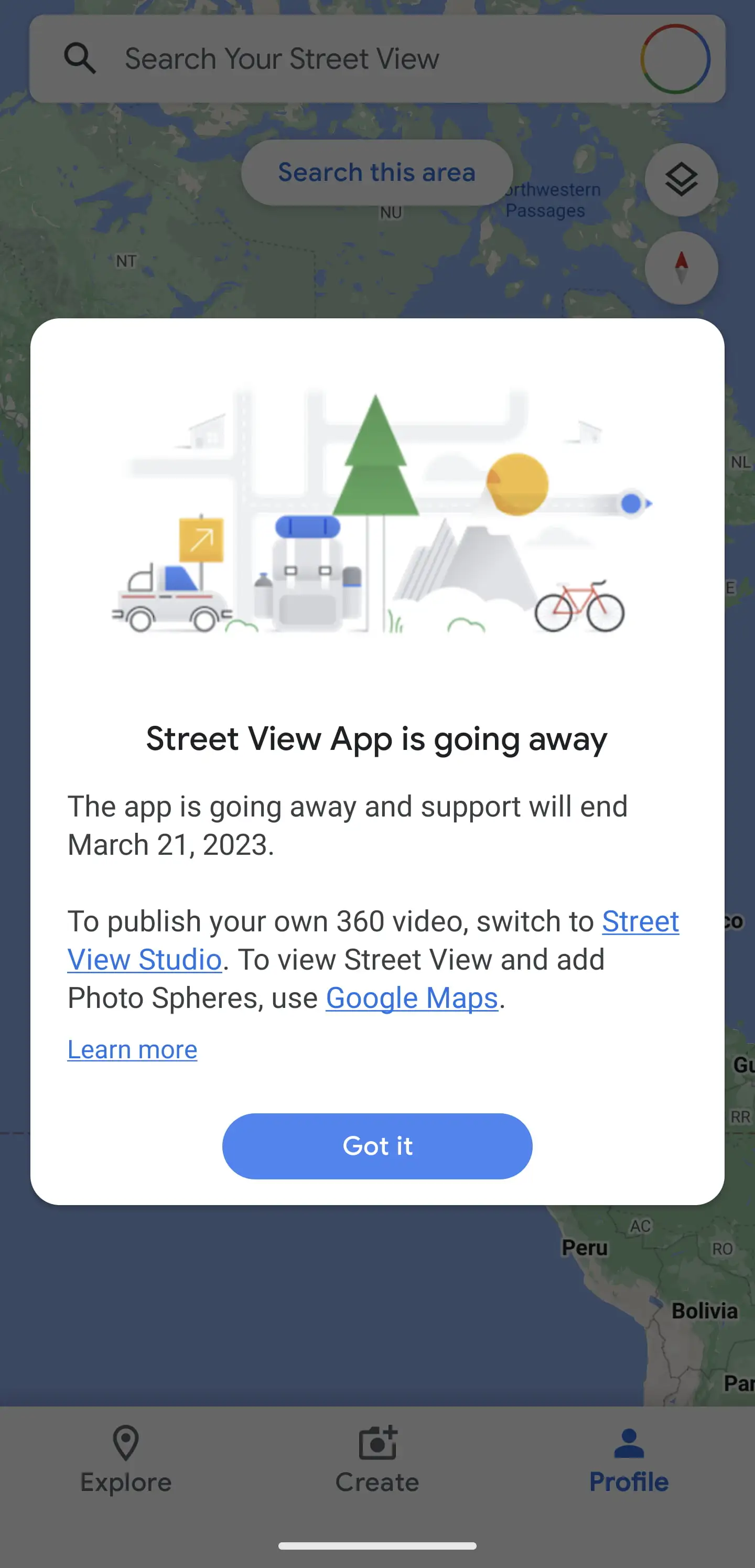
In the notice, Google confirms that the Street View app is set to shut down on March 31, 2023, encouraging users to switch to either Google Maps or Street View Studio.
Street View App is going away
The app is going away and support will end March 21, 2023.
To publish your own 360 video, switch to Street View Studio. To view Street View and add Photo Spheres, use Google Maps.
However, one feature that is being fully shut down with the Street View app’s demise is that of “Photo Paths.” First launched last year, Photo Paths were intended as a way to let nearly anyone with a smartphone contribute simple 2D photos of a road or path that had not yet been documented by Street View. Unlike every other feature of the Street View app, there is no replacement for Photo Paths on the web app or Google Maps app.
Google Maps is preparing to expand its fuel-efficient routing options by specifically tailoring to electric vehicles, hybrids, and more.
Last year, Google Maps began offering an alternative way to navigate your car from one place to another. Where typically a navigation app optimizes for the shortest travel time, Google Maps started offering routes that would be more fuel-efficient and eco-friendly, even defaulting to that route if the ETA is similar.
However, not all vehicles behave the same way or can optimize fuel efficiency with the same methods. While gas-powered vehicles are still all too common in the United States, there’s a growing number of hybrids and electric vehicles on the road, and quite a few diesel-powered ones as well. Suffice it to say the most efficient route for a traditional ICE car will not be the same as one for an electric.
To that end, the latest beta update to Google Maps, version 11.39, includes preparations to specify the engine type of the vehicle you’re currently driving. This selection — with options for gas, diesel, electric, and hybrid — will be used by Google Maps to “tailor” your navigation to find what will “save you the most fuel or energy.”
New! Get fuel-efficient routes tailored to your vehicle’s engine type.
Save more fuel by choosing your engine type
This info helps Maps find the route that will save you the most fuel or energy.
It doesn’t seem like you’ll be required to select a particular type of engine, even once this feature launches. Additionally, there will be an option in the app’s settings to switch to a different engine type, if needed.
Choose engine type
Change engine type
The change makes a great deal of sense for Google Maps given the company’s environmental consciousness, and it implies the success they may have had so far with automatically choosing the energy-efficient route. As the functionality is only just beginning to appear in beta testing, drivers of electric and hybrid vehicles will likely still have to wait a few more weeks to experience the tweaks Google Maps will make to their drive.
Google Maps begins rolling out estimated toll prices for planned routes
Estimated toll prices for planned routes now appear to be rolling out for Google Maps users on both Android and iOS after being announced earlier this year.
Having already been announced earlier this year, it has taken a little longer than expected for toll prices to arrive in Google Maps. First reported by Android Police, the feature rollout has since been confirmed by the official Google Maps help page post(and Twitter) with 2,000 toll roads in the US, India, Indonesia, and Japan being accounted for.
Google previously stated that more countries will see the feature “soon” but did not specify just what regions will be first in line once the expansion starts. Toll price estimates is a feature that has existed in Waze for some time, but given the ubiquity of Google Maps, this is a solid option for those in regions where toll roads are a common occurrence. This is in tandem with the existing feature that allows you to avoid toll roads entirely when route planning.
For the planner friend: this new feature is for you. 🙏
Now when you’re planning trips big and small, you can check estimated toll prices before you pick a route—and spend what you save on road snacks. pic.twitter.com/Lfy8s2TXQU
You’ll see the estimated toll price to your destination before you start navigating thanks to trusted information from local tolling authorities. We look at factors like having a toll pass or not, what the day of the week it is, along with how much the toll is expected to cost at the specific time you’ll be crossing it.
The pricing data is directly sourced from local tolling authorities. Maps then factors in the outright cost of using a toll pass, specific payment method charges, daily toll rates, along with how much the toll is expected to cost at the specific arrival time to give you an estimate when mapping out a potential route.
You will have the option within settings to show toll prices with or without having a toll pass–as in many geographies the price changes based on the payment method you use. You will also still have the option to avoid routes crossing toll roads entirely, if possible, by selecting ‘Avoid tolls’ within settings.
While this is a great move, it’s worth noting that Google Maps is not yet capable of showing individual toll road prices. Instead, you’ll only get a “full” estimate for a complete route. There are also no options to select things such as vehicle type nor add-in discount passes if they exist for certain transit methods. Either way, this is a great step in the right direction, and it would be great to see Google develop it further with more fine controls and pricing data.
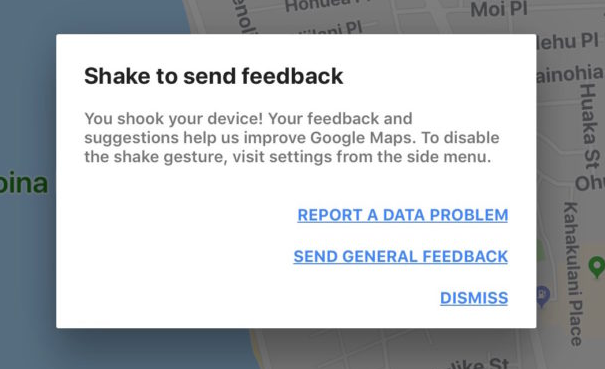
Have you ever been using Google Maps on iPhone or iPad and noticed a little pop-up alert message stating “Shake to send feedback – You shook your device! Your feedback suggestions help us improve Google Maps.” with options to report data problems, send feedback, or to dismiss the alert. Sometimes Google Maps users on iPhone or iPad can accidentally trigger the ‘Shake to send feedback’ feature, or they may unintentionally trigger that alert rather than the typical ‘Shake to Undo’ feature on iPhone and iPad.
If you don’t want to see the ‘Shake to send feedback’ alert come up in Google Maps for iOS, this article will show you how to turn that off.
How to Disable ‘Shake to Send Feedback’ in Google Maps for iOS
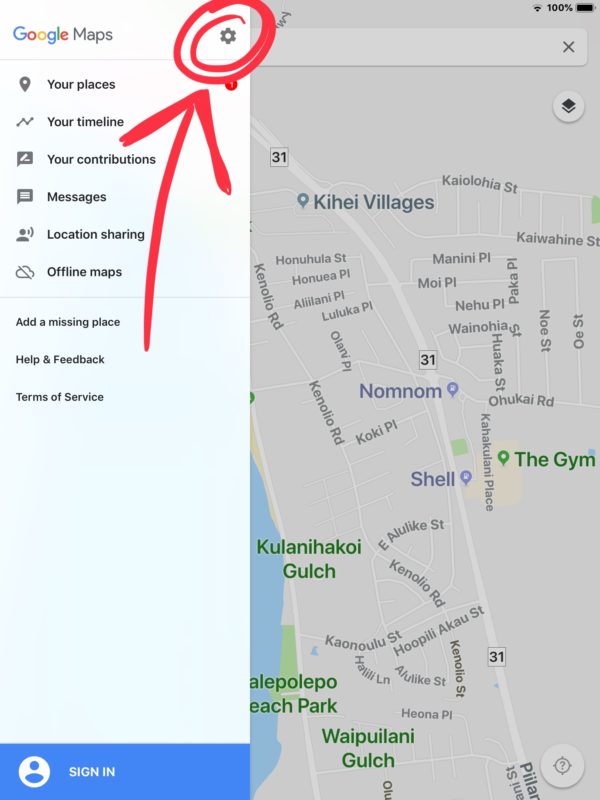
Open the Google Maps app, then tap on the three lines button in the upper left corner
Now tap on the Gear icon to access Settings in Google Maps
Locate the switch for “Shake to send feedback” and turn that to the OFF position to disable this feature in Google Maps for iOS
Once the feature is off, shaking the iPhone, iPad, or iPod touch will no longer trigger the ‘Shake to Send Feedback’ alert message on the screen.
If you disable the “Shake to send feedback” option in Google Maps instead shaking the device will result in triggering the Shake to Undo and Redo in iOS feature, unless of course you or someone else have disabled Shake to Undo in iOS on the iPhone or iPad.
Whether or not you want to turn this off or leave it on likely depends on how you use Google Maps, and how often you intentionally or unintentionally bring up the feedback dialog message. For the most part it should not trigger accidentally, though if you are using an iPhone or iPad on an extraordinarily bumpy road or terrain (like heavy unplowed snow, a poorly maintained winter road with bumpy ice ruts, an unpaved forest road, or some 4×4 trail), then you may see the alert message coming up on the Google Maps app in iOS when it’s unexpected to – those situations in particularly will likely benefit from turning off the feature if they find it to be frustrating.
But if you’re driving around and you see this on Google Maps for iOS:
And you don’t want to see that again, now you know how to turn it off!
First off, it’s long overdue. Google Maps is not giving some love to the drivers who always use the app to navigate on unknown streets all over the world.
Just a reminder: Don’t use your phone when driving. That’s why Google made Google Maps even user-friendly for drivers.
So here’s how it used to be. You want to go somewhere but you don’t know the fastest way there. Yes, you use Google Maps to help you go there. You give it your point A and point B, switch to navigation mode, and put your smartphone clipped to the dashboard. Google voice then tells you where and when to turn to get where you are going. This takes you a little time to setup but still a little clunky knowing that “OK Google” is now a thing.
However, something is improved. If you need to grab a pit stop or some flowers along the way, you now have the ability to yell “OK Google” over the struggling rumbles of your transmissions and you can tell your phone to “find gas stations,” or “restaurants” or whatever you need. That is anytime along the trip. You can also ask about when to take turns, how to avoid tolls, highways or ferries and mute or unmute the phone.
You’ll need to make sure that you tap the overflow menu on the Navigation screen, hit the settings and then, you’ll get into the “Ok Google” detection page. Make sure you have the “Always on” or “From any screen” toggle on.
Back in October, Google Maps rolled out a new feature for finding pit stops along your route. Today, the handy tool is making its way to the iOS version of the app. If you missed the news the first time around, the feature allows you to add a detour to your road trip without leaving navigation mode. Tap the magnifying glass in the top right and you’ll be given a list of options like gas stations, restaurants and more. If you need to search for something else, you’ll be able to do so. You can also use voice search to find a specific place or another category. You know, so you don’t have to futz with your phone too much.
No matter how you access them, search results will display the average rating for the destination and how much time the stop will add to your trip. The pit stop feature is rolling out to iOS users starting today, so you should be able to use it soon.
Thank you for using
Themify Popup
This is a sample pop up. Themify Builder or Builder Lite (free) plugin is recommended to design the pop up layouts.