We’re now four (yes, 4) updates deep into the early Android 14 preview phase. There are some new bits and pieces to uncover on eligible Google Pixel handsets. Here are all of the top user-facing functions in Android 14 Beta 2.
Android 14 won’t be a huge update from a user-facing perspective. Google is still refining Material You to better fit with the growing Pixel smartphone ecosystem. Other OEMs will also adopt some things here but not all.
Lockscreen PIN input Material You icons
Google has added a neat extra touch to the lockscreen when you enter a PIN or passcode. Tapping any of the buttons and the input tracker will now be animated with abstract Material You-style icons such as rounded triangles, stars, and more to indicate that you have entered characters or numbers.
Page indicator on Pixel Launcher
To help you understand just what page you’re currently looking at, the Pixel Launcher now has page indicators that are very iOS-like. These dot-style pop-ups will fade out of view after a prolonged period on one specific page but are actually lifted right from the Quick Settings panel – which has similar indicators already.
Monochrome toggle returns to Wallpaper & style
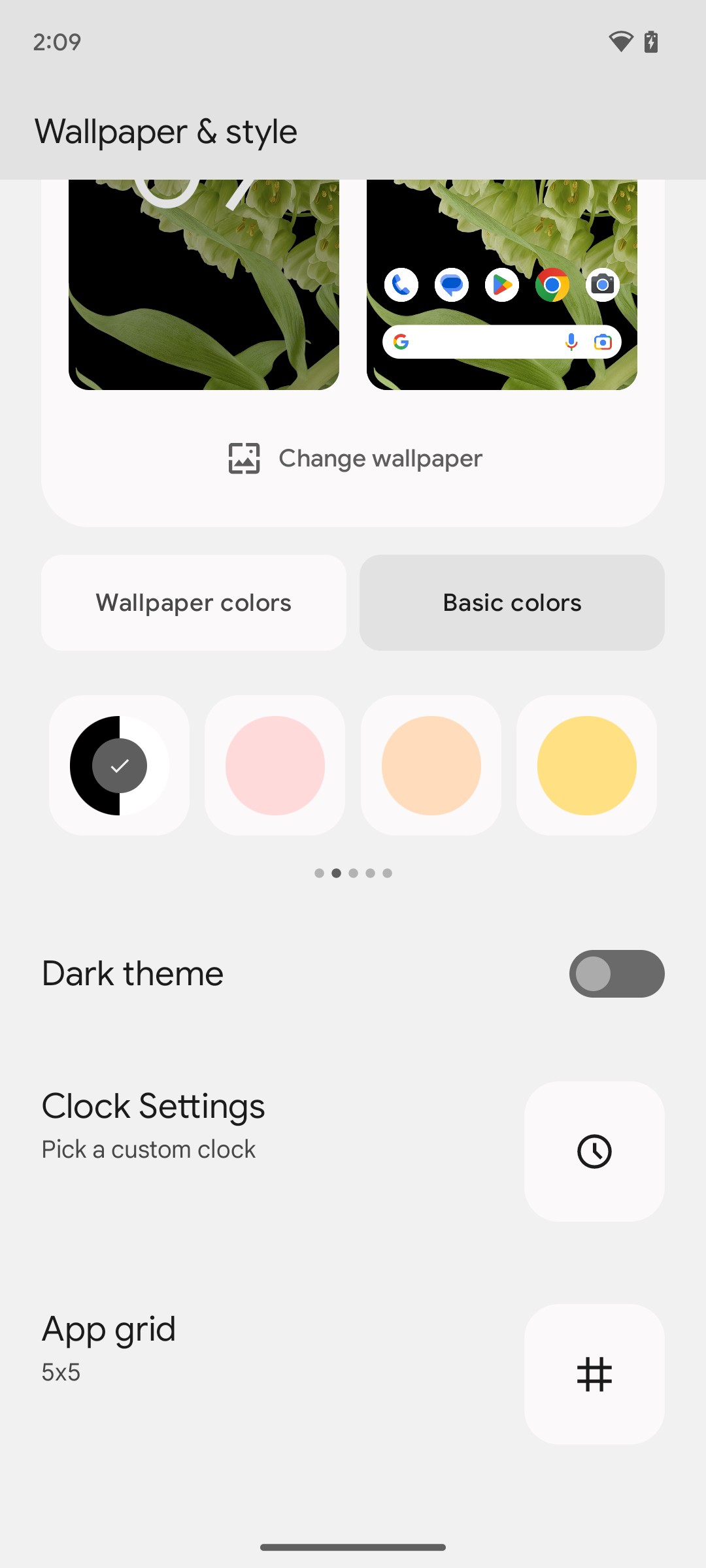
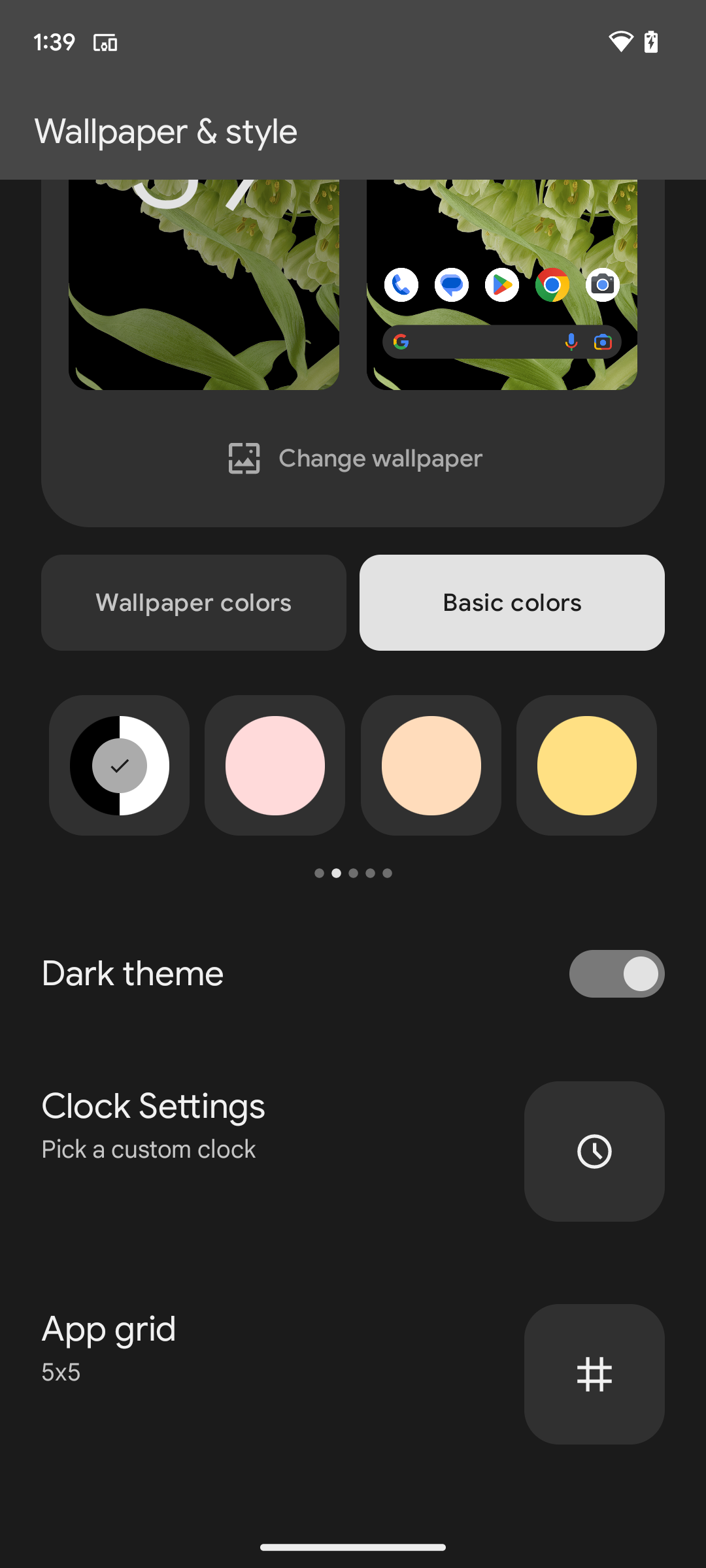
The monochrome theming option has returned to Wallpaper & style which overrides the default Dynamic Color settings. Instead of colorful Quick Settings toggles and menu panes, these areas will adopt a simple black or white color depending on whether you have the light or dark theme applied.
Separate Call and Ring volume controls
Although hinted at in a previous beta release, Android 14 Beta 2 has enabled separate Call and Ring volume controls for some users. This may still need to be enabled for many, but if you heading to Settings > Sound and vibration you will be able to adjust the volume at which you hear callers through the earpiece or the volume of your device ringer.
Cleaner app menu pop-ups
The expanded floating app menus that allow for quick access to specific in-app sections have also received attention in Android 14 Beta 2. When long-pressing an app icon you’ll see that dividing lines or separators are removed to clean up the look. This is more in-keeping with the Material You design principles but the pop-up section is also decreased slightly too.
Keyboard and language sections in System section
The Keyboard and Language sections have now been elevated within the System section of device Settings. Previously this was a combined “Languages & input” section that amalgamated all of the functions. This makes things easier to manage and less confusing.
Improved animations
Android 14 Beta 2 appears to refine and tune some of the animations that we’ve become accustomed to in our favorite mobile operating system. Swiping, scrolling and invoking menus just feels smoother than it did in previous builds. You can see some improvements to the pop-up customization menu in the Pixel Launcher too.
This floating panel fades in then pops into view rather than folding up as in Android 13. This looks cleaner and adds a little extra visual flair. It also mimics the Power menu animation when activating from the Quick Settings panel.
Flash notifications page enhanced
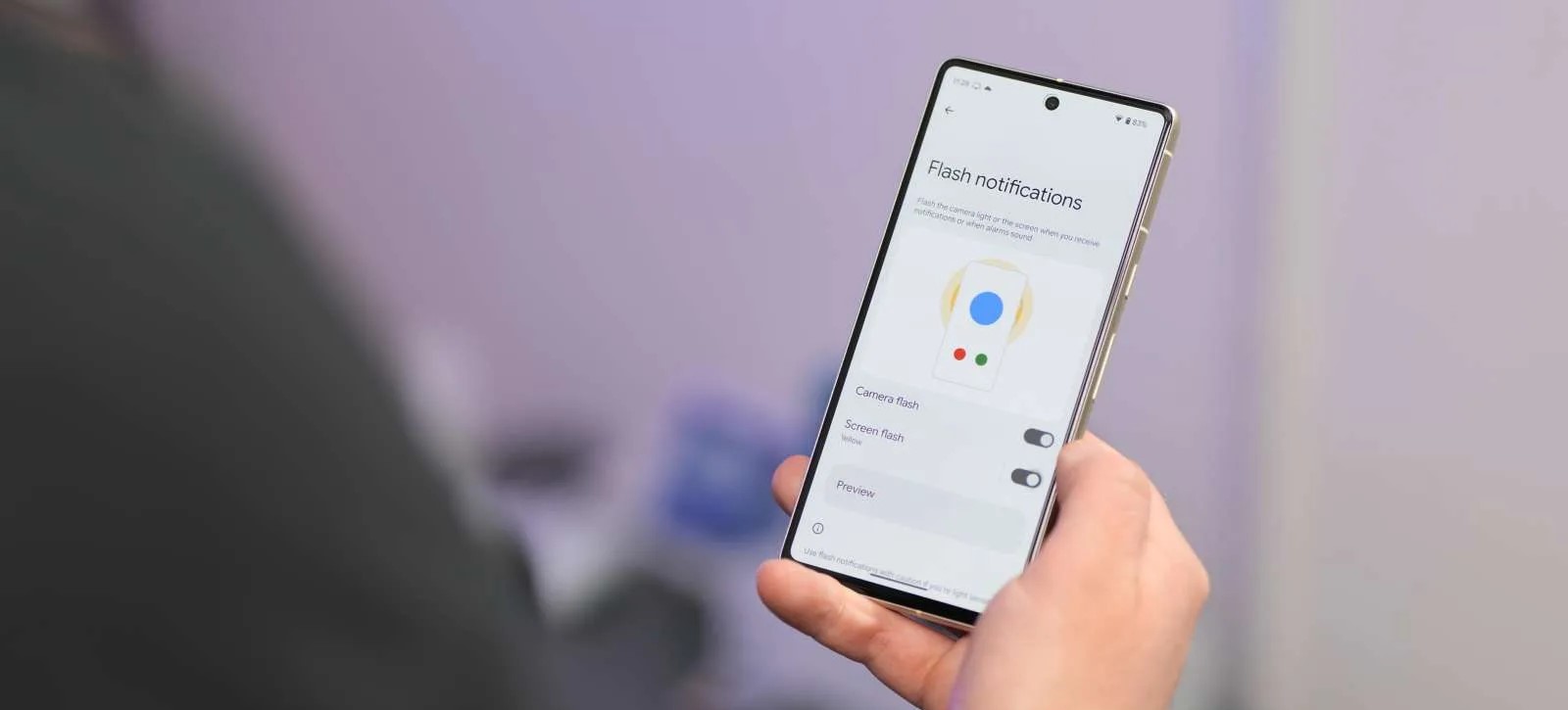
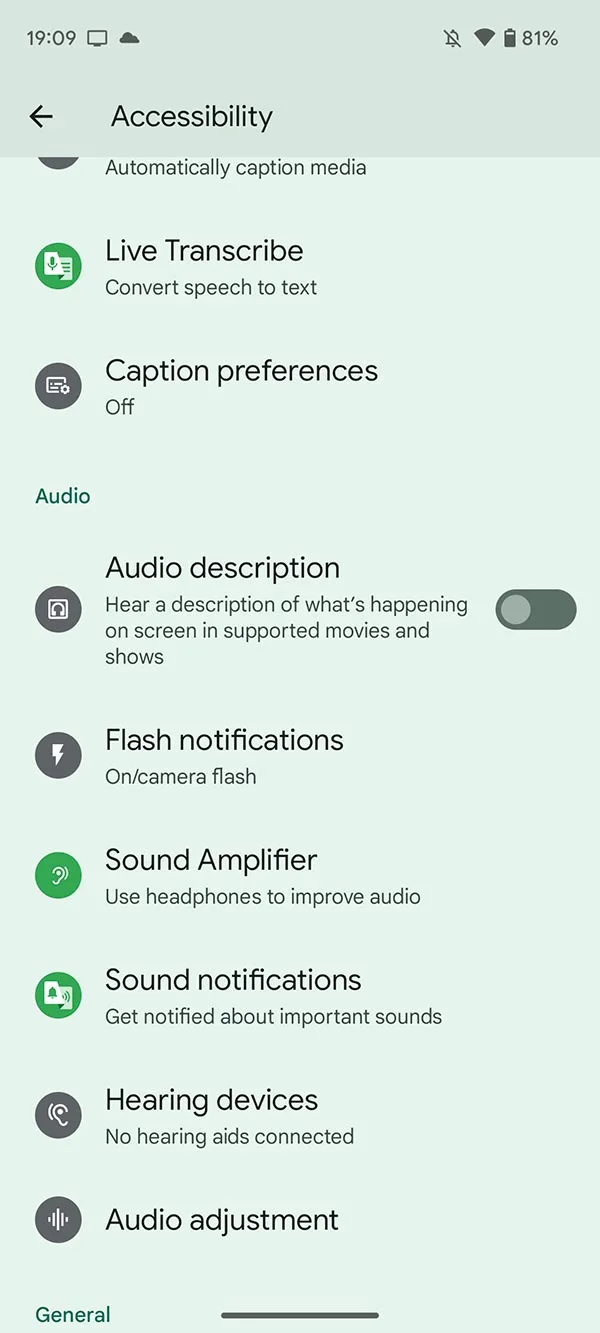
Added back in Developer Preview 2, the Flash notifications page now has an improved UI with a visual element to help you better understand the feature. The toggles are also simplified to “Camera flash” and “Screen flash” with the “Preview” button unaltered.
At a Glance widget alterations
Whether it’s a bug or just a tweak before we see more controls and functions, the popular At a Glance widget appears to have shrunk on some Pixel units with Android 14 Beta 2. It’s still prominent but with the text and icons smaller than in previous updates.
On the lockscreen with media playing, the widget has further changes. The temperature and weather condition icon join the date information while the forecast data now takes up two lines. A new “Daily forecast” text is prominent – likely to confirm that this is data from weather tracking agencies.
New Security & privacy logo in Settings
One cosmetic change you might not notice right away is a brand new “Security & privacy logo” in the Settings menu. The shield icon now has an “S” shape rather than a “check” icon.
Improved contrast control within Developer options
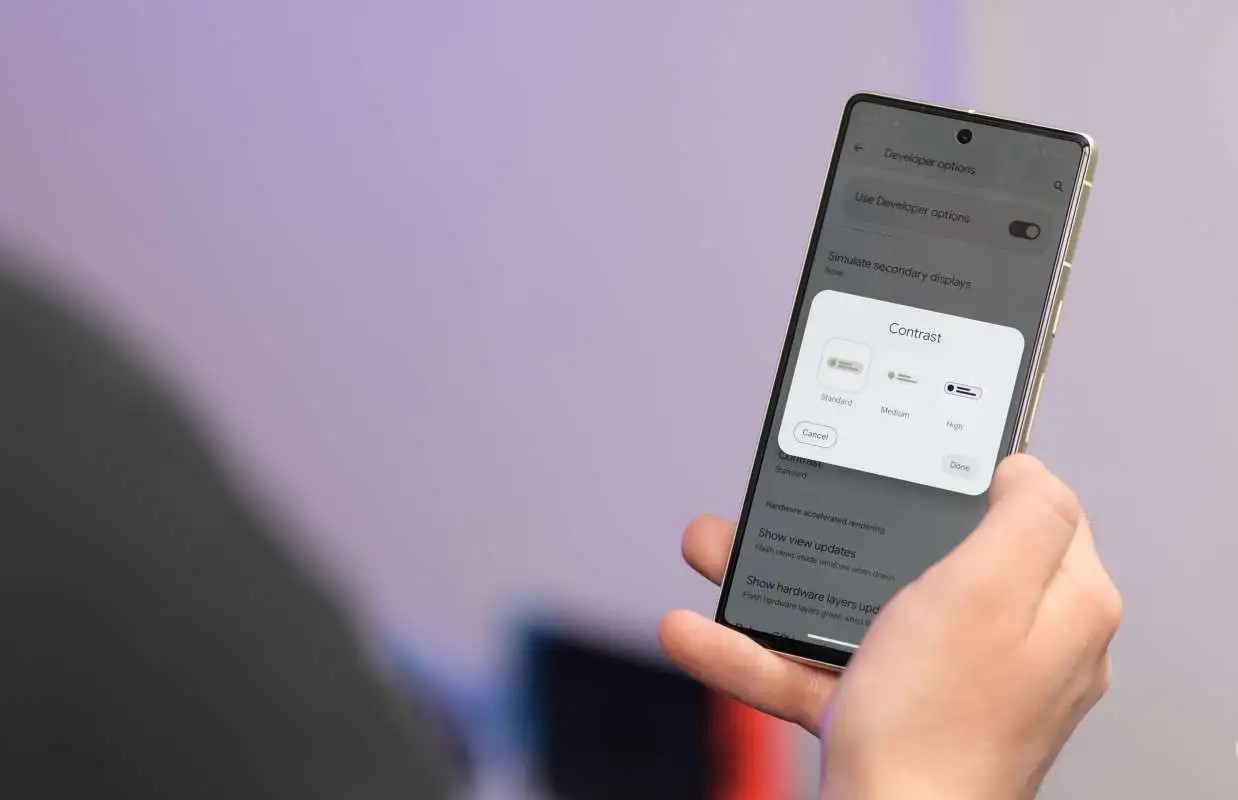
If you have Developer options enabled then you can try the enhanced “Contrast” control menu. Tapping this opens up a pop-up menu where you can choose from three options: Standard, Medium, and High. This looks like it will replace the touted contrast slider that would allow for better integration with your core color choices as part of the Material You and Dynamic Color theming system.
Floating Clipboard tool
The enhanced Android 13 clipboard tool is getting some love in Android 14 Beta 2 but it seems very much like a work in progress. If you invoke the clipboard editing tool and then copy text again from this window you can activate a mini floating clipboard tool. This doesn’t always work perfectly in our testing but might be a neat option if it gets further attention.
Font Quick Settings tile
If you want to quickly adjust or alter system font size there’s a new “Font” Quick Settings tile that allows you to increase text across all areas of your device. This saves the effort of diving into the “Display size and text” menu in Settings.
May 2023 patch
As the most recent public Android build, you can bet that the latest May 2023 security patch is also bundled in with the Android 14 Beta 2 update. This should make it more secure for anyone foolhardy enough to run this preview build on their device.
Android 14 Beta 2: What is your favorite new feature?
That’s everything new in Android 14 Beta 2. When combined with the original developer previews, there’s more to test drive on your device with more expected as the beta phase progresses. It’s important to note that our shortlist includes all of the top user-facing features that we’ve found at this stage.
We do expect to see more little things that might have slipped through the cracks over the coming days and weeks. We likely will have a deeper dive into every single thing that has been added, including some features that require a little work to get fully operational in our full overview, coming very soon.
As Google’s biggest show of the year, every I/O brings a ton of news. However, the stakes for I/O 2023 seem bigger, with announcements that could more thoroughly change how people use Google’s biggest products.
Google AI
Gmail, Docs, and Workspace
Artificial intelligence is, of course, responsible for this. Google has already shown generative AI features in Gmail and Google Docs, with testing already underway. Meanwhile, Google has briefly previewed bringing image generators into Google Slides and having Google Meet automatically create notes from a video call.
At I/O 2023, Google needs to provide a fuller picture of how AI will integrate into its Workspace apps beyond individual features. Equally important are details on a public launch and how they will be available to the (non-Workspace) public. The latter might be where Google One comes into play. For initial testing, it makes sense for features like those that have already been announced in Gmail and Google Docs to be free.
However, since generative AI is computationally expensive, it makes sense for Google to eventually put them behind a paid subscription. Today, 2TB or higher Google One tiers ($9.99+/month) provide premium Google Meet features like 1080p streaming and longer calls, and it would make sense for some (if not most) generative AI features to be locked behind that.
Search
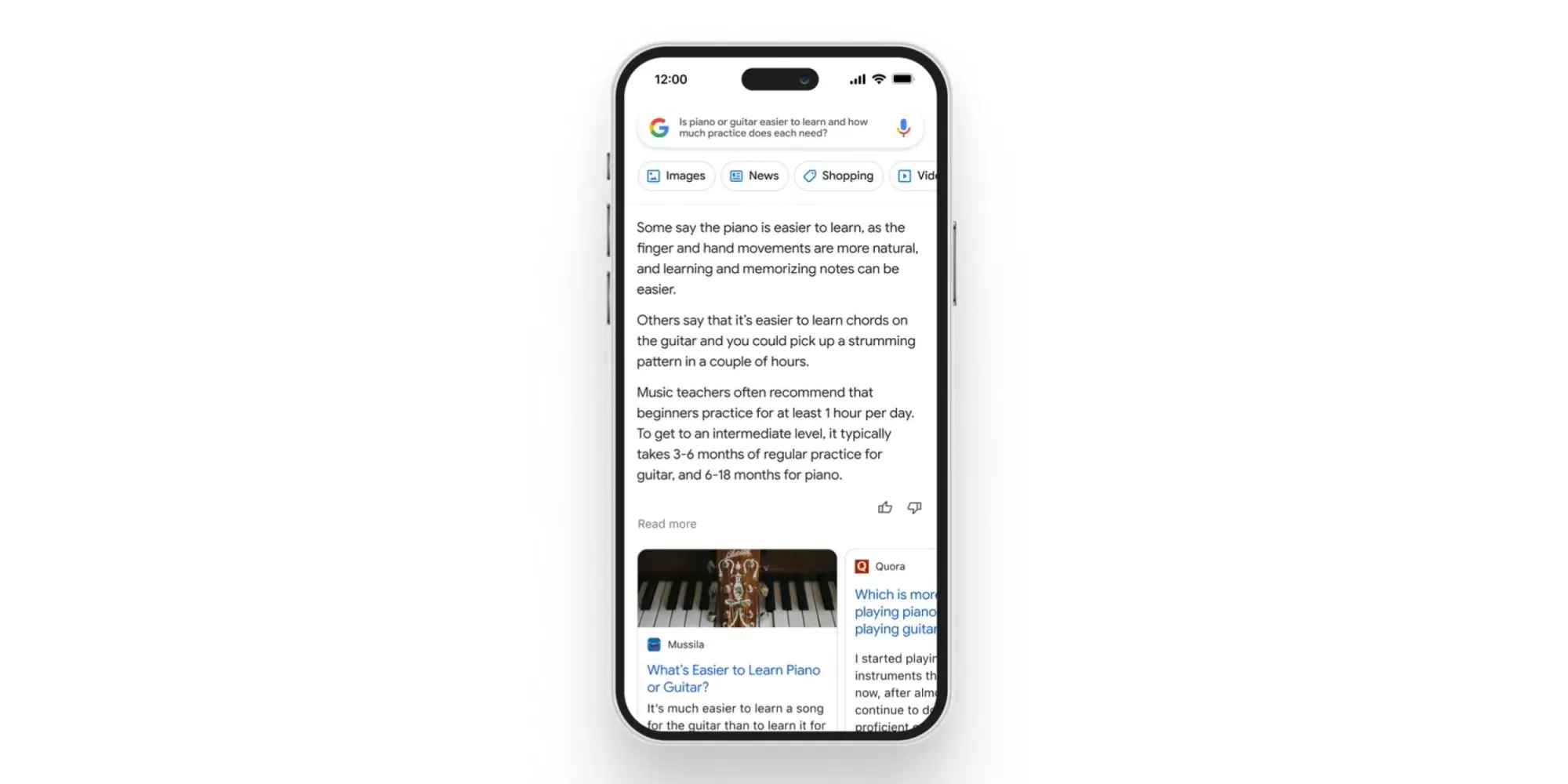
As Google’s crown jewel, many stakeholders will want an update on how AI is coming to Search. There’s, of course, the Wall Street crowd, while end users have shown that chatbot-style queries and answers are something they’re at least interested in. The company has already previewed AI Insights in Search when it announced Bard, but we need a fuller look at the end-to-end experience.
Chrome
Having a chatbot in Chrome that lets you ask questions about the page you’re currently viewing has been rumored and does indeed sound useful. As a significant entry point for how people use Google, a generative AI presence needs to exist in Chrome.
Assistant
Generative AI and its conversational nature seem ripe for voice assistants. As we’ve talked about in the past, Google Assistant is at an impasse, with its feature set shrinking. The team behind it is currently tasked with Bard development, so it’s unclear whether Google is at a point where it’s ready to announce upgrades. If it did, Google could position Assistant as being more capable than Siri or Alexa, while Microsoft expressly does not currently have a voice assistant.
For the sake of end users, I think Google needs to publicly recommit to Assistant at this I/O to assure them their devices still have a long future. It would be nice if the company provided an upgrade roadmap, but even assurances would be a start at this point after months of no real developments.
Developer tools
I/O’s roots are as a developer conference, and there will undoubtedly be AI stuff for that crowd. Of particular interest will be assistive tools in Android Studio to aid app development.
Android
Android 14
We will obviously be getting the major tentpoles for Google’s upcoming mobile release at I/O 2023, followed by Android 14 Beta 2 to hopefully test some of them out. So far, Android 14 feels like an iterative update that continues to build on Material You. For example, we spotted that bolder Dynamic Color theming is coming.
Android XR
Samsung teased an XR device (headset) running Android in February. We’ve yet to hear anything about the OS, and I/O would be the time to announce it (which also has the benefit of preempting Apple’s realityOS announcement this June). This starts the long road to third-party developer buy-in.
Google needs to share its vision for this form factor, both short and long-term. In the near term, bulkier headsets could allow for productivity and entertainment use cases. Glasses are the future, but until then, we need devices and an OS that will let developers start experimenting with these experiences. It was recently rumored that Apple’s upcoming headset will run iPad apps. Does Google have the same idea, thus providing another reason for Android pushing into large-screen development?
Wear OS
Wear OS 3 was announced in 2021, and we quietly got version 3.5 last year. The timing would be about right for Wear OS 4, which will in all likelihood coincide with an underlying upgrade to Android 13, which brings Material You.
Better Together: ChromeOS, Wear OS, Google TV
As of late, the Android team has been very big on cross-device experiences that emphasize the benefit of going all-in with the ecosystem. Earlier this month, Google released a Cross-Device Services app to power ChromeOS app streaming. We’ll presumably get a demo and launch date for that at I/O. We’re also waiting for the ability to unlock your Android phone with a paired Wear OS watch.
On the entertainment front, we’re waiting for more entertainment-focused Better Together initiatives. Previously, rumors have mentioned connecting Nest and third-party speakers to Google/Android TV devices, while easier-to-access smart home controls and other integrations are on the roadmap (for 2024). We’re also waiting for Fast Pair to arrive for Google TV and Android TV.
Find My Device
Somewhat related to Better Together and the Android ecosystem is Find My Device becoming a broader network that includes third-party accessories. Google has been laying the groundwork for this by saying it would be “encrypting and storing your device’s most recent location with Google.” Meanwhile, there have been persistent rumors of a Google-made tracker.
Made by Google
Pixel 7a, Tablet, and Fold
It seems like we’re back to immediate availability with the Pixel 7a. This was the case for Pixel 3a at I/O 2019 and seemed to be what Google was aiming for in subsequent years, but the world had other ideas.
We should finally get launch details about the Pixel Tablet a year after it was first teased, while Google will be entering a new hardware category with the Pixel Fold.
Last May 2022, Google gave an “early preview” of the Pixel 7 series and Watch, as well as a “sneak peek” of the Pixel Tablet, in what seemed to be a rather unprecedented teaser.
In the case of the phone, it allowed Google to really get ahead of leaks. Before I/O, there were only a pair of leaked renders that got some things about the design right. It was somewhat less successful for the Pixel Watch, which leaked in full (left at a restaurant) and even had an AMA, while the Pixel Tablet reveal dovetailed nicely with the large-screen Android app push.
Ahead of I/O 2023, the company could certainly replicate the strategy for the same reasons. These previews are meant to provide only a high-level overview. For the Pixel 7, it was the design and how the language introduced the year prior would continue but with a modified camera bar, as well as how a second-generation Tensor chip was coming.
The design of the Pixel 8 and 8 Pro have more thoroughly leaked via renders at this point, so Google would be covering the same ground and would get a chance to reveal the colors itself. It would be nice if a “Tensor G3” mention touched upon what the improvements actually are, while the thing everyone really wants to known is what the camera improvements will be, especially given that new sensor on 8 Pro.
The case for a Pixel Watch 2 teaser is somewhat more mixed. As a first-generation product, we don’t know what the update cadence will be. An annual cycle would make a great deal of sense if we look at the Apple Watch and Samsung Galaxy Watch, but the Fitbit Sense and Versa lines were refreshed every two years. The improvements for a Pixel Watch 2 would be obvious, with a newer chip, more activated sensors (SpO2 and skin temperature changes estimation), and a bigger battery.
I don’t expect the domed design to drastically change beyond maybe thinner bezels, with the band system at least staying for another generation to ensure accessory capability. A Pixel Watch 2 teaser would have to touch on some new hardware features, but I’m not sure Google would want to do that and break the high-level overview nature of these previews.
As always, another factor in doing teasers is possibly cannibalizing sales of the existing Pixel Watch and Pixel 7 series. Google doesn’t seem to mind or at least has different priorities, but it does seem wild to make the effective life span as the latest and greatest product be only 7-8 months.
I think a teaser would more significantly impact sales of the first-generation wearable. As a prospective buyer of the mid-cycle Pixel Watch, knowing that a second-gen was coming in the fall would give me pause if I wanted a more future-proofed purchase. Today’s version is fine and has a battery that can last you a full day, but it’s unknown how it will continue to perform, especially once major OS updates arrive.
Fitbit
After major removals with the promise of new capabilities on the horizon, Fitbit needs to start sharing the second part of its plan, from a redesigned app to new capabilities. I/O would be the time to do that. Meanwhile, Fitbit integration to show live exercise stats on Google TV has already been rumored to continue the Better Together tentpole.
Google Home
Besides the Google Home app currently being in Public Preview, the company teased a number of other features last year. This includes the web-based Script Editor and more grouping options with Custom Spaces. We’ll hopefully get more updates on that.
Android 14 Beta 1: You can now block apps from using full-screen notifications
The first new beta release of Android 14 went live earlier this week on Pixel phones, and with it a good number of forward-facing and behind-the-scenes changes. Included in that is a new setting in Android 14 that blocks apps from using full-screen notifications.
Buried within “Special App Access” settings in Android 14 Beta 1, there’s a new permission for managing “full screen intents.” This permission allows users to grant or deny apps the ability to display notification content in a full-screen view, such as alarms and meeting reminders, as well as calls and such.
Apps that use full-screen notifications and pop-ups will be listed on this page and seem to be allowed by default. Changing the setting will force the apps to revert back to a notification. This can be seen with the Clock app, as Mishaal Rahman pointed out, where the full-screen pop-up is swapped with a traditional notification.
Here's a before and after of what happens when you take away this permission from an app: pic.twitter.com/3Zhd8mNrSr
While this isn’t a permission you’ll likely need to mess with often – most of the apps listed in my case have never even used this functionality – it is nice to see. With this new setting, users get additional control over the experience, and can pull the plug on an app that’s potentially abusing this functionality.
Android 14 Beta 1: You can now force a ‘transparent’ navigation bar on all apps
On-screen navigation is one of the things that made earlier versions of Android unique, and as time has gone on, that feature has evolved. In Android 14 Beta 1, Google is finally addressing a long-standing complaint with the navigation bar appearance that finally forces apps to have a “transparent” navigation bar.
Android’s navigation bar has, for years now, supported the ability to change its color to match the app on screen or to be completely transparent and show content that is “behind” the navigation buttons or gesture bar. But, in many cases, there are apps that will simply default to a black space around the buttons or gesture bar, which is a bit annoying in certain cases.
In Android 14 Beta 1, Google is introducing a new developer option that forces a “transparent navigation bar” across the system, making all apps change the color of the navigation bar to match the app itself. Google calls this a “transparent” bar, explaining it as follows:
Make navigation bar background color transparent by default
And in the right situation, that is what will happen. In our testing, though, this isn’t what you’ll usually see.
Flipping on this setting (Settings > System > Developer Options > Transparent navigation bar) will set the navigation bar on a system level to be transparent. But in most apps that lack this functionality already, it will simply match the background color of the current app. Toggling this setting won’t apply a truly transparent navigation bar because text and UI elements under the bar won’t show in that area. We believe that apps will behave in this way when a particular app is not designed to render edge-to-edge. And, frankly, it’s not surprising, given this is a developer option and not a user-facing feature.
As of Android 14 Beta 1, this setting doesn’t seem to work super reliably, but we were able to see it in action in the Fitbit app’s “Readiness” page, which usually defaults to a black bar, as well as the Sam’s Club app and UPS app. All of those usually have a black bar at the bottom with a white app interface, but this setting turns the navigation bar white on all three. Turning the toggle back off reverted all of them to that previous state.
It’s not entirely clear whether or not Google will carry this feature through the final release of Android 14 later this year, but with so many wishing for a true transparent navigation bar option, we hope this is one Google not only keeps but works to expand.
You can skip the Android 14 Beta and stay on 13 QPR3 Beta Program
With Android 14 launching into beta today, Google is making some changes to the Android Beta Program. Instead of there being two simultaneous tracks for 13 QPR3 and 14, there’s now just one OTA beta channel.
If you were on the Android Beta Program before today, it was to test Android 13 QPR1, QPR2, and QPR3. Your phone should be running Android 13 QPR3 Beta 2.1 from last week, and it will be updated to Android 14 Beta 1:
If your device is already running Android 13 QPR3 or Android 14 Developer Preview, you will automatically receive an over-the-air (OTA) update to Android 14 Beta 1.
However, you can “choose not to update to Android 14 Beta 1, but remain enrolled in the program” and “continue to receive QPR3 Beta updates.” The latter presumably refers to Android 13 QPR3 Beta 3 in the next month or so, ahead of the June stable launch.
Choosing not to update simply means ignoring the Android 14 OTA. Additionally:
You can also opt out of the beta (ignore the downgrade OTA) and wait for the stable public release of QPR3 in June which will allow you to exit the program and get back on the public release without a data wipe.
While listed as a beta, it’s probably not wise to use Android 14 as your daily driver just yet. Beta 3 and later is usually a safer bet in terms of making sure nothing critical is impacted by pre-release software that’s still under active development.
Meanwhile, Pixel 4a will automatically stay on Android 13 QPR3 as the 2020 mid-ranger is not eligible for Android 14.
Lastly, the company says it will “have more to share at Google I/O on May 10th.”
Flash notifications on Pixel will let you emulate a notification LED
Android 14 Developer Preview 2 includes a “Flash notifications” function that will let Pixel owners emulate the long-lost notification LED in the upcoming build.
One of the most notable features that has been missing from many top-tier smartphones in recent years is the notification LED. Many OEMs have offered workarounds that utilize the camera LED flash to let you know when you have an unread or urgent notification waiting to be accessed.
One notable absentee has been the Pixel lineup, but this could change soon as Google has added the “Flash notifications” option within the Accessibility panel in Android 14 Developer Preview 2. This section could be useful for those with hearing impairments, as it’s an extra visual clue that you have a call, SMS, or general app notification incoming.
You can enable “Camera flash notifications” or “Screen flash notifications” independently or simultaneously by heading to Settings > Accessibility > Flash notifications. From this new menu, you can tweak and toggle the options and even get a preview of the options in action.
If you enable “Camera flash notifications” in Android 14 Developer Preview 2, when a notification is received, the LED flash on your Pixel camera system will turn on and off briefly. Google has gone a step further here too. The flashlight/torch toggle in Quick Settings will be highlighted to indicate something has been received and that you have camera flash notifications enabled.
This is similar to what is already available on iOS and some other Android devices. Sadly, Android 14 Developer Preview 2 offers no ability to tune or tweak this setting, at least at this stage. However, if you enable the “Screen flash notifications” option, you can choose a color in which your screen will flash from one of 12 options, all of which are bright neon-style hues for visibility.
These changes might not fully replace a true RGB-capable notification LED on your Pixel, but at least you’ll be able to get an extra visual representation of regular on-device notifications when Android 14 does eventually launch.
Android 14 DP2: Pixel phones gain monochrome theme, prep for custom clocks
As part of the second preview of Android 14, Pixel phones have gained a new monochrome Material You theme and are preparing to add custom lock screen clocks.
Since the launch of Material You with Android 12, Google has been steadily building upon that colorful foundation, adding things like color variations that use your wallpaper palette in new ways and preset themes that aren’t based on your wallpaper.
In the latter category, Android 14 DP2 introduces a new monochrome theme, marked by a black-and-white circle in the theme selector. As you’d expect, the theme saps all color out of Android’s menus and any Material You-compatible apps.
Besides looking kinda cool, the new monochrome Material You theme is actually added as an accessibility feature. I previously spoke with a person living with cataplexy; they noted that the colors of Google’s Material You themes would occasionally trigger seizures. For someone like that, a monochrome theme would likely go a long way toward making a Pixel phone more usable without disabling colors altogether.
Meanwhile, adding custom clocks to Pixel phones has long been a goal for Google, with work on it dating back to at least 2019. As seen in the screenshots above, it looks like the company is making another attempt at it with Android 14, as the Wallpaper & style applet includes a prominently placed option labeled “Clock Settings.”
The subheading reveals that this should allow you to “Pick a custom clock.” For now, however, this option does nothing, presumably because there aren’t any custom clocks installed from which to choose. As the custom clock option appears without needing to be forcibly enabled by our team, it’s quite possible that Google intends for the feature to launch as part of Android 14’s final release.
Another tidbit in Wallpaper & style that’s worth mentioning is a new bug related to Material You-themed icons. If you do a fresh install of Android 14 DP2 onto a device, rather than simply updating an already set up phone, the “Themed icons” toggle is not available. We’re not sure what the solution to this issue will be, though it will likely be fixed with a future DP2.1 update.
Android 14 DP2: Media player gains new animations and UI enhancements
Android 14 Developer Preview 2 is now available, and it wouldn’t be an early access build without Google making Media player tweaks.
The latest developer-focused build is the second such version of Android 14 that you can — and probably shouldn’t — flash on your eligible Google Pixel. Android 14 Developer Preview 1 didn’t tweak or tune the Media player which is used across the Quick Settings panel and lockscreen. This time, though, Google has made a number of small tweaks that will be noticeable right away.
A very minor animation tweak is visible when viewing the lockscreen media player. In Android 13, the player will slide up and expand into view into the Always-on display. Here in Android 14 Developer Preview 2, the Media player will slide down into view. It’s another minor change, but one that you’ll spot and wonder just what feels different.
That’s not all, as when interacting with the player controls you’ll see a wave glow animation effect to indicate that something has been accessed or activated. Google has also restored the glowing animation effect when audio is playing that was originally added in Android 13 QPR2 Beta 1. Both glow effects will use a complimentary color to the album art of the media being played, and this appears to work with most apps compatible with the Media player in Android 14 Developer Preview 2.
The changes continue with the media output switcher. This area will now show any nearby or available speakers and Cast-enabled devices; what’s more, the volume control slider now has a new icon to indicate that audio is muted on your device.
Passkeys are coming up soon as a way of using your phone and its biometrics in place of traditional passwords, and Android 14 is set to bring native support for passkeys to apps, including Dashlane.
In a blog post today, Dashlane explained that it will add native support for passkeys in Android 14. The upcoming version of Android unlocks support for passkeys within third-party apps, meaning that Dashlane likely won’t be the only app picking up support when the update debuts later this year. 1Password also announced support for passkeys recently.
Mobile platforms such as Android and iOS will require changes to enable third-party applications such as Dashlane to manage passkeys. These are the very changes that have been included in this developer preview of Android 14. The user can simply create a passkey using their fingerprint instead of entering a password. The fingerprint ties the authentication action to the user of the device, which prevents anyone else from creating and using passkeys on this specific device.
In a tweet, Dashlane also showed what passkeys will look like in its app on Android 14, with a system prompt appearing similar to what we see with biometric authentication in Android today.
Support for passkeys in Dashlane on Android will come with the final release of Android 14, which is currently scheduled to arrive around August of this year, barring any unexpected delays.
Android 14 release timeline matches last year’s pace, adds one beta
There are two developer previews, with the only other one coming in March:
Developer Preview 1 (February): Early baseline build focused on developer feedback, with new features, APIs, and behavior changes.
Developer Preview 2 (March): Incremental update with additional features, APIs, and behavior changes.
Like the last release, the Android 14 Beta will start in April, which is a month earlier than usual. Historically, the first beta launch is timed to I/O in May, after the consumer-facing features are announced on stage.
Platform Stability, with “final SDK/NDK APIs and also final internal APIs and app-facing system behaviors,” is coming in Beta 3. Google says, “From that time you’ll have several weeks before the official release to do your final testing.”
After that, in July, expect two more betas before the final release. There was no Beta 5 last year.
The final release looks set for August, with Google last year opting for a midmonth launch.
Beta 1 (April): Initial beta-quality release, over-the-air update to early adopters who enroll in Android Beta.
Beta 2 (May): Incremental Beta-quality release.
Beta 3 (June): First Platform Stability milestone including final APIs and behaviors. Play publishing also opens.
Beta 4 (July): Near-final builds for final testing.
Beta 5 (July): Near-final builds for final testing.
Final release: Android 14 release to AOSP and ecosystem.
More details on the Android 14 release timeline for developers is available here.
Android 14 prepares for physical keyboards and touchpad gestures
In its latest tweak to improve the experience of tablets and large-screen devices, Android 14 includes early work to better support physical keyboards and new gestures for touchpads.
For years now, Android tablet makers have offered keyboard accessories that can often be attached directly to a device, making it easier to use a tablet like a laptop. With Google’s recent efforts to improve Android for tablets, foldables, and more, it should be no surprise to see that Android 14’s Settings app includes a revamped menu for keyboard settings.
The new menu isn’t available by default (and isn’t guaranteed to launch with Android 14 this fall) but our team managed to forcibly enable it, to show the progress. On Android 13 today, the “Physical keyboard” menu is hidden away under System > Languages & input, but Android 14 moves this to System > Keyboard.
Inside, you’ll find the familiar option to enable/disable the on-screen keyboard when a physical keyboard is connected, along with the list of available shortcuts. What’s new here is the addition of a “Modifier keys” option, which allows you to remap a handful of common keyboard keys — Caps Lock, Ctrl, Meta, and Alt. Android users coming from ChromeOS may be particularly excited by the ability to remap Caps Lock, as Chromebooks typically have a Meta (or Search) key where Caps Lock is located.
Many keyboard accessories for tablets also include a touchpad/trackpad to offer the full laptop-like experience. Android 14 also includes preparations for new gestures you can perform through a touchpad. We haven’t yet enabled these gestures, but some of them should look familiar to anyone who’s deeply familiar with ChromeOS.
For example, on a Chromebook touchpad, you can swipe left-to-right with two fingers to go back one page. A three-finger swipe upward opens ChromeOS’s Overview, while four-finger swipes left or right quickly switch between desks. Digging deeper into Android 14, we’ve found descriptions of the new settings and how each touchpad gesture should work.
Like most platforms, Android will let you switch the direction of scrolling, tune the cursor’s movement speed, and enable/disable tap-to-click.
<string name=”trackpad_tap_to_click”>Tap to click</string>
As for the gestures, you’ll use a three-finger swipe left or right to go back, just like you can trigger the back gesture on a touchscreen from either side of a device. Quickly swiping upward with three fingers will bring you to the home screen, but if you swipe upward and hold, the Overview menu will open instead. As you may have guessed, a three-finger downward swipe will open Android’s notification shade.
<string name=”trackpad_go_back_summary”>Swipe left or right with three fingers</string>
<string name=”trackpad_go_home_summary”>Swipe up with three fingers</string>
<string name=”trackpad_recent_apps_summary”>Swipe up with three fingers, then hold</string>
<string name=”trackpad_notifications_summary”>Swipe down with three fingers</string>
Similar to ChromeOS, you can swipe left or right on the touchpad with four fingers to quickly switch between apps, just like sliding your finger on Android’s touch gesture navigation bar today. The final gesture introduced in Android 14 code involves tapping the bottom-right corner of the touchpad to get “more options.” It’s not entirely clear what this will do, perhaps acting similar to a right-click on ChromeOS or a tap-and-hold on Android.
<string name=”trackpad_switch_apps_summary”>Swipe left or right with four fingers</string>
<string name=”trackpad_bottom_right_tap_summary”>Tap the bottom right corner of the touchpad for more options</string>
Android 14 will show apps that your smartphone or carrier installed in the background
The first developer preview of Android 14 dropped yesterday, and it brought a handful of new features along with it. Under the hood, though, there’s more on the way, including the ability for Android 14 to show apps that were installed in the background by your smartphone manufacturer or carrier – or by potentially a malicious party.
“Bloatware” has long been a blight on Android smartphones, especially those sold through US carriers. It’s common for devices to be preloaded with a bunch of apps and games that don’t necessarily need to be there and are often duplicates of other apps anyway. It’s also not uncommon for apps to be added in the background, often without the user’s knowledge, by carriers or smartphone makers.
This could also be useful for finding out if a piece of malware or some other malicious party manages to install an app.
With Android 14, Google is making it easier for users to keep track of apps that were installed in the background, with the company specifically saying those apps might come from their “device manufacturer” or carriers. Google explains:
Your device manufacturer may install apps on your device in the background, or allow your carrier and other partners to do so.
Any apps listed here aren’t required for your device to function normally. You can uninstall apps you don’t want.
Next to each app, there’s an easy uninstall button, and apps are listed if they were installed in the background within the past six months.
The change was first highlighted by Mishaal Rahman, and our Dylan Roussel has also managed to get it up and running. His device, as seen below, shows Google Play Services for AR and Spotify in that list, which seems to be in error, perhaps as the feature isn’t finished just yet. But Inware was installed over ADB, which backs up the idea that malicious installations could be caught by this new tool.
Android 14 DP1: Dual-SIM can now automatically switch mobile data to the best option
Dual-SIM has been around for years, but it has always required users to manually switch their active choice for mobile data and SMS. But with Android 14, Google is adding the ability for Dual-SIM to automatically switch to the best mobile data option.
Introduced in Android 14 Developer Preview 1, a new option in SIM settings allows your phone to automatically switch between the two SIM cards, depending on when one has “better availability for calls and internet.”
This feature essentially allows users to designate a secondary SIM as a backup for when their primary line doesn’t have good coverage. At that point, Android will automatically switch mobile data over to the secondary SIM.
If you’ve ever used Dual-SIM on Android, you’re probably familiar with the juggling act that is trying to switch over to your other SIM card when mobile data is scarce on the usual choice. In theory, this new toggle should save a lot of time, and we’ll be curious to see how often it switches when Android 14 drops in full later this year.
Notably, this feature doesn’t have to be manually enabled and works immediately on Android 14 Developer Preview 1 when you have two SIMs on board (physical or eSIM).
Android 14 DP1 preps ‘Cloned Apps’ to easily duplicate apps
Hidden in the first preview of Android 14, Google is preparing “Cloned Apps” as a more official option for having duplicate copies of an app on your phone or tablet.
About APK Insight: In this “APK Insight” post, we’ve decompiled the latest version of an application that Google uploaded to the Play Store. When we decompile these files (called APKs, in the case of Android apps), we’re able to see various lines of code within that hint at possible future features. Keep in mind that Google may or may not ever ship these features, and our interpretation of what they are may be imperfect. We’ll try to enable those that are closer to being finished, however, to show you how they’ll look in the case that they do ship. With that in mind, read on.
On Android, it can sometimes come in handy to have multiple copies of a particular app installed, usually allowing you to be logged in to more than one account simultaneously. To do this today, you need to use a third-party app to create and manage a “Work Profile” on your phone/tablet, which creates a separate place to install apps.
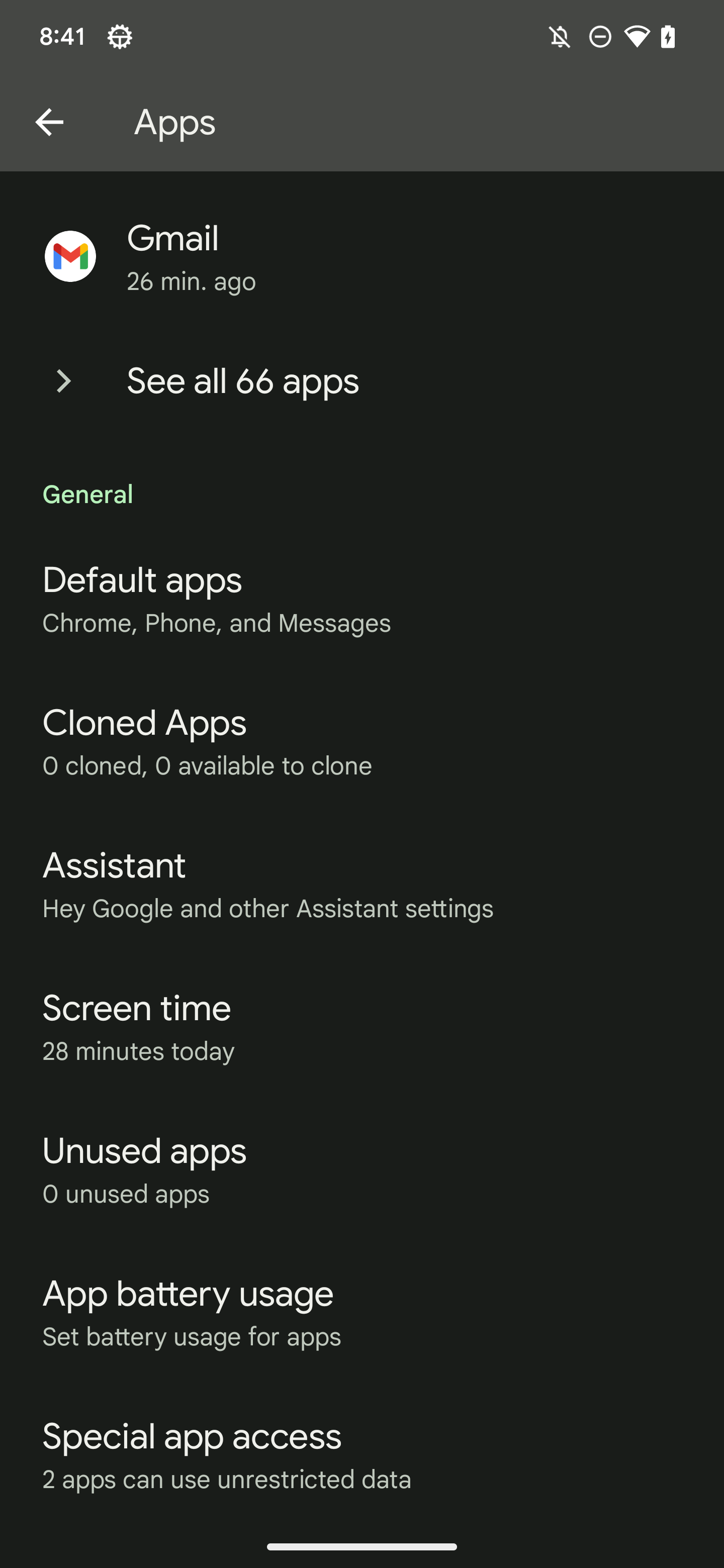
With Android 14 Developer Preview 1, we’ve found Google is preparing an official way to clone apps without needing any third-party apps or even a Work Profile. Instead, you’ll be able to head to the new “Cloned Apps” menu (seen below) and select which Android apps you’d like to duplicate.
Notably, Google and other manufacturers of Android 14 devices are able to choose the apps that are not allowed to be cloned. In the case of Pixel phones, Google is blocking many of its own apps from being cloned, including media apps like YouTube and YouTube Music.
Android Auto
Calendar (AOSP)
Camera (AOSP)
Chrome
Clock
Contacts (AOSP)
Files
Gallery
Gmail
Google Calendar
Google Camera
Google Contacts
Google Play Movies & TV
Google Search
Maps
MDS (Modem Diagnostic System)
Messages
Personal Safety
Phone
Photos
Pixel Tips
Play Store
Printer
Recorder
Stk (SIM Toolkit)
YouTube
YouTube Music
Android 14 DP1: Screen time is now prominently shown in battery usage stats
With the first developer preview of Android 14, Google is bringing back the ability to see screen time in battery usage stats.
Google redesigned the battery usage stats screen in Android 12, a change which led to quite a bit of confusion. Instead of showing battery usage since the last full charge, Google showed stats based on the last 24 hours.
The change was walked back in later updates, with the QPR1 update on Pixel phones delivering a change to show statistics from the last full charge instead of the last 24 hours. But even then, it was still somewhat difficult to see your screen time, which many use as a core metric to see how long their phone lasts in active use – there are, of course, many other contributing factors to battery life, but being able to see screen time is helpful nonetheless.
In Android 14’s first developer preview, Google has redesigned the battery usage page with a prominent “screen time since last full charge” section. It does, well, exactly what the name suggests.
While this might not be a big deal for everyone, it’s certainly a change that will be appreciated by enthusiasts.
The new page also now has a dropdown menu to show battery usage by apps or by system elements. This is technically unchanged from previous versions, the dropdown just makes it slightly more obvious on how to switch between the two sections.