




Fixing a Black Screen Samsung phone’s That Still Vibrates and Rings

Fixing a Black Screen Samsung Phone That Still Vibrates and Rings: 11 Powerful Solutions That Actually Work
Introduction
A Samsung phone with a black screen can be alarming, especially when the device still vibrates, receives notifications, and rings during incoming calls. This situation often leaves users confused because the phone appears to be functioning internally while the display remains completely dark.
Fortunately, fixing a black screen Samsung phone that still vibrates and rings is often possible without immediately replacing the device. The issue may stem from software glitches, display connector problems, physical damage, firmware corruption, or battery-related faults.
In this comprehensive guide, we’ll explain the causes, troubleshooting methods, repair options, and preventive measures to help you restore your Samsung smartphone.
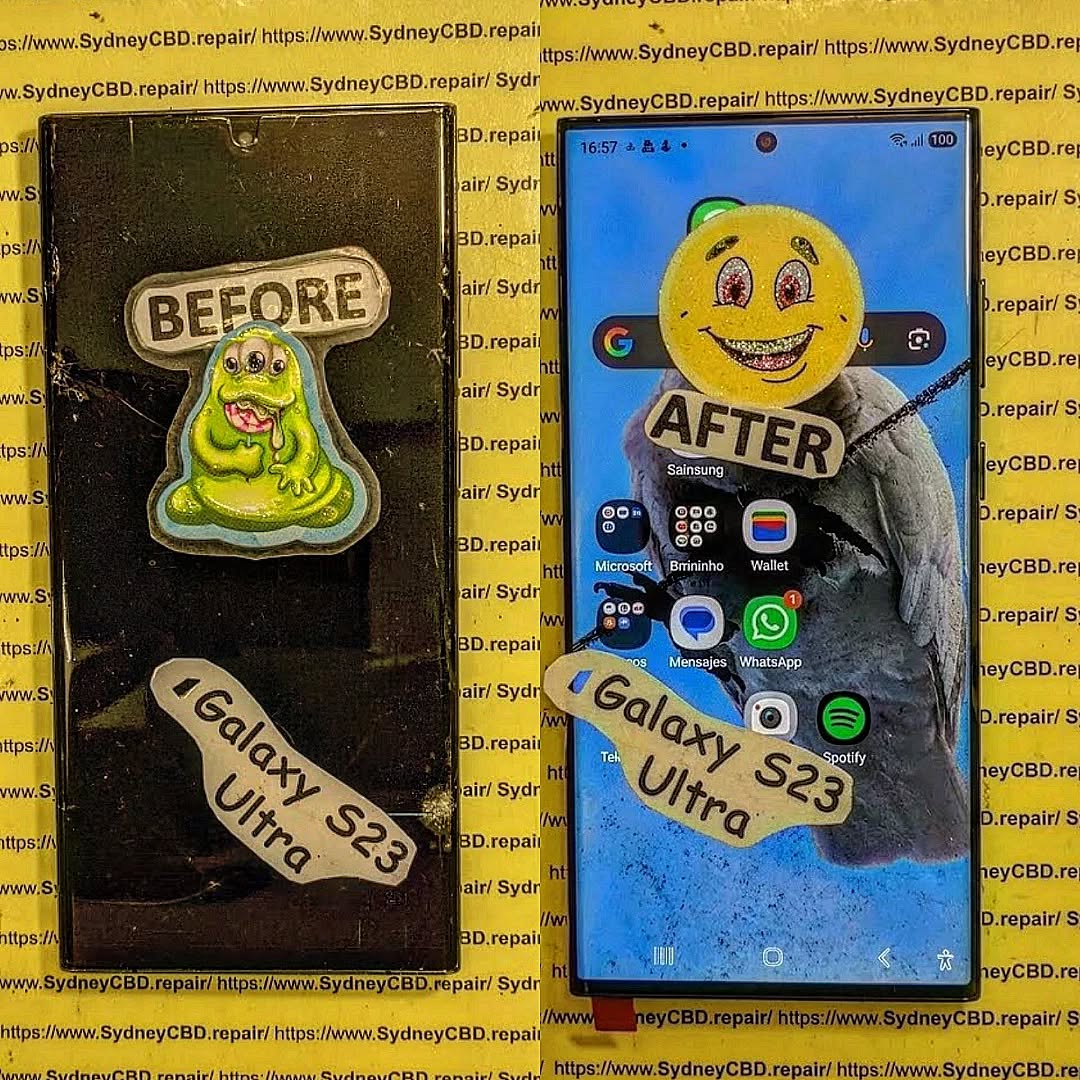
Understanding the Black Screen Problem
A black screen issue occurs when the display stops showing any visual output even though the phone itself remains powered on.
Typical signs include:
- Phone rings during incoming calls
- Vibration works normally
- Notification sounds continue
- Charging sounds are heard
- Alarm functions remain active
- Touchscreen may still respond in some cases
When fixing a black screen Samsung phone that still vibrates and rings, identifying whether the problem is software-related or hardware-related is the first critical step.
Common Symptoms of a Samsung Black Screen
Users often report the following symptoms:
| Symptom | Possible Cause |
|---|---|
| Completely black display | Screen failure |
| Flickering before going black | OLED damage |
| Samsung logo appears then disappears | Software corruption |
| Touch works but no image | Display IC issue |
| Vibrates but no screen | Loose display connector |
| Works after restart temporarily | Firmware bug |
Recognizing these signs helps narrow down the source of the problem quickly.
Why a Samsung Phone Vibrates and Rings but Shows No Display
Several factors can trigger this issue.
Physical Screen Damage
A cracked screen or impact damage may destroy the AMOLED panel internally while leaving the rest of the phone operational.
Even if the glass appears intact, the display underneath may have failed.
Software Crashes
Android occasionally encounters system-level crashes that prevent the display from initializing correctly.
This is one of the most common reasons behind fixing a black screen Samsung phone that still vibrates and rings without replacing hardware.
Display Connector Issues
A loose display flex cable can interrupt communication between the motherboard and the screen.
This often happens after:
- Drops
- Previous repairs
- Excessive pressure
- Manufacturing defects
Water Damage
Liquid exposure can corrode display circuits and connectors.
Even minor moisture ingress can eventually cause the screen to stop functioning entirely.
Initial Safety Checks Before Repair
Before opening the device or attempting advanced troubleshooting, perform these basic checks:
- Inspect for visible cracks.
- Check if the phone responds to charging.
- Listen for notification sounds.
- Try calling the device.
- Observe whether vibration feedback still works.
- Remove accessories and cases.
These steps help determine if the phone remains operational internally.
Solution 1: Perform a Forced Restart
A forced reboot is often the simplest and most effective fix.
Steps
- Press and hold:
- Volume Down
- Power Button
- Hold for 10-20 seconds.
- Wait for Samsung logo.
A forced restart clears temporary software crashes that may be preventing the display from loading.
Many users report success with this method when fixing a black screen Samsung phone that still vibrates and rings.
Solution 2: Charge the Device Properly
A depleted battery can sometimes cause display abnormalities.
Recommended Charging Procedure
- Use original Samsung charger.
- Charge for at least 30 minutes.
- Check for charging vibration.
- Observe LED indicators.
If the screen reappears after charging, battery calibration may have been the underlying issue.
Solution 3: Boot Into Safe Mode
Safe Mode disables third-party applications.
How to Enter Safe Mode
- Power off device.
- Press Power button.
- Release Power when Samsung logo appears.
- Hold Volume Down immediately.
If the screen functions in Safe Mode, an app conflict is likely causing the issue.
Common Problematic Apps
- Battery optimizers
- Screen filter apps
- Custom launchers
- Performance boosters
Removing recently installed applications may resolve the problem permanently.
Solution 4: Use Recovery Mode
Recovery Mode provides access to repair utilities without fully booting Android.
Enter Recovery Mode
- Turn off phone.
- Press:
- Power
- Volume Up
- Release when Samsung logo appears.
Recovery Mode allows advanced troubleshooting while preserving data.
Solution 5: Clear Cache Partition
Corrupted system cache can interfere with display initialization.
Steps
- Enter Recovery Mode.
- Select:
- Wipe Cache Partition
- Confirm action.
- Reboot system.
This procedure does not erase personal files.
Many Samsung users successfully resolve black screen problems using this maintenance step.
Solution 6: Update Firmware
Outdated firmware can cause display-related bugs.
Benefits of Firmware Updates
- Bug fixes
- Security patches
- Improved hardware compatibility
- Stability enhancements
Samsung regularly releases software updates to address known issues.
For official support information, visit the Samsung support website: Samsung Support
Solution 7: Check for Display Damage
Hardware failure becomes more likely if software troubleshooting fails.
Signs of Screen Failure
Black Ink Spots
Dark patches usually indicate OLED damage.
Green Lines
Vertical green or pink lines often precede total display failure.
Flickering
Intermittent flickering suggests a failing AMOLED panel.
No Backlight Activity
A completely dark screen despite phone activity may indicate display circuit failure.
Inspecting for these symptoms can determine whether repair or replacement is necessary.
Solution 8: Connect to an External Display
Many Samsung flagship devices support external display output.
Using Samsung DeX
Compatible devices can connect to:
- Monitors
- TVs
- Computers
If the external display works correctly, the motherboard is likely healthy while the screen assembly has failed.
This diagnostic step can save considerable repair costs.
Solution 9: Recover Important Data
Before pursuing extensive repairs, back up valuable data.
Data Recovery Options
Samsung Smart Switch
Useful for transferring files between devices.
Samsung Cloud
Restores:
- Contacts
- Photos
- Settings
- Notes
Google Backup
Recovers:
- Applications
- Messages
- Calendar entries
- Device preferences
Data protection should always be a priority before major troubleshooting procedures.
Solution 10: Factory Reset the Device
A factory reset removes deeply rooted software corruption.
Warning
This process erases:
- Photos
- Apps
- Messages
- Documents
Factory Reset Steps
- Enter Recovery Mode.
- Select:
- Wipe Data/Factory Reset
- Confirm selection.
- Reboot phone.
Only perform this step after backing up important files.
Solution 11: Seek Professional Repair
If all troubleshooting fails, professional diagnosis becomes necessary.
Common Hardware Repairs
| Repair Type | Typical Cause |
|---|---|
| Screen Replacement | OLED damage |
| Display Connector Repair | Loose flex cable |
| Motherboard Repair | IC failure |
| Water Damage Repair | Corrosion |
| Power Circuit Repair | Charging faults |
Technicians use specialized equipment to identify faults that cannot be detected through software troubleshooting.
Professional repair often proves more economical than purchasing a new phone.
Preventing Future Black Screen Issues
Preventive care significantly reduces the risk of display failures.
Use a Quality Protective Case
Cases absorb impact energy during drops.
Install Tempered Glass Protection
Screen protectors reduce damage from scratches and minor impacts.
Avoid Excessive Heat
Heat accelerates OLED degradation and battery wear.
Keep Software Updated
Regular updates improve stability and security.
Avoid Low-Quality Chargers
Poor-quality accessories may cause voltage irregularities that affect internal components.
Protect Against Moisture
Water resistance has limits. Avoid exposing the device to liquids whenever possible.
Following these habits extends the lifespan of Samsung smartphones considerably.
Frequently Asked Questions
1. Why is my Samsung phone black but still ringing?
The phone is likely functioning normally, but the display system has failed due to software corruption, connector issues, or screen damage.
2. Can a black screen fix itself?
Occasionally, temporary software crashes resolve after a forced restart. Hardware failures generally require repair.
3. Will a factory reset fix a black screen?
If software corruption is responsible, a factory reset may restore functionality. Hardware issues won’t be resolved through resetting.
4. How much does Samsung screen repair usually cost?
Costs vary depending on model, region, and damage severity. Premium Galaxy devices generally require more expensive display replacements.
5. Can I recover data from a Samsung phone with a black screen?
Yes. Samsung Smart Switch, Samsung Cloud, Google Backup, and external display connections often allow data recovery.
6. Is a black screen always caused by a broken display?
No. Software crashes, firmware corruption, battery issues, and motherboard faults can produce similar symptoms.
7. Can water damage cause a black screen later?
Yes. Corrosion can develop gradually after exposure, leading to delayed screen failure days or even weeks later.
8. Should I repair or replace my Samsung phone?
If the device is relatively new and otherwise functional, repair is often the most cost-effective option.
Conclusion

Fixing a black screen Samsung phone that still vibrates and rings begins with understanding whether the problem originates from software or hardware. Forced restarts, Safe Mode, Recovery Mode, cache clearing, firmware updates, and factory resets can resolve many software-related issues. However, physical screen damage, connector failures, and motherboard faults typically require professional repair.
By following the troubleshooting steps outlined in this guide, users can accurately diagnose the issue, protect their data, and make informed repair decisions. In many cases, a seemingly dead display can be restored quickly, allowing the device to continue serving reliably for years to come.
David from Sydney CBD Repair Centre – The Best place to fix mobile phones as 7 Years In A Row! Top Mobile Phone Repair In Sydney. More than 2000 Positive Reviews on Google and Same Day Repairs.
We take pride in delivering exceptional repair services for all major phone brands including Apple, Samsung, Google, and more. Our expert technicians use only genuine parts and offer 90days warranty on repairs. Located in the heart of Sydney CBD, we’re your one-stop solution for all mobile device repairs.
Our commitment to excellence has earned us the trust of thousands of satisfied customers. Whether it’s a cracked screen, battery replacement, or water damage repair, we handle it all with professional care and expertise. Walk in today and experience why we’re Sydney’s #1 choice for mobile phone repairs.
Visit us for:
✓ Same Day Express Repairs
✓ Genuine Parts Guarantee
✓ Professional Technicians
✓ Competitive Pricing
✓ 2000+ 5-Star Google Reviews
✓ 7-Time Award Winner for Best Phone Repairs
Sydney CBD Repair Centre – Where Quality Meets Reliability.
Call : +61280114119
Website: Sydney CBD Repair Centre

