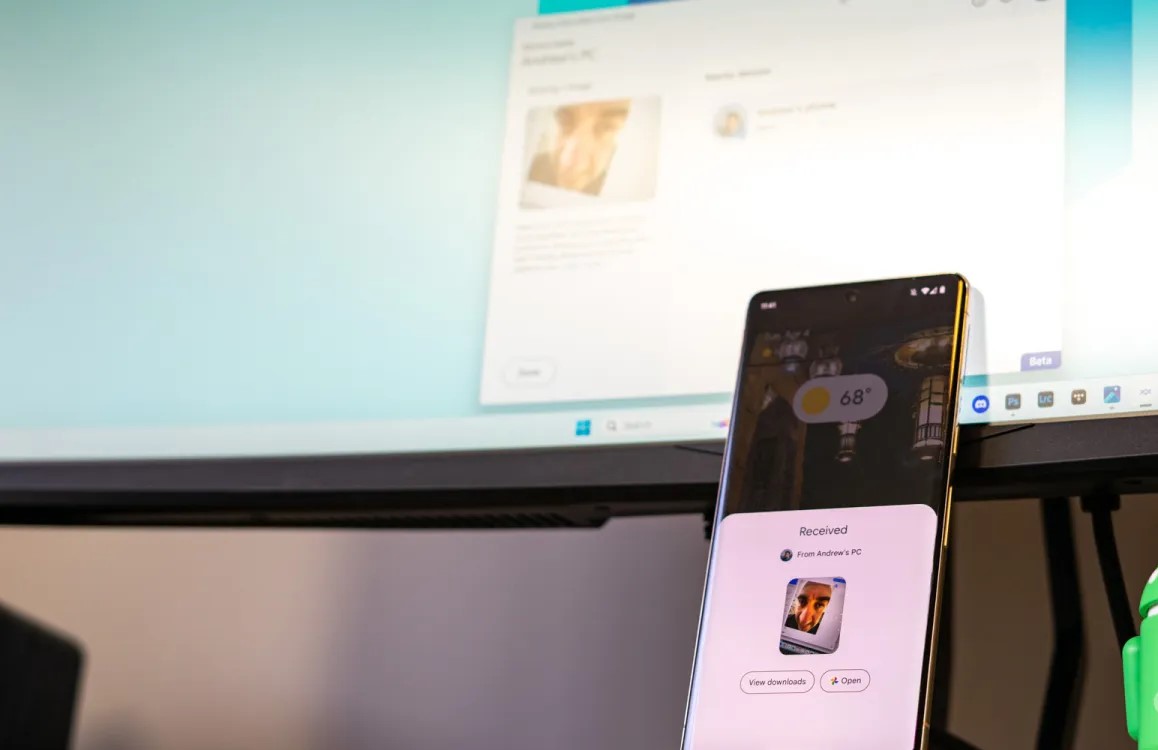
Initially arriving as a handy way to send files between Android devices, Nearby Share has expanded to support Chromebooks and even Windows PCs (Mac is not yet supported). Like AirDrop, it’s easy to send files to yourself or friends, while there’s also an option to receive files from anyone.
For whatever reason, it seems that Google is preparing to ditch the “Nearby Share” branding that the company has used since 2020. The news comes courtesy of Kamila Wojciechowska on Twitter/X.
💦It seems like Google's renaming Nearby Share to… Quick Share, which is also the name for the Samsung's file sharing solution? uhhhhh
Today I received a GMS update to the version 23.50.13 and, soon after that, the notification from the screenshot above. The update as well as… pic.twitter.com/RkobYEMIw4
After installing the latest beta update to Google Play services (version 23.50.13), a notification reportedly appeared informing of the rebranding. Alongside the new “Quick Share” name, the service has also been given a new icon consisting of two arrows pointing at each other with semicircular tails. The new icon even appears in the Quick Settings tile on Android devices. The previous icon resembled two opposing arrowheads/boomerangs woven together.
Nearby Share is now Quick Share
Look for the new name and icon to share with nearby devices
This change appears to only be a visual one, as otherwise, the service seems to still function exactly as it did before.
That said, it’s interesting that Google has chosen to use the name “Quick Share,” a moniker that currently Samsung uses for its own file-sharing utility on Galaxy phones. It’s currently unclear if Samsung’s Quick Share has anything to do with Google’s rebranding of Nearby Share.
As this change is currently only appearing in a beta version of Play Services, it will likely be a few more weeks before Nearby Share is widely rebranded to Quick Share on Android devices.
With Android 14, Google removed the ability to long press an icon on the homescreen to quickly see notifications from that app.
Previously, you’d be able to see any available notifications from an app by holding down on the icon in the launcher or grid. Only one was shown in its entirety with a counter in the corner if there were more. Besides opening it from there, you could also swipe it away.
This was useful if your notification tray was overflowing with alerts, while it went hand-in-hand with the notification dot, which continues to feel like an iOS trait more than an Android one.
In Android 14, long pressing on an icon just shows app shortcuts, as well as App info, Pause app, and Widgets. In fact, now that notifications no longer appear there, Google made it so that those three shortcuts appear as a full list at the top instead of being merged together. The Android team presumably decided to remove notifications and then introduced the tall list.
Android 13 vs. 14
This change was brought up during the Android 14 Beta Program over the summer. In August 2023, Google said the removal of notifications was the new intended behavior and that it “won’t fix.” There’s no reason behind this change, but the company presumably has usage stats.
With the stable launch of Android 14 on Pixel last month, there have been over a hundred new comments requesting the capability be brought back.
Personally, I didn’t notice the removal and have never used that app menu for anything beyond shortcuts and quick access to the App info page. Most users are presumably all in on the notification tray. However, Google does not seem to really be doing anything major with the app long press menu in Android 14, so the restoration of notifications doesn’t seem like it would be overly disruptive.
In November, Google started the Android 14 QPR2 preview earlier than expected, and Beta 2 is now rolling out for Pixel phones, Fold, and Tablet.
Following the launch of QPR1 at the start of December, QPR2 is expected to hit stable in March. The preview program for that next release and Pixel Feature Drop should have kicked off this month. Instead, it started in mid-November and was followed by a .1 patch less than a week later.
QPRs are relatively stable and launch as betas rather than developer previews. Google officially says they are “suitable for general use.” Known issues include:
Sometimes when a user unlocks the device using their fingerprint, there is no haptic feedback.
For Pixel Fold devices, sometimes after a user unlocks the device while it’s folded, the inner display doesn’t turn on after unfolding the device.
The Assistant At a Glance widget sometimes displays weather information for the wrong location.
Google identifies the following fixes in AP11.231117.006 with the December 2023 security patch:
Fixed an issue where battery usage information that was reported in system settings was sometimes incorrect. (Issue #312121998)
Fixed an issue where the fingerprint icon on the lock screen would sometimes display before other information had loaded in always-on display mode. (Issue #311265905)
Fixed an issue that sometimes caused the biometric prompt to crash, causing it to be dismissed before a user could interact with it.
Fixed an issue that sometimes caused the Internet Quick Settings tile to indicate that there was no Wi-Fi connection, even when the device was connected to a Wi-Fi network.
The Android Beta Feedback app is available on Pixel devices to submit bugs. You can access it from the app drawer or via Quick Settings to file bugs in the Google issue tracker, while the Android Beta community is on Reddit.
Android 14 QPR2 Beta 2 is available for the Pixel 5a, Pixel 6, Pixel 6 Pro, Pixel 6a, Pixel 7, Pixel 7 Pro, Pixel 7a, Pixel Tablet, Pixel Fold, Pixel 8, and Pixel 8 Pro, as well as the Android Emulator.
Most people will install it via the Android Beta Program, but you can also flash or sideload the update.
With the November security patch, Google today is rolling out the first update to Android 14 since launch for the following Pixel devices: 4a 5G, 5, 5a, 6, 6 Pro, 6a, 7, 7 Pro, 7a, Tablet, Fold, 8, and 8 Pro.
There are 17 security issues resolved in the Android 14 November patch dated 2023-11-01 and 22 for 2023-11-05. Vulnerabilities range from high to critical. The dedicated bulletin for Google devices lists eight additional security fixes. As of today, there are just global builds.
Google lists seven fixes across Display & Graphics, NFC, System, User Interface, and Touch.
Of note, the 4a 5G and 5 are still seeing updates. While the Pixel 5 technically met its “guaranteed security updates” date in October, the 4a 5G doesn’t hit it until November. Google might as well update both. The Pixel 4a also sees another Android 13 ipdate.
Monthly Pixel security bulletin now includes changelog of ‘Functional updates’ & fixes
Several months ago, Google added a section in the main Android Security Bulletin that listed patches specific to Pixel and Nexus devices. For October, that list was broken out into a dedicated “Pixel / Nexus Security Bulletin.” With the November patch, Google has added a section detailing “Functional updates” like bug fixes for its devices.
After listing the various security issues that have been patched for Pixel/Nexus devices, Google displays a new section called “Functional updates” or “issues not related to the security of Pixel devices.”
These updates are included to address functionality issues not related to the security of Pixel devices. The table includes associated references; the affected category, such as Bluetooth or mobile data; and a summary of the issue.
Notably, it only references “Pixel devices,” though this changelog of sorts does not specifically identify any particular phone or tablet, leaving the original Pixel, Pixel 2, and Pixel C as possible recipients of these fixes.
Each entry includes a description of the “Improvements” and a category, like Audio, Bluetooth, Camera, Mobile data, and Stability. There are also reference numbers, though it does not correlate to any publicly accessible bug tracker.
In November, 12 items are listed, with the bulk related to Bluetooth, including resolving issues related to cars and general pairing.
This is a very good step towards transparency and provides a centralized repository to list what has been resolved. In the past, Google has relied on posts in the User Community. This comes as the Pixel 2 and Pixel 2 XL are due for a slate of fixes for display issues, high-pitched noises, and clicking sounds.
There are 34 bug fixes in U1B2.230922.013, which is still on the October 2023 security patch. This release is available for all devices out of the gate, with the on-device Android 14 QPR1 Beta 2.2 OTA coming in at 40.35 MB on a Pixel Fold.
There’s a fix for the pink text issue on the Pixel 8 Pro AOD.
Fixed an issue that sometimes prevented devices from receiving calls. (Issue #298747690)
Fixed an issue where tapping or long-pressing a Quick Settings tile sometimes failed to launch the corresponding app or settings menu. (Issue #302147272)
Fixed an issue that sometimes caused the Settings app to crash when checking for system software updates. (Issue #303739210)
Fixed an issue that sometimes caused the Camera HAL to apply the wrong tuning profile when an app requested a certain camera mode.
Fixed an issue that sometimes caused the system UI or device to crash if accessibility magnification mode was toggled rapidly.
Fixed an issue that sometimes caused the package installer to crash due to a null pointer exception.
Fixed an issue that sometimes caused the system launcher to crash due to a null pointer exception.
Fixed an issue that interfered with Bluetooth and Wi-Fi connectivity until the device was rebooted.
Fixed issues with Face Unlock reliability.
Fixed an issue that sometimes caused the device unlock animation to stutter.
Fixed an issue that sometimes caused the screen to flicker when transitioning from always-on display mode to the lock screen.
Fixed an issue that caused the animation to display incorrectly when a user gestured to open the notification shade.
Fixed an issue that sometimes caused the system UI to crash or consume more memory than necessary.
Fixed an issue that caused the picture-in-picture window to stop displaying with rounded corners after locking and unlocking the device.
Fixed an issue that sometimes caused device-to-device transfer data to be saved to an incorrect account.
Fixed an issue that caused some UI elements to render incorrectly when the device font scale was increased.
Fixed an issue that sometimes caused the work profile badge for an app icon to be displayed in the wrong place while viewing the list of recent apps.
Fixed an issue that caused some text to display in the wrong colors when always-on display features were enabled.
Fixed issues that sometimes caused a device to crash and reboot.
Fixed an issue where additional power was still being consumed by mobile network connectivity even after a device connected to Wi-Fi.
Fixed an issue where audio failed to play back or was interrupted if Adaptive Sound was enabled.
Fixed issues with audio playback when using spatial audio.
Fixed an issue that sometimes caused Wi-Fi service to be interrupted and fail to connect until the device was restarted.
Fixed an issue where the battery level in the status bar sometimes displayed temporarily as 0%.
Fixed an issue for Pixel Fold and Pixel Tablet devices where the “All Apps” button on the taskbar was slow to appear immediately after launching an app.
Fixed an issue for Pixel Fold devices where the lock screen was sometimes still displayed if the device was unlocked and unfolded at the same time.
Fixed an issue for Pixel Tablet devices where a primary user’s live wallpaper selection would sometimes be overridden after a secondary user selected a different live wallpaper.
Fixed an issue for Pixel Tablet devices that caused an unsmooth animation when tapping to return to an app from the list of recent apps.
Fixed an issue for Pixel Tablet devices that caused audio to pop when adjusting the volume if a wired headset was connected.
Fixed an issue for Pixel Tablet where a user was returned to the Home screen instead of the app that was open when the device was locked if they unlocked the device using their fingerprint while a screen saver was active.
Fixed an issue that caused memory corruption in rare cases.
Fixed various issues that were impacting system stability, performance, and connectivity.
Most will install via the Android Beta Program, but you can also flash or sideload. If you need help, here’s our full guide on installing Android 14. Google says:
Your device will be automatically updated to Android 14 QPR1 Beta 2.2 within 5 days.
Depending on the device, this issue can result in the primary user being unable to access media storage. Alternatively, the issue can reboot the device with a “Factory data reset” message. If this message is accepted, data that is not backed up can be lost, and if it is declined, the device repeatedly reboots with the “Pixel is starting” message.
Google starts by saying that this storage issue impacts the “Pixel 6 and later models” that “have both received the Android 14 update and have multiple users (other than the primary user) set up.” This includes “users, guests, restricted profiles, and child users,” but not simply having more than one Google Account signed in “within the primary user or work profiles.”
The company has already rolled out a Google Play system update to “help prevent this issue from being triggered on additional devices.” To install, open Settings > Security & privacy > System & update > Google Play system update. The latest version we’re seeing today is October 1, 2023.
For those currently “unable to access media storage,” Google is working on a system update that “will repair the issue and restore access to media files without requiring a factory reset.”
Google is also “investigating methods that may be able to recover some data” for devices in a “Pixel is starting” boot loop. However, this seems more tentative: “We’ll provide more information as soon as it is available.”
For all other users, including those that factory reset their device, Google says to avoid “creating or logging into a secondary user on the device until the OTA update is available.”
Google ends with an apology:
We’re sorry for the inconvenience this has caused, and we appreciate your patience.
Android 14 breaks storage on Pixel 6 phones with multiple user profiles
Android 14 is a solid update to Google’s smartphone OS, but the update does seem to be causing some significant issues regarding user profiles on Pixel 6 series devices.
Following the update to Android 14 that rolled out earlier this month, some Google Pixel 6, Pixel 6 Pro, and Pixel 6a owners are seeing some considerable issues with their devices, specifically around storage becoming unusable. A growing number of users across Google’sforums, Reddit, and elsewhere reporting that their Pixel 6 and Pixel 6 Pro devices are drastically hindered, to the point of breaking most tasks users would perform on their devices.
The storage problem takes effect if the user, before installing Android 14, had multiple profiles on the device.
Following the installation of Android 14, the main profile on a Pixel 6 series device seems to lose access to storage, which prevents users from taking photos or videos, downloading files, and both installing or uninstalling applications. However, on the second profile, things seem to work as expected.
Other limitations include that apps report the device as having no available storage, Google Photos can’t refresh a user’s library (only showing low-quality previews), and files can’t be accessed via USB from a connected PC, as one of our readers explained in an email.
Given that Android’s user profiles are more of a niche feature on smartphones (primarily used for personal and work profiles), this issue doesn’t appear excessively widespread, but the symptoms of the problem are affecting users pretty consistently.
Google has, so far, not offered any solution for this issue or public statement.
Exactly two weeks after the previous release, Android 14 QPR1 Beta 2.1 is rolling out today with a handful of bug fixes, but the Pixel 8 and 8 Pro aren’t getting updated right away.
There are just three fixes for Pixel devices, which are getting U1B2.230922.010 today with the October 2023 security patch:
Fixed issues with biometric authentication, such as an issue that sometimes prevented the under-display fingerprint sensor from activating while always-on display features were enabled.
Fixed an issue where, in some cases after swapping SIM cards on a device, the device couldn’t connect to cellular service.
Fixed various issues that were impacting system stability and performance.
Google says the “Pixel 8 and 8 Pro will receive this update at a later time.” The initial Beta 2 update rolled out a week ago.
The OTA and factory images are now available, while the on-device OTA is also rolling out immediately (66MB on the Pixel Fold and 7 Pro).
Google wants every Android version to be ‘higher quality than the previous release’
Dave Burke, VP of Engineering for Android, was interviewed during The Android Show today and shared a lot of interesting tidbits, especially around quality and performance.
In the context of Android releases, Burke considers quality the “number one feature” given how much we use our phones:
If you think about how much we depend on our devices and how much we use them [in] a day, it’s just really important that the device runs really, really well. Really, really reliably. The highest performance, highest fidelity.
The Android team has a “pledge” internally to “ensure that every release was higher quality than the previous release by a set of expanding metrics that we measure in the lab and in the field.”
We’ve been holding ourselves to that. It’s difficult, I can tell you, because you’re only as good as the weakest metric. So you’ve got to chase everything down, but it’s really causing us to force the bar higher and higher.
Burke described one way the team is doing that:
Even internally, we’re looking at actually changing some of our developer practices in 2024 where rather than sort of go[ing] off for a year and work[ing] on a release for a very long time, we break that up into chunks internally so that we sort of keep the branch green as we go.
From the description we have today, this just seems to be an internal change rather than anything that would impact the yearly cycle.
On Android 14, Burke highlighted expression (gen AI wallpapers, lockscreen clocks, and shortcuts) and performance as the big tentpoles. Burke said the team “may not have talked enough” about performance. (Frankly, Google should have discussed it on-stage at I/O in May.)
We’ve done a ton of work to reduce CPU activity of background apps, and the result is that there’s 30% less cold starts now on Android 14. Cold starts are when you have to literally read the code pages off the flash and read them into memory before you execute them. A 30% reduction is pretty dramatic, and you feel that as a user.
This involved increasing the number of cached processes, but doing so risks increased CPU usage and, therefore, battery drain. Android 14 does a better job of properly freezing the processes.
Burke also mentioned how large-screen-related work, like the transient taskbar, was originally part of Android 14 but moved up into Android 13 (QPR2) as Google worked to be more competitive in the space and to support foldables.
Google’s first preview of Android 14 QPR1 is now available and we are diving into the Beta 1 release to find what new features have been introduced.
Over the coming hours, we’ll dive into all of Android 14 QPR1 Beta 1’s new features and every single change. (The newest updates will be at the top of this list. Be sure to check back often and tell us what you find in the comments below.) Android 14 Beta 5.3 screenshots appear on the left and QPR1 Beta 1 at the right.
Google should release two more betas before the Pixel launch in December. If you want to quickly install the Android 14 QPR1 Beta 1 on your compatible Pixel 5a, Pixel 6, Pixel 6 Pro, Pixel 6a, Pixel 7, Pixel 7 Pro, Pixel 7a, Pixel Tablet, and Pixel Fold.
Audio Device Type in Bluetooth settings
Toast message on Screen saver
On Android 13, the “Fingerprint not recognized” message appears on the lockscreen. It shows up as a message bubble in 14 QPR1.
<string name=”repair_mode_summary”>Secure environment for device repair</string>
More distinctive Quick Settings background
New particle effect when changing wallpapers
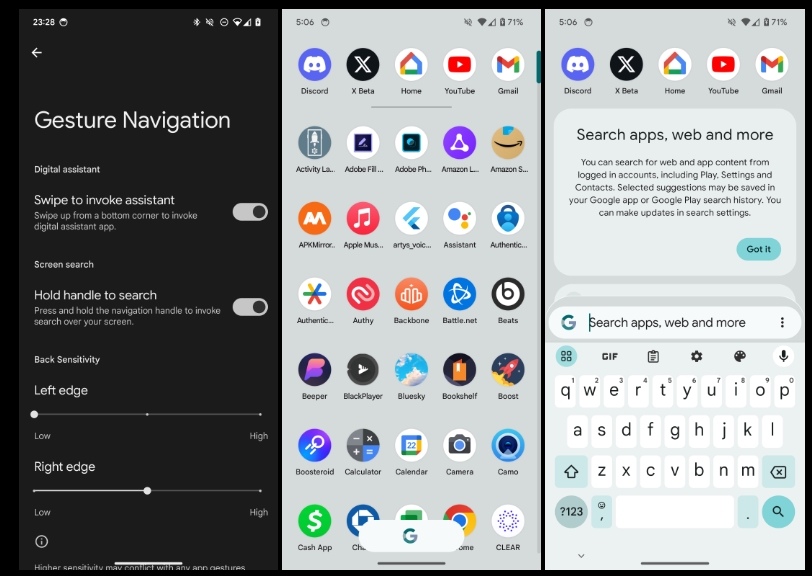
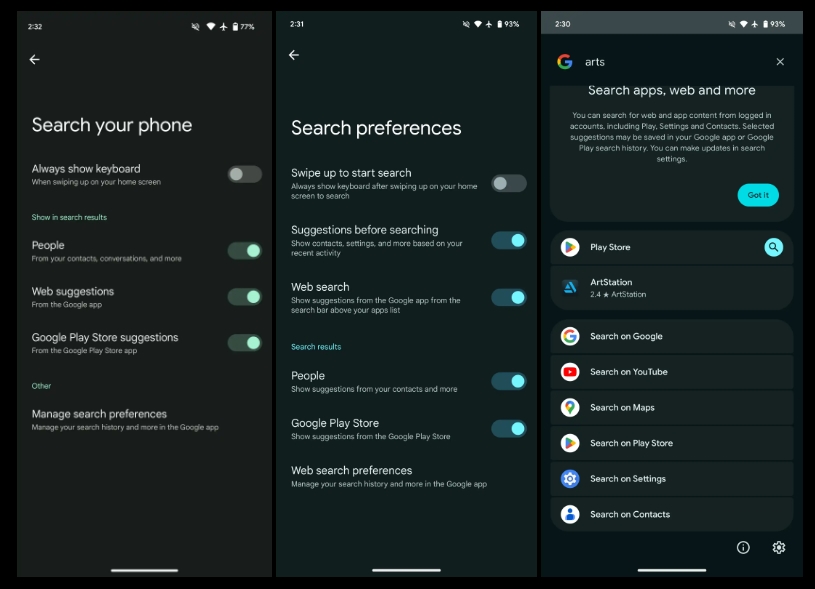
Pixel Launcher Search preferences
Tweaked settings toggles
New “Suggestions before searching” preference
Shortcut to settings at the bottom of Pixel Launcher search
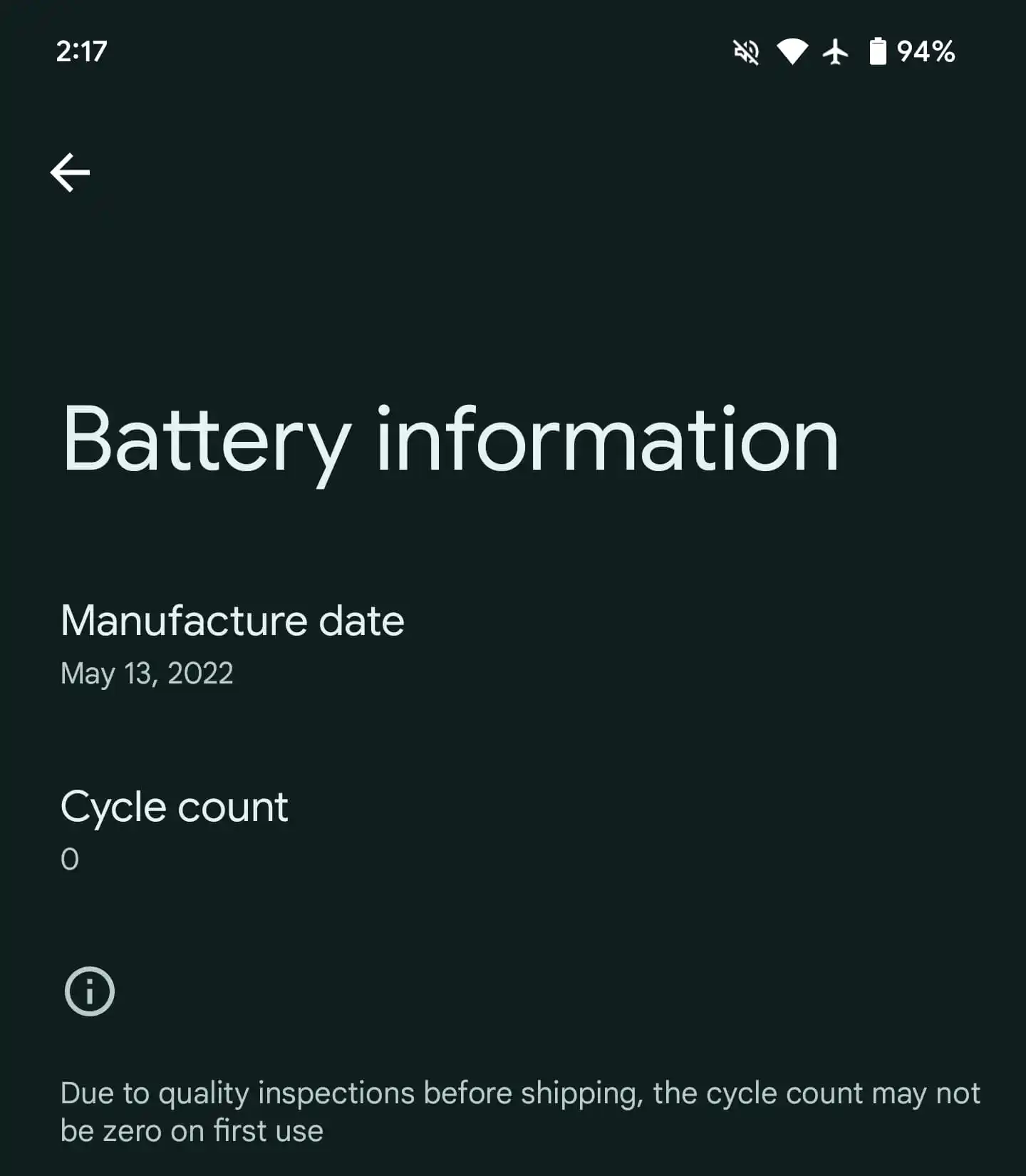
Settings > About phone > Battery information
New Metro clock
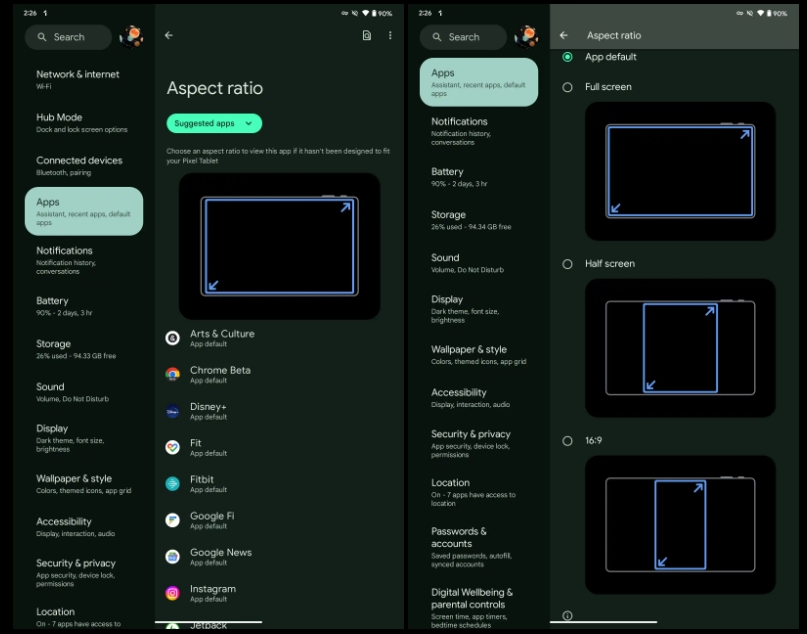
Large screen user per-app overrides
Settings > Apps > Aspect ratio
Options include: App default, Full screen, Half screen, 16:9
“Device original equipment manufacturers (OEMs) apply overrides to selected apps on specific large screen devices. Android 14 QPR1 introduces user overrides, which enable users to apply overrides to apps through device settings.”
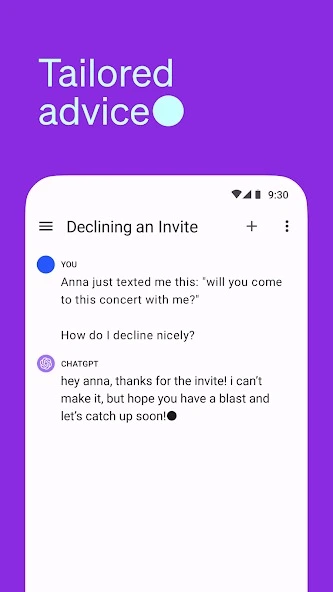
ChatGPT has taken the world by storm, simply by being at the forefront when it comes to conversational AI language models. Of course, a lot of work is behind that, and that effort puts ChatGPT at the top in terms of quality models available for use on the web. With that, OpenAI planned to bring its services to iOS, though Android users were still left waiting for an official app.
With registration opening up just days ago, ChatGPT now has an official Android app available for installation on the Play Store. The company teased an Android app when its iOS variant hit the App Store, though no one was sure how far off the Android version may be. Before today, a ChatGPT placeholder in the Play Store simply read “coming soon.”
There are a ton of ChatGPT lookalikes on Android’s Play Store, but this one by OpenAI is the real deal. The app is available for free and comes with the same features you’d see on the iOS version. OpenAI notes that either user is going to have the same experience.
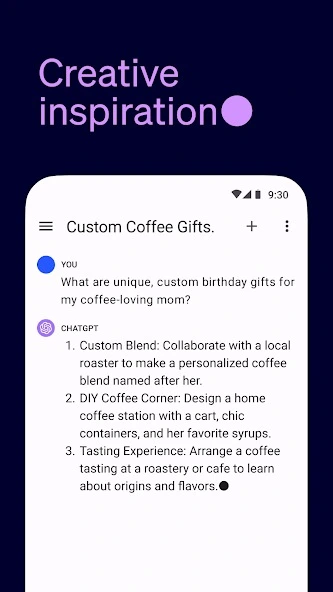
Once downloaded, you’ll be greeted with a sign-in screen painted in vibrant colours. Beyond that, users are shown a disclaimer noting that ChatGPT has flaws and can be inaccurate, which is a good reminder. The UI is incredibly simple and offers up the same web-based experience, with a chat window that lets you make conversation or ask questions.
According to the team, ChatGPT on Android will be available in the US, India, Bangladesh, and Brazil. OpenAI plans to expand further over the next week, which means that the company is moving pretty fast to make the official app available.
ChatGPT, in effect, is a basic rendering of what AI looks like for users. Built around a real language model, OpenAI has been responsible for one of the most advanced AI chatbots to exist, allowing users to ask questions and converse with humanlike processing. So advanced even Microsoft uses it to base its Bing Chat, though AI models still have a long way to go in terms of being a replacement for factual sources.
Of course, it’s been absent from mobile devices in a native form for a long time, with several third-party developers trying their hand and most usage coming from web browsers. Now, OpenAI has announced that its ChatGPT model is now available on the App Store for iOS, with a small asterisk hanging out for Android users.
P.S. Android users, you’re next! ChatGPT will be coming to your devices soon.
There’s no telling what very soon means for OpenAI, though we can’t expect it to be too far off.
When the app comes to Android, we’re expecting the same structuring found in the iOS app currently available. Paid users will have access to a more powerful and advanced version of the language model – GPT-4 – and faster response times. Beyond that, free users will be able to access Whisper, the company’s voice recognition software, and sync across multiple devices. Essentially, the app is everything you could do before but is now available in a native app.
This all comes as Google aims to increase its AI footprint with its new Labs, like Duet AI and generative AI in Google Search. These functions aren’t exactly a chatbot, though AI in Search should theoretically make for a good source of info, so long as the language model can differentiate fact from fiction.
Android 14’s latest beta paves the way for a full launch sometime next month, but it’s still hinting at more features to come. One of those upcoming changes might be a warning when you try to sideload Google apps on Android 14.
Android Police reports that Android 14 adds the ability for app stores on your device to claim “update ownership” over select apps. This essentially just adds another step to sideloading, as a warning message will appear that states where updates normally come from, and reiterates the risk of sideloading. You can simply ignore the warning and continue on.
Apparently, Google apps are where we’ll see this first. A brief demo seen below shows Android 14’s new sideloading warning which says that updates are “normally” from the Play Store. In this case, Google Play Services was having an update installed via APK Mirror’s Installer app.
This app normally receives updates from Google Play Store. By updating from a different source, you may receive future updates from any source on your phone. App functionality may change.
This isn’t the only example of Google cracking down somewhat on apps in Android 14. Earlier this year, our Kyle Bradshaw and Dylan Roussel reported that Android 14 would also block the installation of “outdated” Android apps, whether they come from sideloading or an app store.
Android 14 set to block certain outdated apps from being installed
To help reduce the potential for malware, Android 14 will begin fully blocking the installation of apps that target outdated versions of Android.
For years now, the guidelines for the Google Play Store have ensured that Android developers keep their apps updated to use the latest features and safety measures of the Android platform. Just this month, the guidelines were updated, requiring newly listed Play Store apps to target Android 12 at a minimum.
Up to this point, these minimum API level requirements have only applied to apps that are intended for the Google Play Store. Should a developer wish to create an app for an older version, they can do so and simply ask their users to sideload the APK file manually. Similarly, if an Android app hasn’t been updated since the guidelines changed, the Play Store will continue serving the app to those who have installed it once before.
According to a newly posted code change, Android 14 is set to make API requirements stricter, entirely blocking the installation of outdated apps. This change would block users from sideloading specific APK files and also block app stores from installing those same apps.
Initially, Android 14 devices will only block apps that target especially old Android versions. Over time though, the plan is to increase the threshold to Android 6.0 (Marshmallow), with Google having a mechanism to “progressively ramp [it] up.” That said, it will likely still be up to each device maker to decide the threshold for outdated apps or whether to enable it at all.
If the minimum installable SDK version enforcement is enabled, block the install of apps using a lower target SDK version than required. This helps improve security and privacy as malware can target older SDK versions to avoid enforcement of new API behavior.
By blocking these outdated apps, Google intends to curb the spread of malware apps on Android. The developer responsible for the change notes that some malware apps have intentionally targeted older versions of Android to bypass certain protections only enforced on newer apps.
That said, if for whatever reason you want or need to install an outdated application, it will still be possible through a command shell, by using a new flag. Given the extra steps required, it’s less likely that someone would do this by mistake and inadvertently install malware.
How to install the Android 14 Beta on Google Pixel
After a few early developer previews, the Android 14 Beta program has officially arrived. Here’s how to get Android 14 on your Google Pixel smartphone.
What Pixel devices can install the Android 14 Beta?
Android 14 will drop another set of Pixel smartphones out of active support, but several will still be eligible. The following Pixel devices will be eligible for the Android 14 Beta program.
Pixel 4a 5G
Pixel 5
Pixel 5a
Pixel 6
Pixel 6 Pro
Pixel 6a
Pixel 7
Pixel 7 Pro
Pixel 7a
Pixel Fold
Pixel Tablet
While Pixel 7a, Pixel Fold, and Pixel Tablet joined the party late, they’re all eligible to test out Android 14 at this point.
What’s the latest Android 14 Beta build?
As of July 11, 2023, Google has just opened the fourth beta release of Android 14, one of the last big releases before the final release.
Google has scheduled a total of five beta releases through May, June, and July, with the final release likely to arrive in August.
Beta 1 (April): Initial beta-quality release, over-the-air update to early adopters who enroll in Android Beta.
Beta 2 (May): Incremental Beta-quality release.
Beta 3 (June): First Platform Stability milestone, including final APIs and behaviors. Play publishing also opens.
Beta 4 (July): Near-final builds for final testing.
Beta 5 (July): Near-final builds for final testing.
Final release: Android 14 release to AOSP and ecosystem.
This adds one additional beta compared to Android 13’s release schedule, which only had four beta releases.
Notably, some users have noticed that the first two beta releases of Android 14 have been a bit more erratic compared to previous years. We’d certainly advise caution if you plan to try the beta on a daily device. As usual, proceed at your own risk.
How to get Android 14 with the Android Beta Program
The easiest way to get Android 14 on your Google Pixel device today is through the Android Beta Program.
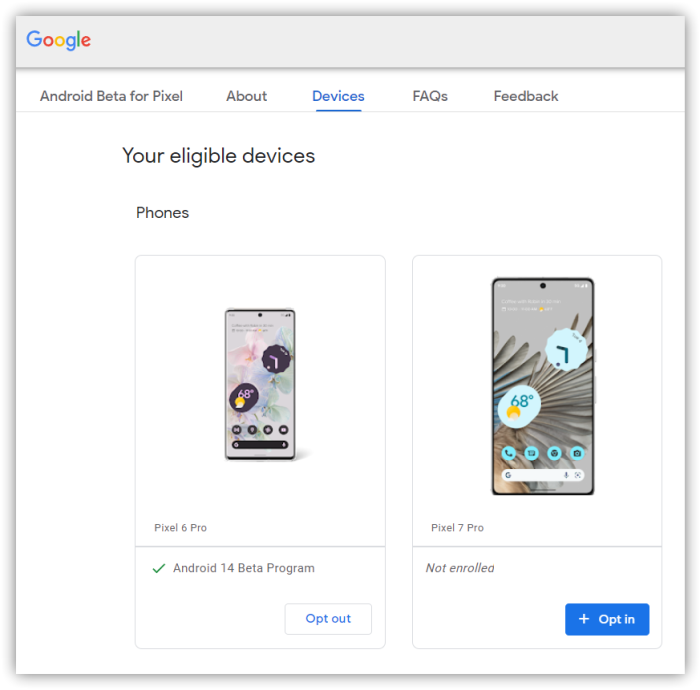
This automated program allows you to “opt-in” to Android beta updates and install them as you would a normal system update. There’s no computer or fancy tools required, and you can roll back to Android 13 any time you’d like by simply opting out.
How to sideload Android 14 Beta on Google Pixel
By far, the fastest way to get a new version of Android on your Pixel is to sideload it. It’s a relatively easy process, but you’ll need to get set up to do it. Here’s how.
Download the needed files.
Boot into Recovery mode.
Navigate to ADB sideload.
Connect the handset to a computer with ADB tools installed.
Enter the sideload command.
Reboot your phone.
1. Download Android 14 Beta files
To get started, you’ll first need to download the files needed to actually put the Android 14 Beta on your Pixel. There are two ways to do so. First, you can install a Factory Image, which wipes your phone and starts everything from scratch. Alternatively, and the way we’ll detail here, there’s an OTA file, which installs over your current version of Android without wiping your phone.
You can download the beta OTA file from Google’s Full OTA Image hosting site. That site contains OTA downloads for sideloading different updates, including the Android 14 Beta, on every Pixel and Nexus device, so you’ll need to scroll down to ensure you are downloading the file that associates with your device. OTA downloads are available here.
For the Android 14 Beta, only Pixel 4a 5G, Pixel 5a, Pixel 5, Pixel 6/Pro, Pixel 6a, Pixel 7/Pro, Pixel 7a, Pixel Fold, and Pixel Tablet are available.
You won’t be able to install it on the original Pixel/XL, Pixel 2/XL, Pixel 3/XL, Pixel 3a/XL, Pixel 4/XL, or Pixel 4a.
Note: This process (using OTA) won’t wipe your device, but it’s good practice to back up any irreplaceable data in case something goes wrong.
2. Boot into Recovery mode
Next, you’ll boot your Pixel into Recovery mode. To do this, fully power down your handset. Then hold down on the Power button and the Volume down button at the same time until you get to the Bootloader page. You will know you’re in the right place when you see an Android figure lying down on the screen.
Using your volume buttons, scroll down to Recovery mode. Select this by clicking the power button. Alternatively, if you’re already connected to a computer with ADB, you can use the reboot recovery command.
Now, you should see a smaller Android lying down with an exclamation mark over it. From here, press the Power button and the Volume up button for about a second to fully enter Recovery mode. Releasing the Volume up button will send you into Recovery.
3. Navigate to ADB sideload
Using the volume buttons, scroll down to Apply update from ADB and select it with the power button. This will launch a mostly blank screen with text near the bottom directing you on how to sideload an OTA, such as this one for the Android 12L Beta.
4. Connect the handset to a computer with ADB tools installed
This step is important as it’s the only way to transfer the downloaded OTA file to your handset. You’ll need to have ADB and Fastboot tools in a handy place. You can download ADB tools from the Android Developers website. You can also use the Universal ADB Drivers from ClockWorkMod, which can make the process a bit easier on Windows devices.
5. Enter the sideload command
As long as everything is in place, you can now sideload the OTA file. On Windows, ensure your Command Prompt is directed to the ADB tools folder and type in adb sideload. If you’re on macOS or Linux, do the same thing in Terminal (use “cd” and “ls” commands to make sure your Terminal is pointed at the right folder – Google it if you need help) but type in ./adb sideload. You’ll then need to insert the file name of the .zip folder you downloaded from Google and hit enter to start the process.
If everything is working properly, you should see some dialog on your computer and handset that shows the process of the sideload and installation process.
6. Reboot your phone
Once the OTA is done installing, you will be taken back to Recovery Mode. The last step to jump into the new update is to select the Reboot now option with your power button.
Android 14 Beta tweaks and widens the share sheet
In recent weeks, the Android 14 Beta has steadily tweaked the share sheet to look cleaner and show more options.
Despite being a central component of Android, the share sheet has long been one of the weaker points of Google’s mobile operating system. The share sheet has gone through numerous iterations over the years, each one aiming to make it faster or better in some way, though sharing on Android still remains surprisingly slow.
Over the course of the Android 14 Beta, Google has made some changes to the share sheet. One more noticeable change, arriving with Beta 3, is that the share sheet is now five icons wide (up from four) on typical phones. This makes more options visible on screen at a time and is a shift toward more density rather than the extra blank space that some Material You designs have opted to take. As always, you can scroll the sheet to view the full list of available share targets.
Meanwhile, another tweak arrived with this week’s Android 14 Beta 4 release. The sheet now also includes a title that explains what you’d actually be doing. For example, if you choose to share a website from Chrome, you’ll see “Sharing a link” with the actual URL below it.
If you’re sharing any text, a shortcut to copy it to your clipboard will appear on the right-hand side. Similarly, when sharing an image, you’ll be offered an option (pencil icon) to first edit it in Markup.
Android 14 Beta 4 changes ‘Muted’ status icon design
Android 14 Beta 4 is here and small tidbits and changes are surfacing as we dig through the new OS version. One such change is a completely new design for the “Muted” status, leaving behind the familiar bell icon for a more modern look.
Most Android devices have three sound states: sound on, vibrate, and silent. While each person has their preference as to which they leave their phone set to, only one of those displays a status icon in the top bar, next to the WiFi and battery readouts.
In Android 14 Beta 4, a Pixel phone or other device set to silent or “muted” will now display a small yet very familiar speaker icon. This switch replaces the bell icon we’ve seen in past Android builds. The change makes a little bit of sense, as the bell could be seen as confusing to some, though it’s a very small adjustment.
In Android 14 Beta 4, no other sound states offer a status icon. The “muted” state remains the only one to reflect in the status bar, though a status icon for vibrate and sound on would be nice.
Another spot the icon is updated with the speaker silhouette is in the slider that appears when pressing the volume rockers. Instead of a ball icon and another with a slash through it, there is now one speaker icon and another with a slash, representing mute.
This change to the mute icon in Android 14 is anything but huge, but it’s notable nonetheless and offers a little insight into the changes being made between versions. Be sure to stay tuned for more Android 14 news as it’s uncovered.