Google introduced support for an app taskbar along the bottom of the screen for big-screen Android devices not long ago, but the feature has already changed with time to only show part of the time. With Android 14, Google seems to be preparing a tweak to the taskbar that lets it appear constantly.
When the taskbar first debuted in Android 12L, it was designed effectively as a larger version of the existing navigation bar. Directly above that area, you’d get a list of apps that you could instantly switch between or open in multitasking. You could then hide the taskbar by long-pressing the navigation bar.
But, with Android 13, Google tweaked this to a “transient” design that hides the taskbar when it’s not actively being used. This is virtually identical to the iPad’s taskbar, which is probably why Google made the change. It works well enough, but it’s not as powerful for quickly switching between apps.
In Android 14, though, this may change. Android Police cites a flag in the latest Android 14 beta labeled “ENABLE_TASKBAR_PINNING.” Further context around the flag reveals that it will allow users to choose between the transient or persistent taskbar. The change can be made by long-pressing an empty space on the taskbar itself, as shown in the video below.
Notably, Samsung currently defaults to the “persistent” taskbar design with no transient option, but it will certainly be nice to have the choice.
Currently, this option isn’t available to end users, but there’s a good chance it may arrive before Android 14’s final release – there are still a couple more betas to go. The next release is expected pretty soon.
Samsung’s first Android 14 beta could launch in late July
Google is pushing along with Android 14 for Pixel phones, with the third beta out. But, soon, Samsung might join in on the fun, with a new report claiming the company’s first Android 14 beta could arrive in late July.
Samsung has been opening public beta programs for new Android versions for the past few years, with customers able to get in on the latest version of One UI a few months ahead of the formal launch. And, each year, it’s been happening earlier and earlier.
According to the folks over at SamMobile, we can expect the first Android 14 beta with One UI 6.0 from Samsung sometime next month. Specifically, the outlet claims, in the third week of July. That’d put the release sometime between July 17 and July 21.
That’s a couple of weeks ahead of last year, with the Android 13/One UI 5.0 beta from Samsung having opened on August 5, with an official announcement a day later. It was also just days ahead of the launch of the Galaxy Z Fold 4 and Flip 4. And, not so ironically, the same thing is happening this time around. The Galaxy Z Fold 5 and Flip 5 are confirmed to be coming at an event during the last week of July, apparently on July 27.
We still don’t know much about Samsung’s take on Android 14, but an app update teased new colors for the company’s version of Material You, and Samsung previously confirmed it was working with Google to improve how One UI handles background apps with this update. The update will likely be made available first to the Galaxy S23 series.
How to install the Android 14 Beta on Google Pixel
After a few early developer previews, the Android 14 Beta program has officially arrived. Here’s how to get Android 14 on your Google Pixel smartphone.
What Pixel devices can install the Android 14 Beta?
Android 14 will drop another set of Pixel smartphones out of active support, but several will still be eligible. The following Pixel smartphones will be eligible for the Android 14 Beta program.
Pixel 4a 5G
Pixel 5
Pixel 5a
Pixel 6
Pixel 6 Pro
Pixel 6a
Pixel 7
Pixel 7 Pro
What’s the latest Android 14 Beta build?
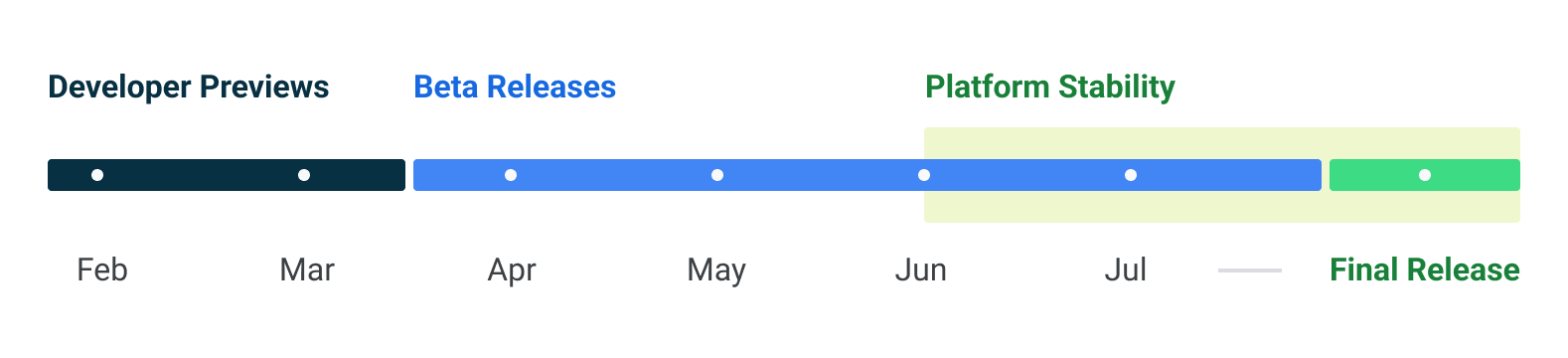
As of June 7, 2023, Google has just opened the third beta release of Android 14. Google has scheduled a total of five beta releases through May, June, and July, with the final release likely to arrive in August.
Beta 1 (April): Initial beta-quality release, over-the-air update to early adopters who enroll in Android Beta.
Beta 2 (May): Incremental Beta-quality release.
Beta 3 (June): First Platform Stability milestone, including final APIs and behaviors. Play publishing also opens.
Beta 4 (July): Near-final builds for final testing.
Beta 5 (July): Near-final builds for final testing.
Final release: Android 14 release to AOSP and ecosystem.
This adds one additional beta compared to Android 13’s release schedule, which only had four beta releases.
Notably, some users have noticed that the first two beta releases of Android 14 have been a bit more erratic compared to previous years. We’d certainly advise caution if you plan to try the beta on a daily device. As usual, proceed at your own risk.
How to get Android 14 with the Android Beta Program
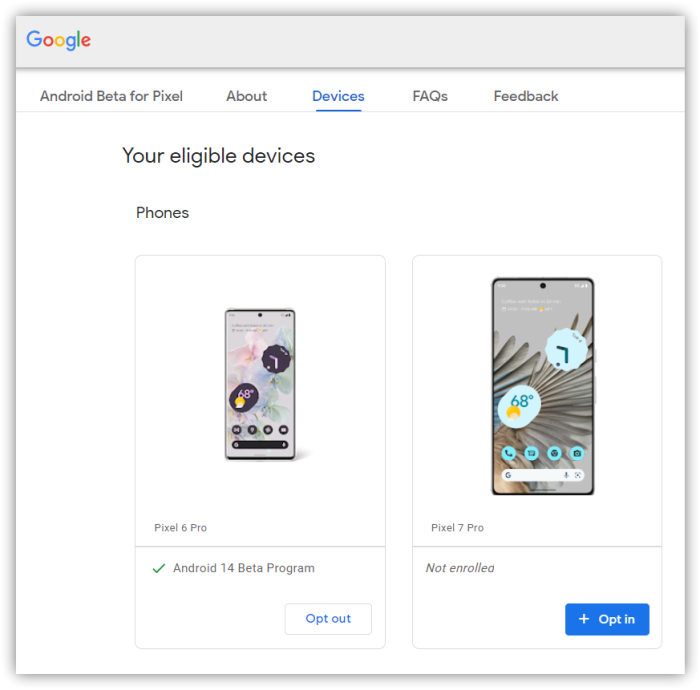
The easiest way to get Android 14 on your Google Pixel device today is through the Android Beta Program.
This automated program allows you to “opt-in” to Android beta updates and install them as you would a normal system update. There’s no computer or fancy tools required, and you can roll back to Android 13 any time you’d like by simply opting out.
Notably, for Beta 3, this is the easiest way to currently get in on the update. Google has not yet released files for sideloading (the process described below), but it has released the beta through the Android Beta Program. If you go into settings and manually check for updates, it should appear quickly.
How to sideload Android 14 Beta on Google Pixel
By far, the fastest way to get a new version of Android on your Pixel is to sideload it. It’s a relatively easy process, but you’ll need to get set up to do it. Here’s how.
Download the needed files.
Boot into Recovery mode.
Navigate to ADB sideload.
Connect the handset to a computer with ADB tools installed.
Enter the sideload command.
Reboot your phone.
1. Download Android 14 Beta files
To get started, you’ll first need to download the files needed to actually put the Android 14 Beta on your Pixel. There are two ways to do so. First, you can install a Factory Image, which wipes your phone and starts everything from scratch. Alternatively, and the way we’ll detail here, there’s an OTA file, which installs over your current version of Android without wiping your phone.
You can download the beta OTA file from Google’s Full OTA Image hosting site. That site contains OTA downloads for sideloading different updates, including the Android 14 Beta, on every Pixel and Nexus device, so you’ll need to scroll down to ensure you are downloading the file that associates with your device. OTA downloads are available here.
For the Android 14 Beta, only Pixel 4a 5G, Pixel 5a, Pixel 5, and Pixel 6/Pro are available.
You won’t be able to install it on the original Pixel/XL, Pixel 2/XL, Pixel 3/XL, Pixel 3a/XL, Pixel 4/XL, or Pixel 4a.
Note: This process (using OTA) won’t wipe your device, but it’s good practice to back up any irreplaceable data in case something goes wrong.
2. Boot into Recovery mode
Next, you’ll boot your Pixel into Recovery mode. To do this, fully power down your handset. Then hold down on the Power button and the Volume down button at the same time until you get to the Bootloader page. You will know you’re in the right place when you see an Android figure lying down on the screen.
Using your volume buttons, scroll down to Recovery mode. Select this by clicking the power button. Alternatively, if you’re already connected to a computer with ADB, you can use the reboot recovery command.
Now, you should see a smaller Android lying down with an exclamation mark over it. From here, press the Power button and the Volume up button for about a second to fully enter Recovery mode. Releasing the Volume up button will send you into Recovery.
3. Navigate to ADB sideload
Using the volume buttons, scroll down to Apply update from ADB and select it with the power button. This will launch a mostly blank screen with text near the bottom directing you on how to sideload an OTA, such as this one for the Android 12L Beta.
4. Connect the handset to a computer with ADB tools installed
This step is important as it’s the only way to transfer the downloaded OTA file to your handset. You’ll need to have ADB and Fastboot tools in a handy place. You can download ADB tools from the Android Developers website. You can also use the Universal ADB Drivers from ClockWorkMod, which can make the process a bit easier on Windows devices.
5. Enter the sideload command
As long as everything is in place, you can now sideload the OTA file. On Windows, ensure your Command Prompt is directed to the ADB tools folder and type in adb sideload. If you’re on macOS or Linux, do the same thing in Terminal (use “cd” and “ls” commands to make sure your Terminal is pointed at the right folder – Google it if you need help) but type in ./adb sideload. You’ll then need to insert the file name of the .zip folder you downloaded from Google and hit enter to start the process.
If everything is working properly, you should see some dialog on your computer and handset that shows the process of the sideload and installation process.
6. Reboot your phone
Once the OTA is done installing, you will be taken back to Recovery Mode. The last step to jump into the new update is to select the Reboot now option with your power button.
Android 14 preparing better stylus support that might help out the Pixel Tablet
Google’s Pixel Tablet is riding a wave of renewed interest in Android tablets, and, in Android 14, Google appears to be working on better stylus support.
There are a huge number of Android devices out there that support stylus input, but generally this is handled by each device maker. Android itself doesn’t really have particularly robust support. That may be changing in Android 14, though.
When you connect a stylus to your device on Android 14 and go to the "device details" page, you'll be able to see new stylus-specific settings: A shortcut to change the "default notes app" and a toggle to "ignore all stylus button presses." pic.twitter.com/dhg1tllxuR
As Mishaal Rahman highlights and demos in the image below, Google has a few key improvements in store. On the user-facing side, connecting a smart stylus to Android 14 now has new settings, including the ability to set a default app for notes, an option to ignore stylus button presses, and more.
Behind the scenes, Google has further improvements. It appears that Android is working to better support multiple buttons on a stylus, including “Primary,” “Secondary,” “Teriary,” and “Tail.” Interestingly, there’s a specific message about the “tail” button not generally corresponding “to the function of an eraser.” Rather, a message in Android mentions setting a default app for notes, which hints this button might be used for launching your notes app of choice.
Although the API diff isn't up yet, I spotted new key code constants in the KeyEvent documentation: KEYCODE_STYLUS_BUTTON_PRIMARY, KEYCODE_STYLUS_BUTTON_SECONDARY, KEYCODE_STYLUS_BUTTON_TERTIARY, and KEYCODE_STYLUS_BUTTON_TAIL.
These improvements sound welcome for stylus use, and it’s unfortunate they won’t be in place for the Pixel Tablet’s debut. While Google isn’t selling an official stylus, the Pixel Tablet does support USI 2.0 stylus options, so these added controls may end up benefitting the tablet in the long run.
Samsung’s first Android 14 beta could launch in late July
Google is pushing along with Android 14 for Pixel phones, with the third beta out. But, soon, Samsung might join in on the fun, with a new report claiming the company’s first Android 14 beta
could arrive in late July.
Samsung has been opening public beta programs for new Android versions for the past few years, with customers able to get in on the latest version of One UI a few months ahead of the formal launch. And, each year, it’s been happening earlier and earlier.
According to the folks over at SamMobile, we can expect the first Android 14 beta with One UI 6.0 from Samsung sometime next month. Specifically, the outlet claims, in the third week of July. That’d put the release sometime between July 17 and July 21.
That’s a couple of weeks ahead of last year, with the Android 13/One UI 5.0 beta from Samsung having opened on August 5, with an official announcement a day later. It was also just days ahead of the launch of the Galaxy Z Fold 4 and Flip 4. And, not so ironically, the same thing is happening this time around. The Galaxy Z Fold 5 and Flip 5 are confirmed to be coming at an event during the last week of July, apparently on July 27.
We still don’t know much about Samsung’s take on Android 14, but an app update teased new colors for the company’s version of Material You, and Samsung previously confirmed it was working with Google to improve how One UI handles background apps with this update. The update will likely be made available first to the Galaxy S23 series.
Galaxy S23 One UI 6 beta coming the 3rd week of July!
Samsung fans have been waiting patiently to get a taste of Android 14. Google released the developer beta of the next major iteration earlier this year. Since Samsung has its own beta program, users have to wait for the One UI 6.0 beta to arrive.
The company’s beta program may be beginning sooner rather than later this year. We hear that the One UI 6.0 beta for the Galaxy S23 series will start rolling out in the 3rd week of July. Other compatible devices will receive the beta soon thereafter.
Time to start counting down the days for the One UI 6.0 beta!
We reported a few days ago that it’s possible that the first One UI 6.0 beta update may be released as soon as the Android 14 betas achieve stability. With Android 14 Beta 3, the software has now reached Platform Stability level, meaning that Samsung can now go ahead and launch its beta program.
Based on what we hear, it’s likely that Samsung will release the first One UI 6.0 beta build for the Galaxy S23 series in the third week of July. The beta will gradually be rolled out for other devices as well. July is shaping up to be a busy month for Samsung as the company will also be unveiling its new foldable phones on July 27.
The One UI 6.0 beta launch in late July means that we’re definitely looking at a One UI 6.0 public release before the end of this year. If last year’s pace is any indication, Samsung may not make us wait more than a couple of months from the time the beta is rolled out to the final public release.
As always, we’ll dive deep into all the new changes as soon as we’re able to test the One UI 6.0 beta. Stay tuned!
Samsung app update teases incoming Android 14 beta and new Material You colors
Android 14 is still in development but chugging along on Pixel phones and select other devices. Behind the scenes, though, Samsung is also working up Android 14, which is expected to be called One UI 6.0, and a recent app update is giving some hints on the company’s progress.
As spotted by Tarun Vats on Twitter, an update to the Samsung Calculator directly offers some hints at Samsung’s work on Android 14.
Breaking News :: OneUI 6 Beta
We can expect OneUI 6 Public beta launch by June end or July starting as we got Major hint from Samsung as they starts upgrading their apps to support Android 14. Also OneUI 6 may bring new color Pallete 🥳🥳#OneUI6#GalaxyS23#GalaxyS23Ultrapic.twitter.com/bGIw8ciO6V
The update’s changelog, seemingly since removed from the Galaxy Store, mentions that the app now supports Android 14’s API level. The timing here suggests that Samsung’s earliest Android 14 releases may not be too far away, but there’s no indication on when at this point. One UI 5’s early betas launched in early August 2022.
The changelog also hints that Samsung’s take on Material You – Color Palette – will get at least one new option in One UI 6. It’s not clear what that option might be, but we previously reported that Android 14 would add a new “Fidelity” style that brings out bold colors. It could be that Samsung is adopting that style too.
Samsung has also confirmed, with Google, that its Android 14 builds will also focus on improving the handling of background apps, a long-standing problem with the company’s software.
Samsung commits to killing background apps less often with Android 14, One UI 6.0
One complaint that Android app developers (and end users) have are the differing “restrictions on foreground services and background work” across devices. Google is addressing background inconsistencies with Android 14 and will be getting buy-in from Samsung.
Right now, some OEMs are very aggressive about killing background apps to save battery life. This can lead to applications breaking and end users blaming developers for a poor experience. Said app devs are already following Android’s guidance, but working around each OEM restriction/inconsistency is not feasible or even possible.
Google’s goal starting with Android 14 is to “make it easier for developers to create apps that work consistently across different Android devices.”
Looking to solve these consistency challenges, we are announcing deeper partnerships with Android hardware manufacturers to help ensure APIs for background work are supported predictably and consistently across the ecosystem.
—GOOGLE
Samsung is described as the “first partner” today, with One UI 6.0 making it so that “foreground services of apps targeting Android 14 will be guaranteed to work as intended so long as they are developed according to Android’s new foreground service API policy.”
To strengthen the Android platform, our collaboration with Google has resulted in a unified policy that we expect will create a more consistent and reliable user experience for Galaxy users.
—SAMSUNG
With Android 14, Google (with DP1) announced a trio of changes:
“The new user-initiated data transfer job type, which makes the experience of managing large user-initiated uploads and downloads smoother by leveraging JobScheduler’s constraints (e.g. network constraints such as unmetered WiFi).”
“New Google Play policies to ensure appropriate use of foreground services and the user-initiated data transfer jobs.”
Developers are encouraged to send feedback (Issue Tracker) on the Android 14 APIs, as well as contribute CTS-D tests to “help catch consistency issues.”
Lastly, If you see behavior differences across Android devices, be sure to file a ticket using goo.gle/devicespecificissue to bring it to our attention.
Pixel phone Here’s everything new in Android 14 Beta 3
Android 14 Beta 3 for Pixel phones is now available after the last update four weeks ago was somewhat quiet.
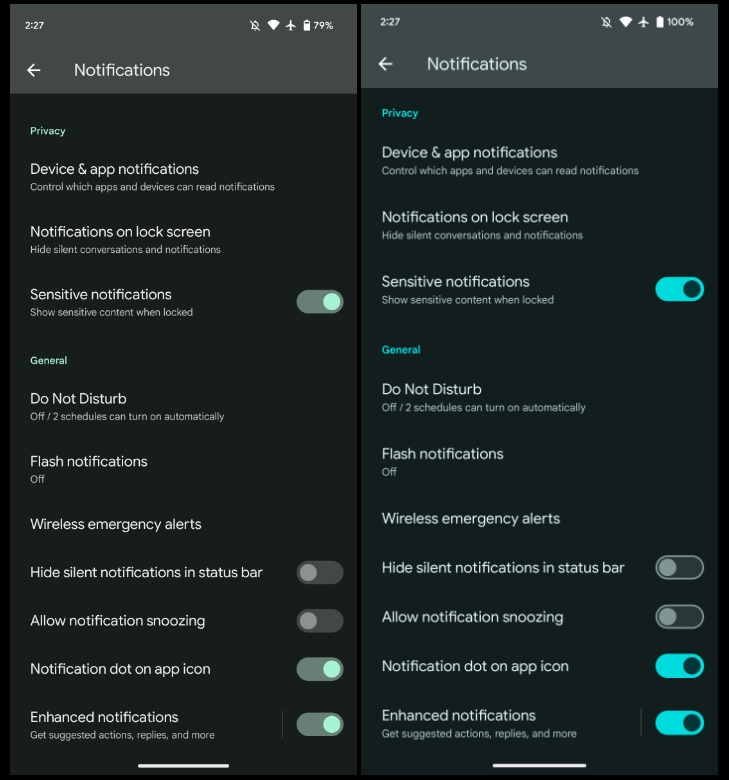
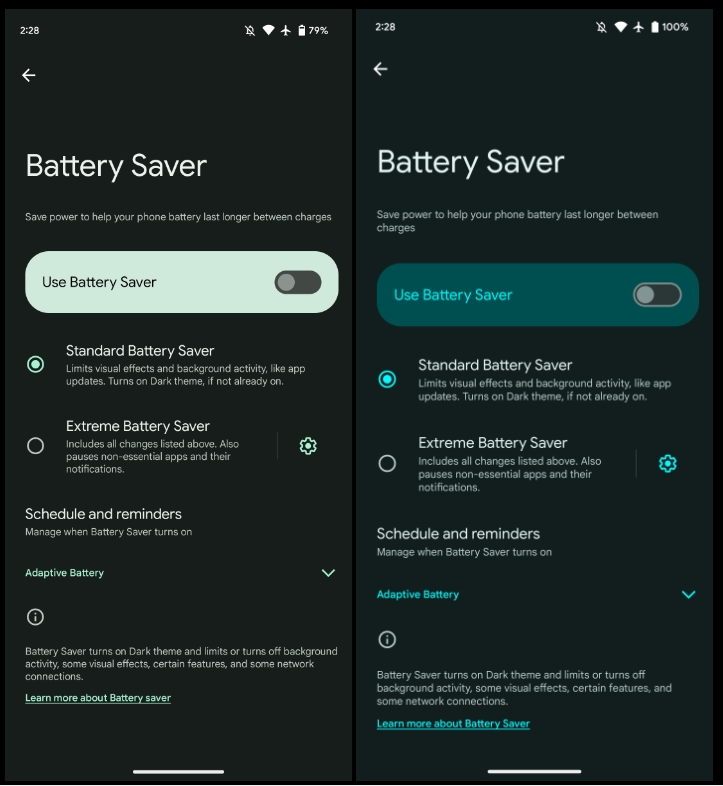
We’re diving into all of Android 14 Beta 3’s new features and every single change. (The newest updates will be at the top of this list. Be sure to check back often and tell us what you find in the comments below.) Beta 2 screenshots appear on the left and Beta32 at the right.
Expect at least three more releases before the consumer launch later this year to Pixel phones. If you want to quickly install the Android 14 Beta 3 on your compatible Pixel 4a 5G, Pixel 5, Pixel 5a, Pixel 6, Pixel 6 Pro, Pixel 6a, Pixel 7, and Pixel 7 Pro be sure to check out our step-by-step guide.
For reference, here’s everything new in Android 14 Developer Preview 1, DP2, Beta 1, and Beta 2.
Tapping the time in Quick Settings opens the Google Clock Alarm tab
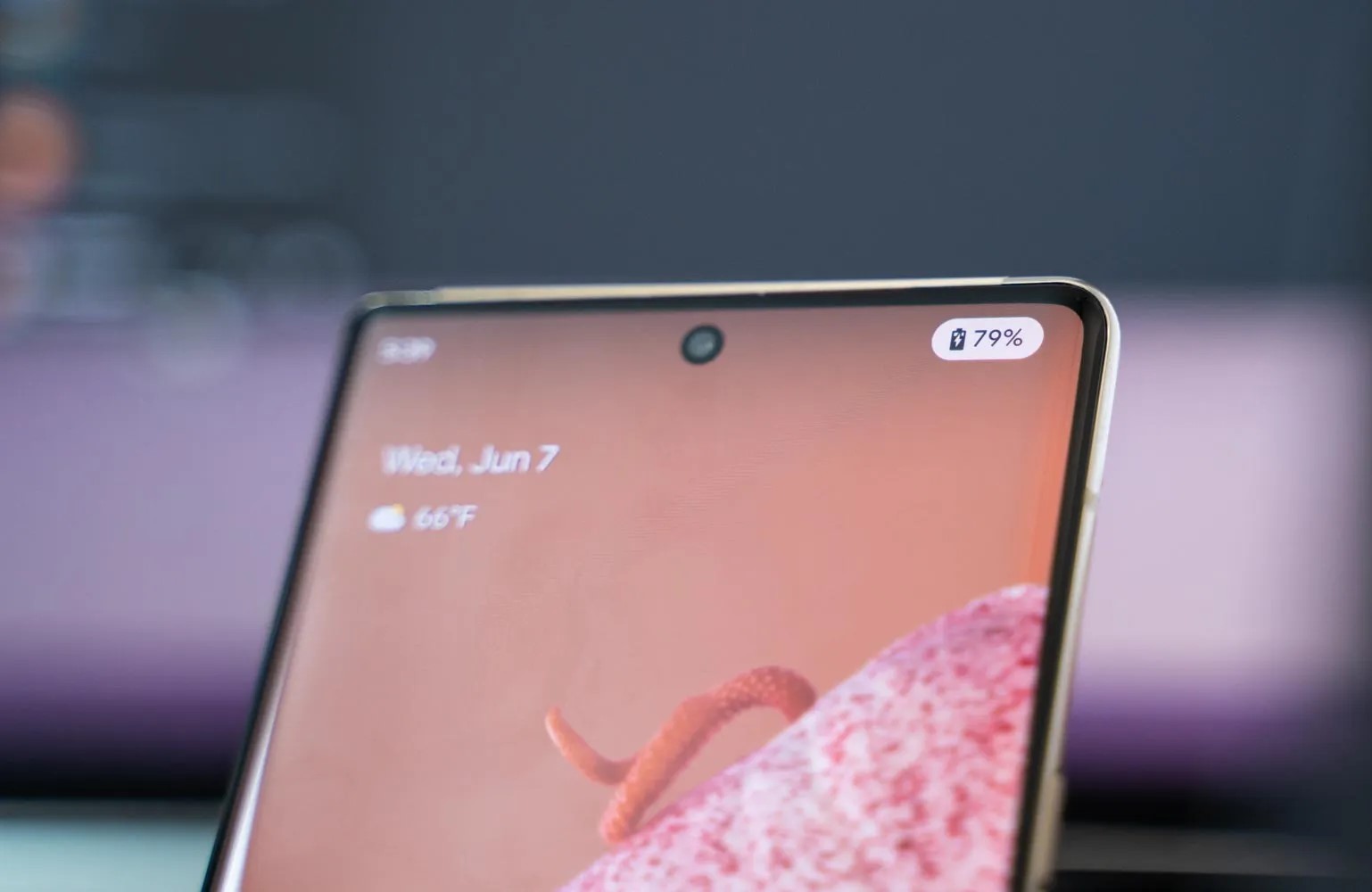
New charging indicator
More color in themed icons
Rounded buttons in screenshot preview
‘UpsideDownCake’ to Android 14
Gesture navigation tutorial
‘Touch’ to ‘Tap & click sounds’
More Material You toggles
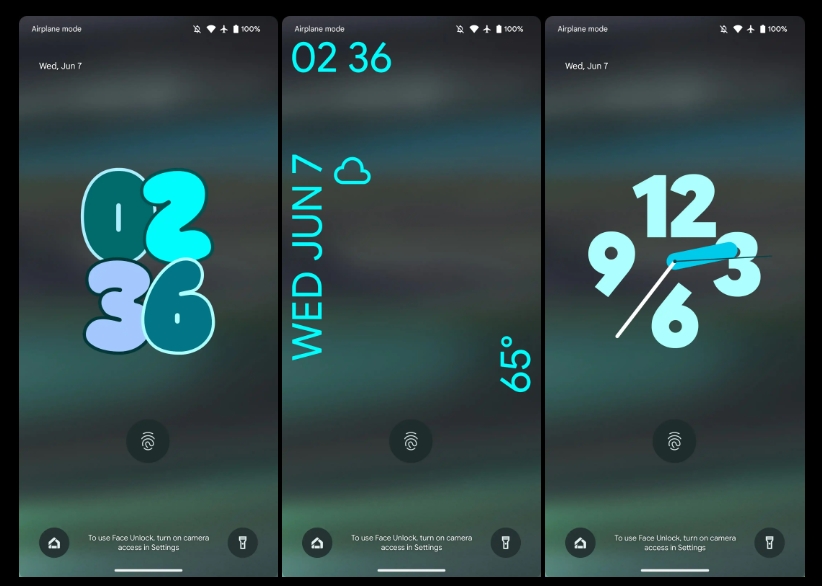
Customizable lockscreen clocks and shortcuts
Chrome prototyping Android 14 Predictive Back support to show last page
Predictive Back will be one of the most apparent user-facing changes this fall. As work continues, Google at I/O 2023 shared how some developers, including Chrome, might adopt Predictive Back in Android 14.
Predictive Back shows a preview of the homescreen as you swipe away from the edge and the current app shrinks. According to a study Google conducted, back-to-home animations “significantly reduces users accidentally leaving apps and feels more premium.”
You can test it today in Android 13 (Settings app > System > Developer options > Predictive back animations). Google is set to enable it by default with Android 14, but it’s still optional as of Beta 2.
Android 14 adds in-app Predictive Back, where you can get a preview of what screen you’re returning to when navigating within an app. In addition to the cross-activity animation Calendar demo, Google provided “key moment” examples at I/O:
Reddit is experimenting with collapsing a post as you swipe back to the feed.
Chrome is “prototyping previewing the previous web page as [you] swipe back.”
To aid adoption, developers can now “opt in to predictive back system animations per-Activity instead of for the entire app.”
Meanwhile, Material components are also leveraging Predictive Back animations in:
Side Sheets (nav drawer): “Side sheet detaches from the top and bottom edges of the screen to signal it will close.”
Search: Fullscreen search page shrinks and snaps back into pill-shaped bar on previous screen.
Bottom Sheets: Sheet shrinks and drops down.
It’s also soon coming to the bottom navigation bar and nav rail.
Android 14 Beta 1: You can now block apps from using full-screen notifications
The first new beta release of Android 14 went live earlier this week on Pixel phones, and with it a good number of forward-facing and behind-the-scenes changes. Included in that is a new setting in Android 14 that blocks apps from using full-screen notifications.
Buried within “Special App Access” settings in Android 14 Beta 1, there’s a new permission for managing “full screen intents.” This permission allows users to grant or deny apps the ability to display notification content in a full-screen view, such as alarms and meeting reminders, as well as calls and such.
Apps that use full-screen notifications and pop-ups will be listed on this page and seem to be allowed by default. Changing the setting will force the apps to revert back to a notification. This can be seen with the Clock app, as Mishaal Rahman pointed out, where the full-screen pop-up is swapped with a traditional notification.
Here's a before and after of what happens when you take away this permission from an app: pic.twitter.com/3Zhd8mNrSr
While this isn’t a permission you’ll likely need to mess with often – most of the apps listed in my case have never even used this functionality – it is nice to see. With this new setting, users get additional control over the experience, and can pull the plug on an app that’s potentially abusing this functionality.
Android 14 Beta 1: You can now force a ‘transparent’ navigation bar on all apps
On-screen navigation is one of the things that made earlier versions of Android unique, and as time has gone on, that feature has evolved. In Android 14 Beta 1, Google is finally addressing a long-standing complaint with the navigation bar appearance that finally forces apps to have a “transparent” navigation bar.
Android’s navigation bar has, for years now, supported the ability to change its color to match the app on screen or to be completely transparent and show content that is “behind” the navigation buttons or gesture bar. But, in many cases, there are apps that will simply default to a black space around the buttons or gesture bar, which is a bit annoying in certain cases.
In Android 14 Beta 1, Google is introducing a new developer option that forces a “transparent navigation bar” across the system, making all apps change the color of the navigation bar to match the app itself. Google calls this a “transparent” bar, explaining it as follows:
Make navigation bar background color transparent by default
And in the right situation, that is what will happen. In our testing, though, this isn’t what you’ll usually see.
Flipping on this setting (Settings > System > Developer Options > Transparent navigation bar) will set the navigation bar on a system level to be transparent. But in most apps that lack this functionality already, it will simply match the background color of the current app. Toggling this setting won’t apply a truly transparent navigation bar because text and UI elements under the bar won’t show in that area. We believe that apps will behave in this way when a particular app is not designed to render edge-to-edge. And, frankly, it’s not surprising, given this is a developer option and not a user-facing feature.
As of Android 14 Beta 1, this setting doesn’t seem to work super reliably, but we were able to see it in action in the Fitbit app’s “Readiness” page, which usually defaults to a black bar, as well as the Sam’s Club app and UPS app. All of those usually have a black bar at the bottom with a white app interface, but this setting turns the navigation bar white on all three. Turning the toggle back off reverted all of them to that previous state.
It’s not entirely clear whether or not Google will carry this feature through the final release of Android 14 later this year, but with so many wishing for a true transparent navigation bar option, we hope this is one Google not only keeps but works to expand.
You can skip the Android 14 Beta and stay on 13 QPR3 Beta Program
With Android 14 launching into beta today, Google is making some changes to the Android Beta Program. Instead of there being two simultaneous tracks for 13 QPR3 and 14, there’s now just one OTA beta channel.
If you were on the Android Beta Program before today, it was to test Android 13 QPR1, QPR2, and QPR3. Your phone should be running Android 13 QPR3 Beta 2.1 from last week, and it will be updated to Android 14 Beta 1:
If your device is already running Android 13 QPR3 or Android 14 Developer Preview, you will automatically receive an over-the-air (OTA) update to Android 14 Beta 1.
However, you can “choose not to update to Android 14 Beta 1, but remain enrolled in the program” and “continue to receive QPR3 Beta updates.” The latter presumably refers to Android 13 QPR3 Beta 3 in the next month or so, ahead of the June stable launch.
Choosing not to update simply means ignoring the Android 14 OTA. Additionally:
You can also opt out of the beta (ignore the downgrade OTA) and wait for the stable public release of QPR3 in June which will allow you to exit the program and get back on the public release without a data wipe.
While listed as a beta, it’s probably not wise to use Android 14 as your daily driver just yet. Beta 3 and later is usually a safer bet in terms of making sure nothing critical is impacted by pre-release software that’s still under active development.
Meanwhile, Pixel 4a will automatically stay on Android 13 QPR3 as the 2020 mid-ranger is not eligible for Android 14.
Lastly, the company says it will “have more to share at Google I/O on May 10th.”
Passkeys are coming up soon as a way of using your phone and its biometrics in place of traditional passwords, and Android 14 is set to bring native support for passkeys to apps, including Dashlane.
In a blog post today, Dashlane explained that it will add native support for passkeys in Android 14. The upcoming version of Android unlocks support for passkeys within third-party apps, meaning that Dashlane likely won’t be the only app picking up support when the update debuts later this year. 1Password also announced support for passkeys recently.
Mobile platforms such as Android and iOS will require changes to enable third-party applications such as Dashlane to manage passkeys. These are the very changes that have been included in this developer preview of Android 14. The user can simply create a passkey using their fingerprint instead of entering a password. The fingerprint ties the authentication action to the user of the device, which prevents anyone else from creating and using passkeys on this specific device.
In a tweet, Dashlane also showed what passkeys will look like in its app on Android 14, with a system prompt appearing similar to what we see with biometric authentication in Android today.
Support for passkeys in Dashlane on Android will come with the final release of Android 14, which is currently scheduled to arrive around August of this year, barring any unexpected delays.
Android 14 release timeline matches last year’s pace, adds one beta
There are two developer previews, with the only other one coming in March:
Developer Preview 1 (February): Early baseline build focused on developer feedback, with new features, APIs, and behavior changes.
Developer Preview 2 (March): Incremental update with additional features, APIs, and behavior changes.
Like the last release, the Android 14 Beta will start in April, which is a month earlier than usual. Historically, the first beta launch is timed to I/O in May, after the consumer-facing features are announced on stage.
Platform Stability, with “final SDK/NDK APIs and also final internal APIs and app-facing system behaviors,” is coming in Beta 3. Google says, “From that time you’ll have several weeks before the official release to do your final testing.”
After that, in July, expect two more betas before the final release. There was no Beta 5 last year.
The final release looks set for August, with Google last year opting for a midmonth launch.
Beta 1 (April): Initial beta-quality release, over-the-air update to early adopters who enroll in Android Beta.
Beta 2 (May): Incremental Beta-quality release.
Beta 3 (June): First Platform Stability milestone including final APIs and behaviors. Play publishing also opens.
Beta 4 (July): Near-final builds for final testing.
Beta 5 (July): Near-final builds for final testing.
Final release: Android 14 release to AOSP and ecosystem.
More details on the Android 14 release timeline for developers is available here.
Android 14 prepares for physical keyboards and touchpad gestures
In its latest tweak to improve the experience of tablets and large-screen devices, Android 14 includes early work to better support physical keyboards and new gestures for touchpads.
For years now, Android tablet makers have offered keyboard accessories that can often be attached directly to a device, making it easier to use a tablet like a laptop. With Google’s recent efforts to improve Android for tablets, foldables, and more, it should be no surprise to see that Android 14’s Settings app includes a revamped menu for keyboard settings.
The new menu isn’t available by default (and isn’t guaranteed to launch with Android 14 this fall) but our team managed to forcibly enable it, to show the progress. On Android 13 today, the “Physical keyboard” menu is hidden away under System > Languages & input, but Android 14 moves this to System > Keyboard.
Inside, you’ll find the familiar option to enable/disable the on-screen keyboard when a physical keyboard is connected, along with the list of available shortcuts. What’s new here is the addition of a “Modifier keys” option, which allows you to remap a handful of common keyboard keys — Caps Lock, Ctrl, Meta, and Alt. Android users coming from ChromeOS may be particularly excited by the ability to remap Caps Lock, as Chromebooks typically have a Meta (or Search) key where Caps Lock is located.
Many keyboard accessories for tablets also include a touchpad/trackpad to offer the full laptop-like experience. Android 14 also includes preparations for new gestures you can perform through a touchpad. We haven’t yet enabled these gestures, but some of them should look familiar to anyone who’s deeply familiar with ChromeOS.
For example, on a Chromebook touchpad, you can swipe left-to-right with two fingers to go back one page. A three-finger swipe upward opens ChromeOS’s Overview, while four-finger swipes left or right quickly switch between desks. Digging deeper into Android 14, we’ve found descriptions of the new settings and how each touchpad gesture should work.
Like most platforms, Android will let you switch the direction of scrolling, tune the cursor’s movement speed, and enable/disable tap-to-click.
<string name=”trackpad_tap_to_click”>Tap to click</string>
As for the gestures, you’ll use a three-finger swipe left or right to go back, just like you can trigger the back gesture on a touchscreen from either side of a device. Quickly swiping upward with three fingers will bring you to the home screen, but if you swipe upward and hold, the Overview menu will open instead. As you may have guessed, a three-finger downward swipe will open Android’s notification shade.
<string name=”trackpad_go_back_summary”>Swipe left or right with three fingers</string>
<string name=”trackpad_go_home_summary”>Swipe up with three fingers</string>
<string name=”trackpad_recent_apps_summary”>Swipe up with three fingers, then hold</string>
<string name=”trackpad_notifications_summary”>Swipe down with three fingers</string>
Similar to ChromeOS, you can swipe left or right on the touchpad with four fingers to quickly switch between apps, just like sliding your finger on Android’s touch gesture navigation bar today. The final gesture introduced in Android 14 code involves tapping the bottom-right corner of the touchpad to get “more options.” It’s not entirely clear what this will do, perhaps acting similar to a right-click on ChromeOS or a tap-and-hold on Android.
<string name=”trackpad_switch_apps_summary”>Swipe left or right with four fingers</string>
<string name=”trackpad_bottom_right_tap_summary”>Tap the bottom right corner of the touchpad for more options</string>
Android 14 will show apps that your smartphone or carrier installed in the background
The first developer preview of Android 14 dropped yesterday, and it brought a handful of new features along with it. Under the hood, though, there’s more on the way, including the ability for Android 14 to show apps that were installed in the background by your smartphone manufacturer or carrier – or by potentially a malicious party.
“Bloatware” has long been a blight on Android smartphones, especially those sold through US carriers. It’s common for devices to be preloaded with a bunch of apps and games that don’t necessarily need to be there and are often duplicates of other apps anyway. It’s also not uncommon for apps to be added in the background, often without the user’s knowledge, by carriers or smartphone makers.
This could also be useful for finding out if a piece of malware or some other malicious party manages to install an app.
With Android 14, Google is making it easier for users to keep track of apps that were installed in the background, with the company specifically saying those apps might come from their “device manufacturer” or carriers. Google explains:
Your device manufacturer may install apps on your device in the background, or allow your carrier and other partners to do so.
Any apps listed here aren’t required for your device to function normally. You can uninstall apps you don’t want.
Next to each app, there’s an easy uninstall button, and apps are listed if they were installed in the background within the past six months.
The change was first highlighted by Mishaal Rahman, and our Dylan Roussel has also managed to get it up and running. His device, as seen below, shows Google Play Services for AR and Spotify in that list, which seems to be in error, perhaps as the feature isn’t finished just yet. But Inware was installed over ADB, which backs up the idea that malicious installations could be caught by this new tool.
Android 14 DP1: Dual-SIM can now automatically switch mobile data to the best option
Dual-SIM has been around for years, but it has always required users to manually switch their active choice for mobile data and SMS. But with Android 14, Google is adding the ability for Dual-SIM to automatically switch to the best mobile data option.
Introduced in Android 14 Developer Preview 1, a new option in SIM settings allows your phone to automatically switch between the two SIM cards, depending on when one has “better availability for calls and internet.”
This feature essentially allows users to designate a secondary SIM as a backup for when their primary line doesn’t have good coverage. At that point, Android will automatically switch mobile data over to the secondary SIM.
If you’ve ever used Dual-SIM on Android, you’re probably familiar with the juggling act that is trying to switch over to your other SIM card when mobile data is scarce on the usual choice. In theory, this new toggle should save a lot of time, and we’ll be curious to see how often it switches when Android 14 drops in full later this year.
Notably, this feature doesn’t have to be manually enabled and works immediately on Android 14 Developer Preview 1 when you have two SIMs on board (physical or eSIM).
Android 14 DP1 preps ‘Cloned Apps’ to easily duplicate apps
Hidden in the first preview of Android 14, Google is preparing “Cloned Apps” as a more official option for having duplicate copies of an app on your phone or tablet.
About APK Insight: In this “APK Insight” post, we’ve decompiled the latest version of an application that Google uploaded to the Play Store. When we decompile these files (called APKs, in the case of Android apps), we’re able to see various lines of code within that hint at possible future features. Keep in mind that Google may or may not ever ship these features, and our interpretation of what they are may be imperfect. We’ll try to enable those that are closer to being finished, however, to show you how they’ll look in the case that they do ship. With that in mind, read on.
On Android, it can sometimes come in handy to have multiple copies of a particular app installed, usually allowing you to be logged in to more than one account simultaneously. To do this today, you need to use a third-party app to create and manage a “Work Profile” on your phone/tablet, which creates a separate place to install apps.
With Android 14 Developer Preview 1, we’ve found Google is preparing an official way to clone apps without needing any third-party apps or even a Work Profile. Instead, you’ll be able to head to the new “Cloned Apps” menu (seen below) and select which Android apps you’d like to duplicate.
Notably, Google and other manufacturers of Android 14 devices are able to choose the apps that are not allowed to be cloned. In the case of Pixel phones, Google is blocking many of its own apps from being cloned, including media apps like YouTube and YouTube Music.
Android Auto
Calendar (AOSP)
Camera (AOSP)
Chrome
Clock
Contacts (AOSP)
Files
Gallery
Gmail
Google Calendar
Google Camera
Google Contacts
Google Play Movies & TV
Google Search
Maps
MDS (Modem Diagnostic System)
Messages
Personal Safety
Phone
Photos
Pixel Tips
Play Store
Printer
Recorder
Stk (SIM Toolkit)
YouTube
YouTube Music
Android 14 DP1: Screen time is now prominently shown in battery usage stats
With the first developer preview of Android 14, Google is bringing back the ability to see screen time in battery usage stats.
Google redesigned the battery usage stats screen in Android 12, a change which led to quite a bit of confusion. Instead of showing battery usage since the last full charge, Google showed stats based on the last 24 hours.
The change was walked back in later updates, with the QPR1 update on Pixel phones delivering a change to show statistics from the last full charge instead of the last 24 hours. But even then, it was still somewhat difficult to see your screen time, which many use as a core metric to see how long their phone lasts in active use – there are, of course, many other contributing factors to battery life, but being able to see screen time is helpful nonetheless.
In Android 14’s first developer preview, Google has redesigned the battery usage page with a prominent “screen time since last full charge” section. It does, well, exactly what the name suggests.
While this might not be a big deal for everyone, it’s certainly a change that will be appreciated by enthusiasts.
The new page also now has a dropdown menu to show battery usage by apps or by system elements. This is technically unchanged from previous versions, the dropdown just makes it slightly more obvious on how to switch between the two sections.
Satellite connectivity has been a big deal in the smartphone industry in 2023, with Qualcomm announcing “Snapdragon Satellite” for smartphones in January and Samsung debuting its take on the tech for Exynos chips. Now, MediaTek is laying out its plans for satellite connectivity, which will show up in actual devices quite soon.
At MWC 2023, MediaTek is announcing support for 3GPP Non-Terrestrial Network (NTN) in its chips, with an aim at smartphones. That technology will be available in smartphones launching imminently, and MediaTek is also announcing that it will launch support for 5G New Radio NTN (NR-NTN) in the future.
Like efforts from Qualcomm and Samsung, MediaTek’s technology will allow for two-way messaging via satellite in an effort to “fill the gaps” left by traditional networks, especially in emergency situations. MediaTek is starting with smartphones but intends to expand this technology to other form factors in the future, including cars.
Satellite networks aim to fill gaps in mobile coverage, offering a reliable way for devices to communicate in remote locations. With satellite-enabled smartphones, consumers can stay in touch when they are hiking, driving in secluded areas, on a boat, or in other situations where there has traditionally been no connectivity; this will not only provide users with peace of mind, but also enable them to request assistance in emergency situations. Today the biggest market opportunity for 3GPP NTN technology is smartphones, although there is a growing demand for satellite connectivity in IoT applications such as agriculture, forestry, and logistics. The automotive industry will also be a major market for satellite communications technology in the coming years.
MediaTek confirmed that Bullitt will be the first to launch satellite connectivity based on MediaTek hardware, starting with the CAT S75 smartphone as well as the Motorola Defy 2 smartphone. CAT S75 is available for pre-order starting today, while Defy 2 is launching in Q2.
But, more interestingly, MediaTek will also provide the foundation for satellite connectivity in the Motorola Defy Satellite Link.
This Bluetooth accessory allows users on either Android or iOS to connect their smartphone to satellites using the Bullitt Satellite Connect platform. This supports two-way messaging, location sharing, and emergency SOS. The accessory will be available starting in Q2 of this year for $99 or for $149 with 12 months of service (up to 30 two-way messages per month).
MediaTek Dimensity 7200 is built on 4nm process, arrives in mid-range Android phones soon
MediaTek’s bread and butter is on the more affordable end of the spectrum, and the company is today launching its new Dimensity 7200 chipset, which is built on a 4nm process and will make its debut in the next month.
The Dimensity 7200 is a 5G-capable chip that is the debut of MediaTek’s 7000 series.
Perhaps the most interesting part of the MediaTek Dimensity 7200 is that it is built on a 4nm process, the same process used for flagship chips such as MediaTek’s Dimensity 9200, as well as Qualcomm’s latest Snapdragon 8 Gen 2. It’s notable as most mid-range chips tend to be built on less-efficient, more outdated build processes. The chip is also produced by TSMC, which only doubles down on the efficiency boosts.
Dimensity 7200 has an octa-core design, with two Cortex-A715 cores at 2.8GHz and six Cortex-A510 cores. It also supports Arm’s Mali-C610 MC4 GPU and MediaTek’s HyperEngine 5.0 enhancements for gaming. The chip’s modem supports sub6 5G networks as well as Wi-Fi 6E and Bluetooth 5.3/LE.
Modern features the 7200 further supports includes 4K HDR video recording, cameras up to 200MP, recording videos from two cameras at once, and FHD+ displays at 144Hz. Memory can hit up to 6,400Mbps and UFS 3.1 storage is supported.
The MediaTek Dimensity 7200 will debut in new Android smartphones launching in Q1 2023. That’s within the next month, as the quarter ends in March. It seems entirely possible MWC 2023 later this month will see the first Dimensity 7200 devices, but for now we’ll just have to wait and see.
MediaTek’s new flagship chip slows down 32-bit support as Android moves to its 64-bit future
Google has been moving Android to a future that’s 64-bit only for years, but it’s been a slow process. After the Pixel 7 blocked installation of 32-bit apps last month, MediaTek has partially dropped hardware support for 32-bit on the Dimensity 9200, pushing Android one step closer to a 64-bit-only future.
The MediaTek Dimensity 9200 is a chipset designed for high-end Android phones, and it brings a lot of firsts, including Arm’s new Cortex-X3 core, Wi-Fi 7 support, and more. But it’s also going to be one of the first chips to drop support for 32-bit in a bigger way, which has an impact on future Android phones.
Reiterated as a part of today’s MediaTek Executive Summit, the company confirmed that the Dimensity 9200 drops support for 32-bit on its “performance” cores. This refers to the primary Cortex-X3 core as well as the Cortex-A715 cores. The company also noted this to Android Authority earlier this week.
What does this mean? While the Dimensity 9200 does support 32-bit apps, it’s only with the less powerful cores. Android as a whole, as mentioned, has been moving toward a 64-bit-only future for quite some time, but this is a major step toward that.
The Google Pixel 7 blocks 64-bit apps on a software level, with the Tensor G2 chip under the hood still technically offering support. Google explained that dropping 64-bit support leads to better performance overall. New CPUs running 64-bit code see 25% better performance and Android as a system uses 150MB less RAM at any given time. MediaTek, though, probably won’t see the RAM benefit given that the chip still supports 32-bit on its lesser cores. It will likely be up to device makers to block 32-bit on a software level to see the gains that Google is referring to.
MediaTek somewhat backs up Google’s claims about dropping 32-bit and how that will affect performance on the Dimensity 9200. The company cites an LZBench benchmark which tests the speed of data compression. MediaTek says that compression is 92% faster with 64-bit over 32-bit and 80% faster on decompression.
The important qualifier. It's 64-bit only, but *only* on the performance cores (X3 and A715 cores)
32-bit apps will still technically be supported as a result
During the presentation, MediaTek pointed out that the side effects of this change would be minimal. Google has required that apps in the Play Store support 64-bit for quite some time, and the company has been working to ensure that’s true. The Play Console app was updated with 64-bit support recently, as was the legacy Pebble app.
Bottom line: Samsung’s Galaxy S21 is a great overall package, delivering 5G, the latest hardware, and all the extras you could ask for in a 2021 flagship.
Display
6.2-inch AMOLED, 2400×1080, 120Hz refresh rate
Processor
Qualcomm Snapdragon 888
RAM
8GB
Storage
128 or 256GB
Cameras
12MP primary, 12MP ultra-wide, 64MP telephoto
Charging
25W wired, 15W wireless
Battery
4,000 mAh
Water Resistance
IP68
Dimensions
151.7 x 71.2 x 7.9mm
Weight
172g
Pros:
Compact and lightweight design
Snapdragon 888 is a performance beast
120Hz AMOLED display
Very capable cameras
All-day battery life
Cons:
Doesn’t have expandable storage
No MST for Samsung Pay
In 2021, Samsung has released a smaller and more affordable smartphone in the regular Galaxy S21. For shoppers that want a fully-fledged smartphone experience without completely breaking the bank, it’s well worth your consideration.
One of the best things the Galaxy S21 has going for it is the display. It’s a Full HD+ AMOLED panel, and when paired with a smooth 120Hz refresh rate, it is nothing short of excellent. It’s not quite as sharp as the Quad HD+ resolution found on the S21 Ultra, but the picture still looks really crisp thanks to a smaller 6.2-inch display size. Combine that smaller display with plastic construction, and the S21 ends up being a really comfortable phone to use thanks to its small size and lightweight design.
Another highlight is performance; the Galaxy S21 features the Snapdragon 888 and 8GB of RAM. No matter what tasks you throw at the phone, it’ll handle them with ease. There’s also a 4,000 mAh battery for all-day endurance, an IP68 dust/water resistance rating, and your choice of 128GB or 256GB of storage. The camera experience isn’t as jaw-dropping as what you’ll find with the S21 Ultra, though it is a bit better than the S20 FE. Once again, it’s a nice middle-ground between the two.
You get three guaranteed Android updates and four years of security patches on the software front, making the Galaxy S21 one of the best phones for long-term use. That said, the Galaxy S21 shares the same cons as the S21 Ultra, meaning there’s no expandable storage or MST for Samsung Pay. Those are two features you do get with the S20 FE, but the S21 still manages to stand out thanks to its improved cameras, faster performance, nicer design, and more pocketable form factor.
Bottom line: The S21 Ultra stands out as the phone to get if you don’t want to spare any expense. Everything from the display, performance, cameras, and more are among the very best you can get — just be prepared for it to cost you a pretty penny.
What Samsung achieved with the Galaxy S20 FE is nothing short of amazing, and for the vast majority of you reading this, it’s the phone you should probably buy. But if you’re itching for a device that has even more to offer and you’re OK spending more to get that kind of experience, you’ll want to turn your attention towards the Galaxy S21 Ultra.
This is Samsung’s top-of-the-line flagship for 2021, and in virtually every regard, the premium nature of the S21 Ultra is easy to see. Starting first with the display, you’re treated to a massive 6.8-inch panel that’s capable of running a Quad HD+ resolution with a 120Hz refresh rate at the same time — something very few smartphones are capable of doing. This means you get razor-sharp text, buttery smooth animations, and the stunning colors of Samsung’s Dynamic AMOLED screen technology.
Powering the S21 Ultra is the Snapdragon 888 chipset, paired with either 12 or 16GB of RAM. In real-world use, that means the Galaxy S21 Ultra is one of the fastest phones money can buy. Keeping with the theme of high-end specs, other niceties include a 5,000 mAh battery, up to 512GB of storage, an IP68 water/dust resistance rating, and a larger in-screen fingerprint sensor that’s much faster and easier to use than the one found on the S20 FE.
As if that wasn’t enough, the tour de force of the Galaxy S21 Ultra is its camera system. The primary camera is a 108MP sensor that captures extremely detailed and colorful shots. The 8MP ultra-wide lens is a strong performer. The two telephoto cameras — featuring 3x and 10x zoom distances — allow for some of the very best zoom pictures we’ve ever seen.
There’s no denying the impressiveness of the S21 Ultra, but that’s not to say it’s without its faults. Samsung got rid of expandable storage and MST for Samsung Pay, two hallmark features of Galaxy phones before it. If you’re alright with losing out on those features, the Galaxy S21 Ultra experience is well well worth the price of admission.
Bottom line: The OnePlus 9 Pro delivers a gorgeous new design combined with top-notch internal hardware, cameras tuned by Hasselblad, and clean software. OnePlus finally has a phone that measures up to Android’s best, and the OnePlus 9 Pro is an affordable alternative to the Galaxy S21 Ultra.
The OnePlus 9 Pro is gunning straight for the Galaxy S21 Ultra. The phone features the latest hardware you’ll find today, including the Snapdragon 888 chipset, along with LPDDR5 RAM and UFS 3.1 storage modules, and a marquee addition this year is the cameras.
OnePlus always nailed the hardware, but it just couldn’t deliver cameras that held up to Samsung, Google, and Xiaomi. That has changed with the OnePlus 9 Pro. The device comes with an upgraded 48MP camera at the back that takes fantastic photos. OnePlus also partnered with German camera giant Hasselblad to deliver outstanding photos to capture every moment. The result: the OnePlus 9 Pro takes amazing shots in just about any lighting condition. There’s also a 50MP wide-angle lens that may just be the best on any phone today, and you get an 8MP module that offers 3x digital zoom.
The OnePlus 9 Pro is one of the fastest phones you can buy today, and a new 120Hz AMOLED display joins the top-notch hardware. The phone uses an LTPO display to dynamically change the refresh all the way from 1Hz to 120Hz, allowing it to conserve battery life while delivering a smooth and fluid user experience in daily use.
You’ll also find clean software without any bloatware at all in the Android 11-based OxygenOS 11. The interface has plenty of customizability, and unlike Samsung’s One UI, you will not find any errant ads anywhere. The clean UI combined with a focus on performance and customization make OxygenOS the default choice for enthusiasts.
The phone doesn’t miss out in other areas either — you get IP68 dust and water resistance, 5G connectivity over both Sub-6 and mmWave, and dual-band GPS along with NFC. But a key highlight is around battery tech — the OnePlus 9 Pro offers 65W wired charging along with 50W wireless charging, with the phone taking just 29 minutes to fully charge using the bundled charger. OnePlus also recently announced that its flagship phones would begin receiving three major Android updates — up from the two promised previously.
While it’s exciting to see the gains in this area, the one downside is that battery life itself isn’t on par with other Android flagships. For example, the OnePlus 9 Pro barely manages to last a day with heavy use, so you may want to take the charger along if you’re heading out.
That said, the OnePlus 9 Pro is a great overall package that nails the fundamentals. So if you’re not sure about the Galaxy S21 Ultra and are looking for an alternative, you will love what the OnePlus 9 Pro has to offer.
Bottom line: There are many good smartphone deals out there, but none of them are as amazing as the Pixel 4a. From its flagship-grade cameras, reliable performance, all-day battery life, and long-term software support, no other phone gives you this much for so little.
Display
5.81-inch OLED, 2340×1080, 60Hz refresh rate
Processor
Qualcomm Snapdragon 730G
RAM
6GB
Storage
128GB
Cameras
12.2MP primary
Charging
18W wired
Battery
3,140 mAh
Water Resistance
❌
Dimensions
144 x 69.4 x 8.2mm
Weight
143g
Pros:
Flagship camera on a budget phone
Easy to use in one hand
AMOLED display looks great
Snappy performance
Three years of software support
Cons:
Boring design
The Pixel 4a is the best phone value available today, period. Google’s packed most of what makes the Pixel 4/5 series good into a smartphone that costs over 50% less. You also get a compact device that, despite its size, excels in the battery life department. Seriously, this phone lasts all day and then some.
Perhaps the most impressive part of the 4a is its camera, which is nearly on par with the Pixel 4 that preceded it. The main camera shoots exceptional photos in all lighting conditions, with Night Sight really showing its strength in poor lighting. Google even added Astrophotography mode this time around and improved the already impressive Portrait Mode. The front-facing camera is also tack-sharp and focuses more quickly than on the Pixel 3a from 2019. Both front and back, you’re getting flagship-level camera quality out of a phone that’s a fraction of the price. Google’s also improved the video quality on the 4a, thanks to an improved Snapdragon 730 chipset and 6GB of RAM standard.
So what do you lose by spending a third of the price of a more traditional flagship? Well, the Pixel 4a is made of plastic and lacks both water resistance and wireless charging, features you can take for granted at a higher price point. It also only comes in one size, a 5.8-inch variant, and one color, black. There are no storage size options, either: you get 128GB of internal memory, which should be plenty for most people, but a lack of microSD expansion may be a problem for the content collectors out there. Also, there’s no 5G support here.
All of these limitations shouldn’t impede your desire to buy the Pixel 4a, which proved to be one of the best smartphone surprises of 2020 — even if it did launch a few months late. Google’s latest budget phone is a winner, from the size to the performance to the battery life and camera quality.
Bottom line: They say that the best camera you have is the one you have with you, so make sure it’s the best it can be. Google’s Pixel 5 takes incredible photos in virtually any setting, and thanks to the company’s top-notch image processing, you don’t even have to be a pro photographer to get impressive shots.
Display
6.0-inch OLED, 2340×1080, 90Hz refresh rate
Processor
Qualcomm Snapdragon 765G
RAM
8GB
Storage
128GB
Cameras
12.2MP primary, 16MP ultra-wide
Charging
18W wired, 15W wireless, 5W reverse wireless
Battery
4,080 mAh
Water Resistance
IP68
Dimensions
144.7 x 70.4 x 8.0mm
Weight
151g
Pros:
Among the best cameras on the market
Compact and comfortable to hold
90Hz AMOLED display
Great battery life
Three years of software updates
Cons:
Might be too small for some users
The Pixel 5 is Google’s latest flagship smartphone that you can buy. Compared to past releases, it’s a huge departure. Rather than trying to have the absolute best specs possible, the Pixel 5 focuses on offering a great all-around user experience at a competitive price. And, in just about every regard, it succeeds.
First thing’s first, we have to talk about the Pixel 5’s camera performance. Simply put, if camera quality is a key priority for you, the Pixel 5 should be at the very top of your shopping list. The 12.2MP primary and 16MP ultra-wide cameras may not look all that impressive on paper, but combined with Google’s unmatched image processing, they kick out truly incredible results. The detail is sharp, colors are true-to-life, and the Pixel 5 handles low-light environments without a hitch. The best part? The Pixel 5 does all of this more reliably than any other smartphone.
Outside of killer cameras, the Pixel 5 has a bunch more to offer. We’re in love with its design, which is refreshingly compact and is made entirely out of aluminum. The paint job gives it an exceptional in-hand feel, and if you ask us. The Sorta Sage color is one of the best we’ve ever seen on a phone. Period.
Rounding out the Pixel 5 experience is a 90Hz AMOLED display, fast performance thanks to the Snapdragon 765G processor, and long-lasting battery life. For considerably less money than a lot of other flagships, the Pixel 5 is well worth your consideration.
Bottom line: Samsung’s Galaxy S20 FE is a solid, affordable 5G phone that offers most of what makes Samsung flagships so good in a cheaper, colorful package.
Display
6.5-inch OLED, 2400×1080, 120Hz refresh rate
Processor
Qualcomm Snapdragon 865
RAM
6GB
Storage
128GB
Cameras
12MP primary, 8MP telephoto, 12MP ultrawide
Charging
15W wired, Qi wireless charging
Battery
4,500 mAh
Water Resistance
IP68
Dimensions
161.6 x 71.1 x 9.3mm
Weight
190g
Pros:
Flat 120Hz display is terrific
All-day battery life
Promised three years of software updates
Impressive cameras with 3x optical zoom
Sturdy design with fun color options
Cons:
Not every color option is available everywhere
Camera can be slow to load
Samsung clearly understands that this is a time for people to pare back their expenses because the Galaxy S20 FE is a value flagship that really doesn’t skimp. It’s based on the successful foundation of the Galaxy S20+, featuring a spacious 6.5-inch 1080p AMOLED display with a luxurious 120Hz refresh rate, a Snapdragon 865, 6GB of RAM, 128GB of storage, and an all-day 4,500mAh battery.
Of course, to hit its affordable price point, Samsung needed to make some sacrifices, so it traded the Galaxy S20 series’ back glass for colorful plastic — the FE is available in six delicious colors — and cut back on the quality of the triple-camera setup ever-so-slightly.
Still, the S20 FE has everything you’d expect in a high-end phone and performs just as well. We especially love the IP68 water resistance and wireless charging, two features rare in this price bracket. Plus, it shares the same primary camera sensor as the Galaxy S20 and S20+, ensuring beautiful results in good light and bad.
Samsung’s One UI 3.0 is also on-board, and the company’s promising three years of platform and security updates, ensuring that you’ll be getting the latest Android features well into the next decade.
Finally, Samsung includes sub-6Ghz 5G in all variants of the Galaxy S20 FE, and we found performance to be excellent on both AT&T’s and T-Mobile’s 5G networks. If you want a Verizon version that supports mmWave, it’s also available for purchase.
Bottom line: The Moto G Power 2020 has reliable hardware combined with outstanding battery life and clean software. There are a few downsides — it’s limited to 10W charging and will only get one Android update, but you are getting a great entry-level package overall.
Display
6.4-inch LCD, 2300×1080, 60Hz refresh rate
Processor
Qualcomm Snapdragon 665
RAM
4GB
Storage
64GB
Cameras
16MP primary, 8MP wide-angle, 2MP macro
Charging
10W wired
Battery
5000mAh
Water Resistance
❌
Dimensions
159.9 x 75.8 x 9.6mm
Weight
199g
Pros:
At least two-day battery life
Clean software
Reliable hardware
Large 1080p display
3.5mm jack
Cons:
Will get only one Android update
Charging limited to 10W
Average cameras
If you’re in the market for an entry-level phone, the Moto G Power 2020 is still a great choice in 2021. Motorola has nailed the basics here, delivering a robust phone with all the features you’re looking for in a budget option.
The standout feature on the Moto G Power 2020 is the battery: featuring a large 5000mAh battery, the phone manages to last over two days without fail. The charging situation isn’t ideal, though; the Moto G Power 2020 has 10W wired charging, so you will want to plug in the device overnight.
The phone holds up pretty well in other areas too. You get a 6.4-inch 1080p LCD that’s decent enough in its own right, and the Snapdragon 665 is a reliable performer in normal use. The phone has stereo sound, a 3.5mm jack, a rear-mounted fingerprint sensor, and a microSD card slot. And as the phone is officially sold in the U.S., it works on all the major carriers.
In fact, it’s a better option than the Moto G Power 2021 in key areas — the 2021 model has fewer LTE bands, a lower-resolution 720p display, and a less powerful chipset. You’ll find positives on the software side as well, with Motorola offering a clean interface without any bloatware. The downside here is that the phone will get just one Android update — to Android 11 — and if you’re okay with that, the Moto G Power 2020 has plenty to offer in 2021.
Bottom line: If you’re looking for a value flagship and want a phone with a gorgeous design, the latest hardware, stellar cameras, fast charging, and clean software, the OnePlus 9 is the obvious choice.
Display
6.5-inch AMOLED, 2400×1080, 120Hz refresh rate
Processor
Qualcomm Snapdragon 888
RAM
8GB/12GB
Storage
128GB/256GB
Cameras
48MP primary, 50MP wide-angle, 2MP portrait
Charging
65W wired, 15W wireless
Battery
4500mAh
Water Resistance
❌
Dimensions
160 x 74.2 x 8.7 mm
Weight
192g
Pros:
Sublime 120Hz AMOLED display
Top-tier hardware
Clean software with no bloat
Standout cameras
65W wired / 15W wireless charging
Three years of Android updates
Cons:
Single-SIM in the U.S.
With the OnePlus 9, OnePlus sets its sights on the Galaxy S20 FE. The phone delivers on the same fundamentals as Samsung’s value flagship, offering the latest internal hardware, a 120Hz AMOLED display, reliable cameras, and many extras from the OnePlus 9 Pro.
The 120Hz AMOLED display on the OnePlus 9 is one of the best you’ll find in this particular category, and thanks to the Snapdragon 888 chipset, the phone handles anything you throw at it without breaking a sweat. You also get 5G connectivity over Sub-6, Wi-Fi 6, NFC, AptX HD audio codecs, and an excellent vibration motor.
The phone has the same 4500mAh battery as the OnePlus 9 Pro, and you get 65W wired charging. What’s new this generation is the addition of 15W Qi wireless charging. It may not be quite the same as the insane 50W wireless charging on the 9 Pro, but the upside is that the OnePlus 9 works with any Qi-enabled wireless charger available today. This particular feature is missing on the Indian and Chinese models, but you’ll find it on the OnePlus 9 variants sold in North America and Europe.
Coming to the software, OxygenOS 11 continues to set the standard in terms of customizability. The bloatware-free UI is a delight to use, and recently OnePlus announced that it would begin supporting its flagship phones with three years of Android platform updates.
Overall, the OnePlus 9 is a solid contender to the Galaxy S20 FE. It has the latest hardware, great cameras, clean software, and fast charging, and for what it costs, you are getting a great overall value.
Bottom line: The ASUS ZenFone 8 is a bit of a departure from its predecessors, but it is the best smallest Android flagship you can buy right now. It has an excellent build, clean software, great cameras, 5G, and the powerful Snapdragon 888 SOC.
Display
5.9-inch OLED, 2400×1080, 120Hz refresh rate
Processor
Qualcomm Snapdragon 888
RAM
6/8/16GB
Storage
128/256GB
Cameras
64MP primary, 12MP ultra-wide
Charging
30W wired
Battery
4,00 mAh
Water Resistance
IP68
Dimensions
148 x 68.5 x 8.9 mm
Weight
169g
Pros:
Easy to use one-handed
Gorgeous screen with 120Hz refresh rate
Solid cameras
3.5mm headphone jack
Killer price
Cons:
Boring design
No wireless charging
No telephoto camera
If you’re one of those people who still pines for a smaller, flagship-level phone, then we have some good news for you. The ASUS ZenFone 8 delivers one of the best Android experiences that you can get in mid-2021 for much less than the competition. Plus, it’s one of the smallest Android flagships around.
Unlike the ZenFone 6 and 7 series and the ZenFone 8 Flip, the ZenFone 8 has done away with the flipping camera module in favor of a more traditional design. While this new (older) form factor makes the device more pocketable, ASUS was able to retain an excellent camera setup nonetheless. It also means that it is now IP68 water-resistant. The ZenFone 8 features a gorgeous AMOLED display with a 120Hz refresh rate, and it even retains an old-school fan favorite with its 3.5mm headphone jack.
The ZenFone 8 has top-notch internal specs, too, including the powerful Snapdragon 888 processor, fast 20W wired charging, and one of the cleanest builds of Android we’ve seen this year. However, you miss out on wireless charging, and ASUS’s track record for updates has left us wanting in the past.
This is the perfect phone for someone who admires the size and capabilities of something like the Google Pixel 4a but who also wants a more premium and performant Android phone.
Bottom line: Folding phones are here, and the Galaxy Z Fold 2 is the best one we’ve seen yet. It’s basically a smartphone and tablet in one device, and while it is costly, it’s also the best attempt yet we’ve seen for this form factor.
Cover Display
6.23-inch AMOLED, 2260×816, 60Hz refresh rate
Inner Display
7.6-inch AMOLED, 2280×1768, 120Hz refresh rate
Processor
Qualcomm Snapdragon 865+
RAM
12GB
Storage
256GB
Cameras
12MP primary, 12MP telephoto, 12MP ultra-wide
Charging
25W wired and 11W wireless
Battery
4,500 mAh
Water Resistance
❌
Dimensions
159.2 x 128.2 x 6.9mm (unfolded) and 159.2 x 68 x 16.8mm (folded)
Weight
282g
Pros:
Bleeding-edge design
Puts a mini-tablet in your pocket
Excellent displays
Great cameras and battery
Well-optimized software
Cons:
Price tag
App compatibility issues
Just like any piece of technology, smartphones evolve and change as time goes on. We’ve seen screens get bigger, cameras get a lot more capable, and processors rival those found in computers. The next big thing for phones is the folding form factor, and so far, the best yet in this niche is the Samsung Galaxy Z Fold 2.
The best way to think about the device is as a phone and tablet in one. When the Z Fold 2 is closed, you’re treated to a 6.23-inch AMOLED display that you can use for anything you’d like — checking email, scrolling through Twitter, watching YouTube videos, you name it. Should you find yourself wanting a larger canvas, however, all you need to do is open up the Z Fold 2 up. There, you’re treated to a larger 7.6-inch AMOLED screen with a 120Hz refresh rate. It’s a lot like having an iPad Mini that you can fold up and take with you wherever you want, and if you ask us, that’s pretty amazing.
As you might expect for a new technology like a folding phone, the Z Fold 2 does come with some unique dilemmas. For example, the Ultra-Thin Glass for the tablet display is prone to scratches more than traditional glass. The folding design raises questions about long-term durability, and not all apps are properly optimized for that larger display size. There’s also the matter of price, with the Galaxy Z Fold 2 costing more than two OnePlus 8 Pros.
This isn’t a phone that we recommend everyone go out and buy right now, but as far as folding phones go, the Galaxy Z Fold 2 is the best we’ve seen to date. If you’re willing to spend the money and put up with those quirks, the Z Fold 2 has a lot to offer.
Bottom line: The Galaxy A52 5G gives you amazing hardware in the form of a 120Hz AMOLED screen and a Snapdragon 750G chipset with 5G connectivity. Although the design looks similar to the S21 series, you also get great cameras and all-day battery life, which is much more affordable.
If you want to switch to a 5G phone but don’t want to pay too much money, then the Galaxy A52 5G may just be the ideal option for you. Samsung has always delivered value packages with the Galaxy A series, and it is taking things to a whole new level in 2021.
The Galaxy A52 5G offers considerable upgrades over its predecessor; the 6.5-inch AMOLED panel now has a 120Hz refresh rate, giving you a level of immediacy during daily interactions that was missing in last year’s Galaxy A51. The internal hardware has also received a boost, and the Snapdragon 750G chipset is faster in almost every day-to-day scenario.
The camera has received some attention as well, with the A52 5G now offering a 64MP lens at the back. There’s even a MicroSD slot and a 3.5mm jack, two features you won’t find on the Galaxy S21 series. And thanks to a generous 4500mAh battery and 25W fast charging, you don’t have to worry about battery life.
Samsung added IP67 dust and water resistance to the Galaxy A52 5G, making it just that little more enticing. Oh, and there’s, of course, 5G connectivity here, so if you’re thinking of switching to a 5G plan this year and need a mid-range phone, the Galaxy A52 5G ticks all the right boxes.
Bottom line: The ASUS ROG Phone 5 is designed for gamers. It has an incredible build, a stunning 144Hz AMOLED display, and is paired with a massive 6,000mAh battery and 65W wired fast charging. There are also great accessories and extras to help you get the most out of your mobile gaming experience.
Display
6.78-inch AMOLED, 2448×1080, 144Hz refresh rate
Processor
Qualcomm Snapdragon 888
RAM
8/12/16/18GB
Storage
128/256/512GB
Cameras
64MP primary, 13MP ultra-wide, 5MP macro
Charging
65W wired
Battery
6,000 mAh
Water Resistance
❌
Dimensions
172.8 x 77.2 x 10.2mm
Weight
238g
Pros:
Huge battery (6,000mAh)
144Hz refresh rate
3.5mm headphone jack
Gaming inspired design
Fast and fluid performance
Cons:
This phone is BIG
No wireless charging
No water resistance
Gaming phones are definitely a niche category, but the folks who are interested in these devices really care how they perform. ASUS knows this subset extremely well and has been cranking out heavy-duty gaming phones for several years now. Its ROG line of phones complements its gaming PCs quite well, and there is undoubtedly a lot of crossover between owners of these computers and phones.
The latest in the vaunted ROG series is the ROG Phone 5. It boasts one of the largest capacity batteries we’ve seen (6,000mAh) for extended play sessions, as well as a brilliant AMOLED display with an high 144Hz refresh rate to make your content fly. You also get a 3.5mm headphone jack, so you don’t have to worry about audio latency, and it’s all powered by the latest and greatest Snapdragon 888 chipset.
There are several great accessories that you can purchase separately to help you get even more out of the experience, such as gamepads, coolers, and cases, but the phone looks great au naturale. The biggest drawbacks of the phone are that it doesn’t have wireless charging or an official IP rating, and it is quite a big and heavy device.
Bottom line: The Redmi Note 10 Pro takes things to a whole new level in the budget segment. The phone has a 120Hz AMOLED display, robust internal hardware, a 64MP camera that takes great photos in any lighting, and a gigantic 5020mAh battery with 33W fast charging. You can’t ask for much more in a budget phone.
Xiaomi knows how to deliver a value-focused package, and with the Redmi Note 10 Pro, it is setting a new standard for budget phones. The phone has features previously only seen on flagships, including a 120Hz AMOLED display that makes an immediate difference in day-to-day use.
The Snapdragon 732G delivers decent performance for most tasks, including intensive gaming. The phone also has generous memory and storage options, and you get a 3.5mm jack, microSD slot, NFC, and even an IR blaster that lets you control your TV or other AV gear. The phone also has IP53 dust and water resistance to withstand the occasional splash of water or be submerged in a pool without any issues.
The 5,020mAh battery on the Redmi Note 10 Pro easily delivers over a day’s worth of use as for battery. When you need to charge the phone, the bundled 33W charger ensures the battery is full in just over an hour. You won’t find wireless charging here, but honestly, the battery life is good that you don’t need to plug it in during the course of a day.
The 64MP camera is also new, and it takes great photos in just about any lighting condition. This may just be one of the best cameras you’ll find for under $300, making the Redmi Note 10 Pro that much more enticing. Xiaomi has made a lot of changes on the software front as well. MIUI 12 comes with Android 11 out of the box, and the UI is cleaner than earlier iterations. You get more customization options than you’ll end up using, and there are genuinely useful features here.
Ultimately, the main drawback is that the phone isn’t available officially in the U.S. You can pick up the global version of the Redmi Note 10 Pro from Amazon, but you miss out on the warranty.
How to pick the best Android phone
Android phones have never been better than they are right now. So regardless of how much or little money you can spend, you can go out and buy a phone that you’ll be thoroughly happy with. Out of every single phone on the market in 2021, however, we have to give our top recommendation for the best Android phone to the Samsung Galaxy S21.
Samsung makes amazing phones every year, but you need to pay out the nose for the privilege of owning one more often than not. With the Galaxy S21, you get a top-tier Samsung experience for less than previous years, and that makes it a better overall value.
Compared to a more expensive Galaxy handset like the S21 Ultra, the standard S21 does an admirable job of holding its own. It has a 120Hz AMOLED screen, excellent performance, great battery life, and the same One UI software experience. Even wireless charging and an IP68 rating are here, and the only area it misses out on is the Quad HD+ display and a glass back.
There are plenty of other options on this list if something about the Galaxy S21 just isn’t clicking for you, but we think it’s easy to see why it has our highest recommendation at the end of the day.
1. What size screen should I get?
You should consider many different things when buying a new Android phone, and it all starts with the display. This is the component you interact with more than anything else, so you must get one that you’ll enjoy using. Things like the resolution and refresh rate of a screen are worth talking about, but more so is the size.
Smartphones come in different shapes and sizes, and the biggest determining factor for that is the display. A 6.8-inch screen results in a much larger phone than one with a 5.8-inch one, and because of that, you need to know how big or small you’re willing to go.
Take the Galaxy S21 Ultra, for example. It has the largest display on this list (outside of the Z Fold 2, but that’s different), and because the screen is so huge, it’s a phenomenal canvas for watching movies, playing games, and browsing the web. Basically, any kind of content consumption you do looks better on a larger display because the more room you have, the bigger and easier to see your media is. The downside to this, however, is that phones like the S21 Ultra can be rather unwieldy. Especially if you’re someone with smaller hands, managing a phone like that can be a pain in the butt.
Then there are smaller-sized phones, such as the Pixel 4a. It’s substantially easier to manage and can actually be used with one hand, but you have less room for your movies and games on the flip side. It also means you can fit less content on the screen at one time, and if you’re someone who likes to increase your font size, things are easier to read, which could result in you having to do a lot of scrolling.
And, of course, there are plenty of phones that fall somewhere in the middle between these two extremes. If you’re really concerned about whether or not a phone will be too big or small, your best bet is to honestly go hands-on with it yourself at your local carrier store or Best Buy before making your purchase.
2. Are software updates important?
It’s easy to compare displays, processors, and cameras, but something that’s just as important to talk about is software updates. Android is constantly evolving and getting better, and unfortunately, only certain phones are backed by a few years of software support.
As it currently stands, Google, Samsung, and OnePlus are the best in the business when supporting their phones with long-term updates. All of the Pixels, Galaxy devices, and OnePlus phones mentioned on this list are backed by three years of major OS updates from their initial release, which is by far the best support any Android phone maker has to offer. Google even goes a step further with three years of guaranteed monthly security patches, and while Samsung does the same for its flagships, it is now starting to follow suit for its mid-range devices.
On the complete opposite end of the spectrum, you have a company like Motorola. Take the Motorola G Power, which is only promised to get a single update to Android 11. Security patches are even worse, with Motorola having a track record of falling multiple months behind on updates.
So, how important is it that your phone gets software updates? That ultimately depends on how much you care about new Android features. Google releases a new version of Android every year, and while these updates don’t tend to be that drastic from year to year, they give your phone important features and security settings that help keep it running in tip-top shape for a long time. It also ensures that your phone stays compatible with all the apps and games on the Play Store because as Android versions become too outdated, app developers eventually drop support.
A phone like the Motorola G Power won’t be unusable two years down the road just because it’s running Android 11 and not Android 13, but it’s also a bit disheartening to buy a product and know it’s backed by such a small window of post-purchase support. This divide in updates is something Android has been faced with for years, and while companies are gradually getting better in these regards, we still have plenty of room to grow.
3. How many cameras and megapixels do I really need?
Over the last couple of years, there’s been a trend going on with certain phone companies where they throw as many cameras onto their devices as possible. As it’s become more common for phones to ship with two, three, or even four cameras, there’s something of an expectation that phones have to have multiple camera sensors to be any good.
Spoiler alert — this isn’t true.
Let’s look at the OnePlus Nord 9, for example. It has a 48MP primary camera, 50MP ultra-wide, and a 2MP monochrome portrait camera. Compared to the single 12.2MP camera on the Pixel 4a, one would assume that the OnePlus 9 takes better photos, but that’s not always the case.
Having those extra camera sensors can be a lot of fun, but only if they’re high-quality. Far too often, we see companies throw in a bunch of extra cameras on their phones only to have these secondary lenses not be very good. The primary camera sensor is always the most important, so that’s the one you want to be concerned about the most.
On a similar note, more megapixels (referred to as MP) don’t always mean you’re getting a better camera. As mentioned above, the 48MP camera on the OnePlus 9 sometimes takes photos that aren’t as good as those taken from the 12.2MP camera found on the Pixel 4a. There are so many other factors that come into play with phone cameras, so don’t let the megapixel count be your only factor for judging them when you’re out shopping. Read reviews, look at camera samples, and you’ll have a much better understanding of what kind of camera you’re dealing with.
4. What size battery should I get?
Battery life isn’t the most fun thing to talk about with smartphones, but ultimately, it’s one of the most important components. Your phone can have the best display and processor around, but if it’s constantly dying throughout the day, what’s the point?
There are many different battery capacities for all of the phones on this list, and if you don’t regularly keep up with them, it can be difficult to know what a good size is and what isn’t. So, here’s a general rule of thumb. If you’re buying an Android phone in 2021, the ideal capacity is 4000mAh or larger. As phones move toward larger displays with faster refresh rates, more battery is needed to keep them powered throughout the day.
Of course, this can vary a bit depending on the type of phone you’re buying. The Pixel 4a, for example, only has a 3140mAh battery but can still get through a full day of use without a hitch. What gives? It has a small display by 2021 standards and only has a 60Hz refresh rate, resulting in substantially less power use.
These are factors you’ll need to consider when shopping for your phone, but generally, more mAh means more battery life.
5. What smaller features should I look out for?
Last but certainly not least, there are a few smaller features and specs that can be easy to overlook when doing your shopping — a prime example being NFC. NFC stands for Near Field Communication, and it’s the chip in most phones that allows you to pay with your smartphone with Google Pay at grocery stores, restaurants, etc. Most of the phones on this list support NFC, but many cheaper Motorola phones often lack the feature. You may not care about Google Pay, but if you do, it’s worth double-checking that the phone you want to buy does, in fact, have NFC.
Another spec to check for is an IP68 rating. This is a seal of protection many phones have, and it ensures they’re protected from a certain amount of dust and water. If you happen to get caught outside in the rain or take your phone to the beach, an IP68 rating is nice peace of mind that your phone should survive just fine.
Some phones lack this IP rating yet boast water resistance or have a water-repellent coating. Those devices are also probably fine to get splashed with water here and there, but you don’t have that same guaranteed protection. The best-case scenario is to avoid getting your phone wet whenever possible, but if you happen to be around the water a lot, it’s probably worth getting something with that IP68 protection.
We should also address a trend that’s been going through the smartphone space for a few years now — the death of the headphone jack. The vast majority of new phones coming out these days no longer have the port, but few holdouts continue to offer it. It’s certainly nice to have if you’re someone that primarily uses wired headphones or earbuds, but if you’ve moved on to the wireless bandwagon, it’s not something you need to be all that concerned with.