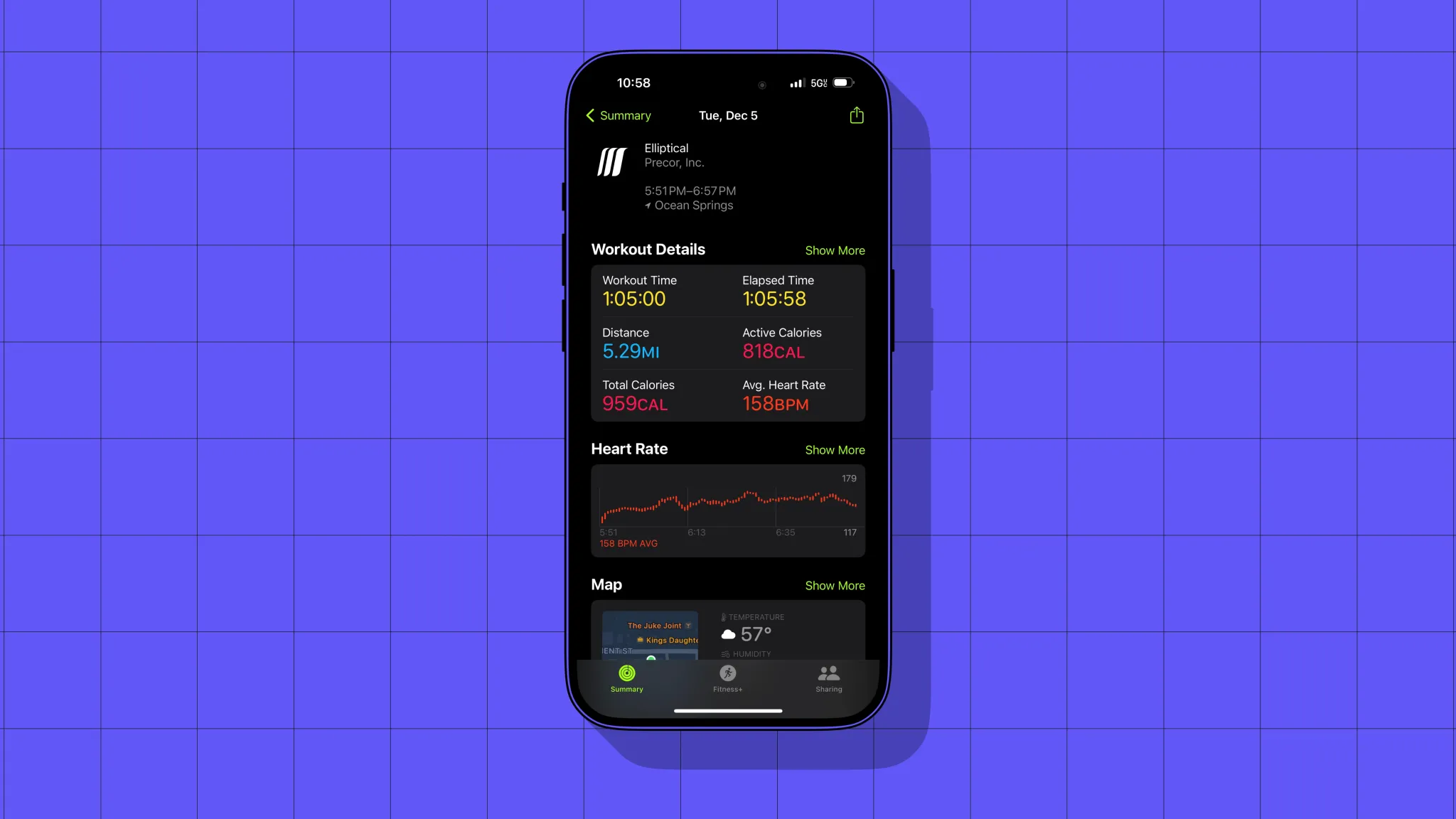
As an Apple nerd first and a person who wants to workout second, GymKit equipment is super encouraging. For everyone else with an Apple Watch, it’s the best way to sync up workout data, like heart rate, distance, and calories, that might not otherwise be available or accurate.
GymKit
Depending on who you ask, GymKit is either dead or very nice to have. I don’t think GymKit has really taken to home gym equipment except for Peloton (Bike+ only, not Tread). It also takes years for gyms to cycle through their equipment.
The GymKit slow roll started five years ago, and GymKit availability at Planet Fitness still varies by location. When you spot it, GymKit equipment is easy to use. Just wave your Apple Watch near the machine’s reader, allowing you to pair. Then starting/pausing/ending a workout from the machine matches the state on the watch (and vice versa).
The GymKit part is labeled with a watch
Wallet
Another perk since the last time we were a member? Digital keycards in Apple Wallet.
Years ago, We made our pass for the Wallet app so we could check in using our watch without our phone. Far less obsessed with trying to shoehorn the phone’s functionality into the watch now.
Still, it’s very nice being able to pull up and have the pass appear on the lock screen one tap away. And if we do want to leave our phone in the car or check in from the watch, that’s easily doable.
This is something Planet Fitness does do well. Membership cards aren’t available in Apple Wallet but are digitally available in the gym’s phone and watch apps.
Apple Watch
We can also mention here that we recently tried to pull off run tracking without the watch. We already knew this, but using a run-tracking app on the phone was not ideal.
The biggest factor for us is that the iPhone has the lock screen in between you and the run tracking app. Live Activities may help on the phone, but the watch is optimized for workout tracking.
The point? Working out is more fun with the Apple Watch, and gyms that have GymKit treadmills and ellipticals are true… gems.
If you just unwrapped a new Apple Watch this holiday season, there are a variety of tips and tricks that can help you get the most out of your new wearable. Read on for some guidance on our favorite Apple Watch features for health, activity, customization, and more.
Setting up your Apple Watch activity rings
For many people, the Apple Watch is first and foremost a fitness-focused wearable. The key to this is a trio of rings each represented by a different color: red for move, green for exercise, and blue for stand.
By default, the green exercise ring closes when you log 30 minutes of intense activity, the blue stand or roll ring closes when you move around for at least one minute of 12 different hours, and the red move ring closes when you meet your personal goal for active calories burned in a day.
Apple also includes the ability to customize your exercise and stand goals. Maybe you’re recovering from an injury and 12 stand hours paired with 30 minutes of exercise is too much for your body to handle. People have also been calling on Apple to integrate rest days into the Apple Watch rings system, and this feature at least gives users more control over their goals.
Here’s how to change your Apple Watch move, exercise, and stand goals:
On your Apple Watch, open the Activity app.
Scroll down to the bottom and look for the “Change Goals” button.
Use the + or – buttons to adjust your goals, or use the Digital Crown.
Tap “OK” to confirm your changes.
The exercise ring can be lowered or raised in intervals of five, down to a minimum of 10 minutes or a maximum of 60 minutes. The stand goal can be changed in single-hour intervals, down to a minimum of six hours. You can’t increase the stand goal beyond the default 12-hour mark.
Customizing your watch face
The centerpiece of your Apple Watch is the watch face. On your watch face, you can add bits of information known as complications, including things such as weather, activity data, heart rate information, and much more. The easiest way to build an Apple Watch face is with the Apple Watch app on iPhone.
You can find the entire library of watch faces in the “Face Gallery” tab of the app, and as you build them, you can add faces to your personal collection. Once you create multiple watch faces, you can swipe between them from your Apple Watch, making it easy to adjust on the fly for different scenarios.
Apple Watch App Store
You can find apps built specifically for the Apple Watch in the watchOS App Store. Simply press the digital crown on your Apple Watch and look for the App Store icon. Here, you’ll be able to easily find and install dedicated Apple Watch applications without using your iPhone at all.
Sharing your activity
One of the ways I love to stay motivated with my Apple Watch is by sharing my activity data with friends and family. When you do this, you can see when your friends complete workouts, how much progress they’ve made towards their goals, and when they earn new awards.
To share your Apple Watch activity data with others, follow these steps:
Open the Fitness app on your iPhone.
Tap the sharing icon in the bottom-right corner.
Tap the “+” button in the top corner.
Start typing a name, then tap the name you’d like to add. If the other person has an Apple Watch the name will turn red.
Tap the Send button, then wait for your friend to accept your Activity request. Once accepted, you’ll receive a notification on your Apple Watch.
Set up health monitoring features
The Apple Watch is not only useful for deliberately tracking your fitness progress, but also for passively monitoring it in the background.
Fall Detection
One such feature is called Fall Detection, and it uses the gyroscope and accelerometer to detect if you’ve fallen, and more importantly, if you’ve fallen and cannot get back up. By default, Fall Detection is disabled for users under the age of 65, but you can manually enable it with these steps:
Open the Apple Watch app on your iPhone.
Tap Emergency SOS.
.Look for the Fall Detection toggle
Apple warns that more physically active users may trigger Fall Detection even when you haven’t fallen. This is due to high impact activity, and may appear as a fall.
Tap Confirm.
Heart
In the Apple Watch app on iPhone, you can also enable a suite of features that will allow your Apple Watch to help you look after your heart. Simply open the Apple Watch app on your iPhone and look for the Heart category. In this section, you can enable the following features:
Install the ECG app for taking electrocardiograms from your Apple Watch (Series 4 and later).
Set up Cardio Fitness Levels and notifications, which are a strong indicator of your overall health.
Irregular Rhythm notifications for receiving a notification when Apple Watch identifies multiple heart rhythms that may be atrial fibrillation.
High Heart Rate notifications for receiving a notification when Apple Watch detects a heart rate that rises to a certain level while you appear inactive.
Low Heart Rate notifications for receiving notification when Apple Watch detects a heart rate that falls below 50 bpm for 10 minutes.
Blood oxygen
If you’re using an Apple Watch Series 6, you also have support for taking blood oxygen readings with your device. Apple Watch can also take measurements in the background so you have data to regularly reflect on. Simply open the Watch app on your iPhone, look for the Blood Oxygen category, enable the settings as you desire.
Rein in your notifications
The Apple Watch makes it incredibly easy to stay on top of your notifications. Every time an app sends a push notification, you’ll get a tap on the wrist and hear a sound. For many people, however, this can actually be overwhelming and unnecessary.
To manage notifications on your Apple Watch, open the Apple Watch app on your iPhone and choose the Notifications category. Here, you can see a list of applications and manage notifications as necessary. My recommendation is to limit notifications as much as possible on your Apple Watch, otherwise, you might become overwhelmed.
Check out Apple Fitness+
Apple Fitness+ offers access to a library of hundreds of on-demand workouts across popular categories such as running, cycling, HIIT, rowing, yoga, and more.
Apple Fitness+ features deep integration with Apple Watch, showing live data from your Apple Watch on the screen during your workout. Plus, if you recently got a new Apple Watch, you likely have three months of free access to the service.
You can find Apple Fitness+ in the Fitness app on your iPhone or Apple TV. It’s also available on the iPad, and you can download it from the iPadOS App Store to get started.
Apple Watch accessories
Finally, you might be looking to complement your new Apple Watch with accessories such as charging docks and watch bands.
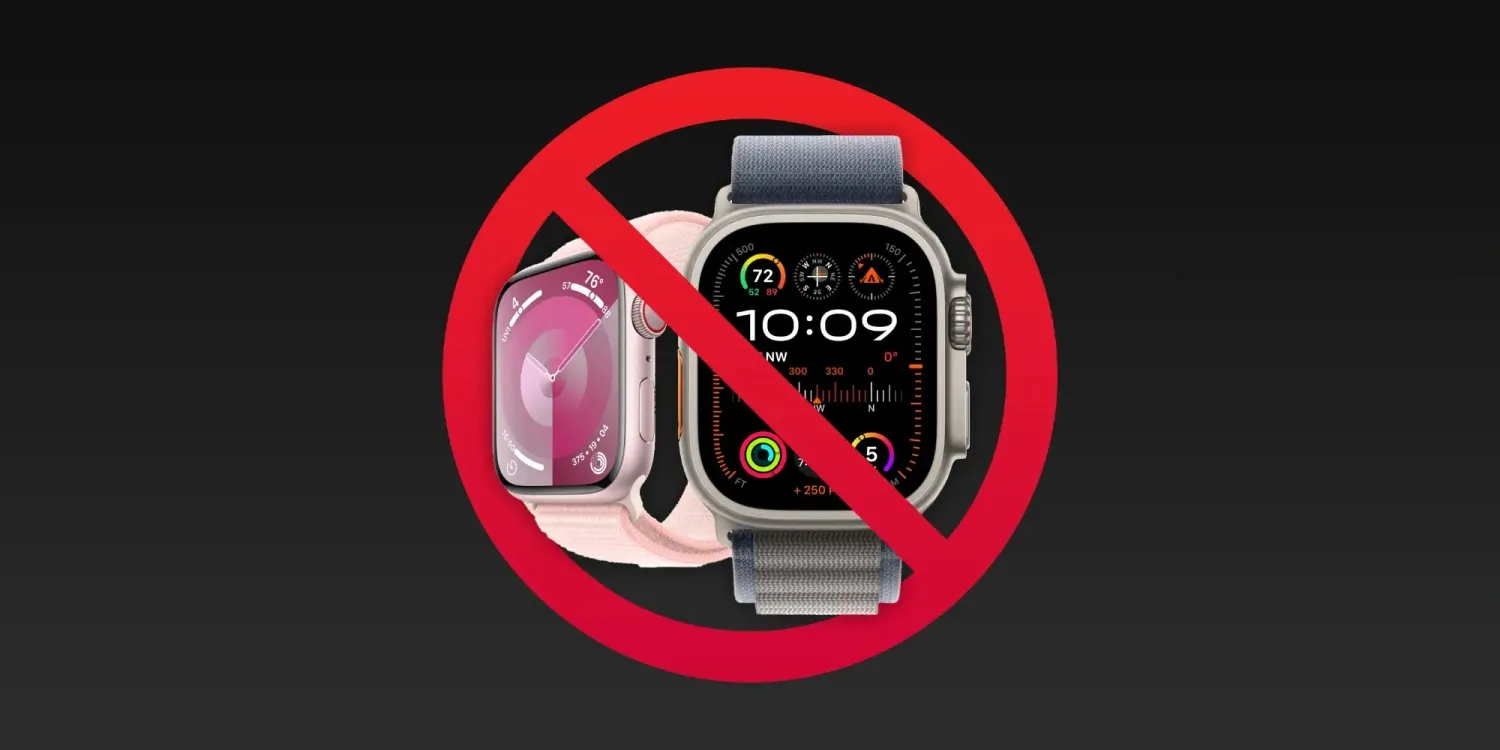
On December 27, 2023, the Apple Watch Series 9 and Apple Watch Ultra 2 ban was put on pause thanks to a US appeals court. In a new statement, Apple has confirmed that its flagship Apple Watch models are available today from retail stores and will return to Apple.com by tomorrow at 12 p.m. PT.
Here’s Apple’s full statement:
“We are thrilled to return the full Apple Watch lineup to customers in time for the new year. Apple Watch Series 9 and Apple Watch Ultra 2, including the blood oxygen feature, will become available for purchase again in the United States at Apple Stores starting today and from apple.com tomorrow by 12pm PT.”
Apple’s teams have worked tirelessly over many years to develop technology that empowers users with industry-leading health, wellness and safety features and we are pleased the U.S. Court of Appeals for the Federal Circuit has stayed the exclusion order while it considers our request to stay the order pending our full appeal.”
Here’s a timeline for the Apple Watch Series 9 and Ultra 2’s return to shelves:
Available from select Apple Stores today, with broader availability by Saturday, December 30.
From Apple’s website starting tomorrow, December 28, by 12 p.m. PT.
Apple also encourages customers to check in-store availability at apple.com once online sales have resumed.
Apple’s victory today puts the watch ban on hold until January 10. Apple has also submitted a software update that it believes will resolve the issue. The decision on whether or not that will satisfy the government is expected on January 12.
As Apple Stores across the United States start to close for the day, the Apple Watch Series 9 and Apple Watch Ultra 2 sales halt is officially going into effect. Apple removed its flagship Apple Watches from its online store on Thursday, and now they’re also being removed from Apple Stores.
When Apple Stores reopen after Christmas on December 26, the Apple Watch Ultra 2 and Apple Watch Series 9 won’t be available.
Apple Watch sales ban: The latest news
The Apple Watch sales ban comes as part of a long-running patent dispute between Apple and the medical device company Masimo. The ITC ruled in October that the blood oxygen sensor in the Apple Watch Series 9 and Apple Watch Ultra 2 infringes on two Masimo patents.
Following the ITC decision, the case was sent to the Biden administration for a 60-day Presidential Review Period. During this, President Biden could veto the ruling, but so far has chosen not to act. The Presidential Review Period officially ends after December 25, so it is still possible that President Biden will choose to intervene and veto the ITC decision at the last minute.
After December 25, Apple will be barred from importing or selling the Apple Watch Series 9 and Apple Watch Ultra 2 in the United States. Apple made the decision to remove the devices from its website on December 21 and from Apple Stores after today as part of its efforts to “preemptively” comply with the ITC’s ruling.
Apple Watch no longer available from Apple Stores
Following the removal of the Apple Watch Series 9 and Apple Watch Ultra 2 from Apple’s website on Friday, the two devices are also no longer available from Apple Stores. Most Apple Stores across the United States are closing at 6 p.m. local time on Sunday.
When Apple Stores reopen on December 26, the Apple Watch Series 9 and Apple Watch Ultra 2 will not be available to purchase. As reported by Mark Gurman, Apple Stores have been sent new marketing materials that promote the Apple Watch SE, which remains available to buy because it lacks the blood oxygen sensor.
Apple Stores in the US have received new display signage for the Apple Watch: instead of showing the Ultra 2 and Series 9 like they do today, it’s just plain and says “Apple Watch” on it. Unless Biden administration steps in in next few days, the sales pause is happening. https://t.co/FmVc3OdsTk
Apple said that it will “continue to take all measures to return Apple Watch Series 9 and Apple Watch Ultra 2 to customers in the U.S. as soon as possible.”
Apple also said to 9to5Mac that it will file an appeal of the ITC’s final decision with the US Court of Appeals for the Federal Circuit on December 26.
As it stands right now, there are no further details on how long the Apple Watch will be unavailable in the United States.
For now, the devices will remain available for purchase from other outlets, including Amazon and Best Buy. Once existing supply from those retailers is exhausted, however, they won’t be able to re-stock.
December 21, 2023, Apple removed the Apple Watch Series 9 and Apple Watch Ultra 2 from its US online store in response to an impending ITC ban. Now, more details are emerging about what the ban will mean for existing Apple Watch users when it comes to repairs and servicing.
As reported by Bloomberg, the ITC ban will impact Apple’s ability to service and replace Apple Watch models that are out of warranty. This affects Apple Watch models dating back to the Series 6, Series 7, and Series 8, as well as the first-generation Apple Watch Ultra.
Apple employees were informed of these restrictions in a memo today. Employees are being instructed to tell customers “they will be contacted when hardware replacements are allowed again.”
Apple’s customer service teams were informed in a memo this week that the company will no longer replace out-of-warranty models going back to Apple Watch Series 6. That means if a customer has a broken screen, for instance, they won’t be able to get the issue fixed by Apple. The company will still offer help that can be done via software, such as reinstalling the operating system.
What this means is that if you have an Apple Watch with a blood oxygen sensor that is not covered by warranty, you will be unable to have it serviced, repaired, or replaced in any fashion. For instance, if your Apple Watch Series 6’s screen is damaged, Apple won’t be able to help you in any way, shape, or form.
The restrictions on repairs and replacements won’t impact Apple Watch models that are still covered by warranty. This includes devices covered by Apple’s one-year warranty or covered by AppleCare+.
Additionally, Bloomberg reports that after December 25, Apple won’t be allowed to exchange a watch for a different model, even if it was purchased before the ban.
After Dec. 25, Apple also won’t be able to exchange a watch purchased before the ban, say for a different color or size, during the typical return period. Retail staff was told a product swap won’t be allowed, but Apple will replace accessories like bands. Watches can still be returned for a refund.
This seems particularly bad for Apple and customers, essentially meaning that anyone who is given an Apple Watch for Christmas can’t swap it out if they need or want a different size or color.
For now, the Apple Watch Series 9 and Apple Watch Ultra 2 will remain available for purchase from other outlets, including Amazon and Best Buy.
The Apple Watch’s fall detection feature came to the rescue for a man in Georgia, according to a new report from Fox5 Atlanta. Mike Menand was on a hike in the Chattahoochee River National Recreation Area earlier this year when his two dogs spotted a coyote in the distance, leading Menand to suffer a near-fatal fall.
“They got spooked and knocked me down and dragged me off the trail,” Menand said, referring to what happened when his dogs saw the coyote. This triggered his Apple Watch’s fall detection feature, which kicked in to call emergency services on his behalf.
“I couldn’t even get to the phone because my phone was in my pocket, which I was lying on,” Menand said. He suffered a broken leg in the accident and had a titanium rod put in his leg during surgery.
Menand said that he isn’t sure what would’ve happened if he wasn’t wearing an Apple Watch. “There’s no telling how long I would’ve been laying there,” he recalled. “I realized I couldn’t move, I couldn’t get up. I was in a lot of pain.”
In fact, just a month after Menand suffered his fall, a woman fell while hiking in the same park and did not survive. “When I read that, I thought that could’ve been me,” Menand said. “Because I was by myself, no one around me, no one really knew where I was.”
Fall detection works by intelligently detecting when a sudden fall occurs, automatically calling emergency services if the person doesn’t dismiss the alert within one minute of falling. If the person’s emergency contact information is filled out, that contact will be notified with a text message and a map of the watch’s location at the time of the fall.
Here’s how Apple Watch fall detection works, how to customize, and use it
One of Apple Watch’s potentially life-saving features is fall detection that’s paired with auto emergency SOS calling. Whether you’ve never enabled it or have but later turned it off, follow along for how Apple Watch fall detection works, how to customize, and use it.
Apple Watch fall detection can be used by anyone 18 years of age and up with the option of having it enabled just during workouts or all the time.
The feature is automatically turned on for those 55 years old+. But it’s not only valuable for the elderly, even young users have seen their lives saved by Apple Watch fall detection.
While it can be an important safety feature, Apple notes it “cannot detect all falls” and also that Apple Watch may interpret “high-impact” activity” as a fall and trigger a false alert.
If Apple Watch SE or Apple Watch Series 4 or later detects a hard fall while you’re wearing your watch, it taps you on the wrist, sounds an alarm, and displays an alert. You can choose to contact emergency services or dismiss the alert by pressing the Digital Crown, tapping Close in the upper-left corner, or tapping “I’m OK.”
How to turn on Apple Watch fall detection
Apple Watch fall detection is available for users 18 years old+ on SE and Series 4 and later
Launch the Apple Watch app on iPhone
Choose the My Watch tab in the bottom left corner
Now swipe down and tap Emergency SOS
To turn on Apple Watch fall detection, tap the toggle next to it
You can also choose if you want the feature always on or just activated during workouts
If you’re under 55, fall detection – when turned on – will default to “Only on during workouts” – but can be changed to “Always on”
It can be worth double-checking your Medical ID and emergency contacts data at the bottom of the Emergency SOS page your on, tap “Edit These Contacts in Health” to make changes
You can check your fall history (excludes when you report you didn’t fall) by heading to the Health app on iPhone > Browse tab > Other data > Number of Times Fallen.
Here’s how the process looks to turn on fall detection:
And here are more specifics on how emergency SOS calls via fall detection work:
If your Apple Watch detects that you’re moving, it waits for you to respond to the alert and won’t automatically call emergency services. If your watch detects that you’ve been immobile for about a minute, it will make the call automatically.
After the call ends, your watch sends a message to your emergency contacts with your location letting them know that your watch detected a hard fall and dialed emergency services. Your watch gets your emergency contacts from your Medical ID.
One of the more useful changes to recent Apple Watch models is support for fast charging. This allows you to quickly top off your Apple Watch battery at much faster speeds than before. There are a few things to remember, and you don’t get everything you need in the box…
Which Apple Watch models support fast charging?
The following Apple Watch variants allow for fast charging:
Apple Watch Series 7
Apple Watch Series 8
Apple Watch Series 9
Apple Watch Ultra
Apple Watch Ultra 2
Apple says that with fast charge, your Apple Watch battery level can go from 0-80% in about 45 minutes. Apple has a support document detailing the specifics of fast charging with the Apple Watch Series 7, Apple Watch Series 8, and Apple Watch Ultra.
What do you need to fast charge your Apple Watch?
Included with the Apple Watch is an Apple USB-C Magnetic Fast Charging Cable. As we’ve previously reported, the difference with this cable is that it has aluminum instead of plastic around the magnetic charger.
While Apple is including one of these cables in the box with Apple Watch Series 7, Series 8, and Ultra, you can also buy them separately so you can outfit all of your charging spots with fast charge support. The cable measures 1m in length and is available for $29. The model number for the cable is A2515, so make sure you’re buying that specific model if you purchase from a third party other than Apple or Amazon.
The second part of the equation is the power adapter that you plug into the wall. As part of its continued focus on reducing its environmental footprint, Apple no longer includes this power brick in the box. This means you’ll have to use one that you already have or buy a new one.
Apple says that any USB-C power adapter that supports USB Power Delivery of 5W or better is capable of Apple Watch fast charging. You can find these on Amazon from reputable brands such as UGreen for as little as $10.
Here are the specifications from Apple:
Apple 18W, 20W, 29W, 30W, 61W, 87W, or 96W USB-C Power Adapter
A comparable third-party USB-C power adapter that supports USB Power Delivery (USB-PD) of 5W or greater
Interesting. So if I read this article correctly, you only need 5 watts with the new usb-c cable to get 45 minutes at 80% on AW 7 or 8?
I thought you needed a larger charger.
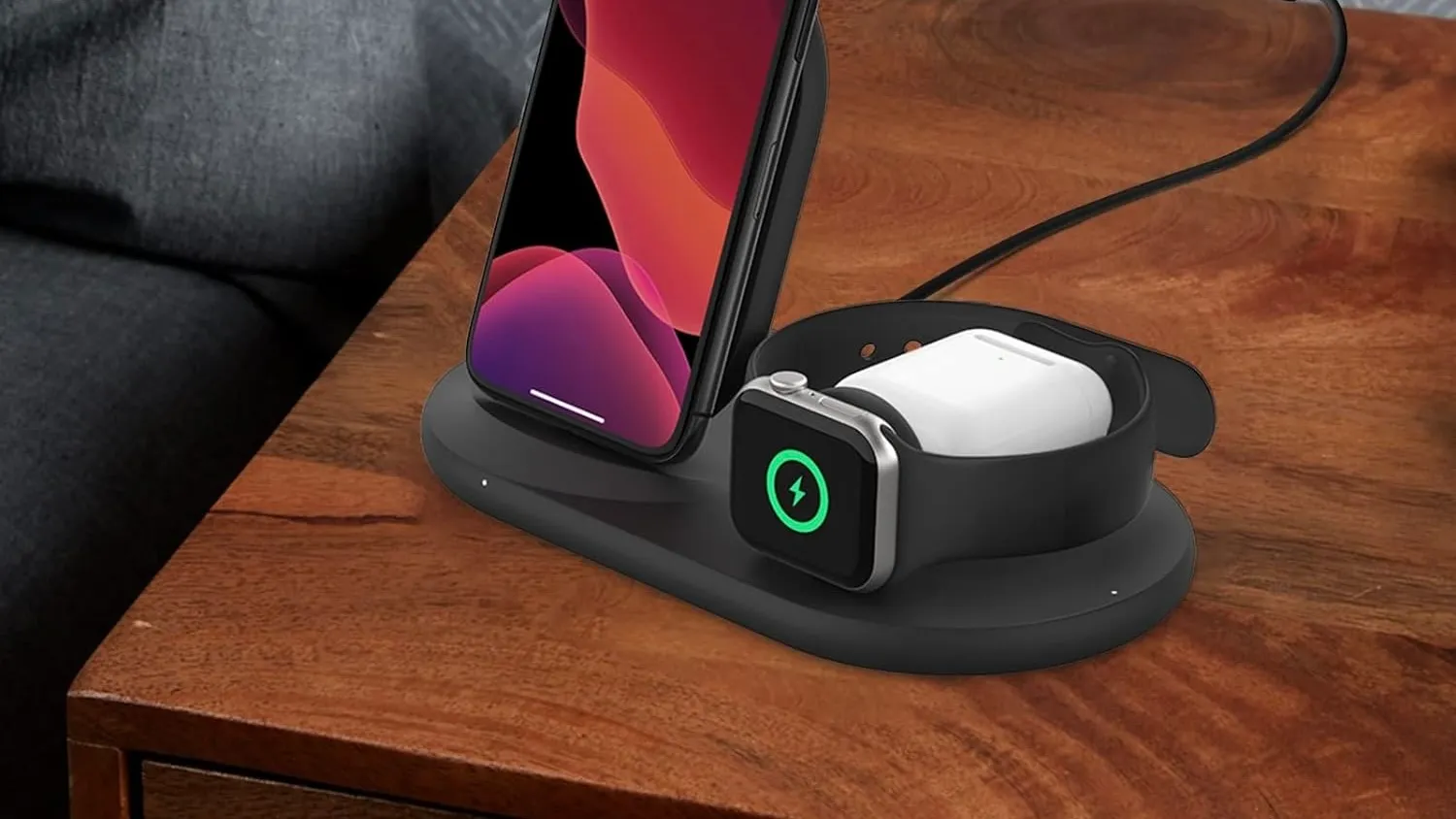
Finally, if you use Apple’s MagSafe Duo or its Apple Watch Magnetic Charging Dock, you can’t tap into fast-charging capabilities, regardless of which cable or power adapter you use. You could, however, place the fast charger puck in a third-party dock of any sort.
More options
Belkin Apple Watch Fast Charger Dock
Belkin 3-in-1 Wireless Charger – Fast Charging Stand
Last week, some Apple Watch users reported on an increasingly widespread battery drain problem plaguing Apple Watch users. Following our report, Apple has confirmed the existence of the problem and says a fix is coming soon via a software update.
This Apple Watch battery drain problem appears to affect a wide range of Apple Watch users. This includes the newest models like the Apple Watch Series 9 and Apple Watch Ultra 2, as well as older models like the Apple Watch Series 4. Affected users say that their Apple Watch battery life started draining abnormally quickly after updating to watchOS 10.1.
In an internal memo shared with Apple Authorized Service Providers on Saturday, Apple confirmed that it is aware of the battery drain problem affecting Apple Watch users. The company said that a fix is “coming soon” via a software update for watchOS 10. Unfortunately, Apple didn’t provide any further details on when that update will be released (via MacRumors).
Apple’s memo also doesn’t offer specific details on how widespread the problem is. A quick search on Twitter, however, offers some context. One user says that their Apple Watch Series 9 went from 100% to dead in just three hours. Another user reports that their Apple Watch Series 7 battery drained 25% in just 30 minutes.
@AppleSupport watchOS 10.1 has a battery bug. My brand new S9 went from 100% to dead in 3 hours. Multiple people with the same problem. pic.twitter.com/MadJJYFl44
@9to5mac Since I updated my Series 7 to watchOS 10.1, my battery has drained a ton. It barely charged overnight (was even going backwards on the charger at one point) and, after 100% this morning, lost 25% in 30 minutes. Definitely a bug in there. Might be worth investigating.
Seemingly coinciding with the release of watchOS 10.1, a number of Apple Watch users are complaining of abnormal battery drain issues.
This problem appears to be rather widespread, but it does not affect all Apple Watch users. The people who are affected, however, are using a range of different Apple Watch models. This includes older devices like the Apple Watch Series 4 as well as Apple’s newest Apple Watch Series 9 and Apple Watch Ultra 2.
Affected Apple Watch users are reporting battery drain at far more rapid rates than usual. One user on Twitter says that their Apple Watch Series 9 went from 100% to dead in just three hours. Another user reports that their Apple Watch Series 7 battery drained 25% in just 30 minutes.
Simultaneously, many of these people also say that they are having problems charging their Apple Watch due to apparent overheating problems. In the Settings app, users are seeing this message: “Charging was on hold due to Apple Watch temperature.” This leads to the Apple Watch battery actually draining while it’s on the charger for some people.
A few weeks ago, Apple updated its list of obsolete products with a notable addition: the original Apple Watch, introduced in 2015. The company has just added another product to its list of vintage products that aren’t exactly obsolete but may no longer be eligible for support. That’s the case for the Apple Watch Series 1.
Apple Watch Series 1 becomes vintage
Apple’s website was updated this week to list the Apple Watch Series 1 as vintage. For those unfamiliar, Apple considers a product to be vintage when it has no longer been distributed for sale for more than five years but less than seven. Apple provides limited support for vintage products, as the company says repairs are subject to parts availability.
The Apple Watch Series 1 and 2 were announced together in September 2016. However, while the Apple Watch Series 2 was discontinued a year later with the launch of Series 3, Series 1 remained in the lineup as a more affordable option. And yes, the original Apple Watch and the Apple Watch Series 1 are different products.
The Series 1 replaced the original Apple Watch in 2016. While Series 2 had new features such as a brighter display, built-in GPS, and improved water resistance, Series 1 kept almost the same hardware as the original model but with a faster chip. It cost $369, $100 less than Series 2 and the original Apple Watch.
The Apple Watch Series 1 and 2 received updates until mid-2020, and the latest software compatible with these models is watchOS 6. Once these products become obsolete, they will no longer be eligible for any official repairs from Apple.
Obtaining service for your Apple product after an expired warranty
Learn about your options for getting service and parts for Apple devices that are past their warranty period.
Owners of iPhone, iPad, iPod, Mac, or Apple TV products may obtain service and parts from Apple service providers, including Apple Store locations and Independent Repair Providers, for a minimum of 5 years* from when Apple last distributed the product for sale.
Service and parts may be obtained for longer, as required by law or for up to 7 years*, subject to parts availability. Additionally, Mac laptops may be eligible for an extended battery-only repair period for up to 10 years from when the product was last distributed for sale, subject to parts availability.
Apple discontinues hardware service for certain technologically obsolete products. Your product is supported by ongoing OS updates and backed by a network of more than 5,000 Apple-certified repair locations that you can count on if something unexpected happens.
* In some countries and regions, certain service parts may not be available due to local laws or material restrictions.
Apple and the environment
Apple products are designed to be long-lasting. They are made of durable materials that are heavily-tested in our Reliability Testing Lab. The longer you use your product, the better it is for the planet. For more information about Apple and the environment, visit www.apple.com/environment.
About vintage products
Products are considered vintage when Apple stopped distributing them for sale more than 5 and less than 7 years ago.
For products purchased in France, see Statutory Warranties of Seller and Spare Parts (PDF). Owners of a new iPhone or Mac laptop purchased after December 31, 2020, in France, may obtain service and parts from Apple or Apple service providers for 7 years from the date the product model was last supplied by Apple for distribution into France.
Products are considered obsolete when Apple stopped distributing them for sale more than 7 years ago. Monster-branded Beats products are considered obsolete regardless of when they were purchased.
Apple discontinues all hardware service for obsolete products, and service providers cannot order parts for obsolete products. Mac laptops may be eligible for an extended battery-only repair period for up to 10 years from when the product was last distributed for sale, subject to parts availability.
Seven native Apple Watch apps have been overhauled with watchOS 10, one of which is the World Clock app that’s received a beautiful new aesthetic. Follow along for what’s new with the World Clock Apple Watch app in watchOS 10.
watchOS 10 brings a big overhaul for the Apple Watch experience with a new widgets UI, mental health features like mood tracking, new watch faces, and redesigns coming with native apps like Weather, Stocks, Maps, Messages, Heart Rate, Home, and World Clock.
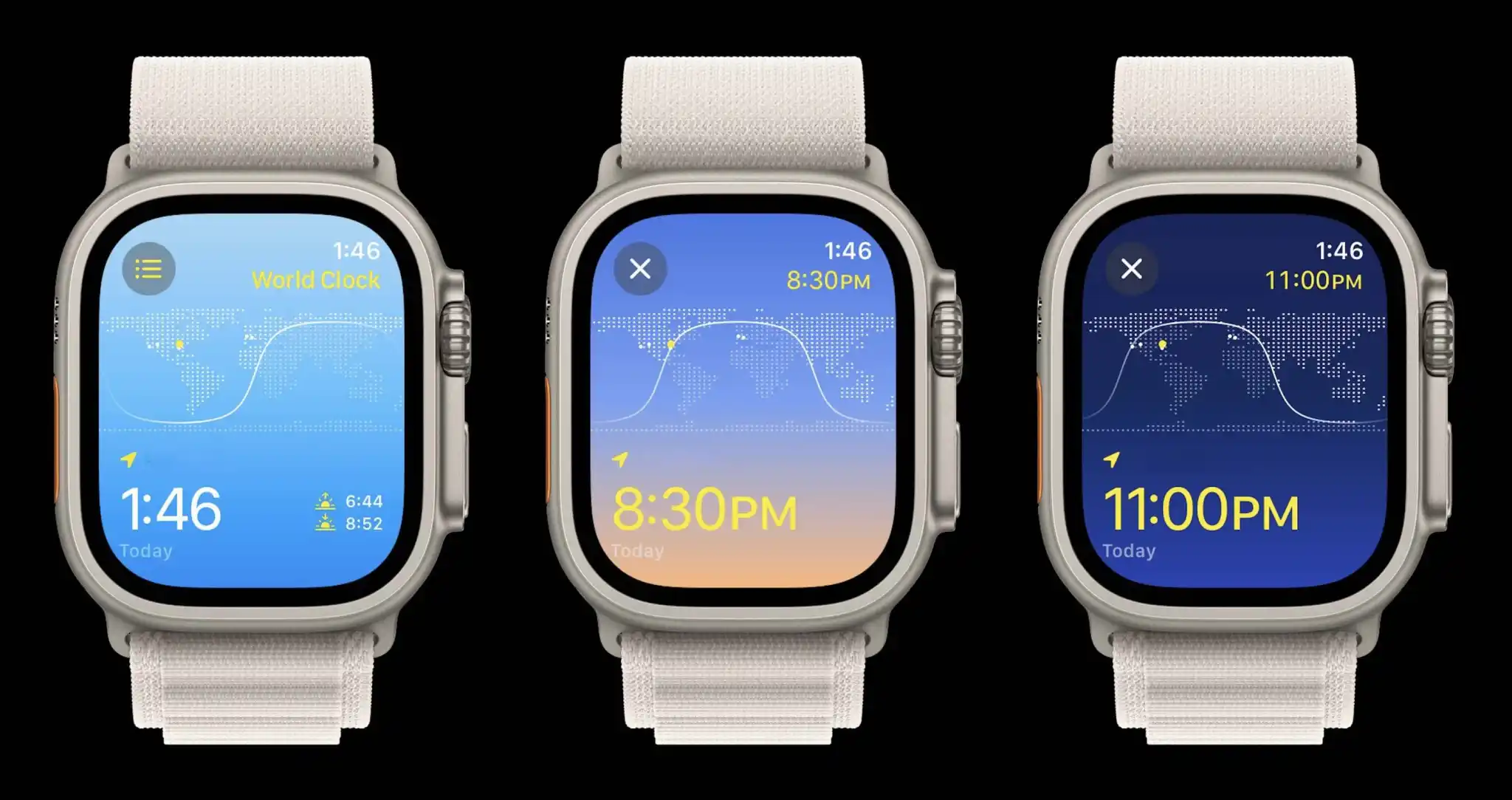
Shown above, the new watchOS 10 World Clock features a dynamic blue, white, and yellow theme that changes based on the time of day.
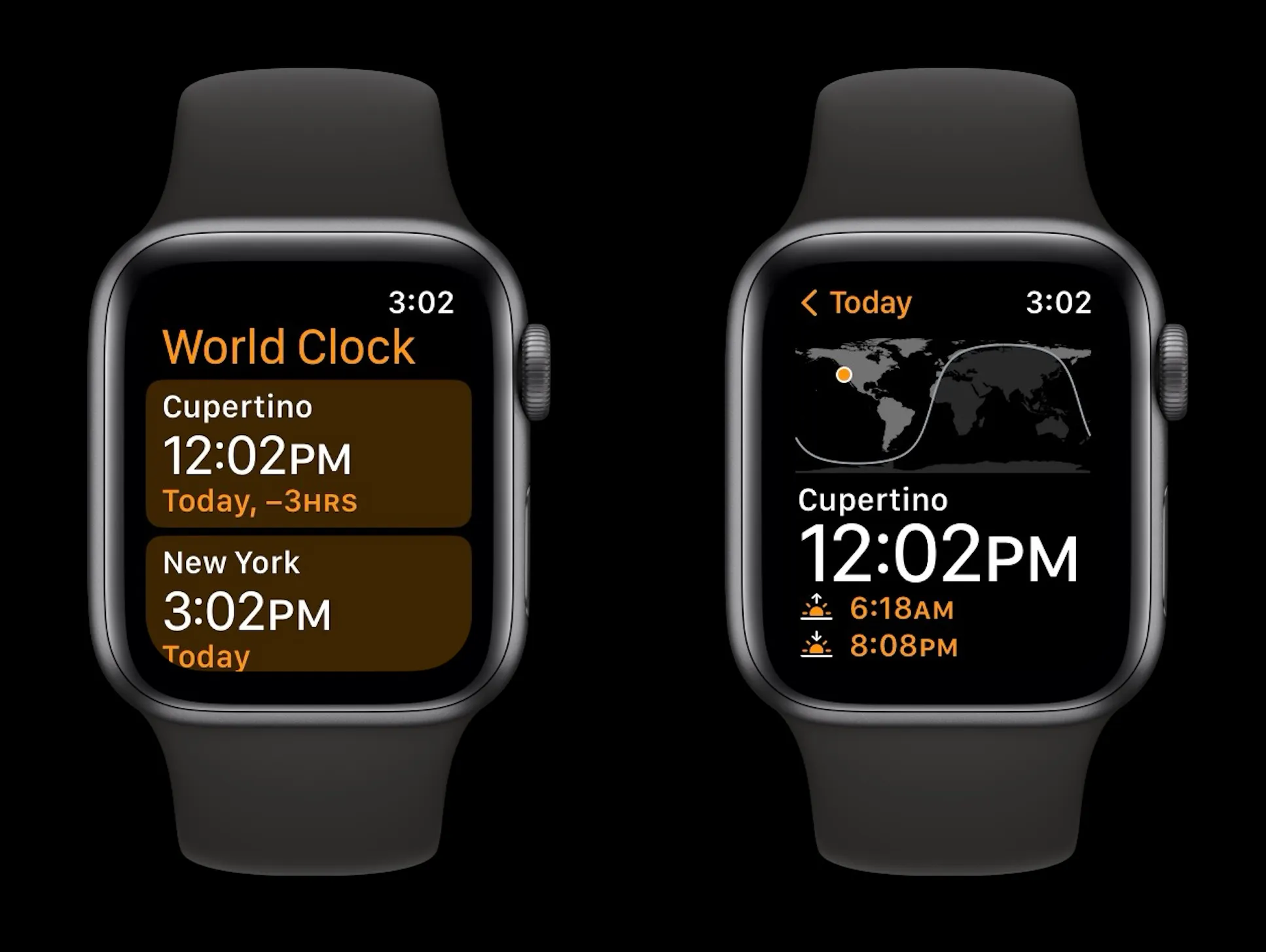
As a refresher, here’s the watchOS 9 World Clock app with the simple black and orange design:
The new World Clock Apple Watch app offers a new functionality when scrolling with the Digital Crown and also makes it easier to check the time difference between your current location and other places around the world.
What’s new with the World Clock Apple Watch app in watchOS 10?
If you’ve allowed location access for the Clock app on iPhone/Apple Watch you’ll see your current location when you launch the World Clock
The current time is shown in the bottom left (and top right) with the sunrise and sunset in the bottom right corner
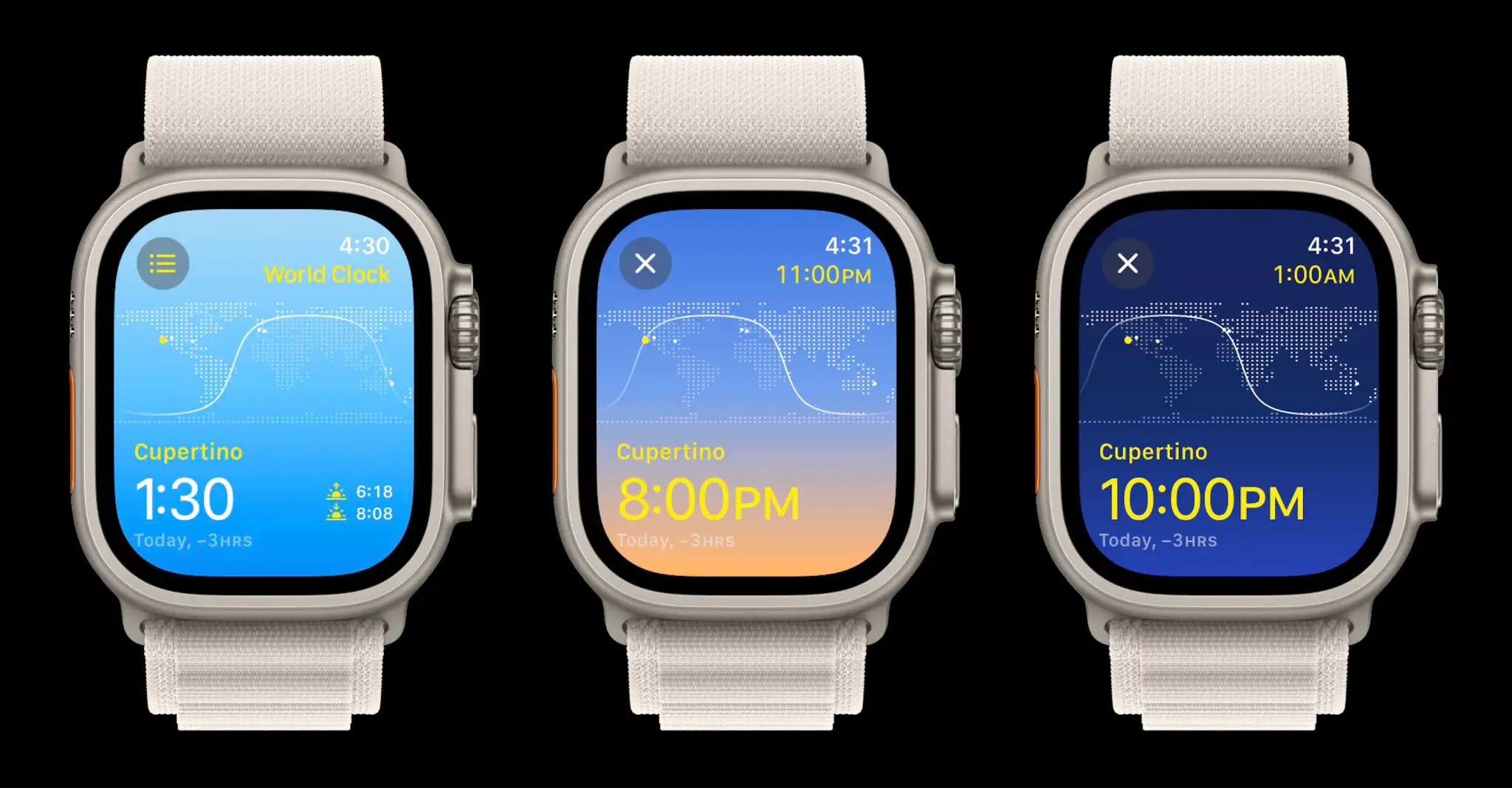
Scrolling with the Digital Crown now gives you a visual look at how daylight turns to night for the location you’re looking at based on the time
The UI moves from a light blue to a sunset gradient to a dark blue
Tap the X in the top left corner to return to the current time
Tap the three-line icon in the top left to see all of your saved locations
You can quickly rearrange locations by long-pressing and dragging them into a new order
Locations are synced between iPhone and Apple Watch, but you can add locations at the bottom of the list view
Now when you look at a location different from your current location, the relative time of your current location will show in yellow in the top right corner with the time of the location you’re viewing in the bottom left corner
The time zone offset will also appear in the bottom left corner
As it happens, the new World Clock UI is unique to watchOS 10 – the old black and orange UI remains on iPhone with iOS 17.
watchOS 10 widgets: How the new Apple Watch UI works
The new watchOS release comes with some big changes headlined by a new smart and customizable widget-based UI. Follow along for a closer look at how to use the Apple Watch widgets, edit them, and more in watchOS 10.
Apple sees watchOS 10 as “a milestone update” with a focus on bringing “users a fresh approach to quickly view information with redesigned apps, a new Smart Stack to show relevant widgets right when they’re needed, and delightful new watch faces.”
A couple of neat things about the new widget UI are that they’re quickly accessible from any watch face and the widgets automatically reorder to “display timely information that adapts to the user’s context.”
The widgets take up half the screen of the Apple Watch and there are two types, the first uses the whole widget for one app and the second widget type can be customized with three app complications.
Even though the widgets are a Smart Stack, you can manually “pin” widgets you’d like to stay put.
How to use Apple Watch widgets in watchOS 10
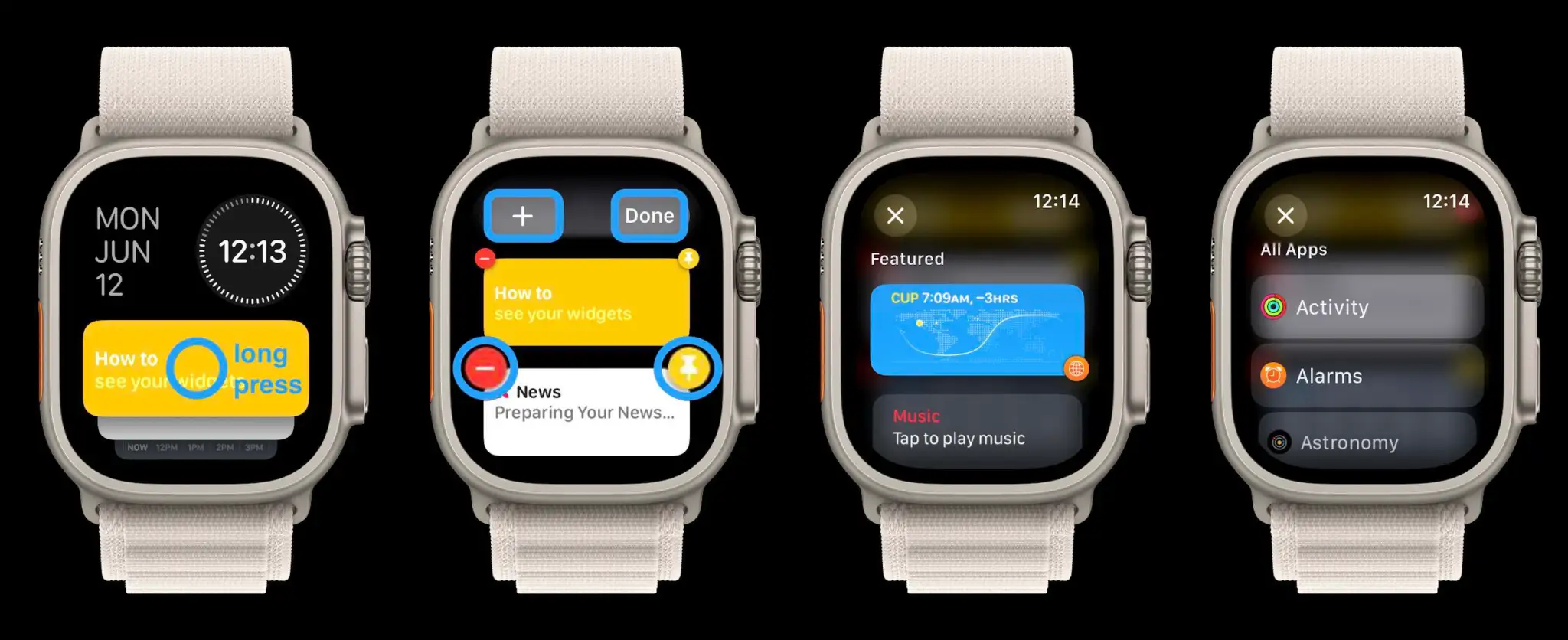
On Apple Watch running watchOS 10, scroll up on your Digital Crown or swipe up on your screen (Control Center now opens with the side button in watchOS 10)
Now you’ll see the new widget UI
Swipe or scroll to see all of the widgets in your Smart Stack (you can also tap the yellow widget to get a little walkthrough)
Long press a widget to edit them
Tap the red – icon to remove widgets and tap the + icon at the top to add new ones
The widgets are a “Smart Stack” and will automatically change through the day depending on context – but manually reordering/pinning is possible with the yellow pin icon that moves widgets to the top of the list and keeps them there
At the bottom is a triple complication widget that’s customizable
At the very bottom is a button to see “All Apps” (you can either tap it or keep scrolling or swiping to see all apps)
The date and time at the top of the widget UI are not customizable – for now at least. Once you long press on a widget to edit them, you’ll see the main options to customize them with the + up top and the remove and pin icons on each widget.
When adding a new widget, you’ll see featured choices up top with all apps below.
The triple complication widget at the bottom can be customized and also pinned if you want to move it to the top of your Smart Stack.