
Download iOS 11 to open up new augmented reality experiences, boost productivity, take better photos and more.
Starting Tuesday, iPhone and iPad customers around the world will be able to update their devices to iOS 11, a major update to the world’s most advanced mobile operating system and the biggest software release ever for iPad. iOS 11 brings augmented reality to hundreds of millions of iOS devices and new professional capabilities improve images in Photos and Camera. Siri is more natural and useful and a redesigned App Store makes it easier to discover apps and games.
iPad Becomes Even More Powerful
Work with multiple apps at the same time using Slide Over on iPad.
The all-new Dock provides quick access to favorite and frequently used apps and documents from any screen and makes it easier to work with multiple apps with Split View and now Slide Over. Drag and Drop makes moving images, text and files between apps easier than ever using Multi-Touch. And Apple Pencil is more deeply integrated into iPad Pro with support for inline drawing and a new Instant Notes feature that opens Notes from the Lock Screen by simply tapping Apple Pencil on the display.
Files makes it easy to access and organize files from one central place.
The all-new Files app provides a central place to access and organize files no matter where they are located — on iPad or in the cloud with built-in support for iCloud Drive as well as providers, such as Box, Dropbox and others.
Immersive Augmented Reality
With new AR apps, users can place virtual objects in real-world scenes.
Hundreds of millions of people can now experience AR apps on iPhone and iPad and view virtual content on top of real-world scenes for interactive gaming, immersive shopping experiences, industrial design and more. These apps deliver high-quality AR experiences using the built-in camera, powerful processors and motion sensors in iOS devices.
Photos Look Even More Professional
New Loop and Bounce effects create continuous video loops for Live Photos.
The incredibly popular and innovative Portrait mode now uses optical image stabilization, True Tone flash and HDR, so every shot looks even more professional. Loop and Bounce effects create continuous video loops for Live Photos, while Long Exposure creatively captures time and movement. In Photos, Memory Movies are optimized to play in both portrait and landscape orientation, and more memories, such as photos of pets or birthdays, are automatically created.
The All-New App Store
Redesigned App Store makes discovering apps and games easier than ever.
The App Store is redesigned in iOS 11, making discovering apps and games easier than ever before. New in-depth features and interviews will uncover the stories behind iOS developers, and the incredible apps and games they create. App Store for iMessage is also easier to access with a redesigned app drawer.
Siri is More Natural and Useful
Siri now offers translation, an expressive new voice and more proactive intelligence to help you through your day.
New voices are more natural and expressive, adjusting intonation, pitch, emphasis and tempo while speaking, and can translate US English into Mandarin, French, German, Italian or Spanish. Siri uses on-device learning to deliver more personal experiences and offers suggestions based on personal usage of Safari, News, Mail, Messages and more.
Send Money to Friends with Apple Pay this Fall
Coming this fall, easily and securely send and receive money from friends and family with Apple Pay right in Messages, no extra steps or apps needed.
Coming this fall with an update to iOS 11 and watchOS 4, Apple Pay users will be able to send and receive money from friends and family quickly, easily and securely. Pay and get paid right in Messages, or tell Siri to pay someone, using the credit and debit cards they have in Wallet. When users get paid, they receive the money in their new Apple Pay Cash card in Apple Wallet and can use the money instantly.
Stay Focused on the Road
Do Not Disturb while driving is a new way to help drivers stay more focused on the road.
iOS 11 introduces a new way to help drivers stay more focused on the road with Do Not Disturb while driving. iPhone can detect when a user may be driving through vehicle movement or Bluetooth connections, and automatically silences notifications to keep the screen dark. Users have the option of sending an auto reply to their Favorites, contacts or recents to let them know they are driving and cannot respond until they arrive at their destination.
More Ways to Navigate with Apple Maps
Look inside malls and airports with new indoor maps.
Coming this fall, Apple Maps adds indoor maps for shopping centers and airports around the world, including: Amsterdam (AMS), London Heathrow (LHR), Las Vegas (LAS), Los Angeles (LAX), Miami (MIA), Philadelphia (PHL) and San Jose (SJC).
iOS 11 also introduces lane guidance to help users better prepare for the next turn, as well as speed limits to help users stay informed.
Discover New Music with Friends
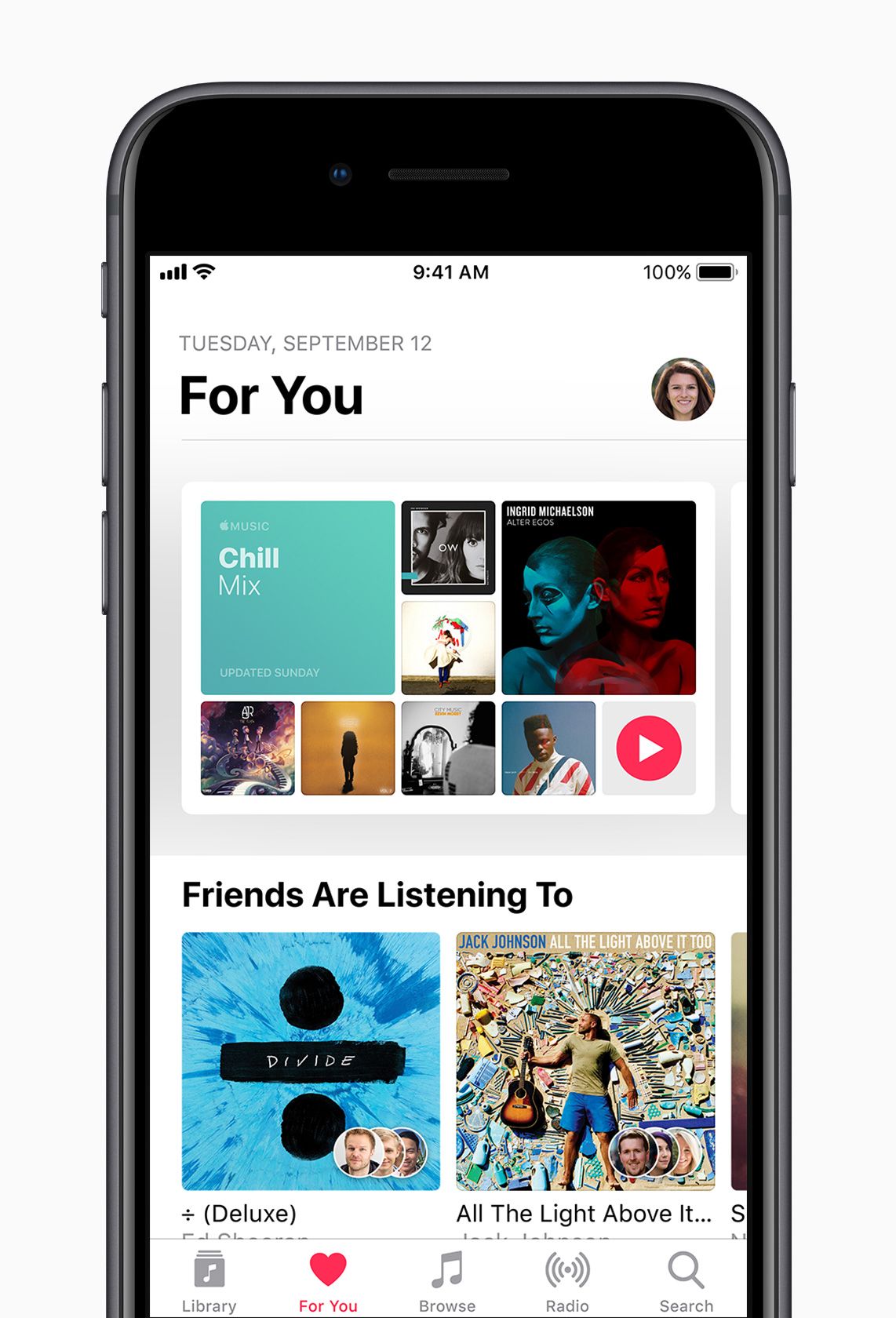
Share Music with friends with new features in Apple Music.
Subscribers can create a profile and follow friends to listen to shared playlists and see the music they listen to most. Apple Music subscribers can also begin receiving notifications when friends follow them, new music is released and more — so they never miss a beat.
To learn more ways to get the most out of iOS 11, users can visit the Tips app on iPhone or iPad. For details on how to update iOS devices, visit Apple Support.
The latest version of iTunes removes the App Store and thus the ability to manage iOS apps on an iPhone or iPad directly through iTunes. Instead, Apple wants users to manage and sync their iOS apps directly on the iOS device itself through the built-in App Store.
The removal of App Store and an Apps section from iTunes has confused some users, and annoyed others. But don’t distress, even if this change can take some adapting, because you can still easily manage apps, sync apps, and redownload apps and access apps through the App Store directly on an iPhone or iPad.
It’ll be helpful to think of the concept of app ‘syncing’ as now more like app re-downloading from the App Store, since syncing apps to and from iTunes is largely gone and instead replaced with redownloading apps if need be over the internet. (I say largely gone because you can still sort of work with .ipa files, more on that below.)
How to Redownload Apps to iPhone or iPad from iOS App Store, Without iTunes
You can download existing and old apps, as well as manage apps directly on the iPhone and iPad by using the App Store Purchased section. The Purchased section of the App Store includes all apps you have ever downloaded or bought before at any time with the Apple ID in use, as long as those apps are still on the App Store. This redownloading iOS app ability has been around for a long time in iOS, but now it is perhaps more important than ever before.
Here is how you can access Purchased and use it to download apps back to your iOS device, note the precise actions are slightly different on iPhone compared to iPad but the general behavior is the same:
Open the App Store app in iOS
Go to the Purchased section of the App Store
For iPhone and iPod touch: Go to “Updates” and then “Purchased”
For iPad: Tap your Apple ID account icon in the corner of the open App Store
On iPad App Store, then tap “Purchased”
Choose the “Not on this device” section
Tap the download icons alongside app names you wish to download to the iPhone, iPad, or iPod touch
This allows you to download and access apps that you have previously downloaded, owned, or purchased at some point, but that are not contained on the current iOS device.
These purchase listings will be different per iOS device, changing from “Not on this iPhone” or “Not on this iPad” depending on what device you are using with the same Apple ID, and depending on what apps are on the active iOS device.
Arranging iOS App Home Screen and Icon Layouts on iPhone and iPad
You can still arrange your iOS home screen as you like it to a custom icon layout, but now it must be done on the iPhone or iPad.
Simply tap and hold on an app icon until all screen icons start to jiggle. Once the icons are jiggling on the iOS screen they can be moved around at will. Use this to arrange the Home Screen of an iPhone or iPad to suit your preferences.
If you drag a jiggling icon to the edge of the screen, continue holding and you can move the app icon to a different Home Screen page.
Removing Unwanted Apps from the iPhone or iPad
Removing apps from an iPhone or iPad is a matter of uninstalling the apps from iOS, the easiest way is by the tap-and-hold and then delete method detailed here.
You can also delete apps from an iOS device through the Settings > General section to manage storage.
Manually Syncing / Copying Apps via IPA Files to iPhone or iPad with iTunes
Interestingly, you can still drag and drop ringtones in .m4r format and iOS apps in .ipa file format into iTunes and to the target iOS device, and they should transfer over to the target iPhone, iPad, or iPod touch.
If you happen to have a .ipa file of an iOS app, you can still manually copy it over to the iPhone or iPad via iTunes by using this drag and drop method. This is sort of like syncing, but it’s really just copying a file over from the local computer to the target iOS device by using iTunes.
Apps stored as .ipa files, if you have any stored on a local computer, can be found within the iTunes Library locations on the Mac and Windows PC and a subfolder for Mobile Applications, typically the path would be as follows for Mac and Windows PC respectively:
IPA file path in Mac OS:
~/Music/iTunes/iTunes Media/Mobile Applications/
IPA file path in Windows 7, Windows 8, and Windows 10:
\My Music\iTunes\iTunes Media\
With an iPhone or iPad connected to the computer via USB, simply drag and drop the IPA file into iTunes onto the iOS device in question through the sidebar.
It’s alway possible this particular IPA file feature will disappear from iTunes in the future with another software update, or that the IPA files stored on a computer will vanish if you don’t copy them elsewhere for backup purposes, so it’s probably wise to not depend on this particular ability too much.
Some users may determine that iTunes 12.7 along with the removal of the App Store and other changes are incompatible with their particular workflow. With a little effort, you can downgrade iTunes 12.7 back to iTunes 12.6 on either a Mac OS computer or Windows PC.
Most people should not downgrade iTunes nor attempt to downgrade, this is really only appropriate for advanced users who must use an earlier version for some particular reason. Before downgrading iTunes 12.7 you should know that you can manage and download apps on iPhone or iPad without iTunes, directly in iOS as detailed here, including manually copying apps to the iPhone or iPad via IPA files.
You should backup your computer before beginning this process. Failure to backup could result in permanent data loss or data removal. Do not skip backing up your computer before beginning.
This process is basically three parts: deleting iTunes, restoring the old iTunes Library file, and then downloading the older version of iTunes and installing it.
How to Downgrade iTunes 12.7 to 12.6 on Mac
Back up your Mac before beginning the iTunes downgrade process. Do not skip backing up your Mac or else you may lose data, apps, music, media, or general functionality.
Back up the Mac if you haven’t done so already
Quit out of iTunes
Now open the Terminal application in Mac OS, found in /Applications/Utilities/ and type the following exactly, then hit return:
cd /Applications/
Now you’ll be in the Applications folder via command line, the next command syntax must be precisely entered to remove iTunes, make sure the syntax is exact:
sudo rm -rf iTunes.app/
Be absolutely certain your syntax reads the same, rm is unforgiving and will delete any file permanently it is pointed at. When certain you are pointing at iTunes.app/ only, hit return and authenticate with an admin password to completely delete iTunes
Now go to the Finder of Mac OS and visit your user ~/Music/iTunes/ folder and locate the file named “iTunes Library.itl” and move it to the Desktop, or another easily found location
Still in ~/Music/iTunes/, now open the folder titled “Previous iTunes Libraries” and find the most recent dated iTunes Library file (these are labeled as whatever date you installed the latest iTunes, for example “iTunes Library 2017-09-12.itl” or similar) and make a copy of that file
Drag the copy of “iTunes Library 2017-09-12.itl” to the ~/Music/iTunes/ folder and rename it to “iTunes Library.itl”
Now go to Apple iTunes Downloads page hereand locate “iTunes 12.6.2” and choose to download that to the Mac
Install iTunes 12.6.2 on the Mac as usual, then launch iTunes once complete
That’s it, you’re now back to the prior version of iTunes.
To avoid downloading iTunes 12.7 again you may want to hide it from the Mac App Store or turn off automatic updates.
How to Downgrade iTunes 12.7 in Windows
Downgrading iTunes 12.7 can be done in Windows as well by uninstalling iTunes and then reinstalling the old version. You’ll still want to restore the old iTunes Library .itl file however.
In Windows, navigate to where your iTunes Media folder is and open “Previous iTunes Libraries” and make a copy of the most recently dated iTunes Library.itl file in that directory
In Windows, open Control Panel > Programs > Programs and Features and go to “Uninstall or change a program”
Choose “iTunes” and choose to Uninstall iTunes 12.7 from the Windows PC
Download and install iTunes 12.6 from Apple using the following links (direct download links to exe files via Apple CDN), get the 32 or 64 bit version appropriate to your Windows installation :
It’s important to not skip the ‘iTunes Library.itl’ file process because if you do not restore the previous iTunes Library file you will get an error message stating “iTunes Library.itl cannot be read because it was created by a newer version of iTunes”. Typically you can override those error messages by rebuilding an iTunes library, but if you can avoid that you may as well.
A new public beta, which has the same features as the developer-only iOS 11 beta 10 release, is also out for members of the Apple Beta Software Program. The new software has arrived six days following iOS 11 beta 9 and 24 hours following a tenth beta of tvOS 11 for Apple TV.
To install the update on your iOS device with an appropriate configuration profile (available for download through Dev Center), use Apple’s Software Update mechanism in the Settings app.
Here’s Andrew’s hands-on walkthrough of the changes in the previous beta.
Originally released as a developer-only preview at WWDC in June, iOS 11 packs in a surprising number of new features, under-the-hood enhancements and user interface refinements.
Some of them include a customizable Control Center, a redesigned App Store, brand new multitasking features on iPad with the interactive Dock and drag and drop, a dedicated Files app, AirPlay 2 with multi-room audio, new Siri capabilities and more.
As we get closer and closer to Apple’s event next Tuesday, we’re most likely approaching a Gold Master build that should release before the next iPhone launches later in September.
