Following the release of iOS 14.3 last month, Apple today stopped signing both iOS 14.2 and iOS 14.2.1 — which was only available for iPhone 12 models. That means users who have updated their devices to iOS 14.3 can no longer downgrade to iOS 14.2.
Among all the changes of iOS 14.3, the most notable one is the addition of the ProRAW photo format for the iPhone 12 Pro and iPhone 12 Pro Max. Apple announced the ProRAW feature for the new iPhones during its October event last year, but the feature was only released to users months later.
As for iOS 14.2, the updates brought new emojis, more wallpapers, and support for the HomePod Intercom feature. iOS 14.2.1 arrived a few days later with specific bug fixes for iPhone 12 models.
Reverting to older iOS builds is common for those with jailbroken devices. Restoring an iPhone or iPad to a previous version of iOS can sometimes be helpful for users who experience significant bugs after upgrading to the latest version of iOS.
If you have experienced any serious issues with iOS 14.3, unfortunately you’ll now have to wait until a future update is available rather than downgrading to iOS 14.2. The only possible downgrade for now is from the recently released iOS 14.4 beta to iOS 14.3.
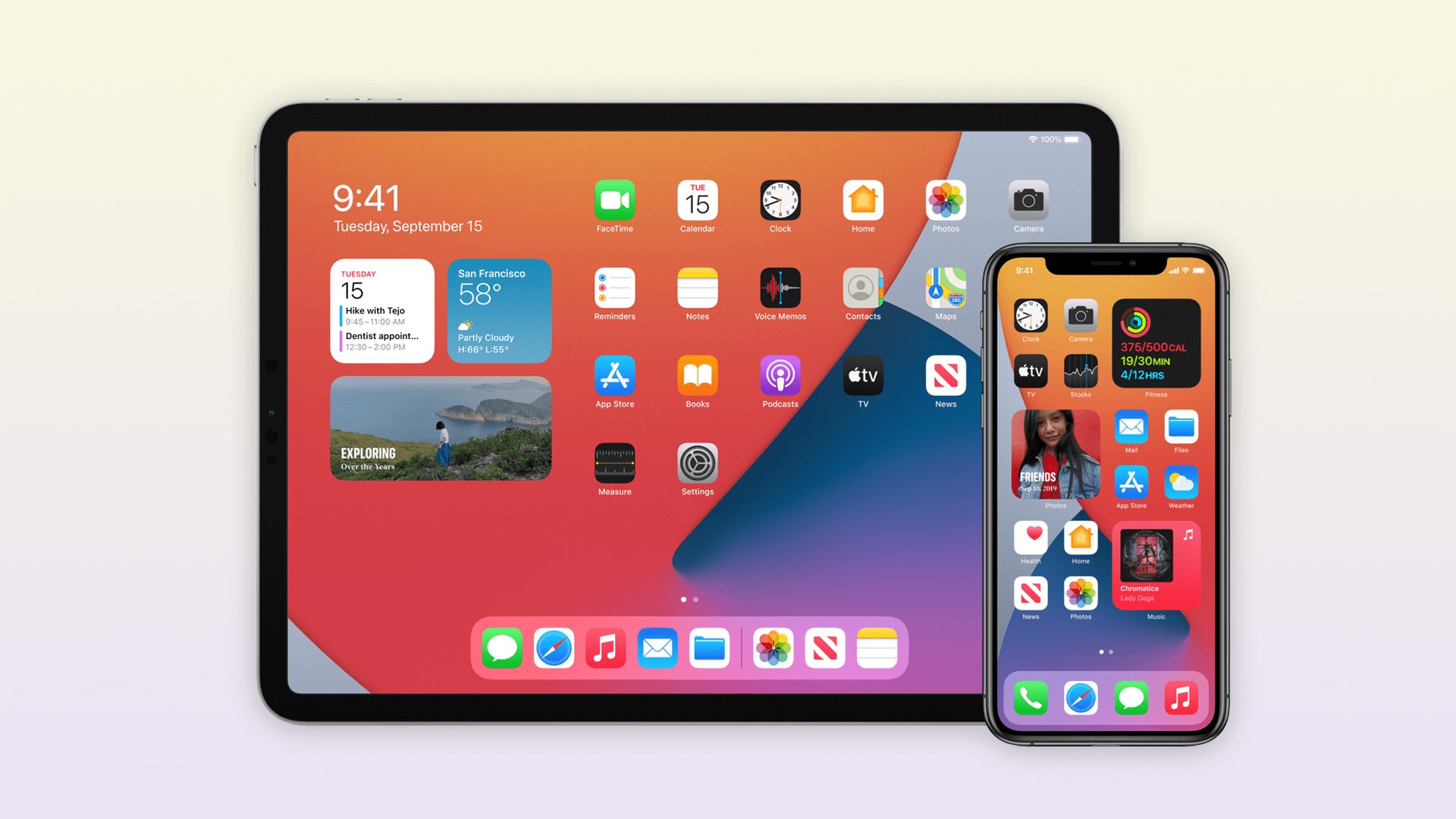
Widgets are beautifully redesigned in iOS 14, giving users timely information at a glance right on the Home Screen pages.
iOS 14 reimagines the iPhone experience, delivering a major update to the Home Screen with beautifully redesigned widgets and the App Library, new ways to use apps with App Clips, and powerful updates to Messages. iOS 14 is available today as a free software update.
“Together with iPhone, iOS is central to how we navigate our lives and stay connected, and we are making it even more powerful and easier to use in iOS 14, with the biggest update ever to the Home Screen,” said Craig Federighi, Apple’s senior vice president of Software Engineering. “We are thrilled to see the incredible ways developers are taking advantage of widgets and App Clips to create new experiences that we think customers are going to love.”
Redesigned Home Screen Pages
New widgets present timely information at a glance and can be added in different sizes on any Home Screen page. Users can choose a Smart Stack of widgets, which uses on-device intelligence to surface the right widget based on time, location, and activity. For example, users might see the News widget in the morning, Calendar events during the day, and their Fitness summary in the evening. Home Screen pages can be customized to show apps and widgets for work, entertainment, sports, and other areas of interest.
At the end of the Home Screen pages is the App Library, a new space that automatically organizes all of a user’s apps into one simple, easy-to-navigate view, and intelligently surfaces apps that are helpful in the moment. Users can also hide Home Screen pages for quicker access to the App Library.
The App Library makes it easier for users to get to all of their apps with a simple, easy-to-navigate view at the end of the Home Screen pages.
All-New Compact Design for Incoming Calls and Siri
Incoming FaceTime and phone calls and Siri interactions take on an all-new compact design that enables users to stay in the context of what they are doing. With Picture-in-Picture support, iPhone users can now watch a video or take a FaceTime call while using another app.
iOS 14 delivers an all-new compact design that lets users multitask while receiving calls, asking Siri a question, or watching videos.
With Picture-in-Picture, users can watch a video or take a FaceTime call while using another app.
The Siri experience is redesigned to let users stay in the context of what they are doing.
App Clips Bring New Ways to Discover and Use Apps
An App Clip is a small part of an app that is designed to be discovered the moment it is needed. App Clips are associated with a particular product or business, and load within seconds to complete a specific task, such as ordering takeout or filling up the car with gas. They can be easily discovered and accessed by scanning a new Apple-designed App Clip code,1 or through NFC tags and QR codes, or shared in Messages or from Safari, all with the security and privacy expected from apps.
App Clips are fast and easy to discover and allow users to access part of an app the moment they need it.
Powerful Updates to Messages
Messages is central to communicating with friends and family, and now it’s easier to stay connected and quickly access important messages. Users can pin conversations to the top of their messages list, easily keep up with lively group threads through mentions and inline replies, and further customize conversations by setting a group photo using an image or emoji. New Memoji options in Messages are even more inclusive and diverse with additional hairstyles, headwear, face coverings, and more.
Favorite conversations can be pinned to the top of a Messages list, with recent messages, Tapbacks, and typing indicators featured right above the pin.
iOS 14 delivers new customization options including additional hairstyles, headwear, face coverings, and more.
Greener Ways to Explore and New Guides in Maps
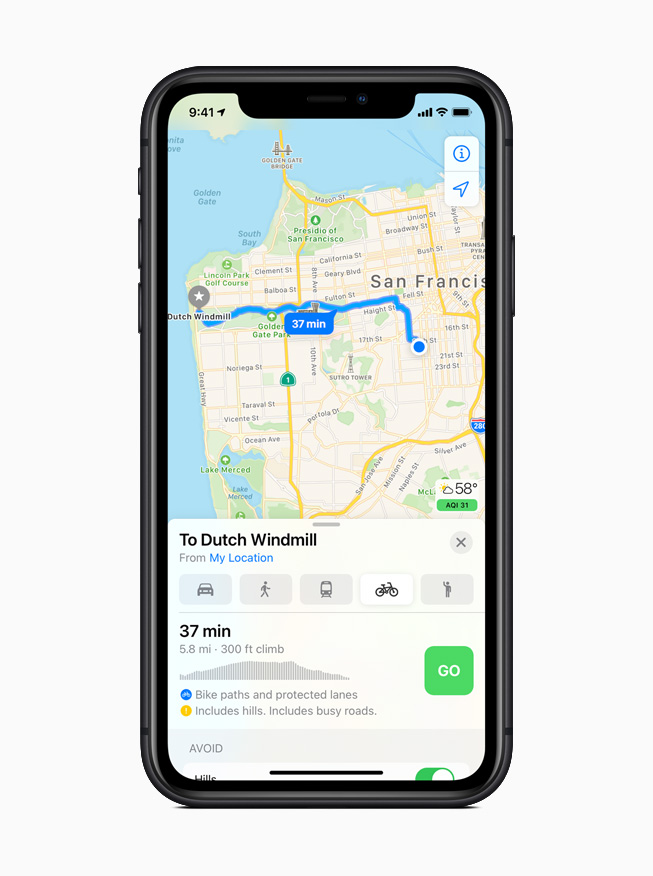
Maps makes it easier than ever to navigate and explore with new cycling directions, electric vehicle routing, and curated Guides. Cycling directions take into account elevation, how busy a street is, and whether there are stairs along the route. Electric vehicle routing adds charging stops along a planned route based on current vehicle charge and charger types.2 Guides provide a curated list of interesting places to visit in a city, created by a selection of trusted resources. Guides are a great way to find popular attractions, discover restaurants, and explore new recommendations from respected brands.
Maps offers cycling directions along bike lanes, bike paths, and bike-friendly roads.
Electric vehicle routing adds charging stops along a planned route based on current vehicle charge and charger types.
Guides make it easy to find things to do in a city, experience great new restaurants, or places to visit on vacation.
More Transparency and Control with Expanded Privacy Features
Now users can choose to share their approximate location with app developers rather than their precise location when granting an app location access, and get even more transparency into an app’s use of the microphone and camera. Developers can now offer users the option to upgrade their existing accounts to Sign in with Apple. Later this year, App Store product pages will feature summaries of developers’ self-reported privacy practices, displayed in a simple, easy-to-read format. Starting early next year, all apps will be required to obtain user permission before tracking.
App Store product pages feature a summary of the privacy practices of each app before downloading it.
Enhanced Listening Experience for AirPods
AirPods and AirPods Pro gain powerful capabilities with iOS 14. Spatial audio with dynamic head tracking brings a theater-like experience to AirPods Pro. By applying directional audio filters, and subtly adjusting the frequencies each ear receives, sounds can be placed virtually anywhere in a space to provide an immersive listening experience. Automatic device switching seamlessly switches AirPods and AirPods Pro audio between iPhone, iPad, and Mac. Headphone accommodations, a new accessibility feature, amplifies soft sounds and tunes audio to help music, movies, phone calls, and podcasts sound crisper and clearer.
Seamlessly switch AirPods or AirPods Pro audio between iPhone, iPad, and Mac with automatic device switching.
Additional iOS 14 Features
Translate is designed to be the best and easiest app for translating conversations, offering quick and natural translation of voice and text among 11 different languages.6 On-device mode allows users to experience the features of the app offline for private voice and text translation.
Siri expands its knowledge and answers complex questions with information sourced from across the internet. Keyboard dictation runs on device when dictating messages, notes, email, and more.7
The Home app makes smart home control even easier with new automation suggestions and expanded controls in Control Center for quicker access to accessories and scenes. Adaptive Lighting for compatible HomeKit-enabled lights automatically adjusts the color temperature throughout the day, and Face Recognition in compatible video doorbells and cameras uses on-device intelligence from Apple TV or HomePod to identify visitors. The Home app and HomeKit are built to be private and secure, so all information about a user’s home accessories is end-to-end encrypted.
Digital versions of car keys give users a secure way to use iPhone to unlock and start their car. Car keys can be easily shared using Messages, or disabled through iCloud if a device is lost, and are available today for compatible cars using NFC technology.8
Safari offers a Privacy Report so users can easily see which cross-site trackers have been blocked, secure password monitoring to help users detect saved passwords that may have been involved in a data breach, and built-in translation for entire webpages.9
Health has all-new experiences to manage sleep and better understand audio levels that may affect hearing health. A new Health Checklist that includes Emergency SOS, Medical ID, ECG, fall detection, and more offers users a centralized place to manage health and safety features.10 Health also adds support for new data types for mobility, Health Records, symptoms, and ECG.
The Weather app keeps users up to date on severe weather events, and a new next-hour precipitation chart shows minute-by-minute precipitation when rain is in the forecast.11
Apple One is the easiest way to get many Apple subscription services at a great value, so customers can choose the one planthat is right for them or their whole family. Customers can sign up for Apple One starting this fall.
Accessibility features include Back Tap, which offers a quick new way to trigger gestures, tasks, and accessibility shortcuts, sign language detection in Group FaceTime, and Sound Recognition, which uses on-device intelligence to notify users when the sound of a fire alarm or doorbell is detected. VoiceOver, the industry’s leading screen reader for the blind community, now automatically recognizes what is displayed visually onscreen so more apps and web experiences are accessible to more people.
Translate helps users quickly and easily translate voice or text between supported languages, and can work completely offline to keep conversations private.
The Home app has a new visual status that provides an at-a-glance view of a user’s smart home accessories.
Digital car keys give users a way to securely unlock and start their car using just their iPhone, and can be easily shared using Messages.
Pricing and Availability
iOS 14 is available as a free software update starting today for iPhone 6s and later. For more information, visit apple.com/ios/ios-14. Some features may not be available in all regions or all languages.
iOS 14 allows for third-party web browsers and email clients to become the default, so if you really don’t like Safari and Apple Mail, you now have other options.
With the latest update to Google Chrome, now available on the App Store, you can change your default browser from Safari to Google Chrome, on iPhone and iPad. Here’s how to do it …
With iOS 14, Apple has added system support for third-party web browsers and email apps. In the future, they may open even more categories.
The default web browser will be used when tapping on a link in any application. Until iOS 14, you could have an alternative browser like Google Chrome but link actions would always open in Safari. Here’s how to change that on iPhone and iPad in iOS 14.
How to set Google Chrome as your default browser on iPhone
Download the latest version of Google Chrome from the App Store.
Open the Settings app and open the settings page for Google Chrome.
Tap ‘Default Browser App’.
Tap ‘Chrome’.
With this set, any app that triggers a standard open URL activity will now direct the system to open Google Chrome, rather than Safari.
If you ever change your mind, you can go back into Settings and change the Default Browser App back to Safari. If you want to use a different third-party browser that isn’t Chrome, you will have to wait for the developer to update their application. The same goes for changing email apps: so far, we haven’t seen any compatible email app expose this feature.
Obviously, this all requires iOS 14 or iPadOS 14 to be installed. Right now, we are at iOS 14 developer beta 8. Apple is expected to release iOS 14 publicly for all users later in September, with a release date likely announced as part of next week’s Apple Event.
Apple has officially released iOS 14 beta 5 and iPadOS 14 beta 5 to developers. This week’s update brings a few small but notable changes to the iOS 14 experience, including the return of the scroll wheel for picking times and a new Apple News widget option.
iOS 14 beta 5 and iPadOS 14 beta 5 are fairly large updates in terms of download size, coming in at nearly 2GB and nearly 4GB respectively for most users. The updates feature the build number 18A5351d.
In addition to the fifth developer betas of iOS 14 and iPadOS 14, Apple also released watchOS 7 beta 5 to developers today. There is no new macOS 11 Big Sur developer beta quite yet, but it could come as soon as later this afternoon. Furthermore, we expect new public betas of iOS 14, iPadOS 14, macOS 11 Big Sur, and watchOS 7 later this week.
What’s new in iOS 14 beta 5?
One of the changes introduced in iOS 14 is the new time picker that ditches the iconic scrolling wheel. iOS 14 beta 5 brings the wheel back…kind of. Here’s how it looks in action:
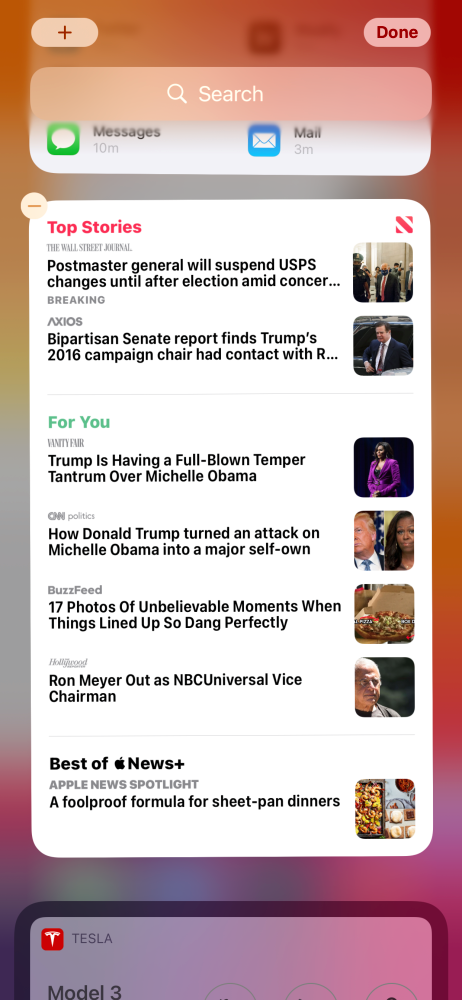
There is also a new “Tall” widget for Apple News in iOS 14 beta 5. This widget is exclusively for the “Today” screen on the far-left of iOS or iPadOS. It can’t be added to your home screen. This widget increases the number of Apple News widgets to seven and it headlines for Top Stories, For You, and Best of Apple News+.
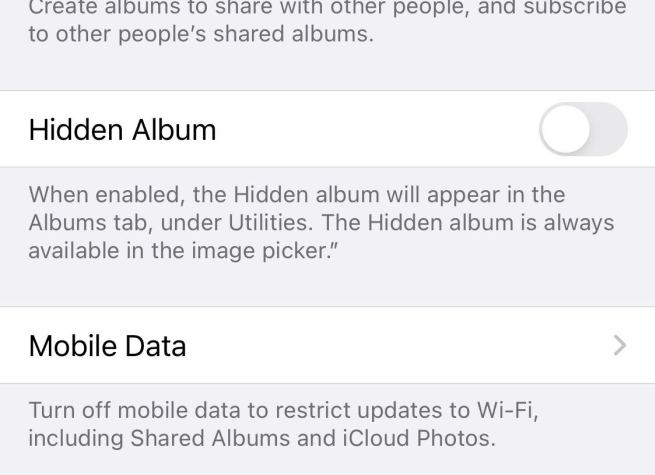
In the Settings app, you can now disable the Hidden Album in the Photos app. Open Settings, scroll down to Photos, and look for “Hidden Album.”
Apple says: “When enabled, the Hidden album will appear in the Albums tab, under Utilities. The Hidden album is always available in the image picker.”
New “Availability Alerts” for COVID-19 Exposure Notifications
Apple says: “Receive a notification if Exposure Notifications are available in your current region. Your region is determined by your iPhone and does not leave your device.”
New on-boarding process for COVID-19 Exposure Notifications in the Settings app:
New App Clip testing options for developers in Settings
New location access request for widgets:
Shortcuts app has a new “What’s new?” splash screen upon first launch:
Widgets are now blocked when a parent app is blocked with Screen Time
Among the more modest tweaks to the iPhone’s UI with iOS 14 is a redesigned Clock app. While it is nice to see the rotating dial replaced with a more efficient number pad, there are some confusing aspects to the new interface. Read along for how to use the new iPhone alarms in iOS 14 and where the Bedtime tab has moved.
The Clock app on iPhone with iOS 14 is simpler in some ways but also a bit counterintuitive in others. Below we’ll look at how to best use iPhone alarms as well where the Bedtime tab now lives and more.
Note: iOS 14 and iPadOS 14 are available as free public betas as well as developer betas for iPhone and iPad.
How to use new iPhone alarms in iOS 14
Open the Clock app
Tap the Alarm tab at the bottom
Tap the orange “+” icon in the top right corner or hit Edit in the top left corner and tap an existing one to modify it
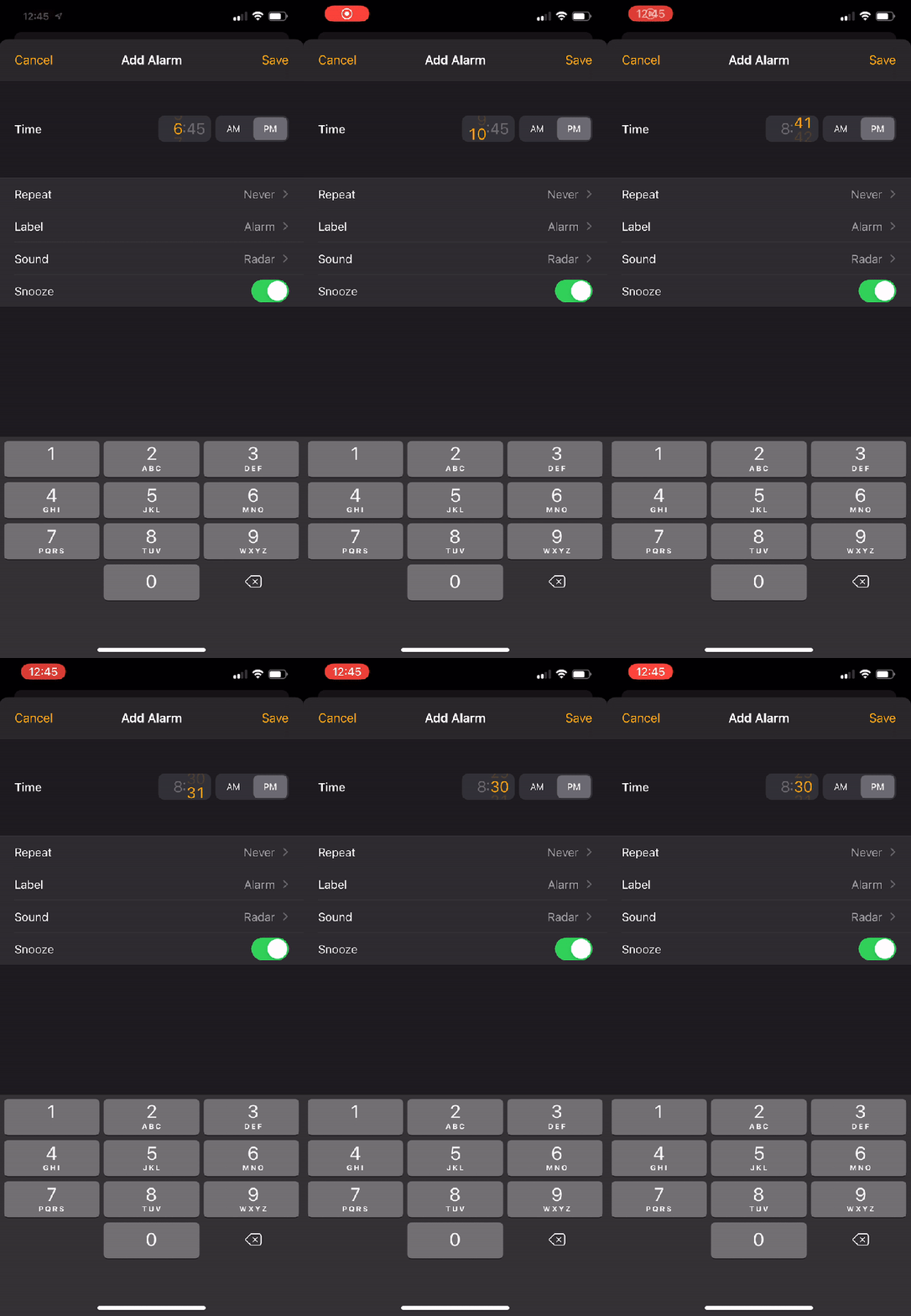
Use the number keypad at the bottom of the screen to enter your full alarm time (don’t tap the small orange time near the top, if you do, you’ll just be editing the hour)
You can leave out the 0 for hours between 1-9 (e.g. type 730 instead of 0730)
Don’t forget to check the AM/PM toggle (light gray box signals what is selected)
One way to opt-out of the interface is to use Siri to set your alarms
Here’s how the new UI looks and works with some more details and tips:
After you tap to add a new alarm or edit an existing one, make sure to start with the on-screen number keypad at the bottom.
Don’t forget to check the AM/PM toggle. Unfortunately, it defaults to whatever the current time is. So if you’re adding or editing alarms 12 PM or later, make sure to switch it to AM for morning alarms.
What happens when you tap the orange time
The new UI becomes confusing if you start by tapping the orange alarm time at the top of the edit/new alarm screen as it selects just the hour to be editable or just the minutes as shown below. That leads to a counterintuitive and clunky experience.
However, with the default that displays the entire time in orange (showing the current time) you can use the number pad at the bottom of your screen to quickly enter the hour and minutes for your alarm. So make sure to head straight for the number pad at the bottom.
Where’s the Bedtime tab?
You probably also noticed that the Bedtime tab that used to be in the clock app is gone. You’ll still see the Sleep | Wake Up alarm that is scheduled in the Alarm tab of the clock app but you’ll find that what used to be the Bedtime settings now live in the Health app.
Here’s what it looks like to edit your sleep schedule in iOS 14:
Thank you for using
Themify Popup
This is a sample pop up. Themify Builder or Builder Lite (free) plugin is recommended to design the pop up layouts.