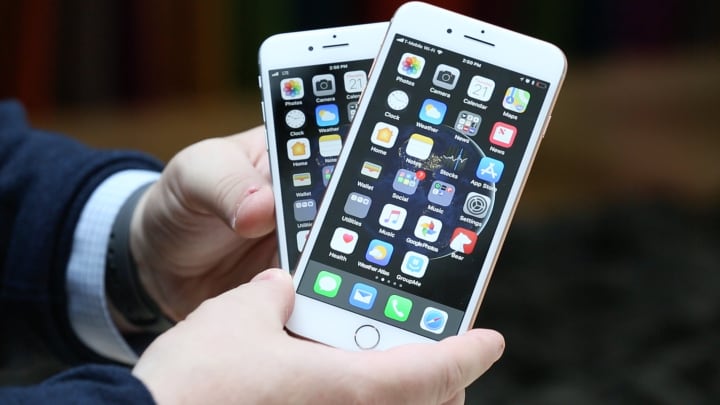
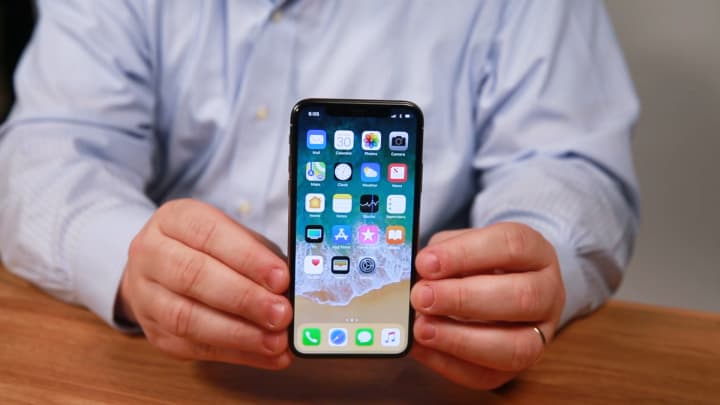
If you’re buying a used iPhone or repairing an iPhone, you may wonder if you can find out if the iPhone was bought as new, is a refurbished model, or is a replacement device provided by Apple via a service request.
Wonder no more, you can use an interesting device model identifier trick to discover if an iPhone is new, refurbished, a replacement, or even personalized by engraving. This can be helpful information for buyers of used devices, if you’ve received a device as a gift or hand-me-down, if you’re troubleshooting or repairing an iPhone, and more.
How to Determine if iPhone is New, Refurbished, Replacement, or Personalized
You can decipher the device model prefix to determine the original status of an iPhone (and probably an iPad too) device, here’s how:
Open the “Settings” app on the iPhone
Go to “General” and then go to “About”
Look for “Model” and then read the model identifier next to that text, it will look something like “MN572LL/A”, the first character will let you know if the device is new, refurbished, replacement, or personalized:
M – Brand new device, meaning the device was purchased new
F – Refurbished device, meaning the device has been through refurbishing process
N – Replacement device, meaning the originally bought device was replaced by this model likely due to a service request
P – Personalized device with engraving, meaning the device was customized with an engraving on purchase
That’s all there is to it, now you know how to determine if an iPhone is new, referred, replaced, or other. It’s possible there are some other identifier prefixes for iPhone devices that aren’t listed here, if you know of any do share them in the comments.
I have tested this with a handful of my own iPhone devices that I know are either new, refurbished, or replacements, and it has held up. I haven’t personally seen the “P” identifier however.
By the way, it’s important to note the model identifier shown here (like MN572LL/A) is different from the general model (like iPhone X) and model number of the iOS device (like A1822) – admittedly a bit confusing since they all have similar labels, but they are indeed entirely different things.
Amid the battles over bezels, screens, and battery life, there’s one thing that all iPhones have in common: They’re powerful enough to replace your PC. Now before you start yelling at your screen, I’m not talking about the iMac Pro or the HP Omen. If you use your laptop or desktop to do something you can’t do on your phone, the point is moot. PCs and Macs still have their place in the world, and it’s going to be a long while before our mobile devices can handle the more strenuous tasks we call on our PCs to do.
But for the majority of people, an iPhone is enough. Apple knows this. It’s already marketing the iPad as a computer, and the iPhone is just a stone’s throw away, with the same processor, OS, and storage capacity. The only real problem is that the screen is too small for doing lengthy work.
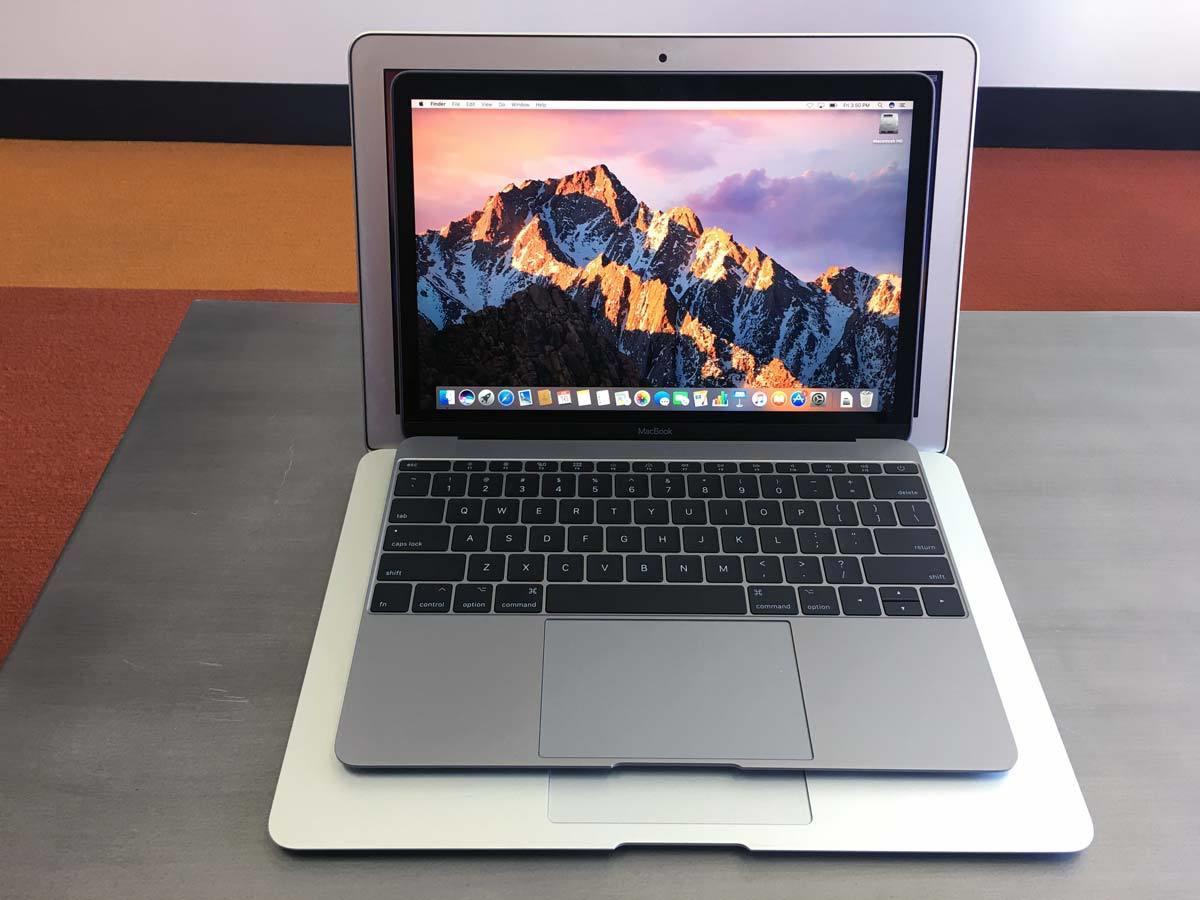
When Steve Jobs unveiled the MacBook Air 10 years ago, it’s main selling point was extreme portability. It wasn’t the fastest machine or the most capable, but people flocked to it for its thinness and lightness. At just 3 pounds and less than an inch thick, the MacBook Air ushered in a new era of portability years before the iPad made its debut.
The MacBook Air isn’t the smallest, thinnest, or lightest MacBook anymore.
But Apple’s strategy for the MacBook Air has hit something of a wall. It hasn’t been received a meaningful update in years (despite a spec bump at last year’s WWDC), and no longer holds the claim as the company’s lightest or thinnest laptop in Apple’s lineup. Essentially, it’s the Mac mini of the notebook line.
Ten years later, Apple’s ultimate portable isn’t the MacBook Air anymore. Nor is it the MacBook. In fact, it’s not a Mac at all: It’s the iPhone. Apple may still sell some 20 million Macs a year, but it ships twice as many iPhones in a down quarter. Simply put, the iPhone has become the MacBook Air for a generation of Apple users who have no use for the processing power of a PC. It’s more than capable for most tasks—messaging, web browsing, streaming, social media—has a great camera and lasts all day.
Screen with a view
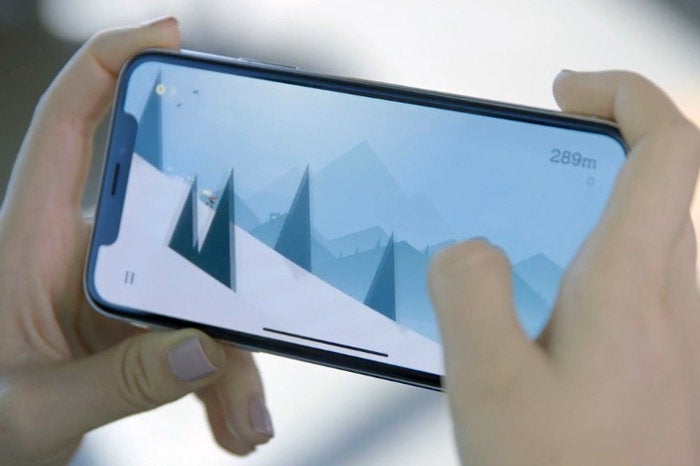
The one thing the iPhone doesn’t have, however, is a large screen. The largest iPhone screen is just 5.8 inches, which isn’t exactly conducive to getting work done. Apple will happily sell you an iPad or a MacBook to fill that need, but otherwise there’s no way to expand the screen and no real multitasking, at least not like Split View or Picture in Picture on the iPad. And as long as the iPhone stays in the 6-inch range, it’s going to stay that way.
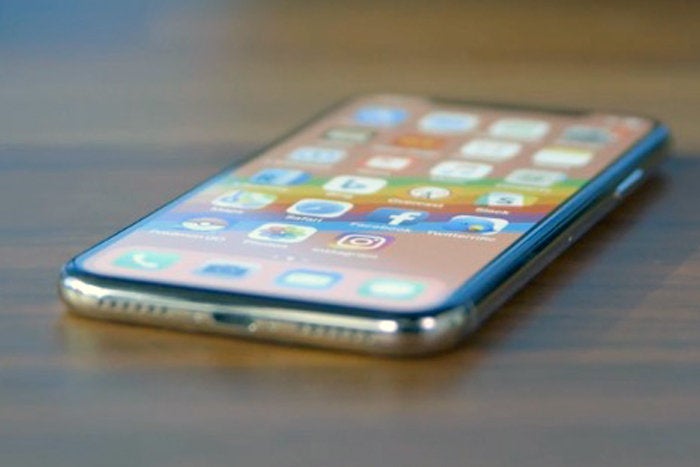
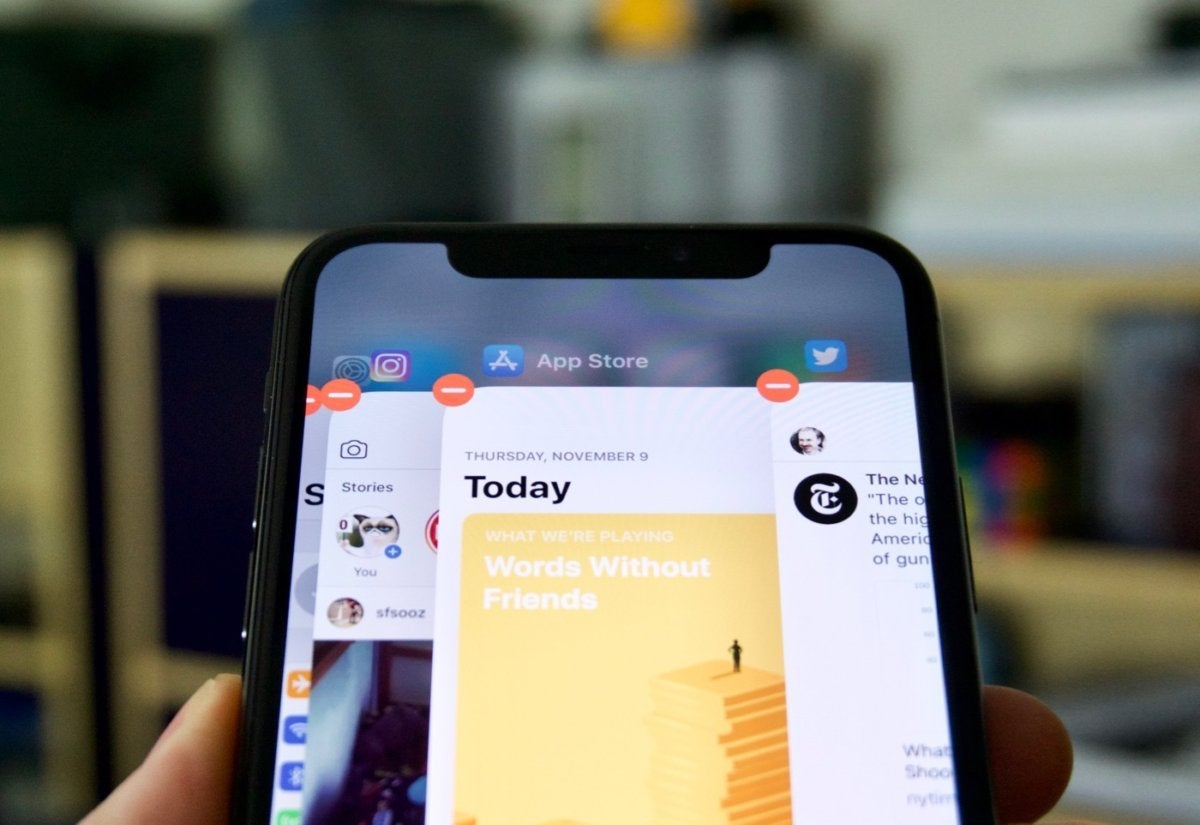
iPhone X has more screen than ever, but it’s still not built for work.
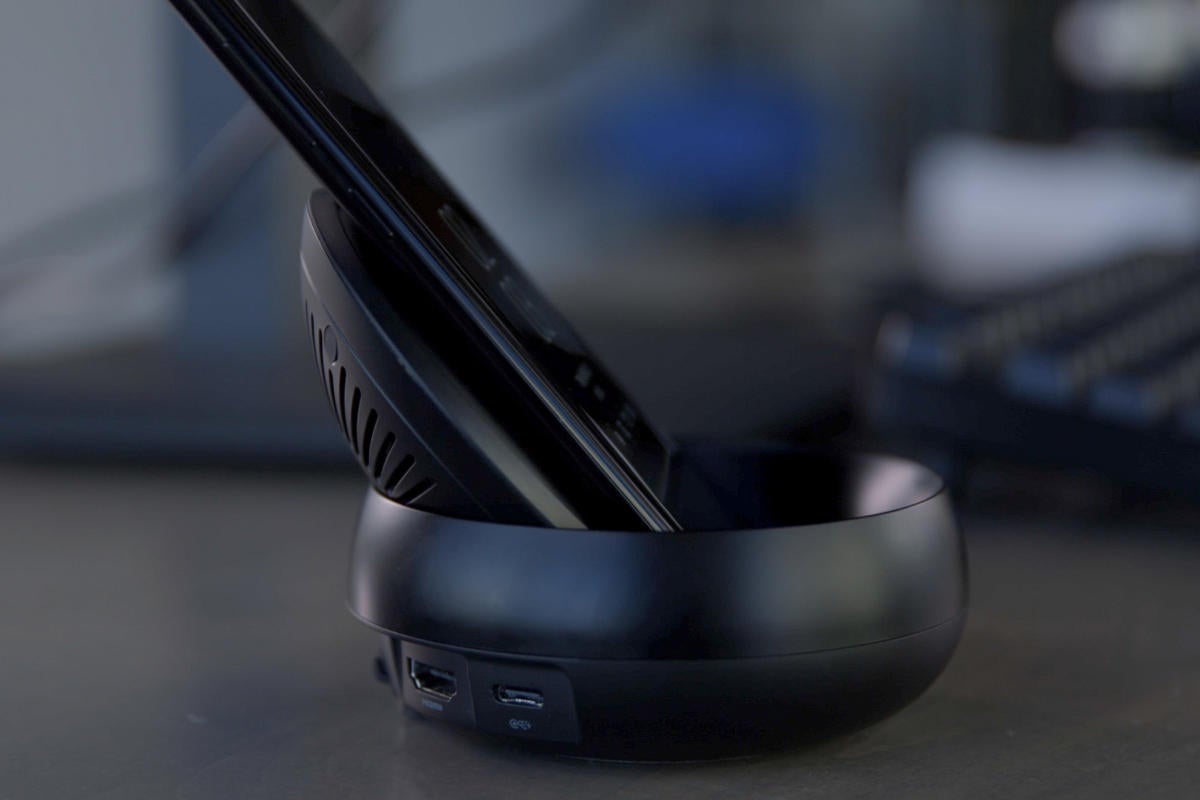
But it doesn’t have to. Back when it unveiled the Galaxy S8, Samsung also took the wraps off an innovative companion dock that transformed how we think of our smartphones. Called DeX, it allows the S8 to attach to a monitor for a full-sized workspace. It’s a true innovation that pushes the smartphone into new territory, and it’s a delight to use.
It’s easy to dismiss as a gimmick, but once you pop the S8 into the DeX dock, you can instantly see the potential. It might not be as polished as it could be, but Samsung has designed a legit desktop interface for the S8 that does for the phone what Chrome OS did for laptops. There’s no setup or preferences to speak of, but phone apps feel more like full PC ones than mobile apps, with resizable windows, robust interfaces, and traditional multitasking. Once you plug it in, it doesnt feel like you’re using a phone at all.
Samsung’s DeX dock turns your Galaxy S8 into a PC.
And other phone makers have taken notice. Huawei does something similar with the Mate 10 Pro, letting users connect a standard USB-C-to-HDMI cable to enter PC mode, but it was something Razer showed off at CES that really piqued my interest. It was just a prototype, but instead of a small dock, it was a full-sized laptop with a slot for the phone to slide into. And I wonder if there isn’t a prototype of something similar floating around Jony Ive’s laboratory.
macOS for the win
No matter what you use your iPhone to do, there are times when we all could use a break from holding our phones. And that’s where a dock could be a killer accessory. Unlike Samsung, Huawei, and Razer, however, Apple has a built-in advantage here: the Mac. Remember, iOS is built on OS X, so building a “lite” version of macOS for the iPhone would be a natural extension of iOS. But Apple could go a step further than a mobile operating system by incorporating Mac-like functions too: a full iCloud-based Apple File System, Spotlight search, dynamic notifications, powerful security, and of course, desktop-caliber apps.
A big screen would give iOS on the iPhone room to breathe—and give us room to work.
People have been clamoring for a hybrid Mac for years, and this would be the next best thing: essentially, a Mac that can fit in your pocket. The iPhone is evolving faster than the Mac ever did, so much so that it’s beginning to reach the limits of what it can do on our phone. Each new iteration of iOS might bring a couple new features, but for the most part, iOS is constrained by the limitations of the iPhone screen. And unless Apple plans on making a 10-inch iPhone in the near future, iOS won’t be able to break out of its mold.
The next step
If Apple were to expand and modify iOS to fit on a big screen and work with a trackpad and a mouse, it would turn the iPhone into a sort of modern MacBook Air. Except it would be even more mobile, more versatile, and more advanced.
So what would an iPhone dock look like? Apple could go the way of the S8 and create a portable desktop dock that connects to a monitor. Or maybe a wireless charging pad that delivers data once it rests on it. Or it could do something like what Razer demonstrated: A full-on laptop with an iPhone slot. That’s probably not viable (or affordable), but it would be the coolest way to bring the iPhone to the desktop. I know I’d buy one.
Whatever the method, it seems inevitable that Apple develops some kind of a way to bring iOS to the big screen. As cool as iPhone X is, it’s still just an iPhone, and until Apple embraces its full potential, that’s all it’s going to be. But while the MacBook Air may be on its last legs, its spirit is alive and well. All Apple needs to do is harness it. By combining the mobile prowess of the iPhone and the MacBook Air, Apple would create the ultimate mobile device, one that works as well in your hand as it does when you hook it up to a 20-inch screen.
Last week Apple pushed out iOS 11.2.2, which seeks to mitigate the risks associated with the Spectre chip flaw via a security update to Safari and Webkit. Since a Spectre attacker is most likely to attack your system via a Javascript vulnerability, Apple has addressed the issue in iOS 11.2.2 to make your system more secure.
The patch doesn’t actually fix the issue, however, and it’s unlikely Apple will ever release an iOS update that will. While researchers and programmers are actively working on ways to reduce the likelihood that your iPhone will ever be exploited using the Spectre flaws, Apple and others have made it clear that these are merely mitigations and not outright fixes.
Apple has warned that that there may be an impact on your iPhone’s performance. They shouldn’t be severe, but in some cases, they may be noticeable. Security researcher Melvin Mughal created a bit of a stir recently after he posted iPhone 6 benchmarks (since removed) showing a hit as high as 40 percent, but those results shouldn’t be common.
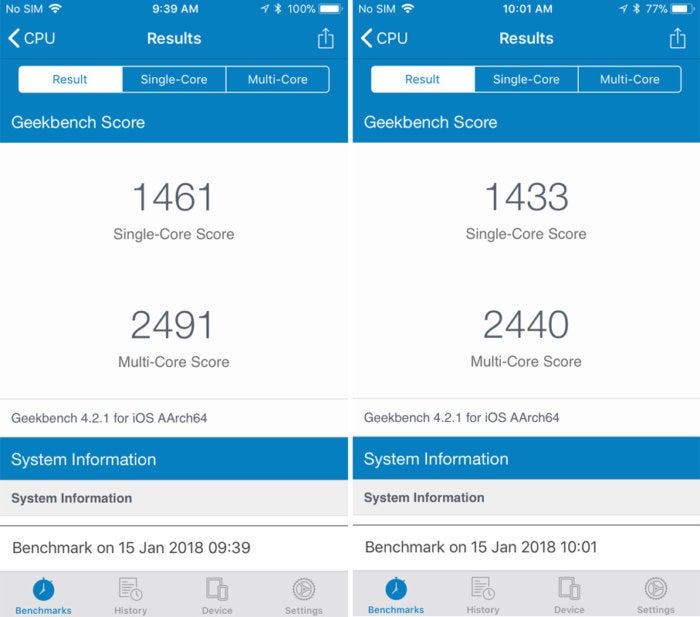
We tested an iPhone 6 with an original battery both before and after installing iOS 11.2.2, and the results were much more in line with what Apple told us. Here are the Geekbench 4 numbers we got, before and after installing iOS 11.2.2:
iPhone 6 bechmarks for iOS 11.2.1 (left) and iOS 11.2.2.
iOS 11.2.1 benchmarks
Single-core: 1461
Multi-core: 2491
Floating Point: 1244
Memory: 1998
iOS 11.2.2 benchmarks
Single-core: 1433
Multi-core: 2440
Floating Point: 1223
Memory: 1958
That’s roughly a 2.5-percent performance hit, a far cry from Mughal’s findings and not enough to be noticeable in common tasks. But your mileage may vary. So here’s what to do if you find your iPhone is sluggish after installing iOS 11.2.2:
The best way to fix PCs with lowdown issues is the best way to fix an iPhone too. Before you start fiddling with settings, simply turn off your iPhone by holding down the power button on the right side, slide the button to the right, and wait for it to turn off. Then start it up again.
Check your storage
Low storage is the biggest culprit for iPhone slowdowns, so check your available space by heading to Settings > General > iPhone Storage. Inside you’ll find a breakdown of how much storage you’re using on your iPhone and which apps are using the most. Then, you can easily delete or offload the app (which removes it from your phone but keeps the data).
Reset safari cache
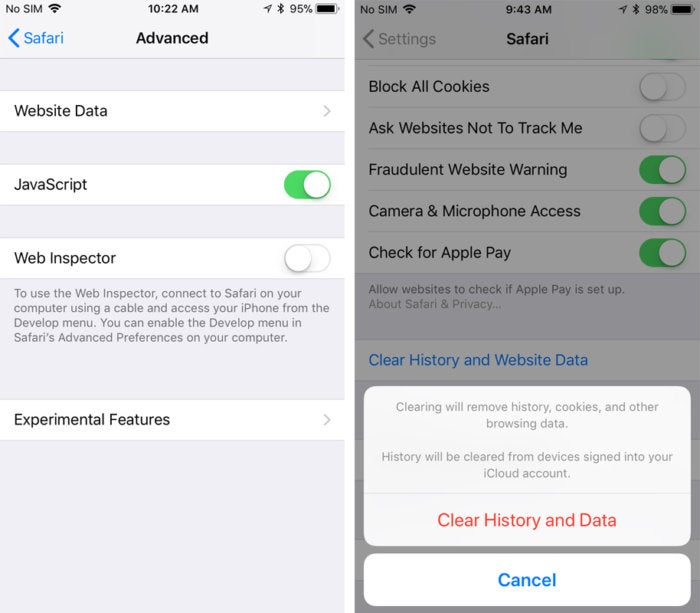
If the sluggishness is related to Safari (and neither of the above options help), you can try resetting the browser cache. In the Settings app, scroll down to the Safari tab, and scroll down until you see the Clear History and Website Data button. Tap it and you’ll zap your history, cookies, and browsing data to start fresh. If you want to keep your history, Select Advanced at the bottom of the page, tap Website Data, and Remove All Website Data at the bottom of the page.
If Safari is running slow after installing iOS 11.2.2., there are some ways to help speed it up.
Disable JavaScript
Since the iOS 11.2.2. mitigation affects JavaScript directly, there’s a chance it could be the culprit in any slowdowns you’re feeling in Safari. Inside the same Safari tab (Safari > Advanced), you’ll find a Javascript toggle that is turned on by default. Flip it off and you’ll disable JavaScript for Safari on your phone, which could make some pages load faster. Turning it off could cause issues with some of your favorite sites, however, so if there are serious issues, go to the settings and flip it back on.
Get a new battery
Apple has already admitted that it is throttling some older phones to compensate for declining battery life, so that could be the issue here. To swap out your aging battery for a new one and bring your performance back up to speed, head over to Apple’s support site and make an appointment.
Trust your eyes not the numbers
Benchmarks aren’t always accurate, and since the mitigations Apple is implementing for Spectre directly affect the way the chip and OS interact, it could throw benchmarks out of whack. So if your phone feels the same as it did before but Geekbench is telling you it’s way slower, don’t panic. Try some of the above fixes, keep your eye on things, but above all, keep calm and carry on.
AirPods are the new wireless earphones from Apple, they allow for completely wireless listening to music, interacting with Siri, answering phone calls, and interacting with music or audio. AirPods are particularly popular with iPhone users, but they work with most other iOS devices and Macs as well.
If you got a new pair of AirPods you might be wondering how to set them up to work with your iPhone or iPad. It turns out to be quite simple to configure AirPods and connect them to an iPhone or iPad, as this tutorial will demonstrate. Most of the AirPod setup process is automated and works a bit like magic. And not to worry, if something doesn’t go exactly as planned when connecting to AirPods we’ll show you how to reset the process and start over again too.
Before beginning, make sure the AirPods are charged (they usually come out of the package with a battery charge), and that the device you are attempting to sync them with is compatible. You can see supported AirPod hardware below if you aren’t sure, but almost any modern Apple hardware running modern system software will work with AirPods.
How to Setup AirPods & Connect to iPhone or iPad
With new model iPhone devices, setting up AirPods is remarkably easy. You’ll need your iOS device handy, and the AirPods case with AirPods still enclosed in them. The rest is a piece of cake:
Unlock the iPhone you want to pair AirPods to and go to the Home Screen (where all your app icons are visible)
Open the AirPods case, keeping the AirPods inside, and hold it near the iPhone to pair with
Wait a moment for iPhone to find and detect AirPods, then tap on “Connect” when AirPods are found
Tap on “Done” after the AirPods show up on screen
That’s it, you’re AirPods will now be setup and ready to use.
Also noteworthy is that if you use the same Apple ID and iCloud account on multiple devices, the AirPods should be automatically configured to work with those devices too, assuming compatibility anyway.
AirPods Compatibility & Supported Devices
AirPods will work with an iPhone, iPad, iPod touch, Mac, Apple Watch, and Apple TV, assuming they are fairly modern and running compatible system software. You must have Bluetooth as well, since that is how they connect to the device they are paired with. AirPods are compatible with the following devices and software versions:
iPhone, iPad, iPod touch running iOS 10.0 or later
Mac running macOS Sierra 10.12.3 or later
Apple Watch running watchOS 3 or later
Apple TV running tvOS 11 or later
Essentially, AirPods are compatible with all modern versions of Apple system software. If the device is brand new, it will work with AirPods, but even many older devices will work with AirPods assuming they are running a compatible modern system software release shown above.
You can also connect AirPods to an Android phone, tablet, or Windows computer, but the setup process is more like a typical Bluetooth device configuration and does not have the super easy iOS based AirPods setup like offered from Apple.
AirPods didn’t connect to iOS or setup properly? Try this
If for some reason AirPods don’t pair and sync with the iPhone after the above setup process, you may need to hold the setup button on AirPods and then try again. This is also what you’d need to do if you’re setting AirPods up with a different iPhone than what was originally configured with:
Put the AirPods back into the charging case if you have not done so already
Click and hold the Setup button on the back of the AirPods charging case for 18 seconds, or until you see the charging status light flicker orange and then white
Repeat the initial setup process again detailed above
It’s also worth mentioning that though AirPods should ship with the latest on device firmware, it is possible they still need to be updated. You can learn how to update AirPods firmware hereif need be.
That’s it, your AirPods should now be setup and ready to use with your iPhone, iPad, Mac, or other Apple device.
Using AirPods once they’re connected to a device is easy and fun too, you just double-tap the side of either AirPod to trigger Siri, answer a phone call, adjust music, or more.
You can also adjust how each AirPod will respond to a double-tap by adjusting the settings of AirPods through the iPhone or iPad, by opening Settings app > Bluetooth > AirPods, and adjusting the “Left” and “Right” options under ‘Double-Tap on AirPod’ settings section.
Your battery might be making your older iPhone slow. This is because, apparently, iOS system software sometimes slows down older iPhones when the internal battery has degraded to the point where it can no longer sufficiently power the device at the expected performance level.
According to Apple, the throttling of device speed is intended to prevent the iPhone from crashing or shutting down unexpectedly due to a worn batteries diminished capabilities.
Unfortunately, that device speed throttling could have an annoying side effect of making the older iPhone noticeably slower to the end user. This is often noted after new iOS system software releases, though it should be pointed out that sometimes any observed performance degradation irons itself out over time, or can be successfully resolved with various iOS troubleshooting steps and settings adjustments on the impacted device. But, sometimes an older iPhone or iPad just feels persistently slow, and that could very well be due to having an old degraded battery.
This battery and device speed issue has gained considerable attention lately, after a series of iPhone users discovered that system benchmarks were notably underperforming on older iPhone models. For example, a widely tweeted set of screenshots and report from Twitter user @sam_siruomu showed performance benchmarks where an iPhone 6 was under clocking itself down to 600mhz, but after replacing the battery with a new one the speed corrected back to the proper 1400mhz. That anecdotal twitter report has been captured in a screenshot below:
The device benchmarking company Geekbench also seemed to confirm an occasionally observable underperformance of older iPhone models based on referencing their own benchmarking data.
With considerable hubbub generated online, and plenty of related rumors and conspiracies, Apple released a statement to TechCrunch and Buzzfeed that said the following:
“Our goal is to deliver the best experience for customers, which includes overall performance and prolonging the life of their devices. Lithium-ion batteries become less capable of supplying peak current demands when in cold conditions, have a low battery charge or as they age over time, which can result in the device unexpectedly shutting down to protect its electronic components.
Last year we released a feature for iPhone 6, iPhone 6s and iPhone SE to smooth out the instantaneous peaks only when needed to prevent the device from unexpectedly shutting down during these conditions. We’ve now extended that feature to iPhone 7 with iOS 11.2, and plan to add support for other products in the future.”
That statement and admission from Apple is interesting, because there has long been speculation and conspiracy theory that Apple intentionally slows down older iPhone (and iPad) devices with iOS system software updates, but until now most users didn’t know why, they just anecdotally observed it on their devices. That notable performance degradation led to countless theories about why it might happen, along with other theories denying it happens at all and insisting it was imaginary. Well, it turns out that some observed performance decline may directly relate to the older devices battery age and quality.
How this all shakes out remains to be seen, as there are already lawsuits against Appleabout the battery issue, and the topic has also reinvigorated Right-to-Repair advocateswho argue that it’s consumer friendly to be able to easily and reasonably repair your own stuff.
This may all sound bad, but there’s actually good news here. If indeed an iPhone (or iPad) device slowdown is entirely due to an old battery, then replacing the battery should theoretically boost performance back to expectations, much as it did for the Twitter user we cited above, and that has been anecdotally reported as successful elsewhere around the web too.
Of course a notable difficulty here is that iPhone does not typically report that its internal battery is old enough to have degraded device performance, nor does the iPhone have an easily replaceable battery. The former situation is something that could be theoretically addressed in a future iOS software update, with a notification along the lines of “battery has degraded and can no longer support optimal device performance” or something similar, perhaps with a link to battery replacement options. The latter difficulty of not having an easily replaceable battery means you’d either need to get an old worn battery replaced by a competent repair center, or take it upon yourself as a DIY project.
If you do have an older iPhone (say an iPhone 6 or iPhone 6s) that feels unreasonably slow, and you want to see if a battery replacement will restore performance, you’ll need to either contact Apple or an Apple authorized repair center and pay $80 for a battery replacement, or you can get a Do-It-Yourself iPhone battery replacement kit on Amazon for around $40 or so. There’s no guarantee that replacing a battery is going to speed things up and make an older device as snappy as it used to be, but it just might boost performance for some devices under the right set of circumstances.
Although iPhone cases, and even mounting systems, have become completely commoditized over the past several years — to the point where we’ve almost entirely stopped doing full reviews of such products — every so often a refreshing new product comes along that’s different enough to pique out interest, so when we saw MyMe’s new Unity Case and Cradle System, we were intrigued. While the concept of a case-and-mount combo is far from a novel idea, MyMe’s solution has a unique design and aesthetic that we rather liked.
The Unity is the brainchild of award-winning designer Peter Solomon, best known for The Handle electric guitar, and pairs a reasonably protective case with a magnetic cradle that consists of little more than a suction mount on one end and a single metal ball joint on the other. The rear of the case includes a circular magnetic indent that attaches onto the cradle at the ball joint, allowing the encased iPhone to be mounted or oriented in virtually any position or orientation permitted by the laws of physics. Both the case and cradle are available in a fairly wide variety of colors.
MyMe sells the Unity System as a package for $35 that includes both the case and the cradle, however the cases and cradles can also be purchased individually, for $25 and $15, respectively, so you can mix and match if you want additional cradles or want to be able to share a single cradle with multiple family members. The case also includes two flat metallic discs with adhesive tape that can be attached to any flat surface for attaching the iPhone to something like a wall or kitchen cabinet, although you’ll likely only need to use the discs for non-metallic surfaces as the magnet in the case itself is strong enough to attach to metallic surfaces such as a refrigerator.
The Unity case also sports a unique design of concentric circular ridge patterns that surround the central magnetic mounting hole, adding a nice bit of style to the case that also doubles as a grip. Rubber edges at the peak of each ridge also provide some extra grip, but more importantly keep the case from sliding when attached to a metal surface. The case itself provides full button and port coverage, dual-layer construction for shock absorption, and a raised lip for screen protection, although MyMe doesn’t rate the case for impact or drop protection. While it’s certainly more protective than most average shell cases, it definitely doesn’t feel as solid as some of the other cases we’ve recently looked at, many of which are designed specifically with drop protection in mind.
The cradle portion of the system is also available in eight different colors and includes one of the strongest suction cup mounts we’ve seen, allowing to attach very securely to any clean, flat surface, and non-porous surface such as a windshield, mirror, desk, or cabinet. The nature of the metal ball joint and magnetic attachment also means that there’s basically no stress put on the mount when attaching or removing the encased iPhone or moving it around, although the magnet is strong enough that we found that we either needed to pull it off in a rapid motion directly away from the base, or slide a finger around the back to gently separate the case from the ball. In either case, however, the mount stayed very firmly attached to our windshield. It’s a very solid and flexible mount.
We’re pretty impressed with what MyMe has done here with the Unity System — it’s one of the best mounting solutions we’ve seen for the iPhone and it’s very affordably priced. About the only knock against it is that you of course have to use the case to go along with it, and it’s not a highly protective case, making it a tradeoff between having a great and convenient mounting solution and using your preferred case. However, if you like the look of Unity’s case design and are willing to live with the protection compromise, it’s hard to go wrong with the Unity System.
With all the fuss about old, depleted batteries slowing down your iPhones, it might be a good idea to at least check the health of your iPhone’s battery. To do this, you can use a free tool called coconutBattery, an app that digs into your iOS and Mac devices to tell you how old they are, and how strong your battery is compared to when it was new.
CoconutBattery
CoconutBattery is an Mac app that performs a single task — it checks the status of the battery in your Mac, or the battery of any iDevices connected to that Mac. To use it, you just plug your iPhone or iPad into your Mac, and make sure that it trusts the host computer (if you regularly sync your iPhone with your Mac, you can skip the “trust” step. If you don’t, then just follow along with the instructions that will appear on your Mac and iPhone’s screens).
Once connected, you’ll see a window something like this:
All you need to know about your iPhone battery in one place.
That’s the iOS page of the coconutBattery window, and it shows you several pieces of useful info. The top section is basic data about the connected iPhone (or iPad): dater of manufacture, OS version, device model, and the storage space currently used. For more details –serial number, ages in days, and the current kind of charger connected — click on the Device details… button.
Below that is the section we’re interested in: the battery details. Here you will see two bars, hopefully both green. The upper bar shows you the current charge level of the battery (similar to the percentage readout on the iPhone itself), along with the current charge, and the full possible charge capacity in milliAmp hours (mAh).
New vs. old
Below that is a bar showing the “design capacity” vs the current capacity. That is, it shows you how much charge your iPhone’s battery can hold today, vs how much it could hold when it left the factory (the “design capacity” is the official spec for you device — the actual capacity when new could be slightly over or under that number, but it is a good guide).
Thus, you can see just how weak your battery has become over the years. You can also see how many charge cycles the battery has been through.
Works on Mac batteries too
CoconutBattery also works on the Mac.
How to maximize your battery’s lifespan
There are several tips yo can follow to keep you battery healthy for as long as possible. Apple has a support page dedicated to just that, and it’s a great read if you want the truth about batteries from the source. After all, who would know better about battery life and health than Apple, a company obsessed with optimizing battery performance so it can make its devices ever smaller?
Check it out, and maybe you’ll be able to make your current iPhone last a little longer.
If you are running coconutBattery on a Mac with a battery i.e. a MacBook, then you can see this info for your Mac’s battery too. And you can also save the current data in order to keep a record of your batteries’ depletion over time. And finally, there’s a coconutBattery Plus upgrade to let you check iOS batteries wirelessly, and to unlock battery charge notifications, plus advanced viewers for Mac and iOS.
These are the not-so-obvious tips iPhone pros use.
If your iPhone ($699.00 at Apple) is constantly binging and buzzing and you are continually apologizing for missing texts and not responding in a timely fashion, then it might be time to dig in to some of the features in iMessage that can help prevent your texts from taking over your life. Let us begin.
1. Mute group text alerts
The ability to mute group texts is, by far, my favorite feature of iMessage. When you get thrown into a group text, you can mute the alerts as the group banters back and forth. From the list of messages, swipe left and then tap the purple Hide Alerts button. You’ll see a little crescent-moon icon to the left, indicating that its alerts are snoozing. (You can always swipe and tap Show Alerts if you want back in on the alerts.)
Screenshot by Matt Elliott/CNET
2. Give a group a name
If you’ve got multiple group text conversations going, it can be hard to keep track of which group is which. Maybe labels can help. You can quickly name a group text by opening the conversation, tapping the “i” icon in the top right and then tapping Enter a Group Name at the top. Now, the name you give it will appear on your messages list instead of a less-than-useful partial list of names.
3. No repeats
I have a strict one text = one alert policy. Alerts for text messages repeat once by default, so your phone will chirp or vibrate when a text arrives and again two minutes later. But once — and only once — is enough. Go to Settings > Notifications > Messages > Repeat Alerts and choose Never to stop text alerts from repeating.
Screenshot by Matt Elliott/CNET
4. Set a special tone for that special someone
Not every text that arrives carries the same level of importance. Your buddy texting you about fantasy football isn’t the same as your spouse or significant other texting about being late. Give that special someone in your life a personalized text alert tone. Open the Contacts app, tap Edit and scroll down to Text Tone and select something other than Default. You can also change the default vibration tone here, too.
5. Block someone
If someone is pestering you via text, it’s easy to block that number. From your text conversation, tap the “i” in the top right, tap the name or number at the top and then tap Block this Caller. Finally, tap Block Contact to confirm. (You can always go back and tap Unblock this Caller if you change your mind and want to resume texting with a blocked contact.)
Screenshot by Matt Elliott/CNET
6. Reply from notification
You don’t need to open the Messages app to reply to a message. You can reply directly from a text notification. Just 3D Touch (long-press) on the notification and you can send your reply.
7. Hide previews
Of course, text notifications mean prying eyes might peep a private conversation. You can turn off text previews completely or just from the lock screen. Head to Settings > Notifications > Messages and scroll down to Show Previews and choose either When Unlocked or Never. You can keep alerts enabled but when a banner alert appears to signal the arrival of a text message, it will just show the sender’s name but no message preview if you have Show Previews disabled.
Screenshot by Matt Elliott/CNET
8. App icon shortcut
To fire off a quick text, you can 3D Touch the Messages app icon and start a New Message or reply to one of three people with whom you were recently texting.
9. Send quick reply
You can also use 3D Touch to fire off a quick response. From the messages list, 3D Touch on a message to open a preview of it and then slide your finger up to reveal three canned responses. If none fits, then you can tap Custom to open the message and type out your own.
Screenshot by Matt Elliott/CNET
10. Forward without copy and pasting
I’ll end here with my second favorite tip, after the muting of chatty group texts. I once thought you needed to copy and paste the text from a text bubble in order to forward it, and it’s always a bit of a pain to highlight text and copy it on an iPhone. Little did I know there is a secret forward-message feature in iMessage. Tap and hold on a text bubble, tap More in the menu that pops up from the bottom and then tap the arrow in the lower right corner. Now, the text will be entered into a new message, which you can now send off to whomever you please. Way easier than copying and pasting.
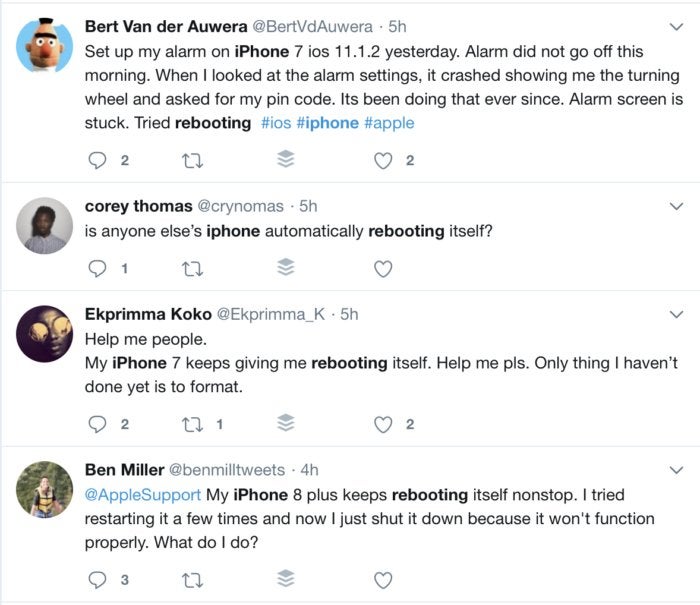
It’s like Y2K all over again for iPhone users. When the clock struck midnight on December 2, 2017, many iPhones that were running iOS 11.1.2 began inexplicably rebooting and crashing. But if you’re one of the affected users, there’s already a fix.
The bug involves iOS’s “local” notifications, alerts that happen on your iPhone rather than Apple’s push notification service. It’s difficult to know which apps use local notifications and which use remote notifications, but one example is meditation app Headspace, which sends users daily reminders to relax and breathe. Any app that sends local notifications could be a culprit.
Users on Twitter are complaining about their phones randomly restarting.
As a result, Apple pushed out iOS 11.2 in the middle of the night, a major update that also brings Apple Pay Cash, faster wireless charging for the iPhone 8 and X, and a number of bug fixes and visual changes. The sixth beta of iOS 11.2 was released yesterday, just days after beta 5 landed. It was presumably released early as a result of the bug, as Apple doesn’t usually push out major iOS updates after midnight on a Saturday.
If you woke up to a crashed iPhone, here’s what you need to do to fix it:
Turn off all notifications so the update won’t be interrupted by a rogue alert. Unfortunately, this isn’t an easy task, since there’s no toggle to turn off all notifications at once, and local notifications could still slip in with Do Not Disturb switched on. Head over to the Notifications tab in the Settings app, and browse your list of apps to find any that are sending notifications. Tap the name and turn off the Allow Notifications toggle.
If your phone won’t allow you to reach the home screen to change the notifications, try plugging it into your Mac or PC to update via iTunes.
Install the iOS 11.2 update in Settings>General>Software Update.
After the update installs, turn on the notifications you turned off.
If you still have issues after installing the update and turning on notifications, Apple recommends contacting Apple Support.
The story behind the story: Bug fixes are a normal part of OD upgrades, but the December 2 iOS bug is a terrible cap to a week of problems. First there was a major flaw in macOS High Sierra 10.13.1 that allowed anyone full access to your computer by entering the username root without a password. A fix quickly arrived, but that fix broke file sharing. And now it seems that the latest High Sierra beta bring the root bug back and reinstallation of the fix.
Earlier this week, Apple apologized for the macOS bug and said, “Our customers deserve better. We are auditing our development processes to help prevent this from happening again.” But this new iOS bug isn’t an isolated problem: Ironically, it was the iOS 11.1.2 bug that caused the issue, which was initially pushed out to fix issues with the iPhone X‘s screen responsiveness in the cold, preceded by the iOS 11.1.1 update that fixed the “capital I” autocorrect bug. So maybe Apple needs to take a hard look at its iOS development process as well.
If this describes what you are experiencing on an iPhone or iPad, your device is likely being impacted by the odd date bug that has now been patched with iOS 11.2.
In other words, you can fix this problem (or prevent it from happening in the first place) by downloading and installing iOS 11.2on the iPhone or iPad.
The problem appears to originate with other versions of iOS 11 and how some apps handle local notifications and alerts, so apps that may try to remind you or alert you of something can trigger the bug and then cause the crash loop sequence.
Tips for Fixing the Crash Loop Bug in iOS 11
If your device is actively stuck in a crash loop with iOS 11, you must update to iOS 11.2 to resolve the problem. You can try the following if you’re stuck in a crash loop:
Put the device into Do Not Disturb mode via Control Center
Or, disable notifications in iOS completely for each third party app (via Settings > Notifications > toggling off per app)
Then update to iOS 11.2 via the Settings app, or via iTunes on a computer
It’s not clear how widespread the problem is, and not everyone will be impacted by the bug because not everyone has one of the apps pushing local notifications to the device which could then trigger the crash.
And as to why it started happening on December 2 specifically is also a bit of a mystery, but perhaps we’ll find that out over time.
The crash loop bug is pretty annoying, and is probably why Apple released iOS 11.2 on a weekend – an unusual perhaps even rushed move for the company, which typically only releases new system software versions during the week days.
Anyway, if you’re impacted by this and have an iPhone or iPad on iOS 11, or you are concerned about being impacted by this, update to iOS 11.2 on the iPhone or iPad. The bug should not impact devices running earlier system software releases prior to iOS 11.
We help you determine which iPhone model is best for you.
Apple sells eight different models of the iPhone, ranging from the iPhone SE all the way up to the most premium iPhone X.
As CNBC’s gadget reviewer, I’m frequently asked: “Todd, which iPhone should I buy?” It’s a tough question to answer, since it really depends on how much you want to spend and what you expect out of your iPhone.
Do you need the very best? Do you prefer smaller screens? Don’t worry, I got you covered. Here’s how to decide which iPhone is best for you, starting from the cheapest up to the most grand.
The iPhone SE is starting to show its age, and rumors suggest Apple will refresh it in the coming months. I recommend most people hold off on buying it unless you reallydon’t care about having an outdated smartphone. It’s compelling for folks who like small screens, since it has a 4-inch display that’s the smallest Apple offers. It’s also the most affordable, starting at $349.
These are still decent iPhones and are best for anyone who wants an iPhone and access to iMessage but doesn’t want to spend too much. You get a choice between the 4.7-inch model, which starts at $449, and the larger 5.5-inch iPhone 6s Plus that starts at $549. Those are great prices for phones that still offer excellent cameras and features, but which are starting to show their age, but most folks should consider one step up.
These are perfect mid-range iPhones for most people. In fact, anyone who owns an iPhone 7 or iPhone 7 Plus probably doesn’t need to upgrade to the newer iPhone 8 or iPhone 8 Plus just yet — the features are relatively similar. You should buy them if you can spend a bit more than the iPhone 6s and iPhone 6s Plus, since they’re newer and will be updated longer than those phones. Plus, the iPhone 7 starts at the same price as the iPhone 6s Plus ($549) while the iPhone 7 Plus starts at $669. Want most of the latest features without splurging? These are for you.
Apple launched three new phones this year, including the iPhone 8, iPhone 8 Plus and the iPhone X. The iPhone 8 and iPhone 8 Plus don’t have the fancy new colorful OLED screen on the iPhone X, or face recognition, but they offer the same processor and wireless charging found in the iPhone X. These phones are best for folks who like Apple’s older design language but still want most of the latest parts and who don’t care for the iPhone X. iPhone 8 Plus owners should also expect some of the best battery life of any iPhone out there, even better than the iPhone X. They’re priced at a premium, starting at $699 for the iPhone 8 and $799 for the iPhone 8 Plus, but are still at least $200 cheaper than the top-of-the-line iPhone.
That brings us to the iPhone X. This is for the folks who want it all and who don’t flinch at the $999 starting price. You’ll get a brand new OLED display that runs edge-to-edge, Apple’s new Face ID recognition technology that replaces the home button and fingerprint reader, the best cameras Apple has ever crammed into a smartphone (better on the front and back), wireless charging, Apple’s fun new animoji and a phone that’ll turn heads. It’s my current favorite smartphone, though I miss the battery life of the iPhone 8 Plus I also purchased. If that’s a concern, maybe consider the 8 Plus instead.