OnePlus: How to fix a OnePlus 3T that keeps restarting
Not often do we see a OnePlus 3T that keeps restarting itself. However, if you have one, here’s something you can do to fix it yourself.
There are several different ways to fix the OnePlus 3T keeps restarting itself, and we’ll explain some of them below. The main recommendation would be to find a technician to check out the phone and to see what’s wrong with it.
It’s also suggested to see if your OnePlus 3T is still under warranty. If this is the case, you can send in your OnePlus 3T that keeps restarting and save yourself some money from paying someone to fix it. But if you don’t have anyone near by to look at the device, try some of these solutions below.
It’s common for the OnePlus 3 to crash and restart when a new app has been downloaded from the Google Play Store. You may want to read reviews of app before you download them to make sure nothing is wrong with that app that could damage your smartphone. Below are two solutions to fix a OnePlus 3T that keeps restarting.
1. The Android operating system causes the OnePlus 3T to keep restarting
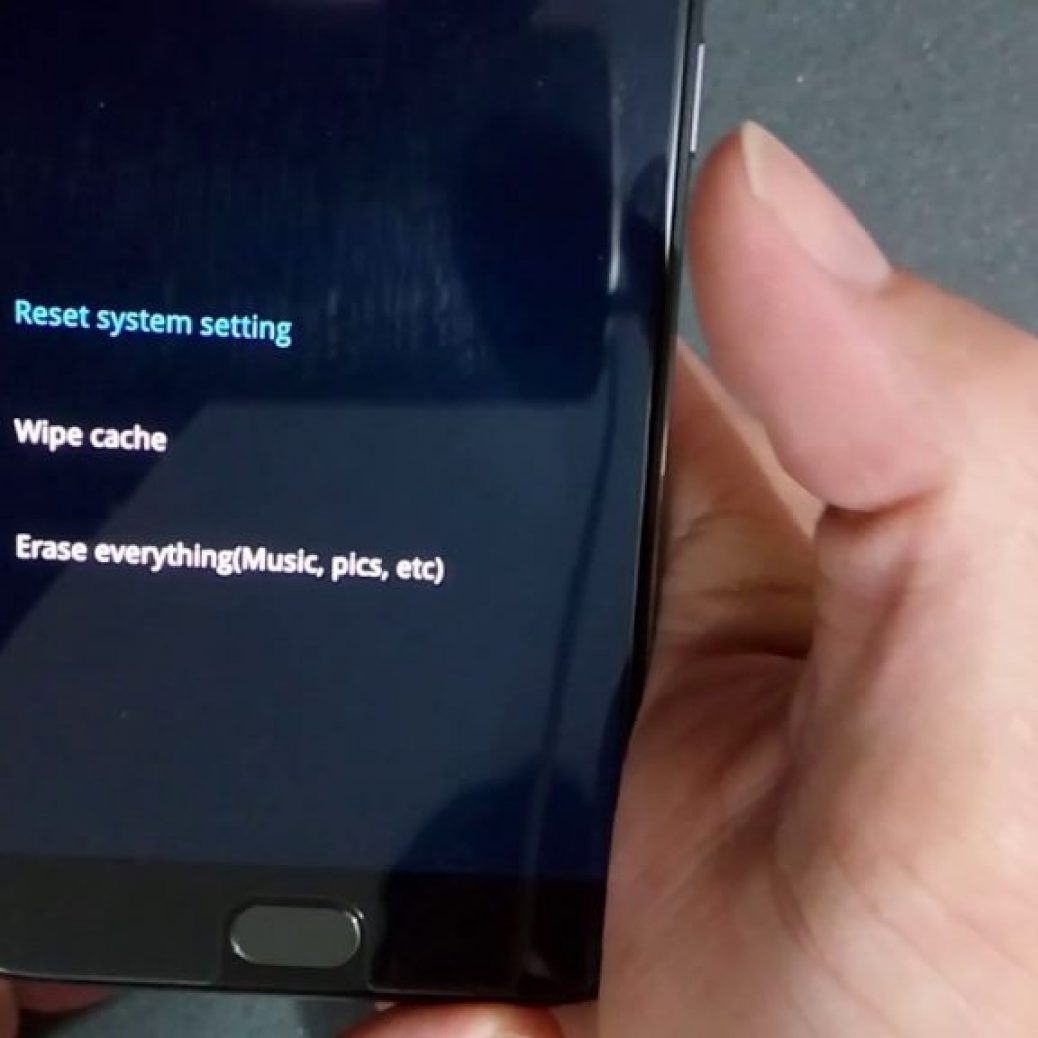
A common reason that the OnePlus 3T keeps restarting or rebooting itself is because of the new firmware update has been installed. It’s suggested to perform a factory reset on OnePlus 3T. This is a manual on how to factory reset the OnePlus 3T.
Prior to doing a factory reset on OnePlus 3T to help fix the resetting problem on the smartphone, it’s suggested to backup all data, pictures, contacts and other files in case something goes wrong during the backup process. In addition, when you do a OnePlus 3T factory reset; it’ll delete everything on your phone and make it seem like you just took it out of the box for the first time.
2. An application is responsible for the sudden reboots
Another solution would be to get your smartphone into Safe Mode, this will allow you to see which of the installed apps no longer work or if the OnePlus 3T keeps restarting.
First turn off your smartphone. Then keep the power on/off button pressed to reboot the smartphone. When the screen is turns on and shows the OnePlus logo, press the volume button. Hold on to this button onto you see the sim-pin is queried. At the bottom left you should now find a field with “Safe Mode“.
After you follow the instructions from above, you’ll be able to fix the OnePlus 3T that keeps restarting itself and causing your problems.
OnePlus: What are the common issues with OnePlus 3T
If you own a OnePlus 3T, you’ll know that the Oreo update brought about a plethora of problems that somehow makes you wonder: does it need a replacement?
There are some problems that don’t have a workaround available. If the issue is software-based, the only option is to wait for an update to fix it, but if the problem is hardware related, the only choice here is to pick up a replacement. Some of these issues are listed below:
Camera settings not being saved: Some users have found that after changing some settings in the camera app, these changes revert to default the next time the app is opened. Not surprisingly, people would rather have the settings that have been made to be saved.
Random reboots: A lot of OnePlus 3T owners have complained about the device randomly rebooting. You can check if a rogue app is the cause for concern by booting into Safe Mode, but this is otherwise something that will likely only be addressed in a future software update.
Chromecast mirroring not working: While users are able to cast apps like Netflix and Spotify, complete device mirroring doesn’t work.
Touchscreen latency issues: An issue that has been noticed by many has to do with touchscreen latency. OnePlus has acknowledged the problem, and a fix will be made available in an upcoming software update.
Yellow or blue tint and spots on the display: A few users have noticed a yellow or blue tint on the display, with there being some bright spots on the screen as well. In this case, the only option will be to pick up a replacement.
Headphone microphone issues: A lot of users have noticed that the mic that is built-in to their headset tends to mute randomly during a call. This seems to mostly happen when the display turns off while the headphones are plugged in.
OnePlus: How to troubleshoot connectivity issues with OnePlus 3T
Have you encountered a WiFi problem with your OnePlus 3T? How about bluetooth or LTE? Here’s some ways you can troubleshoot these problems. Read on.
Connectivity issues are quite common when getting a new device, and below are the general steps you can follow when facing problems with connecting to Wi-Fi or Bluetooth devices. Bluetooth issues seem to especially prevalent with the OnePlus 3.
Potential solutions:
Wi-Fi Issues
Turn off the router that you’re using and the phone, and wait for a while before turning them back on.
Go to the Wi-Fi settings on the device and forget the preferred network, before entering the details again from scratch.
Check the level of activity on your current channel with the Wi-Fi Analyzer application. If necessary, simply switch to a different channel.
Disable Power Saving Mode through Settings.
Find the MAC address for the phone by going into Settings – About Phone and ensure it is recognized by your router.
Bluetooth Issues
Make sure that no power saving mode is enabled.
Start by turning the Bluetooth on your device off and back on again.
If the problem continues, clear the cache for Bluetooth by going to the Bluetooth Settings.
Restart the phone after clearing the data and cache.
If the Bluetooth device saves multiple profiles, you might have reached the limit for the number of profiles it can save. Delete old and unused profiles, and try setting up the connection once again from scratch.
Have you had issues with your OnePlus’s version of Android? Wouldn’t it work just fine just like your other smartphones before? Here’s the most common ones and their fixes.
Games are not working with just mobile data
Some users have found that apps and games that require an internet connection don’t seem to work when the device switches to mobile data, but work as expected when connected to Wi-Fi.
Potential solution:
The issue seems to be related to the APN settings. Go to Settings – More Networks – Mobile Networks – Access Point Names, tap on the APN for your network, and then change the APN Protocol to IPv4 or IPv4/IPv6. In a lot of cases, these setting is preset to IPv6 only, which results in issues when certain apps and games attempt to connect to mobile data.
Performance lags and stutters
A few users have faced some performance issues with their device, including random but repeated reboots and instances of stutter or lag. Some users have also seen rapid battery drain even when the phone isn’t in use.
Potential solution:
Download the Greenify app from the Google Play Store. Here, you can see a list of applications that are active on waking the phone, and you can then change the settings for these apps, which should help with reduce any slowdowns.
A rogue app could be the cause for any performance issues. Boot the device into Safe Mode (you can find the instructions on how to do so below) and see if the problem persists. If not, an application is the issue. You can then either delete the last few apps you have may have installed before the problem started, or perform a factory reset and start over, even though that is recommended only as a worst-case scenario, since you will lose all your data.
Adaptive brightness not working consistently
Some people have found that the adaptive brightness doesn’t work as well as expected.
Potential solution:
This is a software issue, and a fix was rolled out with the official update to version 4.5.3. However, some users have found this issue to still persist, and hopefully, a more permanent solution will be available soon. Until then, you can download and use the Lux Auto Brightness app that is available on the Google Play Store, which is one of the best tools around to get better control over the adaptive brightness feature.
You know how to reset your OnePlus 5 in the settings menu, but did you know there are 4 ways on you go about doing this? Here’s the list for you to see.
1. Soft reset
If your display is off, turn it back on using the power key.
Open the “Settings” application.
Scroll down until you find “Backup & Reset.”
Tap on “Factory data reset.”
Select “Reset phone.”
Tap on the box “Erase everything.”
The device should automatically reboot
2. Hard reset
Turn your phone off by pressing down the power key for five seconds.
Turn the phone back on while keeping the volume down button pressed in.
When the phone vibrates, release the volume down button.
Your phone should enter a mode called Simple Recovery.
Choose the option that reads “Wipe Cache Partition” using the power button.
You should get a message that says “Cache wipe complete.”
Continue to choose the option “Wipe Data/ Factory reset.”
The phone should automatically reboot.
3. Wipe cache partition
Turn your phone off by pressing down the power key for five seconds
Turn the phone back on while keeping the volume down button pressed in
When the phone vibrates, release the volume down button
Your phone should enter a mode called “Simple Recovery.”
Choose the option that reads “Wipe Cache Partition” using the power button
You should get a message that says “Cache wipe complete.”
4. Booting into Safe Mode
Turn off the device.
Once off, press and hold the power button until the device starts booting up.
As soon as it starts loading, press and hold the volume up and volume down keys simultaneously.
Continue holding these buttons until the boot up is complete.
Unlocking the device, you should see it having booted up into Safe Mode.
Can’t connect to Wi-Fi or your bluetooth speaker with your OnePlus 5? You can easily remedy that by these simple tips and tricks on how to get yourself connected in no time at all.
Connectivity issues are quite common when getting a new device, and below are the general steps you can follow when facing problems with connecting to Wi-Fi or Bluetooth devices. Wi-Fi issues seem to be particularly prevalent with the OnePlus 5.
Potential solutions:
Wi-Fi Issues
Turn off the router that you’re using and the phone, and wait for a while before turning them back on.
Go to the Wi-Fi settings on the device and forget the preferred network, before entering the details again from scratch.
Check the level of activity on your current channel with the Wi-Fi Analyzer application. If necessary, simply switch to a different channel.
Disable Power Saving Mode through Settings.
Find the MAC address for the phone by going into Settings – About Phone and ensure it is recognized by your router.
Bluetooth Issues
Make sure that no power saving mode is enabled.
Start by turning the Bluetooth on your device off and back on again.
If the problem continues, clear the cache for Bluetooth by going to the Bluetooth Settings.
Restart the phone after clearing the data and cache.
If the Bluetooth device saves multiple profiles, you might have reached the limit for the number of profiles it can save. Delete old and unused profiles, and try setting up the connection once again from scratch.
If you ever found your OnePlus 5 frozen and won’t able to respond to touches, you can force restart it. Read this article for full fix.
How to Reboot a Frozen OnePlus 5
Those paying attention during setup may have actually seen the tip for how to reboot a frozen OnePlus 5. It’s a pop-up tip during the initial setup of your phone. If not, here are the quick and easy steps to do it yourself. As a reminder, this will not erase any data or content on your phone.
“If your device is unresponsive, press and hold down the Power key for 10 seconds to restart it.”
After holding down the power button for roughly 10 seconds the phone will automatically turn off, power cycle, and reboot back to normal operation. It’s worth noting that this is the same process to reboot the phone regularly, where you select from “power off” or “reboot” options on the screen.
However, if it’s completely unresponsive you can’t select any of the on-screen options. If so, just keep holding down the power button for over 10 seconds, and it will do a hard reboot. This should resolve most minor problems.
For some, the device may boot into a maintenance or safe mode. If so, use the volume up/down keys to navigate up and down, and use the power button to select an option on the screen. Then, just reboot your phone.
That’s all you need to know about doing a hard reboot on your phone. Again, this doesn’t erase any information or data and simply forces the phone to restart. Perfect for those experiencing problems or an unresponsive screen. In closing, these same steps work for almost any and all OnePlus smartphones, so try it if you’re facing issues.
We know that the OnePlus 5 dash charging tech is so good it’s somehow the selling point of all OnePlus flagships after OnePlus 5. But what if it fails? What will you do? Here’s how.
Temperature is too low for a recharge?
Try charging your phone with another adapter to see if the indication still arises.
If it still appears the indication, try doing a factory reset in Settings and following the steps: Settings – Back up & reset – back up my data and Factory data reset – erase internal storage – reset phone. Please back up all your important data firstly since all the data will be wiped during the process.
If all the solutions are excluded, it may be a motherboard problem, please contact with OnePlus service center or our after-sales service to ask for help.
Why is my battery not charging after 82%?
The charger and charging cable has something wrong. Please replace another charger and charging cable instead. You can buy a new one at a OnePlus 5 official store or a reputable online store.
Note: official charger and charging cable are highly recommended to charge for your phone.
Maybe the battery has not been activated. Discharge the battery and let the phone auto power off. Then full charge the battery. If the issue still persists, repeat this operation for twice.
If neither of the solutions resolves this matter, your phone battery or the mainboard may break down. You can contact our after-sales service to arrange a product return and factory repair, or go to the local repair store for professional assistance.
What if your OnePlus 5 can’t be fully charged?
Generally speaking, the process of battery charging usually experiences three stages: fast current charging, constant current charging and trickle current charging. When the phone battery reaches 80 percent of its capacity, it will step into the trickle charge stage. Trickle charge is the final step in the charging process, and the battery will be charged very slowly during this period. At this moment, the phone battery may be mistakenly tested as fully charged by some battery test software, so phone’s automatic battery charging protection will make your phone stop charging. If that’s the case, just try following steps below:
Make sure your phone battery is drained completely. (Wait for one or two minutes after first-time shutdown, and see if you can power the phone on again.)
Plug your handset into a charger, full charge your phone in power off state, then boot it.
If the above guide doesn’t solve this problem, your phone battery may come with defect, please contact our after-sales service or ask for professional assistance of repair store.
In November, OnePlus launched the OnePlus 5T—a mid-cycle refresh to the OnePlus 5. Unlike 2016’s OnePlus 3T, the OnePlus 5T doesn’t feature a bump in the specifications as it has the same system-on-chip, RAM, and storage configurations. Instead, the OnePlus 5T is a redesign of the OnePlus 5 with a bigger and more modern 6-inch 18:9 Full HD+ (2160×1080) AMOLED display. The new phone also features a different secondary rear camera, but keeps the rest of the specifications same. It has now gone on sale in supported markets, and has broken sales records. OnePlus is looking to continue this momentum by building on the hype of the new Star Wars: The Last Jedi movie. To that end, the company announced the OnePlus 5T Star Wars Edition.
Star Wars: The Last Jedi has already been released in Europe, and today is the official release date of the movie in India. OnePlus has tied the movie’s release with the release of the OnePlus 5T Star Wars Edition in India via Amazon and its own online store. Technically, the device is the same as the normal OnePlus 5T, with no changes in specifications. However, OnePlus has given it a brand new color: Sandstone White. It also ships with a new theme, and comes with 10 new Star Wars: The Last Jedi themed wallpapers to boot. So without any further delay, let’s take a closer look.
OnePlus 5T Star Wars Edition: Hardware
The company has previously released limited edition devices in the form of the OnePlus 3T Colette Edition as well as the Midnight Black Limited Edition. OnePlus also made a Castelbajac Edition of the OnePlus 5 in extremely limited quantities. Now, OnePlus is back with another Limited Edition. This time, though, the scale of the limited edition is much bigger than limited edition devices released in the past. That’s because OnePlus has gone ahead and launched the OnePlus 5T Star Wars Limited Edition in India as well as in Finland, Sweden, and Denmark.
The OnePlus 5T Star Wars Edition comes in special packaging with a relatively huge box. The box is primarily colored black with red accents. Inside, OnePlus has included a Star Wars case with the device. The case is a decent quality TPU case with a design that will be welcomed by Star Warsfans. However, it does make the device fairly bulky, which doesn’t help its ergonomics.
Moving on to the device itself, the Star Wars Edition of the OnePlus 5T comes in a Sandstone White color. OnePlus originally used Sandstone in the OnePlus One, which featured a plastic construction and came in Black and White colors. The OnePlus 2 retained the Sandstone back even as it moved to an aluminum frame. However, with the OnePlus 3, the OEM completely retired the Sandstone finish in favor of smooth anodized aluminum.
With the OnePlus 3T, OnePlus started to experiment with more colors by releasing a darker Gunmetal color along with a Soft Gold color. Later, they released a limited edition Midnight Black color which was offered as a standard color with the OnePlus 5 and is now the default color with the OnePlus 5T. One thing that these colors have in common is that they all use the sand-blasted anodized aluminum finish which is smooth and slippery, resulting in less grip. Fans of the original Sandstone finish have had to do with official cases, skins, and the like, as OnePlus seemingly moved on from the iconic sandpaper-like finish.
This changes now as Sandstone makes a comeback with the OnePlus 5T Star Wars Edition. The white back of the device necessitates a coating to be applied on top of the aluminum, because it’s impossible to make white anodized aluminum. Therefore, the Star Wars Edition variant feels more similar to the OnePlus One instead of the standard OnePlus 5T. Although it’s still an aluminum unibody, the cold feel of metal is suppressed, and instead we get a surface which offers a surprisingly high amount of grip.
Although users may be disappointed to hear that the Star Wars Edition of the OnePlus 5T doesn’t feel like a metal device, the good thing is that the Sandstone finish is worth the trade-off in the sand-blasted aluminum feel. For users who had to use a case with previous OnePlus devices just to get a good amount of grip, the Sandstone finish negates the need for a case in that respect. It also completely hides the antenna bands, which is a plus.
For me, personally speaking, the sandstone finish doesn’t feel like a downgrade from the smooth metal finish of current OnePlus phones. This is because grip is important—and materials like aluminium and glass aren’t known for providing it. Plastic is still the best way to go if users need a high amount of grip, and the coating applied to the OnePlus 5T’s aluminum unibody is the best of both worlds as it gives both the structural rigidity of a metal unibody construction and the grip of a plastic-feeling device.
The buttons and ports are laid in the exact same layout as on the standard variant. The front of the device is dominated by the 6-inch display which has small bezels, whereas the back contains the red Star Wars logo at the bottom. On the left hand side, we have the alert slider, which is colored in red. The volume rocker sits below the alert slider, and is colored in black.
On the right hand side, we have the SIM tray, which interestingly has a black color. The power button is also colored the same, and sits below the SIM tray. The top side of the device is completely clean, whereas the bottom features the USB Type-C port, a single speaker, the microphone, and the 3.5mm headphone jack. OnePlus has previously explained their decision to keep the headphone jack, and on this topic, we can’t agree more. For a device targeted towards enthusiasts, the 3.5mm headphone jack should be a staple, and its presence here is welcome.
According to OnePlus, the design philosophy of the Star Wars Edition can be summed up in the color scheme, which is a mixture of black, white, and red colors, which matches several elements of the Star Wars franchise. The front of the device remains black while the sides and the back switch over to the Sandstone White color. The red alert slider completes the color scheme.
OnePlus 5T Star Wars Edition: Software
The design is the star of the show as a differentiating factor for the OnePlus 5T Star Wars Edition. However, it’s not the only thing which is different. The underlying software is still the same as the standard Midnight Black variant—OxygenOS 4.7 on top of Android 7.1 Nougat, with the promise of an Android Oreo update in early 2018. By default, though, owners of the Star Wars Edition variant will get to experience the ‘Star Wars’ software theme, which is pretty similar to the Dark theme on existing OnePlus phones. The only difference is the red accent color which permeates the user interface. OnePlus has also included ten exclusive Star Wars-themed wallpapers.
OnePlus 5T Star Wars Edition: Specifications
The specifications of the OnePlus 5T Star Wars Edition are exactly the same as the standard variant. That means it’s powered by the Qualcomm Snapdragon 835 system-on-chip, which is still Qualcomm’s flagship SoC until the Snapdragon 845 starts shipping on devices next quarter. The Kryo 280 cores are paired with the Adreno 540 GPU.
The device has a 6-inch Full HD+ (2160×1080) 18:9 AMOLED display with 403 PPI. The display has a bigger screen area than its predecessor, and is a newer panel as well. It still features a PenTile matrix, so the effective color resolution is lower than Full HD, and the subpixel density will be lower than that of RGB matrix displays. However, display sharpness is still adequate due to subpixel anti-aliasing.
The display is equipped with sRGB, DCI-P3, and Adaptive screen color modes, as well as a color temperature slider. It also has Sunlight Display for better visibility in daylight conditions. In our opinion, the display is excellent even considering the fact that it doesn’t have WQHD+ (2880×1440) resolution. The brightness is marginally higher than the display of the OnePlus 3T. Since the AMOLED display is supplied by Samsung, color shift is minor and is visible only at extreme angles. Thanks to the presence of sRGB and DCI-P3 color modes, consumers who prefer color accurate displays won’t have any problem with the display of the OnePlus 5T Star Wars Edition.
Moving on to the camera system, the rear camera configuration is one of the areas where the OnePlus 5T differentiates itself from its predecessor. Although the primary camera is still the same, a 16MP Sony IMX398 sensor with 1.1 micron pixels and a f/1.7 aperture, the secondary telephoto lens of the OnePlus 5 has been swapped in favor of a 20MP IMX376K sensor dedicated to low-light, with 1.0 micron pixels, f/1.7 aperture and the same 27mm field-of-view as the primary camera. This means that the secondary camera can no longer do 2x optical zoom—although it’s worth noting that even the OnePlus 5 could only do 1.6x optical zoom with the remaining zoom being achieved by digital interpolation.
The purpose of the 20MP secondary camera is interesting. It uses Intelligent Pixel technology and will only take photos if light levels are below 10 lux. The term ‘Intelligent Pixel’ refers to pixel binning, which is something we’ve seen before. It combines 4 pixels into one to achieve a brighter photograph, but if light levels are above 10 lux, the primary 16MP camera will take over. The camera UI doesn’t tell the user which camera will be used to take a particular photo, so users have only one way to know information: by checking the EXIF details of a photo.
OnePlus 5T
Specifications
Dimensions
156.1mm x 75mm x 7.3mm
Weight
5.7 ounces (162g)
Software
OxygenOS 4.7 based on Android 7.1.1 Nougat (Oreo Open Beta in December 2017, OTA in Early 2018)
The OnePlus 5T Star Wars Edition is a OnePlus 5T with a new color and a new software theme. That, in itself, makes it a great device. Considering the Star Wars Edition solely on its own merits, it can be recommended to Star Wars fans as well as OnePlus fans. Even if many consumers aren’t fans of Star Wars, the device is still worth purchasing because the color scheme looks and feels great. Star Wars fans will love the Star Wars theme, wallpapers, and logo on the back, but even users who don’t will still get the benefits of a high amount of grip thanks to the Sandstone White finish.
As such, the device is a good proposition for users who simply want something different than a black slate device. The Star Wars Edition stands out with its different color scheme: white back and sides, Star Wars logo, and the prominent red alert slider. For many consumers, that’s exactly what they want.