Apple seems to be slacking behind Samsung in terms of smartphones sales according to a new report. During the quarter of July-September, Samsung sold 83.8 million smartphones, which accounts for 23.7 percent of the global smartphone market. These are truly impressive numbers when you compare it to Apple’s 48 million units sold during the same period, accounting for 13.6 percent of the global smartphone market.
These smartphone sales for Samsung are the highest they’ve ever been since Q1 2014, and it seems that a lot of sales come from mid-tier models like the Galaxy A8 and the Galaxy J5. It’s important to mention that the global smartphone market is also bigger than last year, having expanded 9.5 percent with 354.2 million units as of late-September.
While Samsung is dominating the smartphone market, they are slacking behind Apple in terms of smartwatch sales. The South Korean-based company has recently announced the first profit growth in two years time, so the future is rather bright for them. Samsung is going to begin the next year in full force with a possible flagship release in January.
For years, people have wondered if Google would merge its Android and Chrome operating systems, and the company has steadfastly held to them important but distinct pieces of its strategy. That might be changing: The Wall Street Journal is reporting that Google has been working for two years to merge Chrome OS and Android. The results of that unified operating system is expected to be officially released to the public in 2017, but we may see an early version as soon as next year.
Update: While some have reported Google might “kill” ChromeOS, the company seems to still have some kind of dual-strategy in mind and has disputed that interpretation. As the Senior VP of Chrome OS, Chromecast and Android Hiroshi Lockheimer probably knows the the most about each project’s potential fate, and he tweeted tonight that “we are very committed to Chrome OS.”
The WSJ says that this new version of Android will also run on PCs, though it’s not clear if the company is talking about Windows and Mac computers or just a rebranded extension of the current Chromebook lineup. The former seems likely, as the Chrome browser contains most of the functionality of Chrome OS itself. Given that Google wants to get its Google Play store on as many devices as possible, it would make sense to see a version that works with the vast number of Windows and Mac machines out there. Chromebooks will end up being rebranded to an as-yet undetermined name.
Ever since current Google CEO Sundar Pichai became both the director of Android as well as Chrome OS in March of 2013, there’s been a lot of speculation about if the two operating systems would merge. While Pichai initially said they would stay separate, he appointed Hiroshi Lockheimer to manage both operating systems late last year — so there’s been a fairly long history of Google’s two operating systems having one clear lead for some time now.
When we might see this new, combined operating system is far from certain — but it seems like the next Google I/O event would be as natural a time as any for the company to show off such a major shift.
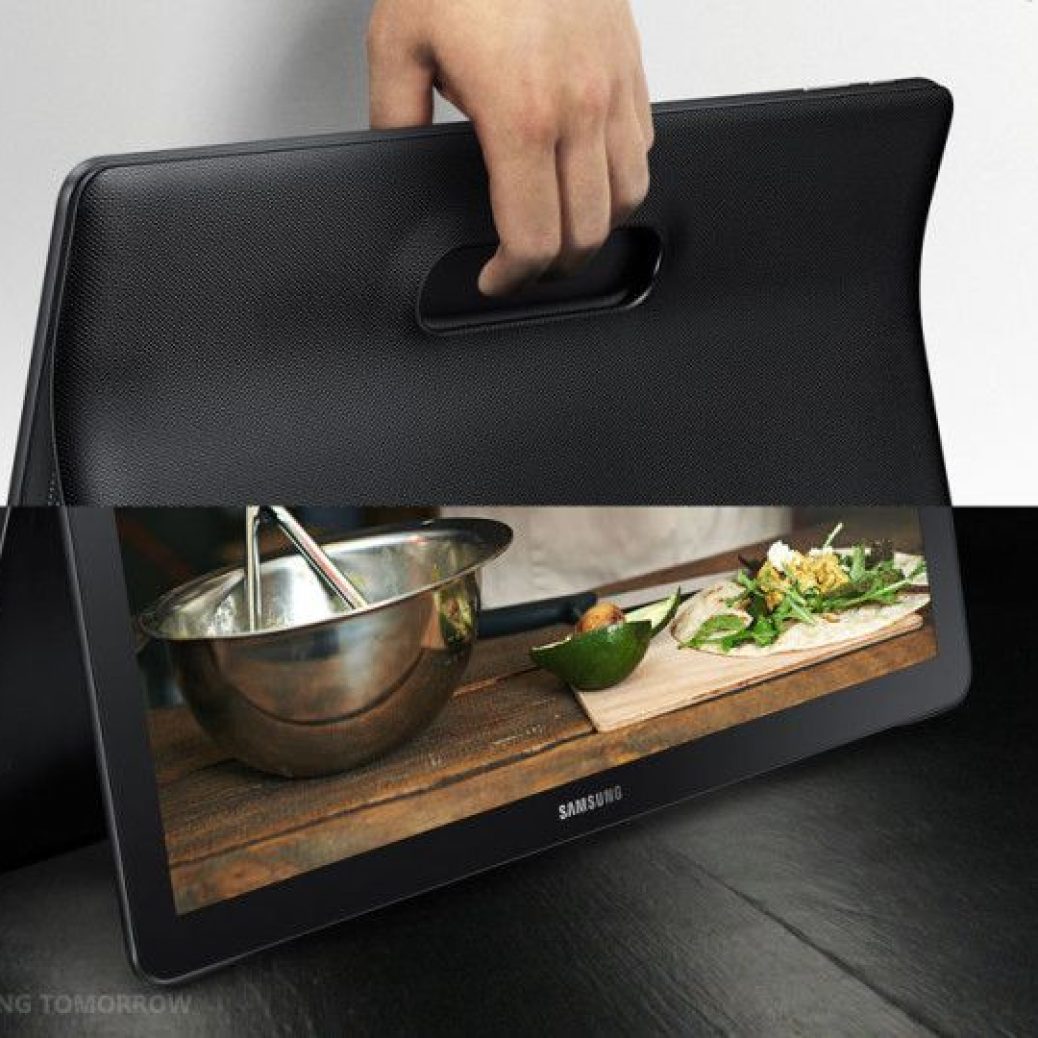
We exclusively reported earlier this year that Samsung is working on an 18.4-inch Android-powered tablet, a few months back the company teased this tablet that it has named the Galaxy View, and over the past couple of weeks there has been a steady stream of information about this new tablet. Today Samsung has finally unveiled the Galaxy View, the biggest selling point is its huge display and Samsung promises a video-optimized user interface as well a “long-lasting” battery life. There’s no mistaking the fact that this device has been created with content consumption in media and the display size is just perfect for that.
The Galaxy View has an 18.4-inch full HD display, Samsung says that it has been designed with a video-centric interface in mind, there’s a dedicated home screen for videos which showcases all of the different content sources in one place making it much easier for users to discover content they’d want to watch. Weighing in at a chunky 2.65kg the Galaxy View measures 275.8mm x 11.9mm x 451.8 mm, it even has an integrated kickstand which effortlessly props up the device when users want to watch content from a distance. It’s powered by a 1.6Ghz octa-core processor with 2GB RAM and 32/64GB internal storage, runs Android 5.1 Lollipop, has a 2.1-megapixel front camera and supports LTE. There’s support for microSD cards and the 5,700mAh battery promises eight hours of video playback.
Samsung has not yet confirmed when it will actually release the device, and even though a possible price was recently rumored, the company itself is yet to confirm just how much it will ask for the Galaxy View.
The Galaxy View has been fully detailed ahead of its launch thanks to a plethora of leaks, and the 18.4-inch tablet’s user manual has now popped up online on Samsung’s website, suggesting an official announcement could take place soon. The user manual details various features of the Galaxy View, including the detachable arching handle at its back that acts as a dock and also doubles up as a way of carrying the tablet.
The Galaxy View comes with stereo loudspeakers at the back, and it also sports a DC jack. The tablet does have a battery inside but it’s said to be only a 6,700 mAh unit, so Samsung has likely put in a DC jack to enable constant usage when users are at home and can connect the tablet to a power outlet instead of using the inbuilt battery. The manual also confirms a cellular variant, with the tablet to support LTE connectivity as we had exclusively revealed.
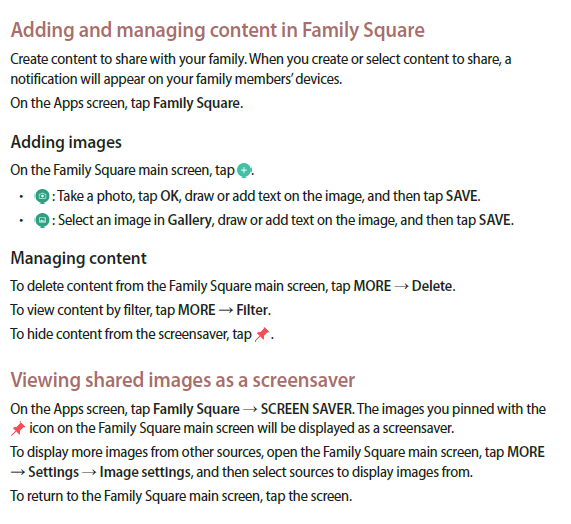
On the software front, the manual mentions a dedicated TV page and also reveals that the tablet will connect to Samsung Smart TVs from 2015 and beyond via Bluetooth. The manual also talks of a feature called Family Square. This is a way to share content with family members, and while Samsung doesn’t detail how the content will be shared, it’s likely a Bluetooth or a Wi-Fi connection will be used to connect to other Samsung devices.
The Galaxy View seems like an interesting device, and it’s clear that Samsung will be pitching it as something that can slot right in between a tablet and a full-fledged television. Would you be interested in buying the Galaxy View? Let us know in the comments, and check out its user manual by downloading it from the links below.
There has been a lot of buzz around Samsung’s upcoming mobile processor, the Exynos 8890. Starting Q1 2016, it will go head-to-head with the best SoCs in the industry including Qualcomm’s Snapdragon 820 and Apple’s A9X. In the previous weeks, we reported that Samsung is in the process of optimising its chipset for better performance as well as efficiency.
Now, it is being reported by Business Korea that the South Korean electronics chip giant will start mass producing the Exynos 8890 for the Galaxy S7 starting from December 2015 in its Giheung plant. The Exynos 8890 is an important milestone for the company as it will feature a custom CPU core for the first time in its processor lineup. Samsung will launch multiple variants of the Galaxy S7 with some of them featuring Exynos 8890, while others using the Snapdragon 820 chipsets.
With this introduction, Samsung will become the third brand after Qualcomm and Apple to introduce its own custom CPU cores, and that will improve the company’s position in the SoC segment. This is because it takes a lot of effort and experience in all forms of chip design including the manufacturing process. Till now, Samsung used generic ARM CPU cores in the Exynos chipsets, but starting with Exynos 8890, it will use homegrown M1 (a.k.a Mongoose) cores.
Samsung also has plans to introduce its own GPU in Exynos chipsets, but that will come at a later stage. The company is reportedly optimising Snapdragon 820 to fix its heating issues as the chipset will be manufactured by Samsung using its 14nm FinFET process. This is help the company in rising above other SoC players like MediaTek, Spreadtrum, and Huawei. Moreover, the company has reportedly hired AMD’s legendary CPU architect Jim Keller to design its next-generation Exynos chipsets.
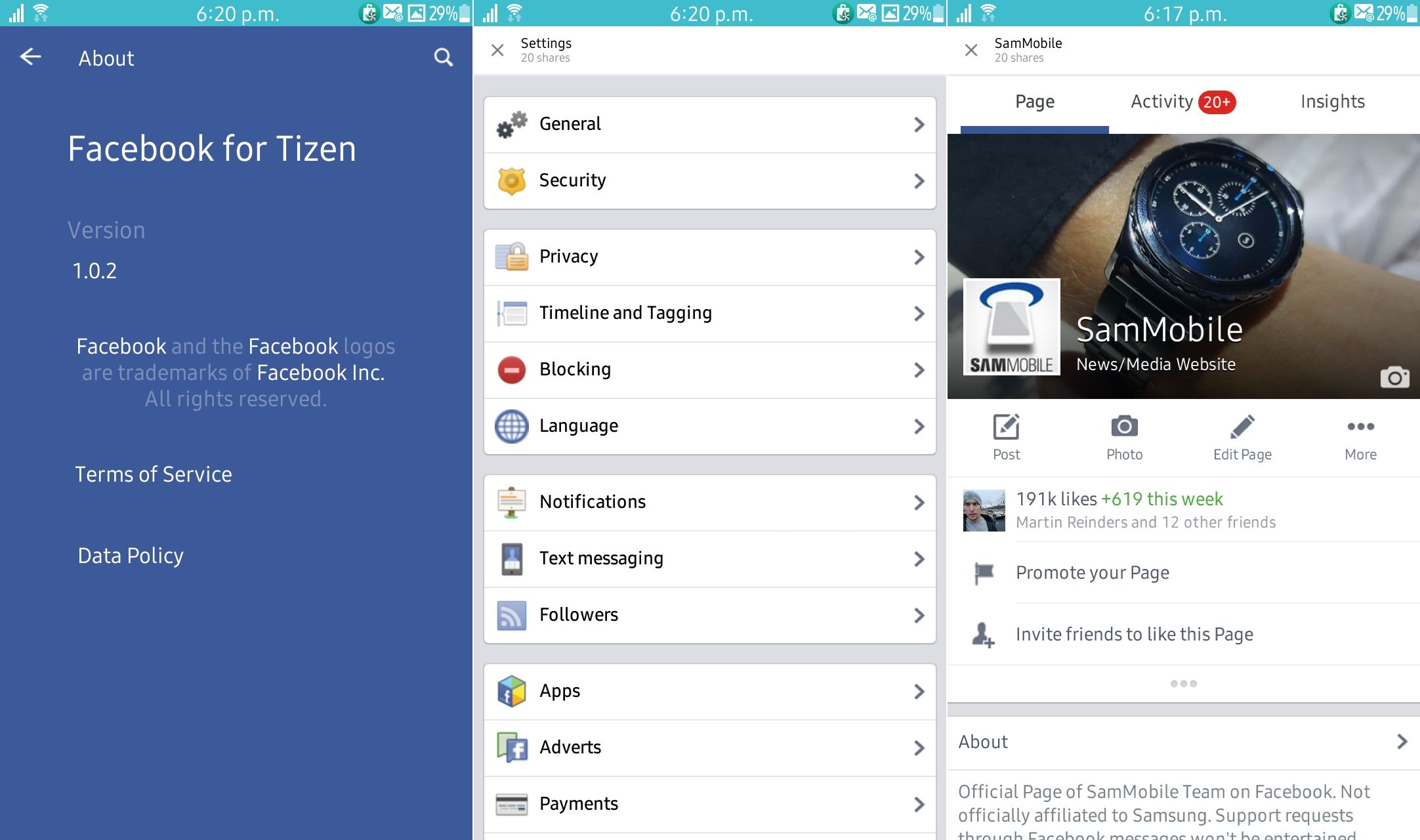
Samsung’s Tizen phones come with a Facebook app out of the box, but this app simply loads the web version of the social network. The web version of Facebook is rather limited, so it hasn’t been a good experience for Tizen smartphone users. Well, until now that is, as an update to the Facebook app for Tizen turns it into a proper native app designed for the operating system.
The native app looks and feels similar to the Android version of Facebook, but it seems there is still some work to do as not everything seems to have been implemented. For example, things like our SamMobile page (and pages in general) and the settings menu still open in a browser, though future updates should bring in the necessary changes to make this a truly native app.
Still, a native version of one of the most important smartphone apps is a good step forward for Samsung’s young mobile operating system. Download the update from the Tizen store; the app is available only on the Samsung Z3 for now, but we’re sure the update will also make it to the Z1 in the next few days.
A new public park covering more than three hectares with gardens, open space and a cliff-edge walk will provide a welcome connection between Forest Lodge and the Glebe foreshore.
Work will begin on the new park in November with the City of Sydney design highlighting the existing setting and history of the site, and providing space for ecological diversity, recreation and underground stormwater capture.
The new parkland, which is part of the Harold Park development, will provide new green space with places for people to relax, children to play, and flora and habitat to thrive.
“The City consulted widely with the community in developing this new parkland, and refinements have been made to ensure this new open space can be enjoyed by everyone,” the Lord Mayor said.
“This great new green space will connect Forest Lodge to the Glebe Foreshore and provide better pedestrian links for people to enjoy the outdoors.
“The design will also showcase the park’s history and natural assets, highlighting the heritage-significant Tram Sheds and the striking sandstone cliff.”
The 3.8 hectares of land was provided to the City through a voluntary planning agreement with the Harold Park developer, which also contributed $8.25 million to transform the site into public parkland.
The park design includes a suspended walkway or stairs connecting adjacent neighbourhoods, allowing views over the parkland and creating a welcoming arrival.
Informal pathways at the bottom of the cliff meander through native plants, there are pockets of trees for shade, a children’s playground, a shelter for people to meet and a large, level lawn area for informal ball games.
A special garden, located next to the historic tram sheds, is inspired by an ornamental garden that existed on the site during the early 20th century.
Captured stormwater from neighbouring areas will be cleaned in two underground tanks, with the water reused to irrigate the new park and downstream parklands.
If there are words and phrases you type out over and over again on your phone—from your email address to “I’ll be five minutes late”—then both Android and iOS include built-in tools to help you communicate faster. Here’s how to get the shortcuts set up and burn through emails and texts messages on your smartphone.
Android
Head into the Settings app, then tap Language & input and choose the Personal dictionary entry from the menu that appears. A list of all the words you’ve added to your personal dictionary appears on screen. Tap the plus icon (top right) to enter your word or phrase, then give it a unique shortcut code in the field underneath.
That’s just about all there is to it. Next time you’re tapping out a message, enter the shortcut code and the word or phrase appears as a suggestion on screen. If you prefer, you can make use of a third-party app to do the same job—Texpand seems to be the most useful and most recently updated option out there at the moment.
iOS
On recent versions of iOS, you can find the keyboard shortcuts feature by going to the Settings app, then tapping General and Keyboard. Select Text Replacement and you can start working on your shortcuts. As on Android, a tap on the plus icon in the top-right corner lets you create a new one.
The process is almost exactly the same as it is on Google’s mobile OS—input your word or phrase, specify a shortcut, tap Save and you’re good to go. The next time the iOS keyboard pops up on screen, you can type out your shortcut and then choose your specified word or phrase from the suggestions that appear above the keys.
Facebook announced today that it had made some changes to its iOS and Android apps, designed to provide you with useful notifications cards based on your location. If you enable Location History in your settings, you will see news, events and happenings in your community; weather updates including current conditions and severe weather alerts; nearby restaurants including reviews and links to their Facebook pages; and movies playing in theaters close by.
Facebook subscribers will also see sports scores and television listings appear, based on Facebook pages that they liked. Birthday reminders will be sent out, along with other major events for Facebook users’ relatives and friends.
Keep in mind that this is all optional. Your current notification settings will not be changed with this update. An arrow to the right of each notification will allow you to customize the notifications, and there will be an “Add More Cards” link that you can click. The update will “gradually” make its way to the Facebook app for both iPhone and Android.
If this all sounds familiar, there are many similarities to Google Now. You can check out Facebook’s new notification feature for its mobile apps by clicking on the video below.
Marshmallow further bolsters Android’s existing notification muting features thanks to an enhanced Do Not Disturb feature.
n Android 5.0 Lollipop, Google added some new features that made it easier to silence unwanted notifications while you’re asleep or at work, for example. Android 6.0 Marshmallow builds on Lollipop’s Priority Notifications and Downtime features, and gives these notification management tools a new umbrella name: Do Not Disturb. Let’s take a look at what these expanded notification-silencing features can do.
Turn on Do Not Disturb at any time
Android Marshmallow lets you mute notifications at any time with just a tap. Pull down the Notifications drawer, then swipe down again to get to the Quick Settings tray (or swipe down with two fingers at once). Tap Do not disturb, then choose the sorts of alerts you want to receive while do not disturb is active. You can choose to continue receiving notifications for alarms or priority notifications, or you can opt for total silence. (We’ll discuss priority notifications in-depth here in a moment.)
Do Not Disturb is a swipe and a tap away in Android Marshmallow.
Finally, choose whether you want to have Do Not Disturb stay on until you say otherwise (“Until you turn this off”) or for a set period of time (“For one hour,” by default). If you choose the latter option, use the “+” and “-“ buttons to set how long you want Do Not Disturb to be active.
Priority interruptions
Android Lollipop introduced the concept of “priority notifications”: These notifications rise to the top of the notifications screen, and you can choose to continue receiving auditory or vibration alerts for these notifications even when you have all other notifications muted.
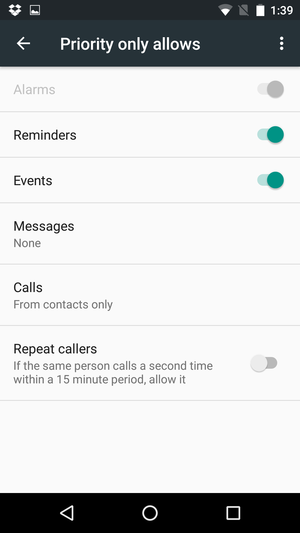
To choose which notifications you’d like to treat as priority notifications, head on over to your phone’s Settings app, then tap Sound & notification—a one-stop shop of sorts for all things related to notifications and alert sounds. Next, tap Do not disturb, then tap Priority only allows. From this screen, you can choose to limit the sorts of notifications you’ll be alerted to.
First, choose whether you want to give priority to notifications for reminders and calendar events. (The option to silence alarms is grayed out for whatever reason.)
Next, review the priority notifications options for Messages and Phone calls. set your priority preferences by tapping either “Messages” or “Calls.” when you do, a menu pops open with four options:
From anyone: This option allows all notifications through, regardless of who is trying to reach you.
From contacts only: Notifications alerting you to calls or messages from people listed in your Contacts app will get priority status.
From starred contacts only: This setting gives priority to notifications that pertain only to those marked as favorites in the Contacts app. To mark someone as a favorite, go to the Contacts app, tap that person’s name, then tap the star icon in the upper right corner.
None : No call or message notifications will receive priority status.
Once you choose your desired settings for calls and messages, choose whether you want notifications from repeat callers to gain priority by toggling the “Repeat callers” slider to the On position. When this setting is switched on, you’ll receive a notification if someone calls you a second time within a 15-minute period, regardless of whether notifications from that person receive priority status.
Downtime
If you want to allow all notification alerts through most of the time, but want to limit alerts during certain hours (like when you’re sleeping or at the office), Downtime is for you. During Downtime hours, you’ll only be alerted to priority interruptions; your phone will receive all other notifications silently. They’ll be there, waiting for you when you wake up, but your phone will not light up the screen, make a noise, or vibrate.
If you want to use Downtime, you first need to choose the days of the week and times you want to set as notification quiet hours. Go to Settings > Sound & notification > Do not disturb > Automatic rules. Android Marshmallow provides presets you can use for weekends and weeknights, and a preset option for managing notifications during calendar events.
Start by tapping any of these three options—for the sake of this tutorial, I’ll tap Weekend. Next, toggle the on/off switch to the “on” position. Select theDays you want the preset to apply to, then set a Start time and End time.
Finally, select the kinds of alerts you’d like to allow through. You can choose between Alarms only (allows alarms to sound but silences all other notifications), Priority only (allows only priority notifications), or Total silence(which mutes all notifications).
Take a peek at the Event preset as well, and choose whether you want to silence notifications from going off during events listed on your calendar—useful for preventing your phone from going off in the middle of a staff meetings. Switch the rule on, select the calendar and reply status you want it to use, then choose what kind of notifications—if any—you want to receive during calendar events.
You can create additional rules for notifications as well: For example, you can set one to allow only priority notifications while you’re at the office. TapAdd rule, enter a name, choose whether you want a Time rule (you enter specific times and dates) or an Event rule (one based on calendar events), then tap OK. At this point, you can set up your new rule: Doing so is pretty straightforward—it works just like the presets mentioned above.
You can delete a rule at any time by tapping its name, then tapping the trash can icon in the upper right corner. You can also choose to temporarily stop observing a rule by toggling the on/off switch to the “off” position.
App notifications
Android Marshmallow, like Lollipop before it, also lets you choose to block apps from sending notifications entirely, or to mark notifications from certain apps as priority notifications.
First, head back to Settings > Sound & notification. Next, scroll to the bottom and tap App notifications, then tap on the app for which you want to adjust notification settings. Toggle the Block all slider to the “on” position to stop receiving notifications from that app. Toggle the Treat as Priority slider to “on” if you want notifications from that app to be considered Priority notifications.
While you’re here, you can toggle whether you want to view the larger “heads-up” notifications for the app in question using the Allow peeking setting.
You can also get to this screen any time an app’s notification appears by pressing and holding on the notification until you see the little info button (it looks like a lowercase “i” in a circle) appear. Tap on that, and you’ll go straight to the notification settings for that app.
Once you’re done, exit the Settings app and enjoy your newfound mastery of Android Marshmallow’s notification system.