We rely on Bluetooth for more and more devices, and while the wireless standard is very convenient, it can be really frustrating when our peripherals don’t work consistently. Read along for five tips and tricks to fix Mac Bluetooth issues, including resetting your Bluetooth module and ways to remove interference.
Bluetooth issues aren’t anything new, but there has been a recent wave of more Bluetooth problems with the first Apple Silicon M1 Macs and macOS Big Sur. Notably, Bluetooth reliability should have been improved for Mac users with macOS 11.2.
But whether you’ve got a new M1 Mac or are having trouble with Bluetooth on an Intel one, we’ll cover multiple approaches to fix Mac Bluetooth issues.
How to fix Mac Bluetooth issues
Software update, power cycle, unpair
You’ve probably tried these steps, but if not, start here:
Check if macOS is up to date ( > About This Mac > Software Update…)
Make sure your Bluetooth device is charged
Turn off your Bluetooth device and back on again, you can do the same with Bluetooth on your Mac (click the Bluetooth icon in the menu bar – top right of your Mac’s screen)
You can also unpair a Bluetooth device and re-pair to see if there’s an improvement (Bluetooth in the menu bar > Bluetooth preferences > hover over a device > click the “x” icon > choose “Remove”)
Reboot your Mac
Remove interference
Apple notes in a support document that if you’re seeing intermittent Bluetooth issues, it’s good to check for interference. Tips include:
Bring your Mac and Bluetooth devices closer together
Remove other devices like phones, cameras, power cables, etc. that might be on your desk or nearby
Move some WiFi devices to 5GHz since Bluetooth and WiFi both use 2.4GHz
Move USB/Thunderbolt hubs further away from your Mac and Bluetooth devices (and don’t place them on top of your Mac)
Turn off USB devices that aren’t in use
Finally, don’t have materials between your Mac and Bluetooth devices like metal, concrete
Reset your Mac’s Bluetooth module
If you’re still having trouble with Bluetooth issues, you can reset your Mac’s Bluetooth Module:
While holding option + shift on your keyboard, click the Bluetooth icon in the menu bar
Click “Reset the Bluetooth module”
On the confirmation prompt, choose “OK”
Your Bluetooth devices will disconnect for a moment as the module resets and should automatically reconnect
Here’s how this looks:
Remove all devices + reset Bluetooth module
If that didn’t work, you can remove all of your Bluetooth devices and then reset the module (keep in mind you’ll need to re-pair all of your Bluetooth devices after this):
Hold option + shift on your keyboard and click the Bluetooth icon again
This time, choose “Remove all devices” > click OK
Do option + shift on Bluetooth in the menu bar again > click “Reset the Bluetooth module”
Re-pair your Bluetooth device(s)
Have a dongle?
This isn’t always an ideal solution depending on your setup, but if your Bluetooth device came with a USB dongle for a direct connection, that often eliminates any Bluetooth issues you’re seeing.
The most common devices to come with USB dongles are third-party mouse and keyboards.
The new MacBook Air, 13-inch MacBook Pro, and Mac mini are now powered by M1, Apple’s revolutionary chip.
A new MacBook Air, 13-inch MacBook Pro, and Mac mini powered by M1, Apple’s breakthrough chip for the Mac
Cupertino, California — On a momentous day for the Mac, Apple introduced a new MacBook Air, 13-inch MacBook Pro, and Mac mini powered by the revolutionary M1, the first in a family of chips designed by Apple specifically for the Mac. By far the most powerful chip Apple has ever made, M1 transforms the Mac experience. With its industry-leading performance per watt, together with macOS Big Sur, M1 delivers up to 3.5x faster CPU, up to 6x faster GPU, up to 15x faster machine learning (ML) capabilities, and battery life up to 2x longer than before. And with M1 and Big Sur, users get access to the biggest collection of apps ever for Mac. With amazing performance and remarkable new features, the new lineup of M1-powered Macs are an incredible value, and all are available to order today.
“The introduction of three new Macs featuring Apple’s breakthrough M1 chip represents a bold change that was years in the making, and marks a truly historic day for the Mac and for Apple,” said Tim Cook, Apple’s CEO. “M1 is by far the most powerful chip we’ve ever created, and combined with Big Sur, delivers mind-blowing performance, extraordinary battery life, and access to more software and apps than ever before. We can’t wait for our customers to experience this new generation of Mac, and we have no doubt it will help them continue to change the world.”
With M1, the Mac delivers unprecedented levels of performance, extraordinary battery life, and access to more software than ever.
MacBook Air: A Thin and Light Powerhouse
MacBook Air is Apple’s most popular Mac and the world’s best-selling 13-inch notebook. With the M1 chip, MacBook Air speeds through everything from editing family photos to exporting videos for the web. The powerful 8-core CPU performs up to 3.5x faster than the previous generation. With up to an 8-core GPU, graphics are up to 5x faster, the biggest leap ever for MacBook Air, so immersive, graphics-intensive games run at significantly higher frame rates. ML workloads are up to 9x faster, so apps that use ML-based features like face recognition or object detection can do so in a fraction of the time. The M1 chip’s storage controller and latest flash technology deliver up to 2x faster SSD performance, so previewing massive images or importing large files is faster than ever. And in MacBook Air, M1 is faster than the chips in 98 percent of PC laptops sold in the past year.
With the industry-leading power efficiency of M1, MacBook Air also delivers this performance in a fanless design, which means no matter what users are doing, it remains completely silent. And the new MacBook Air features extraordinary battery life, with up to 15 hours of wireless web browsing and up to 18 hours of video playback — the longest battery life ever on a MacBook Air.
MacBook Air with M1 is an absolute powerhouse of performance and thin-and-light portability.
When compared to the previous generation, the M1-powered MacBook Air can:
Export a project for the web with iMovie up to 3x faster.
Integrate 3D effects into video in Final Cut Pro up to 5x faster.
For the first time, play back and edit multiple streams of full-quality, 4K ProRes video in Final Cut Pro without dropping a frame.
Export photos from Lightroom up to twice as fast.
Use ML-based features like Smart Conform in Final Cut Pro to intelligently frame a clip up to 4.3x faster.
Watch more movies and TV shows with up to 18 hours of battery life, the longest ever on MacBook Air.
Extend FaceTime and other video calls for up to twice as long on a single charge.
With M1, MacBook Air users can fly through projects in iMovie, exporting projects up to 3x faster.
With up to 18 hours of battery life, MacBook Air users can watch even more of their favorite movies and TV shows on a single charge.
On the new MacBook Air, FaceTime and video calls can go up to twice as long.
Other new features in MacBook Air include Apple’s latest image signal processor (ISP) in the M1 chip, which improves camera image quality with better noise reduction, greater dynamic range, and improved auto white balance and ML-enhanced face detection so users look their best during video calls. Support for P3 wide color results in an even more vibrant, true-to-life Retina display. The Secure Enclave in M1, combined with Big Sur, delivers best-in-class security with features like Touch ID, which makes it easy to unlock MacBook Air and make secure online purchases using Apple Pay with the touch of a finger. And Wi-Fi 6 delivers faster wireless performance, while two Thunderbolt ports with USB 4 support allow for connectivity to a wide range of peripherals.
With its sleek wedge-shaped design, stunning Retina display, Magic Keyboard, and astonishing level of performance thanks to M1, the new MacBook Air once again redefines what a thin and light notebook can do. And it is still just $999, and $899 for education.
Support for P3 wide color makes the Retina display on MacBook Air even more vibrant and true to life.
13-inch MacBook Pro: Even More Powerful and Even More Pro
The 13-inch MacBook Pro is Apple’s most popular pro notebook. Students use it to power through college, and pros use it to channel their creativity. With the M1 chip and Big Sur, the 13-inch MacBook Pro becomes even more powerful and even more pro. The 8-core CPU, when paired with the MacBook Pro’s active cooling system, is up to 2.8x faster than the previous generation, delivering game-changing performance when compiling code, transcoding video, editing high-resolution photos, and more. The 8-core GPU is up to 5x faster, allowing users to enjoy super smooth graphics performance whether they are designing a graphics-intensive game or a new product. And with M1, the 13-inch MacBook Pro is up to 3x faster than the best-selling Windows laptop in its class. ML is up to 11x faster, and for on-device ML tasks that use the Neural Engine, the new 13-inch MacBook Pro is now the world’s fastest compact pro notebook. With up to 17 hours of wireless web browsing and up to a staggering 20 hours of video playback, MacBook Pro delivers up to twice the battery life of the previous generation and the longest battery life ever on a Mac.
The 13-inch MacBook Pro with M1 delivers game-changing performance and the longest battery life ever on a Mac.
When compared to the previous generation, the M1-powered 13-inch MacBook Pro can:
Build code in Xcode up to 2.8x faster.
Render a complex 3D title in Final Cut Pro up to 5.9x faster.
Fluidly design intricate game scenes in Unity Editor up to 3.5x faster.
Perform ML tasks in Create ML up to 11x faster.
Separate out beats, instrumentals, and vocal tracks from a recording in real time in djay Pro AI, thanks to the amazing performance of the Neural Engine.
Play back full-quality, 8K ProRes video in DaVinci Resolve without dropping a single frame.
Compile four times as much code on a single charge, thanks to the game-changing performance per watt of the M1 chip.
With M1, the 13-inch MacBook Pro is up to 2.8x faster so users can compile code with incredible ease.
With the amazing performance of the M1 chip’s Neural Engine, users can perform machine learning tasks up to 11x faster than before.
The 13-inch MacBook Pro can play back full-quality, 8K ProRes video without dropping a single frame.
Other new features in the new 13-inch MacBook Pro include studio-quality mics for super clear recordings and calls, and Apple’s latest camera ISP in the M1 chip enables sharper images and more detail in shadows and highlights on video calls. The new MacBook Pro also delivers best-in-class security with the Secure Enclave in M1 and Touch ID. And it features two Thunderbolt ports with USB 4 support to connect to more peripherals than ever, including Apple’s Pro Display XDR in full 6K resolution.
With its amazing performance and unbelievable battery life, combined with its gorgeous Retina display, Magic Keyboard, and 3-pound compact design, the new 13-inch MacBook Pro is the ultimate expression of what the M1 chip can do. And it is available for the same starting price of just $1,299, and $1,199 for education.
The new 13-inch MacBook Pro is the ultimate expression of what the M1 chip can do.
Mac mini: Staggering Performance and an Ultracompact Design
Mac mini is Apple’s most versatile computer, and now with M1, it packs a staggering amount of performance and incredible new features in such a compact design. M1 brings an 8-core CPU with up to 3x faster performance than the previous generation, dramatically accelerating demanding workloads, from compiling a million lines of code to building enormous multitrack music projects. An 8-core GPU delivers up to a massive 6x increase in graphics performance, allowing Mac mini to tackle performance-intensive tasks like complex 3D rendering with ease. ML workloads also take a quantum leap forward with up to 15x faster performance over the previous generation. And when compared to the best-selling Windows desktop in its price range, the Mac mini is just one-tenth the size, yet delivers up to 5x faster performance.
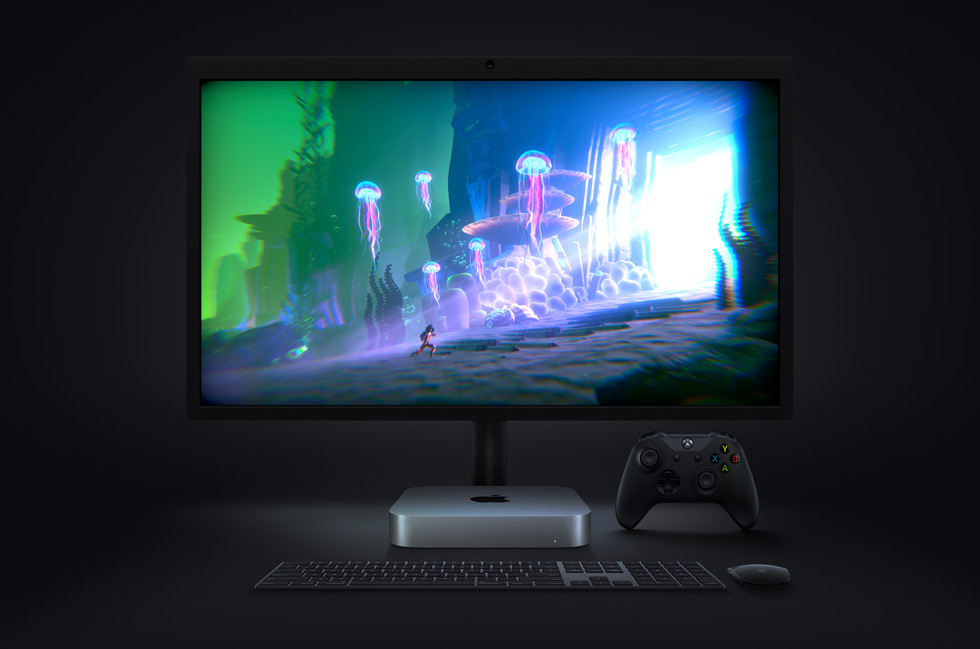
The new Mac mini packs a staggering amount of performance into its ultracompact design.
When compared to the previous generation, the M1-powered Mac mini can:
Compile code in Xcode up to 3x faster.
Play a graphics-intensive game like “Shadow of the Tomb Raider” with up to 4x higher frame rates.
Render a complex timeline in Final Cut Pro up to 6x faster.
Take music production to new levels by using up to 3x as many real-time plug-ins in Logic Pro.
Magically increase the resolution of a photo in Pixelmator Pro up to 15x faster.
Utilize ML frameworks like TensorFlow or Create ML, now accelerated by the M1 chip.
With 3x faster performance, Mac mini dramatically accelerates demanding workflows like compiling code in Xcode.
With M1, graphics-intensive gaming on Mac mini is better than ever with up to 4x higher frame rates.
The new Mac mini takes music production to new levels, enabling up to 3x as many real-time plug-ins in Logic Pro.
Mac mini also features an advanced thermal design to sustain its breakthrough performance while staying cool and quiet, support for up to two displays including Apple’s Pro Display XDR in full 6K resolution, and Wi-Fi 6 for faster wireless performance and the Secure Enclave in M1 for best-in-class security.
With M1 and Big Sur, Mac mini represents a massive shift in what an ultrasmall desktop can do. Far more versatile and far more capable than ever, Mac mini is now available for just $699, $100 less than the previous-generation quad-core model.
macOS Big Sur
All new Macs come with Big Sur, the latest version of the world’s most advanced desktop operating system. Big Sur introduces a beautiful redesign that is entirely new yet instantly familiar, and powerful updates to apps including Safari, Messages, and Maps. Big Sur is engineered, down to its core, to take full advantage of all the capability and power of M1, delivering a massive boost in performance, astonishing battery life, and even stronger security protections. With M1, things users do every day feel noticeably faster and smoother. Just like iPhone and iPad, the Mac now instantly wakes from sleep. Browsing with Safari — which is already the world’s fastest browser — is now up to 1.5x speedier at running JavaScript and nearly 2x more responsive.6
With Big Sur and M1, Mac users can run a greater range of apps than ever before. All of Apple’s Mac software is now Universal and runs natively for M1 systems. Existing Mac apps that have not been updated to Universal will run seamlessly with Apple’s Rosetta 2 technology. And iPhone and iPad apps can now run directly on the Mac. Additionally, the foundations of Big Sur are optimized to unlock the power of M1, including developer technologies from Metal for graphics to Core ML for machine learning.
macOS Big Sur is engineered to take full advantage of the M1 chip in the new Mac lineup.
Pricing and Availability
The new MacBook Air, 13-inch MacBook Pro, and Mac mini with M1 are available to order today on apple.com and in the Apple Store app. They will begin arriving to customers and will be in select Apple Store locations and Apple Authorized Resellers starting next week. The new MacBook Air starts at $999 (US), and $899 (US)for education; the new 13-inch MacBook Pro starts at $1,299 (US), and $1,199 (US) for education; and the new Mac mini starts at $699 (US),and $679 (US)for education.
Customers are able to find the same great shopping and support services at apple.com/shop, in the Apple Store app, and at Apple Store locations. Customers can get shopping help from Apple Specialists, choose monthly financing options, trade in eligible devices, and get Support services and no-contact delivery or Apple Store pickup options. Customers are encouraged to check apple.com/retail for more information on the health and safety measures in place, and the services available, at their local store.
Additional technical specifications, configure-to-order options, and accessories are available online at apple.com/mac.
Apple has released a neat new rich resource today to help writers publish their content on its Apple Books platform. The new website walks through writing, publishing, marketing, and looking at analytics with Apple Books and since it’s web-based works with both Mac and Windows.
Apple Books for Authors guides you through every step of your journey as an author, from structuring your story to packaging your digital book and selling it on our store. Even established authors will find valuable resources on how to grow sales and track performance.
The comprehensive guide walks authors through using Pages and iBooks Author apps as well as other popular options like Microsoft Word and Scrivener for the writing process. But there’s much more than that as Apple takes writers through preparing, publishing, audiobooks, marketing, and sales and reporting.
Apple also highlights some benefits to publishing with Apple Books compared to Amazon’s Kindle Direct Publishing like consistent royalty rate at all price points, no delivery fees, no limits on free book offerings, and no third-party ads.
Introducing the 13-inch MacBook Pro updated with the new Magic Keyboard, double the storage, and faster graphics performance.
Cupertino, California — Apple today updated the 13-inch MacBook Pro with the new Magic Keyboard for the best typing experience ever on a Mac notebook and doubled the storage across all standard configurations, delivering even more value to the most popular MacBook Pro. The new lineup also offers 10th-generation processors for up to 80 percent faster graphics performance1 and makes 16GB of faster 3733MHz memory standard on select configurations. With powerful quad-core processors, the brilliant 13-inch Retina display, Touch Bar and Touch ID, immersive stereo speakers, all-day battery life, and the power of macOS, all in an incredibly portable design, the new 13-inch MacBook Pro is available to order today, starting at $1,299, and $1,199 for education.
With a sleek aluminum unibody design in space gray or silver and weighing just 3 pounds, the 13-inch MacBook Pro is highly portable and packed with performance and advanced technologies.
“Whether you’re a college student, a developer, or a creative pro, the 13-inch MacBook Pro delivers powerful performance, a stunning Retina display, and all-day battery life in our most portable pro notebook. Today we’re adding the new Magic Keyboard, doubling the standard storage, and boosting performance, making the 13-inch MacBook Pro an even better value for our customers,” said Tom Boger, Apple’s senior director of Mac and iPad Product Marketing. “With these updates, our entire notebook lineup features the Magic Keyboard for the best typing experience ever on a Mac notebook, offers twice the standard storage than before, and delivers even more performance.”
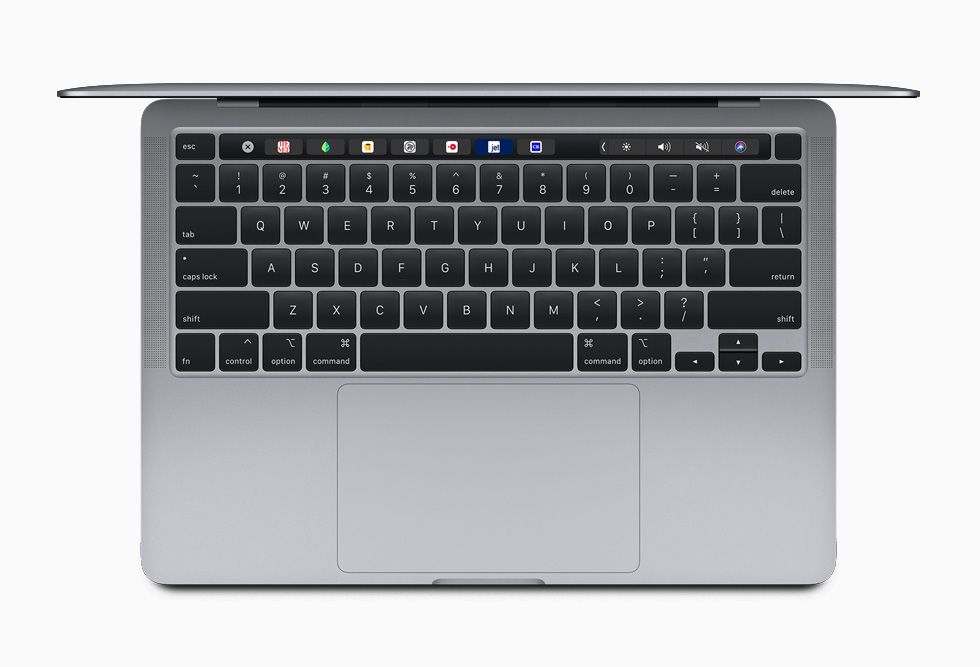
The new Magic Keyboard comes to the 13-inch MacBook Pro, delivering the best typing experience ever on a Mac notebook.
New Magic Keyboard
The updated 13-inch MacBook Pro now features the new Magic Keyboard, first introduced on the 16-inch MacBook Pro and added to MacBook Air in March. Magic Keyboard features a redesigned scissor mechanism with 1mm of key travel for a comfortable and stable key feel, while the new inverted-“T” arrangement for the arrow keys makes them easier to find, whether users are navigating through spreadsheets or playing games. Magic Keyboard also features a physical Escape key, along with Touch Bar and Touch ID, for a keyboard that delivers the best typing experience ever on a Mac notebook.
Magic Keyboard on the 13-inch MacBook Pro features a physical Escape key, Touch ID for easy login and secure online purchases, and Touch Bar with dynamic and contextual controls.
Double the Storage
Customers love the superfast SSDs on MacBook Pro, with sequential read speeds of up to 3.0GB/s. The 13-inch MacBook Pro now comes with double the storage of the previous generation, with standard storage starting at 256GB all the way up to 1TB, so customers can store even more photos, videos, and files. And for pro users who need even more storage capacity for large photo libraries and video projects, the 13-inch MacBook Pro now offers up to a 4TB SSD.
With standard storage starting at 256GB all the way up to 1TB, 13-inch MacBook Pro users can store even more photos, videos, and files.
Better Performance
The 13-inch MacBook Pro lineup now offers up to 10th-generation quad-core Intel Core processors with Turbo Boost speeds of up to 4.1GHz. Customers who are upgrading from a 13-inch MacBook Pro with a dual-core processor will see up to 2.8 times faster performance. The integrated Intel Iris Plus Graphics deliver up to 80 percent faster performance over the previous generation 13-inch MacBook Pro for 4K video editing, faster rendering, and smoother gameplay. The new graphics also enable users to connect to Pro Display XDR at full 6K resolution.
With the latest 10th-generation processors, the 13-inch MacBook Pro delivers up to 80 percent faster graphics performance for 4K video editing, faster rendering, and smoother gameplay.
Faster Memory and More Memory
16GB of faster 3733MHz memory is now offered as a standard configuration on select models, and for the first time on a 13-inch Mac notebook, customers can choose a 32GB memory option. With 32GB of memory, users will experience better performance while running multiple virtual machines and up to 50 percent faster performance when editing gigapixel images in Photoshop.
Portable Design with a Stunning Retina Display
With a sleek aluminum unibody design in space gray or silver and weighing just 3 pounds, the 13-inch MacBook Pro is both highly portable and packed with performance and advanced technologies. Its stunning and brilliant 13-inch Retina display delivers more than 4 million pixels and millions of colors, along with 500 nits of brightness and support for the P3 wide color gamut. And with True Tone technology, the display offers a more natural viewing experience for design and editing workflows, as well as for everyday tasks such as browsing the web and writing email. The 13-inch MacBook Pro also comes with speakers that provide incredibly immersive wide-stereo sound, Touch ID for easy login and secure online purchases, Touch Bar with dynamic and contextual controls, and the industry-best Force Touch trackpad for precise cursor control and Multi-Touch navigation.
The 13-inch MacBook Pro features a brilliant Retina display with more than 4 million pixels and millions of colors, 500 nits of brightness, and support for the P3 wide color gamut.
Built-in Security and Privacy
The 13-inch MacBook Pro comes with the Apple T2 Security Chip, Apple’s own custom-designed second-generation silicon, which checks that software loaded during the boot process has not been tampered with and provides on-the-fly data encryption for everything stored on the SSD. This allows MacBook Pro and any Mac with the T2 chip to deliver the most secure boot process and storage of any computer. The T2 also protects Touch ID information, so whether customers are unlocking their Mac, entering an online password, or making online purchases, their information stays safe.
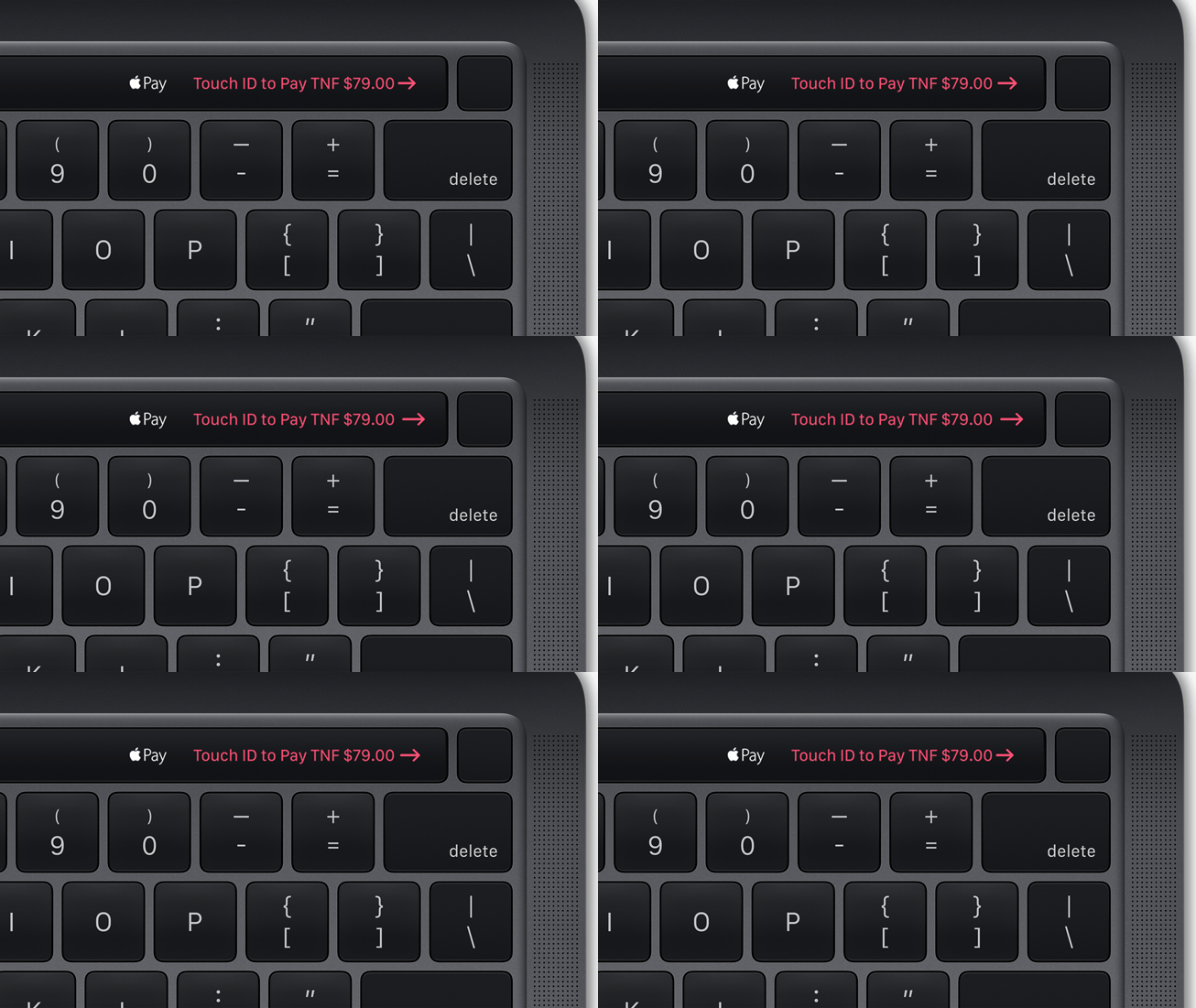
Touch ID on the 13-inch MacBook Pro keeps information safe whether customers are unlocking their Mac, entering an online password, or making online purchases.
macOS Catalina
Every new MacBook Pro comes with macOS Catalina, the latest version of the world’s most advanced desktop operating system. macOS has always been at the core of the Mac experience, and with apps such as Safari, Mail, Photos, Pages, Numbers, and Keynote, customers have powerful tools to do amazing things. macOS also makes MacBook Pro the perfect companion device to iPhone, iPad, and Apple Watch with built-in Continuity features that allow users to make and receive phone calls without picking up their iPhone; automatically unlock their Mac with Apple Watch; copy and paste images, video, and text straight from iPhone or iPad to a nearby Mac; and in macOS Catalina, extend the workspace of their Mac using an iPad and Sidecar. Security features keep users better protected, and Voice Control lets users control their Mac entirely with their voice.
In macOS Catalina, users can extend their workspace and use iPad and Sidecar alongside their new 13-inch MacBook Pro.
Apple Services
Customers can also enjoy Apple services right on their MacBook Pro, including Mac versions of the Apple Music, Apple Podcasts, and Apple TV apps, as well as Apple News. Apple Arcade is available through the Mac App Store, bringing more than 100 new and exclusive games to Mac customers. And for a limited time, customers who purchase a new MacBook Pro can enjoy one year of Apple TV+ on the Apple TV app for free.3
Pricing and Availability
Starting at $1,299 (US), and $1,199 (US) for education, the new 13-inch MacBook Pro is available to order today on apple.com and in the Apple Store app. It will begin arriving to customers and will be in select Apple Stores and Apple Authorized Resellers later this week. Additional technical specifications, configure-to-order options, and accessories are available online at apple.com/mac.
The Image Capture app comes pre-installed with every Mac, allowing users to easily import photos and videos from other devices.
How Apple is filling your hard drive with empty data.
Apples Image Capture.app is a very nice and simple tool to transfer photos from attached cameras to your Mac without the need to use heavy and slow launching apps like Apples “Fotos.app”.
Most unfortunately, in every single release since Mac OS X 10.10, Apple has added a lot of very embarrassing bugs to Image Capture.
Some of them got quickly fixed after we told Apple about them, but at the same time, Apple was very busy adding new bugs.
By pure chance, we have discovered a very disturbing bug recently that is able to quickly fill your macOS volumes with empty data.
Here is what happens.
If you connect an iPhone or iPad to your Mac, and use Image Capture to transfer the photos you took with the device to the Mac, you have the option to convert the HEIC photos taken by iOS to more standard JPG files. This requires you to uncheck the “Keep Originals” option in the settings for that iOS device, as shown here.
More specifically, the issue only affects users who import photos from an iPhone or iPad using Image Capture. Let’s say you want to manually transfer photos from your iPhone to a Mac via USB, and your photos are saved with the High Efficiency option (which is basically the HEIF format).
By unchecking the “Keep originals” option, macOS converts all HEIF image files to JPG automatically as you might expect.
The problem discovered by the NeoFinder team is that the Mac adds 1.5MB of empty data to each converted photo, making the imported files larger for no reason. By looking inside these photos through a Hex-Editor, you can find a section full of zeroes, which results in unnecessarily larger files.
With that said, if you import 1,000 images from your iPhone or iPad to your Mac using the Image Capture app, the bug will take up an additional 1.5GB of storage — which can be a lot for someone who owns a MacBook with 128GB of storage.
Apples Image Capture will then happily convert the HEIF files to JPG format for you, when they are copied to your Mac.
But what is also does is to add 1.5 MB of totally empty data to every single photo file it creates!
We found that massive bug by pure chance when working on further improving the metadata editing capabilities in NeoFinder, using a so-called Hex-Editor “Hex Fiend“.
Here is how the end of every single JPG file created by Apples buggy Image Capture.app looks like:
Apple has already been notified about the problem, but we don’t know when the company plans to release a macOS update to fix that bug. Until then, users can try the latest beta version of the Graphic Converter app, which removes the unwanted empty data from the JPG files. Of course, this is a colossal waste of space, especially considering that Apple is seriously still selling new Macs with a ridiculously tiny 128 GB internal SSD. Such a small disk is quickly filled with totally wasted empty data.
With just 1000 photos, for example, this bug eats 1.5 GB off your precious and very expensive SSD disk space.
We have notified Apple of this new bug that was already present in macOS 10.14.6, and maybe they will fix it this time without adding yet additional new bugs in the process.
Apple quietly added a new privacy feature to the latest iPad Pro, borrowing a MacBook security feature to help prevent eavesdropping on its 2020 tablets. With the launch of the 2018 MacBook range and the introduction of the Apple T2 security chip, closing the lid of the notebooks automatically disconnects the hardware microphones.
That way, in addition to the webcam obviously being covered, it means extra reassurance that apps and services aren’t secretly listening in through the microphones. Turns out, Apple has decided to so the same thing for its most expensive tablets, too.
An updated version of the Apple Platform Security document details the change. “iPad models beginning in 2020 also feature the hardware microphone disconnect,” it explains. “When an MFI compliant case (including those sold by Apple) is attached to the iPad and closed, the microphone is disconnected in hardware, preventing microphone audio data being made available to any software—even with root or kernel privileges in iPadOS or in case the firmware is compromised.”
As the document makes clear, you’ll need a specific type of case in order for this to work: one with MFI certification. That obviously means Apple’s own cases, like the Smart Keyboard Folio currently available and, come May, the new Magic Keyboard for iPad. However there are plenty of third-party cases that are also MFI compliant.
Logitech, for instance, has several keyboard cases that work with the iPad Pro if you want easier text entry than the iPadOS on-screen keyboard. Alternately, if you don’t need the physical keyboard – and the thickness that brings – there are cases from Otterbox, for example, that will lock and unlock the iPad Pro when closed and opened. They’ll also trigger the new hardware microphone disconnect in the process.
Digital eavesdropping has been long been a concern, but attention has ramped up in recent weeks as more people rely on devices like iPads to work from home. Video calling apps like Zoom have found themselves suddenly popular outside of their traditional enterprise audience, but that surge in users has also helped highlight security shortcomings. While Apple does have its approvals process to try to ensure software which makes it to the App Store isn’t also quietly tapping into hardware it shouldn’t, hardware disconnect for the microphone on the iPad Pro is another step for those particularly concerned about privacy.
Interested in disabling Launchpad on Mac? If you want to turn off the Launchpad for whatever reason or to stop accidentally opening Launchpad in MacOS, you can turn the feature off completely.
For some quick background, Launchpad is a feature in MacOS that reveals a screen of app icons, sort of reminiscent to the appearance of an iPad or iPhone. Launchpad can be accessed by gesture, F button, or by opening the Launchpad app from the Dock or Applications folder. Some users may find this feature to be really helpful, whereas others may find it to be less useful particularly if they’re accessing Launchpad through an accidental pinch gesture on trackpad, or tapping on the F4 key, or clicking the app Dock icon.
This article will show how to disable the Launchpad gesture, remove the Launchpad Dock icon, and disable remove the Launchpad F button trigger on Mac to turn Launchpad off.
How to Disable Launchpad Gesture on Mac
This applies to turning off the Launchpad gesture on all Macs using a Trackpad :
Pull down the Apple menu and go to “System Preferences”
Choose “Trackpad” then choose “More Gestures”
Locate “Launchpad” in the list of gestures and uncheck the box next to “Launchpad” to disable the Launchpad pinch gesture on Mac
Close System Preferences
That will disable the Launchpad pinch gesture.
You may also want to remove the Launchpad app icon from the Mac Dock.
How to Remove Launchpad from Mac Dock
Click and hold on the Launchpad icon, then drag it out of the dock and wait a moment for the ‘Remove’ label to appear, then drop the Launchpad icon
That will remove Launchpad from the Dock on the Mac.
Finally, you may be interested in changing or removing the keyboard shortcut for Launchpad on the Mac.
How to Change or Remove Launchpad Keyboard Shortcut on Mac
Pull down the Apple menu and go to “System Preferences”
Go to “Keyboards” and then to “Shortcuts” and choose “Launchpad & Dock”
Uncheck the box for “Show Launchpad” to disable it, otherwise click the keyboard shortcut to set it to something else
This process should be familiar to anyone who has set a custom keyboard shortcut on Mac except that rather than creating a new one you’re either disabling or changing an existing keystroke combination.
Obviously this is geared towards disabling Launchpad, but if you don’t want to turn off the feature and you instead enjoy it, then there are plenty of Launchpad tips we’ve discussed before to browse through.
Want to remove an application from the Dock on Mac? You can easily remove app icons from the Mac Dock. This can offer a simple way to reduce clutter of the Mac Dock, but also to remove unwanted or unused apps from the Dock, or even just to customize the Dock for your personal preferences.
Removing app icons from the Mac Dock is simple and aside from removing it from the Dock it has no impact on the application. This will not uninstall the app or remove it from the Macintosh otherwise, it simply removes the app icon from the Dock.
How to Remove Applications from Mac Dock
Here’s how you can remove any app icon from the Dock in MacOS:
Locate the app you want to remove the Mac Dock
Click and hold on the app icon
Now drag the app icon out of the Dock while holding the click, continue holding as you drag until you see the “Remove” text appear on the icon
Let go of the click to remove that app icon from the Mac Dock
Repeat with other app icons to remove them from the Mac Dock too
You can remove just about every app icon from the Mac Dock if you’d like to, though Finder, active apps, and Trash will always remain the Dock.
Remember, you can not remove an app icon from the Dock that is currently running. You can tell an app is running as signified by the app status icons, which are little dots underneath the Dock icon; if you see a dot under the app icon, it’s running and active, if you do not, then it’s not open or active. There is an exception to this however, and that’s if you disabled the app icon status icons in System Preferences.
This applies to all versions of MacOS and Mac OS X, but there are some minor changes depending on the precise system version you’re running. For example, on some earlier versions of Mac OS X, you had to click and drag an app icon out of the Dock and then wait a bit longer for a cloud icon to appear on the icon but the ‘Remove’ label did not appear, instead you’d simply release the app icon and it would disappear into a poof with a little sound effect. That whimsical touch was removed in modern MacOS releases, however.
Adding app icons back into the Mac Dock is just as easy, just drag and drop them into the Mac Dock and position them wherever you’d like them to be. Easy as always.
If you remove (or add) too many things from the Mac Dock and regret your changes, remember that you can always reset the Mac Dock to the default icon set if you’d like to start over from scratch.
The Mac Dock has other customizations available for it too, and don’t forget that you can relocate the Mac Dock screen position with ease to any side of the screen, and you can also set the Mac Dock to automatically hide or show itself with the cursor.
If you enjoyed this tip, we’ve got tons of other Dock tips available for Mac, iPhone, and iPad, so check those out too.
Wondering how to force restart a new MacBook Air 2019 or 2018 model? As you may have noticed there is no obvious power button like there used to be on old Macs, so the old approach to force restarting a Mac seems like it doesn’t apply to the newer MacBook Air 2019 and 2018 models.
Not to worry though, if you have a frozen MacBook Air and need to hard restart the machine you will find that force rebooting the new models of MacBook Air is really quite simple.
How to Force Restart MacBook Air (2019, 2018)
Press and hold down the Touch ID button / power button until the MacBook Air screen turns black
Wait a few seconds, then press and hold down the Touch ID / power button on the MacBook Air again until you see the Apple logo on screen
When you see the Apple logo on the screen you can let go of the Power button again, as this indicates the computer is booting up.
That’s all there is to it. Force restarting the new model MacBook Air is really quite simple.
The MacBook Air will boot up as usual.
Forcing a reboot of the Mac is really something you should only do if the MacBook Air is frozen, and not as a regular method of shutting down or restarting a Mac.
A similar approach can be used to force reboot other frozen Macs too, particularly on any machine where the old Control + Command + Power button keyboard shortcut doesn’t initiate a forced reboot.
Sometimes you’ll hear forced rebooting and forced restarting referred to as a “hard reboot” or “hard restart” which are synonymous, and sometimes you’ll erroneously hear it referred to as “hard reset” but it should be clear this is not aiming to reset anything, it just forcibly turns the MacBook Air off and back on again to restart it.
You really shouldn’t need to do this often (if ever at all), only when something is totally frozen and unresponsive on the MacBook Air.
If you’re initiating forced restarts for troubleshooting purposes, you may also want to know how to reset SMC on MacBook Air with Touch ID power buttons which is different from prior models, though resetting PRAM remains the same.
Presumably this will carry forward for as long as the Touch ID button is also the Power button on MacBook Air models, so until that changes it’s reasonable to assume that MacBook Air from 2020 onward will have the same force restarting mechanism.
If you’re going to attempt to install MacOS Catalina on an unsupported Mac, do so at your own risk.
Then you may be interested in a third party tool that allows advanced uses to patch the MacOS Catalina installer so that it works on otherwise unsupported Macs.
Whether or not you should install MacOS Catalina onto an unsupported Mac is another question entirely, as performance may not be up to par, and some things may not work as expected (or at all, since features like Sidecar are compatible with specific Macs only), but if you’re an advanced user who is interested in running macOS 10.15 on unsupported hardware this patcher utility makes it easy to do so.
If this sounds interesting to you, check out the link below to learn more about the DosDude Catalina Patcher utility, and you can view a video tutorial further below showing how it works.
If you’re going to attempt to run this patcher and install MacOS Catalina on an unsupported Mac, be sure you have full complete backups of the computer and understand that running unsupported system software on an unsupported Mac has obvious risks.
DosDude has been tweaking with the MacOS system installers for a while, and you may recall a past article discussing running macOS Mojave on unsupported Macs too using a similar patch.
Which Unsupported Macs Can Install MacOS Catalina with the DosDude Tool?
According to DosDude, the MacOS Catalina Patcher will work to install MacOS Catalina on the following list of otherwise unsupported Macs:
Early-2008 or newer Mac Pro, iMac, or MacBook Pro:
MacPro3,1
MacPro4,1
MacPro5,1
iMac8,1
iMac9,1
iMac10,x
iMac11,x (systems with AMD Radeon HD 5xxx and 6xxx series GPUs will be almost unusable when running Catalina.)
iMac12,x (systems with AMD Radeon HD 5xxx and 6xxx series GPUs will be almost unusable when running Catalina.)
MacBookPro4,1
MacBookPro5,x
MacBookPro6,x
MacBookPro7,x
MacBookPro8,x
Late-2008 or newer MacBook Air or Aluminum Unibody MacBook:
MacBookAir2,1
MacBookAir3,x
MacBookAir4,x
MacBook5,1
Early-2009 or newer Mac Mini or white MacBook:
Macmini3,1
Macmini4,1
Macmini5,x (systems with AMD Radeon HD 6xxx series GPUs will be almost unusable when running Catalina.)
MacBook5,2
MacBook6,1
MacBook7,1
Early-2008 or newer Xserve:
Xserve2,1
Xserve3,1
As you can see, that list is significantly broader than what is on the list of MacOS Catalina compatible Macs.
It goes without saying that just because you can do something doesn’t mean you should, and some Macs may not perform well, and not all features may work as expected if trying to run MacOS Catalina on unsupported hardware. This is very much a third party tweak, and is of course not supported by Apple in any way.
The video below demonstrates a tutorial walking through the process of using the DosDude Catalina patcher tool to install the macOS 10.15 system software on an unsupported Mac.