Want to see the size of an app update that is available in the Mac App Store? Some Mac users may be interested in knowing the size of an available app software update before starting to download or install the app update, but the App Store in MacOS Mojave doesn’t openly display the size of available app updates by default. Instead, you’ll need to dig a little deeper to see the size of an app update in the Mac App Store.
How to See the Size of App Updates in Mac App Store
To check the size of an available app update before you start to download it, do the following:
Open the Mac App Store
Go to the “Updates” tab to find the available app software updates
To find the size of an app update, click the small “More” button
See the size of the app update in the little popup window
The “More” button will also reveal the downloads release notes from the developer of the application, as well as the release date of the particular software update. But of course for our purposes here we’re focusing on the size of the available update.
Many Mac users will appreciate knowing the size of available app updates before beginning the process of downloading and installing them, particularly if they’re on slower internet connections or have metered broadband service with limited bandwidth or tight data caps.
Of course once you start downloading the updates you can also check their download progress from the Mac App Store, but knowing the download size after the fact is not always as helpful as knowing it before you begin an update.
Do you miss having the App Store in iTunes? You’re in luck, because Apple has released iTunes 12.6.3, an alternative version of iTunes that retains the ability to download and install iOS apps directly within the iTunes application on a computer. App management via iTunes was a popular feature that was removed from iTunes 12.7 in favor of managing apps directly on iOS devices instead.
Apple apparently released iTunes 12.6.3 as an alternative version because “certain business partners might still need to use iTunes to install apps.” But even if you are not a “business partner” you can still download and install iTunes 12.6.3 and use the version of iTunes to manage apps with an iPhone or iPad connected through a Mac or Windows PC.
iTunes 12.6.3 is available to download for Mac and Windows users, and can be easily installed over iTunes 12.7 to regain the native iOS App Store functionality for improved iPhone and iPad app management. Users who would like to have the iOS App Store functionality in iTunes on their computers again should download and install the alternative iTunes release. The ease of installation prevents the need to downgrade iTunes 12.7 or fiddle with the somewhat hidden iTunes 12.7 method of transferring apps and ringtones to an iPhone or iPad.
Download iTunes 12.6.3 with iOS App Store Support
You can download iTunes 12.6.3 from the Apple support page, or using the direct download links below which point to the files directly on Apple servers:
Download iTunes 12.6.3 for Mac or Windows from Apple support here
Choosing a direct download link will start the file download for iTunes 12.6.3 immediately. The download is about 280 MB and can be installed like any other software onto a Mac or PC.
How to get the App Store back into iTunes
Accessing the App Store, apps, or Tones in iTunes 12.6.3 is basically the same as prior versions of iTunes, here’s all that is necessary to get app management and the iOS App Store back in iTunes again:
Download and install iTunes 12.6.3 onto the computer, you can install it over iTunes 12.7 or a prior release version
Launch iTunes as usual
Select the pulldown menu in the upper left corner
Choose “Apps” or “Tones”
Under “Apps” you will find the app library, updates, and an ‘App Store’ option to be able to download apps directly into the App Store via iTunes again
If you connect an iPhone or iPad to iTunes 12.6.3 and select the device by clicking on the tiny little icon in the titlebar of the app, you’ll also have direct access to apps and tones on the device through iTunes again as well.
Downloading and installing iTunes 12.6.3 also stops iTunes from asking the user to download any new versions, so if you want to stay on iTunes 12.6.3 with the App Store, ringtones, and other features that are since removed from future versions, you can easily do so.
iTunes 12.6.3 supports all existing iPhone and iPad devices, and the release also supports the iPhone X, iPhone 8, and iPhone 8 Plus, meaning users of the newest model iPhone hardware will have full iTunes support without needing to bother with iTunes 12.7.
If you have been having difficulty adapting to the removal of the App Store in iTunes 12.7, you’ll likely appreciate installing iTunes 12.6.3 and getting app management back again, so check it out.
Keeping apps updated on an iPhone and iPad is generally a good idea, as app updates frequently include bug fixes, performance improvements, enhancements to compatibility, or even entirely new features to apps and games. iOS users can update apps by opening the App Store and going to the “Updates” tab, but sometimes an update may not show up despite being available either on other devices or to other users. The solution to such a situation is to refresh the Updates section and check for new app updates available
You can refresh the Updates section of the App Store on an iPhone or iPad, though how you refresh the Updates tab in the App Store has changed in the latest versions of iOS 11 compared to prior versions. The good news is the change is for the better, and checking for new updates to the App Store is better and easier than before.
How to Check for Updates in the App Store for iOS 11
Want to see if new app updates are available in iOS 11 App Store? You can use a nice little gesture to force the App Store Updates tab to refresh, here’s how this works:
Open the App Store in iOS as usual by tapping on the icon on your Home Screen
Go to the “Updates” section of App Store
Tap near the top of the screen near the ‘Updates’ text, then hold and pull down, then release
When the spinning wait cursor finishes spinning, any new app updates will appear
Once the Updates section has refreshed, you can find additional updates if they’re available, and the little badge indicator on both the Updates tab and the App Store icon will update accordingly as well.
As usual, you can update all existing apps that have new versions available by tapping on the “Update All” section, or by individually updating each app as desired.
This “pull down and release to refresh” gesture now introduced into the App Store is actually the same in various other iOS apps. In fact, this is the same pull gesture that will check for new email in Mail for iOS, though many users seem to not know about that capability either.
Keep in mind that prior versions of iOS App Store used either a series of quirky tricks, or a repeated tap of the Updates tab trick to refresh the App Store, so ultimately the change with the latest versions of iOS 11 are a notable improvement. Meanwhile on Mac OS, the Mac App Store can be refreshed via a keyboard shortcut that has remained the same since the introduction of the App Store on the Mac.
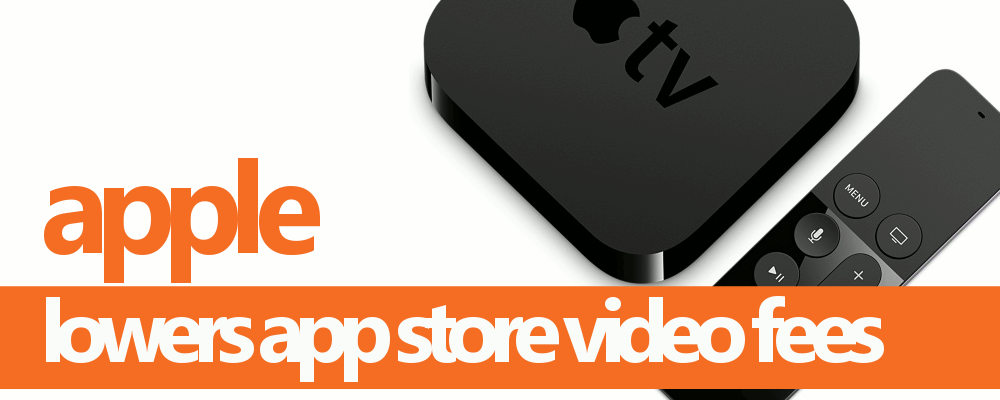
Uh-oh. Apple seems to be lowering some fees essential to its ecosystem. Now that competition is more fierce than ever, the App Store is softening up.
To a very much a surprise, Apple is planning to cut the 30% App Store fee to just 15% on its video services. Bloomberg also reports of a very dramatic shift announced way back in June which will change how Apple will collect revenue from third-party subscription services within its ecosystem. It was the same rule that enabled Apple to lower the App Store fees down to 15% right after a certain user had been paying for a year. This will be the same case with the video services effective for new and existing clients.
Bloomberg reports that Apple will only expect that the video provider will integrate its upcoming TV app. Up to be released this December, this TV app was already announced in October and will be a one stop shop for both iOS and Apple TV users. It will let them browse shows and movies from different apps, which will eventually support the same platform they are offered in. Netflix even vocally disagreed with Apple’s data-collection policy and results of it not supporting the Apple TV app when it launched. Yet, it is still unclear if Netflix would change its mind now that video services will be priced much lower.
It’s been the norm now that Apple is having problems with cable networks like Netflix, Amazon and HBO for its own entertainment departments. With them being unable to offer an over-the-top cable bundle like Sling TV and PlayStation Vue, this move is very critical for them to at least survive another year of being well behind the competition. Apple’s TV app is its next best shot at maintaining control over how users of its devices consume video.
Apple cutting down the fees for its services may well entice other major providers who have complained of the company’s high fees with them operating in the App Store. Some companies have even raised the price of subscribing through the App Store, or in some cases urged customers to sign up online instead, so as to make up for Apple’s revenue share or avoid it altogether.