Apple is finally bringing the Apple TV app to Android phones and tablets, as reported by Bloomberg. The company is in the process of hiring engineers to help lead the effort and build out the software. Previously, the company has made an app for the Android smart TV platform, but not Android itself.
Until now, the go-to answer for what should Android phone users do if they want to watch Apple TV+ shows, or enjoy MLS Season Pass, was to use the web experience at tv.apple.com. But obviously, a native app is much more compelling and could support features like offline downloads.
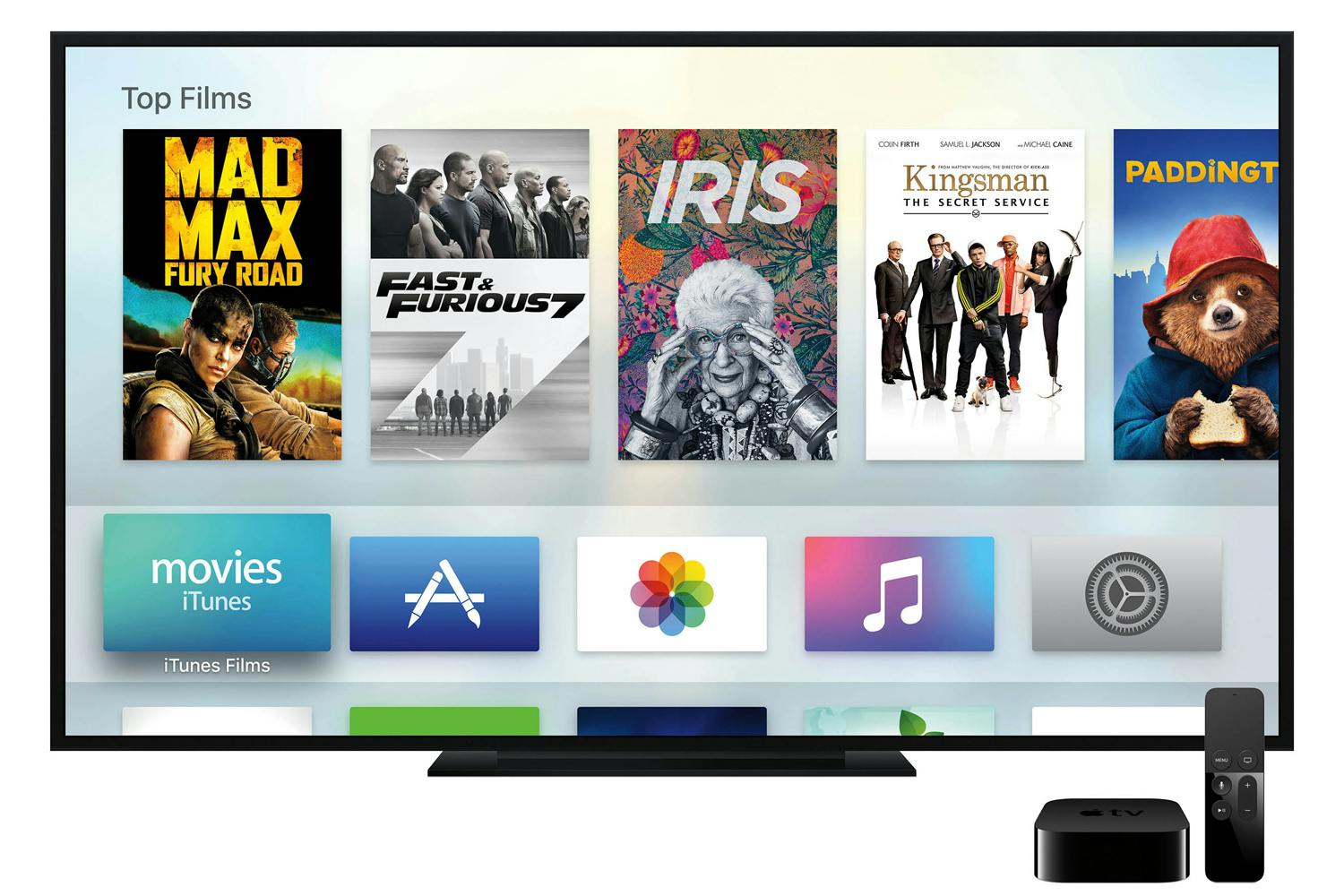
The Apple TV app has a lot of functionality, including Apple TV+ originals, other Apple TV channels, the Store to buy and rent movies and shows, and is also the home of Apple’s growing sports offerings like Friday Night Baseball and MLS Season Pass.
Making the TV app available on Android brings it up to parity with Apple’s other major content service, Apple Music. Although Apple Music initially launched on iOS exclusively with iOS 8.4 in 2015, it came to Android later that same year. In contrast, the current incarnation of the TV app debuted in 2019 and — five years on — remains iPhone exclusive so far.
Outside of mobile, Apple has aggressively expanded the availability of the TV app to third-party platforms, motivated by the need to bring more eyeballs to its Apple TV+ streaming service. The TV app is available on Roku, Amazon Fire Stick, PlayStation, Xbox, Xfinity cable boxes and more non-Apple devices. Last year, it even released a native Windows desktop app.
It’s good to hear that the company has finally relented on this matter. It will make it easier for non iPhone users to sign up for and access Apple TV+, for instance. However, it’s unclear how long it will take for the Android version of the TV app to go live. If Apple has only just embarked on its development, it could be a while.
If you have an Apple TV and iPhone or iPad, you can easily mirror the iPhone or iPad display to the TV screen that is connected to Apple TV. This offers by far the simplest way to wirelessly connect an iPhone or iPad to a TV, and it allows you to show off whatever is on an iPhone or iPad screen on a much bigger TV display. This capability is commonly used in presentations, meetings, schools, homes, and for much more, as the uses cases are myriad.
To get started using wireless display mirroring, you will need an Apple TV connected to a TV, an iPhone or iPad, and all of the devices must be on the same wi-fi network, and running modern iOS or ipadOS system software. The rest is quite simple, as you’ll quickly see in this tutorial that demonstrates connecting an iPhone to an Apple TV and mirroring the display.
How to Connect iPhone / iPad to Apple TV Wirelessly with AirPlay Screen Mirroring
Make sure that all devices are connected to the same wi-fi network before beginning.
Turn on the TV and Apple TV if you have not done so already
On the iPhone or iPad, open Control Center (on newer iPhone X and later and iPad with iOS 12 or later, swipe down from the top right corner to access Control Center. For iPhone 8 or iOS 11 or earlier, swipe up from the bottom of the screen to access Control Center)
Tap on “Screen Mirroring”
Select the Apple TV from the list of available devices and tap on it
If you haven’t connected the devices before, an AirPlay passcode will appear on the Apple TV display and you must enter that on the device to connect
The iPhone or iPad screen will now be mirrored on TV display via Apple TV AirPlay, exit from Control Center and open whatever you want displayed on the TV
Now anything you do, use, or show on the iPhone or iPad display will show mirrored on the TV screen live in a wireless screencast.
This is so useful for many obvious reasons, and it’s an excellent feature that is impressively easy to use.
The mirrored display will reflect the aspect ratio of what you’re viewing on the iPhone or iPad. So for example if you use the iPhone and have the Home Screen in vertical orientation, the sides of the iPhone mirrored display on screen will show black bars.
The same thing happens on iPad but to a much lesser extent particularly if it’s viewed in the horizontal orientation.
You can rotate the screen orientation with many apps, watch a video, zoom into the display, and each of those actions will fill more of the TV screen as the aspect ratio of the mirrored device will be more likely to fit to the TV display.
This method of mirroring the display obviously uses wi-fi and Apple TV, but if you don’t have AirPlay compatible TV or an Apple TV and still want to connect an iPhone or iPad to a TV you can do that with HDMI cables as shown here, though you will still need a special adapter for your device to do so.
Gamers should also enjoy this feature, since you can easily use a PS4 controller with iPhone or iPad or use an Xbox One controller too, allowing you to play games on the iPhone or iPad with a game controller on a bigger screen. Of course some games also have native Apple TV versions which also allow for controller use, but that’s a different matter.
How to Disconnect iPhone / iPad from Apple TV Screen Mirroring
Stopping screen mirroring is just as easy as starting it:
Turn on the TV and Apple TV if you have not done so already
On the iPhone or iPad, open Control Center (on newer iPhone X and later and iPad with iOS 12 or later, swipe down from the top right corner to access Control Center. For iPhone 8 or iOS 11 or earlier, swipe up from the bottom of the screen to access Control Center)
Tap on “Screen Mirroring”
Tap on “Stop Mirroring” to stop the iPhone or iPad display from showing on the TV / Apple TV
Exit from Control Center as usual
Screen mirroring ends the moment you tap to confirm “Stop Mirroring” and whatever is on the iPhone or iPad display will no longer show up on the TV screen.
The instructions shown here are for modern iOS and iPadOS versions and anything from iOS 12, iOS 13, iPadOS 13, or later should be have exactly as shown. Additionally, this article assumes you’re using those devices along with a modern Apple TV (or AirPlay compatible TV models). Earlier versions of hardware do support the same mirroring capability, but access is different as is usability. If you have a much older set of devices running older system software you can learn about how it all works on older iOS versions. How it all works and how Mirroring is accessed has evolved a bit over time, but nonetheless it’s arguably becoming more useful now than ever before.
iPhone Tips: How to connect your iPhone to an Apple TV
If you have an Apple TV, you can mirror what you see in your iPhone to the big screen. This is how you do it properly. Read on.
How to AirPlay content from your iPhone
Make sure that you’re close to your Apple TV.
Open the app that you want to AirPlay from.
Tap AirPlay icon. In some apps, like Photos, tap , then tap share icon. You can also use Control Center to AirPlay music just by switching the audio output.
Select your AirPlay device. Don’t see your Apple TV or AirPlay-enabled device? Try connecting your iOS device to the same Wi-Fi network as the device you want to AirPlay to.
How to mirror your iPhone
Here’s how to mirror your entire iOS screen on your Apple TV:
Make sure that you’re close to your Apple TV.
On your iOS device, swipe up from the bottom of your screen to open Control Center.
In Control Center, tap Screen Mirroring, then select your Apple TV from the list. Don’t see your Apple TV or AirPlay-enabled device? Try connecting your iOS device to the same Wi-Fi network as the device you want to AirPlay to.
If an AirPlay passcode appears on your TV screen, enter the passcode on your iOS device.
Your TV uses your iOS device’s screen orientation and aspect ratio. To fill your TV screen with the mirrored iOS device screen, change your TV’s aspect ratio or zoom settings.
How to turn off AirPlay or Screen Mirroring
Open the app that’s using AirPlay.
Tap AirPlay icon. To stop mirroring your iOS device, open Control Center and tap Screen Mirroring.
Although it received no special mention at last week’s event, Apple quietly released tvOS 11 yesterday alongside its considerably larger updates to iOS 11 and watchOS 4. While it’s a surprisingly minor update considering the new version number, tvOS 11 does add a few small and interesting improvements that help enhance the Apple TV experience.
Automatic Dark Mode
tvOS 10 introduced a new Dark Mode to the Apple TV — a welcome change in our opinion from the garishly bright white background that heralded the fourth-generation Apple TV UI. We’ve generally been pretty content to use Dark Mode on our Apple TVs all the time, but we can understand some users may want to switch back and forth, using the original Light Mode during the daytime, but switching the more subdued Dark Mode at night, so tvOS 11 now allows for this with a new “Automatic” option.
You’ll be prompted to enable Location Services the first time you switch this on, as tvOS will use your current location to figure out sunrise and sunset times. Once enabled, the Apple TV will switch into Dark Mode at sunset, and back into Light Mode at sunrise.
iCloud Home Screen Sync
It seems that one of Apple’s goals with its new releases this year is to sync even more information via iCloud; iOS 11 users will gain the ability to sync Messages and Siri information between devices using iCloud, and tvOS 11 isn’t left out of the iCloud game either — you’ll be able to store your Home screen layout in iCloud, along with your installed apps, so that this information can be synced across multiple Apple TVs, and restored should you ever have to reset or replace your Apple TV. It was a feature that was kind of conspicuously missing in tvOS 10, so it’s good to see Apple finally addressing it.
The option to enable this can be found in the your iCloud account settings (Settings, Accounts, iCloud) as “One Home Screen,” and is simply an on/off toggle.
AirPlay
The AirPlay Settings now include an additional setting that allows you to decide whether users can stream to your Apple TV via AirPlay from any device within Wi-Fi range, or whether AirPlay devices have to already be joined to the same Wi-Fi network as your Apple TV.
The Security options available will also depend on which Access option you choose: “Same Network” allows you to select “None” as an option, relying simply on your normal Wi-Fi access controls; however if you choose to grant access to “Everyone” then you’ll need to at least require a first-time passcode as the minimum security, to prevent just anybody in the neighbourhood from randomly broadcasting to your Apple TV.
This will make it easier to allow guests and visitors to stream to your Apple TV without having to first join your Wi-Fi network, and we can see this being especially useful in conference room or classroom environments.
Video Playback
The standard video player has received a couple of interesting tweaks. While a single tap on the Siri Remote touchpad brings up the scrubber timeline as before, tapping a second time will now switch to a time-of-day display, showing the current time by the playback position and an estimate of what time the video will finish at the end of the timeline.
You can also now double-tap on the Siri Remote touchpad to zoom in and out when viewing 4:3 or 2.35:1 content, and a triple-tap will toggle subtitles on and off, if available; this could previously be accomplished with an accessibility shortcut, however now it’s built-in and works independently of the accessibility shortcut option, which remains assigned to a triple-click of the Menu button, as before.
Computers
The Computers tvOS app — used for accessing content stored in your local iTunes library — has been something of an anachronism in the Apple TV environment, maintaining a UI that was far more reminiscent of the third-generation Apple TV, with vertical hierarchical menus for navigating content. tvOS 11 finally brings the Computers app into line with the rest of the tvOS experience, adding a top navigation bar for content types such as Music, Movies, TV Shows, Podcasts, and Audiobooks, as well as a new “Search” option. As before, only available content types will be listed here, so if you don’t have any movies in your iTunes library, you won’t see the “Movies” heading.
The Music section basically inherits the style of the Music app redesign from tvOS 10, while the other sections such as Movies and TV Shows now match the style of the TV app and corresponding iTunes apps. Individual movie and TV show items also gain the same type of info screens found in the tvOS iTunes apps.
Music
The tvOS Music app gains the new social features found in iOS 11 and iTunes 12.7, with the ability to search for and follow other Apple Music profiles and see what your friends are listening to.
You can search for other users from the standard search window, and you can access your own profile by swiping up to your profile picture in the “For You” section.
The Music settings (Settings, Apps, Music) gain the additional “Use Listening History” setting, similar to the option found in iTunes 12.7, to allow you to choose whether the music you listen to on your Apple TV will be visible to your followers on Apple Music and influence your “For You” recommendations. If multiple family members listen to your Apple TV music library, you’ll probably want to turn this option off unless each family member normally switches to their own Apple ID before listening.
If you don’t want to use any of the Apple Music sharing services on your Apple TV, the Restrictions settings include a new option to hide music profiles and posts entirely.
TV App
Apple has expanded its TV App internationally with the release of tvOS 11, with Canada and Australia gaining access to the new app this week (albeit with a limited number of content providers thus far), and France, Germany, Norway, Sweden and the UK expected to get the TV app later this year. Beyond the wider availability, the app itself doesn’t appear to have gained any significant enhancements, however.
Uh-oh. Apple seems to be lowering some fees essential to its ecosystem. Now that competition is more fierce than ever, the App Store is softening up.
To a very much a surprise, Apple is planning to cut the 30% App Store fee to just 15% on its video services. Bloomberg also reports of a very dramatic shift announced way back in June which will change how Apple will collect revenue from third-party subscription services within its ecosystem. It was the same rule that enabled Apple to lower the App Store fees down to 15% right after a certain user had been paying for a year. This will be the same case with the video services effective for new and existing clients.
Bloomberg reports that Apple will only expect that the video provider will integrate its upcoming TV app. Up to be released this December, this TV app was already announced in October and will be a one stop shop for both iOS and Apple TV users. It will let them browse shows and movies from different apps, which will eventually support the same platform they are offered in. Netflix even vocally disagreed with Apple’s data-collection policy and results of it not supporting the Apple TV app when it launched. Yet, it is still unclear if Netflix would change its mind now that video services will be priced much lower.
It’s been the norm now that Apple is having problems with cable networks like Netflix, Amazon and HBO for its own entertainment departments. With them being unable to offer an over-the-top cable bundle like Sling TV and PlayStation Vue, this move is very critical for them to at least survive another year of being well behind the competition. Apple’s TV app is its next best shot at maintaining control over how users of its devices consume video.
Apple cutting down the fees for its services may well entice other major providers who have complained of the company’s high fees with them operating in the App Store. Some companies have even raised the price of subscribing through the App Store, or in some cases urged customers to sign up online instead, so as to make up for Apple’s revenue share or avoid it altogether.
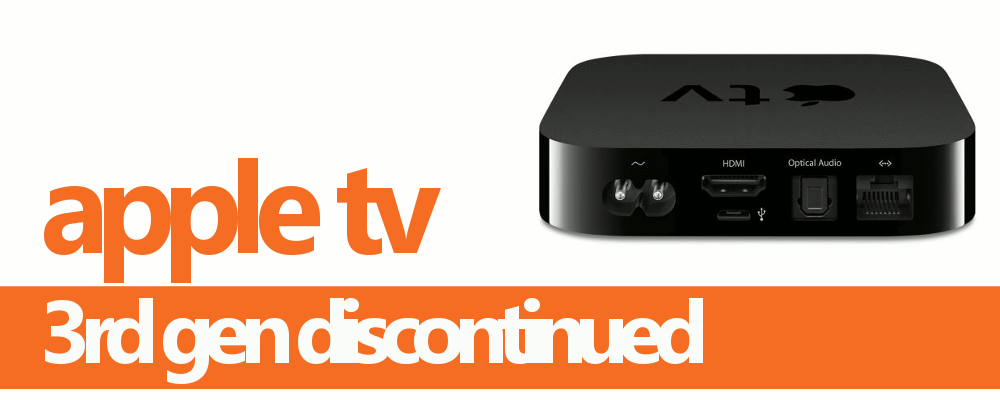
Apple silently killed off the Apple TV 3rd Generation from their official site on the same day Google released a bunch of products. Bad timing?
It might be a good timing after all. When’s the best time to kill off an outdated product than on the day a competing company held it’s jam-packed hardware event. That’s what Apple did yesterday when all the world’s attention is on Google.
With a lot of people going through the Apple online store, a lot has noticed a third generation Apple TV finally gone in the list. The Apple TV 3rd-Gen was released way back in March 2012 and it ended officially with some emails sent out to company employees.
While it’s certainly no surprise to see the early 2013-revamped digital media player terminated, some cash-strapped iFans may have trouble going the $150 and up fourth-gen route when its predecessor went for a measly 70 bucks near the end of the retail road.
The newer Apple TVs are far better to this 3rd generation, its aging specs is really getting outdated:
single-core processor
512MB RAM
no user-accessible storage
inferior audio
no Siri
no advanced tvOS software
no App Store access
This end may signal the arrival of a fifth-generation Apple TV maybe stepping up to the 4th’s 1080p limitations. With Google’s Chromecast Ultra being able to dish out 4k at a lower price, Apple should really think this through.
For now, let’s pay homage to the fallen, and remind you of no doubt supply-constrained $59 refurbished options.
[cleveryoutube video=”i_GUuJyyyRQ” style=”1″]
Thank you for using
Themify Popup
This is a sample pop up. Themify Builder or Builder Lite (free) plugin is recommended to design the pop up layouts.