iPhone 15 and 15 Plus are Apple’s latest non-pro smartphones that come with a number of new features. But are they worth the upgrade if you have an iPhone 13? Follow along for an in-depth look at the iPhone 13 vs 15 for everything that’s changed.
Screen sizes and design
The screen sizes between the iPhone 13 and iPhone 15 remain the same at 6.1 inches. However, the 15 Plus offers a 6.7-inch option that wasn’t available with the iPhone 13 lineup without stepping up to the 13 Pro Max.
New with the iPhone 15 displays is the Dynamic Island and an outdoor brightness of up to 2000 nits.
Here’s the full look at the display specs for iPhone 13 vs iPhone 15:
The bezels on the iPhone 15 are also slimmer than the 13, which is what allows the very slight increase in pixels.
Size, weight, design
Overall, the physical design of the iPhone 15 remains very similar to the 13, but Apple has given the 15 more rounded edges for a more comfortable feel.
And as mentioned above, you’ve now got the larger iPhone 15 Plus option.
For size, weight, and materials, here’s iPhone 13 vs 15:
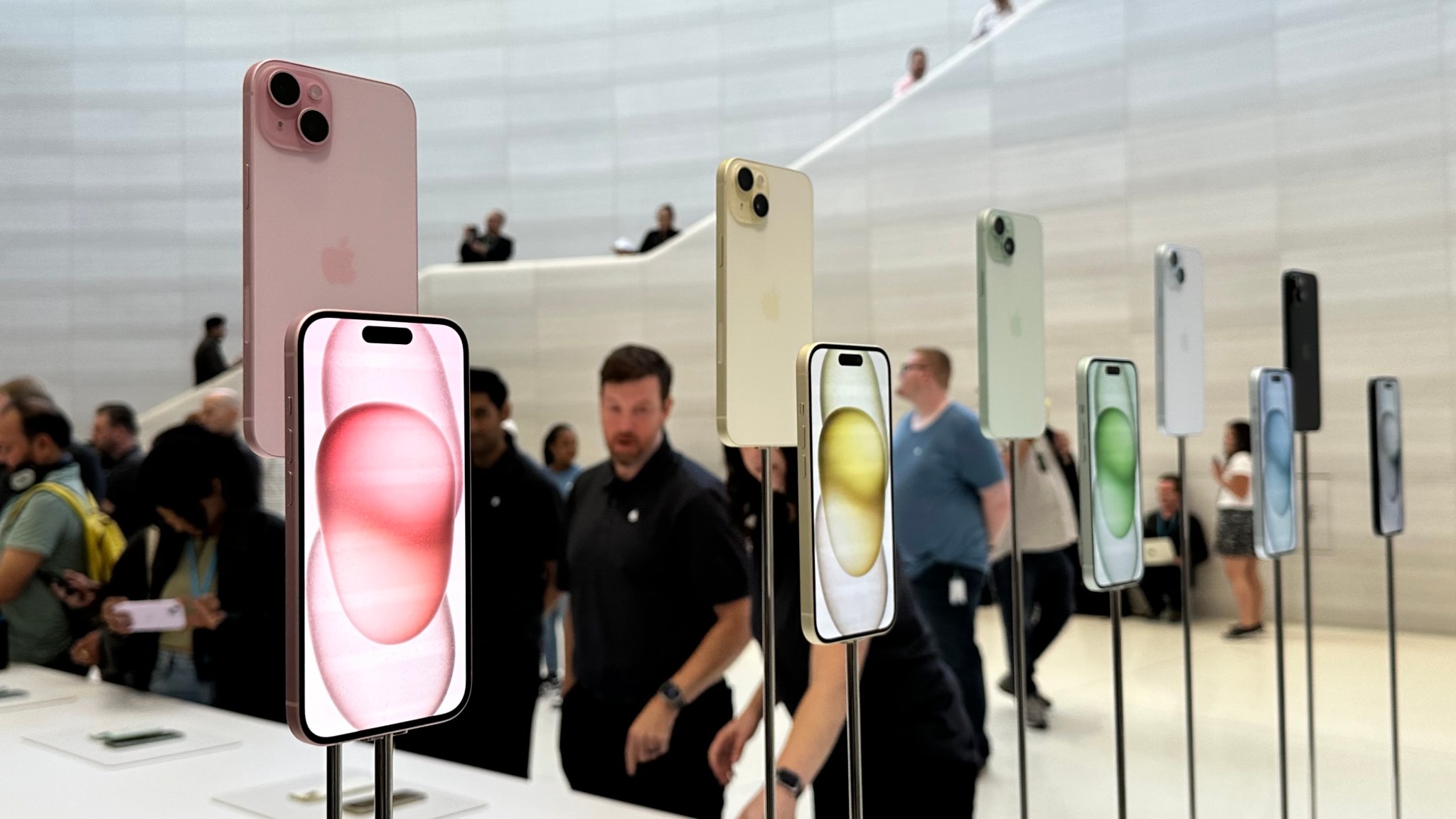
Of course, the new iPhones also come in new colors.
Performance – A16 vs A15 Bionic
Here’s a breakdown of the iPhone 13 vs iPhone 15 chip specs:
Both the A15 and A16 Bionic are powerful enough for almost everyone. But GeekBench offers a look at the performance difference between the A15 and A16 Bionic.
16% faster single-core score
21% faster multi-core score
29% faster GPU
Battery life
When it comes to battery life, the iPhone 15 has one hour longer battery for video playback than the 13 and 5 hours longer for audio playback.
The iPhone 15 Plus offers 7 hours longer video use and 25 hours more audio than iPhone 13.
iPhone 13 vs 15 cameras
Rear cameras
iPhone 15 and 15 Plus come with a 48MP main rear camera, next-gen portrait with Focus and Depth Control, Smart HDR 5, and more.
The iPhone 15/Plus main camera also has more powerful sensors and supports shooting both 24 and 48MP “super-high-resolution photos.”
Video recording
The main new feature for video recording with the iPhone 15/Plus compared to iPhone 13 is Action mode.
The other new video features this year are reserved for the iPhone 15 Pro and Pro Max.
Selfie camera
Apple’s TrueDepth front camera on the iPhone 15 gets a mix of upgrades found on the main rear camera.
iPhone 13 vs 15 I/O
The major change for iPhone 15 I/O is the switch from Lightning to USB-C.
Unfortunately, it’s only the 15 Pro and Pro Max that offer much faster transfer speeds with USB 3 support at up to 10Gbps. The 15 and 15 Plus have USB 2 speeds up to 480Mbps.
Two more differences between the iPhone 15 vs 13 include Bluetooth and UWB upgrades.
Whether the new iPhone 15 devices will support Qi2, Apple is saying yes but it’s a bit confusing.
So it’s also unclear if iPhone 13 will support Qi2.
Safety
iPhone 15 has two more advanced safety features than iPhone 13 Pro:
iPhone 15 colors
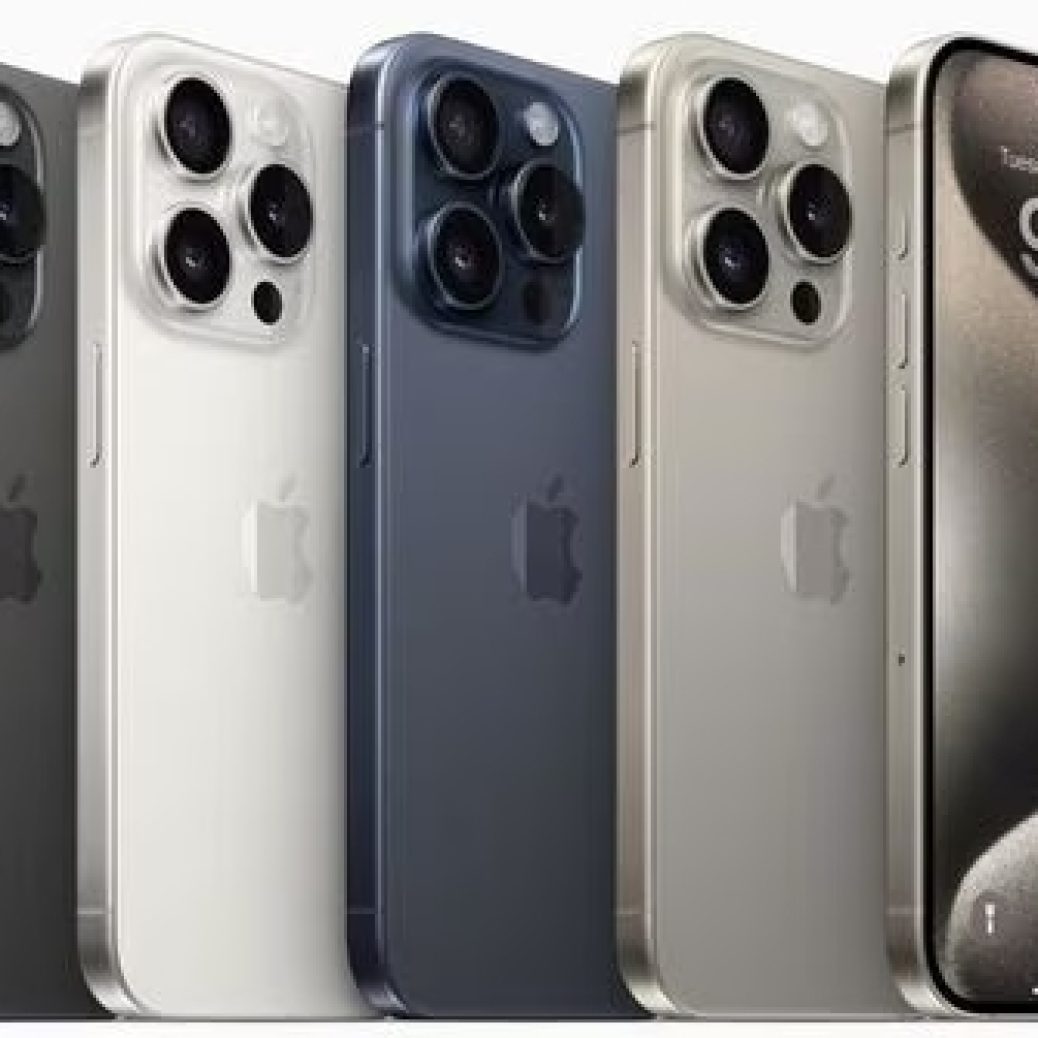
iPhone 15 and 15 Plus come in these five colors:
Black
Blue
Green
Yellow
Pink
Storage and pricing
iPhone 15/Plus comes in these storage options:
128GB – $799 / $899
256GB – $899 / $999
512GB – $1,099 / $1,199
What’s in the box?
iPhone 15/Plus comes with the iPhone and a USB-C cable in the box.
If you need a power adapter, go with at least a 20W so you get fast charging for your iPhone.
iPhone 13 vs 15: Is it worth upgrading?
The iPhone 15 and 15 Plus are fantastic smartphones, but whether upgrading from the 13 is worth it for you will depend on how you want to use your iPhone and what features you find important.
Reasons to consider upgrading to iPhone 15 or 15 Plus:
More powerful and capable cameras
Dynamic Island
USB-C
Faster chip and more powerful GPU for mobile gaming
Crash Detection and Roadside assistance via satellite
On the iPhone 15 and iPhone 15 Plus, Apple finally got rid of the Lightning port and replaced it with USB-C. This opens up a whole new world of convenience of connecting accessories and peripherals. The iPhone 15 Pro and iPhone 15 Pro Max go one step further, as the USB-C port on the pro models supports USB-3 speeds, enabling up to 10 Gbps data transfer speeds.
USB-C makes it easy to connect displays, external storage, cameras, and charge using the same cable as all your other devices. Here’s what you can do with your new iPhone and its shiny new port.
Why did Apple change from Lightning?
Apple was fully invested in Lightning port ecosystem on the iPhone. However, it began adopting USB-C across Mac and iPad models since 2015 as a way to modernize PC connectivity. USB-C is versatile, carrying power and data with the same connector. And USB-4 / Thunderbolt offers even higher data transfer speeds.
At the same time, USB-C was becoming increasingly popular on the Android side of the smartphone market. But Apple stuck with Lightning on iPhone, partly because they were still stung from the backlash of 30-pin -> Lightning transition that happened more than a decade ago.
The forcing factor for Apple was the EU commission, who have passed legislation to reduce e-waste by enforcing USB-C as the universal connector for phones. That would mean Apple would at least have to make a special model of iPhone for the European market. That brings its own complications. Instead, Apple chose to just adopt USB-C across the board … and apart from the frustration of customers having to change out all their existing now-defunct Lightning cables, that brings a lot of benefits.
Universal USB-C Charging
Now that you have an iPhone 15, you are probably close to being able to use the same single cable to charge all of your devices. Almost all iPads have a USB-C port, and all Macs have been sporting USB-C for a decade. The newest Macs come with Apple’s MagSafe charger, but they can also be charged by plugging in to one of their USB-C ports too. The latest-generation Apple TV comes with a USB-C remote, and Apple just released new AirPods Pro with a USB-C charging case.
Apple sells its own USB-C charge cables, and the iPhone comes with a nice quality woven cable in the box itself. Unlike Lightning, USB-C is not proprietary. To charge your Apple gear, you can use any USB-C charging cable or accessory on the market. That includes cheaper USB-C cables, and USB-C cables of different styles and lengths. Anker has a very convenient dual 47 watt USB-C power adapter, for example.
To charge your iPhone at full speed, you want to use a 20-watt or 30-watt power adapter. You can safely use a higher wattage power adapter like the one that comes with your MacBook; the phone will automatically manage the power. Learn more about fast-charging iPhone 15 here.
Charge other devices with your iPhone 15 battery
Another cool angle of the USB-C charging story is that you can now use the iPhone to charge other accessories. The iPhone 15 can accept up to 27 watts through the USB-C port, but itself can also output about 4.5 watts. (Lightning could only manage a measly 0.3watts.)
This means you can actually use your spare iPhone battery to power and charge connected accessories. If your AirPods are running low, in a pinch, you can plug them into your phone and your phone will top up the juice in your AirPods case. You could even top up the battery of another person’s iPhone — but just be aware it will take a while.
Easily connect to external displays
With Lightning, you could only connect to external displays via a clunky dongle. With USB-C on iPhone 15, you can output to a screen directly. Use a USB-C to HDMI cable and show your iPhone screen on a 4K TV or monitor, with screen mirroring. If you are watching a movie in a video streaming service app, the film will automatically fill the TV dimensions with playback controls on the touch screen. Easily show off your photo library or conduct a presentation with Keynote by just plugging your phone directly into a projector.
One of the use cases Apple is pushing is positioning iPhone as a portable games console. Using the power of the A17 Pro chip inside, iPhone 15 Pro can run some top-end games with high graphical fidelity. Pair an Xbox or PlayStation game controller, connect your phone to a TV, and start gaming. The Apple USB-C Digital AV adapter is a good choice for this use case, as it allows for HDMI, power output for continuous charging and passthrough USB-C in one convenient dongle.
Expand your local storage with portable USB-C hard drives and SD cards
Connect a USB-C hard drive or SD card reader and browse files directly using the Files app on iPhone. If you go on holiday and take a dedicated camera with you, you can import photos directly from the SD card into your iPhone’s photo library. Then, empty the SD card and keep shooting while you edit and upload the pictures you’ve taken on your phone’s big touchscreen.
The iPhone 15 Pro Camera app allows you to record ProRes 4K at 60 FPS video directly to USB-3 storage. ProRes is uncompressed and the file sizes are huge, consuming gigabytes per minute of recording. But pairing your iPhone with a 1 TB portable SSD, you can record for a while before running out of space. This requires a USB-3 cable (not simply charge cable) to take advantage of the fast 10Gbps transfer speeds possible through the iPhone 15 Pro’s port.
Connect hardware keyboards and wired internet
Sometimes, wireless doesn’t cut it — and you just need to plug in. USB-C on iPhone supports almost any basic accessory you can think of, without the need for special drivers or additional configuration. It’s all plug and play. That means you can connect a hardware keyboard will just work.
Or if you are podcasting on the road, you can record using a mini USB-C microphone. Another possibility is wired internet, using a USB-C to Ethernet adapter. And if you have a MIDI keyboard, you can make a song on the go with an app like GarageBand.
Wired headphones that work with your phone and computer
Since Apple dropped the headphone jack, much of the world has moved on to using Bluetooth wireless headphones like AirPods. But if you still prefer to plug in with a wire, using wired headphones with iPhone has been an inconvenient affair. Lightning earbuds worked with your phone, but nothing else.
Now, it’s all much simpler. iPhone 15 works with any USB-C headphones, including Apple’s new USB-C EarPods. These headphones will work with any computer with a USB-C port, so you can finally use the same wired headphones across your phone, iPad and Mac. An increasing number of high-end headphones and speakers also rely on USB-C connectivity these days.
Connect multi-port hubs
USB-C is very flexible and allows for data and power to travel over the same port. This means you can carry a single dongle, which is a multi-port hub comprising all sorts of IO. These are super convenient as iPad and Mac accessories, and now work with the iPhone too.
For example, this Anker 5-in-1 hub will work with the USB-3 USB-C port on iPhone 15 Pro and enable you to connect to external displays, connect to power, plug in USB accessories and an external display all at the same time.
The only thing you have to keep in mind is that the iPhone can output power to the hub at 4.5 watts. iPad and Mac can offer much higher bus-powered wattage, so if you are using them with the iPhone, you may need to also plug in an external power source.
Some of these capabilities were previously possible with Lightning but necessitated large, clunky, and special purpose adapters for each use case. USB-C is standards-based which means anything you buy will also work with other devices too. You don’t need to carry a special Lightning SD card reader anymore; the same USB-C peripheral will work just as well with your iPhone, iPad, Mac and any Windows PC or Android devices in the family as well. The universal connector life is finally here.
Over the last week, a number of iPhone 15 and iPhone 15 Pro users have complained of their new devices overheating and running at abnormally high temperatures. In response to those complaints, Apple has announced that a software update is on the way to remedy the problems.
Notably, Apple confirmed to 9to5Mac that the new titanium design of the iPhone 15 Pro is not the cause of any overheating problems.
The company also says that the software update coming to iOS 17 does not in any way reduce performance to address iPhone temperature concerns.
iPhone 15 overheating fix coming soon
In a statement first sent to Forbes and also shared with 9to5Mac, Apple pointed out that it’s normal for an iPhone to run hotter than usual during the first several days. As we’ve explained in the past, this is due to iOS indexing photos, searches, and more in the background.
Apple also says that it’s identified a bug in iOS 17 that makes the overheating problem worse for iPhone 15 and iPhone 15 Pro users. This problem will be “addressed in a software update,” the company says.
Furthermore, Apple tells 9to5Mac that recent updates to certain third-party apps are causing them to overload the system. The company says it’s working directly with those developers to fix the issues. According to Apple, some of the apps overloading the iPhone CPU and causing devices to overheat are Asphalt 9, Instagram, and Uber. Instagram issued a fix for the problem on September 27, Apple says.
We have identified a few conditions which can cause iPhone to run warmer than expected. The device may feel warmer during the first few days after setting up or restoring the device because of increased background activity.
We have also found a bug in iOS 17 that is impacting some users and will be addressed in a software update. Another issue involves some recent updates to third-party apps that are causing them to overload the system. We’re working with these app developers on fixes that are in the process of rolling out.
Apple also confirmed to 9to5Mac that the titanium design of the iPhone 15 Pro is not to blame for any overheating problems, contrary to what some reports stated earlier this week. The company says the new design actually leads to better heat dissipation than previous iPhones with stainless steel. This is likely because of the new internal aluminium sub structure.
iPhone 15 Pro design once again blamed for causing some units to overheat
The iPhone 15 Pro is now in the hands of many consumers around the world, and since then, we’ve seen multiple complaints about overheating problems. Earlier this week, analyst Ming-Chi Kuo suggested that these problems may be caused by design compromises, and new reports from Bloomberg and WSJ reveal that the problem may be worse than it seems.
iPhone 15 Pro overheating
As we previously reported, there are many iPhone 15 Pro and iPhone 15 Pro Max users complaining about how the new devices get extremely hot after using them for a while, even with basic things like web browsing. Although a number of people claim not to be affected by the problem, it’s easy to find posts on social media about iPhone 15 Pro models overheating.
A test run with an iPhone 15 Pro Max shared on a Chinese video platform revealed that downloading the popular game Genshin Impact on a 5G network caused the phone to heat up to 122ºF. The iPhone remained at a similar temperature while running the game in high-resolution mode.
A few days ago, YouTube channel TheRelaxingEnd shared a video showing how the iPhone 15 Pro suddenly started freezing and slowing down while running Genshin Impact, which could be a result of overheating. Of course, this is quite intriguing given that Apple has been marketing the new iPhone as the first capable of running AAA games thanks to the A17 Pro chip.
Apple suggests it’s a normal condition caused by software
Officially, Apple has refused to comment on the matter. But Bloomberg has heard from sources that Apple technicians have been dealing with a lot of customers complaining about iPhone 15 Pro overheating issues. Technicians are telling users to follow the instructions from an old support article found on Apple’s website about what to do when the iPhone gets too hot.
The article doesn’t include any specific instructions for the iPhone 15 Pro. Instead, it only suggests that the iPhone may get hotter than normal after the first setup, being restored from a backup, being wirelessly recharged, or when running graphics-intensive or processor-intensive apps.
While this is true, there’s a group of users who believe that the iPhone 15 Pro is heating up more than usual even under normal conditions, days after being set up or without running 3D games. And they may be right.
It could be caused by a design flaw
The Wall Street Journal heard from “people familiar with the iPhone’s design” that the overheating problems are being caused by design flaws in the iPhone 15 Pro. For instance, Apple removed the SIM tray from iPhone 14 models sold in the US, but every other country still relies on a physical SIM-compatible version of the iPhone.
Because of this, the US version of the iPhone 14 has a plastic piece to fill the gap where the SIM tray is located in the global version of the phone. With the iPhone 15, Apple has redesigned the logic board to remove this gap. But since the eSIM-only iPhone remains exclusive to the US, the rest of the world relies on an iPhone with a different logic board.
“Adding a slot to the phone’s already-cramped interior creates additional challenges for heat dissipation,” the WSJ sources reported.
But that’s not all. Similar to what Kuo said earlier this week, the sources who spoke to the WSJ mentioned that titanium also contributes to overheating, since the material has “less mass to absorb the heat” compared to stainless steel. These two factors combined with a more powerful chip make the iPhone 15 Pro overheat.
Will Apple address the iPhone 15 Pro overheating problems?
It’s unclear at this point whether Apple will do anything to address these problems. The easiest solution would probably be releasing a software update that reduces CPU and GPU performance in certain situations in order to keep the device’s internal temperature under control.
Another alternative would be to change the engineering design of the iPhone 15 Pro, which sounds more unlikely as this would require announcing a recall program for affected customers.
Along with the new Action button on the iPhone 15 Pro comes an interesting addition to the status bar – a silence mode icon next to the time. Fortunately, Apple has included a way to hide silent bell icon on iPhone 15 Pro and Pro Max, here’s how.
The Action button sits in the same place as the side switch on previous iPhone models and works with a long press.
The default is set to turn silent mode on and off. But even if you customize the Action button to control something else, a new silent bell icon shows in the iPhone 15 Pro status bar right next to the time.
Spotted by MKBHD, the good news is there’s a quick fix in Settings to remove the silent mode icon.
PSA for everyone who leaves their phones on silent and is about to get an iPhone 15 Pro: You can turn off the annoying permanent silent indicator in settings. You’re welcome pic.twitter.com/FcOT8mnQMT
Open the Settings app on your iPhone 15 Pro or Pro Max
Choose Sounds & Haptics near the top
Tap the second toggle down next to Show in Status Bar to hide silent bell
Here’s how it looks to hide the silent bell icon on iPhone 15 Pro:
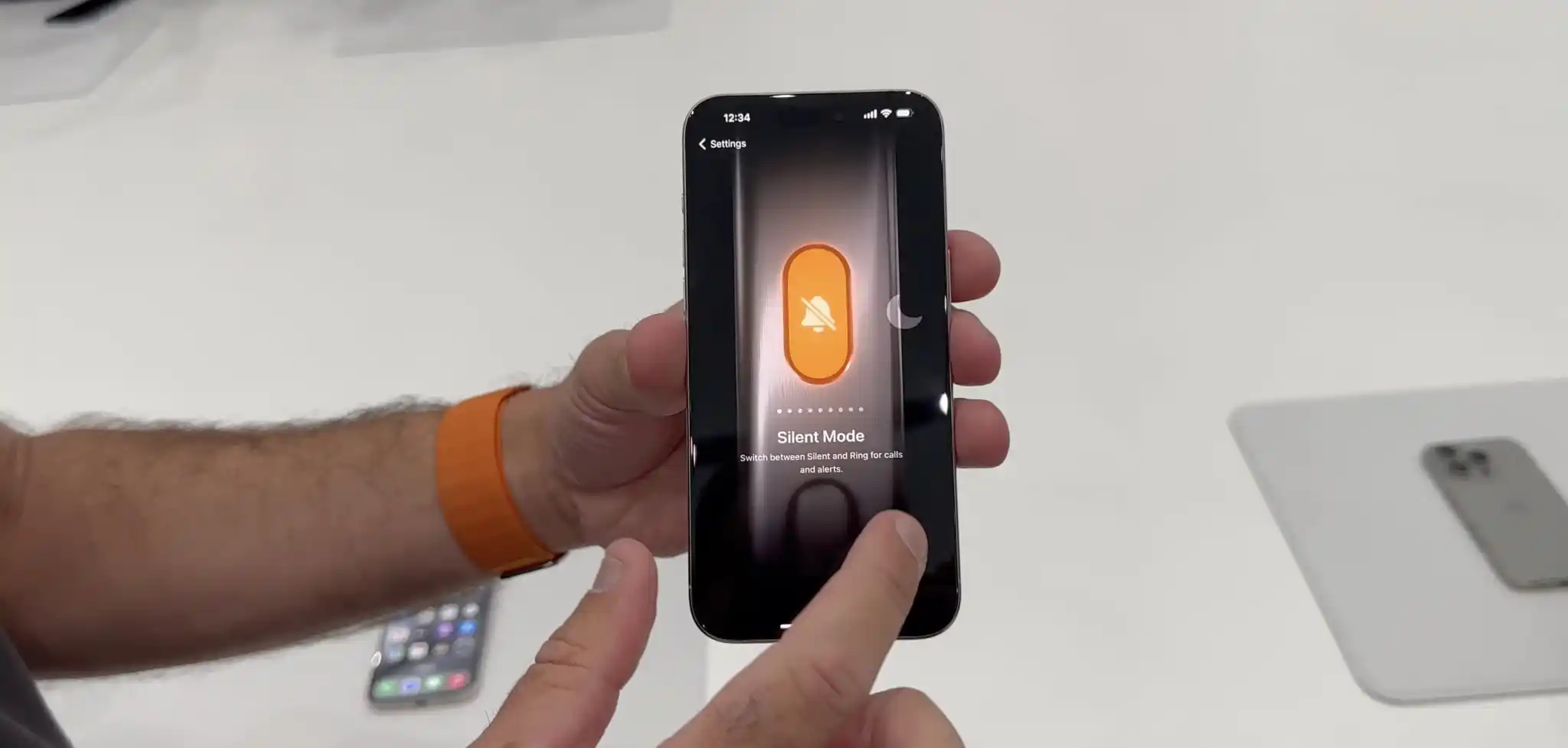
And if you haven’t customized your Action button yet, navigate to Settings > Action button. Here are the options for the new button:
Silent mode (default)
Focus mode
Camera
Flashlight
Voice Memo
Shortcut
Accessibility features like magnifier and more
No Action
Translate will arrive with an update “later this year”
If you change the Action button to activate something other than silent mode, you can turn silent on/off from Control Center or Settings > Sounds & Haptics.
iOS 17 iPhone StandBy: How to use and customize the smart display feature
One of the headlining new features with iOS 17 is a smart landscape display mode for iPhone when it’s charging. Coming with different clock faces, widgets, access to photos, and more, here’s how to use and customize the iOS 17 iPhone Standby display.
iOS 17 comes with a number of changes across Messages, FaceTime, the Phone experience, and much more.
But one of the most attention-grabbing features will likely be the new iPhone StandBy view that turns the smartphone into a mini smart display.
Here’s how StandBy works.
iOS 17 iPhone StandBy: How to use and customize
Make sure you’re running iOS 17
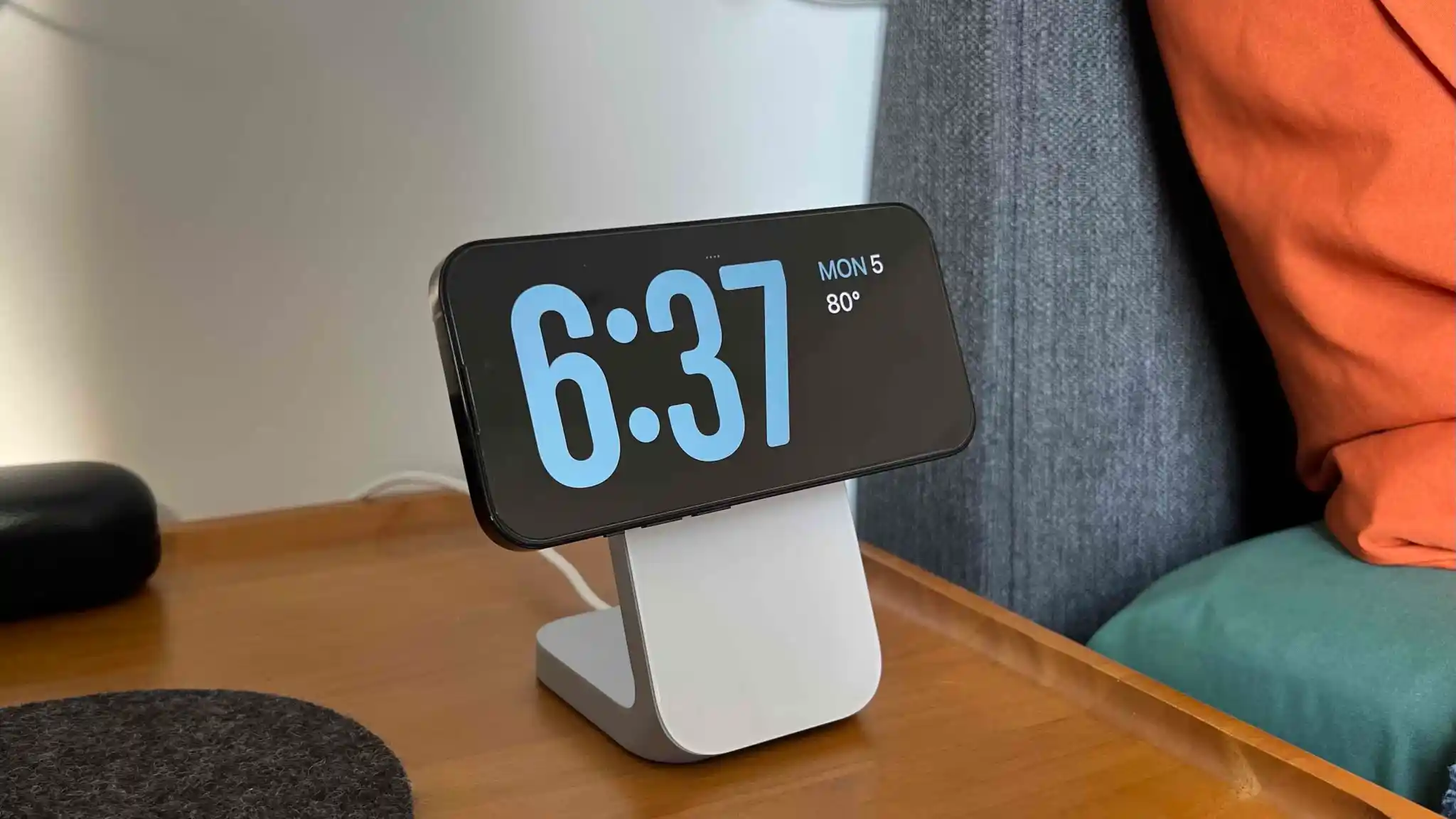
With your iPhone screen locked, place it in landscape on an upright charger (the mode won’t work on flat or low-angle chargers or when your screen is unlocked – and it must be charging)
iPhone StandBy will automatically appear – the feature is enabled by default
StandBy works on any iPhone that can run iOS 17 but you’ll need to tap the screen to see the clock, widgets, photos, etc. – iPhone 14/15 Pro/Pro Max with always-on will always show the StandBy display
The classic analog clock plus calendar widget on the right is the default StandBy view, swipe up on either to change them
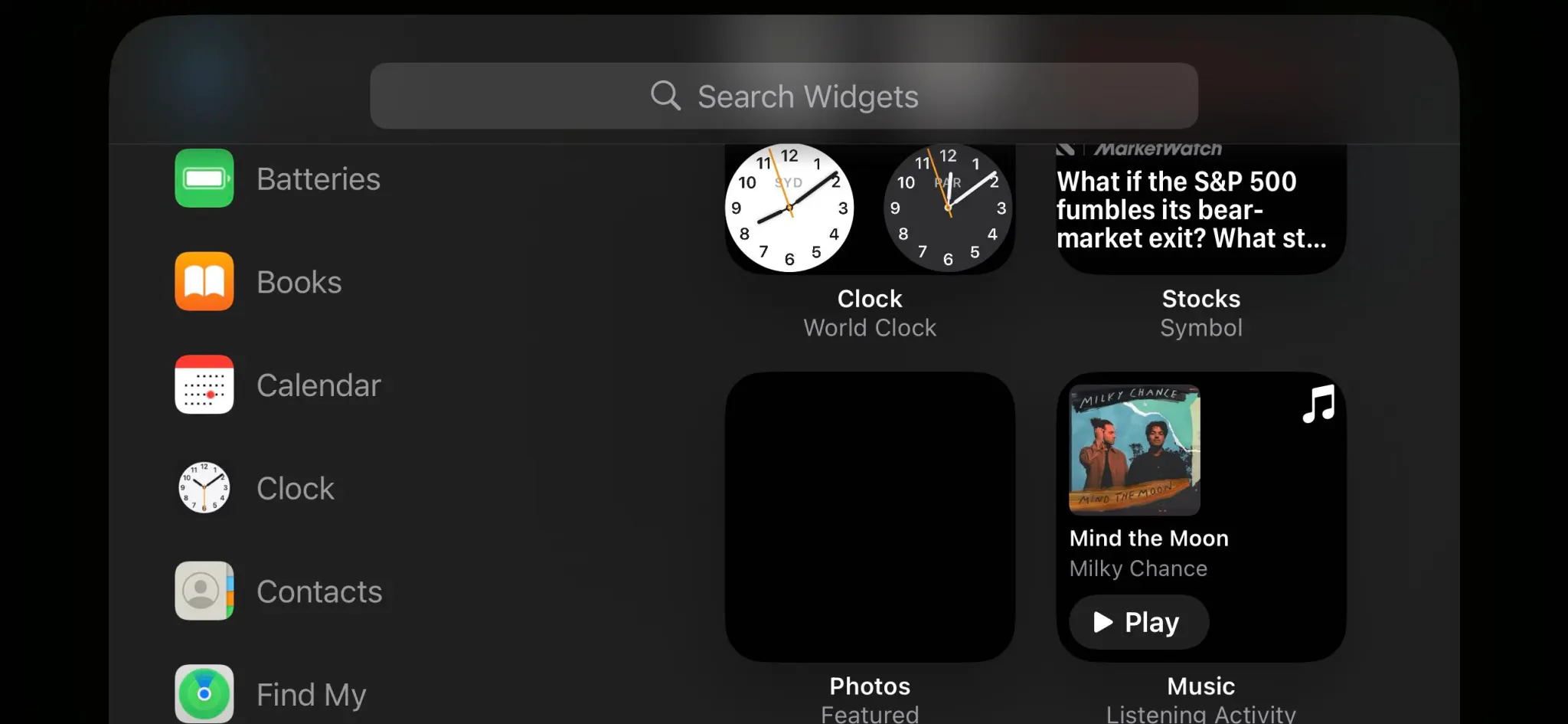
Press and hold on either one to add or remove widgets
On the first StandBy view, do a big swipe from right to left to change views
Press and hold on the other StandBy views to customize them
iOS 17 iPhone StandBy supports Live Activities, Siri, incoming calls, and larger notifications
StandBy remembers your “preferred view” and dims to red and night
You can tweak StandBy settings by heading to Settings > StandBy
Check out our round-up of the latest third-party apps to include StandBy widget support
Here’s how iOS 17 iPhone StandBy looks in use:
The first time you place your locked iPhone horizontally on an upright charger, you’ll see a welcome splash screen.
Now you’ll see this as the default StandBy view:
Swipe up on either the clock face or calendar to get more options (the calendar is a smart stack suggestion by default):
To customize this StandBy screen further, press and hold on the left or right widget. Now you can remove options or tap the + icon in the top left to add widgets:
From the first StandBy clock/widget view, you can swipe from right to left to get to the Photos StandBy view:
And swipe again to get different the last view that features different customizable clock faces:
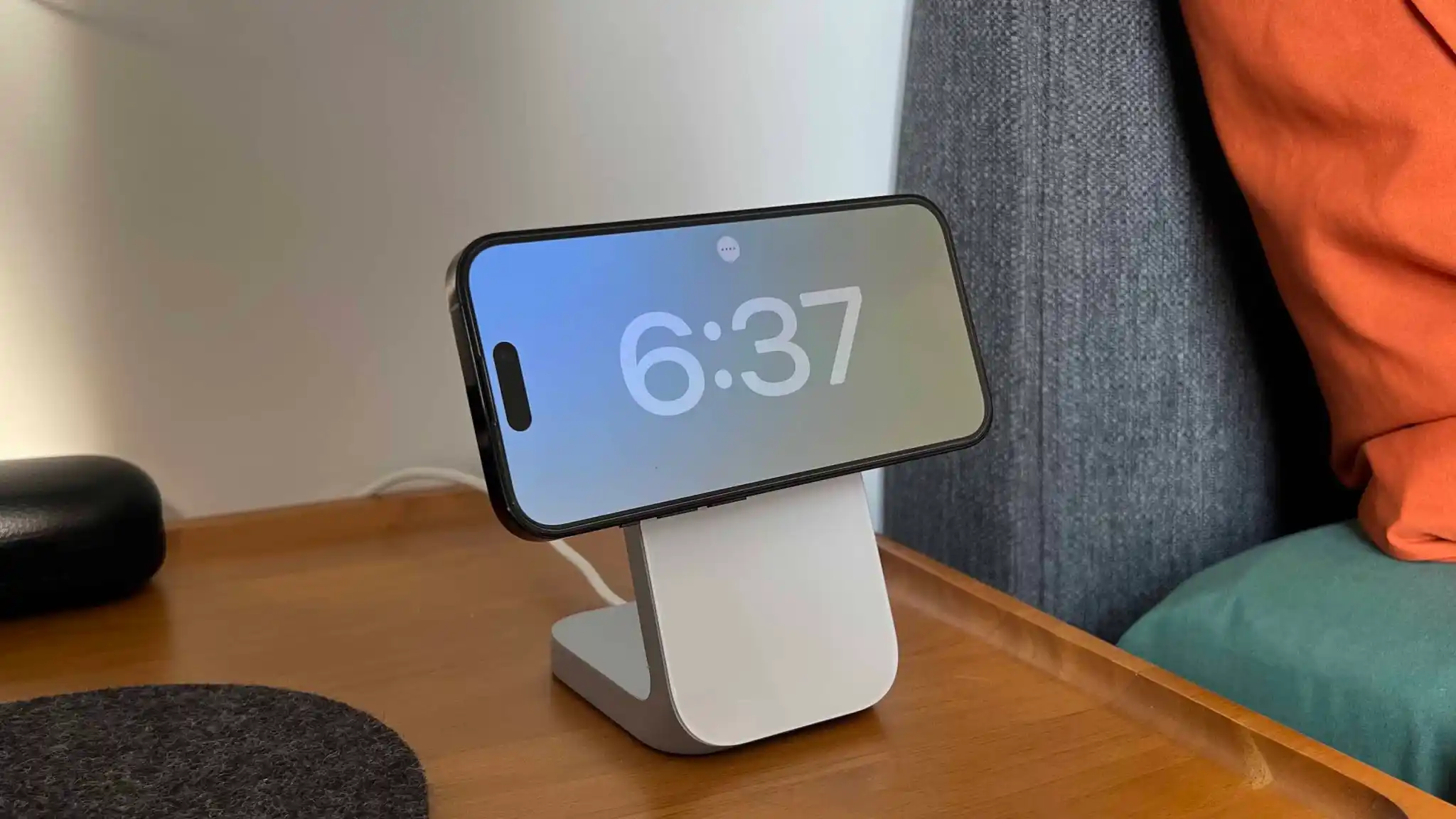
iPhone StandBy on Nomad Stand One MagSafe Charger
Press and hold on any of these to customize their color schemes but you can’t add widgets to these clock faces.
But you can tap the “….” icon in the top center to access music at any time which presents a nice media UI:
And so it doesn’t disturb sleep, iPhone StandBy for those with always-on displays will automatically dim to red at night:
iPhone 15 Pro Max back glass cracks within seconds in new durability test
The iPhone 15 Pro and iPhone 15 Pro Max feature an all-new chassis design made out of what Apple says is grade 5 titanium. A drop test video yesterday raised early concerns about the durability of this new design, particularly as related to the new curved edges.
Now, JerryRigEverything has posted his annual durability test with the iPhone 15 Pro and iPhone 15 Pro Max, and he has some concerns…
Throughout the durability test, we can see the new grade 5 titanium put through scratch testing, heating testing, sandpaper, and more. As expected, the titanium does indeed scratch when you take a knife to it. The matte back glass, however, is far more scratch resistant.
The display also fares quite well during the scratch testing as well, as do the three camera covers on the back of the iPhone 15 Pro. But things get more interesting pretty quickly.
“It’s time to see if the new blended aluminum titanium grafted hybrid structure compromises the structural integrity of the iPhone 15 Pro Max,” JerryRigEverything says as he starts to put pressure on the device. Within just a few seconds, you hear a snap and the back glass has completely shattered.
“I did not see that one coming,” he says. “You’ve been watching me durability test smartphones for about 11 years now, and most phones do not break. iPhones especially do not break, like ever. And [the iPhone 15 Pro Max’s] snap was abnormally quick.”
Internally, the iPhone 15 Pro Max survives the test. The screen and frame of the device are also both unscathed. It’s just the back glass that succumbs to the pressure.
JerryRigEverything speculates that this could be due to the titanium having five times the amount of tensile strength as aluminum, leading to the glass back not being able to withstand even small amounts pressure and flex. On the bright side, Apple has made it far cheaper to replace the iPhone 15 Pro’s back glass this year.
You can check out the video below for the full details. It’s a fascinating look at the iPhone 15 Pro’s new design, but also with some interesting tidbits about titanium itself.
In David Guetta’s hit song “Titanium” from 2011, Sia sang: “You shoot me down, but I won’t fall. I am titanium.” It looks like the same can’t be said for Apple’s version of titanium in the iPhone 15 Pro.
iPhone 15 Plus takes the crown in battery life test, beating all previous iPhone models
Following the iPhone 15 release on Friday, the first battery test results are coming in. Apple touted the efficiency of the 3nm A17 Pro chip, so anticipation was high for the iPhone 15 Pro and Pro Max to take the top spot.
Indeed, the Pro Max outlasted all previous iPhones in Mrwhosetheboss’s test. But it was actually bested by the 15 Plus, which racked up more than 13 hours screen on time, and now holds the title of longest iPhone battery life on record.
Apple’s own tech specs page reports battery life in terms of longevity for continuous audio playback and video playback sessions. According to Apple’s numbers, the iPhone 15 Pro Max lasts the longest on streaming video playback with 25 hours compared to 20 hours for iPhone 15 Pro and iPhone 15 Plus.
However, on audio playback, the Max is rated for 95 hours while the Plus hits triple digits at 100 hours. Apple’s numbers give a decent benchmark to compare across models, but it’s hard to deduce real-world battery life times from them, as day-to-day phone usage is usually more taxing than just watching video or playing music.
Mrwhosetheboss attempts to simulate a more realistic daily usage pattern, cycling through power draining activities like watching TikTok videos, Zoom video chat, recording video in the camera, and playing games. The phone screen stays on the entire time until the battery is depleted and it turns off.
The previous title holder was the iPhone 13 Pro Max, as battery life dipped a little with the 14 series. As seen in the video, all iPhone 15 models beat out their previous-generation counterpart.
Of the newest generation phones, the iPhone 15 Pro died first, followed by the iPhone 15. The 15 Pro lasted for 9 hours and 20 minutes. The base iPhone 15 endured another half an hour, clocking in at just under 10 hours of runtime.
The 15 Pro Max easily lapped the field, staying alive for another hour and a half of battery life, hitting 11 hours and 41 minutes. The 15 Plus almost beat the Max by the same margin though, achieving a staggering 13 hours and 19 minutes in the test.
The previous best performer, the 13 Pro Max, managed 11 hours and 19 minutes in contrast.
Apple has identified an iOS 17 bug which may affect the iPhone 15 upgrade experience today. During iPhone setup, the Transfer from another iPhone option may fail and leave your new iPhone in a state where it is stuck booting on the Apple logo black screen. Here’s what to do if that happens to you.
The bug affects iPhone 15 and iPhone 15 Pro as these phones ship with iOS 17 preinstalled. However, it may also affect anyone switching phones that are running iOS 17 and use the transfer data option.
If you encounter the bug, during the transfer of apps and data, the new iPhone will get stuck in a boot loop on the Apple logo screen.
To resolve the issue, Apple says that you need to put the device into DFU mode and restore it using a computer.
To do this, connect your iPhone to a PC or Mac using a cable. Press the volume up, press the volume down, and then press and hold the side button. Keep holding the side button while iPhone reboots until it displays an icon on the screen that represents a computer and cable. It will look similar to this:
After you get the iPhone into DFU state, it will then show on your computer through the Finder, or through iTunes if you are connecting to a Windows PC (or older version of macOS). In Finder/iTunes, you will be able to Restore or Update; press the Restore button to reset the phone.
After the phone has been restored, you can start the setup process again. There may be an additional software update available.
Finally, you can try again. If you are upgrading to an iPhone 15 or iPhone 15 Pro, you can set up using transfer data or iCloud backup. The aforementioned software update will have fixed the iOS 17 bug, so you can safely transfer data again and finish new iPhone setup.
However, if you are upgrading to an iPhone model earlier than the 15 series, a fix for the transfer data glitch is not yet available.
So, Apple recommends that you update using iCloud Backup instead. Make sure your previous iPhone has a recent iCloud backup complete (you can force this by going to Settings -> [your name] -> iCloud -> iCloud Backup -> Back Up Now). Then, on your new iPhone, start iPhone set up and choose the ‘From iCloud Backup’ option when it asks how you want to transfer your data to your new phone. Your iPhone should then finish setup successfully.
These steps are described in an Apple support document, which first revealed the existence of this iOS 17 glitch.
You can charge your Apple Watch or AirPods using the new iPhone 15’s USB-C port
The iPhone 15 and iPhone 15 Proditch Apple’s proprietary Lightning connector in favor of USB-C, and that change has a few side effects. Perhaps most notably, you can now use the iPhone 15’s USB-C port to quickly add more juice to your Apple Watch or AirPods.
Apple made a brief mention of this during the “Wonderlust” keynote yesterday. In practice, the feature works exactly as you would expect it to. You can connect your AirPods or Apple Watch to the iPhone 15’s USB-C port, and they’ll instantly start to charge.
This works via a USB-C to Apple Watch charging puck, via a USB-C to USB-C cable for the new AirPods Pro, and via a USB-C to Lightning cable for older AirPods.
Apple has reportedly been working on reverse wireless charging for years, a feature that would let you charge up AirPods and Apple Watch by placing them on the back of your iPhone. This feature still hasn’t seen the light of day, but the support for power-out via the new USB-C port is a great interim solution.
There’s no word on the charging speed provided to AirPods or Apple Watch via the iPhone 15’s USB-C port. It’s important to note that this feature will only work with AirPods and Apple Watch, so you can’t just plug in any device to the USB-C port and expect your iPhone to charge it.
We’ll have to do more testing to see just how big of an impact using your iPhone to charge your AirPods or Apple Watch will have on battery life. AirPods and Apple Watch have smaller batteries in comparison to the iPhone.
Here’s what you can do with the iPhone 15 Pro Action button
After living its entire life with a side switch, the iPhone has evolved to feature a programmable Action button with the 15 Pro and 15 Pro Max. Here’s a look at all the ways you can customize the iPhone Action button.
Apple Watch Ultra received the Action button last year and this time around it’s the iPhone’s turn with the 15 Pro and Pro Max.
The Action button sits in the same place as the side switch on previous iPhones and is used with a long press.
Apple notes that when you change the Action button to something other than controlling Silent mode, you can head to Control Center or use Focus modes to change your ringer.
Customize the iPhone Action button
In iOS 17, head to Settings > Action button on the iPhone 15 Pro/Pro Max and you can set the Action button to launch:
Silent mode (default)
Focus mode
Camera
Flashlight
Voice Memo
Magnifier and other Accessibility features
Shortcut
Translate (arriving with an update “later this year”)
While there are eight main features the Action button can control, being able to set it to control Accessibility shortcuts or run a custom shortcut from the Shortcuts app is huge. That means the possibilities are pretty much endless.
Some features make use of the Action button once you’re in an app too. For example, if you launch the Camera with the Action button, you can press it again to take pictures. If you launch a Voice Memo recording, you can use the Action button to stop the recording, etc.
PSA: Apple Card financing not available for carrier-free iPhone 15 orders
Last month, Apple discontinued Apple Card financing for iPhones purchased without a carrier connection. Unfortunately, and unsurprisingly, that change applies to the new iPhone 15 and iPhone 15 Pro.
What this means is that in order to use Apple Card Monthly Installments to buy an iPhone 15 or iPhone 15 Pro, you must connect that phone to AT&T, T-Mobile, or Verizon.
Previously, Apple allowed buyers to purchase an iPhone with the “Connect to a carrier later” option. This option means users are free to use the iPhone without a cellular connection or via any carrier of their choosing. For instance, you could connect an iPhone purchased with this option to a carrier such as Mint Mobile or Google Fi.
That “Connect to a carrier later” option is no longer available for iPhones purchased with Apple Card Monthly Installments. Instead, your new iPhone 15 Pro will require you to connect to AT&T, T-Mobile, or Verizon at the time of setup. Note that the iPhones will still be unlocked, but the carrier connection will be required at the time of setup.
Apple points out this new requirement on the purchase page for iPhone 15. “Carrier connection with AT&T, T-Mobile, or Verizon is required to purchase with Apple Card Monthly Installments,” the company explains. “An iPhone purchased with ACMI is always unlocked, so you can switch carriers at any time.”
As said when first wrote about this change in June, it’s a huge bummer for Apple Card users. The ability to finance Apple hardware purchases is one of the biggest selling points of the Apple Card, and this change puts a big restriction on the most popular Apple hardware purchase.
iPhone 15 Pro’s new design, Action button, and more
The iPhone 15 Pro and iPhone 15 Pro Max are now official, and I had the chance to go hands-on with them inside Steve Jobs Theater. The flagship iPhone 15 Pro models pack a new titanium design, upgraded camera hardware, and more. Here are some quick first impressions…
Right off the bat, I was struck by how light the iPhone 15 Pro Max feels due to its new titanium chassis. Here’s how the numbers breakdown on paper:
iPhone 15 Pro – 187 grams (down from 206 grams)
iPhone 15 Pro Max – 221 grams (down from 240 grams)
That’s a pretty big difference on paper, and it’s an even bigger difference in real life. I’ve been using the iPhone 14 Pro Max for the last year, so I’ve grown pretty familiar with its weight. I found the iPhone 15 Pro Max to be significantly lighter and more comfortable to hold. I think this is due to both the reduction in weight as well as the new contoured edges.
The titanium design also means that the iPhone 15 Pro models have a texturized matte finish rather than the previous glossy stainless steel finish. I only spent around 15 minutes with the iPhone 15 Pro today, but I have a feeling this is going to be a very nice change in terms of durability.
The Action button is another standout feature of the iPhone 15 Pro. The interface to customize what the Action button is linked to is in the Settings app, and it’s beautifully designed. The button can be assigned to the following things:
Silent Mode
Focus Mode
Camera
Flashlight
Voice Memos
Accessibility features like Magnifier
Shortcuts
One thing that I didn’t realize until I tried the Action button is that a press and hold is required to trigger the action. You can’t just quickly press the button. This is likely an effort to prevent false triggers, so it makes sense, but it does mean there’s an added step required each time.
I think my primary use of the Action button will be for the camera. You can press and hold to open the Camera app, then press the Action Button again to use it as a shutter in the Camera app. You can see that demoed in my video above.
Speaking of the camera, the iPhone 15 Pro Max also features an upgraded Telephoto lens with up to 5x optical zoom. I’ll have to reserve full judgment on this until I get my hands on an iPhone 15 Pro Max for an extended period of time, but the quick demos I got at Steve Jobs Theater today align with my expectations. The new telephoto lens also enables 25x digital zoom as well.
Other tidbits:
Yes, there’s a USB-C port. Apple wasn’t lying.
The colors look much better than I expected, but they are still pretty boring and there’s not a whole lot of variety.
The smaller bezels are noticeable, but not as noticeable as I thought they would be. At a certain point I suppose you just get used to the black border being there, regardless of its size.
I only got a brief minute with the new FineWoven cases for the iPhone 15 Pro, but I really liked the material and how it felt in my hands. I’m 100% in support of Apple’s move away from leather.
I’ll have much more to say about the iPhone 15 Pro and iPhone 15 Pro Max once I get to spend some more time with them. My first impressions are pretty positive, especially when it comes to the new titanium design and the benefits provided by that change.
iPhone 15 and iPhone 15 Plus in every color
In addition to the iPhone 15 Pro and iPhone 15 Pro Max, Apple also unveiled the entry-level iPhone 15 and iPhone 15 Plus during its “Wonderlust” event today. I got to check them out at Steve Jobs Theater after the keynote today, and I honestly wish I had more to say…
The iPhone 15 and iPhone 15 Plus are great phones. They take the iPhone 14 and do exactly what Apple does: gradually trickle down what were once Pro-exclusive features to the non-Pro phones. The other big change here, of course, is the USB-C port.
The camera changes shouldn’t be overlooked, particularly the new 48MP Main camera that’s moved downstream to the non-Pro phones after first being introduced with the iPhone 14 Pro last year. What’s most notable about this, in my opinion, is that it enables a 2x zoom option in the Camera app. This is done by Apple cropping the 48MP camera down to 24MP, enabling a 2x zoom without having a dedicated Telephoto lens.
The Dynamic Island also now finds itself on the non-Pro models of the iPhone 15 this year. It’s the same Dynamic Island we’ve come to know, just inside a more affordable product.
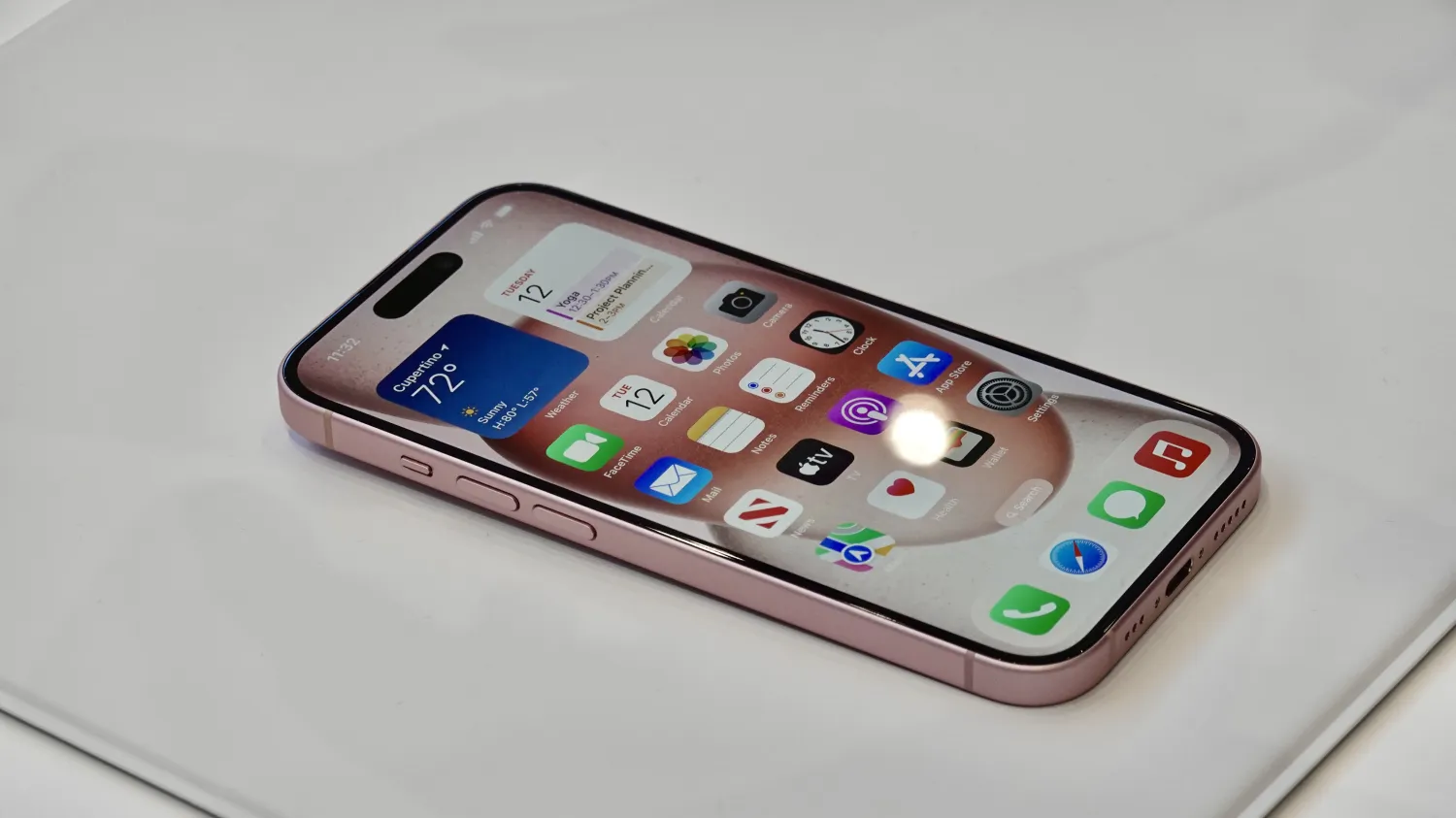
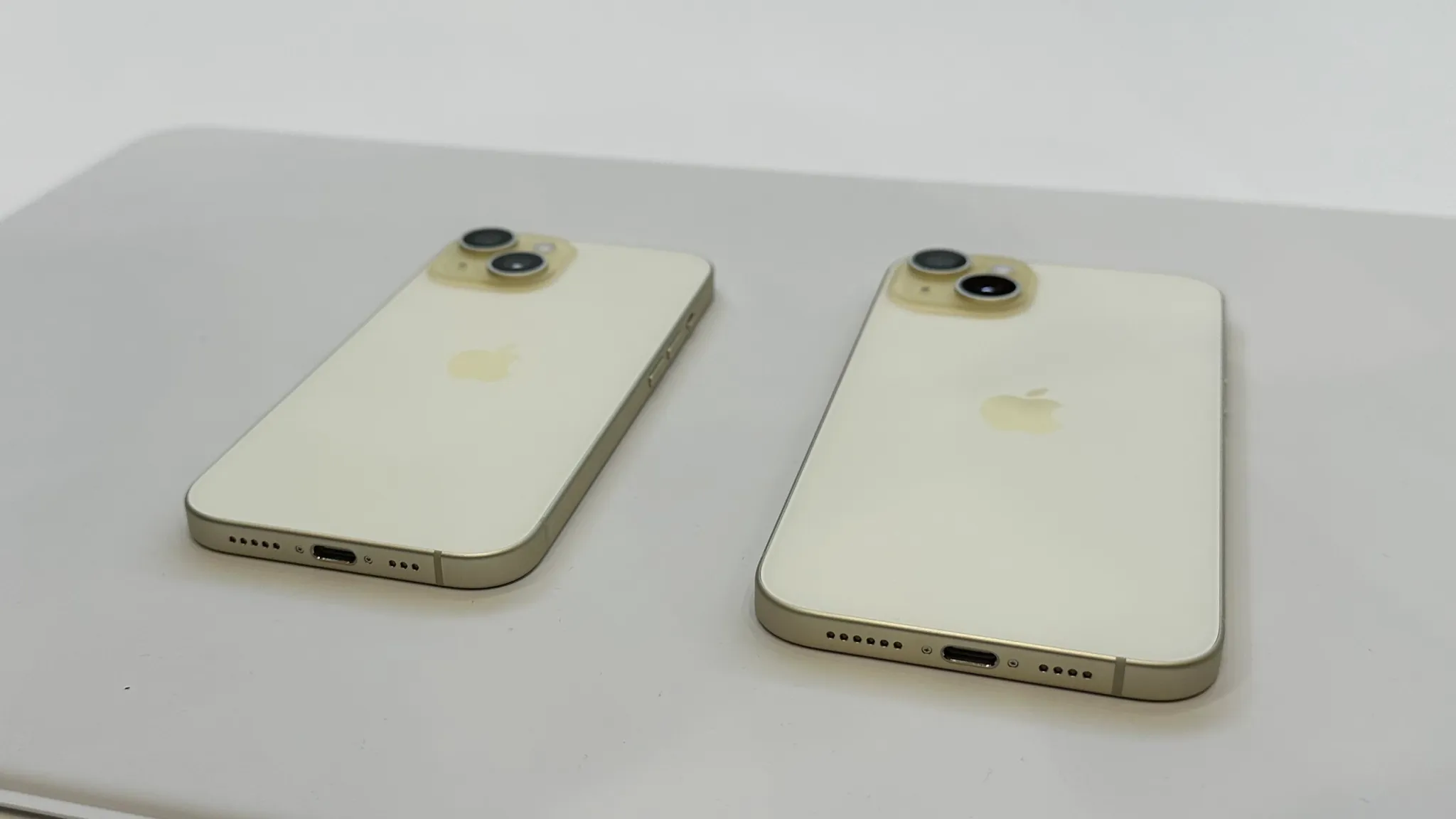
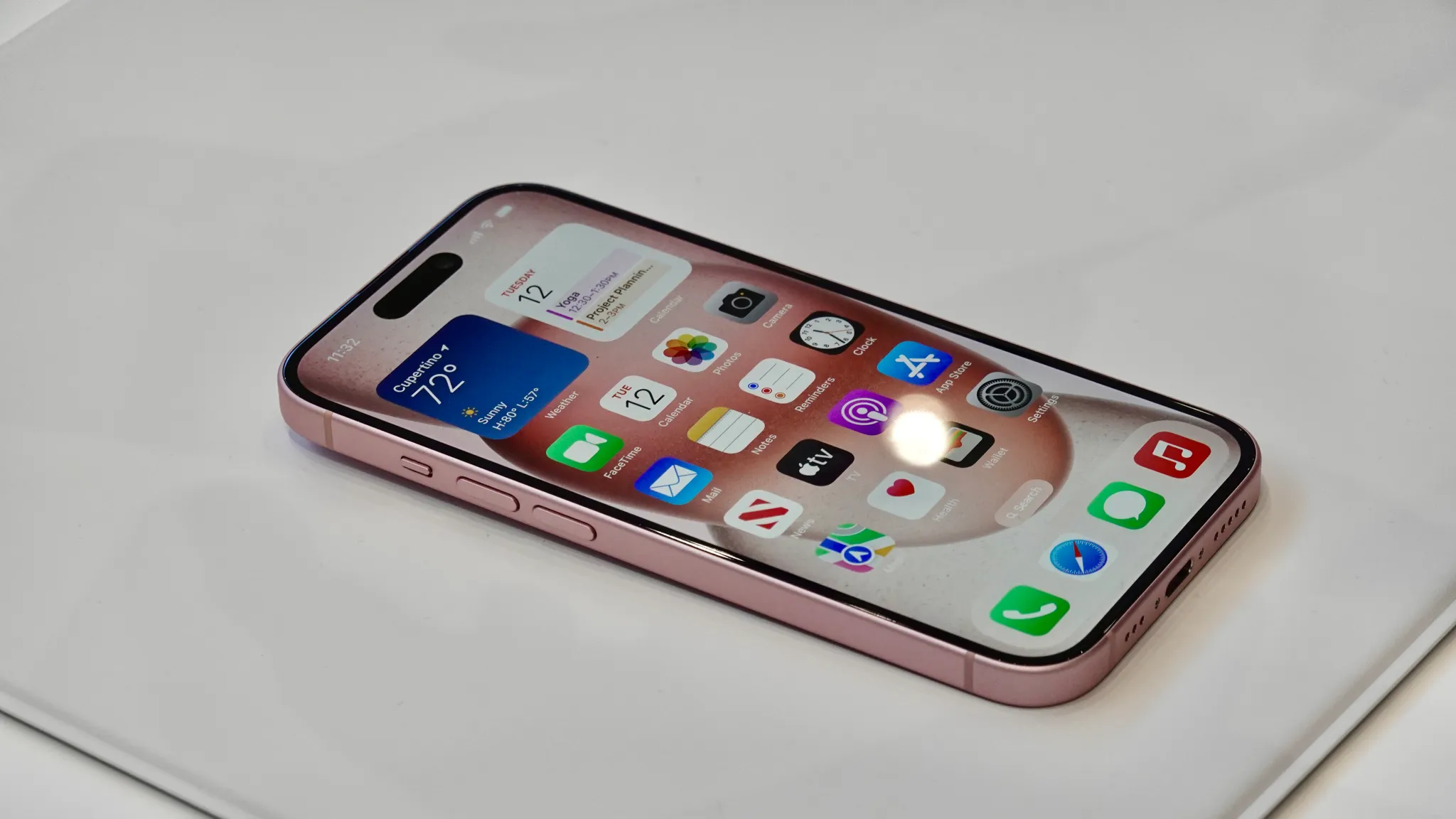
Otherwise, there’s not a whole lot to say about the iPhone 15 and iPhone 15 Plus. The design is about the same as before, aside from the slightly contoured edges. The backs of the phones now feature a matte finish instead of glossy. They are available in five new colors: pink, yellow, blue, green, and black.
I think the pink iPhone 15 is going to sell like hotcakes. And it looks fantastic in real life. It stands out among what are otherwise relatively mundane colors.
Do Not Disturb mode lets you work or have fun without distractions from your iPhone.
When you want to work or watch a movie without distractions, turn on Do Not Disturb on your iPhone. A new Apple video shows how to activate this mode.
The activation process is simple enough that this Apple Support video mostly serves as a reminder that Do Not Disturb is available.
How to turn on Do Not Disturb with a couple of taps
Our iPhones keep us in constant contact with the world, but sometimes what we need from our handsets is peace and quiet. Whether it’s because you’re in a meeting, napping or having a heart-to-heart with a loved one turn on Do Not Disturb mode to hush your iPhone.
Activating it takes only a couple of steps. The button you need is in the Control Center, so start by swiping down from the top-right corner of the screen on iPhone (or iPad).
Open the Control Center and then a couple of taps is all it takes.
Once the Control Center is open, tap on the Focus button, then tap the Do Not Disturb button, which features a moon, to activate the feature immediately.
When you’re finished with your meeting or movie, reopen the Control Center and you’ll see the Focus button has been replaced by the Do Not Disturb button. Tap this to deactivate the mode.
With Do Not Disturb active, all audible alarms are silenced, and your handset won‘t vibrate. Also, the screen won’t come on whenever a notification comes in. Your iPhone is saving all these up for when the mode is deactivated.
Put your iPhone into Do Not Disturb mode and all your other Apple computers switch themselves to the same mode.
Tap on the section with three dots on the Do Not Disturb button to display options for automatically turning the mode off. It can be active for an hour, until evening or — perhaps most usefully — until you leave your current location.
Use Do Not Disturb with Focus on your iPhone or iPad
With Focus in iOS 15 and iPadOS 15 or later, you can use Do Not Disturb to silence calls, alerts, and notifications that you get while your device is locked. You can also schedule Do Not Disturb and allow calls from certain people.
When you have Do Not Disturb turned on, a crescent moon icon appears in the status bar and on your Lock Screen.
Turn on Do Not Disturb
Go to Settings > Focus.
Tap Do Not Disturb.
Under Turn on Automatically, set Do Not Disturb to turn on automatically at a certain time, location, or while using a certain app.
If you don’t want to be disturbed at a certain time, you can set a schedule and change other Do Not Disturb features to help you concentrate.
Go to Settings > Focus.
Tap Do Not Disturb.
You can select allowed or silenced notifications from people and apps, connect your Lock Screen or Home Screen, have this Focus turn on automatically, and add Focus filters.
Everyone I know who has tried Apple’s upcoming spatial computer has been impressed, but the big question remains: What is Vision Profor? Who will buy it, and why?
Having had the opportunity to use a similar high-end mixed reality headset, and to consider some of the use cases of that device, I think I’m now a step closer to being able to at least partially answer that question …
What is Vision Pro for?
So far, I think I’ve come up with nine ideas which seem feasible – plus a tenth one which would be some years down the road yet.
These range from variations on the role of existing consumer and enterprise level headsets, to arguably better alternatives to iPhones and iPads for some of the things we do as consumers.
Let’s kick off with something very much inspired by my XR-3 experience …
A supplementary device for enterprise
My Varjo XR-3 experience convinced me that the company is right not to be too concerned about Apple making significant inroads into the high-end enterprise market.
If you’re an automotive designer working for a major car company, and your work is performed in the CAD software SolidWorks, for example, you’re not going to want to switch to a whole new app just to be able to use Vision Pro.
There are a whole bunch of professional and industrial apps in common use in multinational corporations, and none of their users are going to be switching apps anytime soon.
Similarly, if you’re an iOS developer who wants to move into the visionOS market, you’re not going to try to go up against these established apps, hoping to persuade Fortune 500 companies they they should be using your shiney new app instead of their tried-and-trusted solutions.
But … I can see a role for Vision Pro as a supplementary device.
Makers of high-end industrial design apps might offer cut-down versions for Vision Pro, in the same way we’ve seen apps like Photoshop and Final Cut Pro come to iPad.
I could see industrial designers exploring their work in progress on a Vision Pro, at home or on a plane, even if the render isn’t as detailed or responsive. The self-contained nature of the headset makes it practical as a mobile device in a way that headsets like the XR-3, with their tethered link to a high-end PC, could never match.
Maybe the designer’s boss has a Vision Pro on her desk so she can take a look at the latest iteration on demand, without the need to wander into the design lab?
This type of usage would depend on the high-end app developers being motivated to support it, of course, and they may or may not consider the work either worthwhile or financially viable. But I do think there’s at least some chance this could happen.
Small architecture practices, and the like
If you’re a freelance architect, or working in a very small practice, you might not have the budget to create 3D models of your remodelling projects. By the time you’ve married something like an XR-3 to the high-end PC and enterprise software needed to operate in this environment, you’re well into five figures – and that’s before you factor in the hourly costs of creating the models.
However, a self-contained $3.5k device which can display 3D versions of models created in your existing apps could well prove viable.
There’s no doubt to me that an immersive walk-through experience of a remodelling project could really help an architect sell their proposals, even if it’s essentially just a Vision Pro version of something like the Ikea Kreativ iPhone app.
Training
Varjo’s headset interfaces to full-on flight simulator systems. While a headset doesn’t replace multi-million dollar full moving simulators, they can replace some use of static simulators – which are still hugely expensive devices.
Apple seems unlikely to compete in this pro-level sector, but I can definitely see Vision Pro helping train private pilots. Even using Microsoft Flight Simulator or X-Plane on a games console or very ordinary consumer-level PC has been proven to reduce the number of (expensive) hours needed to achieve a private pilot’s licence.
t isn’t just aircraft. VR headsets are used for simulating ships, trucks, buses, and more.
But even ignoring real-world training applications, flight simulators are a popular form of entertainment. I run X-Plane on my Mac, a simulator noted for its realistic physics, but am already finding that the immersive environment of a far cruder Quest 2 sim is a lot of fun (a device I’m trialling to again get a better personal understanding of the sector).
Virtual travel
I remember when Google Earth was first launched. For the first time people who didn’t have the budget, or lifestyle freedom, to travel to far-flung places could get at least some kind of sense of exploring an exotic location. It was low-res, but still offered a self-guided experience which watching a travel video couldn’t match.
Street View has gotten better and better since then, with 360-degree videos also providing something of the experience of remotely visiting a target destination.
3D video viewed through a headset provides a far more immersive experience, and the high resolution of Vision Pro will only enhance this.
Again, virtual travel isn’t going to be much of a thing when it costs more than actually getting on a plane and flying there, but I do see this as being a massively appealing use of the tech. Especially when it comes to visiting places which entail too much training or risk to do for real – like visiting the summit of Everest or the wreck of the Titanic, for example.
Reliving memories
Like many, I cringed when I watched Apple’s video of a dad wearing the headset to capture immersive video of his kid’s birthday party, instead of actually living it in the moment.
But, I’ve used a 360-degree video camera on a number of occasions, and this really doesn’t involve much sacrifice when it comes to living the experience at the time. On a RIB ride along the Thames, for example, all I had to do was hold a selfie stick in my hand. Same with snowmobiling or horse-riding in Iceland (or attending the opening of a new Apple Store).
For me, this is a killer combo. The relative unobtrusiveness of a 360-degree camera with the immersiveness of watching it back on a high-res headset.
I’m already planning on shooting some 360-degree video on every future trip I take, in the expectation of being able to relive it on a future Apple Vision device.
Games
Of course. I’ve left this until next-to-last, both because it’s an obvious use case, and because as someone who doesn’t have the gaming bug at all, I’m the least-qualified person in the world to talk about it!
But yeah, take your favorite game, and imagine yourself fully immersed in that world at a resolution massively more realistic than a current Quest headset, and the appeal is obvious.
The Apple Vision Mac Edition
Finally, I’ve previously described what I would consider the killer app for this type of device – replacing a Mac.
I’m writing this sitting at a fairly large desk, with a 49-inch monitor in front of me. Assuming there’s a way for work to be stored on wirelessly connected external drives, then I could potentially replace my Mac and monitor with one highly portable device.
I’d then need a desk only large enough for my keyboard, and could have as many virtual monitors as I want, of any size or shape, and change my configuration to suit my current needs.
Instead of having to travel with multiple devices to create a three-monitor setup for working away from home, I could have the virtual monitor setup of my choice without carrying anything more than Vision Pro, keyboard, and an external drive. Even, as Apple’s video suggests, on a train or plane.
The closest we’ll be able to get to that at launch is mirroring a single 4K Mac screen, and supplementing it with a bunch of visionOS apps.
Of course, there are lots of practical barriers here, with comfort top of the list. It’s probably no coincidence that Apple limited press demos to 30 minutes, a time short enough that the wow factor completely blocks out any weight and comfort issues, as was the case with my slightly longer XR-3 demo.
Wearing a headset for an entire working day may not be a desirable experience until the tech gets a lot lighter and cooler.
But I do see this as the future. And cost would be much less of a concern with an Apple Vision Mac Edition. Instead of being an expensive additional display, it could be my Mac, my primary monitor, and my secondary monitors. That’s more than $5,000’s worth of kit, and I’d certainly pay a premium of another $1k to $2k for the convenience factor. So there’s money for Apple to play with in developing this kind of product.





















 appears in the status bar and on your Lock Screen.



