watchOS 7 was released to the general public last week, bringing new watch face features, sleep tracking support, and more to Apple Watch models dating back to the Apple Watch Series 3. Some Apple Watch Series 3 users, however, are reporting a variety issues since installing watchOS 7, including random reboots, poor performance, and more.
On Apple’s support forums, there’s a thread dedicated to Apple Watch Series 3 owners expressing frustration with device performance since installing watchOS 7. One of the most common complaints seems to be that the Apple Watch Series 3 will randomly reboot multiple times per day with watchOS 7 installed:
I’ve had several reboots a day since updating, it asks me for my passcode and shows blank stats on activity. Never had an issue like this before on Watch OS6 or earlier, surely there has to be a supplement update from Apple to address this?
Multiple Apple Watch Series 3 users refer to watchOS 7 as “the worst” watchOS update that Apple has released so far.
My series 3 completed an auto update overnight to Watch OS7. Today it has shut itself down at least 3 times, locked itself while on my wrist about 4 times, failed to load complications on multiple faces (weather, activity rings, date etc), disconnected from my phone at least twice. This has been the buggiest upgrade I have seen.
On the MacRumors Forums, there’s another thread dedicated to Apple Watch Series 3 owners voicing frustration with watchOS 7, including complaints of random reboots, laggy performance, and more.
Two things make these complaints even more notable. First, there is no way to downgrade a watchOS 7 update, which means these Apple Watch Series 3 owners can’t downgrade back to watchOS 6. watchOS 7.0.1 was released as a bug fix update this week, but users report that it has not solved their problems.
Secondly, Apple still sells the Apple Watch Series 3 as part of its Apple Watch lineup, even though it seems as if the aging hardware might struggle to keep up with the new features of watchOS 7. This could also have implications for the availability of future software updates, such as watchOS 8, for the Apple Watch Series 3.
At this point, it’s unclear how widespread these issues are, but judging by the sheer volume of complaints, the problems are likely to already be on Apple’s radar. Have you experienced any of these issues with your Apple Watch Series 3 since updating to watchOS 7? Let us know down in the comments.
Featuring a Blood Oxygen sensor and app, new case finishes, and watchOS 7
Apple announced Apple Watch Series 6, introducing a revolutionary Blood Oxygen feature that offers users even more insight into their overall wellness. Apple Watch Series 6 delivers many notable hardware improvements, including a faster S6 System in Package (SiP) and next-generation always-on altimeter, along with its most colorful lineup yet, featuring a beautiful palette of new case finishes and bands. watchOS 7 brings Family Setup, sleep tracking, automatic handwashing detection, new workout types, and the ability to curate and share watch faces, encouraging customers to be more active, stay connected, and better manage their health in new ways.
“Apple Watch Series 6 completely redefines what a watch can do,” said Jeff Williams, Apple’s chief operating officer. “With powerful new features, including a Blood Oxygen sensor and app, Apple Watch becomes even more indispensable by providing further insight into overall well-being.”
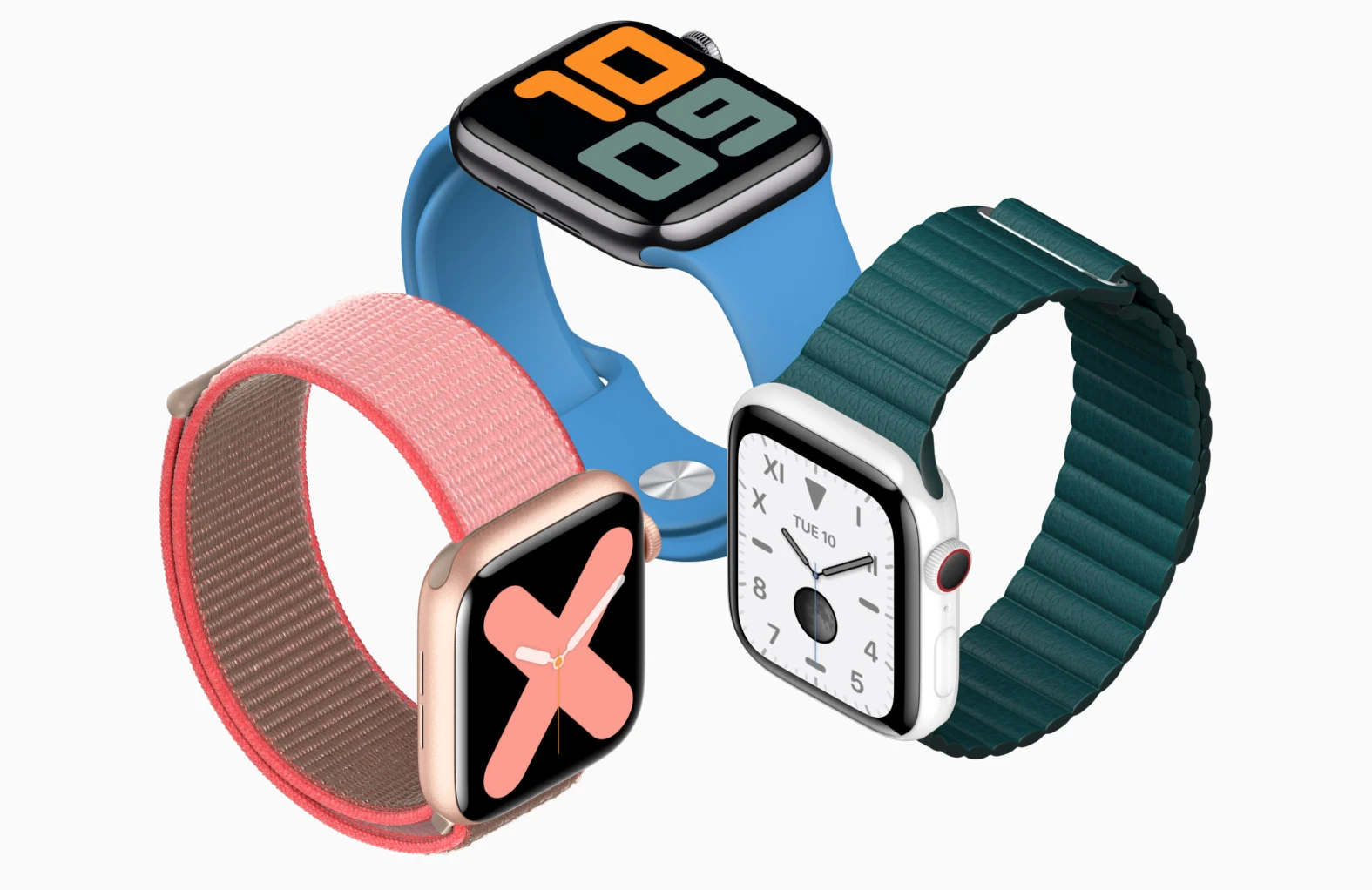
Apple Watch Series 6 offers its most colorful collection yet.
Blood Oxygen Sensor and App
Apple Watch Series 6 expands the health capabilities of previous Apple Watch models with a new feature that conveniently measures the oxygen saturation of the user’s blood, so they can better understand their overall fitness and wellness. Oxygen saturation, or SpO2, represents the percentage of oxygen being carried by red blood cells from the lungs to the rest of the body, and indicates how well this oxygenated blood is being delivered throughout the body.
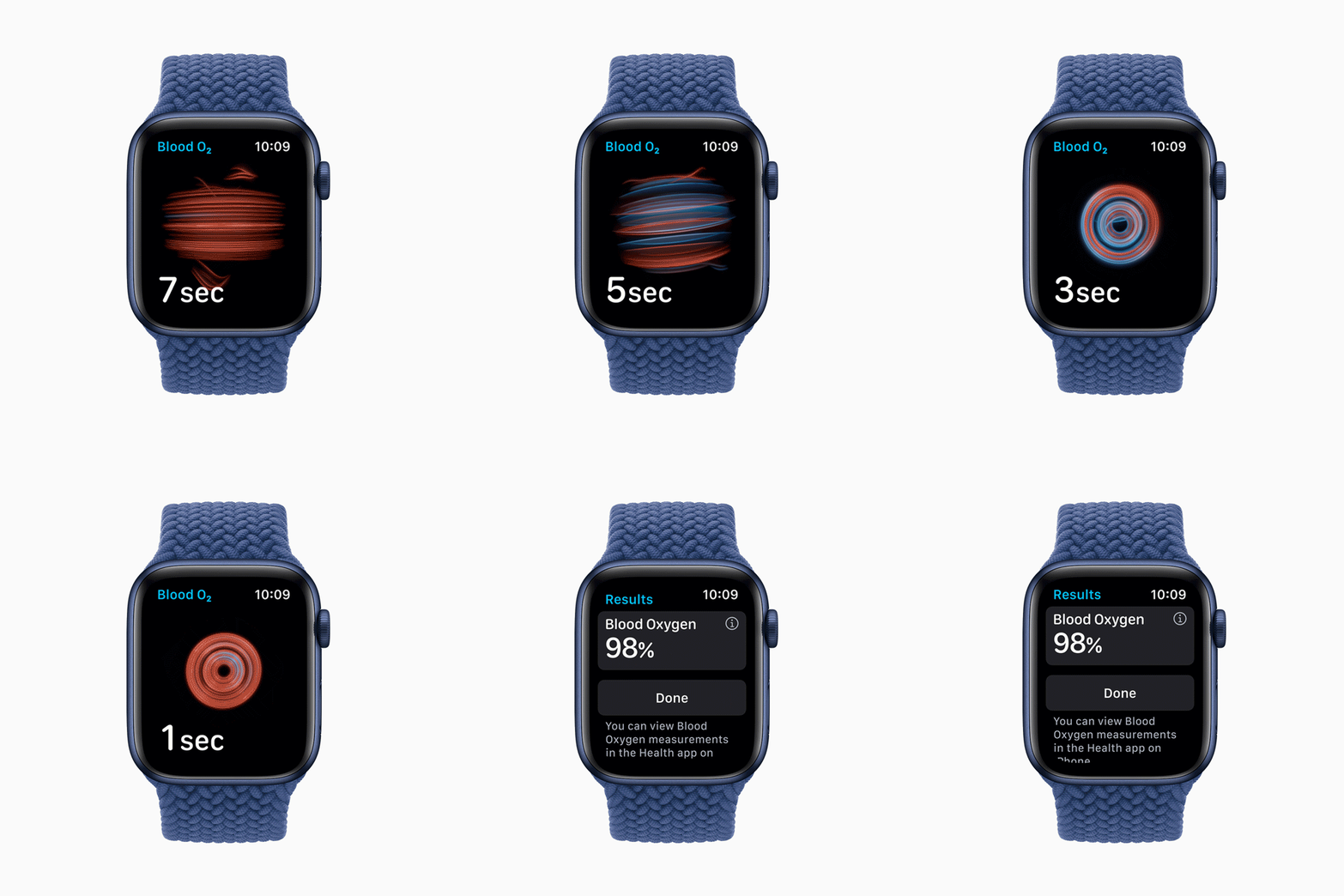
To compensate for natural variations in the skin and improve accuracy, the Blood Oxygen sensor employs four clusters of green, red, and infrared LEDs, along with the four photodiodes on the back crystal of Apple Watch, to measure light reflected back from blood. Apple Watch then uses an advanced custom algorithm built into the Blood Oxygen app, which is designed to measure blood oxygen between 70 percent and 100 percent. On-demand measurements can be taken while the user is still, and periodic background measurements occur when they are inactive, including during sleep. All data will be visible in the Health app, and the user will be able to track trends over time to see how their blood oxygen level changes.
The new Blood Oxygen sensor and app conveniently measure the oxygen saturation of blood so users can better understand their overall fitness and wellness.
Apple is joining forces with researchers to conduct three health studies that include using Apple Watch to explore how blood oxygen levels can be used in future health applications. This year, Apple will collaborate with the University of California, Irvine, and Anthem to examine how longitudinal measurements of blood oxygen and other physiological signals can help manage and control asthma.
Separately, Apple will work closely with investigators at the Ted Rogers Centre for Heart Research and the Peter Munk Cardiac Centre at the University Health Network, one of the largest health research organizations in North America, to better understand how blood oxygen measurements and other Apple Watch metrics can help with management of heart failure. Finally, investigators with the Seattle Flu Study at the Brotman Baty Institute for Precision Medicine and faculty from the University of Washington School of Medicine will seek to learn how signals from apps on Apple Watch, such as Heart Rate and Blood Oxygen, could serve as early signs of respiratory conditions like influenza and COVID-19.
The Blood Oxygen sensor employs LEDs, along with photodiodes on the back crystal of Apple Watch Series 6.
Design and Performance
Apple Watch Series 6 improves performance through redesigned hardware that packs even more features and power into the same impressively small design. Using a new dual-core processor based on A13 Bionic in iPhone 11, the upgraded S6 SiP runs up to 20 percent faster, allowing apps to also launch 20 percent faster, while maintaining the same all-day 18-hour battery life.2 Additionally, Apple Watch Series 6 features the U1 chip and Ultra Wideband antennas,3 which will enable short-range wireless location to support new experiences, such as next-generation digital car keys. Apple Watch Series 6 offers faster charging, completing a full charge in under 1.5 hours, and improved battery life for tracking certain workouts, such as indoor and outdoor runs.
An enhanced Always-On Retina display on Apple Watch Series 6 is up to 2.5 times brighter than Apple Watch Series 5 outdoors when the user’s wrist is down, making it much easier to see a watch face in bright sunlight. When their wrist is down, the user can also now access Notification Center and Control Center, tap on complications, and swipe to change faces without having to wake their watch screen.
The Always-On Retina display is 2.5 times brighter while the user’s wrist is down.
Always-On Altimeter
The always-on altimeter provides real-time elevation all day long by using a new, more power-efficient barometric altimeter, along with GPS and nearby Wi-Fi networks. This feature allows for the detection of small elevation changes above ground level, up and down to the measurement of 1 foot, and can be shown as a new watch face complication or workout metric.
The always-on altimeter on Apple Watch Series 6 provides real-time elevation all day long.
Apple Watch Collection
This fall, customers have more choices than ever with stunning new cases and bands to suit every style preference. For the first time, a new blue color joins the silver, space gray, and gold aluminum case options, along with a (PRODUCT)RED Apple Watch with exclusive matching bright red bands. Stainless steel models are now available in graphite — a rich gray-black hue with a striking high-shine finish — and an updated classic yellow gold color. Apple Watch Edition is available in natural and space black titanium.
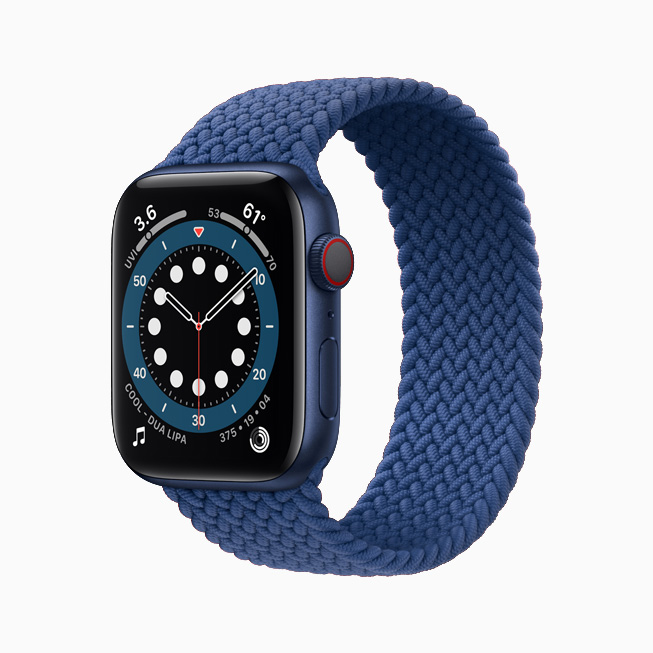
Apple Watch Series 6 with the distinct Braided Solo Loop and blue aluminum case.
The new (PRODUCT)RED Apple Watch Series 6 with exclusive matching Solo Loop.
Apple Watch Series 6 in the new yellow gold stainless steel case.
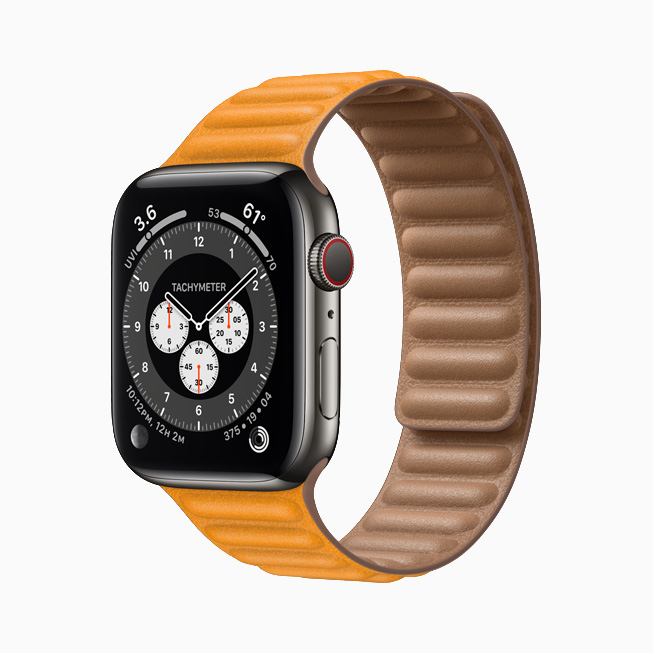
Apple Watch Series 6 in striking graphite stainless steel.
Three all-new band styles offer customers innovative options that provide a tailored and comfortable fit without traditional clasps or buckles. In an industry first, the ultralight Solo Loop introduces a continuous and stretchable band design that comes in two materials: soft silicone and braided yarn. A special UV treatment process used on the soft silicone of the Solo Loop creates a smooth, silky finish, while a precision-braiding machine interweaves the 16,000 polyester yarn filaments, made of 100 percent recycled material, with ultrathin silicone threads, giving unique stretchability and a distinct look to the Braided Solo Loop. To ensure the best fit, a new sizing system offers nine available lengths for the Solo Loop styles. The first-of-its-kind Leather Link wraps elegantly around the wrist, effortlessly attaching on the other side with flexible molded magnets.
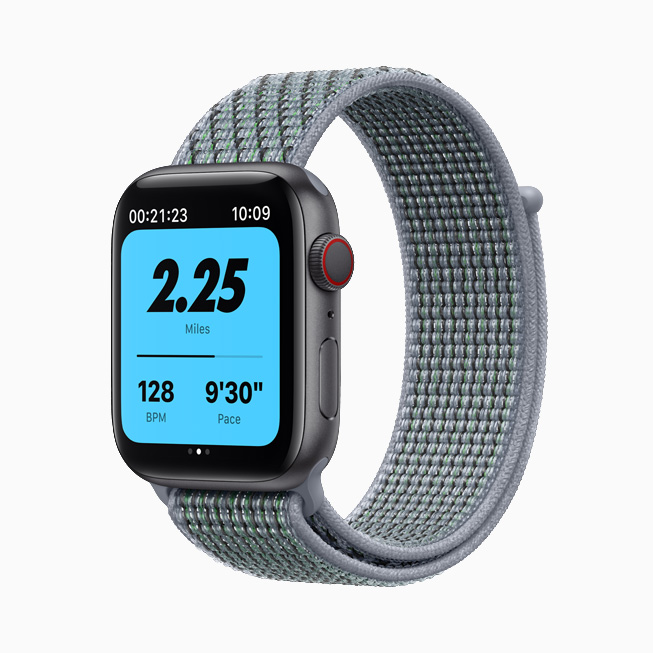
Apple Watch Nike now comes with new colors for the Nike Sport Band and Nike Sport Loop.
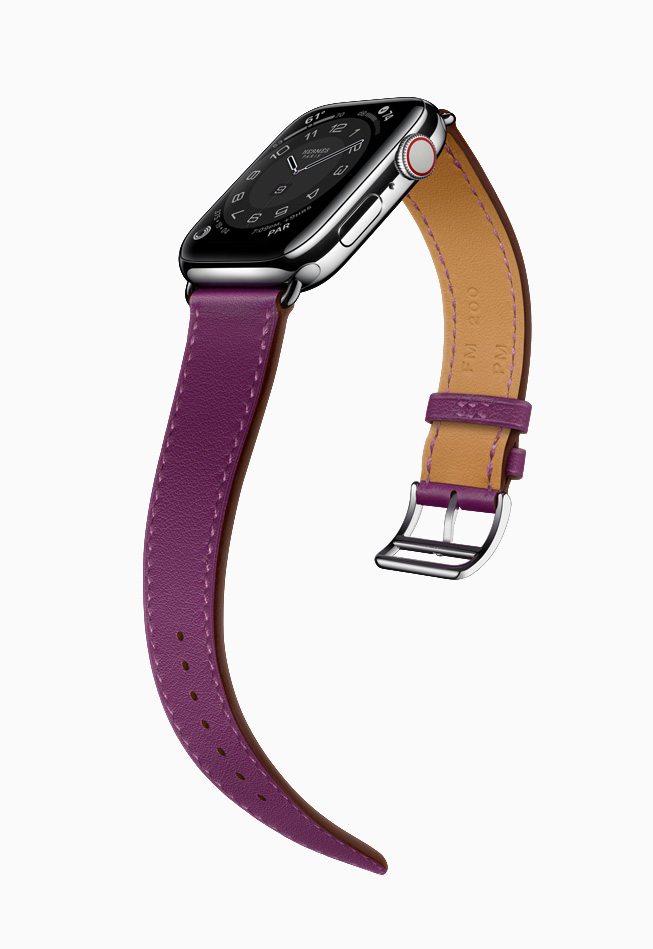
Apple Watch Nike now comes with new colors for the Nike Sport Band and Nike Sport Loop, and a new Nike Compact watch face allows for multiple Nike Run Club complications. Apple Watch Hermès offers stainless steel cases in silver or space black paired with Single or Double Tour styles in an assortment of vibrant new colors. The fall collection also unveils the Hermès Attelage Single Tour and slimmer Attelage Double Tour bands, which feature a refined connection to the case that reflects the brand’s equestrian heritage, and a new Hermès Circulaire watch face that offers increased options for complications.
Apple Watch Hermès introduces the Hermès Attelage Single Tour and slimmer Attelage Double Tour bands, along with new colors of classic band styles.
watchOS 7
With watchOS 7, customers can take personalization to the next level with seven new watch face options, including Stripes, Chronograph Pro, GMT, and Artist, while curating, discovering, and sharing new watch face configurations with others. New health and fitness features, including low-range VO2 Max, sleep tracking, automatic handwashing detection, and new workout types, can help users better understand overall well-being. Conveniently accessible on the wrist, Maps includes cycling directions and Siri offers language translation.
watchOS 7 features seven new watch face options — including Chronograph Pro and GMT — plus new watch face configurations users can curate, discover, and share with others.
Family Setup and Optimized Features for the Entire Family
Family Setup4 in watchOS 7 extends Apple Watch to the entire family by allowing kids and older family members of the household who do not have an iPhone to benefit from the connectivity, safety, and fitness features of Apple Watch. Kids can take advantage of communication and personalization capabilities, access Emergency SOS at any time, enjoy an Activity rings experience that has been optimized just for them, and utilize a new mode called Schooltime, which can help them stay focused and attentive while learning at home or in the classroom.
watchOS 7 also offers optimized features for older adults, starting with a simplified onboarding and configuration process, along with a refreshed X-Large face that shows the time and a rich complication at a glance. Older adults can also benefit from a new Health Checklist in the Health app on iPhone, which offers the ability to track whether health features like fall detection have been enabled in one centralized view.
Pricing and Availability
Apple Watch Series 6 (GPS) starts at $399 and Apple Watch Series 6 (GPS + Cellular) starts at $499.
Apple Watch Series 6 (GPS) is available to order today from apple.com and in the Apple Store app, with availability beginning Friday, September 18, in the US, Puerto Rico,and 27 other countries and regions.
Apple Watch Series 6 (GPS + Cellular) is available to order today from apple.com and in the Apple Store app, with availability beginning Friday, September 18, in the US, Puerto Rico, and 21 other countries and regions. For carrier availability, visit apple.com/watch/cellular.
Apple Watch Nike is available to order today from apple.com and in the Apple Store app, with availability beginning Friday, September 18, in the US, Puerto Rico, and more than 27 other countries and regions. For more information, visit apple.com/apple-watch-nike or nike.com/applewatch.
Apple Watch Hermès is available to order today from apple.com and in the Apple Store app, with availability beginning Friday, September 18, in the US and more than 14 other countries and regions. For more information, visit apple.com/apple-watch-hermes or hermes.com/applewatchhermes.
New Apple Watch bands are available to order today from apple.com and in the Apple Store app, with availability beginning Friday, September 18. Solo Loop and Braided Solo Loop in (PRODUCT)RED will be available in late October. Solo Loop and Braided Solo Loop are compatible with Apple Watch Series 4 and later.
watchOS 7 will be available for Apple Watch Series 3 and later on September 16, and requires iPhone 6s or later running iOS 14. Not all features are available on all devices.
When customers buy directly from Apple, Apple Watch Studio gives them the exclusive opportunity to pick their preferred case and band combination to create a look that is uniquely their own.
Customers looking for convenient, contactless service are able to find many of the same shopping and support services from apple.com. Customers can chat with an Apple Specialist and get shopping help, choose monthly financing options, trade in eligible devices, and get Genius support and no-contact delivery. In-store pickup is also available. Customers are encouraged to check apple.com/retail for more information on the health and safety measures in place, and the services available at their local store.
Customers in the US can trade in their eligible device for an Apple Gift Card or credit toward their purchase. If the device is not eligible for credit, Apple will recycle it for free.5
Three months of Apple Fitness+ are included for customers who purchase Apple Watch Series 3 or later starting September 15, 2020. This extended trial is available for a limited time.6
Customers in the US who buy directly from Apple can choose Apple Card Monthly installments to pay for their Apple Watch over 24 months, interest-free, and get 3 percent Daily Cash back all upfront. Customers who choose to pay in full with their Apple Card also get 3 percent Daily Cash back.
Customers can extend their limited warranty with AppleCare+ and get accidental damage coverage and 24/7 priority access to technical support.
Customers who buy Apple Watch directly from Apple can enjoy a free Online Personal Session with an Apple Specialist to help them explore and discover all the amazing things they can do with their new Apple Watch.7
In line with Apple’s commitment to the environment, there are industry-leading amounts of recycled content in Apple Watch Series 6, with 100 percent recycled rare earth elements in the Taptic Engine, nearly 100 percent recycled tungsten throughout the product, and a 100 percent recycled case on aluminum models. Apple is also helping the environment by removing the AC adapter that could become electronic waste from Apple Watch Series 6 packaging, and helping its Apple Watch manufacturing partners transition to renewable energy.
Have you found the right Workout app layout for you?
At first glance, the Apple Watch Workout app seems pretty simple. You just tap the start button and get all sweaty. But there’s more to it than meets the eye. A lot more.
You can customize its layout in hundreds of different ways, changing the text size, position, metrics and even adding a chart of your progress. Even if you use the app every day, chances are you still haven’t discovered all its secrets.
So check out our top 10 Workout app tips and get set for a more effective workout.
1. Chart your progress with a Workout Goal Ring
The quickest way to start a workout is just to tap on the Open Goal button. But if you do that, you’re missing out on one of the Workout app’s neatest features.
Try tapping on the ellipsis button (…) and selecting a goal. That way you’ll see a Progress Ring during your workout. These look similar to Activity Rings, but with different colors: light blue for distance; red for active calories, and yellow for duration. It’s a great way to see at a glance how you’re doing.
Add a Progress Ring to check your workout progress.
2. Streamline your display
If you want to declutter the display, you have two options:
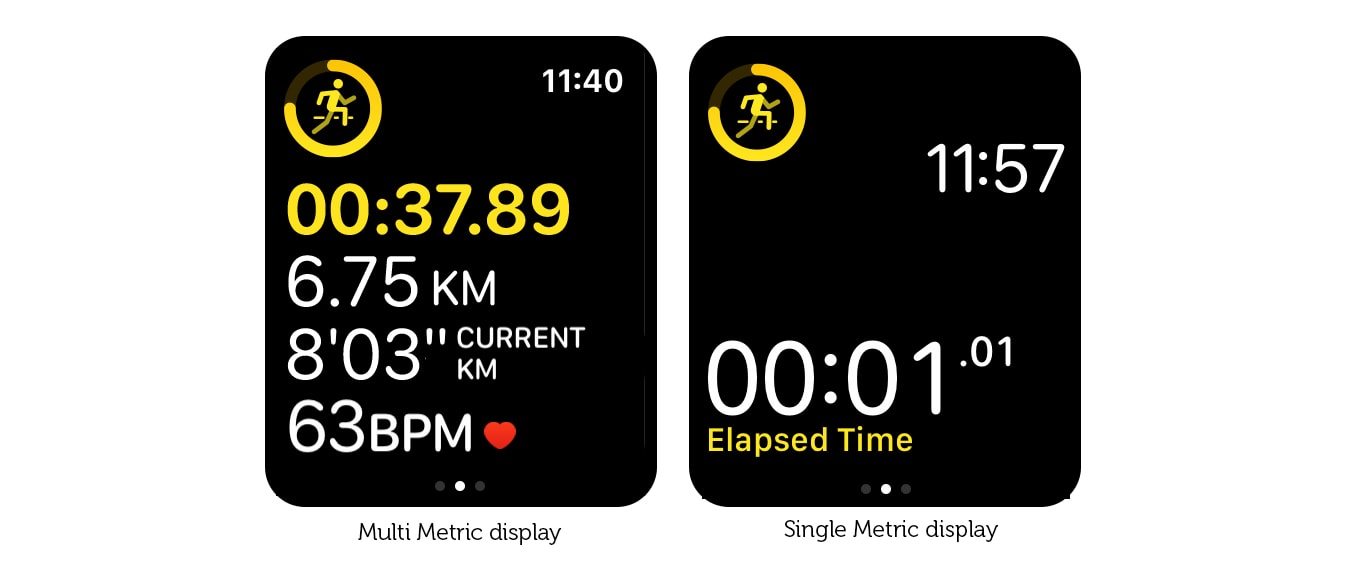
Switch to Single Metric view: You can do this using the Watch app on your iPhone. Go to Workout > Workout View and select Single Metric.
Reduce the number of metrics on the Multiple Metric view: In the Watch app on your iPhone, go to Workout > Workout View >Multiple Metric > [Workout Type: e.g. Outdoor Run] > Edit and delete a couple of metrics.
3. View multiple metrics from the Single Metric view
For most users, the Multiple Metric view is probably the best choice. But if you have trouble reading small text, you might find the Single Metric view easier to see. Despite its name, the Single Metric view doesn’t limit you to just one metric. You can use the Digital Crown to scroll through all the available metrics during your workout. They’re even color-coded, so you can tell at a glance which is which.
Declutter your display with the Single Metric View.
4. Highlight the most important metric
When you display the maximum five metrics in the Multiple Metric display, it can look a little overwhelming with so much type crammed into such a small space. Fortunately, you can highlight one row at a time by scrolling with the Digital Crown. Each metric is highlighted in its special color.
5. Make the metrics bigger
The Multiple Metric display automatically scales the type to make the metrics as large as possible, using all the available screen space. So if you want to make the type larger, just select fewer metrics to display.
Choose fewer metrics to make the text larger.
6. Make the time bigger
Apple Watch always displays the time top-right in the status bar when you’re using an app. Trouble is, when you’re jiggling about during a workout, it can be a little hard to see.
Fortunately, you can make it bigger. (The Workout app is the only app that lets you do this). In the Single Metric view, or the Multiple Metric view when you choose three or fewer metrics, the time moves out of the status bar and displays in big, bold type.
7. Switch between miles and kilometers
If you’re seriously into athletics, you might find you need to keep switching between miles (for your road-running) and kilometers (for your track sessions).
You need to remember to do this when you start a workout. Tap the ellipsis button (…). Choose the type of workout, then force-tap the display. Two buttons will pop up, allowing you to make the switch.
8. Choose different metrics for different workouts
One of the neat features of the Multiple Metric view is that it allows you to pick different metrics for different workout types.
For example, when you’re running, Distance and Pace are important. But when you’re dancing, Heart Rate and Active Calories are more interesting. So be sure to check the Watch app on your iPhone to make sure you’ve selected the best metrics for all the workouts you do regularly.
9. Don’t use the Single Metric Display for swimming
The Single Metric Display allows you to scroll through one metric at a time using the Digital Crown. The trouble is, during a swimming workout, Water Lock is enabled automatically, so you can’t use the Digital Crown. This means you’re stuck on a single metric with no way to change which one it is.
So, if you swim regularly, I recommend you stick to the Multiple Metric view.
10. Use third-party fitness apps for even more options
The Workout app is by far the most customizable built-in app on Apple Watch, but it still has its limits. That’s where third-party fitness apps come in. For example, if you want to do heart rate zone training, Runkeeper provides a handy color-coded chart. Or if you want route directions, check out RunGo, which neatly integrates them into the workout display.
The ideal workout companion
The Workout app doesn’t just log your fitness activity. If you take the time to configure it correctly, it becomes an indispensable workout companion, providing you with exactly the information you need, when you need it.
So make sure you spend a little time setting up the optimal configuration. It’ll make your workout a whole lot more effective.
There’s a running joke in my recent iPad reviews: I just get to say “it’s an iPad,” and everybody knows what that means. It’s a sign that the product isn’t changing year over year, sure. But more importantly, it’s a promise that it’s good, that it will do what you expect it to do, and that you don’t need to overthink how it will fit into your life.
Not very many products reach that level. Even the iPhone has ups and downs, with some years being a little more inconsistent than others. But minus a rough start and a cellular hiccup a couple of years ago, the Apple Watch has been on a very steady trajectory: slightly better every year. It starts at the same $399 price point as last year, and cellular or material upgrades will add to that cost.
Compared to the Series 4, the Series 5 has only a few minor updates. Chief among them is a new always-on screen. Compared to the rest of the smartwatch market, the Apple Watch Series 5 is in a completely different league.
GOOD STUFF
Finally, an always-on screen
Big, beautiful display
New apps round out its capabilities
BAD STUFF
Battery life hasn’t improved
Still no third-party watchfaces
Doesn’t work with Android phones
Relative to the Series 4, there are four new things on the Apple Watch Series 5. The first is that Apple is offering new materials for the casing. You can get it in the standard aluminum and steel, but you can also spend more for titanium or ceramic now.
There are some subtle weight differences on the more expensive materials, and they also have sapphire glass on the front of the Watch. But you should not spend the extra money on those more premium materials in the hope that they’ll be better from a feature perspective. They’re the same Apple Watch; you’d just be paying more for something fancier. Some people like doing that!
The second new feature is the big update this year: an always-on screen. I feel like a lot of users have been asking for this since the very first Apple Watch was announced five years ago alongside the iPhone 6 and Apple Pay. It’s something other smartwatches were already doing back then, and it was annoying that Apple didn’t figure out a way to do it.
Now it has, and in typical Apple fashion, it’s saying it was able to do so because of some slick new screen technology that mitigates the usual battery trade-offs. Specifically, Apple says it can dynamically change the screen’s refresh rate from as fast as 60Hz to as slow as 1Hz, updating just once per second.
Doing that allows the screen to draw radically less power when it’s in ambient mode. It also means that if you want an always-on display, you’re going to have to pony up for the Series 5. It’s not something that will be added to older models via software updates.
The technology that makes that possible is a low-temperature polycrystalline oxide (LTPO for short) display that Apple developed. The tech behind an LTPO version of an OLED screen is interesting — especially since it was first introduced in the Series 4 — but it’s not something you really need to understand. The screen looks identical to the Series 4; it’s just as big and bright.
What last year’s Watch lacks are the chips to control the refresh rate on that LTPO screen so it won’t be able to do always-on. Specifically, the Series 5 has an “ultra-low power display driver, efficient power management integrated circuit and new ambient light sensor,” according to Apple.
I love the always-on screen on the Series 5. Apple’s implementation is better than other smartwatches I’ve used for two reasons: it legitimately doesn’t hurt the battery life as much, and Apple keeps a little color visible in ambient mode.
For whatever reason, I’ve never been able to get earlier Apple Watches to show their screens with subtle wrist movements. I’ve always had to cartoonishly raise my arm. An always-on screen means I am a little bit less of a jerk in conversations and meetings.
AN ALWAYS-ON SCREEN WAS MY NUMBER ONE FEATURE REQUEST — IT TOOK FIVE YEARS, BUT WE GOT IT
But the big question is battery life: Apple claims it still gets 18 hours with standard use, and I have gotten that. So, box checked — except that the Series 4 usually outperformed that estimate. I won’t go so far as to say that the Series 5 gets notably worse battery life than the Series 4, but at best, it’s on par. You’ll be charging it every day.
But let’s not grade on a curve here. The Apple Watch is better than any other computer-on-your-wrist-style smartwatch by a country mile, but there are other watches with smart features that can last for days, weeks, or even months. The Garmins and Fitbits and Withings of the world are all meant for different things than the Apple Watch, but many can do some of the basics, like notifications and weather, nearly as well.
The last two new features on the Apple Watch Series 5 are a built-in compass and cellular bands that can work internationally. The former could be useful for day hikers, while the latter really only allows the cellular version to make emergency calls anywhere in the world. To get service in more places, you’ll need to wait for Apple to make more carrier deals.
So to sum up: new case materials, new always-on screen, a compass, and more cellular bands. All in all, that’s a very minor update. But the truth is that Apple could have done literally nothing, and the Apple Watch would still have been the best smartwatch for iPhone users by far.
If you have a current Apple Watch and are thinking of upgrading, I strongly recommend you wait for watchOS 6 to arrive for your current Watch. It might be good enough for you to hang on to what you have or, more rarely, these updates can make older Watches feel slower. Either way, it’s worth it to wait a bit.
The big headline feature for watchOS 6 is that it has an independent App Store that allows you to download and install apps without needing your iPhone. It does exactly that, but make sure you have your iPhone handy the first time to enter some passwords. There will be other times when some of the apps will not work on your Watch until they can communicate with a paired app on your iPhone. Apple tells me that after watchOS 6 launches, many fully independent Watch apps will be available and featured on the main page of the Watch version of the App Store.
I think the hope is that an onboard App Store may spur more usage and make supporting the Apple Watch more worthwhile to third-party developers. We’ll see, but I’m not holding my breath just yet. So far, it’s been a moneymaker mainly for Apple. Apple has done a decent job of curating apps for the main page on the App Store, but otherwise, it’s not as easy to browse as it is on your phone.
The new App Store on the Watch doesn’t make it any more independent from the iPhone, however. You still need an iPhone to set up and use the Apple Watch, even if you have a Watch with an LTE connection and its own version of the App Store. This is still an accessory to the iPhone and not a truly independent device. Though, with watchOS 6, you can start to see the hazy outlines of that path.
Alongside the App Store are a few new and updated apps directly from Apple. The most important in my mind is the new Cycle Tracking app for tracking menstrual cycles. It took Apple longer than it should have to prioritize features designed for the health of people who have periods. But now that it’s here, it seems as though the company has done a good job.
Apple has taken a cautious approach. The complication doesn’t show information, for example, and it won’t be overconfident in guessing the dates for your predicted periods and fertility windows. If you’re planning on using this to gather data for family planning purposes, you should talk to your doctor before acting on any of the data this app collects.
Apple also has put some thought and care into whether and when to show various Cycle Tracking options, depending on the age and gender information it knows. You can also turn certain types of tracking (like fertility) off if you want. There’s a specific onboarding flow that happens on the phone only because it’s better able to communicate information and nuance than your tiny Watch screen.
And if you’d like to remove the Cycles app entirely, for the first time, watchOS 6 will allow users to delete some of Apple’s own apps from the Watch. (To do that, you need to have your app view set in the hexagonal grid view. Then, long-press any app to go into jiggly mode, at which point, you’ll be able to tap an X to uninstall.)
Other new apps include an updated Reminders app and a Voice Memos app, both of which sync automatically with their paired apps on the iPhone. There’s also a Calculator app. (Why the Apple Watch has a first-party Calculator app while the iPad does not is a riddle for all iPad users.)
The Apple Watch can now also detect ambient noise. If it gets too loud, it will warn you, and it will also track your overall ambient noise level over time. It confirmed that the BART trains in San Francisco are ridiculously loud.
Apple put in a few new watchfaces, as usual. And as usual, I find them to be nice but always a few degrees off from what I actually want. I respect that Apple is opinionated about the aesthetics of the Apple Watch, but I’m increasingly annoyed that it won’t allow third-party watchfaces.
However, Apple has finally made a change that I’m over the moon about: on most watchfaces, when you set a custom color, it sets all of the complications to monochrome to match that color. I found too many of them to be garishly colorful before, and now I can tone them down to my preferred color.
Last and (given its reputation) possibly least, Siri has a few small updates. It’s able to recognize music when you ask for it, and it can present answers to questions with web links now, too. Yes, you can still open webpages on the Apple Watch. And yes, it’s still as adorable as ever. Fortunately, it also still defaults to opening specific articles in Safari Reader Mode.
If you’re interested in the cellular version, I can report that it works about the same in watchOS 6 as it did before, which is to say everything works, but it all feels just a little slower and worse than it would if you had your phone with you. Calls aren’t as crisp, latency is a bit higher when using data, and, of course, it’ll ding your battery more. But again, slightly worse than ideal for the Apple Watch is still many multiples better than most of the competition.
It is about time that Apple added an always-on screen to the Apple Watch Series 5, but that’s not the best thing about it. Nor is it the LTPO technology that enables it or the new compass or the noise meter or any single one of the features I’ve brought up in this review.
The best part of the Apple Watch is that I’m able to talk about those features at all. Every other smartwatch I have used in the past few years (and, reader, I have used a lot) has failed to cross very basic thresholds of usability. Some don’t last more than 12 hours, some can’t seem to open apps in fewer than 10 seconds, some are hard to navigate, and some have really buggy software.
The lion’s share of the blame for those issues lies with the various companies that have tried and failed to make great smartwatches. But I want to save some portion for Apple because it allows the Apple Watch to have deeper and better integrations with the iPhone than it will give to third parties. It automatically “just works” with Apple’s apps, notification frameworks, and — critically — iMessage.
That Apple integration cuts both ways. Because it’s tied so closely to the iPhone, the possibility that it will ever be an option for Android users seems to be getting smaller. That’s a shame because there are many, many more Android users, all of whom don’t have great smartwatch options.
In fact, look closer at the Android world, and you will see just how far ahead the Apple Watch truly is. Google’s Wear OS platform is in the midst of its umpteenth strategic reboot, and it’s not going well. Samsung’s Tizen platform is better, but it has struggled to gain wider adoption among anybody but Samsung users. Fitbit has hung on to a loyal following for its basic fitness trackers, but its attempts at more advanced smartwatches have been disappointing.
It’s as if the Apple Watch is in high school and taking AP courses while everybody else is repeating the 7th grade for the third time. Sure, the Apple Watch Series 5 hasn’t reached anything close to its full potential yet, but right now, this thing is an overachiever.
In total, Apple has released four new colors for the Apple Watch Sport Band: linen blue, seafoam, vitamin C, and coastal gray. All four of the new colors are available to order from Apple’s Online Store today in 40mm and 44mm sizes for $49:
It’s common for Apple to introduce new Apple Watch band colors near the start of a new season. As of right now, the Sport Band is the only option to be updated for summer 2020. There have been rumors of a new Leather Loop for Apple Watch, but that was not included with today’s updates.
But in addition to the new Apple Watch accessories, Apple has also released new silicone cases for the iPhone 11, iPhone 11 Pro, and iPhone 11 Pro Max. The new cases are available in three new colors: seafoam, vitamin C, and linen blue.
You can buy the new iPhone 11 silicone cases for $39 from Apple’s Online Store at the links below:
We also expect the new iPhone cases to be available on Apple’s official Amazon storefront soon, alongside the new Apple Watch bands. They will likely also be available in physical Apple Stores that are open sometime this week.
What do you think of Apple’s new iPhone 11 cases and Apple Watch Sport Bands? Are you planning to order anything new? Let us know down in the comments!
like most high school seniors, Elle Smith hasn’t had the year they imagined. Prom was cancelled. A graduation ceremony is up in the air. But one thing Elle hasn’t compromised on is weekly virtual meetings of their Austin, Texas, high school’s Genders and Sexualities Alliance, a club for LGBTQ students and allies to come together and find community. Elle restarted the club their freshman year and has led it ever since.
“Not everyone has a safe and supportive family situation,” Elle explained. “We’re all missing out on a lot of different life events. It’s about honoring the changes in people’s lives, and marking the milestones we want to mark, while still being safe. We’re trying to make sure that students have access to fun and relaxation, too.”
Elle Smith was honored as GLSEN’s Student Advocate of the Year last fall.
It’s this commitment to community and advocacy that led to Elle’s being named Student Advocate of the Year by GLSEN, a US-based LGBTQ organization that has inspired and helps lead a global movement to end discrimination, harassment, and bullying in schools. GLSEN supports student advocates like Elle and provides the resources that help them change their communities, one conversation at a time.
“Pride season is a time where it feels safer to be authentic. It’s the ideal world where you’re able to be safe, you’re able to be yourself, and you’re able to be loud.”
That work is particularly important during Pride month, observed every June. Normally a time of parades and protests, organizing and advocacy, festivals and community, Pride gatherings in many places have been cancelled because of the ongoing COVID-19 pandemic. But the work done by advocates like Elle hasn’t disappeared — it’s adapted to meet an urgent need.
“Pride season is a time where it feels safer to be authentic. It’s the ideal world where you’re able to be safe, you’re able to be yourself, and you’re able to be loud,” Elle said. “I think everyone who’s involved with LGBTQ organizations has done a great job shifting our programs and outreach to a virtual format. We want to keep our momentum going and make sure everyone has access to resources just as they would have pre-COVID.”
GLSEN is just one of the organizations whose work on behalf of LGBTQ people Apple directly supports with its annual Apple Watch Pride Edition band and face collection. Apple not only aims to help users celebrate Pride in their own lives, but it also directly supports the work of organizations like GLSEN and advocates like Elle.
The Apple Watch Nike Sport Band is reimagined with the colors of the rainbow.
This year’s artfully unique Pride Edition Sport Band is joined for the first time by the new Apple Watch Nike Pride Edition Sport Band. Both are available today from apple.com, the Apple Store app, and Apple stores, and pair beautifully with new matching Pride Watch faces that are coming soon as a part of watchOS 6.2.5.
Through this effort, Apple and Nike are proud to support LGBTQ organizations doing vital advocacy and community-building worldwide, including GLSEN, PFLAG, The Trevor Project, Gender Spectrum, The National Center for Transgender Equality, and ILGA World, which brings together more than 1,500 member organizations in more than 150 countries and regions.
The new bands are available to order today from the Apple Store. The bands match new watch faces coming in watchOS 6.2.5, which we reported over the weekend.
Apple announced the new watch bands as part of a press release that highlights how this year’s LGBTQ Pride month has had to change in the light of the global coronavirus pandemic.
In normal years, communities celebrate Pride with festivals and parades. In fact, the first Apple Watch Pride band was gifted to Apple employees in 2016 as part of Apple’s official Pride March. At least for this year, events are instead taking place over the Internet.
Apple and Nike are supporting LGBTQ organizations including GLSEN, PFLAG, The Trevor Project, Gender Spectrum, The National Center for Transgender Equality, and ILGA World.
New Pride watch faces in watchOS 6.2.5
The new bands will look great when paired with the new software watch faces which will be released as part of watchOS 6.2.5. Apple is adding a 2020 variant of the Pride face to continue the design of the Pride Sport Band onto the Watch’s display. There are also new rainbow color options for several faces, including the exclusive Nike faces.
With the introduction of the 2020 Pride Edition Sport bands, Apple has discontinued the 2019 Pride Edition Sport Loop band. As for the new entry, Apple describes the process of creating the new multicolored version from multiple strips:
The Pride Edition Sport Band is assembled by hand from individual strips of colored fluoroelastomer. The strips are then machine die-cut and compression molded together. This process results in subtle variations in the wavy rainbow design, making each band artfully unique.
Find the new $49 Pride Edition bands exclusively from Apple:
Apple is moving quickly to release new software features that improve lives during the COVID-19 health pandemic. One new feature that’s aimed to help first responders will be useful for iPhone and Apple Watch users even after we reach the other side of the coronavirus outbreak. The change is coming in iOS 13.5 and watchOS 6.2.5 later this month.
Medical ID
Apple Watch and iPhone have supported a feature called Medical ID that lets you collect critical health data in one place. Medical ID can include your contact information, date of birth, medical conditions, blood type, and more.
Medical ID can be accessed from the Lock Screen on the iPhone without a passcode, or by holding the Side Button on an Apple Watch even if it’s locked. The idea is that anyone can see important health information about you in a time of need even if you’re not responsive.
Emergency SOS
iPhone and Apple Watch offer a separate feature called Emergency SOS. When you hold down the Side Button on an iPhone and Apple Watch for several seconds, the device can call local emergency services for you.
Emergency SOS also alerts your emergency contact when activated. This feature has been critical in saving lives by notifying first responders when an iPhone or Apple Watch user has an accident.
Medical ID in Emergency Calls
What’s new in iOS 13.5 and watchOS 6.2.5 is a new capability that connects Medical ID and Emergency SOS together. Starting later this month, customers can opt into a new Emergency SOS feature that automatically shares Medical ID information with emergency services.
This helps first responders by reducing the need to ask about allergies, medications, and medical conditions. First responders will automatically receive this vital information from Medical ID when Emergency SOS is activated.
Medical ID data is encrypted to ensure the data is stored privately on-device. This privacy is maintained with the new capability by relying on Enhanced Emergency Data to securely share the data with first responders.
Apple WatchSeries 4 and later also feature Fall Detection which automatically calls emergency services when a fall is detected and a user is unresponsive. The new Medical ID sharing feature will be used for Fall Detection as well.
The new feature is currently available in the beta versions of iOS and watchOS. Update to iOS 13.5 and watchOS 6.2.5 when the software updates are available later this month.
Wondering how to tell what Apple Watch model you have? You’re probably not alone, since a lot of Apple Watch models look the same. Not to worry though, you can determine which is which with a little help.
Apart from Apple Watch Series 4, each and every year Apple has refreshed its wearable it hasn’t made any large changes to the way it looks. That’s great for design consistency and making your older Apple Watch seem current, but it’s a challenge if you’re trying to identify one model from another. Is it Apple Watch Series 3 or Apple Watch Series 1? What about Apple Watch Series 4 or Series 5? They both look the same, after all. Luckily there are ways and means to tell which Apple Watch you’re looking at, though.
The best and easiest way is to look at the Watch app on your iPhone. You’ll need to have your Apple Watch paired with your device for that to work, but don’t worry. We’re going to tell you how to check which Apple Watch you have if it isn’t paired as well.
How to Identify Which Apple Watch Model You Have
Let’s start with the easiest way first.
Open the Apple Watch app on your iPhone.
Tap the “My Watch” tab and then tap your Apple Watch.
Tap “General,” then “About” and look for the line that says “Model.”
Tap the number that begins with “M” and a new number that begins with “A” will be revealed. That’s your Apple Watch’s model number.
That’s the easiest way to determine what Apple Watch model you have with the paired iPhone, but what if you don’t have that handy? You can still determine which Apple Watch model is which.
How to Tell What Apple Watch You Have via the Case
If you have an Apple Watch that isn’t paired with an iPhone, fear not.
The model number is engraved on the back of your Apple Watch. You just need to find it by looking at the physical back of the Apple Watch.
Once you’ve located it, compare it with the model numbers listed again via Apple’s support website.
Apple’s support website will always be up-to-date with every Apple Watch model available. Contact Apple Support if the model number you have doesn’t match any listed, something isn’t quite right somewhere in that situation.
If you’re lucky enough to have an Apple Watch with an always-on display, consider disabling it for a battery life boost.
And remember, Apple continues to add new features to Apple Watch via software updates so be sure to keep your eyes peeled for those. It’s a good idea to speed up those updates, too. Otherwise, you could be waiting quite a while for them to complete. Not all Apple Watch models can run the latest watchOS releases, but updating watchOS to what your device can run is almost always a good idea for performance, features, and security purposes.
The latest Apple Watch models have a fantastic ‘always on’ display that lets you easily see the time without waking the devices screen with a lift or tap. The Apple Watch always-on display is excellent, but some users may notice that having the screen on all the time can lead to a reduction in battery performance of Apple Watch. Additionally, some users may prefer their Apple Watch screen not be on all the time for other reasons. Like many features, the Always On display can be enabled or disabled, depending on Apple Watch user preference.
This article will show you how to disable the Always On display of Apple Watch, and also how to enable the always on Apple Watch display if you had it turned off.
How to Disable Always On Apple Watch Display
You can turn off the Always On Apple Watch display feature easily through the device settings:
On Apple Watch, open the “Settings” app (it looks like a gear)
Scroll down in settings and tap on “Display & Brightness”
Tap the toggle for “Always On” so the switch is in the OFF position to disable Always On Apple Watch display
Exit Settings and use Apple Watch as usual
Disabling the Always On display on Apple Watch may lead to improved battery performance of the device for some users, depending on their Apple Watch usage, how often they charge the device, amongst other factors.
You can also change Apple Watch screen brightness while you’re in the watch settings.
Some users may wish to turn off the always on screen for other reasons too, perhaps for privacy, or perhaps because they don’t want other people looking at their Apple Watch to tell the time or find any other information on it. Note if you’re aiming to turn off the Always On display for privacy purposes, you might also simply want to toggle the setting for “Hide Sensitive Complications” in the same Apple Watch settings screen, which will hide personal data from the watch face when the Always On mode is enabled.
And of course some Apple Watch users may just prefer the traditional approach of raising their wrist or tapping the screen to show the Apple Watch display. Or perhaps you wear the watch to bed and use Apple Watch as an alarm clock but your bedmate doesn’t appreciate the screen always being on. There are many possible reasons why you might want to turn this feature off, or on.
How to Enable the Always On Apple Watch Display
You can also turn on the always on display for compatible Apple Watch models as well, here’s how to do that:
On Apple Watch, open the “Settings” app
Scroll down in settings and choose “Display & Brightness”
Tap “Always On” setting so that the switch is in the ON position to enable the Always On Apple Watch screen
Exit Settings
With the Apple Watch screen set to always be on, the devices screen will always be lit up but notably dimmer when not lifted or tapped. This makes it look and behave more like a traditional watch where the face of the watch is always visible for telling the time.
If you’re concerned about personal data being visible on Apple Watch screen with the Always On setting, consider enabling the “Hide Sensitive Complications” feature at the same settings screen.
As mentioned before, having the always on display enabled may lead to reduced battery performance since the screen must be lit. Whether or not that is noticeable to you likely depends on what else you’re doing with Apple Watch, how often you use it, and how often you charge the device.
What setting you use for Apple Watch is going to be your own personal preference. Remember that this feature is limited to newer model Apple Watches only, and if you don’t have the setting available on your device then it likely means the feature is not supported on your particular Apple Watch model.
You can adjust the screen brightness on Apple Watch using two different methods. One approach to increasing or decreasing Apple Watch screen brightness uses the device settings directly, while the other approach to changing screen brightness on the Apple Watch relies on using the paired iPhone. You can use either approach, and we’ll show you how to use both methods to change the screen brightness of an Apple Watch.
How to Adjust Screen Brightness on Apple Watch
This method will adjust screen brightness directly from the Apple Watch:
Open the “Settings” app on the Apple Watch, it looks like a gear icon
Tap on “Brightness & Text”
Tap the lower or higher Brightness buttons to lower or increase Apple Watch screen brightness
Alternatively, you can also tap on the brightness slider and use the hardware Digital Crown hardware dial to adjust screen brightness up or down
While in the “Brightness & Text” settings of Apple Watch, you might also want to increase the text size on shown on the Apple Watch display, or turn on the Bold Text option for text, both of which can make screen text on the device easier to read.
How to Change Apple Watch Screen Brightness from iPhone
This approach to changing the Apple Watch display brightness relies on using the paired iPhone instead:
Open the “Apple Watch” app on iPhone
Choose “My Watch”
Choose “Brightness & Text Size”
Adjust the brightness of the Apple Watch as desired
You can use either the direct method to change screen brightness from the Apple Watch itself, or you can use the method of changing screen brightness indirectly through the paired iPhone. Both approaches will achieve the same effect of either increasing or decreasing the Apple Watch display brightness.
Increasing the brightness is often desirable if you’re using the Apple Watch in bright settings like the outdoors in direct sunlight, but some users may also just prefer the brighter setting in general. Note that using the brightest setting on Apple Watch can result in reduced battery life, just like any other device.
Setting the brightness lower can be helpful if you use Apple Watch as an alarm clock or have it placed in Nightstand mode and want it to be dimmer too. And just like how setting brightness higher can reduce battery life, setting the screen brightness lower can help to prolong battery life of Apple Watch by reducing its power consumption.