Want to know what the air quality index is at a particular destination? The Apple Maps app on iPhone and iPad can give you this information.
Those who are concerned about air quality will find it useful to know that the Maps app on iPhone and iPad has an optional feature that allows you to see the Air Quality Index (AQI) and accompanying color code directly in the Maps app, but first you must enable the feature, and have a compatible version of iOS system software on the device. This is obviously helpful for planning trips and maps routes for groups who impacted by air quality, and offers another way to see air quality information on an iOS device.
Finding the optional Air Quality Index information in the Maps app of iOS requires iOS 12.2 or later to be installed on the iPhone or iPad, as earlier versions do not support AQI index (though they do support weather). iPhone users with earlier iOS versions can get air quality information in the Weather app on iPhone, and both iPhone and iPad users can find AQI index info from Siri, whereas iPad users with earlier iOS versions will want to use either a website or dedicated weather app for this same information. Assuming you’re on iOS 12.2or later though, here’s how you can enable and see AQI details in Apple Maps.
How to View Air Quality Index in Maps on iPhone or iPad
Open the “Settings” app on the iPhone or iPad
Go to “Maps”
Find the setting for ‘Air Quality Index’ and toggle that switch to the ON position
Exit Settings
Launch the Maps application in iOS
Search for a location or destination in Maps as usual
Note the ‘AQI’ score in the corner of Maps app as you search and use the Maps app on iPhone or iPad
You’ll also notice the weather is shown in Maps directly above the AQI index, offering further information about the destinations and locations you’re viewing in the Maps app of iOS. If you don’t see the weather in Apple Maps, then you may have it turned off in the Maps Settings, directly above the Air Quality Index information.
Any Air Quality Index rating between 0-50 is considered to be ‘Good’, while anything over 50 is of declining quality, over 100 to be considered ‘unhealthy for sensitive groups’, with increasing severity of air quality health concerns from numbers beyond that. You can refer to the below chart from AirNow.gov for reference of air quality index, color codes, and the health concerns associated with them:
While AQI information may be irrelevant to some iPhone and iPad users, others will find it to be a very helpful feature, especially if you or someone else has trouble with particulate matter, air pollutants, or even allergies, asthma, COPD, or the myriad other conditions where the quality of air matters tremendously.
Do you like using Safari Reader View on the iPhone or iPad when reading a particular webpages articles or stories? Reader View in Safari can make webpages easier to read in some situations, and if you use the feature for some websites, or all of the web, you might appreciate enabling Automatic Reader View in Safari for iOS.
With this Automatic Reader View enabled in Safari for iOS, Safari will automatically enter into Reader Mode, either for specific website URLs as chosen, or for all web sites.
How to Enable Automatic Reader View in Safari for iPhone or iPad
Want to enable Reader View automatically, either on a particular website or for all websites? Here’s how to do that in iOS:
Open Safari in iOS, then visit the website URL you want to use Automatic Reader View for
Tap and hold on the Reader button in the URL bar at the top of the Safari screen
When the ‘Automatic Reader View’ option shows up, choose one of the following: “Use on (current domain)” or “Use on All Websites”
Browse the web as usual with the settings in place
If you choose “Use on (current domain)” then anytime you load that particular website in Safari for iOS, Reader View in Safari will enable itself automatically, but only for that website domain.
If you choose “Use on All Websites” then every web site will load into Reader View automatically in Safari for iOS.
Most users will probably want to limit this feature to specific websites and domains that are either not optimized for their device or screen, or otherwise difficult to read for some other reason. That way every time such a website is visited, the Reader mode feature will trigger and legibility and readability should improve (remember you can customize the appearance of Safari Reader).
Automatic Reader View will use the last settings that were defined for the appearance of Safari Reader Mode, so if you want to change the text size, color theme, font face, or other aspects of the Safari Reader experience you can do so as described here and have those customizations carry over to the Automatic Reader mode too.
This is a particularly helpful feature for viewing webpages on the iPhone that are not mobile optimized or that don’t have a mobile website, since Safari Reader View tends to improve legibility in those situations by boosting font size and focusing on the webpages content.
How to Disable Automatic Reader View in Safari for iOS
If you had previously turned on Automatic Reader View and would now like to change that setting in iOS, here’s how to do so:
Open Safari in iOS, then visit the specific website URL that you want to disable Automatic Reader View for
Tap and hold the Reader button at the top of the Safari screen
When the ‘Automatic Reader View’ options appear, choose one of the following: “Stop Using on (current domain)” or “All Websites”
Use Safari with the previously set Reader settings disabled
These settings obviously pertain to iOS Safari for the iPhone and iPad, but the feature exists on the Mac version of Safari as well, where it can also be set to activate on individual websites or all websites, and the Reader appearance customized as needed on the Mac too.
Safari Reader Mode has been around for a while and is really quite useful, even if you don’t use it for reading certain webpages it can be useful for other purposes like printing out webpage articles without ads and other extraneous page content.
Don’t want the Emoji button on the iOS keyboard and wish it were gone? You can remove the Emoji button from the keyboard on iPhone and iPad, and by doing so you are effectively turning off Emoji in iOS so that it can’t be typed, nor can the Emoji keyboard be accessed. Disabling the Emoji button from the iOS keyboard can be desirable for many reasons, particularly if you accidentally hit the Emoji button and find that annoying, or if you simply never use Emoji and want to get rid of the smiley face button on the keyboard of iPhone or iPad.
We’ll show you how to remove the Emoji button from the iPhone and iPad keyboard, and also how to return the Emoji functionality back to the iOS Keyboard if you decide you want the Emoji button back again.
Note that if you remove the Emoji button from iOS keyboard then you will not be able to type Emoji on the iPhone or iPad because there is no longer any way to access the Emoji keyboard, unless you reverse this settings change.
How to Turn Off Emoji & Disable Emoji Button on iOS Keyboard
To remove the Emoji button from the keyboard, you must disable and remove the Emoji keyboard from iOS in general. Here’s how this is done:
Open the “Settings” app on iPhone or iPad
Go to “General” and then to “Keyboard”
Choose “Keyboard”
Tap the “Edit” button in the corner of Keyboard settings
Now tap the (-) red minus button next to “Emoji”
Tap on the “Delete” button next to Emoji
Tap “Done” or exit Settings
Now if you open any app on iPhone, iPad, or iPod touch that allows you to type and shows a keyboard, like the Messages app, Notes, Pages, or anywhere else where typing in iOS is possible, you will find the Emoji button has been removed.
By removing the Emoji keyboard, you no longer have the Emoji button on the iOS keyboard, which means you can’t type Emoji on the device. Currently there is no way to remove the Emoji button from the keyboard without also removing the entire Emoji keyboard itself, which basically disables Emoji completely on the iPhone or iPad (though anyone can continue to send you Emoji, and your iOS device will continue to render and show Emoji).
If you’re turning off the Emoji button on iOS keyboard because you are accidentally hitting it, or because you never use it, or because you find the keyboard too cluttered, you might also appreciate removing the microphone button from the iPhone and iPad keyboard too. If you remove both the Emoji button and microphone button from the iOS keyboard, the space bar takes up the available space, and for some users they may find that easier to type with.
How do I get Emoji button back on the iPhone or iPad Keyboard?
If you disabled the Emoji button and Emoji keyboard but decide you want that smiling face button back so you can type your favorite Emoji again, you can enable the Emoji keyboard on iPhone or iPad again easily with these instructions or by doing the following:
Open the “Settings” app then go to “General” and “Keyboard”
Choose “Keyboards” then “Add New Keyboard” and select “Emoji” to add, this will return the Emoji button to the iOS keyboard
You must re-add the Emoji keyboard to the iOS Keyboard settings in order to regain access to the Emoji button on the keyboard of an iPhone or iPad, as well as to regain access to the Emoji keyboard in iOS and the smiley face button.
Like basically all settings in iOS, these changes are easily reversed and adjusted at anytime.
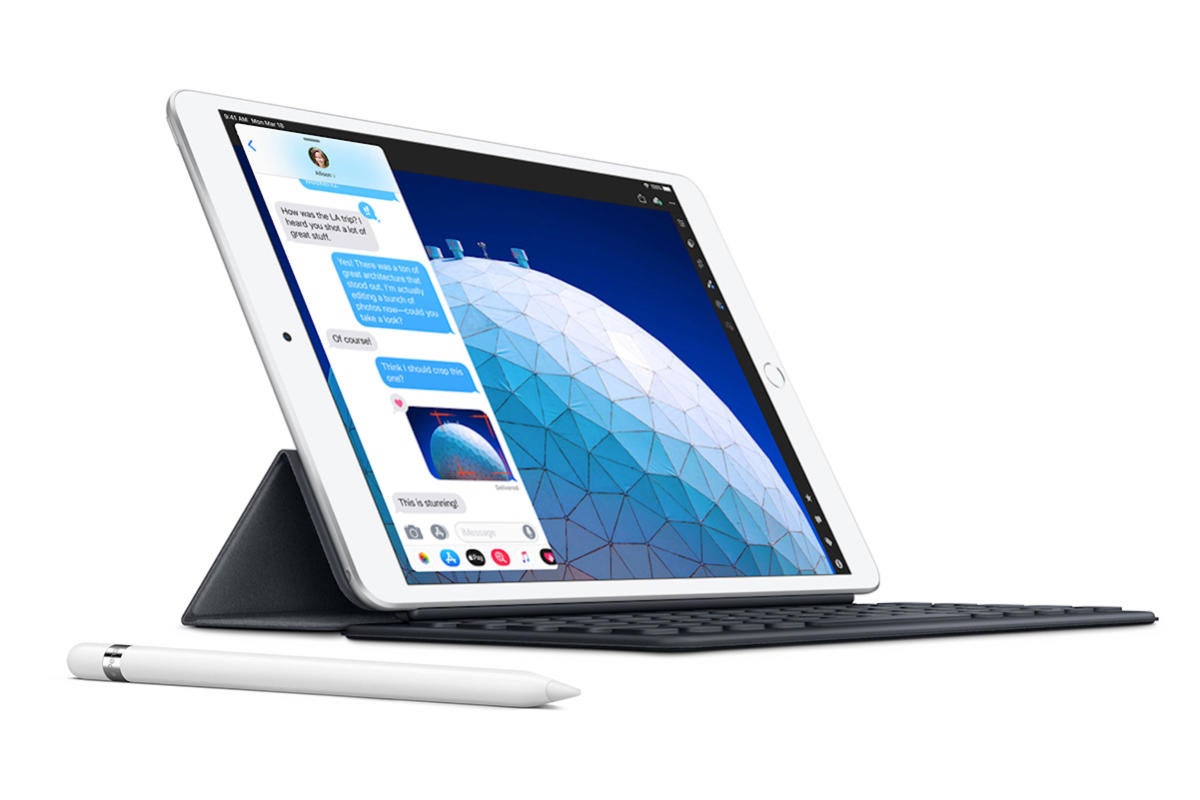
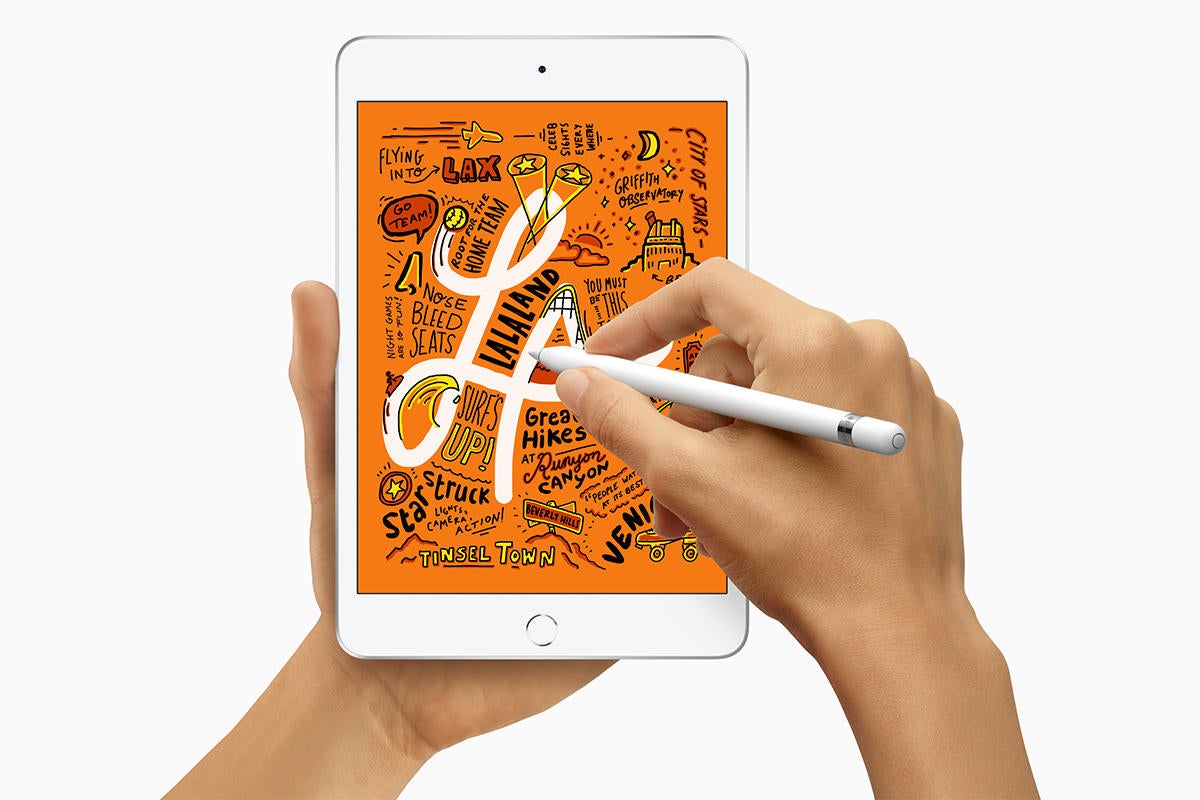
Apple has released two new hardware updates to the iPad lineup; a new iPad Air 10.5″ model, and an updated iPad mini 7.9″ model.
The new iPad models will be appealing to many users for differing reasons, as the iPad Air 10.5″ is a step closer to an iPad Pro in many ways, while the iPad mini 7.9″ is the smallest and most portable iPad.
Both the new iPad Air 10.5″ and iPad mini 7.9″ feature an A12 CPU, Touch ID, support for the 1st generation Apple Pencil (but not the new 2nd generation Apple Pencil), a laminated display, and start at 64GB storage capacities with a maximum of 256GB storage available for each. Each model can also be purchased with optional LTE cellular connectivity for an added cost.
With the addition of the new iPad Air (3rd generation) and iPad mini (5th generation), this means that Apple is now selling five different screen size iPads, including the iPad Pro 12.9″ model, iPad Pro 11″ model, the iPad Air10.5″ model, the iPad 9.7″ model, and the iPad mini 7.9″ model, with each iPad size also coming in three different color options, possible LTE cellular connectivity, multiple storage capacity configurations, and at different price points. For consumers looking to differentiate one model from another, the official iPad comparison tool on apple.comcan help.
Regardless of what iPad you go for, if you want an Apple Pencil to go along with it then be sure you get the proper Apple Pencil for the specific iPad model. This is important, because the older1st generation Apple Pencil works with the new iPad Air, iPad mini, iPad, and older iPad Pro, but does not work on the new iPad Pro (2018), whereas the new 2nd generation Apple Pencildoes not work on the new iPad Air, iPad, iPad mini, or older iPad Pro models, while it does work on the new iPad Pro (2018). Basically you want the older Apple Pencil for the new iPad models unless the iPad is a new iPad Pro, in which case you want the new Apple Pencil for the new iPad Pro only.
iPad Air: What’s new
Let’s kick off with what’s new with the iPad Air, which we thought was effectively replaced with the 10.5-inch iPad Pro in 2017. In essence, this is the iPad Air 3, but much as with the iPad mini, Apple’s dropping the numerals. It’s now just the iPad Air.
The price sees a welcome change, as Apple now sells it for a starting price of $499 instead of the $649 we saw with the iPad Air 2. There’s also a change in storage options, as Apple only sells the new iPad Air in 64GB and 256GB configurations. Before, you could buy the iPad Air 2 with 16, 32, 64, and 128GB options. It’s a smart move for a more data-hungry age.
The tablet is also bigger—insomuch it has the same 9.8 by 6.8-inch frame as the 2017 10.5-inch iPad Pro. For comparison, the iPad Air 2 measured 9.4 by 6.67 inches. And much like the old iPad Pro, the new iPad Air supports the first-generation Apple Pencil. That could be a big deal if you don’t want to pay iPad Pro prices but don’t like the smaller screen of the 9.7-inch iPad—or the new 7.9-inch iPad mini.
The iPad Air essentially looks like an older iPad Pro now.
I especially like that the new iPad Air sports the A12 Bionic processor found in the iPhone XS and XR, which marks a massive jump from the A8X chip in the iPad Air 2. Keep in mind, though, that it’s not quite as fast as the A12X chips that we find in the 2018 iPad Pros.
The display has changed, too, as the resolution is now 2224 by 1668, up from 2048 by 1536. It’s also packed with Apple’s TrueTone technology that adapts to ambient light in order to deliver a more natural viewing experience. That display is also laminated, which effectively means the glass sits on top of the display. When you use an Apple Pencil, it makes for an experience that feels slightly more like writing on paper than what you’ll get with an unlaminated display. Unfortunately, the iPad Air didn’t inherit the iPad Pro’s ProMotion 120Hz refresh rate, which makes everything from Apple Pencil strokes to scrolling through webpages a bit smoother.
The iPad Air is also brighter, as it delivers 500 nits of brightness versus the 415 in the older model. That’s great if you often have to use your iPad in the sunlight. And last but certainly not least, the front-facing FaceTime camera got a big boost from 1MP to 7MP.
iPad Air: What isn’t new
That’s a lot of good stuff, especially when you compare it to the iPad Air 2. When you compare to the 10.5-inch iPad Pro, though, the truth is that we’re basically looking at an iPad Pro from 2017 with a better chip. In other words, if you got a 10.5-inch iPad Pro two years ago, you may not need to upgrade.
The A12 Bionic chips allow the new iPads to take better advantage of augmented reality apps.
The new model still has a home button with Touch ID, and I think that’s a bit of a bummer as the latest iPad Pros have taught me that Face ID is even better suited for iPads than iPhones. It’s still LED backlit, so don’t expect the super cool OLED displays you find in the new iPhones. Even the new iPad Pro doesn’t have that. While the FaceTime camera got a boost, the rear camera hasn’t changed much, as it still has an 8MP rear camera like the iPad Air 2. It’s still got a 3.5mm headphone jack, it’s still available in space gray, silver, and gold, and it still gives you a battery life of around 10 hours. And it still supports Lightning cables instead of USB-C.
iPad mini: What’s new
Let’s move on to the new iPad mini. A lot of you have been waiting for this one for a long time, and as you might expect after a four-year wait, it’s a massive improvement over the iPad mini 4. What’s new?
First off, much as with the iPad Air, this is now simply called iPad mini—even though it’s essentially the iPad mini 5. It also sports the A12 Bionic processor, and that’s enough of an upgrade from the A8 chip to give you around three times the graphics processing power of the iPad mini 4.
It’s also got a laminated display and first-generation Apple Pencil support like the iPad Air, along with support for Apple’s TrueTone technology. It even has a wider P3 color gamut, and Apple says its pixel density of 3 million is the highest of any iPad. The display itself is 25 percent brighter at 500 nits, up from the 450 in the iPad mini 4.
At this point, you’re almost using a digital Moleskine notebook.
The camera remains at 8MP, but the newer model reportedly offers better low-light performance and HD video recording. And here again we see the boost to 7MP from 1MP in the front-facing camera.
The iPad mini 4 only sold in a 128GB configuration, but the new iPad mini comes with both 64GB and 256GB storage options. For that matter, it now supports the same Wi-Fi and gigabit-class LTE speeds you’ll find in new iPads.
iPad mini: What isn’t new
What hasn’t changed? For one, there’s the starting price, which remains the same as the iPad mini 4 at $399. I’d be annoyed with that considering that the 9.7-inch iPad supports the Apple Pencil and gives you more screen space for $329. Nonetheless, this delivers a lot of upgrades for people who want a smaller iPad.
As for the display, it may have that TrueTone tech and the wider P3 color gamut, but the 7.9-inch display itself still has a resolution of 2046 by 1536. Like the iPad Air, it also doesn’t support ProMotion.
In fact, I’ll probably have a hard time telling the iPad mini 4 apart from the NEW iPad mini when we get ours. It still has the same 8 by 5.3-inch frame, a home button that supports Touch ID, and support for Lightning cables instead of USB-C. And yes, it still comes in space gray, silver, and gold, and it still delivers around 10 hours of battery life.
Want to change the name of your AirPods? You can quickly change AirPods name from the Settings app of the synced iPhone or iPad.
Note this is just a simple name change of AirPods, it does not require resetting AirPods nor does it require setting them up again. You simply open the pertinent iOS settings, rename the AirPods, and that’s about it.
How to Rename AirPods
Here is how you can easily rename AirPods, right from iOS:
Open the “Settings” app on the iPhone or iPad that AirPods are connected to
Go to “Bluetooth”
Find the AirPods in the Bluetooth device list then tap on the (i) button next to the AirPods
In AirPods settings, tap on “Name”
Enter the new name you’d like to change AirPods name to, then tap the back “<” button to confirm the AirPods name change
Exit out of Settings as usual
Now AirPods will have whatever name you chose, and that name will be visible anywhere that you can see or access AirPods, including in Bluetooth settings, when you check their battery level, and anywhere else you might see the AirPods from iOS.
You name AirPods whatever you want, whether that’s simply calling them “AirPods” or “Paul’s AirPods” or giving them some other customized name, the choice is yours. You can easily change their name again at any time by simply returning to the settings as covered above.
In a similar manner, you can also easily change the name of iPhone, iPad, or an iPod touchby going to the appropriate Settings in iOS.
This obviously covers iOS, but you can also change the name of AirPods from a Mac, assuming the AirPods are connected to that same Mac anyway, by going to Bluetooth settings in MacOS.
As always, if you have any particularly helpful advice, tips, tricks, suggestions, or general input about renaming AirPods, share with us in the comments below!
As you may have noticed, a prominent microphone button is visible on the iOS keyboard for iPhone and iPad, which when tapped will use voice-to-text to dictate spoken text to the iOS device in lieu of typing. Some users may never use the microphone button, while others may accidentally tap on the mic button, in which case it can be desirable to remove the microphone button from the keyboard on iPhone and iPad completely.
Note that you can not simply hide and show the microphone button from the keyboard on iOS as needed, but you can remove the microphone button completely by disabling a separate feature. Essentially this means you’ll be removing the microphone button by turning off a text-to-speech capability in iOS, and that’s what we’re going to show you how to do here as a way to hide the mic / dictate button from the onscreen keyboard.
How to Remove Microphone Button from Keyboard on iPhone or iPad
Open the Settings app in iOS
Go to “General”
Now go to “Keyboard”
Scroll down and locate “Enable Dictation” and toggle that button to the OFF position
Confirm that you want to disable Dictation by choosing ‘Turn Off Dictation’, this will remove the microphone from the iOS keyboard
Exit out of Settings as usual
Now anytime you access the keyboard on iPhone or iPad, the prominent microphone / dictation button will no longer be visible, or available.
If you decide you want the microphone and dictation button back again on the keyboard of iPhone or iPad, simply toggle the Dictation feature back on again.
Note this settings change will not impact the microphone in the Messages app that is within the text-entry field, a separate feature which allows for sending voice audio messages in iOS. That can be a little confusing to have two microphones on the same keyboard, but they have different functionality.
Most iOS users will likely want to leave Dictation enabled and keep the microphone on the keyboard of iPhone or iPad because it’s useful, but if you don’t find the feature to be helpful or you hit it accidentally, disabling it can be reasonable too.
Why is the microphone button missing from my iPhone / iPad keyboard?
If you do not have a microphone button on the keyboard of iPhone or iPad, it likely means the device does not have dictation enabled to begin with. Another possibility is that the iOS device or iOS version does not support dictation, though that’s less likely given the feature has been around for quite some time.
If you don’t have the microphone button on iPhone keyboard but you want to have it for dictating text, simply reversing the above settings change and enabling Dictation will regain the microphone button the iOS keyboard.
Like nearly all iOS settings changes, these adjustments can be made at anytime, as disabling or enabling Dictation in iOS is just a matter of adjusting the appropriate toggle in the Settings app.
Have you ever wished you could make a phone call with an iPad? If you have both an iPad and an iPhone, you can actually make phone calls from the iPad, with the call being relayed automatically through the iPhone. You can also use the iPad to receive calls too. This is a great feature for many Apple users with multiple devices, and it uses a similar approach that allows you to make phone calls from the Mac with the iPhone too.
To be able to make a phone call from the iPad, you will need an iPhone as well. Additionally, the iPad and iPhone must both be logged into the same iCloud account and Apple ID, and the devices must be on the same wi-fi network, and the devices must be in the same general proximity to each other. Other than that, it’s a matter of enabling the features and knowing how to use them.
How to Make Phone Calls with iPad
To make phone calls with iPad, you’ll first need to configure a few settings on the iPhone and iPad. After those configurations are set, making phone calls from iPad is simple.
First, enable iPad calls on the iPhone:
Open the Settings app on the iPhone
Go to “Cellular” and then tap on “Calls on Other Devices”
Toggle the setting for ‘Allow Calls on Other Devices’ to ON and make sure the iPad you want to make calls on is toggled ON as well
Exit Settings
Second, enable calls from iPhone on the iPad:
Open the “Settings” app on the iPad
Now go to “FaceTime” and toggle “Calls from iPhone” to the ON position
Making Phone Calls from iPad
Open the ‘FaceTime’ app on the iPad
Tap the + plus button to start a new call
Type a phone number to call, or choose a contact by tapping the (+) plus button
Tap on the green ‘Audio’ button to start the phone call from the iPad
Notice the ‘calling… using your iPhone’ message near the top of the iPad screen
Hang up the phone call by tapping on the red phone icon
You can also initiate and start phone calls on the iPad from the Contacts app, or by tapping on phone numbers on web pages that you see in Safari.
Receiving iPhone Calls on the iPad
With the above settings turned on, the iPad will ring when the iPhone gets an inbound call. You can then answer the phone call on the iPad just like you would on an iPhone. The sound will play by default in speaker mode, but you can use headphones or AirPods too.
By the way, if you also have a Mac and an iPhone, then you might be interested in enabling iPhone calls on the Mac so that you can make and receive phone calls on a computer as well. You can have the iPhone calling feature enabled on multiple Macs and iOS devices, even other iPhones.
Other options for using an iPad like a phone are available too, for example you can make FaceTime Audio calls or FaceTime Video calls (though neither of those are technically a phone call), and apps like Skype and Google Voice can also be used to make phone calls from an iPad, even using unique phone numbers if desired.
Want to run a simple web server off of an iPad or iPhone? If you have iSH linux shell running in iOS then you can easily start and run a simple web server directly from an iPhone or iPad. By running iSH and starting a web server with python 3 you can then serve either HTML files or a directory listing to the same device via localhost, or to anyone on the same network with the iOS devices IP address. This is obviously not going to be as fully functional or featured as running apache or nginx, but if you want to geek around with a simple local html development environment or serve something via http from an iPhone or iPad, it’ll do the trick. Plus, it’s just plain cool.
How to Run a Web Server on iOS with iSH and python
Install iSH on the iPhone or iPad as directed here if you haven’t done so already, otherwise launch iSH
At the iSH command line in iOS, enter the following syntax and hit return:
python3 -m http.server
When you see the ‘Serving HTTP on 0.0.0.0 port 8000’ message, now you’re ready to connect the web server from either the same device or another:
To connect to the iOS web server from the same device (localhost), point any web browser to:
To connect to the iOS web server from another device on the same network, point any web browser to:
http://DEVICE-IP-ADDRESS:8000
Replacing ‘DEVICE-IP-ADDRESS’ with the IP address of the device running iSH and the python web server, you can find the iOS devices IP address in Network Settings if needed. (Example screenshot shows the iOS device IP of 192.168.1.10)
Pretty cool, right?
You’ll probably want to put some basic index.html file at the present working directory where you’re running the python server from. If you don’t have a simple index.html file in the current working directory on the iOS device where the python command is being run, then a simple directory listing is shown instead.
While the simple web server is running, you’ll see standard logging information appear in the iSH terminal window, showing access times, dates, IP addresses, GET and PUSH requests, 404 errors, and other typical access log information.
We’re obviously going with the python3 web server command here, but you can also use the Python 2 instant web server if you’d prefer, since both python2 and python3 are available on iSH.
Anyway, while the isn’t a particularly practical solution to web hosting or web development and you likely won’t be using this for anything too serious, it’s still fun and interesting as a proof of concept for us geekier folks. Perhaps one day we’ll get some easy web server setup in the iOS world like MAMP for Mac, but until then the solutions are fairly limited and most web workers and developers will continue to be using ssh to connect to a web server for the time being.
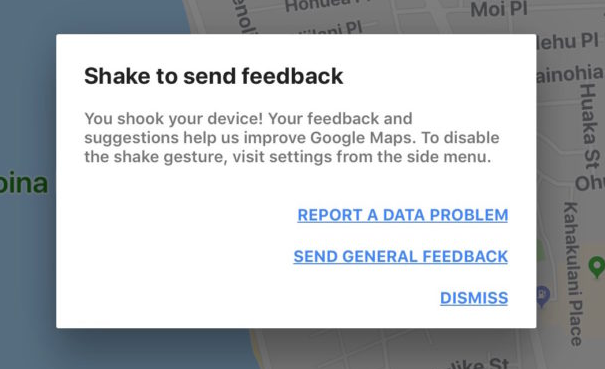
Have you ever been using Google Maps on iPhone or iPad and noticed a little pop-up alert message stating “Shake to send feedback – You shook your device! Your feedback suggestions help us improve Google Maps.” with options to report data problems, send feedback, or to dismiss the alert. Sometimes Google Maps users on iPhone or iPad can accidentally trigger the ‘Shake to send feedback’ feature, or they may unintentionally trigger that alert rather than the typical ‘Shake to Undo’ feature on iPhone and iPad.
If you don’t want to see the ‘Shake to send feedback’ alert come up in Google Maps for iOS, this article will show you how to turn that off.
How to Disable ‘Shake to Send Feedback’ in Google Maps for iOS
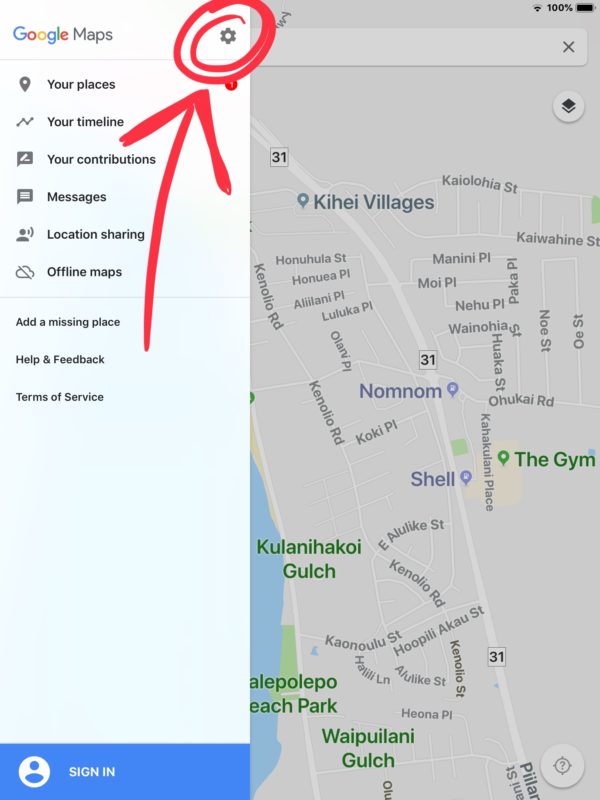
Open the Google Maps app, then tap on the three lines button in the upper left corner
Now tap on the Gear icon to access Settings in Google Maps
Locate the switch for “Shake to send feedback” and turn that to the OFF position to disable this feature in Google Maps for iOS
Once the feature is off, shaking the iPhone, iPad, or iPod touch will no longer trigger the ‘Shake to Send Feedback’ alert message on the screen.
If you disable the “Shake to send feedback” option in Google Maps instead shaking the device will result in triggering the Shake to Undo and Redo in iOS feature, unless of course you or someone else have disabled Shake to Undo in iOS on the iPhone or iPad.
Whether or not you want to turn this off or leave it on likely depends on how you use Google Maps, and how often you intentionally or unintentionally bring up the feedback dialog message. For the most part it should not trigger accidentally, though if you are using an iPhone or iPad on an extraordinarily bumpy road or terrain (like heavy unplowed snow, a poorly maintained winter road with bumpy ice ruts, an unpaved forest road, or some 4×4 trail), then you may see the alert message coming up on the Google Maps app in iOS when it’s unexpected to – those situations in particularly will likely benefit from turning off the feature if they find it to be frustrating.
But if you’re driving around and you see this on Google Maps for iOS:
And you don’t want to see that again, now you know how to turn it off!
If you want to see multiple pages of a Pages app document open at the same time on iPad, you can use the “Two Pages” view to place a multipage document into a side-by-side view, sort of like a split screen mode but for viewing the same document. This allows you to see two pages of any open document on the same screen, without having to scroll around on the iPad like you would with the normal single page document view.
The Two Pages view is an option specific to Pages app on iPad, it’s not part of Split View or any of the other multitasking options on the iPad.
How to View Two Pages of a Document in Pages for iPad
Here’s how to access and use the Two Pages view on iPad with Pages app for iOS:
Open Pages on the iPad, then open whatever document you want to view in two-page view
Now tap on the View Options button that looks kind of like a window with a sidebar
In the View Options pull down menu, toggle the switch for “Two Pages” to the ON position
Two Pages view is immediately visible with the current document
Being able to see two pages of the same document open side-by-side is really useful for many reasons, whether you’re editing a document, reviewing something, proof-reading, or whatever else you use a word processor for.
This works fine when the iPad virtual keyboard is visible on screen, but arguably works much better when an external keyboard is attached to the iPad thereby freeing up more screen real estate by hiding the virtual keyboard (the Brydge keyboard for iPad is quite popular).
The Two Pages view is intended for a single document, rather than loading two documents side-by-side, which would be better accomplished with split screen view or another multitasking option on the iPad. If that’s what you require, you’ll want to be sure you have the feature enabled, particularly since some users have disabled split screen on the iPad if they found themselves accidentally ending up in it.