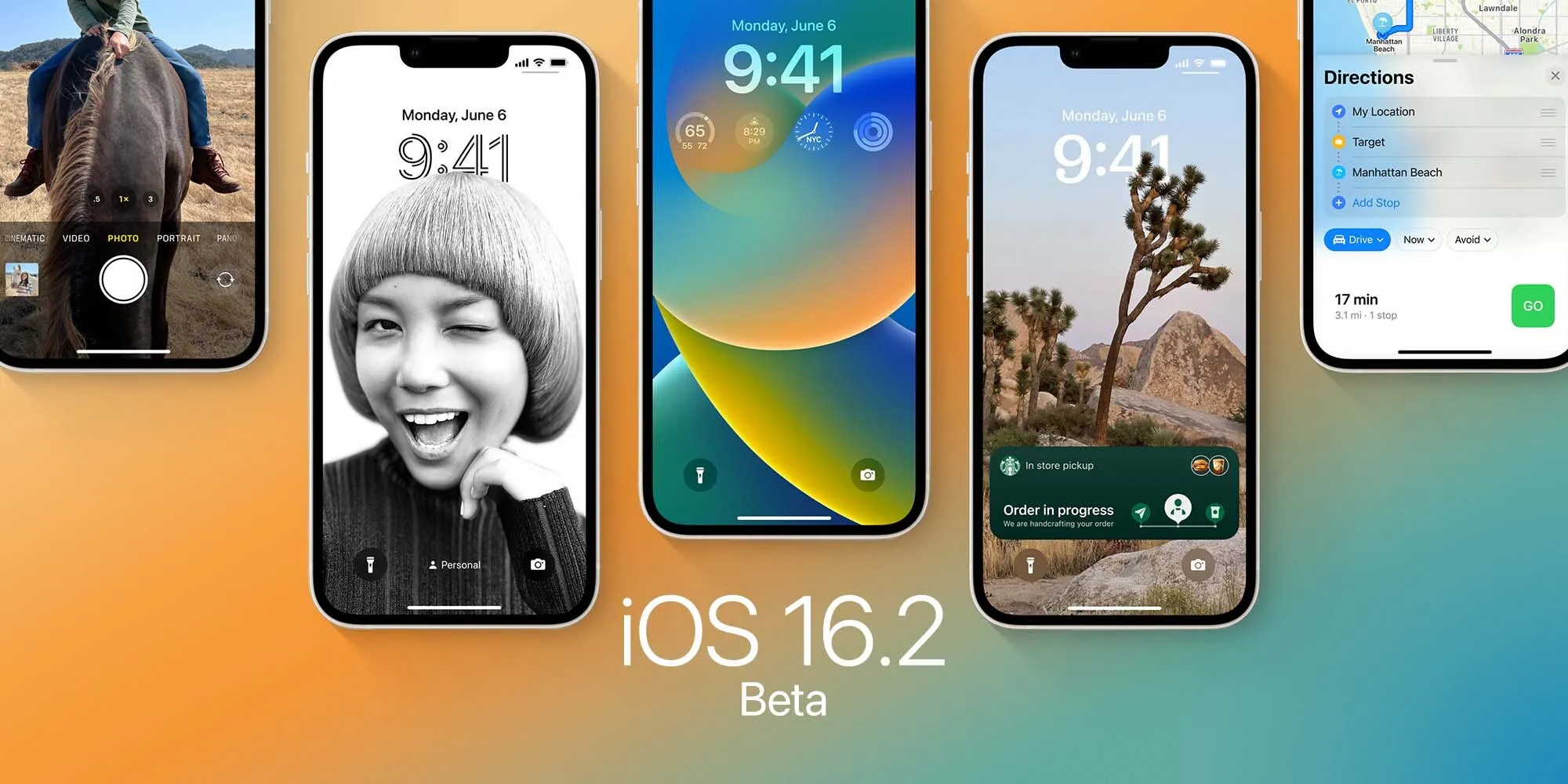
iOS 16.2, which was released to the public in December, appears to have once again broken gapless playback for iPhone and iPad users. According to complaints from a number of users on Apple’s support forums and Reddit, gapless playback with the Music app has been broken since iOS 16.2 was released.
iOS 16.2 and gapless playback
Gapless playback, for those unfamiliar, is when one song seamlessly transitions into the next without a break. This is particularly notable on albums created with gapless playback in mind, such as the second half of Abbey Road by The Beatles or musical soundtracks such as Hamilton, as well as live concert recordings.
One thing to note is that gapless playback is different than crossfade, which allows a song to fade in (gradually increase its volume) while the previous song is fading out. Gapless playback has been supported by Apple across all of its platforms for years, while crossfade is still not supported by Apple Music on iPhone.
In iOS 16.2, however, it seems like gapless playback is completely broken for many iPhone and iPad users. This means that there’s a multi-second gap between songs, even when the album was meant to be listened to without gaps. One user on Apple’s support forums says:
Is anyone else having issues with gapless playback on iOS 16.2? (I have an iPhone 14 Pro Max, if that’s relevant.)
Every couple of songs in a gapless album, I’ll get a moment of silence between tracks that’s really annoying when the songs are supposed to flow smoothly into each other.
Another user:
I can’t believe that we’re ending 2022 and Apple still haven’t provided a robust gapless playback to Apple Music. One iOS update will fix the bug and then another one comes along and breaks it again. It makes for such an annoying and unenjoyable listening experience. Given how much we pay in subscriptions, you’d hope that Apple developers could have found a solid fix by now and given it the attention it deserves.
The issues also seem to extend to the HomePod:
Yes I have this too. I use the HomePod for endless white noise for sleeping and it’s so annoying that every few minutes it stops for like a second or two. I thought it might have had something to do with the new HomeKit Architecture upgrade but maybe it’s just an iOS/HomePod 16.2 issue.
A number of complaints have also emerged in multiple threads on Reddit, where users lament Apple’s inability to reliability support gapless playback on iPhone and iPad. The feature is also still borked for most users in the latest betas of iOS 16.3 and iPadOS 16.3.
If this all sounds familiar, it’s because something eerlily similar happened with the release of iOS 15.4 last year.
Between (repeated) bugs like this and the lack of crossfade, you have to wonder if there are some serious underlying audio engine issues affecting Apple Music on iPhone and iPad. We don’t really know how much of the Apple Music architecture on iPhone is based on the legacy foundation from the iTunes days.
There are probably almost as many ways to organize your iPhone apps as there are iPhone users, and most of us have probably experimented with a bunch of them. But more than eight years later of using a method, first tried back in 2013 (that screen size! those icons!).
Instead of organizing apps by what they do, organize them by where when I use them ….
For quite a while, the most logical way to organize my apps: by category. For example, You had a bunch of chat apps in a folder called, imaginatively enough, Chat. Camera and other photography-related apps were in a folder called Photography. And so on.
But as the number of apps grew, there came a point where the cracks in that approach started to show themselves. First, there was the question of remembering how I’d categorized an app. When I first started using Dropbox, for example, it was almost exclusively for business use, so it went into a Business folder. Later, however, it became a much more general tool.
Second, although a bunch of apps might belong in the same category, that might lump together apps I used all the time with apps I hardly ever used. For example, I went through a phase of using GarageBand a lot (to kind of pretend I could play an instrument… ), and that was in the same Entertainment folder as Kindle, which I used only if I’d forgotten to take my physical Kindle on a trip.
To be clear, use categorized folders – but only for apps I hardly ever use. The apps you use frequently are organized by usage occasion.
Organize your iPhone apps by context/place
For example, You have apps you use all the time at home. While my Mac is your primary device when you are sitting at your desk, in the evening you more likely to use your iPhone to simply check email or play some music.
There are other apps you can use almost exclusively while you are out and about. BBC News and The Guardian, for example, are news apps that you can use to quickly catch up on the world while you are on the move, while at home you can use the website on your Mac. WordPress on your phone is another example of an app you can only ever use while mobile – used when you come up with an idea for a piece you want to write, and you just create a new post to jot down a few notes you can use as a prompt when you are sitting at your desk.
The third major category for is travel. When you are in another country, make extensive use of apps like Google Translate and Revolut (used because the card gives the best exchange rate, and you can use the app to freeze the card between uses). There are also apps you can use only when in a specific country, like the Western Union app to send yourself cash – so you don’t have a subfolder for that, given you’ve now taken to spending one month a year there.
So effectively you have three Home screens:
At home
Mobile
Abroad
Each of these has the main apps you use in each of these situations, with the Dock used for the key apps you can use everywhere.
Of course, one can argue that there’s little need to organize apps at all: just stick your most-used ones on the Home screen, then use search for everything else.
you can use search for apps that are either used out-of-context (for example, to access a travel app while I’m at home), or an app used so infrequently that it’s in one of my categorized folders. But you can still find it a smoother experience to have instant access to the apps you are most likely to use in any given circumstance.
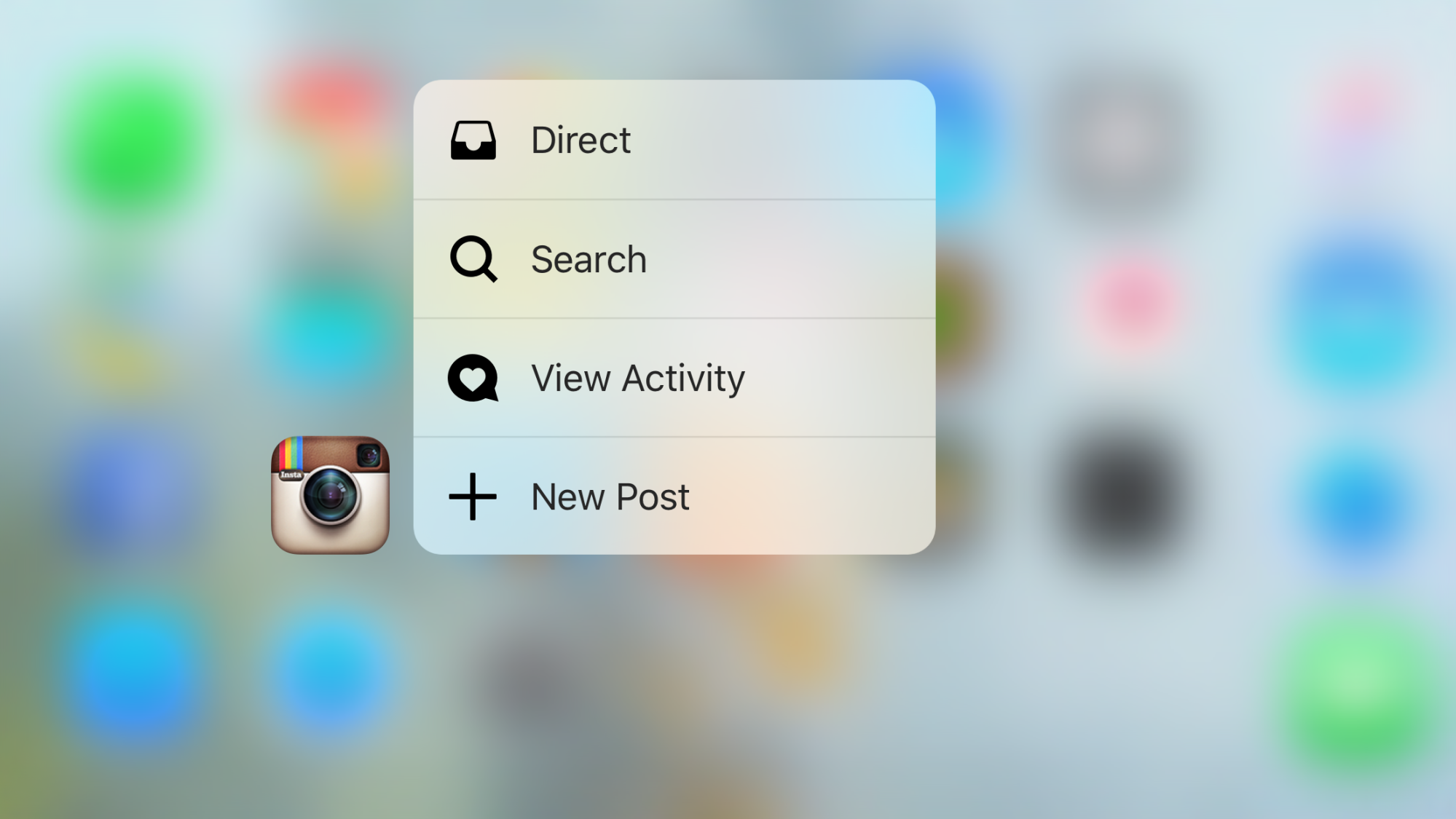
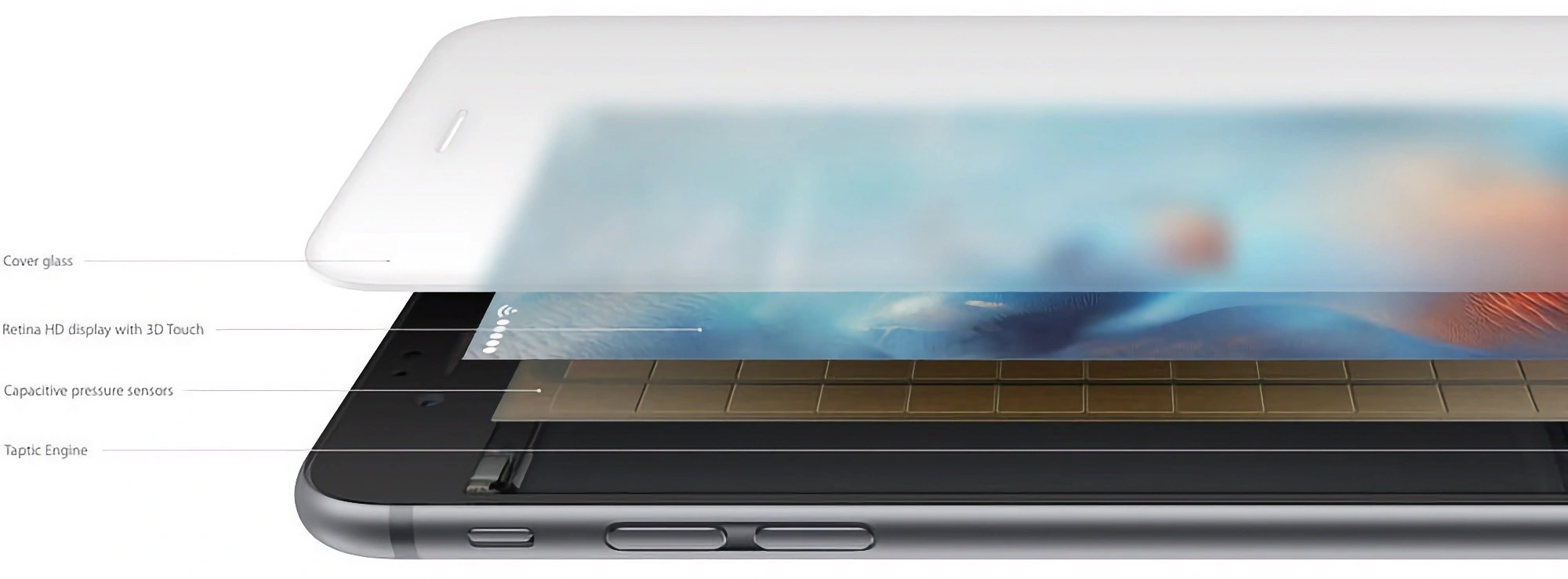
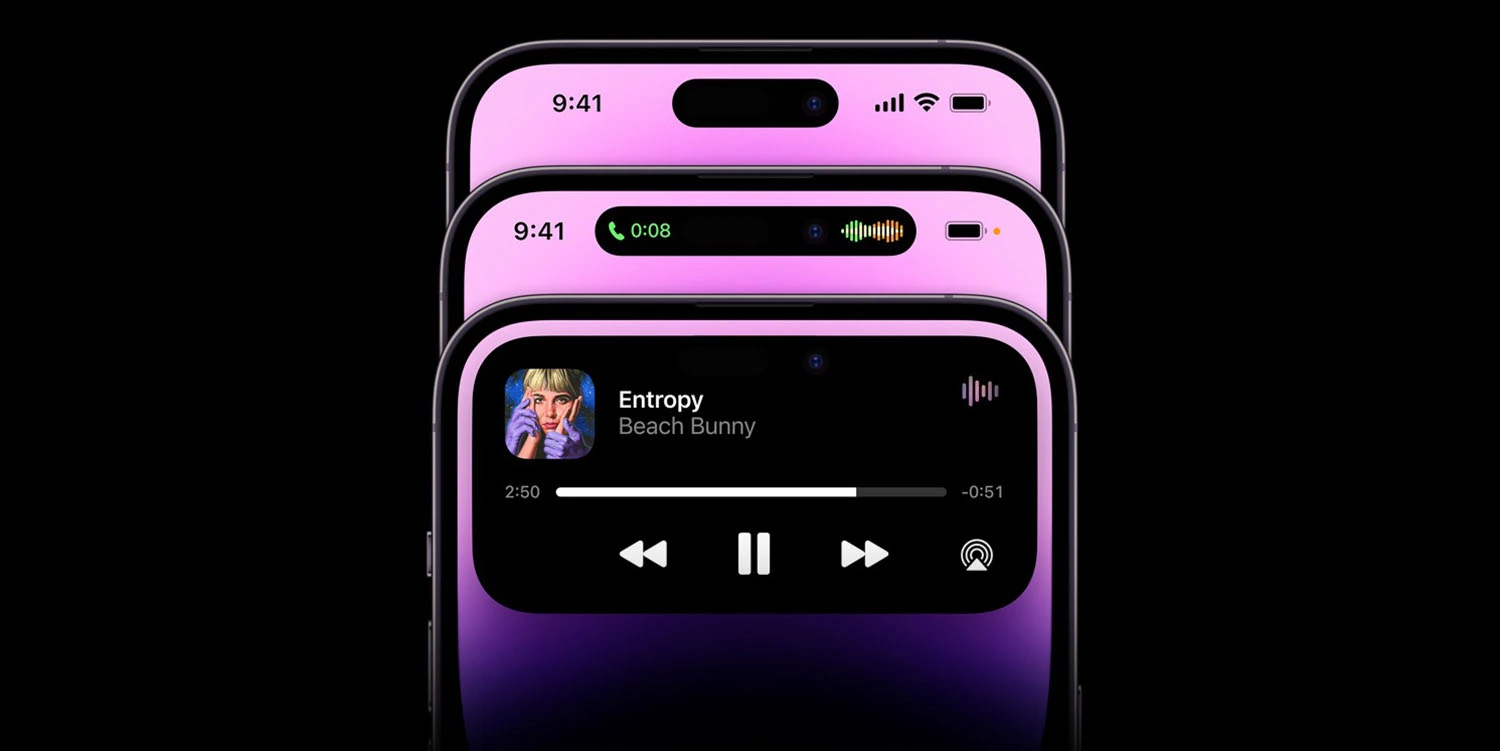
Stand back, folks, this take is comin’ in hot. The Dynamic Island introduced with the iPhone 14 Pro is really clever. Apple turned boring sensors into an interactive element that’s very marketable and potentially useful. 3D Touch, on the other hand, was a flagship feature on iPhone 6s, but the very useful feature was hardly marketable and even less discoverable.
Pressure sensitive display technology is very cool! The tech feels like the sort of innovation that shouldn’t be thrown out, but instead maintained with the progression of the iPhone. Being able to distinguish between a tap and a deep press will always be quicker than a long press. Imagine if secondary-clicking on a Mac trackpad couldn’t be done with a two-finger tap and required a long press instead. No thank you.
Speaking of the Mac, it’s the last place pressure sensitive tech still exists for Apple. The feature is called Force Click, and it allows you to access “Quick Look, Look up, and variable speed media controls” on macOS.
Apple Watch debuted with its own version of a pressure sensitive display feature called Force Touch, but software support was removed and recent watches haven’t included the hardware for it. The same thing happened with the iPhone. In both instances, Apple replaced pressure sensitive input with on-screen buttons or long presses that are slower to access than firmly pressing the display.
Who can forget the awesome press and drag gesture?
The fact that Apple used 3D Touch, Force Touch, and Force Click to identify three similar features on different devices was certainly the butt of lots of jokes.
Practically speaking, though, you don’t need to know what the marketing name for pressure sensitive input features are given. The differences are inherent to the hardware. 3D Touch on iPhone allowed you to access different features on different parts of the screen, Force Touch on the watch was less specific and treated the whole display as a single button, and Force Click is the same thing but on a trackpad.
Best 3D Touch feature: firmly press anywhere on the keyboard rather than long-press the space bar to summon the cursor
So why did 3D Touch/Force Touch get retired? Discoverability was a major critique. If pressure sensitive displays returned, Apple could use the current long-press options and tie the same functions to 3D Touch. The watch could let you choose between visual buttons or a cleaner look with Force Touch. Best of both worlds, right?
The other reason for 3D Touch and Force Touch going away is battery life. The feature wasn’t power intensive, but it did take up physical space in a compact housing. Some people liked 3D Touch, but everyone enjoys more battery life. Removing the feature saved space for more battery capacity and other components.
A few things have changed since 3D Touch and Force Touch were discontinued though. Apple Watch Ultra sacrifices cutting-edge design for best-in-class battery life. I would buy a second-gen Apple Watch Ultra that factored in the extra battery life and made room for Force Touch. Appleis also rumored to be working on an iPhone Ultra that may make similar tradeoffs. Cost is another factor for omitting pressure sensitive display tech, but Apple Watch Ultra and the current iPhone 14 Pro Max are less price-sensitive than more compact devices anyway.
What does any of this have to do with iPhone 14 Pro’s Dynamic Island? Nothing really. I just think 3D Touch was instantly useful and Dynamic Island is taking more time to prove itself. 3D Touch was considered in almost every Apple app from the start. Dynamic Island adoption, even by Apple, is just getting started. Dynamic Island might even be useful by the time the iPhone 15 is unveiled! Firmly pressing the Dynamic Island to expand the blob could even settle the debate over what should happen when you tap and when you long-press.
For years, people have been able to run macOS on non-Apple computers thanks to Hackintosh tools. But when it comes to iOS, pretty much no one has been able to run it on other platforms – at least until now. One developer has successfully emulated the first version of the iPhone OS (remember that name?) on a computer using QEMU.
iPhone OS 1.0 emulated without iPhone hardware
Martijn de Vos, also known as devos50, has used a lot of reverse engineering to emulate the very first version of the iPhone OS released for the first-generation iPod touch in 2007, after the iPhone was launched.The project took more than a year to work as the developer had to figure out how to simulate things like multitouch support and other hardware components.
In a blog post, de Vos explains that the tricky part was emulating the hardware components of the iPod touch. This is why the developer chose to emulate the first build of the iPhone OS made for the iPod instead of the iPhone, since making the iPhone version work would require emulating even more components.
At the same time, de Vos also chose iPhone OS 1.0 due to the fact that this version has much fewer security mechanisms than more recent versions of the operating system. “Contemporary Apple devices contain many additional hardware components, such as neural engines, secure enclaves, and a variety of sensors that will make the emulation of such devices much more difficult and time consuming,” the developer explained.
Interestingly, the project only became a reality thanks to OpeniBoot – an open source implementation of Apple’s bootloader. The project was discontinued long ago, but it allowed users to do things like install Android on the first generations of the iPhone and iPod touch.
But is it functional?
Despite a few bugs, the final project seems quite functional, and iPhone OS 1.0 has been successfully emulated with QEMU – an open source virtualization platform.
The system is completely navigable using a mouse and keyboard, and most pre-installed apps work just fine. There are some situations that cause the system to crash, but it’s still impressive to see a version of iOS being emulated on another platform.
The developer notes that this is probably the first time someone has emulated the iPhone operating system using open source tools. Corellium, for example, sells virtual iOS devices, but all tools and code are private. Creating your own virtual machine is not exactly easy, but de Vos has shared all the details in a blog post for those interested in doing so.
For his next project, de Vos wants to emulate a second-generation iPod touch, which was released with iPhone OS 2.1.
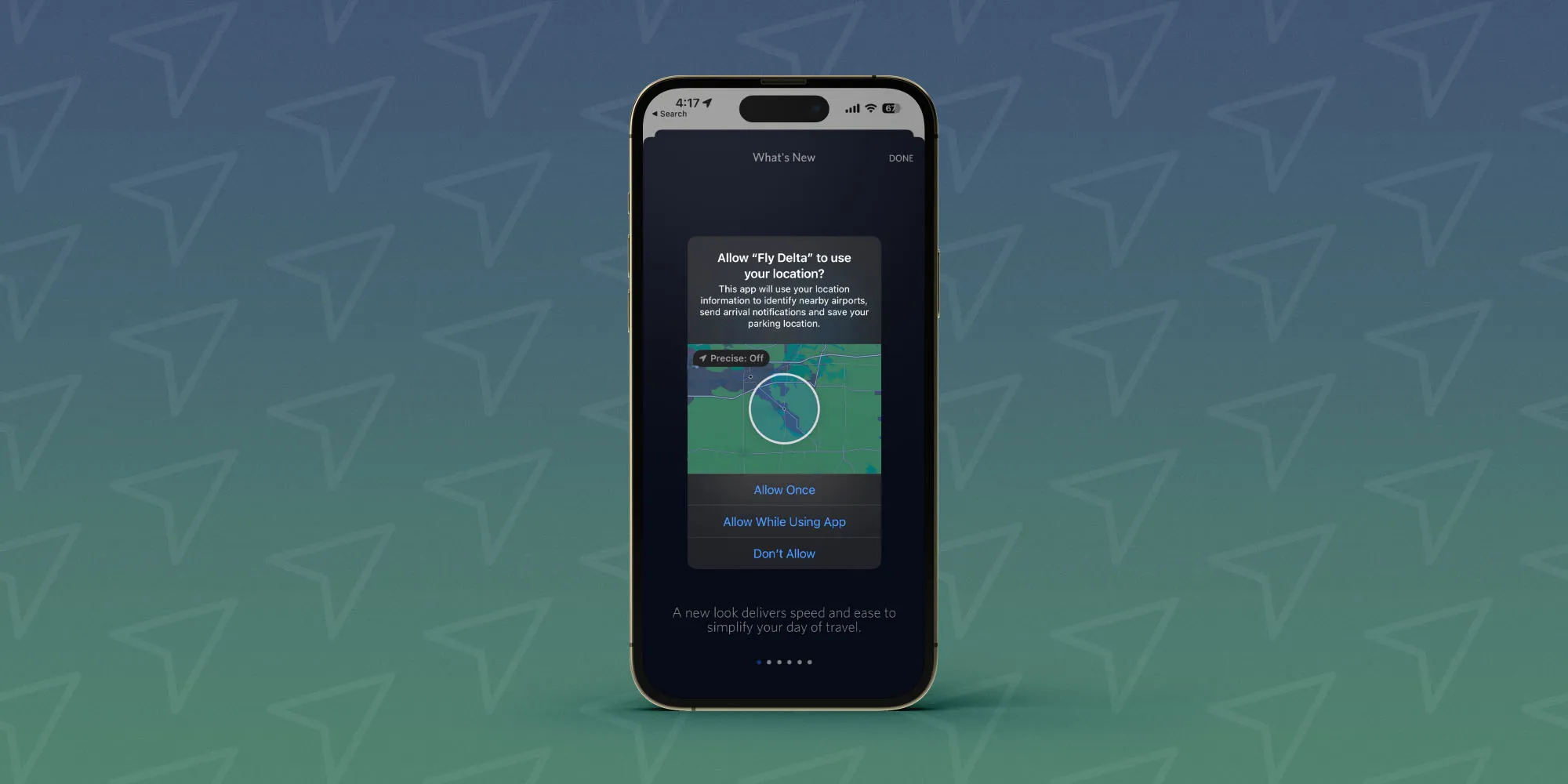
Many iOS apps ask for precise location tracking permission by default the first time you open them. And it can be easy to forget how many or which apps you’ve given permission to. Here’s how to turn off precise iPhone location tracking.
The main choices when the location tracking dialog appears after opening an app for the first time are “Allow Once, “Allow While Using App,” and “Don’t Allow.”
It’s easy to miss that in the top left corner is a “Precise: On.” It’s actually a button that lets you make the choice to keep the precise tracking default enabled or change it to use your approximate location.
The difference is precise can be as accurate as a specific house or building you’re in (within feet) and the approximate iPhone location shows generally what city you’re in (within miles).
Here’s how Apple describes it, “Allows apps to use your specific location. With this setting off, apps can only determine your approximate location.”
How to turn off precise iPhone location tracking for apps
Note: Some apps may not work as intended without precise location tracking enabled
Open the Settings app on your iPhone
Swipe down and choose Privacy & Security
At the top, tap Location Services
Choose an app from the list to see if it’s using your precise location
Look for the toggle next to Precise Location at the bottom, tap to turn it off
Here’s how the process looks to turn off precise iPhone location tracking:
Remember, when you turn off precise tracking, apps can still track your location it’s just not exact. If you want to turn off tracking fully for an app, choose “Never” at the top.
And if you want to turn off all tracking across the board, you’ll need to toggle off the main Location Services switch.
How to check who can see your iPhone location
Apple holds privacy and security as two of its core values and it has detailed resources on how to protect your devices, accounts, and personal safety. Follow along for a look at the recommended steps to check who can see your iPhone location including how to make sure no one can track you.
Apple has a 20-page support guide called “Device and Data Access When Personal Safety is at Risk.” Whether you’ve got personal safety concerns or it’s just time for a privacy and security checkup, the steps below are useful.
Safety Check for iPhone: How to immediately stop sharing location and more in iOS 16
One of the important new features in iOS 16 is Safety Check. Designed as a tool for those at risk for domestic abuse or similar situations, Safety Check for iPhone lets users immediately revoke location access others have – including apps – and also walks through a security review.
Apple is known for its focus on security and privacy, and Safety Check in iOS 16 follows a Personal Safety User Guide that was first published in late 2020 and updated in 2022. It features a number of steps to take to limit iPhone access, limit sharing, and stop iPhone from sharing location data.
Now with iOS 16, instead of needing to go through various sections in the Settings app with multiple steps, users will have a panic button of sorts to immediately disconnect their iPhone from all people, apps, and devices.
Here’s how Apple describes Safety Check for iPhone:
“If circumstances or trust levels change, Safety Check allows you to disconnect from people, apps, and devices you no longer want to be connected to.”
There’s also the option to use Safety Check to manage who you’re sharing with without revoking all access.
And for a very small niche of users, Apple is also going to launch Lockdown Mode, which is different than Safety Check and will help protect against sophisticated cyber attacks.
Safety Check for iPhone: How to use in iOS 16
Running iOS 16, open the Settings app
Swipe down and tap Privacy & Security
Swipe to the bottom and choose Safety Check
Now you can use Emergency Reset or Manage Sharing & Access – Face ID/Touch ID or passcode is required
Emergency Reset will immediately reset access for all people and apps and help you review your account security
Manage Sharing & Access will let you customize which people and apps can access your information and let you review your account security
Here’s how it looks to use Saftey Check for iPhone in iOS 16:
Apple says to use the Emergency Reset Safety Check for iPhone option if you feel “your personal safety is at risk.”
Apple will not notify anyone that you were sharing with that you’ve stopped, but they may notice that sharing has stopped.
You can also tap Cancel or Quick Exit at the top of your screen if you don’t need to use the feature.
Just one day after the release of iOS 16.2 with a slew of new features, Apple is once again starting the beta testing process. iOS 16.3 beta 1 is rolling out to developers today. We’re still waiting to find out what’s new, but there are a number of features that Apple has already announced, but not yet released.
iOS 16.3 beta 1
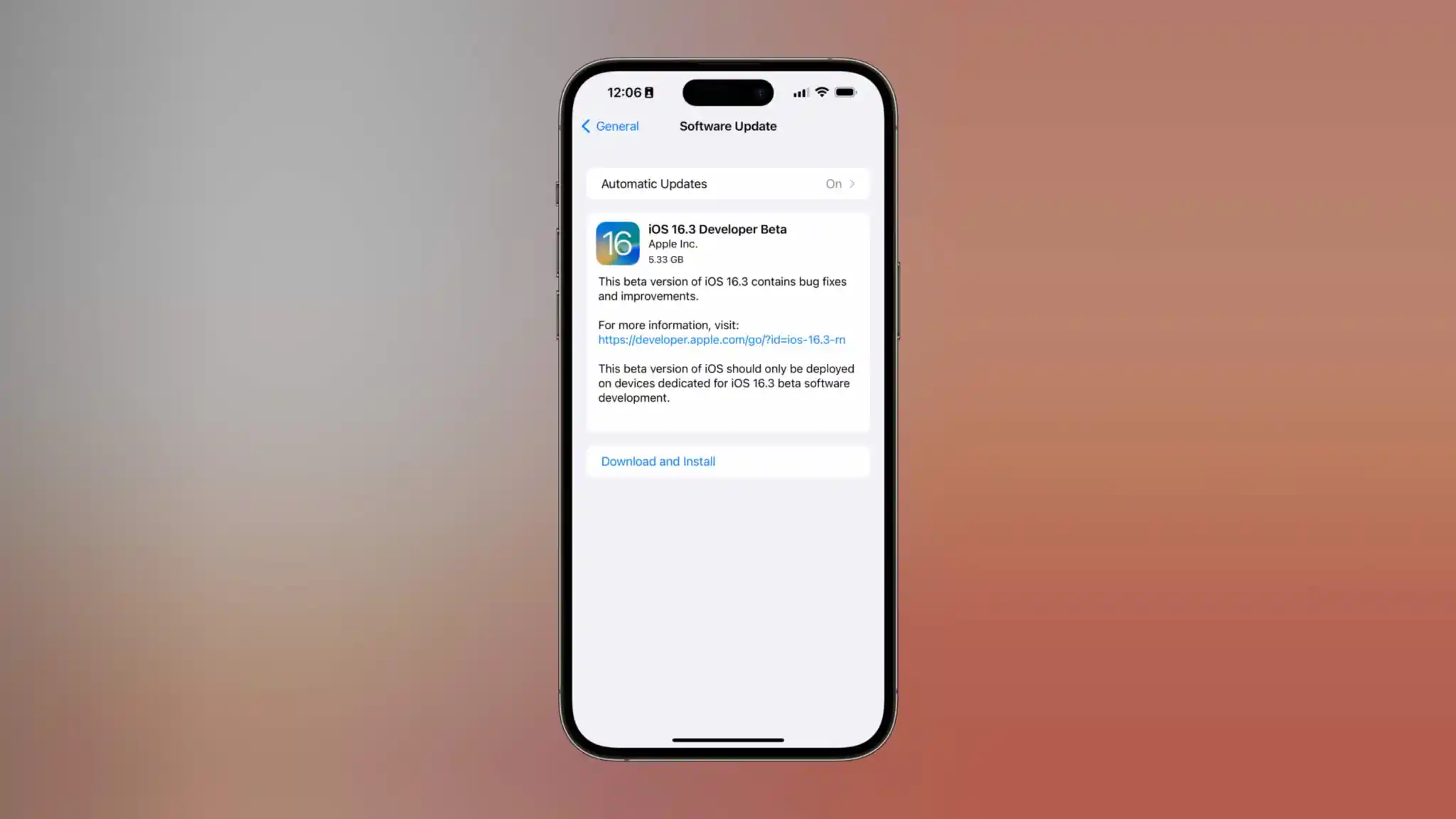
iOS 16.3 beta 1 will be available today to registered developer beta testers. As the update rolls out over the air, you’ll be able to install it by going to the Settings app, choosing General, then choosing Software Update. There is no public beta of iOS 16.3 available yet, but we’d expect it to be released later this week or sometime next week.
As for what’s new in iOS 16.3, we aren’t quite sure yet. We’ll have to get the update installed on our devices to dig into the changes. There are, however, a handful of features that Apple has announced but not yet released, as well as features in development under the hood that aren’t yet available.
The highlights include:
Apple Card Savings Account
Apple Pay Later
Security Keys for Apple ID
Apple Music Classical
Custom Accessibility Mode
Advanced Data Protection for iCloud beyond the United States
Alongside iOS 16.3 beta 1, Apple has also released the following updates:
iPadOS 16.3 beta 1
watchOS 9.3 beta 1
macOS 13.2 beta 1
tvOS 16.3 beta 1
Bloomberg’s Mark Gurman has reported that Apple is targeting a release date of sometime in February 2023 or early March 2023. Ahead of today’s release of iOS 16.3 beta 1 to developers
How to enable ‘More Frequent Updates’ for Live Activities in iOS 16.2
A neat under-the-radar feature coming to iPhone with iOS 16.2 is the ability to customize Live Activities for “More Frequent Updates.” But even though the capability is valuable, you may not want it turned on for all available apps, more on that below. Here’s how to enable Live Activities more frequent updates on iPhone.
New Live Activities customization when the initial iOS 16.2 beta was released – which was before the feature showed up in Settings.
Now in the iOS 16.2 RC and public release that’s expected this week, you can find the toggle to turn on Live Activities “More Frequent Updates” on iPhone.
Here’s how Apple describes it: “Allowing more frequent updates lets you see more real time information, but can drain your battery faster.”
How to enable Live Activities more frequent updates on iPhone
Make sure you’re running iOS 16.2 (install the free beta if you don’t want to wait)
Open the Settings app on your iPhone
Swipe down and choose an app with Live Activities support (using the TV app below)
Note: developers need to build support for the feature, so it may take time for the option to show up for third-party apps after the public iOS 16.2 release
Choose Live Activities
Tap the toggle next to More Frequent Updates
Live Activities will need to be allowed to see the new option
Using the feature will drain your battery faster, so you may want to be careful how many apps you turn it on for
Here’s how it looks to find the feature for Apple’s TV app:
While the “More Frequent Updates” Live Activities option is showing up for Apple’s own TV app, I haven’t seen it show up yet for a third-party app. Expect developers to launch support for it over the coming weeks.
Interestingly, in the iOS 16.2 RC, More Frequent Updates is turned on by default for Apple’s TV app.
How to turn on end-to-end encryption for iMessage, iCloud, iPhone backups in iOS 16.2
Apple is launching a big security enhancement with iOS 16.2 that brings the long-requested feature of full encryption for iMessage in iCloud, iPhone backups, and eight other apps/categories. As part of the process, you’ll need to set up a recovery contact/key – here’s how to turn on iPhone end-to-end encryption for iMessage, iCloud, device backups, Notes, Safari, Photos, and more.
While end-to-end encryption (E2E) has been already present for Apple’s Messages, iCloud Keychain, Health data, and more, the update brings E2E to your Messages Backup (Messages in iCloud) your iPhone iCloud backup, iCloud Drive, Notes, Photos, Reminders, Safari Bookmarks, Siri Shortcuts, Voice Memos, and Wallet Passes. Read more on the fine details in our full coverage and Apple’s support document.
How to turn on iPhone end-to-encryption for iMessage, iCloud backups
Make sure you’re running iOS 16.2 (install the free beta if you don’t want to wait)
You’ll also need to update your Mac, iPad, HomePods, etc. to the latest update to use the feature
Open the Settings app on your iPhone
Tap your name at the top
Now choose iCloud
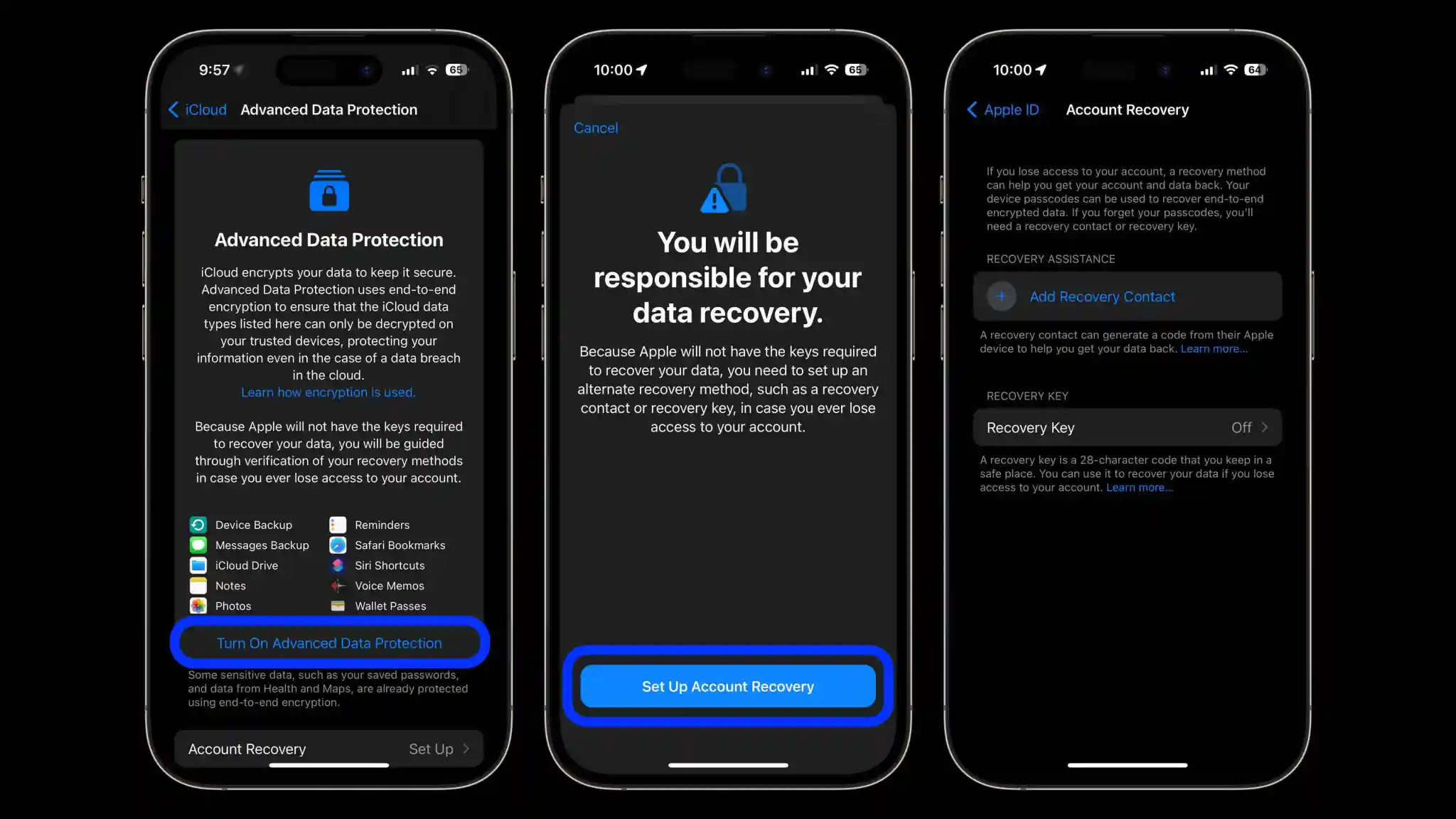
Swipe to the bottom and tap Advanced Data Protection
Tap Turn On Advanced Data Protection
If you don’t have a recovery contact or recovery key set up, you’ll be prompted to do that first
If you just finished setting up a recovery contact/key, head back to Settings app > iCloud >Advanced Data Protection and tap Turn On Advanced Data Protection
Follow the prompts
You may be asked to update your other devices signed into your iCloud account before you can enable the end-to-end encryption (E2E)
Alternatively, you can remove devices that are on old software to move forward with the process
Here’s how the process looks to turn on iPhone end-to-end encryption with Advanced Data Protection:
If you don’t have a recovery contact or key set up already, you’ll do that first:
After finishing the recovery contact/key setup, head back to the Advanced Data Protection screen and tap “Turn On Advanced Data Protection”.
One more thing to keep in mind, you may need to update your other Apple devices to the newest release to enable end-to-end encryption – or need to remove them from the main Apple ID screen in the Settings app.
What do you think about end-to-end encryption coming to Messages in iCloud, backups, and more? Will you be turning the feature on? Share your thoughts in the comments!
Hands-on: How to use Apple Music Sing karaoke feature in iOS 16.2
After announcing its fun new karaoke feature yesterday, Apple Music Sing is live with the iOS 16.2 RC build. Follow along for a hands-on look at how to use Apple Music Sing karaoke including adjusting vocal volume, seeing the Duet view, and more.
iOS 16.2 is currently finishing its testing as a developer and public beta. The release candidate was made available today, so it won’t be long until it’s released to the public.
However, if you don’t want to wait for Apple Music Sing and other great features like a customizable always-on display for iPhone 14 Pro, major end-to-end encryption update, and more, you can learn how to install the free public beta in our full explainer:
What Apple Music Sing offers
Adjustable vocals: Users now have control over a song’s vocal levels. They can sing with the original artist vocals, take the lead, or mix it up on millions of songs in the Apple Music catalog.
Real-time lyrics: Users can sing along to their favorite songs with animated lyrics that dance to the rhythm of the vocals.
Background vocals: Vocal lines sung simultaneously can animate independently from the main vocals to make it easier for users to follow.
Duet view: Multiple vocalists show on opposite sides of the screen to make duets or multi-singer tracks easy to sing along to.
How to use Apple Music Sing karaoke feature in iOS 16.2
Make sure you’re running the iOS 16.2 RC
On your iPhone, open Apple Music and find a song you want to listen to
Apple Music Sing is also available on recent iPads and the Apple TV 4K (not on older Apple TV hardware)
Compatible devices include iPhone 11 and later, iPad 9/10, iPad mini 6, iPad Air 4/5, M1 and M2 iPad Pro
After starting a song, tap the lyrics button (quotation mark icon) in the bottom left corner
Now look for the microphone + stars icon (non-compatible songs won’t show the icon)
After tapping the mic, Apple Sing is turned on
Now you can drag to adjust the vocal volume and sing along with the beat-by-beat lyrics
Tap the Sing icon to turn the feature off
Here’s how it looks to use Apple Music Sing:
For songs that include duets, you’ll see the special view automatically kick in with the different parts on the left and right sides of the screen:
What songs work with Apple Music Sing?
Apple hasn’t shared exactly what songs are compatible with Apple Music Sing
But the feature is launching with support for “tens of millions of songs”
For now, you’ll have to listen to a song and tap the lyrics button to see if it works with the Apple Music Sing karaoke feature
The feature is a bit buggy for some users at the moment with the pre-launch in the iOS 16.2 RC – e.g. the button showing up and disappearing for songs
Following the release of iOS 16.1.2 on November 30, Apple has now stopped signing both iOS 16.1 and iOS 16.1.1. This means that iPhone and iPad users can no longer downgrade from iOS 16.1.2 or newer versions of the operating system.
iOS 16.1 and iOS 16.1.1 no longer signed by Apple
iOS 16.1 was released in October with multiple new features and enhancements, such as iCloud Shared Photo Library, Fitness+ for iPhone users, Live Activities, and more. iOS 16.1.1 came in November with bug fixes and security improvements.
Then, on November 30, Apple released iOS 16.1.2 to enhance the iPhone 14’s Crash Detection feature and also improve wireless carrier compatibility. This is the latest version of iOS officially available to users at the moment.
At the same time, Apple is about to release iOS 16.2 to the public in the next few days. The update will add the new Freeform app, improvements to the Home app, new Always-on options for iPhone 14 Pro users, Apple Music Sing, and more.
Reverting to older iOS builds is often used by those who jailbreak their iPhones and iPads. However, there are no signs of any jailbreak tools for iOS 16 being developed at this point. Restoring an Apple device to a previous version of iOS can also sometimes be helpful for users who experience significant bugs after upgrading to the latest version of iOS.
Downgrade from iOS 16 to iOS 15
While you can’t easily revert to iOS 16.1, you still have a chance to downgrade from iOS 16.1.2 to iOS 15. That’s because Apple is still providing security updates to users running iOS 15.7.1. Those who want to downgrade an iPhone or iPad must do so using a Mac or PC.
This is not the first time Apple has offered the option to let users stay on an older version of iOS. Last year, once iOS 15 became available, users could choose to stay on iOS 14 longer while Apple was still releasing security updates for it. However, the company removed this option a few months later.
After released iOS 16 to the public after months of beta testing. While some users have waited long for the new lock screen and other new features coming with the update, some may prefer to wait a little longer before installing iOS 16. This is why Apple is letting users stay on iOS 15, while still getting security updates before upgrading to iOS 16.
While iOS 16 is certainly the big news of the day, Apple also released iOS 15.7 for iPhone users today. The update doesn’t bring any major changes, but it does come with bug fixes and security enhancements, and users running iOS 15 now have the option to install iOS 15.7 or iOS 16.
This is not the first time Apple has offered the option to let users stay on an older version of iOS. Last year, once iOS 15 became available, users could choose to stay on iOS 14 longer while Apple was still releasing security updates for it. However, the company removed this option a few months later.
At the time, Apple claimed that the option was always intended to be temporary, so something similar may happen this year. New iOS releases can cause incompatibilities with certain apps, so it’s normal that some users (especially enterprise users) prefer to wait a few weeks before installing the update.
How to stay on iOS 15.7
When you go to the Software Update menu in the Settings app, your iPhonewill prominently show the iOS 15.7 update. “Upgrade to iOS 16” appears as an alternative option. Just choose the version you want to install and wait until the update process finishes. If you really don’t want to install iOS 16, you can disable automatic updates on your device.
Open the Settings app on your iPhone, iPod, or iPad
Go to the General menu
Tap Software Update
Tap Automatic Updates
Disable the options to automatically download and install iOS updates
Apple this week launched the first betas of its next round of software updates, including iOS 16.2, iPadOS 16.2, and macOS Ventura 13.1. A new report from Bloomberg today indicates that Apple is currently targeting a release date to the public sometime in mid-December for these updates.
iOS 16.2 release date
In the latest edition of his Power On newsletter, Bloomberg’sMark Gurman says while Apple is done with hardware releases for the year, it still has more software updates on the way. “The iOS 16.2 and iPadOS 16.2 updates, which began beta testing this past week, should be released around mid-December,” Gurman says in today’s newsletter.
Gurman also notes that Apple is targeting a release date of sometime between early February and the beginning of March for iOS 16.3 and macOS Ventura 13.3:
I’m told that Apple is aiming to introduce the upgraded models—including M2-based versions of the 14-inch and 16-inch MacBook Pros—in the first quarter of calendar 2023 and has tied the launches to the upcoming macOS Ventura 13.3 and iOS 16.3. Those software updates are expected to debut between early February and the beginning of March.
iOS 16.2 includes a handful of changes, including the new Freeform collaboration app that Apple first showed off at WWDC. As of right now, iOS 16.2 is available to developer and public beta testers.
Apple reveals how it approached redesigning the new Home app in iOS 16
One of the valuable updates that arrived with iOS 16 this fall is an overhauled Home app. Additions and changes in the fresh experience include a new UI and iconography, customizable sections, fresh wallpapers, a more seamless experience, and more. Now Apple has shared how it approached the big Home app update in an interview.
Speaking to Parade, Cecelia Dantas who works in Product Marketing at Apple detailed how the goal was to make the new app beautiful and workable for everyone from beginners to HomeKit experts:
“We took the opportunity to rethink and redesign the Home app. It has this fresh new look and it scales beautifully, even for those who are just starting out their smart home with a few accessories or for those who have an advanced setup.”
As I wrote in my detailed hands-on coverage of the new Home app earlier this year, it features a sharp default layout:
New top category buttons
HomeKit cameras are at the top of the app, below are Scenes and Favorites
Then you’ll see your other devices organized by Room
Most of the HomeKit device icons have been either totally updated or given a slight refresh
Other improvements include improved access to Home app settings, customizable sections, new wallpapers, and more.
Dantas also highlighted that while Apple had adopted Matter support with iOS 16.1, it “continues to apply the same lens for privacy that we do across all of our products and services. So all the data is stored using end-to-end encryption. So there’s no way for Apple to read this data. And Appledoesn’t build a profile around what accessories you use, or how you use them.”
As a refresher, Matter is a collaboration between Apple, Amazon, Google, Samsung, the Connectivity Standards Alliance, and many others to make it easy to use any smart home device with better reliability, speed, and performance.
An underlying technology of Matter is Thread. And we’ve already seen a number of smart device companies adopt Thread like Apple with HomePod mini, Belkin, Nanoleaf, Eve, and more.
With the official release of iOS 16.1 this week, Apple introduced Live Activities – a new way for third-party apps to provide useful information right on the iPhone lock screen or Dynamic Island. With the iOS 16.2 beta, which was released to developers on Tuesday, the company is working to let users choose to keep Live Activities updated more frequently.
More Frequent Updates to Live Activities
The new option, which is not yet enabled in iOS 16.2 beta 1, will provide “More Frequent Updates” for Live Activities. Code seen by 9to5Mac confirms that when this option is enabled, Live Activities (and consequently Dynamic Island interactions) will request updates at shorter intervals to show “more real time information.”
At the same time, the same message found in the code warns that enabling More Frequent Updates for Live Activities will also drain the iPhone’s battery faster. Here’s what the message says:
More Frequent Updates
Allowing more frequent updates lets you see more real time information, but can drain your battery faster.
Once available, the new option will be accessible to users in the Settings app. Having more frequent updates can be extremely useful for some apps like Flighty, which now has a Live Activity to show details about an upcoming flight. Delivery and ride apps should also benefit from this option. Presumably Apple will make the feature public before the official release of iOS 16.2.
What’s new with iOS 16.2?
iOS 16.2 comes with some other new features. The update introduces the Freeform app, which was announced back in June at WWDC 2022. Freeform allows users to write and draw together in a collaborative canvas. For iPad users, iPadOS 16.2 enables support for an external display with Stage Manager.
Also coming with iOS 16.2 is a new option to send feedback to Apple when Emergency SOS is mistakenly triggered on the iPhone, plus a new, more reliable architecture for the Home app.
The update is now available for developers and is expected to be released soon for users registered in the Apple Beta Software Program. There’s no word on when it will become available to the public.