Samsung’s mid-range Galaxy A smartphone family gained fingerprint recognition and Samsung Pay support in its 2016 incarnation, water and dust resistance earlier this year, now gearing up for possibly its biggest upgrade yet in just a few months.
How sweet would it be if you were able to own one of those dazzling “Infinity Displays” without selling a kidney first? Well, we don’t know how much the next-gen Galaxy A5 (2018) and A7 (2018) are supposed to cost, but they’ll definitely end up cheaper than a GS8 or Note 8 outright.
Thanks to the tireless work of the industry’s second most prolific leaker, who got access to another top-secret set of mobile device factory designs, we have a general idea of the A5 (2018) and A7 (2018)’s bezel size.
At a first glance, the display borders here are nowhere near as spectacularly thin as on the Galaxy S8 or Note 8, and the exact rumored dimensions of the two unreleased phones corroborate that gut feeling.
With “only” 6 inches of screen real estate, the Samsung Galaxy A7 (2018) is tipped to measure 159.6 x 75.6 mm, which would be about as tall and slightly wider than the 6.2-inch GS8+. But it’s also extremely close to the measurements of the A7 (2017).
Meanwhile, the A5 (2018) could squeeze a usable screen area of 5.5 inches into a relatively compact 148.8 x 70.5 mm body. That’s not as compact as the 5.8-inch Galaxy S8, but it’s similar to the 5.2-inch A5 (2017).
Interestingly (and excitingly) enough, the Galaxy A3 (2018) is speculated to match the A5 and A7 (2018) in the display resolution department, at 2160 x 1080 pixels, resulting in 18:9 or 2:1 aspect ratios.
Other impressive-sounding features (by mid-range standards) might include 4GB RAM and a brand-new 10nm Exynos 7885 SoC for both the Galaxy A7 (2018) and A5 (2018). Depending on your region, you may be able to buy the two with Snapdragon 660 processing power.
Always On Display functionality, IP68 certification, Samsung Pay, USB Type-C connectivity, 32GB internal storage and, sadly, Android 7.1.1 Nougat software will allegedly wrap up two overall robust spec sheets.
It’s big. It’s heavy. It’s not all that attractive. We love it.
The Samsung Galaxy S8 Active is the best rugged phone you’ll find on the market. Sure, there aren’t that many of them available; however, the Active line time and again rises to the top. The 2017 iteration is not only among the best in rugged and durable phones, but it’s also one of the most compelling packages offered right now.
In the early days of rugged phones we had to contend with less than desirable performance. We traded away sleek and sexy in favor of rough and tumble. If you were a general contractor or plumber in the market for a new phone to take on job sites, you had to choose from ugly and uninspired stuff. Even worse, the phones were a generation or two behind the rest of the pack.
Somewhere over the last few generations, though, Samsung figured out a way to deliver timely hardware in a body that was more sleek. Its Galaxy S Active series of devices, which has been exclusive to AT&T, is a great way to keep up with the Joneses, and have something designed to take moderate abuse.
The Galaxy S7 Active (2016) was a tremendous step forward for the line, and even bested the S7 standard bearer with a bigger battery. As for this year’s model, the S8 Active is another stellar device that delivers best-in-class specifications at its core. Indeed, it’s all Galaxy S8 under the hood.
What we really enjoy about the S8 Active is that it’s all of the good stuff in the Galaxy S8. The Super AMOLED display, excellent camera, Snapdragon 835 processor, 4GB RAM, and 64GB storage are what you expect in top phone in 2017. Also present are USB-C, water and dust resistance, and headphone jack.
When it comes to performance, it’s damn near impossible to get more than what comes in the aforementioned specifications. Yes, you can stack them up on benchmarks and create a pecking order. Moreover, you can also get more memory in other models.
Does that stuff matter to you? We suspect that most people can’t discern the differences in hardware on daily tasks. There’s very little you can throw at a phone like this that will tax it.
We saw no stutters, lags, or performance issues in the Galaxy S8 Active. Everything, from just checking email and messages, to games and always-synchronizing services like Slack and Todoist, went swimmingly.
Be careful in reading too much into these words. Don’t look at the S8 Active as an improvement or enhanced version of the flagship phone. It is, to a degree, a souped-up model in areas. But, what it loses, is everything that makes the Galaxy S8 so sexy. The beautiful body, sleek lines, and all of those premium materials are absent here.
The S8 Active’s screen is flat whereas the Galaxy S8 is curved; its resolution is 2,560 x 1,440 while the flagship offers up 2,960 x 1,440 pixels. The devil is in the details, and that matters to some.
Also, the display is protected by a special film or plastic that is prone to pick up scratches. This is one of the trades you’ll still make when dealing with a rugged phone. The glass is shatter-resistant, and will stand up to drops… but.
The top layer absorbs the scuffs and scratches of life and will show up over time. To us, though, we’ll take that any day. Nothing beats the peace of mind in knowing with almost 100 percent certainty that a dropped phone is going to look okay when we flip it over. Samsung says the S8 Active can withstand a 5-foot drop.
The Galaxy S8 Active is also heavier than its flagship counterpart. In fact, it’s even heavier than the Galaxy Note 8. There’s serious heft to it.
Part of the weight comes in a 4,000mAh battery. Yes, a full 1,000mAh more than the Galaxy S8 and 500mAh more than the Galaxy S8+. This means you’ll end up with plenty of juice left over at the end of the day.
Realistically you could expect to get two days of average use out of the S8 Active. Mileage varies, to be sure, but we’ve come to appreciate this much life and we think you would, too.
In the area of cameras, the S8 Active’s setup is identical to the one in both the Galaxy S7 and Galaxy S8. Specifically, it’s a single 12-megapixel sensor with an f/1.7 aperture. As we, and others, found with this to consistently deliver bright, sharp photos with a great level of detail.
The software is a real winner, too, thanks to a variety of shooting modes such as Selective Focus (DSRL-like bokeh) and Pro (manual settings for shutter speed, focus, and ISO).
Around front, the S8 Active’s selfie-camera is equally solid. The Wide Selfie is a neat trick which lets one snap panoramic-like shots. Samsung’s augmented reality (AR) stickers are similar to what you get in Snapchat and Instagram and make for a fun experience.
One of the other downsides to the Galaxy S Active line, thus far, is that it is exclusive to AT&T. This means you’ll end up with the carrier’s preloaded apps and services. To that end you can look forward to nearly one dozen titles.
You can uninstall or disable most of them, but you’ll have to find a way to hide the others. That is, of course, if you don’t want to see them. If you’re an AT&T fan through and through, you might find value in them. As of the time of this review we understand that T-Mobile may soon offer its own take on the Galaxy S8 Active.
Conclusion
The Samsung Galaxy S8 Active is pricey. With a sticker of $850 it falls on the high end of what smarphone makers command. It’s $100 more than the flagship model and the same cost of the Galaxy S8+ when purchased through AT&T. Go unlocked, though, and the S8 Active could be much more costly by comparison.
We definitely won’t list this phone among the most beautiful or sophisticated designs. It’s downright ugly, boring, and blocky when compared to others. On the other hand, it is better looking than its predecessors. We’re surely not the only ones to appreciate that Samsung left the camouflage off this year’s model.
Don’t purchase the S8 Active strictly on the merit of a larger battery. Do consider it, however, if your needs call for a phone that withstands abuse. Have young children in the house? If they expect to get to play with your device, you’ll want the peace of mind that comes with a shatter-resistant display.
If you’ve grown accustomed to having a rugged phone over the last few years, the S8 Active is a wonderful step up from your older model. A lot of people hold on to their handsets for 18-24 months; this phone is much improved over what was available at that time.
Available for Pre-order starting tomorrow, October 13, Samsung Gear Sport and the Enhanced Gear IconX 2018 are Designed to Help Motivate and Manage Fitness Goals
Samsung Electronics America, Inc. announced today the Gear Sportand Gear IconX 2018 will be available for online preorders starting tomorrow, October 13, with widespread U.S. availability starting October 27. Joining a full suite of Samsung wearables available this holiday season, the Gear Sport is a stylish, robust and 5 ATM water resistant fitness smartwatch with iconic circular bezel and built-in GPS, while the Gear IconX 2018 wireless earbuds are designed for comfort to track fitness goals and enjoy offline music while offering improved battery life. Samsung’s portfolio of wearables are uniquely designed for different consumers to meet their needs and fit into their lifestyle.
“Samsung’s new smartwatches and cord-free earbuds make wellness management simpler and easier,” said Alanna Cotton, Vice President Marketing, Samsung Electronics America. “Whether you want to get fitness insights or enjoy your favorite music, Gear Sport and Gear IconX 2018 blend style with functionality to help you manage your health and get the most out of your day.”
Gear Sport
Sporting military-grade1 durability, a 1.2-inch Super AMOLED display, and signature design touches like a circular bezel for easy navigation, and a form factor inspired by traditional watches, the Gear Sport is the latest in a line of wearable smart devices from Samsung which are as stylish as they are functional. With 5 ATM water resistance2 and swim tracking, real-time heart rate monitoring, auto activity detection, and Spotify’s offline mode that lets users listen to their favorite music anywhere; the new Gear Sport lives at the intersection of lifestyle and fitness.
Additionally, with a variety of custom watch bands to go along with Gear Sport’s traditional watch design, the smartwatch can be dressed up or down for any occasion. Available in Blue and Black, Gear Sport is $299.99 and will be available in the U.S. for online preorders at Samsung.com and BestBuy.com starting tomorrow, October 13, and widespread U.S. availability starting October 27 through Samsung.com, Amazon, Best Buy, Macy’s and U.S. Cellular3.
Gear IconX 2018
The second-generation Gear IconX 2018 cord-free earbuds let you effortlessly listen to your favorite music – making your daily commute more enjoyable or helping you get more from your workout. With 4GB of internal storage, music can be enjoyed on and offline by transferring songs from a Samsung smartphone4 or PC, or accessing your favorite streaming music service through Bluetooth connectivity. With a simple tap and hold of the earbuds when connected to a Galaxy S8, Galaxy S8+ or Galaxy Note8, users can control their music or smartphone with just their voice through Bixby.
The updated design comes in Black, Gray and Pink and is ergonomic and lightweight so Gear IconX 2018 earbuds are secure, comfortable and stylish to use. For the fitness enthusiast, the Gear IconX 2018 automatically tracks your running routines and features a standalone built-in Running Coach.
With an improved battery life of up to five hours of Bluetooth streaming, up to seven hours of MP3 listening standalone mode and up to four hours of talk time, users can enjoy a seamless experience whether tracking fitness activities, talking via Bluetooth or listening to music. The Gear IconX 2018 is $199.99 and will be available in the U.S. for online preorders at Samsung.com starting tomorrow, October 13, and widespread U.S. availability starting October 27 through Samsung.com, Amazon, BestBuy.com, Sprint and U.S. Cellular5.
iPhone 7, 7 Plus, 6S, 6s Plus, SE, 5 *iOS 9.0 or later
Samsung Gear IconX 2018 Specifications
Gear IconX 2018
Color
Black, Gray, Pink
Size
Earbud: 18.9 (W) x 21.8 (D) x 22.8(H) mm/ Case: 73.4 (W) x 44.5 (D) x 31.4(H) mm
Weight
Earbud: 8.0g per earbud / Case: 54.5g
Memory
4GB (per earbud)
Connectivity
Bluetooth® v 4.2
Sensor
Accelerometer, IR, Capacitive Touch
Battery
Earbud: 82mAh / Charging Case: 340mAh
Play time: up to 6 hours (Standalone Mode) / up to 5 hours (Bluetooth Mode)
Talk time: up to 4 hours
※ The charging case provides1 extra charge on the go
USB
2.0 & Type-C
Speaker
5.8pi Dynamic Driver
Compatibility
Android 4.4 or later
RAM 1.5 GB or above
Audio
Audio Formats: MP3, M4A, AAC, WAV, WMA (WMA v9)
Audio Codec: Samsung Scalable Codec, SBC
Voice Guide Language
English (U.S.), Chinese (China), German (Germany), French (France), Spanish (U.S.), Korean (South Korea), Italian (Italy), Russian (Russia), Japanese (Japan)
1 Gear Sport and Gear Fit2 Pro are MIL-STD-810G certified.
2 Gear Sport has ISO 22810:2010 certification for 5 ATM rating of 50 meters (165 feet) under specific conditions. This means that the device is safe to wear while walking in the rain or showering, and may be used for shallow-water activities like swimming in a pool or ocean. However, the Gear Sport should not be used for scuba diving, waterskiing, or other activities involving high-velocity water or submersion below shallow depth.
3Colors and availability dates may vary by retailer
4The Gear IconX is compatible with devices running Android 4.4 and above.
5Availability dates may vary by retailer
The Samsung Galaxy S8 and Galaxy Note 8 share a lot in common not just in terms of their internals but also the software experience they offer. Both phones have received plenty of praises this year from reviewers and customers alike, and if you have purchased either one of them, you really cannot go wrong with them.
Now, to help you get the most out of Samsung’s 2017 flagship handsets, the Galaxy S8 and Galaxy Note 8, we have a collection of tips and tricks for them. These tips will help you know how to make better use of the existing features on the devices, discover some hidden ones, and more. So, let’s get started.
Force Touch the Home Button
Thanks to their Infinity Display, the Galaxy S8 and Note 8 are all about their beautiful Super AMOLED displays at the front. Due to the all-display front, the phones do not come with capacitive navigation buttons as well like previous Galaxy devices from Samsung. Instead, like Google, Samsung finally decided to implement on-screen navigation buttons on its flagship handsets this year as well.
That’s not all though: the area where the Home button is shown on the Galaxy S8 and Note 8 supports Force Touch. So, you can hard press on that area when the phone is lying idle to wake the display up. Similarly, you can hard press on the home button area even when you are inside an app and the navigation bar is not being shown to go back to the home screen. Considering the fingerprint scanner on the Galaxy S8 and Note 8 is located at such an odd location, I end up Force Touching the Home button to wake the device and then unlock it by looking at the iris scanner.
Do make sure to enable the Unlock with Home button option under Settings -> Display to ensure your Galaxy S8 or Note 8 skips right past the lock screen when you hard press the Home button.
Automatically Enable Iris Unlock
By default, if you use the iris scanner on your Galaxy S8 or Note 8 to unlock the device, you will first have to press the power button/hard press the Home button to wake the device up. Then, you will have to swipe up on the lock screen to initiate the iris scanning process. This can be a particularly tedious and time-consuming process especially when you will be doing it hundreds of time on a daily basis.
To speed up the whole process, Samsung has included a handy ‘Iris unlock when screen turns on’ option under Iris Scanner in Settings -> Lock Screen & Security. Enable the feature and as soon as you wake up your Galaxy S8 or Note 8, the iris scanner will start scanning for your iris.
Quickly Hide the Navigation Bar
For an even more immersive browsing or reading experience, you can quickly hide the navigation bar on the Galaxy S8 and Note 8 by double tapping the small dot located on the left edge of the navigation bar. To restore the navigation bar, simply swipe up from the bottom of the screen and double tap the dot again.
Expand the Status Bar
You can quickly expand the notification bar on the Galaxy S8 or Note 8 by simply double tapping the status bar. This feature only works if you are using the stock launcher and might not be available on certain carrier variants of the device.
Quickly Launch the Camera App
The lack of a physical home button on the Galaxy S8 and Note 8 means you can no longer double press the home button to quickly launch the camera app. Instead, that duty has now been assigned to the power button similar to the Google Pixel. The feature is disabled by default so make sure to enable it by searching for Quick Launch in the Settings menu and enabling it.
Switch Between Front and Back Camera
Another camera related tip for the Galaxy S8 and Note 8 is related to how you can quickly switch between the front and back camera. With the camera app open, simply swipe up/down on the viewfinder to switch to the front/rear camera. An even faster way to switch to the front camera is to double press the power button with the camera app open.
Gesture Selfie
If you are someone who takes a lot of selfies, Samsung has included a handy gesture on the Galaxy S8 and Note 8 that makes it easier to click a selfie. Instead of struggling to hit the shutter button while holding the phone in your hand for a selfie, you can simply hold your palm in front of the camera to start the time. You can also take a selfie by keeping your finger on the heart rate monitor at the rear or by simply tapping anywhere on the screen.
Tweak the Flashlight Brightness Level
If you are someone who frequently uses the flashlight functionality on their Galaxy S8 or Note 8, you will be glad to know that the flashlight brightness level can also be customised on these handsets. Simply tap the Torch (or Flashlight) text below the flashlight toggle in Quick Settings to gain access to the brightness slider. There are five different brightness levels for you to choose from, though do remember that using the flashlight for an extended period of time can shorten its lifespan.
Use Secure Folder
Thanks to KNOX, Samsung’s version of Android is already among the most secure flavours of the OS out there. However, if you want an even additional layer of security while opening some important banking or enterprise apps, you can make use of Samsung’s Secure Folder feature. All apps put under Secure Folder run in a separate sandbox that is completely disconnected from the main OS.
Blue Light Filter
Similar to almost every other Android device out there, the Samsung Galaxy S8 and Note 8 also come with a Blue Light filter. As the name suggests, the Blue Light filter automatically filters the harmful blue rays emitted from a display by tweaking its color temperature to help reduce eye strain. If you are someone who reads a lot on their Galaxy S8 or Note 8, it is recommended that you turn on the Blue Light filter option especially while reading in the dark. You can also automatically set Blue Light filter to enable itself after sunset or at a scheduled time daily.
Quickly Zoom Into the Subject
The shutter button in the stock Camera app of the Galaxy S8 and Note 8 can also act as a virtual zoom slider. If you long press and drag the shutter button up, the camera will zoom into the subject. Similarly, dragging the shutter button down will zoom out from the frame.
Smart Capture
While every other Android device offers the option to natively take a screenshot, Samsung has taken this feature to the next level with Smart Capture. When you take a screenshot on the Galaxy S8 or Note 8, you can quickly crop the picture, draw on it, add filters and effects to it, and more. Even better, simply pressing the crop button after taking a screenshot will automatically crop out the navigation and status bar which serves no real purpose in a screenshot either way.
Change System Fonts
Samsung remains among the very few OEMs in the market to continue offering the option to customise the system fonts on its devices. Changing system fonts can go a long way in refreshing the UI look and feel, though in typical Samsung fashion, there’s a lot more to know about changing system fonts on the S8 and Note 8 instead of just the steps.
Samsung is among the very few OEMs in the market that continues to offer the option to change system fonts in its skin. While changing system fonts might not seem like a big deal to many, it does go a long way in refreshing the UI every once in a while.
While changing system fonts on the Galaxy Note 8 is a pretty straightforward process, there are still a few things one must know especially if you are coming from a previous Galaxy device. First, follow the steps below to change system fonts on the Galaxy Note 8.
How to Change System Fonts on Samsung Galaxy Note 8:
Step 1: Head over to Settings -> Display -> Screen zoom and font. Here, you will find all the options related to system fonts including its size and display zoom.
Step 2: To change the system font, simply select any of the pre-installed fonts from the ‘Font Style’ option located at the very bottom and tap the ‘Apply’ button located at the top-right corner. You can download additional fonts from the Galaxy App Store.
To change system font size on the Galaxy Note 8, simply drag the slider under Font size to left or right depending on your preference.
Screen Zoom
Google introduced the ability to change the DPI of an Android device in Nougat. With the Galaxy Note 8, Samsung has renamed the option to ‘Screen Zoom’.
With Screen Zoom, you can actually adjust the amount of content being displayed on the screen. This is different from changing the font size as here the UI will also scale depending on whether you increase or decrease the DPI. So, the lower the DPI/screen zoom you select, the more content will be displayed on the screen and vice versa.
‘Font Not Compatible’ Error
If you have a collection of fonts that you had used on previous Samsung Galaxy devices, prepare to be disappointed. Similar to the Galaxy S8 and S7 before it, while you will be able to install third-party fonts through the Play Store or other third-party sources on the Galaxy Note 8, you will be greeted with a ‘Font Not Compatible’ error when you try to apply them. This is because Samsung has changed its font framework starting from Nougat that makes it impossible to apply fonts acquired from other sources. The company took this step to clamp down on the piracy of fonts that was and still is prevalent on the Google Play Store.
So, the only way to download additional fonts on the Galaxy Note 8 is through the Galaxy Apps store. The problem? Apart from one font, almost every other font is paid and that’s not likely to go down well with most people. Sadly, there’s not much that you can do about it as well. On the bright side, most of the fonts are priced at a reasonable $0.99 or $1.99.
Once you have downloaded a font from the Galaxy Apps Store, simply follow the steps mentioned above to switch to your newly downloaded system font.
Coloring is one of the most enjoyable features on the Note 8. Here's how to use it!
It’s always been fun to use the Galaxy Note’s S Pen stylus to doodle in S Note and other compatible apps, but with the Note 8, Samsung has gone one step further — it’s added a dedicated coloring feature.
Part of the little-known but, in some circles, wildly popular PenUP app, the coloring feature gives the S Pen a creative rejuvination by transposing all of S Note’s brushes, styles and colors into a collection of thick line drawings.
The feature isn’t surprising, though: coloring books, both real and digital, have seen a resurgence in recent years as smartphone and tablet addicts look for something that clears the mind and encourages focusing on one task. While it’s not quite meditative, to many people the act of filling in a pictogram with color is relaxing, rewarding, and fun.
If you’re looking to do the same thing on the new Galaxy Note 8, here’s how.
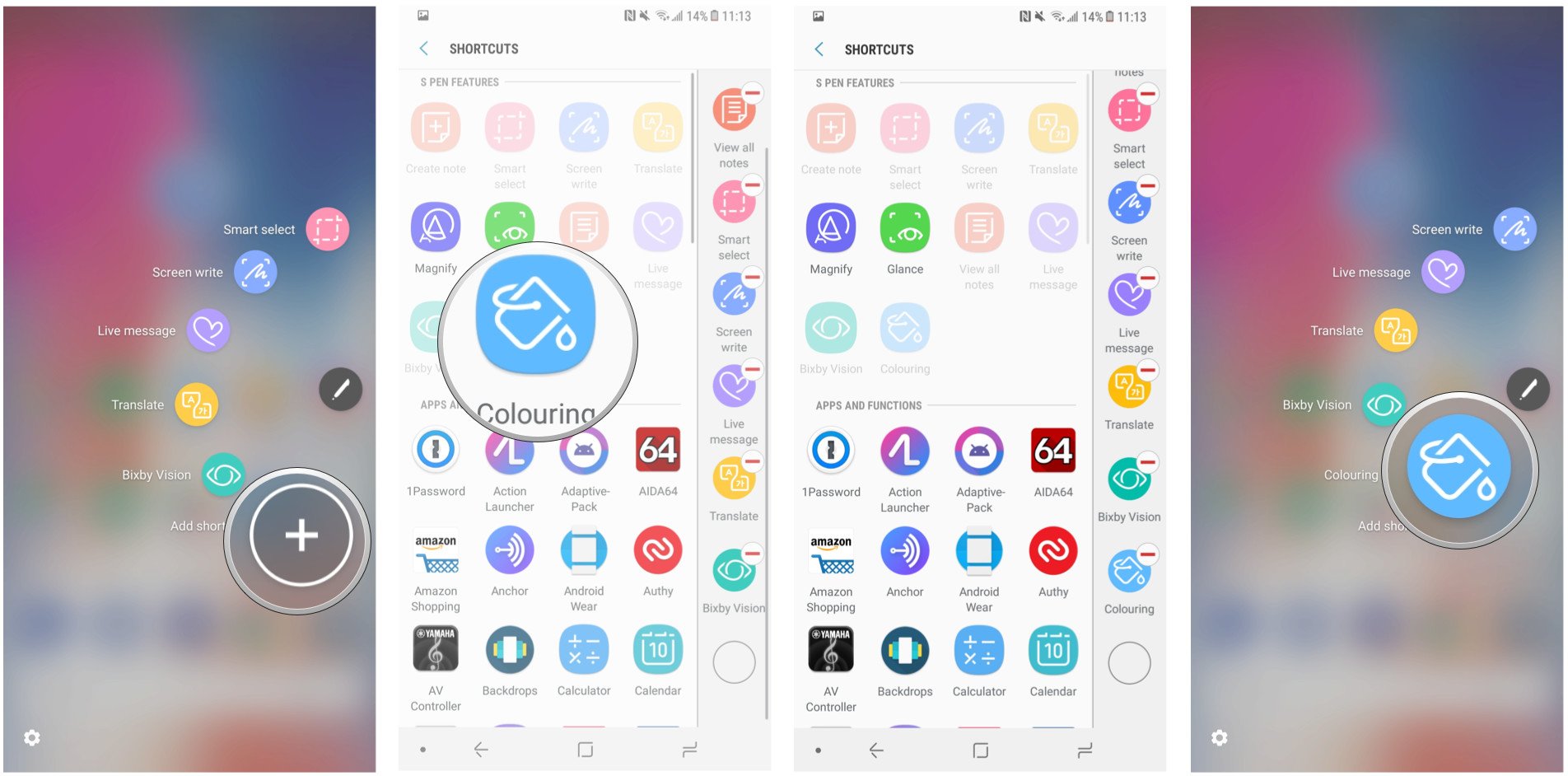
First, enable Coloring in Air Command
You can easily access the Coloring feature directly in the PenUP app, but it’s much easier to get to it using the shortcut in Air Command, which pops up when you remove the S Pen from its holster.
But it’s off by default, so you need to enable it.
Remove the S Pen from the holster. Wait for Air Command to appear.
Tap Add shortcut.
Tap on Coloring under S Pen features.
Now, access Coloring from the Air Command menu.
That’s it! Now the Coloring icon will show up whenever you open Air Command.
Then, play with the features
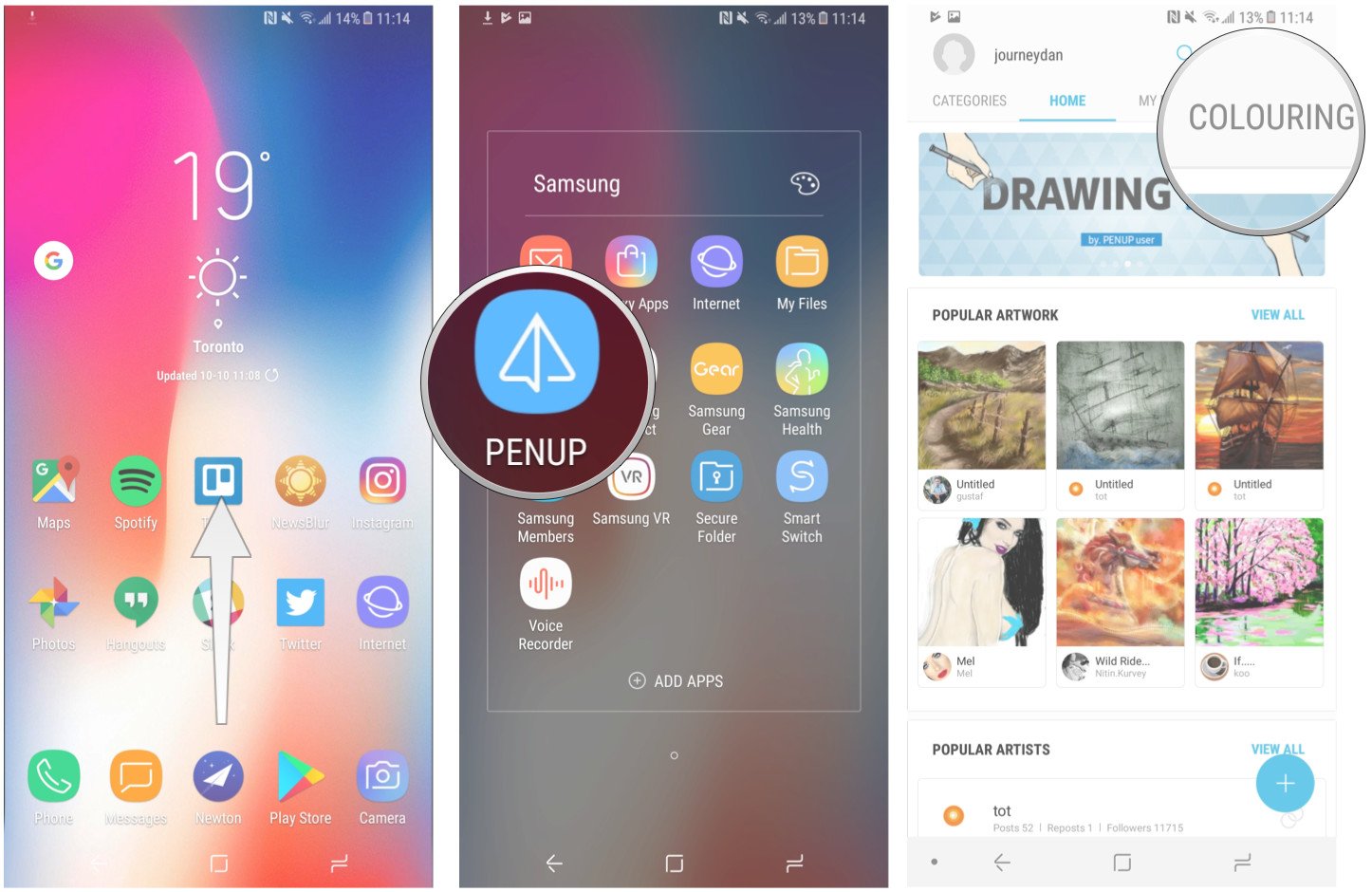
You can also find the Coloring feature inside the PenUP app.
Swipe up from the Samsung Launcher to access the app drawer.
Open the Samsung folder.
Tap on PenUP.
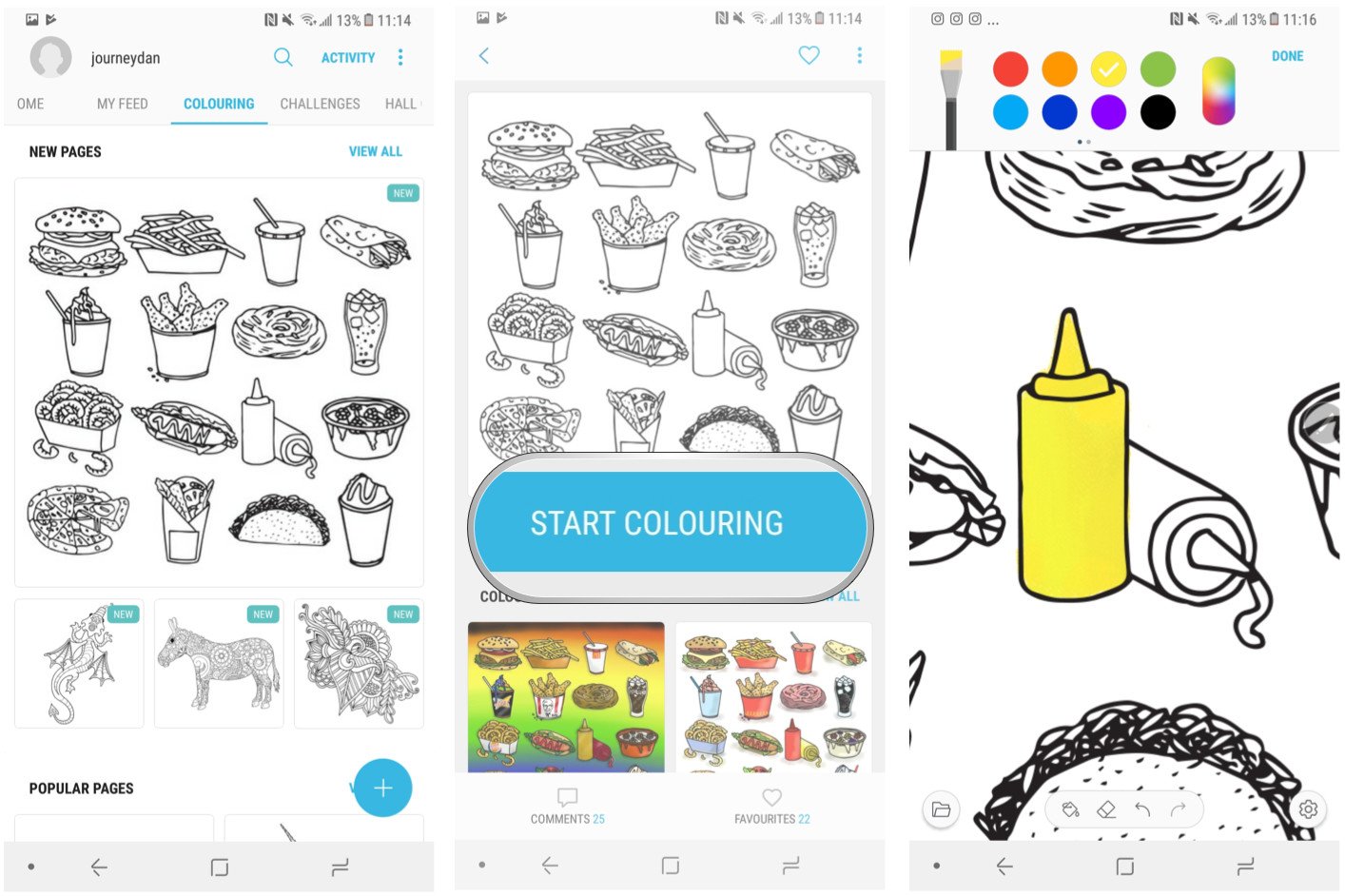
Navigate to the Coloring section on the right.
Find a drawing.
Play with brushes, opacity, colors and other features.
Now you’re set up to use, in my opinion, one of the best features on the Galaxy Note 8.
The great thing about the Coloring feature is that more pictograms are being added every week, and you can compare your work to others who have submitted their work through the community.
Even better, it’s possible to download many of those finished works of art and apply them as wallpapers, or to use as stepping stones for your own projects.
Samsung HMD Odyssey provides remarkable immersive experience with Dual AMOLED high-resolution displays, a 110-degree field of view, AKG headphones and built-in 6 DOF inside-out position tracking
Samsung Electronics, in partnership with Microsoft, today announced the Samsung HMD Odyssey – the most immersive Windows Mixed Reality (MR) headset in the market. The quick and easy to set up Samsung HMD Odyssey delivers a premium virtual reality experience, with superior picture quality and the highest resolution display taking consumers to entirely new virtual limits.
“The Samsung HMD Odyssey is a high performing headset, which like all of our products, delivers meaningful innovation to our consumers’ lives,” said YG Choi, Senior Vice President of PC Business Team, Samsung Electronics. “Designed in partnership with Microsoft, the Samsung HMD Odyssey transports consumers to the next frontier of Windows Mixed Reality, which introduces to them to a new, industry leading virtual reality experience.”
Lifelike Experiences
With dual 3.5-inch AMOLED displays, the Samsung HMD Odyssey delivers more vibrant colors, and deeper blacks, providing crisper, more lifelike images. The 110-degree field of view allows users to discover paramount virtual experiences around them.
When it comes to sound, the Samsung HMD Odyssey comes with 360° Spatial Sound, providing users with complete surround sound, through premium built-in AKG headphones.
Users can also talk with other gamers, without having to remove the headset, using the fitted array mic.
Incredibly Easy Start
The Windows Mixed Reality experience with the Samsung HMD Odyssey has been designed to give users the very best experience right out of the box. Unlike typical head-mounted displays, you do not need to install any extra motion sensors – simply connect to your PC and get started. With inside-out position tracking, users are not restricted to a limited space during their virtual reality experience.
For a more immersive experience, Samsung HMD Odyssey comes with a Six Degrees of Freedom1 (6 DOF) sensor allowing for intuitive and natural movements.
With an adjustable control wheel, the Samsung HMD Odyssey is designed to provide a comfortable and snug fit.
Alex Kipman, Technical Fellow at Microsoft said, “We’re excited to welcome the Samsung HMD Odyssey to the Windows Mixed Reality family of devices. This is an incredible product and another important step for the mixed reality journey we are on at Microsoft. With the Samsung HMD Odyssey, the team at Samsung has developed a Windows Mixed Reality headset that will delight our fans looking to immersive themselves in the world of mixed reality this holiday.”
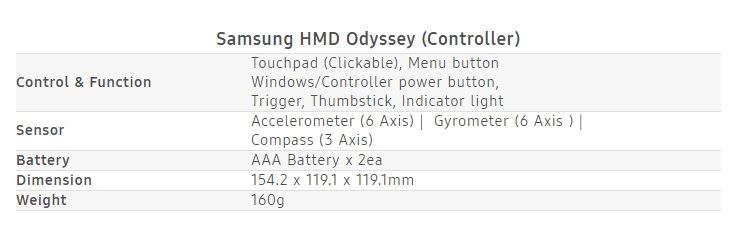
The Samsung HMD Odyssey comes with integrated AKG headphones and array mics for voice commands, as well as two motion controllers. The Samsung HMD Odyssey will be available later this year in the US, China, Korea, Brazil and Hong Kong, with pre-orders beginning in the US only on October 3rd.
*All functionality, features, specifications and other product information provided in this document including, but not limited to, the benefits, design, pricing, components, performance, availability, and capabilities of the product are subject to change without notice or obligation.
DOF refers to the freedom of movement in a 3 dimensional space. Unlike many VR controllers that recognizes 3 axis, 6 DOF gives you the freedom to move forward and back, left and right, up and down, yaw, pitch, and roll.
The Samsung Galaxy Tab S3 is one of the best Android tablets you can buy right now, for what that’s worth. It will probably be a while before Android 8.0 Oreo reaches the tablet, but in the meantime, Samsung has pushed a minor update that enables HDR support for Netflix (among other things).
The update has a version number of ‘T820XXU1AQ12/T820XAR1AQ12,’ and clocks in at 257MB. Here is the full changelog:
A new Samsung Pass function ahs been added
HDR support for Netflix
Update for Samsung Keyboard
Changes to the preload type mean that Kids Mode can now be re-installed onto devices from which it had previous been removed.
Changes to the preload type mean that Soundcamp can now be re-installed onto devices from which it had previous been removed.
Security policy updated.
As you can see in the below screenshot, Netflix displays an HDR logo in the app after the update, indicating that HDR is supported by both the device and the selected content (in this case, Marvel’s Luke Cage series) :
It was spotted on a Wi-Fi Tab S3 in the United States, so the version number/rollout date may vary if you live somewhere else or have the LTE model. Let us know in the comments if it shows up on your Tab S3.
The S Pen is the Note series’ defining feature – a versatile tool whose intuitive design and powerful functions make multitasking a breeze, and allow users to express themselves and connect with others in fun and creative ways. There’s truly nothing else quite like it.
The Galaxy Note8’s is the most powerful S Pen the series has ever seen. Here, Hyesoon Jeong, the Principal Engineer of Framework R&D Group for Samsung’s Mobile Communications Business Team, discusses various ways that Samsung optimized the implement’s latest iteration to streamline more facets of users’ daily lives.
Q. What kind of value does Samsung hope to deliver to consumers with the Galaxy Note8 and the S Pen’s new functions?
We’ve been delighted to hear that consumers who have used the S Pen with the Galaxy Note8 have given it good reviews so far, and remarked on how much better it feels to use the S Pen.
Many of these consumers had not had a chance to experience the S Pen’s convenient functions since the last device debuted. Therefore, when refining the design for the Galaxy Note8’s S Pen, we decided to, rather than upgrading the technology within, focus on adding features that would prove convenient in daily use.
Q. What are some of the processes that Samsung utilizes to identify potential S Pen functions?
In the beginning of each year, we hold a series of “Note Kickoff” meetings, which bring together our Development, Product Planning, UX and Usability teams. Each department is asked to present brand-new ideas for innovative features to include in the new model, and come up with ways to improve upon the previous device based on customer feedback. This is how the Note8’s new S Pen features came about – by diligently listening to our customers’ insights on previous S Pens.
Q. One of these new features, Live Message, has been particularly well received. What were your main focuses when developing it?
Live Message is a fun GIF-creation feature that’s an evolution of sorts of Smart Select, which was introduced with the previous Note device. We wanted to expand this type of functionality because the ability to create GIFs has proven popular among Note users, who are very active on social media. Live Message takes GIF creation a step further by allowing users to add personal touches to messages, via animated text or live emojis, and customize their photos with various pen effects.
Our main focus when developing it was usability. We wanted to make sure that the function would be freely available for users in markets across the world. Because people in different countries communicate via different channels, we worked closely with popular messaging services around the globe, working out conditions and regional restrictions, to build something that would work with them.
We also want to show users how easy it is to utilize the function when communicating with their friends. Our developers are currently working on software updates that will introduce more beautiful and decorative examples of animated GIFs for users who may not be entirely satisfied with their own GIF-creating handiwork to plug into messages. We’re also looking into expanding the selection of pen effects that users have at their disposal.
Q. What are some of the ways that users can utilize the S Pen when using Bixby?
Bixby integration currently allows users to utilize its voice command feature to adjust the type of pen they’re using, as well as its color.
The S Pen’s Bixby support also makes it easier for users to shop. When you’re surfing the web and you find an image of a product that you like, you can activate Bixby Vision via Air Command, hover the S Pen over it, and instantly search for it online.
Q. How did you improve the Screen off memo feature?
Screen off memo is another function that’s receiving positive reviews from users. It automatically activates when you remove the S Pen, and allows you to instantly jot down notes to the off screen. This is a new function that enables users to write even when the screen is off, so that you don’t forget any passing thoughts.
For the Galaxy Note8, we’ve enhanced the feature to deliver new levels of convenience after listening to the consumers’ voices. Whereas before this update, the function was well-suited for simple, temporary memos, now, Screen off memo supports up to 100 pages of notes and allows you to pin notes to the AOD and make edits. This makes the function perfect for taking notes during meetings or presentations, managing to-do lists, or writing quick reminders for important tasks.
Q. Could you elaborate on how collaborating with Wacom has helped Samsung maximize the S Pen’s utility?
Our collaboration with (pen display, tablet and stylus manufacturer) Wacom, incorporating its tablet technologies into mobile devices through the S Pen, has been excellent – a win-win. Although other mobile-device manufacturers could design a smartphone with a large screen, by introducing Wacom’s solutions to the mobile realm, we’ve been able to establish a new standard when it comes to productivity.
We’re currently working with Wacom to explore new possible S Pen features and B2B solutions, including support for secure digital signatures, that could offer users and businesses additional convenience.
Q. What motivates Samsung to constantly seek out new ways to innovate with the S Pen?
The S Pen is a feature that’s unique to our company. We often hear that Note users are very loyal, and I would like to add that we developers are also greatly committed to our work. Those of us who work on the Note devices take great pride in providing users with an S Pen experience that allows them to streamline how they work, live, and express themselves.
This desire to arm users with a tool that makes a difference in their daily lives is what motivates us to identify new and exciting S Pen innovations.
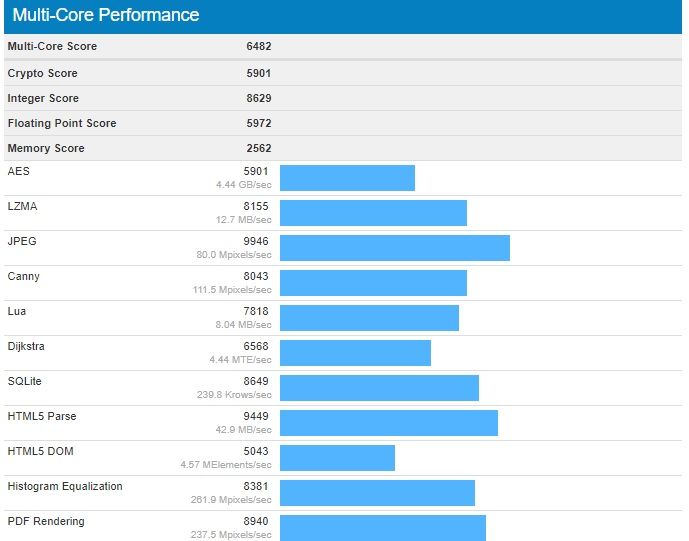
A Geekbench listing has been spotted today which mentions the Galaxy S8+ Android 8.0 Oreo update. It’s likely that tests are being performed on this firmware update as the development progresses.
Galaxy S8+ Android 8.0 Oreo update
In our report earlier this month, we mentioned that the Galaxy S8 and Galaxy S8+ Android 8.0 Oreo update firmware versions could be G950FXXU1BQI1 and G955FXXU1BQI1, respectively.
It’s unclear at this point in time when Samsung is going to release Oreo for this year’s flagship smartphone. It’s likely that a Samsung beta program for the Oreo update might be launched at some point in the coming weeks.
Once the beta firmware has been thoroughly tested, it’s likely that we might see it being rolled out much faster worldwide as Samsung has now started using multi-CSC firmware. That means end users will be able to get a taste of Oreo on their 2017 flagships sooner rather than later.
The Galaxy S8+ has now been spotted on Geekbench running Android 8.0 Oreo. It’s not uncommon for us to see such benchmark listings ahead of an impending major firmware release. However, it doesn’t really clarify anything.
Samsung is yet to confirm its Oreo release roadmap. Until it does that, there’s only going to be more speculation about when the Galaxy S8 and Galaxy S8+ Android 8.0 Oreo update might be released. One can only hope that it doesn’t make customers wait for a very long time.
We have obtained some information about Samsung’s next flagship smartphone. The company has started Galaxy S9 firmware development. The version numbers confirm that there will be two models, which means that we can expect a Galaxy S9 and Galaxy S9+ to be released in 2018.
Galaxy S9 firmware development begins
Two separate Galaxy S9 firmware are being developed, G960FXXU0AQI5 and G965FXXU0AQI5. The model numbers of Samsung’s next flagship smartphones have therefore been confirmed as well. The Galaxy S9 will be SM-G960 while the Galaxy S9+ will be SM-G965.
That’s not surprising, given that the Galaxy S8 and Galaxy S8+ have model numbers SM-G950 and SM-G955 respectively. It’s interesting to note that the Galaxy S9 firmware development has started two weeks earlier than it did for the Galaxy S8 last year.
Galaxy S9 expected release date
As you can probably imagine, there will soon be a lot of rumors about the Galaxy S9 being launched ahead of schedule. While that might be the impression you get from the early Galaxy S9 firmware development, it’s just as likely that the Galaxy S9 release will take place around the same time as the Galaxy S8.
Samsung unveiled the Galaxy S8 at a dedicated event in New York City on March 29 this year. It was released in a handful of markets across the globe on April 21. Samsung might stick with the same timeframe for the Galaxy S9 release next year.
As we continue to keep an eye on the Galaxy S9 firmware development, expect more information about Samsung’s next flagship smartphones to surface in the coming weeks.