It has been a week since the Galaxy S8 Android 8.0 Oreo beta was released. Samsung has launched the beta in the United States, United Kingdom and South Korea in the first phase. Samsung today rolled out the second beta firmware for the Galaxy S8 and Galaxy S8+.
The second beta firmware update with version number G950FXXU1ZQK4 is now being rolled out by Samsung. It has been rolled out in the United Kingdom already and will also go live in other supported markets soon.
Second Galaxy S8 Android 8.0 beta firmware
The changelog of the second Galaxy S8 Android 8.0 Oreo beta firmware reveals that it brings the October security patch and improves the stability of DeX mode. The changelog also mentions that the stability of the Launcher has been improved as well.
There are new clock styles for the lock screen and Always On Display. Users can now adjust the transparency of notifications to get their desired look. Smart View gets smarter by allowing the handset’s screen to go dark when it’s mirroring between the phone and TV.
A plethora of bug fixes are also included in this beta release. Interestingly, even though the changelog says that it has the October security patch, the Software Information section mentions the September patch. It just might be a clerical mistake.
Samsung is yet to confirm when the second phase of the beta program will begin. That’s when the Galaxy S8 Android 8.0 Oreo beta is expected to be released in markets like India.
Tablets have always allowed one to lock the screen orientation to either portrait or landscape, but the latter has not been possible on smartphones, at least not those made by Samsung. But did you know the ability to lock screen orientation to landscape is available on the Galaxy Note 8, and any device that runs the Samsung Experience 8.5 or newer interface?
That’s right: You can finally use your Samsung phone in landscape mode and not have to deal with the orientation flipping back to portrait just because you turn the phone just a tad sideways. Again, this feature is only available on Samsung devices running at least Samsung Experience 8.5; it will be present on newer versions as well, including Samsung Experience 9.0 that will debut on Android 8.0 Oreo.
So, how does one lock screen orientation to landscape on the Galaxy Note 8 and other Samsung phones? Just follow the steps below to see how it’s done.
How to lock screen orientation to landscape on the Galaxy Note 8
Step 1: Access the notification shade by swiping down from the top of the screen, then swipe again to access the quick toggles.
Step 2: Here, tap the screen rotation toggle repeatedly till it says Auto Rotate.
Step 3: Then, rotate the phone to make the screen flip to landscape orientation. Then, bring up the toggles again and tap the screen rotation toggle till it says Landscape.
That’s it. Your phone’s screen will now continue to work in landscape mode (at least in apps and menus that support it; the home screen, for example, only works in portrait) until you re-enable auto rotation, turn the phone to portrait orientation, then tap the rotation toggle in the notification shade till it says Portrait.
It’s big. It’s heavy. It’s not all that attractive. We love it.
The Samsung Galaxy S8 Active is the best rugged phone you’ll find on the market. Sure, there aren’t that many of them available; however, the Active line time and again rises to the top. The 2017 iteration is not only among the best in rugged and durable phones, but it’s also one of the most compelling packages offered right now.
In the early days of rugged phones we had to contend with less than desirable performance. We traded away sleek and sexy in favor of rough and tumble. If you were a general contractor or plumber in the market for a new phone to take on job sites, you had to choose from ugly and uninspired stuff. Even worse, the phones were a generation or two behind the rest of the pack.
Somewhere over the last few generations, though, Samsung figured out a way to deliver timely hardware in a body that was more sleek. Its Galaxy S Active series of devices, which has been exclusive to AT&T, is a great way to keep up with the Joneses, and have something designed to take moderate abuse.
The Galaxy S7 Active (2016) was a tremendous step forward for the line, and even bested the S7 standard bearer with a bigger battery. As for this year’s model, the S8 Active is another stellar device that delivers best-in-class specifications at its core. Indeed, it’s all Galaxy S8 under the hood.
What we really enjoy about the S8 Active is that it’s all of the good stuff in the Galaxy S8. The Super AMOLED display, excellent camera, Snapdragon 835 processor, 4GB RAM, and 64GB storage are what you expect in top phone in 2017. Also present are USB-C, water and dust resistance, and headphone jack.
When it comes to performance, it’s damn near impossible to get more than what comes in the aforementioned specifications. Yes, you can stack them up on benchmarks and create a pecking order. Moreover, you can also get more memory in other models.
Does that stuff matter to you? We suspect that most people can’t discern the differences in hardware on daily tasks. There’s very little you can throw at a phone like this that will tax it.
We saw no stutters, lags, or performance issues in the Galaxy S8 Active. Everything, from just checking email and messages, to games and always-synchronizing services like Slack and Todoist, went swimmingly.
Be careful in reading too much into these words. Don’t look at the S8 Active as an improvement or enhanced version of the flagship phone. It is, to a degree, a souped-up model in areas. But, what it loses, is everything that makes the Galaxy S8 so sexy. The beautiful body, sleek lines, and all of those premium materials are absent here.
The S8 Active’s screen is flat whereas the Galaxy S8 is curved; its resolution is 2,560 x 1,440 while the flagship offers up 2,960 x 1,440 pixels. The devil is in the details, and that matters to some.
Also, the display is protected by a special film or plastic that is prone to pick up scratches. This is one of the trades you’ll still make when dealing with a rugged phone. The glass is shatter-resistant, and will stand up to drops… but.
The top layer absorbs the scuffs and scratches of life and will show up over time. To us, though, we’ll take that any day. Nothing beats the peace of mind in knowing with almost 100 percent certainty that a dropped phone is going to look okay when we flip it over. Samsung says the S8 Active can withstand a 5-foot drop.
The Galaxy S8 Active is also heavier than its flagship counterpart. In fact, it’s even heavier than the Galaxy Note 8. There’s serious heft to it.
Part of the weight comes in a 4,000mAh battery. Yes, a full 1,000mAh more than the Galaxy S8 and 500mAh more than the Galaxy S8+. This means you’ll end up with plenty of juice left over at the end of the day.
Realistically you could expect to get two days of average use out of the S8 Active. Mileage varies, to be sure, but we’ve come to appreciate this much life and we think you would, too.
In the area of cameras, the S8 Active’s setup is identical to the one in both the Galaxy S7 and Galaxy S8. Specifically, it’s a single 12-megapixel sensor with an f/1.7 aperture. As we, and others, found with this to consistently deliver bright, sharp photos with a great level of detail.
The software is a real winner, too, thanks to a variety of shooting modes such as Selective Focus (DSRL-like bokeh) and Pro (manual settings for shutter speed, focus, and ISO).
Around front, the S8 Active’s selfie-camera is equally solid. The Wide Selfie is a neat trick which lets one snap panoramic-like shots. Samsung’s augmented reality (AR) stickers are similar to what you get in Snapchat and Instagram and make for a fun experience.
One of the other downsides to the Galaxy S Active line, thus far, is that it is exclusive to AT&T. This means you’ll end up with the carrier’s preloaded apps and services. To that end you can look forward to nearly one dozen titles.
You can uninstall or disable most of them, but you’ll have to find a way to hide the others. That is, of course, if you don’t want to see them. If you’re an AT&T fan through and through, you might find value in them. As of the time of this review we understand that T-Mobile may soon offer its own take on the Galaxy S8 Active.
Conclusion
The Samsung Galaxy S8 Active is pricey. With a sticker of $850 it falls on the high end of what smarphone makers command. It’s $100 more than the flagship model and the same cost of the Galaxy S8+ when purchased through AT&T. Go unlocked, though, and the S8 Active could be much more costly by comparison.
We definitely won’t list this phone among the most beautiful or sophisticated designs. It’s downright ugly, boring, and blocky when compared to others. On the other hand, it is better looking than its predecessors. We’re surely not the only ones to appreciate that Samsung left the camouflage off this year’s model.
Don’t purchase the S8 Active strictly on the merit of a larger battery. Do consider it, however, if your needs call for a phone that withstands abuse. Have young children in the house? If they expect to get to play with your device, you’ll want the peace of mind that comes with a shatter-resistant display.
If you’ve grown accustomed to having a rugged phone over the last few years, the S8 Active is a wonderful step up from your older model. A lot of people hold on to their handsets for 18-24 months; this phone is much improved over what was available at that time.
Coloring is one of the most enjoyable features on the Note 8. Here's how to use it!
It’s always been fun to use the Galaxy Note’s S Pen stylus to doodle in S Note and other compatible apps, but with the Note 8, Samsung has gone one step further — it’s added a dedicated coloring feature.
Part of the little-known but, in some circles, wildly popular PenUP app, the coloring feature gives the S Pen a creative rejuvination by transposing all of S Note’s brushes, styles and colors into a collection of thick line drawings.
The feature isn’t surprising, though: coloring books, both real and digital, have seen a resurgence in recent years as smartphone and tablet addicts look for something that clears the mind and encourages focusing on one task. While it’s not quite meditative, to many people the act of filling in a pictogram with color is relaxing, rewarding, and fun.
If you’re looking to do the same thing on the new Galaxy Note 8, here’s how.
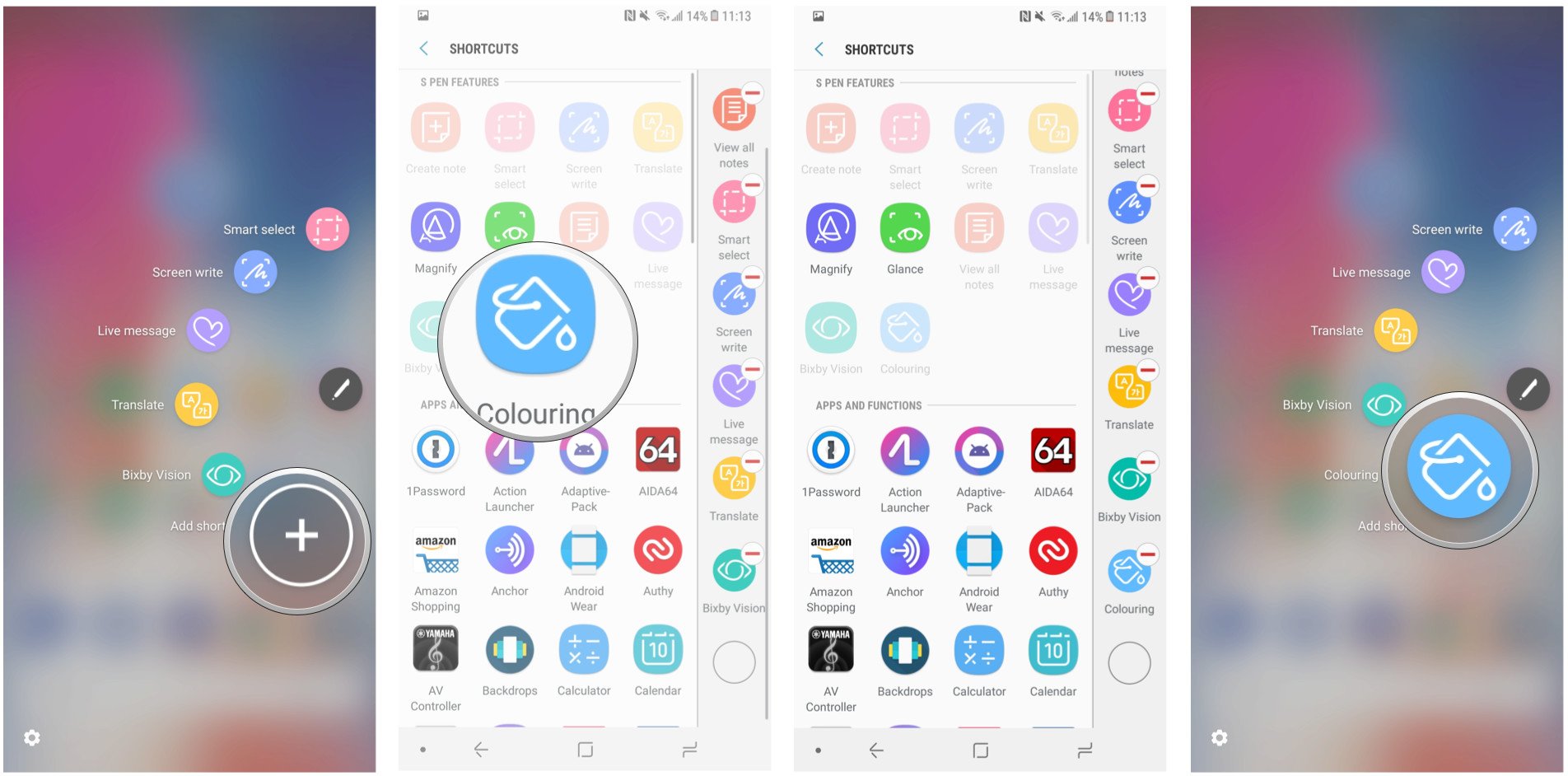
First, enable Coloring in Air Command
You can easily access the Coloring feature directly in the PenUP app, but it’s much easier to get to it using the shortcut in Air Command, which pops up when you remove the S Pen from its holster.
But it’s off by default, so you need to enable it.
Remove the S Pen from the holster. Wait for Air Command to appear.
Tap Add shortcut.
Tap on Coloring under S Pen features.
Now, access Coloring from the Air Command menu.
That’s it! Now the Coloring icon will show up whenever you open Air Command.
Then, play with the features
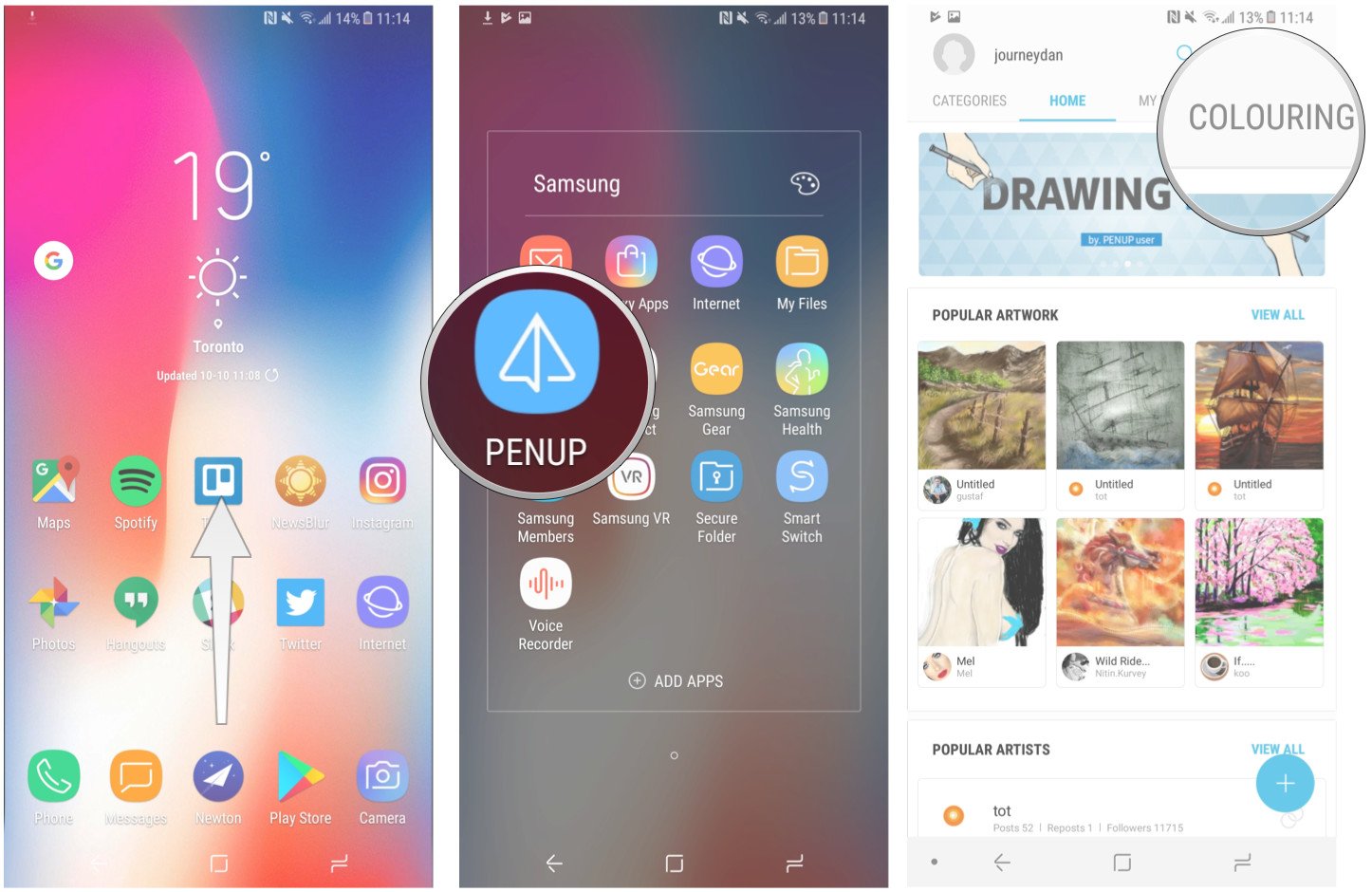
You can also find the Coloring feature inside the PenUP app.
Swipe up from the Samsung Launcher to access the app drawer.
Open the Samsung folder.
Tap on PenUP.
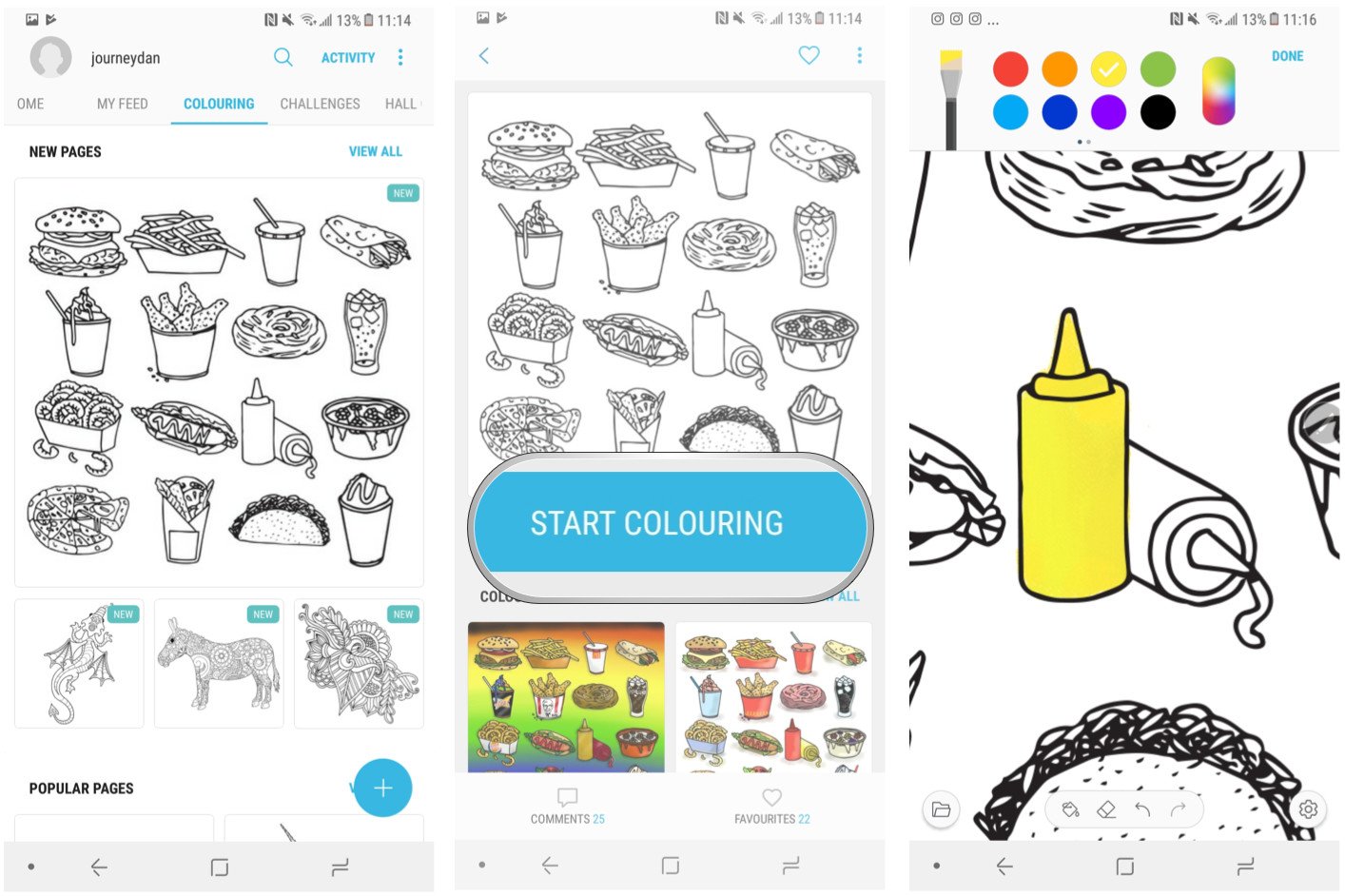
Navigate to the Coloring section on the right.
Find a drawing.
Play with brushes, opacity, colors and other features.
Now you’re set up to use, in my opinion, one of the best features on the Galaxy Note 8.
The great thing about the Coloring feature is that more pictograms are being added every week, and you can compare your work to others who have submitted their work through the community.
Even better, it’s possible to download many of those finished works of art and apply them as wallpapers, or to use as stepping stones for your own projects.
Samsung HMD Odyssey provides remarkable immersive experience with Dual AMOLED high-resolution displays, a 110-degree field of view, AKG headphones and built-in 6 DOF inside-out position tracking
Samsung Electronics, in partnership with Microsoft, today announced the Samsung HMD Odyssey – the most immersive Windows Mixed Reality (MR) headset in the market. The quick and easy to set up Samsung HMD Odyssey delivers a premium virtual reality experience, with superior picture quality and the highest resolution display taking consumers to entirely new virtual limits.
“The Samsung HMD Odyssey is a high performing headset, which like all of our products, delivers meaningful innovation to our consumers’ lives,” said YG Choi, Senior Vice President of PC Business Team, Samsung Electronics. “Designed in partnership with Microsoft, the Samsung HMD Odyssey transports consumers to the next frontier of Windows Mixed Reality, which introduces to them to a new, industry leading virtual reality experience.”
Lifelike Experiences
With dual 3.5-inch AMOLED displays, the Samsung HMD Odyssey delivers more vibrant colors, and deeper blacks, providing crisper, more lifelike images. The 110-degree field of view allows users to discover paramount virtual experiences around them.
When it comes to sound, the Samsung HMD Odyssey comes with 360° Spatial Sound, providing users with complete surround sound, through premium built-in AKG headphones.
Users can also talk with other gamers, without having to remove the headset, using the fitted array mic.
Incredibly Easy Start
The Windows Mixed Reality experience with the Samsung HMD Odyssey has been designed to give users the very best experience right out of the box. Unlike typical head-mounted displays, you do not need to install any extra motion sensors – simply connect to your PC and get started. With inside-out position tracking, users are not restricted to a limited space during their virtual reality experience.
For a more immersive experience, Samsung HMD Odyssey comes with a Six Degrees of Freedom1 (6 DOF) sensor allowing for intuitive and natural movements.
With an adjustable control wheel, the Samsung HMD Odyssey is designed to provide a comfortable and snug fit.
Alex Kipman, Technical Fellow at Microsoft said, “We’re excited to welcome the Samsung HMD Odyssey to the Windows Mixed Reality family of devices. This is an incredible product and another important step for the mixed reality journey we are on at Microsoft. With the Samsung HMD Odyssey, the team at Samsung has developed a Windows Mixed Reality headset that will delight our fans looking to immersive themselves in the world of mixed reality this holiday.”
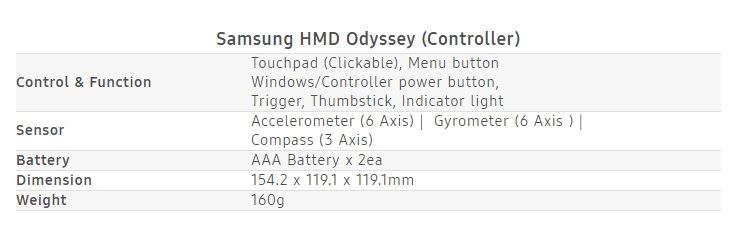
The Samsung HMD Odyssey comes with integrated AKG headphones and array mics for voice commands, as well as two motion controllers. The Samsung HMD Odyssey will be available later this year in the US, China, Korea, Brazil and Hong Kong, with pre-orders beginning in the US only on October 3rd.
*All functionality, features, specifications and other product information provided in this document including, but not limited to, the benefits, design, pricing, components, performance, availability, and capabilities of the product are subject to change without notice or obligation.
DOF refers to the freedom of movement in a 3 dimensional space. Unlike many VR controllers that recognizes 3 axis, 6 DOF gives you the freedom to move forward and back, left and right, up and down, yaw, pitch, and roll.
The Samsung Galaxy Tab S3 is one of the best Android tablets you can buy right now, for what that’s worth. It will probably be a while before Android 8.0 Oreo reaches the tablet, but in the meantime, Samsung has pushed a minor update that enables HDR support for Netflix (among other things).
The update has a version number of ‘T820XXU1AQ12/T820XAR1AQ12,’ and clocks in at 257MB. Here is the full changelog:
A new Samsung Pass function ahs been added
HDR support for Netflix
Update for Samsung Keyboard
Changes to the preload type mean that Kids Mode can now be re-installed onto devices from which it had previous been removed.
Changes to the preload type mean that Soundcamp can now be re-installed onto devices from which it had previous been removed.
Security policy updated.
As you can see in the below screenshot, Netflix displays an HDR logo in the app after the update, indicating that HDR is supported by both the device and the selected content (in this case, Marvel’s Luke Cage series) :
It was spotted on a Wi-Fi Tab S3 in the United States, so the version number/rollout date may vary if you live somewhere else or have the LTE model. Let us know in the comments if it shows up on your Tab S3.
The S Pen is the Note series’ defining feature – a versatile tool whose intuitive design and powerful functions make multitasking a breeze, and allow users to express themselves and connect with others in fun and creative ways. There’s truly nothing else quite like it.
The Galaxy Note8’s is the most powerful S Pen the series has ever seen. Here, Hyesoon Jeong, the Principal Engineer of Framework R&D Group for Samsung’s Mobile Communications Business Team, discusses various ways that Samsung optimized the implement’s latest iteration to streamline more facets of users’ daily lives.
Q. What kind of value does Samsung hope to deliver to consumers with the Galaxy Note8 and the S Pen’s new functions?
We’ve been delighted to hear that consumers who have used the S Pen with the Galaxy Note8 have given it good reviews so far, and remarked on how much better it feels to use the S Pen.
Many of these consumers had not had a chance to experience the S Pen’s convenient functions since the last device debuted. Therefore, when refining the design for the Galaxy Note8’s S Pen, we decided to, rather than upgrading the technology within, focus on adding features that would prove convenient in daily use.
Q. What are some of the processes that Samsung utilizes to identify potential S Pen functions?
In the beginning of each year, we hold a series of “Note Kickoff” meetings, which bring together our Development, Product Planning, UX and Usability teams. Each department is asked to present brand-new ideas for innovative features to include in the new model, and come up with ways to improve upon the previous device based on customer feedback. This is how the Note8’s new S Pen features came about – by diligently listening to our customers’ insights on previous S Pens.
Q. One of these new features, Live Message, has been particularly well received. What were your main focuses when developing it?
Live Message is a fun GIF-creation feature that’s an evolution of sorts of Smart Select, which was introduced with the previous Note device. We wanted to expand this type of functionality because the ability to create GIFs has proven popular among Note users, who are very active on social media. Live Message takes GIF creation a step further by allowing users to add personal touches to messages, via animated text or live emojis, and customize their photos with various pen effects.
Our main focus when developing it was usability. We wanted to make sure that the function would be freely available for users in markets across the world. Because people in different countries communicate via different channels, we worked closely with popular messaging services around the globe, working out conditions and regional restrictions, to build something that would work with them.
We also want to show users how easy it is to utilize the function when communicating with their friends. Our developers are currently working on software updates that will introduce more beautiful and decorative examples of animated GIFs for users who may not be entirely satisfied with their own GIF-creating handiwork to plug into messages. We’re also looking into expanding the selection of pen effects that users have at their disposal.
Q. What are some of the ways that users can utilize the S Pen when using Bixby?
Bixby integration currently allows users to utilize its voice command feature to adjust the type of pen they’re using, as well as its color.
The S Pen’s Bixby support also makes it easier for users to shop. When you’re surfing the web and you find an image of a product that you like, you can activate Bixby Vision via Air Command, hover the S Pen over it, and instantly search for it online.
Q. How did you improve the Screen off memo feature?
Screen off memo is another function that’s receiving positive reviews from users. It automatically activates when you remove the S Pen, and allows you to instantly jot down notes to the off screen. This is a new function that enables users to write even when the screen is off, so that you don’t forget any passing thoughts.
For the Galaxy Note8, we’ve enhanced the feature to deliver new levels of convenience after listening to the consumers’ voices. Whereas before this update, the function was well-suited for simple, temporary memos, now, Screen off memo supports up to 100 pages of notes and allows you to pin notes to the AOD and make edits. This makes the function perfect for taking notes during meetings or presentations, managing to-do lists, or writing quick reminders for important tasks.
Q. Could you elaborate on how collaborating with Wacom has helped Samsung maximize the S Pen’s utility?
Our collaboration with (pen display, tablet and stylus manufacturer) Wacom, incorporating its tablet technologies into mobile devices through the S Pen, has been excellent – a win-win. Although other mobile-device manufacturers could design a smartphone with a large screen, by introducing Wacom’s solutions to the mobile realm, we’ve been able to establish a new standard when it comes to productivity.
We’re currently working with Wacom to explore new possible S Pen features and B2B solutions, including support for secure digital signatures, that could offer users and businesses additional convenience.
Q. What motivates Samsung to constantly seek out new ways to innovate with the S Pen?
The S Pen is a feature that’s unique to our company. We often hear that Note users are very loyal, and I would like to add that we developers are also greatly committed to our work. Those of us who work on the Note devices take great pride in providing users with an S Pen experience that allows them to streamline how they work, live, and express themselves.
This desire to arm users with a tool that makes a difference in their daily lives is what motivates us to identify new and exciting S Pen innovations.
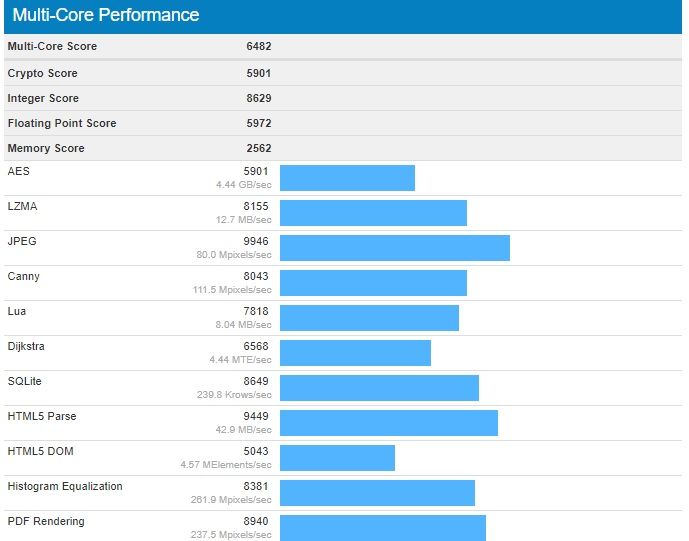
A Geekbench listing has been spotted today which mentions the Galaxy S8+ Android 8.0 Oreo update. It’s likely that tests are being performed on this firmware update as the development progresses.
Galaxy S8+ Android 8.0 Oreo update
In our report earlier this month, we mentioned that the Galaxy S8 and Galaxy S8+ Android 8.0 Oreo update firmware versions could be G950FXXU1BQI1 and G955FXXU1BQI1, respectively.
It’s unclear at this point in time when Samsung is going to release Oreo for this year’s flagship smartphone. It’s likely that a Samsung beta program for the Oreo update might be launched at some point in the coming weeks.
Once the beta firmware has been thoroughly tested, it’s likely that we might see it being rolled out much faster worldwide as Samsung has now started using multi-CSC firmware. That means end users will be able to get a taste of Oreo on their 2017 flagships sooner rather than later.
The Galaxy S8+ has now been spotted on Geekbench running Android 8.0 Oreo. It’s not uncommon for us to see such benchmark listings ahead of an impending major firmware release. However, it doesn’t really clarify anything.
Samsung is yet to confirm its Oreo release roadmap. Until it does that, there’s only going to be more speculation about when the Galaxy S8 and Galaxy S8+ Android 8.0 Oreo update might be released. One can only hope that it doesn’t make customers wait for a very long time.
We have obtained some information about Samsung’s next flagship smartphone. The company has started Galaxy S9 firmware development. The version numbers confirm that there will be two models, which means that we can expect a Galaxy S9 and Galaxy S9+ to be released in 2018.
Galaxy S9 firmware development begins
Two separate Galaxy S9 firmware are being developed, G960FXXU0AQI5 and G965FXXU0AQI5. The model numbers of Samsung’s next flagship smartphones have therefore been confirmed as well. The Galaxy S9 will be SM-G960 while the Galaxy S9+ will be SM-G965.
That’s not surprising, given that the Galaxy S8 and Galaxy S8+ have model numbers SM-G950 and SM-G955 respectively. It’s interesting to note that the Galaxy S9 firmware development has started two weeks earlier than it did for the Galaxy S8 last year.
Galaxy S9 expected release date
As you can probably imagine, there will soon be a lot of rumors about the Galaxy S9 being launched ahead of schedule. While that might be the impression you get from the early Galaxy S9 firmware development, it’s just as likely that the Galaxy S9 release will take place around the same time as the Galaxy S8.
Samsung unveiled the Galaxy S8 at a dedicated event in New York City on March 29 this year. It was released in a handful of markets across the globe on April 21. Samsung might stick with the same timeframe for the Galaxy S9 release next year.
As we continue to keep an eye on the Galaxy S9 firmware development, expect more information about Samsung’s next flagship smartphones to surface in the coming weeks.
If you’re considering making the switch from an iPhone to the upcoming Samsung Galaxy Note 8, you should know that Samsung makes this process as painless as possible with their Smart Switch app. Even if you’re not switching away from iPhone, Samsung has you covered. They’ve also highlighted some interesting things you can do with your new Galaxy Note 8 including making GIFs, multi-tasking, using the low light cameras and more. Check it out.
How to transfer everything from an Android phone
Connect your phones with the cable included with your Galaxy Note 8.
Select Smart Switch in the menu that pops up.
Select which phone sends and receives the data.
Press Allow on your old device.
Choose what files you are keeping and then press Transfer.
How to transfer everything from an iPhone
Use the iPhone cable and the adapter included with the Galaxy Note 8 to connect your phones.
Select Smart Switch in the menu that pops up.
Tap Trust on your old phone.
Pick the files you want to keep and press Transfer.
How to make GIFs on your Galaxy Note 8
Tap the floating Air Command symbol on your chosen video.
Press Smart Select.
Press Animation.
Adjust where you want to capture with the S-Pen.
Hit Record then Stop when the time is right.
Then hit share.
How to use Live Focus on the Galaxy Note 8 camera
Quick launch the rear camera by double tapping the power button.
Select Live Focus.
Frame your subject and adjust your focus level.
Take the picture and then tap on it in the bottom right.
You can adjust the focus level in the background and even add stickers.
Save and share.
How to use the S-Pen with the Galaxy Note 8
Curious about the S-Pen that’s included with the new Galaxy Note 8? This video is a short primer on all the things you can do with your S-Pen through the help of Air Command, which is the interface that launches automatically when you remove the S-Pen from the phone. Tired of having Air Command pop up automatically? There’s a setting that allows you to change that, too.
How to multi-task with the Galaxy Note 8
The 2:1 screen ratio of the Galaxy Note 8 makes it perfect for multi-tasking. Here’s how.
Tap the Recents button.
Press and hold the app you want.
Drag it to the top of your screen.
Then open the other app you want.
You can even preset two apps to launch together using your Edge panel. Here’s how.
Swipe left on the Apps Edge tab.
Tap the + button to create a new Apps Pair.
Select two apps you use together and press Done.
How to take good low light pictures with the Galaxy Note 8
Quick launch your rear camera by double tapping power button.