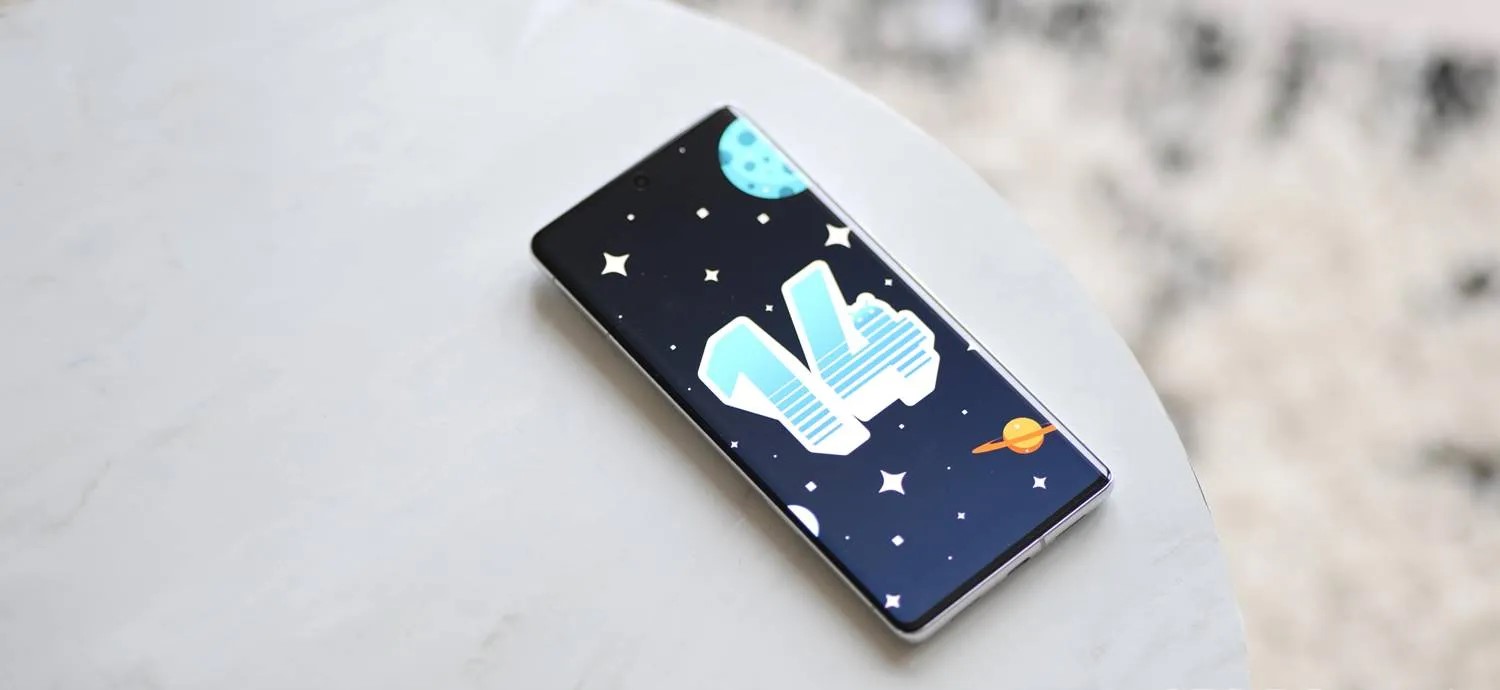
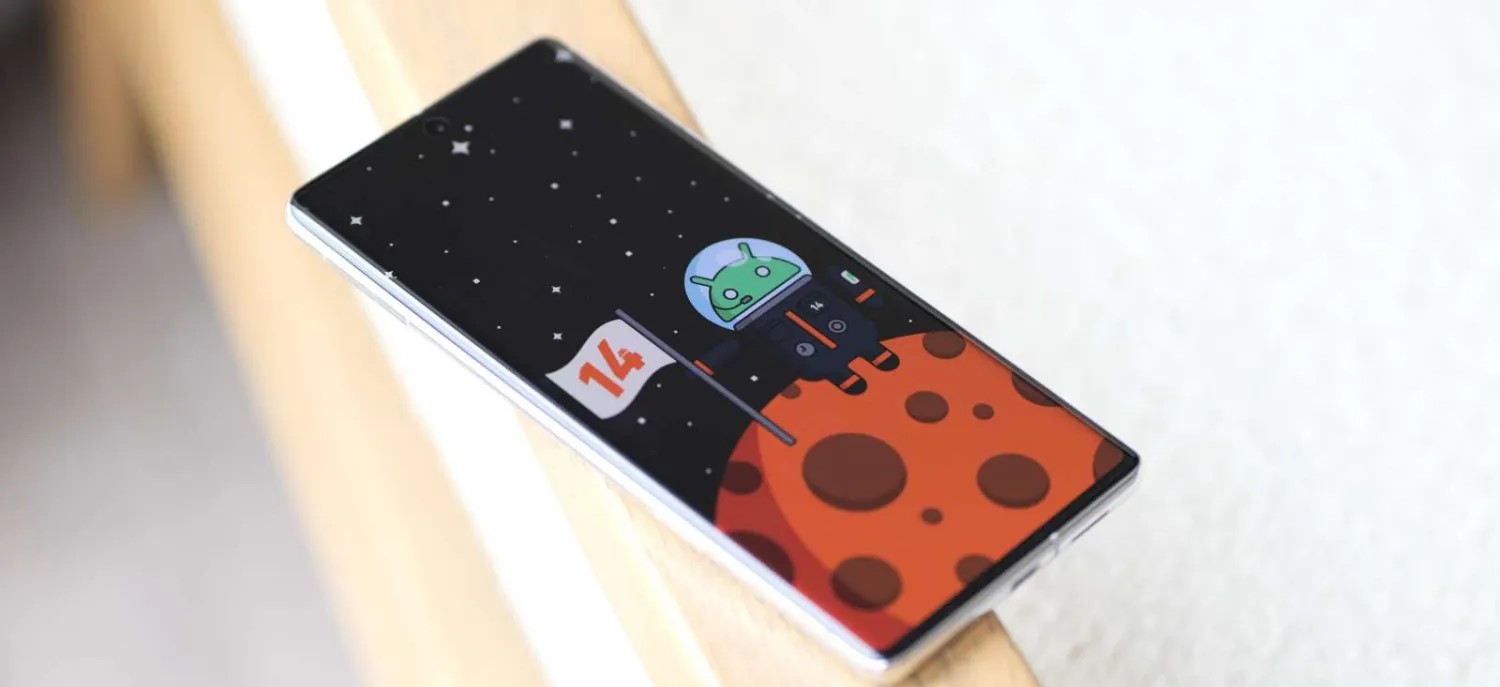
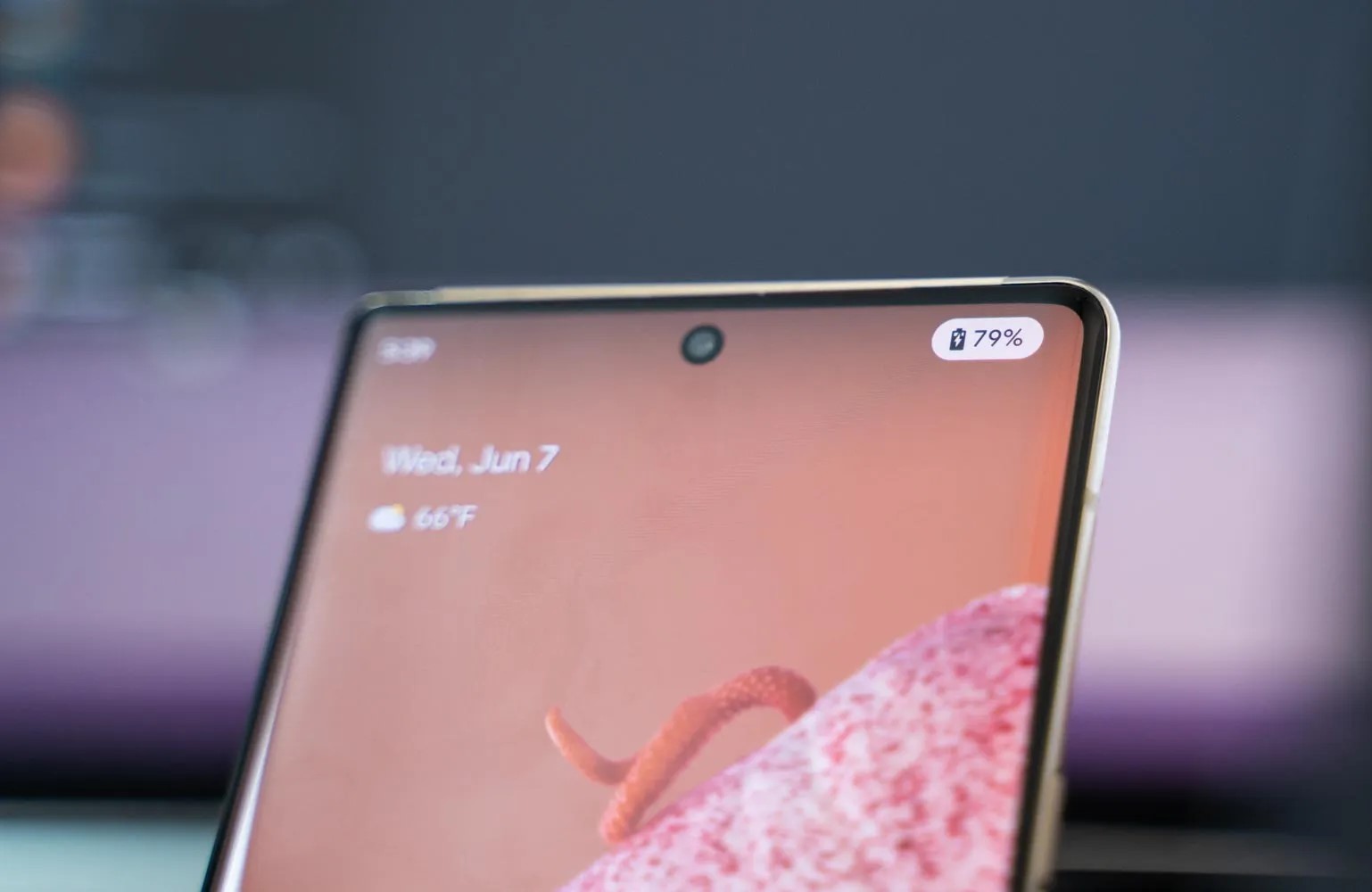
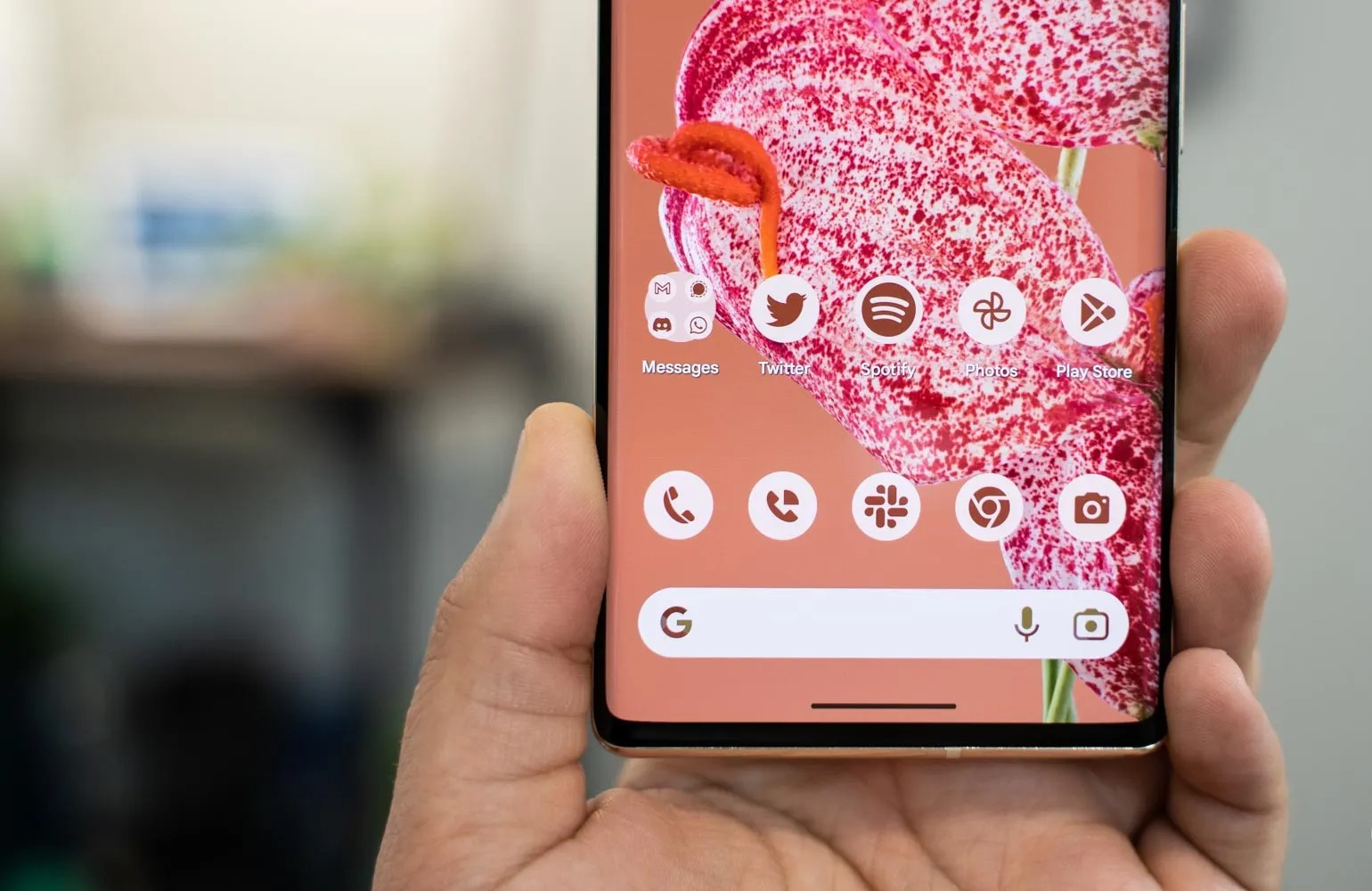
Google is starting to roll out a big redesign of the Pixel Camera app with version 9.0 which notably requires Android 14.
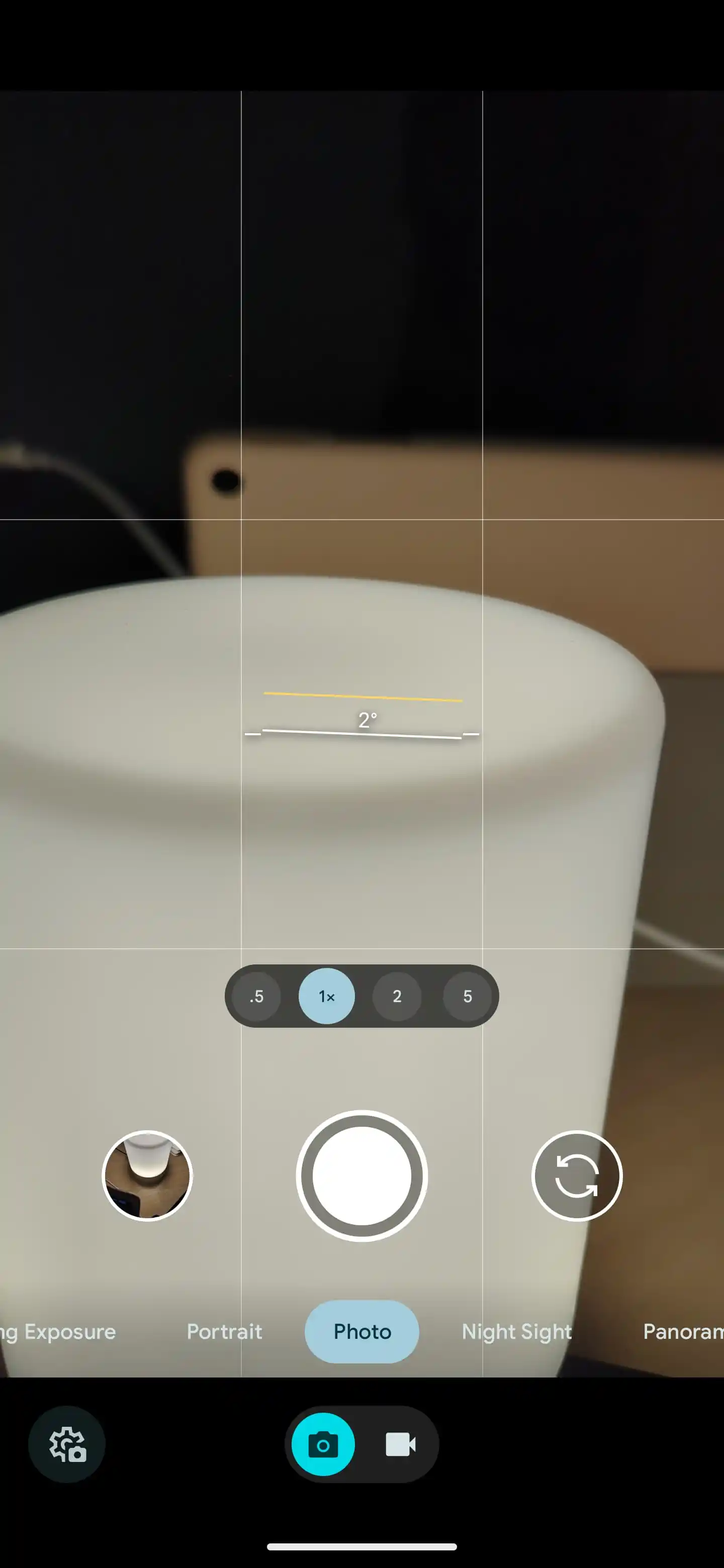
With this redesign, you get a Photo/Video switcher at the bottom of your screen. To the left of that pill is how you access the settings panel, which can also be opened by swiping up (instead of down) in the viewfinder. Continuing upward is the carousel of available camera features:
Photo (L-R): Action Pan, Long Exposure, Portrait, Photo, Night Sight, Panorama, Photo Sphere
Video: Pan, Blur [Cinematic], Video, Slow Motion, Time Lapse
Google Camera 9.0
Camera 8.9
One nice tweak here puts Night Sight a swipe away, while video controls are now more spread out. Camera 9.0 removes “Modes” from the very end, while the switcher is sticky and remembers what Photo or Video mode you were last using.
Meanwhile, for whatever reason, this redesign flips the camera roll preview — long-press for Locked Folder — and front/rear lens switcher positions. There’s no longer any UI at the top of the screen, given the bottom strip, but you don’t get to use that freed up space since it’s used to hide the front-facing camera.
Besides the reorganization to place the vast majority of controls at the bottom of your screen for easier one-handed access, there are no other drastic visual changes. Meanwhile, the themed icon has been updated and is now larger.
Google Camera 9.0.115.561695573.37 requires Android 14 and will not install on Android 13 or older. As such, this update looks to be for Pixel users on the Beta Program. We’ve got it working on a Pixel 7 Pro running Android 14 Beta 5.3.
The new version started rolling out on September 7, but is not yet widely available in the Play Store. First spotted by the Google News group on Telegram, it can be downloaded now from APKMirror today. Notably, this ongoing rollout means the redesign isn’t first debuting on the Pixel 8 series after all.
For the third time this cycle, Google is rolling out another bug fixer with Android 14 Beta 5.3 for all Pixel devices. With this patch, it does seem the stable release might be further off.
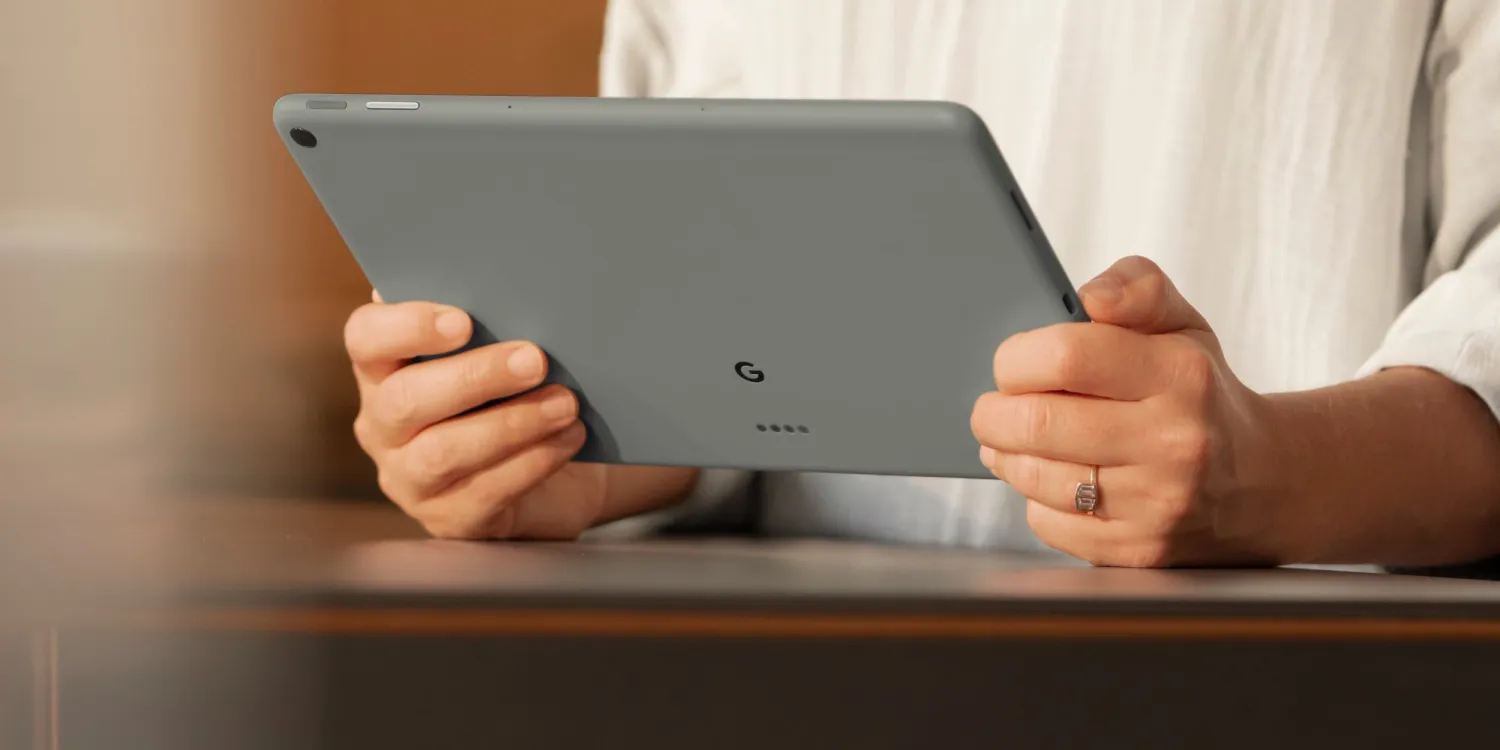
There are nine fixes with UPB5.230623.009 for Pixel phones, as well as the Pixel Fold and Tablet. It’s notable that Google has moved back to a single build. Looking ahead, this update is still running the August 2023 security patch, with another release bringing September’s seeming likely.
Fixed an issue where apps crashed in some cases after a CallStyle notification was posted.
Fixed various issues that could cause call or carrier service interruptions.
Fixed an issue where the system was using an inefficient path when placing CPU restrictions on apps running in the background.
Fixed issues with SurfaceFlinger that were causing a loss in system performance.
Fixed an issue on Pixel Fold and Pixel Tablet devices where the taskbar sometimes turned invisible while interacting with it.
Fixed an issue on Pixel Fold and Pixel Tablet devices where the animation on animated wallpapers stuttered when launching apps.
Fixed an issue on Pixel Fold devices where the interface layout was misaligned while customizing the Home screen.
Fixed an issue on Pixel Fold devices where the clock on the lock screen was flickering while animating.
Fixed various issues that were impacting system stability and performance.
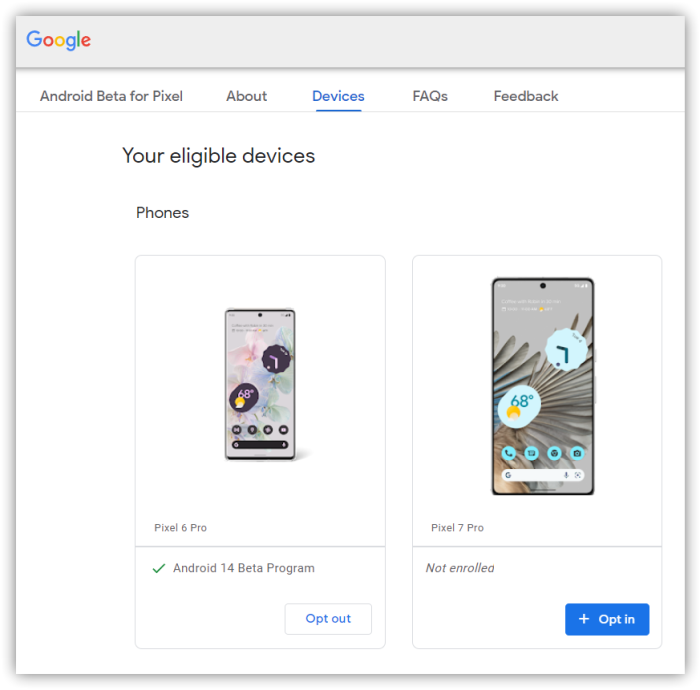
If you’re currently enrolled in the Android Beta Program and running the latest Beta 5 builds, you will automatically get offered an over-the-air (OTA) update to Android 14 Beta 5.3.
Android 14 Beta 5.3 with the August 2023 security patch is available for the Pixel 4a 5G, Pixel 5, Pixel 5a, Pixel 6, Pixel 6 Pro, Pixel 6a, Pixel 7, Pixel 7 Pro, Pixel 7a, Pixel Tablet, and Pixel Fold, as well as the Android Emulator.
Instead of the stable release of Android 14 for Pixel phones, as well as the Fold and Tablet, we got a series of Google app updates and updated branding this morning. While unexpected, this isn’t Google’s latest OS release just yet.
With Beta 5 at the start of last month, Android 14 looked on track for a stable launch as soon as mid-August, which would have mirrored Android 13’s August 15th rollout. At the time, Google said the “official release” was “only weeks away.” Beta 5 was followed by 5.1 and 5.2, with no other release this cycle seeing a second patch. While Beta 5 was the “last scheduled update in our Android 14 beta program,” Google doesn’t consider patches to be scheduled, so there’s nothing unexpected about those bug fixers.
With no launch in August, the next window shifted to September 5th (since the first Monday of the month is a holiday in the US). Considering that window has now also passed, let’s look at the recent history of Android launches:
The latest launch in recent memory is Android 12, which had an AOSP release in early October followed by an October 19 Pixel launch tied to the Pixel 6 and 6 Pro announcement. However, in the case of Android 12, the last beta milestone (5) came a month before (in September). Before that, Google has launched in August or September since 2016.
The fact we don’t have a stable yet is complicated by the fact that Android 14 does not seem to be a major release from a visual or new features perceptive. Given the Material You redesign, it made sense why Android 12 took so long.
Android 14’s stage presence during the I/O 2023 keynote in May was unusually limited. We’ve been beta testing lockscreen clock and customization shortcuts for some time now, while generative AI wallpapers hardly seem like a showstopper (and are something I’d expect to debut first on the Pixel 8 anyway before coming to older phones with the December 2023 Feature Drop).
Speaking of Pixel Feature Drops, there clearly wasn’t one today. There also wasn’t one in September of 2021 or 2022, with Google waiting until December both years.
For those waiting, Android 14 Beta 5.2 is quite stable on the Pixel 7 series, Tablet, and Fold. I’ve been using it as my daily driver for several weeks now without issues, thus adding to the intrigue of why it isn’t out yet.
It will be interesting to see whether there will be Android 13 or Android 14 Beta 5.3 with the September security patch at this point. Depending on how many bugs are addressed in the latter, that could signal how far away we are from a stable launch.
Google updates the Android brand with new logo and 3D robot
Following our previous report, Google is officially unveiling a new 3D logo for Android. The broad goal of this updated branding is to “help connect Android to Google,” and it follows the previous modernization in 2019.
Each time we overhaul our branding, we evaluate not only changing needs, but also future goals. We know people today want more choice and autonomy, and we want our brand to be reflective of Android: something that gives people the freedom to create on their terms. As an open platform, it’s important that both our technology and brand are an invitation for people to create, connect and do more with Google on Android devices.
Google says it drew “inspiration from Material design to complement the Google brand palette, as well as be adaptable.”
It starts by moving away from Android’s “longstanding lowercase stylization” to help elevate the logo and add “more weight to its appearance when placed next to Google’s logo” (as seen above in the top-left corner).
While we’ve added more curves and personality unique to Android, the new Android stylization more closely mirrors Google’s logo and creates balance between the two. We hope these small but significant updates to the Android typeface will better communicate the relationship between Android devices and the Google apps and services people already know.
The other big aspect is the Android robot, which, since 2019, has appeared alongside the wordmark. In going 3D, Google gave the bugdroid “more dimension, and a lot more character.” It can be depicted with different materials, colors, and even accessories.
As a visual signifier of our brand, we wanted the bugdroid to appear as dynamic as Android itself.
Google has also updated the full-body appearance to “ensure it can easily transition between digital and real-life environments, making it a versatile and reliable companion across channels, platforms and contexts.” The body is now a domed capsule instead of having a flat bottom and legs protruding from it. With the last branding update, it seemed that Google was moving away from this version.
The updated logo, 3D bugdroid, and brand identity will “appear on Android devices and in more places starting this year.”
Redesigned Assistant At a Glance widget rolling out to all Android phones
Android is rolling out its quarterly drop of new features today, with a redesign of the Assistant At a Glance widget being the highlight.
The current widget available on all Android phones was never updated when the fixed Pixel Launcher version was updated with Android 12. Now, it features a Material You redesign in which the weather is prominently shown in an M3 shape at the right, while text appears at the left. Two lines of text are supported, while a three-dot overflow menu provides additional options, as we previously enabled.
This At a Glance redesign is available for all Android 9+ devices and is rolling out starting today.
In terms of new app features, Google is rolling out the ability to ask questions – by voice or typing – about images with Lookout. Announced back in May, this uses a visual language model to describe images that do not have alt text. Lookout is also adding support for 11 new languages (including Japanese, Korean, and Chinese) for a total of 34.
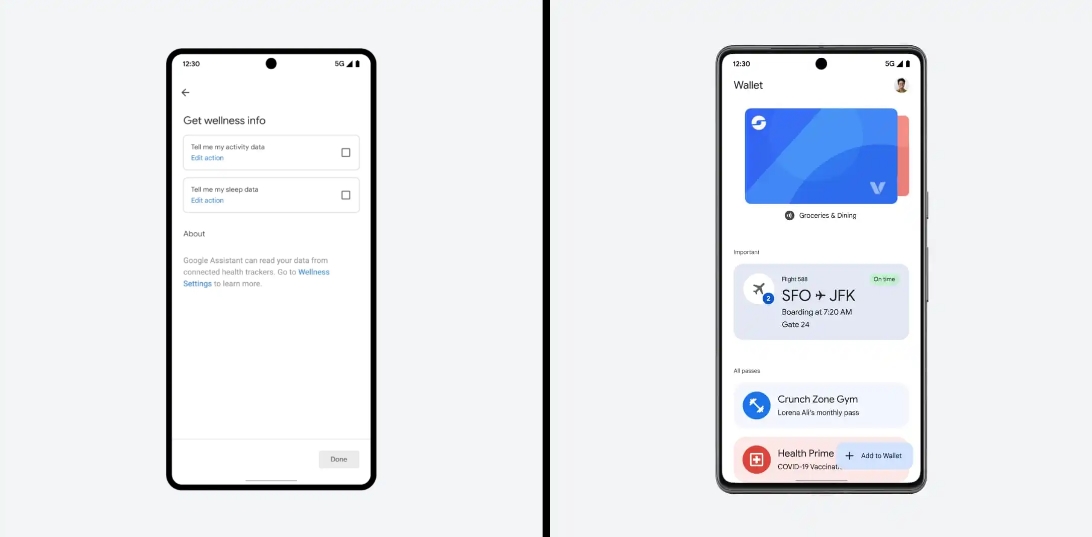
Google Wallet is also rolling out the previously announced ability to import/upload passes with QR codes or barcodes. This could be used with some library or gym cards, parking passes, and tickets.
You can add what time you slept and how many hours (from Google Fit or Fitbit) to your Google Assistant “Good morning” Routine.
Rounding out the app front are Android Auto apps from Zoom and Webex that will let users join conference calls (by audio) and browse meeting schedules. Google says all “active calls are managed through Android Auto,” with the ability to mute your microphone as needed.
Following the last patch a week ago, Google is rolling out Android 14 Beta 5.2 as another bug fixer, especially for the Pixel Fold and Tablet.
There are nine fixes with UPB5.230623.006 for Pixel phones, and UPB5.230623.006.A1 on the Pixel Fold and Tablet.
Fixed various issues that sometimes caused devices to stall when rebooting.
Fixed issues that could interrupt cellular connectivity for devices that utilize E-UTRAN New Radio – Dual Connectivity (ENDC) when those devices were connected through 5G NR low-band frequencies.
Fixed an issue on Pixel Fold and Pixel Tablet devices that caused the fingerprint sensor to be unresponsive in some cases.
Fixed an issue on Pixel Fold devices that caused Perfetto trace data to be incomplete.
Fixed an issue on Pixel Fold devices with stuttering animations when viewing or tapping the notification for an ongoing call.
Fixed an issue on Pixel Fold devices that sometimes caused the system UI to crash after using the fingerprint sensor.
Fixed an issue on Pixel Fold devices that sometimes caused the screen to briefly flicker when unfolding the device.
Fixed an issue on Pixel Tablet devices that sometimes caused a colored bar to display or flicker after unlocking the device.
Fixed an issue on Pixel Tablet devices that caused the system to play incorrect sounds when docking or undocking the device.
If you’re currently enrolled in the Android Beta Program and running Beta 5 or 5.1, you will automatically get offered an over-the-air (OTA) update to Android 14 Beta 5.2.
Android 14 Beta 5.2 with the August 2023 security patch is available for the Pixel 4a 5G, Pixel 5, Pixel 5a, Pixel 6, Pixel 6 Pro, Pixel 6a, Pixel 7, Pixel 7 Pro, Pixel 7a, Pixel Tablet, and Pixel Fold, as well as the Android Emulator.
Ahead of the public launch, Android 14 is getting a Beta 5 for Pixel phones, the Tablet, and Fold. It comes a month after the last major release and is the final scheduled update.
With the official release of Android 14 only weeks away, today we’re bringing you Beta 5, the last scheduled update in our Android 14 beta program. It’s the last chance to make sure your apps are ready and provide feedback before non-beta users start getting Android 14.
GOOGLE
This is the third Platform Stable Android 14 release for final app testing and addresses a number of issues:
Fixed an issue where after unlocking a device using a PIN, TalkBack provides incorrect audio.
Fixed an issue where Wi-Fi scanning was consuming too much battery.
Fixed an issue where some pictures would glitch with extra shadow blocks.
Fixed an issue where in some cases, the fingerprint sensor icon wouldn’t appear as expected.
Fixed an issue where voice over Wi-Fi wasn’t enabled by default.
Fixed an issue on Pixel Fold devices where the device loses antenna ranging session information and cannot recover it.
Fixed an issue where an extraneous white bar would appear in some apps.
Fixed a background color issue with the UI used to add a shortcut to the home screen.
Fixed a launcher issue that was causing frequent crashes and other quality issues.
Fixed an issue on Pixel tablets where user interaction during the transition from screen saver to low-light clock causes a SysUI crash.
Fixed a Pixel Fold issue where tapping would fail to wake the device.
Fixed a Pixel Fold issue where the system buttons would have inconsistent positions after folding and unfolding.
Fixed an issue causing SysUI crashes when removing an app pair in landscape.
Fixed an issue the launcher doesn’t fully render after setup.
Fixed an issue where the system displayed an incorrect mobile connection type.
Fixed an issue where navigating back to exit an app leads to users no longer being able to open the app.
Fixed an issue where wallpaper previews were sometimes blank.
Fixed an issue where the system theme changes from yellow to pink after rebooting.
Fixed an overscroll issue with ScrollView.
Fixed an issue where certain color palettes were difficult to see when the lock screen was activated.
Fixed an issue where users couldn’t enable battery sharing if a work profile exists on the device.
Fixed an issue where a tablet screen inappropriately turns off when docked.
Fixed an issue where the device policy manager was preventing notifications from appearing.
Fixed an issue where group notifications couldn’t be expanded.
Fixed an issue where the lockscreen didn’t properly display the clock.
Fixed various camera issues that were causing crashes and reductions in quality.
Fixed an issue with power consumption during video playback.
Fixed a Weather clock rendering issue.
Fixed an issue where the lock screen customization preview didn’t match the end result.
Fixed an issue that was causing the wallpaper selection screen to crash.
Fixed an issue where Pixel devices weren’t connecting with some routers.
Fixed a toast search result issue where the color was too similar with the background color.
Fixed an issue where tapping a notification before using facial unlock does not open the notification.
Fixed an issue on Pixel Fold where two clocks were displayed at the same time when in widescreen.
Fixed an issue where widgets would overlap and stack incorrectly.
Fixed an issue where closing the PiP window doesn’t stop YouTube playback.
Fixed an issue with switching call audio sources.
Fixed an issue where after unlocking a device, only the background appears.
Fixed an issue with dragging folders to remove them.
Users can submit problems via Android Beta Feedback on Pixel devices. Access it from the app drawer or via Quick Settings to file bugs in the Google issue tracker. There’s also the Android Beta community on Reddit.
Android 14 Beta 5 (UPB5.230623.003) with the August 2023 security patch is available for the Pixel 4a 5G, Pixel 5, Pixel 5a, Pixel 6, Pixel 6 Pro, Pixel 6a, Pixel 7, Pixel 7 Pro, Pixel 7a, Pixel Tablet, and Pixel Fold, as well as the Android Emulator.
Most people will be installing via the Android Beta Program, but you can also flash or sideload. If you need help, here’s our full guide on installing Android 14.
Following the last update just over a week ago that did not introduce any new features, Google is rolling out Android 14 Beta 5.1 as another bug fixer.
While Beta 5 was said to be the “last scheduled update” and that the “official release is next,” Google does not consider .1 patches to be milestones. A similar thing happened during last year’s preview cycle.
There are just four fixes with UPB5.230623.005 for Pixel phones and UPB5.230623.005.A1 on the Pixel Fold and Tablet. Notably, Google has disabled the trademark live wallpaper on the Pixel Fold for performance reasons.
Fixed an issue that caused the system to stop detecting a SIM card if Fixed Dialing Number (FDN) features were enabled.
Fixed an issue that caused connectivity interruptions for devices with carriers using 5G standalone (SA) mode.
Fixed an issue for some devices where a blank home screen displayed after unlocking the device.
Fixed a performance issue by temporarily disabling feather-styled live wallpaper on Pixel Fold. The live wallpaper version will be re-enabled after the other underlying issues are fixed.
Android 14 Beta 5.1 with the August 2023 security patch is available for the Pixel 4a 5G, Pixel 5, Pixel 5a, Pixel 6, Pixel 6 Pro, Pixel 6a, Pixel 7, Pixel 7 Pro, Pixel 7a, Pixel Tablet, and Pixel Fold, as well as the Android Emulator.
Ahead of the public launch, Android 14 is getting a Beta 5 for Pixel phones, the Tablet, and Fold. It comes a month after the last major release and is the final scheduled update.
With the official release of Android 14 only weeks away, today we’re bringing you Beta 5, the last scheduled update in our Android 14 beta program. It’s the last chance to make sure your apps are ready and provide feedback before non-beta users start getting Android 14.
GOOGLE
This is the third Platform Stable Android 14 release for final app testing and addresses a number of issues:
Fixed an issue where after unlocking a device using a PIN, TalkBack provides incorrect audio.
Fixed an issue where Wi-Fi scanning was consuming too much battery.
Fixed an issue where some pictures would glitch with extra shadow blocks.
Fixed an issue where in some cases, the fingerprint sensor icon wouldn’t appear as expected.
Fixed an issue where voice over Wi-Fi wasn’t enabled by default.
Fixed an issue on Pixel Fold devices where the device loses antenna ranging session information and cannot recover it.
Fixed an issue where an extraneous white bar would appear in some apps.
Fixed a background color issue with the UI used to add a shortcut to the home screen.
Fixed a launcher issue that was causing frequent crashes and other quality issues.
Fixed an issue on Pixel tablets where user interaction during the transition from screen saver to low-light clock causes a SysUI crash.
Fixed a Pixel Fold issue where tapping would fail to wake the device.
Fixed a Pixel Fold issue where the system buttons would have inconsistent positions after folding and unfolding.
Fixed an issue causing SysUI crashes when removing an app pair in landscape.
Fixed an issue the launcher doesn’t fully render after setup.
Fixed an issue where the system displayed an incorrect mobile connection type.
Fixed an issue where navigating back to exit an app leads to users no longer being able to open the app.
Fixed an issue where wallpaper previews were sometimes blank.
Fixed an issue where the system theme changes from yellow to pink after rebooting.
Fixed an overscroll issue with ScrollView.
Fixed an issue where certain color palettes were difficult to see when the lock screen was activated.
Fixed an issue where users couldn’t enable battery sharing if a work profile exists on the device.
Fixed an issue where a tablet screen inappropriately turns off when docked.
Fixed an issue where the device policy manager was preventing notifications from appearing.
Fixed an issue where group notifications couldn’t be expanded.
Fixed an issue where the lockscreen didn’t properly display the clock.
Fixed various camera issues that were causing crashes and reductions in quality.
Fixed an issue with power consumption during video playback.
Fixed a Weather clock rendering issue.
Fixed an issue where the lock screen customization preview didn’t match the end result.
Fixed an issue that was causing the wallpaper selection screen to crash.
Fixed an issue where Pixel devices weren’t connecting with some routers.
Fixed a toast search result issue where the color was too similar with the background color.
Fixed an issue where tapping a notification before using facial unlock does not open the notification.
Fixed an issue on Pixel Fold where two clocks were displayed at the same time when in widescreen.
Fixed an issue where widgets would overlap and stack incorrectly.
Fixed an issue where closing the PiP window doesn’t stop YouTube playback.
Fixed an issue with switching call audio sources.
Fixed an issue where after unlocking a device, only the background appears.
Fixed an issue with dragging folders to remove them.
Users can submit problems via Android Beta Feedback on Pixel devices. Access it from the app drawer or via Quick Settings to file bugs in the Google issue tracker. There’s also the Android Beta community on Reddit.
Android 14 Beta 5 (UPB5.230623.003) with the August 2023 security patch is available for the Pixel 4a 5G, Pixel 5, Pixel 5a, Pixel 6, Pixel 6 Pro, Pixel 6a, Pixel 7, Pixel 7 Pro, Pixel 7a, Pixel Tablet, and Pixel Fold, as well as the Android Emulator.
Most people will be installing via the Android Beta Program, but you can also flash or sideload. If you need help, here’s our full guide on installing Android 14.
Android 14 itself doesn’t bring a ton in terms of user-facing changes. There’s the arrival of new clock faces on Pixel phones, a bunch of behind-the-scenes changes, and more, but it’s lesser compared to Android 12 and Android 13.
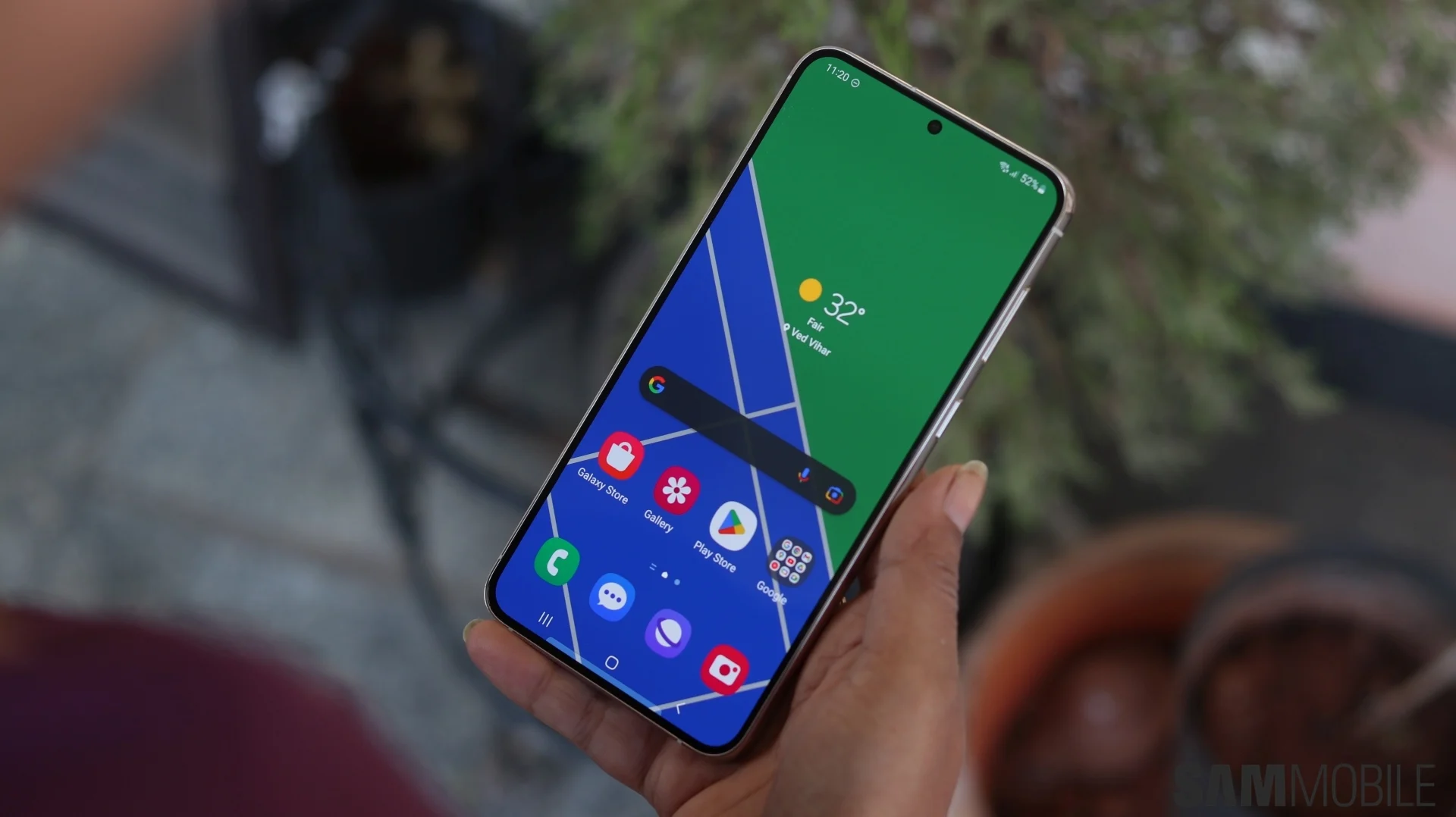
Samsung, though, is bringing more significant changes alongside its Android 14 update.
That does include the new lockscreen changes, with customizable clock faces, but Samsung also lets you move the clock around.
Samsung has also introduced its own take on the Android 14’s media player, as seen above, which has a wavy seek bar.
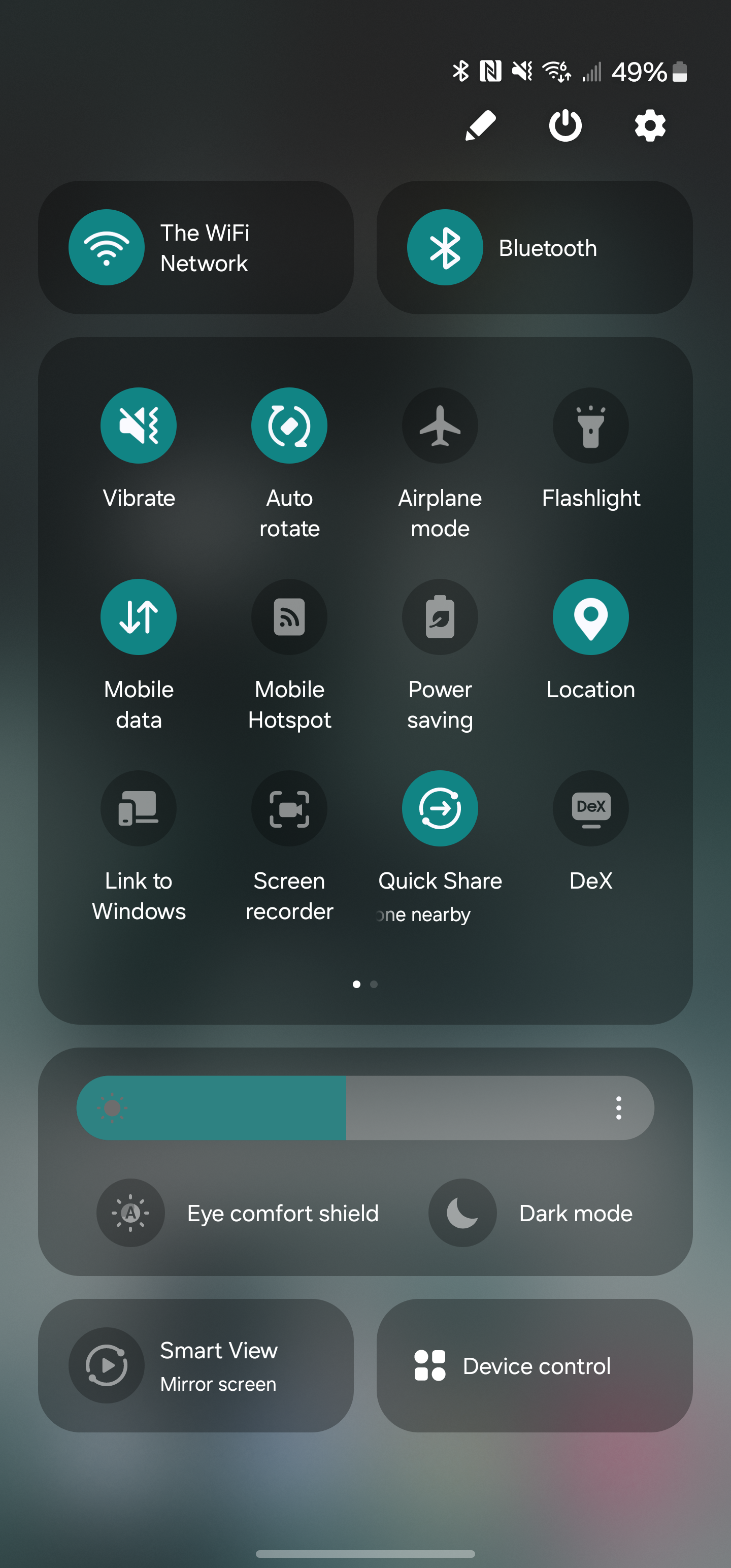
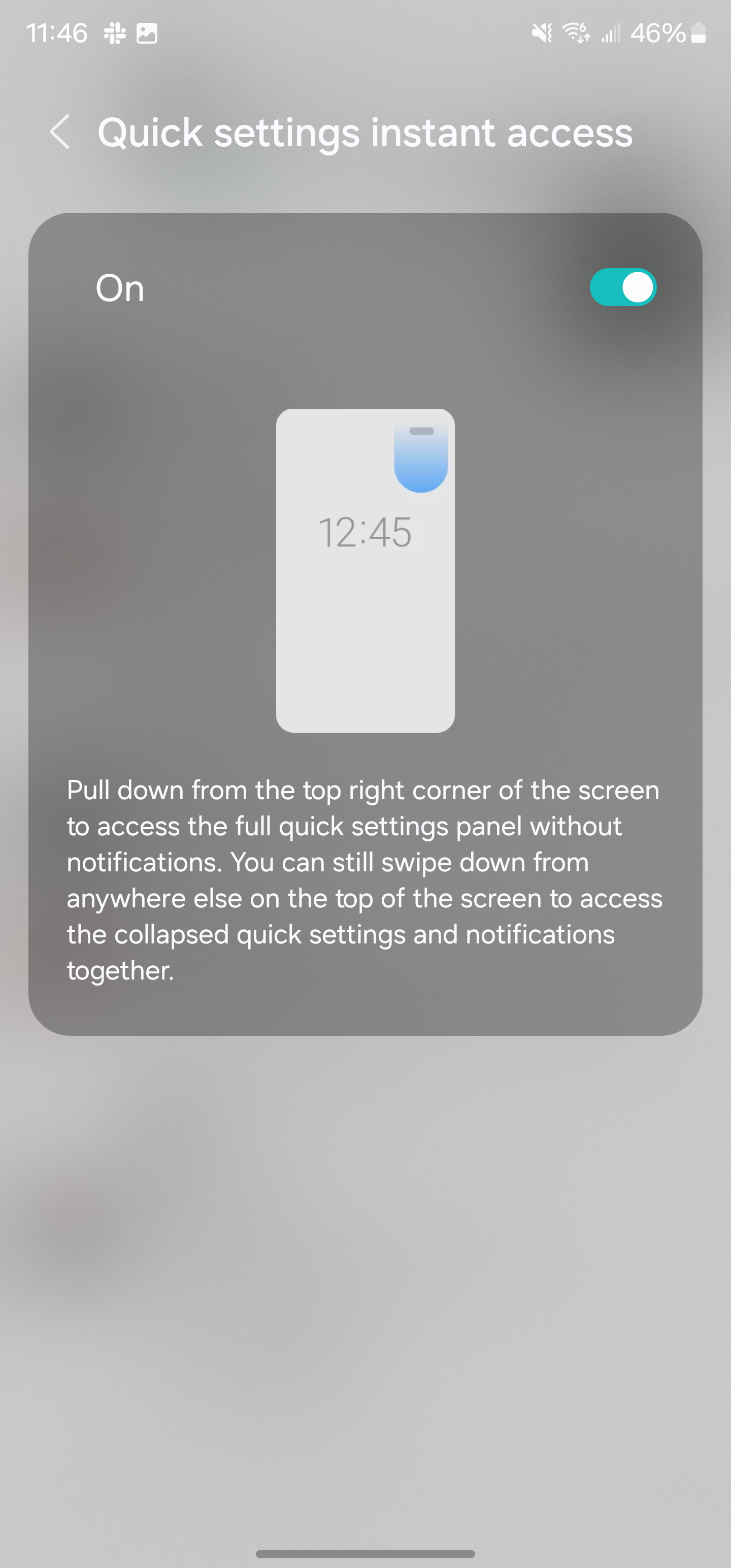
The “Quick Panel” is also significantly updated, with new sections throughout. There are two large cards for Wi-Fi and Bluetooth, a large section for quick settings toggles, and then other sections for brightness, screen mirroring, and device controls. In terms of the look, it’s a pretty shameless copy of iOS’ Control Center, as is the new toggle which lets you swipe from the top left of the display to immediately access the Quick Panel. The notification shade, though, is left unchanged.
Samsung is also further doubling down on widgets. There’s a new camera widget that’s fully customizable. The widget opens up the camera app, but can open it to a specific setting as well as saving the image then taken to a specific album. You can customize the widgets title and background, too.
Another updated widget is for weather, with a new “Weather Insights” widget that can show chance of rain amongst other details.
Perhaps my personal favorite change is that Samsung has updated its default font in Android 14. The new font looks much cleaner and modern as opposed to One UI 5’s font which is a bit too thin. That’s all subjective, though, and Samsung will still let you change your system font.
Emojis also get a makeover.
These are some of the most notable changes, but that’s far from everything. Samsung’s full changelog for Android 14 is below with literally dozens of other tweaks and changes that come with One UI 6.0. A few other highlights include:
Level line in camera viewfinder
Resolution settings available in camera viewfinder
“Auto Blocker” security settings
Samsung One UI 6.0/ Android 14 changelog
Quick Panel
New button layout – The quick panel has a new layout that makes it easier to access the features you use most. Wi-Fi and Bluetooth now have their dedicated buttons at the top of the screen, while visual features, like Dark mode and Eye comfort shield, have been moved to the bottom. Other quick settings buttons appear in a customizable area in the middle.
Instantly access the full quick panel – By default, a compact quick panel with notifications appears when you swipe down from the top of the screen. Swiping down again hides notifications and shows the expanded quick panel. If you turn on Quick Settings instant access, you can view the expanded quick panel by swiping just once from the right side of the top of the screen. Swiping down from the left side shows notifications.
Quickly access brightness control – The brightness control bar now appears by default in the compact quick panel when you swipe down once from the top of the screen for quicker and easier brightness adjustments.
Improved album art display – While playing music or videos, album art will cover the entire media controller in the notification panel if the app playing the music or video provides album art.
Enhanced layout for notifications – Each notification now appears as a separate card, making it easier to recognize individual notifications.
Sort notifications by time – While playing music or videos, album art will cover the entire media controller in the notification panel if the app playing the music or video provides album art.
Lock screen
Reposition your clock – You now have more freedom to move your clock to the position of your choice on the Lock screen.
Home screen
Simplified icon labels – App icon labels are now limited to a single line for a cleaner and simpler look. “Galaxy” and “Samsung” have been removed from some app names to make them shorter and easier to scan.
Typeface
New default font – One UI 6 has a new default font with a more stylish and modern feel. You’ll see the new font if the default font is selected in Settings. If you’re using a different font, you’ll still see that font after upgrading to One UI 6.
Multitasking
Keep pop-up windows open – Instead of minimizing pop-up windows when you go to the Recents screen, pop-ups will now remain open after you leave the Recents screen so you can continue what you were working on.
Samsung Keyboard
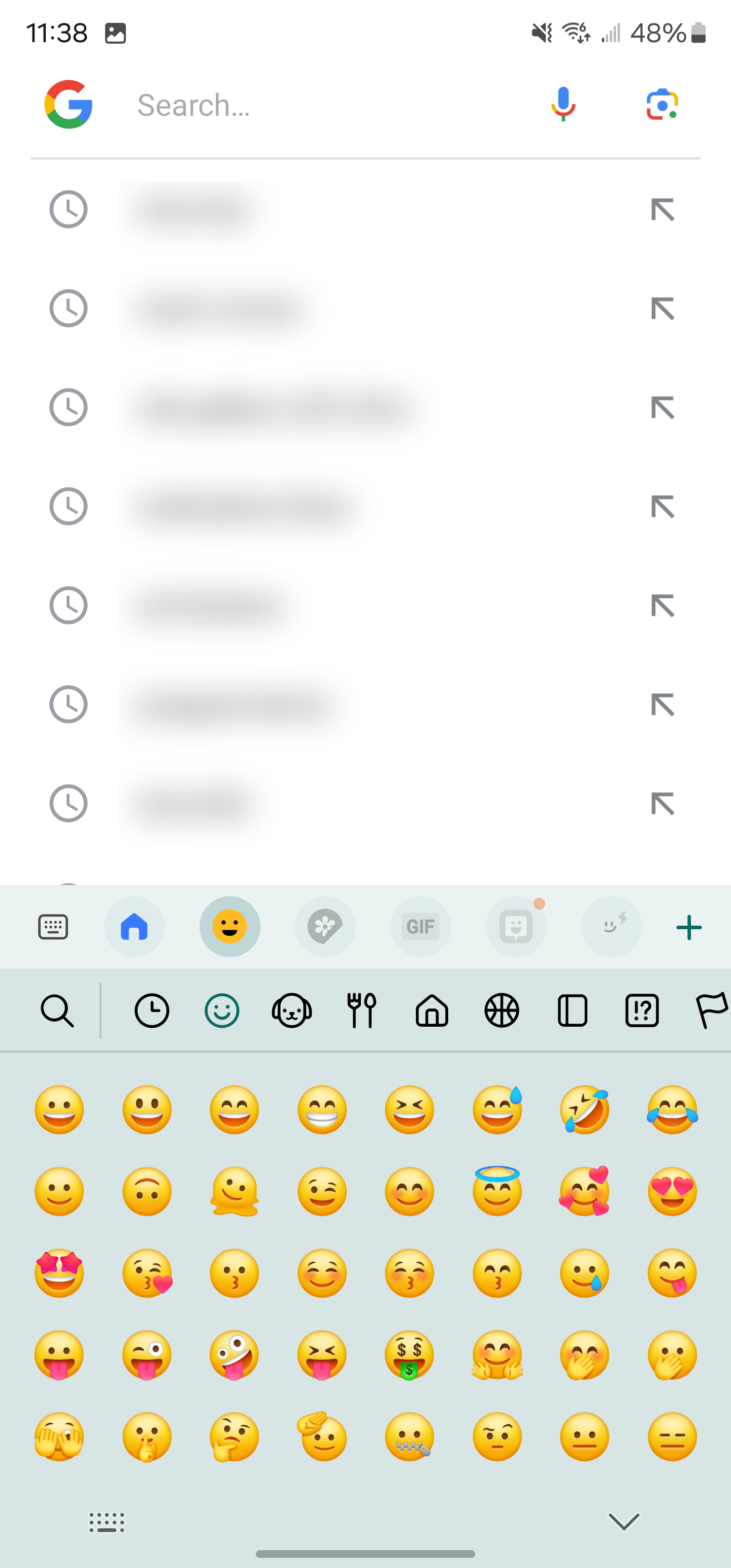
New emoji design – Emojis that appear in your messages, social media posts, and elsewhere on your phone have been updated with a fresh new design.
Content sharing
Picture and video previews – When you share pictures or videos from any app, preview images will appear at the top of the Share panel to give you one more chance to review the pictures and videos before sharing them.
Extra sharing options – When you share content, additional options may appear on the Share panel depending on the app you share from. For example, when you share a website from the Chrome web browser, you’ll get the option to share a screenshot of the website along with the web address.
Weather
New Weather widget – The Weather Insights widget provides more information about your local weather conditions. You can see when severe thunderstorms, snow, rain, and other events are on the forecast.
More information in the Weather app – Information about snowfall, moon phases and times, atmospheric pressure, visibility distance, dew point, and wind direction is now available in the Weather app.
Interactive map view – Swipe to move around the map and tap a location to view the local weather conditions. The map can help you find weather information even if you don’t know the name of the city.
Enhanced illustrations – Illustrations in the Weather widget and app have been enhanced to provide better information about the current weather conditions. Background colours also change depending on the time of the day.
Camera
Custom camera widgets – You can add custom camera widgets to your Home screen. You can set each widget to start in a specific shooting mode and save pictures in an album of your choice.
More alignment options for watermarks – You can now choose whether your watermark appears at the top or bottom of your photos.
Quick access to resolution settings – A resolution button is now available in the quick settings at the top of the screen in Photo and Pro modes so you can quickly change the resolution of photos you take.
Easier video size options – A pop-up now appears when you tap the video size button, making it easier to see all the options and choose the right ones.
Keep your pictures level – When grid lines are turned on in Camera settings, a level line will now appear in the middle of the screen while using the rear camera in all modes except Panorama. The line will move to show whether your picture is level with the ground.
Apply effects more easily – Filter and face effects now use a dial instead of a slider, making it easier to make precise adjustments with just one hand.
Scan documents easily – The Scan document feature has been separated from Scene Optimizer, so you can scan documents even if Scene Optimizer is turned off. The new Auto Scan lets you scan documents automatically whenever you take a picture of a document. After a document is scanned, you’ll be taken to the edit screen, where you can rotate your document to align it the way you want.
Quality optimization – You can choose between three levels of quality optimization for the pictures you take. Choose Maximum to get the highest quality pictures with the most post-processing. Choose Minimum to reduce the amount of post-processing so you can take pictures as quickly as possible. You can also choose Medium to get the best balance of speed and post-processing.
New Auto FPS settings for videos – Auto FPS can help you record brighter videos in low-light conditions. Auto FPS now has three options. You can turn it off, use it for 30 fps videos only, or use it for both 30 fps and 60 fps videos.
Gallery
Save clipped images as stickers – When you clip something from an image, you can easily save it as a sticker that you can use later when editing pictures or videos.
Enhanced story view – While viewing a story, a thumbnail view appears when you swipe up from the bottom of the screen. In thumbnail view, you can add or remove pictures and videos from your story.
Drag and drop with two hands – Touch and hold pictures and videos with one hand, then use your other hand to navigate to the album where you want to drop them.
Quick edits in detail view – While viewing a picture or video, swipe up from the bottom of the screen to go to detail view. This screen now provides quick access to effects and editing features you can immediately apply.
Photo Editor
Adjust decorations after saving – You can now make changes to drawings, stickers, and text that you’ve added to a photo even after saving.
Undo and redo – Don’t worry about making mistakes. You can now easily undo or redo transformations, filters, and tones.
Enhanced layout – The new Tools menu makes it easier to find the editing features you need. Straighten and Perspective options have been combined in the Transform menu.
Draw on custom stickers – When creating custom stickers, you can now use drawing tools to make your stickers even more personal and unique.
New text backgrounds and styles – When adding text to a photo, you can choose from several new backgrounds and styles to help you get the perfect look.
Calendar
Your schedule at a glance – The new schedule view provides your upcoming events, tasks, and reminders all together in chronological order.
View your reminders in Calendar – You can now view and add reminders in the Calendar app without opening the Reminder app.
Reminder
Refined reminder list view – The main list view has been redesigned. You can manage categories at the top of the screen. Below the categories, your reminders will be shown organized by date. The layout for reminders containing images and web links has also been enhanced.
New reminder categories – The Place category contains reminders that alert you when you’re in a specific place, and the No Alert category contains reminders that don’t provide any alerts. More options for creating reminders: When sharing content to the Reminder app, you’ll get full editing options before your reminder is created. You can also take pictures using the camera when creating a reminder.
Create all-day reminders – You can now create reminders for an entire day and customize the time when you want to be alerted about them.
Samsung Internet
Play videos in the background – Keep playing video sound even if you leave the current tab or leave the Internet app completely.
Enhanced tab list for large screens – When using the Internet on a large screen, such as a tablet in landscape view or Samsung DeX, your tab list will be shown in 2 columns so you can see more tabs on the screen at the same time.
Smart select
Resize and extract text from pinned content – When you pin an image to the screen, you can now resize it or extract text from it.
Magnified view – When selecting an area of the screen, a magnified view will appear so you can start and end your selection at the perfect spot.
Bixby text call
Customize your greeting – You can now edit the greeting that Bixby says when you answer using Bixby text call.
Switch to Bixby during a call – You can switch to a Bixby text call at any time, even if the call is already in progress.
Modes and Routines
Unique Lock screens depending on your mode – Set up different Lock screens with their own wallpaper and clock style for when you’re driving, working, exercising, and more. When you start editing the Lock screen while a mode is on, you’ll edit the Lock screen for that mode.
New conditions – You can now start a routine when an app is playing media.
New actions – Your routines can now do more than ever before. Change your Lock screen, change Samsung Keyboard settings, and more. Smart suggestions
New look and feel – The Smart Suggestions widget has been redesigned with a layout that better aligns with other icons on your Home screen.
More customization – You can now adjust transparency and choose between a white or black background. You can also set apps to exclude from suggestions.
Finder
Quick actions for apps – When an app appears in your search results, you can touch and hold the app to get quick access to actions you can perform using the app. For example, if you search for the Calendar app, buttons for adding an event or searching your calendar will appear. App actions will also appear in search results on their own if you search for the name of the action instead of the app.
My Files
Free up storage space – Recommendation cards will appear to help you free up storage space. My Files will recommend deleting unnecessary files, give you tips for setting up cloud storage, and also let you know which apps on your phone are using the most storage space.
Settings
Smarter Airplane mode – If you turn on Wi-Fi or Bluetooth while Airplane mode is on, your phone will remember. The next time you use Airplane mode, Wi-Fi or Bluetooth will remain on instead of turning off.
Easier access to battery settings – Battery settings now have their own top-level settings menu, so you can easily check your battery usage and manage battery settings.
Block security threats – Get an extra level of protection for your apps and data. Auto Blocker prevents unknown apps from being installed, checks for malware, and blocks malicious commands from being sent to your phone using a USB cable.
Accessibility
New magnification options – Customize how your magnification window appears. You can choose full screen, or partial screen, or allow switching between the two.
Customize cursor thickness – You can now increase the thickness of the cursor that appears while editing text so that it’s easier to see.
Learn more about accessibility – A link to the Samsung Accessibility web page has been added to Accessibility settings so you can learn more about accessibility features and our efforts to make our products accessible to everyone.
One UI 6 will likely be released sometime in November or December, and if last year is any indication, it will probably roll out to many devices very quickly. If you have a Galaxy S23 and want to try it early, though, it’s available now in beta.
Android 14’s latest beta paves the way for a full launch sometime next month, but it’s still hinting at more features to come. One of those upcoming changes might be a warning when you try to sideload Google apps on Android 14.
Android Police reports that Android 14 adds the ability for app stores on your device to claim “update ownership” over select apps. This essentially just adds another step to sideloading, as a warning message will appear that states where updates normally come from, and reiterates the risk of sideloading. You can simply ignore the warning and continue on.
Apparently, Google apps are where we’ll see this first. A brief demo seen below shows Android 14’s new sideloading warning which says that updates are “normally” from the Play Store. In this case, Google Play Services was having an update installed via APK Mirror’s Installer app.
This app normally receives updates from Google Play Store. By updating from a different source, you may receive future updates from any source on your phone. App functionality may change.
This isn’t the only example of Google cracking down somewhat on apps in Android 14. Earlier this year, our Kyle Bradshaw and Dylan Roussel reported that Android 14 would also block the installation of “outdated” Android apps, whether they come from sideloading or an app store.
Android 14 set to block certain outdated apps from being installed
To help reduce the potential for malware, Android 14 will begin fully blocking the installation of apps that target outdated versions of Android.
For years now, the guidelines for the Google Play Store have ensured that Android developers keep their apps updated to use the latest features and safety measures of the Android platform. Just this month, the guidelines were updated, requiring newly listed Play Store apps to target Android 12 at a minimum.
Up to this point, these minimum API level requirements have only applied to apps that are intended for the Google Play Store. Should a developer wish to create an app for an older version, they can do so and simply ask their users to sideload the APK file manually. Similarly, if an Android app hasn’t been updated since the guidelines changed, the Play Store will continue serving the app to those who have installed it once before.
According to a newly posted code change, Android 14 is set to make API requirements stricter, entirely blocking the installation of outdated apps. This change would block users from sideloading specific APK files and also block app stores from installing those same apps.
Initially, Android 14 devices will only block apps that target especially old Android versions. Over time though, the plan is to increase the threshold to Android 6.0 (Marshmallow), with Google having a mechanism to “progressively ramp [it] up.” That said, it will likely still be up to each device maker to decide the threshold for outdated apps or whether to enable it at all.
If the minimum installable SDK version enforcement is enabled, block the install of apps using a lower target SDK version than required. This helps improve security and privacy as malware can target older SDK versions to avoid enforcement of new API behavior.
By blocking these outdated apps, Google intends to curb the spread of malware apps on Android. The developer responsible for the change notes that some malware apps have intentionally targeted older versions of Android to bypass certain protections only enforced on newer apps.
That said, if for whatever reason you want or need to install an outdated application, it will still be possible through a command shell, by using a new flag. Given the extra steps required, it’s less likely that someone would do this by mistake and inadvertently install malware.
How to install the Android 14 Beta on Google Pixel
After a few early developer previews, the Android 14 Beta program has officially arrived. Here’s how to get Android 14 on your Google Pixel smartphone.
What Pixel devices can install the Android 14 Beta?
Android 14 will drop another set of Pixel smartphones out of active support, but several will still be eligible. The following Pixel devices will be eligible for the Android 14 Beta program.
Pixel 4a 5G
Pixel 5
Pixel 5a
Pixel 6
Pixel 6 Pro
Pixel 6a
Pixel 7
Pixel 7 Pro
Pixel 7a
Pixel Fold
Pixel Tablet
While Pixel 7a, Pixel Fold, and Pixel Tablet joined the party late, they’re all eligible to test out Android 14 at this point.
What’s the latest Android 14 Beta build?
As of July 11, 2023, Google has just opened the fourth beta release of Android 14, one of the last big releases before the final release.
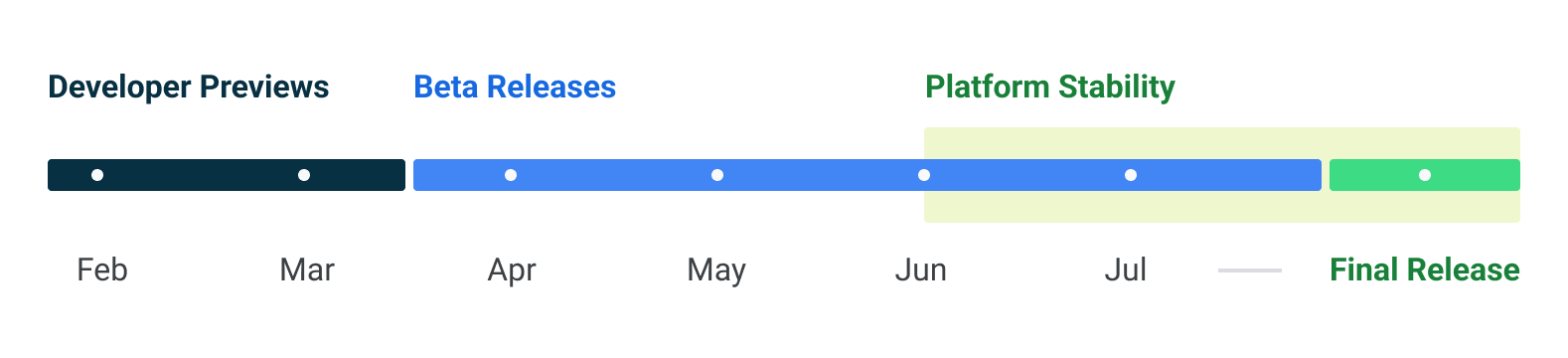
Google has scheduled a total of five beta releases through May, June, and July, with the final release likely to arrive in August.
Beta 1 (April): Initial beta-quality release, over-the-air update to early adopters who enroll in Android Beta.
Beta 2 (May): Incremental Beta-quality release.
Beta 3 (June): First Platform Stability milestone, including final APIs and behaviors. Play publishing also opens.
Beta 4 (July): Near-final builds for final testing.
Beta 5 (July): Near-final builds for final testing.
Final release: Android 14 release to AOSP and ecosystem.
This adds one additional beta compared to Android 13’s release schedule, which only had four beta releases.
Notably, some users have noticed that the first two beta releases of Android 14 have been a bit more erratic compared to previous years. We’d certainly advise caution if you plan to try the beta on a daily device. As usual, proceed at your own risk.
How to get Android 14 with the Android Beta Program
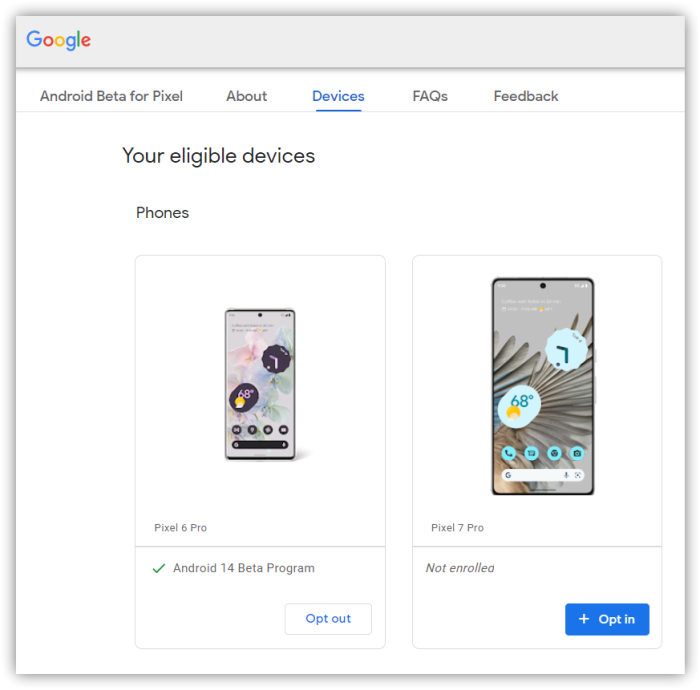
The easiest way to get Android 14 on your Google Pixel device today is through the Android Beta Program.
This automated program allows you to “opt-in” to Android beta updates and install them as you would a normal system update. There’s no computer or fancy tools required, and you can roll back to Android 13 any time you’d like by simply opting out.
How to sideload Android 14 Beta on Google Pixel
By far, the fastest way to get a new version of Android on your Pixel is to sideload it. It’s a relatively easy process, but you’ll need to get set up to do it. Here’s how.
Download the needed files.
Boot into Recovery mode.
Navigate to ADB sideload.
Connect the handset to a computer with ADB tools installed.
Enter the sideload command.
Reboot your phone.
1. Download Android 14 Beta files
To get started, you’ll first need to download the files needed to actually put the Android 14 Beta on your Pixel. There are two ways to do so. First, you can install a Factory Image, which wipes your phone and starts everything from scratch. Alternatively, and the way we’ll detail here, there’s an OTA file, which installs over your current version of Android without wiping your phone.
You can download the beta OTA file from Google’s Full OTA Image hosting site. That site contains OTA downloads for sideloading different updates, including the Android 14 Beta, on every Pixel and Nexus device, so you’ll need to scroll down to ensure you are downloading the file that associates with your device. OTA downloads are available here.
For the Android 14 Beta, only Pixel 4a 5G, Pixel 5a, Pixel 5, Pixel 6/Pro, Pixel 6a, Pixel 7/Pro, Pixel 7a, Pixel Fold, and Pixel Tablet are available.
You won’t be able to install it on the original Pixel/XL, Pixel 2/XL, Pixel 3/XL, Pixel 3a/XL, Pixel 4/XL, or Pixel 4a.
Note: This process (using OTA) won’t wipe your device, but it’s good practice to back up any irreplaceable data in case something goes wrong.
2. Boot into Recovery mode
Next, you’ll boot your Pixel into Recovery mode. To do this, fully power down your handset. Then hold down on the Power button and the Volume down button at the same time until you get to the Bootloader page. You will know you’re in the right place when you see an Android figure lying down on the screen.
Using your volume buttons, scroll down to Recovery mode. Select this by clicking the power button. Alternatively, if you’re already connected to a computer with ADB, you can use the reboot recovery command.
Now, you should see a smaller Android lying down with an exclamation mark over it. From here, press the Power button and the Volume up button for about a second to fully enter Recovery mode. Releasing the Volume up button will send you into Recovery.
3. Navigate to ADB sideload
Using the volume buttons, scroll down to Apply update from ADB and select it with the power button. This will launch a mostly blank screen with text near the bottom directing you on how to sideload an OTA, such as this one for the Android 12L Beta.
4. Connect the handset to a computer with ADB tools installed
This step is important as it’s the only way to transfer the downloaded OTA file to your handset. You’ll need to have ADB and Fastboot tools in a handy place. You can download ADB tools from the Android Developers website. You can also use the Universal ADB Drivers from ClockWorkMod, which can make the process a bit easier on Windows devices.
5. Enter the sideload command
As long as everything is in place, you can now sideload the OTA file. On Windows, ensure your Command Prompt is directed to the ADB tools folder and type in adb sideload. If you’re on macOS or Linux, do the same thing in Terminal (use “cd” and “ls” commands to make sure your Terminal is pointed at the right folder – Google it if you need help) but type in ./adb sideload. You’ll then need to insert the file name of the .zip folder you downloaded from Google and hit enter to start the process.
If everything is working properly, you should see some dialog on your computer and handset that shows the process of the sideload and installation process.
6. Reboot your phone
Once the OTA is done installing, you will be taken back to Recovery Mode. The last step to jump into the new update is to select the Reboot now option with your power button.
Android 14 Beta tweaks and widens the share sheet
In recent weeks, the Android 14 Beta has steadily tweaked the share sheet to look cleaner and show more options.
Despite being a central component of Android, the share sheet has long been one of the weaker points of Google’s mobile operating system. The share sheet has gone through numerous iterations over the years, each one aiming to make it faster or better in some way, though sharing on Android still remains surprisingly slow.
Over the course of the Android 14 Beta, Google has made some changes to the share sheet. One more noticeable change, arriving with Beta 3, is that the share sheet is now five icons wide (up from four) on typical phones. This makes more options visible on screen at a time and is a shift toward more density rather than the extra blank space that some Material You designs have opted to take. As always, you can scroll the sheet to view the full list of available share targets.
Meanwhile, another tweak arrived with this week’s Android 14 Beta 4 release. The sheet now also includes a title that explains what you’d actually be doing. For example, if you choose to share a website from Chrome, you’ll see “Sharing a link” with the actual URL below it.
If you’re sharing any text, a shortcut to copy it to your clipboard will appear on the right-hand side. Similarly, when sharing an image, you’ll be offered an option (pencil icon) to first edit it in Markup.
Android 14 Beta 4 changes ‘Muted’ status icon design
Android 14 Beta 4 is here and small tidbits and changes are surfacing as we dig through the new OS version. One such change is a completely new design for the “Muted” status, leaving behind the familiar bell icon for a more modern look.
Most Android devices have three sound states: sound on, vibrate, and silent. While each person has their preference as to which they leave their phone set to, only one of those displays a status icon in the top bar, next to the WiFi and battery readouts.
In Android 14 Beta 4, a Pixel phone or other device set to silent or “muted” will now display a small yet very familiar speaker icon. This switch replaces the bell icon we’ve seen in past Android builds. The change makes a little bit of sense, as the bell could be seen as confusing to some, though it’s a very small adjustment.
In Android 14 Beta 4, no other sound states offer a status icon. The “muted” state remains the only one to reflect in the status bar, though a status icon for vibrate and sound on would be nice.
Another spot the icon is updated with the speaker silhouette is in the slider that appears when pressing the volume rockers. Instead of a ball icon and another with a slash through it, there is now one speaker icon and another with a slash, representing mute.
This change to the mute icon in Android 14 is anything but huge, but it’s notable nonetheless and offers a little insight into the changes being made between versions. Be sure to stay tuned for more Android 14 news as it’s uncovered.
Google introduced support for an app taskbar along the bottom of the screen for big-screen Android devices not long ago, but the feature has already changed with time to only show part of the time. With Android 14, Google seems to be preparing a tweak to the taskbar that lets it appear constantly.
When the taskbar first debuted in Android 12L, it was designed effectively as a larger version of the existing navigation bar. Directly above that area, you’d get a list of apps that you could instantly switch between or open in multitasking. You could then hide the taskbar by long-pressing the navigation bar.
But, with Android 13, Google tweaked this to a “transient” design that hides the taskbar when it’s not actively being used. This is virtually identical to the iPad’s taskbar, which is probably why Google made the change. It works well enough, but it’s not as powerful for quickly switching between apps.
In Android 14, though, this may change. Android Police cites a flag in the latest Android 14 beta labeled “ENABLE_TASKBAR_PINNING.” Further context around the flag reveals that it will allow users to choose between the transient or persistent taskbar. The change can be made by long-pressing an empty space on the taskbar itself, as shown in the video below.
Notably, Samsung currently defaults to the “persistent” taskbar design with no transient option, but it will certainly be nice to have the choice.
Currently, this option isn’t available to end users, but there’s a good chance it may arrive before Android 14’s final release – there are still a couple more betas to go. The next release is expected pretty soon.
Samsung’s first Android 14 beta could launch in late July
Google is pushing along with Android 14 for Pixel phones, with the third beta out. But, soon, Samsung might join in on the fun, with a new report claiming the company’s first Android 14 beta could arrive in late July.
Samsung has been opening public beta programs for new Android versions for the past few years, with customers able to get in on the latest version of One UI a few months ahead of the formal launch. And, each year, it’s been happening earlier and earlier.
According to the folks over at SamMobile, we can expect the first Android 14 beta with One UI 6.0 from Samsung sometime next month. Specifically, the outlet claims, in the third week of July. That’d put the release sometime between July 17 and July 21.
That’s a couple of weeks ahead of last year, with the Android 13/One UI 5.0 beta from Samsung having opened on August 5, with an official announcement a day later. It was also just days ahead of the launch of the Galaxy Z Fold 4 and Flip 4. And, not so ironically, the same thing is happening this time around. The Galaxy Z Fold 5 and Flip 5 are confirmed to be coming at an event during the last week of July, apparently on July 27.
We still don’t know much about Samsung’s take on Android 14, but an app update teased new colors for the company’s version of Material You, and Samsung previously confirmed it was working with Google to improve how One UI handles background apps with this update. The update will likely be made available first to the Galaxy S23 series.
How to install the Android 14 Beta on Google Pixel
After a few early developer previews, the Android 14 Beta program has officially arrived. Here’s how to get Android 14 on your Google Pixel smartphone.
What Pixel devices can install the Android 14 Beta?
Android 14 will drop another set of Pixel smartphones out of active support, but several will still be eligible. The following Pixel smartphones will be eligible for the Android 14 Beta program.
Pixel 4a 5G
Pixel 5
Pixel 5a
Pixel 6
Pixel 6 Pro
Pixel 6a
Pixel 7
Pixel 7 Pro
What’s the latest Android 14 Beta build?
As of June 7, 2023, Google has just opened the third beta release of Android 14. Google has scheduled a total of five beta releases through May, June, and July, with the final release likely to arrive in August.
Beta 1 (April): Initial beta-quality release, over-the-air update to early adopters who enroll in Android Beta.
Beta 2 (May): Incremental Beta-quality release.
Beta 3 (June): First Platform Stability milestone, including final APIs and behaviors. Play publishing also opens.
Beta 4 (July): Near-final builds for final testing.
Beta 5 (July): Near-final builds for final testing.
Final release: Android 14 release to AOSP and ecosystem.
This adds one additional beta compared to Android 13’s release schedule, which only had four beta releases.
Notably, some users have noticed that the first two beta releases of Android 14 have been a bit more erratic compared to previous years. We’d certainly advise caution if you plan to try the beta on a daily device. As usual, proceed at your own risk.
How to get Android 14 with the Android Beta Program
The easiest way to get Android 14 on your Google Pixel device today is through the Android Beta Program.
This automated program allows you to “opt-in” to Android beta updates and install them as you would a normal system update. There’s no computer or fancy tools required, and you can roll back to Android 13 any time you’d like by simply opting out.
Notably, for Beta 3, this is the easiest way to currently get in on the update. Google has not yet released files for sideloading (the process described below), but it has released the beta through the Android Beta Program. If you go into settings and manually check for updates, it should appear quickly.
How to sideload Android 14 Beta on Google Pixel
By far, the fastest way to get a new version of Android on your Pixel is to sideload it. It’s a relatively easy process, but you’ll need to get set up to do it. Here’s how.
Download the needed files.
Boot into Recovery mode.
Navigate to ADB sideload.
Connect the handset to a computer with ADB tools installed.
Enter the sideload command.
Reboot your phone.
1. Download Android 14 Beta files
To get started, you’ll first need to download the files needed to actually put the Android 14 Beta on your Pixel. There are two ways to do so. First, you can install a Factory Image, which wipes your phone and starts everything from scratch. Alternatively, and the way we’ll detail here, there’s an OTA file, which installs over your current version of Android without wiping your phone.
You can download the beta OTA file from Google’s Full OTA Image hosting site. That site contains OTA downloads for sideloading different updates, including the Android 14 Beta, on every Pixel and Nexus device, so you’ll need to scroll down to ensure you are downloading the file that associates with your device. OTA downloads are available here.
For the Android 14 Beta, only Pixel 4a 5G, Pixel 5a, Pixel 5, and Pixel 6/Pro are available.
You won’t be able to install it on the original Pixel/XL, Pixel 2/XL, Pixel 3/XL, Pixel 3a/XL, Pixel 4/XL, or Pixel 4a.
Note: This process (using OTA) won’t wipe your device, but it’s good practice to back up any irreplaceable data in case something goes wrong.
2. Boot into Recovery mode
Next, you’ll boot your Pixel into Recovery mode. To do this, fully power down your handset. Then hold down on the Power button and the Volume down button at the same time until you get to the Bootloader page. You will know you’re in the right place when you see an Android figure lying down on the screen.
Using your volume buttons, scroll down to Recovery mode. Select this by clicking the power button. Alternatively, if you’re already connected to a computer with ADB, you can use the reboot recovery command.
Now, you should see a smaller Android lying down with an exclamation mark over it. From here, press the Power button and the Volume up button for about a second to fully enter Recovery mode. Releasing the Volume up button will send you into Recovery.
3. Navigate to ADB sideload
Using the volume buttons, scroll down to Apply update from ADB and select it with the power button. This will launch a mostly blank screen with text near the bottom directing you on how to sideload an OTA, such as this one for the Android 12L Beta.
4. Connect the handset to a computer with ADB tools installed
This step is important as it’s the only way to transfer the downloaded OTA file to your handset. You’ll need to have ADB and Fastboot tools in a handy place. You can download ADB tools from the Android Developers website. You can also use the Universal ADB Drivers from ClockWorkMod, which can make the process a bit easier on Windows devices.
5. Enter the sideload command
As long as everything is in place, you can now sideload the OTA file. On Windows, ensure your Command Prompt is directed to the ADB tools folder and type in adb sideload. If you’re on macOS or Linux, do the same thing in Terminal (use “cd” and “ls” commands to make sure your Terminal is pointed at the right folder – Google it if you need help) but type in ./adb sideload. You’ll then need to insert the file name of the .zip folder you downloaded from Google and hit enter to start the process.
If everything is working properly, you should see some dialog on your computer and handset that shows the process of the sideload and installation process.
6. Reboot your phone
Once the OTA is done installing, you will be taken back to Recovery Mode. The last step to jump into the new update is to select the Reboot now option with your power button.
Android 14 preparing better stylus support that might help out the Pixel Tablet
Google’s Pixel Tablet is riding a wave of renewed interest in Android tablets, and, in Android 14, Google appears to be working on better stylus support.
There are a huge number of Android devices out there that support stylus input, but generally this is handled by each device maker. Android itself doesn’t really have particularly robust support. That may be changing in Android 14, though.
When you connect a stylus to your device on Android 14 and go to the "device details" page, you'll be able to see new stylus-specific settings: A shortcut to change the "default notes app" and a toggle to "ignore all stylus button presses." pic.twitter.com/dhg1tllxuR
As Mishaal Rahman highlights and demos in the image below, Google has a few key improvements in store. On the user-facing side, connecting a smart stylus to Android 14 now has new settings, including the ability to set a default app for notes, an option to ignore stylus button presses, and more.
Behind the scenes, Google has further improvements. It appears that Android is working to better support multiple buttons on a stylus, including “Primary,” “Secondary,” “Teriary,” and “Tail.” Interestingly, there’s a specific message about the “tail” button not generally corresponding “to the function of an eraser.” Rather, a message in Android mentions setting a default app for notes, which hints this button might be used for launching your notes app of choice.
Although the API diff isn't up yet, I spotted new key code constants in the KeyEvent documentation: KEYCODE_STYLUS_BUTTON_PRIMARY, KEYCODE_STYLUS_BUTTON_SECONDARY, KEYCODE_STYLUS_BUTTON_TERTIARY, and KEYCODE_STYLUS_BUTTON_TAIL.
These improvements sound welcome for stylus use, and it’s unfortunate they won’t be in place for the Pixel Tablet’s debut. While Google isn’t selling an official stylus, the Pixel Tablet does support USI 2.0 stylus options, so these added controls may end up benefitting the tablet in the long run.
Samsung’s first Android 14 beta could launch in late July
Google is pushing along with Android 14 for Pixel phones, with the third beta out. But, soon, Samsung might join in on the fun, with a new report claiming the company’s first Android 14 beta
could arrive in late July.
Samsung has been opening public beta programs for new Android versions for the past few years, with customers able to get in on the latest version of One UI a few months ahead of the formal launch. And, each year, it’s been happening earlier and earlier.
According to the folks over at SamMobile, we can expect the first Android 14 beta with One UI 6.0 from Samsung sometime next month. Specifically, the outlet claims, in the third week of July. That’d put the release sometime between July 17 and July 21.
That’s a couple of weeks ahead of last year, with the Android 13/One UI 5.0 beta from Samsung having opened on August 5, with an official announcement a day later. It was also just days ahead of the launch of the Galaxy Z Fold 4 and Flip 4. And, not so ironically, the same thing is happening this time around. The Galaxy Z Fold 5 and Flip 5 are confirmed to be coming at an event during the last week of July, apparently on July 27.
We still don’t know much about Samsung’s take on Android 14, but an app update teased new colors for the company’s version of Material You, and Samsung previously confirmed it was working with Google to improve how One UI handles background apps with this update. The update will likely be made available first to the Galaxy S23 series.
Galaxy S23 One UI 6 beta coming the 3rd week of July!
Samsung fans have been waiting patiently to get a taste of Android 14. Google released the developer beta of the next major iteration earlier this year. Since Samsung has its own beta program, users have to wait for the One UI 6.0 beta to arrive.
The company’s beta program may be beginning sooner rather than later this year. We hear that the One UI 6.0 beta for the Galaxy S23 series will start rolling out in the 3rd week of July. Other compatible devices will receive the beta soon thereafter.
Time to start counting down the days for the One UI 6.0 beta!
We reported a few days ago that it’s possible that the first One UI 6.0 beta update may be released as soon as the Android 14 betas achieve stability. With Android 14 Beta 3, the software has now reached Platform Stability level, meaning that Samsung can now go ahead and launch its beta program.
Based on what we hear, it’s likely that Samsung will release the first One UI 6.0 beta build for the Galaxy S23 series in the third week of July. The beta will gradually be rolled out for other devices as well. July is shaping up to be a busy month for Samsung as the company will also be unveiling its new foldable phones on July 27.
The One UI 6.0 beta launch in late July means that we’re definitely looking at a One UI 6.0 public release before the end of this year. If last year’s pace is any indication, Samsung may not make us wait more than a couple of months from the time the beta is rolled out to the final public release.
As always, we’ll dive deep into all the new changes as soon as we’re able to test the One UI 6.0 beta. Stay tuned!
Samsung app update teases incoming Android 14 beta and new Material You colors
Android 14 is still in development but chugging along on Pixel phones and select other devices. Behind the scenes, though, Samsung is also working up Android 14, which is expected to be called One UI 6.0, and a recent app update is giving some hints on the company’s progress.
As spotted by Tarun Vats on Twitter, an update to the Samsung Calculator directly offers some hints at Samsung’s work on Android 14.
Breaking News :: OneUI 6 Beta
We can expect OneUI 6 Public beta launch by June end or July starting as we got Major hint from Samsung as they starts upgrading their apps to support Android 14. Also OneUI 6 may bring new color Pallete 🥳🥳#OneUI6#GalaxyS23#GalaxyS23Ultrapic.twitter.com/bGIw8ciO6V
The update’s changelog, seemingly since removed from the Galaxy Store, mentions that the app now supports Android 14’s API level. The timing here suggests that Samsung’s earliest Android 14 releases may not be too far away, but there’s no indication on when at this point. One UI 5’s early betas launched in early August 2022.
The changelog also hints that Samsung’s take on Material You – Color Palette – will get at least one new option in One UI 6. It’s not clear what that option might be, but we previously reported that Android 14 would add a new “Fidelity” style that brings out bold colors. It could be that Samsung is adopting that style too.
Samsung has also confirmed, with Google, that its Android 14 builds will also focus on improving the handling of background apps, a long-standing problem with the company’s software.
Samsung commits to killing background apps less often with Android 14, One UI 6.0
One complaint that Android app developers (and end users) have are the differing “restrictions on foreground services and background work” across devices. Google is addressing background inconsistencies with Android 14 and will be getting buy-in from Samsung.
Right now, some OEMs are very aggressive about killing background apps to save battery life. This can lead to applications breaking and end users blaming developers for a poor experience. Said app devs are already following Android’s guidance, but working around each OEM restriction/inconsistency is not feasible or even possible.
Google’s goal starting with Android 14 is to “make it easier for developers to create apps that work consistently across different Android devices.”
Looking to solve these consistency challenges, we are announcing deeper partnerships with Android hardware manufacturers to help ensure APIs for background work are supported predictably and consistently across the ecosystem.
—GOOGLE
Samsung is described as the “first partner” today, with One UI 6.0 making it so that “foreground services of apps targeting Android 14 will be guaranteed to work as intended so long as they are developed according to Android’s new foreground service API policy.”
To strengthen the Android platform, our collaboration with Google has resulted in a unified policy that we expect will create a more consistent and reliable user experience for Galaxy users.
—SAMSUNG
With Android 14, Google (with DP1) announced a trio of changes:
“The new user-initiated data transfer job type, which makes the experience of managing large user-initiated uploads and downloads smoother by leveraging JobScheduler’s constraints (e.g. network constraints such as unmetered WiFi).”
“New Google Play policies to ensure appropriate use of foreground services and the user-initiated data transfer jobs.”
Developers are encouraged to send feedback (Issue Tracker) on the Android 14 APIs, as well as contribute CTS-D tests to “help catch consistency issues.”
Lastly, If you see behavior differences across Android devices, be sure to file a ticket using goo.gle/devicespecificissue to bring it to our attention.
Pixel phone Here’s everything new in Android 14 Beta 3
Android 14 Beta 3 for Pixel phones is now available after the last update four weeks ago was somewhat quiet.
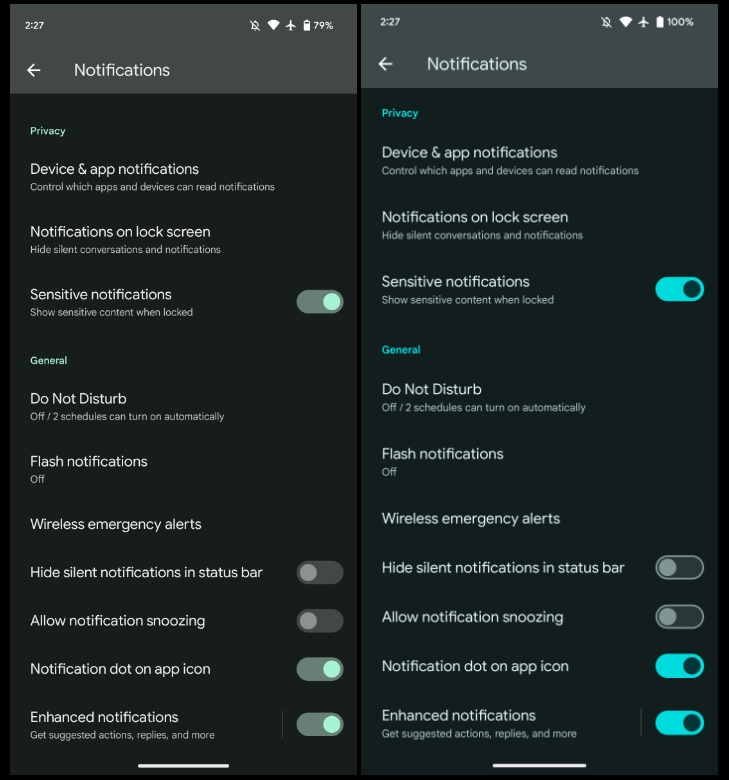
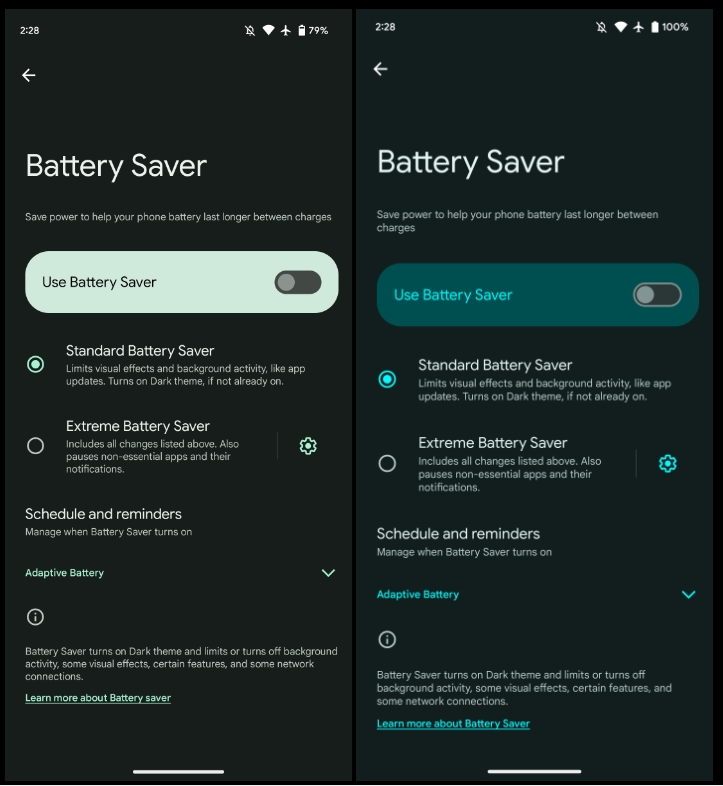
We’re diving into all of Android 14 Beta 3’s new features and every single change. (The newest updates will be at the top of this list. Be sure to check back often and tell us what you find in the comments below.) Beta 2 screenshots appear on the left and Beta32 at the right.
Expect at least three more releases before the consumer launch later this year to Pixel phones. If you want to quickly install the Android 14 Beta 3 on your compatible Pixel 4a 5G, Pixel 5, Pixel 5a, Pixel 6, Pixel 6 Pro, Pixel 6a, Pixel 7, and Pixel 7 Pro be sure to check out our step-by-step guide.
For reference, here’s everything new in Android 14 Developer Preview 1, DP2, Beta 1, and Beta 2.
Tapping the time in Quick Settings opens the Google Clock Alarm tab
New charging indicator
More color in themed icons
Rounded buttons in screenshot preview
‘UpsideDownCake’ to Android 14
Gesture navigation tutorial
‘Touch’ to ‘Tap & click sounds’
More Material You toggles
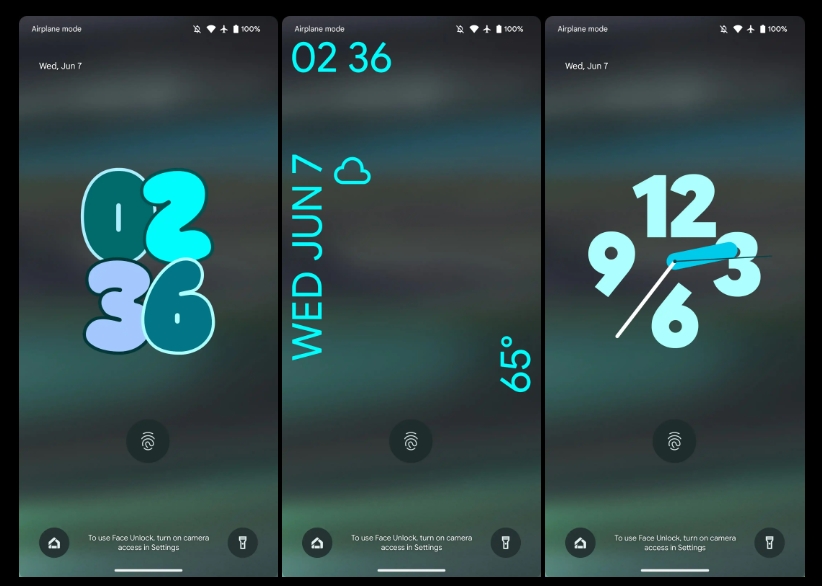
Customizable lockscreen clocks and shortcuts
Chrome prototyping Android 14 Predictive Back support to show last page
Predictive Back will be one of the most apparent user-facing changes this fall. As work continues, Google at I/O 2023 shared how some developers, including Chrome, might adopt Predictive Back in Android 14.
Predictive Back shows a preview of the homescreen as you swipe away from the edge and the current app shrinks. According to a study Google conducted, back-to-home animations “significantly reduces users accidentally leaving apps and feels more premium.”
You can test it today in Android 13 (Settings app > System > Developer options > Predictive back animations). Google is set to enable it by default with Android 14, but it’s still optional as of Beta 2.
Android 14 adds in-app Predictive Back, where you can get a preview of what screen you’re returning to when navigating within an app. In addition to the cross-activity animation Calendar demo, Google provided “key moment” examples at I/O:
Reddit is experimenting with collapsing a post as you swipe back to the feed.
Chrome is “prototyping previewing the previous web page as [you] swipe back.”
To aid adoption, developers can now “opt in to predictive back system animations per-Activity instead of for the entire app.”
Meanwhile, Material components are also leveraging Predictive Back animations in:
Side Sheets (nav drawer): “Side sheet detaches from the top and bottom edges of the screen to signal it will close.”
Search: Fullscreen search page shrinks and snaps back into pill-shaped bar on previous screen.
Bottom Sheets: Sheet shrinks and drops down.
It’s also soon coming to the bottom navigation bar and nav rail.
Android 14 Beta 2 is an “incremental Beta-quality release” following the initial Android Beta Program version that rolled out via over-the-air update last month.
With Beta 2, you’ll get a more complete and stable build for continuing your testing and development.
Fixed an issue where a device couldn’t be unlocked using a fingerprint after tapping a notification or choosing a notification action on the lock screen. (Issue #278174846)
Fixed an issue on some devices that caused sound to play through the speakers instead of headphones that were connected. (Issue #278043129)
Fixed an issue that caused icons on the home screen to appear almost invisible. (Issue #277970542)
Fixed issues with gesture navigation that occurred when using a custom launcher:
The Home screen content wouldn’t display and the animation would fail to render when swiping up to go Home. (Issue #277981298)
The list of recently used apps couldn’t be accessed using the normal gesture. (Issue #277983179)
Fixed issues that prevented users from interacting with notifications in the notification shade. (Issue #278339342, Issue #276534576)
Fixed an issue that could cause a device to crash after finishing audio or video calls. (Issue #279539689)
Other resolved issues
Fixed an issue where, after entering and exiting picture-in-picture mode, the screen flickered when any apps were launched.
Fixed an issue where user restrictions set by DPC admins were not being enforced in Settings.
Fixed an issue where, after taking pictures with the Google Camera app, opening the latest picture from the thumbnail in the app briefly displayed a green-colored shade over the image.
Fixed an issue that could cause the battery percentage to be displayed as 0% after a device reboot regardless of the actual charge level of the device.
Fixed an issue that could cause a device to crash, and then when the device rebooted any wallpapers that were selected before the reboot were reset.
Fixed issues that prevented the Better Bug app from uploading bug reports.
Fixed issues that caused the back-to-home gesture to stop working.
Fixed an issue that could cause the system Settings app to crash repeatedly.
Fixed an issue that prevented users from searching within the system Settings app.
Fixed issues that sometimes caused null pointer exceptions for input method editors (IMEs).
Fixed an issue that sometimes increased system-wide memory usage unnecessarily.
Fixed system issues that could sometimes cause deadlocks.
Leave feedback using the Android Beta Feedback app on Pixel devices. You can access it from the drawer or via Quick Settings to file bugs in the Google issue tracker. There’s also the Android Beta community on Reddit.
Android 14 Beta 2 (UPB2.230407.014) with the May 2023 security patch is available for the Pixel 4a 5G, Pixel 5, Pixel 5a, Pixel 6, Pixel 6 Pro, Pixel 6a, Pixel 7, and Pixel 7 Pro, as well as the Android Emulator.
Pixel 6, Pixel 6 Pro, and Pixel 6a devices that use Verizon as their carrier: April 2023 / UPB2.230407.014.A1
Most people will be installing via the Android Beta Program, but you can also flash or sideload.
If you need help, here’s our full guide on installing Android 14.