Apple has identified an iOS 17 bug which may affect the iPhone 15 upgrade experience today. During iPhone setup, the Transfer from another iPhone option may fail and leave your new iPhone in a state where it is stuck booting on the Apple logo black screen. Here’s what to do if that happens to you.
The bug affects iPhone 15 and iPhone 15 Pro as these phones ship with iOS 17 preinstalled. However, it may also affect anyone switching phones that are running iOS 17 and use the transfer data option.
If you encounter the bug, during the transfer of apps and data, the new iPhone will get stuck in a boot loop on the Apple logo screen.
To resolve the issue, Apple says that you need to put the device into DFU mode and restore it using a computer.
To do this, connect your iPhone to a PC or Mac using a cable. Press the volume up, press the volume down, and then press and hold the side button. Keep holding the side button while iPhone reboots until it displays an icon on the screen that represents a computer and cable. It will look similar to this:
After you get the iPhone into DFU state, it will then show on your computer through the Finder, or through iTunes if you are connecting to a Windows PC (or older version of macOS). In Finder/iTunes, you will be able to Restore or Update; press the Restore button to reset the phone.
After the phone has been restored, you can start the setup process again. There may be an additional software update available.
Finally, you can try again. If you are upgrading to an iPhone 15 or iPhone 15 Pro, you can set up using transfer data or iCloud backup. The aforementioned software update will have fixed the iOS 17 bug, so you can safely transfer data again and finish new iPhone setup.
However, if you are upgrading to an iPhone model earlier than the 15 series, a fix for the transfer data glitch is not yet available.
So, Apple recommends that you update using iCloud Backup instead. Make sure your previous iPhone has a recent iCloud backup complete (you can force this by going to Settings -> [your name] -> iCloud -> iCloud Backup -> Back Up Now). Then, on your new iPhone, start iPhone set up and choose the ‘From iCloud Backup’ option when it asks how you want to transfer your data to your new phone. Your iPhone should then finish setup successfully.
These steps are described in an Apple support document, which first revealed the existence of this iOS 17 glitch.
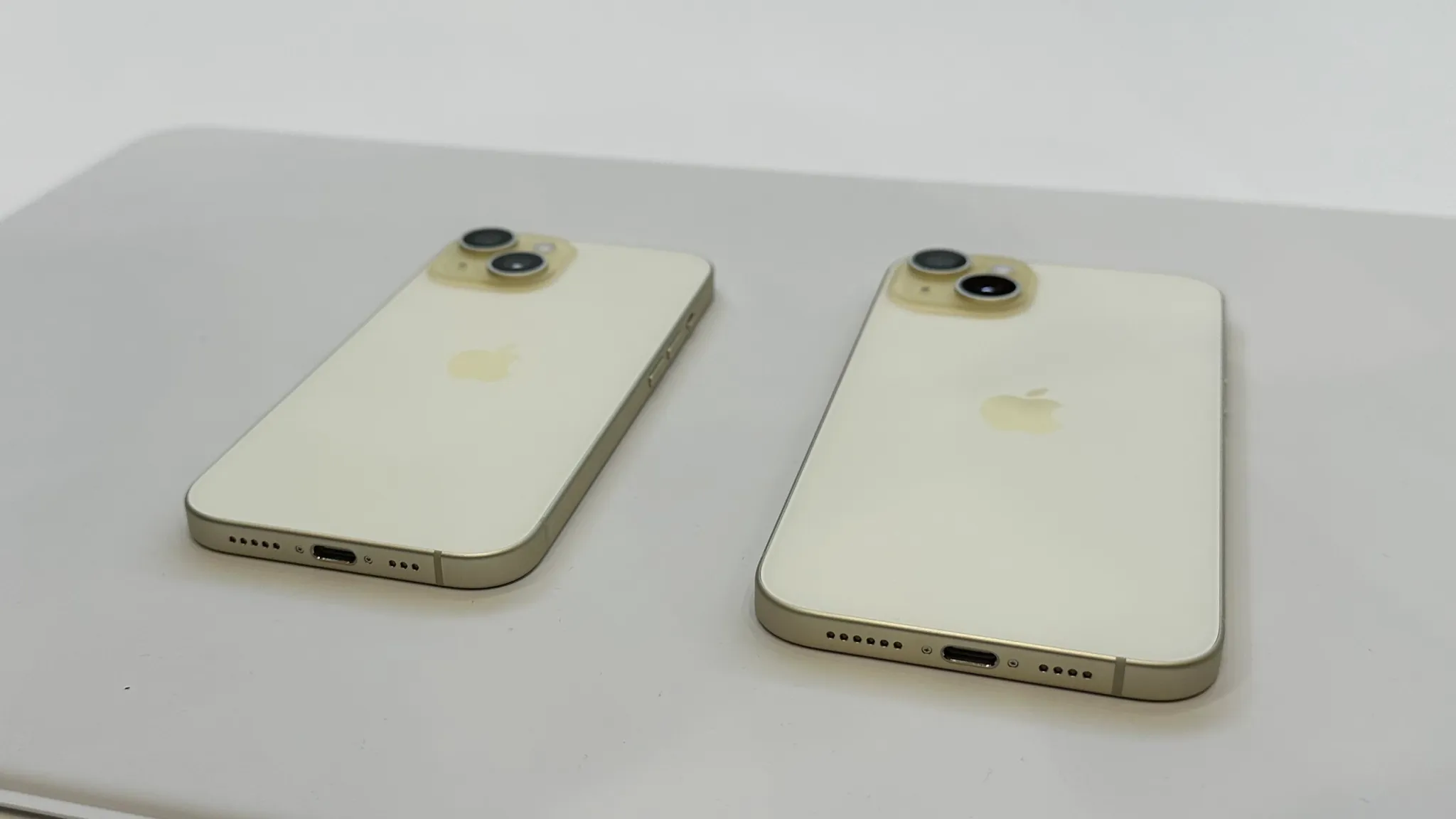
You can charge your Apple Watch or AirPods using the new iPhone 15’s USB-C port
The iPhone 15 and iPhone 15 Proditch Apple’s proprietary Lightning connector in favor of USB-C, and that change has a few side effects. Perhaps most notably, you can now use the iPhone 15’s USB-C port to quickly add more juice to your Apple Watch or AirPods.
Apple made a brief mention of this during the “Wonderlust” keynote yesterday. In practice, the feature works exactly as you would expect it to. You can connect your AirPods or Apple Watch to the iPhone 15’s USB-C port, and they’ll instantly start to charge.
This works via a USB-C to Apple Watch charging puck, via a USB-C to USB-C cable for the new AirPods Pro, and via a USB-C to Lightning cable for older AirPods.
Apple has reportedly been working on reverse wireless charging for years, a feature that would let you charge up AirPods and Apple Watch by placing them on the back of your iPhone. This feature still hasn’t seen the light of day, but the support for power-out via the new USB-C port is a great interim solution.
There’s no word on the charging speed provided to AirPods or Apple Watch via the iPhone 15’s USB-C port. It’s important to note that this feature will only work with AirPods and Apple Watch, so you can’t just plug in any device to the USB-C port and expect your iPhone to charge it.
We’ll have to do more testing to see just how big of an impact using your iPhone to charge your AirPods or Apple Watch will have on battery life. AirPods and Apple Watch have smaller batteries in comparison to the iPhone.
Here’s what you can do with the iPhone 15 Pro Action button
After living its entire life with a side switch, the iPhone has evolved to feature a programmable Action button with the 15 Pro and 15 Pro Max. Here’s a look at all the ways you can customize the iPhone Action button.
Apple Watch Ultra received the Action button last year and this time around it’s the iPhone’s turn with the 15 Pro and Pro Max.
The Action button sits in the same place as the side switch on previous iPhones and is used with a long press.
Apple notes that when you change the Action button to something other than controlling Silent mode, you can head to Control Center or use Focus modes to change your ringer.
Customize the iPhone Action button
In iOS 17, head to Settings > Action button on the iPhone 15 Pro/Pro Max and you can set the Action button to launch:
Silent mode (default)
Focus mode
Camera
Flashlight
Voice Memo
Magnifier and other Accessibility features
Shortcut
Translate (arriving with an update “later this year”)
While there are eight main features the Action button can control, being able to set it to control Accessibility shortcuts or run a custom shortcut from the Shortcuts app is huge. That means the possibilities are pretty much endless.
Some features make use of the Action button once you’re in an app too. For example, if you launch the Camera with the Action button, you can press it again to take pictures. If you launch a Voice Memo recording, you can use the Action button to stop the recording, etc.
PSA: Apple Card financing not available for carrier-free iPhone 15 orders
Last month, Apple discontinued Apple Card financing for iPhones purchased without a carrier connection. Unfortunately, and unsurprisingly, that change applies to the new iPhone 15 and iPhone 15 Pro.
What this means is that in order to use Apple Card Monthly Installments to buy an iPhone 15 or iPhone 15 Pro, you must connect that phone to AT&T, T-Mobile, or Verizon.
Previously, Apple allowed buyers to purchase an iPhone with the “Connect to a carrier later” option. This option means users are free to use the iPhone without a cellular connection or via any carrier of their choosing. For instance, you could connect an iPhone purchased with this option to a carrier such as Mint Mobile or Google Fi.
That “Connect to a carrier later” option is no longer available for iPhones purchased with Apple Card Monthly Installments. Instead, your new iPhone 15 Pro will require you to connect to AT&T, T-Mobile, or Verizon at the time of setup. Note that the iPhones will still be unlocked, but the carrier connection will be required at the time of setup.
Apple points out this new requirement on the purchase page for iPhone 15. “Carrier connection with AT&T, T-Mobile, or Verizon is required to purchase with Apple Card Monthly Installments,” the company explains. “An iPhone purchased with ACMI is always unlocked, so you can switch carriers at any time.”
As said when first wrote about this change in June, it’s a huge bummer for Apple Card users. The ability to finance Apple hardware purchases is one of the biggest selling points of the Apple Card, and this change puts a big restriction on the most popular Apple hardware purchase.
iPhone 15 Pro’s new design, Action button, and more
The iPhone 15 Pro and iPhone 15 Pro Max are now official, and I had the chance to go hands-on with them inside Steve Jobs Theater. The flagship iPhone 15 Pro models pack a new titanium design, upgraded camera hardware, and more. Here are some quick first impressions…
Right off the bat, I was struck by how light the iPhone 15 Pro Max feels due to its new titanium chassis. Here’s how the numbers breakdown on paper:
iPhone 15 Pro – 187 grams (down from 206 grams)
iPhone 15 Pro Max – 221 grams (down from 240 grams)
That’s a pretty big difference on paper, and it’s an even bigger difference in real life. I’ve been using the iPhone 14 Pro Max for the last year, so I’ve grown pretty familiar with its weight. I found the iPhone 15 Pro Max to be significantly lighter and more comfortable to hold. I think this is due to both the reduction in weight as well as the new contoured edges.
The titanium design also means that the iPhone 15 Pro models have a texturized matte finish rather than the previous glossy stainless steel finish. I only spent around 15 minutes with the iPhone 15 Pro today, but I have a feeling this is going to be a very nice change in terms of durability.
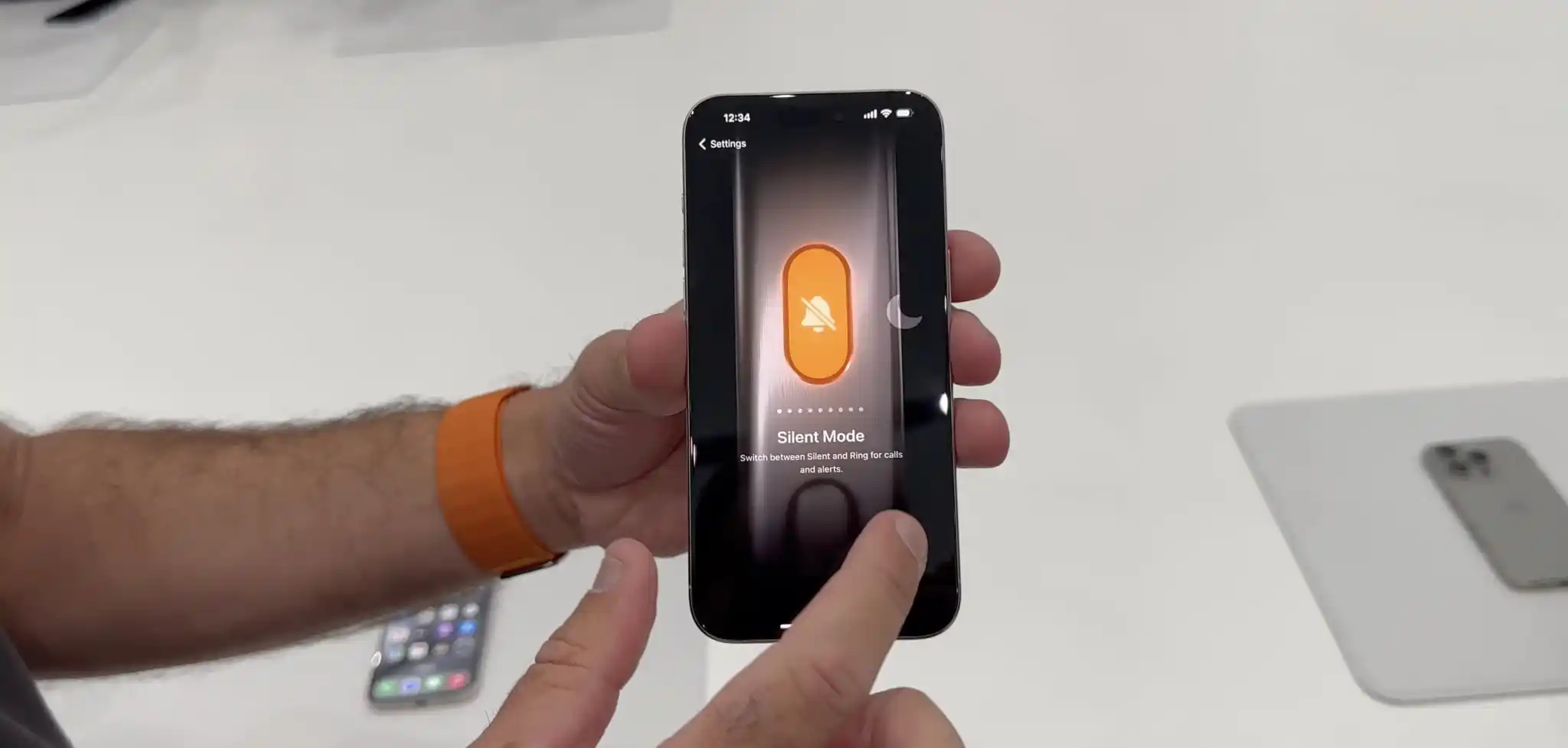
The Action button is another standout feature of the iPhone 15 Pro. The interface to customize what the Action button is linked to is in the Settings app, and it’s beautifully designed. The button can be assigned to the following things:
Silent Mode
Focus Mode
Camera
Flashlight
Voice Memos
Accessibility features like Magnifier
Shortcuts
One thing that I didn’t realize until I tried the Action button is that a press and hold is required to trigger the action. You can’t just quickly press the button. This is likely an effort to prevent false triggers, so it makes sense, but it does mean there’s an added step required each time.
I think my primary use of the Action button will be for the camera. You can press and hold to open the Camera app, then press the Action Button again to use it as a shutter in the Camera app. You can see that demoed in my video above.
Speaking of the camera, the iPhone 15 Pro Max also features an upgraded Telephoto lens with up to 5x optical zoom. I’ll have to reserve full judgment on this until I get my hands on an iPhone 15 Pro Max for an extended period of time, but the quick demos I got at Steve Jobs Theater today align with my expectations. The new telephoto lens also enables 25x digital zoom as well.
Other tidbits:
Yes, there’s a USB-C port. Apple wasn’t lying.
The colors look much better than I expected, but they are still pretty boring and there’s not a whole lot of variety.
The smaller bezels are noticeable, but not as noticeable as I thought they would be. At a certain point I suppose you just get used to the black border being there, regardless of its size.
I only got a brief minute with the new FineWoven cases for the iPhone 15 Pro, but I really liked the material and how it felt in my hands. I’m 100% in support of Apple’s move away from leather.
I’ll have much more to say about the iPhone 15 Pro and iPhone 15 Pro Max once I get to spend some more time with them. My first impressions are pretty positive, especially when it comes to the new titanium design and the benefits provided by that change.
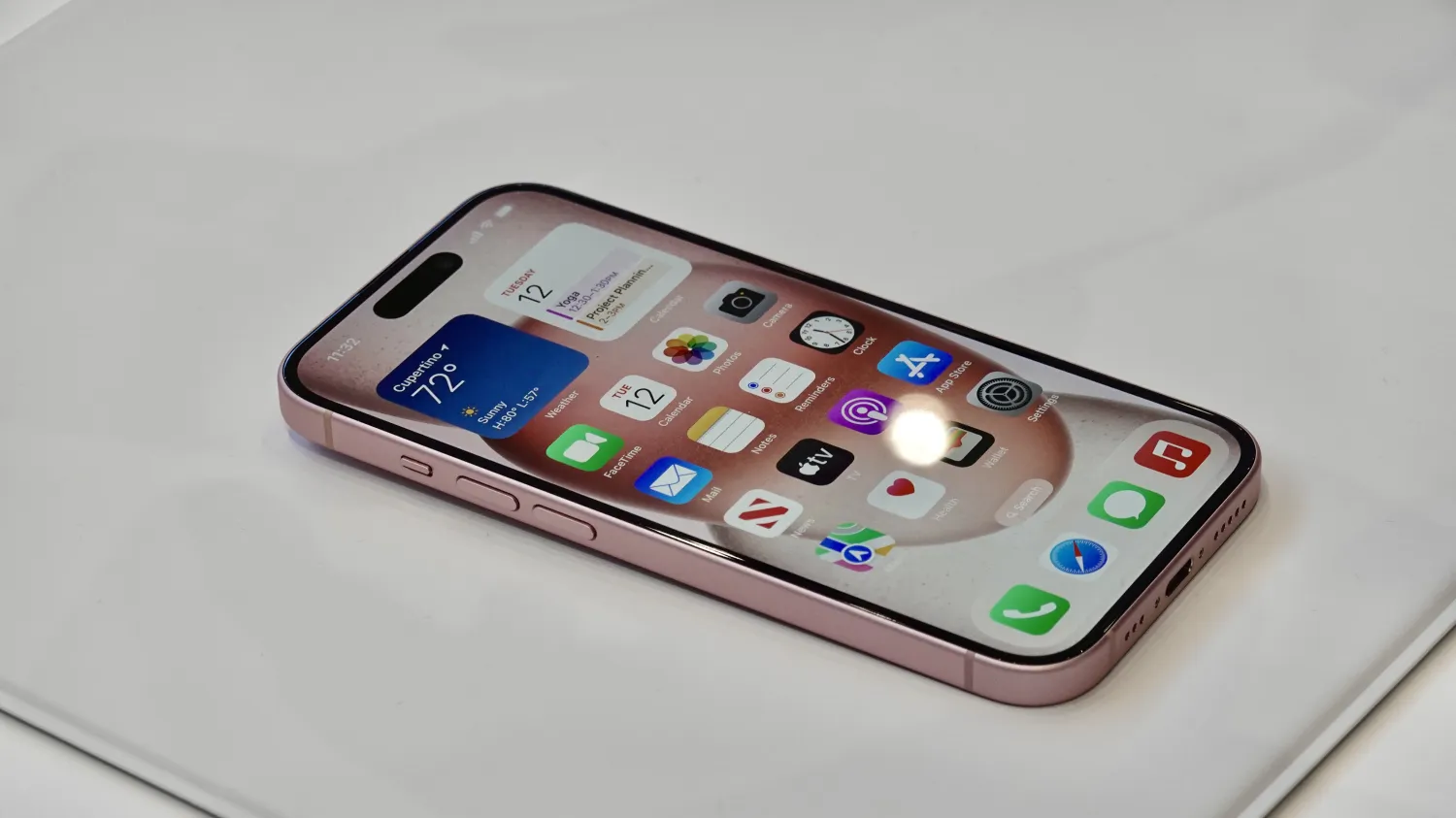
iPhone 15 and iPhone 15 Plus in every color
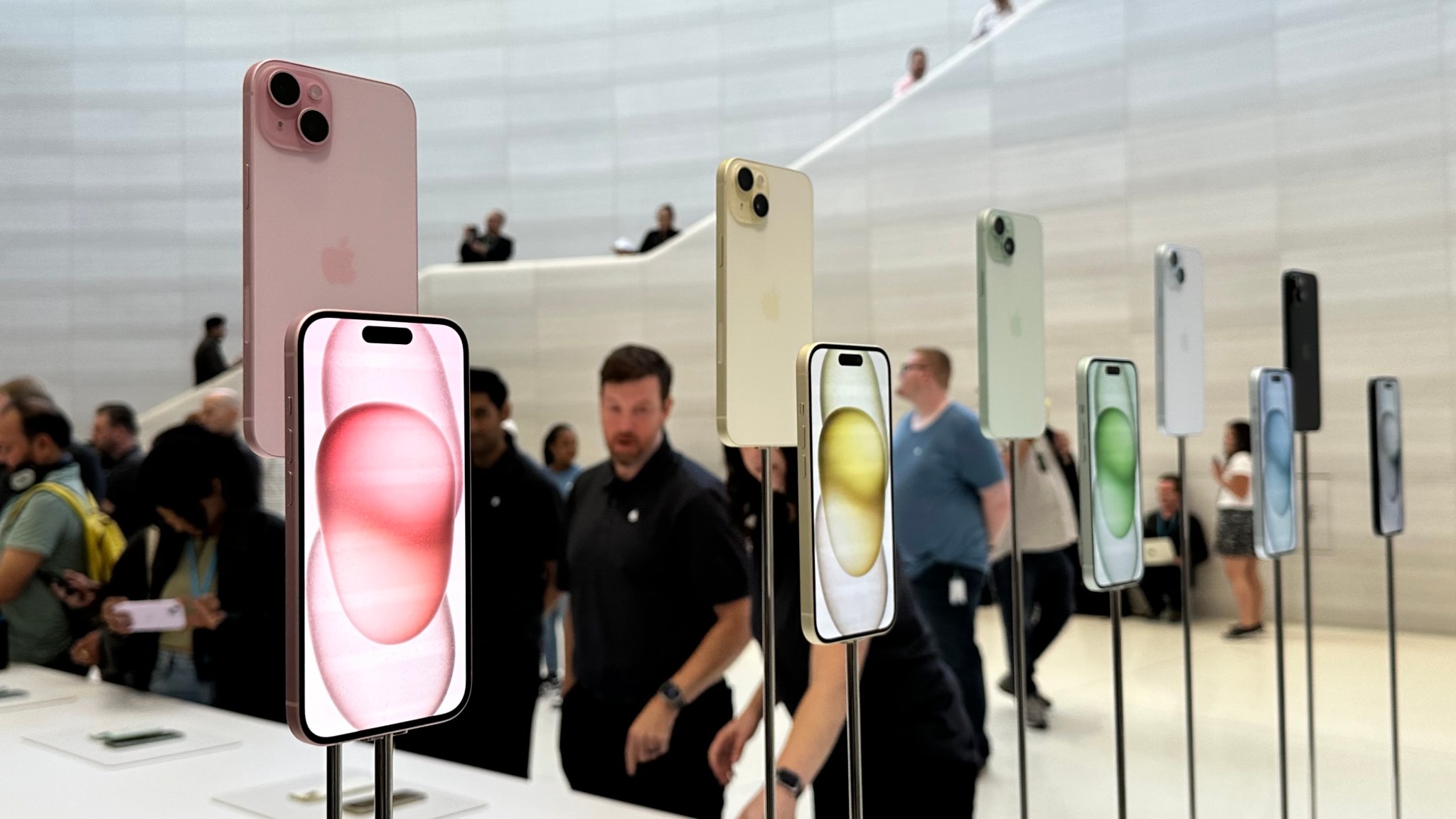
In addition to the iPhone 15 Pro and iPhone 15 Pro Max, Apple also unveiled the entry-level iPhone 15 and iPhone 15 Plus during its “Wonderlust” event today. I got to check them out at Steve Jobs Theater after the keynote today, and I honestly wish I had more to say…
The iPhone 15 and iPhone 15 Plus are great phones. They take the iPhone 14 and do exactly what Apple does: gradually trickle down what were once Pro-exclusive features to the non-Pro phones. The other big change here, of course, is the USB-C port.
The camera changes shouldn’t be overlooked, particularly the new 48MP Main camera that’s moved downstream to the non-Pro phones after first being introduced with the iPhone 14 Pro last year. What’s most notable about this, in my opinion, is that it enables a 2x zoom option in the Camera app. This is done by Apple cropping the 48MP camera down to 24MP, enabling a 2x zoom without having a dedicated Telephoto lens.
The Dynamic Island also now finds itself on the non-Pro models of the iPhone 15 this year. It’s the same Dynamic Island we’ve come to know, just inside a more affordable product.
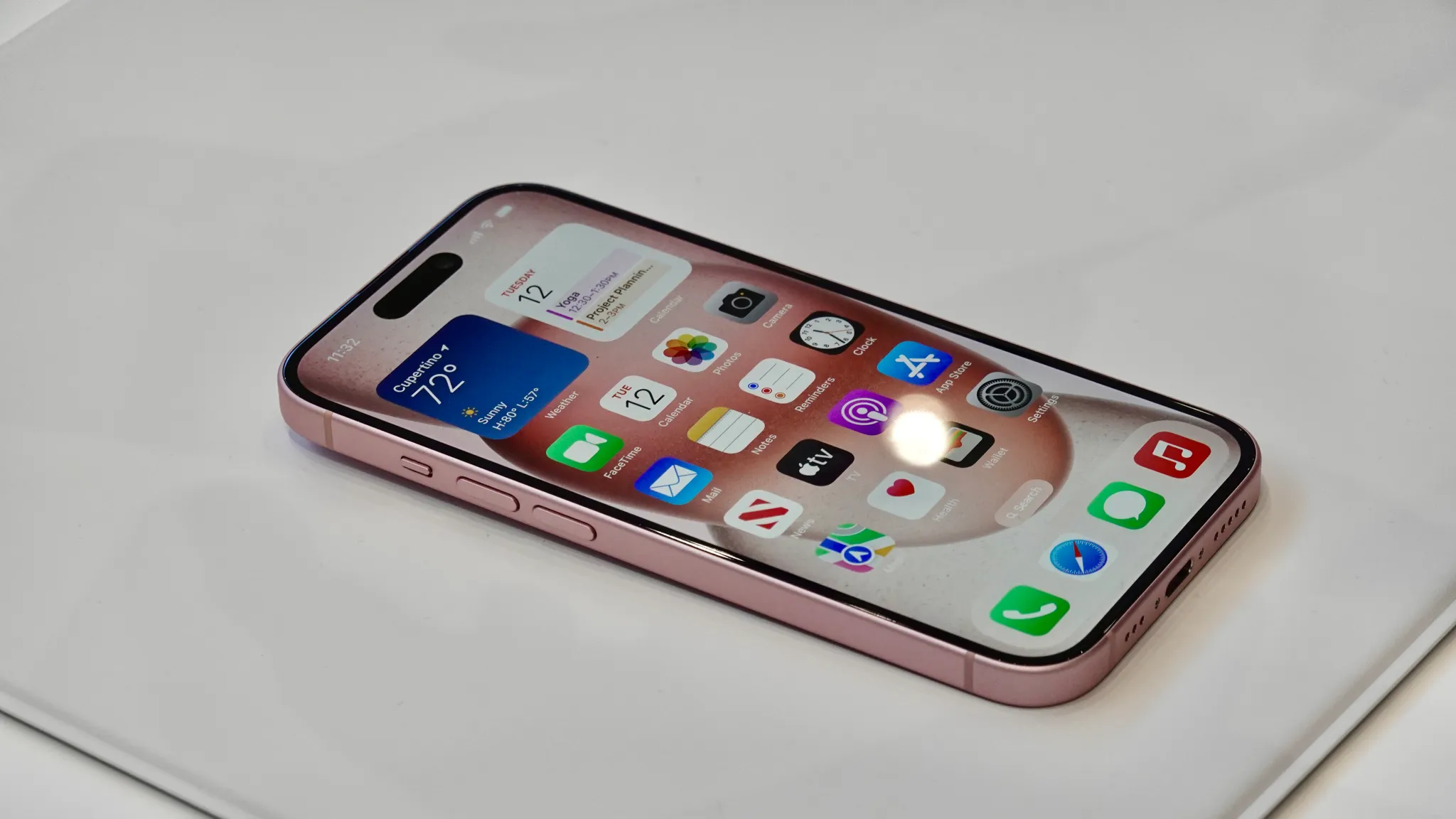
Otherwise, there’s not a whole lot to say about the iPhone 15 and iPhone 15 Plus. The design is about the same as before, aside from the slightly contoured edges. The backs of the phones now feature a matte finish instead of glossy. They are available in five new colors: pink, yellow, blue, green, and black.
I think the pink iPhone 15 is going to sell like hotcakes. And it looks fantastic in real life. It stands out among what are otherwise relatively mundane colors.
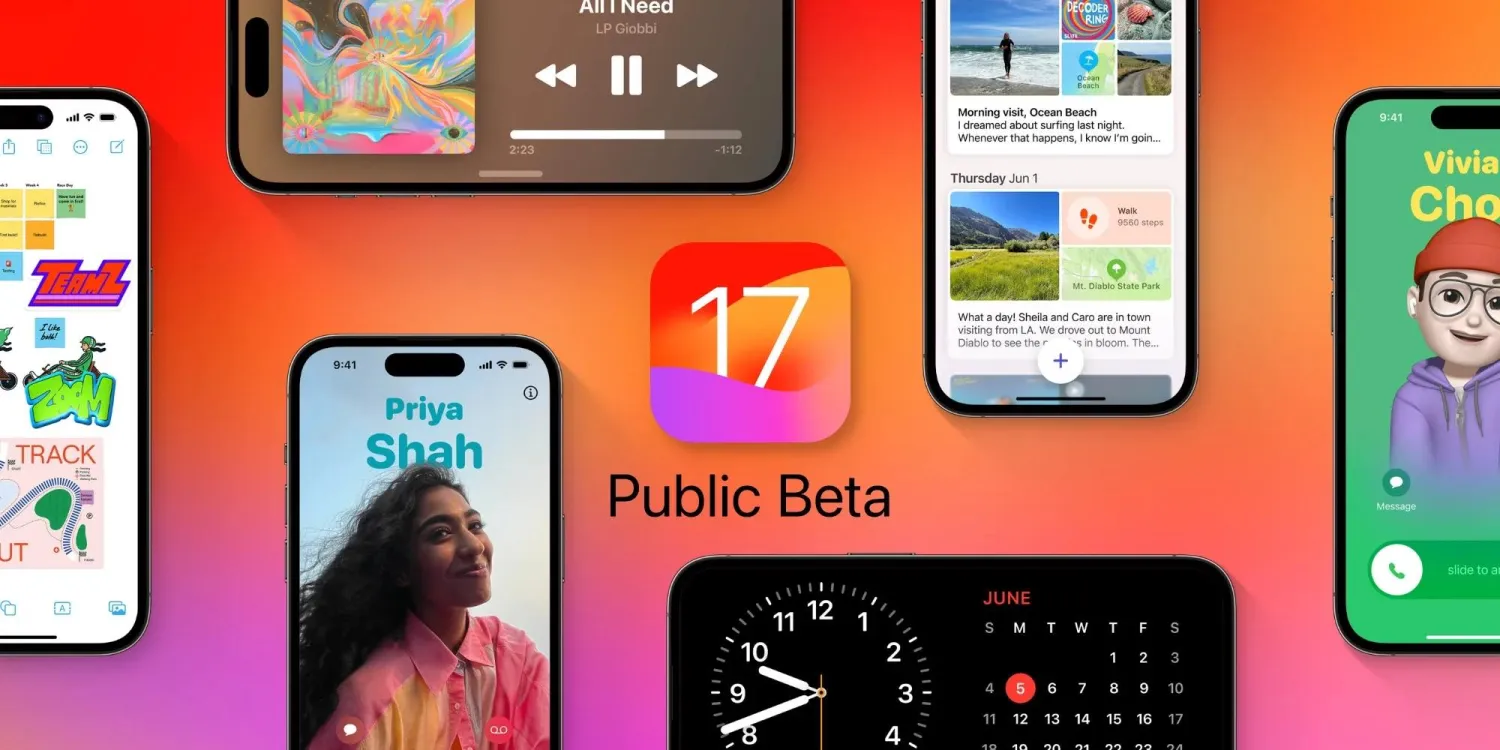
Update: Public beta versions of today’s software releases are available now.
It’s not just iPhone 15 event announcement day. Fresh iOS 17 betas are here as well. Apple has released iOS 17 beta 8 for developers.
Apple unveiled iOS 17 at its annual Worldwide Developers Conference on June 5, previewing new features coming to iPhone including StandBy, Live Voicemail, AirDrop updates, and much more.
iOS 17 has been available as a pre-release version since early June. Starting last month, Apple has expanded iOS 17 testing through its public beta program as well.
This year, Apple has made it possible to join the developer beta program without paying the annual $99 fee. The one difference between the developer and public beta now is how soon new builds become available.
Early versions of developer beta releases go out in plenty of time to make sure nothing critical breaks for public beta users. Closer to release, however, both versions typically become available at the same time.
We expect iOS 17 to be ready for primetime in a couple weeks. Apple should announce the official release date on September 12. In the meantime, follow our coverage to stay up-to-date on the latest.
Apple has also released watchOS 10 beta 8, tvOS 17 beta 8, HomePod (OS) 17 beta 8, and the third visionOS beta.
Apple released watchOS 9.6.1 for Apple Watch users on Tuesday but without an accompanying iOS 16.6.1 update. A new rumor today suggests that Apple isn’t planning iOS 16.6.1 and is instead planning to jump all the way to iOS 16.7. Simultaneously, Apple has also started ramping up iOS 17.1 testing.
watchOS 9.6.1 addresses a bug in Apple’s Movement Disorder API that had prevented access to that data by researchers and third-party applications.
Typically (but not always), when Apple releases an update for one of its platforms, it releases accompanying updates for other platforms. This is especially true for watchOS, with Apple generally trying to keep lock-step between watchOS and iOS when possible.
That being said, a new rumor today from a previously accurate source on Twitter suggests that Apple is instead planning to jump to iOS 16.7 with its next update. The company reportedly isn’t planning to release iOS 16.6.1.
There’s no word on when Apple might release iOS 16.7 to the public, and the update is not actively being beta tested with developers. Last year, the first and only iOS 15.7 beta was released alongside the final iOS 16 beta. The stable iOS 15.7 update for everyone was released alongside iOS 16 on September 12, with a handful of bug fixes and security improvements.
In recent years, Apple has allowed users to remain on a previous year’s iOS release instead of immediately updating to the new version. For example, Apple actively encouraged users to update to iOS 15.7 rather than iOS 16 on day one last year.
iOS 17.1 testing ramps up
As of right now, there’s no evidence of iOS 16.7. This will likely change as we inch closer to a release sometime next month.
Interestingly, there has been a subtle uptick in iOS 17.1 users on over the last several weeks. iOS 17.1 could potentially add some of the features that aren’t included in the iOS 17 initial release, such as the new Journal app, additional AirDrop improvements, and collaborative playlists in Apple Music.
Last year, iOS 16.1 was released on October 24 with new features including iCloud Shared Photo Library, Live Activities for third-party apps, key sharing in the Wallet app, and more.
Apple releases watchOS 9.6.1 update for Apple Watch users
Apple is rolling out a new software update to Apple Watch users ahead of watchOS 10’s launch in September. Starting today, watchOS 9.6.1 is rolling out with a fix for the Movement Disorder API.
This update includes a fix for an issue that prevents access to motion data for apps that use the Movement Disorder API to track tremors and symptoms associated with Parkinson’s disease.
The Movement Disorder API was first launched in 2018 as a way for developers to offer passive, all-day monitoring via an Apple Watch. The API is able to monitor two common symptoms of Parkinson’s, including Tremors, indicated by shaking and quivering detected by the Apple Watch. The API can also monitor for Dyskinesia, a side-effect of treatments for Parkinson’s that causes fidgeting and swaying motions in patients.
The bug in watchOS 9.6 prevented third-party apps from accessing this data. Apple says the issue has been rectified with today’s release of watchOS 9.6.1.
You can update your Apple Watch by going to the Apple Watch companion app or to the Settings app on the Apple Watch itself. The build number for watchOS 9.6.1 is 20U80.
As of right now, there’s no sign of other updates from Apple, including iOS 16 and macOS Ventura. We’ll be sure to let you know if any other updates are released today.
Apple’s Shortcuts app has evolved a lot since the company acquired Workflow in 2017. For those unfamiliar, it lets users create a series of automated processes on iPhone, iPad, Mac, and even Apple Watch. And with iOS 17, Apple is adding even more functionality to the app, which now supports Camera app actions.
Camera app shortcuts coming to iOS 17
As noted by Matthew Cassineli, the latest iOS 17 beta available to developers and public beta testers adds new Shortcuts actions to open specific camera modes in the Camera app. With the new “Open Camera” action, users can choose between different camera modes and “immediately open any preset using Shortcuts.”
There are up to nine different modes available, which vary depending on the device you have:
Photo
Selfie
Video
Portrait
Portrait Selfie
Cinematic
Slo-Mo
Time-Lapse
Pano
These shortcuts can be very useful for a lot of things, like creating voice commands to use Siri to open the Camera app in a specific mode. You can also add icons to quickly access a specific mode right from your Home Screen.
ChatGPT for iOS adds Siri & Shortcuts support, and proper iPad app
This shortcut brings deep ChatGPT integration to native iOS features and apps
Workflow cofounder and Shortcuts engineering manager departs Apple
More about iOS 17
iOS 17 comes with a bunch of new features for the iPhone. These include enhancements to FaceTime and Messages, a new StandBy mode, interactive Home Screen widgets, NameDrop, and smarter keyboard suggestions. For the iPad, the update brings a brand new customizable Lock Screen, plus support for microphones and USB webcams.
iOS 17 beta is currently available through the Apple Developerand Apple Beta Softwareprograms. The official release to the public is expected this fall.
Apple acquires powerful iOS automation app Workflow, makes it available for free
Apple way back 2017 acquired popular iOS tool Workflow, which allows users to combine the functionalities of various apps together to automate normally complex processes. According to TechCrunch, Apple finalized the deal today but financial details are not yet available.
In a statement, Workflow developer Ari Weinstein said that the team is thrilled to be joining Apple and remarked on how amazing of a journey it has been going from the company’s beginnings to today:
“We are thrilled to be joining Apple,” said Weinstein in a statement. “We’ve worked closely with Apple from the very beginning, from kickstarting our company as students attending WWDC to developing and launching Workflow and seeing its amazing success on the App Store. We can’t wait to take our work to the next level at Apple and contribute to products that touch people across the world.”
Apple has also confirmed the acquisition. The company said in a statement that Workflow’s use of iOS accessibility features is something that really makes the app standout out from other services. In 2015, the app won an Apple Design Award, something Apple attributes to those accessibility features in today’s statement:
“The Workflow app was selected for an Apple Design Award in 2015 because of its outstanding use of iOS accessibility features, in particular an outstanding implementation for VoiceOver with clearly labeled items, thoughtful hints, and drag/drop announcements, making the app usable and quickly accessible to those who are blind or low-vision.”
Workflow is based around the idea of transforming a process that would normally take a handful of interactions with iOS into a single tap. The goal is to “hide” a complex set of commands under a single, instant tap of a button.
What’s somewhat unusual about Apple’s acquisition of Workflow is that the app will remain on the App Store and has transformed into a free offering today. It’s unclear at this point how the Workflow team will be integrated into Apple, but the acquisition is good news for pro users who have called on Apple to make iOS more powerful, as well as good news for those who have called the iOS interface overly complicated.
iOS 17 beta 4: Here’s what new
iOS 17 beta 4 is here, and it includes a handful of small changes and new features for iPhone and iPad users. Head below as we round up everything that’s changed ahead of iOS 17 being released to the general public in September.
The first beta of iOS 17 was released following the WWDC on June 5, and beta two was released two weeks later on June 21. iOS 17 beta 2 included updates to AirDrop, changes to the Settings app, crossfade support in Apple Music, and more. iOS 17 beta 3 was released on July 5 and brought more in-depth credits to the Music and more.
Since the release of iOS 17 beta 3, Apple also released the first iOS 17 public beta. We expect a new iOS 17 public beta build to be released sometime later this week or early next week.
What’s new in iOS 17 beta 4?
Ahead of Photo Stream being shut down this week, iOS 17 beta 4 removes the feature entirely.
iOS 17 beta 4 includes a new toggle in the Settings app that allows users to disable the ability to initiate AirDrop transfers by bringing two devices close together.
In the Messages app, Apple has tweaked the layout and icons for Messages apps in iOS 17 beta 4.
As spotted by Hidde Collee on Twitter, iOS 17 beta 4 includes a slightly tweaked design for buttons in the TV app.
There’s also a new AirPlay picker animation included in iOS 17 beta 4:
Do Not Disturb mode lets you work or have fun without distractions from your iPhone.
When you want to work or watch a movie without distractions, turn on Do Not Disturb on your iPhone. A new Apple video shows how to activate this mode.
The activation process is simple enough that this Apple Support video mostly serves as a reminder that Do Not Disturb is available.
How to turn on Do Not Disturb with a couple of taps
Our iPhones keep us in constant contact with the world, but sometimes what we need from our handsets is peace and quiet. Whether it’s because you’re in a meeting, napping or having a heart-to-heart with a loved one turn on Do Not Disturb mode to hush your iPhone.
Activating it takes only a couple of steps. The button you need is in the Control Center, so start by swiping down from the top-right corner of the screen on iPhone (or iPad).
Open the Control Center and then a couple of taps is all it takes.
Once the Control Center is open, tap on the Focus button, then tap the Do Not Disturb button, which features a moon, to activate the feature immediately.
When you’re finished with your meeting or movie, reopen the Control Center and you’ll see the Focus button has been replaced by the Do Not Disturb button. Tap this to deactivate the mode.
With Do Not Disturb active, all audible alarms are silenced, and your handset won‘t vibrate. Also, the screen won’t come on whenever a notification comes in. Your iPhone is saving all these up for when the mode is deactivated.
Put your iPhone into Do Not Disturb mode and all your other Apple computers switch themselves to the same mode.
Tap on the section with three dots on the Do Not Disturb button to display options for automatically turning the mode off. It can be active for an hour, until evening or — perhaps most usefully — until you leave your current location.
Use Do Not Disturb with Focus on your iPhone or iPad
With Focus in iOS 15 and iPadOS 15 or later, you can use Do Not Disturb to silence calls, alerts, and notifications that you get while your device is locked. You can also schedule Do Not Disturb and allow calls from certain people.
When you have Do Not Disturb turned on, a crescent moon icon appears in the status bar and on your Lock Screen.
Turn on Do Not Disturb
Go to Settings > Focus.
Tap Do Not Disturb.
Under Turn on Automatically, set Do Not Disturb to turn on automatically at a certain time, location, or while using a certain app.
If you don’t want to be disturbed at a certain time, you can set a schedule and change other Do Not Disturb features to help you concentrate.
Go to Settings > Focus.
Tap Do Not Disturb.
You can select allowed or silenced notifications from people and apps, connect your Lock Screen or Home Screen, have this Focus turn on automatically, and add Focus filters.
Considering testing out the iOS 17 public beta? From the new smart display mode to new health features, interactive widgets to a new Messages experience, Live Voicemail to offline Apple Maps, and more, here are the top 10 iOS 17 features you should try out.
iOS 17 has been in testing with developers since early June and now the public beta has launched.
Apple changed things up this year by making even the developer beta free for anyone. But the arrival of the public beta marks a more stable point in the testing process when Apple is comfortable with non-developers installing the software.
But even though the iOS 17 beta is quite stable at this point, bug and performance issues are common during the beta period. So don’t forget to make an iOS 16 backup for your iPhone just in case you want to downgrade.
Top 10 features to try out with the iOS 17 beta
StandBy mode
Contact Posters
Live Voicemail
Personal Voice
Offline Apple Maps
Share Passwords with friends, family, and colleagues
Automatically delete iPhone 2FA codes
Interactive widgets
Messages new UI and stickers
Screen Distance for eye health
iPhone StandBy mode
Apple enhances the Lock Screen experience this year in iOS 17 with the new landscape StandBy mode for iPhone.
Some of the available options include dual-view, customizable setups while others have different clock faces that take up the whole screen. Check out all the details in our full walkthrough:
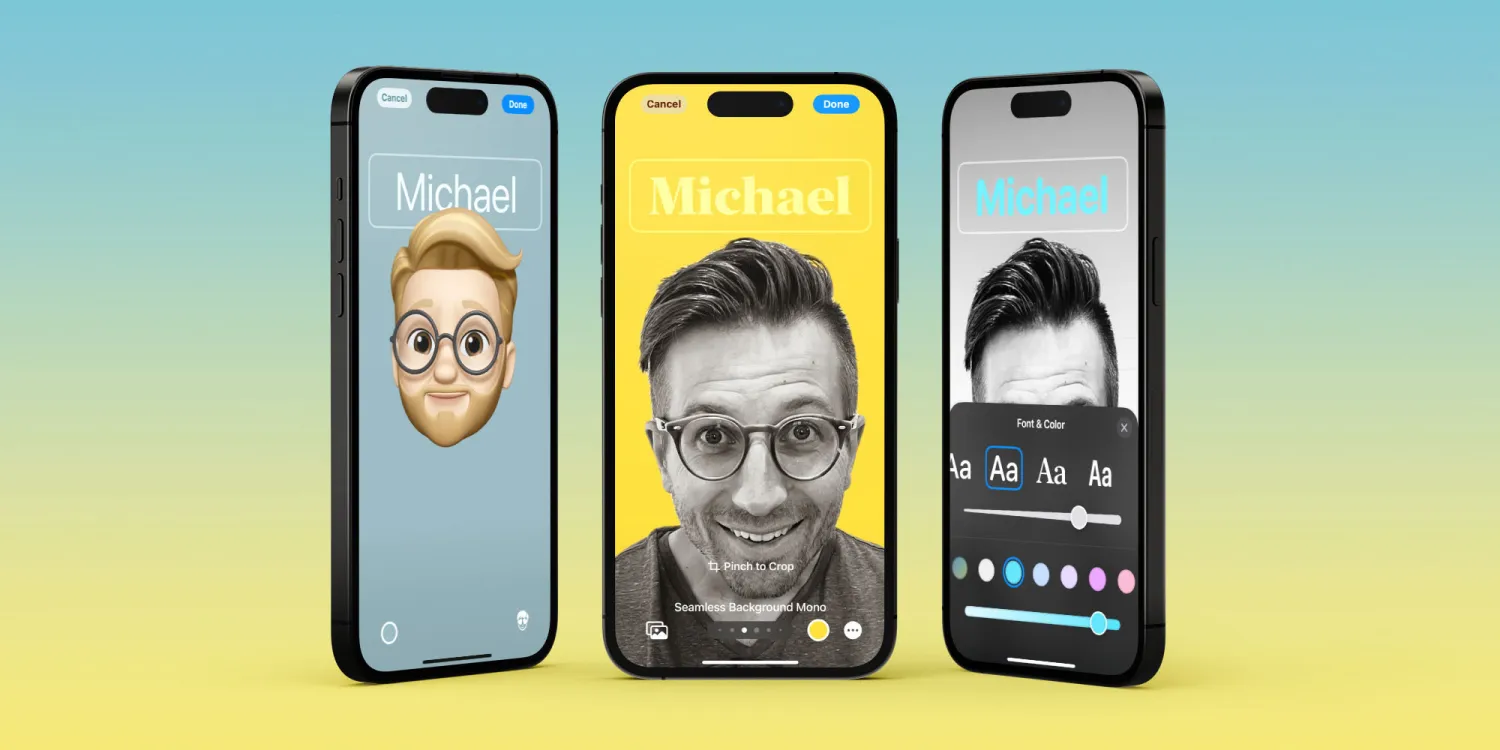
Contact Posters
Another neat way iOS 17 gets more customization is Contact Posters. There are lots of ways to create different designs and you can make them for yourself as well as others.
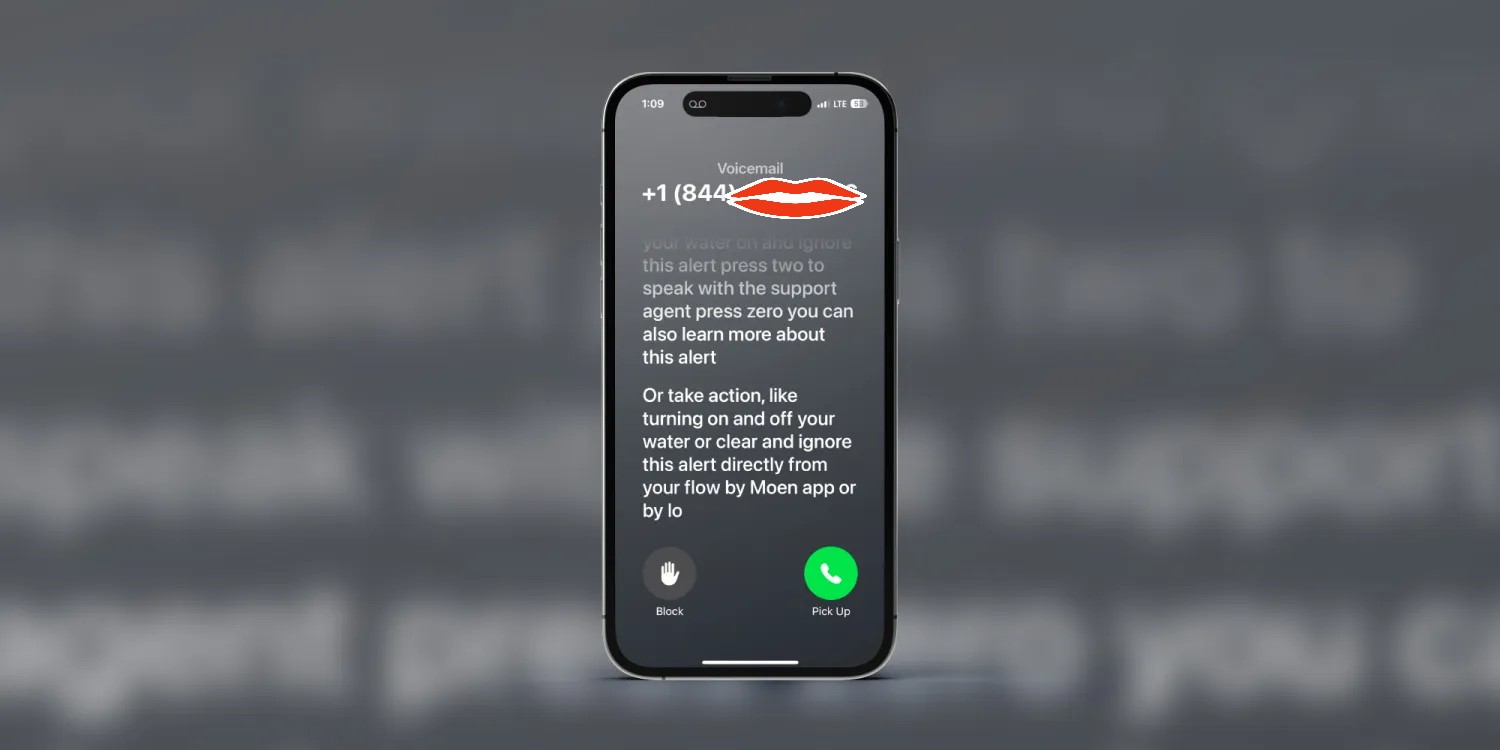
Live Voicemail
Live Voicemail makes it easy to know if you’d like to pick up a call while someone is leaving a message without having to call them back.
Personal Voice
Personal Voice is an impressive capability that lets users bank their voice in the event they lose it in the future. Whether for those with a degenerative disease or if you just like to be prepared, Personal Voice makes it easy to create and securely store a replica of your voice.
Offline Apple Maps
Want to save battery or won’t have a connection where you’re going? With iOS 17 you can download Apple Maps for offline use.
Shared passwords
Password sharing with anyone or any group is seamless with the ability to create shared iCloud Keychain vaults.
Automatically delete 2FA codes
Simple and very useful, iOS 17 can automatically delete 2FA code texts after you’ve used them.
Interactive widgets
Widgets get a nice upgrade with functionality right on your Home or Lock Screen. Here’s a look at them in action with the Home app widget.
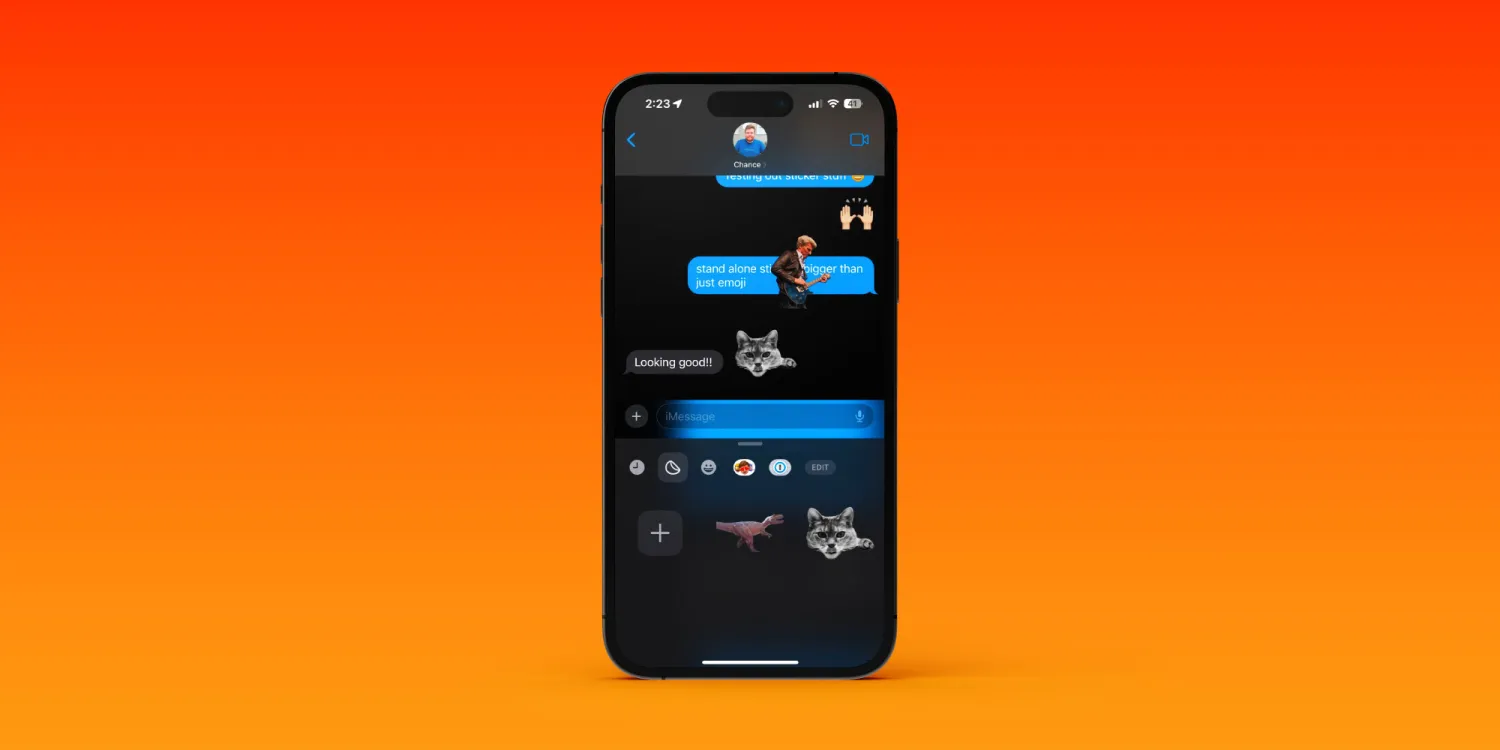
Messages stickers and new UI
Instead of emoji responses being limited to the six tapback choices, with iOS 17 you can respond to any text or image with an emoji or custom sticker.
Along with that, there’s a new UI for iMessage apps.
Screen Distance
This is a new eye health feature that helps prevent eye strain for all ages and helps reduce the likelihood of myopia for children.
It’s easy to set up and very effective.
one bonus feature. But this one requires signing up for an Apple Developer account and installing Xcode on your Mac (which is free but more involved):
AirPods Pro 2 Adaptive Audio
Coming with iOS 17 are a range of new capabilities for AirPods Pro that really feel like magic. Check out a closer look at Adaptive Audio with AirPods Pro 2.
iOS 17 beta 3 is here for developers, and it includes a handful of new features and changes for iPhone users. Head below as we recap everything new in today’s update, including changes to the Music app and more.
The first beta of iOS 17 was released following the WWDC on June 5, and beta two was released two weeks later on June 21. iOS 17 beta 2 included updates to AirDrop, changes to the Settings app, crossfade support in Apple Music, and more.
iOS 17 beta 3: New features and changes
iOS 17 beta 3 adds more in-depth song credit information to Apple Music, which Apple first announced at WWDC. This allows users to view in-depth details on producers, performing artists, songwriters, and more.
Apple Music now has a dedicated song credits section in iOS 17
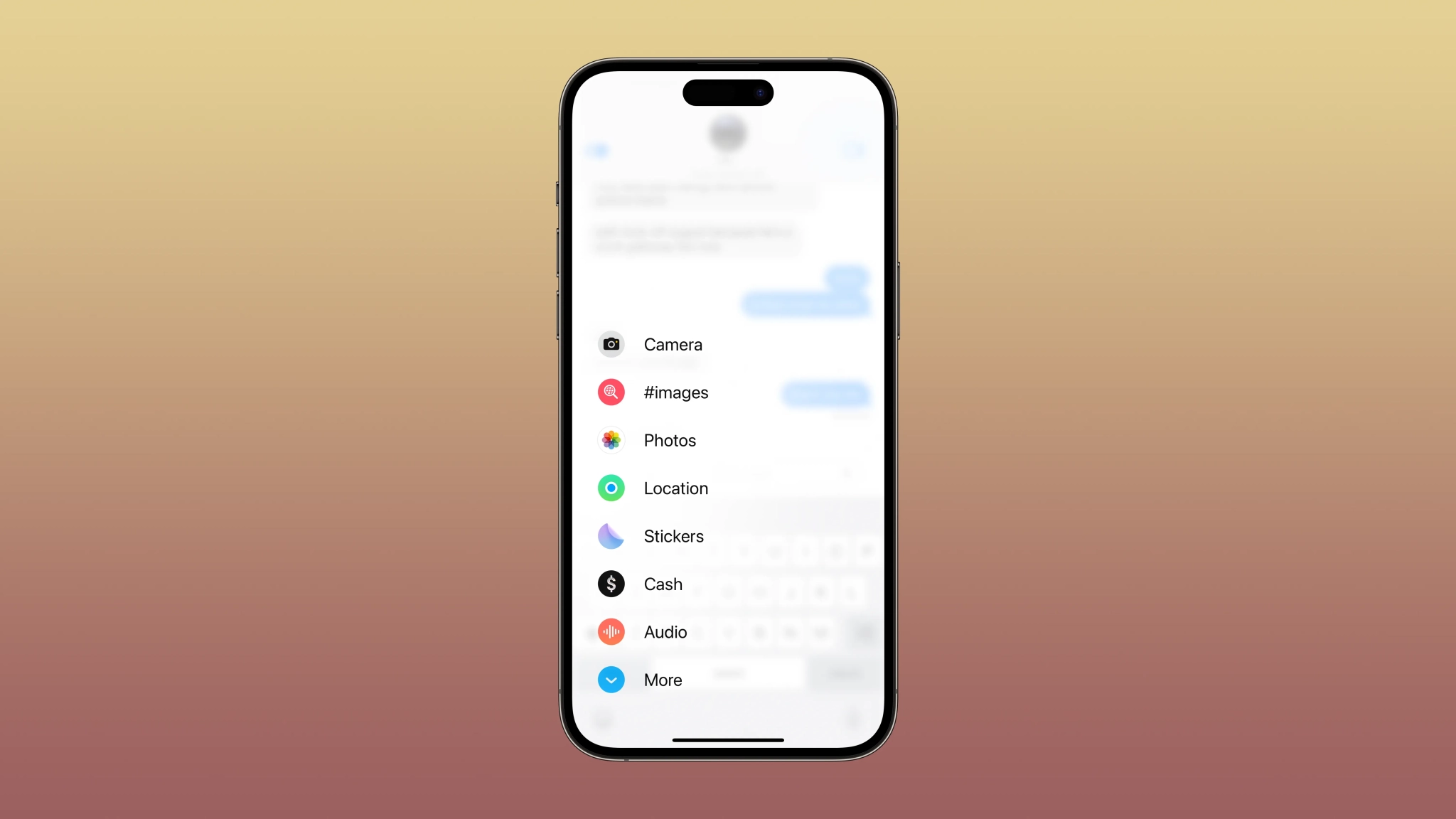
The redesigned app picker in the Messages app has been slightly tweaked to show your most recent photo as the icon for the “Photos” button. Previously, it just showed a generic photos glyph.
iOS 17 beta 3 adds a new “What’s new” splash screen to the Home app, as well as an updated scrolling interface for adjusting the color of multi-color lights. There is also a new icon option for garage doors, making for three choices total.
In the Settings app, “Depth Control” is now its own toggle in “Preserve Settings.” Previously, it was lumped into the Creative Controls category.
Apple Music now has a dedicated song credits section in iOS 17
One of the differences between Apple Music Classical and the main app is that the Classical app highlights the song credits. And after many users have asked for that feature in the main Apple Music app, Apple is now giving users what they want. With iOS 17 beta 3, which was released to developers on Wednesday, Apple Music now has a section dedicated to song credits.
Apple Music now shows song credits in iOS 17
As noted by Hidde Collee, there’s a new option in the Apple Music app with the latest iOS 17 beta that lets users check the detailed credits for each song. The feature had already been announced by Apple at WWDC 2023, but it wasn’t available in the previous betas.
In order to check the credits for a song, all you need to do is tap the three-dot button and then choose the View Credits option. The credits are organized into different categories, such as performing artists, songwriting and lyrics, and production and engineering. The new section also shows whether the song is available in Dolby Atmos and Lossless.
iOS 17 will also bring some other new features to Apple Music. This includes Crossfade, Collaborative Playlists, a new miniplayer, and SharePlay coming to CarPlay. With the exception of Collaborative Playlists, which is coming later this year, all of these features are available now with the current beta.
More about the update
iOS 17 comes with multiple new features, including more options for customizing the Lock Screen, improved iMessage and FaceTime, StandBy mode, interactive widgets, and NameDrop.
The third iOS 17 beta is now available to developers. Apple says a public beta will be available this month, while the official release is expected this fall. More details on how to install the beta update can be found on the Apple Developer website.
How to limit iPhone Photos app access for apps with iOS 17
One of the new privacy improvements with iOS 17 is a new embedded Photos picker for third-party apps plus alerts about which apps have full access to your photo library. Follow along for how to limit iPhone Photos app access for apps with iOS 17.
While Apple includes the ability to limit third-party photo and video access to selected content with iOS 16, there are several upgrades to improve awareness and privacy in this area with iOS 17.
Along with the new Photos picker and alerts about apps with full access to your iPhone camera roll, Apple says when apps ask for Photos app privileges in iOS 17, users will “be shown more information about what they’ll be sharing…”
That includes reminding users that apps may be able to see location data and image captions, explaining why an app wants Photos app access, and the current amount of photos and videos in your library.
How to limit iPhone Photos app access for apps with iOS 17
iOS 17 is currently in beta. Keep in mind features can change during the beta period.
After installing iOS 17 on your iPhone, look out for automatic alerts about apps that have had full access to your Photos app library and decide if you want to continue to allow it
You can choose between Limited Access, Allow Full Access, or Don’t Allow
You will also see the alert when an app asks for Photos app permissions for the first time
To limit iPhone Photos app access at any time, head to Settings > swipe down and find the app you want to restrict > choose Photos > tap None or Limited Access
Here’s how it looks to limit iPhone Photos app access when you open iOS 17 Settings > pick a third-party app:
After you switch an app’s access from full to limited, you’ll see the iOS 17 Photos picker. You can use the Photos or Albums toggle at the top, use the search bar, or just swipe and select.
Tap Done in the top right corner when you’re finished.
After you set up limited Photos app access for an app, you can revisit to change it at any point by heading back to Settings > app > Photos > Edit Selected Photos.
Note: There is a lower level of Photos app access in iOS 17 that some apps use. In Settings, just two options will appear: “None” and “Add Photos Only” with the latter being where you manually select content to use/send with the app.
iPhone Screen Distance in iOS 17 protects your eyes, here’s how it works
One of the new health features for iPhone and iPad with iOS 17 can help prevent eye strain for everyone, as well as lower the risk of myopia (nearsightedness) in kids. Here’s how to use iPhone Screen Distance and how it works.
Apple highlights that it’s best to keep devices at least 12 inches away from your eyes. But of course, it’s easy to be in the habit of using them closer than that.
So with iOS 17 and iPadOS 17, there’s a handy new feature called Screen Distance that makes it easy to build the habit of using your iPhone and iPad at a healthy distance. For kids that reduces the risk of myopia and for everyone helps reduce or prevent eye strain.
Here’s how Apple describes how it works:
“Screen Distance works by measuring the distance between the screen and your eyes. The camera is not capturing images or video, and the data collected remains on the device and is not shared with Apple.”
How to use iPhone Screen Distance in iOS 17
iOS 17 is currently in beta.Keep in mind features can change during the beta period.
On your iPhone or iPad with Face ID running iOS 17, open the Settings app
Choose Screen Time now look below and tap Screen Distance
Now tap Continue, then Turn On Screen Distance
Here’s how it looks to use iPhone Screen Distance:
After you tap “Turn On Screen Distance,” you’re all set up.
Shown in the middle and right screenshot below, here’s what it looks like when iPhone or iPad detects you’ve been holding your device too close.
After you pull it away from your face, tap “Continue” to exit the Screen Distance pop-up.
In my time with Screen Distance so far, I’ve realized I tend to use my iPhone too close in the evening. And the feature has been really helpful in changing that habit.
Apple doesn’t give an exact time that’s too long to hold iPhone and iPad less than 12 inches but I’ve seen the Screen Shield pop up in about five minutes.
iPhone Live Voicemail: How to use and turn off/on in iOS 17
iPhone Live Voicemail is a new feature arriving with iOS 17 that will help with the growing problem of spam calls as well as deciding when you want/need to answer from callers you do know. Follow along for how to use and turn off/on iPhone Live Voicemail.
Here’s how Apple describes the new iOS 17 feature:
“Live Voicemail gives users the ability to see real-time transcription as someone leaves a voicemail, and the opportunity to pick up while the caller is leaving their message. Calls identified as spam by carriers won’t appear as Live Voicemail, and will instead be instantly declined. With the power of the Neural Engine, Live Voicemail transcription is handled on-device and remains entirely private.”
Since 100% of spam calls on iPhone are not blocked by carriers, it’s possible some may make it through to iPhone Live Voicemail. Fortunately, there’s a block button built into the feature so you can take care of those quickly.
How to turn off/on iPhone Live Voicemail and how it works
iOS 17 is currently in beta.
iPhone Live Voicemail is turned on by default with iOS 17
Head to Settings > Phone > Live Voicemail to turn it off
When you receive a call and let it go or send it to voicemail, you’ll see the phone and recording icon in the Dynamic Island or at the top of your iPhone
Tap the phone icon to jump to the Live Voicemail transcription
Now you can block the caller, answer the call, or let them finish leaving a voicemail – and you can swipe up from the bottom to leave Live Voicemail at any time
Here’s how iPhone Live Voice Mail looks in action:
















 appears in the status bar and on your Lock Screen.