new features, it fixes a bug that had been causing some iPhone models (especially the iPhone 15 Pro) to overheat more than usual. However, iOS 17.0.3 also comes with two important security fixes, including a fix for a breach that had been actively exploited.
iOS 17.0.3 patches two exploits
According to a document published by Apple on its website, iOS 17.0.3 and iPadOS 17.0.3 fix a Kernel exploit found in versions prior to iOS 16.6. The company explains that an attacker with access to the device could elevate their privileges to run malicious code. “The issue was addressed with improved checks,” Apple details.
But that’s not the only exploit fixed by today’s update. It also fixes a WebRTC exploit where attackers could use a buffer overflow to execute code arbitrarily. The discovery of the exploit was attributed to Bugzilla, a bug monitoring platform developed by the Mozilla Project.
iOS 17.0.3 and iPadOS 17.0.3 are available for every iPhone and iPad model compatible with iOS 17 and iPadOS 17. This includes iPhone XR and later, and every iPad with an A10X chip or later. Keeping your device up-to-date is important to keep it safe from hackers and malware.
Here’s how to update your iPhone or iPad:
Open the Settings app
Tap the General menu
Select Software Update
Wait until the update shows up and tap Update Now
We recommend backing up your device before installing software updates.
Over the last week, a number of iPhone 15 and iPhone 15 Pro users have complained of their new devices overheating and running at abnormally high temperatures. In response to those complaints, Apple has announced that a software update is on the way to remedy the problems.
Notably, Apple confirmed to 9to5Mac that the new titanium design of the iPhone 15 Pro is not the cause of any overheating problems.
The company also says that the software update coming to iOS 17 does not in any way reduce performance to address iPhone temperature concerns.
iPhone 15 overheating fix coming soon
In a statement first sent to Forbes and also shared with 9to5Mac, Apple pointed out that it’s normal for an iPhone to run hotter than usual during the first several days. As we’ve explained in the past, this is due to iOS indexing photos, searches, and more in the background.
Apple also says that it’s identified a bug in iOS 17 that makes the overheating problem worse for iPhone 15 and iPhone 15 Pro users. This problem will be “addressed in a software update,” the company says.
Furthermore, Apple tells 9to5Mac that recent updates to certain third-party apps are causing them to overload the system. The company says it’s working directly with those developers to fix the issues. According to Apple, some of the apps overloading the iPhone CPU and causing devices to overheat are Asphalt 9, Instagram, and Uber. Instagram issued a fix for the problem on September 27, Apple says.
We have identified a few conditions which can cause iPhone to run warmer than expected. The device may feel warmer during the first few days after setting up or restoring the device because of increased background activity.
We have also found a bug in iOS 17 that is impacting some users and will be addressed in a software update. Another issue involves some recent updates to third-party apps that are causing them to overload the system. We’re working with these app developers on fixes that are in the process of rolling out.
Apple also confirmed to 9to5Mac that the titanium design of the iPhone 15 Pro is not to blame for any overheating problems, contrary to what some reports stated earlier this week. The company says the new design actually leads to better heat dissipation than previous iPhones with stainless steel. This is likely because of the new internal aluminium sub structure.
iPhone 15 Pro design once again blamed for causing some units to overheat
The iPhone 15 Pro is now in the hands of many consumers around the world, and since then, we’ve seen multiple complaints about overheating problems. Earlier this week, analyst Ming-Chi Kuo suggested that these problems may be caused by design compromises, and new reports from Bloomberg and WSJ reveal that the problem may be worse than it seems.
iPhone 15 Pro overheating
As we previously reported, there are many iPhone 15 Pro and iPhone 15 Pro Max users complaining about how the new devices get extremely hot after using them for a while, even with basic things like web browsing. Although a number of people claim not to be affected by the problem, it’s easy to find posts on social media about iPhone 15 Pro models overheating.
A test run with an iPhone 15 Pro Max shared on a Chinese video platform revealed that downloading the popular game Genshin Impact on a 5G network caused the phone to heat up to 122ºF. The iPhone remained at a similar temperature while running the game in high-resolution mode.
A few days ago, YouTube channel TheRelaxingEnd shared a video showing how the iPhone 15 Pro suddenly started freezing and slowing down while running Genshin Impact, which could be a result of overheating. Of course, this is quite intriguing given that Apple has been marketing the new iPhone as the first capable of running AAA games thanks to the A17 Pro chip.
Apple suggests it’s a normal condition caused by software
Officially, Apple has refused to comment on the matter. But Bloomberg has heard from sources that Apple technicians have been dealing with a lot of customers complaining about iPhone 15 Pro overheating issues. Technicians are telling users to follow the instructions from an old support article found on Apple’s website about what to do when the iPhone gets too hot.
The article doesn’t include any specific instructions for the iPhone 15 Pro. Instead, it only suggests that the iPhone may get hotter than normal after the first setup, being restored from a backup, being wirelessly recharged, or when running graphics-intensive or processor-intensive apps.
While this is true, there’s a group of users who believe that the iPhone 15 Pro is heating up more than usual even under normal conditions, days after being set up or without running 3D games. And they may be right.
It could be caused by a design flaw
The Wall Street Journal heard from “people familiar with the iPhone’s design” that the overheating problems are being caused by design flaws in the iPhone 15 Pro. For instance, Apple removed the SIM tray from iPhone 14 models sold in the US, but every other country still relies on a physical SIM-compatible version of the iPhone.
Because of this, the US version of the iPhone 14 has a plastic piece to fill the gap where the SIM tray is located in the global version of the phone. With the iPhone 15, Apple has redesigned the logic board to remove this gap. But since the eSIM-only iPhone remains exclusive to the US, the rest of the world relies on an iPhone with a different logic board.
“Adding a slot to the phone’s already-cramped interior creates additional challenges for heat dissipation,” the WSJ sources reported.
But that’s not all. Similar to what Kuo said earlier this week, the sources who spoke to the WSJ mentioned that titanium also contributes to overheating, since the material has “less mass to absorb the heat” compared to stainless steel. These two factors combined with a more powerful chip make the iPhone 15 Pro overheat.
Will Apple address the iPhone 15 Pro overheating problems?
It’s unclear at this point whether Apple will do anything to address these problems. The easiest solution would probably be releasing a software update that reduces CPU and GPU performance in certain situations in order to keep the device’s internal temperature under control.
Another alternative would be to change the engineering design of the iPhone 15 Pro, which sounds more unlikely as this would require announcing a recall program for affected customers.
Along with the new Action button on the iPhone 15 Pro comes an interesting addition to the status bar – a silence mode icon next to the time. Fortunately, Apple has included a way to hide silent bell icon on iPhone 15 Pro and Pro Max, here’s how.
The Action button sits in the same place as the side switch on previous iPhone models and works with a long press.
The default is set to turn silent mode on and off. But even if you customize the Action button to control something else, a new silent bell icon shows in the iPhone 15 Pro status bar right next to the time.
Spotted by MKBHD, the good news is there’s a quick fix in Settings to remove the silent mode icon.
PSA for everyone who leaves their phones on silent and is about to get an iPhone 15 Pro: You can turn off the annoying permanent silent indicator in settings. You’re welcome pic.twitter.com/FcOT8mnQMT
Open the Settings app on your iPhone 15 Pro or Pro Max
Choose Sounds & Haptics near the top
Tap the second toggle down next to Show in Status Bar to hide silent bell
Here’s how it looks to hide the silent bell icon on iPhone 15 Pro:
And if you haven’t customized your Action button yet, navigate to Settings > Action button. Here are the options for the new button:
Silent mode (default)
Focus mode
Camera
Flashlight
Voice Memo
Shortcut
Accessibility features like magnifier and more
No Action
Translate will arrive with an update “later this year”
If you change the Action button to activate something other than silent mode, you can turn silent on/off from Control Center or Settings > Sounds & Haptics.
iOS 17 iPhone StandBy: How to use and customize the smart display feature
One of the headlining new features with iOS 17 is a smart landscape display mode for iPhone when it’s charging. Coming with different clock faces, widgets, access to photos, and more, here’s how to use and customize the iOS 17 iPhone Standby display.
iOS 17 comes with a number of changes across Messages, FaceTime, the Phone experience, and much more.
But one of the most attention-grabbing features will likely be the new iPhone StandBy view that turns the smartphone into a mini smart display.
Here’s how StandBy works.
iOS 17 iPhone StandBy: How to use and customize
Make sure you’re running iOS 17
With your iPhone screen locked, place it in landscape on an upright charger (the mode won’t work on flat or low-angle chargers or when your screen is unlocked – and it must be charging)
iPhone StandBy will automatically appear – the feature is enabled by default
StandBy works on any iPhone that can run iOS 17 but you’ll need to tap the screen to see the clock, widgets, photos, etc. – iPhone 14/15 Pro/Pro Max with always-on will always show the StandBy display
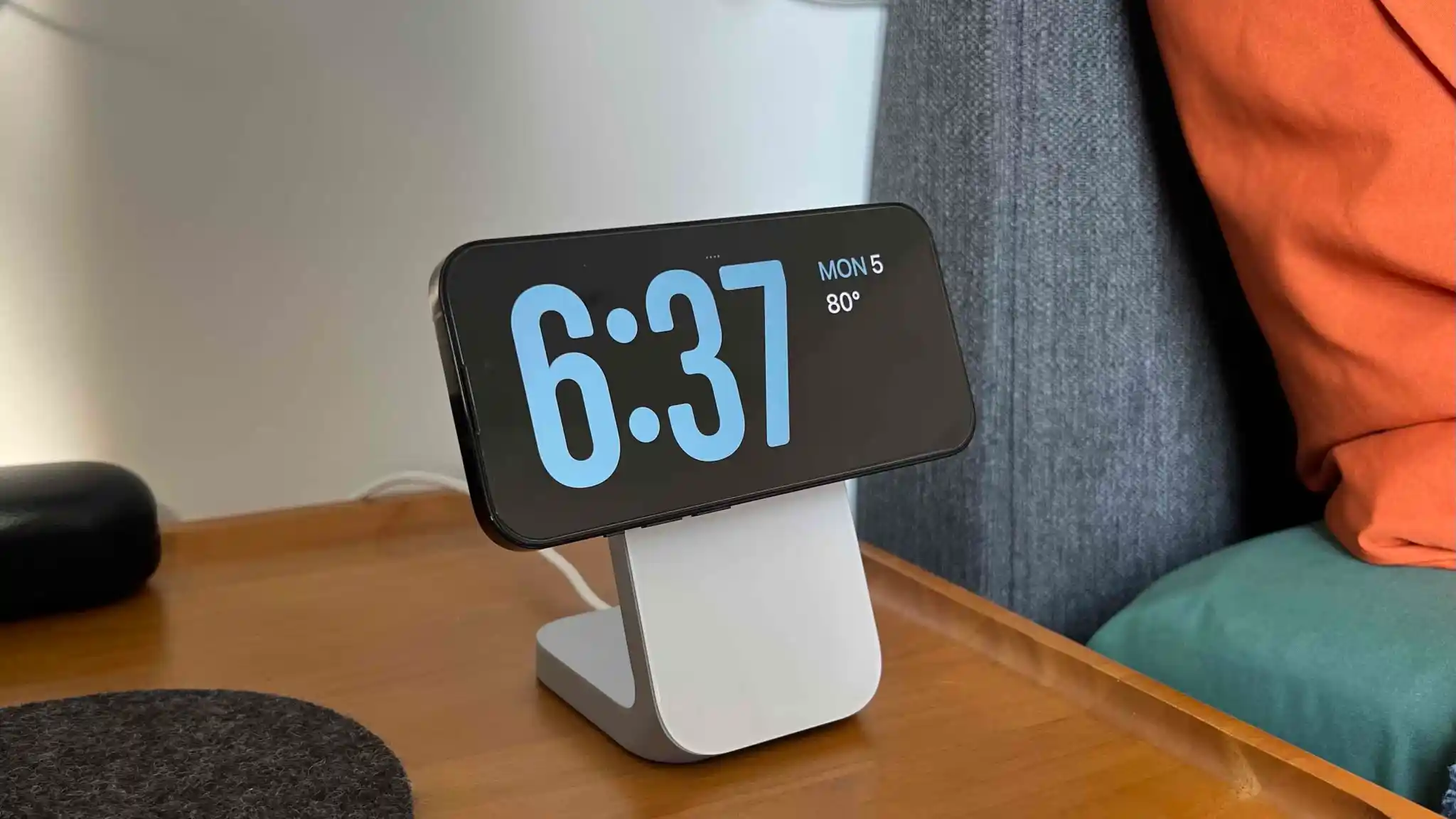
The classic analog clock plus calendar widget on the right is the default StandBy view, swipe up on either to change them
Press and hold on either one to add or remove widgets
On the first StandBy view, do a big swipe from right to left to change views
Press and hold on the other StandBy views to customize them
iOS 17 iPhone StandBy supports Live Activities, Siri, incoming calls, and larger notifications
StandBy remembers your “preferred view” and dims to red and night
You can tweak StandBy settings by heading to Settings > StandBy
Check out our round-up of the latest third-party apps to include StandBy widget support
Here’s how iOS 17 iPhone StandBy looks in use:
The first time you place your locked iPhone horizontally on an upright charger, you’ll see a welcome splash screen.
Now you’ll see this as the default StandBy view:
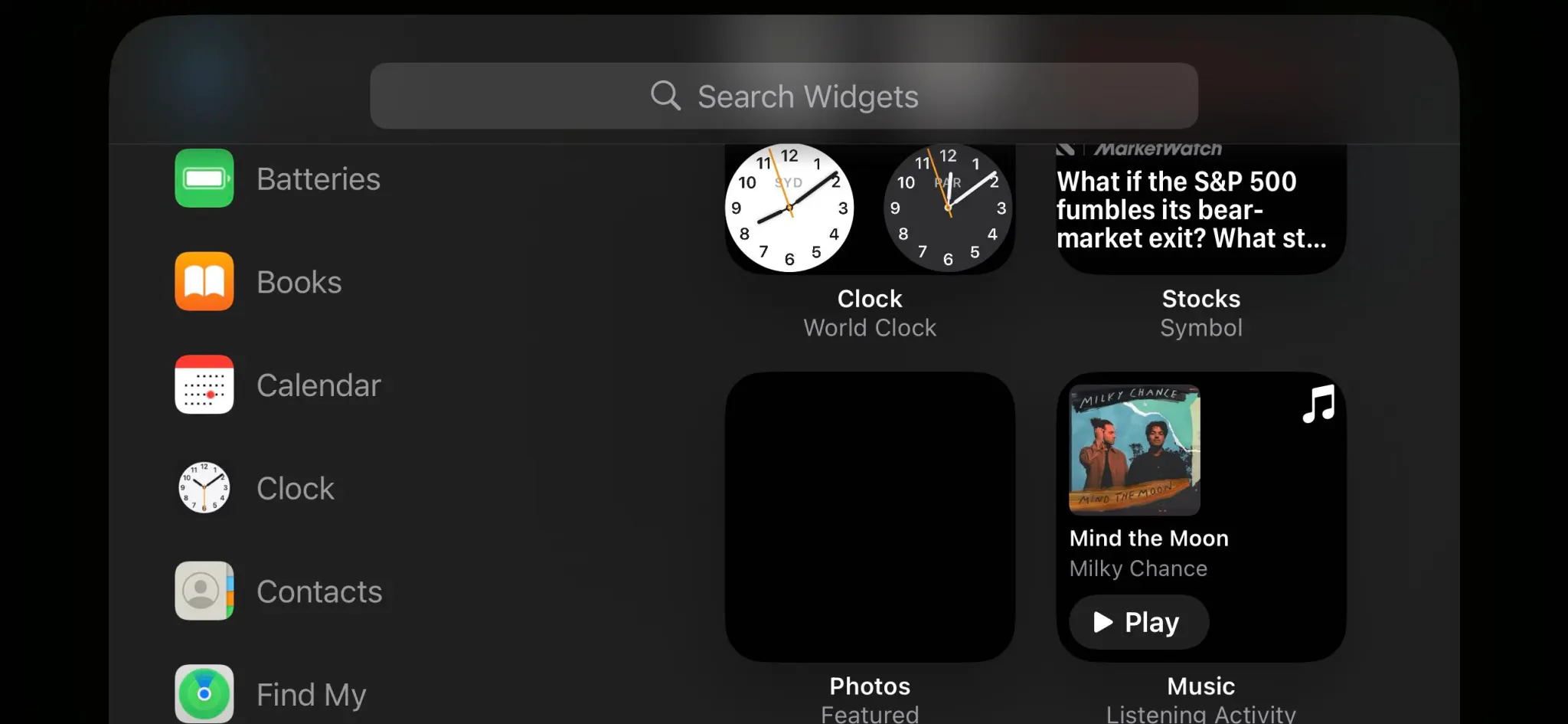
Swipe up on either the clock face or calendar to get more options (the calendar is a smart stack suggestion by default):
To customize this StandBy screen further, press and hold on the left or right widget. Now you can remove options or tap the + icon in the top left to add widgets:
From the first StandBy clock/widget view, you can swipe from right to left to get to the Photos StandBy view:
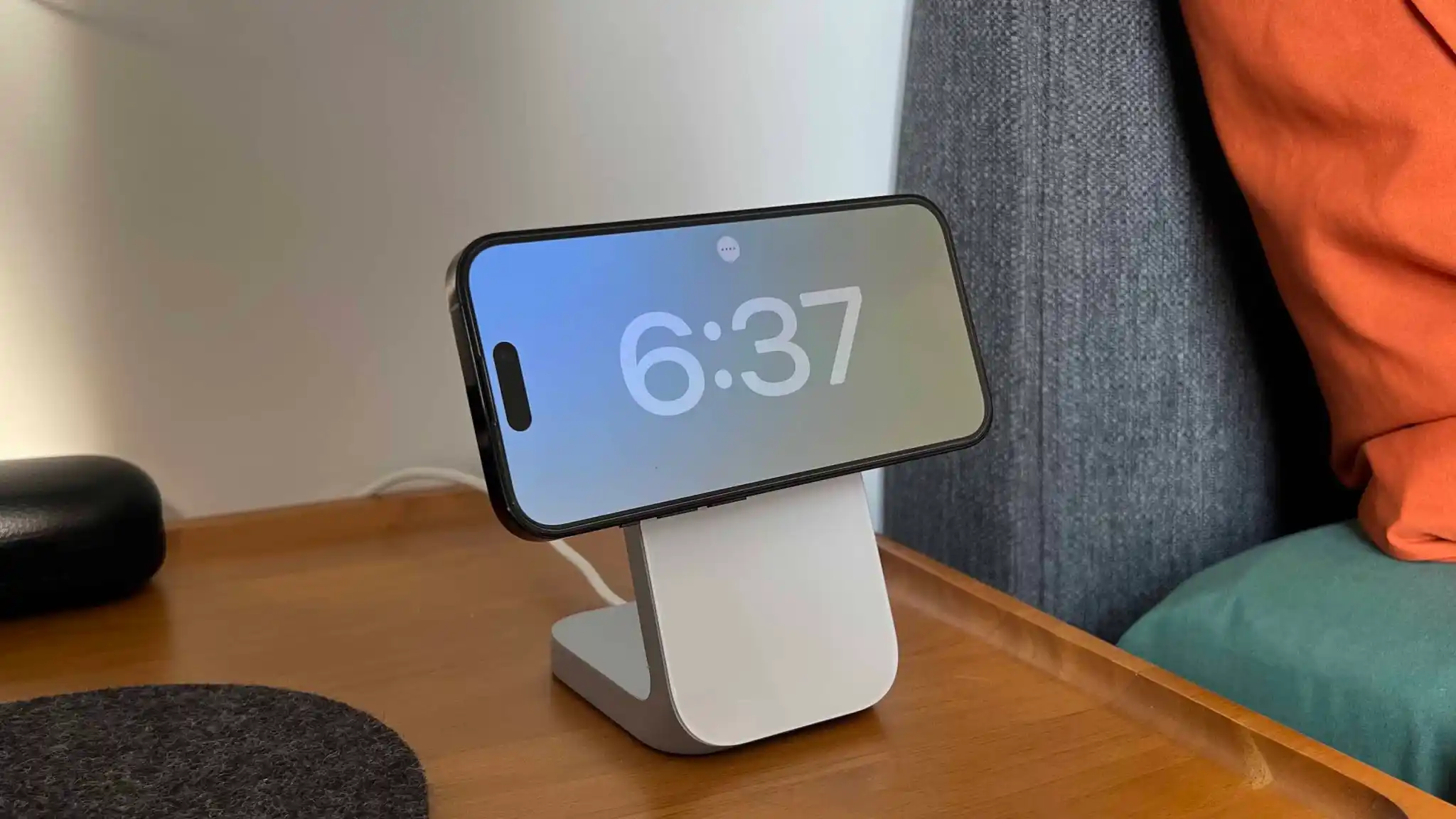
And swipe again to get different the last view that features different customizable clock faces:
iPhone StandBy on Nomad Stand One MagSafe Charger
Press and hold on any of these to customize their color schemes but you can’t add widgets to these clock faces.
But you can tap the “….” icon in the top center to access music at any time which presents a nice media UI:
And so it doesn’t disturb sleep, iPhone StandBy for those with always-on displays will automatically dim to red at night:
iPhone 15 Pro Max back glass cracks within seconds in new durability test
The iPhone 15 Pro and iPhone 15 Pro Max feature an all-new chassis design made out of what Apple says is grade 5 titanium. A drop test video yesterday raised early concerns about the durability of this new design, particularly as related to the new curved edges.
Now, JerryRigEverything has posted his annual durability test with the iPhone 15 Pro and iPhone 15 Pro Max, and he has some concerns…
Throughout the durability test, we can see the new grade 5 titanium put through scratch testing, heating testing, sandpaper, and more. As expected, the titanium does indeed scratch when you take a knife to it. The matte back glass, however, is far more scratch resistant.
The display also fares quite well during the scratch testing as well, as do the three camera covers on the back of the iPhone 15 Pro. But things get more interesting pretty quickly.
“It’s time to see if the new blended aluminum titanium grafted hybrid structure compromises the structural integrity of the iPhone 15 Pro Max,” JerryRigEverything says as he starts to put pressure on the device. Within just a few seconds, you hear a snap and the back glass has completely shattered.
“I did not see that one coming,” he says. “You’ve been watching me durability test smartphones for about 11 years now, and most phones do not break. iPhones especially do not break, like ever. And [the iPhone 15 Pro Max’s] snap was abnormally quick.”
Internally, the iPhone 15 Pro Max survives the test. The screen and frame of the device are also both unscathed. It’s just the back glass that succumbs to the pressure.
JerryRigEverything speculates that this could be due to the titanium having five times the amount of tensile strength as aluminum, leading to the glass back not being able to withstand even small amounts pressure and flex. On the bright side, Apple has made it far cheaper to replace the iPhone 15 Pro’s back glass this year.
You can check out the video below for the full details. It’s a fascinating look at the iPhone 15 Pro’s new design, but also with some interesting tidbits about titanium itself.
In David Guetta’s hit song “Titanium” from 2011, Sia sang: “You shoot me down, but I won’t fall. I am titanium.” It looks like the same can’t be said for Apple’s version of titanium in the iPhone 15 Pro.
iPhone 15 Plus takes the crown in battery life test, beating all previous iPhone models
Following the iPhone 15 release on Friday, the first battery test results are coming in. Apple touted the efficiency of the 3nm A17 Pro chip, so anticipation was high for the iPhone 15 Pro and Pro Max to take the top spot.
Indeed, the Pro Max outlasted all previous iPhones in Mrwhosetheboss’s test. But it was actually bested by the 15 Plus, which racked up more than 13 hours screen on time, and now holds the title of longest iPhone battery life on record.
Apple’s own tech specs page reports battery life in terms of longevity for continuous audio playback and video playback sessions. According to Apple’s numbers, the iPhone 15 Pro Max lasts the longest on streaming video playback with 25 hours compared to 20 hours for iPhone 15 Pro and iPhone 15 Plus.
However, on audio playback, the Max is rated for 95 hours while the Plus hits triple digits at 100 hours. Apple’s numbers give a decent benchmark to compare across models, but it’s hard to deduce real-world battery life times from them, as day-to-day phone usage is usually more taxing than just watching video or playing music.
Mrwhosetheboss attempts to simulate a more realistic daily usage pattern, cycling through power draining activities like watching TikTok videos, Zoom video chat, recording video in the camera, and playing games. The phone screen stays on the entire time until the battery is depleted and it turns off.
The previous title holder was the iPhone 13 Pro Max, as battery life dipped a little with the 14 series. As seen in the video, all iPhone 15 models beat out their previous-generation counterpart.
Of the newest generation phones, the iPhone 15 Pro died first, followed by the iPhone 15. The 15 Pro lasted for 9 hours and 20 minutes. The base iPhone 15 endured another half an hour, clocking in at just under 10 hours of runtime.
The 15 Pro Max easily lapped the field, staying alive for another hour and a half of battery life, hitting 11 hours and 41 minutes. The 15 Plus almost beat the Max by the same margin though, achieving a staggering 13 hours and 19 minutes in the test.
The previous best performer, the 13 Pro Max, managed 11 hours and 19 minutes in contrast.
Apple has identified an iOS 17 bug which may affect the iPhone 15 upgrade experience today. During iPhone setup, the Transfer from another iPhone option may fail and leave your new iPhone in a state where it is stuck booting on the Apple logo black screen. Here’s what to do if that happens to you.
The bug affects iPhone 15 and iPhone 15 Pro as these phones ship with iOS 17 preinstalled. However, it may also affect anyone switching phones that are running iOS 17 and use the transfer data option.
If you encounter the bug, during the transfer of apps and data, the new iPhone will get stuck in a boot loop on the Apple logo screen.
To resolve the issue, Apple says that you need to put the device into DFU mode and restore it using a computer.
To do this, connect your iPhone to a PC or Mac using a cable. Press the volume up, press the volume down, and then press and hold the side button. Keep holding the side button while iPhone reboots until it displays an icon on the screen that represents a computer and cable. It will look similar to this:
After you get the iPhone into DFU state, it will then show on your computer through the Finder, or through iTunes if you are connecting to a Windows PC (or older version of macOS). In Finder/iTunes, you will be able to Restore or Update; press the Restore button to reset the phone.
After the phone has been restored, you can start the setup process again. There may be an additional software update available.
Finally, you can try again. If you are upgrading to an iPhone 15 or iPhone 15 Pro, you can set up using transfer data or iCloud backup. The aforementioned software update will have fixed the iOS 17 bug, so you can safely transfer data again and finish new iPhone setup.
However, if you are upgrading to an iPhone model earlier than the 15 series, a fix for the transfer data glitch is not yet available.
So, Apple recommends that you update using iCloud Backup instead. Make sure your previous iPhone has a recent iCloud backup complete (you can force this by going to Settings -> [your name] -> iCloud -> iCloud Backup -> Back Up Now). Then, on your new iPhone, start iPhone set up and choose the ‘From iCloud Backup’ option when it asks how you want to transfer your data to your new phone. Your iPhone should then finish setup successfully.
These steps are described in an Apple support document, which first revealed the existence of this iOS 17 glitch.
You can charge your Apple Watch or AirPods using the new iPhone 15’s USB-C port
The iPhone 15 and iPhone 15 Proditch Apple’s proprietary Lightning connector in favor of USB-C, and that change has a few side effects. Perhaps most notably, you can now use the iPhone 15’s USB-C port to quickly add more juice to your Apple Watch or AirPods.
Apple made a brief mention of this during the “Wonderlust” keynote yesterday. In practice, the feature works exactly as you would expect it to. You can connect your AirPods or Apple Watch to the iPhone 15’s USB-C port, and they’ll instantly start to charge.
This works via a USB-C to Apple Watch charging puck, via a USB-C to USB-C cable for the new AirPods Pro, and via a USB-C to Lightning cable for older AirPods.
Apple has reportedly been working on reverse wireless charging for years, a feature that would let you charge up AirPods and Apple Watch by placing them on the back of your iPhone. This feature still hasn’t seen the light of day, but the support for power-out via the new USB-C port is a great interim solution.
There’s no word on the charging speed provided to AirPods or Apple Watch via the iPhone 15’s USB-C port. It’s important to note that this feature will only work with AirPods and Apple Watch, so you can’t just plug in any device to the USB-C port and expect your iPhone to charge it.
We’ll have to do more testing to see just how big of an impact using your iPhone to charge your AirPods or Apple Watch will have on battery life. AirPods and Apple Watch have smaller batteries in comparison to the iPhone.
Here’s what you can do with the iPhone 15 Pro Action button
After living its entire life with a side switch, the iPhone has evolved to feature a programmable Action button with the 15 Pro and 15 Pro Max. Here’s a look at all the ways you can customize the iPhone Action button.
Apple Watch Ultra received the Action button last year and this time around it’s the iPhone’s turn with the 15 Pro and Pro Max.
The Action button sits in the same place as the side switch on previous iPhones and is used with a long press.
Apple notes that when you change the Action button to something other than controlling Silent mode, you can head to Control Center or use Focus modes to change your ringer.
Customize the iPhone Action button
In iOS 17, head to Settings > Action button on the iPhone 15 Pro/Pro Max and you can set the Action button to launch:
Silent mode (default)
Focus mode
Camera
Flashlight
Voice Memo
Magnifier and other Accessibility features
Shortcut
Translate (arriving with an update “later this year”)
While there are eight main features the Action button can control, being able to set it to control Accessibility shortcuts or run a custom shortcut from the Shortcuts app is huge. That means the possibilities are pretty much endless.
Some features make use of the Action button once you’re in an app too. For example, if you launch the Camera with the Action button, you can press it again to take pictures. If you launch a Voice Memo recording, you can use the Action button to stop the recording, etc.
PSA: Apple Card financing not available for carrier-free iPhone 15 orders
Last month, Apple discontinued Apple Card financing for iPhones purchased without a carrier connection. Unfortunately, and unsurprisingly, that change applies to the new iPhone 15 and iPhone 15 Pro.
What this means is that in order to use Apple Card Monthly Installments to buy an iPhone 15 or iPhone 15 Pro, you must connect that phone to AT&T, T-Mobile, or Verizon.
Previously, Apple allowed buyers to purchase an iPhone with the “Connect to a carrier later” option. This option means users are free to use the iPhone without a cellular connection or via any carrier of their choosing. For instance, you could connect an iPhone purchased with this option to a carrier such as Mint Mobile or Google Fi.
That “Connect to a carrier later” option is no longer available for iPhones purchased with Apple Card Monthly Installments. Instead, your new iPhone 15 Pro will require you to connect to AT&T, T-Mobile, or Verizon at the time of setup. Note that the iPhones will still be unlocked, but the carrier connection will be required at the time of setup.
Apple points out this new requirement on the purchase page for iPhone 15. “Carrier connection with AT&T, T-Mobile, or Verizon is required to purchase with Apple Card Monthly Installments,” the company explains. “An iPhone purchased with ACMI is always unlocked, so you can switch carriers at any time.”
As said when first wrote about this change in June, it’s a huge bummer for Apple Card users. The ability to finance Apple hardware purchases is one of the biggest selling points of the Apple Card, and this change puts a big restriction on the most popular Apple hardware purchase.
iPhone 15 Pro’s new design, Action button, and more
The iPhone 15 Pro and iPhone 15 Pro Max are now official, and I had the chance to go hands-on with them inside Steve Jobs Theater. The flagship iPhone 15 Pro models pack a new titanium design, upgraded camera hardware, and more. Here are some quick first impressions…
Right off the bat, I was struck by how light the iPhone 15 Pro Max feels due to its new titanium chassis. Here’s how the numbers breakdown on paper:
iPhone 15 Pro – 187 grams (down from 206 grams)
iPhone 15 Pro Max – 221 grams (down from 240 grams)
That’s a pretty big difference on paper, and it’s an even bigger difference in real life. I’ve been using the iPhone 14 Pro Max for the last year, so I’ve grown pretty familiar with its weight. I found the iPhone 15 Pro Max to be significantly lighter and more comfortable to hold. I think this is due to both the reduction in weight as well as the new contoured edges.
The titanium design also means that the iPhone 15 Pro models have a texturized matte finish rather than the previous glossy stainless steel finish. I only spent around 15 minutes with the iPhone 15 Pro today, but I have a feeling this is going to be a very nice change in terms of durability.
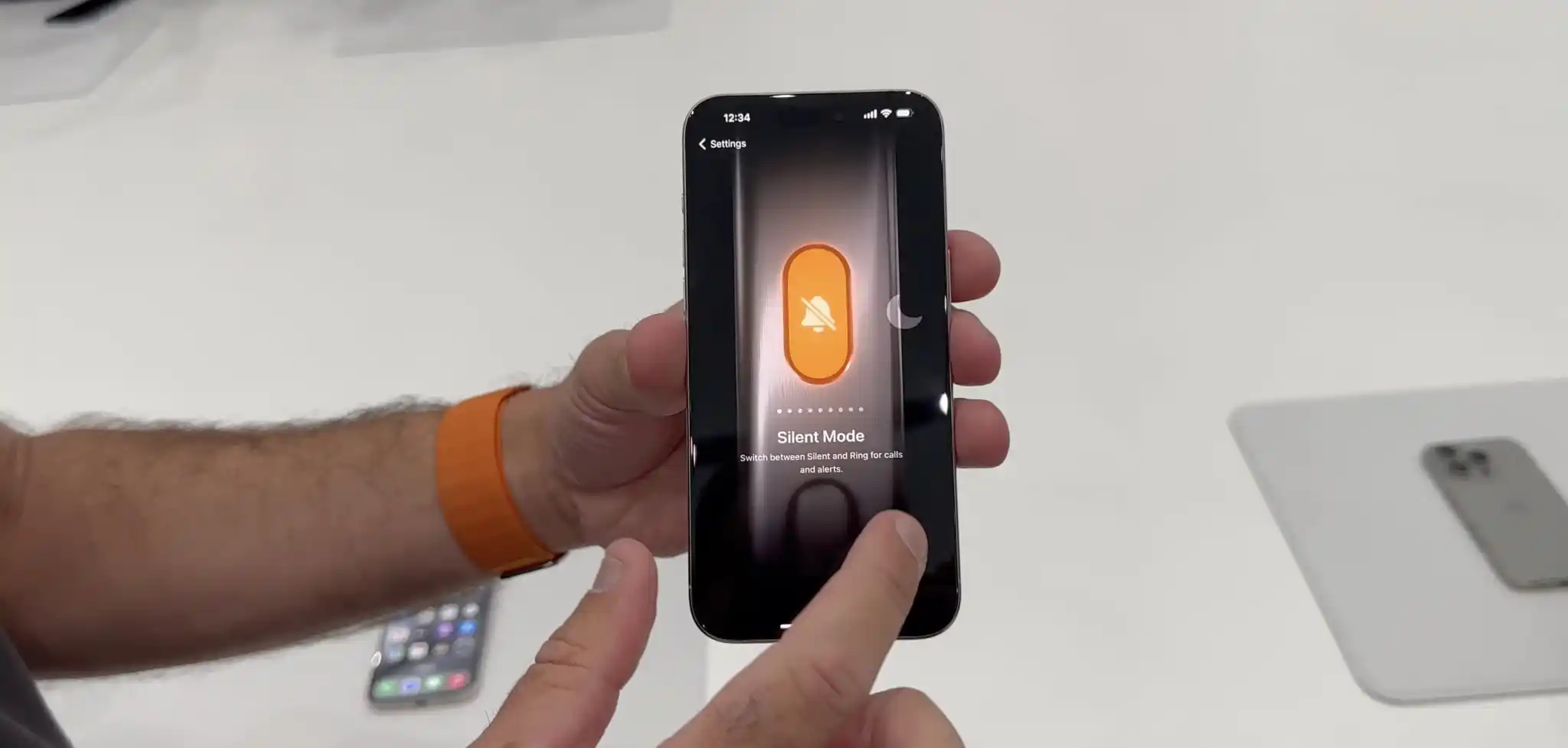
The Action button is another standout feature of the iPhone 15 Pro. The interface to customize what the Action button is linked to is in the Settings app, and it’s beautifully designed. The button can be assigned to the following things:
Silent Mode
Focus Mode
Camera
Flashlight
Voice Memos
Accessibility features like Magnifier
Shortcuts
One thing that I didn’t realize until I tried the Action button is that a press and hold is required to trigger the action. You can’t just quickly press the button. This is likely an effort to prevent false triggers, so it makes sense, but it does mean there’s an added step required each time.
I think my primary use of the Action button will be for the camera. You can press and hold to open the Camera app, then press the Action Button again to use it as a shutter in the Camera app. You can see that demoed in my video above.
Speaking of the camera, the iPhone 15 Pro Max also features an upgraded Telephoto lens with up to 5x optical zoom. I’ll have to reserve full judgment on this until I get my hands on an iPhone 15 Pro Max for an extended period of time, but the quick demos I got at Steve Jobs Theater today align with my expectations. The new telephoto lens also enables 25x digital zoom as well.
Other tidbits:
Yes, there’s a USB-C port. Apple wasn’t lying.
The colors look much better than I expected, but they are still pretty boring and there’s not a whole lot of variety.
The smaller bezels are noticeable, but not as noticeable as I thought they would be. At a certain point I suppose you just get used to the black border being there, regardless of its size.
I only got a brief minute with the new FineWoven cases for the iPhone 15 Pro, but I really liked the material and how it felt in my hands. I’m 100% in support of Apple’s move away from leather.
I’ll have much more to say about the iPhone 15 Pro and iPhone 15 Pro Max once I get to spend some more time with them. My first impressions are pretty positive, especially when it comes to the new titanium design and the benefits provided by that change.
iPhone 15 and iPhone 15 Plus in every color
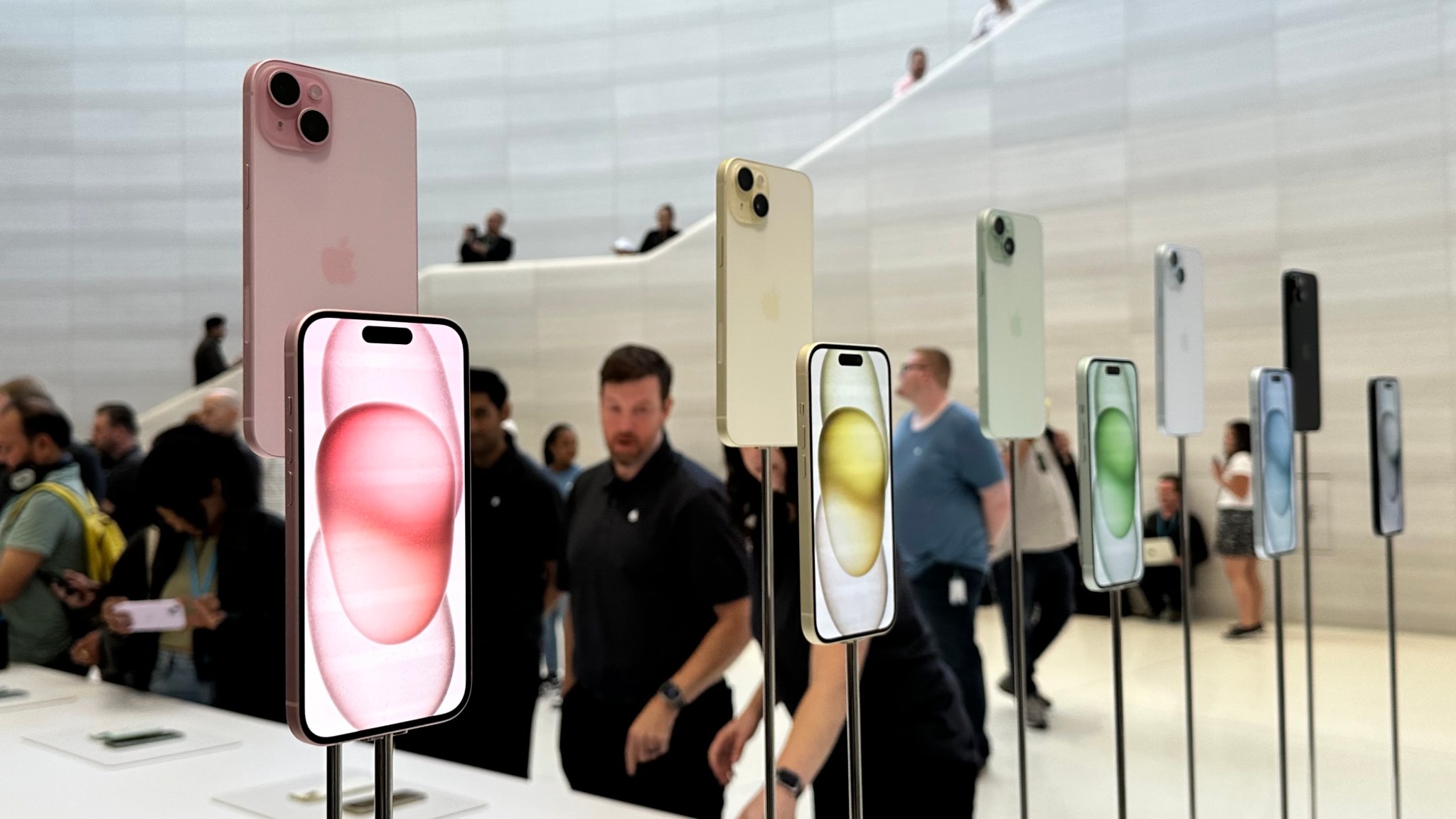
In addition to the iPhone 15 Pro and iPhone 15 Pro Max, Apple also unveiled the entry-level iPhone 15 and iPhone 15 Plus during its “Wonderlust” event today. I got to check them out at Steve Jobs Theater after the keynote today, and I honestly wish I had more to say…
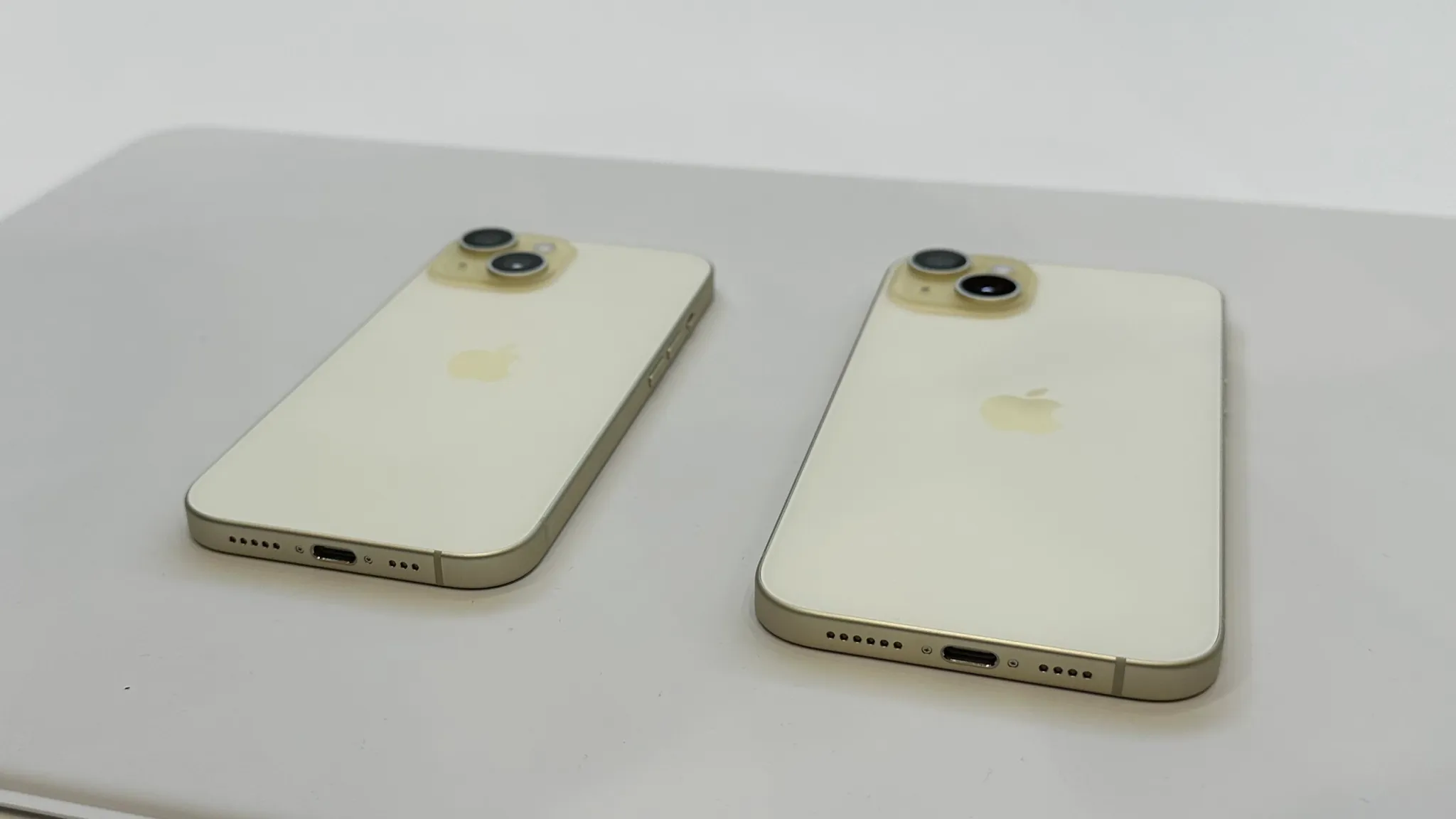
The iPhone 15 and iPhone 15 Plus are great phones. They take the iPhone 14 and do exactly what Apple does: gradually trickle down what were once Pro-exclusive features to the non-Pro phones. The other big change here, of course, is the USB-C port.
The camera changes shouldn’t be overlooked, particularly the new 48MP Main camera that’s moved downstream to the non-Pro phones after first being introduced with the iPhone 14 Pro last year. What’s most notable about this, in my opinion, is that it enables a 2x zoom option in the Camera app. This is done by Apple cropping the 48MP camera down to 24MP, enabling a 2x zoom without having a dedicated Telephoto lens.
The Dynamic Island also now finds itself on the non-Pro models of the iPhone 15 this year. It’s the same Dynamic Island we’ve come to know, just inside a more affordable product.
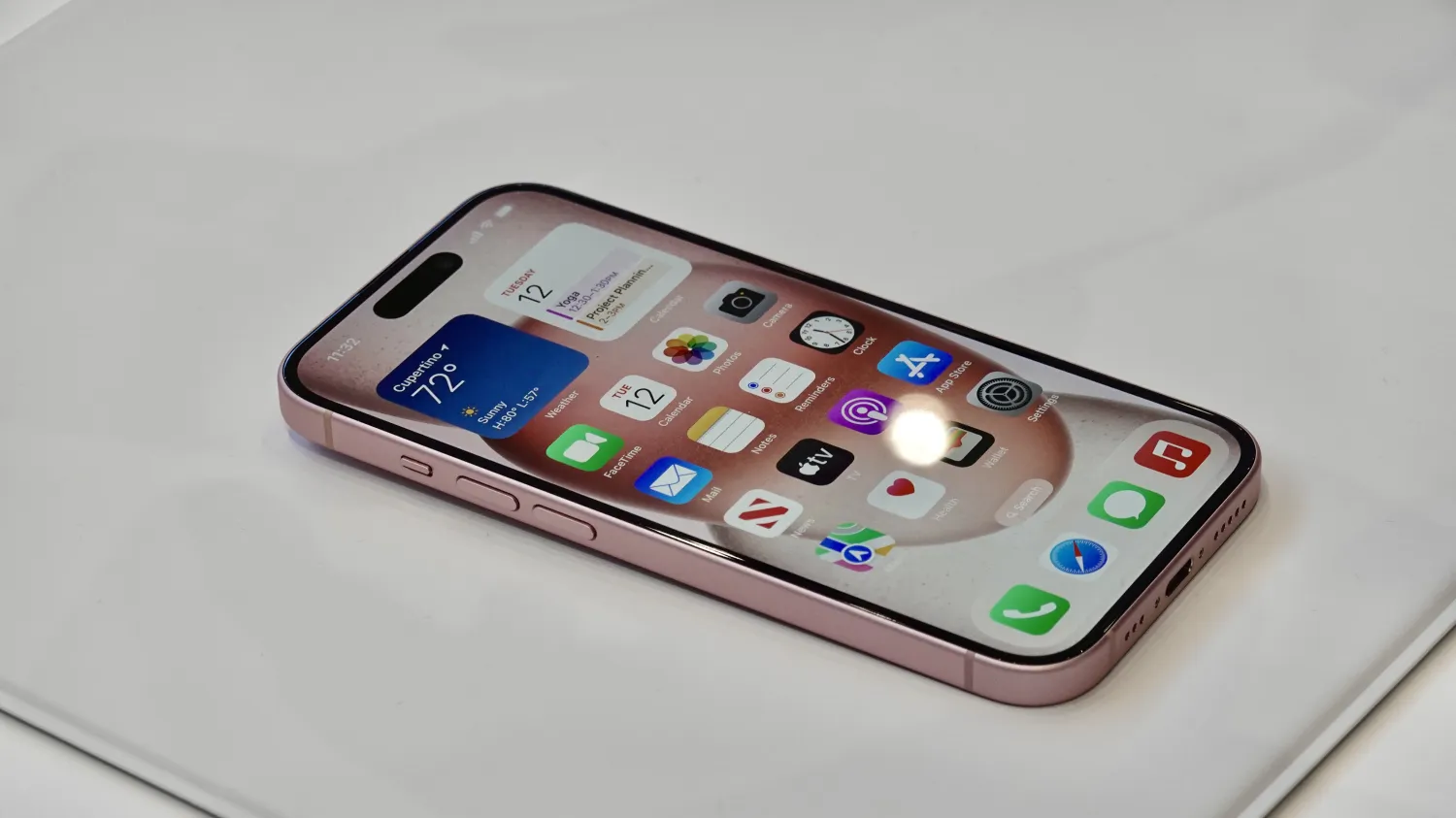
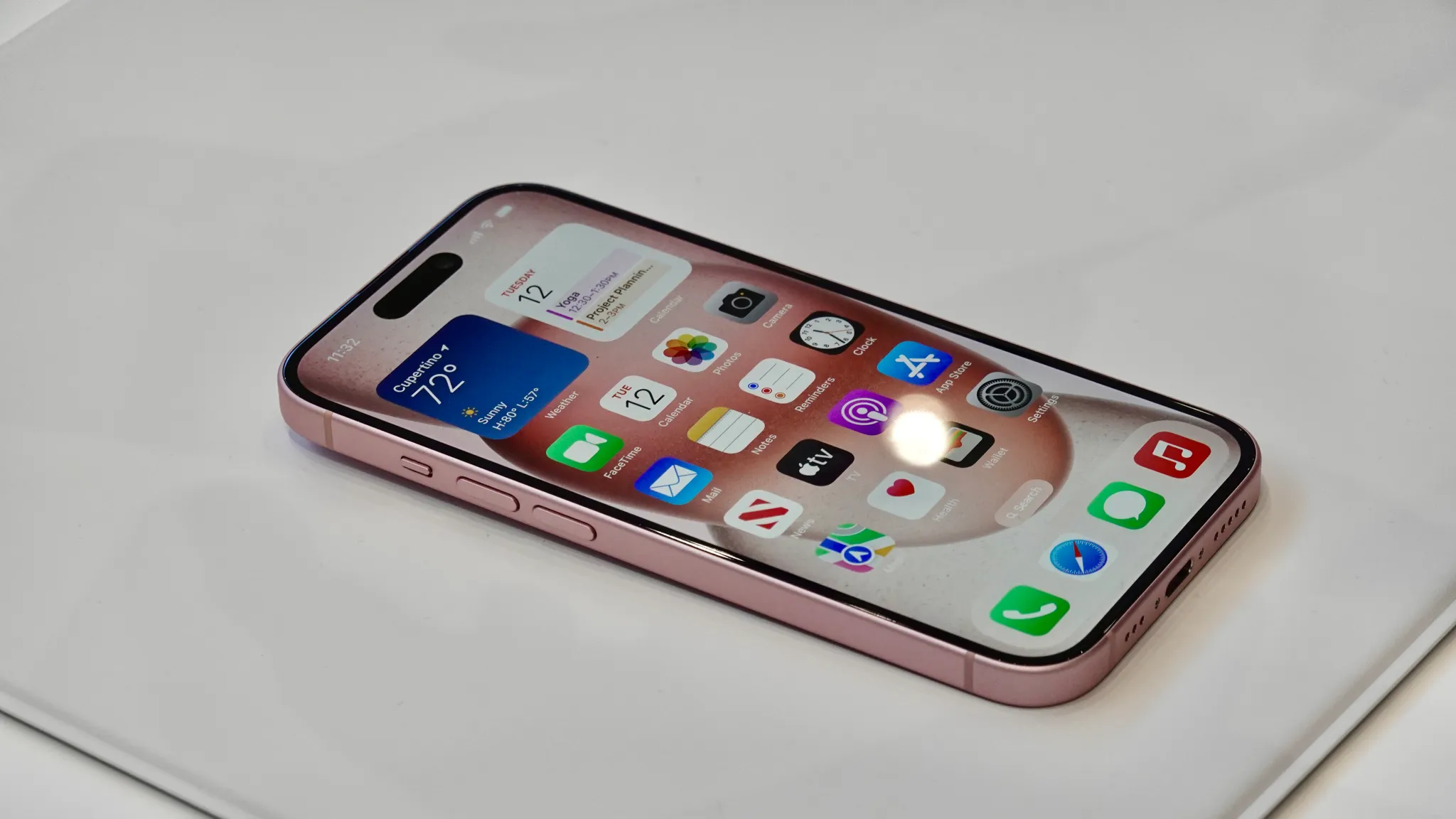
Otherwise, there’s not a whole lot to say about the iPhone 15 and iPhone 15 Plus. The design is about the same as before, aside from the slightly contoured edges. The backs of the phones now feature a matte finish instead of glossy. They are available in five new colors: pink, yellow, blue, green, and black.
I think the pink iPhone 15 is going to sell like hotcakes. And it looks fantastic in real life. It stands out among what are otherwise relatively mundane colors.
Update: Public beta versions of today’s software releases are available now.
It’s not just iPhone 15 event announcement day. Fresh iOS 17 betas are here as well. Apple has released iOS 17 beta 8 for developers.
Apple unveiled iOS 17 at its annual Worldwide Developers Conference on June 5, previewing new features coming to iPhone including StandBy, Live Voicemail, AirDrop updates, and much more.
iOS 17 has been available as a pre-release version since early June. Starting last month, Apple has expanded iOS 17 testing through its public beta program as well.
This year, Apple has made it possible to join the developer beta program without paying the annual $99 fee. The one difference between the developer and public beta now is how soon new builds become available.
Early versions of developer beta releases go out in plenty of time to make sure nothing critical breaks for public beta users. Closer to release, however, both versions typically become available at the same time.
We expect iOS 17 to be ready for primetime in a couple weeks. Apple should announce the official release date on September 12. In the meantime, follow our coverage to stay up-to-date on the latest.
Apple has also released watchOS 10 beta 8, tvOS 17 beta 8, HomePod (OS) 17 beta 8, and the third visionOS beta.
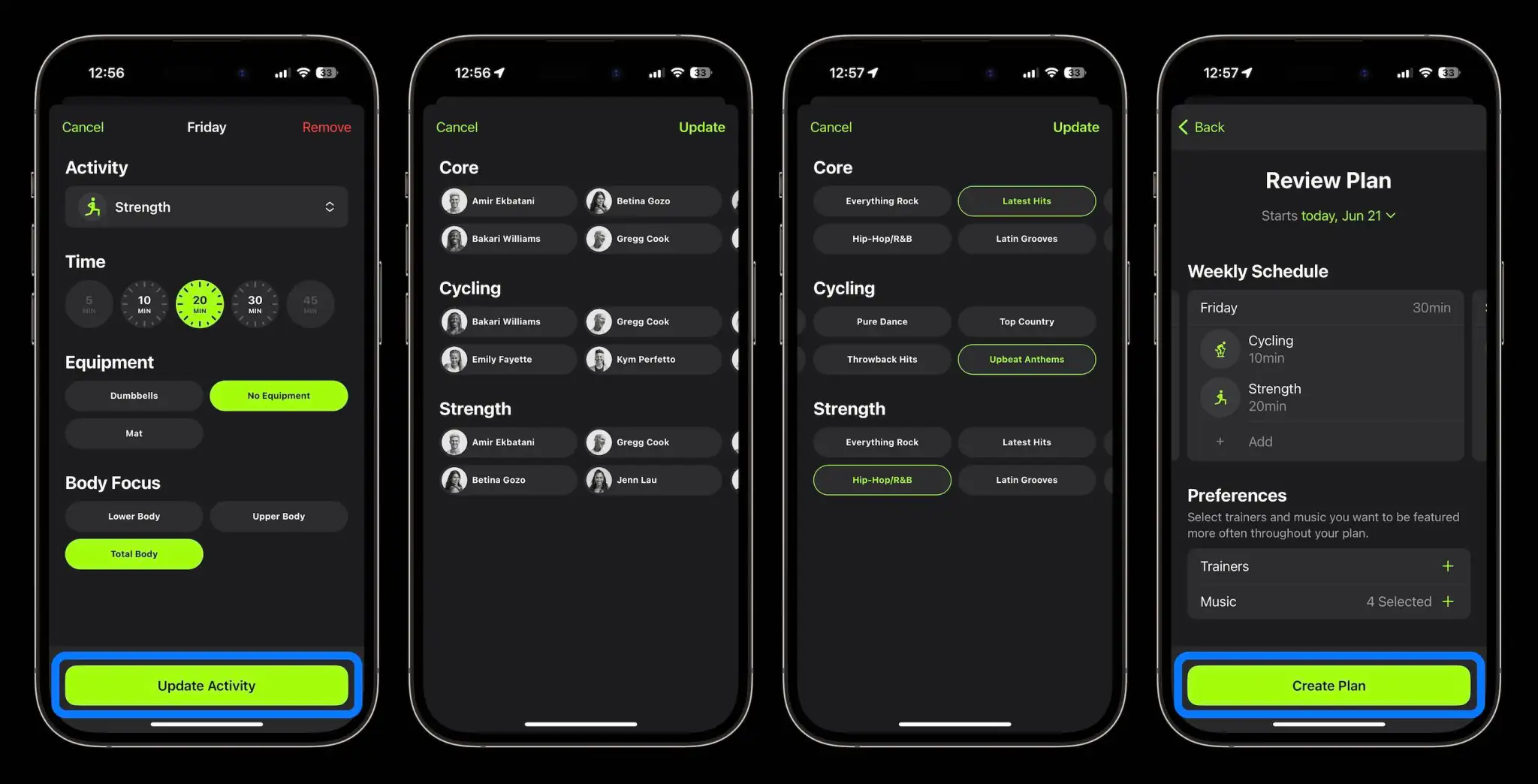
Getting specific and putting commitments on a calendar are two great ways to build consistency in working toward fitness goals. With iOS 17 and watchOS 10, Apple is leveraging both of those tactics to help you get healthier with the ability to make custom Apple Fitness+ plans that can be mapped out for as long as two months.
Last year with watchOS 9, we got the ability to create custom workouts in the Workout app. Now Apple is taking that further with a custom Apple Fitness+ plan tool in iOS 17 and watchOS 10 that lets users get proactive with scheduling weekly and monthly fitness routines.
The new feature lets you select your days of the week, length of time (per day and how many weeks), activity types, instructors, music, body focus, and more.
While it’s great that watchOS 10 supports the new feature, keep in mind Apple opened Fitness+ to work without Apple Watch in the fall of 2022 (just iPad, iPhone, or Apple TV needed).
How to create custom Apple Fitness+ plans
iOS 17 is currently in beta.
Running iOS 17, open the Apple Fitness app on your iPhone (or iPad) and tap the Fitness+ tab
Near the top, look for the new Custom Plans tile, tap Build Your Plan
Pick your weekly schedule, total time per day, and how many weeks you want your fitness plan to run
Now choose which activity types you want to include, then tap Review Plan
In the final step, you can add workouts to each day as well as select your preferred trainers and genres of music
You can also tap the existing workout activities to change equipment and body focus
When you’re all set, tap Create Plan
Here’s how it looks to create custom Apple Fitness+ plans:
Tap the + icon to add workouts to a day or tap one of your scheduled workouts to edit it:
After creating a plan, it will live on the main Fitness+ tab of the Fitness app just below the This Week feature at the top.
There’s a nice big, green “Let’s Go” button just below your workout for each day.
There doesn’t appear to be a way to automatically add the workouts to the native Calendar app at this point in the beta, but that could be coming 😁.
For now, there only appears to be support for one custom plan at a time. When one ends or you cancel one, you can also find Custom Plans (create new and see your past ones) at the bottom of the Fitness+ tab:
After launching a big overhaul of the Apple Support app in May and expanding it to Vietnam, Apple has released a small but useful update for the app today that brings more details about nearby locations.
Along with performance improvements and bug fixes, the new feature is store hours, accesssibility details, and specialty services showing up for nearby locations.
Apple Support 5.1 release notes:
Added helpful information about nearby locations, including store hours, accessibility details, and specialty services available
Performance enhancements and bug fixes
This release follows Apple Support 5.0 which launched in May with a new UI, the ability to browse nearby Apple service providers, improvements to managing calls, chats, reservations, and more.
Apple Support app overhauled with new layout, quicker access to nearby providers, more
Apple is rolling out a notable update to the Apple Support app for iPhone and iPad today. The update brings a revamped layout that makes it easier to manage your activity, expands the app to new regions, and more. Head below for the full details.
Apple says that the revamped Apple Support app layout streamlines the process of viewing and managing your support account, including calls, chats, reservations, and more. There’s also a new feature that allows customers to easily browse the providers in their area to find the quickest way to get support and service for their devices.
Today’s update to the Apple Support app also brings the app to Vietnam and adds Vietnamese as a supported language. In total, Apple says the app is now available in 32 languages and 174 regions.
Here is the full changelog:
Browse the providers in your area to see what’s nearby.
New layout makes it easier than ever to view and manage your calls, chats, reservations, and other activity.
Expanded region availability to Vietnam and added Vietnamese as a supported language. The Apple Support app is now available in 32 languages and 174 regions.
Performance enhancements and bug fixes.
The Apple Support app is a useful resource for finding help for any problem you might face with your Apple hardware or your Apple ID. You can download it on the App Store for free. Today’s new update is still rolling out, so you might not see it right away in the App Store on your device.