Samsung’s mid-range Galaxy A smartphone family gained fingerprint recognition and Samsung Pay support in its 2016 incarnation, water and dust resistance earlier this year, now gearing up for possibly its biggest upgrade yet in just a few months.
How sweet would it be if you were able to own one of those dazzling “Infinity Displays” without selling a kidney first? Well, we don’t know how much the next-gen Galaxy A5 (2018) and A7 (2018) are supposed to cost, but they’ll definitely end up cheaper than a GS8 or Note 8 outright.
Thanks to the tireless work of the industry’s second most prolific leaker, who got access to another top-secret set of mobile device factory designs, we have a general idea of the A5 (2018) and A7 (2018)’s bezel size.
At a first glance, the display borders here are nowhere near as spectacularly thin as on the Galaxy S8 or Note 8, and the exact rumored dimensions of the two unreleased phones corroborate that gut feeling.
With “only” 6 inches of screen real estate, the Samsung Galaxy A7 (2018) is tipped to measure 159.6 x 75.6 mm, which would be about as tall and slightly wider than the 6.2-inch GS8+. But it’s also extremely close to the measurements of the A7 (2017).
Meanwhile, the A5 (2018) could squeeze a usable screen area of 5.5 inches into a relatively compact 148.8 x 70.5 mm body. That’s not as compact as the 5.8-inch Galaxy S8, but it’s similar to the 5.2-inch A5 (2017).
Interestingly (and excitingly) enough, the Galaxy A3 (2018) is speculated to match the A5 and A7 (2018) in the display resolution department, at 2160 x 1080 pixels, resulting in 18:9 or 2:1 aspect ratios.
Other impressive-sounding features (by mid-range standards) might include 4GB RAM and a brand-new 10nm Exynos 7885 SoC for both the Galaxy A7 (2018) and A5 (2018). Depending on your region, you may be able to buy the two with Snapdragon 660 processing power.
Always On Display functionality, IP68 certification, Samsung Pay, USB Type-C connectivity, 32GB internal storage and, sadly, Android 7.1.1 Nougat software will allegedly wrap up two overall robust spec sheets.
It’s big. It’s heavy. It’s not all that attractive. We love it.
The Samsung Galaxy S8 Active is the best rugged phone you’ll find on the market. Sure, there aren’t that many of them available; however, the Active line time and again rises to the top. The 2017 iteration is not only among the best in rugged and durable phones, but it’s also one of the most compelling packages offered right now.
In the early days of rugged phones we had to contend with less than desirable performance. We traded away sleek and sexy in favor of rough and tumble. If you were a general contractor or plumber in the market for a new phone to take on job sites, you had to choose from ugly and uninspired stuff. Even worse, the phones were a generation or two behind the rest of the pack.
Somewhere over the last few generations, though, Samsung figured out a way to deliver timely hardware in a body that was more sleek. Its Galaxy S Active series of devices, which has been exclusive to AT&T, is a great way to keep up with the Joneses, and have something designed to take moderate abuse.
The Galaxy S7 Active (2016) was a tremendous step forward for the line, and even bested the S7 standard bearer with a bigger battery. As for this year’s model, the S8 Active is another stellar device that delivers best-in-class specifications at its core. Indeed, it’s all Galaxy S8 under the hood.
What we really enjoy about the S8 Active is that it’s all of the good stuff in the Galaxy S8. The Super AMOLED display, excellent camera, Snapdragon 835 processor, 4GB RAM, and 64GB storage are what you expect in top phone in 2017. Also present are USB-C, water and dust resistance, and headphone jack.
When it comes to performance, it’s damn near impossible to get more than what comes in the aforementioned specifications. Yes, you can stack them up on benchmarks and create a pecking order. Moreover, you can also get more memory in other models.
Does that stuff matter to you? We suspect that most people can’t discern the differences in hardware on daily tasks. There’s very little you can throw at a phone like this that will tax it.
We saw no stutters, lags, or performance issues in the Galaxy S8 Active. Everything, from just checking email and messages, to games and always-synchronizing services like Slack and Todoist, went swimmingly.
Be careful in reading too much into these words. Don’t look at the S8 Active as an improvement or enhanced version of the flagship phone. It is, to a degree, a souped-up model in areas. But, what it loses, is everything that makes the Galaxy S8 so sexy. The beautiful body, sleek lines, and all of those premium materials are absent here.
The S8 Active’s screen is flat whereas the Galaxy S8 is curved; its resolution is 2,560 x 1,440 while the flagship offers up 2,960 x 1,440 pixels. The devil is in the details, and that matters to some.
Also, the display is protected by a special film or plastic that is prone to pick up scratches. This is one of the trades you’ll still make when dealing with a rugged phone. The glass is shatter-resistant, and will stand up to drops… but.
The top layer absorbs the scuffs and scratches of life and will show up over time. To us, though, we’ll take that any day. Nothing beats the peace of mind in knowing with almost 100 percent certainty that a dropped phone is going to look okay when we flip it over. Samsung says the S8 Active can withstand a 5-foot drop.
The Galaxy S8 Active is also heavier than its flagship counterpart. In fact, it’s even heavier than the Galaxy Note 8. There’s serious heft to it.
Part of the weight comes in a 4,000mAh battery. Yes, a full 1,000mAh more than the Galaxy S8 and 500mAh more than the Galaxy S8+. This means you’ll end up with plenty of juice left over at the end of the day.
Realistically you could expect to get two days of average use out of the S8 Active. Mileage varies, to be sure, but we’ve come to appreciate this much life and we think you would, too.
In the area of cameras, the S8 Active’s setup is identical to the one in both the Galaxy S7 and Galaxy S8. Specifically, it’s a single 12-megapixel sensor with an f/1.7 aperture. As we, and others, found with this to consistently deliver bright, sharp photos with a great level of detail.
The software is a real winner, too, thanks to a variety of shooting modes such as Selective Focus (DSRL-like bokeh) and Pro (manual settings for shutter speed, focus, and ISO).
Around front, the S8 Active’s selfie-camera is equally solid. The Wide Selfie is a neat trick which lets one snap panoramic-like shots. Samsung’s augmented reality (AR) stickers are similar to what you get in Snapchat and Instagram and make for a fun experience.
One of the other downsides to the Galaxy S Active line, thus far, is that it is exclusive to AT&T. This means you’ll end up with the carrier’s preloaded apps and services. To that end you can look forward to nearly one dozen titles.
You can uninstall or disable most of them, but you’ll have to find a way to hide the others. That is, of course, if you don’t want to see them. If you’re an AT&T fan through and through, you might find value in them. As of the time of this review we understand that T-Mobile may soon offer its own take on the Galaxy S8 Active.
Conclusion
The Samsung Galaxy S8 Active is pricey. With a sticker of $850 it falls on the high end of what smarphone makers command. It’s $100 more than the flagship model and the same cost of the Galaxy S8+ when purchased through AT&T. Go unlocked, though, and the S8 Active could be much more costly by comparison.
We definitely won’t list this phone among the most beautiful or sophisticated designs. It’s downright ugly, boring, and blocky when compared to others. On the other hand, it is better looking than its predecessors. We’re surely not the only ones to appreciate that Samsung left the camouflage off this year’s model.
Don’t purchase the S8 Active strictly on the merit of a larger battery. Do consider it, however, if your needs call for a phone that withstands abuse. Have young children in the house? If they expect to get to play with your device, you’ll want the peace of mind that comes with a shatter-resistant display.
If you’ve grown accustomed to having a rugged phone over the last few years, the S8 Active is a wonderful step up from your older model. A lot of people hold on to their handsets for 18-24 months; this phone is much improved over what was available at that time.
The Samsung Galaxy S8 and Galaxy Note 8 share a lot in common not just in terms of their internals but also the software experience they offer. Both phones have received plenty of praises this year from reviewers and customers alike, and if you have purchased either one of them, you really cannot go wrong with them.
Now, to help you get the most out of Samsung’s 2017 flagship handsets, the Galaxy S8 and Galaxy Note 8, we have a collection of tips and tricks for them. These tips will help you know how to make better use of the existing features on the devices, discover some hidden ones, and more. So, let’s get started.
Force Touch the Home Button
Thanks to their Infinity Display, the Galaxy S8 and Note 8 are all about their beautiful Super AMOLED displays at the front. Due to the all-display front, the phones do not come with capacitive navigation buttons as well like previous Galaxy devices from Samsung. Instead, like Google, Samsung finally decided to implement on-screen navigation buttons on its flagship handsets this year as well.
That’s not all though: the area where the Home button is shown on the Galaxy S8 and Note 8 supports Force Touch. So, you can hard press on that area when the phone is lying idle to wake the display up. Similarly, you can hard press on the home button area even when you are inside an app and the navigation bar is not being shown to go back to the home screen. Considering the fingerprint scanner on the Galaxy S8 and Note 8 is located at such an odd location, I end up Force Touching the Home button to wake the device and then unlock it by looking at the iris scanner.
Do make sure to enable the Unlock with Home button option under Settings -> Display to ensure your Galaxy S8 or Note 8 skips right past the lock screen when you hard press the Home button.
Automatically Enable Iris Unlock
By default, if you use the iris scanner on your Galaxy S8 or Note 8 to unlock the device, you will first have to press the power button/hard press the Home button to wake the device up. Then, you will have to swipe up on the lock screen to initiate the iris scanning process. This can be a particularly tedious and time-consuming process especially when you will be doing it hundreds of time on a daily basis.
To speed up the whole process, Samsung has included a handy ‘Iris unlock when screen turns on’ option under Iris Scanner in Settings -> Lock Screen & Security. Enable the feature and as soon as you wake up your Galaxy S8 or Note 8, the iris scanner will start scanning for your iris.
Quickly Hide the Navigation Bar
For an even more immersive browsing or reading experience, you can quickly hide the navigation bar on the Galaxy S8 and Note 8 by double tapping the small dot located on the left edge of the navigation bar. To restore the navigation bar, simply swipe up from the bottom of the screen and double tap the dot again.
Expand the Status Bar
You can quickly expand the notification bar on the Galaxy S8 or Note 8 by simply double tapping the status bar. This feature only works if you are using the stock launcher and might not be available on certain carrier variants of the device.
Quickly Launch the Camera App
The lack of a physical home button on the Galaxy S8 and Note 8 means you can no longer double press the home button to quickly launch the camera app. Instead, that duty has now been assigned to the power button similar to the Google Pixel. The feature is disabled by default so make sure to enable it by searching for Quick Launch in the Settings menu and enabling it.
Switch Between Front and Back Camera
Another camera related tip for the Galaxy S8 and Note 8 is related to how you can quickly switch between the front and back camera. With the camera app open, simply swipe up/down on the viewfinder to switch to the front/rear camera. An even faster way to switch to the front camera is to double press the power button with the camera app open.
Gesture Selfie
If you are someone who takes a lot of selfies, Samsung has included a handy gesture on the Galaxy S8 and Note 8 that makes it easier to click a selfie. Instead of struggling to hit the shutter button while holding the phone in your hand for a selfie, you can simply hold your palm in front of the camera to start the time. You can also take a selfie by keeping your finger on the heart rate monitor at the rear or by simply tapping anywhere on the screen.
Tweak the Flashlight Brightness Level
If you are someone who frequently uses the flashlight functionality on their Galaxy S8 or Note 8, you will be glad to know that the flashlight brightness level can also be customised on these handsets. Simply tap the Torch (or Flashlight) text below the flashlight toggle in Quick Settings to gain access to the brightness slider. There are five different brightness levels for you to choose from, though do remember that using the flashlight for an extended period of time can shorten its lifespan.
Use Secure Folder
Thanks to KNOX, Samsung’s version of Android is already among the most secure flavours of the OS out there. However, if you want an even additional layer of security while opening some important banking or enterprise apps, you can make use of Samsung’s Secure Folder feature. All apps put under Secure Folder run in a separate sandbox that is completely disconnected from the main OS.
Blue Light Filter
Similar to almost every other Android device out there, the Samsung Galaxy S8 and Note 8 also come with a Blue Light filter. As the name suggests, the Blue Light filter automatically filters the harmful blue rays emitted from a display by tweaking its color temperature to help reduce eye strain. If you are someone who reads a lot on their Galaxy S8 or Note 8, it is recommended that you turn on the Blue Light filter option especially while reading in the dark. You can also automatically set Blue Light filter to enable itself after sunset or at a scheduled time daily.
Quickly Zoom Into the Subject
The shutter button in the stock Camera app of the Galaxy S8 and Note 8 can also act as a virtual zoom slider. If you long press and drag the shutter button up, the camera will zoom into the subject. Similarly, dragging the shutter button down will zoom out from the frame.
Smart Capture
While every other Android device offers the option to natively take a screenshot, Samsung has taken this feature to the next level with Smart Capture. When you take a screenshot on the Galaxy S8 or Note 8, you can quickly crop the picture, draw on it, add filters and effects to it, and more. Even better, simply pressing the crop button after taking a screenshot will automatically crop out the navigation and status bar which serves no real purpose in a screenshot either way.
Change System Fonts
Samsung remains among the very few OEMs in the market to continue offering the option to customise the system fonts on its devices. Changing system fonts can go a long way in refreshing the UI look and feel, though in typical Samsung fashion, there’s a lot more to know about changing system fonts on the S8 and Note 8 instead of just the steps.
Samsung is among the very few OEMs in the market that continues to offer the option to change system fonts in its skin. While changing system fonts might not seem like a big deal to many, it does go a long way in refreshing the UI every once in a while.
While changing system fonts on the Galaxy Note 8 is a pretty straightforward process, there are still a few things one must know especially if you are coming from a previous Galaxy device. First, follow the steps below to change system fonts on the Galaxy Note 8.
How to Change System Fonts on Samsung Galaxy Note 8:
Step 1: Head over to Settings -> Display -> Screen zoom and font. Here, you will find all the options related to system fonts including its size and display zoom.
Step 2: To change the system font, simply select any of the pre-installed fonts from the ‘Font Style’ option located at the very bottom and tap the ‘Apply’ button located at the top-right corner. You can download additional fonts from the Galaxy App Store.
To change system font size on the Galaxy Note 8, simply drag the slider under Font size to left or right depending on your preference.
Screen Zoom
Google introduced the ability to change the DPI of an Android device in Nougat. With the Galaxy Note 8, Samsung has renamed the option to ‘Screen Zoom’.
With Screen Zoom, you can actually adjust the amount of content being displayed on the screen. This is different from changing the font size as here the UI will also scale depending on whether you increase or decrease the DPI. So, the lower the DPI/screen zoom you select, the more content will be displayed on the screen and vice versa.
‘Font Not Compatible’ Error
If you have a collection of fonts that you had used on previous Samsung Galaxy devices, prepare to be disappointed. Similar to the Galaxy S8 and S7 before it, while you will be able to install third-party fonts through the Play Store or other third-party sources on the Galaxy Note 8, you will be greeted with a ‘Font Not Compatible’ error when you try to apply them. This is because Samsung has changed its font framework starting from Nougat that makes it impossible to apply fonts acquired from other sources. The company took this step to clamp down on the piracy of fonts that was and still is prevalent on the Google Play Store.
So, the only way to download additional fonts on the Galaxy Note 8 is through the Galaxy Apps store. The problem? Apart from one font, almost every other font is paid and that’s not likely to go down well with most people. Sadly, there’s not much that you can do about it as well. On the bright side, most of the fonts are priced at a reasonable $0.99 or $1.99.
Once you have downloaded a font from the Galaxy Apps Store, simply follow the steps mentioned above to switch to your newly downloaded system font.
It’s now clear what the main antagonists for late 2017’s smartphone championship are – the upcoming Apple iPhone X, the Google Pixel 2 XL, the exceptional Samsung Galaxy Note 8, and finally, the LG V30. An exceptional round-up of devices, for sure, with each vying for its rightful place in your pocket. But with the hefty premium prices that almost all of these command, you will most likely want to narrow your choice to a single of said devices. Sorry, three will have to go with only one spot available!
So, which one should you pick?
The Apple iPhone X is a new chapter in Apple’s history, featuring a rather flashy new design, an OLED HDR-capable display, an intriguing face-scanning Face ID camera up front, the iPhone X is on its way of being Apple’s most advanced phone yet. And this commands a premium – $999, to be exact, which is already stepping over the psychological barrier of a thousand dollars.
Apple iPhone X
The brand new Pixel 2 XL is a device that aims to put Google on the map, and from what we’ve seen so far it has a rather good chance of doing that if El Goog doesn’t stumble upon any supply issues. The demand is there, but from the looks of it, you will have to wait long if you want to get one of these before Halloween.
Google Pixel 2 XL
The Galaxy Note 8 is easily the most-spec’d out phone out there right now, boasting almost anything but the kitchen sink in its deep feature bag. Aside from the excellent hardware and head-turning design, the Note 8 turns things to 11 thanks to the S Pen – the Note 8‘s single most important feature.
Samsung Galaxy Note 8
Finally, the LG V30 is easily the most affordable of the bunch, but don’t let this fool you, it doesn’t skimp on hardware or design for that matter. Even more, it has found its own niche – LG’s latest top-shelf phone aims to be the multimedia phone to beat out there, with a bevy of multimedia and video-related features on board.
LG V30
Size comparison
So, here’s how all four of these high-end devices stack up against one another as far as size goes.
Apple iPhone X vs Google Pixel 2 XL vs Galaxy Note 8 vs LG V30
Specs comparison
With size out of the equation, it’s time to compare the specs of the four devices and see how the stack up.
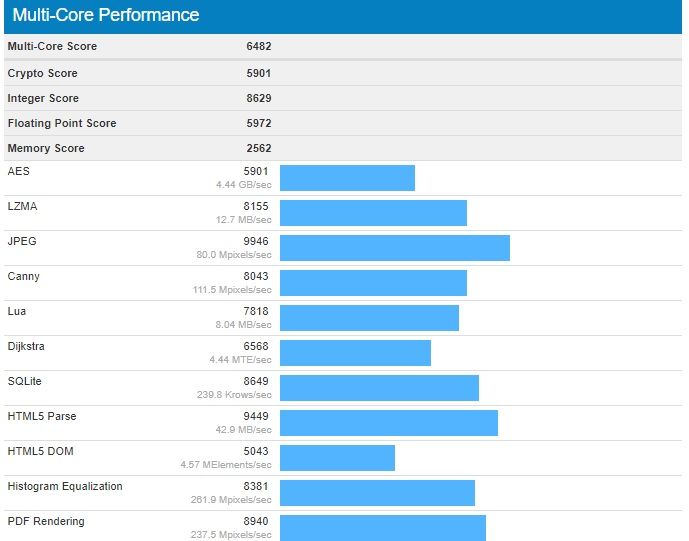
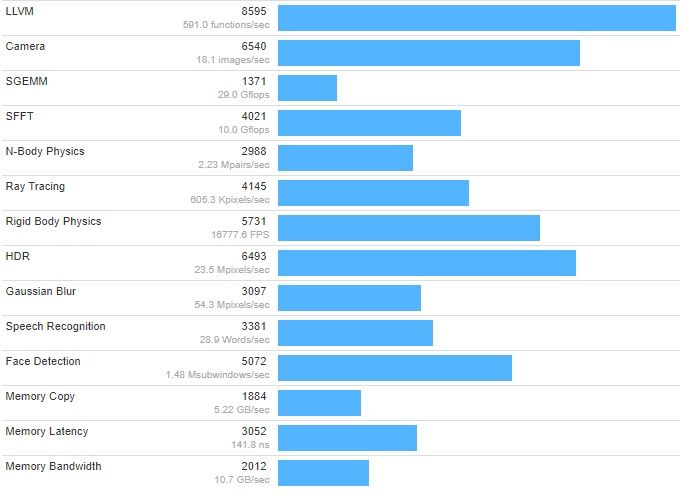
A Geekbench listing has been spotted today which mentions the Galaxy S8+ Android 8.0 Oreo update. It’s likely that tests are being performed on this firmware update as the development progresses.
Galaxy S8+ Android 8.0 Oreo update
In our report earlier this month, we mentioned that the Galaxy S8 and Galaxy S8+ Android 8.0 Oreo update firmware versions could be G950FXXU1BQI1 and G955FXXU1BQI1, respectively.
It’s unclear at this point in time when Samsung is going to release Oreo for this year’s flagship smartphone. It’s likely that a Samsung beta program for the Oreo update might be launched at some point in the coming weeks.
Once the beta firmware has been thoroughly tested, it’s likely that we might see it being rolled out much faster worldwide as Samsung has now started using multi-CSC firmware. That means end users will be able to get a taste of Oreo on their 2017 flagships sooner rather than later.
The Galaxy S8+ has now been spotted on Geekbench running Android 8.0 Oreo. It’s not uncommon for us to see such benchmark listings ahead of an impending major firmware release. However, it doesn’t really clarify anything.
Samsung is yet to confirm its Oreo release roadmap. Until it does that, there’s only going to be more speculation about when the Galaxy S8 and Galaxy S8+ Android 8.0 Oreo update might be released. One can only hope that it doesn’t make customers wait for a very long time.
We have obtained some information about Samsung’s next flagship smartphone. The company has started Galaxy S9 firmware development. The version numbers confirm that there will be two models, which means that we can expect a Galaxy S9 and Galaxy S9+ to be released in 2018.
Galaxy S9 firmware development begins
Two separate Galaxy S9 firmware are being developed, G960FXXU0AQI5 and G965FXXU0AQI5. The model numbers of Samsung’s next flagship smartphones have therefore been confirmed as well. The Galaxy S9 will be SM-G960 while the Galaxy S9+ will be SM-G965.
That’s not surprising, given that the Galaxy S8 and Galaxy S8+ have model numbers SM-G950 and SM-G955 respectively. It’s interesting to note that the Galaxy S9 firmware development has started two weeks earlier than it did for the Galaxy S8 last year.
Galaxy S9 expected release date
As you can probably imagine, there will soon be a lot of rumors about the Galaxy S9 being launched ahead of schedule. While that might be the impression you get from the early Galaxy S9 firmware development, it’s just as likely that the Galaxy S9 release will take place around the same time as the Galaxy S8.
Samsung unveiled the Galaxy S8 at a dedicated event in New York City on March 29 this year. It was released in a handful of markets across the globe on April 21. Samsung might stick with the same timeframe for the Galaxy S9 release next year.
As we continue to keep an eye on the Galaxy S9 firmware development, expect more information about Samsung’s next flagship smartphones to surface in the coming weeks.
The two flagships have remained stuck to Android 7.0 Nougat for a while now, which also brought a newer version of TouchWiz called Grace UX on board.
But the Samsung Galaxy S8/S8+ introduced the new Samsung Experience 8.1 which received an update to version number 8.5 when the Galaxy Note 8 made a debut.
But while other Samsung smartphones like the Galaxy J5 or the 2017 Galaxy A series received Samsung Galaxy 8.1, year’s flagships continue to run the same UI. But according to a Samsung Members community admin, the Galaxy S7 and Galaxy S7 edge will get Samsung Experience 8.1 as soon as the next update – which will probably be Android 8.0 Oreo – starts rolling out. No exact timeline for the release was provided.
Given that the Samsung Experience 8.5 update is more cosmetic in nature and not feature-oriented, it would make little sense for the Korean tech giant to invest time and resources to deliver only a UX-focused update. The Galaxy S7 and Galaxy S7 edge haven’t been updated that many times anyway and with Android 8.0 Oreo out, it’s quite unlikely the phones will get the bump to Android 7.1 or Android 7.1.2 now.
There have been a few rumors and leaks in the last couple of months claiming to offer details on Samsung’s 2018 iteration of the Galaxy A series. While we cannot confirm whether or not these leaks are accurate, we have managed to get the names of the countries where the Galaxy A5 (2018) and Galaxy A7 (2018) may be made available. This list is by no means final, and it’s possible these phones might not launch in all the listed countries and even launch in those not mentioned here. As for the Galaxy A3 (2018), we do not have any information on that device, but we’ll let you know once we do.
Find the list of countries, along with their region codes, down below.
Galaxy A5 (2018) :
AMO – Spain (Orange)
ATO – Open Austria
AUT – Switzerland
BTU – United Kingdom
CAC – Uzbekistan
CAM – Cambodia
CPW – United Kingdom (Carphone Warehouse)
DBT – Germany
ETL – Czech Republic
EUR – Greece
FTM – France (Orange)
GLB – Philippines (Globe)
ITV – Italy
LUX – Luxembourg
MM1 – Singapore
MYM – Thailand (MPT, Mectel)
NEE – Nordic countries
O2U – United Kingdom (O2)
ORO – Romania (Orange)
ORS – Slovakia
ORX – Slovakia
PHE – Spain
PHN – Netherlands
ROM – Romania
SEB – Baltic
SEE – South East Europe
SEK – Ukraine (Kyivstar)
SER – Russia
SIN – Singapore (SingTel)
SKZ – Kazakhstan
SMA – Philippines (Smart)
STH – Singapore (StarHub)
TEB – Bosnia and Herzegovina
THL – Thailand
TPH – Portugal (TPH)
XEC – Spain (Movistar)
XEF – France
XEH – Hungary
XEO – Poland
XEU – United Kingdom / Ireland
XME – Malaysia
XSP – Singapore
XTC – Philippines (Open Line)
XXV – Vietnam
Galaxy A7 (2018) :
ARO – Argentina
BNG – Bangladesh
CAC – Uzbekistan
CHO – Chile
COO – Colombia
CPW – United Kingdom (Carphone Warehouse)
DBT – Germany
EON – Trinidad and Tobago
INS – India
NPL – Nepal
SEK – Ukraine (Kyivstar)
SER – Russia
SKZ – Kazakhstan
SLK – Sri Lanka
TPA – Panama
TTT – Trinidad and Tobago
XEO – Poland
ZTO – Brazil
We’ll soon start hearing a lot of rumors and reports about the Galaxy A (2018) series as Samsung is due to launch it early next year. The first Galaxy A5 (2018) specifications have now surfaced online. A benchmark listing for the SM-A530F has been spotted which gives us an idea of what the Galaxy A5 (2018) specifications might be.
The Geekbench listing for the Galaxy A5 (2018) reveals that it’s going to be powered by Samsung’s new Exynos 7885 processor. It’s likely the 10nm version of the Exynos 7880 that can be found on the Galaxy A5 (2017).
According to these Galaxy A5 (2018) specifications, the octa-core Exynos 7885 has a clock speed of 1.59GHz. It’s paired with 4GB of RAM. That’s going to be a welcome improvement over the Galaxy A5 (2017)’s 3GB of RAM.
According to the listing, the handset is powered by Android 7.1.1. Whether or not Samsung launches it with Android 8.0 Oreo when the time comes remains to be seen. No further details have surfaced online but it’s a good bet to assume that the Galaxy A (2018) series will feature fingerprint scanners and water resistance.
Rumors suggest that the Infinity Display will be present as well. It was rumored yesterday that the physical Bixby button might also make its way to the Galaxy A (2018) series. Samsung is expected to unveil the new Galaxy A (2018) early next year. We will likely see more information about this series surface in the weeks to come.
If you’re considering making the switch from an iPhone to the upcoming Samsung Galaxy Note 8, you should know that Samsung makes this process as painless as possible with their Smart Switch app. Even if you’re not switching away from iPhone, Samsung has you covered. They’ve also highlighted some interesting things you can do with your new Galaxy Note 8 including making GIFs, multi-tasking, using the low light cameras and more. Check it out.
How to transfer everything from an Android phone
Connect your phones with the cable included with your Galaxy Note 8.
Select Smart Switch in the menu that pops up.
Select which phone sends and receives the data.
Press Allow on your old device.
Choose what files you are keeping and then press Transfer.
How to transfer everything from an iPhone
Use the iPhone cable and the adapter included with the Galaxy Note 8 to connect your phones.
Select Smart Switch in the menu that pops up.
Tap Trust on your old phone.
Pick the files you want to keep and press Transfer.
How to make GIFs on your Galaxy Note 8
Tap the floating Air Command symbol on your chosen video.
Press Smart Select.
Press Animation.
Adjust where you want to capture with the S-Pen.
Hit Record then Stop when the time is right.
Then hit share.
How to use Live Focus on the Galaxy Note 8 camera
Quick launch the rear camera by double tapping the power button.
Select Live Focus.
Frame your subject and adjust your focus level.
Take the picture and then tap on it in the bottom right.
You can adjust the focus level in the background and even add stickers.
Save and share.
How to use the S-Pen with the Galaxy Note 8
Curious about the S-Pen that’s included with the new Galaxy Note 8? This video is a short primer on all the things you can do with your S-Pen through the help of Air Command, which is the interface that launches automatically when you remove the S-Pen from the phone. Tired of having Air Command pop up automatically? There’s a setting that allows you to change that, too.
How to multi-task with the Galaxy Note 8
The 2:1 screen ratio of the Galaxy Note 8 makes it perfect for multi-tasking. Here’s how.
Tap the Recents button.
Press and hold the app you want.
Drag it to the top of your screen.
Then open the other app you want.
You can even preset two apps to launch together using your Edge panel. Here’s how.
Swipe left on the Apps Edge tab.
Tap the + button to create a new Apps Pair.
Select two apps you use together and press Done.
How to take good low light pictures with the Galaxy Note 8
Quick launch your rear camera by double tapping power button.
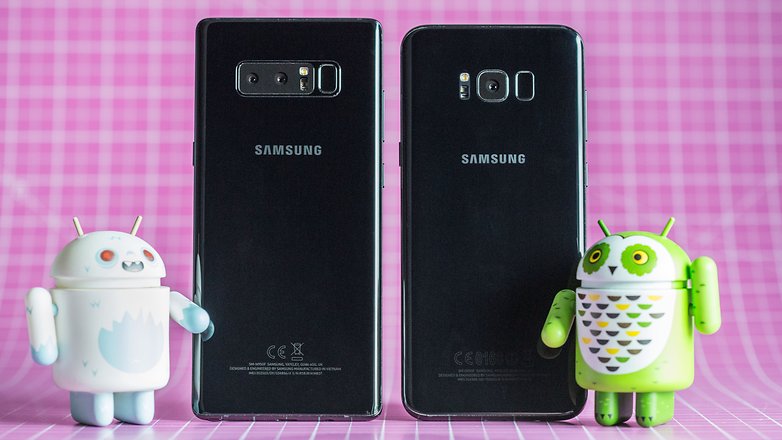
At first glance, the Samsung Galaxy Note 8 and Galaxy S8+ look like twins. But there are many differences between the smartphones which aren’t just limited to looks. The differences are also under the hood, which is where both the Note 8 and the S8+ are ahead of the pack.
Anyone who does a side-by-side comparison of Samsung’s largest smartphones of the moment doesn’t need a magnifying glass to find the design differences; just having a second glance is enough. The Galaxy Note 8 is a little bit thicker than the Galaxy S8+. It’s also a bit more angular at the corners, but the build quality of both devices is flawless.
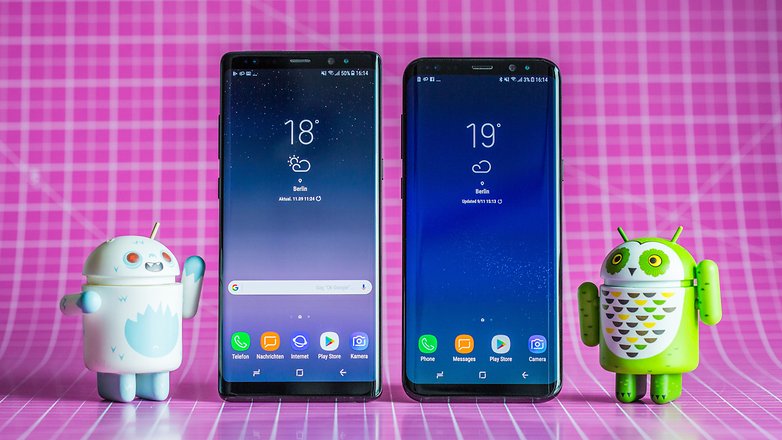
Compared to the S8+ (right), the Note 8 is hardly bigger but distinctively edgier.
The Note 8’s display is merely 0.1 inches bigger, and we estimate that the bezels are just as slim. Despite the curved glass surfaces, the Galaxy Note 8 is more massive and also heavier than the S8+. The controls, including the standalone Bixby button, are located in the same places.
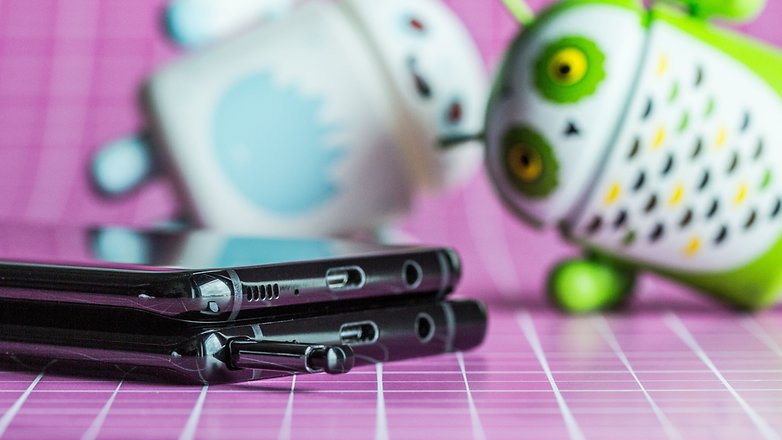
The button arrangement is identical.
The Galaxy Note 8’s most important differentiating factor is the S-Pen. This digital input stylus, which can be pulled from below the housing as usual, divides Samsung fans. For Note aficionados, the S-Pen is what makes this device truly interesting and thus, without equal. But, the pen critics do not see the need for the S-Pen and emphasize other things instead.
Only the Note 8 (bottom) sports the S-Pen.
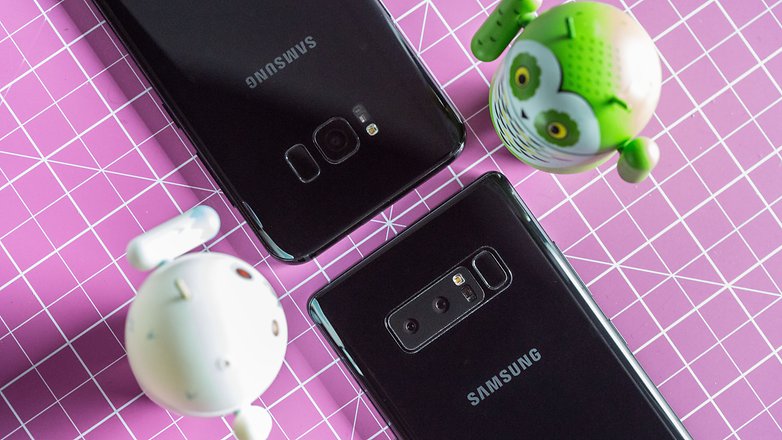
There are large differences between the cameras. The Galaxy Note 8 is the Korean manufacturer’s first smartphone that is equipped with a dual camera, while the Galaxy S8+ takes the conservative route and has a single 12 MP lens on the back. Although the camera still has to prove its worth in our review, it already offers more opportunities for creativity. Both are evenly matched when it comes to the front camera.
Galaxy S8+ has better battery life than the Note 8
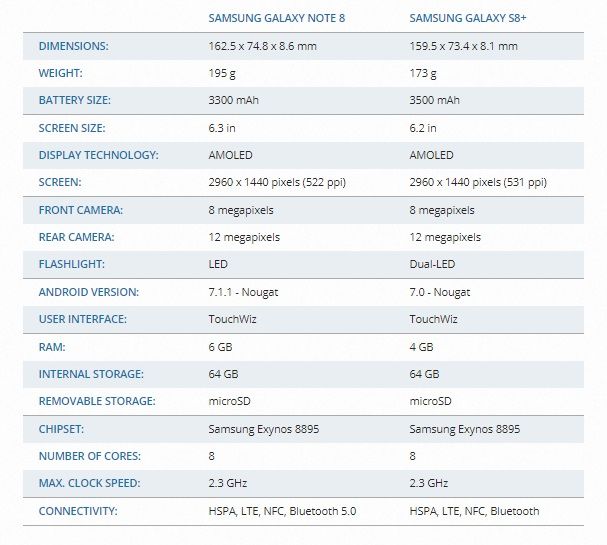
A look at the technical specs sheet reveals the following: The Galaxy S8+ has the larger battery of the two Samsung smartphones, and that’s in spite of the smaller size and thinner body. To make up for it, the Note 8 offers the S-Pen, which takes up space inside the body as well. Furthermore, the Galaxy Note 7 battery incidents caused Samsung to stay on the safe side and, for better or worse, not go for maximum capacity. As a result, the Galaxy S8+ lasts a bit longer on one charge, even if the differences are minor in practice. Both Galaxy smartphones support quick charging and wireless charging.
Samsung Galaxy Note 8 vs. Samsung Galaxy S8+ technical specifications
Performance wise, both smartphones are very close, which is no wonder since they are equipped with the same processor. RAM is the only thing where the Note 8 has a bit more to offer, which is hardly noticeable in practice. The Snapdragon 835 (or the Samsung Exynos 8895 outside of the US), powers both XXL smartphones and you won’t have to wait long for apps to load or deal with a laggy browser with either phone.
The Note 8 is the first Samsung with a dual camera.
Note 8 buyers pay $270 more for an $-Pen
There is quite a price difference between both smartphones, with the Galaxy Note 8 starting at a full $929, which is $80 more than what the Galaxy S8+ cost when it was released on the market ($850). Now the price for the latter has dropped further, and you can currently get it for as little as $659, which is an enormous $270 difference that will make some Note fans think twice.