HBO’s film self parody ‘Watchmen’ to Washmen which present how to wash your hand to avoid possible infection of COVID-19.
Video shows/tells it takes 20 seconds to have fully washed hand demonstrating comically, making audiences entertaining and easier to approach.
How About using Hand sanitizer?
Hand sanitizer is used in limited circumstances where people cannot wash their hands in toilet facility or have soap products for better cleaning effect. However, this does not mean, we could use hand sanitizer instead of washing hands.
The Pocophone F1 is cheap and very powerful. When it comes to price per performance, this is the king of its class. However, there has to be something going on. You can’t make a powerful device with high end specifications with mid-range pricing.
Is the Pocophone F1 just all hype? Let’s take a look at the not so positive side of the phone and see if it still make you want to buy it. Is it a deal breaker for you or you can just ignore and get this well-hyped up smartphone from Xiaomi.
Do you need Pocophone screen replacement? Sydney CBD Repair Centre has the best Poco F1 screen replacement in Sydney.
When it comes to build quality, the Pocophone F1 is not the greatest. Sorry. If you see it for the first time, you would see a very traditional glass front. But holding it is a totally different story. You feel like it squeaks and breaks as you apply the slightest pressure on the side.
You can actually feel it.
It’s not horrid, but at a time when gorgeous sandwiches of metal and glass are commonplace, it feels old hat to hold a plasticky device in your hand, no matter how much the phone costs.
Looking on the bright side, the Pocophone F1’s silver-tinted chamfered edges add a dash of class, and the rounded corners and sides ensure that it fits comfortably in the palm. The rear-mounted circular fingerprint reader is easy to reach, too.
The Pocophone F1 isn’t certified for dust- or water-resistance, so you might want to avoid any bathroom or kitchen mishaps and using it out in the rain. Then again, the OnePlus 6T isn’t protected from the elements, either, and that phone costs a considerable chunk more.
No NFC
If you’re into the modern tech stuff which actually are being used today for your day to day routine, then you may be shocked to know that Near Field Communication is not available on the Pocophone F1.
The lack of NFC is a bigger problem. You won’t be able to use the Pocophone F1 for your contactless card payments via Google Pay, for instance, which is a bit of a pain if you’re used to tapping your phone on the Oyster card gates.
Weird Software Design
Okay, the most obvious to your eyes, the interface. It’s not the most glamorous version of Android but it’s got the latest version on the day of its release. Why should you care? Because it may just be annoying for you to use. Here’s why.
For starters, the app icons are particularly child-like, and I’m not a fan of how they look. The phone’s settings menu behaves a little differently, too, and finding particular settings is a lot trickier than the stock Android experience. I couldn’t figure out how to disable screen timeout, for instance, which proved particularly troublesome when testing the Pocophone’s display. App notifications don’t often show up at the top of the screen, either.
These are minor issues, of course, and can be remedied by installing a third-party launcher of your choosing when the phone arrives through your postbox. It doesn’t stop the Pocophone feeling that bit less slick than its competitors, though.
A Mac can easily be connected to a Bluetooth speaker system, offering a convenient and wireless method of enjoying audio from the computer.
Using a Bluetooth speaker system on a Mac is quite simple, and the only real requirement is that the Mac has Bluetooth actively enabled, and the Speaker system is within range. Beyond that, MacOS is able to connect to virtually any Bluetooth speaker, whether it’s a fancier stereo or a simple portable speaker.
If you’ve never synced a Bluetooth device to a Mac before, or you’re new to connecting Bluetooth speakers to various devices, the walkthrough below should be helpful to you as it demonstrates the entire process of a Mac connecting to a Bluetooth speaker.
How to Connect Bluetooth Speaker to Mac
Turn on the Bluetooth speaker, and place it into discovery mode (typically a power button and/or Bluetooth icon button) if applicable
Pull down the Apple menu and choose “System Preferences”
Select the “Bluetooth” preference panel
Turn Bluetooth on if it isn’t enabled already, then when you see the Bluetooth speaker show up in the Bluetooth devices list choose “Connect”
Wait a moment and the Bluetooth speaker should connect, as indicated by the faint small “Connected” text
Once the Bluetooth speaker is connected to the Mac, adjust the volume on both the speaker and/or the Mac so they can be heard, and test out the sound. An easy way to test that audio is working is by opening iTunes and playing any music, or going to any video with audio on YouTube and listening for the sound to play from the Bluetooth speakers.
In the example here, a Retina MacBook Air is connected to a Tribit XSound Go which is a pretty good cheap portable speaker that greatly improves upon the built-in speakers experienced on a Mac laptop.
How to Disconnect / Remove Bluetooth Speakers from a Mac
One simple way to disconnect the audio output to a Bluetooth speaker from a Mac is to turn off the Bluetooth speaker, though when the speaker comes back on the Mac will automatically attempt to pair with it.
If you don’t want to turn the speaker off (perhaps you want to connect the Bluetooth speaker to an iPhone or iPad instead now), then you’ll need to use the menu bar or the Bluetooth control panel to disconnect and remove the device from the Mac.
Pull down the Bluetooth menu bar and select the Bluetooth speaker
Choose “Disconnect” from the submenu that appears alongside the Bluetooth speaker in the dropdown
You can also turn disconnect the Bluetooth speaker by turning off Bluetooth on the Mac, though that’s not practical if you use a Bluetooth keyboard, mouse, or other accessories with the Mac.
How to Remove a Bluetooth Speaker from Mac
You can also remove the Bluetooth speaker from the Mac, so that it is no longer paired or found by the Mac when discovering Bluetooth devices:
Pull down the Apple menu and choose “System Preferences”
Select the “Bluetooth” preference panel
Click the small (X) button next to the speaker devices name
Confirm that you want to remove the connected speaker from the Mac
Once the Bluetooth speaker is disconnected and removed, the Bluetooth speakers would need to be added again using the same instructions to connect the speaker in the first place.
If you’re tired of a particular app posting notifications, you don’t have to drill down.
Notifications are one of iOS’s best features, letting apps and the iOS system alert you about important updates: a new episode of a show is available, a new text has arrived, your Lyft is on its way, and more. But you can wind up with apps that either notify you too often, or change their notification pattern after you’ve given permission.
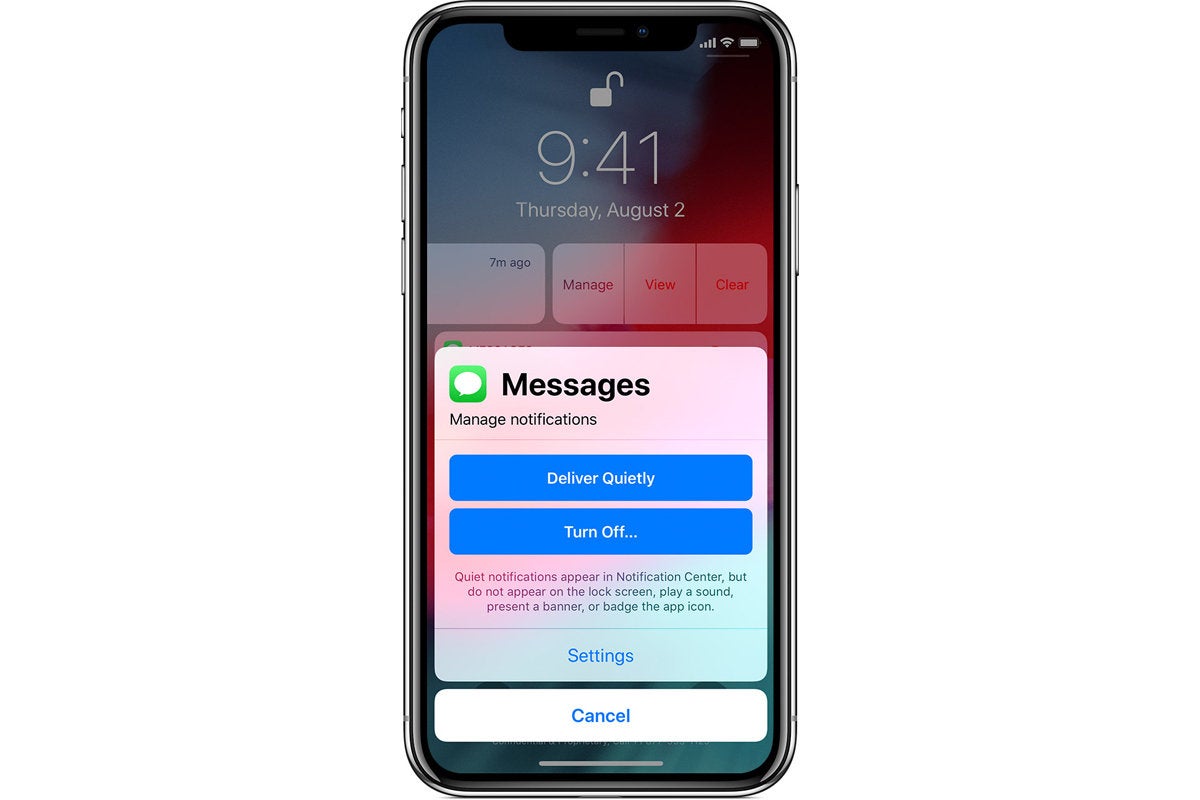
You can dive into Settings > Notifications, swipe to find the app, and adjust settings there. But Apple introduced a nifty way in iOS 12 to change notification settings from within a lock screen alert.
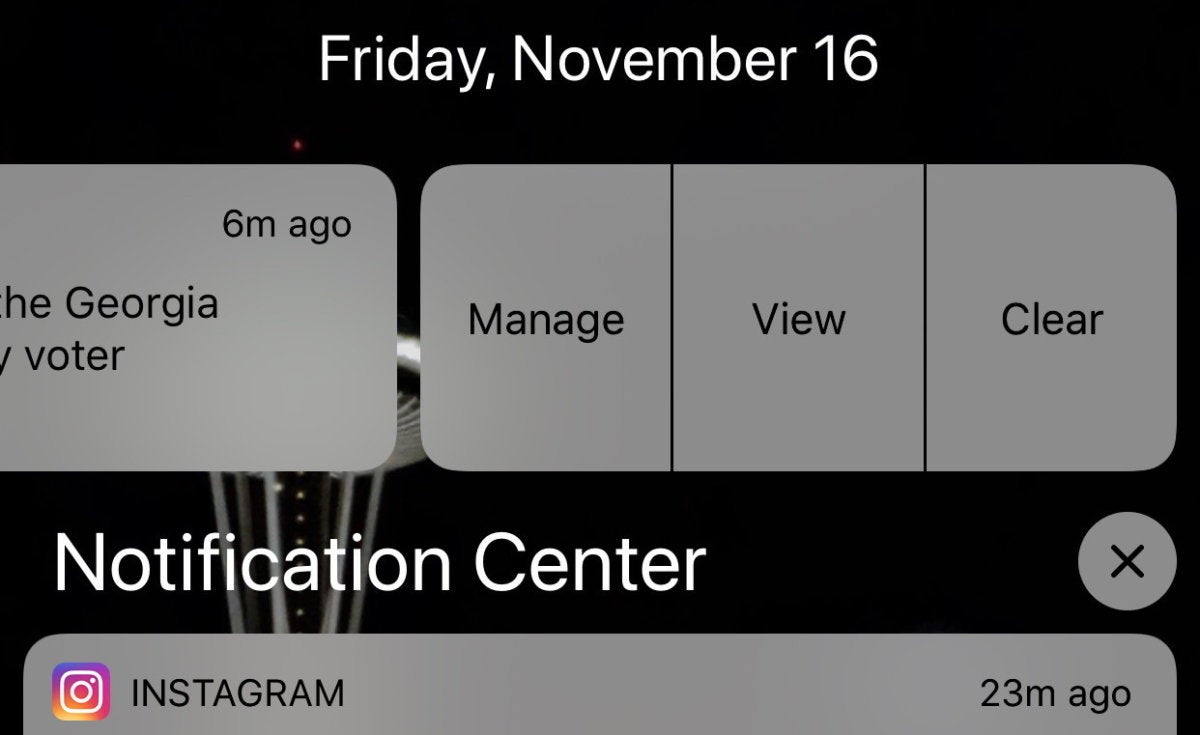
Swipe left and you can tap Manage.
From the lock screen, either swipe left and tap Manage, or “peek” (press lightly) to preview the notification and then from the preview tap the three dots (…) in the upper right corner.
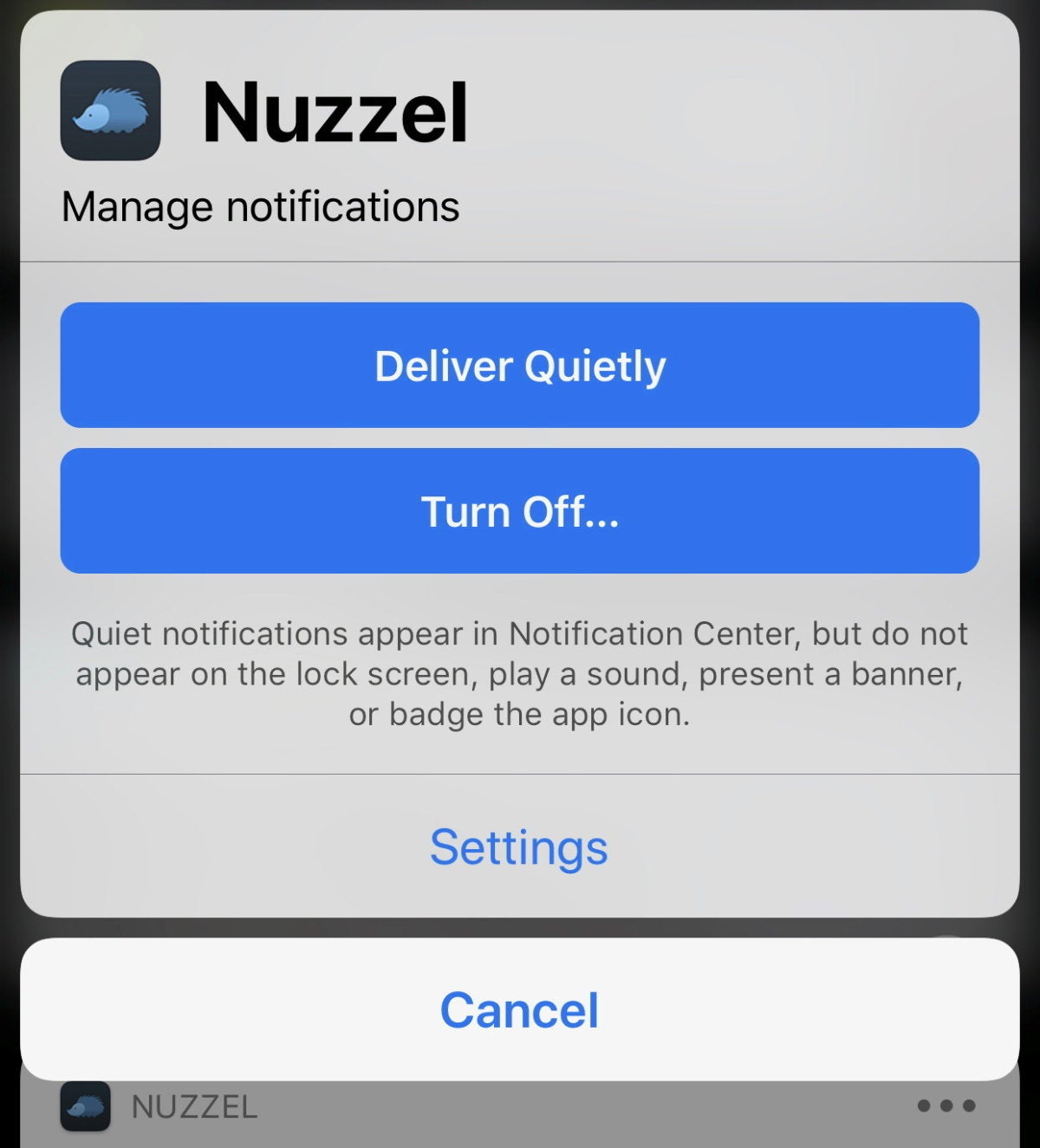
A pop-up menu offers Deliver Quietly or Turn Off, as well as a Settings link.
Tap Delivery Quietly and the notifications will only appear in Notification Center from now on.
Tap Turn Off and confirm by tapping Turn Off All Notifications. The app’s notifications are fully disabled.
Tap Settings and it dives you right to that app’s specific notification settings, where you can tweak them.
You can “peek” (press lightly) and get a number of notification control options from the lock screen.
A leaked product image goes a long way toward confirming that the 2018 iPad Pro is getting a significant redesign. Apple’s next tablet is shown in a folding case, but it’s clear that the bezels have shrunk and the Home button has disappeared, just as previous rumors indicated.
The image also clearly shows the front-facing sensors needed for Face ID.
The case image, which was leaked to mysmartprice, shows the 2018 iPad Pro being used in landscape mode. This adds weight to the unconfirmed reports that Face ID will work with the tablet held this way. There have been some questions aboutthis, as Apple’s facial recognition system works only in portrait mode on iPhones.
More 2018 iPad Pro design changes
The tablet in the leaked image is supposedly the 12.9-inch iPad Pro. However, the length of the Apple Pencil indicates this is likely the 10.5-inch version instead. In the 2018 models, Apple is expected to keep the same 12.9- and 10.5-inch screen sizes, but reduce the overall dimensions of the tablets by shrinking the bezels.
Still, no screen cutout (or notch) is necessary for the TrueDepth camera, as the iPad Pro won’t have bezels as thin as the iPhone XS.
The angle of this picture neither confirms or refutes the reports that the 2018 iPad Pro models will the the first iOS devices ever with a USB-C port.
The case in the product picture has a slot for an Apple Pencil. It’s not clear if the one shown is the rumored updated version of this active pen.
This redesigned iPad is expected to be unveiled before the end of this month. This will supposedly happen at a second fall press event, along with the unveiling of a new MacBook Air and Mac Mini.
New sign indicates iPad Pro update is imminent
The new iPads can’t come soon enough.
The long wait for new iPad Pros may be nearly over if a recent filing by Apple in Asia is any indication that Apple has finalized its product lineup.
This week it was discovered that Apple just registered three new iPad models with China’s Ministry of Industry and Information Technology (MIIT). Apple also registered a new Bluetooth device with MIIT, which could be a new Apple Pencil for the iPads.
According to MySmartPrice’s findings, Apple registered iPad model numbers A1876, A1980, and A1993 with MIIT at the end of September. Those first model numbers were also in a Eurasian Economic Commission filing from July, the A1993 model number hasn’t been seen before.
Now that Apple has filed the same iPad Pro models in different countries, it should be a good sign that a launch could be happening soon.
Apple is expected by some fans to host a keynote sometime in October. The keynote could cover new Macs and iPads for the holiday season. It’s getting later into the month though and there’s still no sign of the event, so Apple could just choose to reveal the new products online only.
New iPad Pro features are expected to include a bezel-free display, A12X processor, Face ID, more RAM and other internal improvements. Apple also supposedly plans to ditch Lightning on the new iPads in favor of USB-C.
The Location Services capabilities of iPhone and iPad allow the devices to use onboard GPS, Wi-Fi, cell tower location data, and Bluetooth to determine the location of the iPhone or iPad. With iPhone, this location data can be pretty much exact, placing the location of the iPhone (and potentially you) perfectly on a map thanks to GPS and cell tower triangulation, and it’s impressively accurate with iPad too. Many iOS apps rely on location data to function properly, for example the various map applications rely on device location data to be able to accurately route directions to and from destinations, you can easily share your current location with someone through Messages, and weather apps use location data to gather location relevant weather data. But not everyone is thrilled with their location being used by apps or the iOS operating system, and some users in high security or privacy-important environments may wish to completely disable Location Services on their iPhone or iPad.
This article will show you how to disable all Location Services on an iPhone or iPad, preventing geographic location data from being gathered or used by all apps and most iOS services too.
How to Disable All Location Services on iPhone or iPad
Note this completely turns off all geographic location services and features on an iPhone or iPad, which may prevent some apps (like Maps) from behaving as expected:
Open the “Settings” app on iPhone or iPad
Choose “Privacy” from the settings options
Now choose “Location Services” from the privacy options
To disable all Location Services completely, toggle the switch next to “Location Services” to the OFF position
Confirm that you want to turn off and disable all possible location services by tapping on “Turn Off”
(Note that by disabling Location Services, the location information of an iPhone will still be used if that iPhone is used to place an emergency call from that device.*)
Remember, turning off Location Services completely will prevent any app from being able to use your geographic location or location data. That includes apps that require geolocation to function properly, like Maps.
You can also choose to disable Location Services on a per-app basis, which is a great targeted approach if you’d rather keep the Location Services feature on broadly, for things like maps and directions, but still want to strictly limit which apps and system services are able to use, access, and retrieve your location data. Most iPhone and iPad users should probably follow this approach, and leave the feature enabled while instead selectively turning off location data for the majority of apps. This is done through the same Location Services section of Privacy settings, but you must choose each app specifically in the list to customize, selecting “Never” to disable location services for the apps in question.
My personal opinion (in case you wanted my specific thoughts on this topic) is to leave Location Services enabled in iOS, but to very strictly limit what apps and services are able to use your location data. Frankly, the vast majority of apps do not need your location data, and they should not have access to it. My opinion is that some apps make sense to use your location data, including apps like Maps, Google Maps, Find My iPhone, Find My Friends, Compass, Waze, Weather, maybe even apps like Calendar and Reminders if you just location aware features in those. But that’s about it. Anything else almost certainly doesn’t need your location data to function, but if you aren’t sure, just think about how the app is used… is location required to get the usage you desire out of a particular app? The answer is probably obvious, and also probably a no. Does a camera app need your location in order to function? Nope, turn it off. Does social media need your location data to function? Nope, turn that off too. Does a language learning app need your location? Nope. Does a maps app that uses your current location to route you accurately to a destination need your location? Yes. Just use a little common sense.
Why Disable Geographic Location Services on an iPhone or iPad?
There are many possible reasons to disable geographic location services on an iPhone or iPad, but the most commonly cited reasons to disable location data come down to security and/or privacy.
Security: If you’re using an iPhone or iPad in a high security environment, you may want to disable location services to protect the location. In fact, depending on your job and where you live, you may even be required to disable location services on a device, as is the case now with many personnel employed by government and military.
Privacy: If you’re using an iPhone or iPad at a location that you’d rather keep private, perhaps your personal home address, an office, school, shelter, a favorite swim hole, or some other beautiful place that you’d rather not be discovered, overused, and ruined, then disabling geolocation and geotagging on iPhone camera, disabling geolocation and location services for all social media apps, removing location from photos, stripping geotags and geolocation and other metadata from pictures, and anything similar is a great idea.
Battery life: The other reason that many iPhone and iPad users choose to disable location services – though usually only on a per-app basis – is to improve device battery life. Using GPS and location data requires more power, and thus if an app is using a lot of location data, it can reduce the battery life of an iOS device. If you’re interested in this particular concept, we’ve discussed before here how you can find what apps are using location services in iOS, which can also help to mitigate battery drain on iPhone and iPad.
* You can get more information about location services and how your iPhone or iPad uses them by tapping the little blue text in the Settings that says “About Location Services & Privacy”, where you’ll be presented with the following information in the iOS Settings app (as of iOS 11.4.1), repeated below for easier reference and reading:
Location Services allows Apple and third-party apps and websites to gather and use information based on the current location of your iPhone or Apple Watch to provide a variety of location-based services. For example, an app might use your location data and location search query to help you find nearby coffee shops or theaters, or your device may set its time zone automatically based on your current location. To use features such as these, you must enable Location Services on your iPhone and give your permission to each app or website before it can use your location data. Apps may request limited access to your location data (only when you are using the app) or full access (even when you are not using the app). For safety purposes, however, your iPhone’s location information may be used when you place an emergency call to aid response efforts regardless of whether you enable Location Services.
Location Services uses GPS and Bluetooth (where those are available) along with crowd-sourced Wi-Fi hotspot and cell tower locations to determine your device’s approximate location. Your Apple Watch may use the location of your paired iPhone if it is nearby. If Location Services is on, your iPhone will periodically send the geo-tagged locations of nearby Wi-Fi hotspots and cell towers in an anonymous and encrypted form to Apple, to be used for augmenting this crowd-sourced database of Wi-Fi hotspot and cell tower locations. By enabling Location Services, location-based system services such as these will also be enabled:
Traffic. If you are physically moving (for example, traveling in a car), your iPhone will periodically send GPS locations and travel speed information in an anonymous and encrypted form to Apple, to be used for augmenting a crowd-sourced road traffic database.
Popular Near Me. Your iPhone will periodically send locations of where, and when, you have purchased or used Apps in an anonymous and encrypted form to Apple, to improve a crowd-sourced database that may be used to offer geographically-relevant Apps and other Apple products and services.
Significant Locations. Your iPhone will keep track of places you have recently been, as well as how often and when you visited them, in order to learn places that are significant to you. This data is transmitted end-to-end encrypted between your iCloud connected devices and will not be shared without your consent. It will be used to provide you with personalized services, such as predictive traffic routing, and to build better Photos Memories.
Location-Based Apple Ads. Your iPhone will send your location, including its travel speed and direction, to Apple in order to provide you with geographically relevant iAds.
Location-Based Suggestions. The location of your iPhone will be sent to Apple to provide more relevant recommendations. If you turn off Location Services for Location-based Suggestions, your precise location will not be sent to Apple. To deliver relevant search suggestions and news, Apple may use the IP address of your internet connection to approximate your location by matching it to a geographic region.
Location-Based Alerts. Your iPhone and Apple Watch will use your location in order to provide you with geographically-relevant alerts, such as a reminder to call someone when you get to a specific place, when to leave for your next appointment, or an app recommendation based on where you currently are.
Share My Location. You can choose to share your current location with others, on a temporary or ongoing basis, from within certain apps such as Messages and Find My Friends.
HomeKit. Your iPhone will use your location to enable accessories to turn on or off when you arrive or leave a specific location, such as turning on your lights when you get home.
The crowd-sourced location data gathered by Apple does not personally identify you.
By enabling Location Services for your devices, you agree and consent to the transmission, collection, maintenance, processing, and use of your location data and location search queries by Apple and its partners and licensees to provide and improve location-based and road traffic-based products and services.
You may choose to disable Location Services at any time. To do so, open Settings on your iPhone, tap Privacy, tap Location Services, and either turn off the global Location Services switch or turn off the individual location switch of each location-aware app or feature by setting it to “Never”. To disable Location Services for all websites, set the Location Services setting for Safari to “Never”. You may also disable location-based system services by tapping on System Services and turning off the switch for each location-based system service.
If you allow third-party apps or websites to use your current location, you are subject to their terms and privacy policy and practices. You should review the terms, privacy policies, and practices of such apps and websites to understand how they use your location and other information.
Information collected by Apple will be treated in accordance with Apple’s Privacy Policy, which can be found at http://www.apple.com/privacy.
Ultimately it’s up to you as a user (and perhaps your employer) how you use Location Services and whether or not you want certain apps, all apps, or as little as possible using your geographic location data.
Field Test Mode on iPhone allows users to get detailed information on their cellular signal and cellular connection, and has long been a popular alternate method of displaying the cell signal on iPhones as a number instead of the signal bars or dots. Field Test Mode is undeniably for more advanced purposes, but some casual iPhone users found value in it as well in order to find a consistently reliable cellular signal.
But ever since iOS 11 and new iPhone models, Field Test Mode is different from how it used to be, and if you enter Field Test Mode in iOS 11 you will not immediately see the numerical dBm cell signal indicator replacing the bars.
Not to worry, you can continue to see the cellular signal as numbers on iPhone with Field Test Mode in iOS 11, it just works a bit differently than it did before in prior versions of system software.
How to Use Field Test Mode in iOS 11 to See Number Cell Signal Strength on iPhone
The iPhone must have an active cellular connection to be able to access and use Field Test Mode to measure the signal strength, the rest is easy:
Open the “Phone” app on your iPhone and enter the following number exactly:
*3001#12345#*
Press the Call button to dial the number, this will immediately launch the hidden “Field Test Mode” app on the iPhone
Tap on “LTE”
Tap on “Serving Cell Meas”
Look for “rsrp0” and the number corresponding will be the numerical measurement of the iPhone cellular signal strength in dBm
RSRP stands for Reference Signal Received Power and is a variation of RSSI measurement.
RSRQ stands for Reference Signal Received Quality.
Supposedly rsrp0 is the primary cell tower connected to, and rsrp1 is the next closest cell tower (or one with the strongest connection anyway), each obviously has their own cellular signal strength depending on power, connection, distance, interference, and other measures.
As for the numbers, which are measured in dBm, they will range from -40 to -130, with -40 being the best possible signal and -130 being the worst. Generally speaking, once you start approaching -110 or lower you will find the cell service is spottier and voice conversations may sound garbled or have aspects cutting out, whereas if you’re at -80 or so your signal should be pretty good and not have any issues.
Field Test Mode has a lot of data available, much of which is going to be completely useless or befuddling to the average iPhone user, much less anyone who is not a field test engineer or operator (and I am neither). For the geekier folks who are interested in numerical measurements of their cellular signal, “Serving Cell Meas” and “LTE Neighbor Cell Meas” are likely the two most pertinent sources of information, since both of those will reveal numerical cellular signals akin to what used to be displayed by default in Field Test Mode before iOS 11.
Note that accessing the dBm numerical cellular signal details may vary per iPhone model and cellular carrier, with some cellular providers not easily sharing this information through Field Test Mode. The approach above was walked through on an iPhone X with the latest iOS 11.x release on AT&T with an LTE signal, but if you want to view other GSM or UMTS signals then you’d look for the appropriate selection within the Field Test Mode app on iPhone.
And yes, at least at the consumer level, this is the only way to access Field Test Mode on the iPhone, and it has been that way for quite some time.
How do I get the signal numbers to replace the bars on iPhone X, or iOS 11?
Many users want to replace the bar signal indicator with the signal numbers instead, since the numerical reception indicator is more accurate. Unfortunately this is not possible in current versions of iOS or on the newest iPhone models with late iOS software. As of now, only iOS version before iOS 11 can use the numerical reception indicator as a replacement for the cell signal reception bars. If you want to learn how to do that on an earlier device with an older iOS release, go here to do so.
Fortnite is the latest gaming craze that seemingly every kid, teenager, and some adults, are obsessed with. The cooperative shooter game may be tons of fun for the players, but what can be less fun is the discovery of a big expensive bill from Fortnite by way of in-app purchases.
This article will show you how to stop Fortnite purchases and prevent any unauthorized buying or purchasing of anything from the in-app and in-game temptations.
How to Turn Off Fortnite Purchases on iPhone and iPad
Want to disable buying stuff and purchases in Fortnite on an iPhone or iPad? Whether it’s your own, a kids, or someone else’s iOS device, here is how you can disable the in-app purchase mechanism:
Open the “Settings” app on the iPhone or iPad you want to disable Fortnite purchases for
Go to “General” and then to “Restrictions”
Tap on “Enable Restrictions” (if you have not done so already*) and then enter and confirm a restrictions passcode – note this will be different from the general lock screen passcode in iOS
Locate the switch for “In-App Purchases” and toggle that to the OFF position
Exit out of Settings as usual
With in-app purchases disabled, no app can make purchases from within the application. This will prevent any and all accidental (or intentional) purchasing from Fortnite as well as from other apps on the device.
* If you set the Restrictions passcode some time ago and forgot it, you can reset a forgotten restrictions password in iOS by resetting the entire device and restoring from a backup. A bit of a hassle, so don’t forget the restrictions passcode!
The Restrictions feature is sort of like parental controls for iOS, and turning off in-app purchases is one of a variety of features available to restrict individual device usage and activity on the iPhone or iPad.
This particular setup is going to disable all in-app purchases on the iOS device, but perhaps down the road a future version of iOS will allow for disabling or enabling specific apps to have the purchasing ability, while also retaining some control over spending limits.
There are other options to control purchases as well from Fortnite as well as other apps. For example, you can setup and use Family Sharing and “Ask to Buy” which requests a request to be sent to you (or the parent) before making a purchase. You can also set up an App Store / iTunes allowance which will set that as the limit of purchasing activity, though it should be noted that it can be easy to spend money fairly quickly with in-app purchases in many games, Fortnite included.
There are other ways to play Fortnite, and this article is obviously geared towards preventing purchases in Fortnite from an iPhone or iPad. But if you’re on another device, or the person is playing Fortnite on an Xbox One, a Playstation 4, or a computer, then you can follow separate instructions for disabling unauthorized purchases on those devices too at this Lifehacker guide. Thanks to Lifehacker for the handy tip idea!
Need to open a website quickly on a Mac? You’re in luck, because you can open a website URL from just about anywhere on a Mac by using Spotlight. This is arguably the fastest way to get to a website by URL, aside from launching a website bookmark from the Mac Dock anyway.
You need a somewhat modern version of Mac OS on the Mac for this Spotlight trick to work as intended. It appears that Spotlight in High Sierra, El Capitan, Sierra, and onward all support this capability, but share with us in the comments below what your experience is.
You can open a domain (i.e. sydneycbd.repair) or a full link with a longer URL (i.e. https://sydneycbd.repair/how-to-open-website-urls-from-anywhere-on-mac-with-spotlight/), we’ll show you how each works separately.
How to Open a Website URL from Spotlight on Mac
This is a super simple Spotlight trick which makes it all the better:
From just about anywhere in Mac OS (Finder, another app, etc), hit Command+Spacebar to bring up Spotlight
Type the URL you want to open, for example:
sydneycbd.repair
Hit Return to immediately open the webpage URL you just typed
The webpage URL will open and load in your default web browser on the Mac (which is Safari unless otherwise specified). For example, if your default browser is set to Safari and you type “sydneycbd.repair” into Spotlight and hit Return, it would load your favorite website, sydneycbd.repair (why thank you, we’re flattered!) into Safari in a new tab or window.
Also noteworthy is if you type a URL into Spotlight but just hover over the entry in Spotlight, you can see a little preview of the webpage.
How to Open Any Long Link or URL from Spotlight on a Mac
Let’s say you have a longer link that you’d like to open instead, you can do that with Spotlight too. The process is just slightly different:
Copy the full link / URL to your clipboard on the Mac, for example here is a URL you could select and copy with Command+C to try this with:
Now hit Command + Spacebar to summon Spotlight as usual
Hit Command+V to Paste the full copied link into the Spotlight search, then hit Return key to open the URL in your default web browser
For many users these tricks may be faster than opening a web browser first, and then typing in a new link, or pasting a Url directly into the URL bar to load.
And remember, this will use your Mac default web browser which you can change to whatever browser you prefer. In the screenshot examples it is using Safari Tech Preview but you can use Safari, Chrome, Firefox, Opera, or your browser of choice as long as it is the default set.
Give these little Spotlight URL tricks a try and see how you like them with your own Mac workflow! It’s fast and easy!
Don’t like iOS 11 on your iPhone or iPad? You can downgrade to iOS 10.3.3 if you act quickly. Maybe you don’t like the update, maybe you find iOS 11 battery life to be poor, or app compatibility to be a problem, or perhaps you think the performance is subpar. Whatever the reason, you can easily downgrade iOS 11 if you need to, but the ability to downgrade is only available for a limited time while Apple continues to sign the prior operating system release of iOS 10.3.3.
We’ll walk through how you can downgrade iOS 11 back to iOS 10 on an iPhone or iPad.
This guide requires iTunes and a computer, internet access, an iOS 10.3.3 ISPW file, and a USB cable. There is no way to downgrade iOS 11 without iTunes and a computer.
Important note: downgrading iOS 11 to iOS 10.3.3 can cause data loss, including the removal of important data or everything on your iPhone or iPad. Thus it is critical to have a backup that is compatible with iOS 10 available before downgrading (one should have been made prior to updating to iOS 11 in the first place), this is because iOS 11 backups are not compatible with iOS 10 or other prior releases. If you only have a backup for iOS 11, then downgrading to iOS 10 may require you to update again to iOS 11 in order to restore from that iOS 11 backup. If you don’t know what you are doing and do not have adequate backups, do not attempt to downgrade or you may experience permanent data loss on the iPhone or iPad.
We’ll cover two ways to downgrade, a simple way that should work for most users, and an approach that requires Recovery Mode if the first downgrade method fails.
How to Downgrade iOS 11 to iOS 10.3.3 the Easy Way
Be sure you have recent backups available of your iOS device to avoid potential data loss. An iOS 11 backup is only able to be restored to an iOS 11 device, thus you would need an iOS 10 backup to restore to iOS 10. Failing to have a compatible backup can lead to permanent data loss.
Using a USB cable, connect the iPhone, iPad, or iPod touch you wish to downgrade to the computer
Select the device in iTunes by clicking on the little device icon in the upper left corner of iTunes
Now under the device summary section of iTunes, click the ‘Update’ button using the appropriate modifier key to begin the downgrade process:
Mac OS: OPTION + click the “Update” button
Windows PC: SHIFT + click the “Update” button
Select the iOS 10.3.3 .ipsw file you downloaded in the first step, and choose to update to that version
The iPhone or iPad screen will turn black as the downgrade begins, rebooting multiple times with a progress bar and Apple logo as the downgrade completes
When the downgrade has finished the device will boot back up into iOS 10, the process can take a while if the device has a large amount of used storage
The downgrade from iOS 11 to iOS 10.3.3 should go without a hitch, assuming you chose the proper iOS 10.3.3 IPSW file for your device, and assuming Apple is still signing the system software. Once Apple stops signing iOS 10.3.3 then downgrading to it from iOS 11 will be impossible.
Some users have reported that sometimes data in iBooks, Notes, Music, and Messages may go missing with the “update” downgrade approach outlined above. If that happens to you, simply restore the device from an iOS 10.3.3 compatible backup once the device is back on iOS 10.3.3.
Note that if you choose “Restore” in the above process and then select IPSW, then the device will be either restored from a backup made compatible with iOS 10.3.3 or setup as new like a standard restore process, which can then be restored with a compatible backup.
If for some reason the above downgrade method fails, you can use the Recovery Mode approach to downgrading iOS 11 detailed next.
How to Downgrade from iOS 11 with Recovery Mode on iPhone and iPad
Rarely, the above downgrade process will fail or get stuck on an Apple logo, or stuck on a black screen. If this happens, you can start the downgrade over again while the iPhone or iPad is in Recovery Mode or DFU mode*
Launch iTunes on the computer
Download the appropriate iOS 10.3.3 IPSW file for your device that you want to downgrade
Put the iPhone or iPad into Recovery Mode using the instructions appropriate for your device:
For iPad, iPhone 6s and earlier with a clickable Home button, and iPod touch: Press and hold both the Power button and Home button at the same time. Continue holding the buttons down until you see a recovery mode iTunes connect screen (this happens after you see the Apple logo, just keep holding the buttons)
For iPhone 7 and iPhone 7 Plus: Press down and hold the Power button and Volume Down button concurrently and continue holding until you see the recovery mode screen, this happens after you see the Apple logo so continue holding the buttons until you see the recovery mode indicator of the iTunes logo
With the iPhone or iPad in Recovery Mode, connect the device to a computer with iTunes
For Mac, OPTION click on “Restore” and for Windows SHIFT click on “Restore” and select the iOS 10.3.3 IPSW file you downloaded in the second step
Restore the device to iOS 10.3.3, when the restore is complete choose to setup as new or restore a backup that is compatible with iOS 10.3.3 (note that iOS 11 backups are not compatible with prior iOS releases)
If you only have a backup from iOS 11, then it will not work with an iOS 10.3.3 device that has been downgraded. Instead, you will need to download the iOS 11 update or update the device to iOS 11 through Setting app, and then restore the iOS 11 backup to the device after it has been updated to a compatible version of system software. There is no way to make an iOS 11 backup compatible with an iOS 10.3.3 device as the iOS backups are not backwards compatible.