The Android Phone Battery Dilemma: Why Replacements Are Critical Now – Shocking Truths & 7 Key Facts
Introduction
The Android phone battery dilemma is becoming impossible to ignore. As Android devices grow more powerful, thinner, and feature-packed, their batteries are under constant strain. From high-refresh-rate displays to 5G connectivity and demanding apps, modern usage habits are pushing phone batteries far beyond what they were originally designed to handle. As a result, many users experience rapid battery drain, sluggish performance, and unexpected shutdowns far sooner than expected.
What makes this dilemma more urgent is that battery degradation often goes unnoticed until it disrupts daily life. Users may assume their phone is “old” or blame software updates, when in reality, a worn-out battery is the root cause. Ignoring this issue doesn’t just reduce convenience—it can impact performance, safety, and long-term device reliability.
This article explores why Android battery replacements are critical now, how aging batteries affect your phone’s performance and lifespan, and why timely replacement is often the smartest, most cost-effective solution. Whether you’re a casual user or rely on your phone for work, understanding this issue can help you extend your device’s life and avoid unnecessary upgrades.
The Android phone battery dilemma has quietly become one of the biggest issues facing smartphone users today. While screens get brighter and processors get faster, batteries are still limited by chemistry. Simply put, batteries wear out. Yet many users ignore this fact until their phones become unreliable.
These days, Android phones are expected to do everything—stream, game, navigate, and work all day. Unfortunately, most batteries weren’t designed to keep up with that level of demand for years on end. As a result, battery replacement is no longer optional; it’s essential.
In this article, we’ll break down why the Android phone battery dilemma matters now more than ever, how it impacts performance and safety, and what smart users can do about it. Let’s dig in.
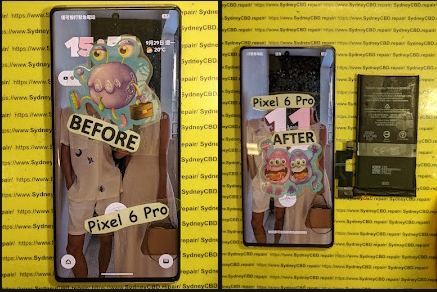
Every modern Android phone relies on a lithium-ion battery. These batteries store energy by moving lithium ions between electrodes. Over time, that movement causes wear. Each charge cycle slightly reduces the battery’s total capacity.
Most Android batteries are rated for around 500 full charge cycles. After that, capacity drops noticeably. This is where the Android phone battery dilemma begins. The phone still works, but not like it used to.
In practical terms, a degraded battery means:
Shorter screen-on time
Slower charging
Sudden shutdowns
Even if the phone looks fine on the outside, the battery inside may be struggling.
Why Android Batteries Degrade Faster Today
Modern Android phones consume more power than ever. High-resolution displays, always-on connectivity, and background apps all drain energy constantly. Add fast charging into the mix, and batteries age even faster.
Because of this, the Android phone battery dilemma has accelerated. Phones that once lasted three or four years now show battery issues in under two. That’s not bad design—it’s the cost of progress.
One of the least understood aspects of the Android phone battery dilemma is performance throttling. When a battery can’t deliver stable power, the system slows the processor to prevent crashes.
That means:
Apps open slower
Games stutter
Multitasking becomes frustrating
Many users blame software updates, but the real issue is battery health. A simple replacement can restore performance almost instantly.
Safety Risks of Old Android Batteries
Ignoring battery issues isn’t just inconvenient—it can be dangerous. Old batteries can swell, overheat, or leak. In extreme cases, they may even catch fire.
Signs of danger include:
Bulging screens
Phones getting hot while idle
Burning smells
At this stage of the Android phone battery dilemma, replacement isn’t just smart—it’s critical.
Why Android Battery Replacements Are More Important Than Ever
5G, High Refresh Rates, and Power Demand
Today’s Android phones are power-hungry. Features like 5G, 120Hz displays, and AI processing drain batteries quickly. Even light users feel the impact.
This is why the Android phone battery dilemma has become unavoidable. Old batteries simply can’t keep up with modern usage patterns.
Software Updates vs. Battery Health
Android updates improve security and features, but they also increase power demands. A weak battery struggles to support updated software, leading to lag and instability.
Instead of replacing the whole phone, replacing the battery often solves the problem at a fraction of the cost.
For more technical insight into battery degradation, you can also review this resource from Android Authority (external reference for educational purposes).
Signs Your Android Phone Battery Needs Replacement
Physical and Performance Warning Signs
Recognizing the Android phone battery dilemma early can save you time and money. Watch out for:
Battery draining unusually fast
Phone shutting down above 20%
Charging stuck at certain percentages
Phone heating during basic tasks
If you notice two or more of these signs, battery replacement should be your next step.
DIY vs. Professional Android Battery Replacement
Risks of DIY Battery Repairs
DIY battery replacement videos are everywhere, but they hide the risks. Modern Android phones are tightly sealed. One slip can damage the screen, motherboard, or charging port.
Common DIY mistakes include:
Puncturing the battery
Using non-genuine parts
Losing water resistance
In the context of the Android phone battery dilemma, DIY often creates bigger problems than it solves.
Benefits of Professional Replacement
Professional technicians use proper tools, genuine batteries, and tested procedures. This ensures:
Safe installation
Restored performance
Warranty protection
In many cases, professional replacement can make your Android feel brand new again.
Environmental and Financial Benefits of Battery Replacement
Sustainability and E-Waste Reduction
Replacing a battery instead of a whole phone significantly reduces electronic waste. From an environmental standpoint, it’s the responsible choice.
Financially, it’s a win too. Battery replacement costs far less than buying a new device. The Android phone battery dilemma doesn’t require an expensive solution—just a smart one.
Frequently Asked Questions (FAQs)
1. How long does an Android phone battery usually last?
Most last 2–3 years before noticeable degradation begins.
2. Can a battery replacement really improve performance?
Yes. Many performance issues are directly tied to battery health.
3. Is it safe to keep using a swollen battery?
No. Swollen batteries pose serious safety risks and should be replaced immediately.
4. Are third-party batteries reliable?
Only if they’re high quality and installed professionally. Cheap batteries often worsen the problem.
5. Does fast charging ruin Android batteries?
Fast charging increases heat, which accelerates wear over time.
6. Is battery replacement better than upgrading phones?
In most cases, yes—especially if the phone still meets your needs.
Conclusion
The Android phone battery dilemma isn’t hype—it’s reality. As phones become more powerful, batteries wear out faster. Ignoring the issue leads to poor performance, safety risks, and unnecessary upgrades.
Battery replacement is the simplest, smartest solution. It restores speed, improves reliability, and extends the life of your device. In today’s Android ecosystem, replacing your battery isn’t just critical—it’s essential.
David from Sydney CBD Repair Centre – The Best place to fix mobile phones as 7 Years In A Row! Top Mobile Phone Repair In Sydney. More than 2000 Positive Reviews on Google and Same Day Repairs.
We take pride in delivering exceptional repair services for all major phone brands including Apple, Samsung, Google, and more. Our expert technicians use only genuine parts and offer 90 days warranty on repairs. Located in the heart of Sydney CBD, we’re your one-stop solution for all mobile device repairs.
Our commitment to excellence has earned us the trust of thousands of satisfied customers. Whether it’s a cracked screen, battery replacement, or water damage repair, we handle it all with professional care and expertise. Walk in today and experience why we’re Sydney’s #1 choice for mobile phone repairs.
Visit us for:
✓ Same Day Express Repairs
✓ Genuine Parts Guarantee
✓ Professional Technicians
✓ Competitive Pricing
✓ 2000+ 5-Star Google Reviews
✓ 7-Time Award Winner for Best Phone Repairs
Deconstructing One UI 8.5’s Impact on Android Phone Repair: 10 Key Insights You Need
Introduction to One UI 8.5
Samsung’s One UI 8.5 represents a significant step forward in Android customization, blending aesthetics, performance, and user-centric design. This latest iteration focuses on smoother interactions, enhanced multitasking, and intelligent device management. But beyond its user-friendly appeal, One UI 8.5 also carries implications for Android phone repair, both for technicians and end-users.
In particular, the update brings changes to adaptive battery management, touch sensitivity adjustments, and security layers that influence hardware repair strategies. For repair centres like Sydney CBD Repair Centre, understanding these nuances ensures timely fixes, accurate diagnostics, and reduced risk of post-repair complications.
Evolution from Previous Versions
Compared to One UI 8.0 and earlier versions, 8.5 introduces subtle but meaningful enhancements:
Smoother animations and gestures: Reduces UI lag but introduces new calibration challenges for touchscreens.
Advanced multitasking features: Split-screen and pop-up windows are more seamless but add stress to processor-intensive tasks, occasionally affecting diagnostics.
Improved security protocols: Stronger encryption and tighter bootloader restrictions make firmware repair more intricate.
These features collectively impact repair workflows, especially for software-dependent diagnostics or hardware swaps.
Key Features Affecting Hardware
One UI 8.5’s innovations extend to hardware behavior. For instance:
Adaptive refresh rates: 120Hz or variable refresh modes can strain screen drivers.
Battery optimization AI: Modifies charging cycles, affecting battery health and replacement intervals.
Repairing Android devices requires a mix of technical expertise, proper tools, and an understanding of both hardware and software dynamics. One UI 8.5, while primarily software-focused, intersects with hardware performance in ways that repair centres must consider.
Common Repair Types
The most frequent Android repairs impacted by One UI 8.5 include:
Screen replacements: Especially for devices using variable refresh rate AMOLED displays.
Battery swaps: Adaptive charging may affect longevity, altering replacement schedules.
Software-related issues: Update-induced slowdowns, boot loops, or app crashes.
Camera repairs: UI changes can affect sensor calibration.
Tools and Techniques
Repair tools need recalibration in some cases:
Diagnostic software: Must support One UI 8.5 firmware.
Touchscreen calibrators: To account for gesture and sensitivity changes.
Battery testers: Adaptive charging AI requires different assessment metrics.
Understanding these changes is critical for delivering accurate repairs without inadvertently causing new problems.
While many repairs are hardware-focused, One UI 8.5 introduces software complexities that directly impact repair strategies.
Security Updates and Unlocking Devices
Samsung’s security protocols have strengthened in 8.5, making certain tasks more challenging:
Unlocking bootloaders or accessing service menus may require updated credentials or specialized tools.
Device encryption and Knox security limit unauthorized repairs or custom firmware installations.
Technicians need updated certifications and tools to navigate these protections safely.
Firmware Compatibility Issues
Firmware mismatches can result in:
Malfunctioning touchscreen gestures
Inaccurate battery calibration
Performance slowdowns or random reboots
Repair centres must maintain the latest software libraries to avoid introducing complications post-repair.
One UI 8.5 and Battery Performance
Battery health is a critical aspect affected by One UI 8.5. The update optimizes power management, but this also affects repair timelines and diagnostic procedures.
Power Management Features
Key features impacting repairs include:
Adaptive Battery AI: Adjusts app energy usage based on usage patterns.
These examples highlight how One UI 8.5 features intersect with hardware repairs.
FAQs
Q1: Does One UI 8.5 make screen repairs harder?
A1: Yes, due to adaptive refresh rates and gesture sensitivity, screen replacements require recalibration for optimal functionality.
Q2: Will battery replacement schedules change with One UI 8.5?
A2: Adaptive AI charging may extend battery life, but replacements must consider AI recalibration to avoid false readings.
Q3: Can all repair centres handle One UI 8.5 devices?
A3: Only centres with updated diagnostic tools and trained technicians can efficiently repair these devices.
Q4: Are there new security challenges for repairs?
A4: Yes, Knox and firmware encryption may limit unauthorized access, requiring certified tools.
Q5: How can users prevent post-update issues?
A5: Regularly update apps, monitor battery health, and avoid heavy multitasking immediately after installing the update.
Q6: Do repairs cost more with One UI 8.5?
A6: Slightly, due to additional calibration, software diagnostics, and updated tools required.
Conclusion
One UI 8.5 enhances the Android experience with smarter AI, smoother gestures, and optimized performance. However, these improvements come with a ripple effect on phone repair, necessitating updated tools, technician training, and careful diagnostic procedures.
Repair centres like Sydney CBD Repair Centre stay ahead of these challenges by leveraging expertise, certified tools, and detailed knowledge of software-hardware interplay. For users, understanding the implications of One UI 8.5 ensures smoother device maintenance, longer battery life, and reduced repair surprises.
For detailed repair assistance and certified One UI 8.5 support, visit Sydney CBD Repair Centre.
David from Sydney CBD Repair Centre – The Best place to fix mobile phones as 6 Years In A Row! Top Mobile Phone Repair In Sydney. More than 2000 Positive Reviews on Google and Same Day Repairs.
We take pride in delivering exceptional repair services for all major phone brands including Apple, Samsung, Google, and more. Our expert technicians use only genuine parts and offer 90days warranty on repairs. Located in the heart of Sydney CBD, we’re your one-stop solution for all mobile device repairs.
Our commitment to excellence has earned us the trust of thousands of satisfied customers. Whether it’s a cracked screen, battery replacement, or water damage repair, we handle it all with professional care and expertise. Walk in today and experience why we’re Sydney’s #1 choice for mobile phone repairs.
Visit us for:
✓ Same Day Express Repairs
✓ Genuine Parts Guarantee
✓ Professional Technicians
✓ Competitive Pricing
✓ 2000+ 5-Star Google Reviews
✓ 6-Time Award Winner for Best Phone Repairs
✅ Introduction: The Power of DIY Smartphone Repair
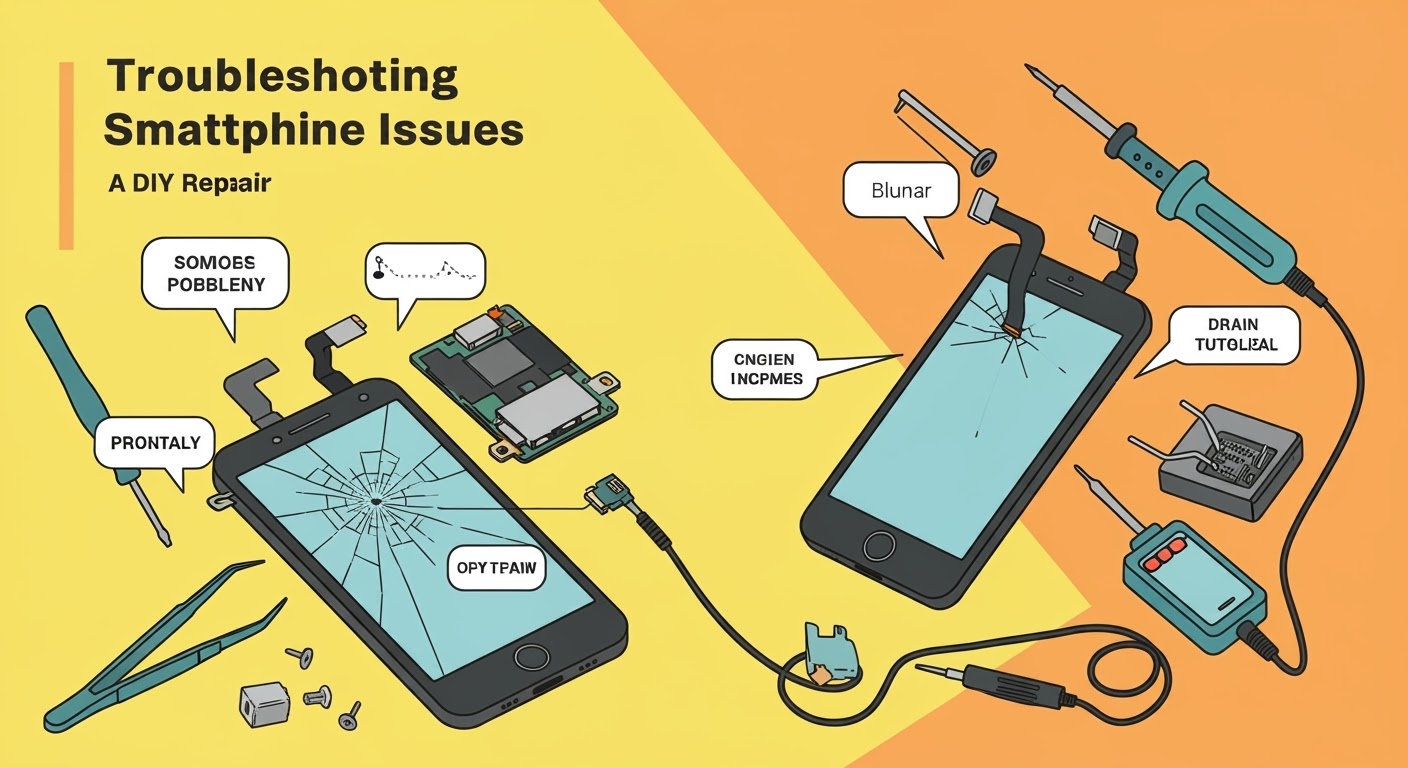
In a world where smartphones are essential, even a minor issue can throw your whole day off. But here’s the good news: you don’t always need to rush to a technician for a fix. Many common smartphone problems can be solved right at home with the right tools, guidance, and patience.
Whether your phone’s screen is cracked, the battery is draining faster than ever, or your apps are constantly crashing, this comprehensive DIY repair tutorial will walk you through every major issue—and help you decide when it’s time to get expert help.
Let’s dive into 15 of the most frequent smartphone issues, learn how to troubleshoot them like a pro, and take control of your mobile life again.
Cracked screens are the most common smartphone repair issue worldwide. Whether it’s a minor scratch or a full spiderweb across your screen, dealing with screen damage promptly is crucial—not only for aesthetics but also to prevent internal component damage and injury.
⚠️ Safety First: Handling Broken Glass
Before attempting any repair, make sure to protect yourself:
Turn off the device to avoid short-circuiting.
Use gloves to prevent cuts from shards of glass.
Apply packing tape or a screen protector over the cracks if you’re delaying the repair.
🧰 Tools Needed for Screen Replacement
You’ll need a few essentials:
A heat gun or hairdryer (to loosen adhesive)
Plastic spudger or opening tools
Small Phillips and pentalobe screwdrivers
Suction cup
Replacement screen (make sure it’s compatible with your exact model)
ESD-safe tweezers and gloves
Pro Tip: Always opt for genuine parts to avoid touchscreen sensitivity issues and compatibility errors.
🛠 Step-by-Step DIY Screen Replacement
Follow these general steps. Exact procedures vary by model (e.g., iPhones differ from Samsungs), so check a model-specific video tutorial first.
Power off your phone.
Heat the screen edges gently with a heat gun.
Use a suction cup to lift the screen, then slide a plastic spudger around the edge to loosen the adhesive.
Disconnect battery cable first after removing the backplate or display.
Carefully detach display connectors.
Install the new screen, reconnect cables, and test functionality before sealing it.
Reapply adhesive, close the device, and power on.
Note: If you’re unsure about your skills, seek professional repair. Poor installation can result in a non-functional device or void warranties.
If you’re based in Sydney, check out Sydney CBD Repair Centre — experts in screen replacements using genuine parts and same-day service.
If all else fails, your best bet is a diagnostic test from a certified technician. For Sydney locals, David and his expert team at Sydney CBD Repair Centre offer precise diagnostics and same-day power issue repairs.
🔋 3. Battery Draining Too Fast? Here’s Why
Short battery life is a daily frustration for many users. While some degradation is natural over time, excessive battery drain can be fixed.
🔄 Calibrating Your Battery
Battery calibration helps your phone measure remaining power more accurately.
Use your phone’s Battery Usage settings to spot offenders and limit their background activity.
🔁 When to Replace Your Battery
Look out for these signs:
Swollen battery
Sudden power drops (e.g., 40% to 5%)
Overheating while charging
You can replace most smartphone batteries yourself with the right tools, though newer models make it tricky. If you’re not confident, trust a repair centre like Sydney CBD Repair Centre, which uses original batteries and provides a 90-day warranty.
🔥 4. Phone Overheating – How to Cool It Down
A hot phone isn’t just annoying—it can damage components and reduce battery life. Here’s how to keep it cool.
🔍 Identifying Heat Sources
Common culprits include:
Heavy gaming or video streaming
Charging while using device
Hot environments
App glitches or malware
❄️ Cooling Techniques for Android and iPhone
Close all background apps.
Switch to Airplane Mode to cut down processing.
Remove phone case to let heat escape.
Turn off Bluetooth, GPS, and NFC if not in use.
🛡 Preventative Measures
Avoid long gaming sessions in hot environments.
Keep your software updated.
Avoid third-party chargers and cables.
Don’t leave your phone in direct sunlight (e.g., car dashboards).
If overheating continues, it might be due to internal hardware faults. Professional diagnostics may be necessary.
🐢 5. Slow Performance and Lag Fixes
Nothing’s more frustrating than a slow smartphone—especially when you’ve invested a lot in it. Whether it’s laggy scrolling, delayed app launches, or freezing, these issues are often easy to fix with a few tweaks.
🧹 Clearing Cache and Bloatware
First things first—your phone needs a digital cleanup.
Clear cached data from apps via your phone’s storage settings.
Uninstall or disable bloatware—preinstalled apps you don’t use.
Use tools like Google Files or CCleaner (Android) for regular cleanup.
iPhone users can offload unused apps while retaining their data via Settings > iPhone Storage.
🔄 Software Updates & Factory Reset Tips
An outdated OS can cause compatibility issues, so ensure:
You’re running the latest system version.
You regularly update your apps.
Still lagging? Try a factory reset, but back up your data first:
Android: Settings > System > Reset > Factory data reset
iPhone: Settings > General > Transfer or Reset > Erase All Content and Settings
A reset can eliminate hidden bugs or malware causing sluggishness.
🧠 Upgrading Internal Storage or RAM (for some models)
If your phone allows expandable storage (like many Android models):
Move photos and apps to an SD card.
Delete old backups and files.
For rooted devices, some users opt for virtual RAM increase, but this isn’t for beginners.
For newer flagship devices with non-expandable memory, freeing up space and managing background apps is your best option.
💥 6. Apps Crashing? How to Stop It
Apps crashing randomly? You’re not alone. App instability can stem from various reasons, including bad updates, corrupted cache, or even insufficient memory.
🔄 App Conflicts and Compatibility Issues
If crashes began after installing a new app, there may be a conflict. Try:
Uninstalling the most recent apps.
Disabling unnecessary background apps.
Apps may also misbehave if your OS is outdated or if the app isn’t fully compatible with your phone model.
🔧 Update or Reinstall Troublesome Apps
A quick fix that works:
Go to App Settings > Storage > Clear Cache & Data.
Uninstall and reinstall the app from Google Play or App Store.
This often solves issues caused by corrupted app data.
📲 OS Compatibility Check
Make sure both your app and OS are updated. Developers push updates to match new Android or iOS versions. If your phone is too old, some newer apps may not run properly.
If you’re unsure, a technician at Sydney CBD Repair Centre can help determine if your phone needs a system update or full reset.
🌐 7. Wi-Fi or Data Connection Problems
Struggling with unstable connections or mobile data? It’s a common problem, but often very fixable without heading to a technician.
🧪 Diagnosing Network Settings
Check these first:
Airplane Mode isn’t enabled.
Wi-Fi and Data are turned on.
Router is working (try another device on the same network).
Then:
Forget the network and reconnect.
Restart your phone and router.
🔁 Resetting Network Configurations
For a deeper fix:
Android: Settings > System > Reset > Reset Network Settings
iPhone: Settings > General > Reset > Reset Network Settings
This clears saved Wi-Fi passwords and cellular settings, so have those on hand.
📶 Router vs. Phone Issue
Test with a different Wi-Fi or SIM. If other devices work fine on the same network, it’s your phone. If none do—it’s the router or signal provider.
🔇 8. No Sound or Microphone Not Working
Whether during calls or media playback, sound issues usually stem from hardware blockage or software misconfiguration.
🧼 Cleaning Speaker and Mic Ports
Dust and lint clogging the mic/speaker grill are surprisingly common.
Use a soft toothbrush or compressed air.
Avoid sticking metal objects inside ports.
Pro Tip: If water got in, don’t blow air forcefully—it might push liquid deeper. Let it dry thoroughly first.
⚙️ Software Troubleshooting
Ensure Do Not Disturb isn’t enabled.
Try Safe Mode to see if third-party apps are interfering.
Test mic/speaker via Voice Recorder app or YouTube.
🧩 Replacing Audio Components
If the issue persists after cleaning and software resets, the speaker or mic might be damaged.
Replacement parts are inexpensive.
Many models allow DIY mic/speaker swaps.
Seek expert help for soldered or glued-down components—Sydney CBD Repair Centre offers mic and speaker repair with OEM parts.
📸 9. Camera Not Working or Blurry Images
A smartphone’s camera is one of its most-used features, so any issue here is frustrating. Whether it’s not focusing, crashing, or showing a black screen, here’s how to fix it.
✨ DIY Lens Cleaning Tips
First, clean the lens gently using:
A microfiber cloth
A small dab of lens cleaner
Avoid paper towels or rubbing alcohol (they can scratch)
Sometimes it’s just smudges causing blurriness.
🔧 Resetting Camera App Settings
Go to App Settings > Camera > Clear Cache & Data
Reopen the app and try again
On iPhones, resetting settings via Settings > General > Reset > Reset All Settings can help too.
📷 Replacing Camera Modules
Still blurry or no image?
The camera module may be loose or damaged.
DIY camera replacements are possible on many Android models using a toolkit and YouTube guide.
iPhones require more care due to Face ID and TrueDepth sensors.
Pro Tip: Only trust genuine camera modules—cheap parts often fail quickly.
🖐️ 10. Touchscreen Not Responding? Here’s What to Check
A frozen or unresponsive touchscreen can render your phone almost useless. Luckily, there are several ways to troubleshoot before resorting to a screen replacement.
🧪 Screen Calibration and Sensitivity Settings
For Android:
Use apps like Touchscreen Repair or MultiTouch Tester.
Navigate to Settings > Display > Touch Sensitivity (on supported models).
For iPhone:
Restart the device.
Update iOS to the latest version.
Remove screen protectors or cases that might interfere with touch recognition.
📦 Removing Case or Screen Protector
Sometimes, screen protectors or rugged cases reduce touch sensitivity. Try:
Removing any tempered glass or plastic screen guard.
Testing touch response afterward.
🛠 When to Replace the Digitizer
If none of the above works:
Your digitizer (touch sensor) may be damaged.
This component often comes fused with the display—meaning you may need a full screen replacement.
For safe, same-day service with OEM parts, consider Sydney CBD Repair Centre. Their expert team ensures your touchscreen functions like new.
💧 11. Water Damage Recovery Steps
Water and electronics don’t mix. If your smartphone takes a dive into the sink, toilet, or pool, time is of the essence.
⏱ Immediate Actions After Exposure
Turn off the phone immediately.
Don’t press any buttons—this could push water deeper.
Remove the SIM, SD card, and battery (if removable).
Wipe it dry with a lint-free cloth.
Place the device in a sealed bag with silica gel packets for at least 24–48 hours.
Avoid rice—it’s less effective and can introduce dust or starch particles.
🧰 Disassembling for Drying
If you’re confident:
Open the back cover and unscrew internal components.
Disconnect the battery.
Use isopropyl alcohol (90%+) and a soft brush to clean corrosion.
Let it dry fully before reassembling.
🔧 What Parts May Need Replacing
Common casualties of water damage include:
Battery
Screen/digitizer
Motherboard or charging port
Speakers or mic
Sydney CBD Repair Centre specializes in water-damaged devices and can professionally diagnose and repair these components—with a high success rate.
🧲 12. Charging Port Issues and Fixes
Is your phone not charging properly or showing “Accessory Not Supported”? Your charging port might be dirty, damaged, or loose.
🧼 Cleaning the Port Safely
Turn off your phone.
Use a toothpick or ESD-safe brush to gently remove lint or dust.
Avoid using metal objects or blowing forcefully into the port.
⚙️ Software vs. Hardware Charging Faults
If cleaning doesn’t help:
Test with a new cable and adapter.
Try wireless charging if supported.
Boot in Safe Mode to rule out rogue apps.
If still no charge, your port may be physically worn out or disconnected internally.
🔧 When to Replace the Charging Port
Charging ports wear out over time due to daily plugging/unplugging. For many phones, it’s a standalone module and can be replaced easily. iPhones and USB-C Android phones often require:
Micro-soldering (for integrated ports)
Precision parts alignment
For a reliable and fast fix, Sydney CBD Repair Centre replaces charging ports using original-grade replacements—often within 1–2 hours.
📵 13. SIM Card Not Detected
A “No SIM” or “Invalid SIM” error is common and usually easy to resolve.
🔄 Cleaning and Re-inserting SIM
Power off your device.
Remove the SIM card.
Gently clean it with a microfiber cloth.
Re-insert it properly and restart the device.
🧰 Software Fixes
Try:
Airplane Mode toggle
Network settings reset
Carrier settings update (iPhone)
Still no luck? Try another SIM. If it works, the issue is with your card—not your phone.
🔧 SIM Tray or Reader Replacement
If the SIM reader pins are bent or the tray is damaged, professional repair is needed.
Sydney CBD Repair Centre offers quick SIM tray and reader replacements—restoring full signal functionality without hassle.
⚠️ 14. Error Messages and Boot Loops
Stuck on the Apple logo or Android boot screen? These software errors can often be solved without hardware repair.
🛠 Common Errors and What They Mean
iPhone: “Support.apple.com/iphone/restore” – typically iOS corruption
Android: “No command” or “System UI has stopped” – system crash
🔄 Safe Mode and Recovery Options
iPhone:
Use iTunes or Finder to force restore
Try DFU Mode for deeper-level repair
Android:
Enter Recovery Mode and wipe cache partition
Use ADB (Android Debug Bridge) for advanced troubleshooting
⚙️ When to Flash New Firmware
If system files are corrupt, reinstalling the firmware may help. This requires:
OEM software tools (e.g., Odin for Samsung)
Backup of your data (as it will be erased)
Or, let Sydney CBD Repair Centre handle it for you with data preservation and clean firmware flashing.
🆙 15. Software Update Failed
Failed updates are more than annoying—they can leave your device unusable.
🧰 Identifying the Problem
Common reasons include:
Insufficient storage
Low battery during update
Poor Wi-Fi or interrupted download
Jailbroken/rooted device
🔧 iOS vs. Android Update Fixes
iPhone:
Use iTunes or Finder to restore or update
Clear space by deleting unused apps or media
Android:
Use recovery mode to apply update from ADB or SD card
Flash firmware using tools like Odin (Samsung) or SP Flash Tool (MediaTek)
🧩 Tips for Successful Updates
Charge to 100% before starting
Ensure Wi-Fi is strong and stable
Clear space (at least 5–10 GB recommended)
Avoid jailbreaking or rooting for smoother updates
❓ FAQs
1. Is it safe to repair a phone at home?
Yes, basic repairs like battery or screen replacement are safe if you follow instructions, use the correct tools, and power down your device. However, repairs involving micro-soldering or motherboard components are best left to professionals.
2. What’s the most common smartphone issue?
Cracked screens and battery degradation are the most common. They account for over 50% of repairs handled by shops like Sydney CBD Repair Centre.
3. How long does a typical phone repair take?
It depends on the repair type. Screen and battery replacements take 30–90 minutes. Water damage diagnostics may require up to 48 hours.
4. Does DIY repair void my warranty?
If your phone is under manufacturer warranty, DIY repairs can void it. Using authorized repair services or those that use OEM parts—like Sydney CBD Repair Centre—can protect your device and warranty.
5. What’s the best way to protect my phone?
Use a shock-absorbent case, apply a tempered glass screen protector, avoid overcharging, and handle software updates promptly.
6. My phone has multiple issues. Should I still repair it?
Yes, a professional technician can often bundle repairs. At Sydney CBD Repair Centre, you can get discounted pricing for multiple issues repaired in one visit.
✅ Conclusion: Don’t Panic—Most Smartphone Issues Are Fixable!
Modern smartphones are robust, but not immune to damage. Whether you’re dealing with cracked glass, power issues, water damage, or performance slowdowns—there’s almost always a fix.
DIY repairs can save you money if done right, but for complex issues or guaranteed results, trust experts who have the right tools, parts, and experience.
🔧 Need Reliable Smartphone Repairs in Sydney?
David from Sydney CBD Repair Centre and his expert team have been the trusted choice in mobile repairs six years in a row!
We take pride in delivering exceptional repair services for all major phone brands including Apple, Samsung, Google, and more. Our expert technicians use only genuine parts and offer a 90-day warranty on repairs. Located in the heart of Sydney CBD, we’re your one-stop solution for all mobile device repairs.
Visit us for:
✓ Same Day Express Repairs
✓ Genuine Parts Guarantee
✓ Professional Technicians
✓ Competitive Pricing
✓ 2000+ 5-Star Google Reviews
✓ 6-Time Award Winner for Best Phone Repairs