DIY Phone Screen Repairs: Is It Worth It? + Must-Know Facts + 7 Risks
With smartphones becoming more advanced and expensive, it’s no wonder users explore alternatives when accidents happen. One of the most common dilemmas? Cracked screens. Many tech-savvy users have asked themselves: “Should I fix my phone screen myself?” On the surface, DIY screen repair promises a cheaper and empowering alternative to professional services. But is it really worth the risk?
In this comprehensive guide, we’ll unpack the process, tools, challenges, benefits, and long-term implications of DIY phone screen repair. Whether you’re holding an iPhone, Samsung, or any Android phone, we’ll help you decide what’s best.
DIY tech culture has exploded in recent years thanks to platforms like YouTube and Reddit. From changing batteries to replacing motherboards, tutorials are everywhere. As device repair kits flood the market and the “Right to Repair” movement gains traction, users now feel more confident about fixing things themselves.
But the truth is, what works in a 10-minute video may not reflect the complexity of real-life repairs.
Here’s why many opt to take matters into their own hands:
Save Money: Professional repairs can be pricey, especially out of warranty.
Curiosity & Skill Building: Some want the satisfaction of fixing things.
Convenience: Immediate need to use the phone—no time for repair shops.
Misinformation: Belief that it’s easier than it really is.
Influence from Content Creators: “If they can do it, why can’t I?”
While these reasons are valid, many don’t account for the possible complications.
Tools and Equipment Needed
Before opening up your phone, you’ll need:
Tool
Purpose
Precision Screwdriver Set
Remove micro-screws
Suction Cup
To gently lift the screen
Plastic Pry Tools
Avoid damaging internal components
Anti-static Wrist Strap
Protect from electrostatic discharge
Heat Gun or iOpener
Soften adhesive under the screen
Replacement Screen
Must match exact model and specs
Magnetic Mat
Organize screws and components
Safety Tip: Never work on a phone that’s powered on or connected to a charger.
Step-by-Step DIY Phone Screen Replacement
⚠️ This is a general guide. Always refer to your phone model’s repair manual.
Power Off Device
Remove SIM Card and Back Cover (if accessible)
Unscrew and Open the Frame
Disconnect Battery First
Gently Remove Screen With Heat & Suction
Unclip Display Connectors
Install New Screen
Reconnect Battery & Components
Power On & Test
Reassemble Carefully
If at any point you feel unsure—pause. Forcing components can cause irreversible damage.
Pros of DIY Phone Screen Repair
Lower Costs (initially)
Sense of Accomplishment
Learn a New Skill
No Waiting or Appointments
For hobbyists or tech lovers, DIY repairs can be a fun challenge. But don’t let enthusiasm override preparation.
Cons of DIY Phone Screen Repair
Voids Warranty
Might Damage Internal Components
Screen Quality Can Vary
Lack of Specialized Tools or Knowledge
Time-Consuming
No Warranty on Workmanship
One slip could turn a cracked screen into a non-functional phone.
Hidden Costs Most DIYers Miss
Buying wrong tools or duplicate parts
Replacing parts more than once
Damaged fingerprint sensors
Loss of waterproofing
Data loss due to improper disconnection
Missed calls or work while waiting to fix it
DIY vs Professional Repairs: Cost Breakdown
Repair Type
DIY Cost (AUD)
Pro Repair Cost (AUD)
iPhone 13
$150–$200 (parts/tools)
$250–$330
Samsung Galaxy S21
$160–$210
$280–$350
Google Pixel 7
$140–$180
$270–$320
Note: Pro repairs usually include warranty and genuine parts.
Safety Risks and Precautions
Electric Shock
Sharp Glass Cuts
Short Circuits
Data Loss
Fire Hazards with Lithium Batteries
Always use protective gear, and don’t attempt repairs on a swollen battery.
Phone Models Not Ideal for DIY
Avoid attempting DIY on these models due to complex build:
Samsung Galaxy Fold / Flip series
iPhones with Face ID (X and up)
Huawei with curved displays
Phones with under-display fingerprint readers
These require professional calibration tools post-repair.
Case Study: Cracked iPhone 13 Repair Gone Wrong
John from Parramatta tried replacing his iPhone 13 screen. He followed a YouTube guide and bought a screen online. But the display had no True Tone support, and he accidentally tore the Face ID cable. In the end, he had to pay double for a proper repair—and lost Face ID permanently.
Why Genuine Parts Matter
Cheap screens can affect:
Touch Sensitivity
Brightness & Color Accuracy
Durability
Face ID/Fingerprint Reader Functionality
Always ask for genuine parts, especially for flagship models.
Environmental Impact of Failed DIYs
Each failed DIY attempt could result in:
More e-waste
Discarded parts and packaging
Shorter device lifespan
Professional repairs often reuse, recycle, or refurbish parts responsibly.
Professional Repair Benefits
Trained Technicians
Access to Genuine Parts
Warranty Coverage (like 90 days at Sydney CBD Repair Centre)
Quick Turnaround
Data Protection Measures
Specialized Tools
You get peace of mind knowing your phone is in safe hands.
FAQs
1. Can I fix a cracked phone screen myself?
Yes, but it requires proper tools, patience, and the right screen. It’s not recommended unless you’re experienced.
2. Will DIY screen replacement void my warranty?
Yes, most manufacturers void warranties if unauthorized repairs are done.
3. Are DIY screen replacement kits reliable?
Some are, but quality varies. Always research reviews and ensure compatibility.
4. How long does it take to replace a screen?
It can take anywhere from 1 to 3 hours for DIYers. Professionals can do it in 30–60 minutes.
5. Is it cheaper to fix a phone or buy a new one?
Repairing is usually cheaper and more environmentally friendly than replacing a device.
6. Where can I get my screen professionally repaired in Sydney?
So, is DIY phone screen repair worth it? For the few with experience, proper tools, and a steady hand—maybe. But for most users, the risks outweigh the rewards. Between possible damage, lack of warranty, and hidden costs, professional repair remains the safest and smartest option.
David from Sydney CBD Repair Centre
The Best place to fix mobile phones 6 Years In A Row! With expert technicians, genuine parts, and a 90-day warranty, we’ve got your back.
🛠️ Visit us: SydneyCBD.repair/locate-us
📞 Call us: +61280114119
💬 Let us help: Cracked screen? Battery issues? Water damage? We fix it all—fast.
The Glue Guide: Choosing The Right Adhesive For Secure Phone Screen Reassembly + Powerful 7-Step Strategy
Introduction to Phone Screen Adhesives
When repairing smartphones, especially during screen replacement, choosing the correct adhesive is critical. A poor adhesive choice can lead to screen lifting, dust intrusion, or even device failure. This glue guide: choosing the right adhesive for secure phone screen reassembly helps technicians and DIY enthusiasts make informed decisions.
Modern smartphones from brands like Apple, Samsung, and Google use precision-engineered adhesives to ensure durability, water resistance, and structural integrity.
Why Adhesive Choice Matters
Adhesives aren’t just glue—they’re structural components. They:
Maintain screen alignment
Provide shock absorption
Seal against dust and moisture
Ensure long-term durability
Using the wrong adhesive can compromise all these factors.
Common Mistakes in Screen Reassembly
Many technicians—even experienced ones—make avoidable errors:
Applying too much adhesive
Using low-quality glue
Skipping surface cleaning
Not allowing proper curing time
These mistakes often result in repeat repairs, costing time and money.
Before applying adhesive, you must understand how the screen is built.
Full Lamination vs Modular Design
Full Lamination: Glass, digitizer, and display are fused
Modular Design: Components can be separated
Full lamination requires more precise adhesive handling.
Brand Differences
Different brands use different adhesive strategies:
Apple: Precision adhesive strips
Samsung: Strong water-resistant seals
Google: Balanced adhesive flexibility
Key Factors When Choosing Adhesive
Selecting the right adhesive involves evaluating several factors.
Strength and Flexibility
Adhesive must be strong yet flexible enough to absorb shocks.
Heat Resistance
Phones generate heat. Adhesives must withstand high temperatures without degrading.
Water Resistance
Water resistance is critical, especially for modern devices with IP ratings.
Tools Required for Proper Adhesive Application
Using the right tools ensures a clean, professional finish.
Precision Tools
Tweezers
Spudgers
Adhesive applicators
Cleaning Supplies
Isopropyl alcohol (90%+)
Lint-free cloths
Dust removers
Step-by-Step Guide to Applying Adhesive
This section is central to our glue guide: choosing the right adhesive for secure phone screen reassembly.
Surface Preparation
Remove old adhesive completely
Clean surface with alcohol
Ensure no dust particles remain
Adhesive Application Techniques
Apply thin, even layers
Avoid edges where overflow may occur
Use precision tips for accuracy
Clamping and Drying
Use clamps or rubber bands
Allow proper curing time (usually 24 hours)
Avoid powering the device too soon
Adhesive Comparison Table
Adhesive Type
Strength
Ease of Use
Best For
Pre-Cut Strips
Medium
Easy
Beginners
B7000/T7000
High
Medium
General repairs
LOCA/OCA
Very High
Difficult
Advanced repairs
Troubleshooting Common Adhesive Issues
Even with the best preparation, issues can arise.
Screen Lifting:
Cause: Weak adhesive or improper curing
Solution: Reapply stronger adhesive
Glue Overflow:
Cause: Excess application
Solution: Clean immediately with alcohol
Dust Under Screen:
Cause: Poor cleaning
Solution: Reopen and clean thoroughly
Safety Tips for Handling Adhesives
Safety shouldn’t be overlooked.
Work in a ventilated area
Avoid skin contact
Use gloves when necessary
Keep adhesives away from children
Professional vs DIY Adhesive Choices
Professionals often prefer liquid or UV adhesives for flexibility and durability. DIY users typically opt for pre-cut strips due to ease of use.
However, with practice, even beginners can master liquid adhesives.
Cost Considerations
Adhesive costs vary:
Pre-cut strips: Low to moderate
Liquid adhesives: Affordable and versatile
UV adhesives: Higher cost due to equipment
Choosing the cheapest option isn’t always wise—quality matters.
Environmental and Longevity Factors
High-quality adhesives last longer and reduce waste. Choosing durable materials ensures fewer repairs over time, making your work more sustainable.
FAQs
1. What is the best adhesive for phone screen repair?
B7000 or T7000 is widely considered the best for general repairs due to its balance of strength and flexibility.
2. Can I use super glue for phone screen repair?
No. Super glue is too rigid and can damage internal components.
3. How long should adhesive cure?
Typically 12–24 hours, depending on the adhesive type.
4. Is UV adhesive better than liquid glue?
For advanced repairs, yes—but it requires specialized tools.
5. How do I remove old adhesive?
Use isopropyl alcohol and a plastic scraper to avoid damage.
6. Can I reuse adhesive strips?
No. Adhesive strips lose effectiveness after removal.
Conclusion
Choosing the correct adhesive is essential for a successful repair. This glue guide: choosing the right adhesive for secure phone screen reassembly highlights the importance of matching adhesive type with device design, repair complexity, and technician skill level.
By following proper techniques, using quality materials, and understanding device-specific requirements, you can achieve professional-grade results every time.
David from Sydney CBD Repair Centre – The Best place to fix mobile phones as 7 Years In A Row! Top Mobile Phone Repair In Sydney. More than 2000 Positive Reviews on Google and Same Day Repairs.
We take pride in delivering exceptional repair services for all major phone brands including Apple, Samsung, Google, and more. Our expert technicians use only genuine parts and offer 90days warranty on repairs. Located in the heart of Sydney CBD, we’re your one-stop solution for all mobile device repairs.
Our commitment to excellence has earned us the trust of thousands of satisfied customers. Whether it’s a cracked screen, battery replacement, or water damage repair, we handle it all with professional care and expertise. Walk in today and experience why we’re Sydney’s #1 choice for mobile phone repairs.
Visit us for:
✓ Same Day Express Repairs
✓ Genuine Parts Guarantee
✓ Professional Technicians
✓ Competitive Pricing
✓ 2000+ 5-Star Google Reviews
✓ 7-Time Award Winner for Best Phone Repairs
The Smartphone Repair Tips For Beginners: 15 Essential Steps You Can’t Miss
📱 Introduction
Smartphones are essential tools in modern life, and when they break, it can feel like everything comes to a halt. The good news? With the right guidance, even beginners can handle basic smartphone repairs. This guide will walk you through 15 essential steps to repair your phone safely and effectively.
Whether it’s a cracked screen, fading battery, or speaker issue, knowing how to troubleshoot and fix common problems will save you money and extend your phone’s life. So grab your toolkit and let’s get into the essentials.
💡 Always cross-check part numbers and ensure warranty terms are provided.
❌ 14. Common Mistakes to Avoid
Rushing the process
Using the wrong tools
Not disconnecting the battery first
Skipping screen tests before final assembly
Forgetting screws or mixing them up
Take your time and double-check each step.
🧑🔧 15. Benefits of Professional Repair Services
Sometimes, DIY isn’t the best option. Professional repair services offer:
Genuine parts with warranties
Trained technicians with specialized tools
Faster turnaround times
Better diagnostics for deep hardware issues
📍 If you’re in Sydney, visit David at Sydney CBD Repair Centre—trusted by over 2000 customers and 6-time award winner for best phone repair!
❓ FAQs
1. Is it safe to repair my phone at home?
Yes, if you follow safety procedures and use proper tools. Avoid complex motherboard repairs unless you’re trained.
2. What’s the hardest part of smartphone repair?
Handling delicate parts like flex cables and reassembling the phone without damaging components.
3. Will DIY repair void my warranty?
Yes. Once the device is opened, most manufacturers void the warranty.
4. Can I repair a water-damaged phone myself?
Minor water damage can sometimes be fixed, but extensive corrosion requires professional care.
5. How do I know if my battery needs replacement?
If your phone shuts off randomly, charges slowly, or the battery swells, it’s time to replace it.
6. Where can I get quality phone parts in Sydney?
Sydney CBD Repair Centre sources genuine parts and offers 90-day warranties on repairs.
✅ Conclusion
Smartphone repairs may seem intimidating, but with the right knowledge and tools, you can handle many common issues yourself. Whether you’re replacing a screen, fixing a charging port, or recovering from water damage, always proceed with care.
However, for more complex problems, trusting professionals like Sydney CBD Repair Centre ensures your device gets the expert attention it needs.
Precision Phone Camera Glass Removal: How to Fix Small Camera Cracks Without Further Damage – 9 Proven Techniques
Introduction to Camera Lens Cracks
Smartphone cameras have become essential in everyday life. From capturing memories to scanning documents, we rely heavily on them. However, even a small crack in the camera lens can ruin image quality and lead to further internal damage if left unattended.
That’s where precision glass removal comes in. This specialized technique allows you to safely fix small camera cracks without damaging the delicate internal components beneath the lens.
In this guide, we’ll walk you through everything you need to know—from tools and techniques to expert tips—so you can confidently handle minor camera lens repairs.
Precision glass removal is a controlled process used to carefully extract damaged or cracked camera lens glass without affecting the camera sensor underneath.
Unlike general screen repairs, this process requires more accuracy and patience. Even a slight slip can damage the sensor permanently.
Why Small Cracks Shouldn’t Be Ignored
Small cracks might seem harmless, but they can quickly escalate. Here’s why you shouldn’t ignore them:
Dust and moisture can enter through cracks
Image distortion and blurry photos worsen over time
Cracks can spread due to pressure or temperature changes
Internal components may get scratched
In short, acting early saves money and prevents bigger repairs.
Common Causes of Camera Glass Damage
Understanding the root cause helps prevent future issues:
Before starting, it’s crucial to gather the right tools. Using improper equipment can make things worse.
Essential DIY Tools
For beginners, these tools are enough:
Precision knife or blade
Tweezers
Microfiber cloth
Isopropyl alcohol (90%+)
Adhesive strips
Replacement camera glass
Professional Equipment
Experts often use:
Heat gun or hot air station
Vacuum separator
UV adhesive
Microscope or magnifying lens
These tools improve accuracy but aren’t always necessary for minor repairs.
Step-by-Step Guide to Fix Small Camera Cracks
Let’s dive into the actual precision glass removal process.
Step 1: Assessing the Damage
First, inspect the crack carefully:
Is it surface-level or deep?
Is the camera still functioning properly?
Are there loose glass fragments?
If the crack affects image quality, repair is recommended immediately.
Step 2: Preparing the Device
Preparation is key to avoiding further damage:
Turn off the device
Remove the case
Clean the camera area
Apply gentle heat (if needed) to soften adhesive
Heating makes glass removal easier and safer.
Step 3: Removing Broken Glass Safely
This is the most critical step in precision glass removal.
Use a blade to lift cracked edges
Gently peel off broken pieces
Avoid applying pressure on the camera sensor
Use tweezers for small fragments
Take your time—rushing increases the risk of internal damage.
Step 4: Cleaning Residue
After removing the glass:
Clean adhesive residue with alcohol
Use a microfiber cloth for polishing
Ensure no dust particles remain
A clean surface ensures proper adhesion of the new glass.
Step 5: Installing Replacement Glass
Finally, install the new lens:
Align the replacement glass carefully
Apply adhesive evenly
Press gently into place
Allow it to set properly
Once done, test the camera for clarity and focus.
Safety Tips to Prevent Further Damage
When performing precision glass removal, safety should always come first:
Work in a dust-free environment
Use minimal force
Avoid touching the camera sensor
Keep tools clean and sharp
Wear gloves if possible
Even experienced technicians follow these precautions.
DIY vs Professional Repair
Many users wonder whether to fix it themselves or seek help.
When DIY Works
DIY is suitable when:
Crack is minor
No sensor damage
You have basic tools
You’re confident with small repairs
When to Seek Expert Help
Professional repair is better if:
Crack is deep or widespread
Camera images are distorted
You lack proper tools
Device is expensive
Sometimes, paying a bit more ensures long-term reliability.
Cost Analysis of Camera Glass Repair
Repair costs vary depending on the device and method:
Repair Type
Estimated Cost
DIY Repair
$5 – $20
Professional Repair
$40 – $120
Full Camera Replacement
$100 – $300
Clearly, precision glass removal is the most cost-effective solution for minor cracks.
Preventing Future Camera Lens Damage
Prevention is always better than repair. Here are some practical tips:
Use a high-quality protective case
Install a camera lens protector
Avoid placing phone on rough surfaces
Keep phone away from extreme heat
Handle with care
These simple habits can save you from repeated repairs.
Common Mistakes to Avoid
Even small errors can lead to costly damage:
Using too much force
Skipping cleaning steps
Misaligning replacement glass
Using low-quality adhesive
Ignoring small cracks
Avoiding these mistakes ensures a smooth repair process.
FAQs
1. Can I fix a cracked camera lens without replacing it?
Yes, if the crack is minor, precision glass removal allows you to replace only the outer glass without touching the camera module.
2. Will a cracked lens affect photo quality?
Absolutely. Even tiny cracks can cause glare, blur, and distortion in photos.
3. Is precision glass removal safe for beginners?
It can be, provided you follow proper steps and use the right tools carefully.
4. How long does the repair process take?
Typically, it takes 20–45 minutes depending on the complexity.
5. Do I need special adhesive for replacement glass?
Yes, using proper adhesive ensures durability and prevents dust entry.
6. What happens if I damage the camera sensor?
If the sensor is damaged, you’ll likely need a full camera replacement, which is more expensive.
Conclusion
Fixing small camera cracks doesn’t have to be complicated or expensive. With the right tools, patience, and technique, precision glass removal allows you to restore your camera’s functionality without risking further damage.
Whether you choose a DIY approach or professional help, the key is acting quickly and carefully. Small cracks may seem insignificant at first, but addressing them early can save both time and money.
🔧 Post-Article Message
David from Sydney CBD Repair Centre – The Best place to fix mobile phones as 7 Years In A Row! Top Mobile Phone Repair In Sydney. More than 2000 Positive Reviews on Google and Same Day Repairs.
We take pride in delivering exceptional repair services for all major phone brands including Apple, Samsung, Google, and more. Our expert technicians use only genuine parts and offer 90days warranty on repairs. Located in the heart of Sydney CBD, we’re your one-stop solution for all mobile device repairs.
Our commitment to excellence has earned us the trust of thousands of satisfied customers. Whether it’s a cracked screen, battery replacement, or water damage repair, we handle it all with professional care and expertise. Walk in today and experience why we’re Sydney’s #1 choice for mobile phone repairs.
Visit us for:
✓ Same Day Express Repairs
✓ Genuine Parts Guarantee
✓ Professional Technicians
✓ Competitive Pricing
✓ 2000+ 5-Star Google Reviews
✓ 7-Time Award Winner for Best Phone Repairs
Beyond the Screen: 10 Essential Steps for Replacing the Fragile Back Glass of a Google Pixel 9 Pro
Introduction: Understanding the Pixel 9 Pro Back Glass
Replacing the back glass of a Google Pixel 9 Pro isn’t just about aesthetics—it’s about preserving the device’s structural integrity and performance. The Pixel 9 Pro’s sleek design is built with premium materials, but this elegance comes with vulnerability. Accidental drops, pressure from pockets, or even minor impacts can leave your back panel shattered. Understanding the intricacies of the back glass is the first step toward a successful replacement.
The back glass not only protects internal components but also contributes to wireless charging functionality. Cracks or damage can interfere with sensors and reduce your device’s efficiency. Whether you’re a DIY enthusiast or planning a professional repair, knowledge of the material and repair process is crucial.
The Pixel 9 Pro’s back panel is crafted from Gorilla Glass Victus 2, which is tougher than previous iterations but still prone to cracking under certain stresses. Designers favor this glass for its premium feel, clarity, and scratch resistance. However, its thinness and rigidity make it susceptible to breaks from drops or uneven pressure.
Before attempting a back glass replacement, ensure you have the right tools. Using improper tools can result in further damage or injury. Commonly used tools include:
Heat gun or iOpener
Suction cups
Plastic picks or spudgers
Precision screwdrivers
Tweezers
Adhesive strips and glue
Lint-free cloth and isopropyl alcohol
Heat Guns vs. iOpener Tools
A heat gun offers faster heating but risks overheating sensitive components. iOpener tools provide controlled, even heat, reducing the chance of internal damage. Always prioritize controlled heat over speed.
Adhesives and Suction Cups
High-quality adhesive ensures the new back panel stays firmly in place, while suction cups help lift glass without cracking. Avoid metal tools directly on glass surfaces.
Step-by-Step Guide to Removing the Broken Back Glass
Removing a broken back panel requires patience. Rushing can lead to further cracks or damage to internal components like cameras and sensors.
Preparing Your Workspace
Work in a clean, dust-free, static-free environment. Organize your tools within easy reach and wear anti-static gloves if possible.
Heating and Loosening Adhesive
Apply gentle heat around the edges using a heat gun or iOpener. Warm adhesive becomes pliable, making it easier to lift the panel. Avoid overheating.
Carefully Lifting the Back Panel
Use suction cups and plastic picks to gently lift the back glass. Work slowly, applying even pressure along the edges. Avoid touching the cameras and fingerprint sensor.
Installing the New Back Glass
Once the old glass is removed, careful installation is crucial for a seamless finish.
Cleaning and Prepping Surfaces
Remove all residual adhesive and clean surfaces with isopropyl alcohol. Ensure no dust particles remain.
Applying New Adhesive
Apply new adhesive strips or glue along the edges. Even distribution ensures a strong bond and prevents lifting over time.
Positioning the New Panel
Carefully align the new glass and press evenly. Avoid sliding it across the surface, which may introduce dust or misalignment. Inspect for gaps or uneven placement.
Testing Functionality Post-Replacement
Before sealing the phone completely, verify all functions:
Cameras capture clear images
Fingerprint sensor works
Wireless charging functions properly
Buttons respond as expected
Common Mistakes to Avoid During Replacement
Applying excessive heat
Using metal tools on glass
Misaligning adhesive
Neglecting post-installation testing
Skipping cleaning of surfaces
DIY vs. Professional Repair: Pros and Cons
DIY Pros: Lower cost, learning experience, immediate solution. DIY Cons: High risk of damage, no warranty, requires patience.
Professional Pros: Warranty, proper tools, reduced risk, fast service. Professional Cons: Higher cost, travel time.
For fragile devices like the Pixel 9 Pro, professional repairs often guarantee safer outcomes.
Cost Analysis: DIY vs. Service Centers
DIY replacement costs range from $40–$80 for adhesive and tools. Professional repairs can cost $200–$350 but include warranty and genuine parts. Choosing a professional service often provides peace of mind, especially for expensive flagship phones.
Maintaining Your Pixel 9 Pro Post-Repair
Use a protective case
Avoid placing the phone face-down on hard surfaces
Apply a tempered glass protector
Keep away from extreme temperatures
Frequently Asked Questions (FAQs)
1. Can I replace the back glass myself?
Yes, with proper tools and patience, but risks include damaging cameras or internal components.
2. How long does a back glass replacement take?
DIY repairs can take 1–2 hours; professional repairs usually under 1 hour.
3. Is the Pixel 9 Pro waterproof after back glass replacement?
Water resistance may be reduced. Professional replacement ensures better sealing.
4. Can cracks affect wireless charging?
Yes, even small cracks can reduce charging efficiency.
5. What’s the best adhesive for back glass replacement?
Use high-quality double-sided adhesive or UV-curable glue recommended for Pixel devices.
6. Where can I find replacement back glass?
Genuine parts are available from authorized repair centers or reputable suppliers.
Conclusion
Replacing the fragile back glass of a Pixel 9 Pro demands precision, patience, and the right tools. Whether opting for DIY or professional repair, understanding the material, proper heating techniques, and adhesive application ensures a successful restoration. By following the steps outlined, you can maintain your Pixel 9 Pro’s elegance, functionality, and longevity.
David from Sydney CBD Repair Centre – The Best place to fix mobile phones as 7 Years In A Row! Top Mobile Phone Repair In Sydney. More than 2000 Positive Reviews on Google and Same Day Repairs.
We take pride in delivering exceptional repair services for all major phone brands including Apple, Samsung, Google, and more. Our expert technicians use only genuine parts and offer 90days warranty on repairs. Located in the heart of Sydney CBD, we’re your one-stop solution for all mobile device repairs.
Visit us for:
✓ Same Day Express Repairs
✓ Genuine Parts Guarantee
✓ Professional Technicians
✓ Competitive Pricing
✓ 2000+ 5-Star Google Reviews
✓ 7-Time Award Winner for Best Phone Repairs
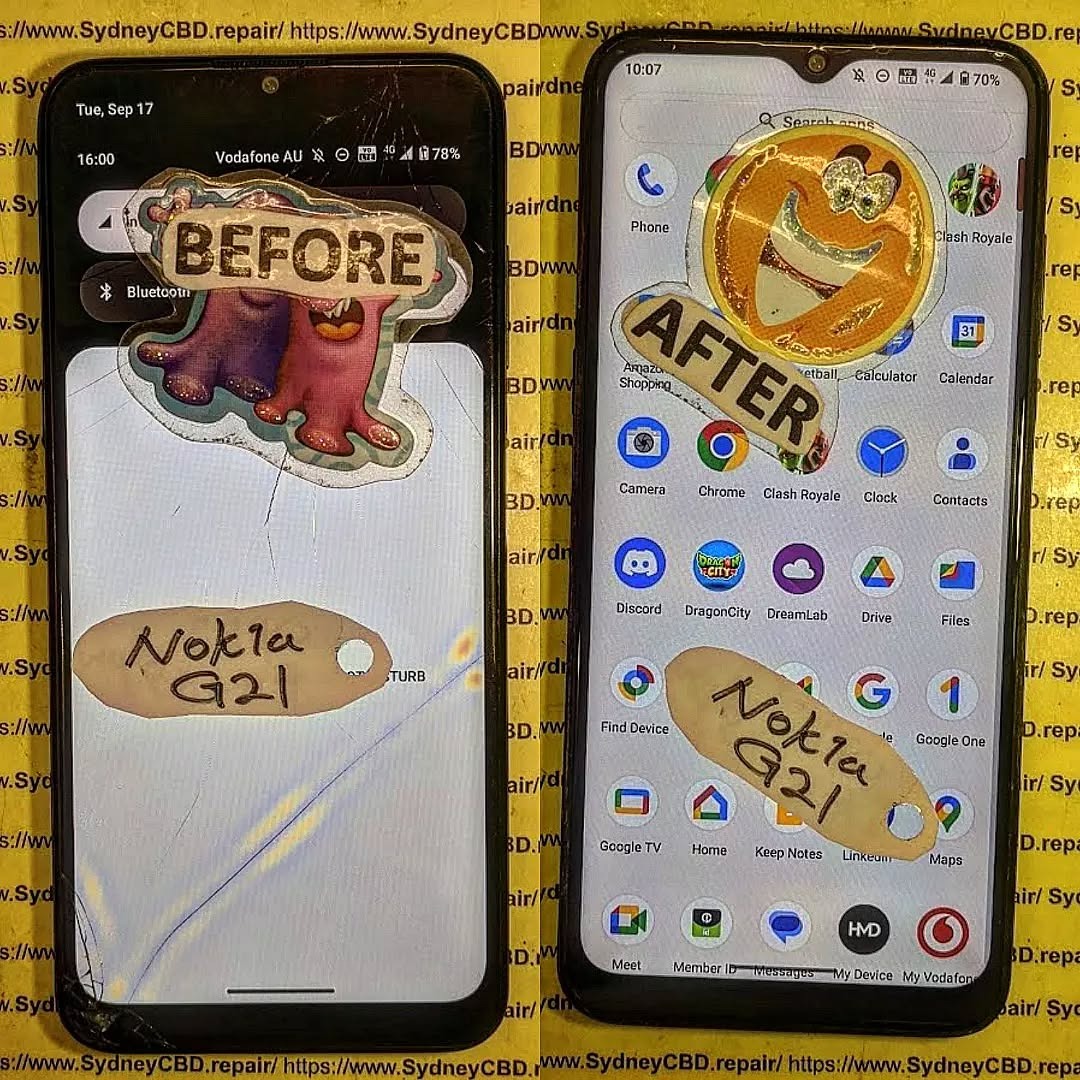
Nokia G21 Cracked LCD Screen Replacement And Frame Separation Guide: 7 Powerful Repair Tips
Introduction
The Nokia G21 cracked LCD screen replacement process requires patience, the correct replacement assembly, suitable tools, and careful handling of the phone’s internal components. A cracked display doesn’t always mean the entire phone is beyond repair. In many cases, a damaged Nokia G21 can be restored by replacing the screen assembly and, when necessary, addressing damage or separation around the frame.
The Nokia G21 features a 6.5-inch display with a 1600 × 720 resolution and an adaptive refresh rate of up to 90 Hz. It also uses a polycarbonate rear panel, while the power/lock button incorporates the fingerprint sensor. These details matter during repair because the display, frame, buttons, connectors, and internal components all need to be protected during disassembly.
If your Nokia G21 has been dropped, sat on, or hit against a hard surface, you may see anything from a small glass crack to complete display failure. The good news is that understanding the type of damage makes it much easier to decide whether you need a screen replacement, frame repair, or a more extensive inspection.
Before reaching for a repair kit, it’s important to understand the difference between cover glass damage, LCD damage, and frame damage.
A crack limited to the outer glass may leave the image and touch functionality working normally. However, if the display has black spots, coloured lines, flickering, bleeding, dead areas, or no image at all, the display assembly itself may be damaged.
Frame separation adds another complication. A strong impact can deform the chassis or cause the display assembly to lift away from its mounting surface. In that situation, simply installing a new screen may not produce a durable repair.
The Nokia G21’s official documentation identifies several model variants, including TA-1404, TA-1405, TA-1412, TA-1415 and TA-1418. Checking the exact model before ordering a replacement component is therefore a sensible first step.
1. Diagnose the Nokia G21 Before Opening It
A proper diagnosis can save you from replacing a perfectly functional component.
If the phone still powers on, begin by checking whether you can see the Nokia logo, lock screen, or Android interface. Next, test touch response across the entire display.
Look carefully for:
Black or completely dark sections.
Vertical or horizontal lines.
Flickering.
Bright spots.
Ink-like LCD bleeding.
Ghost touches.
Areas where touch doesn’t respond.
A screen that is lifting from the frame.
A housing that has become visibly bent.
Gaps between the screen and chassis.
If the display works perfectly except for cracked glass, the situation is different from a phone with a completely dead screen.
Why Diagnosis Matters
It’s tempting to assume that every cracked screen needs the same repair. That’s not necessarily the case.
For example, a phone may have a cracked screen but an undamaged frame. Another device may look similar from the front but have a badly distorted chassis underneath. Installing a replacement display onto a distorted frame can create pressure points and may result in another broken screen.
That’s why frame condition should be checked before final installation.
2. Back Up Your Data Before Screen Replacement
If the Nokia G21 still works, back up important information before beginning the repair.
Ideally, transfer:
Photos and videos.
Contacts.
Important documents.
WhatsApp or other messaging backups.
Authentication information.
Notes.
Important application data.
A screen repair usually doesn’t require deleting the phone’s data. Nevertheless, accidents can happen during any hardware repair. A damaged connector, unexpected power problem, or additional impact could leave the device unusable.
Backing up first is a simple bit of housekeeping that can prevent a major headache later.
3. Prepare the Correct Tools and Replacement Parts
A successful Nokia G21 screen replacement starts before the phone is opened.
Typical repair equipment may include:
Replacement Nokia G21 display assembly.
Precision screwdriver set.
Plastic opening picks.
Plastic spudger.
Suction tool where appropriate.
Tweezers.
Heat source designed for electronics repair.
Cleaning materials suitable for electronic assemblies.
Replacement adhesive.
ESD-safe work equipment.
Soft protective work mat.
Avoid using excessive heat. The objective is to soften adhesive, not cook the internal components.
It’s also important to avoid metal tools around exposed connectors and sensitive circuitry whenever possible. A plastic opening tool is generally safer for separating components.
Choosing the Replacement Screen
Replacement screens can differ in quality.
Before purchasing, verify:
The replacement is specifically compatible with the Nokia G21.
The connector configuration matches the original.
The assembly is intended for the correct model variant.
The display has been inspected or tested.
The seller provides appropriate information about the part.
The replacement doesn’t have visible damage.
The frame dimensions and mounting points match the original assembly.
HMD’s repair information explains that official self-repair programs and parts are available for certain HMD devices through designated partners, while not every Nokia model has the same self-repair support. The company’s current self-repair information specifically highlights devices such as the Nokia G22 and Nokia G42 5G rather than listing the G21 as one of its designated self-repair models.
That distinction is worth remembering if you’re looking for official repair documentation.
4. Safely Open the Nokia G21
Opening the phone is one of the stages where rushing can turn a straightforward repair into a complicated one.
Before opening the device:
Power it down completely.
Remove any SIM or memory card tray as appropriate.
Work on a clean, well-lit surface.
Keep screws organised.
Photograph cable positions before disconnecting them.
Avoid pulling on flex cables.
Don’t force a component that refuses to move.
A teardown of the Nokia G21 screen assembly demonstrates a sequence involving removal of the rear panel, removal of the middle frame, battery disconnection, disconnection of flex cables, and removal of the screen from the case.
This highlights an important point: screen replacement isn’t simply a matter of prying the cracked display from the front and snapping another one into place.
Why Battery Disconnection Matters
Once the phone is opened, the battery should be treated as a critical component.
Disconnecting power before manipulating display connectors helps reduce the risk of electrical damage. Never puncture, bend, crush, or excessively heat a lithium-ion battery.
If the battery is swollen, leaking, badly dented, or producing unusual heat, stop the repair and have the device handled by a qualified technician.
5. Nokia G21 Cracked LCD Screen Removal
Once the phone is safely opened and powered down, the damaged display can be separated from the chassis.
The adhesive holding the screen needs to be loosened carefully. Controlled heat may help soften adhesive, but temperature and application time must be managed carefully.
Work Around the Display Edge
Insert a suitable plastic opening tool gradually around the perimeter.
Don’t push the tool too deeply.
Behind the display are delicate components and flex connections. Excessive pressure can damage something that wasn’t broken in the original accident.
Work slowly around the perimeter rather than trying to lift the display in one large movement.
Disconnect the Display Flex
Once the screen is sufficiently separated, locate the display connector.
The connector should be released carefully using an appropriate plastic tool. Never yank the display cable.
The general principle used in professional phone repair is simple: disconnect connectors by lifting the connector itself, not by pulling on the cable.
Modern HMD repair documentation for other models similarly stresses careful handling of display connectors and recommends using a plastic tool to disconnect them.
After the damaged screen has been removed, inspect the phone before installing anything.
6. Inspect the Frame for Separation or Bending
This is one of the most important stages of the entire repair.
A replacement screen won’t sit correctly if the underlying frame is damaged.
Look at the chassis from several angles. Check whether:
The frame is twisted.
One corner is higher than another.
The display mounting surface is uneven.
Adhesive residue is preventing proper seating.
Clips or mounting points are damaged.
The screen gap changes around the perimeter.
The phone has a visible bow or bend.
The replacement display rocks when placed into position.
What Is Frame Separation?
Frame separation occurs when the display or housing no longer sits securely against its intended mounting surface.
Sometimes this happens because the original adhesive has failed. Other times, an impact has bent the frame.
If the frame itself is distorted, simply adding more adhesive isn’t a proper solution.
More adhesive can actually hide the underlying problem while putting additional stress on the new display.
When the Frame Should Be Replaced
A severely bent or cracked frame may need replacement rather than straightening.
Trying to force a badly distorted metal or plastic structure back into shape can cause further damage. The correct solution depends on the extent and location of the damage.
A technician should also inspect whether the impact has affected internal components.
7. Clean and Prepare the Mounting Surface
Before fitting a new display, remove old adhesive and loose debris.
The mounting surface should be:
Clean.
Dry.
Flat.
Free of broken glass.
Free of loose adhesive.
Free of dust.
Don’t scrape aggressively against delicate components.
This stage may seem boring, but it’s one of those little jobs that makes a big difference. A clean mounting surface helps the new screen sit evenly and reduces the possibility of pressure points.
8. Test the Replacement Display Before Final Installation
Never rush straight into permanent installation.
If practical for the replacement part and repair procedure, connect the replacement display temporarily and perform a functional test before final bonding.
Check:
Display brightness.
Touch response.
Screen uniformity.
Dead pixels or unusual areas.
Colour consistency.
Front camera clearance.
Proximity-related functionality where applicable.
Fingerprint functionality.
Power and volume buttons.
Charging.
General phone operation.
Testing before final installation gives you a much easier opportunity to identify a defective replacement component.
If the replacement doesn’t work, don’t immediately assume the part is faulty. Recheck the connector, cable seating, battery connection, and surrounding components.
9. Install the Replacement Screen Carefully
Once the replacement display has passed testing, prepare it for final installation.
Remove protective films only when appropriate and keep dust away from adhesive surfaces.
Position the display carefully so that:
The edges align with the frame.
The connector reaches its intended location.
The camera opening is correctly positioned.
The display isn’t sitting on debris.
No flex cable is trapped underneath the assembly.
The display should sit naturally within the frame rather than requiring significant force.
HMD repair documentation for other models demonstrates the same basic principle: the display cable must pass through its intended opening, the screen needs to be seated flush with the frame, and the assembly should be secured without forcing it. (HMD – Human Mobile Devices)
10. Avoid Excessive Adhesive
More adhesive isn’t necessarily better.
Too much adhesive can:
Enter unwanted areas.
Make future repairs harder.
Create uneven pressure.
Prevent the screen from sitting flat.
Interfere with buttons or other components.
Use the appropriate adhesive solution for the replacement assembly and follow the part manufacturer’s instructions.
A professional repair should look clean both inside and outside the device.
11. Reassemble the Nokia G21
After the screen is properly seated, reassemble the phone in the reverse order of disassembly.
Reconnect the required components carefully.
Before closing the phone completely, perform another functional check.
Test:
Display.
Touch.
Power button.
Volume controls.
Fingerprint sensor.
Front camera.
Rear cameras.
Speaker.
Microphone.
USB-C charging.
Headphone connection if applicable.
SIM detection.
Wi-Fi and Bluetooth.
Mobile network connectivity.
The Nokia G21 user guide confirms the presence of the USB connector, headset connector, cameras, volume keys, power/lock key and fingerprint sensor, making these useful components to verify after a screen repair.
12. Common Mistakes During Nokia G21 Screen Replacement
Even experienced DIY repairers can make mistakes.
Using Too Much Heat
Heat can soften adhesive, but excessive heat can damage internal components or the battery.
Using a Metal Pry Tool
A metal tool can scratch components, damage connectors, or create electrical shorts.
Pulling the Screen Too Quickly
The display cable may still be connected.
Ignoring Frame Damage
A new screen mounted onto a damaged frame may not last.
Skipping the Pre-Installation Test
If the replacement screen is faulty, discovering the problem after permanent installation creates unnecessary work.
Forgetting Small Screws
Different screws can have different lengths and positions. Keep them organised.
Reusing Damaged Adhesive
Old adhesive may not provide the support required for the new display.
13. Professional Nokia G21 Screen Repair vs DIY Repair
DIY repair can look attractive because it may reduce labour costs. However, the actual difficulty depends heavily on your experience and the condition of the phone.
A professional repair is particularly useful when:
The phone has severe impact damage.
The frame is bent.
The display is completely dead.
The phone has suffered liquid exposure.
The battery appears damaged.
Connectors are damaged.
You don’t have appropriate tools.
You need the repair completed quickly.
The device contains important data.
HMD notes that customers can use its support resources and repair channels, while official self-repair availability depends on the specific device.
For a complicated frame-separation repair, professional inspection can be especially valuable because the technician can assess the condition of the chassis and internal components rather than treating the screen as an isolated part.
14. How to Tell If Your Nokia G21 Needs More Than an LCD Replacement
A damaged display isn’t always the only problem.
Look for these warning signs:
The Phone Won’t Turn On
The impact may have affected the battery, motherboard, charging system, or another internal component.
The Phone Restarts Repeatedly
This may indicate damage beyond the display.
The Camera Doesn’t Work
Check whether the camera connector or surrounding components were disturbed during the impact or repair.
The Frame Is Clearly Bent
A bent chassis should be assessed before a replacement screen is installed.
The Battery Is Swollen
Stop the repair immediately and don’t continue using or charging the phone until the battery is professionally assessed.
The Screen Keeps Lifting
This can indicate poor adhesive, debris under the display, frame distortion, or another structural issue.
15. Nokia G21 Screen Replacement Quality Checklist
After completing the repair, use this checklist:
Test
What to check
Display
Clear image without lines or flicker
Touch
Full response across the screen
Frame
Screen sits evenly
Adhesive
No visible lifting
Camera
Front and rear cameras work
Fingerprint
Sensor responds normally
Buttons
Power and volume operate correctly
Charging
USB-C connection works
Audio
Speaker and microphone function
Network
SIM and mobile connection work
Wi-Fi
Connects normally
Bluetooth
Pairs with accessories
Proximity
Functions normally during calls
Housing
No major gaps or movement
A good repair isn’t simply one where the phone turns on. The goal is to return the device to reliable everyday operation.
Frequently Asked Questions
1. Can a cracked Nokia G21 LCD be replaced?
Yes. A damaged Nokia G21 display can be removed and replaced with a compatible replacement assembly. The exact repair depends on whether the damage is limited to the display or also affects the frame, connectors, or other internal components.
2. Does a cracked screen always mean the LCD is damaged?
No. The outer glass can crack while the display and touch layer continue working. However, black spots, lines, flickering, dead areas, or touch problems can indicate deeper display damage.
3. What should I do if my Nokia G21 screen is separating from the frame?
Don’t simply push it back into place or add large amounts of glue. First determine why it separated. The adhesive may have failed, or the frame may have been bent by an impact. A professional inspection is recommended when the chassis is distorted.
4. Can I replace the Nokia G21 screen myself?
It may be possible for an experienced repairer with suitable tools and a compatible part. However, the repair involves opening the phone, disconnecting internal components, removing adhesive, and handling a lithium-ion battery. Anyone without appropriate experience should consider professional repair.
5. How can I prevent the replacement screen from separating?
Use the correct replacement part, clean the mounting surface thoroughly, make sure the frame is straight, use suitable adhesive, and allow the adhesive to set according to the product instructions.
6. Should I test the new screen before gluing it?
Yes. When the repair procedure and replacement assembly allow it, test the display and touch functionality before permanently installing it. This can prevent unnecessary rework if the replacement component has a problem.
7. Can a bent Nokia G21 frame cause another screen to crack?
Yes. A distorted mounting surface can place uneven pressure on a replacement display. If the frame is visibly bent, it should be assessed before installing a new screen.
8. What tools are needed for a Nokia G21 screen repair?
Tools vary depending on the repair method and replacement assembly, but precision screwdrivers, plastic opening tools, tweezers, suitable adhesive-removal equipment, and an appropriate heat source are commonly used in professional phone repair.
9. Does Nokia still provide support for the G21?
HMD continues to provide Nokia phone support resources and user guides, and its support website lists the Nokia G21 among its documented devices. The G21 itself is now listed as discontinued on HMD’s product page.
10. Is frame separation more serious than a simple cracked screen?
It can be. A cracked display may be limited to the screen assembly, while frame separation can indicate structural damage. If the frame is bent or damaged, replacing only the display may not provide a reliable long-term repair.
Conclusion: Restore Your Nokia G21 the Right Way
A Nokia G21 cracked LCD screen replacement is more than simply removing broken glass and installing another display. A reliable repair starts with accurate diagnosis and continues with careful disassembly, battery safety, connector protection, frame inspection, proper surface preparation, display testing, and precise reassembly.
Frame separation deserves particular attention. If the chassis is bent or the mounting surface has been damaged, installing a new screen without correcting the underlying problem can lead to poor alignment, display pressure, adhesive failure, or another cracked screen.
For DIY repairers, the biggest lesson is simple: don’t rush the job. Keep track of screws, protect flex cables, use suitable plastic tools, control heat carefully, and test the replacement display before final installation.
For customers who aren’t comfortable opening a smartphone, professional repair is often the more straightforward option. A trained technician can inspect the display, frame, connectors, battery, and other components together, helping ensure that the repair addresses the actual cause of the problem rather than just the visible crack.
The Nokia G21 was designed as a durable everyday smartphone, and a damaged screen doesn’t necessarily mean the end of the device. With the right replacement part, careful workmanship, and a proper frame inspection, a damaged G21 can often return to normal everyday use.
David from Sydney CBD Repair Centre – The Best place to fix mobile phones as 7 Years In A Row! Top Mobile Phone Repair In Sydney. More than 2000 Positive Reviews on Google and Same Day Repairs.
We take pride in delivering exceptional repair services for all major phone brands including Apple, Samsung, Google, and more. Our expert technicians use only genuine parts and offer 90days warranty on repairs. Located in the heart of Sydney CBD, we’re your one-stop solution for all mobile device repairs.
Our commitment to excellence has earned us the trust of thousands of satisfied customers. Whether it’s a cracked screen, battery replacement, or water damage repair, we handle it all with professional care and expertise. Walk in today and experience why we’re Sydney’s #1 choice for mobile phone repairs.
Visit us for:
✓ Same Day Express Repairs
✓ Genuine Parts Guarantee
✓ Professional Technicians
✓ Competitive Pricing
✓ 2000+ 5-Star Google Reviews
✓ 7-Time Award Winner for Best Phone Repairs
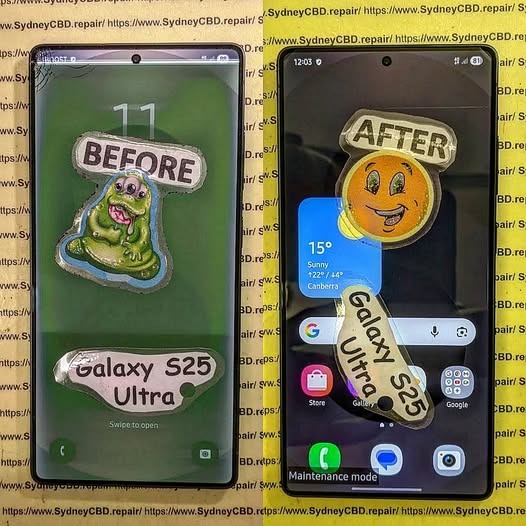
MICROSURGERY ON THE EDGE: Samsung Galaxy S25 Ultra Digitizer Flex Cable Restoration + 10 Power Tips
Introduction to Digitizer Flex Cables
When it comes to the Samsung Galaxy S25 Ultra, the digitizer flex cable is one of the most critical components that ensures seamless touch functionality. This tiny, ribbon-like connector serves as the nervous system of your phone’s display, transmitting your every swipe and tap from the glass surface to the motherboard. Damage to this component can manifest as unresponsive touch, ghost touches, or complete screen failure, making understanding its function and restoration process essential.
Many users underestimate the fragility of the flex cable. Even minor bending, accidental punctures, or exposure to moisture can compromise its integrity. Fortunately, with precision tools, careful techniques, and a step-by-step microsurgical approach, the Samsung Galaxy S25 Ultra digitizer flex cable can be restored, saving both cost and data.
In this article, we’ll explore the anatomy of the digitizer flex cable, common causes of damage, essential tools for repair, detailed restoration steps, troubleshooting, preventive measures, and a real-world case study from the Sydney CBD Repair Centre. By the end, you’ll have a comprehensive understanding of how to tackle one of the trickiest yet most rewarding repairs for the S25 Ultra.
Anatomy of the Samsung Galaxy S25 Ultra Digitizer Flex Cable
The digitizer flex cable is more than just a connector—it’s a complex network of conductive traces designed to relay touch input with incredible precision. In the S25 Ultra, it consists of:
Connector pins: Tiny metallic contacts that slot into the motherboard.
Ribbon pathways: Flexible circuits that run across the back of the OLED panel.
Reinforcement layers: Thin polymer layers that prevent accidental tearing.
Integrated sensors: In some models, pressure-sensitive areas for advanced touch features.
Understanding these components is crucial because any improper handling during repair can permanently damage the cable. Even a slight misalignment when reattaching can lead to partial touch failure or flickering.
Common Causes of Digitizer Flex Cable Damage
Flex cables are surprisingly fragile. Here are the most frequent culprits behind failure:
Physical stress – Dropping, bending, or squeezing the phone can crack the ribbon traces.
Water and moisture exposure – Liquids cause corrosion of the metallic contacts.
Poor manufacturing tolerances – Rare, but occasional defects in solder points or connectors.
Improper DIY repair attempts – Without proper tools, flex cables are prone to tearing.
Heat exposure – Excessive heat during charging or soldering can warp the cable.
Identifying the root cause helps technicians determine whether a full replacement or cleaning-and-restoration approach is required.
Precision is everything when restoring a Samsung S25 Ultra digitizer flex cable. Here’s what professionals use:
Tool
Purpose
Anti-static wrist strap
Prevents electrostatic discharge (ESD) from frying the motherboard
Microscrewdriver set
For safely removing tiny screws without damaging the chassis
Spudgers & plastic picks
Gently separate screen and body without scratches
Magnifying microscope
Inspect cable traces for breaks or corrosion
Isopropyl alcohol (99%)
Cleans contacts and removes residue
Fine-tip tweezers
Handle delicate flex cable safely
Heat gun / iOpener
Softens adhesive without overheating the panel
Multimeter
Tests continuity of flex traces
Essential Safety Precautions
Always work on an ESD-safe mat to prevent static damage.
Keep the workspace dust-free and well-lit to avoid contamination.
Avoid excessive bending; flex cables can tear under slight pressure.
Always power off the device before attempting any disassembly.
These precautions reduce the risk of permanent damage and ensure a smooth restoration process.
Step-by-Step Restoration Process
Disassembly of the S25 Ultra Screen
Power off the device and remove any SIM cards or accessories.
Heat the edges using a heat gun or iOpener to soften the adhesive.
Use plastic picks or spudgers to gently separate the OLED screen from the frame.
Lift the screen carefully, taking note of ribbon cable locations to avoid tension.
Disconnect the battery first, followed by the digitizer and display connectors.
Pro tip: Avoid using metal tools directly on the OLED panel to prevent scratches or dead pixels.
Flex Cable Diagnosis and Cleaning
Inspect the flex cable under a microscope.
Look for broken traces, kinks, or corrosion.
Clean contacts with 99% isopropyl alcohol and a lint-free cloth.
Use a multimeter to check continuity along the flex cable. Broken pathways often indicate the need for replacement rather than repair.
Installing the New Digitizer Flex Cable
Align the new cable carefully with the connectors.
Press gently until it clicks into place.
Avoid twisting or bending; ensure the cable follows the original path without tension.
Reconnect the battery temporarily to test touch response before final assembly.
Reassembling the Device Safely
Reapply adhesive strips or use liquid adhesive sparingly.
Replace the screen carefully, ensuring even pressure to avoid air bubbles.
Reinsert all screws and connectors.
Power on the device to confirm full functionality.
Testing and Calibration
After assembly, testing is critical:
Perform touch sensitivity tests across all areas of the screen.
Check for ghost touches or unresponsive zones.
Run calibration software if necessary to ensure the touch controller is fully aligned.
Repeat testing after 24 hours to catch any delayed issues caused by adhesive settling.
Troubleshooting Common Post-Repair Issues
Even experienced technicians encounter issues post-repair:
Issue
Cause
Solution
Ghost touches
Flex cable misalignment or debris
Re-seat and clean contacts
Partial touch failure
Broken trace undetected
Replace flex cable
Flickering screen
Loose connectors
Secure and test connections
Screen unresponsive
ESD damage
Evaluate motherboard; may need replacement
Proactive troubleshooting ensures the repair holds up over time.
Preventive Measures to Extend Flex Cable Life
Always use a protective case to avoid accidental bends.
Keep your phone away from moisture and extreme heat.
Avoid DIY screen repairs unless trained.
Clean the screen and edges carefully to prevent debris accumulation.
Regularly inspect for signs of flex cable wear, especially after drops or impacts.
Cost Analysis: DIY vs Professional Repair
Option
Average Cost
Pros
Cons
DIY Repair
$50-$120
Lower cost, hands-on learning
High risk of permanent damage
Professional Repair
$180-$300
Warranty, genuine parts, expertise
Higher upfront cost
Professional repairs like those at Sydney CBD Repair Centre offer peace of mind with guaranteed functionality and genuine parts.
Case Study: Sydney CBD Repair Centre Success Stories
At Sydney CBD Repair Centre, technicians handle complex microsurgeries on S25 Ultra devices daily. Here’s a recent success:
Issue: Unresponsive digitizer due to flex cable tear.
Solution: Complete microsurgical restoration using genuine replacement cable.
Result: Full touch functionality restored, same-day service, 90-day warranty.
Thousands of satisfied customers trust the centre for high-risk repairs, highlighting the importance of experience, precision, and quality parts.
Frequently Asked Questions (FAQs)
Q1: Can a damaged flex cable be repaired without replacement? A1: Minor corrosion or dirt can sometimes be cleaned, but torn traces usually require a replacement for reliable performance.
Q2: How long does an S25 Ultra digitizer flex cable repair take? A2: Professional repair typically takes 2–3 hours, including diagnosis, restoration, and testing.
Q3: Is DIY repair safe for beginners? A3: Not recommended. Flex cables are fragile, and incorrect handling can cause permanent screen or motherboard damage.
Q4: How can I prevent future flex cable damage? A4: Use protective cases, avoid bending, and keep the device away from liquids and heat.
Q5: Will a replacement cable affect touch sensitivity? A5: Genuine replacement cables restore full touch sensitivity. Non-genuine parts may result in ghost touches or lag.
Q6: Does professional repair come with a warranty? A6: Yes. Sydney CBD Repair Centre offers a 90-day warranty on all flex cable repairs, ensuring peace of mind.
Conclusion
The Samsung Galaxy S25 Ultra digitizer flex cable is a delicate but vital component. Proper restoration requires precision, specialized tools, and careful adherence to microsurgical techniques. Whether you’re attempting a DIY fix or choosing a professional service, understanding the anatomy, causes of damage, restoration steps, and preventive measures ensures long-term performance.
For complex repairs, professional assistance from experienced technicians, like those at Sydney CBD Repair Centre, guarantees reliability, genuine parts, and peace of mind. With the right approach, your S25 Ultra can continue delivering a smooth, responsive touch experience for years to come.
David from Sydney CBD Repair Centre – The Best place to fix mobile phones as 7 Years In A Row! Top Mobile Phone Repair In Sydney. More than 2000 Positive Reviews on Google and Same Day Repairs.
We take pride in delivering exceptional repair services for all major phone brands including Apple, Samsung, Google, and more. Our expert technicians use only genuine parts and offer 90days warranty on repairs. Located in the heart of Sydney CBD, we’re your one-stop solution for all mobile device repairs.
Our commitment to excellence has earned us the trust of thousands of satisfied customers. Whether it’s a cracked screen, battery replacement, or water damage repair, we handle it all with professional care and expertise. Walk in today and experience why we’re Sydney’s #1 choice for mobile phone repairs.
Visit us for:
✓ Same Day Express Repairs
✓ Genuine Parts Guarantee
✓ Professional Technicians
✓ Competitive Pricing
✓ 2000+ 5-Star Google Reviews
✓ 7-Time Award Winner for Best Phone Repairs
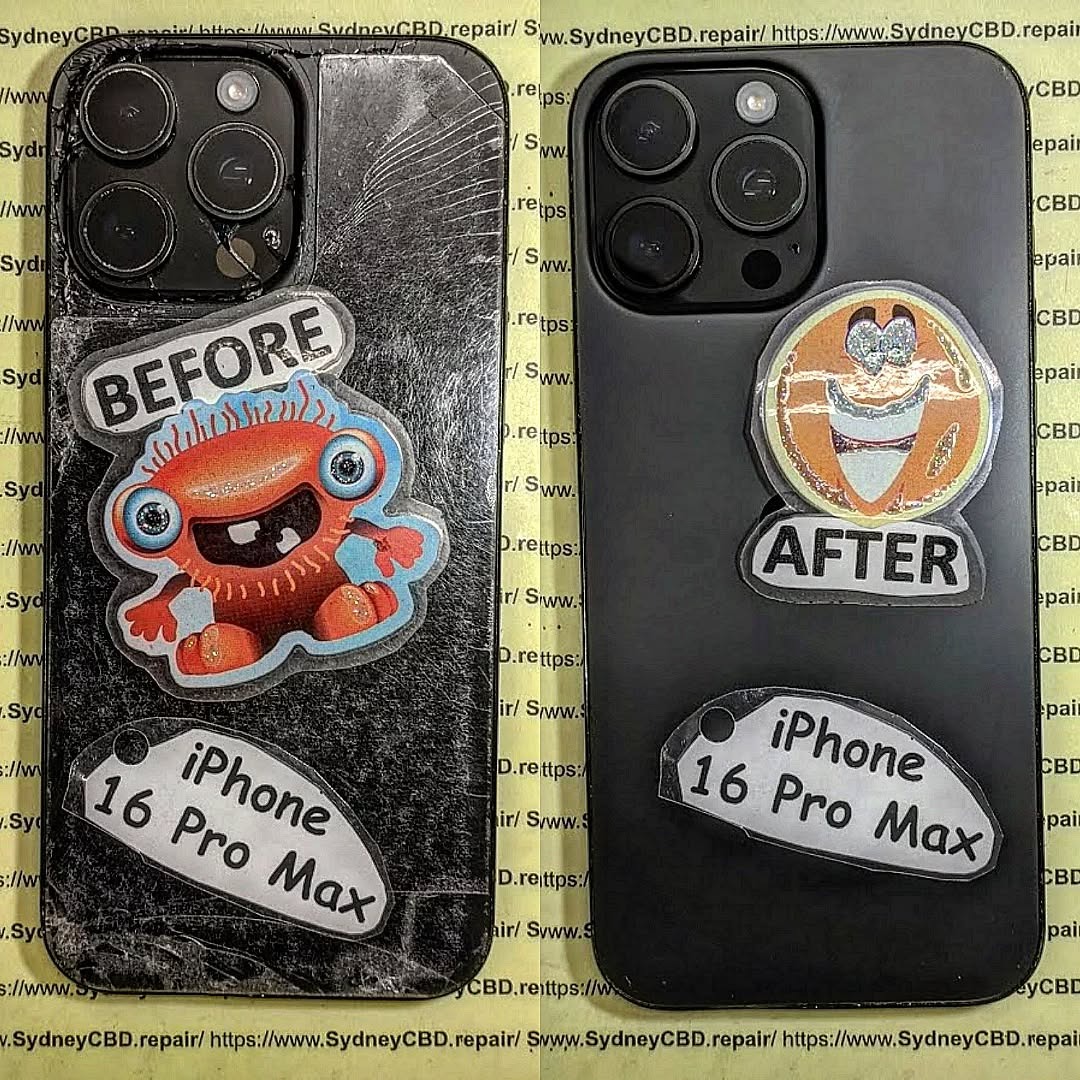
The Unseen Damage: The Hidden Truths of Smartphone Rear Cover Repairs – Ultimate Guide + 21 Expert Insights
Introduction
Smartphones are built to look sleek and feel durable, but appearances can be deceiving. A cracked or damaged rear cover often seems like a minor, cosmetic issue—something you can live with until your next upgrade. However, the reality is far more complex. Beneath the surface, unseen damage can quietly develop, putting your phone’s internal components, performance, and safety at risk. What starts as a small crack can lead to moisture intrusion, battery stress, signal problems, and costly repairs down the line.
As modern smartphones rely on precision engineering and tightly sealed designs, the rear cover plays a critical protective role. When that protection is compromised, even slightly, the entire device can be affected. That’s why understanding the hidden truths of smartphone rear cover repairs is essential for every phone user, whether you own the latest flagship or a trusted older model.
In this article, we’ll uncover what really happens when a phone’s rear cover is damaged, why these issues are often overlooked, and how professional repairs can restore both function and peace of mind. By the end, you’ll have clear, practical insight into why timely rear cover repair isn’t just smart—it’s necessary.
Smartphones look tough, sleek, and dependable. Yet, unseen damage often lurks beneath the surface, especially after rear cover damage. Smartphone rear cover repairs aren’t just cosmetic fixes. They protect internal components, preserve resale value, and maintain safety. In the first moments after a drop, hairline cracks may seem harmless. However, they can trigger moisture ingress, heat retention, and internal stress.
This guide breaks down the hidden truths of smartphone rear cover repairs in plain, practical language. You’ll learn why ignoring rear cover damage is risky, when professional repair matters, and how to prevent repeat issues. Let’s get into it.
The rear cover seals and protects your phone’s internals—battery, logic board, cameras, antennas. Modern phones rely on tight tolerances. Even minor rear cover damage can compromise water resistance and signal strength. That’s why unseen damage from a cracked rear panel can snowball fast.
A single drop may not shatter glass, but micro-fractures form. Over time, pressure from pockets or heat cycles spreads cracks. That’s classic unseen damage—invisible until it’s a problem.
Heat, Moisture, and Chemical Exposure
Heat weakens adhesives. Moisture creeps in through cracks. Cleaning chemicals degrade coatings. Together, they accelerate internal corrosion.
Unseen Damage Explained
Structural Weakness Beneath the Surface
Cracks reduce structural rigidity. This shifts stress to the frame and battery. Adhesives fail, causing separation and rattles.
Internal Component Risks
Battery swelling and thermal issues
Camera dust ingress and focus errors
Antenna misalignment causing signal drops
These aren’t obvious at first, but they’re costly later.
Why Rear Cover Damage Is Often Ignored
Cosmetic vs Functional Misconceptions
Many assume rear cover damage is “just cosmetic.” In reality, it’s a protective shell failure. Ignoring unseen damage can void warranties and reduce trade-in value.
Professional vs DIY Rear Cover Repairs
Risks of DIY Fixes
DIY kits look tempting. However, improper heat application can damage batteries. Poor sealing ruins water resistance. Misaligned cameras are common.
Benefits of Professional Repair
Professionals use calibrated heat, genuine parts, and resealing techniques that restore integrity. Shops like Sydney CBD Repair Centre follow manufacturer-grade procedures and provide warranties.
The Repair Process Step-by-Step
Diagnosis and Disassembly
Technicians inspect for unseen damage, test components, and safely remove the rear cover using controlled heat.
Replacement and Resealing
A new rear cover is fitted, adhesives cured, and pressure-tested to ensure durability.
Costs, Value, and Longevity
Short-Term Savings vs Long-Term Costs
Skipping repair saves money today but risks expensive failures tomorrow. Professional rear cover repairs extend device life and protect resale value.
Preventing Future Rear Cover Damage
Protective Habits and Accessories
Use shock-absorbing cases
Avoid extreme heat
Clean with phone-safe solutions
Don’t pocket phones with keys
For general device care guidance, see Apple’s official iPhone safety and handling advice
FAQs
1. Is rear cover damage purely cosmetic?
No. It often leads to unseen damage like moisture ingress and battery issues.
2. Can I keep using my phone with a cracked back?
You can, but it’s risky and may worsen internal damage.
3. How long does a rear cover repair take?
Usually same day with professional service.
4. Will repair restore water resistance?
A professional reseal can restore protection close to factory standards.
5. Are genuine parts necessary?
Yes. They ensure fit, durability, and safety.
6. Is DIY repair ever recommended?
Only for experienced technicians. For most users, professional repair is safer.
Conclusion
Smartphone rear cover repairs address more than looks. They stop unseen damage, protect vital components, and extend device lifespan. Acting early saves money, stress, and data. If your phone’s back is cracked—even slightly—don’t wait. Professional repair is an investment in reliability and peace of mind.
David from Sydney CBD Repair Centre – The Best place to fix mobile phones as 7 Years In A Row! Top Mobile Phone Repair In Sydney. More than 2000 Positive Reviews on Google and Same Day Repairs.
We take pride in delivering exceptional repair services for all major phone brands including Apple, Samsung, Google, and more. Our expert technicians use only genuine parts and offer 90days warranty on repairs. Located in the heart of Sydney CBD, we’re your one-stop solution for all mobile device repairs.
Our commitment to excellence has earned us the trust of thousands of satisfied customers. Whether it’s a cracked screen, battery replacement, or water damage repair, we handle it all with professional care and expertise. Walk in today and experience why we’re Sydney’s #1 choice for mobile phone repairs.
Visit us for:
✓ Same Day Express Repairs
✓ Genuine Parts Guarantee
✓ Professional Technicians
✓ Competitive Pricing
✓ 2000+ 5-Star Google Reviews
✓ 7-Time Award Winner for Best Phone Repairs
Reason why are some phone screens so expensive to replace? The breakdown + Ultimate Guide + 7 Insights
Introduction
Smartphone screens are the gateway to your digital world. From checking emails to streaming videos, your screen is the most-used part of your device—and also the most vulnerable. But have you ever wondered why replacing a cracked or damaged phone screen can cost hundreds of dollars, sometimes even more than the device itself?
The answer isn’t as simple as “glass is expensive.” Modern phone screens are sophisticated pieces of technology, combining high-resolution displays, touch-sensitive layers, protective glass, and advanced features like high refresh rates, HDR support, and under-display fingerprint sensors. Each layer and feature adds complexity—and cost—to repair or replacement.
In this comprehensive guide, we’ll break down why some phone screens are so expensive to replace, explore the technology behind these screens, examine factors driving repair costs, and share expert tips on protecting your device. Whether you’re considering a DIY fix or professional service, understanding these factors will help you make informed choices and potentially save hundreds on repairs.
Smartphone screens are one of the most fragile and essential components of modern devices. Yet, replacing a cracked or damaged screen can sometimes cost more than you’d expect. If you’ve ever wondered why, this guide will unpack the hidden complexities behind screen prices, explain technology-driven costs, and provide practical advice for maintenance and repair.
A phone screen isn’t just a slab of glass. It’s a sophisticated assembly that integrates multiple layers and technologies, each contributing to cost and repair complexity.
Display Types: LCD vs. OLED vs. AMOLED
The display panel is the heart of the screen. There are three primary types:
LCD (Liquid Crystal Display): Traditional and cost-effective. Used in older phones. Requires a backlight.
OLED (Organic Light-Emitting Diode): Offers deeper blacks and higher contrast. Each pixel emits its own light, which allows thinner displays but costs more to manufacture.
AMOLED (Active Matrix OLED): An advanced version of OLED with faster refresh rates and improved efficiency. Premium devices like high-end Samsung Galaxy models use this, driving up replacement prices.
Touch Sensor Technology
Most modern screens integrate touch sensors directly with the display (in-cell or on-cell technology). Repairing or replacing these screens requires high precision to ensure touch sensitivity remains accurate.
Protective Glass Layers
Tempered glass or Gorilla Glass adds durability but also increases replacement complexity. Higher-end models may have multiple layers, including anti-reflective or scratch-resistant coatings, adding to costs.
Multiple factors beyond just the materials affect why screens are pricey to replace.
Brand Premiums and Original Parts
High-demand brands such as Apple and Samsung charge a premium for original parts. Non-genuine or third-party parts are cheaper but may compromise display quality or touch responsiveness.
Labor Costs and Technician Expertise
Replacing modern smartphone screens isn’t as simple as swapping glass. Technicians must carefully disassemble devices, separate delicate components, and reassemble without damaging internal hardware. Skilled labor contributes significantly to overall costs.
Supply Chain and Availability
Some devices have limited production or use proprietary components. For example, the latest foldable phones often have screens that are only produced in small batches, which drives up prices due to scarcity.
Advanced Features Increasing Complexity
Features such as:
High refresh rate (120Hz+)
HDR support
Under-display fingerprint sensors
Curved or edge-to-edge designs
…all make screens more expensive to manufacture and repair. Even slight misalignment during replacement can cause malfunctions.
Repair vs. Replacement: What You Need to Know
Risks of DIY Repairs
While tempting to save money, DIY screen repairs carry risks:
Damage to other components
Reduced touch responsiveness
Warranty voiding
DIY repair kits often lack precision tools or quality materials, increasing the chance of failure.
Warranty Implications
Most manufacturers only honor warranties if original parts are used and repairs are done by certified technicians. Replacing the screen with non-genuine parts can void coverage.
Choosing Professional Repair Services
Professional services like Sydney CBD Repair Centre ensure genuine parts, expert labor, and warranties. Choosing the right repair service reduces risk and often saves money in the long run.
Technology Trends Affecting Screen Prices
Smartphone screens evolve rapidly, and new tech often increases costs.
Foldable Screens and New Materials
Foldable devices use ultra-thin flexible OLED panels that are challenging to produce. Repairs are complex and costly due to fragile layers and hinge mechanisms.
Under-Display Fingerprint Sensors
Embedding sensors under the screen adds layers of precision. Misalignment or damage during replacement can make fingerprint recognition fail, requiring expensive fixes.
High Refresh Rate and HDR Displays
Modern flagship phones offer buttery-smooth 120Hz refresh rates and HDR content. Replacing these screens isn’t just swapping glass—it requires precise calibration for color accuracy and performance.
Cost Breakdown by Phone Model
Screen replacement costs vary significantly depending on brand and model.
Apple iPhones
iPhone SE / older models: $150–$200
iPhone 13/14: $300–$400
iPhone Pro/Pro Max: $450–$700
Apple’s premium components and tight integration increase costs.
Samsung Galaxy Devices
Mid-range Galaxy A series: $150–$250
Galaxy S series: $300–$500
Galaxy Z Fold / Flip: $800–$1,200
Foldable displays and AMOLED technology are major contributors to high costs.
Google Pixel and Other Android Phones
Pixel 6/7: $250–$400
Pixel 8 Pro: $450–$650
Other brands vary widely depending on screen technology and availability of genuine parts.
How to Extend Your Screen’s Lifespan
Using Screen Protectors and Cases
Tempered glass protectors and rugged cases absorb shocks and prevent scratches, delaying expensive replacements.
Proper Handling and Maintenance Tips
Avoid leaving phones in pockets with keys or coins
Keep away from extreme temperatures
Clean screens gently with microfiber cloths
Small preventive steps can save hundreds in repair costs over time.
FAQs
1. Why is an OLED screen more expensive than an LCD?
OLED panels emit light per pixel, allowing for superior color and contrast but requiring complex manufacturing, making them pricier.
2. Can third-party replacement screens void my warranty?
Yes. Using non-genuine parts often voids manufacturer warranties and may affect future support.
3. Are repair costs worth it for older devices?
Depends on device value. For older models, costs may approach the phone’s resale value, making replacement or upgrade a better option.
4. How do under-display sensors affect repair complexity?
They add extra layers under the glass. Misalignment or damage can render the sensor useless, increasing labor costs.
5. Is DIY repair ever a safe option?
Only for experienced technicians with proper tools. Most users risk further damage and reduced functionality.
6. Why do foldable screens cost significantly more?
They use ultra-thin flexible materials, complex hinge mechanisms, and have smaller production runs, driving up costs.
Conclusion
Smartphone screens are more than just glass—they’re sophisticated technology that balances display quality, touch sensitivity, and durability. Replacement costs reflect the complexity of materials, labor, and brand premiums. While DIY repairs can seem tempting, professional services with genuine parts often save money and frustration in the long run. Protecting your device with proper handling, cases, and screen protectors is a cost-effective way to extend its life.
David from Sydney CBD Repair Centre – The Best place to fix mobile phones as 7 Years In A Row! Top Mobile Phone Repair In Sydney. More than 2000 Positive Reviews on Google and Same Day Repairs.
We take pride in delivering exceptional repair services for all major phone brands including Apple, Samsung, Google, and more. Our expert technicians use only genuine parts and offer 90days warranty on repairs. Located in the heart of Sydney CBD, we’re your one-stop solution for all mobile device repairs.
Visit us for:
✓ Same Day Express Repairs
✓ Genuine Parts Guarantee
✓ Professional Technicians
✓ Competitive Pricing
✓ 2000+ 5-Star Google Reviews
✓ 7-Time Award Winner for Best Phone Repairs
The Extreme Phone Makeover: Restoring a Near-Destroyed Device to Mint Condition + 10 Proven Steps
Introduction: The Art of Reviving Your Phone
Restoring a heavily damaged phone isn’t just about aesthetics—it’s about functionality, reliability, and extending the lifespan of an expensive device. Many people assume that a cracked screen or water exposure means the phone is irreparable, but with the right knowledge, tools, and techniques, you can achieve what many consider a “phone makeover miracle.”
This article provides a step-by-step roadmap, integrating proven repair techniques, preventive tips, and FAQs, all written with practical guidance and professional insight.
In the modern world, smartphones are no longer just communication devices—they’re lifelines. Dropping your phone, spilling liquid on it, or suffering software malfunctions can feel catastrophic. But before you give up and buy a new device, know this: restoring a near-destroyed phone to mint condition is entirely possible. Whether you’re a DIY enthusiast or looking for professional repair guidance, this comprehensive guide walks you through everything from initial assessment to the final polish.
From cracked screens to water damage and sluggish performance, we’ll cover the full spectrum of repair strategies. By the end, you’ll understand how to bring even the most battered phones back to life, saving money, time, and the environment.
Phones face three primary types of damage: physical, liquid, and software-related. Identifying the exact type of damage is the first step toward effective restoration.
Physical Damage: Cracks, Scratches, and Dents
Cracked screens, scratched backs, and dented frames are the most visible signs of damage. While they may seem cosmetic, physical issues can affect touch sensitivity, camera function, and structural integrity. Recognizing the difference between surface scratches and deep cracks is essential for selecting the right repair method.
Signs of severe physical damage:
Touchscreen unresponsiveness
Display discoloration
Loose buttons or ports
Misaligned frame or back cover
Water and Liquid Exposure
Liquid damage is notorious for causing slow, unpredictable failures. Even a phone that appears to work after a spill may develop corrosion over time.
Early signs of liquid exposure include:
Sudden shutdowns or reboots
Screen flickering
Buttons sticking
Charging issues
Immediate action is critical. Turn off the device, remove any cases, and avoid charging until the phone is thoroughly dried and cleaned.
Software and Performance Issues
Sometimes, a phone may look fine physically but suffer from software problems due to corrupted files, failed updates, or malware. Common symptoms include:
Slow operation or freezing
Unexpected app crashes
Battery drain
Connectivity problems
Addressing software issues often requires a combination of resets, updates, and sometimes full system reinstallations.
Successful phone repair depends on having the right tools. While professionals use specialized equipment, even DIY repairs can be effective with basic tools and proper safety measures.
Basic DIY Tools
Precision screwdrivers
Plastic prying tools
Anti-static mats and wristbands
Cleaning brushes and microfiber cloths
Isopropyl alcohol (99%) for cleaning components
Advanced Repair Equipment
For those tackling complex repairs, consider:
Heat guns or hairdryers (for loosening adhesives)
Microsoldering kits for circuit board repairs
Magnifying lamps or microscopes
Ultrasonic cleaners for internal component cleaning
Investing in these tools pays off when dealing with extensive damage or high-value devices.
Step-by-Step Extreme Phone Makeover
Here’s the detailed process to transform a near-destroyed phone into mint condition.
Step 1: Initial Assessment and Diagnostics
Before touching your device, assess the damage systematically:
Inspect the exterior for cracks, dents, or broken ports.
Check if the phone powers on or responds to touch.
Note unusual noises, overheating, or water residue.
Document all issues to prioritize repairs.
Tip: Taking photos of the damage helps track progress and identify missing screws or components during reassembly.
Step 2: Disassembly and Cleaning
Disassembly is delicate. Follow these steps:
Power off and remove any SIM/memory cards.
Use the correct screwdriver to open the back panel.
Carefully detach connectors without forcing them.
Clean dust, dirt, or minor corrosion with a soft brush and isopropyl alcohol.
Warning: Avoid using excessive force—modern phones have fragile ribbon cables that tear easily.
Step 3: Screen Replacement
Cracked or unresponsive screens are the most common issue. Screen replacement involves:
Removing the broken screen carefully with a heat gun to soften adhesive.
Cleaning the frame to remove leftover glue.
Installing the new screen while ensuring proper alignment.
Testing the display before sealing the device.
Using a high-quality replacement screen is critical for touch sensitivity and color accuracy.
Step 4: Battery Check and Replacement
Battery health is crucial for overall performance. Signs of a failing battery include swelling, rapid discharge, or unexpected shutdowns.
Test battery voltage using a multimeter.
Replace with a certified OEM battery if needed.
Avoid cheap, untested replacements—they can be unsafe.
Step 5: Internal Component Repair
Damaged internal components often require specialized care:
Logic board repair for short circuits
Connector replacement for charging or headphones
Camera and sensor adjustments
Pro tip: If you’re uncomfortable with micro-soldering, seek professional help. One wrong move can render the phone useless.
Step 6: Water Damage Recovery
For liquid-exposed phones:
Disassemble the device immediately.
Remove moisture using lint-free cloths and compressed air.
Clean corroded contacts with isopropyl alcohol.
Let the device dry for at least 24–48 hours before testing.
Avoid using rice—it’s ineffective and may introduce dust.
Step 7: Software Optimization
After hardware restoration, optimize software:
Backup important data.
Perform a factory reset if necessary.
Update the operating system.
Remove unnecessary apps and cache for smoother performance.
This step often transforms a sluggish device into a near-new experience.
Step 8: Reassembly and Testing
Carefully reassemble the phone:
Ensure all screws, connectors, and adhesives are secure.
Power on the device and test every function—touchscreen, camera, buttons, speakers, and connectivity.
Perform stress tests to verify stability.
Only after thorough testing can you declare the makeover complete.
Preventive Tips to Avoid Future Damage
Prevention is always better than repair. Here’s how to protect your newly restored phone:
Protective Cases and Screen Protectors
Use a shock-absorbent case.
Apply tempered glass screen protectors.
Opt for waterproof or water-resistant cases for added protection.
Software Maintenance
Regularly update your OS and apps.
Backup data to cloud storage.
Run occasional cache cleanups and malware scans.
FAQs About Extreme Phone Makeover
1. Can I restore a phone with extensive water damage?
Yes, but success depends on how quickly you act. Immediate disassembly and drying are critical. Severe corrosion may require component replacement.
2. How long does a full phone makeover take?
DIY repair can take 3–8 hours depending on the damage. Professional services may complete it in 1–2 days, depending on parts availability.
3. Will screen replacement affect my warranty?
Yes, unofficial repairs often void warranties. Using certified repair centers or OEM parts can preserve warranty in some cases.
4. Are DIY repairs safe?
Basic repairs like battery or screen replacement are generally safe. Advanced internal repairs require experience; mishandling can damage the device permanently.
5. How can I prevent my phone from future damage?
Invest in protective cases, screen protectors, and software maintenance. Avoid exposing the phone to water or extreme conditions.
6. Where can I find professional guidance for tough repairs?
Trusted sources include repair guides on https://SydneyCBD.repair , certified service centers, and manufacturer support pages.
Conclusion
Restoring a near-destroyed phone to mint condition is not only feasible—it’s empowering. With the right assessment, tools, and techniques, you can breathe new life into damaged devices, saving money and reducing electronic waste. Whether tackling DIY repairs or seeking professional help, understanding the process gives you confidence and control. Your phone doesn’t have to be a casualty of accidents—it can be reborn, often better than before.
External Resources and References
Apple Support – Official instructions for iPhone maintenance.
David from Sydney CBD Repair Centre – The Best place to fix mobile phones as 7 Years In A Row! Top Mobile Phone Repair In Sydney. More than 2000 Positive Reviews on Google and Same Day Repairs.
We take pride in delivering exceptional repair services for all major phone brands including Apple, Samsung, Google, and more. Our expert technicians use only genuine parts and offer 90days warranty on repairs. Located in the heart of Sydney CBD, we’re your one-stop solution for all mobile device repairs.
Our commitment to excellence has earned us the trust of thousands of satisfied customers. Whether it’s a cracked screen, battery replacement, or water damage repair, we handle it all with professional care and expertise. Walk in today and experience why we’re Sydney’s #1 choice for mobile phone repairs.
Visit us for:
✓ Same Day Express Repairs
✓ Genuine Parts Guarantee
✓ Professional Technicians
✓ Competitive Pricing
✓ 2000+ 5-Star Google Reviews
✓ 7-Time Award Winner for Best Phone Repairs