Choices between Genuine vs. Aftermarket Phone Screens: What You Must Know + 8 Critical Comparisons
A cracked phone screen is frustrating—but your next decision is even more important: Should you go for a genuine screen or save money with an aftermarket one?
Both options have their pros and cons, but the differences go far beyond just price. From performance and compatibility to safety and warranty, what you choose can affect your phone’s life and daily experience.
This guide explains everything you need to know to make a smart decision.
Genuine screens, also known as OEM (Original Equipment Manufacturer) screens, are the same displays used by your phone’s brand—Apple, Samsung, Google, etc.—in their factory.
At Sydney CBD Repair Centre, we always recommend genuine screens for flagship models like the iPhone 14, Galaxy S23, and Pixel 7.
Pros of Aftermarket Phone Screens
✅ Lower upfront cost
✅ Easier to find for older models
✅ Quick replacement in some shops
✅ Good option for backup or secondary phones
Ideal for:
Phones outside warranty
Budget repairs
Non-critical devices
Hidden Drawbacks of Aftermarket Parts
❌ Unpredictable touch response
❌ Increased risk of ghost touches
❌ Inconsistent brightness in direct sunlight
❌ Poor fit leading to water/dust ingress
❌ May disable features like True Tone (iPhones)
In the long run, what you save in money, you may pay in frustration.
Cost Comparison: Genuine vs. Aftermarket
Phone Model
Genuine Screen (AUD)
Aftermarket Screen (AUD)
iPhone 13
$290–$330
$180–$220
Samsung Galaxy S21
$320–$360
$200–$250
Google Pixel 6
$270–$310
$180–$220
Note: Prices vary depending on repair shop and region. Genuine screens usually come with a longer warranty.
How to Identify Genuine Screens
✔️ Apple screens may have a True Tone option post-repair
✔️ Samsung genuine parts often include Samsung branding on packaging
✔️ Look for uniform backlight, clear adhesive finish, and matching serial numbers
Avoid screens with:
No branding
Flickering on startup
Inconsistent color at low brightness
Are Aftermarket Screens Safe?
Generally yes—but only if sourced from reputable suppliers. Cheap knockoffs can:
Overheat
Crack easily
Interfere with proximity sensors
Pose risk during battery reinstallation
Pro tip: Ask the technician about the screen’s source and whether it includes a warranty.
Impact on Phone Features
Feature
Genuine Screen
Aftermarket Screen
Face ID / Touch ID
Full support
May not work
True Tone / Night Shift
Retained
Often disabled
Display Calibration
Precise
Unreliable
Haptic Feedback
Smooth
Inconsistent
Power Efficiency
Optimized
May drain battery faster
Warranty Implications
Installing an aftermarket screen may:
Void your manufacturer’s warranty
Affect trade-in value
Limit support from official service centres
At Sydney CBD Repair Centre, we offer a 90-day warranty on all repairs—including those with genuine parts—giving you peace of mind.
Screen Longevity and Durability
Genuine screens last 12–24 months longer on average compared to aftermarket options.
Scratch-resistant coating holds up better
Glass edges resist chipping
Fewer issues with dead pixels and burn-in
Aftermarket screens may show signs of aging or pixel decay within 6–12 months.
Industry Expert Opinions
According to repair technicians at Sydney CBD Repair Centre:
“Most of the devices we see for second repairs had aftermarket screens installed elsewhere. Genuine screens may cost more, but they last longer, look better, and don’t compromise features.”
Repair experts also note fewer return visits and customer complaints when OEM parts are used.
When to Choose Genuine Over Aftermarket
Choose genuine screens if:
You use your phone daily for work
Your phone is less than 2 years old
You want full feature support
You value long-term performance
You’re planning to resell or trade in your phone
When Aftermarket Screens Make Sense
Aftermarket may be suitable if:
You’re on a tight budget
You’re repairing an older device
You don’t rely on Face ID or premium features
It’s a temporary fix for light use
FAQs
1. Are aftermarket screens bad for my phone?
Not necessarily, but lower-quality ones can cause display issues or reduce feature functionality.
2. How do I know if a screen is genuine?
Check for branding, packaging, and confirm with a certified technician like those at Sydney CBD Repair Centre.
3. Will Face ID work with aftermarket screens?
Often, no—especially on iPhones. Genuine screens retain Face ID with proper installation.
4. Do genuine screens last longer?
Yes. They’re built with higher-grade materials and tested for durability.
5. Can aftermarket screens void my warranty?
Yes. Unauthorized repairs often void both warranty and device insurance.
6. Are there high-quality aftermarket screens?
Yes—premium aftermarket screens exist but must be sourced from reliable suppliers and installed professionally.
Conclusion
So, genuine vs. aftermarket phone screens—which is better?
✔️ If you care about performance, display quality, and feature integrity, genuine is the clear winner.
⚠️ Aftermarket screens can work in budget scenarios, but always check quality and shop reputation.
At Sydney CBD Repair Centre, we help you choose the best option for your phone and budget—with expert advice, genuine parts, and a 90-day warranty.
David from Sydney CBD Repair Centre
Top Mobile Phone Repair in Sydney – 6 Years in a Row!
📍 Visit us: SydneyCBD.repair/locate-us
📞 Call: +61280114119
✓ Same-Day Express Repairs
✓ Genuine Parts Guarantee
✓ Trusted by 2000+ Google Reviews
What is the Worst Phone to Repair? – 10 Challenging Models You Need to Know
# Introduction
When it comes to smartphones, not all are created equal—especially when it’s time for a repair.
Some phones are a technician’s dream to work on. Others? A nightmare wrapped in glass and glue. In this article, we’ll reveal the worst phone to repair, what makes certain devices so difficult, and how professionals like those at Sydney CBD Repair Centre manage even the most frustrating jobs.
These are the traits that make a phone a repair shop’s worst nightmare:
Factor
Why It’s a Problem
Excessive glue
Makes screen or battery removal risky
Delicate flex cables
Can tear during disassembly
Foldable hinges
Add moving parts and complexity
No modular components
Everything’s soldered or fused
Inaccessible batteries
Buried under layers of hardware
Calibration-locked parts
Require manufacturer tools after replacement
# The Worst Phone to Repair – #1 Revealed
🏆 Samsung Galaxy Z Fold Series (Z Fold 3, Z Fold 4, Z Fold 5)
These cutting-edge foldables top the list. Here’s why:
Dual displays (outer and inner) = twice the failure points
Ultra-thin glass = super fragile and easy to crack
Hinge mechanism = complex and easy to misalign
Expensive replacement parts
Risk of screen creases or ghost touches post-repair
Even experienced techs take hours to complete a Fold repair—and many shops won’t even attempt it.
# Other Challenging Models Ranked
2. iPhone 14 Pro Max
Face ID sensors are delicate
Back glass removal requires laser
Glue-intensive build
3. Google Pixel 7 Pro
Curved OLED hard to align
Risk of damaging fingerprint sensor
Tight component layout
4. Huawei Mate Xs
Foldable with flexible OLED
Limited part availability
Proprietary screws and software
5. Sony Xperia 1 IV
Ultra-slim chassis
Overlapping internal layers
Fragile screen removal
# Foldables: The Double Trouble in Phone Repairs
Phones like the Galaxy Z Fold and Flip line are technological masterpieces, but they’re built with:
Two screens
Custom hinges
Special adhesives
Micro-flex cables
These features make repair expensive, time-consuming, and risky without the exact OEM-grade tools and techniques we use at Sydney CBD Repair Centre.
# iPhones vs Androids: Which Are More Repair-Friendly?
iPhones:
Predictable layout
High part availability
Software locks (Face ID, TrueTone)
Androids:
Vary greatly by brand
Samsung: glue-heavy, curved screens
Google: fragile under-display sensors
Verdict: iPhones are generally easier to open and repair—but risk losing functionality if parts aren’t transferred properly.
# Are Premium Phones Always Harder to Fix?
Not always—but they often are due to:
Compact internal design
Higher-density components
Biometric tech (Face ID, in-display fingerprint)
Expensive, hard-to-find parts
Cheaper models may be easier to repair but can still pose challenges due to poor part compatibility or build quality.
# Hidden Repair Obstacles Most Users Don’t Realise
Here’s what’s really going on under the hood:
Dust or moisture traps during reassembly
Display calibration mismatches
Loose or over-torqued screws causing board flex
Battery damage from prying tools
Sensors that detach during screen removal
At Sydney CBD Repair Centre, we handle these subtleties with ESD-safe gear, microscopes, and heat control stations.
# Why DIY Repairs Often Fail on Complex Phones
DIY kits may seem appealing, but:
Lack of tools = high risk of internal damage
Improper heat application = screen burnout
Static discharge = dead logic boards
No calibration = ghost touch or dim displays
You may void your warranty entirely
Leave complex repairs to trained professionals with certified tools and real-world experience.
# Expert Techniques Used to Tackle Tough Repairs
Here’s how we succeed where others fail:
Laser cutting tools for back glass and screen separation
Microsoldering for fine connections
Vacuum laminators for OLED assembly
Real-time diagnostics during repair
Sensor mapping and data retention tools
No matter how difficult the phone, we make sure it leaves fully functional—like new.
# The Role of OEM Parts in Difficult Repairs
Using fake or low-quality parts in complex phones leads to:
Flickering screens
Poor touch response
Face ID or camera failure
More costly re-repairs
That’s why we only use OEM or high-grade parts with warranty at Sydney CBD Repair Centre—especially on tough models.
# Should You Repair or Replace a Hard-to-Fix Phone?
It depends. Here’s a guide:
Situation
Recommended Action
Minor screen crack on Fold
Repair – save money
Hinge issue + screen failure
Consider replacing
iPhone 14 with back glass damage
Repair – cost-effective with right tools
Water-damaged Google Pixel
Inspect first – may still be fixable
Cosmetic scratches only
No urgent repair needed
Get a free diagnosis before making the call.
# 6 Frequently Asked Questions
1. What is the most difficult phone to repair in 2024?
The Samsung Galaxy Z Fold series (especially Z Fold 4 and 5) due to dual displays, hinge complexity, and fragile internal parts.
2. Can I repair a foldable phone at home?
Not recommended. These phones require heat separation, special adhesives, and hinge calibration—tools most DIYers don’t have.
3. Is it worth fixing a phone that’s hard to repair?
Often, yes. If the phone is high-end and less than 2 years old, repairs are usually cheaper than replacing it.
4. Why are some phones glued so tightly?
To improve water resistance and reduce internal movement. Unfortunately, it also makes them harder to open without damage.
5. What’s the risk of using a third-party repair shop for a tough repair?
Without proper training and tools, they may damage sensors, void warranties, or install faulty parts.
6. What should I do if my phone is on the “worst to repair” list?
Visit a certified repair centre like Sydney CBD Repair Centre. We’ve handled even the toughest models with 100% success.
# Conclusion
While technology keeps advancing, so does the complexity of smartphone design. The worst phones to repair often have foldable screens, ultra-thin profiles, or sensor-heavy internals, making them a challenge for anyone without proper tools and training.
But at Sydney CBD Repair Centre, we don’t back down from tough repairs. Whether it’s a Z Fold, iPhone Pro Max, or Google Pixel, we deliver reliable, fast, and warranty-backed repairs every time.
David from Sydney CBD Repair Centre – The Best place to fix mobile phones as 6 Years In A Row!
Top Mobile Phone Repair In Sydney. More than 2000 Positive Reviews on Google and Same Day Repairs.
Visit us today for:
✓ Same Day Express Repairs
✓ Genuine Parts Guarantee
✓ Competitive Pricing
✓ 90-Day Warranty
✓ 6-Time Award Winner for Best Phone Repairs
Foldable Stress Test: Replacing a Samsung Galaxy Z Fold 6 Screen After 200k Folds – Ultimate Durability Guide #1
Introduction to Foldable Stress Testing
The phrase foldable stress test: replacing a Galaxy Z Fold 6 screen after 200k folds might sound like something straight out of a lab experiment—but in reality, it’s becoming increasingly relevant for everyday users. Foldable smartphones are no longer futuristic gadgets; they’re part of daily life. Still, with innovation comes curiosity—and concern.
People often ask: How long will a foldable screen really last? Manufacturers claim durability of up to 200,000 folds, but what happens after that threshold? Does the screen fail completely, or does it show gradual wear and tear?
This article dives deep into what happens when a device reaches that milestone. More importantly, it explains the process of replacing a foldable display, what challenges you might face, and how to extend the life of your device afterward.
Foldable displays are engineered with flexibility in mind. Unlike traditional rigid screens, these displays use ultra-thin glass layered with plastic polymers, allowing them to bend repeatedly without cracking—at least in theory.
What sets them apart is the hinge mechanism working in tandem with the display. Every fold introduces stress, and over time, that stress accumulates.
Materials Used in Foldable Displays
Modern foldables rely on:
Ultra-Thin Glass (UTG)
Flexible OLED panels
Protective polymer layers
Reinforced hinge systems
These materials are designed to withstand repeated folding. However, after extensive use—like the foldable stress test: replacing a Galaxy Z Fold 6 screen after 200k folds—even the best materials begin to show fatigue.
Most foldable phones are tested under controlled environments. Robots repeatedly fold and unfold the device at consistent speeds and angles. The goal? Reach 200,000 folds without catastrophic failure.
That translates to:
About 5 years of use (100 folds/day)
Controlled conditions (no dust, no pressure)
Real-World Usage vs Lab Testing
Here’s the catch—real life isn’t a lab.
In daily use:
Dust enters the hinge
Pressure varies
Users fold at different speeds
Temperature fluctuates
So while 200k folds is impressive, real-world performance may vary. That’s why many devices begin to show issues slightly before or after this mark.
Signs Your Foldable Screen Needs Replacement
Visual Damage Indicators
You might notice:
Crease deepening in the center
Dead pixels or black spots
Flickering display
Visible cracks along the fold
These are early warning signs that the screen is nearing the end of its lifespan.
Functional Issues
Beyond visuals, performance can degrade:
Touch sensitivity loss
Ghost touches
Screen unresponsiveness
Partial display failure
If you’re experiencing these after heavy use, you’re likely approaching a scenario similar to the foldable stress test: replacing a Galaxy Z Fold 6 screen after 200k folds.
Step-by-Step Replacement Process
Tools Required
Replacing a foldable screen isn’t your average DIY job. You’ll need:
Heat gun or separator machine
Precision screwdrivers
Plastic pry tools
Adhesive strips
Anti-static equipment
Screen Removal
This step is delicate:
Heat the device to soften adhesive
Carefully separate the display
Disconnect internal flex cables
Remove damaged panel
One wrong move, and you could damage the hinge or motherboard.
Installing the New Display
Once removed:
Align the new foldable display
Reconnect all cables
Apply adhesive precisely
Reassemble and test
It’s a meticulous process requiring skill and patience.
Cost of Replacing a Foldable Screen
Parts Pricing
Foldable screens are expensive—no sugarcoating it.
Typical price range:
Component
Cost Range
Foldable OLED Screen
$400 – $700
Protective Layers
$50 – $100
Labor Costs
Professional repair adds:
$100 – $300 depending on expertise
Total cost can easily exceed $800, making it one of the most expensive smartphone repairs today.
Risks and Challenges in Foldable Repairs
Repairing foldables isn’t just costly—it’s risky.
Challenges include:
Fragile internal components
Complex hinge mechanisms
Limited availability of genuine parts
High failure rate in DIY repairs
That’s why professional handling is strongly recommended.
Preventing Screen Damage After Replacement
Once you’ve gone through the foldable stress test: replacing a Galaxy Z Fold 6 screen after 200k folds, prevention becomes key.
Here’s how to protect your investment:
Avoid excessive folding
Keep the hinge clean
Use protective cases
Don’t press hard on the screen
Keep away from extreme temperatures
Small habits can significantly extend lifespan.
Expert Tips from Technicians
Experienced technicians often say:
“Treat it like a laptop, not a regular phone.”
“Fold gently, don’t snap it shut.”
“Regular cleaning prevents long-term damage.”
They’ve seen countless cases where minor care could’ve avoided major repairs.
Comparing Foldable vs Traditional Smartphone Repairs
Feature
Foldable Phones
Traditional Phones
Repair Cost
Very High
Moderate
Complexity
Advanced
متوسط
Durability
Improving
Stable
Repair Time
Longer
Faster
Foldables offer innovation—but at a price.
Environmental Impact of Screen Replacement
Replacing a foldable screen contributes to electronic waste. However, repairing instead of replacing the entire device still reduces environmental impact.
Consider:
Recycling old components
Using certified repair centers
Extending device lifespan
Sustainability matters more than ever.
FAQs
1. How long does a foldable screen last?
Typically up to 200,000 folds, but real-world usage may vary depending on care.
2. Can I replace a foldable screen myself?
It’s possible but not recommended due to complexity and risk.
3. Why are foldable screen repairs so expensive?
The technology is advanced, and parts are costly and delicate.
4. What happens after 200k folds?
The screen may show wear like creases, dead pixels, or reduced responsiveness.
5. Is it worth repairing a foldable phone?
Yes, if the device is still functional and valuable. Otherwise, replacement might be considered.
6. How can I extend my foldable screen’s lifespan?
Handle gently, keep it clean, and avoid extreme conditions.
Conclusion
The journey through the foldable stress test: replacing a Galaxy Z Fold 6 screen after 200k folds reveals both the brilliance and limitations of modern smartphone innovation. Foldable devices are engineering marvels—but they require care, patience, and sometimes a hefty repair budget.
Still, with proper handling and timely maintenance, you can enjoy the benefits of foldable technology without constantly worrying about durability. And if the time comes for a screen replacement, knowing what to expect makes all the difference.
🔗 External Resource
For more technical insights into foldable durability testing, visit: https://www.samsung.com
David from Sydney CBD Repair Centre – The Best place to fix mobile phones as 7 Years In A Row! Top Mobile Phone Repair In Sydney. More than 2000 Positive Reviews on Google and Same Day Repairs.
We take pride in delivering exceptional repair services for all major phone brands including Apple, Samsung, Google, and more. Our expert technicians use only genuine parts and offer 90days warranty on repairs. Located in the heart of Sydney CBD, we’re your one-stop solution for all mobile device repairs.
Our commitment to excellence has earned us the trust of thousands of satisfied customers. Whether it’s a cracked screen, battery replacement, or water damage repair, we handle it all with professional care and expertise. Walk in today and experience why we’re Sydney’s #1 choice for mobile phone repairs.
Visit us for:
✓ Same Day Express Repairs
✓ Genuine Parts Guarantee
✓ Professional Technicians
✓ Competitive Pricing
✓ 2000+ 5-Star Google Reviews
✓ 7-Time Award Winner for Best Phone Repairs
Stop Breaking Your Cameras: The Safe Way to Remove Cracked Lens Glass – 9 Powerful Expert Steps
Introduction
Smartphone cameras have become one of the most important features of modern devices. Whether you’re capturing memories, scanning documents, or creating social media content, a clear and fully functional camera is essential. However, one common issue that many users face is cracked camera lens glass. A single drop onto a hard surface can shatter the protective layer covering the camera, leaving your photos blurry, distorted, or filled with glare.
Many people attempt quick DIY fixes when this happens. Unfortunately, without proper knowledge and tools, trying to remove cracked lens glass can actually cause more damage than the original crack. Tiny shards can scratch the delicate internal lens, dust can enter the camera module, and improper tools can harm surrounding components. What starts as a simple repair can quickly turn into an expensive camera replacement.
The good news is that there is a safe and professional way to remove cracked lens glass without damaging the camera underneath. With the right preparation, correct tools, and careful technique, this repair can restore your phone’s camera performance and protect it from further damage.
In this guide, we’ll explain why camera lens glass cracks, the risks of improper repairs, and the expert-approved method technicians use to remove cracked lens glass safely. By following these steps, you’ll understand how professionals handle this delicate repair and how you can avoid the common mistakes that often break smartphone cameras for good.
Smartphone cameras have become incredibly advanced in recent years. Devices from companies like Apple, Samsung, and Google now feature multiple lenses, powerful sensors, and sophisticated image processing systems. However, one small accident can ruin it all — a cracked camera lens cover.
When that happens, many people rush into DIY repairs. Unfortunately, without the right knowledge, they often damage the camera module even more. Tiny fragments of glass can scratch the lens. Excess pressure can break the sensor housing. Dust contamination can permanently affect photo quality.
That’s why understanding the safe way to remove cracked lens glass is essential. When done correctly, the repair is straightforward and cost-effective. When done incorrectly, it can lead to expensive camera replacements.
In this detailed guide, you’ll learn the professional method technicians use to remove cracked lens glass safely. We’ll also explore preparation, proper tools, and expert techniques that prevent costly mistakes.
Let’s begin by understanding what actually breaks when your phone’s camera lens cracks.
Modern smartphones are engineering marvels. Their camera systems include delicate sensors, precision lenses, optical stabilization systems, and protective glass covers.
The cracked component you usually see on the outside is not the camera lens itself — it’s a protective layer designed to shield the internal optics.
What Is Camera Lens Glass?
The outer camera cover is typically made from hardened sapphire glass or reinforced tempered glass. Its purpose is to protect the internal camera module from:
Scratches
Dust
Impact
Moisture
Fingerprints
Despite its durability, this protective layer can crack when subjected to strong impacts. Dropping a phone on concrete or metal surfaces often results in shattered camera lens glass.
When the glass breaks, users often panic. But the internal camera module usually remains intact.
The real problem arises when someone attempts to remove cracked lens glass without proper care.
Tiny fragments can fall into the camera housing. Adhesive residue can smear across the lens. In worst cases, the camera module itself becomes damaged.
Several everyday situations can lead to broken camera glass.
Phone Drops
The most obvious cause is accidental drops. Smartphones frequently fall from:
Pockets
Tables
Car dashboards
Bathroom counters
Even a short fall can crack the lens glass if the phone lands directly on its camera bump.
Pressure in Bags or Pockets
Large camera bumps on modern phones make them vulnerable to pressure damage. Sitting down with a phone in your back pocket can easily crack the protective glass.
Debris or Sharp Objects
Keys, coins, and sand particles inside bags or pockets may scratch or crack the lens cover.
Why DIY Repairs Often Go Wrong
Many repair mistakes happen because people treat the camera glass like a normal screen protector.
Unfortunately, it’s very different.
The glass is glued tightly to the phone’s rear housing using strong adhesive. Trying to pry it off without heat or precision tools can damage surrounding components.
Common DIY mistakes include:
Using metal knives or screwdrivers
Applying excessive force
Ignoring adhesive softening
Allowing glass fragments to fall into the camera
Professional technicians follow careful procedures to remove cracked lens glass without touching the camera module.
Next, let’s explore the tools and preparation required for a safe repair.
Tools and Preparation Before You Remove Cracked Lens Glass
Preparation is the difference between a successful repair and an expensive mistake.
Professional repair technicians never begin work without proper tools, lighting, and safety precautions.
If you want to remove cracked lens glass safely, you must prepare your workspace properly.
Professional Repair Tools Checklist
Here are the essential tools used by experienced technicians:
Tool
Purpose
Heat gun or hair dryer
Softens adhesive
Plastic pry tools
Safe glass removal
Fine tweezers
Lifting small fragments
Isopropyl alcohol
Cleaning residue
Microfiber cloth
Protecting camera lens
Precision blade
Separating adhesive
Replacement camera glass
Installing new cover
Avoid using household tools like kitchen knives or flat screwdrivers. These can easily slip and scratch the camera.
Safety Precautions Before Starting
Before attempting any repair, follow these safety rules.
Power Off the Phone
Always power off the device before beginning repairs. This prevents electrical damage and accidental camera activation.
Protect the Camera Sensor
Place a small piece of tape over the camera lens opening if the glass is already shattered.
This prevents debris from entering the module during removal.
Wear Eye Protection
Tiny shards of glass can break loose during removal. Eye protection prevents injuries.
Workspace Setup
A clean workspace is essential.
Set up your repair station with:
Bright lighting
Dust-free surface
Anti-static mat if possible
Organized tool layout
Dust contamination is one of the most common repair issues. Even a single dust particle inside the camera module can appear in photos permanently.
Once your workspace is ready, you can proceed with the professional removal method.
Step-by-Step Guide to Remove Cracked Lens Glass Safely
Now comes the most important part of the repair process. If you follow these steps carefully, you can remove cracked lens glass without damaging the camera module.
Professional technicians rely on patience and precision — not force.
Step 1: Power Down the Device
Turn off the smartphone completely.
Remove the SIM tray if necessary. This prevents internal pressure changes when heating the phone.
Step 2: Apply Controlled Heat
The adhesive holding the glass must be softened.
Use a heat gun or hair dryer and gently warm the camera area for 20–30 seconds.
Do not overheat the device.
Excessive heat may damage nearby components such as:
Camera stabilization motors
Internal plastic brackets
Waterproof adhesive seals
Step 3: Carefully Lift the Glass
Insert a thin plastic pry tool along the edge of the cracked glass.
Work slowly around the perimeter.
If the glass shatters further, remove small fragments using tweezers.
Never push downward toward the camera lens.
Step 4: Remove Remaining Fragments
Shattered pieces often remain stuck to the adhesive.
Use tweezers or a precision blade to lift them gently.
Patience is key here. Rushing can scratch the camera lens.
Step 5: Clean Residual Adhesive
After all glass fragments are removed, clean the surface.
Use:
Isopropyl alcohol
Cotton swabs
Microfiber cloth
This step ensures the replacement glass sits perfectly flat.
Step 6: Inspect the Camera Lens
Before installing new glass, check the camera module.
Look for:
Dust particles
Scratches
Adhesive residue
If dust is present, remove it using compressed air.
Step 7: Install Replacement Lens Glass
Place the new glass over the camera opening.
Most replacement parts include pre-installed adhesive rings.
Align carefully before pressing down.
Once installed, apply light pressure for several seconds.
Step 8: Allow Adhesive to Cure
Let the adhesive bond for 10–15 minutes.
Avoid using the camera immediately.
Step 9: Test Camera Function
Finally, power on the phone and test the camera.
Check:
Focus accuracy
Image clarity
Dust spots
Lens alignment
If everything looks clear, the repair was successful.
Professional Tips to Avoid Camera Sensor Damage
Even experienced repair technicians follow strict guidelines to protect delicate camera modules.
Here are the most important professional tips when you remove cracked lens glass.
Handling Multi-Lens Camera Systems
Modern flagship phones often include multiple cameras.
Examples include:
Ultra-wide lenses
Telephoto lenses
LiDAR sensors
Depth sensors
Each opening has separate glass covers.
Be sure to identify which lens is damaged before beginning repairs.
Avoiding Dust Contamination
Dust inside the camera is the number one complaint after DIY repairs.
Prevent contamination by:
Working in a clean room
Avoiding fans or air vents
Using compressed air
Keeping the phone face-down when possible
Common Mistakes During Lens Glass Removal
Avoid these common errors:
Using metal tools
Applying too much heat
Rushing the removal process
Ignoring adhesive residue
Installing low-quality replacement glass
Cheap replacement parts often cause:
Blurry photos
Reflection artifacts
Reduced camera sharpness
Always use high-quality replacement parts whenever possible.
When to Seek Professional Phone Repair Services
Sometimes the safest decision is to leave the repair to professionals.
Complex camera systems are expensive to replace.
Complex Camera Systems
Flagship phones may contain camera modules worth hundreds of dollars.
Devices with advanced sensors and optical stabilization require extra care.
Professional repair technicians have specialized equipment to safely remove cracked lens glass without damaging these components.
Warranty Considerations
If your phone is still under warranty, DIY repairs may void coverage.
Manufacturers often require authorized service providers for repairs.
You can learn more about smartphone repair practices from trusted resources like https://www.ifixit.com.
Cost vs Risk Analysis
Replacing camera lens glass is usually inexpensive.
However, damaging the internal camera module can turn a simple repair into a costly replacement.
Ask yourself:
Do you have the right tools?
Is the glass badly shattered?
Is the camera already scratched?
If the answer to any of these is yes, professional repair is often the safest option.
Frequently Asked Questions
1. Can a cracked camera lens affect photo quality?
Yes. Cracks scatter light entering the camera, causing blurry images, glare, or distortion.
2. Is it safe to remove cracked lens glass at home?
It can be safe if done carefully with proper tools and preparation.
However, improper removal can damage the camera sensor.
3. How long does it take to replace camera lens glass?
Professional technicians usually complete the repair in 15–30 minutes.
4. Can I use the camera if the lens glass is cracked?
Yes, but image quality may be reduced, and dust can enter the camera module.
5. Does replacing the glass restore image quality?
If the internal lens and sensor are undamaged, replacing the glass usually restores full camera performance.
6. How much does camera lens glass replacement cost?
Prices vary depending on the device, but most repairs are relatively inexpensive compared to full camera replacements.
Conclusion
Cracked camera lens glass is one of the most common smartphone problems today. Fortunately, it’s also one of the most manageable repairs when handled correctly.
Understanding the proper method to remove cracked lens glass prevents costly mistakes and protects the delicate camera module beneath the surface.
By preparing the right tools, following professional techniques, and working patiently, you can safely restore your phone’s camera performance.
However, when the damage is severe or the device contains complex camera systems, seeking professional repair services remains the safest option.
A careful approach ensures your smartphone continues capturing clear, beautiful photos for years to come.
David from Sydney CBD Repair Centre – The Best place to fix mobile phones as 7 Years In A Row! Top Mobile Phone Repair In Sydney. More than 2000 Positive Reviews on Google and Same Day Repairs.
We take pride in delivering exceptional repair services for all major phone brands including Apple, Samsung, Google, and more. Our expert technicians use only genuine parts and offer 90days warranty on repairs. Located in the heart of Sydney CBD, we’re your one-stop solution for all mobile device repairs.
Our commitment to excellence has earned us the trust of thousands of satisfied customers. Whether it’s a cracked screen, battery replacement, or water damage repair, we handle it all with professional care and expertise. Walk in today and experience why we’re Sydney’s #1 choice for mobile phone repairs.
Visit us for:
✓ Same Day Express Repairs
✓ Genuine Parts Guarantee
✓ Professional Technicians
✓ Competitive Pricing
✓ 2000+ 5-Star Google Reviews
✓ 7-Time Award Winner for Best Phone Repairs
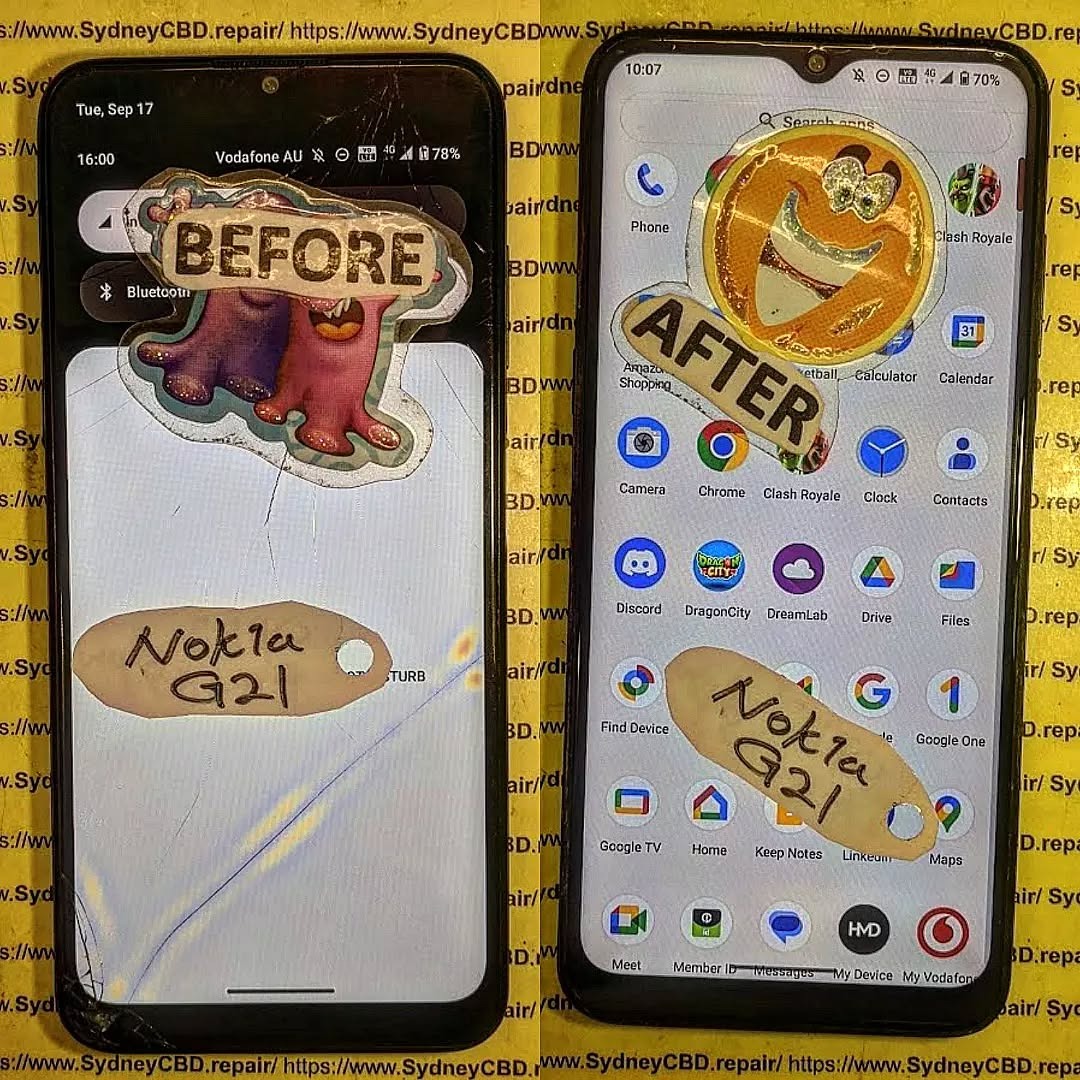
Nokia G21 Cracked LCD Screen Replacement And Frame Separation Guide: 7 Powerful Repair Tips
Introduction
The Nokia G21 cracked LCD screen replacement process requires patience, the correct replacement assembly, suitable tools, and careful handling of the phone’s internal components. A cracked display doesn’t always mean the entire phone is beyond repair. In many cases, a damaged Nokia G21 can be restored by replacing the screen assembly and, when necessary, addressing damage or separation around the frame.
The Nokia G21 features a 6.5-inch display with a 1600 × 720 resolution and an adaptive refresh rate of up to 90 Hz. It also uses a polycarbonate rear panel, while the power/lock button incorporates the fingerprint sensor. These details matter during repair because the display, frame, buttons, connectors, and internal components all need to be protected during disassembly.
If your Nokia G21 has been dropped, sat on, or hit against a hard surface, you may see anything from a small glass crack to complete display failure. The good news is that understanding the type of damage makes it much easier to decide whether you need a screen replacement, frame repair, or a more extensive inspection.
Before reaching for a repair kit, it’s important to understand the difference between cover glass damage, LCD damage, and frame damage.
A crack limited to the outer glass may leave the image and touch functionality working normally. However, if the display has black spots, coloured lines, flickering, bleeding, dead areas, or no image at all, the display assembly itself may be damaged.
Frame separation adds another complication. A strong impact can deform the chassis or cause the display assembly to lift away from its mounting surface. In that situation, simply installing a new screen may not produce a durable repair.
The Nokia G21’s official documentation identifies several model variants, including TA-1404, TA-1405, TA-1412, TA-1415 and TA-1418. Checking the exact model before ordering a replacement component is therefore a sensible first step.
1. Diagnose the Nokia G21 Before Opening It
A proper diagnosis can save you from replacing a perfectly functional component.
If the phone still powers on, begin by checking whether you can see the Nokia logo, lock screen, or Android interface. Next, test touch response across the entire display.
Look carefully for:
Black or completely dark sections.
Vertical or horizontal lines.
Flickering.
Bright spots.
Ink-like LCD bleeding.
Ghost touches.
Areas where touch doesn’t respond.
A screen that is lifting from the frame.
A housing that has become visibly bent.
Gaps between the screen and chassis.
If the display works perfectly except for cracked glass, the situation is different from a phone with a completely dead screen.
Why Diagnosis Matters
It’s tempting to assume that every cracked screen needs the same repair. That’s not necessarily the case.
For example, a phone may have a cracked screen but an undamaged frame. Another device may look similar from the front but have a badly distorted chassis underneath. Installing a replacement display onto a distorted frame can create pressure points and may result in another broken screen.
That’s why frame condition should be checked before final installation.
2. Back Up Your Data Before Screen Replacement
If the Nokia G21 still works, back up important information before beginning the repair.
Ideally, transfer:
Photos and videos.
Contacts.
Important documents.
WhatsApp or other messaging backups.
Authentication information.
Notes.
Important application data.
A screen repair usually doesn’t require deleting the phone’s data. Nevertheless, accidents can happen during any hardware repair. A damaged connector, unexpected power problem, or additional impact could leave the device unusable.
Backing up first is a simple bit of housekeeping that can prevent a major headache later.
3. Prepare the Correct Tools and Replacement Parts
A successful Nokia G21 screen replacement starts before the phone is opened.
Typical repair equipment may include:
Replacement Nokia G21 display assembly.
Precision screwdriver set.
Plastic opening picks.
Plastic spudger.
Suction tool where appropriate.
Tweezers.
Heat source designed for electronics repair.
Cleaning materials suitable for electronic assemblies.
Replacement adhesive.
ESD-safe work equipment.
Soft protective work mat.
Avoid using excessive heat. The objective is to soften adhesive, not cook the internal components.
It’s also important to avoid metal tools around exposed connectors and sensitive circuitry whenever possible. A plastic opening tool is generally safer for separating components.
Choosing the Replacement Screen
Replacement screens can differ in quality.
Before purchasing, verify:
The replacement is specifically compatible with the Nokia G21.
The connector configuration matches the original.
The assembly is intended for the correct model variant.
The display has been inspected or tested.
The seller provides appropriate information about the part.
The replacement doesn’t have visible damage.
The frame dimensions and mounting points match the original assembly.
HMD’s repair information explains that official self-repair programs and parts are available for certain HMD devices through designated partners, while not every Nokia model has the same self-repair support. The company’s current self-repair information specifically highlights devices such as the Nokia G22 and Nokia G42 5G rather than listing the G21 as one of its designated self-repair models.
That distinction is worth remembering if you’re looking for official repair documentation.
4. Safely Open the Nokia G21
Opening the phone is one of the stages where rushing can turn a straightforward repair into a complicated one.
Before opening the device:
Power it down completely.
Remove any SIM or memory card tray as appropriate.
Work on a clean, well-lit surface.
Keep screws organised.
Photograph cable positions before disconnecting them.
Avoid pulling on flex cables.
Don’t force a component that refuses to move.
A teardown of the Nokia G21 screen assembly demonstrates a sequence involving removal of the rear panel, removal of the middle frame, battery disconnection, disconnection of flex cables, and removal of the screen from the case.
This highlights an important point: screen replacement isn’t simply a matter of prying the cracked display from the front and snapping another one into place.
Why Battery Disconnection Matters
Once the phone is opened, the battery should be treated as a critical component.
Disconnecting power before manipulating display connectors helps reduce the risk of electrical damage. Never puncture, bend, crush, or excessively heat a lithium-ion battery.
If the battery is swollen, leaking, badly dented, or producing unusual heat, stop the repair and have the device handled by a qualified technician.
5. Nokia G21 Cracked LCD Screen Removal
Once the phone is safely opened and powered down, the damaged display can be separated from the chassis.
The adhesive holding the screen needs to be loosened carefully. Controlled heat may help soften adhesive, but temperature and application time must be managed carefully.
Work Around the Display Edge
Insert a suitable plastic opening tool gradually around the perimeter.
Don’t push the tool too deeply.
Behind the display are delicate components and flex connections. Excessive pressure can damage something that wasn’t broken in the original accident.
Work slowly around the perimeter rather than trying to lift the display in one large movement.
Disconnect the Display Flex
Once the screen is sufficiently separated, locate the display connector.
The connector should be released carefully using an appropriate plastic tool. Never yank the display cable.
The general principle used in professional phone repair is simple: disconnect connectors by lifting the connector itself, not by pulling on the cable.
Modern HMD repair documentation for other models similarly stresses careful handling of display connectors and recommends using a plastic tool to disconnect them.
After the damaged screen has been removed, inspect the phone before installing anything.
6. Inspect the Frame for Separation or Bending
This is one of the most important stages of the entire repair.
A replacement screen won’t sit correctly if the underlying frame is damaged.
Look at the chassis from several angles. Check whether:
The frame is twisted.
One corner is higher than another.
The display mounting surface is uneven.
Adhesive residue is preventing proper seating.
Clips or mounting points are damaged.
The screen gap changes around the perimeter.
The phone has a visible bow or bend.
The replacement display rocks when placed into position.
What Is Frame Separation?
Frame separation occurs when the display or housing no longer sits securely against its intended mounting surface.
Sometimes this happens because the original adhesive has failed. Other times, an impact has bent the frame.
If the frame itself is distorted, simply adding more adhesive isn’t a proper solution.
More adhesive can actually hide the underlying problem while putting additional stress on the new display.
When the Frame Should Be Replaced
A severely bent or cracked frame may need replacement rather than straightening.
Trying to force a badly distorted metal or plastic structure back into shape can cause further damage. The correct solution depends on the extent and location of the damage.
A technician should also inspect whether the impact has affected internal components.
7. Clean and Prepare the Mounting Surface
Before fitting a new display, remove old adhesive and loose debris.
The mounting surface should be:
Clean.
Dry.
Flat.
Free of broken glass.
Free of loose adhesive.
Free of dust.
Don’t scrape aggressively against delicate components.
This stage may seem boring, but it’s one of those little jobs that makes a big difference. A clean mounting surface helps the new screen sit evenly and reduces the possibility of pressure points.
8. Test the Replacement Display Before Final Installation
Never rush straight into permanent installation.
If practical for the replacement part and repair procedure, connect the replacement display temporarily and perform a functional test before final bonding.
Check:
Display brightness.
Touch response.
Screen uniformity.
Dead pixels or unusual areas.
Colour consistency.
Front camera clearance.
Proximity-related functionality where applicable.
Fingerprint functionality.
Power and volume buttons.
Charging.
General phone operation.
Testing before final installation gives you a much easier opportunity to identify a defective replacement component.
If the replacement doesn’t work, don’t immediately assume the part is faulty. Recheck the connector, cable seating, battery connection, and surrounding components.
9. Install the Replacement Screen Carefully
Once the replacement display has passed testing, prepare it for final installation.
Remove protective films only when appropriate and keep dust away from adhesive surfaces.
Position the display carefully so that:
The edges align with the frame.
The connector reaches its intended location.
The camera opening is correctly positioned.
The display isn’t sitting on debris.
No flex cable is trapped underneath the assembly.
The display should sit naturally within the frame rather than requiring significant force.
HMD repair documentation for other models demonstrates the same basic principle: the display cable must pass through its intended opening, the screen needs to be seated flush with the frame, and the assembly should be secured without forcing it. (HMD – Human Mobile Devices)
10. Avoid Excessive Adhesive
More adhesive isn’t necessarily better.
Too much adhesive can:
Enter unwanted areas.
Make future repairs harder.
Create uneven pressure.
Prevent the screen from sitting flat.
Interfere with buttons or other components.
Use the appropriate adhesive solution for the replacement assembly and follow the part manufacturer’s instructions.
A professional repair should look clean both inside and outside the device.
11. Reassemble the Nokia G21
After the screen is properly seated, reassemble the phone in the reverse order of disassembly.
Reconnect the required components carefully.
Before closing the phone completely, perform another functional check.
Test:
Display.
Touch.
Power button.
Volume controls.
Fingerprint sensor.
Front camera.
Rear cameras.
Speaker.
Microphone.
USB-C charging.
Headphone connection if applicable.
SIM detection.
Wi-Fi and Bluetooth.
Mobile network connectivity.
The Nokia G21 user guide confirms the presence of the USB connector, headset connector, cameras, volume keys, power/lock key and fingerprint sensor, making these useful components to verify after a screen repair.
12. Common Mistakes During Nokia G21 Screen Replacement
Even experienced DIY repairers can make mistakes.
Using Too Much Heat
Heat can soften adhesive, but excessive heat can damage internal components or the battery.
Using a Metal Pry Tool
A metal tool can scratch components, damage connectors, or create electrical shorts.
Pulling the Screen Too Quickly
The display cable may still be connected.
Ignoring Frame Damage
A new screen mounted onto a damaged frame may not last.
Skipping the Pre-Installation Test
If the replacement screen is faulty, discovering the problem after permanent installation creates unnecessary work.
Forgetting Small Screws
Different screws can have different lengths and positions. Keep them organised.
Reusing Damaged Adhesive
Old adhesive may not provide the support required for the new display.
13. Professional Nokia G21 Screen Repair vs DIY Repair
DIY repair can look attractive because it may reduce labour costs. However, the actual difficulty depends heavily on your experience and the condition of the phone.
A professional repair is particularly useful when:
The phone has severe impact damage.
The frame is bent.
The display is completely dead.
The phone has suffered liquid exposure.
The battery appears damaged.
Connectors are damaged.
You don’t have appropriate tools.
You need the repair completed quickly.
The device contains important data.
HMD notes that customers can use its support resources and repair channels, while official self-repair availability depends on the specific device.
For a complicated frame-separation repair, professional inspection can be especially valuable because the technician can assess the condition of the chassis and internal components rather than treating the screen as an isolated part.
14. How to Tell If Your Nokia G21 Needs More Than an LCD Replacement
A damaged display isn’t always the only problem.
Look for these warning signs:
The Phone Won’t Turn On
The impact may have affected the battery, motherboard, charging system, or another internal component.
The Phone Restarts Repeatedly
This may indicate damage beyond the display.
The Camera Doesn’t Work
Check whether the camera connector or surrounding components were disturbed during the impact or repair.
The Frame Is Clearly Bent
A bent chassis should be assessed before a replacement screen is installed.
The Battery Is Swollen
Stop the repair immediately and don’t continue using or charging the phone until the battery is professionally assessed.
The Screen Keeps Lifting
This can indicate poor adhesive, debris under the display, frame distortion, or another structural issue.
15. Nokia G21 Screen Replacement Quality Checklist
After completing the repair, use this checklist:
Test
What to check
Display
Clear image without lines or flicker
Touch
Full response across the screen
Frame
Screen sits evenly
Adhesive
No visible lifting
Camera
Front and rear cameras work
Fingerprint
Sensor responds normally
Buttons
Power and volume operate correctly
Charging
USB-C connection works
Audio
Speaker and microphone function
Network
SIM and mobile connection work
Wi-Fi
Connects normally
Bluetooth
Pairs with accessories
Proximity
Functions normally during calls
Housing
No major gaps or movement
A good repair isn’t simply one where the phone turns on. The goal is to return the device to reliable everyday operation.
Frequently Asked Questions
1. Can a cracked Nokia G21 LCD be replaced?
Yes. A damaged Nokia G21 display can be removed and replaced with a compatible replacement assembly. The exact repair depends on whether the damage is limited to the display or also affects the frame, connectors, or other internal components.
2. Does a cracked screen always mean the LCD is damaged?
No. The outer glass can crack while the display and touch layer continue working. However, black spots, lines, flickering, dead areas, or touch problems can indicate deeper display damage.
3. What should I do if my Nokia G21 screen is separating from the frame?
Don’t simply push it back into place or add large amounts of glue. First determine why it separated. The adhesive may have failed, or the frame may have been bent by an impact. A professional inspection is recommended when the chassis is distorted.
4. Can I replace the Nokia G21 screen myself?
It may be possible for an experienced repairer with suitable tools and a compatible part. However, the repair involves opening the phone, disconnecting internal components, removing adhesive, and handling a lithium-ion battery. Anyone without appropriate experience should consider professional repair.
5. How can I prevent the replacement screen from separating?
Use the correct replacement part, clean the mounting surface thoroughly, make sure the frame is straight, use suitable adhesive, and allow the adhesive to set according to the product instructions.
6. Should I test the new screen before gluing it?
Yes. When the repair procedure and replacement assembly allow it, test the display and touch functionality before permanently installing it. This can prevent unnecessary rework if the replacement component has a problem.
7. Can a bent Nokia G21 frame cause another screen to crack?
Yes. A distorted mounting surface can place uneven pressure on a replacement display. If the frame is visibly bent, it should be assessed before installing a new screen.
8. What tools are needed for a Nokia G21 screen repair?
Tools vary depending on the repair method and replacement assembly, but precision screwdrivers, plastic opening tools, tweezers, suitable adhesive-removal equipment, and an appropriate heat source are commonly used in professional phone repair.
9. Does Nokia still provide support for the G21?
HMD continues to provide Nokia phone support resources and user guides, and its support website lists the Nokia G21 among its documented devices. The G21 itself is now listed as discontinued on HMD’s product page.
10. Is frame separation more serious than a simple cracked screen?
It can be. A cracked display may be limited to the screen assembly, while frame separation can indicate structural damage. If the frame is bent or damaged, replacing only the display may not provide a reliable long-term repair.
Conclusion: Restore Your Nokia G21 the Right Way
A Nokia G21 cracked LCD screen replacement is more than simply removing broken glass and installing another display. A reliable repair starts with accurate diagnosis and continues with careful disassembly, battery safety, connector protection, frame inspection, proper surface preparation, display testing, and precise reassembly.
Frame separation deserves particular attention. If the chassis is bent or the mounting surface has been damaged, installing a new screen without correcting the underlying problem can lead to poor alignment, display pressure, adhesive failure, or another cracked screen.
For DIY repairers, the biggest lesson is simple: don’t rush the job. Keep track of screws, protect flex cables, use suitable plastic tools, control heat carefully, and test the replacement display before final installation.
For customers who aren’t comfortable opening a smartphone, professional repair is often the more straightforward option. A trained technician can inspect the display, frame, connectors, battery, and other components together, helping ensure that the repair addresses the actual cause of the problem rather than just the visible crack.
The Nokia G21 was designed as a durable everyday smartphone, and a damaged screen doesn’t necessarily mean the end of the device. With the right replacement part, careful workmanship, and a proper frame inspection, a damaged G21 can often return to normal everyday use.
David from Sydney CBD Repair Centre – The Best place to fix mobile phones as 7 Years In A Row! Top Mobile Phone Repair In Sydney. More than 2000 Positive Reviews on Google and Same Day Repairs.
We take pride in delivering exceptional repair services for all major phone brands including Apple, Samsung, Google, and more. Our expert technicians use only genuine parts and offer 90days warranty on repairs. Located in the heart of Sydney CBD, we’re your one-stop solution for all mobile device repairs.
Our commitment to excellence has earned us the trust of thousands of satisfied customers. Whether it’s a cracked screen, battery replacement, or water damage repair, we handle it all with professional care and expertise. Walk in today and experience why we’re Sydney’s #1 choice for mobile phone repairs.
Visit us for:
✓ Same Day Express Repairs
✓ Genuine Parts Guarantee
✓ Professional Technicians
✓ Competitive Pricing
✓ 2000+ 5-Star Google Reviews
✓ 7-Time Award Winner for Best Phone Repairs
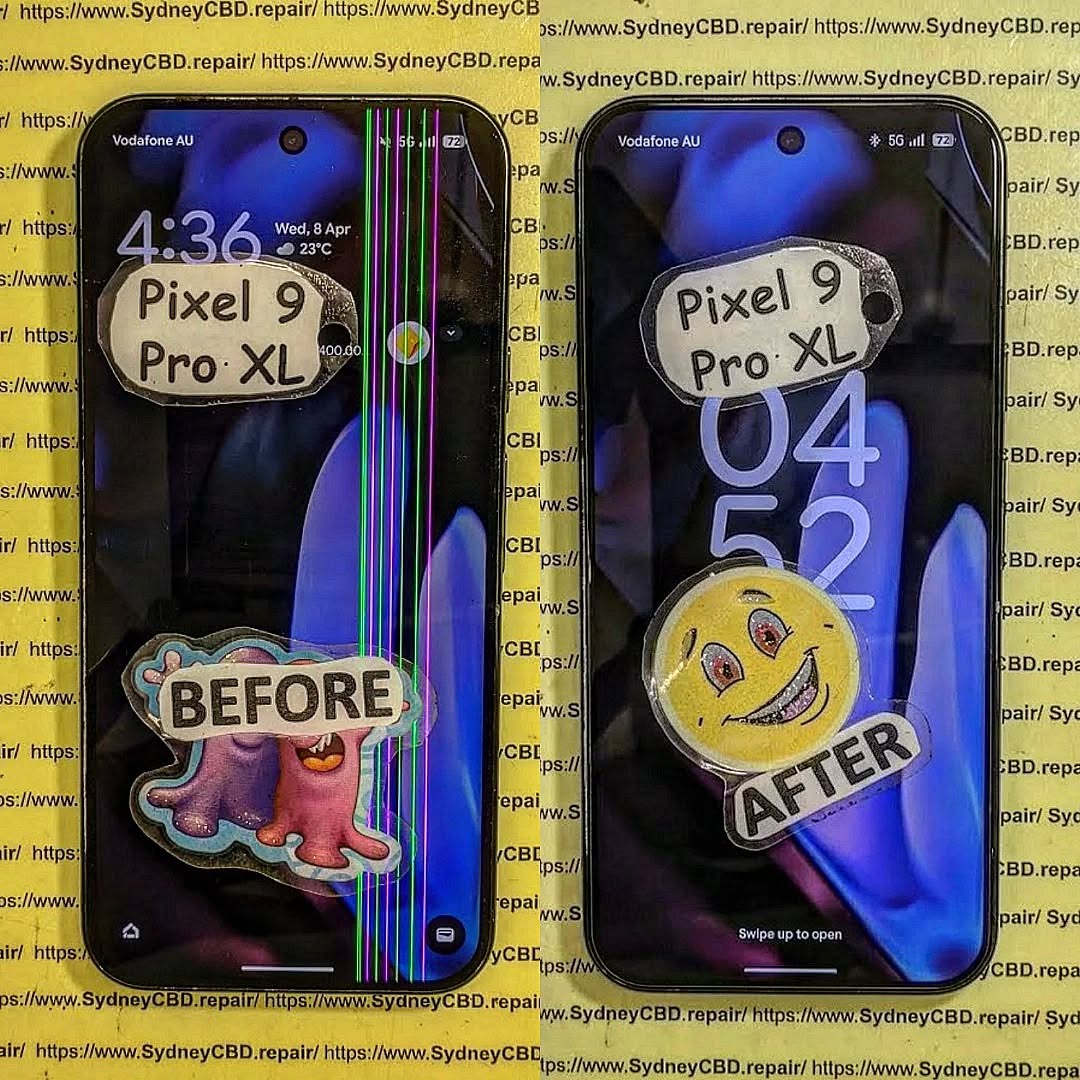
Google Pixel 9 Pro XL Cracked Super Actua OLED Screen Replacement Guide: 11 Essential Steps for a Safe Repair
Introduction
A cracked display can turn an otherwise excellent smartphone into a frustrating daily problem. If you’ve dropped your Google Pixel 9 Pro XL and the glass is shattered, the touchscreen is unreliable, or black spots have appeared across the panel, a Google Pixel 9 Pro XL cracked Super Actua OLED screen replacement may be necessary.
The Pixel 9 Pro XL uses a 6.8-inch Super Actua LTPO OLED display with a 1344 × 2992 resolution and a 1–120Hz Smooth Display. Google lists the panel at up to 2,000 nits for HDR and up to 3,000 nits peak brightness, making the display an important part of the phone’s premium experience.
Because the screen is more than just a piece of glass, replacement isn’t simply a matter of removing the broken surface and installing another panel. The display assembly, touch layer, frame adhesives, connectors, sensors, and calibration all need appropriate attention.
This detailed guide explains what you should know before arranging a repair and how to approach the process safely.
A small crack may seem harmless at first. However, cracks can spread with everyday pressure, temperature changes, or another minor impact.
More importantly, the damage isn’t necessarily limited to the outer glass.
You may eventually notice:
Touchscreen areas that don’t respond.
Random or ghost touches.
Black or purple OLED blotches.
Green, pink, or white lines.
Flickering.
Uneven brightness.
Dead pixels.
Display discoloration.
Reduced visibility in bright environments.
Glass fragments becoming loose.
Moisture entering through damaged areas.
If the phone still works, backing up your important data should be one of your first steps.
Google specifically recommends backing up your data before repair and provides a Repair Mode designed to make servicing easier while helping protect personal information.
Glass Damage vs. OLED Damage
Not every cracked screen has the same level of damage.
Cracked Cover Glass
If the image remains perfect and every area of the touchscreen works correctly, the damage may appear primarily cosmetic.
However, a cracked cover doesn’t automatically mean that only the glass can be replaced economically or safely. The construction of modern OLED assemblies means professional repair providers often replace the complete display assembly.
Damaged OLED Panel
OLED damage is more serious.
Look for:
Black patches.
Colored vertical or horizontal lines.
Flickering.
Missing sections of the image.
Severe brightness changes.
Permanent discoloration.
These symptoms generally indicate that the display assembly itself has been compromised.
Touchscreen Damage
Another common failure is a working image with unreliable touch input.
For example, you may be able to see everything clearly but find that taps or swipes fail in one section.
This is particularly inconvenient because even a phone that “turns on normally” can become difficult or impossible to use.
Signs You Should Replace the Display
A Google Pixel 9 Pro XL cracked Super Actua OLED screen replacement becomes more urgent when the damage affects functionality.
Consider arranging professional service if:
The touchscreen has stopped responding.
The OLED has developed black spots.
Lines appear across the display.
The screen flickers.
Glass is falling away from the display.
The crack reaches the edge of the screen.
The phone registers touches you didn’t make.
The display becomes difficult to read.
The damage continues spreading.
You can see internal components through the damaged area.
If the phone is still usable, don’t assume that means the damage won’t become worse.
What to Do Before Screen Replacement
Preparation can make the repair safer and reduce the risk of losing important information.
1. Back Up Your Data
Back up:
Photos.
Videos.
Contacts.
Messages.
Documents.
App data where applicable.
Important authentication information.
Google recommends backing up the device before repair.
2. Enable Repair Mode
Where supported, Google recommends using Repair Mode before servicing. This can help technicians diagnose the phone without requiring the normal repair workflow to expose your personal data.
3. Record the Phone’s Condition
Take photographs of the phone before handing it over.
Capture:
Front.
Rear.
Frame.
Camera area.
Existing scratches.
Cracks.
Any other damage.
This creates a simple record of the device’s condition before service.
4. Check Warranty and Repair Eligibility
Don’t immediately assume you’ll have to pay the full repair price.
Google states that accidental damage generally isn’t covered by its standard warranty, while repair options and coverage depend on location, warranty status, and the type of damage.
Google also currently has an Extended Repair Program for eligible Pixel 9 Pro and Pixel 9 Pro XL devices. The program can provide display replacement at no charge for qualifying devices, subject to eligibility and inspection.
The 11 Essential Stages of a Professional Screen Replacement
A professional technician normally approaches a damaged OLED repair methodically rather than simply swapping parts as quickly as possible.
Stage 1: Initial Inspection
The phone should be examined before opening.
A technician should check:
Display condition.
Touch response.
Frame condition.
Rear glass.
Cameras.
Charging.
Buttons.
Signs of liquid damage.
Previous repairs.
This is important because another damaged component can change the repair requirements.
Stage 2: Data and Device Preparation
The phone should be prepared for service.
Important steps include backing up data and using appropriate repair/privacy features where available.
The technician may also document the device condition.
Stage 3: Power Down
The device should be powered down before internal work begins.
Working around electronic components while the phone remains powered can introduce unnecessary risks.
Stage 4: Opening the Device
Modern smartphones use strong adhesives and tightly fitted components.
Opening a Pixel 9 Pro XL therefore requires appropriate tools and controlled technique.
Trying to force the phone open with an unsuitable tool can damage:
The frame.
Internal components.
Cables.
Seals.
The replacement assembly.
Stage 5: Disconnecting the Battery and Display
Once access is obtained, internal connections need to be handled carefully.
The goal is to isolate the damaged display and prevent accidental electrical damage during the replacement.
Stage 6: Removing the Damaged Assembly
The damaged display is separated from the phone.
This stage can be difficult when the glass has shattered extensively because fragments may remain attached to adhesive.
Technicians need to avoid unnecessary force.
Stage 7: Cleaning the Mounting Surface
The old adhesive and debris should be removed from the relevant mounting area.
A clean surface is important because leftover fragments can prevent the replacement assembly from sitting correctly.
Stage 8: Installing the Replacement Display
The replacement screen is positioned carefully.
Alignment matters because a poorly positioned display can create uneven edges, pressure points, or cosmetic problems.
Stage 9: Reconnecting Components
Internal connections are restored before the device is fully closed.
This provides an opportunity to test the replacement before completing the final assembly.
Stage 10: Functional Testing
A professional repair should include testing.
Check:
Touch sensitivity.
Brightness.
Color reproduction.
Refresh-rate behavior.
Proximity-related functions.
Front-facing components.
Charging.
Cameras.
Speakers.
Microphones.
Buttons.
Stage 11: Final Inspection
Finally, the phone should be inspected for:
Display alignment.
Gaps.
Adhesive issues.
Cosmetic damage.
Touch performance.
General functionality.
Only after these checks should the repair be considered complete.
Why Professional Repair Can Be Safer
Replacing a modern OLED assembly requires more than basic screwdriver skills.
There are several reasons to use an experienced technician.
Specialized Tools
A repair center can use appropriate opening tools, inspection equipment, adhesive materials, and diagnostic equipment.
Reduced Risk
An experienced technician understands how to work around delicate internal components.
Better Testing
Professional repair centers can test the phone before returning it.
Appropriate Replacement Parts
A reputable provider should be able to explain whether the replacement is an original, authorized, or compatible component and what warranty applies.
Repair Documentation
A professional service may also document the repair and provide warranty information.
If you want to review Google’s official repair options, use its Pixel phone repair support page before choosing a repair route. Google notes that available repair methods vary according to country and device circumstances.
Can You Replace the Pixel 9 Pro XL Screen Yourself?
Technically, self-repair is possible for people with appropriate experience, tools, documentation, and a controlled workspace.
However, there’s an important difference between “possible” and “practical.”
DIY repair can introduce risks such as:
Damaging internal components.
Breaking connectors.
Damaging the frame.
Installing the display incorrectly.
Creating touch problems.
Introducing dust beneath the screen.
Using unsuitable adhesive.
Losing water-resistance performance.
Damaging another component during disassembly.
If you’ve never opened a modern flagship smartphone, professional repair is generally a more controlled approach.
A cracked screen isn’t worth turning into a damaged motherboard.
How to Choose a Pixel 9 Pro XL Screen Replacement
Not all replacement screens should be treated as identical.
Ask the repair provider these questions before approving the work:
Question
Why It Matters
Is the part specifically for Pixel 9 Pro XL?
Prevents incompatible parts
What type of display is being installed?
Helps establish expected quality
Is the part new or refurbished?
Affects condition and longevity
Is there a repair warranty?
Provides protection after service
Will the phone be tested afterward?
Confirms functionality
Will existing damage be documented?
Clarifies repair condition
Is the final price all-inclusive?
Helps avoid surprises
Will you explain any additional damage?
Prevents unnecessary work
A good technician should be comfortable answering these questions.
How Much Does Pixel 9 Pro XL Screen Replacement Cost?
There isn’t one universal price.
The final cost can depend on:
Location.
Parts availability.
Part quality.
Labor.
Warranty status.
Type of damage.
Additional internal damage.
Repair provider.
For that reason, be cautious of websites advertising one extremely low price without explaining what part is included.
A very cheap screen can become expensive if poor quality causes additional problems.
Likewise, a higher quote doesn’t automatically prove superior service.
The better approach is to compare the part, warranty, technician experience, testing procedure, and total repair price.
Important Repair Risks to Understand
No repair is completely risk-free.
Water Resistance
A phone’s original seals may not provide exactly the same protection after opening and reassembly.
Therefore, don’t assume that a repaired phone has identical resistance to water exposure.
Additional Hidden Damage
A drop strong enough to crack the display can also damage the frame or internal components.
Poor-Quality Replacement Parts
Low-quality panels can have differences in:
Brightness.
Color.
Touch response.
Refresh behavior.
Viewing angles.
Power consumption.
Frame Damage
If the aluminum frame is bent, a replacement display may not seat correctly.
Existing Liquid Damage
Liquid exposure can complicate repair and may affect eligibility under certain repair programs.
Google’s Extended Repair Program information specifically notes that eligibility can be affected by damage such as cracked displays or liquid damage.
Testing Your Phone After the Repair
Don’t simply turn on the phone, see the Google logo, and walk away.
Run a complete test.
Display Test
Open images containing:
White.
Black.
Red.
Green.
Blue.
Look for dead pixels, uneven illumination, discoloration, or strange lines.
Touch Test
Swipe across the entire screen.
Try:
Typing.
Pinching to zoom.
Dragging icons.
Scrolling.
Multi-touch gestures.
Pay particular attention to the corners and edges.
Brightness Test
Increase brightness gradually and check whether the display changes smoothly.
Also test the phone in a bright environment.
Refresh-Rate Test
Use normal scrolling and animation to make sure the display behaves smoothly.
The Pixel 9 Pro XL’s Super Actua display supports a 1–120Hz range, so smooth motion is an important part of its intended experience.
Proximity and Front-Sensor Checks
Make a test call and place the phone near your face.
The screen should behave appropriately when the phone is used during a call.
General Phone Test
Also check:
Wi-Fi.
Bluetooth.
Mobile connectivity.
Cameras.
Speakers.
Microphone.
USB-C charging.
Fingerprint functionality.
Buttons.
Testing everything before leaving the repair shop can save a return visit later.
What to Do if Your Screen Is Cracked but Still Works
You might be tempted to keep using the phone indefinitely.
If the crack is minor, you may be able to continue temporarily, but take sensible precautions.
Use a protective case and avoid putting additional pressure on the damaged area.
Keep the phone away from moisture.
Most importantly, back up your information.
If the screen begins developing lines, black spots, touch problems, or rapidly spreading cracks, arrange a repair rather than waiting for complete failure.
When You Should Stop Using the Phone Immediately
Some damage deserves faster attention.
Stop using the phone and arrange professional assessment if:
The display is lifting away from the frame.
You smell something unusual.
The phone becomes abnormally hot.
The battery appears swollen.
The frame is severely bent.
Internal components are exposed.
The screen has sharp loose fragments.
Liquid has entered the phone.
Don’t press a damaged or lifting display back into place.
If you suspect battery damage, professional inspection is especially important.
Pixel 9 Pro XL Screen Replacement: Professional vs DIY
Factor
Professional Repair
DIY Repair
Tools
Professional equipment
Must be purchased
Experience
Technician-led
User dependent
Repair risk
Lower when properly performed
Higher for inexperienced users
Diagnostics
Usually available
Limited unless equipped
Warranty
May be included
Usually dependent on parts/provider
Convenience
High
Lower
Cost
Labor included
Potentially lower upfront
Troubleshooting
Technician support
User handles problems
The right choice depends on your experience, equipment, location, and tolerance for repair risk.
For many owners, professional service offers a simpler path because it combines parts, labor, testing, and troubleshooting.
Frequently Asked Questions
1. Can a cracked Pixel 9 Pro XL screen be replaced?
Yes. The display assembly can be replaced through appropriate repair channels. The exact repair process and available options depend on your location, warranty status, and device condition.
2. Does a cracked screen always mean the OLED is damaged?
No. The cover glass can crack while the image and touch functions continue working. However, cracks can also damage the OLED or touch layer, so a technician should inspect the phone.
3. Is the Pixel 9 Pro XL screen OLED?
Yes. Google identifies the Pixel 9 Pro XL display as a 6.8-inch Super Actua LTPO OLED panel with a 1344 × 2992 resolution.
4. Should I back up my Pixel before screen replacement?
Yes. Google recommends backing up your data before repair. Repair Mode is also available on supported Pixel devices to assist with servicing.
5. Can I repair the Pixel 9 Pro XL myself?
Self-repair may be possible for experienced technicians or users with suitable tools and documentation. However, opening the phone introduces risks, so inexperienced owners may prefer professional service.
6. Will a replacement screen look exactly like the original?
The result depends on the replacement component and repair quality. A properly matched, high-quality display should preserve the expected visual and touch experience much better than a low-quality incompatible part.
7. Does screen replacement restore water resistance?
You shouldn’t assume that it does. Opening and repairing a phone can affect its original seals, so repaired devices should be treated cautiously around water.
8. Does Google offer repair options for the Pixel 9 Pro XL?
Yes. Google provides repair pathways depending on location and device circumstances. It also currently lists an Extended Repair Program covering eligible Pixel 9 Pro and Pixel 9 Pro XL devices, including display replacement for qualifying devices.
9. How long does screen replacement take?
Timing varies by repair provider, parts availability, and the extent of damage. Walk-in services may sometimes be completed the same day, while mail-in services can take longer. Google notes that repair availability and timing depend on location and service type.
10. What should I test after replacing the screen?
Test the entire display, touch response, brightness, scrolling, cameras, speakers, microphone, charging, connectivity, buttons, and other major functions. A comprehensive check helps identify problems before you leave the repair provider.
Conclusion
A Google Pixel 9 Pro XL cracked Super Actua OLED screen replacement is a specialized repair, but it doesn’t necessarily mean the end of your phone.
The most important steps are straightforward: back up your data, check warranty and repair-program eligibility, identify the actual extent of the damage, choose an appropriate replacement part, and use a technician with the right experience and equipment when professional service is the safer option.
The Pixel 9 Pro XL’s 6.8-inch Super Actua LTPO OLED display is a major part of the phone’s user experience. A quality repair should therefore focus not only on making the cracks disappear but also on restoring reliable touch, brightness, image quality, and everyday functionality.
Before committing to a repair, ask about the replacement part, total price, warranty, testing process, and any additional damage discovered during inspection. A little homework can prevent a lot of headaches later.
If you’re considering an official repair route, Google provides current repair and authorized-partner information through its Pixel support resources.
David from Sydney CBD Repair Centre – The Best place to fix mobile phones as 7 Years In A Row! Top Mobile Phone Repair In Sydney. More than 2000 Positive Reviews on Google and Same Day Repairs.
We take pride in delivering exceptional repair services for all major phone brands including Apple, Samsung, Google, and more. Our expert technicians use only genuine parts and offer 90days warranty on repairs. Located in the heart of Sydney CBD, we’re your one-stop solution for all mobile device repairs.
Our commitment to excellence has earned us the trust of thousands of satisfied customers. Whether it’s a cracked screen, battery replacement, or water damage repair, we handle it all with professional care and expertise. Walk in today and experience why we’re Sydney’s #1 choice for mobile phone repairs.
Visit us for:
✓ Same Day Express Repairs
✓ Genuine Parts Guarantee
✓ Professional Technicians
✓ Competitive Pricing
✓ 2000+ 5-Star Google Reviews
✓ 7-Time Award Winner for Best Phone Repairs
Sydney CBD Repair Centre – Where Quality Meets Reliability.
Call : +61280114119
Website: Sydney CBD Repair Centre
Xiaomi 15 Ultra Screen Replacement Step By Step Curved OLED Display Repair Guide: 11 Essential Steps for a Safe Repair
Introduction
The Xiaomi 15 Ultra Screen Replacement Step By Step process is a precision repair that requires patience, suitable tools, and careful handling of the phone’s curved display assembly. Unlike a basic flat-screen replacement, the Xiaomi 15 Ultra uses a flexible 6.73-inch AMOLED panel with a WQHD+ 3200 × 1440 resolution, up to 120Hz refresh rate, and full lamination. Xiaomi also describes the display as an All Around Liquid Display with a wraparound quad-curved design.
That means a cracked screen shouldn’t be treated like a simple piece of glass. The OLED panel, touch layer, frame adhesive, display flex, fingerprint hardware, and surrounding components all need to be protected during the repair.
This guide explains the complete process in practical terms. It is written for trained repair technicians and experienced DIY users who understand that opening a premium smartphone can cause additional damage if the correct procedure isn’t followed.
Important: The exact internal construction, adhesive layout, replacement-part design, and service procedure can vary by production batch and replacement assembly. When possible, compare the procedure with current manufacturer or professional service documentation before beginning.
Before starting a Xiaomi 15 Ultra Screen Replacement Step By Step repair, it’s important to understand what you’re working with.
The Xiaomi 15 Ultra features a 6.73-inch AMOLED display with WQHD+ resolution of 3200 × 1440 pixels. Xiaomi lists a 1–120Hz adaptive refresh rate, up to 300Hz touch sampling, DCI-P3 color coverage, and Xiaomi Shield Glass 2.0. The display uses full lamination and a flexible screen construction.
The flexible OLED design provides excellent image quality while allowing the curved display to follow the phone’s frame. However, flexibility doesn’t mean the panel is immune to damage.
Why the Curved Design Matters
A curved OLED display has several areas that need special attention:
Curved edges are more vulnerable to lifting or bending.
Display flex cables can be delicate.
Excessive heat can damage OLED layers.
Incorrect prying can create pressure marks.
Poor-quality replacement panels may not reproduce the original viewing experience.
Improper adhesive can cause uneven seating around curved edges.
The Xiaomi 15 Ultra also has an ultrasonic in-screen fingerprint sensor, making post-installation testing particularly important.
Original Display Specifications
Feature
Xiaomi 15 Ultra
Display type
AMOLED
Size
6.73 inches
Resolution
3200 × 1440
Pixel density
522 ppi
Refresh rate
1–120Hz
Touch sampling
Up to 300Hz
Peak brightness
Up to 3200 nits
Color depth
68 billion colors
Protection
Xiaomi Shield Glass 2.0
Screen construction
Flexible, fully laminated
Fingerprint
Ultrasonic in-display
These specifications are useful when checking a replacement part. If the new screen behaves noticeably differently, don’t immediately assume the software is responsible. The replacement assembly itself may be the problem.
Not every damaged display requires the same repair.
A phone with only a scratched outer glass may behave normally, while a phone with a damaged OLED panel can show black areas, lines, flickering, dead pixels, or complete display failure.
Common Signs of Display Damage
A complete screen assembly replacement may be appropriate when you notice:
Large cracks across the display.
Black or purple OLED blotches.
Vertical or horizontal lines.
Flickering.
Touch areas that don’t respond.
Ghost touches.
Display failure after a drop.
Severe green, pink, or white tinting.
Separation between display layers.
A display that works intermittently.
Glass Damage vs OLED Damage
This distinction is important.
If only the outer glass is damaged but the image and touch functions remain perfect, specialist glass-only refurbishment may sometimes be possible.
However, modern fully laminated OLED assemblies aren’t designed for casual glass replacement. Separating the glass from the OLED requires specialist equipment, optical adhesive, alignment equipment, and controlled refurbishment procedures.
For most standard repairs, replacing the complete display assembly is the more practical approach.
3. Tools and Parts Required
A professional-looking repair starts with the right equipment.
Recommended Tools
Prepare the following:
Replacement Xiaomi 15 Ultra display assembly.
Precision screwdriver set.
Plastic opening picks.
Suction handle.
Thin plastic card or opening tool.
ESD-safe tweezers.
Spudger.
Controlled heat source.
Isopropyl alcohol suitable for electronics cleaning.
Microfiber cloth.
Soft protective mat.
ESD wrist strap or grounded work area.
Replacement adhesive.
Magnifying lamp, where available.
Display testing equipment, if available.
Don’t Use Excessive Force
A common mistake is assuming that more force makes a repair faster.
It doesn’t.
With a curved OLED phone, excessive force can turn a screen replacement into a motherboard, frame, or camera repair.
The better approach is to soften adhesive gradually, work around the perimeter, and constantly monitor the depth and angle of your opening tool.
4. Prepare the Xiaomi 15 Ultra Before Opening It
Preparation can prevent expensive mistakes.
Back Up the Phone
Before opening the handset, back up important:
Photos
Videos
Contacts
Messages
Authentication data
Documents
WhatsApp or other application data
Device settings
If the screen is still usable, complete the backup before beginning.
Power the Device Down
Switch the phone off completely.
Don’t work on a powered device unless a documented professional procedure specifically requires it.
A powered battery and exposed connectors increase the risk of electrical damage.
Remove External Accessories
Remove:
SIM tray
Case
Screen protector
Camera accessories
Charging cables
Magnetic accessories
Place small parts in a labeled tray rather than leaving them loose on the workbench.
5. Xiaomi 15 Ultra Screen Replacement Step By Step: Removing the Rear Cover
The first physical stage is gaining access to the internal components.
The Xiaomi 15 Ultra has a premium camera-focused construction with a wraparound frame and curved design.
Step 1: Warm the Rear Cover
Use controlled heat to soften the adhesive securing the rear cover.
The goal isn’t to make the phone extremely hot.
Instead, warm the adhesive sufficiently that the opening tool can separate the bonded surfaces without excessive force.
Step 2: Create a Small Opening
Use a suction handle or suitable opening technique to create a tiny separation.
Insert a thin plastic opening pick.
Avoid pushing the tool deeply into the phone.
Step 3: Work Around the Perimeter
Slowly move around the edges.
Do not rush.
If resistance increases, stop and apply controlled heat again.
Step 4: Lift the Cover Carefully
Once the adhesive has been separated, lift the rear cover gradually.
Don’t yank it away.
Check for any attached components or cables before completely removing the panel.
Place the rear cover somewhere safe where dust cannot settle onto its adhesive surface.
6. Disconnect the Battery Before Continuing
This is one of the most important stages of the repair.
After accessing the internal components, identify the battery connector and disconnect it using an appropriate non-conductive tool.
Why Battery Disconnection Matters
Disconnecting the battery reduces the chance of:
Short circuits
Accidental component activation
Connector damage
Electrical faults
Unintended booting during the repair
Never use a metal screwdriver to pry directly against exposed electrical contacts.
Organize the Screws
If screws must be removed, keep them organized by location.
Modern smartphones can use screws with different lengths.
Putting a longer screw into the wrong hole can cause serious internal damage.
A simple magnetic mat with labeled positions can save a lot of trouble.
7. Remove the Damaged Display Assembly
This is the most delicate stage.
The display is bonded to the frame, and the curved edges require additional care.
Step 5: Apply Controlled Heat
Warm the perimeter of the display to soften the adhesive.
Don’t concentrate heat on one location for too long.
Move the heat source evenly.
Step 6: Start at a Suitable Edge
Insert a thin plastic opening pick between the display assembly and frame.
Keep the insertion shallow.
The objective is to separate adhesive, not cut through internal components.
Step 7: Work Around the Curved Edges
This is where patience pays off.
The curved sections can require more careful adhesive separation.
Keep the tool nearly parallel with the display assembly rather than forcing it vertically into the device.
Step 8: Lift the Display Gradually
Once enough adhesive has been released, carefully lift the damaged panel.
Stop if you encounter resistance.
Resistance can indicate remaining adhesive or a connector that hasn’t been released.
Step 9: Disconnect the Display
Once the display assembly is accessible, identify the display connector.
Disconnect it carefully.
Don’t pull on the flexible cable itself.
Use the connector area and an ESD-safe tool.
8. Clean and Inspect the Frame
After removing the old screen, don’t immediately install the replacement.
First inspect the phone.
Look for:
Bent frame sections
Broken glass
Adhesive residue
Dust
Corrosion
Damaged flex cables
Connector damage
Missing brackets
Signs of liquid exposure
The frame must be reasonably clean and flat before installing the new panel.
Cleaning the Adhesive
Remove old adhesive carefully.
Use an appropriate plastic tool first.
A small amount of electronics-safe isopropyl alcohol can help with stubborn residue, but avoid flooding the device.
Don’t scrape the frame aggressively.
A damaged frame may prevent the new display from sitting evenly.
9. Prepare the Replacement OLED Display
Before permanently installing the new display, test it.
This is a critical professional repair habit.
Don’t Remove Protective Films Too Early
Keep protective films on the replacement display while performing initial handling wherever possible.
This reduces fingerprints and accidental scratches.
Inspect the Replacement
Check for:
Cracks
Scratches
Bent edges
Damaged flex cable
Missing protective layers
Uneven frame
Contamination
Manufacturing defects
If something looks wrong before installation, stop.
It’s much easier to address a defective component before it’s glued into the phone.
10. Test the Replacement Screen Before Adhesive
This is one of the most important steps in the entire Xiaomi 15 Ultra screen repair.
Connect the replacement display temporarily according to the appropriate service procedure.
Then power the device on.
Test Image Quality
Check:
Full-screen white
Full-screen black
Red
Green
Blue
Grey
Maximum brightness
Minimum brightness
Uniformity
Dead pixels
Lines
Flickering
Test Touch
Open a drawing or touch-testing application.
Move your finger slowly across:
Top edge
Bottom edge
Left edge
Right edge
Corners
Center
Pay particular attention to the curved areas.
A replacement can look perfect while still having a defective touch layer.
11. Install the New Xiaomi 15 Ultra OLED Display
Once testing is successful, prepare the display for permanent installation.
Step 10: Apply Correct Adhesive
Use suitable display adhesive designed for smartphone screen installation.
Avoid excessive adhesive.
Too much adhesive can:
Squeeze into the frame
Contaminate connectors
Create uneven pressure
Affect buttons
Make future repairs difficult
Step 11: Position the Display
Align the replacement screen carefully with the frame.
Check the edges before applying pressure.
The display should sit evenly around the entire perimeter.
Step 12: Press Evenly
Apply gentle, even pressure around the perimeter.
Don’t press hard on the center of the OLED panel.
The curved edges need particular attention.
12. Reassemble the Phone
After the replacement display has been seated correctly, reverse the disassembly process.
Reconnect the display and battery connections according to the applicable repair procedure.
Reinstall any brackets and screws in their original positions.
Then reinstall the rear cover with appropriate adhesive.
Check Alignment Before Final Sealing
Look at the phone from multiple angles.
The display should be:
Centered
Evenly seated
Flush with the frame
Free from visible gaps
Free from adhesive contamination
If the screen is crooked, don’t try to fix it by forcing one corner down.
Correct the alignment before the adhesive fully sets.
13. Final Display and Touch Testing
The repair isn’t finished simply because the phone turns on.
A proper post-repair test should be systematic.
Display Checklist
Test
Expected Result
Power on
Normal boot
Brightness
Smooth adjustment
Colors
Uniform
Black screen
No abnormal bright patches
White screen
No major tint variation
Touch center
Responsive
Touch corners
Responsive
Curved edges
Responsive
Auto brightness
Functions normally
120Hz mode
Functions according to software settings
Fingerprint
Registers and unlocks normally
Front camera
Clear image
Proximity sensor
Functions normally
Earpiece
Clear audio
Charging
Normal
Wireless functions
Normal
Because the Xiaomi 15 Ultra uses an ultrasonic in-display fingerprint sensor, fingerprint performance should be checked after display installation.
If the fingerprint sensor doesn’t behave normally, don’t assume the screen is automatically defective. Connector seating, calibration requirements, software state, or compatibility of the replacement assembly can all be relevant.
14. Common Xiaomi 15 Ultra Screen Replacement Mistakes
Even experienced technicians can make mistakes when rushing.
Mistake 1: Using Too Much Heat
Excessive heat can damage sensitive components and adhesives.
Better approach: Use controlled heat and work gradually.
Mistake 2: Inserting the Opening Pick Too Deeply
A deep opening tool can damage internal components.
Better approach: Keep the tool shallow and close to the adhesive layer.
Mistake 3: Forgetting the Battery
Working around connectors with the battery connected increases risk.
Better approach: Disconnect the battery as soon as the applicable repair procedure allows.
Mistake 4: Installing Before Testing
A defective replacement panel can waste hours if installed before testing.
Better approach: Test the screen before permanent adhesive installation.
Mistake 5: Using Poor Adhesive
Cheap or unsuitable adhesive can produce gaps and uneven pressure.
Better approach: Use a professional-quality adhesive appropriate for the display and frame.
Mistake 6: Ignoring Frame Damage
A bent frame can prevent correct display seating.
Better approach: Inspect the frame before installing the replacement.
Mistake 7: Forgetting Post-Repair Testing
A phone that boots isn’t necessarily fully repaired.
Better approach: Test display, touch, fingerprint, cameras, charging, audio, and sensors.
15. Troubleshooting After Screen Replacement
The Phone Turns On but the Display Is Black
Check:
Display connector seating.
Flex cable condition.
Battery connection.
Replacement display compatibility.
Signs of connector damage.
If the original screen works but the replacement doesn’t, the replacement assembly becomes a strong suspect.
Touch Doesn’t Work
Check the display connector first.
Then test whether the problem affects the whole panel or only one area.
A dead strip along an edge may indicate display assembly damage.
Display Has Lines
Possible causes include:
Defective OLED
Damaged flex cable
Poor connector seating
Physical damage during installation
Do not press harder on the panel to try to remove lines.
Fingerprint Doesn’t Work
Check the display installation and relevant connections.
The Xiaomi 15 Ultra uses an ultrasonic in-screen fingerprint sensor, so compatibility and proper post-repair functionality matter.
Screen Is Not Sitting Flush
Possible causes include:
Old adhesive remaining on the frame
Bent frame
Excess adhesive
Incorrect replacement assembly
Misalignment
Remove the cause rather than simply applying more pressure.
16. Protecting Water and Dust Resistance After Repair
The Xiaomi 15 Ultra is rated IP68 under specified laboratory conditions. Xiaomi notes that its water-resistance rating applies to particular tested conditions and shouldn’t be treated as a guarantee against all real-world liquid exposure.
A screen repair involves opening the original factory assembly.
Therefore, you shouldn’t casually assume that a repaired phone retains its original level of water resistance.
Professional technicians should use appropriate replacement seals and controlled assembly procedures where applicable.
Customers should also understand that an aftermarket repair may not restore factory sealing performance.
17. OEM, Genuine, Refurbished, and Aftermarket Screens
The replacement component can have a major effect on the final result.
Genuine Replacement
A genuine replacement is designed to match the manufacturer’s specifications.
Potential benefits include:
Better compatibility
Consistent color
Expected touch performance
Proper brightness characteristics
Better fit
Refurbished Original
A refurbished display may use an original OLED panel with a replaced outer glass.
Quality can vary based on refurbishment equipment and workmanship.
Aftermarket Display
Aftermarket parts can be less expensive, but specifications and quality can differ considerably.
Possible differences include:
Brightness
Color accuracy
Touch sensitivity
Refresh behavior
Curved-edge response
Battery consumption
Fingerprint compatibility
For a flagship phone like the Xiaomi 15 Ultra, comparing the part specifications before purchase is worthwhile.
18. When Professional Repair Is the Better Option
DIY repairs can be educational, but a premium curved OLED phone isn’t an ideal first repair project.
Professional repair is especially appropriate when:
The phone contains important data.
The frame is damaged.
The display is completely dead.
Liquid exposure is suspected.
The connector is damaged.
You don’t have ESD-safe tools.
You don’t have controlled heating equipment.
You need warranty-backed work.
The replacement part is expensive.
You need the repair completed quickly.
Xiaomi’s support system provides service-center information, repair options, service tracking, and other after-sales resources.
1. How difficult is a Xiaomi 15 Ultra screen replacement?
It’s a relatively advanced smartphone repair because the device uses a flexible, fully laminated curved AMOLED display. The curved edges and delicate OLED assembly require careful adhesive separation and alignment.
2. Can I replace only the cracked glass?
Sometimes specialist refurbishment can separate and replace damaged glass while retaining a working OLED. However, this requires specialist equipment and isn’t the same as a standard screen replacement.
For most repairs, replacing the complete display assembly is simpler and more predictable.
3. Does the Xiaomi 15 Ultra use an OLED display?
Yes. Xiaomi identifies the display as a 6.73-inch AMOLED panel and states that it uses a flexible screen construction with full lamination.
4. What resolution does the Xiaomi 15 Ultra screen have?
The display has a WQHD+ resolution of 3200 × 1440 pixels and 522 ppi.
5. Does replacing the screen affect the fingerprint sensor?
It can. Because the phone uses an ultrasonic in-display fingerprint sensor, compatibility and correct installation are important. Always test fingerprint registration and unlocking after the repair.
6. Should I test the replacement screen before installing it?
Absolutely. Testing before applying permanent adhesive can save significant time and prevent unnecessary rework.
Test image quality, touch response, brightness, and other relevant functions before final installation.
7. Can a repaired Xiaomi 15 Ultra remain waterproof?
You shouldn’t assume factory water resistance remains unchanged after opening the device. Xiaomi’s IP68 rating is based on specified laboratory conditions, and real-world water resistance can change after repair.
8. Why is my replacement screen darker than the original?
The replacement may use a different panel quality or technology. Check the part’s specifications and compare brightness, color, and viewing behavior before final installation.
9. Why is the curved edge touch not working?
Possible causes include a defective replacement display, connector problems, damaged flex cable, incorrect seating, or an incompatible part.
Test the panel before permanently installing it whenever possible.
10. Should I use genuine replacement parts?
For the most predictable compatibility and performance, genuine parts or high-quality professionally refurbished components are generally preferable. Xiaomi’s own service information emphasizes genuine spare parts in its Xiaomi Care repair offering.
Conclusion
The Xiaomi 15 Ultra Screen Replacement Step By Step process is a detailed repair that demands precision rather than brute force.
The phone’s 6.73-inch flexible AMOLED display, full lamination, curved construction, high resolution, 120Hz refresh capability, and in-display ultrasonic fingerprint technology make it considerably more delicate than a basic flat-screen handset.
The most important principles are simple:
Back up your data first.
Power down before opening.
Use controlled heat.
Work carefully around curved edges.
Disconnect the battery where appropriate.
Test the replacement before permanent installation.
Keep the frame clean and flat.
Use suitable adhesive.
Align the display carefully.
Test every important function after reassembly.
Don’t assume factory water resistance is restored after repair.
If you’re experienced with smartphone repairs and have the appropriate equipment, these principles provide a useful framework for the job. If you’re not comfortable working with flexible OLED panels and delicate connectors, professional repair is the safer route.
David from Sydney CBD Repair Centre – The Best place to fix mobile phones as 7 Years In A Row! Top Mobile Phone Repair In Sydney. More than 2000 Positive Reviews on Google and Same Day Repairs.
We take pride in delivering exceptional repair services for all major phone brands including Apple, Samsung, Google, and more. Our expert technicians use only genuine parts and offer 90days warranty on repairs. Located in the heart of Sydney CBD, we’re your one-stop solution for all mobile device repairs.
Our commitment to excellence has earned us the trust of thousands of satisfied customers. Whether it’s a cracked screen, battery replacement, or water damage repair, we handle it all with professional care and expertise. Walk in today and experience why we’re Sydney’s #1 choice for mobile phone repairs.
Visit us for:
✓ Same Day Express Repairs
✓ Genuine Parts Guarantee
✓ Professional Technicians
✓ Competitive Pricing
✓ 2000+ 5-Star Google Reviews
✓ 7-Time Award Winner for Best Phone Repairs
Sydney CBD Repair Centre – Where Quality Meets Reliability.
Repairing a Shattered Screen iPhone 17 Display Without Losing Face ID Sensor Function: 9 Proven Methods
Introduction
Cracking your iPhone 17 display is one of those frustrating moments every smartphone user dreads. Beyond the obvious cosmetic damage, the iPhone 17’s sophisticated TrueDepth camera system adds another layer of concern—how to repair the screen without compromising Face ID functionality. Face ID isn’t just a convenience; it’s a security feature tied directly to the front-facing camera and sensor system. A misaligned or improperly installed screen can disable it completely, leaving your phone less secure and less functional.
In this comprehensive guide, we’ll walk you through step-by-step methods to repair a shattered iPhone 17 display while preserving Face ID. From DIY approaches to professional services and Apple-authorized repairs, you’ll learn how to handle each option safely. We’ll also cover pre-repair preparation, testing procedures, common challenges, and maintenance tips to prevent future damage. By following these expert recommendations, you can restore your device’s screen and maintain its cutting-edge facial recognition without worry.
This article is designed for anyone looking to confidently tackle iPhone 17 screen damage—from tech enthusiasts attempting a DIY repair to users seeking professional solutions. With detailed guidance, practical tips, and a focus on preserving critical features, you’ll gain the knowledge needed to make an informed decision and keep your iPhone 17 fully functional.
Repairing your iPhone 17 display can feel like a high-stakes operation, especially if you rely on Face ID daily. The iPhone 17’s advanced TrueDepth camera system is integrated tightly with the front display, making screen replacements delicate. In this guide, we’ll walk you through 9 proven methods to restore your display without compromising Face ID functionality, ensuring your device stays as secure and responsive as ever.
The iPhone 17 features Apple’s most advanced display and Face ID system yet. The Super Retina XDR display combined with the TrueDepth camera ensures both stunning visuals and secure facial recognition.
How the TrueDepth Camera Works
The TrueDepth camera uses infrared sensors, flood illuminators, and a dot projector to map your face in 3D. Any misalignment during screen replacement can prevent Face ID from functioning. Maintaining its precise placement is crucial.
1. Can I replace my iPhone 17 screen without affecting Face ID?
Yes, but you must handle the TrueDepth camera with care or opt for professional repair.
2. How much does it cost to replace the iPhone 17 screen professionally?
Prices typically range from $250 to $400 depending on parts and labor.
3. Will Apple repair Face ID if it stops working after a DIY repair?
Apple may require a full sensor/module replacement, which could be costly.
4. Are aftermarket screens safe for Face ID?
Not always. Only high-quality replacements maintain accurate sensor alignment.
5. Can I calibrate Face ID myself after screen replacement?
Yes, via Settings → Face ID & Passcode → Reset Face ID, then re-scan your face.
6. How long does a professional repair take?
Most professional repairs take 30–60 minutes for screen and sensor replacements.
Conclusion
Repairing a shattered iPhone 17 display without losing Face ID functionality is doable if approached carefully. Whether you choose DIY, professional services, or Apple authorized repair, understanding the TrueDepth camera, preparing properly, and testing post-repair are key steps. By following these 9 proven methods, you can restore your phone’s display and secure authentication while extending the device’s lifespan.
David from Sydney CBD Repair Centre – The Best place to fix mobile phones as 7 Years In A Row! Top Mobile Phone Repair In Sydney. More than 2000 Positive Reviews on Google and Same Day Repairs.
We take pride in delivering exceptional repair services for all major phone brands including Apple, Samsung, Google, and more. Our expert technicians use only genuine parts and offer 90days warranty on repairs. Located in the heart of Sydney CBD, we’re your one-stop solution for all mobile device repairs.
Visit us for:
✓ Same Day Express Repairs
✓ Genuine Parts Guarantee
✓ Professional Technicians
✓ Competitive Pricing
✓ 2000+ 5-Star Google Reviews
✓ 7-Time Award Winner for Best Phone Repairs
FIXING THE INFAMOUS GREEN LINE! SAMSUNG GALAXY S25 Ultra DISPLAY RESTORATION AND COST – Ultimate Repair Guide (2026)
Introduction to the Galaxy S25 Ultra Green Line Problem
The Galaxy S25 Ultra green line display issue has quickly become one of the most talked-about problems among smartphone users and repair technicians. While the device itself is packed with cutting-edge technology, even premium smartphones can occasionally experience display defects.
Many users notice a thin vertical green line suddenly appearing on the screen. At first glance, it might look harmless. However, over time the line can become more noticeable and interfere with normal device usage.
The Galaxy S25 Ultra green line display issue usually appears without warning. Sometimes it happens after a software update, while in other cases it appears following minor drops or screen pressure.
Here’s what typically happens:
A vertical green line appears on the display
The line remains visible across all apps
Restarting the phone does not remove it
The issue gradually becomes more prominent
Although this problem may seem alarming, the good news is that several repair solutions are available. In many cases, the phone can be restored without losing performance or data.
This guide explains everything you need to know about Galaxy S25 Ultra display restoration, including causes, repair methods, and the real cost of fixing the issue.
Repair costs vary depending on parts, location, and service quality.
Here’s a typical breakdown.
OEM Screen Replacement Costs
Original Samsung AMOLED displays are expensive.
Estimated cost:
Repair Type
Estimated Cost
OEM AMOLED Display
$350 – $520
Premium Service Center Repair
$450 – $650
OEM screens offer the best brightness, durability, and color accuracy.
Third-Party Screen Repair Pricing
Some repair shops offer aftermarket OLED screens.
Cost range:
Screen Type
Estimated Cost
Aftermarket OLED
$250 – $400
Refurbished OEM Panel
$300 – $450
These can be more affordable but may vary in quality.
Labor Costs
Labor fees depend on the repair center.
Typical charges:
$80 – $150 labor
same-day service in many shops
Professional technicians usually complete the repair within 1–2 hours.
Step-by-Step Repair Process Used by Professionals
Professional technicians follow a careful repair process to avoid damaging internal components.
Typical repair steps include:
Powering off the device
Heating the rear glass adhesive
Removing the back panel
Disconnecting the battery
Removing internal shields
Detaching the display flex cable
Heating and separating the broken display
Installing the new AMOLED screen
Reassembling the device
Running display quality tests
The entire process requires specialized tools and technical expertise.
Should You Repair or Replace Your Galaxy S25 Ultra
Many users wonder whether repair is worth it.
In most cases, repairing the Galaxy S25 Ultra green line display issue is significantly cheaper than buying a new phone.
Consider repair if:
the phone is less than 3 years old
the device still performs well
the damage is limited to the display
Replacing the device only makes sense if multiple hardware components are failing.
Preventing Green Line Issues on AMOLED Displays
Although some cases are unavoidable, you can reduce the risk of display damage.
Helpful tips include:
Avoid extreme heat
Use a protective phone case
Install screen protectors
Avoid dropping the phone
Keep software updated
These habits help extend the lifespan of AMOLED screens.
FAQs About Galaxy S25 Ultra Green Line Fix
1. Why does my Galaxy S25 Ultra suddenly show a green line?
The issue usually occurs due to OLED pixel failure or display cable damage.
2. Can software updates cause green lines?
Occasionally yes. Display driver bugs can trigger the issue, but hardware problems are more common.
3. Can a green line disappear on its own?
Rarely. If the line persists after restarting, it typically requires repair.
4. How long does the repair take?
Most professional repairs take 1 to 2 hours.
5. Is the repair covered by warranty?
If the issue is due to manufacturing defects, it may be covered under warranty.
6. Will replacing the screen fix the problem permanently?
Yes. A full AMOLED replacement usually resolves the issue permanently.
Conclusion
The Galaxy S25 Ultra green line display issue can be frustrating, especially when it appears unexpectedly. However, understanding the cause of the problem makes it much easier to find the right solution.
In many cases, the issue stems from OLED pixel column failure or connector damage. While software troubleshooting should always be attempted first, most situations ultimately require professional display restoration or screen replacement.
Fortunately, modern repair services can restore the device quickly and effectively. With the right technicians and genuine parts, your phone can return to perfect working condition.
If you ever encounter the Galaxy S25 Ultra green line display issue, don’t panic. With the repair solutions outlined in this guide, fixing the problem is entirely achievable.
David from Sydney CBD Repair Centre – The Best place to fix mobile phones as 7 Years In A Row! Top Mobile Phone Repair In Sydney. More than 2000 Positive Reviews on Google and Same Day Repairs.
We take pride in delivering exceptional repair services for all major phone brands including Apple, Samsung, Google, and more. Our expert technicians use only genuine parts and offer 90days warranty on repairs. Located in the heart of Sydney CBD, we’re your one-stop solution for all mobile device repairs.
Our commitment to excellence has earned us the trust of thousands of satisfied customers. Whether it’s a cracked screen, battery replacement, or water damage repair, we handle it all with professional care and expertise. Walk in today and experience why we’re Sydney’s #1 choice for mobile phone repairs.
Visit us for:
✓ Same Day Express Repairs
✓ Genuine Parts Guarantee
✓ Professional Technicians
✓ Competitive Pricing
✓ 2000+ 5-Star Google Reviews
✓ 7-Time Award Winner for Best Phone Repairs
The Cost Calculator: Is Repairing Your Phone Cheaper Than Buying A New One? + 7 Smart Savings Secrets
Introduction
Your smartphone isn’t just a device — it’s your camera, wallet, calendar, office, and connection to the world. So when it breaks, the big question hits fast: Is repairing your phone cheaper than buying a new one?
With flagship phones now costing over $2,000, replacing a damaged device can feel like a serious financial setback. On the other hand, repair costs vary widely, and many people aren’t sure whether fixing a cracked screen, worn-out battery, or water-damaged device is truly worth it. That’s where a smart cost calculator approach becomes essential.
Instead of making an emotional decision, this guide breaks down the real numbers behind phone repair vs replacement. We’ll explore hidden costs, depreciation, warranty factors, environmental impact, and long-term value. More importantly, we’ll help you understand when repairing your phone is the financially smarter choice — and when upgrading actually makes sense.
If you’ve ever stood in a repair shop wondering whether to fix it or replace it, you’re in the right place. Let’s take a clear, practical, and optimistic look at your options so you can make a confident decision that protects both your wallet and your technology investment.
Let’s be honest — when your phone breaks, panic sets in. You drop it. The screen shatters. The battery dies before lunch. Or worse, it takes a swim in the sink.
Suddenly, you’re asking the big question:
Is repairing your phone cheaper than buying a new one?
This is where a proper cost calculator mindset comes into play. Instead of reacting emotionally, you need to weigh the numbers carefully. In many cases, repairing your phone is significantly cheaper than replacing it — but not always.
In this detailed guide, we’ll break down real-world numbers, explore hidden costs, and uncover 7 smart savings secrets that can save you hundreds — sometimes even thousands — of dollars.
In most scenarios, repairing your phone is cheaper than buying a new one.
When Repairing Your Phone Is the Smarter Choice
Repair makes sense when:
Damage is cosmetic
Battery health is poor
Device is under 4 years old
Repair cost < 50% of replacement
You’re satisfied with performance
Professionally repaired phones can last years longer.
When Buying a New Phone Makes Sense
Replacement is better if:
Motherboard is irreparable
Repair cost exceeds 60%
Device no longer receives updates
Multiple major components failed
Even then, consider trade-in value.
FAQs About Repairing Your Phone vs Buying New
1. Is repairing your phone cheaper than buying a new one?
In most cases, yes. Repairs typically cost 10–40% of a new device price.
2. How long does a phone last after repair?
With quality parts, 1–3 additional years is common.
3. Is it worth replacing a phone battery?
Absolutely. Battery replacement is one of the most cost-effective repairs available.
4. Does repairing reduce resale value?
Professional repairs using genuine parts often maintain strong resale value.
5. Is data safe during repair?
Reputable centres prioritise data safety and privacy protocols.
6. Are third-party repairs reliable?
Certified, well-reviewed repair centres offer warranties and professional-grade components.
Conclusion
When you apply a real cost calculator approach, the answer becomes clear.
In most everyday damage scenarios, repairing your phone is cheaper than buying a new one.
It saves money.
It reduces waste.
It preserves value.
It’s practical.
However, if repair costs approach replacement pricing, upgrading may be justified.
The smartest move? Get a professional diagnosis before deciding.
If you’re in Sydney, trusted experts like Sydney CBD Repair Centre provide same-day diagnostics and transparent pricing, helping you make the financially sound choice.
David from Sydney CBD Repair Centre – The Best place to fix mobile phones 7 Years In A Row! Top Mobile Phone Repair In Sydney. More than 2000 Positive Reviews on Google and Same Day Repairs.
We take pride in delivering exceptional repair services for all major phone brands including Apple, Samsung, Google, and more. Our expert technicians use only genuine parts and offer 90 days warranty on repairs. Located in the heart of Sydney CBD, we’re your one-stop solution for all mobile device repairs.
✓ Same Day Express Repairs
✓ Genuine Parts Guarantee
✓ Professional Technicians
✓ Competitive Pricing
✓ 2000+ 5-Star Google Reviews
✓ 7-Time Award Winner for Best Phone Repairs