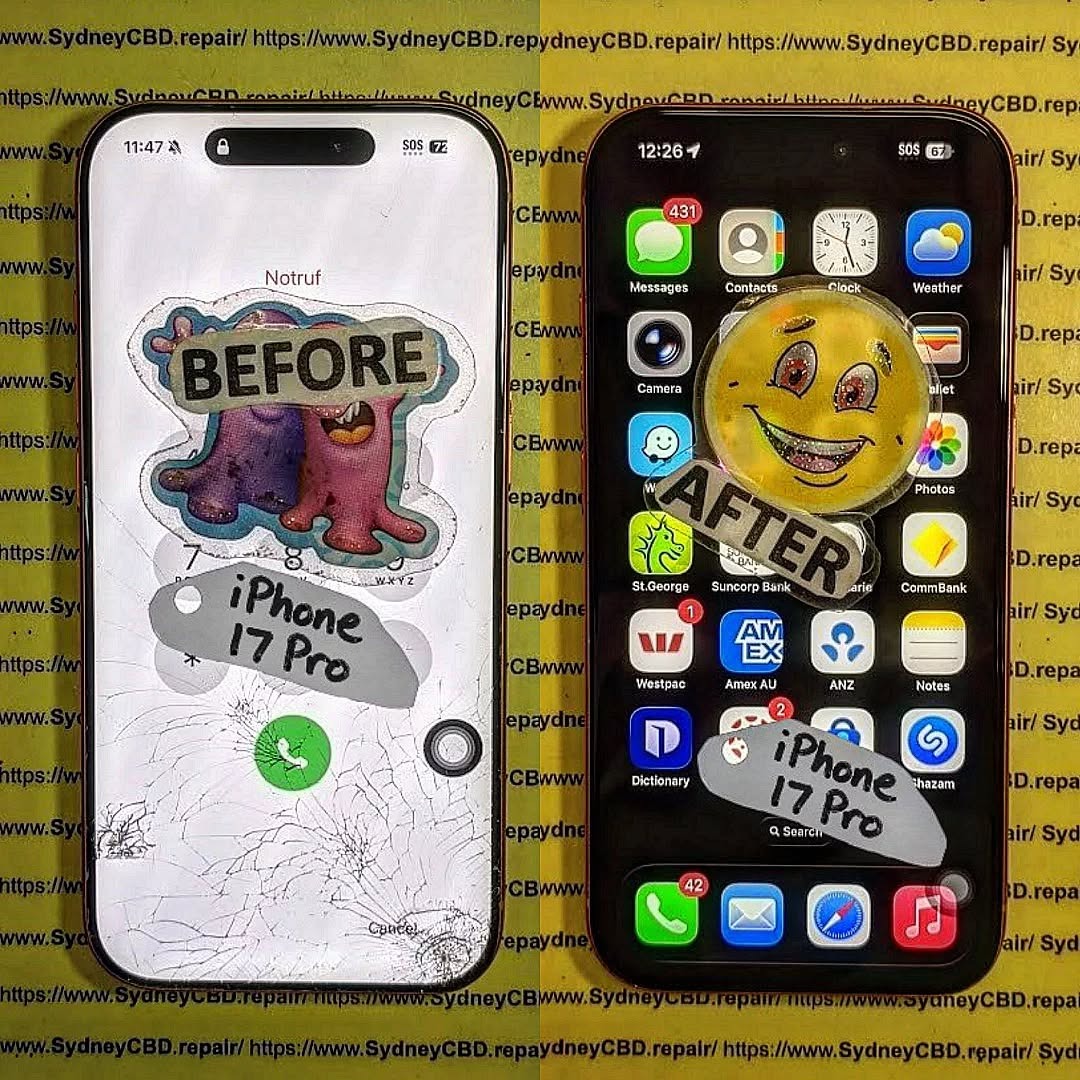
The Step by Step Guide to the First Ever iPhone 17 Pro Screen Replacement – Ultimate Expert Guide (2026)
📱 Introduction to iPhone 17 Pro Screen Replacement
The first ever iPhone 17 Pro screen replacement is already becoming a hot topic among repair technicians and DIY enthusiasts. With the latest innovations from Apple, screen repair isn’t what it used to be.
Let’s face it—dropping your phone happens to the best of us. But when it comes to replacing the display of the iPhone 17 Pro, things have evolved. This guide walks you through every step in a clear, easy-to-follow way.
Whether you’re a beginner or an experienced technician, you’ll find this guide practical, detailed, and worth your time.
These tools can make your iPhone 17 Pro screen replacement smoother and safer.
⚠️ Safety Precautions Before Starting
Personal Safety Tips
Always power off the device
Work in a clean, well-lit space
Wear anti-static gloves
Device Protection Measures
Avoid overheating the phone
Handle connectors gently
Keep screws organized
Skipping these steps can damage your phone permanently.
🔧 Step-by-Step iPhone 17 Pro Screen Replacement Guide
Step 1: Power Off the Device
Turn off your phone completely. This prevents electrical damage.
Step 2: Remove Screws
Use a pentalobe screwdriver to remove the bottom screws near the charging port.
Step 3: Heat and Lift Display
Apply gentle heat around the edges. Then:
Use a suction cup
Insert a plastic pry tool
Slowly lift the screen
Take your time here—rushing can crack the display further.
Step 4: Disconnect Battery
Before touching any internal parts:
Locate the battery connector
Carefully disconnect it
This is critical for safety.
Step 5: Remove Display Connectors
Next, disconnect:
Display cable
Touch sensor cable
Face ID components
Handle these with extreme care.
Step 6: Install New Screen
Now comes the exciting part:
Align the new screen
Reconnect all cables
Secure the display
Replace screws
Congratulations—you’ve completed the iPhone 17 Pro screen replacement!
❌ Common Mistakes to Avoid
Even pros slip up sometimes. Watch out for:
Using too much heat
Pulling cables too hard
Forgetting to disconnect the battery
Mixing up screws
Avoiding these mistakes saves time and money.
💰 Cost Analysis: DIY vs Professional Repair
Option
Cost
Risk Level
Time
DIY Repair
$150–$300
High
1–2 hours
Professional Repair
$300–$600
Low
30–60 mins
If you’re unsure, professional repair is often the safer bet.
⏱️ How Long Does the Repair Take?
Typically:
Beginners: 1–2 hours
Experts: 30–45 minutes
Your first iPhone 17 Pro screen replacement might take longer—and that’s perfectly okay.
✅ Testing the New Screen
Before sealing everything:
Turn on the phone
Check touch responsiveness
Test brightness and colors
Verify Face ID functionality
If something feels off, reopen and check connections.
🔋 Maintenance Tips After Replacement
Keep your new screen in top shape:
Use a screen protector
Avoid drops
Clean regularly
Use a protective case
Simple habits go a long way.
🧑🔧 When to Seek Professional Help
DIY isn’t always the best route. Consider professional repair if:
Screen is completely unresponsive
Internal damage is suspected
You lack proper tools
Sometimes, it’s smarter to leave it to experts.
❓ FAQs
1. Is iPhone 17 Pro screen replacement difficult?
Yes, it’s more complex than older models due to advanced technology.
2. Can I replace the screen myself?
You can, but it requires skill, patience, and the right tools.
3. Will replacing the screen affect Face ID?
It might, especially if sensors are damaged or misaligned.
4. How much does iPhone 17 Pro screen replacement cost?
DIY costs around $150–$300, while professional repair can reach $600.
5. Is the new screen as good as the original?
If you use high-quality parts, performance should be very close.
6. How do I know if my screen needs replacement?
Signs include cracks, unresponsive touch, flickering, or black display.
🏁 Conclusion
The first ever iPhone 17 Pro screen replacement is a blend of precision, patience, and technical know-how. While it’s possible to do it yourself, it’s not without risks.
If you follow this guide carefully, you’ll improve your chances of a successful repair. Still, don’t hesitate to seek professional help when needed.
At the end of the day, keeping your device in top condition ensures it serves you well for years to come.
David from Sydney CBD Repair Centre – The Best place to fix mobile phones as 7 Years In A Row! Top Mobile Phone Repair In Sydney. More than 2000 Positive Reviews on Google and Same Day Repairs.
We take pride in delivering exceptional repair services for all major phone brands including Apple, Samsung, Google, and more. Our expert technicians use only genuine parts and offer 90days warranty on repairs. Located in the heart of Sydney CBD, we’re your one-stop solution for all mobile device repairs.
Our commitment to excellence has earned us the trust of thousands of satisfied customers. Whether it’s a cracked screen, battery replacement, or water damage repair, we handle it all with professional care and expertise. Walk in today and experience why we’re Sydney’s #1 choice for mobile phone repairs.
Visit us for:
✓ Same Day Express Repairs
✓ Genuine Parts Guarantee
✓ Professional Technicians
✓ Competitive Pricing
✓ 2000+ 5-Star Google Reviews
✓ 7-Time Award Winner for Best Phone Repairs
Stop Breaking Your Cameras: The Safe Way to Remove Cracked Lens Glass – 9 Powerful Expert Steps
Introduction
Smartphone cameras have become one of the most important features of modern devices. Whether you’re capturing memories, scanning documents, or creating social media content, a clear and fully functional camera is essential. However, one common issue that many users face is cracked camera lens glass. A single drop onto a hard surface can shatter the protective layer covering the camera, leaving your photos blurry, distorted, or filled with glare.
Many people attempt quick DIY fixes when this happens. Unfortunately, without proper knowledge and tools, trying to remove cracked lens glass can actually cause more damage than the original crack. Tiny shards can scratch the delicate internal lens, dust can enter the camera module, and improper tools can harm surrounding components. What starts as a simple repair can quickly turn into an expensive camera replacement.
The good news is that there is a safe and professional way to remove cracked lens glass without damaging the camera underneath. With the right preparation, correct tools, and careful technique, this repair can restore your phone’s camera performance and protect it from further damage.
In this guide, we’ll explain why camera lens glass cracks, the risks of improper repairs, and the expert-approved method technicians use to remove cracked lens glass safely. By following these steps, you’ll understand how professionals handle this delicate repair and how you can avoid the common mistakes that often break smartphone cameras for good.
Smartphone cameras have become incredibly advanced in recent years. Devices from companies like Apple, Samsung, and Google now feature multiple lenses, powerful sensors, and sophisticated image processing systems. However, one small accident can ruin it all — a cracked camera lens cover.
When that happens, many people rush into DIY repairs. Unfortunately, without the right knowledge, they often damage the camera module even more. Tiny fragments of glass can scratch the lens. Excess pressure can break the sensor housing. Dust contamination can permanently affect photo quality.
That’s why understanding the safe way to remove cracked lens glass is essential. When done correctly, the repair is straightforward and cost-effective. When done incorrectly, it can lead to expensive camera replacements.
In this detailed guide, you’ll learn the professional method technicians use to remove cracked lens glass safely. We’ll also explore preparation, proper tools, and expert techniques that prevent costly mistakes.
Let’s begin by understanding what actually breaks when your phone’s camera lens cracks.
Modern smartphones are engineering marvels. Their camera systems include delicate sensors, precision lenses, optical stabilization systems, and protective glass covers.
The cracked component you usually see on the outside is not the camera lens itself — it’s a protective layer designed to shield the internal optics.
What Is Camera Lens Glass?
The outer camera cover is typically made from hardened sapphire glass or reinforced tempered glass. Its purpose is to protect the internal camera module from:
Scratches
Dust
Impact
Moisture
Fingerprints
Despite its durability, this protective layer can crack when subjected to strong impacts. Dropping a phone on concrete or metal surfaces often results in shattered camera lens glass.
When the glass breaks, users often panic. But the internal camera module usually remains intact.
The real problem arises when someone attempts to remove cracked lens glass without proper care.
Tiny fragments can fall into the camera housing. Adhesive residue can smear across the lens. In worst cases, the camera module itself becomes damaged.
Several everyday situations can lead to broken camera glass.
Phone Drops
The most obvious cause is accidental drops. Smartphones frequently fall from:
Pockets
Tables
Car dashboards
Bathroom counters
Even a short fall can crack the lens glass if the phone lands directly on its camera bump.
Pressure in Bags or Pockets
Large camera bumps on modern phones make them vulnerable to pressure damage. Sitting down with a phone in your back pocket can easily crack the protective glass.
Debris or Sharp Objects
Keys, coins, and sand particles inside bags or pockets may scratch or crack the lens cover.
Why DIY Repairs Often Go Wrong
Many repair mistakes happen because people treat the camera glass like a normal screen protector.
Unfortunately, it’s very different.
The glass is glued tightly to the phone’s rear housing using strong adhesive. Trying to pry it off without heat or precision tools can damage surrounding components.
Common DIY mistakes include:
Using metal knives or screwdrivers
Applying excessive force
Ignoring adhesive softening
Allowing glass fragments to fall into the camera
Professional technicians follow careful procedures to remove cracked lens glass without touching the camera module.
Next, let’s explore the tools and preparation required for a safe repair.
Tools and Preparation Before You Remove Cracked Lens Glass
Preparation is the difference between a successful repair and an expensive mistake.
Professional repair technicians never begin work without proper tools, lighting, and safety precautions.
If you want to remove cracked lens glass safely, you must prepare your workspace properly.
Professional Repair Tools Checklist
Here are the essential tools used by experienced technicians:
Tool
Purpose
Heat gun or hair dryer
Softens adhesive
Plastic pry tools
Safe glass removal
Fine tweezers
Lifting small fragments
Isopropyl alcohol
Cleaning residue
Microfiber cloth
Protecting camera lens
Precision blade
Separating adhesive
Replacement camera glass
Installing new cover
Avoid using household tools like kitchen knives or flat screwdrivers. These can easily slip and scratch the camera.
Safety Precautions Before Starting
Before attempting any repair, follow these safety rules.
Power Off the Phone
Always power off the device before beginning repairs. This prevents electrical damage and accidental camera activation.
Protect the Camera Sensor
Place a small piece of tape over the camera lens opening if the glass is already shattered.
This prevents debris from entering the module during removal.
Wear Eye Protection
Tiny shards of glass can break loose during removal. Eye protection prevents injuries.
Workspace Setup
A clean workspace is essential.
Set up your repair station with:
Bright lighting
Dust-free surface
Anti-static mat if possible
Organized tool layout
Dust contamination is one of the most common repair issues. Even a single dust particle inside the camera module can appear in photos permanently.
Once your workspace is ready, you can proceed with the professional removal method.
Step-by-Step Guide to Remove Cracked Lens Glass Safely
Now comes the most important part of the repair process. If you follow these steps carefully, you can remove cracked lens glass without damaging the camera module.
Professional technicians rely on patience and precision — not force.
Step 1: Power Down the Device
Turn off the smartphone completely.
Remove the SIM tray if necessary. This prevents internal pressure changes when heating the phone.
Step 2: Apply Controlled Heat
The adhesive holding the glass must be softened.
Use a heat gun or hair dryer and gently warm the camera area for 20–30 seconds.
Do not overheat the device.
Excessive heat may damage nearby components such as:
Camera stabilization motors
Internal plastic brackets
Waterproof adhesive seals
Step 3: Carefully Lift the Glass
Insert a thin plastic pry tool along the edge of the cracked glass.
Work slowly around the perimeter.
If the glass shatters further, remove small fragments using tweezers.
Never push downward toward the camera lens.
Step 4: Remove Remaining Fragments
Shattered pieces often remain stuck to the adhesive.
Use tweezers or a precision blade to lift them gently.
Patience is key here. Rushing can scratch the camera lens.
Step 5: Clean Residual Adhesive
After all glass fragments are removed, clean the surface.
Use:
Isopropyl alcohol
Cotton swabs
Microfiber cloth
This step ensures the replacement glass sits perfectly flat.
Step 6: Inspect the Camera Lens
Before installing new glass, check the camera module.
Look for:
Dust particles
Scratches
Adhesive residue
If dust is present, remove it using compressed air.
Step 7: Install Replacement Lens Glass
Place the new glass over the camera opening.
Most replacement parts include pre-installed adhesive rings.
Align carefully before pressing down.
Once installed, apply light pressure for several seconds.
Step 8: Allow Adhesive to Cure
Let the adhesive bond for 10–15 minutes.
Avoid using the camera immediately.
Step 9: Test Camera Function
Finally, power on the phone and test the camera.
Check:
Focus accuracy
Image clarity
Dust spots
Lens alignment
If everything looks clear, the repair was successful.
Professional Tips to Avoid Camera Sensor Damage
Even experienced repair technicians follow strict guidelines to protect delicate camera modules.
Here are the most important professional tips when you remove cracked lens glass.
Handling Multi-Lens Camera Systems
Modern flagship phones often include multiple cameras.
Examples include:
Ultra-wide lenses
Telephoto lenses
LiDAR sensors
Depth sensors
Each opening has separate glass covers.
Be sure to identify which lens is damaged before beginning repairs.
Avoiding Dust Contamination
Dust inside the camera is the number one complaint after DIY repairs.
Prevent contamination by:
Working in a clean room
Avoiding fans or air vents
Using compressed air
Keeping the phone face-down when possible
Common Mistakes During Lens Glass Removal
Avoid these common errors:
Using metal tools
Applying too much heat
Rushing the removal process
Ignoring adhesive residue
Installing low-quality replacement glass
Cheap replacement parts often cause:
Blurry photos
Reflection artifacts
Reduced camera sharpness
Always use high-quality replacement parts whenever possible.
When to Seek Professional Phone Repair Services
Sometimes the safest decision is to leave the repair to professionals.
Complex camera systems are expensive to replace.
Complex Camera Systems
Flagship phones may contain camera modules worth hundreds of dollars.
Devices with advanced sensors and optical stabilization require extra care.
Professional repair technicians have specialized equipment to safely remove cracked lens glass without damaging these components.
Warranty Considerations
If your phone is still under warranty, DIY repairs may void coverage.
Manufacturers often require authorized service providers for repairs.
You can learn more about smartphone repair practices from trusted resources like https://www.ifixit.com.
Cost vs Risk Analysis
Replacing camera lens glass is usually inexpensive.
However, damaging the internal camera module can turn a simple repair into a costly replacement.
Ask yourself:
Do you have the right tools?
Is the glass badly shattered?
Is the camera already scratched?
If the answer to any of these is yes, professional repair is often the safest option.
Frequently Asked Questions
1. Can a cracked camera lens affect photo quality?
Yes. Cracks scatter light entering the camera, causing blurry images, glare, or distortion.
2. Is it safe to remove cracked lens glass at home?
It can be safe if done carefully with proper tools and preparation.
However, improper removal can damage the camera sensor.
3. How long does it take to replace camera lens glass?
Professional technicians usually complete the repair in 15–30 minutes.
4. Can I use the camera if the lens glass is cracked?
Yes, but image quality may be reduced, and dust can enter the camera module.
5. Does replacing the glass restore image quality?
If the internal lens and sensor are undamaged, replacing the glass usually restores full camera performance.
6. How much does camera lens glass replacement cost?
Prices vary depending on the device, but most repairs are relatively inexpensive compared to full camera replacements.
Conclusion
Cracked camera lens glass is one of the most common smartphone problems today. Fortunately, it’s also one of the most manageable repairs when handled correctly.
Understanding the proper method to remove cracked lens glass prevents costly mistakes and protects the delicate camera module beneath the surface.
By preparing the right tools, following professional techniques, and working patiently, you can safely restore your phone’s camera performance.
However, when the damage is severe or the device contains complex camera systems, seeking professional repair services remains the safest option.
A careful approach ensures your smartphone continues capturing clear, beautiful photos for years to come.
David from Sydney CBD Repair Centre – The Best place to fix mobile phones as 7 Years In A Row! Top Mobile Phone Repair In Sydney. More than 2000 Positive Reviews on Google and Same Day Repairs.
We take pride in delivering exceptional repair services for all major phone brands including Apple, Samsung, Google, and more. Our expert technicians use only genuine parts and offer 90days warranty on repairs. Located in the heart of Sydney CBD, we’re your one-stop solution for all mobile device repairs.
Our commitment to excellence has earned us the trust of thousands of satisfied customers. Whether it’s a cracked screen, battery replacement, or water damage repair, we handle it all with professional care and expertise. Walk in today and experience why we’re Sydney’s #1 choice for mobile phone repairs.
Visit us for:
✓ Same Day Express Repairs
✓ Genuine Parts Guarantee
✓ Professional Technicians
✓ Competitive Pricing
✓ 2000+ 5-Star Google Reviews
✓ 7-Time Award Winner for Best Phone Repairs
THE ASPIRE REPAIR! Fixing the Asus ROG Phone’s Charging Port + Ultimate Guide + 7 Key Steps
Introduction
In today’s fast-paced digital world, a smartphone is more than just a communication device—it’s a lifeline. For gamers and power users, the Asus ROG Phone stands out as a high-performance device designed to handle intense gaming, multitasking, and heavy daily use. However, even the most advanced phones are not immune to wear and tear, and one of the most common yet frustrating issues is a faulty charging port.
A damaged charging port can prevent your phone from charging properly, disrupt your gaming sessions, or even leave you completely powerless at crucial moments. Whether the issue stems from dust accumulation, liquid exposure, physical damage, or simply wear and tear over time, addressing it promptly is essential to maintain your phone’s performance and longevity.
This comprehensive guide will walk you through everything you need to know about fixing the Asus ROG Phone’s charging port. From identifying common symptoms and understanding causes to performing a safe and effective repair, we’ll cover every step. You’ll also learn preventative tips to ensure your charging port stays in peak condition and discover when professional help is the smarter choice.
By the end of this guide, you’ll have the confidence to restore your phone’s charging functionality, extend its lifespan, and avoid future hassles—keeping your Asus ROG Phone ready for action, anytime, anywhere.
The charging port is arguably one of the most crucial components of your Asus ROG Phone. Without it, keeping your phone powered becomes a frustrating challenge. This ultimate guide will walk you through how to fix a faulty charging port, covering everything from identifying symptoms to performing the repair safely, along with preventative measures to avoid future problems.
The Asus ROG Phone is built for gamers, boasting high-performance specifications. But even the sturdiest devices can suffer from wear and tear, especially in the charging port.
Common Symptoms of a Faulty Charging Port
A malfunctioning charging port usually presents the following signs:
Slow or inconsistent charging: Your phone may take hours to charge fully or may stop charging unexpectedly.
Intermittent connection: Sometimes the phone charges only when the cable is held at a specific angle.
Overheating: Excessive heat near the charging area indicates electrical issues.
No charging at all: Complete failure to charge often signals physical damage or corrosion.
Causes of Charging Port Damage
Several factors contribute to port damage, including:
Accumulated dust and debris blocking the connector pins.
Liquid exposure, causing corrosion or short circuits.
Physical wear from frequent plugging and unplugging.
Poor quality cables causing bent or broken pins inside the port.
Repairing the charging port requires specific tools to avoid further damage.
Safety Precautions Before You Begin
Before starting, ensure you:
Power down the phone completely.
Remove the battery if possible or ensure it’s fully discharged.
Work on an anti-static surface and use anti-static wrist straps.
List of Required Tools
Precision screwdrivers (Philips, Torx)
Plastic spudgers or pry tools
Tweezers
Magnifying glass or microscope
Soldering iron and solder (if port is soldered)
Replacement charging port compatible with Asus ROG Phone
Step-by-Step Guide to Fix the Charging Port
Step 1: Power Down and Open the Device
Remove all screws securing the back panel.
Use a spudger to carefully detach the back cover, avoiding flex cables.
Step 2: Disconnect the Battery Safely
Locate the battery connector and disconnect it to prevent short circuits.
Ensure no residual power remains in the device.
Step 3: Remove the Old Charging Port
Inspect the port for soldering or clip mechanisms.
Carefully desolder or unclip the port using appropriate tools.
Avoid applying excessive heat that can damage the motherboard.
Step 4: Install the New Charging Port
Align the new port precisely.
Solder or clip it into place carefully, ensuring all pins are connected.
Inspect the connection with a magnifying glass to verify alignment.
Step 5: Reassemble the Phone
Reconnect the battery.
Secure the back cover and screws.
Double-check that no components are loose.
Step 6: Testing the Charging Functionality
Plug in the charger to verify connectivity.
Test for proper voltage and current flow using a multimeter.
Ensure the phone charges reliably under different angles and cables.
Preventing Future Charging Port Issues
Prevention is always better than repair.
Regular Cleaning Techniques
Use compressed air or a soft brush to remove dust.
Avoid inserting sharp objects that can bend pins.
Clean periodically, especially if you carry your phone in pockets or bags.
Protective Accessories
Invest in port covers or plugs.
Use cases that prevent dust accumulation.
Opt for high-quality charging cables and avoid forcing connectors.
When to Seek Professional Help
While DIY repairs are possible, some situations demand expert intervention.
Advantages of Professional Repair Services
Access to specialized tools and replacement parts.
Skilled technicians who minimize risk of damage.
Warranty support that ensures your repair is covered.
Cost Analysis: DIY vs Professional
Aspect
DIY
Professional
Cost
$15-$30 (parts only)
$50-$100 (parts + labor)
Time
1–3 hours
30–60 minutes
Risk
High
Low
Warranty
None
Typically 90 days
Frequently Asked Questions (FAQs)
Q1: Can I fix the charging port without soldering?
A1: Yes, if your Asus ROG Phone uses a modular clip port. Otherwise, soldering is often required.
Q2: How long does a charging port repair take?
A2: DIY repairs may take 1–3 hours, while professionals often finish in under an hour.
Q3: Will a faulty charging port damage my battery?
A3: Prolonged intermittent charging can degrade battery life, so it’s best to repair promptly.
Q4: How can I clean my charging port safely?
A4: Use compressed air or a soft brush; avoid liquids or metal objects.
Q5: Is using third-party chargers harmful to the charging port?
A5: Low-quality cables can damage pins or overheat the port. Always use certified chargers.
Q6: Does Asus provide official charging port replacement?
A6: Yes, you can check Asus support here for authorized service centers.
Conclusion
Fixing your Asus ROG Phone charging port might seem intimidating, but with the right tools, precautions, and step-by-step guidance, it’s entirely manageable. Whether you opt for DIY or professional repair, proper maintenance and protective habits will extend your phone’s life and prevent future issues.
David from Sydney CBD Repair Centre – The Best place to fix mobile phones as 7 Years In A Row! Top Mobile Phone Repair In Sydney. More than 2000 Positive Reviews on Google and Same Day Repairs.
We take pride in delivering exceptional repair services for all major phone brands including Apple, Samsung.
We take pride in delivering exceptional repair services for all major phone brands including Apple, Samsung, Google, and more. Our expert technicians use only genuine parts and offer 90days warranty on repairs. Located in the heart of Sydney CBD, we’re your one-stop solution for all mobile device repairs.
Visit us for:
✓ Same Day Express Repairs
✓ Genuine Parts Guarantee
✓ Professional Technicians
✓ Competitive Pricing
✓ 2000+ 5-Star Google Reviews
✓ 7-Time Award Winner for Best Phone Repairs
Replacing The Critical Flex Cables Inside A Heavily Damaged Samsung Fold 5 – Ultimate Repair Guide 2026
🛠️ Introduction to Samsung Fold 5 Flex Cable Repair
Replacing the critical flex cables inside a heavily damaged Samsung Fold 5 is one of the most delicate and demanding repair procedures in modern smartphone servicing. Foldable devices push engineering limits, and while they’re impressive, they’re also more vulnerable—especially when damage occurs.
Flex cables are the lifelines of your device. When they fail, the phone may partially function—or not at all. So, understanding how to properly replace them isn’t just helpful—it’s essential.
In this guide, we’ll walk you through every step, from diagnosis to full reassembly. Whether you’re a technician or an enthusiast, this deep dive will help you master the process confidently.
🔍 Understanding Flex Cables in Foldable Phones
What Are Flex Cables?
Flex cables, often called ribbon cables, are thin, flexible connectors that link different components of your phone. In the Samsung Fold 5, they play a critical role in:
Display communication
Touch responsiveness
Charging systems
Camera modules
Because foldable phones bend, these cables endure repeated stress.
Why They Fail in Fold Devices
Unlike traditional smartphones, foldables constantly flex. Over time, this leads to:
Micro-tears in the cable
Connector loosening
Heat-related degradation
In a heavily damaged device, flex cables are almost always compromised.
⚠️ Common Signs of Flex Cable Damage
Display Issues
One of the first signs is screen malfunction, such as:
Flickering display
Black screen when unfolded
Touch unresponsiveness
Charging and Connectivity Failures
You may also notice:
Intermittent charging
No signal or Wi-Fi issues
Camera not working
These symptoms strongly indicate internal cable damage.
🧰 Tools Required for Flex Cable Replacement
Essential Repair Tools
To replace the critical flex cables inside a heavily damaged Samsung Fold 5, you’ll need:
Precision screwdriver set
Plastic pry tools
Heat gun or heating pad
Tweezers (ESD-safe)
Suction cup
Safety Equipment
Don’t skip safety. Always use:
Anti-static wrist strap
Protective gloves
Eye protection
🔧 Preparing the Samsung Fold 5 for Repair
Powering Down and Disassembly Prep
First things first:
Power off the device completely
Remove SIM tray
Heat edges to soften adhesive
This reduces risk of internal damage.
Protecting Internal Components
Use controlled heat and avoid overheating sensitive parts like:
Battery
Display layers
Camera sensors
🔩 Step-by-Step Disassembly Process
Removing the Back Panel
Carefully apply heat and use a pry tool to lift the back panel. Take your time—rushing can crack the glass.
Disconnecting the Battery
Always disconnect the battery before proceeding. This prevents short circuits.
Accessing the Flex Cables
Once inside:
Remove shielding plates
Unscrew internal brackets
Locate ribbon connections
🔎 Identifying Damaged Flex Cables
Visual Inspection
Look for:
Tears or bends
Burn marks
Loose connectors
Testing with Multimeter
Check continuity to confirm if cables are functional or broken.
🔁 Replacing the Flex Cables Safely
Removing Old Cables
Gently disconnect:
Lift connectors vertically
Avoid pulling sideways
Installing New Flex Cables
When installing:
Align connectors precisely
Press gently until secure
Double-check positioning
Replacing the critical flex cables inside a heavily damaged Samsung Fold 5 requires patience—force will only cause more damage.
🔄 Reassembly Process
Reconnecting Components
Reconnect everything in reverse order:
Battery
Display connectors
Internal shields
Sealing the Device
Apply new adhesive before sealing the phone. Ensure proper alignment.
✅ Testing After Repair
Functional Testing
Turn the device on and test:
Touch responsiveness
Display clarity
Charging functionality
Stress Testing Fold Mechanism
Fold and unfold multiple times to ensure stability.
❌ Common Mistakes to Avoid
Avoid these pitfalls:
Skipping battery disconnection
Using excessive heat
Forcing connectors
Ignoring cable alignment
These errors can ruin your repair.
💰 Cost of Flex Cable Replacement
Costs vary depending on:
Factor
Price Range
Parts
$50–$150
Labor
$100–$300
Total
$150–$450
Professional repairs are more expensive but safer.
⚖️ DIY vs Professional Repair
DIY repair can save money, but:
Requires skill
Risk of further damage
Professional repair offers:
Warranty
Expertise
Proper tools
🧼 Maintenance Tips After Repair
To extend lifespan:
Avoid over-folding
Keep device clean
Use protective case
Avoid extreme temperatures
❓ FAQs
1. How long does flex cable replacement take?
Typically 1–3 hours depending on experience.
2. Can I use generic flex cables?
It’s not recommended. Always use high-quality or OEM parts.
3. Is it safe to repair at home?
Only if you have proper tools and experience.
4. Why does my screen still flicker after replacement?
It could be a display issue or improper cable connection.
5. How often do flex cables fail in foldable phones?
They can degrade after thousands of folds, especially with heavy use.
Replacing the critical flex cables inside a heavily damaged Samsung Fold 5 is no small task—but with the right tools, patience, and knowledge, it’s absolutely achievable. Foldable phones demand precision, and every step matters.
Whether you choose to DIY or go professional, understanding the process gives you an edge. Stay careful, stay informed, and your repair will be a success.
David from Sydney CBD Repair Centre – The Best place to fix mobile phones as 7 Years In A Row! Top Mobile Phone Repair In Sydney. More than 2000 Positive Reviews on Google and Same Day Repairs.
We take pride in delivering exceptional repair services for all major phone brands including Apple, Samsung, Google, and more. Our expert technicians use only genuine parts and offer 90days warranty on repairs. Located in the heart of Sydney CBD, we’re your one-stop solution for all mobile device repairs.
Our commitment to excellence has earned us the trust of thousands of satisfied customers. Whether it’s a cracked screen, battery replacement, or water damage repair, we handle it all with professional care and expertise. Walk in today and experience why we’re Sydney’s #1 choice for mobile phone repairs.
Visit us for:
✓ Same Day Express Repairs
✓ Genuine Parts Guarantee
✓ Professional Technicians
✓ Competitive Pricing
✓ 2000+ 5-Star Google Reviews
✓ 7-Time Award Winner for Best Phone Repairs