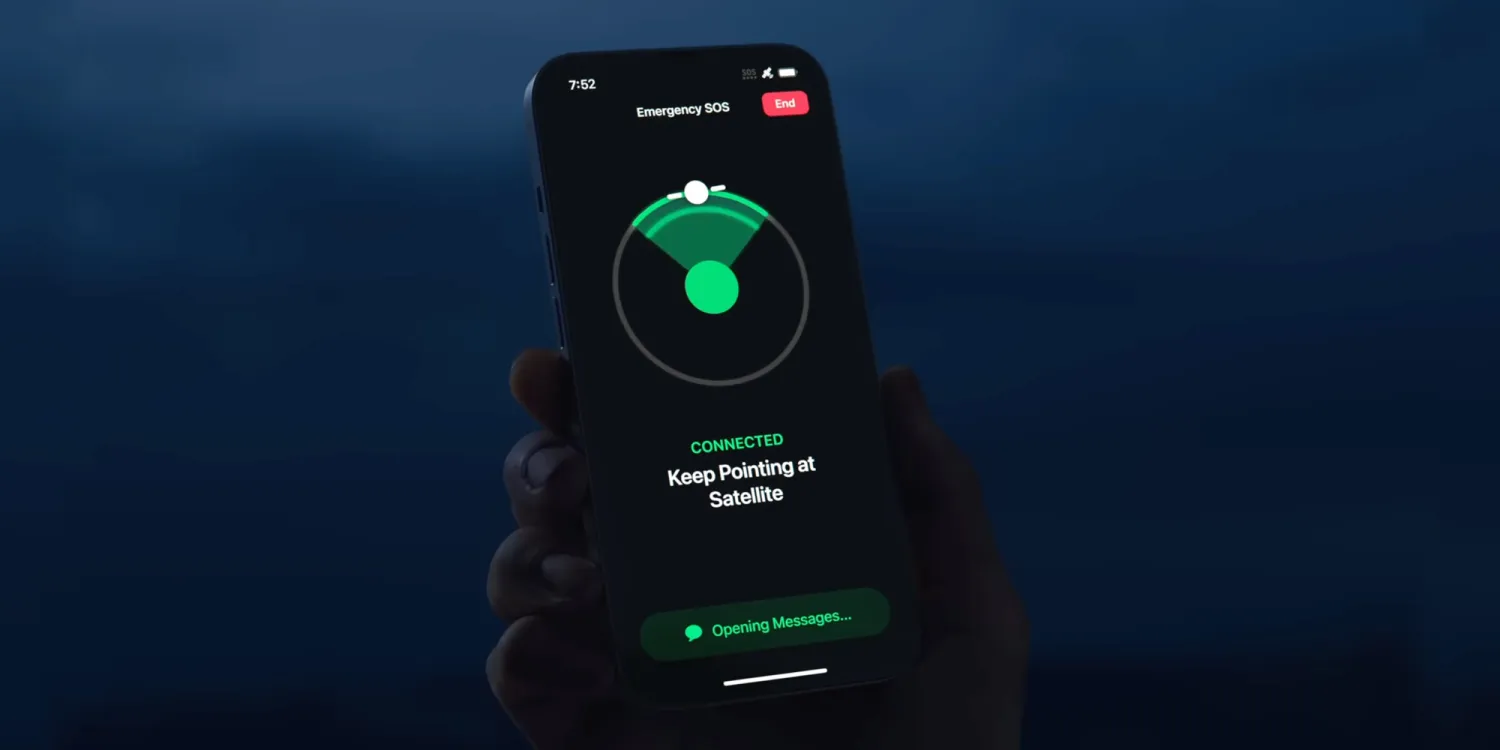
Apple today announced it is extending the free usage period for Emergency SOS satellite features for iPhone 14 users. Previously, Apple gave iPhone 14 customers two free years after device activation, which would have began expiring this time next year.
But now, all current iPhone 14 users will be able to use the service for free for another two years. Apple has not revealed how much it will charge for Emergency SOS via satellite when the free period is up, and today’s announcement means the company can defer any decision making on that further into the future.
The free period for iPhone 15 customers has not been extended. That means iPhone 15 users still currently are working on a two free years model, which will begin to elapse in September 2024.
This means iPhone 14 and iPhone 15 customers will see their free periods expire at roughly the same time, beginning September 2025. It gives Apple more time to decide on pricing plans for these features.
Emergency SOS via satellite allows compatible iPhone users to send short text messages to nearby emergency services even when outside of Wi-Fi or cellular signal range. It allows people to get help if they get into trouble in places where usually they would have no way to contact anyone else.
Users can also update their location in the Find My app using the satellite signal. With iPhone 15, Apple also extended the Emergency SOS feature to include contacting roadside assistance when your car breaks down.
Apple has been under pressure in the European Union as the Digital Markets Act antitrust legislation requires the company to allow users to sideload apps outside the App Store to increase competition. The iOS 17.2 beta code that the company is indeed moving towards enabling sideloading on iOS devices.
Update: Apple has published new documentation for the ManagedAppDistribution API on its website confirming that it is primarily intended as an MDM solution. As we suggested in our report, it could still be used for other purposes. You can read the original article below.
What is sideloading
For those unfamiliar, the sideloading process consists of installing apps obtained from third-party sources instead of an official source. When it comes to iOS, the official source (and the only one available to iPhone and iPad users) is the App Store. Apple has never allowed sideloading on iOS, as this would allow apps to bypass the App Store guidelines.
However, the European Union last year passed the Digital Markets Act, or DMA, a new piece of antitrust legislation aimed at big tech companies so that they don’t use their advantages to undermine competition. One of the requirements of the DMA is that users can install any apps they want from third-party sources.
Previous reports revealed that Apple had been doing under-the-hood work on iOS 17 to prepare the system for sideloading in Europe. With the iOS 17.2 beta, internal code suggests this is true.
iOS 17.2 seems ready to allow alternative app stores
iOS 17.2 has a new public framework called “Managed App Distribution.” While our first thought was that this API would be related to MDM solutions for installing enterprise apps (which is already possible on iOS), it seems that Apple has been working on something more significant than that.
By analyzing the new API, we’ve learned that it has an extension endpoint declared in the system, which means that other apps can create extensions of this type. Digging even further, we found a new, unused entitlement that will give third-party apps permission to install other apps. In other words, this would allow developers to create their own app stores.
The API has basic controls for downloading, installing, and even updating apps from external sources. It can also check whether an app is compatible with a specific device or iOS version, which the App Store already does. Again, this could easily be used to modernize MDM solutions, but here’s another thing.
We also found references to a region lock in this API, which suggests that Apple could restrict it to specific countries. This wouldn’t make sense for MDM solutions, but it does make sense for enabling sideloading in particular countries only when required by authorities – such as in the European Union.
When will this happen?
In theory, Apple is required to comply with DMA legislation by March 2024. The company has even admitted in a Form 10-K filing that it expects to make changes that will impact the App Store’s business model.
At the same time, Apple will also appeal to the European Union about including the App Store in the Digital Markets Act, which is no surprise. Apple will likely try everything to preserve the iOS App Store. But ultimately, iOS 17 will be ready for sideloading.
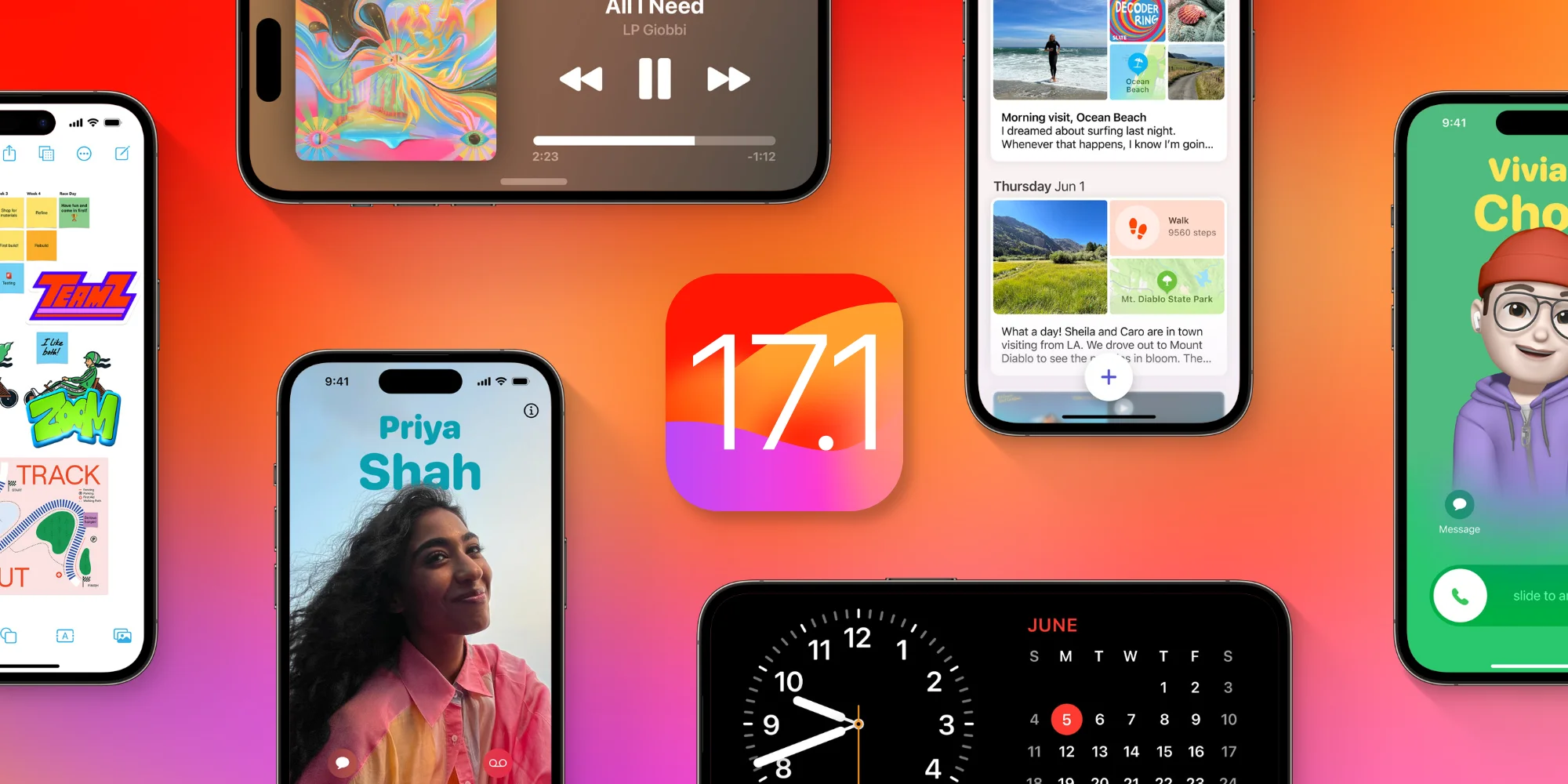
Apple has released iOS 17.1.1 for iPhone. The software update includes fixes for wireless charging and the recently discovered snow glitch. The update follows the iOS 17.1 update from October 25 which introduced new AirDrop and Apple Music features. Apple is also working on iOS 17.2 and the new Journal app for iPhone.
Release notes
This update provides bug fixes for your iPhone including:
In rare circumstances, Apple Pay and other NFC features may become unavailable on iPhone 15 models after wireless charging in certain cars
Weather Lock Screen widget may not correctly display snow
It’s not just you: Apple Weather widget is showing a file icon instead of snow
Apple released a watchOS update that fixed an annoying bug affecting the Weather app complication, which had been broken for months since the watchOS 10 beta. But it seems that Apple still has other bugs to fix in its Weather app, as some users have been seeing a random file icon in the Lock Screen widget instead of a representation of snow.
Apple Weather widget can’t handle snow
As noticed by many users on the web and also by the 9to5Mac staff, the Apple Weather Lock Screen widget has been showing a generic file icon. Interestingly, this only happens when the weather forecast for the set location is snow and doesn’t seem to affect any other weather conditions shown by the widget.
On X (formerly Twitter), iPhone users have been making jokes about the fact that the Apple Weather widget isn’t ready for snow. The “iPhone weather widget apparently can no longer handle snow (neither can I, but that’s a different story),” a user posted on the social network. “The snow image isn’t even loading on my weather widget. It’s too soon for this,” said another user.
The snow image isn’t even loading on my weather widget. It’s too soon for this. pic.twitter.com/BMWP7A2ls3
It is unclear whether the bug is caused by something that can be fixed remotely on the Apple Weather servers or if it’s a more serious glitch that will require an iOS update. Either way, Apple hasn’t had much luck when it comes to its Weather app.
Back in 2020, the company acquired the weather app Dark Sky and has since implemented some of its features right into the Apple Weather app. However, it’s been a while since users began complaining about its lack of accuracy when it comes to weather alerts and forecasts.
Apple’s proud boast that the entire Scary Fast event was shot on the iPhone 15 Pro Max has lead to a lot of discussion and debate about what that really means, and whether or not it’s a big deal.
There are those suggesting it really does mean the camera is something special, while other are suggesting that it’s at best meaningless, and at worst a cheat …
The Verge’s Jess Weatherbed was one of the naysayers.
Still images and a video reveal that (unsurprisingly) a great deal of fancy equipment — from drones, gimbals, dollies, industrial set lighting, and other recording accessories — is still required to make iPhone footage look this good […]
It’s a neat way to promote the recording quality of iPhone cameras, but it’s not like everyday folks can recreate these kinds of results at home unless they happen to own a shedload of ludicrously expensive equipment. The gear shown in the “Scary Fast” behind-the-scenes footage is fairly standard for big studio productions, but Apple’s implication with these so-called “shot on iPhone” promotions is that anyone can do it if only they buy the newest iPhone.
I saw a few folks mocking Apple for this on Mastodon and Threads, too. This is ridiculous. Do these people think that previous Apple keynote films were shot with just a single camera person wielding something like a $40K RED cinema camera and no crew, no lighting, no cranes? That the iPhone “needs help” that traditional cinema cameras do not? I mean, guess what, they used professional microphones too.
The whole point is that an iPhone 15 Pro camera is so good that it can fit right in on a high-budget commercial film shoot, and produce world-class results. There’s no implication that a casual user can get results like this by just hitting the shutter button in the iPhone Camera app.
Personally, I fall somewhere between the two views.
There’s one cheat Apple didn’t use
First, there is one cheat that is often used on ‘Shot on iPhone’ video footage, and that’s the use of high-end lenses.
You can buy adapters that allow you to use either DSLR or even full-on cinema lenses with iPhones. While those still have to go through the built-in lenses, of course, they do allow you to achieve things that simply cannot be achieved with the built-in lenses, like anamorphic perspectives and really shallow depth of field (DoF).
Since Apple showed us behind-the-scenes footage, and we saw no sign of external lenses, we can be reasonably confident that the company didn’t use that particular cheat.
But set control is a very good workaround
Very often, you want shallow DoF because there are distractions in the background. When you or I are filming on the street, or in a public area, there are other people around, trash cans, litter, all kinds of distracting elements.
A big-budget production, in contrast, has complete control of the set. You can either build the background you need, or simply take complete control of it.
Clear out all the people, ensure there’s nothing untidy to clutter up the scene, add a bit of dry ice, and voila: a setting in which everything being in focus is just fine.
Lighting is everything
When I introduced a friend to studio photography, he was amazed that camera settings were set-and-forget. Manual mode, ISO 100, f/11, 1/125th, done.
All the control is achieved with the lights. High-key, low-key, upbeat, moody, colorful, monochromatic, background visible, background invisible – lighting is the route to achieving the exact look you want.
The same is true with video. But more than this, studio or cinema lighting enables you to overcome weaknesses in a sensor. Almost any modern camera phone does just fine in bright light; it’s in low-light conditions that we see the difference between a high-end sensor and a mediocre one. Throw in the kind of lighting rigs we see in the BTS video and it’s no surprise that the iPhone sensor can cope.
Now, you might argue that this was a Halloween theme, and a lot of it was pretty dimly lit – and that’s true. But the presenters are very well-lit indeed, and it’s them we’re looking at. If we turn our attention to the low-lit background, that has nothing like the same clarity or sharpness. Those areas are as muddy and noisy as we’d expect from low-light filmed with a smartphone sensor (and bear in mind this is the result after professional editors have done their very best to clean it up):
Camera angles, movement, and transitions do a lot
The other factor to bear in mind is that a lot of heavy lifting was done by all the rest of the kit we got to see in the BTS videos. Dollies, jibs, gimbals, drones, you name it.
Plus some absolutely superb editing, with Apple’s trademark transitions.
The result was a lot of camera movement, a lot of angles, a lot of fast-paced transitions to capture our attention. So we don’t have much time to take in the wider framing and notice the noise and muddiness in the background areas.
Is Apple pulling a fast one?
The debate essentially comes down to whether Apple is trying to give the impression that the iPhone 15 Pro Max camera is so good that anyone can get these types of results.
There are those who say: No, of course not. The very fact that Apple chose to share the BTS video acknowledges that you need all the extra kit to get these results. You’d use exactly the same additional kit if you were shooting with Arri movie cameras.
That much is true. But … you could take your Alexa Mini into an ordinary room, partly lit by window light alone, without all those fancy lighting rigs, and still get very good results. The results from the iPhone wouldn’t even come close. And it’s that latter situation where most of us would find ourselves shooting.
So while Apple does acknowledge that it used movie-grade kit, at the same time the implied message is ‘See? The iPhone can get similar results to movie cameras’ – when that is, in most circumstances, very much not the case.
You decide
Ultimately, this comes down to opinion. What Apple did was real, and used exactly the same kit it has used with cinema cameras in the past. At the the same time, those are the least-challenging conditions for any camera – and there are a lot of weaknesses in the images that simply flashed past unnoticed.
Exit iPhone mini, enter iPhone Plus! Indeed, the rumors came true, and this year Apple launched a bigger non-Pro model instead of a mini one. We can only guess what Apple‘s plans are about the mini model, but today’s review is about Apple’s newest addition to the iPhone series – the iPhone 14 Plus.
We thought the iPhone 13 would go down in history as the most insignificant iPhone update ever, but the iPhone 14 snatched that title. See, the iPhone 14 and iPhone 14 Plus are based on the same Apple A15 Bionic chipset as the iPhone 13 models, and even the screen specs have stayed the same – OLEDs with about 460ppi, 800nits brightness and 60Hz refresh.
In fact, there are only four notable upgrades on the iPhone 14 when compared to the iPhone 13 – the new primary rear camera (lifted from iPhone 13 Pro), the updated selfie camera with the new lens and AF, 2GB more RAM, and the Emergency SOS via satellite feature.
The new iPhone 14 Plus adds a couple of extra ones – the larger screen and the larger battery. The Plus model brings a Max-sized screen to the regular series – even if it’s only 60Hz.
The selfie camera, while retaining its 12MP sensor, has a new brighter aperture lens with optical stabilization, and autofocus. We always wondered why Apple didn’t introduce AF capabilities sooner, as the Face ID tech is there to provide a massive assist to that, but alas, it is finally here.
The iPhone 14 Plus is as waterproofed as the rest of the recent iPhones – it can last for 30minbs in up to 6m deep clean water. And it should be a desirable smartphone for its large screen and yet thin and lightweight design. It is also touted as the iPhone with the best battery life, and we will surely test this out.
Disclaimer. We can not guarantee that the information on this page is 100% correct.
Just like the iPhone 13 and iPhone 14, the iPhone 14 Plus has one glaring omission – high refresh rate support. And the size of the notch is an eyesore you need to put up for a few more years, apparently. At least, it looks subjectively smaller on this large screen.
We are glad the non-Pro iPhones are getting the new software features like Action Mode for the video camera, the improved Cinematic Mode, and the satellite connection, too.
Unboxing the iPhone 14 Plus
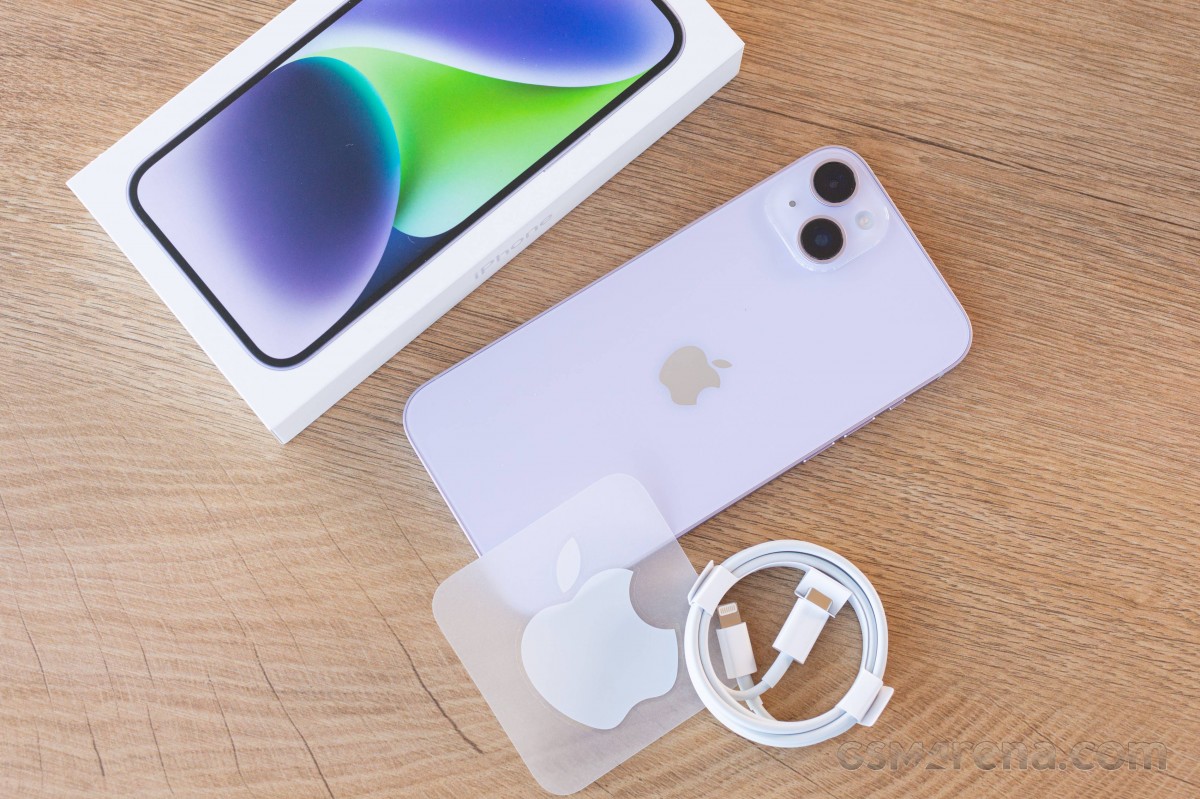
The eco-friendly iPhone box contains a USB-C-to-Lightning cable and the iPhone 14 Plus. There is also a SIM ejection pin, some paperwork, and an Apple sticker.
Apple was among the first manufacturers to ditch the headphones and the charger from its boxes.
If you have a 20W+ USB-PD power adapter with a USB-C port, you should be good.
Alternatives
The iPhone 14 Plus makes total sense in the grand Apple design – the maker has turned the SE model into a special mini edition iPhone, and that’s why the mini had to go from the flagship series. In fact, the vanilla iPhone 14 is so compact and lightweight that we can argue it has been the mini one all along.
Meanwhile, the absence of a larger iPhone for the masses has been quite obvious for the last couple of years, and it was only time for Apple to answer that call. And it did, in its own way.
The iPhone 14 Plus is essentially a supersized iPhone 14 and not much else. What you get is a Max-size display of non-Pro quality and better battery life thanks to the larger battery.
Now, all those Apple users who wanted a large iPhone that’s not overweight and ‘oh so premium’ can have the iPhone 14 Plus.
But, if you are still on the fence about this new Plus model, probably because of its €1,150 price tag, we can understand why you would want to explore more options.
For example, you can get the iPhone 13 Pro Max, which is pretty much the same phone but with an additional zoom camera, a better ultrawide shooter with AF, and a 120Hz ProMotion display. It can be purchased for €1,200 – which is quite an offer to consider. Yes, it is heavy because of the stainless-steel frame and the extra parts like LiDAR and the telephoto, but it’s a tradeoff many would take.
The iPhone 14, as we established, is the most compact current iPhone in circulation, and it’s quite the treat despite the 60Hz screen. It has the same specs as the Plus; it’s just smaller in size and incredibly pocketable. Oh, and it’s €150 cheaper.
Finally, Apple is also selling the older iPhone 12, which is basically an iPhone 13, and so on, starting at €800 for the 64GB model at Apple Store, or about €650 from third-party retailers. So, if you want the cheapest premium iPhone officially available, that’s the one.
Apple iPhone 13 Pro Max • Apple iPhone 14 • Apple iPhone 12
Of course, there are plenty of cheaper offers you can consider for their large screens outside Apple’s lineup. The €780 Xiaomi 12T Pro impressed us with its screen, charging speed, all-around performance and camera quality. The same goes for the Motorola Edge 30 Ultra – a phone with a 144Hz OLED screen, one of the first 200MP imagers, a 60MP selfie camera, and 125W fast charging. Finally, the Samsung Galaxy S22+ 5G has a large 120Hz OLED, one of the fastest Android chips, and an excellent trio of cameras on the back, including a zoom one.
The iPhone 14 Plus is one of the best iPhones Apple has ever made, as usual. It does exactly what it is supposed to do – offering the non-Pro experience on a larger display. A big bonus from the new size is the larger battery capacity and hence – the better battery life.
The iPhone 14 Plus is one of the lightest 6.7-inch smartphones around with a flagship-grade design, screen, speakers, battery life, performance and video quality. Meanwhile, its new cameras, including the AF-capable selfie one, are as controversial as usual – it’s like their quality hasn’t changed for generations because of the heavy processing and over-sharpening.
Still, this iPhone 14 Plus finds its way to the hearts and pockets of people despite the lack of a high refresh rate screen or zoom camera. A lot of users won’t mind this.
Its price tag may be too close to the 13 Pro Max for its own good, but last year’s flagship model has been officially discontinued, so you’d have to source it from an independent retailer but it’s definitely the better one between the two.
That doesn’t make the iPhone 14 Plus a bad smartphone and it’s well worth considering if you don’t need the extra features that the Pro models bring.
Pros
Sturdy design and sleek looks.
Excellent OLED, Dolby Vision, HDR10, high brightness.
Very good battery life.
Top-notch stereo speakers.
Flagship-grade performance even if not the latest chipset.c
Dependable photo quality from the main and selfie cameras.
Outstanding video quality and stabilization across the board, great action clips.
Every iPhone gets at least five years of iOS updates.
Cons
Wide feature gap with the 14 Pro family: no 120Hz refresh rate, A16 Bionic, zoom camera or AF on the ultrawide.
Priced too close to last year’s iPhone 13 Pro Max, which has most of the above.
No charger in the box, somewhat slow charging.
Apple’s iOS restrictions can be off-putting to newcomers to the ecosystem.
iPhone 15 and 15 Plus are Apple’s latest non-pro smartphones that come with a number of new features. But are they worth the upgrade if you have an iPhone 13? Follow along for an in-depth look at the iPhone 13 vs 15 for everything that’s changed.
Screen sizes and design
The screen sizes between the iPhone 13 and iPhone 15 remain the same at 6.1 inches. However, the 15 Plus offers a 6.7-inch option that wasn’t available with the iPhone 13 lineup without stepping up to the 13 Pro Max.
New with the iPhone 15 displays is the Dynamic Island and an outdoor brightness of up to 2000 nits.
Here’s the full look at the display specs for iPhone 13 vs iPhone 15:
The bezels on the iPhone 15 are also slimmer than the 13, which is what allows the very slight increase in pixels.
Size, weight, design
Overall, the physical design of the iPhone 15 remains very similar to the 13, but Apple has given the 15 more rounded edges for a more comfortable feel.
And as mentioned above, you’ve now got the larger iPhone 15 Plus option.
For size, weight, and materials, here’s iPhone 13 vs 15:
Of course, the new iPhones also come in new colors.
Performance – A16 vs A15 Bionic
Here’s a breakdown of the iPhone 13 vs iPhone 15 chip specs:
Both the A15 and A16 Bionic are powerful enough for almost everyone. But GeekBench offers a look at the performance difference between the A15 and A16 Bionic.
16% faster single-core score
21% faster multi-core score
29% faster GPU
Battery life
When it comes to battery life, the iPhone 15 has one hour longer battery for video playback than the 13 and 5 hours longer for audio playback.
The iPhone 15 Plus offers 7 hours longer video use and 25 hours more audio than iPhone 13.
iPhone 13 vs 15 cameras
Rear cameras
iPhone 15 and 15 Plus come with a 48MP main rear camera, next-gen portrait with Focus and Depth Control, Smart HDR 5, and more.
The iPhone 15/Plus main camera also has more powerful sensors and supports shooting both 24 and 48MP “super-high-resolution photos.”
Video recording
The main new feature for video recording with the iPhone 15/Plus compared to iPhone 13 is Action mode.
The other new video features this year are reserved for the iPhone 15 Pro and Pro Max.
Selfie camera
Apple’s TrueDepth front camera on the iPhone 15 gets a mix of upgrades found on the main rear camera.
iPhone 13 vs 15 I/O
The major change for iPhone 15 I/O is the switch from Lightning to USB-C.
Unfortunately, it’s only the 15 Pro and Pro Max that offer much faster transfer speeds with USB 3 support at up to 10Gbps. The 15 and 15 Plus have USB 2 speeds up to 480Mbps.
Two more differences between the iPhone 15 vs 13 include Bluetooth and UWB upgrades.
Whether the new iPhone 15 devices will support Qi2, Apple is saying yes but it’s a bit confusing.
So it’s also unclear if iPhone 13 will support Qi2.
Safety
iPhone 15 has two more advanced safety features than iPhone 13 Pro:
iPhone 15 colors
iPhone 15 and 15 Plus come in these five colors:
Black
Blue
Green
Yellow
Pink
Storage and pricing
iPhone 15/Plus comes in these storage options:
128GB – $799 / $899
256GB – $899 / $999
512GB – $1,099 / $1,199
What’s in the box?
iPhone 15/Plus comes with the iPhone and a USB-C cable in the box.
If you need a power adapter, go with at least a 20W so you get fast charging for your iPhone.
iPhone 13 vs 15: Is it worth upgrading?
The iPhone 15 and 15 Plus are fantastic smartphones, but whether upgrading from the 13 is worth it for you will depend on how you want to use your iPhone and what features you find important.
Reasons to consider upgrading to iPhone 15 or 15 Plus:
More powerful and capable cameras
Dynamic Island
USB-C
Faster chip and more powerful GPU for mobile gaming
Crash Detection and Roadside assistance via satellite
Apple on October 17, 2023 released iOS 17.1 RC (Release Candidate) to both developers and beta testers. The update brings some new features, including AirDrop over the internet and new options for Apple Music users. But according to Apple, the update also makes the keyboard snappier and more responsive while fixing a bug that could cause image retention on the iPhone.
iOS 17.1 comes with multiple bug fixes
Since the first betas of iOS 17, there have been a number of users complaining about how the keyboard became unresponsive after the update, especially on older iPhone models. Still, some users reported having issues with the keyboard, even with the latest iPhone 15 Pro models when typing long text messages.
The release notes for iOS 17.1 acknowledge this problem and say that the bug has been fixed with the update. “Fixes an issue that may cause the keyboard to be less responsive,” Apple said.
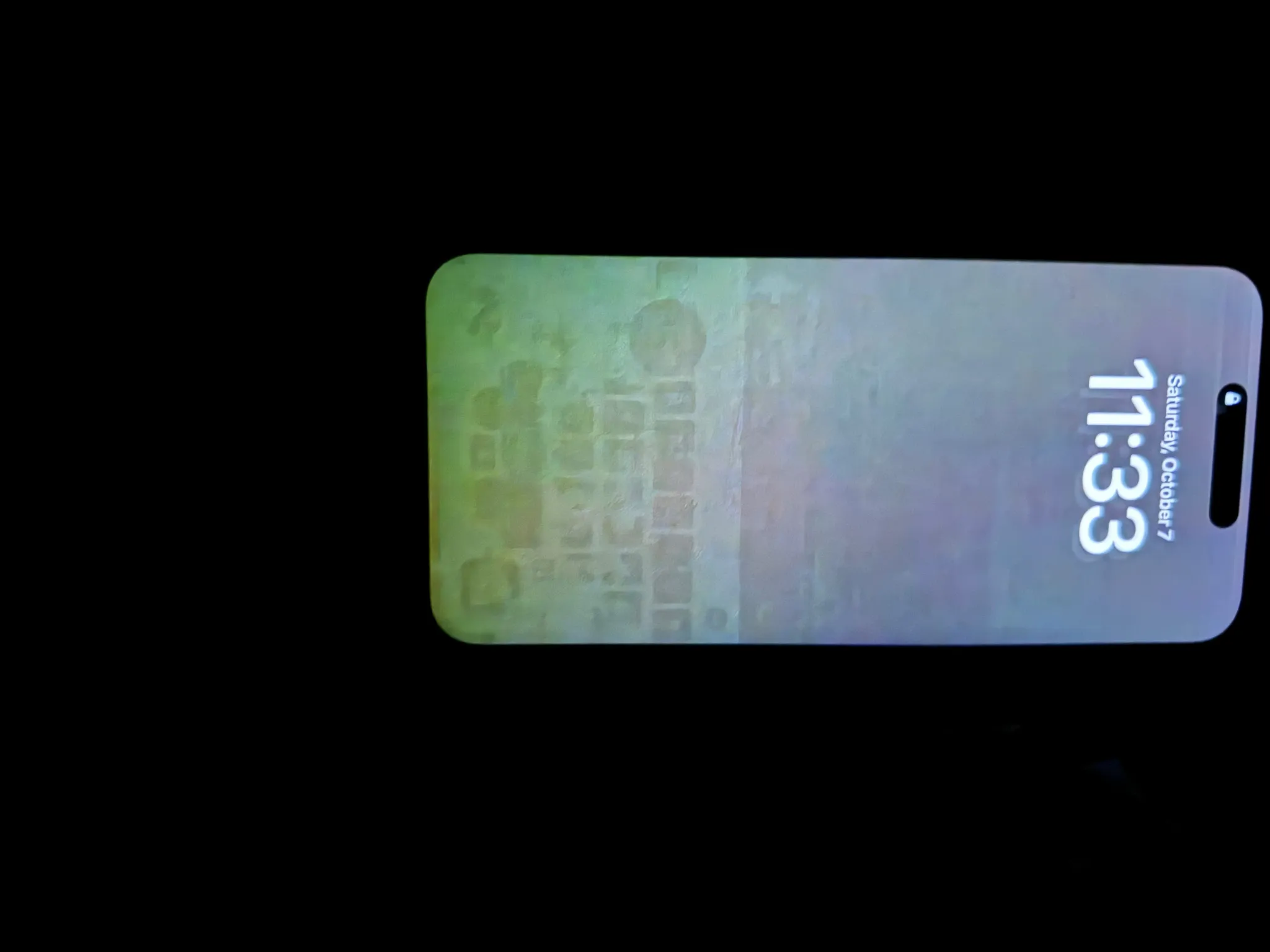
There was another bug affecting many iPhone 15 Pro and iPhone 15 Pro Max users (and we’re not talking about the overheating issues). It’s easy to find reports on Reddit and Apple Discussions forums about burn-in and image retention on these models, even though they were launched only a month ago.
Apple also acknowledged that there was a problem that “may cause display image persistence” on iPhone and that it has now been fixed with iOS 17.1.
New features
When it comes to new features, iOS 17.1 will allow users to finish sending files via AirDrop using the internet connection when you or another person leaves AirDrop’s range. The file will be silently uploaded to Apple’s servers and then downloaded to the other person’s device.
Apple Music subscribers will find a new button to favourite songs, albums, and playlists so that they can then filter these contents in the library. There are also song suggestions at the bottom of each playlist and a new way to create artwork for your personal playlists.
iOS 17.1 is expected to be released to the public next week, on October 24. For those running the beta version, the RC build is now available for download.
iOS 17.1 finally lets you pick the album to use for the Photo Shuffle lock screen
Last year, iOS 16 introduced a whole new world of dynamic lock screens to personalize your iPhone experience.
One of these options was the Photo Shuffle lock screen, which randomly cycled through images from your photo library. However, it was missing a critical point of customization that made it hard to use for most people. But thankfully, this functionality gap has now been filled with iOS 17.1 …
Since the launch of iOS 16, the Photo Shuffle wallpaper let you choose from several categories, based on the types of images detected in your Photos app library and camera roll. You could choose to shuffle images of People, Nature or Pets.
The problem was these automatic collections were often incomplete, and could not be edited – you couldn’t add or remove photos other than filtering out particular detected faces altogether in the People collection. This made the lock screen often useless as it would surface images that weren’t necessarily relevant or interesting, and no real way to fine tune it.
As of iOS 17.1, there’s a new option when you create a Photo Shuffle lock screen: the ability to choose a specific album. This gives you the control to choose what images you want to see on your lock screen, by curating a specific album or simply using the Favorites album.
The iOS system will still analyze the content of the album to find the most suitable pictures, such as portraits to apply the overlapping subject over the time effect. But it means you will only ever see the photos that you want to see. Point it at a hand-crafted album of holiday or baby pictures and it will now dutifully oblige.
iOS 17.1 is currently in developer and public beta. It will be available as a free update for all iPhone and iPad users later this month.
How to create a Photo Shuffle lock screen
Long-press on your current lock screen to open the gallery view.
Press the blue ‘Add’ button at the bottom of the screen.
Press Photo Shuffle at the top of the Add New Wallpaper panel.
Press the new Album option and choose your album.
Select Shuffle Frequency to customize how frequently you will see a different photo.
Press ‘Use Album’ button to confirm and optionally choose a color filter by swiping side-to-side, like black and white.
Finally, press Add button in the top-right corner of the screen to start using your new lock screen.
iOS 17.1 changes how the Action Button behaves when iPhone 15 Pro is in your pocket
iPhone 15 Pro and iPhone 15 Pro Max come with a new Action Button, which lets users set things like muting the phone, turning on the flashlight, and even running shortcuts when the button is pressed. Users can press the Action Button even when the screen isn’t on, but now with iOS 17.1, Apple is changing how the button behaves when the iPhone is in your pocket.
Action Button has a new behaviour with iOS 17.1
Code in the third beta of iOS 17.1, which was released on Tuesday to developers, reveals that Apple is tweaking how the Action Button on the iPhone 15 Pro behaves in some specific situations.
The update introduces a new feature that basically detects when the iPhone is in the user’s pocket (using the proximity sensors) to change the behaviour of the Action Button. In this case, users will need to press the button for longer to trigger the action. The idea is to avoid unintentional triggers when the phone is in your pocket.
The whole feature works invisibly to users, and there are no settings for it. Still, the feature seems to be enabled for everyone who has installed the latest beta of iOS 17.1 on an iPhone 15 Pro or iPhone 15 Pro Max.
More about iOS 17.1
iOS 17.1 brings some new features to the iPhone. Apple Music users will notice a new button to favorite songs, as well as options to customize the artwork of a playlist. The update also adds a new option to turn off the display in StandBy mode after 20 seconds. There’s also a new toggle in Settings that lets you opt to use cellular data to complete these AirDrop transfers.
According to Apple, iOS 17.1 is expected to be released to the public later this month, although a specific date is yet to be announced.
Developers can install the beta by going to Settings > General > Software Update on their iPhone. iOS 17.1 is also available for devices enrolled in the Apple Beta Software Program.
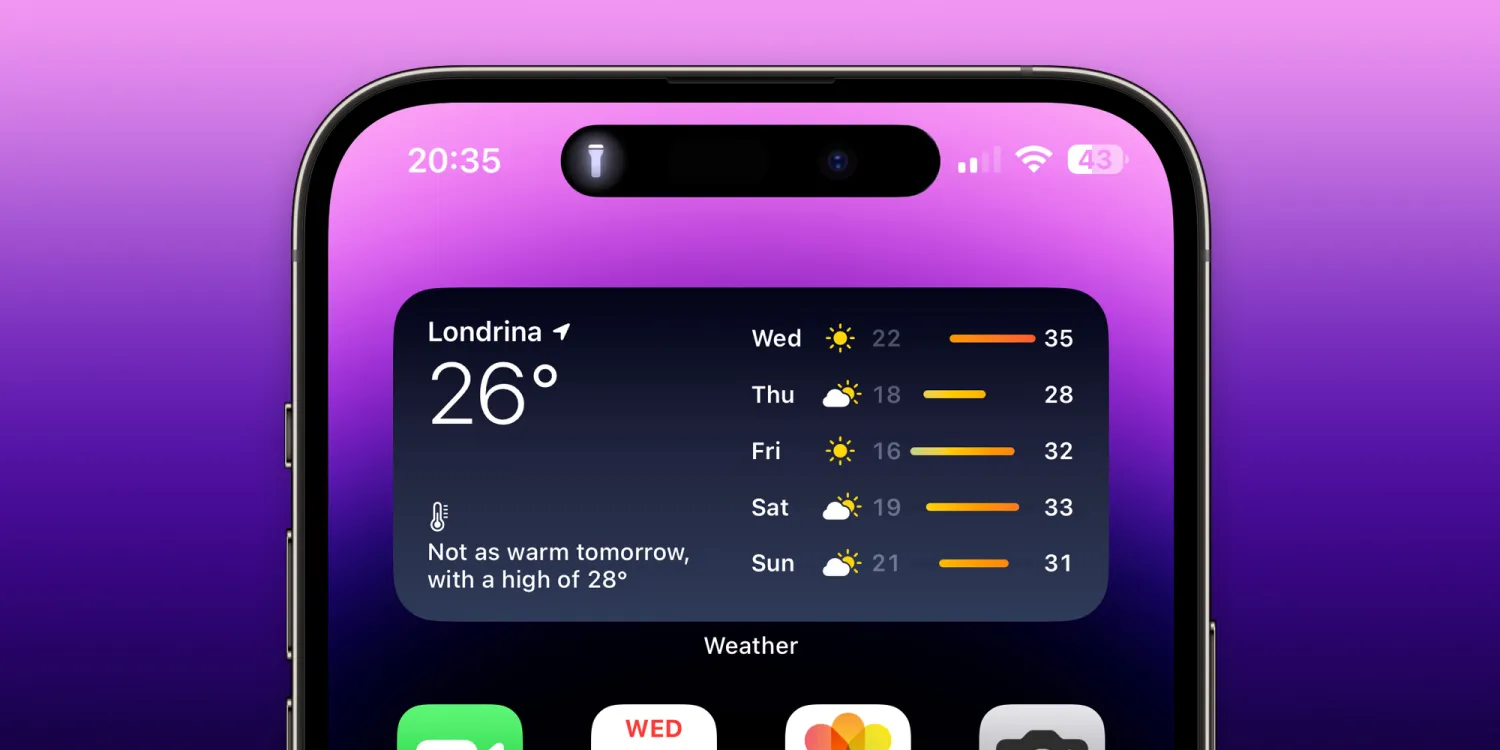
iOS 17.1 brings Dynamic Island flashlight indicator to iPhone 14 Pro and iPhone 15
On Wednesday, Apple released the first beta of iOS 17.1 to developers, as the company promised to bring some new features later this year. We’ve already covered most of what’s new in the iOS 17.1 beta here, but there’s another interesting change. With the update, Apple is bringing the flashlight indicator that appears on Dynamic Island to the iPhone 14 Pro and iPhone 15.
Flashlight indicator on the iPhone’s Dynamic Island
If you have no idea what this flashlight indicator is, it’s something that Apple has added to the new iPhone 15 Pro and iPhone 15 Pro Max. For some reason, only these models show an indicator on the Dynamic Island to tell you when the flashlight is on. This is very useful when you forget to turn off the flashlight after using it or when you accidentally press the flashlight button.
There didn’t seem to be any technical reason for Apple to keep this indicator exclusive to the new 15 Pro models, and now we know that to be true. With iOS 17.1 beta 1, every iPhone model with Dynamic Island will show the flashlight indicator when appropriate.
This means the feature is now coming to the iPhone 14 Pro, iPhone 14 Pro Max, iPhone 15, and iPhone 15 Plus. Previous iPhone models will have no indicator other than the button on the Lock Screen, as they don’t have Dynamic Island. Although unusual, this is not the first time that a software update has brought features from a new iPhone to previous ones.
Last year, with iOS 16, Apple added a battery percentage indicator for iPhone X and later. However, the iPhone mini and iPhone models with an LCD display were left out. With iOS 16.1, Apple decided to enable the battery percentage indicator on all iPhone models compatible with the update.
Apple added the flashlight to the Dynamic Island for all devices in iOS 17.1! 🔦
Some cool features are coming with iOS 17.1. Users can now favorite songs and albums in Apple Music, and the app will generate playlists with those songs. There’s also a new option to create artwork for your playlists right from the Apple Music app.
iOS 17.1 also enables AirDrop via cellular data when the other device moves out of Wi-Fi range. Plus, it shows the balance and full transaction history of bank accounts in the Wallet app for users in the UK. The update will be released to the public in October.
On the iPhone 15 and iPhone 15 Plus, Apple finally got rid of the Lightning port and replaced it with USB-C. This opens up a whole new world of convenience of connecting accessories and peripherals. The iPhone 15 Pro and iPhone 15 Pro Max go one step further, as the USB-C port on the pro models supports USB-3 speeds, enabling up to 10 Gbps data transfer speeds.
USB-C makes it easy to connect displays, external storage, cameras, and charge using the same cable as all your other devices. Here’s what you can do with your new iPhone and its shiny new port.
Why did Apple change from Lightning?
Apple was fully invested in Lightning port ecosystem on the iPhone. However, it began adopting USB-C across Mac and iPad models since 2015 as a way to modernize PC connectivity. USB-C is versatile, carrying power and data with the same connector. And USB-4 / Thunderbolt offers even higher data transfer speeds.
At the same time, USB-C was becoming increasingly popular on the Android side of the smartphone market. But Apple stuck with Lightning on iPhone, partly because they were still stung from the backlash of 30-pin -> Lightning transition that happened more than a decade ago.
The forcing factor for Apple was the EU commission, who have passed legislation to reduce e-waste by enforcing USB-C as the universal connector for phones. That would mean Apple would at least have to make a special model of iPhone for the European market. That brings its own complications. Instead, Apple chose to just adopt USB-C across the board … and apart from the frustration of customers having to change out all their existing now-defunct Lightning cables, that brings a lot of benefits.
Universal USB-C Charging
Now that you have an iPhone 15, you are probably close to being able to use the same single cable to charge all of your devices. Almost all iPads have a USB-C port, and all Macs have been sporting USB-C for a decade. The newest Macs come with Apple’s MagSafe charger, but they can also be charged by plugging in to one of their USB-C ports too. The latest-generation Apple TV comes with a USB-C remote, and Apple just released new AirPods Pro with a USB-C charging case.
Apple sells its own USB-C charge cables, and the iPhone comes with a nice quality woven cable in the box itself. Unlike Lightning, USB-C is not proprietary. To charge your Apple gear, you can use any USB-C charging cable or accessory on the market. That includes cheaper USB-C cables, and USB-C cables of different styles and lengths. Anker has a very convenient dual 47 watt USB-C power adapter, for example.
To charge your iPhone at full speed, you want to use a 20-watt or 30-watt power adapter. You can safely use a higher wattage power adapter like the one that comes with your MacBook; the phone will automatically manage the power. Learn more about fast-charging iPhone 15 here.
Charge other devices with your iPhone 15 battery
Another cool angle of the USB-C charging story is that you can now use the iPhone to charge other accessories. The iPhone 15 can accept up to 27 watts through the USB-C port, but itself can also output about 4.5 watts. (Lightning could only manage a measly 0.3watts.)
This means you can actually use your spare iPhone battery to power and charge connected accessories. If your AirPods are running low, in a pinch, you can plug them into your phone and your phone will top up the juice in your AirPods case. You could even top up the battery of another person’s iPhone — but just be aware it will take a while.
Easily connect to external displays
With Lightning, you could only connect to external displays via a clunky dongle. With USB-C on iPhone 15, you can output to a screen directly. Use a USB-C to HDMI cable and show your iPhone screen on a 4K TV or monitor, with screen mirroring. If you are watching a movie in a video streaming service app, the film will automatically fill the TV dimensions with playback controls on the touch screen. Easily show off your photo library or conduct a presentation with Keynote by just plugging your phone directly into a projector.
One of the use cases Apple is pushing is positioning iPhone as a portable games console. Using the power of the A17 Pro chip inside, iPhone 15 Pro can run some top-end games with high graphical fidelity. Pair an Xbox or PlayStation game controller, connect your phone to a TV, and start gaming. The Apple USB-C Digital AV adapter is a good choice for this use case, as it allows for HDMI, power output for continuous charging and passthrough USB-C in one convenient dongle.
Expand your local storage with portable USB-C hard drives and SD cards
Connect a USB-C hard drive or SD card reader and browse files directly using the Files app on iPhone. If you go on holiday and take a dedicated camera with you, you can import photos directly from the SD card into your iPhone’s photo library. Then, empty the SD card and keep shooting while you edit and upload the pictures you’ve taken on your phone’s big touchscreen.
The iPhone 15 Pro Camera app allows you to record ProRes 4K at 60 FPS video directly to USB-3 storage. ProRes is uncompressed and the file sizes are huge, consuming gigabytes per minute of recording. But pairing your iPhone with a 1 TB portable SSD, you can record for a while before running out of space. This requires a USB-3 cable (not simply charge cable) to take advantage of the fast 10Gbps transfer speeds possible through the iPhone 15 Pro’s port.
Connect hardware keyboards and wired internet
Sometimes, wireless doesn’t cut it — and you just need to plug in. USB-C on iPhone supports almost any basic accessory you can think of, without the need for special drivers or additional configuration. It’s all plug and play. That means you can connect a hardware keyboard will just work.
Or if you are podcasting on the road, you can record using a mini USB-C microphone. Another possibility is wired internet, using a USB-C to Ethernet adapter. And if you have a MIDI keyboard, you can make a song on the go with an app like GarageBand.
Wired headphones that work with your phone and computer
Since Apple dropped the headphone jack, much of the world has moved on to using Bluetooth wireless headphones like AirPods. But if you still prefer to plug in with a wire, using wired headphones with iPhone has been an inconvenient affair. Lightning earbuds worked with your phone, but nothing else.
Now, it’s all much simpler. iPhone 15 works with any USB-C headphones, including Apple’s new USB-C EarPods. These headphones will work with any computer with a USB-C port, so you can finally use the same wired headphones across your phone, iPad and Mac. An increasing number of high-end headphones and speakers also rely on USB-C connectivity these days.
Connect multi-port hubs
USB-C is very flexible and allows for data and power to travel over the same port. This means you can carry a single dongle, which is a multi-port hub comprising all sorts of IO. These are super convenient as iPad and Mac accessories, and now work with the iPhone too.
For example, this Anker 5-in-1 hub will work with the USB-3 USB-C port on iPhone 15 Pro and enable you to connect to external displays, connect to power, plug in USB accessories and an external display all at the same time.
The only thing you have to keep in mind is that the iPhone can output power to the hub at 4.5 watts. iPad and Mac can offer much higher bus-powered wattage, so if you are using them with the iPhone, you may need to also plug in an external power source.
Some of these capabilities were previously possible with Lightning but necessitated large, clunky, and special purpose adapters for each use case. USB-C is standards-based which means anything you buy will also work with other devices too. You don’t need to carry a special Lightning SD card reader anymore; the same USB-C peripheral will work just as well with your iPhone, iPad, Mac and any Windows PC or Android devices in the family as well. The universal connector life is finally here.
Over the last week, a number of iPhone 15 and iPhone 15 Pro users have complained of their new devices overheating and running at abnormally high temperatures. In response to those complaints, Apple has announced that a software update is on the way to remedy the problems.
Notably, Apple confirmed to 9to5Mac that the new titanium design of the iPhone 15 Pro is not the cause of any overheating problems.
The company also says that the software update coming to iOS 17 does not in any way reduce performance to address iPhone temperature concerns.
iPhone 15 overheating fix coming soon
In a statement first sent to Forbes and also shared with 9to5Mac, Apple pointed out that it’s normal for an iPhone to run hotter than usual during the first several days. As we’ve explained in the past, this is due to iOS indexing photos, searches, and more in the background.
Apple also says that it’s identified a bug in iOS 17 that makes the overheating problem worse for iPhone 15 and iPhone 15 Pro users. This problem will be “addressed in a software update,” the company says.
Furthermore, Apple tells 9to5Mac that recent updates to certain third-party apps are causing them to overload the system. The company says it’s working directly with those developers to fix the issues. According to Apple, some of the apps overloading the iPhone CPU and causing devices to overheat are Asphalt 9, Instagram, and Uber. Instagram issued a fix for the problem on September 27, Apple says.
We have identified a few conditions which can cause iPhone to run warmer than expected. The device may feel warmer during the first few days after setting up or restoring the device because of increased background activity.
We have also found a bug in iOS 17 that is impacting some users and will be addressed in a software update. Another issue involves some recent updates to third-party apps that are causing them to overload the system. We’re working with these app developers on fixes that are in the process of rolling out.
Apple also confirmed to 9to5Mac that the titanium design of the iPhone 15 Pro is not to blame for any overheating problems, contrary to what some reports stated earlier this week. The company says the new design actually leads to better heat dissipation than previous iPhones with stainless steel. This is likely because of the new internal aluminium sub structure.
iPhone 15 Pro design once again blamed for causing some units to overheat
The iPhone 15 Pro is now in the hands of many consumers around the world, and since then, we’ve seen multiple complaints about overheating problems. Earlier this week, analyst Ming-Chi Kuo suggested that these problems may be caused by design compromises, and new reports from Bloomberg and WSJ reveal that the problem may be worse than it seems.
iPhone 15 Pro overheating
As we previously reported, there are many iPhone 15 Pro and iPhone 15 Pro Max users complaining about how the new devices get extremely hot after using them for a while, even with basic things like web browsing. Although a number of people claim not to be affected by the problem, it’s easy to find posts on social media about iPhone 15 Pro models overheating.
A test run with an iPhone 15 Pro Max shared on a Chinese video platform revealed that downloading the popular game Genshin Impact on a 5G network caused the phone to heat up to 122ºF. The iPhone remained at a similar temperature while running the game in high-resolution mode.
A few days ago, YouTube channel TheRelaxingEnd shared a video showing how the iPhone 15 Pro suddenly started freezing and slowing down while running Genshin Impact, which could be a result of overheating. Of course, this is quite intriguing given that Apple has been marketing the new iPhone as the first capable of running AAA games thanks to the A17 Pro chip.
Apple suggests it’s a normal condition caused by software
Officially, Apple has refused to comment on the matter. But Bloomberg has heard from sources that Apple technicians have been dealing with a lot of customers complaining about iPhone 15 Pro overheating issues. Technicians are telling users to follow the instructions from an old support article found on Apple’s website about what to do when the iPhone gets too hot.
The article doesn’t include any specific instructions for the iPhone 15 Pro. Instead, it only suggests that the iPhone may get hotter than normal after the first setup, being restored from a backup, being wirelessly recharged, or when running graphics-intensive or processor-intensive apps.
While this is true, there’s a group of users who believe that the iPhone 15 Pro is heating up more than usual even under normal conditions, days after being set up or without running 3D games. And they may be right.
It could be caused by a design flaw
The Wall Street Journal heard from “people familiar with the iPhone’s design” that the overheating problems are being caused by design flaws in the iPhone 15 Pro. For instance, Apple removed the SIM tray from iPhone 14 models sold in the US, but every other country still relies on a physical SIM-compatible version of the iPhone.
Because of this, the US version of the iPhone 14 has a plastic piece to fill the gap where the SIM tray is located in the global version of the phone. With the iPhone 15, Apple has redesigned the logic board to remove this gap. But since the eSIM-only iPhone remains exclusive to the US, the rest of the world relies on an iPhone with a different logic board.
“Adding a slot to the phone’s already-cramped interior creates additional challenges for heat dissipation,” the WSJ sources reported.
But that’s not all. Similar to what Kuo said earlier this week, the sources who spoke to the WSJ mentioned that titanium also contributes to overheating, since the material has “less mass to absorb the heat” compared to stainless steel. These two factors combined with a more powerful chip make the iPhone 15 Pro overheat.
Will Apple address the iPhone 15 Pro overheating problems?
It’s unclear at this point whether Apple will do anything to address these problems. The easiest solution would probably be releasing a software update that reduces CPU and GPU performance in certain situations in order to keep the device’s internal temperature under control.
Another alternative would be to change the engineering design of the iPhone 15 Pro, which sounds more unlikely as this would require announcing a recall program for affected customers.
Along with the new Action button on the iPhone 15 Pro comes an interesting addition to the status bar – a silence mode icon next to the time. Fortunately, Apple has included a way to hide silent bell icon on iPhone 15 Pro and Pro Max, here’s how.
The Action button sits in the same place as the side switch on previous iPhone models and works with a long press.
The default is set to turn silent mode on and off. But even if you customize the Action button to control something else, a new silent bell icon shows in the iPhone 15 Pro status bar right next to the time.
Spotted by MKBHD, the good news is there’s a quick fix in Settings to remove the silent mode icon.
PSA for everyone who leaves their phones on silent and is about to get an iPhone 15 Pro: You can turn off the annoying permanent silent indicator in settings. You’re welcome pic.twitter.com/FcOT8mnQMT
Open the Settings app on your iPhone 15 Pro or Pro Max
Choose Sounds & Haptics near the top
Tap the second toggle down next to Show in Status Bar to hide silent bell
Here’s how it looks to hide the silent bell icon on iPhone 15 Pro:
And if you haven’t customized your Action button yet, navigate to Settings > Action button. Here are the options for the new button:
Silent mode (default)
Focus mode
Camera
Flashlight
Voice Memo
Shortcut
Accessibility features like magnifier and more
No Action
Translate will arrive with an update “later this year”
If you change the Action button to activate something other than silent mode, you can turn silent on/off from Control Center or Settings > Sounds & Haptics.
iOS 17 iPhone StandBy: How to use and customize the smart display feature
One of the headlining new features with iOS 17 is a smart landscape display mode for iPhone when it’s charging. Coming with different clock faces, widgets, access to photos, and more, here’s how to use and customize the iOS 17 iPhone Standby display.
iOS 17 comes with a number of changes across Messages, FaceTime, the Phone experience, and much more.
But one of the most attention-grabbing features will likely be the new iPhone StandBy view that turns the smartphone into a mini smart display.
Here’s how StandBy works.
iOS 17 iPhone StandBy: How to use and customize
Make sure you’re running iOS 17
With your iPhone screen locked, place it in landscape on an upright charger (the mode won’t work on flat or low-angle chargers or when your screen is unlocked – and it must be charging)
iPhone StandBy will automatically appear – the feature is enabled by default
StandBy works on any iPhone that can run iOS 17 but you’ll need to tap the screen to see the clock, widgets, photos, etc. – iPhone 14/15 Pro/Pro Max with always-on will always show the StandBy display
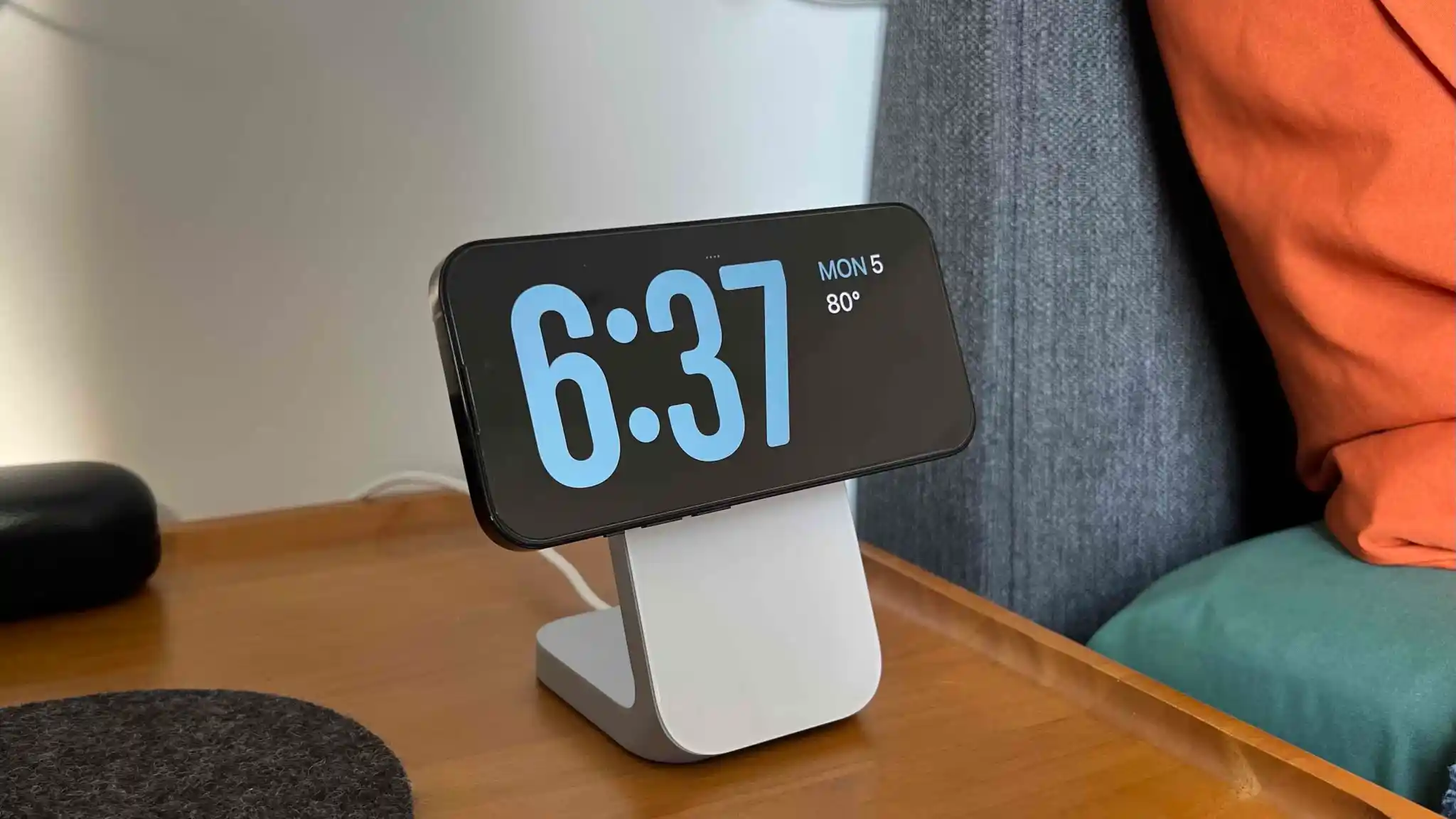
The classic analog clock plus calendar widget on the right is the default StandBy view, swipe up on either to change them
Press and hold on either one to add or remove widgets
On the first StandBy view, do a big swipe from right to left to change views
Press and hold on the other StandBy views to customize them
iOS 17 iPhone StandBy supports Live Activities, Siri, incoming calls, and larger notifications
StandBy remembers your “preferred view” and dims to red and night
You can tweak StandBy settings by heading to Settings > StandBy
Check out our round-up of the latest third-party apps to include StandBy widget support
Here’s how iOS 17 iPhone StandBy looks in use:
The first time you place your locked iPhone horizontally on an upright charger, you’ll see a welcome splash screen.
Now you’ll see this as the default StandBy view:
Swipe up on either the clock face or calendar to get more options (the calendar is a smart stack suggestion by default):
To customize this StandBy screen further, press and hold on the left or right widget. Now you can remove options or tap the + icon in the top left to add widgets:
From the first StandBy clock/widget view, you can swipe from right to left to get to the Photos StandBy view:
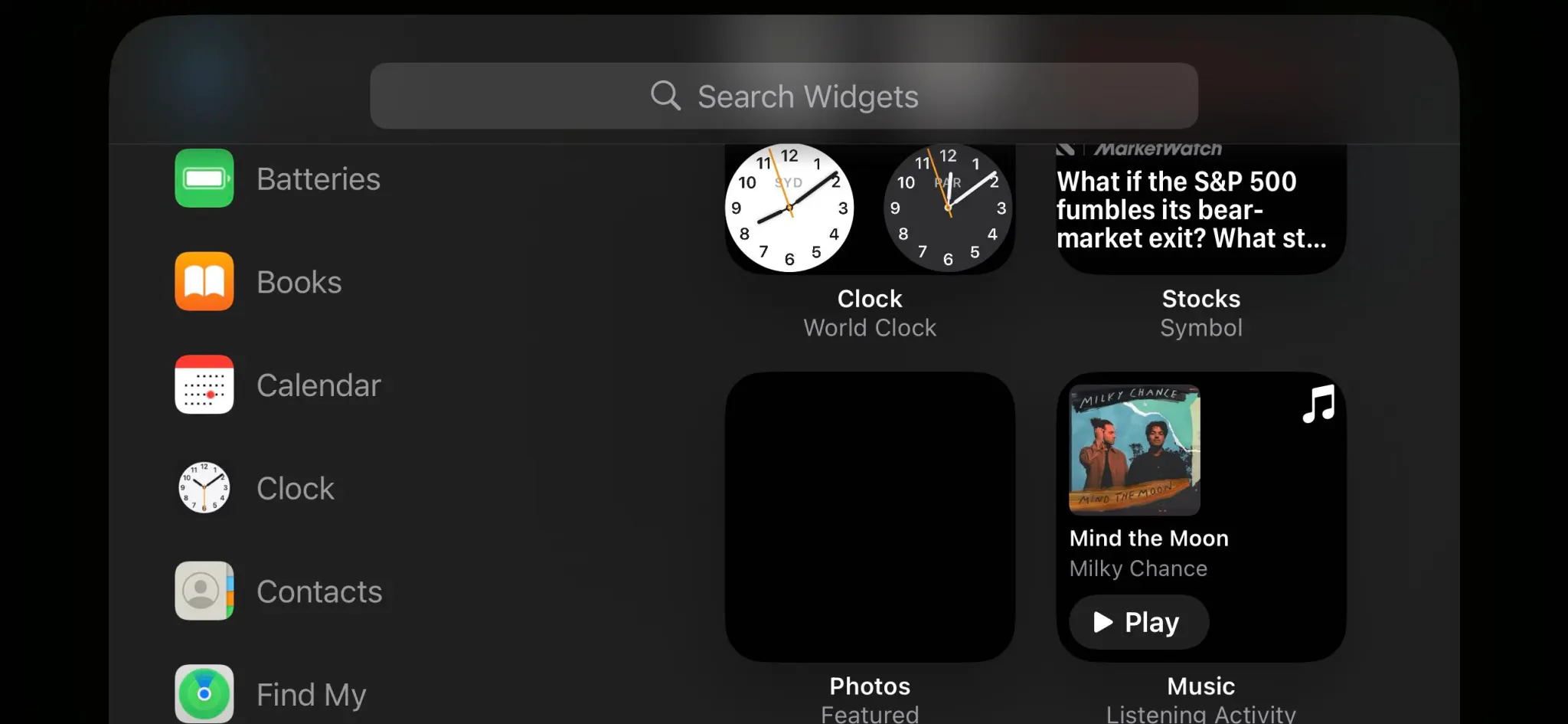
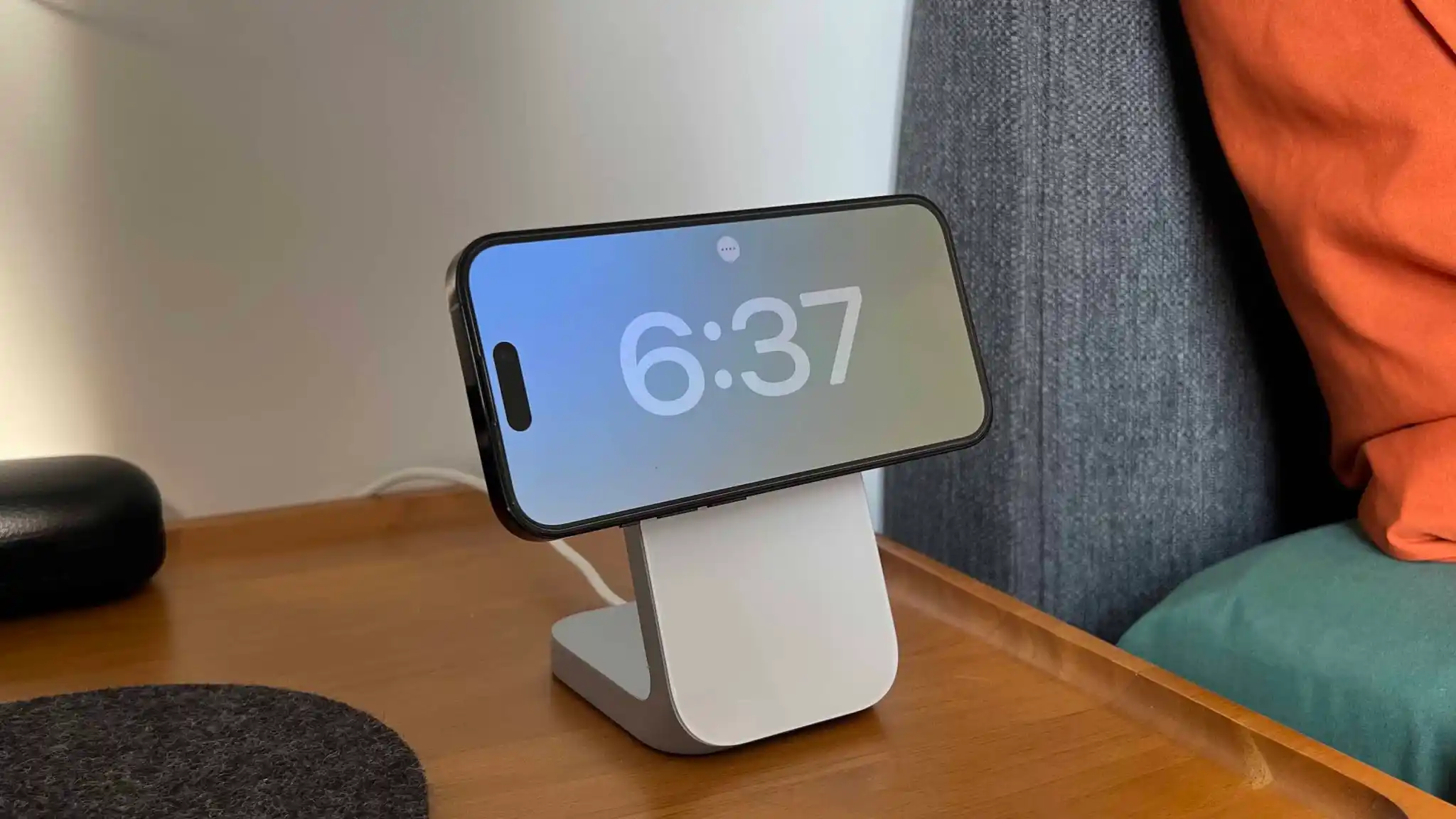
And swipe again to get different the last view that features different customizable clock faces:
iPhone StandBy on Nomad Stand One MagSafe Charger
Press and hold on any of these to customize their color schemes but you can’t add widgets to these clock faces.
But you can tap the “….” icon in the top center to access music at any time which presents a nice media UI:
And so it doesn’t disturb sleep, iPhone StandBy for those with always-on displays will automatically dim to red at night: