With the latest beta updates to Android 14, Google seems to have drastically sped up how fast Pixel devices can install an OTA update. Now, we’re getting a closer look at how that’s been accomplished.
First spotted with Android 14’s QPR2 Beta 1 update, the “Seamless Updates” feature has gotten a whole lot faster on Pixel phones.
Where Google’s updates used to take upwards of 20-40 minutes to install a simple OTA, the new process could be as quick as 10-15 minutes, perhaps even less. It’s extremely impressive and would make anyone wonder how Google pulled it off.
On Twitter/X, APKMirror founder, Artem Russakovskii, discusses a few main points of improvement that seem to be responsible for faster seamless updates. Russakovskii cites “Google’s tests” and Google’s David Anderson (a software engineer working at the company since 2018), but Google itself doesn’t seem to have publically shared this data.
That starts with compression operations, which Android is now parallelizing for a speed boost of 26% in Google’s own tests, Russakovskii explains. OTA updates on Android require the compression of thousands of “small blocks” of data, so putting those operations in parallel certainly speeds things up.
Related to that, Android is now batching operations for those same blocks. Where the OS previously would make 200 separate writes of 4KB files, it now makes a single write of one 800KB file. Google apparently found a 24% reduction in install time with this method.
Finally, the biggest improvement comes in newer Pixels switching from the GZ compression method to the LZ4 method. Google describes LZ4 as “extremely fast compression,” and it certainly shows here.
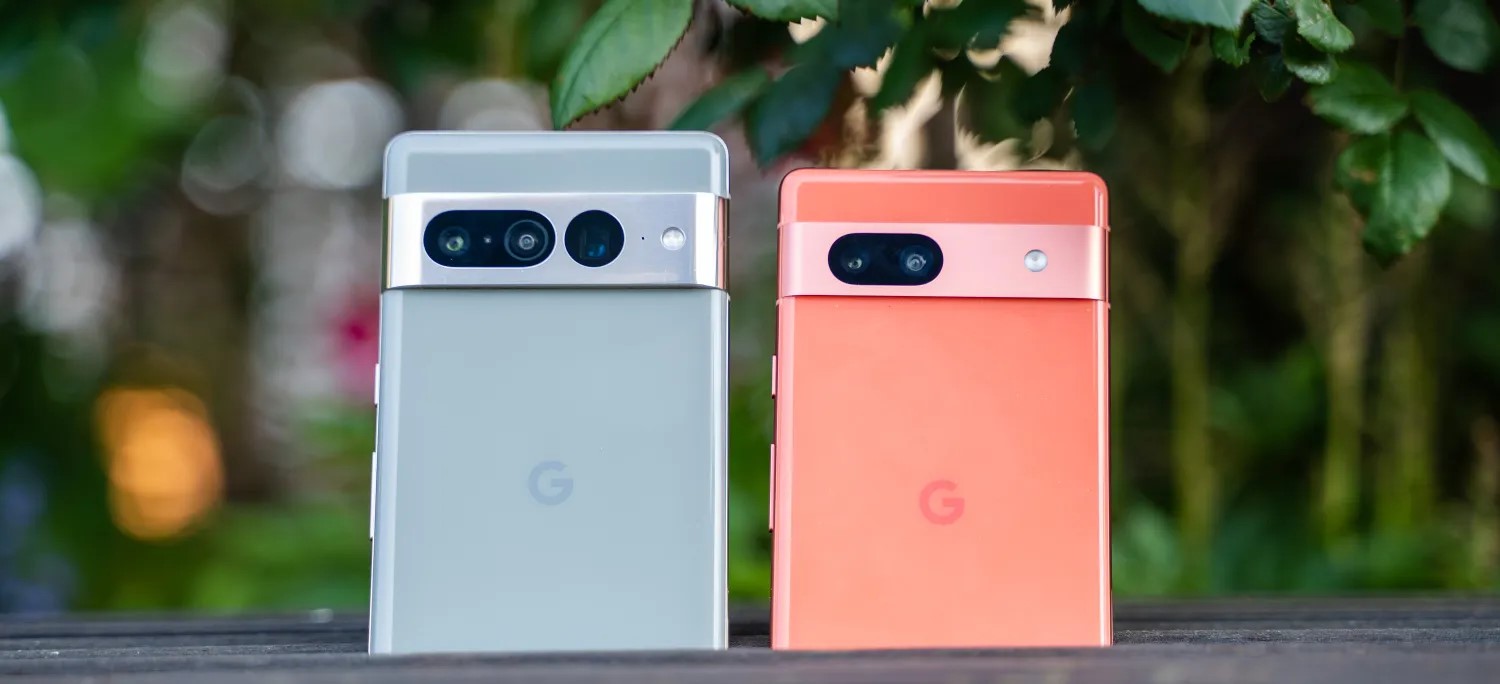
This apparently results in a 50% reduction in install time but only applies to specific devices. Pixel 7, Pixel 7 Pro, Pixel 7a, Pixel Tablet, Pixel Fold, Pixel 8, and Pixel 8 Pro are the only devices eligible for this new compression method, as older Pixels will stick with the slower GZ method. It’s unclear why this is the case, but it could have something to do with the chip. Mishaal Rahman highlighted on Twitter/X that, when installing Android 14 QPR2 Beta 1, Pixel 8 Pro was taking advantage of Tensor G3’s mid-cores to speed things along, and Google specifically notes that LZ4’s faster compression is “scalable with multi-cores CPU.”.
Google is, according to Russakovskii, changing its guidance for other Android OEMs with this new method in mind, so there’s a chance we could see similar improvements outside of Pixel in the future.
3. Google switched the Pixels (I'm getting clarification on exactly which, but at least P7) to use LZ4 compression instead of GZ. This resulted in a 50% (!!) decrease in install time.
All of these combined take a ~25 min install time down to around 6 minutes.
Samsung has struck gold with the Galaxy A73 5G– this phone comes as a really well-balanced package with great performance and a camera that blows almost every other mid-range phone out of the water, Sure, Samsung has made some compromises but those won’t be deal-breakers for most users.
The Samsung Galaxy A73 5G is one of the best mid-range phones we’ve looked at and has the best camera phone you can find in the mid-range segment with its impressive 108MP camera sensor.
When it comes to performance, you’ll get a capable Snapdragon 778 5G processor that’s more than capable of handling gaming and other heavy tasks. Samsung’s efforts in de-bloating One UI also have a hand as well in keeping the phone as fast as possible.
In addition to the high-performing chipset, you will also get a fantastic screen with good color reproduction and a smooth 120Hz refresh rate that will give you a pleasant experience in gaming and scrolling through web pages.
With a 108 MP main camera and 50 MP ultra-wide, you’ll be able to capture great shots in different lighting conditions, the camera’s prowess in this phone is really fantastic.
Where the phone falls behind is with charging speeds compared to other phones- it only supports 25 Watts charging and you’ll have to buy a charger separately as Samsung doesn’t bundle one in the box.
Disclaimer. We can not guarantee that the information on this page is 100% correct.
Design
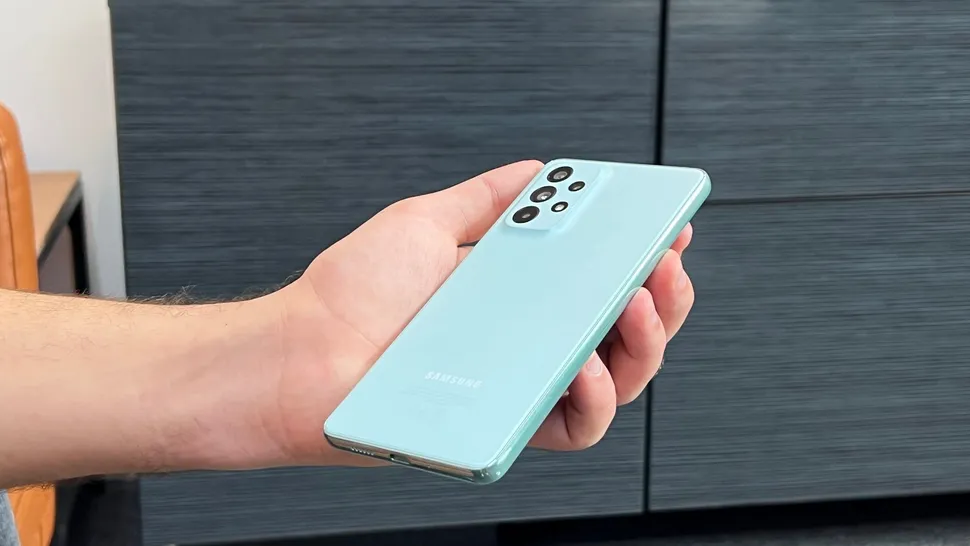
The Samsung Galaxy A73 5G is made entirely of plastic, as it’s the case with most Galaxy A series phones. The back of the phone comes in a matte plastic that prevents getting any fingerprints stuck on it. However, the sideband is made of shiny plastic that feels a little bit cheap.
With a thickness of only 7.6 mm, the Samsung Galaxy A73 5G is fairly impressive given the big battery it contains. Samsung has also done a really good job in hiding the camera bump that comes slightly thicker than the phone. With the smooth edges, the phone feels thinner in your hand than it actually is.
At just 180 grams, the Samsung Galaxy A73 5G is also easy on your hands even when used all day long.
The button layout on the Galaxy A73 5G is standard with what you’d find in most phones these days. The power and volume buttons are on the right-hand side of the phone and feel nice with a solid clicky feeling to them. The only thing we didn’t like is that the back of the phone feels a little hollow when you press on it.
The Samsung Galaxy A73 5G comes with a trusty IP67 dust/water resistant rating which means you’re safe to use it around water as it can withstand a dip in the water. You don’t see IP ratings on mid-range phones and we really like that Samsung is pushing this segment with the Galaxy A73 5G.
Display
With an AMOLED display that Samsung has perfected over the years, the Galaxy A73 5G gives you a very pleasant viewing experience. With a pixel density of 393 and a screen size of 6.7 inches, the phone is a joy to consume media, play games and surf social media.
The display’s design is nice and flat with nearly symmetrical bezels, The selfie camera’s punch hole is a bit wider than usual, however you get used to it easily.
Even though the display doesn’t support the higher 144Hz refresh rate that has made its way to some other mid-rangers such as Motorola Edge 30 and the Poco X4 GT 5G, we found the 120Hz refresh rate to be very smooth. The Snapdragon processor equipped on the Galaxy A73 5G coped up perfectly with no signs of sluggish performance or low frame rates.
The color reproduction in this display is nice buy a little bit oversaturated as is usual with all Samsung phones. The extra saturation makes the color pop and feel more punchy.
Outdoor viewability is great with this phone as it reaches up to 800 nits in HBM (High brightness mode) and we didn’t have any problem using the phone in direct sunlight.
Camera
Samsung went all out with the quad-camera setup on the Galaxy A73 5G that’s highlighted up with the 108MP flagship sensor and accompanied by a 12 MP ultrawide lens as well as a pair of 2 MP lenses that are used for zooming and macro.
The phone is capable of producing beautiful shots in well-lit environments as well as night shots. The phone uses pixel binning to take 9MP shots as standard, however you have access to a 108MP mode which is useful in zooming in and capturing more details.
Shutter lag on this phone is barely noticeable and we found it quite snappy to capture shots right away in well-lit scenes. It does took a little longer in night time or dimly lit scenes as the shutter needed to capture more light to the camera.
Thanks to both optical and electrical image stabilization, this phone produced some of the best night shots we’ve seen that blow all of the other mid-range phones out of the water. Even the video quality in low light was pretty good and usable.
Using the ultrawide lens was also a pleasant experience with the high fidelity camera that produces well-balanced pictures with good sharpness and colour reproduction.
With a 32 MP selfie snapper, the selfie shots come out with really good details and quality that approaches flagship cameras.
The TLDR of the camera’s on the Galaxy A73 5G is the best camera phone in any mid-range phones we’ve got our hands-on.
Performance and software
Using the Snapdragon 778 SoC paired with an 8GB of RAM, the Samsung Galaxy A73 5G is smooth. Samsung has done a good job optimizing One UI 4.1 that now gives you the option to opt out of installing third-party apps and not force them on you.
Even though the screen isn’t the fastest we’ve seen on a mid-range, the 120Hz display here is good enough for gaming and other tasks. The Qualcomm SoC keeps up in providing the phone with a stable supply of frames to make the most out of the 120Hz display.
Using the phone in multitasking, gaming and other heavy demanding scenarios we didn’t notice any signs of slowing down or sluggishness with the phone.
There are a lot of customization options available through the system to tweak the phone to your liking. The Always-on-display on Samsung’s phones, is one of the best experiences with many customizations and useful info you can find glancing on the phone.
Battery life and charging
Samsung has decided on ditching the bundled chargers which is good for the environment and makes sense on higher-end phones where its customers can easily afford buying an additional charger.
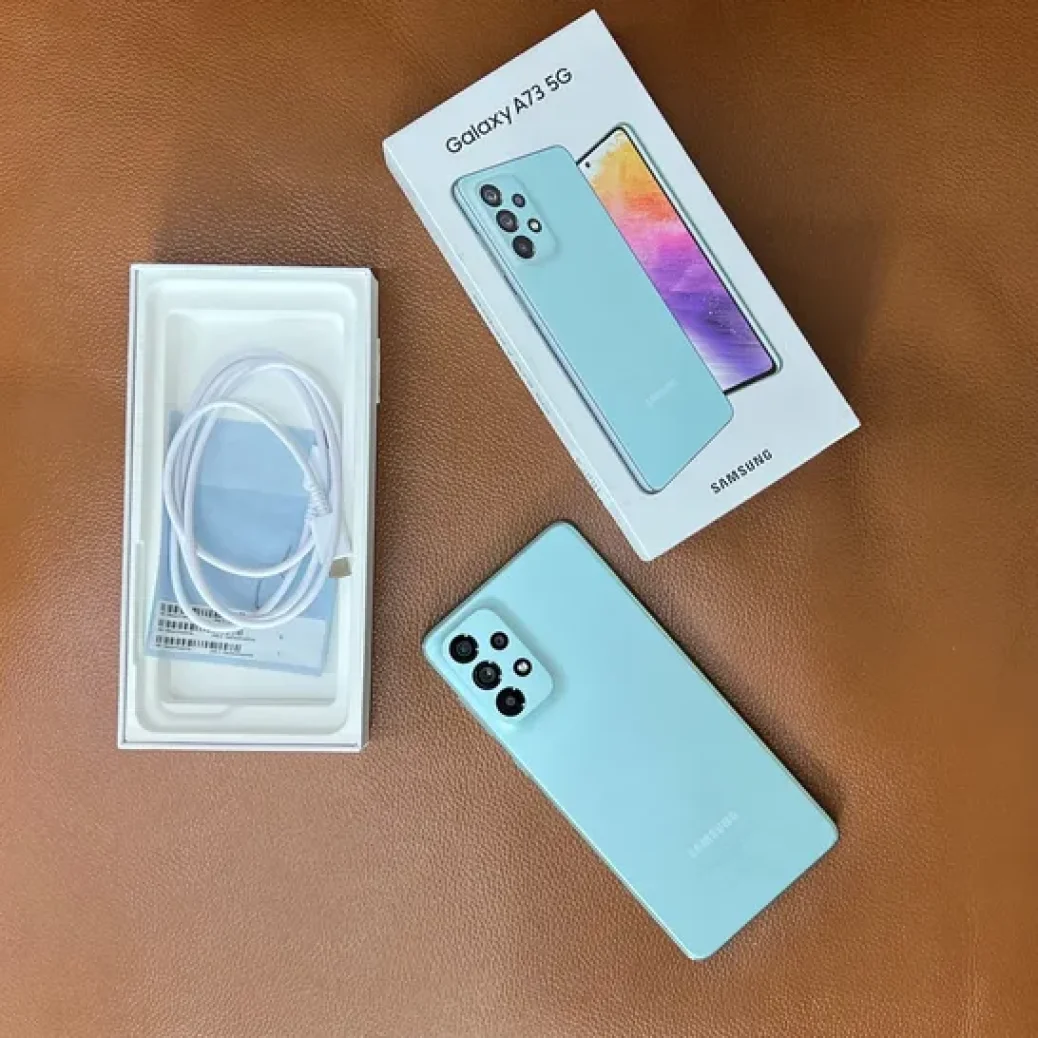
We’re not sure if that idea works on mid-range on budget phones as the target for these phones are consumers looking to save money. Inside the box, you only get documentation, a sim card remover tool, and a charging cable only.
On the bright side, the phone has an excellent 5,000 mAh battery that has an impressive life. We didn’t hold back on turning the high refresh rate along with the always-on-display and we still couldn’t drain the battery after a full day of usage. Dialing down the screen refresh rate and with moderate usage, you should easily get two days of battery life out of this phone.
While that large battery sounds great, it’s not all rainbows and unicorns as you’d be surprised on how much time it takes to fully charge this phone. The Galaxy A73 5G has a maximum charging speed of 25 watts which takes a while to juice the phone up. It took the phone close to an hour and half to fully charge which is not the worst thing but it could be much better.
Samsung has lagged behind when it comes to fast charging since the infamous Note 7 incident and has been really conservative to use fast chargers. The Korean giant really needs to step up their game with faster chargers as we see other companies are now supporting charging speeds upwards of 100 watts.
Needless to say that this phone doesn’t support wireless charging and you’ll have to settle for wired charging only to charge it.
Should I buy a Galaxy A73 5G?
Buy it if …
You want the best camera phone in the mid-range phone
The Galaxy A73 5G arguably has the best camera in the mid-range segment and blows the competition out of the water with its photography chops.
You need a large battery
The battery on the Galaxy A73 is as impressive on paper as it is in real-life usage. You can easily get over a day of usage from the battery on this phone.
You need a phone with a great display
Samsung continues to lead the industry in smartphones panels, and the Galaxy A73 5G is no different. It features a vibrant OLED display with 120Hz and great viewability outdoors with a peak brightness of 800 Nits
Don’t buy it if …
You can’t stand slow charging
This phone’s charging speed is mediocre at best and doesn’t cope with the modern charging speeds that are supported by other manufacturers.
You don’t want to spend extra on a charger
If you are already stretching your budget with the Samsung Galaxy S73 5G, you should think twice as you will also need to invest in a charger as Samsung doesn’t include one in the box.
According to a public-facing comment, Google is set to launch its first preview of Android 15 later this week.
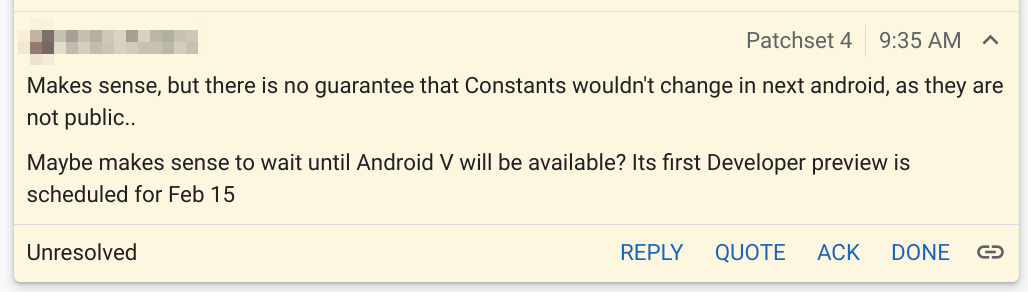
In a comment posted to the Android Open Source Project on Tuesday morning, a Google developer said that the first preview of Android 15 is “scheduled for” this Thursday, February 15, 2024. The developer calls it “Android V,” which refers to the release’s internal dessert codename, “Vanilla Ice Cream.”
Maybe makes sense to wait until Android V will be available? Its first Developer preview is scheduled for Feb 15
If the timing holds, the first Android 15 Developer Preview will arrive just over a week after the launch of Android 14 QPR3 Beta 1. Somewhat notably, Android 15’s first preview is arriving later than last year’s preview, which was released on February 8, 2023. By comparison, though, Android 13’s second quarterly update was still being tested at the time.
It’s safe to assume that only Pixel devices will be eligible for the Android 15 Developer Preview, as was the case in years past. Those enrolled for beta updates will likely stay on Android 14 for the time being, as “Developer Preview” releases are typically less stable and not ready for public use.
This Android 15 Developer Preview should afford our first solid look at what to expect from the next annual release of Google’s mobile OS. That said, we have gotten quite a few hints over the last year in the form of features that our APK Insight team has found/enabled that Google has yet to launch. Chief among these is the “Private Space” feature that will allow you to hide and lock certain apps from appearing in your app list.
With Android 14, developers can build share sheets with app-specific actions, and Google Photos is now replacing its custom implementation with a native one.
When sharing an image in Google Photos, a “Sharing image” sheet slides up the screen. “Modify” in the top-right corner lets you select more images to share using a grid.
The first section shows a preview of the selected picture(s) with the pencil icon in the corner launching the Markup tool to quickly crop, add text, draw, and highlight. The carousel below it links to various Google Photos actions, which is what Android 14 makes possible: Create Link, Send in Photos, Add to album, and Create album.
Direct Share targets — which use more signals from apps to improve relevance — appear next, along with frequently used apps. Nearby Share might appear in the first position. Scrolling up takes you to the full grid.
We’re seeing this new share sheet rolled out with version 5.65 of Google Photos today on Android 14 Pixel phones. It’s not yet appearing on large-screen (Pixel Tablet) devices that we checked this afternoon. The share sheet will presumably remain unchanged on Android 13 and earlier.
This follows Chrome, which was a big holdout, also dropping its custom implementation for Android 14 in August.
Google Photos redesign with new Memories feed rolls out
Last August 2023, Google announced a redesign to Photos that revamps the Memories feature, tweaks the bottom bar, and makes other changes. It’s now seeing wider availability in the US.
This redesign starts by moving the “Google Photos” wordmark to the left, while the Print store, Sharing, and your account avatar are at the right.
Sharing in the bottom bar makes way for “Memories,” with Library next and Search being the final tab. (This will certainly disrupt muscle memory.) A similar reorganization is live on tablets, while the “Utilities” tab has been removed from the navigation rail.
The most significant change is the Memories feed with its scrapbook-like timeline — which is not particularly well-optimized for tablets, as padding is just applied to the left and right — that uses AI for automatic curation and organization. Google aims to let you “easily relive, customize and share your most memorable trips, celebrations and daily moments with your loved ones.”
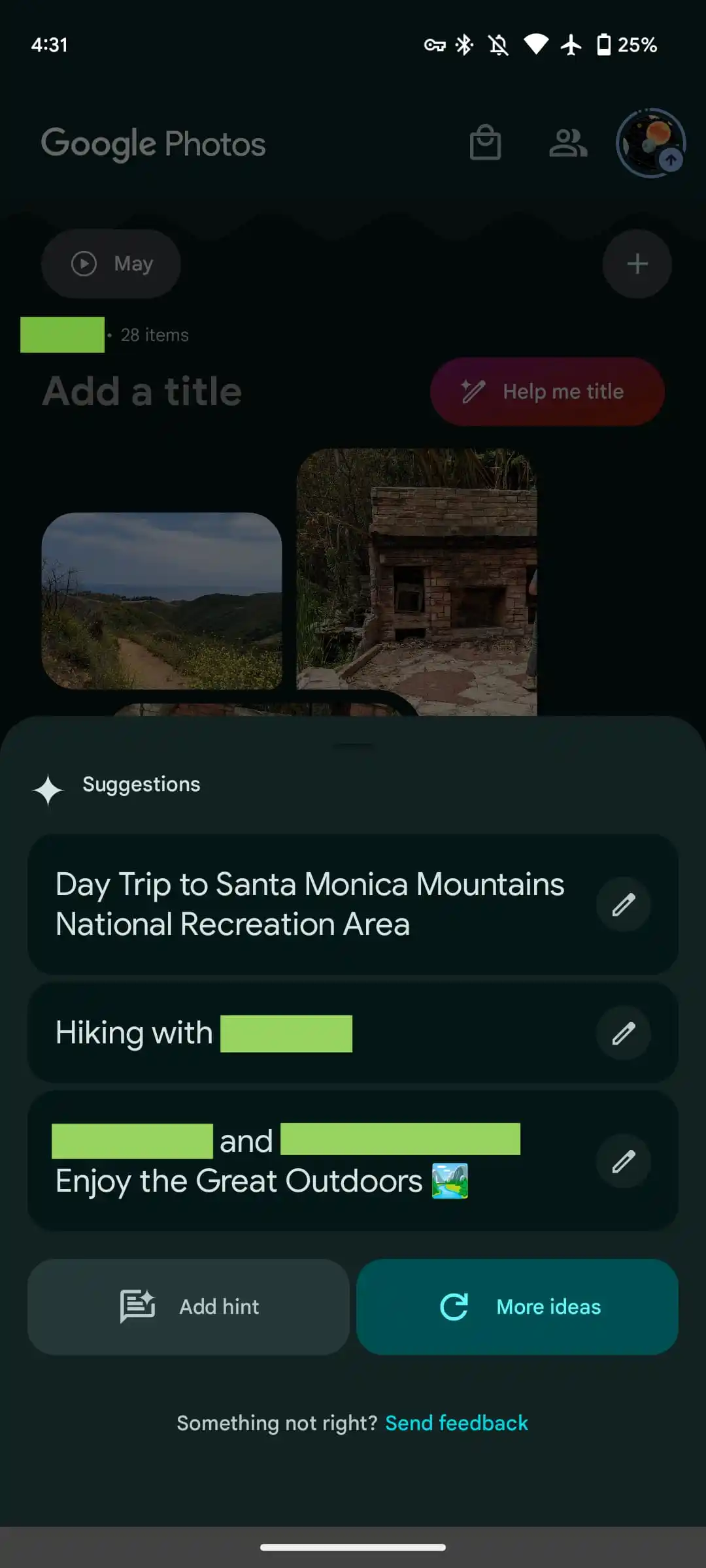
Users can create memories, which are pseudo albums from an editing and sharing perspective, from a rather tiny FAB (floating action button) that only appears when you scroll down. Meanwhile, generative AI is used to offer “customized title suggestions.” “Help me title” slides up a sheet that lets you add a “hint” to guide the generation.
Google started rolling this out in mid-August, but the revamp is only now seeing wide availability with version 6.54. If it’s not yet live on your device, try using the “Force stop” option on Google Photos from App info. It does not appear to be live on iOS yet.
This Google Photos redesign and Memories feed is coming first to the US and is set for global availability in the “coming months.”
Google Photos gets updated upload UI on the web
A small tweak to the Google Photos website in recent days modernizes the interface for uploading images and videos.
Like before, you can start uploading by dragging files into the window, or by tapping “Upload” in the top-right corner and selecting “Computer” to get a system file picker. Google Drive (pre-Workspace logo) is also still listed, but that’s now joined by “Add from other places,” which can also be found in the mobile app:
Transfer from photo collections: Facebook, iCloud
Transfer from photography services: Pixieset, Pic-Time, image.canon
Digitize physical photos: Photomyne, Capture, CVS
Back up from your computer: Google Drive for desktop
Scan photos with your phone: PhotoScan
The more notable change today is to the bottom-left corner progress UI. When uploading, you’ll get an estimate of how much longer it will take with a blue “Stop” button to end the process. “Show more” will expand this UI to provide a list of what’s in the queue.
Once complete, you just get “Add to album” as the available action, with “Saved album” removed. Overall, the UI is smaller than before.
Meanwhile, the redesigned Google Photos app on Android and iOS has yet to widely launch.
Google Photos Locked Folder sync starts rolling out
Announced at the end of August 2023, the ability to sync the Google Photos Locked Folder across devices signed in to your Google Account is rolling out more widely.
As of this morning, we’re seeing a prompt to “Back up Locked Folder” at the top of Google Photos. (Try Force stop from App info if it doesn’t appear, but this is not fully launched yet.) That takes you to a screen that explains how “Backing up Locked Folder keeps your hidden photos & videos safe when you change devices or delete the app.”
You have the option to “Turn on backup” or “Do not back up,” which keeps the feature unchanged from today. The Locked Folder grid will show a cloud icon in the top-right corner. That menu will let you disable sync at any time.
After turning it on, everything will start uploading to the cloud. Locked Folder can be enabled on a per-device basis. In this case, it appears that previously synced photos will appear on a disabled device, but any additions won’t. A cloud icon appears in the bottom-right corner of image previews in those cases.
Meanwhile, “Locked Folder” appears in the photos.google.com sidebar just above “Trash.” To access, you will have to sign in to your account, including 2-Step Verification (2FA).
This is getting a wider rollout today — photos.google.com/lockedfolder — but it’s not yet fully available. We’re also now seeing Locked Folder with sync in Google Photos for iOS today. Meanwhile, the broader bottom bar redesign and AI-powered Memories is not yet seeing broad availability.
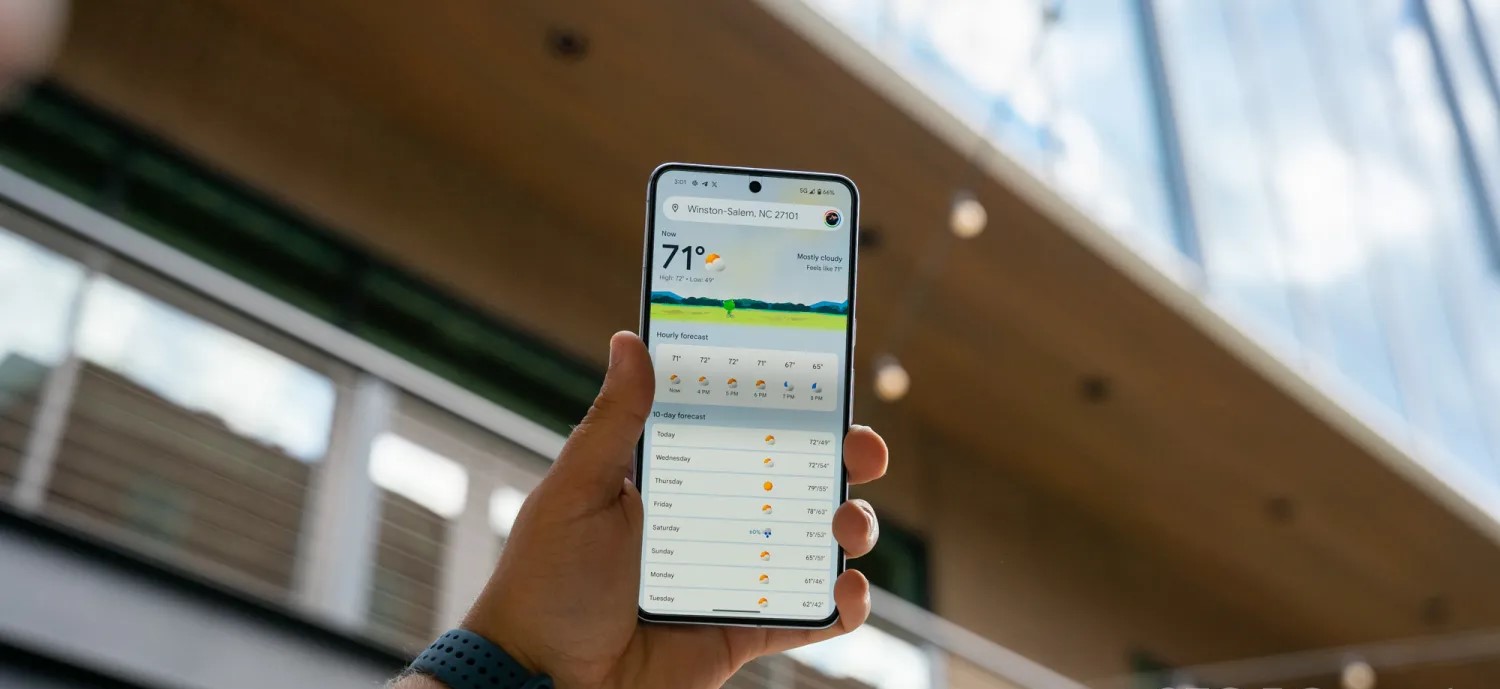
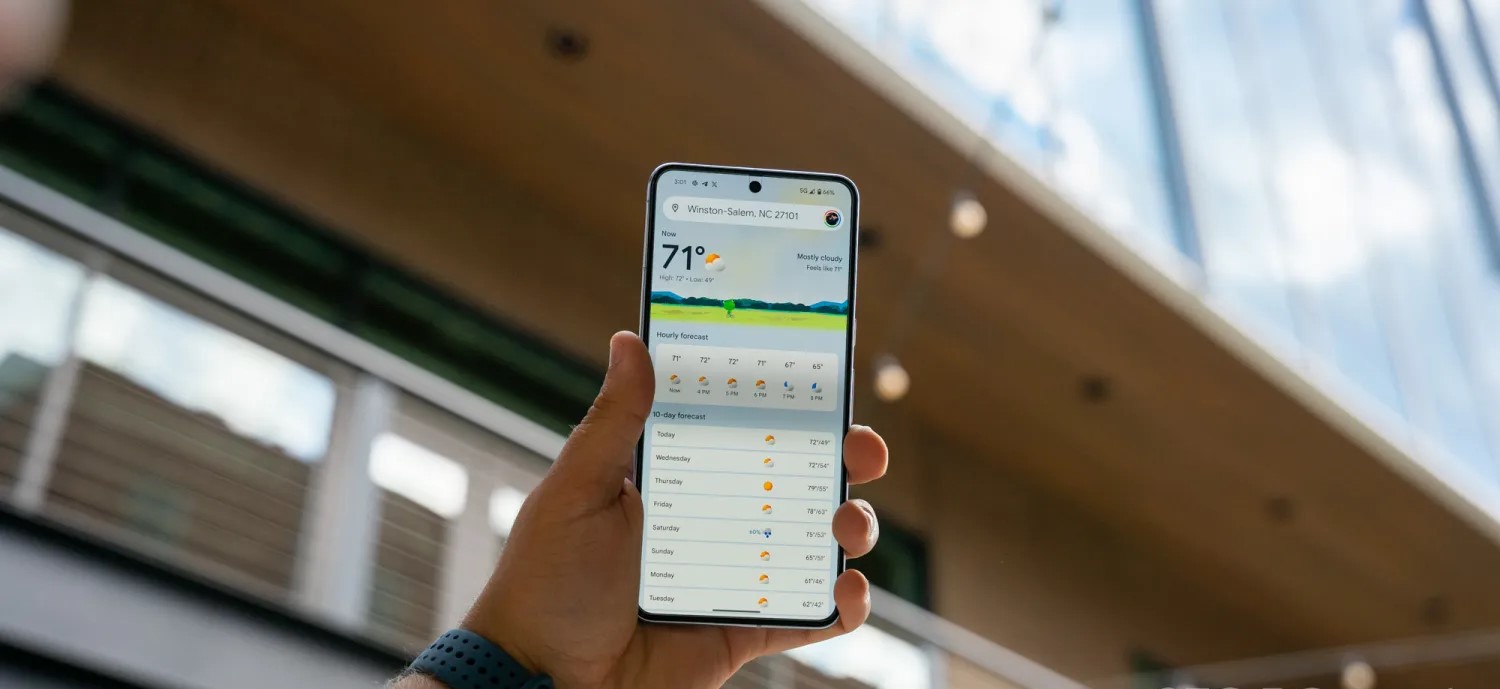
Google did a pretty good job redesigning the Weather experience on Android. It’s modern and has a straightforward layout that shows what’s coming up in the next few hours and days all on one screen.
When you do scroll or select a day, digestible cards note wind, humidity, UV index, precipitation, and more. Meanwhile, Google has kept around the lovable “Froggy” with different backgrounds that reflect the current condition to add a bit of whimsy. It really does keep the app fresh.
Helping power 12-hour precipitation forecasts is a deep learning model called MetNet-3 from Google Research and DeepMind that has so far been on par with Apple Weather/Dark Sky in my testing.
This updated Weather experience is currently available on Pixel, but it will presumably expand to all Android devices going forward.
Before the October rollout to Pixel, the last update to Google Weather came in September of 2021. That redesign used Google’s previous Material Theme design language just as Material You was going live in other apps. It’s embarrassing that it took that long to modernize.
Looking forward, I really hope Google has a feature roadmap in place rather than Weather entering maintenance mode until it’s time for the next refresh. An obvious thing to add next is radar and more widgets to show hourly and multi-day forecasts in a 5×1 size. A broader thing Google could do is bring weather to more first-party apps. It’s already starting to do this with Clocks and Contacts, but I think adding it to Google Calendar with a direct link to the full experience would be very interesting and could help people schedule their days.
One thing that could help with that is separating the fullscreen Weather experience out of Google Search and making it a standalone application. For a long time now, it has been part of the Google app.
The reason behind this is presumably because Google views weather as an extension of Search’s knowledge and information purview. The search engine has a rich experience on the web, as well as the Google app on iOS, which also uses MetNet-3. However, that’s not enough, and I think you need to give people a simple app icon that’s ideally preloaded onto every Android device. Given how good Apple’s Weather app is on iOS, Google really should have a 1:1 competitor.
At the very least, Google needs to drop the Pixel exclusivity for the two widgets available today, as that would make for a much more prominent way to launch weather than the homescreen shortcut that’s badged with the Google icon in the corner.
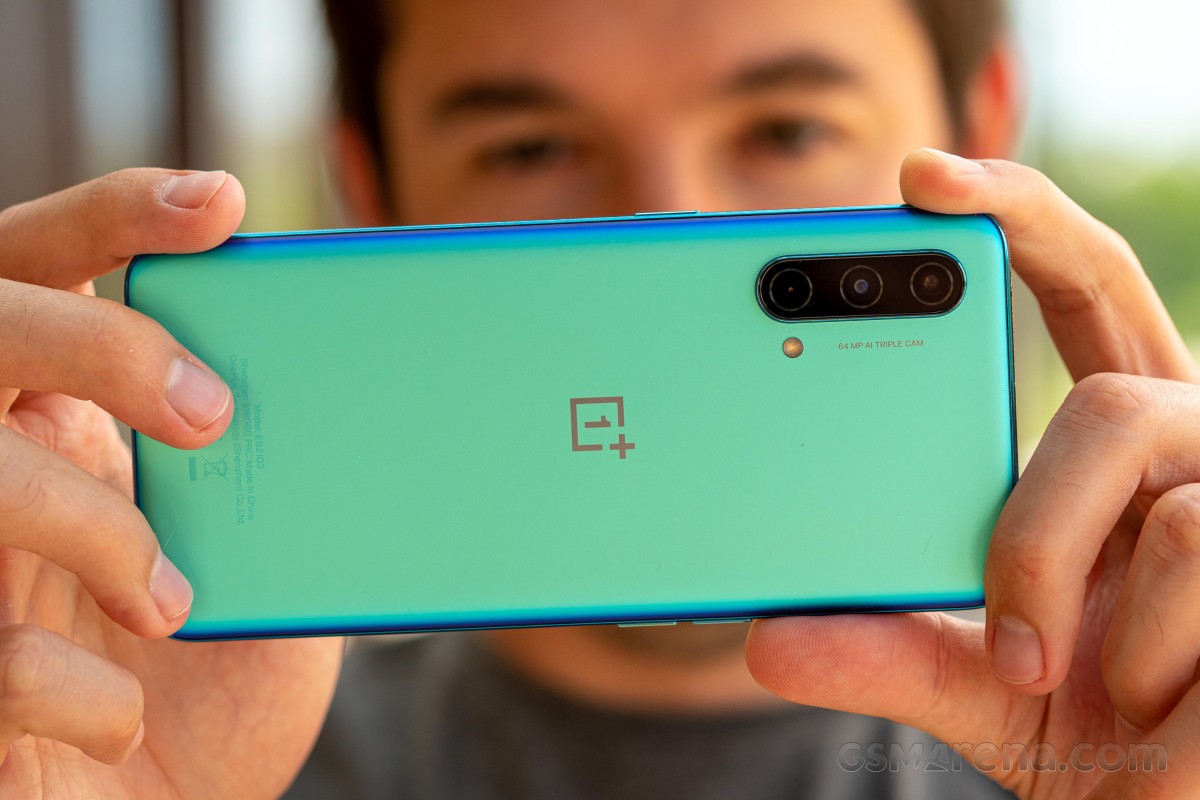
The OnePlus Nord CE 5G is the new mid-range killer or that’s at least how OnePlus markets the handset. And it’s probably not too far off from the truth. The Nord CE isn’t a successor to the original Nord but more of a toned-down version of the latter, hence the name CE, which stands for “Core Edition”. The phone keeps some of the core specs the original Nord brought, including the design, which is almost indistinguishable from the first Nord. So instead of replacing it, it’s meant to co-exist with last year’s Nord.
At around the €300 mark, the phone does face fierce competition from left and right, but it also seems to be well-equipped for the job too. It has a bright, 90Hz OLED display, a competent Snapdragon 750G, which is only a small step down from the Snapdragon 765G-powered vanilla OnePlus Nord. The base version also arrives with 128GB internal storage.
One of the key selling points is probably the portability of the Nord CE. With a 6.43-inch display, the phone is on the compact side, with a profile of less than 8mm and a weight of just 170g.
Disclaimer. We can not guarantee that the information on this page is 100% correct.
OnePlus was able to cram up a respectable 4,500 mAh battery inside the phone, which is even a step up from the first Nord, while retaining the 30W fast charging called Warp Charge 30T Plus.
As far as cameras are concerned, the Nord CE has a 64MP main camera and a secondary 8MP ultrawide. The third camera on the back is used only for depth information – there’s no dedicated macro unit. We can’t really complain, though, as macro cameras don’t bring extra value to the camera setups, especially at this price range.
So is the Nord CE 5G a mid-range killer? We try to find out in the following pages, but one thing is for sure, even by just assessing the specs sheet – the device is a well-rounded product with nothing missing from the list of essentials.
Unboxing the OnePlus Nord CE 5G
The phone comes in a fairly standard retail box containing the usual user manuals, a 30W-rated charger, USB-A to USB-C cable and a transparent case.
Our review unit came with a set of bumper cases from OnePlus itself. They are all made of soft-touch silicone and some small, dust-like golden particles stand out. It’s needless to say that they fit perfectly too.
Competition
The OnePlus Nord CE is touted as a “mid-range killer” but it has to fight off quite a few worthy competitors. This price segment is highly competitive, and since OnePlus wants to position itself as a more premium brand, it’s going to be hard. The good news is that the Nord CE 5G is a capable, well-balanced phone that might be up to the task.
Let’s start with the most obvious competitor – the Xiaomi Redmi Note 10 Pro. This handset starts at €260, which is €40 shy of the Nord CE’s starting price, but if we equate the storages (the Nord CE starts at 128GB), the difference is merely €20. Either way, the Redmi Note 10 Pro has a superior 120Hz OLED display with HDR10 support, a larger battery (although shorter battery life according to our tests), it packs a microSD card slot and offers a sensibly better camera experience all-around. The Nord CE fights back with more compact dimensions, arguably more practical and better-looking build, cleaner and leaner Android experience, longer battery life, faster charging and more importantly – a more recent and powerful SoC. It all boils down to software preference and also if that extra 30Hz on the Redmi Note 10 Pro really matter to you.
Another similarly priced alternative (€300) from the same camp is the Poco F3. This one also employs a superior 120Hz, HDR10+ compliant OLED display and offers 128GB as base storage. The camera department has been overlooked in favor of the considerably more powerful Snapdragon 870 chipset, but the overall camera quality doesn’t fall behind the Nord CE’s. In fact, it may be better in certain situations, mostly due to the better ISP in the Snapdragon 870. Battery life is still on the Nord CE 5G’s side, though. It’s a tough choice, that’s for sure, but if future-proofing and performance per dollar are your main priorities, the Poco F3 is the right way to go.
The recently released Galaxy A52 (about €315) is a hit in the mid-range segment. A well-balanced device with good camera performance across the board and an excellent Super AMOLED display with a 90Hz refresh rate. The microSD card slot is included, and the storage variants start at 128GB too. Nevertheless, as most of the other competitors, the Galaxy A52 (not to be confused with the 5G variant) loses the battery endurance and raw performance (Snapdragon 750G vs. Snapdragon 720G) races against the Nord CE 5G. The polished and more recognizable OneUI running on the Galaxy A52 is a sensible consideration.
Now it’s time for some in-house competition. The Realme 8 Pro is arguably one of the best phones to have around the €300 mark. You can even strike a deal for around €260 if you shop outside Realme’s official web store. And even though the display is just 60Hz, it’s still big, bright and crisp. Definitely not on par with the competition, though. It also settles for a Snapdragon 720G like the Galaxy A52. The camera department is the main reason to consider the handset – with its proficient main sensor and lossless (sort of) 3x zoom. Its 50W fast charging is another aspect worth taking into account, while the microSD card support + 128GB base storage combo is nice to have. And yet, the Nord CE’s more powerful chipset, HRR display, solid software experience and great battery life are really hard to beat.
Verdict
You’ve probably noticed the recurring theme when comparing the Nord CE to its direct rivals – it has better performance than most, and it has a better battery life than most. Even though the camera software needs more work, the Nord CE can stand its ground in the face of competition with a compact size, great OLED display and snappy user experience.
It sure has a few omissions like the microSD card support or the HDR10 video support, but they can be easily forgiven when assessing the Nord CE as a complete package. The Nord CE 5G is a great addition to the OnePlus roster, and it gets an easy recommendation from us.
Pros
Compact and lightweight design.
The plastic doesn’t feel like one and the Void Blue color keeps fingerprints at bay.
Bright OLED 90Hz display with good auto HRR control.
More powerful SoC than the majority of competitors, 128GB base storage.
Excellent battery life and fast charging solution.
OxygenOS feels as snappy as ever, adds a couple of neat features.
3.5mm jack, NFC.
Cons
No ingress protection rating.
Main camera outputs muted photos with a slight magenta tinge and cool white balance.
Ultra-wide camera has oversaturated colors and image quality is underwhelming.
Samsung is pretty widely rolling out its Android 14 update over the past week, but there’s a slight chance you should wait to actually install it, as it seems Samsung has left out a method that prevents burn-in from the status bar.
Burn-in on smartphone displays was once a major problem, with a few years on the same smartphone often resulting in display elements showing up nearly constantly on the screen. A common trick to prevent this is to slightly shift UI elements so they never stay in the same place too long. It’s nearly invisible to the user, but goes a very long way in preventing burn-in.
In One UI 6 (Android 14), though, it seems Samsung might have left this out.
Users on Reddit noticed that the status bar elements (time, battery, etc) no longer seem to shift over time. This was spotted by comparing screenshots over time, with the status bar elements perfectly aligning. Back in One UI 5 (Android 13), comparing screenshots over time showed that the elements would move a fair bit, resulting in an almost blurred effect when stacking screenshots on top of each other as seen below.
Notably, the navigation bar buttons still move, so Samsung doesn’t seem to have given up on this method entirely.
As for what exactly is going on here, it’s really hard to say. It’s entirely possible that Samsung has just adjusted screenshots to where they compensate for status bar elements moving, or that the company is using a new method for preventing burn-in. It’s also noteworthy that the comparison is made on two different devices – a Galaxy S23 Ultra on One UI 6 and a Galaxy Note 20 Ultra on One UI 5.
In any case, it’s at least a little worrying, and we’ll be curious to see if things change with further updates.
One UI 5 (1st photo) vs One UI 6 (2nd photo)
Samsung posts a new Android 14 update schedule for over 50 Galaxy devices
Samsung’s Android 14 rollout is well underway this week, and the company has now posted an updated schedule for the release, which details over 50 devices set to be updated over the next couple of months.
In Germany, Samsung has posted (as spotted by SamMobile) a new schedule via the Samsung Members app that details over 50 different devices set to get Android 14. The updated schedule shows updates going through February 2024, with the bulk of the work being done in November and December of this year.
Of course, we’ve heard this story before. Earlier this month, a roadmap posted by Samsung in another European country also detailed the company’s plans before being scrubbed from the web. But there are a couple of reasons to believe this latest roadmap is much more accurate. For one, it has far more devices, and it also lacks specific dates, which are always tough to hit. Beyond that, it’s being distributed through the Samsung Members app instead of the company’s forums, and the Members app is where we’ve seen this sort of roadmap released in the past.
Presumably, Samsung will add this same list to other countries in the days to come. It’s not live in the US as of now.
That’s not to say this is a concrete, definitive schedule. It’s still lacking plenty of lower-cost models, and things are always subject to change. But, that said, this is the closest we’re likely to get.
Samsung Android 14 update schedule
Smartphones
Galaxy S23 – Completed
Galaxy S23+ – Completed
Galaxy S23 Ultra – Completed
Galaxy Z Fold 5 – November 2023
Galaxy Z Fold 4 – December 2023
Galaxy Z Fold 3 – December 2023
Galaxy Z Flip 5 – November 2023
Galaxy Z Flip 4 – December 2023
Galaxy Z Flip 3 – December 2023
Galaxy S22 – December 2023
Galaxy S22+ – December 2023
Galaxy S22 Ultra – December 2023
Galaxy S21 – December 2023
Galaxy S21+ – December 2023
Galaxy S21 Ultra – December 2023
Galaxy S21 FE – December 2023
Galaxy A72 – December 2023
Galaxy A54 5G – November 2023
Galaxy A53 5G – December 2023
Galaxy A52 – December 2023
Galaxy A52 5G – December 2023
Galaxy A52s 5G – December 2023
Galaxy A34 5G – November 2023
Galaxy A33 5G – December 2023
Galaxy A23 5G – January 2024
Galaxy A14 – December 2023
Galaxy A14 5G – December 2023
Galaxy A13 – February 2024
Galaxy A13 5G – February 2024
Galaxy A04s – February 2024
Galaxy M53 5G – December 2023
Galaxy M33 5G – December 2023
Galaxy M23 5G – February 2024
Galaxy M13 – February 2024
Galaxy XCover 6 Pro – December 2023
Tablets
Galaxy Tab S9 – November 2023
Galaxy Tab S9 5G – November 2023
Galaxy Tab S9+ – November 2023
Galaxy Tab S9+ 5G – November 2023
Galaxy Tab S8 – December 2023
Galaxy Tab S8 5G – December 2023
Galaxy Tab S8+ – December 2023
Galaxy Tab S8+ 5G – December 2023
Galaxy Tab S8 Ultra – December 2023
Galaxy Tab S8 Ultra 5G – December 2023
Galaxy Tab S7 FE – January 2024
Galaxy Tab S7 FE 5G – January 2024
Galaxy Tab S6 Lite – November 2023
Galaxy Tab Active 4 Pro – January 2024
Galaxy Tab Active 4 Pro 5G – January 2024
Galaxy Tab A8 – February 2024
Galaxy Tab A7 Lite – February 2024
Again, the list here certainly isn’t definitive or all-inclusive, but it offers a much clearer picture of Samsung’s Android 14 update schedule compared to what we’ve had thus far.
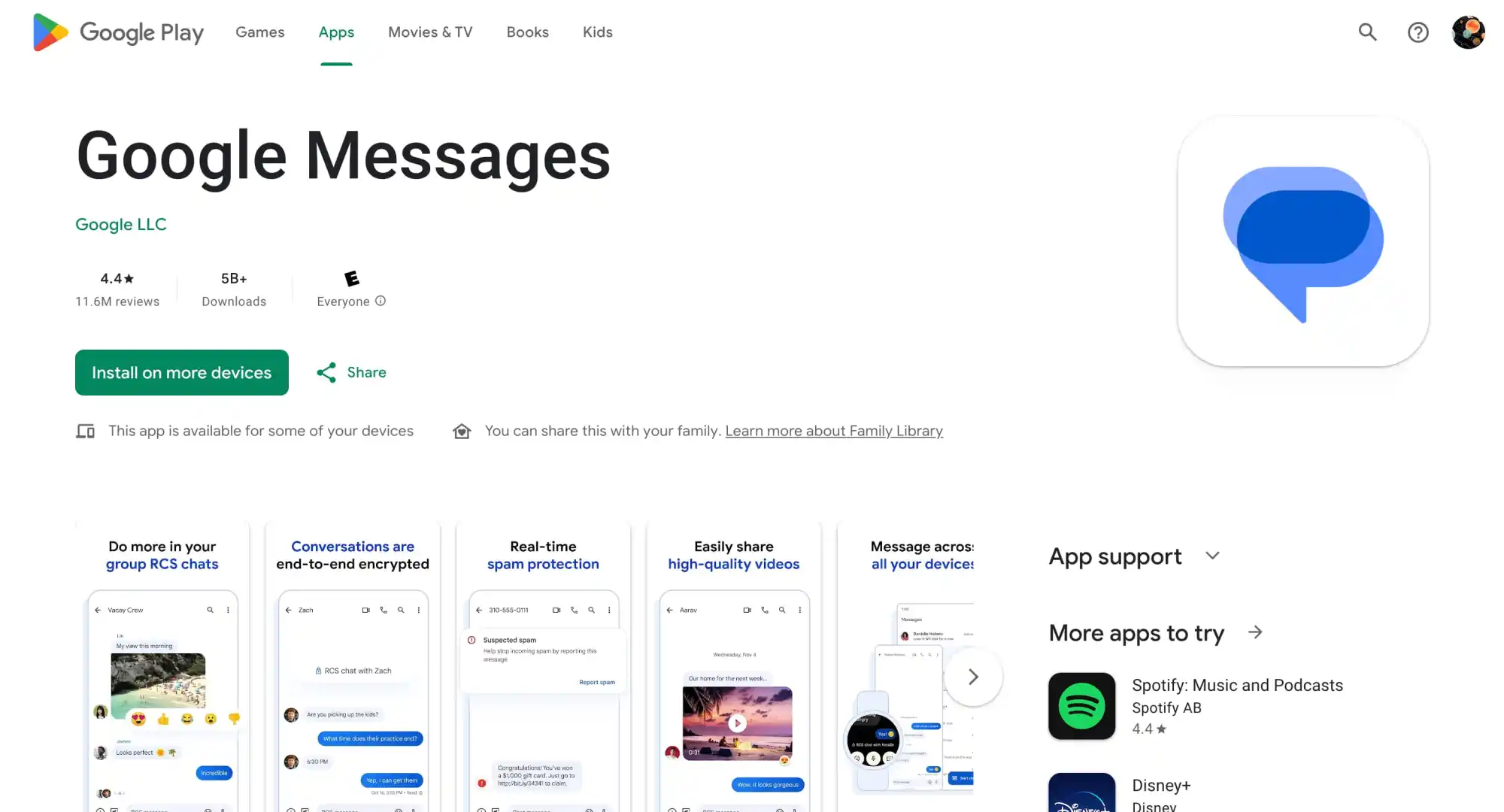
End users just called it “Google Messages,” and that’s now the name in the Play Store listing. The new branding is also reflected in yesterday’s blog post:
To celebrate our one billion milestone, Google Messages is introducing seven fun new ways to express yourself when communicating and connecting with other Android users – from shared themes and screen effects to AI-powered reactions.
Before this, the big homescreen redesign paired the four-color “G” with “Messages” in the top-left corner of the app bar.
The application is still just called “Messages” on Android. It remains to be seen whether “Phone by Google” will be getting a similar update to “Google Phone.”
Meanwhile, here’s a look at the upcoming Custom Bubbles feature that we enabled. From a conversation’s overflow menu, you’ll find a new “Change colors” option. Including the default, there are nine themes in total, with the picker providing a preview. The color you or the recipient selects will remain synced. It is not yet widely rolled out for beta users.
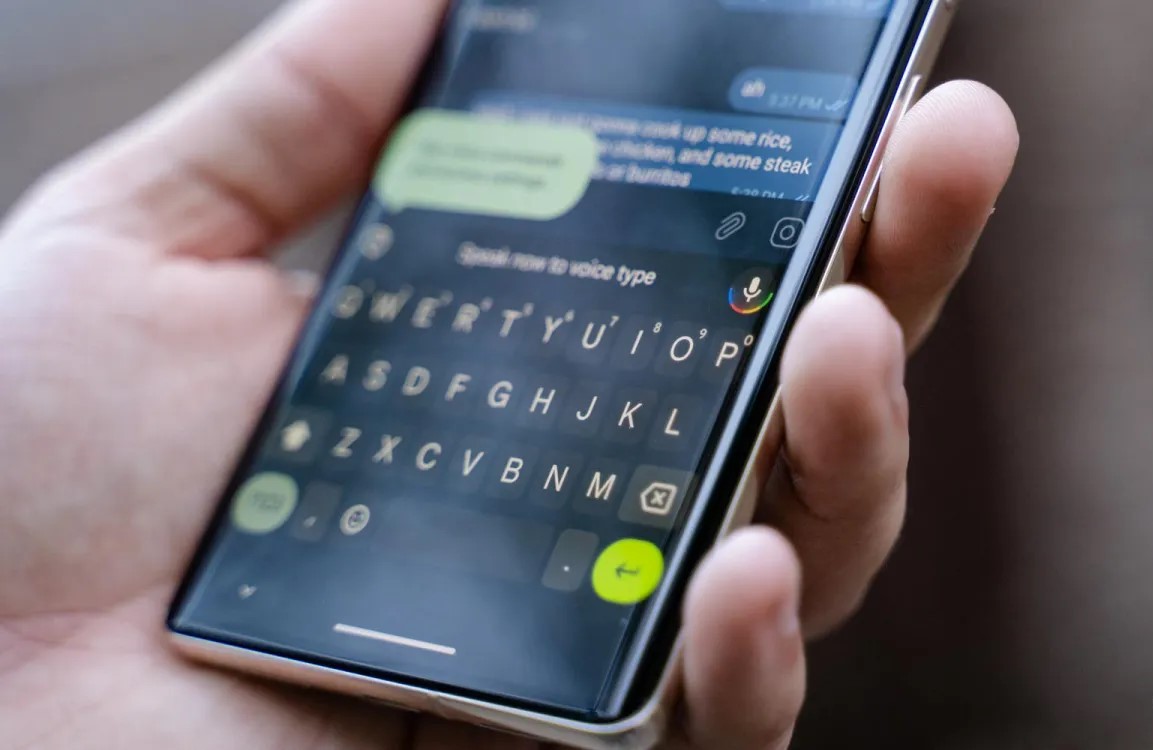
Swiping left on Gboard’s backspace key lets you quickly delete entire words/phrases, while Google will show what you just removed in the suggestions strip for quick restore. To take things a step further, there is a relatively quick way to access a dedicated “undo” key in Gboard for Android.
This tip was brought up in the context of a Reddit thread about how Apple’s shake-to-undo gesture on iOS is quite underrated. On Android, apps like Google Docs and Keep have their own undo/redo features, but it’s not a system-level capability.
The immediate Gboard workaround involves adding a Japanese keyboard. If you write something and then accidentally delete it, switch from your language to Japanese and tap the key in the top-left corner to undo.
This key has a pretty long memory, and we’re able to undo things even after exiting and returning to the app. It worked in Google Messages, Chrome, and other apps we tested.
Open Gboard Settings > Languages
“Add keyboard”
Search “Japanese” and select
Pick the first option in the carousel [12キー] and hit “Done”
By adding another keyboard, you will get a globe key to the left of the space bar. If you don’t like how that shrinks the bar, go to Gboard Settings > Preferences > “Show language switch key” toggle. If turned off, you can use the system language/keyboard key in the bottom-right corner of the screen, or Gboard’s “Next language” shortcut, which can be added to the top row.
Getting this dedicated undo key requires a tiny bit of work, and a more ideal solution would be for Gboard to add its own undo button in the suggestions strip. Fortunately, Google is working on just that, but it’s not yet available after being spotted in development this July.
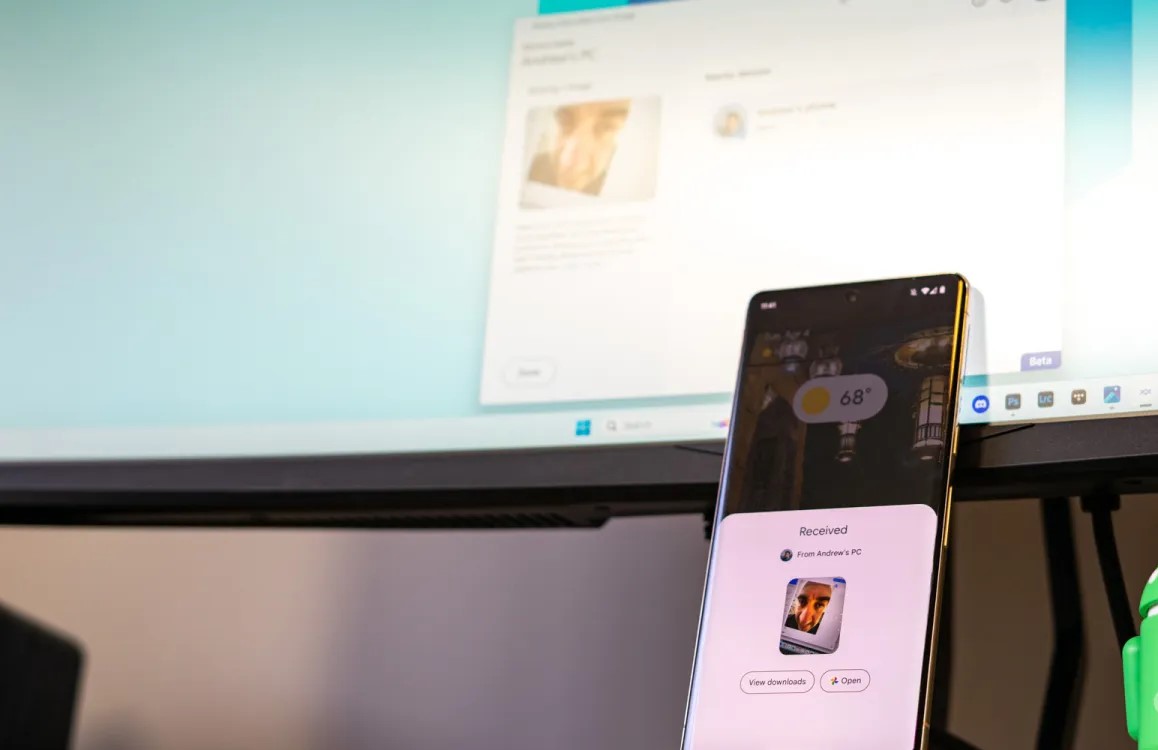
Initially arriving as a handy way to send files between Android devices, Nearby Share has expanded to support Chromebooks and even Windows PCs (Mac is not yet supported). Like AirDrop, it’s easy to send files to yourself or friends, while there’s also an option to receive files from anyone.
For whatever reason, it seems that Google is preparing to ditch the “Nearby Share” branding that the company has used since 2020. The news comes courtesy of Kamila Wojciechowska on Twitter/X.
💦It seems like Google's renaming Nearby Share to… Quick Share, which is also the name for the Samsung's file sharing solution? uhhhhh
Today I received a GMS update to the version 23.50.13 and, soon after that, the notification from the screenshot above. The update as well as… pic.twitter.com/RkobYEMIw4
After installing the latest beta update to Google Play services (version 23.50.13), a notification reportedly appeared informing of the rebranding. Alongside the new “Quick Share” name, the service has also been given a new icon consisting of two arrows pointing at each other with semicircular tails. The new icon even appears in the Quick Settings tile on Android devices. The previous icon resembled two opposing arrowheads/boomerangs woven together.
Nearby Share is now Quick Share
Look for the new name and icon to share with nearby devices
This change appears to only be a visual one, as otherwise, the service seems to still function exactly as it did before.
That said, it’s interesting that Google has chosen to use the name “Quick Share,” a moniker that currently Samsung uses for its own file-sharing utility on Galaxy phones. It’s currently unclear if Samsung’s Quick Share has anything to do with Google’s rebranding of Nearby Share.
As this change is currently only appearing in a beta version of Play Services, it will likely be a few more weeks before Nearby Share is widely rebranded to Quick Share on Android devices.